

Prerequisites
- Docker installed on your machine
- Dynatrace account
- Dynatrace Token
- Gateway v5.2.0 or higher
- OTel Collector docker image
Instructions
Step 1. Generate Dynatrace Token
- In the Dynatrace console, navigate to access keys.
- Click on Create a new key
- You will be prompted to select a scope. Choose Ingest OpenTelemetry traces.
-
Save the generated token securely; it cannot be retrieved once lost.
Example of a generated token (taken from Dynatrace website):
Step 2. Configuration Files
-
OTel Collector Configuration File
Create a YAML file named
otel-collector-config.yml. In this file replace<YOUR-ENVIRONMENT-STRING>with the string from the address bar when you log into Dynatrace. Replace<YOUR-DYNATRACE-API-KEY>with the token you generated earlier. Here’s a sample configuration file:
- Docker Compose File Create a file named docker-compose.yml. Here is the sample Docker Compose file:
Step 3. Testing and Viewing Traces
- Launch the Docker containers: docker-compose up -d
- Initialize your Tyk environment.
- Deploy a simple HTTP API on your Tyk Gateway.
- Use cURL or Postman to send requests to the Gateway.
-
Navigate to Dynatrace -> Services -> Tyk-Gateway.
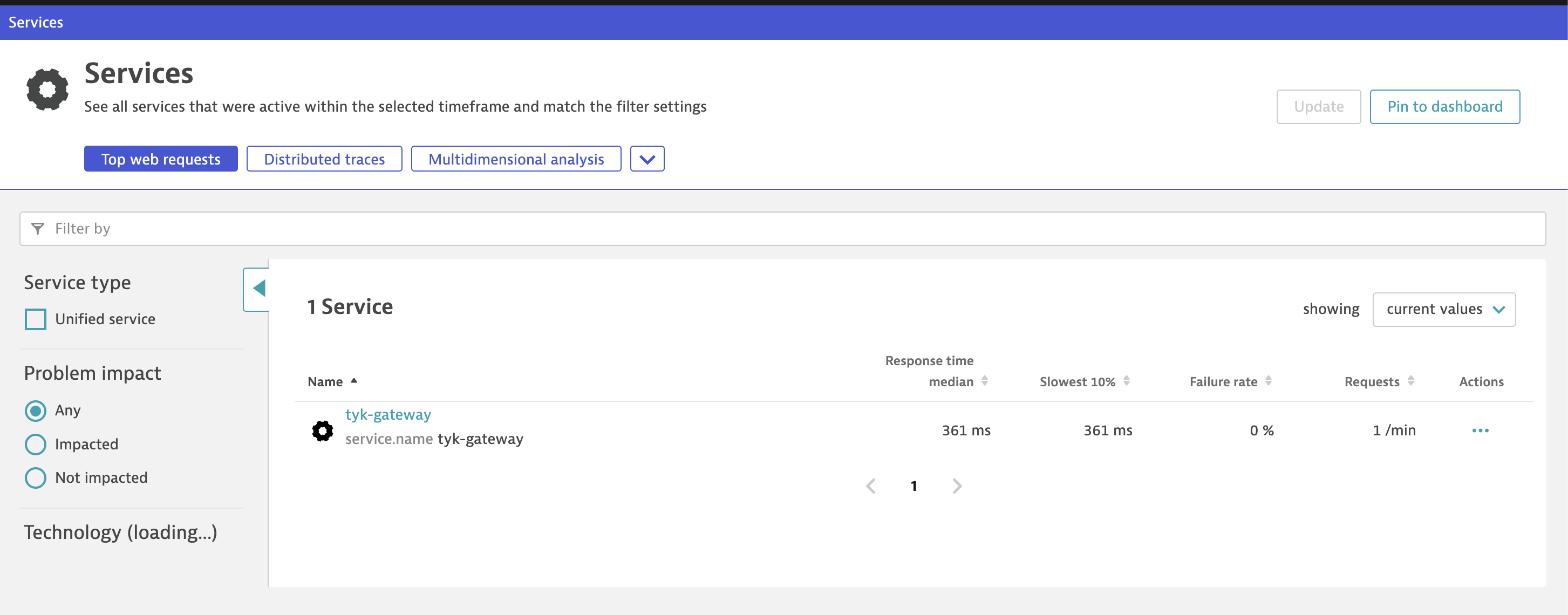
- Wait for 5 minutes and refresh.
-
Traces, along with graphs, should appear. If they don’t, click on the “Full Search” button.
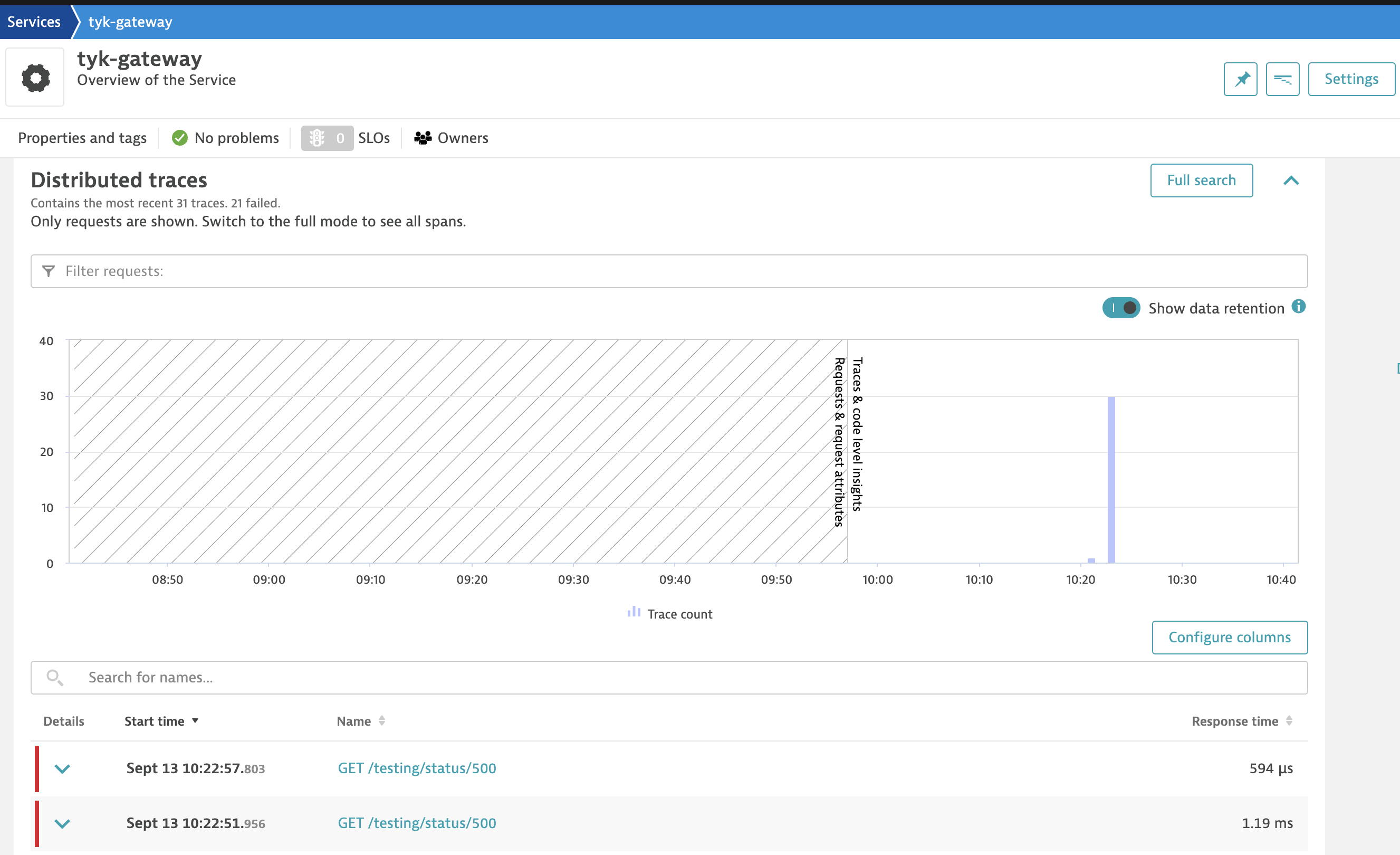
Troubleshooting
If traces are not appearing:- try clicking on the “Full Search” button after waiting for 5 minutes.
- Make sure your Dynatrace token is correct in the configuration files.
- Validate the Docker Compose setup by checking the logs for any errors:
docker-compose logs