

Introduction
Tyk Gateway produces three observability signals: structured logs, distributed traces, and metrics. It exports traces and metrics through the OpenTelemetry Protocol (OTLP), and writes logs as structured JSON that an OpenTelemetry Collector collects. This guide shows you how to enable each signal and route them to a local Grafana stack (Prometheus, Loki, Tempo). By the end of this guide you will have:- Structured JSON access logs from Tyk Gateway shipping to Loki
- Distributed traces exporting to Tempo
- Metrics (request rate, latency, error rate) flowing to Prometheus
- A Grafana instance wired up to all three backends
- Optionally, metrics from Tyk Dashboard, Tyk MDCB, and Tyk Developer Portal in the same Prometheus instance
Availability
OTLP metrics for Tyk Dashboard, Tyk MDCB, and Tyk Developer Portal have their own minimum versions: v5.16.0, v2.14.0, and v1.20.0 respectively.
Prerequisites
- Docker and Docker Compose installed
- A running Tyk deployment. We recommend following the Tyk getting started guide to set up a local Docker environment
- Basic familiarity with Docker Compose
Architecture
All three signals flow from Tyk Gateway to a single OpenTelemetry Collector endpoint. The Collector fans them out to the appropriate backend. Grafana queries all three. The control plane components can also send their metrics to the same Collector. See Add Tyk Dashboard, Tyk MDCB, and Tyk Developer Portal.Tyk Gateway does not export logs via OTLP. It writes structured JSON to
stderr. The OTel Collector reads those logs from the Docker container log path using the filelog receiver.Instructions
Step 1: Configure Tyk Gateway
Add the following environment variables to yourtyk-gateway service. These enable all three signals:
tyk.conf, the equivalent configuration is:
sampling.rate: 1.0 captures every request, which is suitable for getting started. In production, lower this to 0.1 (10%) or use ParentBased sampling. See the Tyk Gateway configuration reference for all options.Step 2: Add the OTel Collector
Create anotelcol-config.yml file in your deployment directory:
otel-collector service to your docker-compose.yml:
filelog receiver.
Step 3: Add the Grafana Stack
Add Prometheus, Loki, Tempo, and Grafana to yourdocker-compose.yml:
Grafana is mapped to port
3001 to avoid conflicting with Tyk Dashboard on port 3000. Adjust if needed.prometheus.yml to allow OTLP ingest:
tempo.yaml:
Provision Grafana Data Sources
Creategrafana/provisioning/datasources/tyk.yaml:
Step 4: Start and Verify
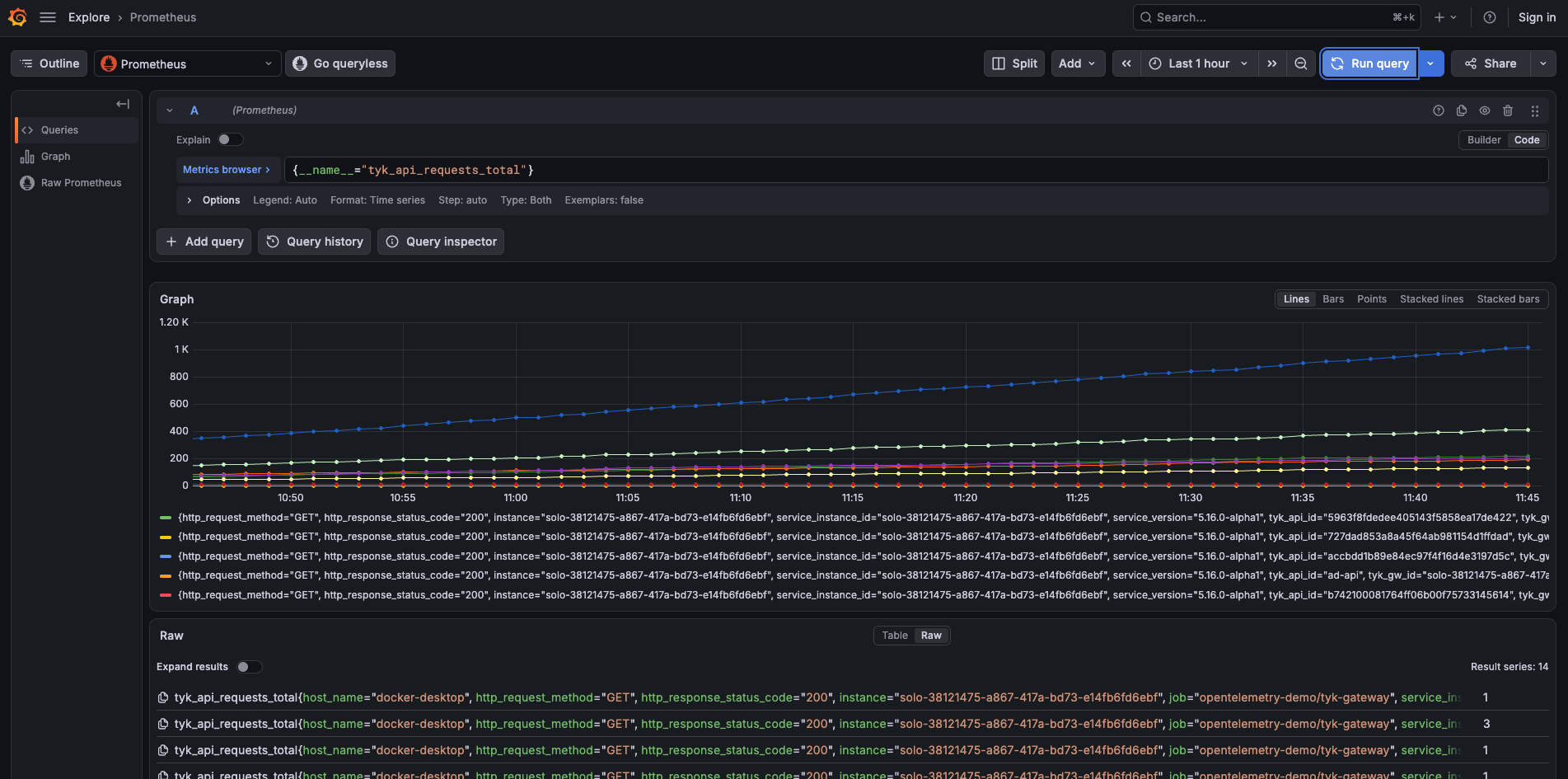
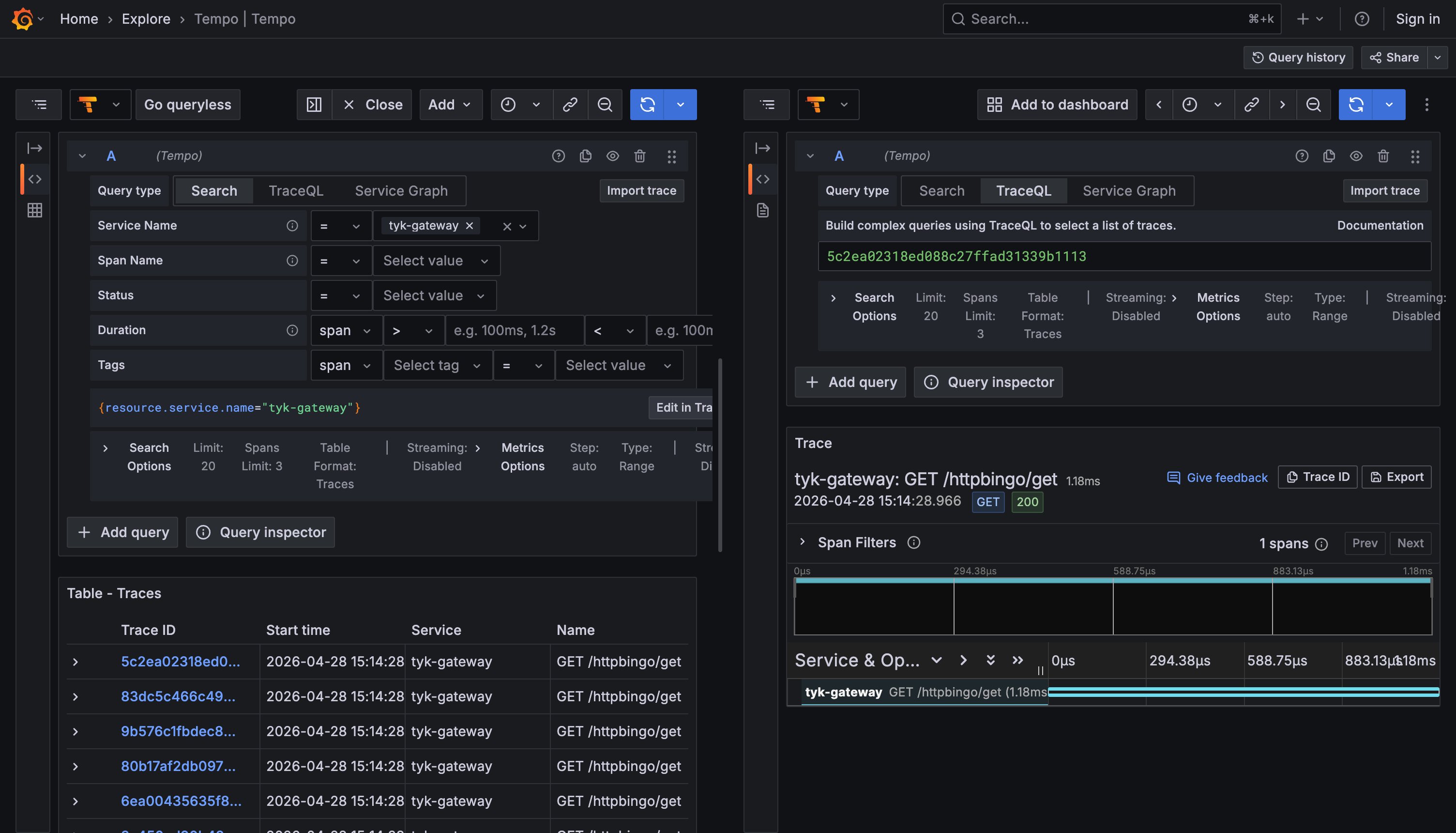
Restart your deployment to apply the configuration changes to Tyk Gateway and bring up the new services:If you are following this guide using the Tyk Self-Managed getting started setup, an httpbingo API is pre-configured. Generate test traffic with:
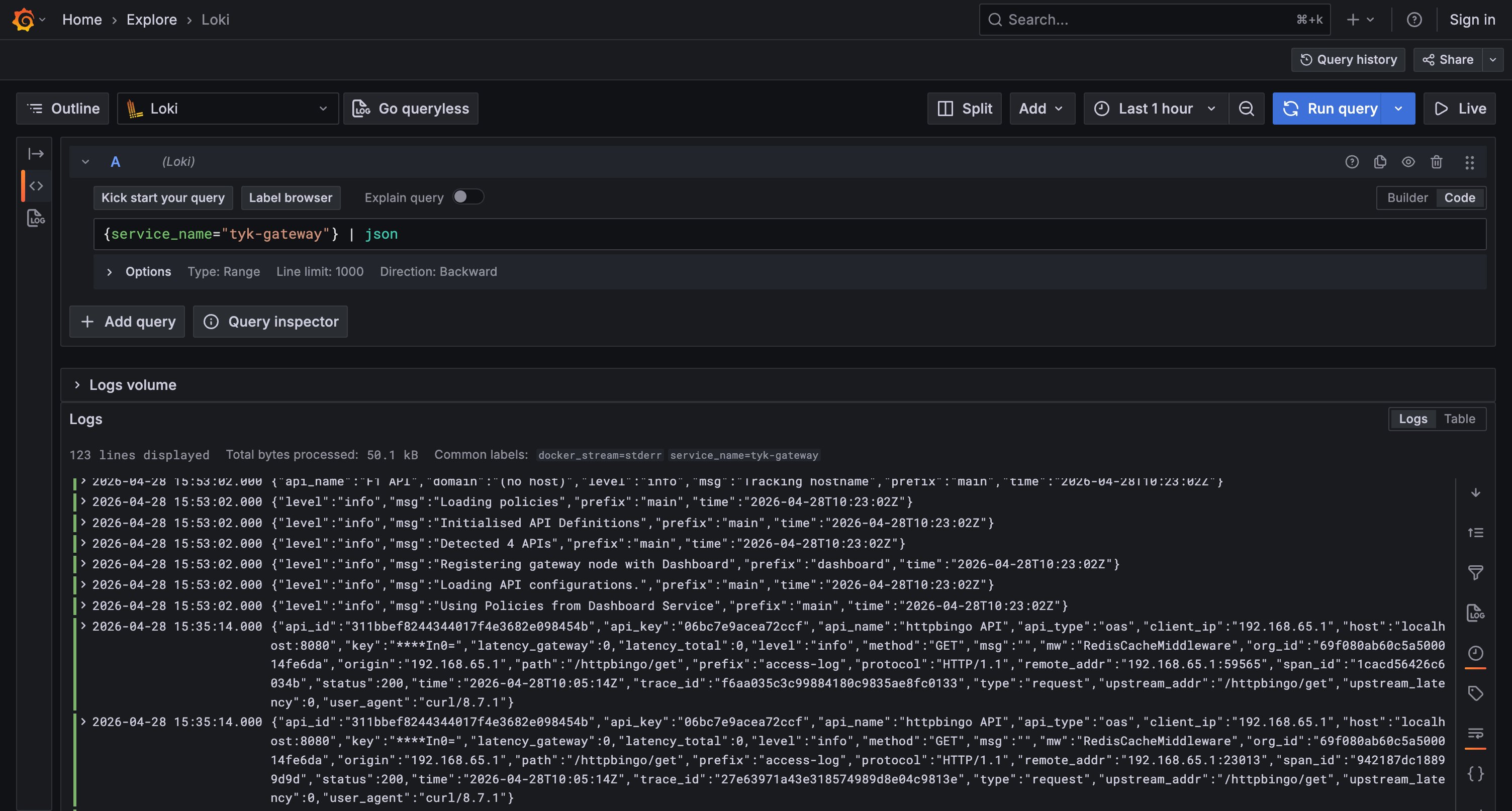
api_id, path, status, latency_total, and trace_id.
Add Tyk Dashboard, Tyk MDCB, and Tyk Developer Portal
This section is optional. If you only need Tyk Gateway metrics, skip to Use the Example Grafana Dashboards and Alert Rules. Tyk Dashboard, Tyk MDCB, and Tyk Developer Portal export metrics with the sameopentelemetry.metrics configuration pattern as Tyk Gateway. For Tyk Developer Portal, the block is OpenTelemetry.Metrics. This section adds all three components to the same Docker Compose deployment and points them at the same OTel Collector. The metrics from all four components then go to the Prometheus instance from Step 3. Each component exports all of its metric families by default. To turn off a family, see Metric Family Flags.
The Tyk Developer Portal configuration file uses PascalCase keys for all settings, not only for OpenTelemetry. Tyk Dashboard and Tyk MDCB use lowercase keys. Each component follows its own native pattern.
Configure Tyk Dashboard
Add the following environment variables to yourtyk-dashboard service:
tyk_analytics.conf, the equivalent configuration is:
control_plane_id blank to generate it automatically and share it with Tyk MDCB through Redis. If you run more than one control plane, set it explicitly.
Configure Tyk MDCB
Add the following environment variables to yourtyk-sink service:
tyk_sink.conf, the equivalent configuration is:
Configure Tyk Developer Portal
Add the following environment variables to yourtyk-portal service:
TYK_PORTAL_* equivalents of these variables also work.
If you prefer portal.conf, the equivalent configuration is:
Verify the Control Plane Metrics
In Grafana Explore, select the Prometheus data source and run: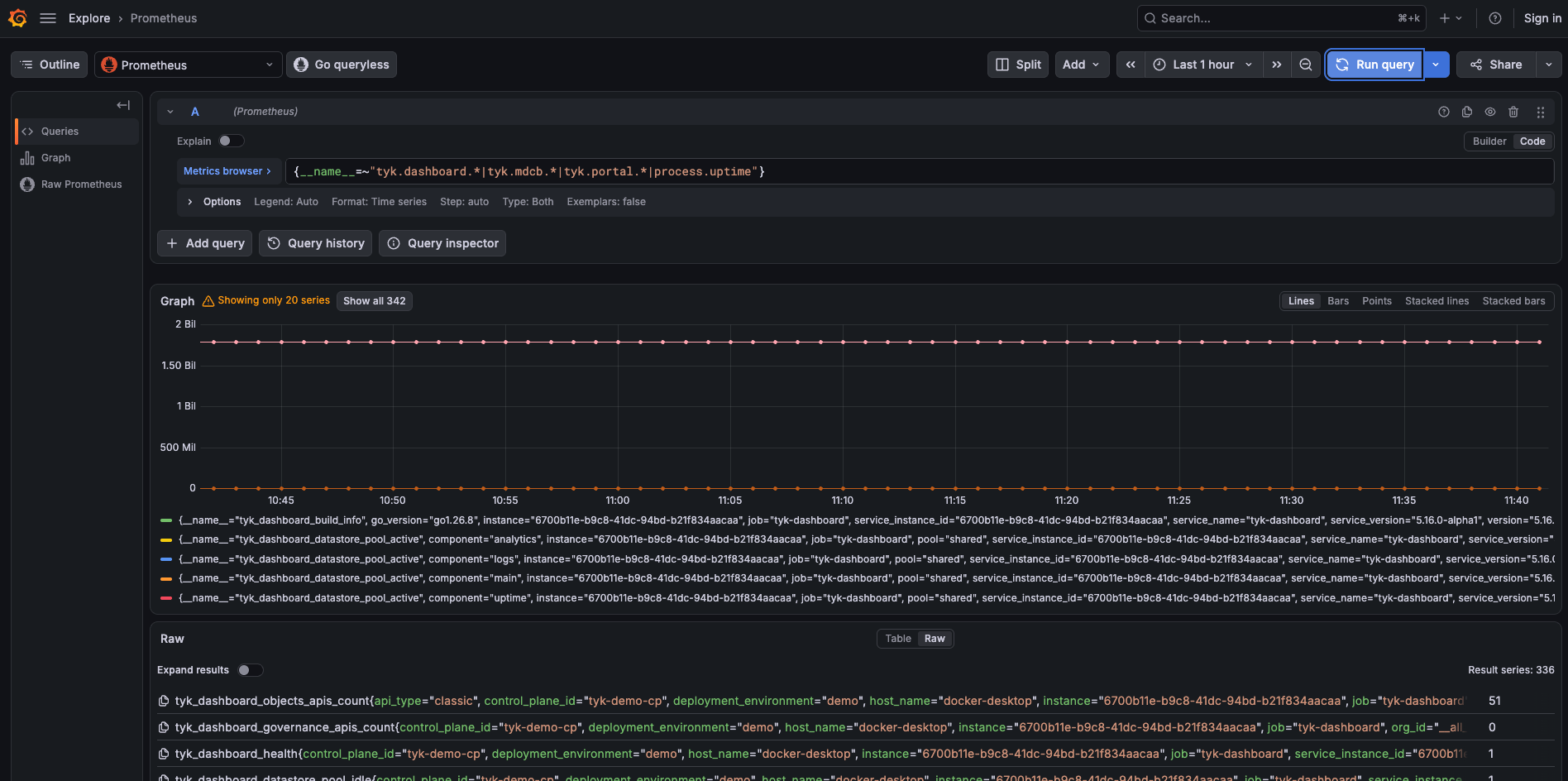
Use the Example Grafana Dashboards and Alert Rules
Tyk provides example Grafana dashboards and alert rules for the OpenTelemetry metrics that Tyk components export. Use them to get started quickly, without building panels or rules from scratch.Get the Examples
The examples are in the observability folder of the public Tyk Install repository. The README in the folder explains how to add OpenTelemetry to a new Tyk installation and to an existing one.Example Dashboards
These Tyk Gateway dashboards work with the setup from the Instructions:- Tyk Gateway - Fleet Health
- Tyk Gateway - API Portfolio Overview
- Tyk Gateway - API Troubleshooting
- Tyk Gateway - API SLOs
- Tyk Gateway - Native OTLP Metrics
- Tyk Gateway - MCP Metrics
- Tyk Dashboard
- Tyk MDCB
- Tyk Developer Portal
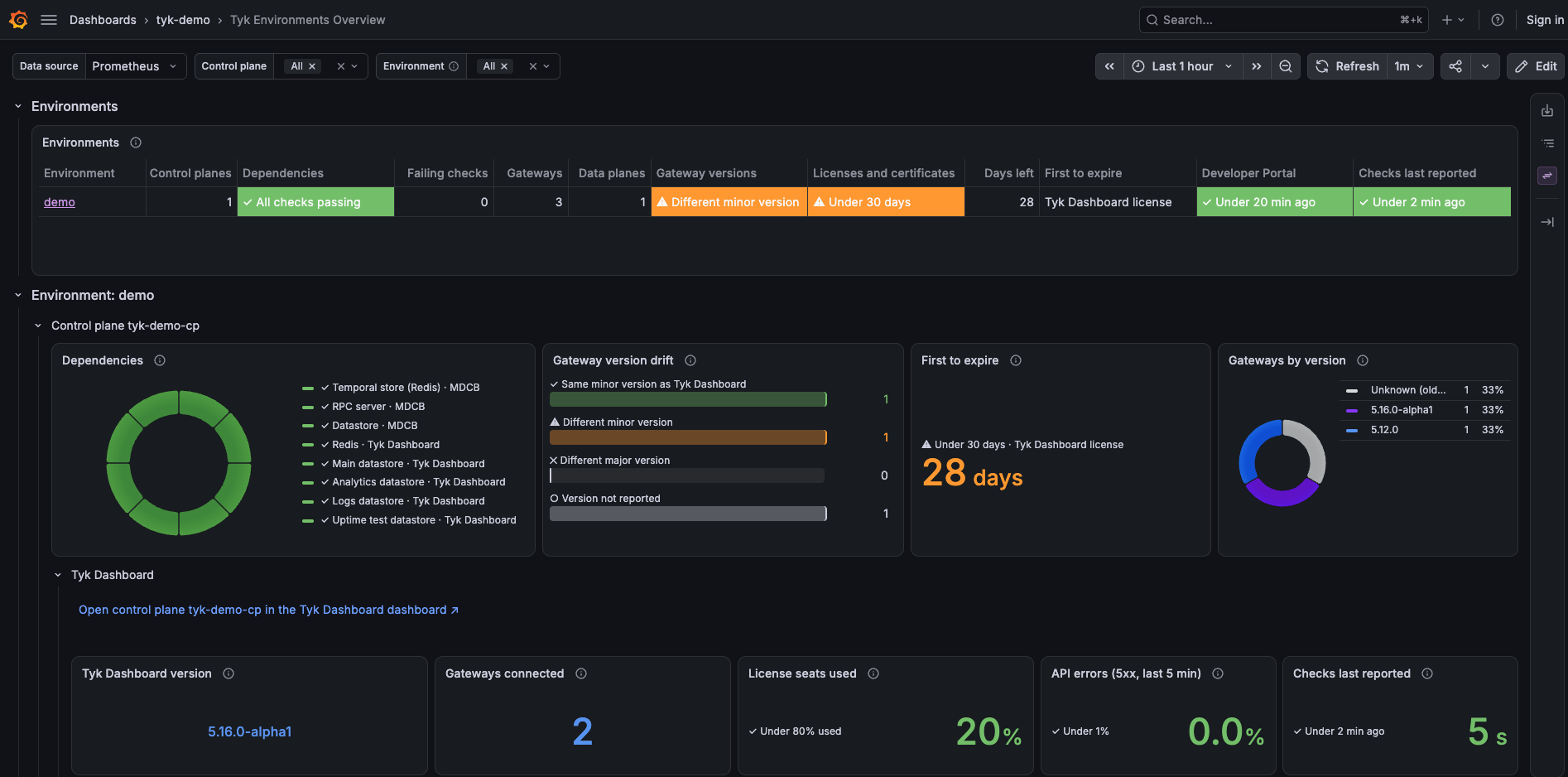
tyk tag.
Example Alert Rules
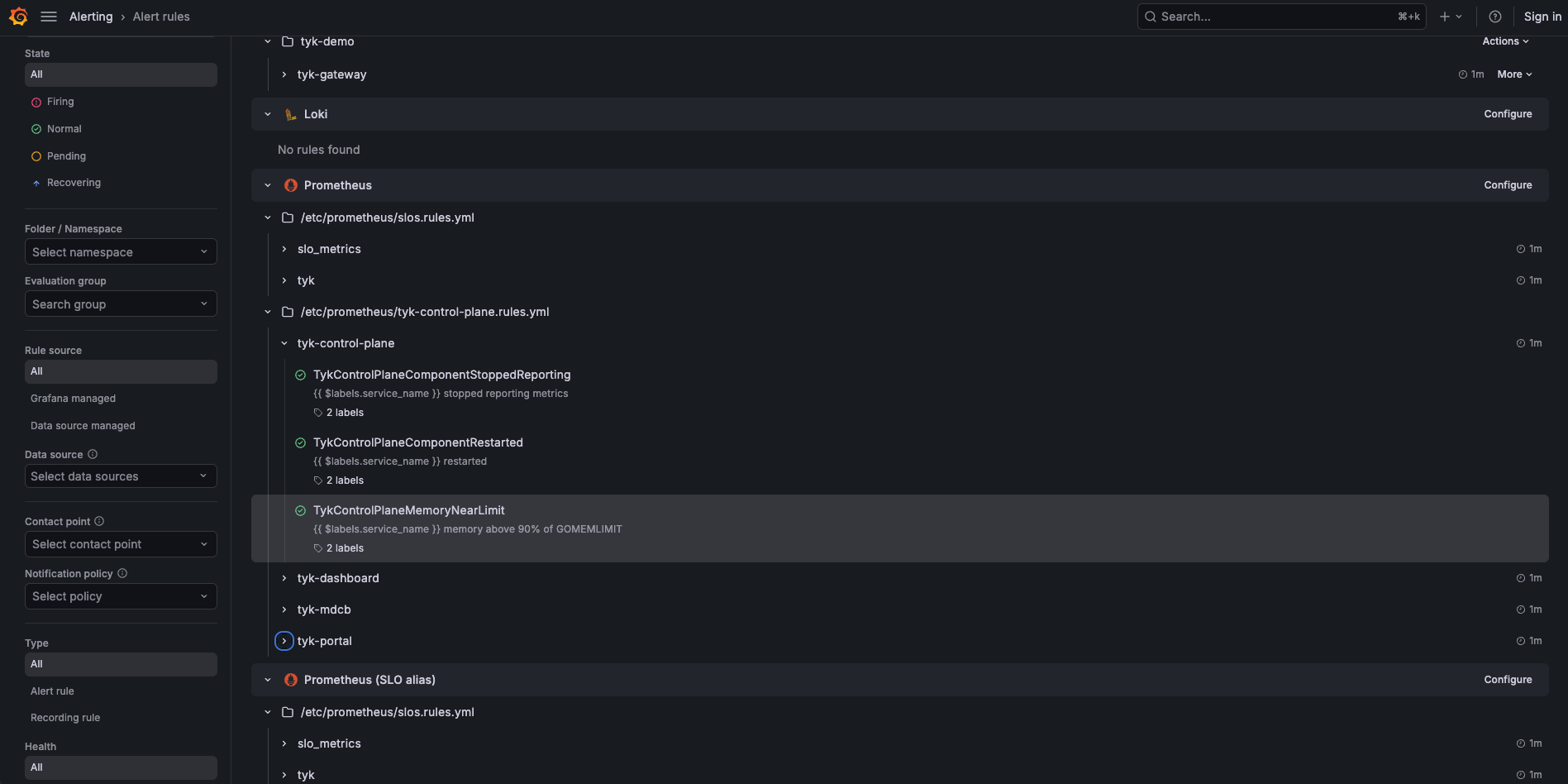
The examples also include alert rules for the control plane and its components. They need the control plane metrics:- Control plane: a component stops reporting metrics, a component restarts, or memory use is above 90% of the memory limit (when a limit is set)
- Tyk Dashboard: a dependency is unhealthy, the API error rate or latency is high, a gateway stops sending heartbeats, or fewer gateways are connected than 15 minutes ago
- Tyk MDCB: a dependency is unhealthy, a Data Plane group has no connected gateways or loses gateways, gateways reconnect repeatedly or fail to connect, a gateway stops sending heartbeats, gateways in a group load different API counts or run different versions, the RPC error rate is high, the metrics exporter fails, or the license or a certificate is about to expire
- Tyk Developer Portal: a dependency is unhealthy, the portal cannot reach a provider, or a provider sync is stale, failing, or slow
severity label (critical, warning, or info) and a tyk_component label. The thresholds are starting points. Adjust them for your deployment.
The rules are grouped by component: tyk-control-plane, tyk-dashboard, tyk-mdcb, and tyk-portal.
1
Open the Alert Rules
In Grafana, go to Alerting > Alert rules.
2
Start the Import
In the data source-managed alert rules section, select Import to Grafana-managed rules.
3
Upload the Rule File
Select Prometheus YAML file as the import source and upload the rule file.
4
Import the Rules
Select the data source that the rules query, then select Import.
These examples are built for Grafana. Because Tyk exports metrics with OpenTelemetry, you can use any observability backend. If you use a different backend, use the examples as a reference for which metrics to chart.
Next Steps
- Explore default metrics: see all Tyk Gateway metrics available out of the box in Default Metrics
- Add custom metrics: attach request headers, JWT claims, and response codes as metric dimensions using Custom Metrics
- Kubernetes deployment: for log collection in Kubernetes using the OTel Collector DaemonSet, see Collecting Gateway Logs with OTel on Kubernetes
- Explore control plane metrics: see the full Tyk Dashboard, Tyk MDCB, and Tyk Developer Portal reference in Default Metrics
- Understand control plane correlation: learn how
control_plane_idlets Tyk Dashboard and Tyk MDCB metrics correlate in Metrics Concepts