

Introduction
It is possible with the Multi-Cloud and the Self-Managed version of Tyk to manage multiple environments across data centers. This can be very useful if you have QA, UAT and Production environments that are physically or geographically separate and you want to move API configurations between environments seamlessly. This page explains how to promote APIs, keys and policies from one environment to another. If you instead want to segment a single Tyk cluster into zones, so that specific Gateways selectively load specific APIs, see Gateway and API Sharding.Move APIs Between Environments
It is possible to move APIs between Tyk environments in the following ways:In Shared Dashboard Environments
If the environments are both Self-Managed installations and are sharing a Tyk Dashboard (and optionally an MDCB instance) then you can use API and Gateway tagging to transparently and effortlessly move an API from one environment to another. See API Tagging for more details.API Sharding
You can also use API Sharding to move APIs in a Shards (and or MDCB) Tyk Self-Managed installation.In Separate Dashboard Environments
If the API dashboards are separate and you wish to migrate API Definitions between two completely segregated environments (e.g. migrating to new hardware or a new DC), then you can use the Export functionality of the Dashboard to download the API definition as JSON and import it into your new installation.Steps for Configuration:
-
Select Your API
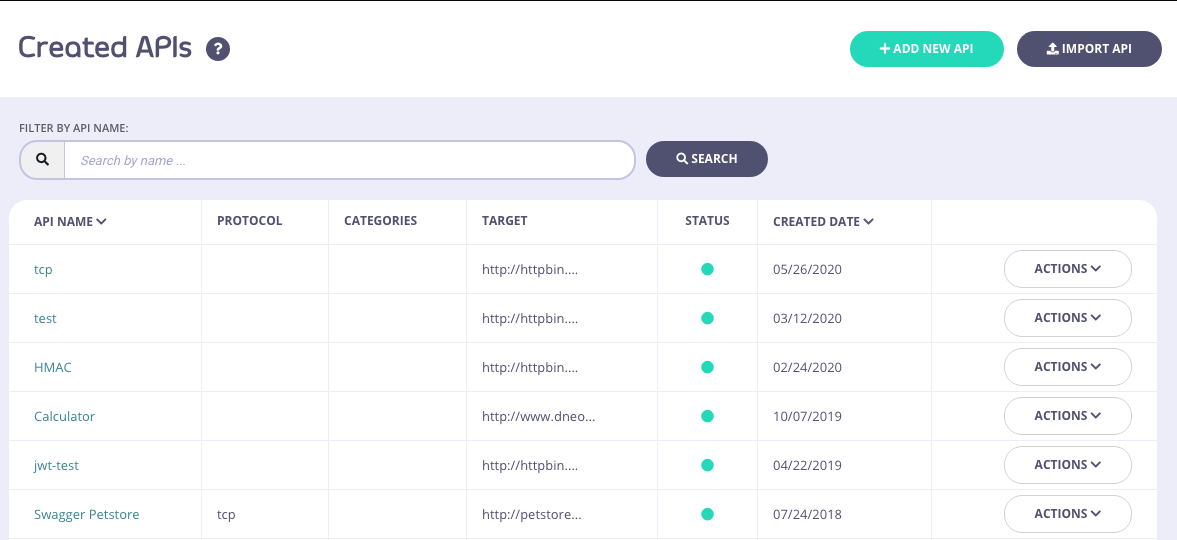
From the API Designer, select your API:
-
Export the API
Click EXPORT:

- Save the API Save and rename the JSON file:
-
Import into your New Environment
In your new environment, click IMPORT API:

-
Generate the new API
Select the From Tyk Definition tab and paste the contents of the JSON file into the code editor and click GENERATE API:
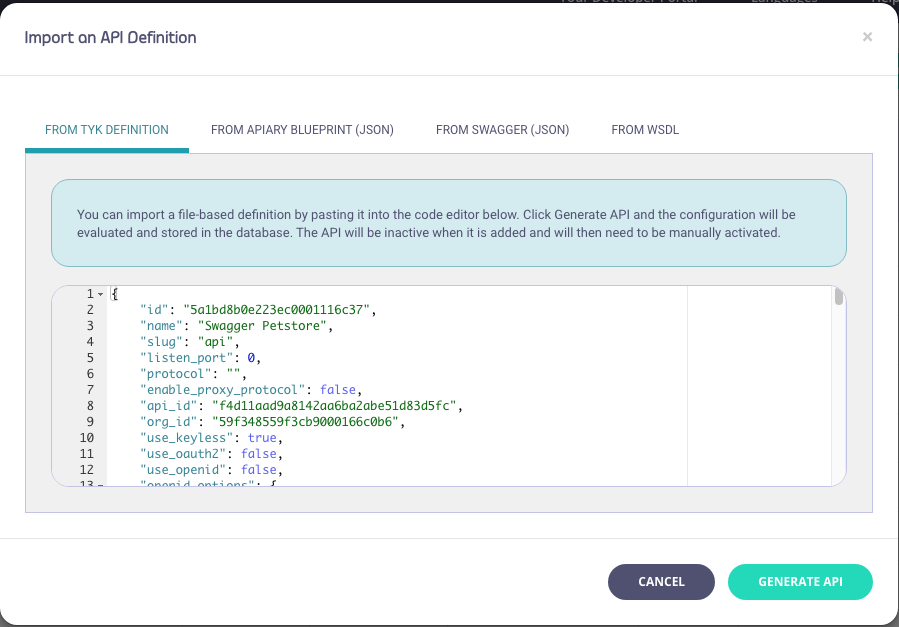 The ID you use in with any Dashboard API integrations will change as the documents physical ID will have changed with the import.
Use Tyk-Sync
You can also use our new Tyk-Sync tool which allows you to sync your APIs (and Policies) with a Version Control System (VCS). You can then move your APIs between environments. See Tyk-Sync for more details.Move Keys Between Environments
Tyk currently does not have a facility to export a group of keys from one environment and reissue them in another and still be able to manage those keys from within the Dashboard. However, it is possible to temporarily allow access to existing keys in a new environment, but it should be noted that these keys should eventually be expired and re-generated within the new environment.Moving Keys Between Environments / Creating Custom Keys
In order to use a legacy key in a new environment, simply extract the key from the old environment using the Tyk REST APIs and then create them in the new environment using the custom key creation API. To create a key with a custom identifier, ie Token, simply use the Gateway (OSS) or Dashboard (Pro) REST APIs to import a custom key.Move Policies Between Environments
Moving policies between two (Dashboard) environments is not as easy as moving API definitions and requires working with the Dashboard API to first retrieve the policies, and then modifying the document to reinsert them in your new environment:Preparation
First you must set up your new environment to respect explicit policy IDs. To do so, edit thetyk.conf and tyk_analytics.conf files in your new environment and set the policies. allow_explicit_policy_id setting to true (the setting is just allow_explicit_policy_id at the root level of the Dashboard configuration). In order to retain your api_id when moving between environments then set enable_duplicate_slugs to true in your target tyk_analytics.conf.
Steps for Configuration
-
Get your Policy
-
Edit the file we just created
The original file will look something like this, notice the two ID fields:
-
Move the id field value
Remove the
_idfield and put the value of the_idfield into theidfield, sopolicy.jsonshould look like this: -
Update the policy via the API
Save the new
policies.jsonfile and then let’s POST it back to the new environment:
Policy IDs in the Dashboard
After migrating a Policy from one environment to another, it is important to note that the displayed Policy ID is not going to match. That is okay. It happens because Tyk Dashboard displays theMongo ObjectId, which is the _id field, but the id is the important part.
For example:
Policies in source environment
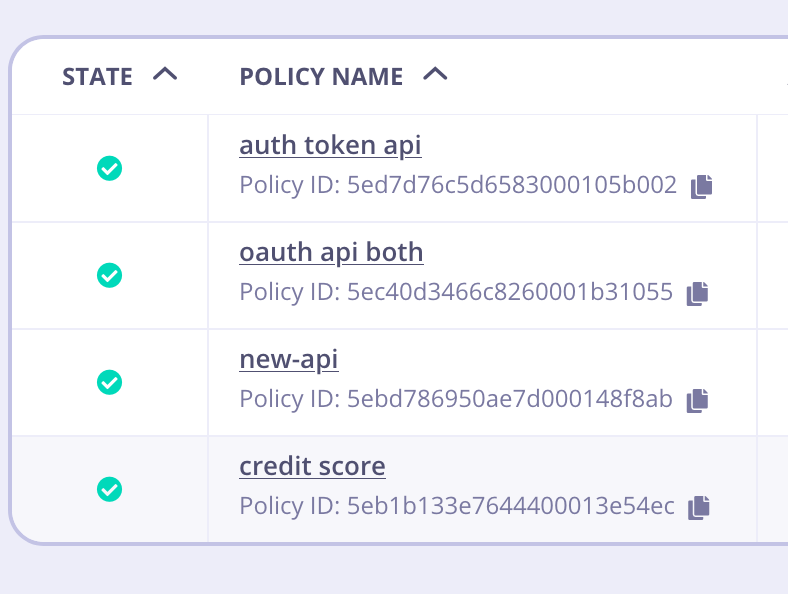
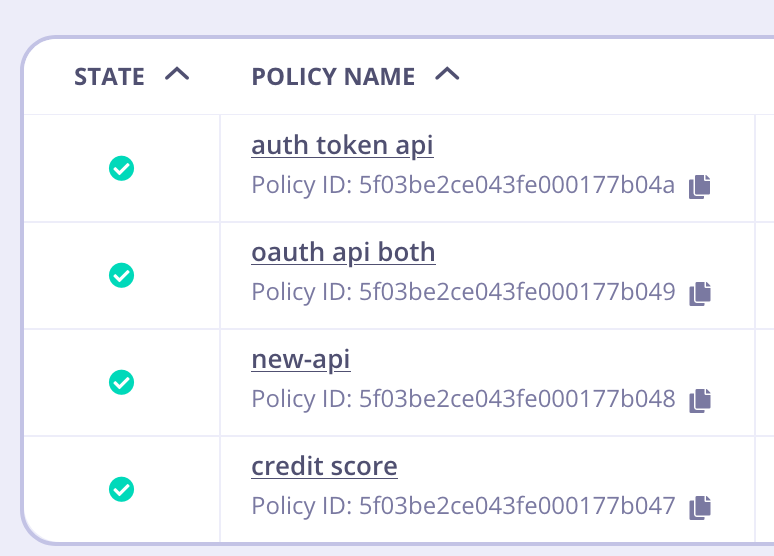
id, you can see it’s been mapped properly in the target environment.
id. That is the value that will be referred to inside Key Creation, etc.