In this section we will explain how to apply your branding (styling - CSS) on the portal elements with your own colors and logo within minutes.Prerequisites
Access the file directory for the Developer portal
The default logo is located in /themes/default/assets/images/ and is called dev-portal-logo.svg.
Replace the default image with your own, keeping the same file name and in .svg format, ensuring that xmlns="http://www.w3.org/2000/svg" is included within your <svg> tag.
If you want to use different naming, path reference or extension, the code is <img src="/assets/images/dev-portal-logo.svg"> and is found on line 6 from the /themes/default/partials/footer.tmpl template.
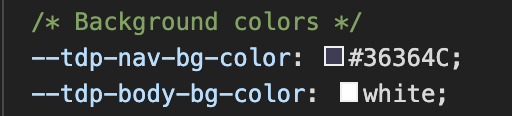
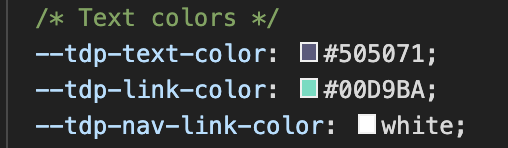
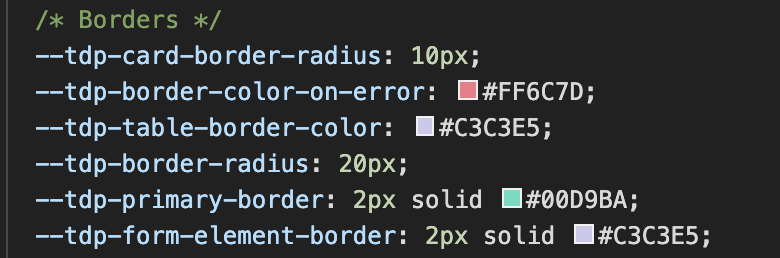
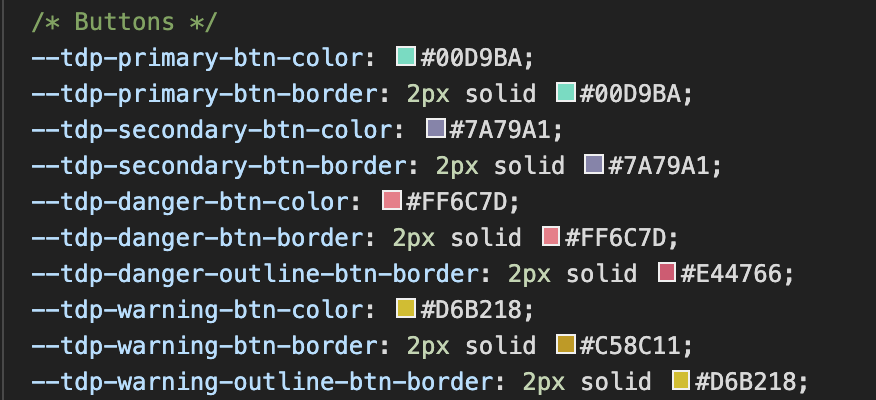
Let’s now explain how to manage borders and change the colors of buttons, texts and backgrounds. The file we’ll be looking at is /themes/default/assets/stylesheets/main.css which contains some CSS variables that are used throughout the app. Let’s take a closer look.
You can apply some changes in the portal based on your preferences. For example, you can change the navigation background color, the text color and the different button theme colors. Furthermore, you can change table border color and radius.If you want to change the navigation background color you need to edit the variable called --tdp-nav-bg-color Similarly other variables as you can see where/how each one is used: