

When to use a Documentation-Only Product
- Pre-release APIs: publish an OpenAPI spec or GraphQL schema before the API is available for consumption, so developers can plan integrations ahead of launch.
- Partner previews: share API documentation with external partners in a controlled catalog without opening up live access.
- Deprecated API archives: keep documentation accessible for consumers on legacy integrations after the API has been retired, without issuing new credentials.
- Conceptual overviews: provide architectural guides, best practices, or integration patterns that have no corresponding live endpoint.
- Educational resources: structure learning content about your API ecosystem using Getting Started guides and product descriptions.
Prerequisites
- Access to the Developer Portal Admin UI with an API Owner role
- An existing Catalog to publish the product to
- An OpenAPI Description file in JSON or YAML format, or a GraphQL SDL file (.graphql, .graphqls, .gql, or JSON format)
For an overview of Products, see Products. For steps to create a standard Product with live access, see the Products page.
Create a Documentation-Only Product
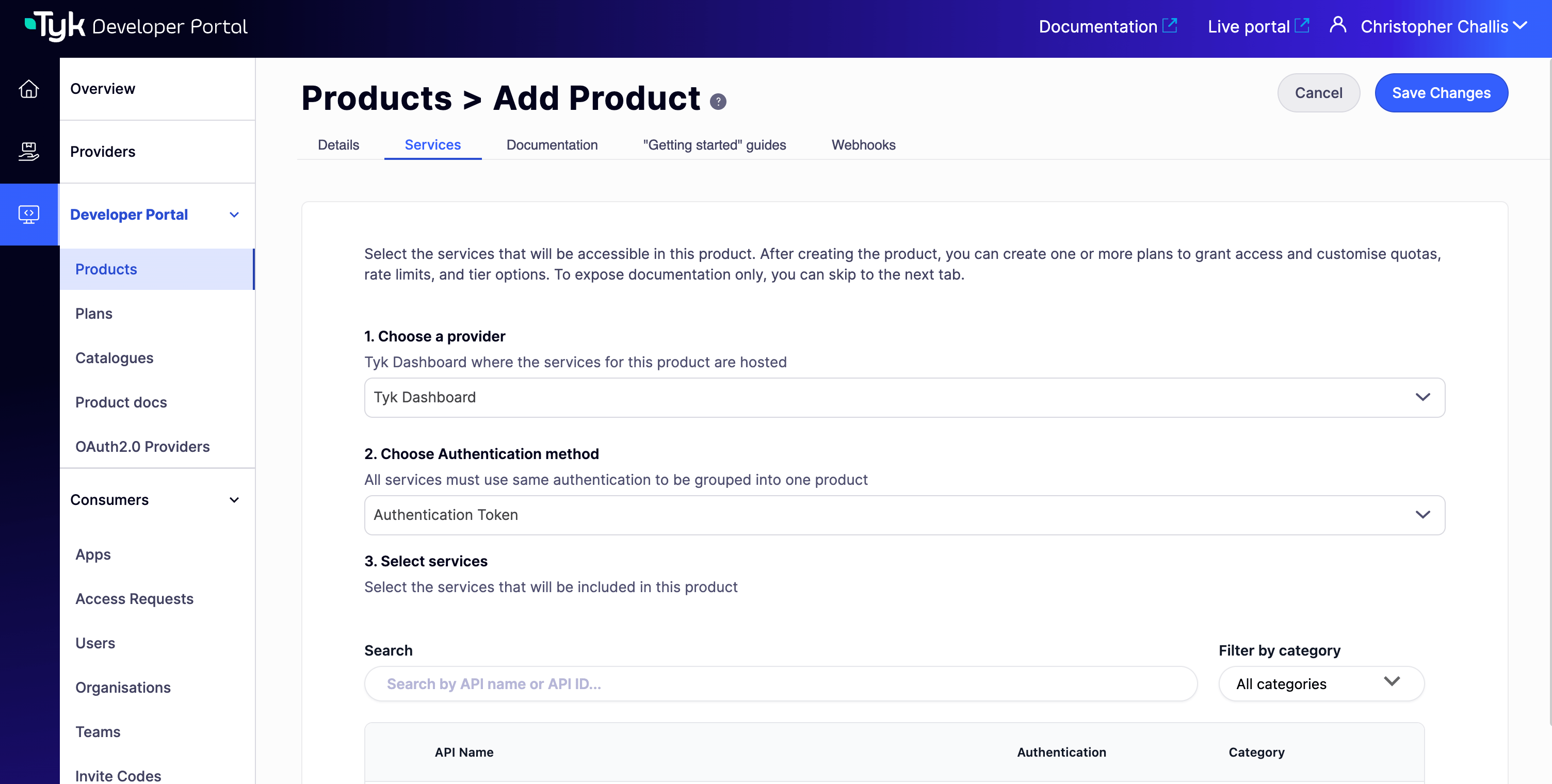
There is no explicit documentation-only toggle in the Admin UI. A Product becomes documentation-only automatically when no APIs are selected on the Services tab. No access policy will be created in the connected Tyk Dashboard, so no credentials can be generated for the Product.- Navigate to Products In the Admin Portal, go to Developer Portal > Products and select Add new Product.
-
Skip API selection
Open the Services tab. Do not select any APIs from the list. Skip to the next tab. This is what makes the Product documentation-only.
-
Add documentation
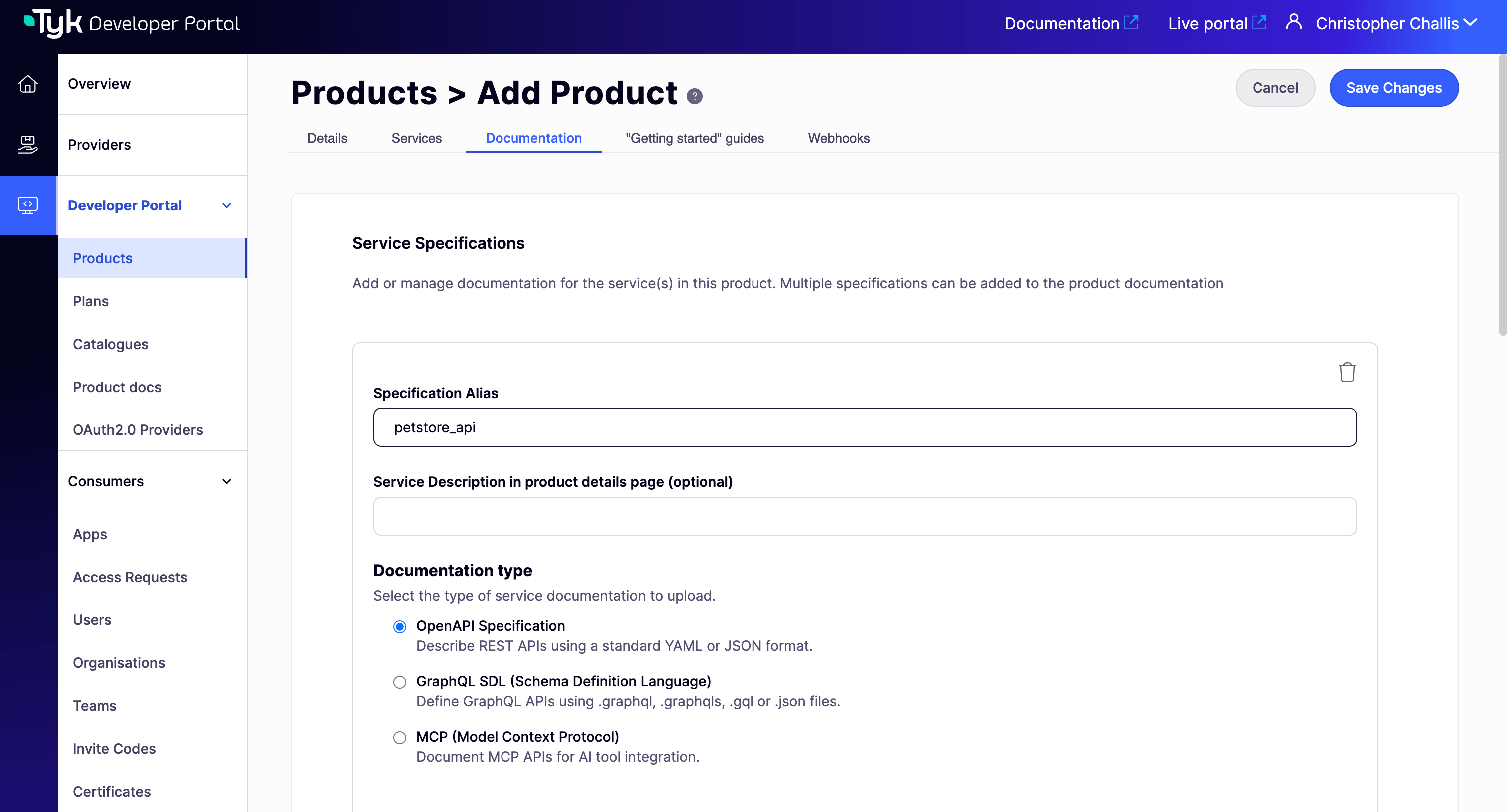
Open the Documentation tab and select Add API specification:
- For REST APIs: choose OpenAPI, then upload a JSON or YAML file or provide a URL.
- For GraphQL APIs (available from v1.15.0): choose GraphQL SDL, then upload an SDL file (.graphql, .graphqls, .gql, or JSON). File upload only, URL is not supported for GraphQL SDL.
- For MCP proxies: choose MCP, then write the documentation directly in the markdown editor. There is no file to upload.
-
Provide the Product details
Open the Details tab and complete the following:
- Product name: use a clear, descriptive name. Consider a convention such as “[DOCS] Payment Integration Guide” so admins can distinguish documentation-only Products at a glance.
- Catalog display name and Product summary: the summary appears as the tile description in the Live Portal.
- Product description: make clear in the description that this Product is documentation-only and consumers cannot request access.
- Product image (optional): JPG or PNG, recommended 700x400 pixels.
- Publish Product to catalogue: select one or more Catalogs.
- Add Getting Started Guides (optional) Open the Getting Started Guides tab to create Markdown or HTML pages. These appear on the product’s Get Started tab in the Live Portal and are the right place for tutorials, integration walkthroughs, and conceptual overviews.
-
Save and verify
Select Save Changes, then open the Live Portal and confirm:
- The Product appears in the assigned Catalog.
- The Service explorer tab renders your uploaded specification.

What consumers see
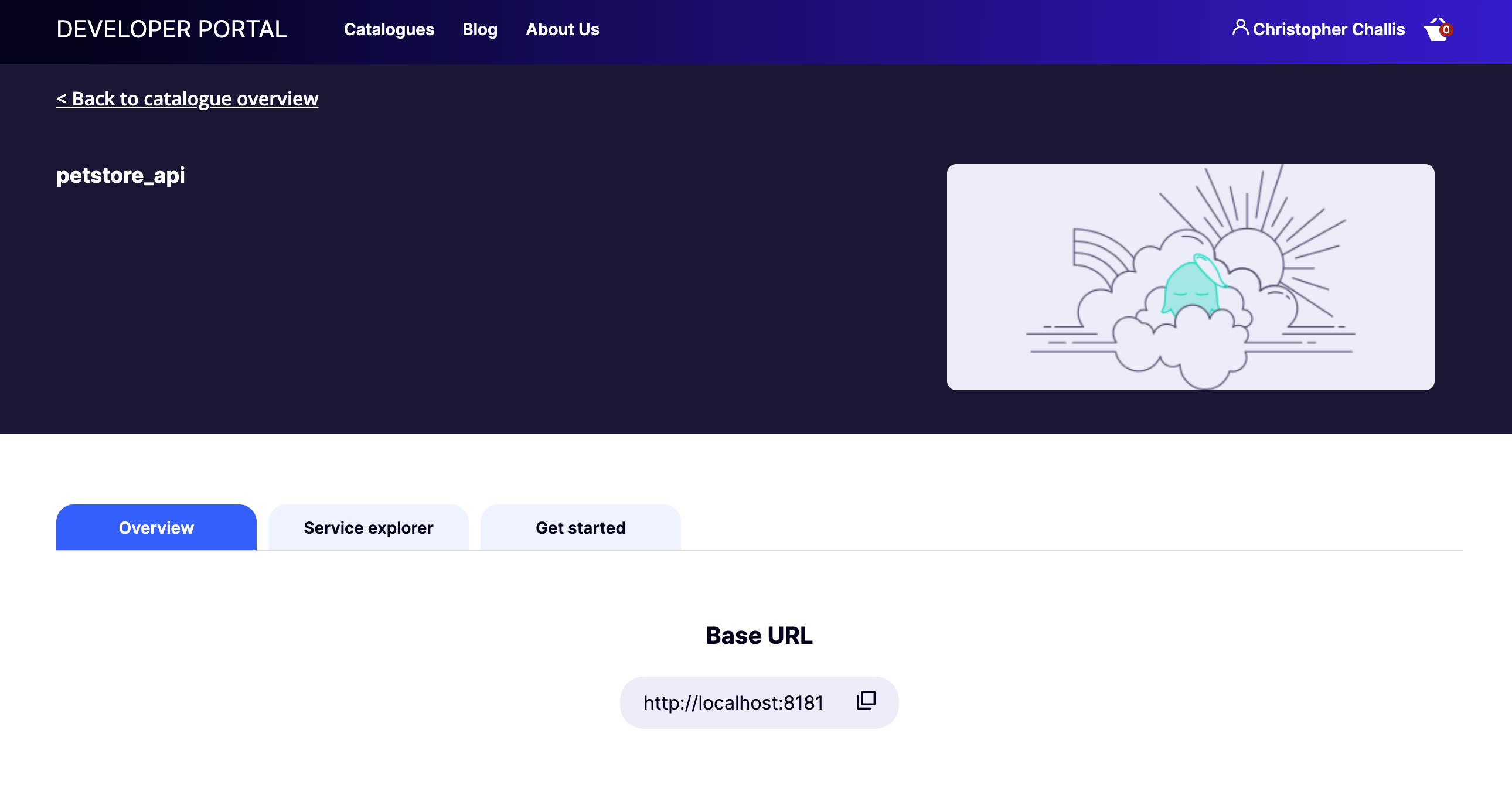
Documentation-only Products appear in the Catalog alongside regular Products, but with key differences: The Overview, Service explorer, and Get Started tabs are fully accessible, but- There is no Request Access button.
- There are no Plans available to select.
- No credentials can be requested or issued.
Convert a Product’s type
You do not need to recreate a Product to change its type: this is dynamic, based on whether any API access is configured. Convert a documentation-only Product into a regular Product- Open the Product in the Admin Portal and navigate to the Services tab.
- Select a Provider, an authentication method, and one or more APIs to which the Product should grant access.
- Select Save Changes.
- Open the Product and navigate to the Services tab.
- Remove all selected APIs.
- Select Save Changes.
Troubleshooting
Specification does not render on the Service explorer tab
Specification does not render on the Service explorer tab
Check whether the Specification Alias contains a hyphen. If it does, rename the alias using underscores or camelCase, then re-upload the file.
Error when adding APIs to convert a documentation-only Product to live
Error when adding APIs to convert a documentation-only Product to live
This was a bug in versions prior to v1.14.1. The Portal attempted to update a non-existent access policy. Upgrade to v1.14.1 or later to perform this conversion without errors.
Product is not visible in the Catalog
Product is not visible in the Catalog
Confirm the Product is published to at least one Catalog, and that the consumer’s Organisation has access to that Catalog. Documentation-only Products follow the same Catalog visibility rules as regular Products.