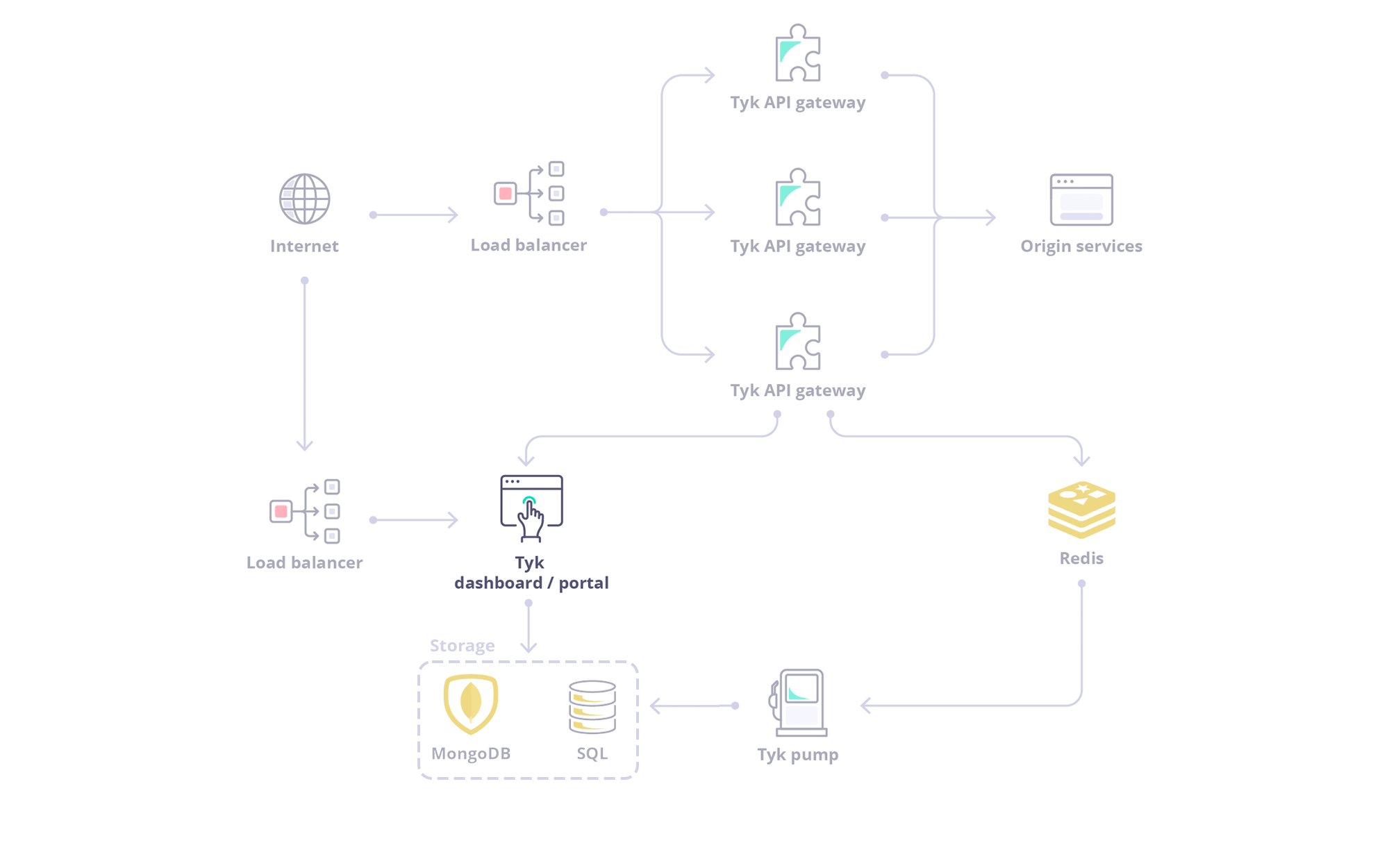
Introduction

- Exploring the Dasbhoard UI: A tour of the Dashboard UI.
- Exploring the Dasbhoard API: Explore the Dashboard APIs, including their classification, authentication methods, and usage examples with Swagger and Postman collections.
- API Management using API Endpoint Designer: A graphical environment for configuring your Tyk APIs.
- Monitoring and Traffic Analytics: Exploration of Tyk’s traffic analytics capabilities, including logging mechanisms, error tracking, endpoint analysis, and various activity type measurements.
- API Governance using API Templates and API Categories
- System Management: Detailed overview of Tyk’s system management capabilities, including Admin API functionalities, organization management and configuting audit logs.
- Supported Database: We will examine Dashboard’s storage requirement, compatible database versions and how to configure them.
- Exploring Data Storage Solution: We will explore Dashboard’s multi-layered storage architecture and understand how to configure each storage tier effectively.
Exploring the Dashboard UI
To get a tour of the Dashboard UI, refer to this document.Exploring the Dashboard API
The Dashboard is a large, granular REST API with a thin-client web front-end, and if being deployed as part of a Tyk install, serves as the main integration point instead of the Gateway API.
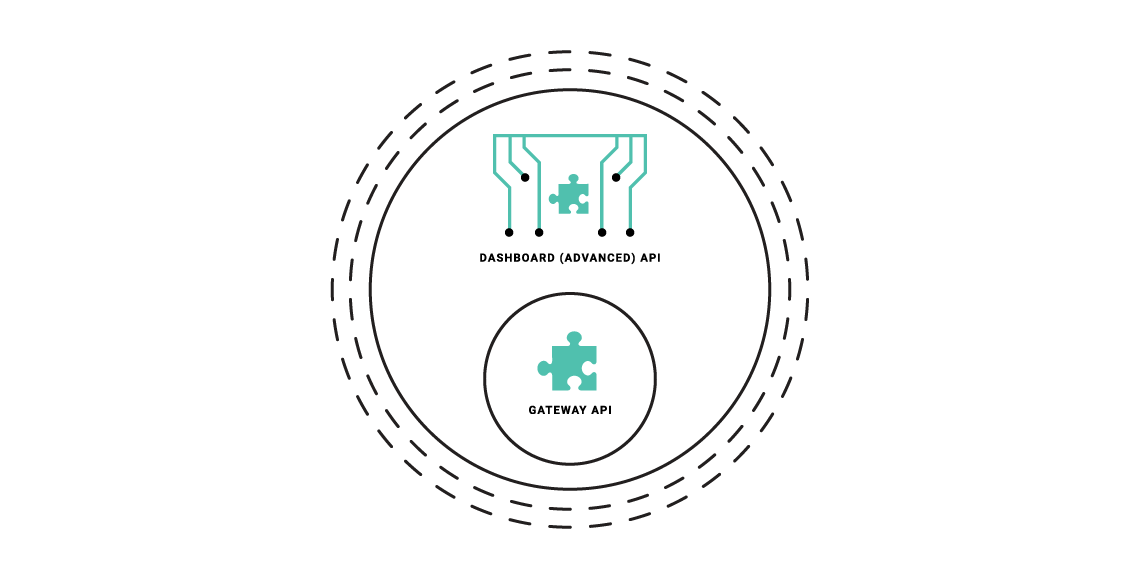
- The Dashboard API has a granular structure, you can create separate clients easily.
- The API features read/write permissions on a per-endpoint level to have extra control over integrations.
- The API enforces a schema that can be modified and hardened depending on your usage requirements.
Types of Dashboard API
The Dashboard exposes two APIs:- Dashboard API: Is used for operational management of Tyk resources (APIs, policies, keys, etc.). This API offers granular permissions based on user roles. To know more about Dashboard APIs, refer the following documents:
- Dashboard Admin API: Is used for system-level administration and initial setup tasks like managing organizations, initial user creation, backups/migrations and SSO setup. To know more about Dashboard Admin APIs, refer the following documents:
Authenticating with Dashboard APIs
Dashboard API The Tyk Dashboard API is secured using anAuthorization header that must be added to each request that is made. The Tyk Dashboard API Access Credentials Authorization key can be found within the Dashboard UI at the bottom of the Edit User section for a user.
Dashboard Admin API
The Tyk Dashboard Admin API is secured using a shared secret that is set in the tyk_analytics.conf file. Calls to the Admin API require the admin-auth header to be provided, to differentiate the call from a regular Dashboard API call.
Dashboard API Resources and Usage
Overview
The Tyk Dashboard API is a superset of the Tyk Gateway API, enabling (almost) all of the core features and adding many more. The Dashboard API is also more granular and supports Role Based Access Control (RBAC) on both a multi-tenant, and user basis. Using the Dashboard API it is possible to set Read / Write / ReadWrite / Deny access to sections of the API on a user by user basis, and also segregate User / Key / API Ownership by organization. The availability of RBAC varies depending on the license or subscription. For further information, please check our price comparison or consult our sales and expert engineersFor optimal results, it is advisable to exclusively employ the Tyk Dashboard API (avoiding direct calls to the Tyk Gateway API) within a Self-Managed setup, enabling the Dashboard to manage the Tyk API gateways cluster.

Pagination
Selected Dashboard APIs can be paginated. You can select the number of result pages to return by adding a parameterp which starts at 1. At the default page size, this returns items 1-10. Setting p to 2 returns items 11-20 and so on. Alternatively, passing 0 or lower as a parameter will return all items.
The default page size is 10. You can overwrite the default page size in your tyk_analytics.conf using the page_size key. It’s suggested you do not modify it as it will affect the performance of the Dashboard.
Sample Request:
Manage APIs - API Definition
See API Definition Objects section for an explanation of each field in the request & response.
Get List of APIs
Sample Request
Search APIs by name
Sample Request
Retrieve a single API by ID
{id} can either be the internal or public ID ( see api_id in the sample response )Delete API by ID
Sample RequestCreate API Definition
Creating API definitions is slightly different to the core API, API definitions are wrapped inside anapi_definition field and event handlers, such as webhooks are not embedded in the main api_defintion object (though they can be), webhooks are instead appended as references into the hook_references field, the API will embed the correct webhook data into the event handler interface.
Please note that ID’s (both id and api_id) are auto-generated by Tyk and cannot be set by the user. In Self-Managed installations api_id can be overwritten with a call to the Update API Definition endpoint, but this is currently not possible when the Dashboard resides in Tyk Cloud.
Sample Request
ignored array. Subpaths of a route are matched automatically and so should be placed above parent routes if they need to be matched individually.
Update API Definition
APIs that are created using the advanced Dashboard API are referenced by their internal ID instead of their API-ID. Please note that whilstapi_id can be updated for Self-Managed installations, this is currently not possible when the Dashboard resides in Tyk Cloud. Updates to api_id in Tyk Cloud will be ignored.
Sample Request
Data Graphs API
Currently/api/data-graphs/ has only one endpoint called /data-sources with only a POST HTTP method.
The Dashboard exposes the /api/data-graphs/data-sources/import endpoint which allows you to import an AsyncAPI or OpenAPI document.
Supported AsyncAPI versions
- 2.0.0
- 2.1.0
- 2.2.0
- 2.3.0
- 2.4.0
Supported OpenAPI versions
- 3.0.0
Import a document from a remote resource
The fetched document can be an OpenAPI or AsyncAPI document. The format will be detected automatically. The data source import API only checks the fetched data and tries to determine the document format, the status codes are ignored.
It returns an error if it fails to determine the format and the document type. HTTP 500 is returned if a programming or network error occurs. If the fetched request body is malformed then HTTP 400 is returned.
Import an OpenAPI document
The data source import API supports importing OpenAPI documents. The document can be used as a request body.
The document can be in JSON or YAML format. The import API can determine the type and parse it.
Import an AsyncAPI document
The data source import API supports importing AsyncAPI documents. The document can be used as a request body.
The document can be in JSON or YAML format. The import API can determine the type and parse it.
Response Structure
The response structure is consistent with other endpoints, as shown in the table below:
Sample Response
Analytics API
Below APIs returns data only if you have Pump 1.7.0
Analytics of API Key
It returns analytics of the endpoints of all APIs called using KEY between start and end date.
Sample Request
To get analytics of all endpoints called using the key
7f3c3ca87376cabe between October 13th 2020 and October 14th 2020, make the following call:
Analytics of OAuth Client
It returns analytics of the all endpoints called using the given OAuth Client ID.
Sample Request
To get activity of all endpoints which used OAuth client
27b35a9ed46e429eb2361e440cc4005c between October 13th 2020 and October 14th 2020, make the following call:
Users API
USER_ID is a placeholder for your User ID value.List Users
Sample Request
Get User
Sample Request
Add User
You can add a user via the API without a password by leaving out the
password field. You then use Set User Password request to add a password.users Permission object set to write to use Add User.
If you do set a password, you need to keep a record of it, to enable the password to be reset in the future.
Sample Request
Set User Password
If a user is created with a blank password, you will need to add a password in a second API call to set a password. In this scenario, thecurrent_password field is not required. To change an current password, you need to know the existing password set in Add User.
You need to have the users Permission object set to read to use Set User Password.
Sample Request
Allow Reset Password
Sample Request
Disallow Reset Password
Sample Request
Update User
You need to have theusers Permission object set to write to use Update User.
Sample Request
Reset User Session
This call allows you to reset a user’s current Dashboard session. You need to have theusers Permission object set to write to use this call.
This also resets the user’s Dashboard API credentials.
Sample Request
Delete User
Sample Request
User Groups API
List User Groups
Sample Request
Get User Group
Sample Request
Add User Group
Sample Request
Update User Group
Sample Request
Delete User Group
Sample Request
Additional Permissions API
This API helps you to add and delete (CRUD) a list of additional (custom) permissions for your Dashboard users.
Once created, a custom permission will be added to standard list of user permissions.
Only Admin Dashboard users will be authorized to use this API.
List Additional Permissions
This API returns by default the initial set of additional permissions defined in your Tyk Dashboard configuration, under security.additional_permissions. Once you update the permissions via the API, they will be stored at organization level.
Sample Request
Add/Delete/Update Additional Permission
Whenever you want to add/update/delete an additional permission, just send back the updated list of permissions, through a PUT request to the API.
Sample Request
Let’s imagine we have already defined two additional permissions:
api_developer and api_manager. In order to add a new permission to this list, just send
an updated list of permissions by appending the values you want. In this example we will add a custom_permission permission.
Access Keys Management API
{api-id} can either be the internal or external API id.Get a list of Keys
Note: This will not work with a hashed key set.
Sample Request:
Get a specific key
Sample Request
Create a custom key
Sample Request
access_rights is necessary, as we are adding a security policy and inheriting the access rights from there. That’s because of legacy functionality. We need to add any APIs api_id to the key of the access_rights map, as well as the api_id value of that key. This will all get overwritten by the policy, but we need to add it.
Sample Response:
my-custom-key as a key to access the API. Furthermore, you can use it to lookup the key in the Dashboard as well as the generated key_hash in the response.
Let’s try curling it:
Generate a key
Sample Request
Update a key
Sample Request
Delete a key
Sample Request
Graphql API
Presently, the Tyk Dashboard uses the GraphQL API for keys.Basic Authentication API
Basic Auth users are essentially a form of API token, just with a customized, pre-set organization-specific ID instead of a generated one. To interact with basic auth users, you can use the API Token API calls (list, get delete etc.)Create a user
Sample Request
OAuth Key Management API
Create a new OAuth2.0 Client
Any OAuth keys must be generated under an API in the Dashboard. Any POST requests made should contain the API’s ID in the URL.
Sample Request
List OAuth Clients
Sample Request
Get an OAuth2.0 Client
Sample Request
Delete OAuth Client
You can delete an OAuth client using a simple DELETE method. Please note that tokens issued with the client ID will still be valid until they expire.
Sample Request
Retrieve All Current Tokens for Specified OAuth2.0 Client
This endpoint allows you to retrieve a list of all current tokens and their expiry date for a provided API ID and OAuth-client ID in the following format. This endpoint will work only for newly created tokens.This option is available from v2.6.0 onwards.
Sample Request
oauth_token_expired_retain_period which specifies retain period for expired tokens stored in Redis. By default expired token not get removed. See here for more details.
Revoke a Single OAuth Client Token
Sample Request
Revoke all OAuth Client Tokens
Sample Request
OAuth2.0 Authorization Code
This endpoint is used in the Authorization Code Grant flow, generating an authorization code that can be used by the client to request an access token.api_id: Unlike the other requests on this page, this must be theapi_idvalue and NOT the API’sidvalue.response_type: Should be provided by requesting client as part of authorization request, this should be eithercodeortokendepending on the methods you have specified for the API.client_id: Should be provided by requesting client as part of authorization request. The Client ID that is making the request.redirect_uri: Should be provided by requesting client as part of authorization request. Must match with the record stored with Tyk.key_rules: A string representation of a Session Object (form-encoded). This should be provided by your application in order to apply any quotas or rules to the key.
policy_id isn’t included in the request as these are optional. OAuth2.0 Flow also supports callbacks which can be added to the key_rules in the payload in requests that don’t include the policy_id.
Sample Request
Single Sign On API
The Dashboard SSO API allows you to implement custom authentication schemes for the Dashboard and Portal.
Our Tyk Identity Broker (TIB) internally also uses this API.
Generate authentication token
The Dashboard exposes the/api/sso Dashboard API which allows you to generate a temporary authentication token, valid for 60 seconds.
You should provide JSON payload with the following data:
ForSection- scope with possible values of"dashboard"or"portal"only.OrgID- organization idEmailAddress- user emailGroupID- user group id ( it is the mongo id and you can can find it in the url when opening a user group via Tyk- Dashboard UI or if you call Tyk-Dashboard REST API/api/usergroups)
Sample Request
Web Hooks API
List web hooks
Sample Request
Get single web hook
Sample Request
Add hook
Sample Request
Update hook
Sample Request
Delete web hook
Sample Request
Open Policy Agent API
The Open Policy Agent API helps you to manage (CRUD) the OPA (Open Policy Agent) rules that are being applied to the Tyk Dashboard. You can also change the OPA settings, such as to enable/disable it or enable/disable the debug mode.Only Admin role Dashboard users are authorized to use it.
List OPA rules and settings
This endpoint returns by defaul the initial set of OPA rules defined in your Tyk Dashboard, which are located in schema/dashboard.rego (accessible in Self-Managed installations). Once you update the rules via the API, the OPA rules will be stored at the organization level.
Sample Request
Update OPA rules and settings
Whenever you want to update OPA rules or its settings, send the updated value of the OPA rules or changed values for the settings (
enabled) via a PUT request to the permissions endpoint.
Sample Request
Dashboard Admin API Resources and Usage
API Usage Instructions
Important Note on Spelling:While our documentation now uses American English (en-us), the product itself, including all user interfaces, configuration
fields, environment variables, and APIs, continues to use British English spellings. When interacting with the product,
please continue using the British English (en-gb) spellings as appear in the interface and API. This change does not affect
how you use the product; all functionality remains the same.
Example: The API endpoint
/organisations as shown throughout this page uses British spelling (with an ‘s’ not ‘z’).
In all other instances, such as when describing or referring to this object in the documentation, we will use the
American spelling “organization” with a ‘z’.Organizations API
Retrieve a single Organization
Sample Request
Retrieve all Organizations
Sample Request
Create an Organization
Sample Request
Update an Organization
Sample Request
Delete an Organization
Sample Request
Users API
Get User
Sample Request
Add user
When you add a new user, they are created without a password being set. After adding a user, you need to use the Set Password call to set a password using theuser-id created.
Sample Request
You can also create a user without an
org_id. This will create a “Super User”, who has global access to all APIs, Policies, etc, for all organizations created within Tyk.Update User
You need to have theusers Permission object set to write to use Update User.
Sample Request
If you are modifying a user password, you will need to include an access_key in the body of your request. This can be obtained from doing a GET to the same Resource URL.
Single Sign On API
The Dashboard Admin SSO API endpoint allows you to implement custom authentication schemes for the Dashboard and Portal. Our Tyk Identity Broker (TIB) internally also uses this API. See Single Sign On for more details.Generate authentication token
The Dashboard exposes the/admin/sso Admin API which allows you to generate a temporary authentication token, valid for 60 seconds.
You should provide JSON payload with the following data:
ForSection- scope with possible values of"dashboard"or"portal"OrgID- with your organization id.GroupID- the group idEmailAddress- user email
Sample Request
URL Reload API
Since the Dashboard can have multiple URLs associated with it. It is possible to force a URL reload by calling an API endpoint of the Dashboard API.Reload the Dashboard URLs
Sample Request
Export Assets API
To make Tyk installations more portable, the Export API enables you to export key configuration objects required to back-up and re-deploy a basic Tyk Pro installation.To enable this feature, the minimum required versions for the Gateway and Dashboard are v2.3 and v1.3.1.2, respectively.
Export Organizations
The organization object is the most fundamental object in a Tyk setup, all other ownership properties hang off the relationship between an organization and its APIs, Policies and API Tokens.
Sample Request
Export APIs and Policies
To export APIs and Policies you should use the standardGET APIS endpoint and GET POLICIES list endpoints. The output from these endpoints can be used by the Import API.
Import Assets API
The import API enables you to add Organizations, APIs and Policies back into a Tyk installation while retaining their base IDs so that they work together.To enable this feature, the minimum required versions for the Gateway and Dashboard are v2.3 and v1.3.1.2, respectively.
Import Organization
The Organization object is the most fundamental object in a Tyk setup, all other ownership properties hang off the relationship between an Organization and its APIs, Policies and API Tokens.
Sample Request
Import APIs
The import APIs operates on lists of APIs.
Sample Request
Import Policies
The import Policies operates on lists of Policies.
Sample Request
Exploring API Endpoint Designer
Classic APIs
Tyk Dashboard’s Endpoint Designer provides a graphical environment for the creation and update of your Tyk Classic APIs. The Endpoint Designer allows to configure all elements of your Tyk Classic API and consists of several tabs, plus a Raw Definition view which allows you to directly edit the Tyk Classic API Definition (in JSON format). Note thatCore Settings

- Detailed logging
- API Settings including
- Listen path
- API Categories
- Upstream settings including
- Upstream service (target) URL
- Service Discovery
- API Ownership
- API level rate limiting
- Authentication
Versions

Endpoint Designer

Advanced Options

- Upstream certificate management
- API-level caching including a button to invalidate (flush) the cache for the API
- CORS
- Add custom attributes to the API definition as config data that can be accessed by middleware
- Enable context variables so that they are extracted from requests and made available to middleware
- Manage segment tags if you are working with sharded gateways
- Manage client IP address allow and block lists
- Attach webhooks that will be triggered for different events
Uptime Tests

Debugging

- Request
- Response
- Logs
Request

- Method - select the method for your test from the drop-down list
- Path - your endpoint to test
- Headers/Body - enter any header information, such as Authorization, etc. Enter any body information. For example, entering user information if creating/updating a user.
Response

Logs

Traffic Analytics
The Tyk Dashboard provides a full set of analytics functions and graphs that you can use to segment and view your API traffic and activity. The Dashboard offers a great way for you to debug your APIs and quickly pin down where errors might be cropping up and for which clients. User Owned Analytics, introduced in Tyk v5.1, can be used to limit the visibility of aggregate statistics to users when API Ownership is enabled. Due to the way that the analytics data are aggregated, not all statistics can be filtered by API and so may be inaccessible to users with the Owned Analytics permission.For the Tyk Dashboard’s analytics functionality to work, you must configure both per-request and aggregated pumps for the database platform that you are using. For more details see the Setup Dashboard Analytics section.
Analyzing API Traffic Activity
API Activity Dashboard
The first screen (and main view) of the Tyk Dashboard will show you an overview of the aggregate usage of your APIs, this view includes the number of hits, the number of errors and the average latency over time for all of your APIs as an average:

From Tyk v5.1 (and LTS patches v4.0.14 and v5.0.3) the Error Breakdown and Endpoint Popularity charts will not be visible to a user if they are assigned the Owned Analytics permission.
Activity Logs
When you look through your Dashboard and your error breakdown statistics, you’ll find that you will want to drill down to the root cause of the errors. This is what the Log Browser is for. The Log Browser will isolate individual log lines in your analytics data set and allow you to filter them by:- API Name
- Token ID (hashed)
- Errors Only
- By Status Code


Self-Managed Installations Option
In an Self-Managed installation, if you have request and response logging enabled, then you can also view the request payload and the response if it is available. To enable request and response logging, please take a look at useful debug modes . A warning on detailed logging: This mode generates a very large amount of data, and that data exponentially increases the size of your log data set, and may cause problems with delivering analytics in bulk to your MongoDB instances. This mode should only be used to debug your APIs for short periods of time.Activity by API
To get a tabular view of how your API traffic is performing, you can select the Activity by API option in the navigation and see a tabular view of your APIs. This table will list out your APIs by their traffic volume and you’ll be able to see when they were last accessed:


From Tyk v5.1 (and LTS patches v4.0.14 and v5.0.3) the Error Breakdown and Endpoint Popularity charts will not be visible to a user if they are assigned the Owned Analytics permission.
Activity by Key
You will often want to see what individual keys are up to in Tyk, and you can do this with the Activity per Key section of your analytics Dashboard. This view will show a tabular layout of all keys that Tyk has seen in the range period and provide analytics for them:
00000000 is an empty token, or an open-request. If you have an API that is open, or a request generates an error before we can identify the API key, then it will be automatically assigned this nil value.
If you select a key, you can get a drill down view of the activity of that key, and the errors and codes that the token has generated:


From Tyk v5.1 (and LTS patches v4.0.14 and v5.0.3) the Traffic per Key screen will not be visible to a user if they are assigned the Owned Analytics permission.
Activity by endpoint
To get a tabular view of how your API traffic is performing at the endpoint level, you can select the Activity by Endpoint option in the navigation and see a tabular view of your API endpoints. This table will list your API endpoints by their traffic volume and you’ll be able to see when they were last accessed:
Controlling which endpoints appear in the analytics data
The aggregate pumps have an option totrack_all_paths which will ensure that all analytics records generated by the Tyk Gateway will be included in the aggregated statistics on the Endpoint Popularity screen. Set this to true to capture all endpoints in the aggregated data and subsequently on the Dashboard page.
You can alternatively select only a subset of the endpoints to include in the aggregated data by setting track_all_paths to false and identifying specific endpoints to be “tracked”. These are identified by the TrackPath flag being set to true in the record. In this configuration, the Pump will only include transaction records from “tracked” endpoints in the aggregated data.
Tyk Gateway will set TrackPath to true in transaction records generated for endpoints that have the track endpoint middleware enabled.
The track endpoint middleware only affects the inclusion of endpoints in the per-endpoint aggregates, it does not have any impact on other aggregated data nor the per-request data.
Selecting Tyk OAS APIs endpoints to be tracked
The design of the Tyk OAS API Definition takes advantage of theoperationId defined in the OpenAPI Document that declares both the path and method for which the middleware should be added. The path can contain wildcards in the form of any string bracketed by curly braces, for example {user_id}. These wildcards are so they are human readable and do not translate to variable names. Under the hood, a wildcard translates to the “match everything” regex of: (.*).
The track endpoint middleware (trackEndpoint) can be added to the operations section of the Tyk OAS Extension (x-tyk-api-gateway) in your Tyk OAS API Definition for the appropriate operationId (as configured in the paths section of your OpenAPI Document).
The trackEndpoint object has the following configuration:
enabled: enable the middleware for the endpoint
GET /anything endpoint. These requests will appear in the Endpoint Popularity analytics screen, located within the API Usage section of Tyk Dashboard.
The configuration above is a complete and valid Tyk OAS API Definition that you can import into Tyk to try out the track endpoint middleware.
Configuring the middleware in the API Designer
Adding the track endpoint middleware to your API endpoints is easy when using the API Designer in the Tyk Dashboard, simply follow these steps:-
Add an endpoint
From the API Designer add an endpoint that matches the path and method to which you want to apply the middleware.


-
Select the Track Endpoint middleware
Select ADD MIDDLEWARE and choose the Track Endpoint middleware from the Add Middleware screen.

- Save the API Select SAVE API to apply the changes to your API.
Selecting Tyk Classic API endpoints to be tracked
If you are working with Tyk Classic APIs then you must add a newtrack_endpoints object to the extended_paths section of your API definition.
The track_endpoints object has the following configuration:
path: the endpoint pathmethod: the endpoint HTTP method
GET requests to the /anything endpoint. These requests will appear in the Endpoint Popularity analytics screen, located within the API Usage section of Tyk Dashboard.
Configuring the middleware in the API Designer
You can use the API Designer in the Tyk Dashboard to configure the track endpoint middleware for your Tyk Classic API by following these steps.-
Add an endpoint for the path and select the plugin
From the Endpoint Designer add an endpoint that matches the path for which you want to allow access. Select the Track endpoint plugin.

- Save the API Use the save or create buttons to save the changes and activate the middleware for the selected endpoint.
Activity by Graph
The Activity by Graph page provides analytics for your GraphQL APIs (Universal Data Graph / UDG). It allows you to monitor and analyze GraphQL-specific traffic through the following charts and tables:- Popularity by Graph API: Displays the most popular GraphQL APIs based on request volume.
- Errors by Graph API: Shows the error rates and distribution across your GraphQL APIs.
- All Graph APIs: A comprehensive table listing all configured GraphQL APIs and their key metrics.
Activity by Location
Tyk will attempt to record GeoIP based information based on your inbound traffic. This requires a MaxMind IP database to be available to Tyk and is limited to the accuracy of that database. You can view the overview of what the traffic breakdown looks like per country, and then drill down into the per-country traffic view by selecting a country code from the list:
From Tyk v5.1 (and LTS patches v4.0.14 and v5.0.3) the Geographic Distribution screen will not be visible to a user if they are assigned the Owned Analytics permission.
Activity by MCP
The Activity by MCP page provides analytics for your Model Context Protocol (MCP) proxies and primitives. It allows you to track and monitor MCP-specific traffic through the following charts and tables:- Activity per MCP: Displays request volumes and traffic trends across your configured MCP servers.
- Errors by MCP: Tracks error rates and distribution across different MCP servers.
- Primitives Traffic: Shows the overall traffic volume handled by your MCP primitives (tools, resources, and prompts).
- Most Used Primitives: Identifies the most frequently invoked primitives.
- Most Failing Primitives: Highlights the primitives with the highest failure rates.
- Slowest Primitives: Measures latency and identifies the slowest-performing primitives.
- Error Status Codes by Primitive: Breaks down error responses by HTTP status codes for each primitive.

Activity by Error
The error overview page limits the analytics down to errors only, and gives you a detailed look over the range of the number of errors that your APIs have generated. This view is very similar to the Dashboard, but will provide more detail on the error types:
From Tyk v5.1 (and LTS patches v4.0.14 and v5.0.3) the Errors by Category data will not be visible to a user if they are assigned the Owned Analytics permission.
Activity by Oauth Client
Traffic statistics are available on a per OAuth Client ID basis if you are using the OAuth mode for one of your APIs. To get a breakdown view of traffic aggregated to a Client ID, you will need to go to the System Management -> APIs section and then under the OAuth API, there will be a button called OAuth API. Selecting an OAuth client will then show its aggregate activity

From Tyk v5.1 (and LTS patches v4.0.14 and v5.0.3) the Traffic per OAuth Client ID charts will not be visible to a user if they are assigned the Owned Analytics permission.
Governance using API Categories
API categorization is a governance feature provided within the Tyk Dashboard that helps you to manage a portfolio of APIs. You can filter the list of APIs visible in the Dashboard UI or to be returned by the Dashboard API by category. You can assign an API to any number of categories and any number of APIs to a category. All category names are entirely user defined.When to use API categories
Managing a large portfolio of APIs
As a platform manager looking after a large portfolio of APIs, if I need to make changes to a sub-set of APIs, it’s cumbersome having to identify which APIs they are and then to find them one-by-one in the list. If I have assigned categories to my APIs then I can filter quickly and easily to work with that sub-set. What’s really powerful is that an API can appear in as many different categories as I like.Multi-tenant deployment
Multi-tenant deployments with role-based access control enabled allows an admin user to give different users or groups access to a sub-set of the entire API portfolio. Categories can be aligned with the API ownership rules that you have deployed to allow filtering the list of APIs for those visible to each separate user group/team.How API categories work
API categories with Tyk are a very simple concept - you can define any string as a category and then tag the relevant APIs with that string. Categories might refer to the API’s general focus (e.g. ‘weather’ or ‘share prices’); they might relate to geographic location (e.g. ‘APAC’ or ‘EMEA’); they might refer to technical markers (e.g. ‘dev’, ‘test’); or anything else you might need. It’s completely up to you. Categories can be defined, added to and removed from APIs without limitation.Tyk OAS APIs
When a Tyk OAS API is assigned to a category, the category name (string) is appended to a list in the database object where the API definition is stored by Tyk Dashboard. No change is made to the API definition itself.Tyk Classic APIs
When a Tyk Classic API is assigned to a category, the category name (string) is appended to thename field in the API definition using a # qualifier. For example, let’s say you have an API with this (partial) API definition:
global and staging categories by updating the API definition to:
The use of the
# qualifier to identify a category prevents the use of # in your API names; this is not an issue when working with Tyk OAS APIs.Using API categories
API categories can be added and removed from APIs within the API Designer, via the Tyk Dashboard API, or via Tyk Operator.API Designer
The API Designer in the Tyk Dashboard UI provides a simple method for assigning APIs to categories, removing categories and filtering the API list by category.Managing categories with Tyk OAS APIs
When working with Tyk OAS APIs, the API Designer has a separate Access tab where you can configure the categories to which the API is assigned.
x or deleting the category from the box.

Managing categories with Tyk Classic APIs
When working with Tyk Classic APIs, the API Designer has a box in the API Settings section where you can configure the categories to which the API is assigned.
x or deleting the category from the box.

Filtering the API list
When you have APIs assigned to categories, you can choose to view only the APIs in a specific category by using the FILTER BY API CATEGORY drop-down on the Created APIs screen.
Tyk Dashboard API
The Tyk Dashboard API provides endpoints to manage categories directly, if you are not using the API Designer. When working with Tyk OAS APIs, you can manage categories for an API using these endpoints:
When working with Tyk Classic APIs, you manage categories for an API by modifying the
name field in the API definition and then updating the API in Tyk with that using these endpoints:
These endpoints will return information for categories across all APIs in the system (both Tyk OAS and Tyk Classic):
Tyk Operator
You can manage categories using Tyk Operator custom resources. Please refer to Tyk Operator documentation to see how to manage API categories for Tyk OAS APIs and Tyk Classic APIs.Governance using API Templates
API Templates are an API governance feature provided to streamline the process of creating Tyk OAS APIs. An API template is an asset managed by Tyk Dashboard that is used as the starting point - a blueprint - from which you can create a new Tyk OAS API definition. The default template is a blank API definition; your custom templates will contain some configuration, for example cache configuration or default endpoints with pre-configured middleware. When you create a new API using a custom template, whether importing an OpenAPI document or building the API from scratch in the Tyk API Designer, those elements of the API configuration included in the template will be pre-configured for you.API Templates are exclusive to Tyk OAS APIs and can be managed via the Tyk Dashboard API or within the Tyk Dashboard UI.
When to use API templates
Gateway agnostic API design
When working with OpenAPI described upstream service APIs, your service developers do not need to learn about Tyk. You can create and maintain a suitable suite of templates that contain the Tyk-specific configuration (x-tyk-api-gateway) that you require for your externally published API portfolio. Creating an API on Tyk is as simple as importing the OpenAPI document and selecting the correct template. Tyk will combine the OpenAPI description with the template to produce a valid Tyk OAS API.
Standardizing API configuration
If you have specific requirements for your external facing APIs - for example authentication, caching or even a healthcheck endpoint - you can define the appropriate API templates so that when APIs are created on Tyk these fields are automatically and correctly configured.How API templating works
An API template is a blueprint from which you can build new APIs - it is an incomplete JSON representation of a Tyk OAS API definition that you can use as the starting point when creating a new API on Tyk. There is no limit to how much or how little of the API definition is pre-configured in the template (such that when you choose to create a new API without choosing a template, the blank API definition that you start from is itself a template). Templates are used only during the creation of an API, they cannot be applied later. Before you can use a template as the basis for an API, you must register the template with Tyk Dashboard.Structure of an API template
An API template asset has the following structure:id: a unique string type identifier for the templatekind: the asset type, which is set tooas-templatename: human-readable name for the templatedescription: a short description of the template, that could be used for example to indicate the configuration held within the templatedata: a Tyk OAS API definition, the content of which will be used for templating APIs_id: a unique identifier assigned by Tyk when the template is registered in the Dashboard database
Creating an API from a template
When you use a template during the creation of an API, the fields configured indata will be pre-set in your new API. You are able to modify these during and after creation of the template. No link is created between the API and the template, so changes made to the API will not impact the template.
Merging with an OpenAPI description or Tyk OAS API definition
When you use a template during the creation of an API where you import the OpenAPI document or a full Tyk OAS API definition, the template is combined with the imported OAS description. If thex-tyk-api-gateway extension exists in the template, it will be applied to the newly created API.
Where there are clashes between configuration in the OpenAPI description and the template:
- for maps, such as
pathsandcomponents, new keys will be added alongside any existing ones from the template- if a key in the OpenAPI description matches one in the template, the OpenAPI description takes precedence
- for array properties, such as
serversandtags, values in the OpenAPI description will replace those in the template
If you’re using the API Designer in the Tyk Dashboard UI, then you can find details and examples of how to work with API templates here. If you’re using the Tyk Dashboard API, then you can find details and examples of how to work with API templates here.
Working with API Templates using the Template Designer
API Templates are an API governance feature provided to streamline the process of creating Tyk OAS APIs. An API template is an asset managed by Tyk Dashboard that is used as the starting point - a blueprint - from which you can create a new Tyk OAS API definition. The Tyk Dashboard UI provides the following functionality to support working with API templates:- Creating templates
- Using templates
- Managing templates

API Templates are exclusive to Tyk OAS APIs.
Creating templates
API templates can be created starting from a blank template or from an existing APICreating a new API template
To create a template, simply visit the API Templates section of the Tyk Dashboard and select ADD TEMPLATE. This will take you to the Create API Template screen, where you can configure all aspects of the template. The template does not need to be a complete or valid API definition however as a minimum:- you must give the template a Name
- you must give the template a Description

id that can be used to access the template from the Tyk Dashboard API:

Creating a template from an existing API
You can use an existing API deployed on Tyk as the basis for a new API template - this is a great way to build up a portfolio of standardized APIs once you’ve got your first one correctly configured. From the Created APIs screen within the APIs section of the Tyk Dashboard, select the API that you wish to use as your starting point. In the ACTIONS drop-down select the CREATE API TEMPLATE option.
- you must give the template a Name
- you must give the template a Description
/anything endpoint and API-level cache configuration, all of which will be configured within the template.


id that can be used to access the template from the Tyk Dashboard API.

Using templates
API templates are used as the starting point during the creation of a new API. They can be applied in all of the methods supported by Tyk for creating new APIs.Using a template when creating a new API
There are two ways to base a new API, created entirely within the Tyk Dashboard’s API Designer, on a template that you’ve created and registered with Tyk. You can go from the API Template screen - for the template you want to use, select CREATE API FROM TEMPLATE from the ACTIONS menu:


Using a template when importing an OpenAPI description or API definition
From the Import API screen, if you select the OpenAPI type then you can create an API from an OpenAPI description or Tyk OAS API definition; choose the appropriate method to provide this to the Dashboard:- paste the JSON into the text editor
- provide a plain text file containing the JSON
- provide a URL to the JSON


/xml and /anything endpoints defined, with API-level caching configured. You can see the API definition here.
Managing templates
The Dashboard UI allows you to edit and delete templates after they have been created and registered with the Tyk DashboardEditing a template
You can make changes to a template that has been registered with Tyk from the API Templates screen. For the template that you want to modify, simply select EDIT TEMPLATE from the ACTIONS menu:


Deleting a template
You can delete a template from your Tyk Dashboard from the API Template Details screen. This screen can be accessed by selecting the template from the API Templates screen (either by clicking on the template name, or selecting EDIT TEMPLATE from the ACTIONS menu):


You will be asked to confirm the deletion, because this is irrevocable. Once confirmed, the template will be removed from the database and cannot be recovered.
Working with API Templates using the Dashboard API
API Templates are an API governance feature provided to streamline the process of creating Tyk OAS APIs. An API template is an asset managed by Tyk Dashboard that is used as the starting point - a blueprint - from which you can create a new Tyk OAS API definition. The Tyk Dashboard API provides the following functionality to support working with API templates:- registering a template with Tyk Dashboard
- applying a template when creating an API from an OpenAPI document
-
applying a template when creating an API from a Tyk OAS API definition
API Templates are exclusive to Tyk OAS APIs.
Structure of an API template
An API template asset has the following structure:id: a unique string type identifier for the templatekind: the asset type, which is set tooas-templatename: human-readable name for the templatedescription: a short description of the template, that could be used for example to indicate the configuration held within the templatedata: a Tyk OAS API definition, the content of which will be used for templating APIs_id: a unique identifier assigned by Tyk when the template is registered in the Dashboard database
Registering a template with Tyk Dashboard
To register an API template with Tyk, you pass the asset in the body of aPOST request to the dashboard’s /api/assets endpoint.
For example, if you send this command to the endpoint:
HTTP 201 Created and will provide this payload in response:
Meta contains the database ID (where the asset has been registered in the persistent storage) and ID contains the unique identifier for the template. This unique identifier will be automatically generated by Tyk if none was provided in the id of the template asset provided in the curl request.
Applying a template when creating an API from an OpenAPI document
When creating an API on Tyk using an OpenAPI document describing your upstream service, you can use the/apis/oas/import endpoint to import the OpenAPI description and apply it to your API.
If you have a template registered with your Dashboard, you can use this as the starting point for your new API. Tyk will combine the OpenAPI document with the template, automating the configuration of any element in the Tyk OAS API definition as defined in your chosen template.
You’ll need to identify the template to be used during the import. You can use either its unique id or the database ID that was assigned when the template was registered with Tyk Dashboard. You provide either the id or _id in the templateID query parameter in the call to /oapis/oas/import.
For example:
HTTP 200 OK and will provide this payload in response:
Meta contains the database ID (where the API has been registered in the persistent storage) and ID contains the unique identifier for the API. This unique identifier will be automatically generated by Tyk as none was provided in the id field of the x-tyk-api-gateway.info field provided in the curl request.
The new Tyk OAS API will have this definition, combining the OpenAPI description provided in the body of the curl request with the template with Id my-unique-template-id:
GET /xml endpoint from the OpenAPI description and the POST /anything endpoint from the template (complete with requestSizeLimit middleware) have both been defined in the API definition. API-level caching has been enabled, as configured in the template. Tyk has included the server entry from the OpenAPI description (which points to the upstream server) and added the API URL on Tyk Gateway (as explained here).
Applying a template when creating an API from a Tyk OAS API definition
When creating an API using a complete Tyk OAS API definition (which includesx-tyk-api-gateway), you can use the /apis/oas endpoint to import the API defintiion.
If you have a template registered with your Dashboard, you can use this as the starting point for your new API. Tyk will combine the API definition with the template, automating the configuration of any element defined in your chosen template.
You’ll need to identify the template to be used during the import. You can use either its unique id or the database ID that was assigned when the template was registered with Tyk Dashboard. You provide either the id or _id in the templateID query parameter in the call to /apis/oas.
For example:
HTTP 200 OK and will provide this payload in response:
Meta contains the database ID (where the API has been registered in the persistent storage) and ID contains the unique identifier for the API. This unique identifier will be automatically generated by Tyk as none was provided in the id field of the x-tyk-api-gateway.info field provided in the curl request.
The new Tyk OAS API will have this definition, combining the Tyk OAS API definition provided in the body of the curl request with the template with Id my-unique-template-id:
GET /json endpoint from the OpenAPI description and the POST /anything endpoint from the template (complete with requestSizeLimit middleware) have both been defined in the API definition. API-level caching has been enabled, as configured in the template.
Extend Permissions using Open Policy Agent (OPA)
Overview
The Tyk Dashboard permission system can be extended by writing custom rules using an Open Policy Agent (OPA). The rules engine works on top of your Dashboard API, which means you can control not only access rules, but also behavior of all Dashboard APIs (except your public developer portal). To give you some inspiration here are some ideas of the rules you can implement now:- Enforce HTTP proxy option for all APIs for which the target URL does not point at the internal domain
- Control access for individual fields. For example, do not allow changing the API “active” status (e.g. deploy), unless you have a specific permission set (and make new permissions to be available to the Dashboard/API). Custom permissions can be creating using the Additional Permissions API
- Have a user(or group) which has read access to one APIs and write to another OPA rule engine put on top of Dashboard API, which means you can control the behavior of all APIs (except public developer portal)
Configuration
By default the Dashboard OPA engine is turned off, and you need to explicitly enable it via your Dashboardtyk_analytics.conf file.
You can then control OPA functionality on a global level via your tyk_analytics.conf file, or at an organization level using either the OPA API or the Dashboard.
Example
Language intro
The Open Policy Agent (OPA, pronounced “oh-pa”) is an open source, general-purpose policy engine that unifies policy enforcement across the stack. OPA provides a high-level declarative language (Rego) that lets you specify policy as code and simple APIs to offload policy decision-making from your software. (source: https://www.openpolicyagent.org/docs/latest/)What is Rego?
OPA policies are expressed in a high-level declarative language called Rego. Rego (pronounced “ray-go”) is purpose-built for expressing policies over complex hierarchical data structures. For detailed information on Rego see the Policy Language documentation. Rego was inspired by Datalog, which is a well understood, decades old query language. Rego extends Datalog to support structured document models such as JSON. Rego queries are assertions on data stored in OPA. These queries can be used to define policies that enumerate instances of data that violate the expected state of the system.Why use Rego?
Use Rego for defining a policy that is easy to read and write. Rego focuses on providing powerful support for referencing nested documents and ensuring that queries are correct and unambiguous. Rego is declarative so policy authors can focus on what queries should return rather than how queries should be executed. These queries are simpler and more concise than the equivalent in an imperative language. Like other applications which support declarative query languages, OPA is able to optimize queries to improve performance. Rego supports a variety of statements and functions. You can even use things like HTTP calls to build policies that depends on third-party APIs. See more about the language itself here.Tyk policy primitives
The main building block which is required for controlling access is a “deny” rule, which should return a detailed error in case of a rejection. You can specify multiple deny rules, and they will all be evaluated. If none of the rules was matched, user will be allowed to access the resource. A simple deny rule with a static error message can look like:deny rules, you can also modify the requests using patch_request.
You should respond with a JSON merge patch format https://tools.ietf.org/html/rfc7396
For example:
Getting Tyk Objects
In some cases, you may want to write a rule which is based on existing Tyk Object. For example, you can write a rule for a policy API, which depends on the metadata of the API inside it. The policy engine has access to theTykAPIGet function, which essentially just does a GET call to the Tyk Dashboard API.
Example:
TykDiff function, combined with a TykAPIGet call to get the original object.
Example:
Developer guide
Since Opa rules are declarative, to test them in the majority of the cases, you can test your rules without using the Tyk Dashboard, and using this Rego playground. When it comes to theTykAPIGet and TykDiff functions, you can mock them in your tests.
In order to understand how the Dashboard evaluates the rules, you can enable debugging mode by setting the security.open_policy.debug option, and in the Dashboard logs, you will see the detailed output with input and output of the rule engine. It can be useful to copy-paste the Dashboard log output to the Rego playground, fix the issue, and validate it on the Dashboard.
When you modify the dashboard.opa file, you will need to restart your tyk Dashboard.
Using the Open Policy Agent in the Dashboard
As well as configuring OPA rules through the API, admin users can view and edit OPA rules from within the Tyk Dashboard. The advantage of configuring your OPA rules in the Dashboard is that you can use a code editor for it, emulating a proper developer experience. There are two ways you can do this:- From the OPA Rules menu. From the Dashboard Management menu, select OPA Rules. You can view and make any changes and select whether your OPA rules should be enabled or disabled.

-
From Developer Tools. Using the keyboard shortcut
CMD+SHIFT+D(orCTRL+SHIFT+Dfor PC), you can open the Developer Tools panel on any page in the Dashboard and configure the permissions. Updates are applied in real-time.OPA rules can only be accessed by admin role users in the Dashboard.


OPA Rule Precedence: Organization-Level Rules Override the File
Tyk Dashboard evaluates OPA rules from one of two sources, with a strict precedence:- Organization-level rules (database). If a ruleset is stored at the organization level, Tyk Dashboard uses it and ignores the file.
- File-based default (
schema/dashboard.rego). Used only when no organization-level ruleset exists.
- the organization is first bootstrapped, where the default ruleset is seeded, or
- you save rules through the OPA API (
PUT /api/org/opa) or the Tyk Dashboard UI.
Revert to the File-Based Ruleset
To make Tyk Dashboard fall back toschema/dashboard.rego, clear the organization-level rules:
-
Temporarily enable the OPA API in
tyk_analytics.confand restart:On Kubernetes, update theopablock invalues.yaml: -
Back up the current rules:
-
Clear them with an empty ruleset:
-
Confirm
GET /api/org/opanow returns theschema/dashboard.regoruleset. Tyk Dashboard now enforcesschema/dashboard.rego, so your OPA policies come from the file mount. Setenable_api: falseagain and restart.
PUT the backup:
Dashboard OPA rules
Configuring Open Policy Agent Rules
This is an end-to-end worked example showing how to configure Open Policy Agent rules with some additional permissions.Use Case
Tyk’s RBAC includes out of the box permissions to Write, Read, and Deny access to API Definitions, but what if we want to distinguish between those users who can create APIs and those users who can edit or update APIs? Essentially, we want to extend Tyk’s out of the box RBAC to include more fine grained permissions that prevent anAPI Editor role from creating new APIs, but allow them to edit or update existing APIs.
High Level Steps
The high level steps to realize this use case are as follows:- Create additional permissions using API
- Create user
- Add Open Policy Agent Rule
- Test new rule
Create additional permissions
To include theAPI Editor role with additional permissions, send a PUT Request to the Dashboard Additional Permissions API endpoint /api/org/permissions
Sample Request
In order to add the new role/permissions use the following payload.
Remember to set the
authorization header to your Tyk Dashboard API Access Credentials secret, obtained from your user profile on the Dashboard UI.This assumes no other additional permissions already exist. If you’re adding to existing permissions you’ll want to send a GET to /api/org/permissions first, and then add the new permission to the existing list.Create user
In the Dashboard UI, navigate to System Management -> Users, and hit theAdd User button. Create a user that has API Write access and the newly created API Editor permission, e.g.

Add Open Policy Agent (OPA) Rule
In the Dashboard UI, navigate to Dashboard Management -> OPA Rules Edit the rules to add the following:Test
Login to the Dashboard UI as the newAPI Editor user and try to create a new API. You should see an Access Denied error message. Now try to update an existing API. This should be successful!!
System Administration
The Tyk Dashboard Admin API provides the following administrator level functions:- Managing organizations.
- Creating initial users during boot-strapping of the system.
- Forcing a URL reload.
- Exporting and importing Tyk assets (orgs, APIs, policies) for backup or when migrating between environments.
- Setting up SSO integration.
Organizations
Many businesses have a complex structure, for example a lot of distinct departments where each department has its own teams. You might also need to deploy and manage multiple environments such as Production, Staging and QA for different stages in your product workflow. The Tyk Dashboard is multi-tenant capable which allows you to use a single Tyk Dashboard to host separate organizations for each team or environment. An Organization is a completely isolated unit, and has its own:- API Definitions
- API Keys
- Users
- Developers
- Domain
- Tyk Classic Portal
Tyk Gateway and organizations
The concept of an organization does not exist within the Tyk Gateway. Gateways only proxy and validate the rules imposed on them by the definitions and keys that are being processed, however at their core there are some security checks within the Gateway that ensure organizational ownership of objects. Tyk allows each organization to own its own set of Gateways, for example when you want to use different hosting providers you can segregate them in terms of resources, or just for security reasons. Self-Managed users should use API tagging and enforce a tagging standard across all organizations. All actions in a Self-Managed installation of Tyk must use a base Organization, and all actions should stem from a User owned by that organization.A user that does not belong to an Organization is sometimes referred to as an unbounded user. These users have visibility across all Organizations, but should be granted read-only access.
Dashboard Audit Logs
The audit log system captures detailed records of all requests made to endpoints under the/api route. These audit logs can be stored either in files (in JSON or text format) or in the database, providing flexible options for log management and retrieval.
Subsequently, if hosting Tyk Dashboard within a Kubernetes cluster, please ensure that the configured log file path is valid and writeable.
The Tyk Dashboard config section contains an audit section for configuring audit logging behavior. An example is listed below.
Configuration Parameters
Please consult Tyk Dashboard Configuration Options for equivalent configuration with environment variables.
JSON File Format
Audit records the following fields forjson format:
Text File Format
Thetext format outputs all fields as plain text separated with a new line and provided in the same order as json format.
Database Storage Support
In addition to file storage, audit logs can be stored in the main database (MongoDB or Postgres), this feature has been available since Tyk 5.7.0. To enable database storage setaudit.store_type to db:
store_type is set to db, audit logs will be stored in the main database storage instead of a file.
Retrieving Audit Logs via API
Since Tyk 5.7.0 a new API endpoint has been added to allow authorized users to retrieve audit logs from the database storage. To know more about the API specifications, check out the swagger documentation. To access the audit logs through the API ensure that your user account or group has been granted the “Audit Logs” RBAC group. If you do not have the necessary permissions, please contact your system administrator.Supported Database
Tyk Dashboard requires a persistent datastore for its operations. By default MongoDB is used. From Tyk v4.0, we also support PostgreSQL.MongoDB Supported Versions
MongoDB is our default storage option. We support the following versions:- MongoDB 5.0.x, 6.0.x, 7.0.x (with
mongo-godriver).
mongo-go driver has been available since Tyk 5.0.2 and is the default from Tyk 5.3.0.
MongoDB 3.x to 4.4.xPrior to Tyk 5.0.2, Tyk used the
We can not guarantee full compatibility with these versions of MongoDB for Tyk and recommend upgrading to a supported MongoDB version. In particular, when using Tyk OAS APIs with Tyk 5.3.0 onwards, the minimum supported version of MongoDB is 5.0.
mgo driver which supported MongoDB 3.x to 4.4.x, but we no longer test MongoDB versions prior to 5.0 since they are EOL.We can not guarantee full compatibility with these versions of MongoDB for Tyk and recommend upgrading to a supported MongoDB version. In particular, when using Tyk OAS APIs with Tyk 5.3.0 onwards, the minimum supported version of MongoDB is 5.0.
- Amazon DocumentDB 3.6 and 4 engine
- Azure Cosmos DB for MongoDB 3.6 and 4 engine
Configuring MongoDB
Please check here for MongoDB driver and production configurations.PostgreSQL Supported Versions
From Tyk 4.0, you can use PostgreSQL as your datastore. We support the following versions:- PostgreSQL version 13.x, 14.x, 15.x, 16.x, 17.x
- Amazon RDS
- Amazon Aurora PostgreSQL
-
Azure CosmosDB for PostgreSQL
In a production environment, we only support the PostgreSQL versions listed above.
- SQLite 3.x
SQLite support will be deprecated from Tyk 5.7.0. To avoid disrupution, please transition to PostgreSQL, MongoDB or one of the listed compatible alternatives.
Configuring PostgreSQL
Please check here for production configurations. See the following pages for configuring your SQL installation with Tyk: All data stored in SQL platforms will be identical to our existing MongoDB support.Which platform should you use?
Tyk no longer supports SQLite as of Tyk 5.7.0. To avoid disruption, please transition to PostgreSQL, MongoDB, or one of the listed compatible alternatives.
- For PoC installations, you can use PostgreSQL or MongoDB.
- For production installations, we only support MongoDB or PostgreSQL
Data Storage Solutions
Tyk stores a variety of data in 4 separate data storage layers. You can configure each layer separately to use one of our supported database platforms. Alternatively a single platform can be used for all layers. The 4 data storage layers are as follows:- Main: Stores configurations of: APIs, Policies, Users and User Groups.
- Aggregate Analytics: Data used to display Dashboard charts and analytics.
- Logs: When detailed logging is enabled, request and response data is logged to storage. These logs can previewed in the Dashboard log browser.
- Uptime: Uptime test analytics.

- Data storage layer type
- Database engine
- Database connection string
Configure Dashboard to Read from a Data Storage Layer
Tyk Dashboard has configuration environment variables for each data storage layer in the following format:Configure Pump to Write to Data Storage Layers?
Please consult the Pump configuration guide for an explanation of how to configure Tyk Pump to write to different storage layers. The remainder of this section explains the environment variables that can be used to configure Tyk Pump to write to the following data storage layers:- Uptime
- Aggregated Analytics
- Logs
Write Uptime Data
Tyk Pump can be configured to write uptime data to SQL (Postgres and SQL Lite) and Mongo. The default behavior is to write to Mongo.PostgreSQL Database
Tyk Pump can be configured to write to a PostgreSQL database, using the following environment variables:- TYK_PMP_UPTIMEPUMPCONFIG_UPTIMETYPE: Set to sql to configure Pump to store logs in a SQL based database.
- TYK_PMP_UPTIMEPUMPCONFIG_TYPE: Set to postgres to configure Pump to use a PostgreSQL database for uptime data.
- TYK_PMP_UPTIMEPUMPCONFIG_CONNECTIONSTRING: Set the connection string for the PostgreSQL database.
Mongo Database
Tyk Pump can be configured to write to a Mongo database, using the following environment variables:- TYK_PMP_UPTIMEPUMPCONFIG_UPTIMETYPE: Set to mongo to configure Pump to store logs in a Mongo database.
- TYK_PMP_UPTIMEPUMPCONFIG_MONGOURL: Set to Mongo database connection string.
- TYK_PMP_UPTIMEPUMPCONFIG_COLLECTIONNAME: Set to the name of the collection used to store uptime analytics.
Write Logs Data
Tyk Pump can be configured to write logs to Mongo or SQL based databases.Mongo Database
Tyk Pump can be configured to write to a Mongo database by setting the following environment variables:- TYK_PMP_PUMPS_LOGS_TYPE: Set to mongo to configure Pump to store logs in a Mongo database.
- TYK_PMP_PUMPS_LOGS_META_MONGOURL: Set the connection string for the Mongo database.
- TYK_PMP_PUMPS_LOGS_META_COLLECTION_NAME: Set the name of the collection that will store logs in the Mongo database.
PostgreSQL Database
Tyk Pump can be configured to write to a PostgreSQL database by setting the following environment variables:- TYK_PMP_PUMPS_LOGS_TYPE: Set to SQL to configure Pump to store logs in a SQL based database.
- TYK_PMP_PUMPS_LOGS_META_TYPE: Set to postgres to configure Pump to store logs in a PostgreSQL database.
- TYK_PMP_PUMPS_LOGS_META_CONNECTIONSTRING: Set the name of the connection string for the PostgreSQL database.
MySQL Database
Tyk Pump can be configured to write to a MySQL database by setting the following environment variables:- TYK_PMP_PUMPS_LOGS_TYPE: Set to SQL to configure Pump to store logs in a SQL based database.
- TYK_PMP_PUMPS_LOGS_META_TYPE: Set to mysql to configure Pump to store logs in a MySQL database.
- TYK_PMP_PUMPS_LOGS_META_CONNECTIONSTRING: Set the name of the connection string for the MySQL database.
Write Aggregated Analytics Data
Aggregated analytics corresponds to data that is used for the display of charts and graphs in dashboard. Tyk Pump can be configured to write aggregated analytics data to SQL based databases or MongoDB.SQL Database
Tyk no longer supports SQLite as of Tyk 5.7.0. To avoid disruption, please transition to PostgreSQL, MongoDB, or one of the listed compatible alternatives.
- TYK_PMP_PUMPS_SQLAGGREGATE_TYPE: Set to sql_aggregate to configure Pump to store aggregated analytics data for charts and graphs in dashboard to a SQL based database.
- TYK_PMP_PUMPS_SQLAGGREGATE_META_TYPE: The database engine used to store aggregate analytics. Tested values are postgres or sqlite.
- TYK_PMP_PUMPS_SQLAGGREGATE_META_CONNECTIONSTRING: The connection string for the database that will store the aggregated analytics.
Mongo Database
Tyk Pump can be configured to write aggregated analytics data to MongoDB. Aggregated analytics are written to a collection namedz_tyk_analyticz_aggregate_{ORG ID}, where ORG_ID corresponds to the ID of your organization assigned by Tyk.
The following environment variables can be used as a minimum to manage this configuration:
- TYK_PMP_PUMPS_MONGOAGGREGATE_TYPE: Set to mongo-pump-aggregate to configure Pump to store aggregated analytics data in a MongoDB database.
- TYK_PMP_PUMPS_MONGOAGGREGATE_META_MONGOURL: Mongo database connection URL.