

Prerequisite: Complete the Getting Started guide to set up your Tyk Self-Managed environment before continuing.
API Security in Action
API security is an important aspect of API management. Tyk provides multiple authentication methods to secure your APIs and control access. In this section, we’ll explore the security features available in your trial environment.Exploring Authentication Methods
Tyk supports various authentication methods including Auth Token, JWT, OAuth 2.0, and more. In your trial environment, the httpbingo API is pre-configured with Auth Token authentication. Auth Tokens are the simplest form of authentication. They’re easy to implement and understand, making them perfect for your first exploration of Tyk.-
Create an API Key:
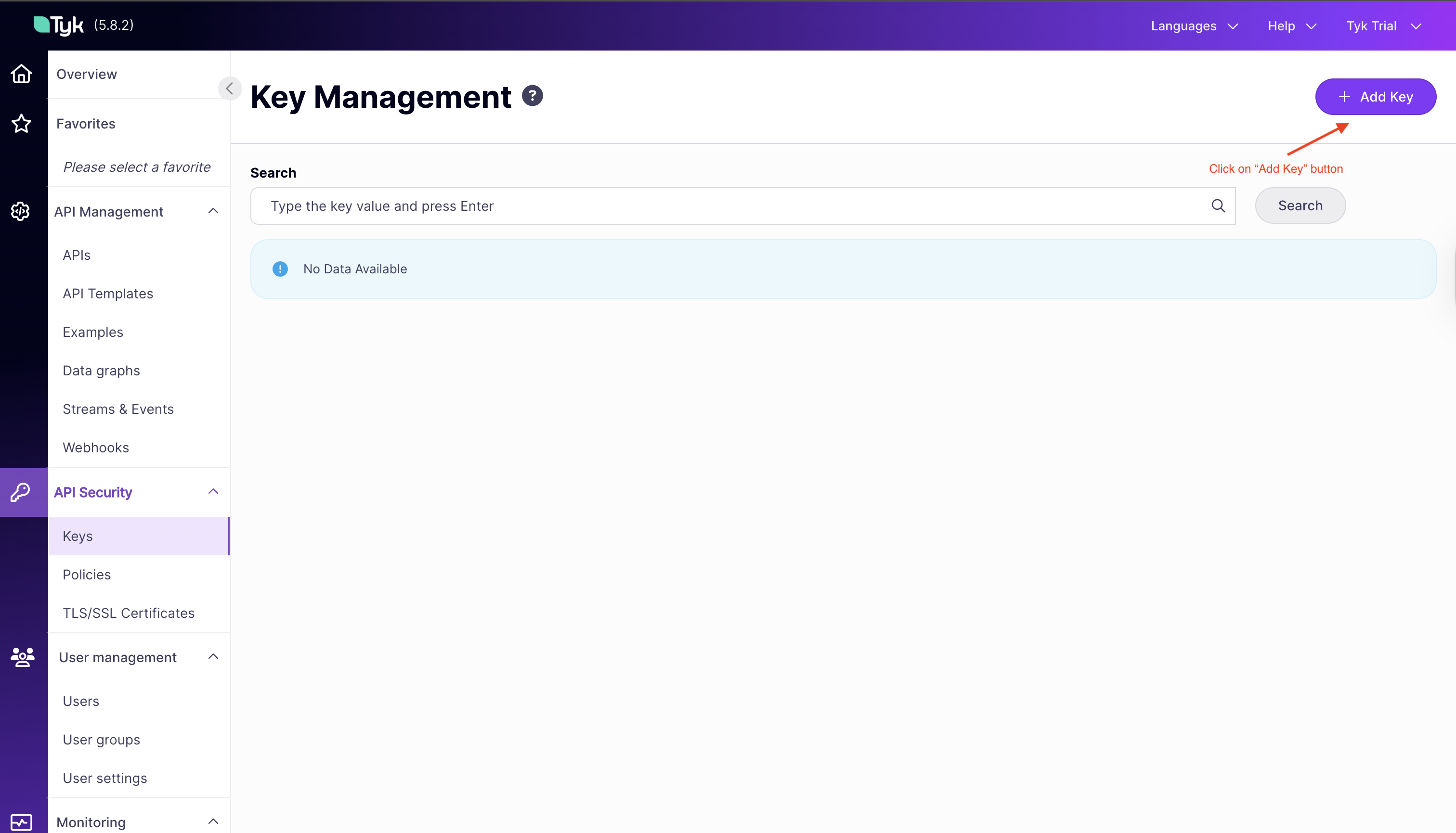
- In the Dashboard, navigate to the “Keys” section in the left menu
-
Click the “ADD KEY” button
-
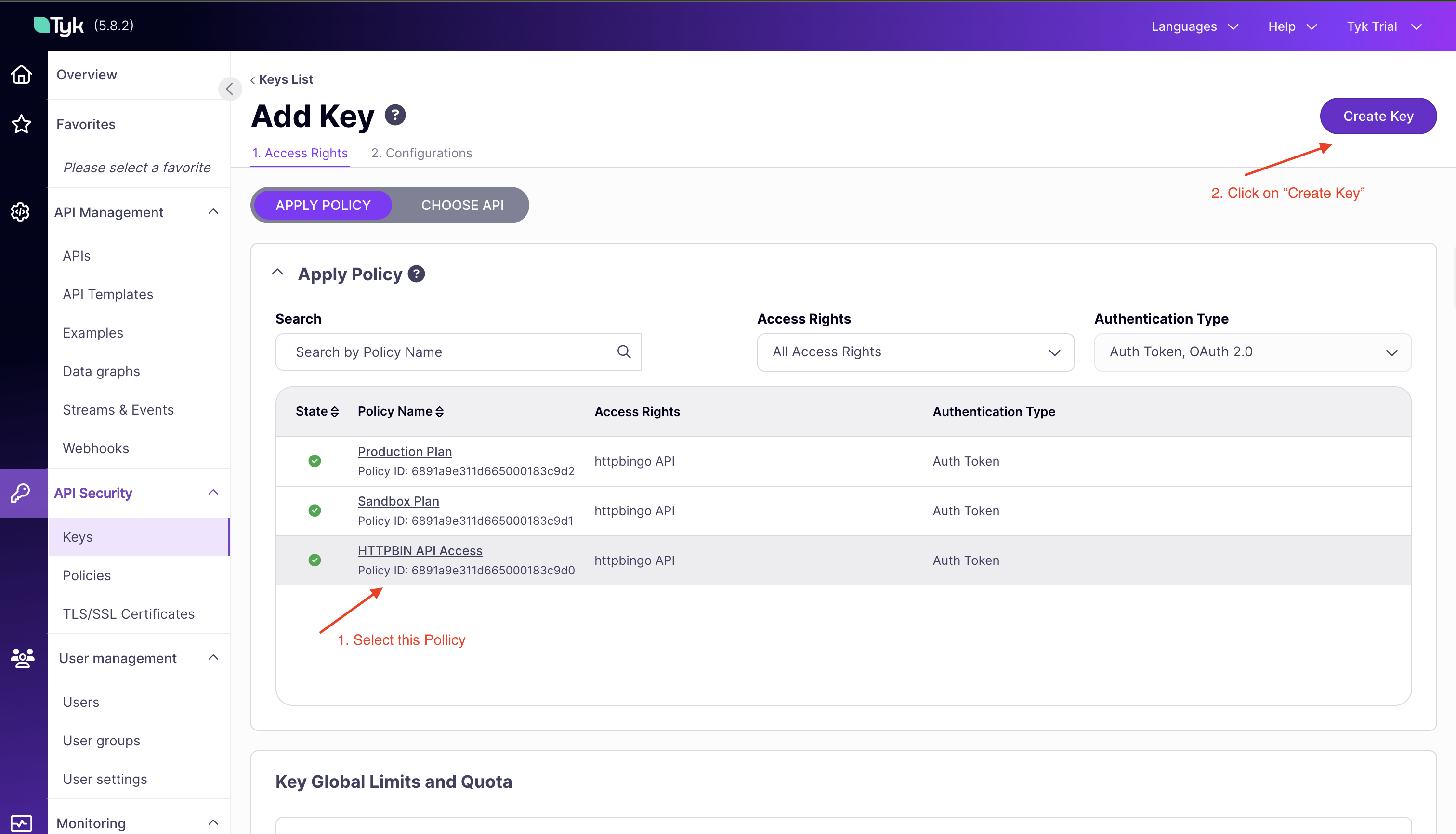
Under “Access Rights,” select the
HTTPBIN API Accesspolicy -
Now under the “Configuration” tab, add an alias
httpbin -
Click “Create Key” to generate your API key
-
Copy the displayed API
key IDfor testingNote: This key will be used in the upcoming sections to authenticate requests to the httpbingo API.
-
Test API Access with Your Key:
- Open a terminal or API client like Postman
-
Make a request to the API including your key in the Authorization header:
-
You should receive a successful response with details about your request
-
Try Without Authentication:
-
Make the same request without the Authorization header:
-
You should receive an error, confirming that authentication is working
-
Make the same request without the Authorization header:
Rate Limiting and Quota Management
Rate limiting is a technique that allows you to control the rate at which clients can consume your APIs and is one of the fundamental aspects of managing traffic to your services. It serves as a safeguard against abuse, overloading, and denial-of-service attacks by limiting the rate at which an API can be accessed. In this section we will implement and test rate limiting in Tyk. Testing Rate Limiting:-
Create an API Key:
- In the Dashboard, navigate to the “Keys” section in the left menu
- Click the “ADD KEY” button
-
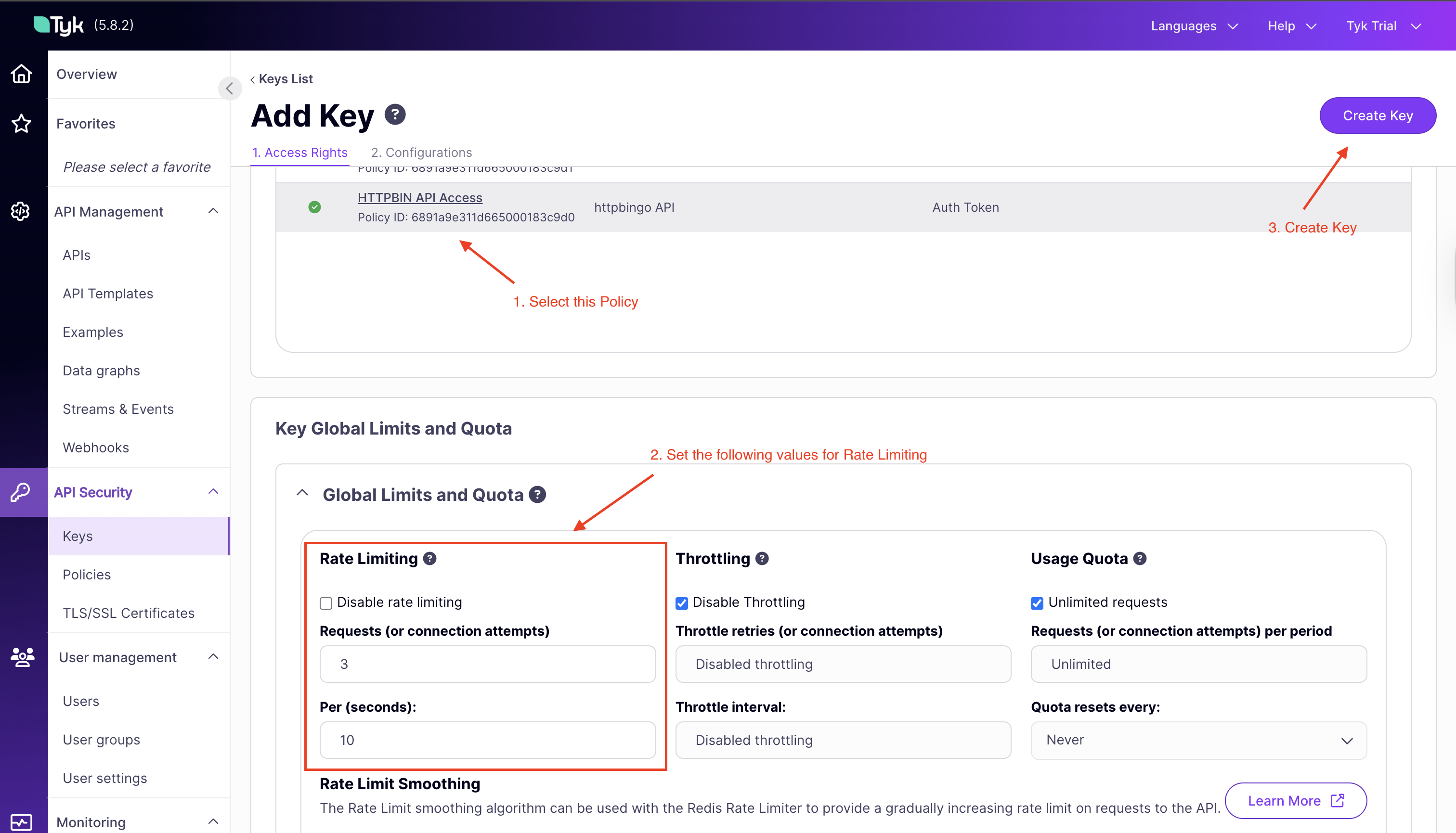
Under “Access Rights,” select the
HTTPBIN API Accesspolicy -
Under “Key Global Limits and Quota” set the following:
- Requests: 3 requests
- Per (seconds):: 10 seconds
-
Now under the “Configuration” tab, add an alias
httpbin rate limit -
Click “CREATE” to generate your API key
-
Copy the displayed API
key IDfor testing
-
Observe Rate Limiting in Action:
- Open a terminal and run multiple requests in quick succession:
- After the third request within 10 seconds, you should see a rate limit exceeded error
- Open a terminal and run multiple requests in quick succession:
-
Compare with a Higher Limit:
- Now update the
httpbin rate limitkey and set a value of100in the “requests” section of rate limiting. - Run the same test and observe that you can make more requests before hitting limits
- Now update the
-
Clean Up
-
After testing, you can delete the
httpbin rate limitAPI key from the Dashboard.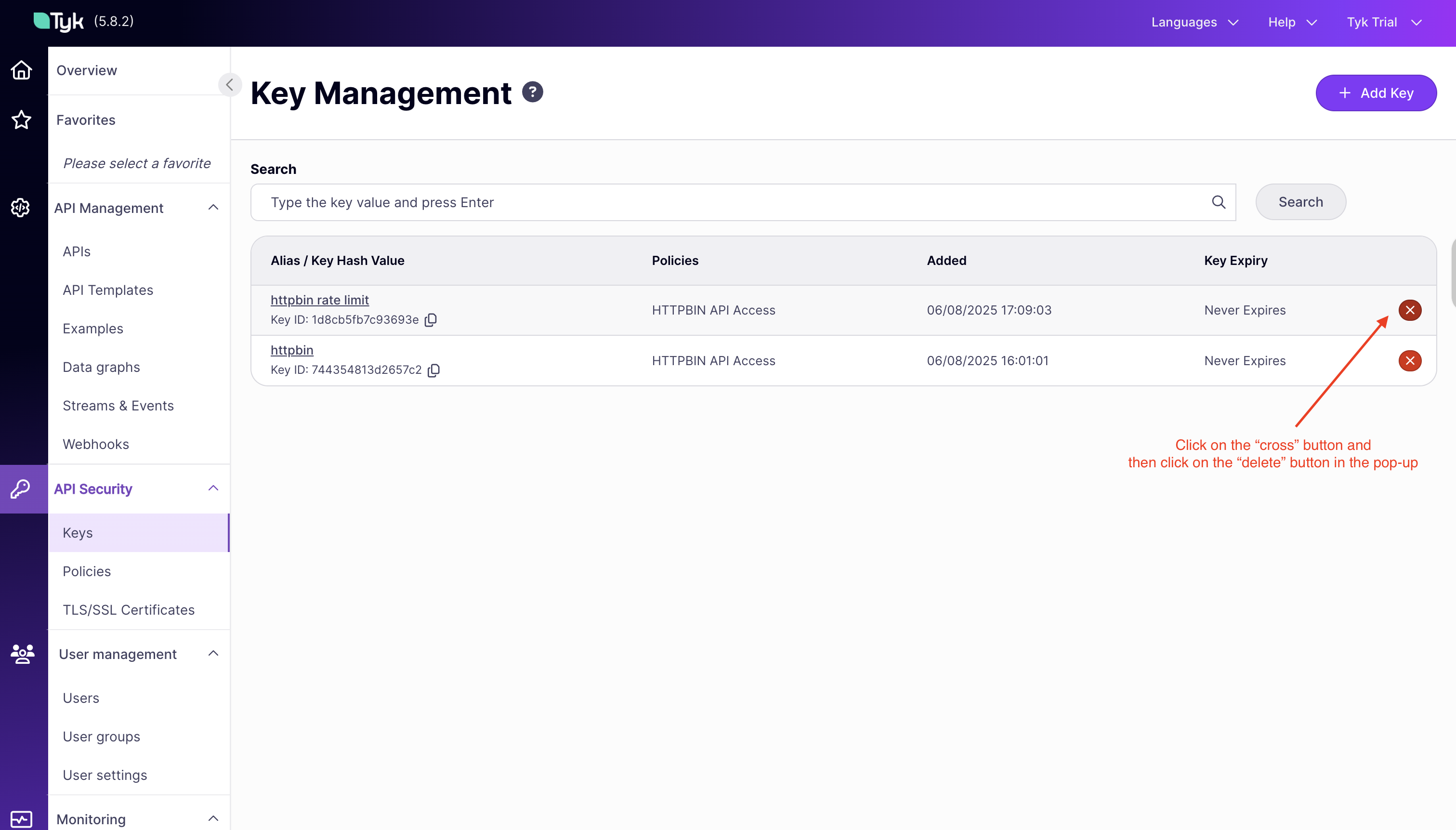
-
After testing, you can delete the
API Monitoring
Understanding how your APIs are performing is important for optimizing performance, planning capacity, and ensuring security. Tyk provides comprehensive monitoring capabilities to give you visibility into your API traffic.Generating Test Traffic
To explore Tyk’s monitoring capabilities, you’ll need to generate some API traffic that simulates real-world usage patterns and populates the monitoring dashboard. Creating Test Traffic:-
Using Command Line Tools:
- You can use simple bash loops to generate multiple requests:
- This sends 20 requests with a half-second delay between each
- You can use simple bash loops to generate multiple requests:
-
Generating Diverse Traffic:
-
Try accessing different endpoints to create a more realistic traffic pattern:
-
Include some errors by attempting to exceed rate limits or access without authentication
-
Try accessing different endpoints to create a more realistic traffic pattern:
Exploring Real-time Analytics
Once you’ve generated some traffic, you can explore Tyk’s analytics capabilities to gain insights into API usage. Accessing Monitoring Dashboard:-
View the Main Dashboard:
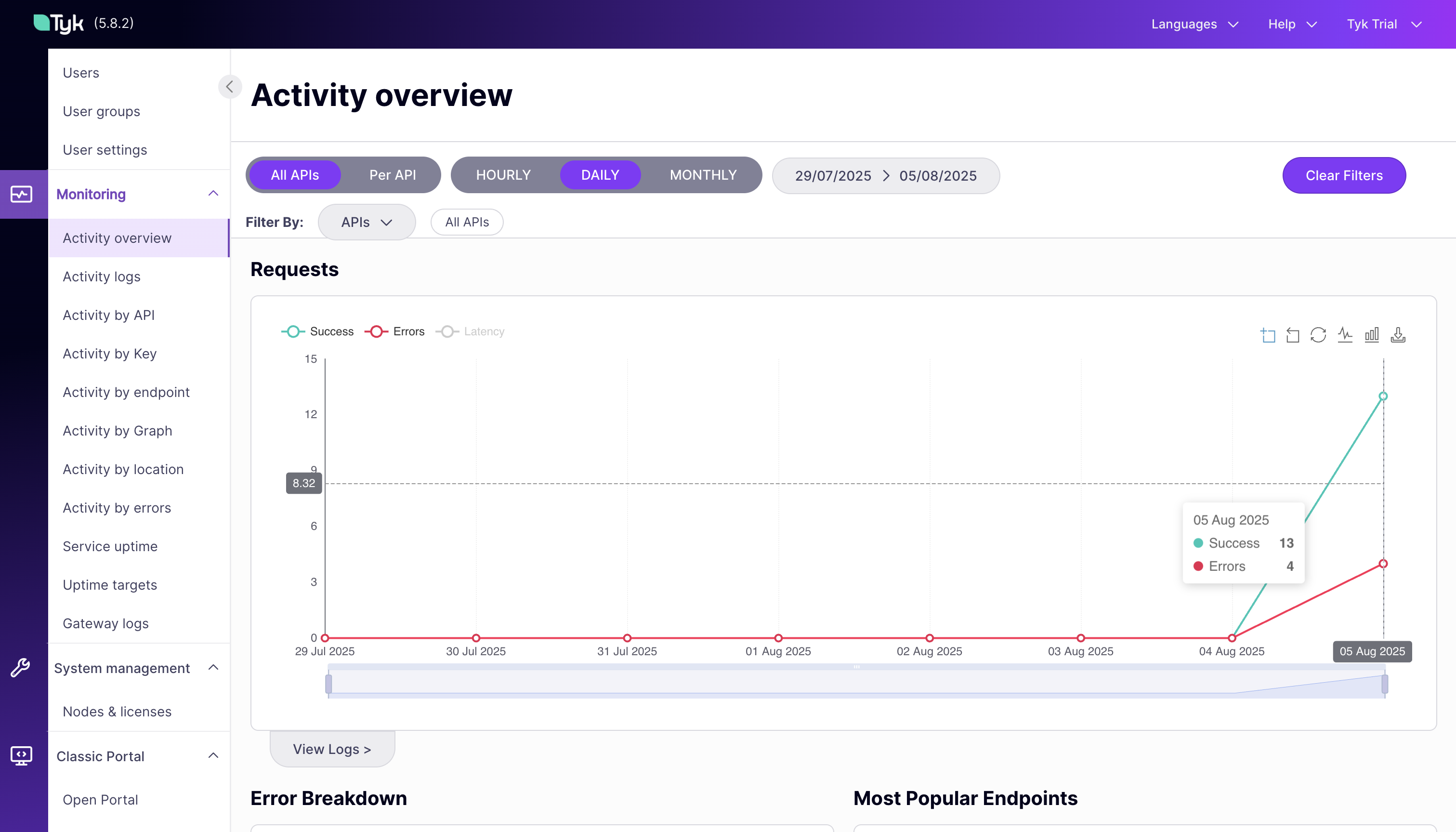
- In the Tyk Dashboard, go to the Activity Overview section under “Monitoring”
- This provides an overview of API usage, errors, and performance metrics
-
The dashboard updates in near real-time as new requests are processed
-
Explore Key Metrics:
- Request Volume: See how many requests are being processed
- Error Rates: Monitor authentication failures and other errors
- Response Times: Track API performance and identify slow endpoints
-
View Detailed Logs:
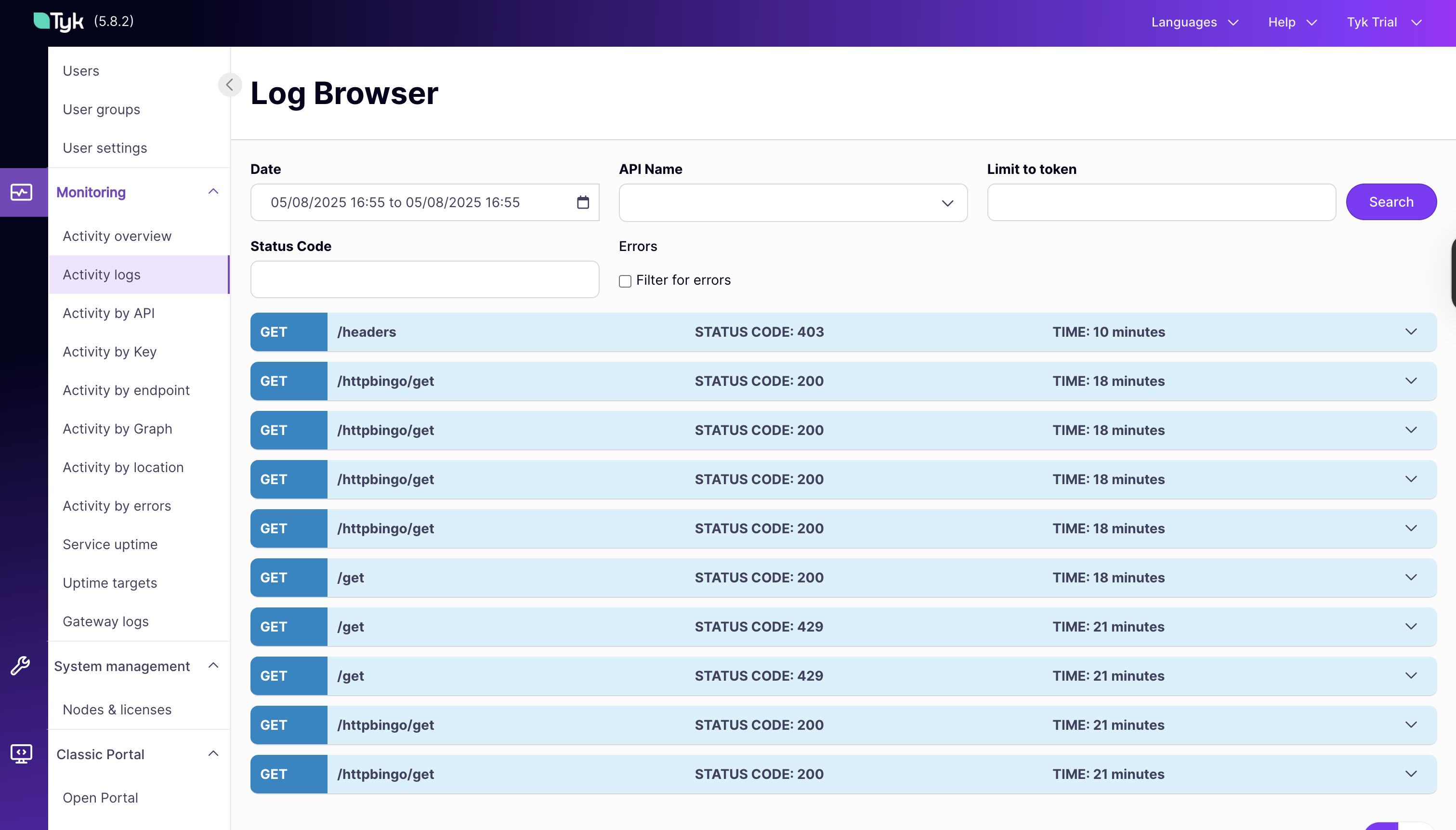
- In the Activity Logs section, you can view detailed logs of all API requests
- Filter by API, status code, or time range to focus on specific events
-
This is useful for troubleshooting and understanding user behavior
-
Multiple Analytics Views:
Tyk provides multiple views to analyze API traffic:
- By API: See metrics for individual APIs
- By Endpoint: Analyze performance and usage of specific endpoints
- By Key: Understand how different API keys are being used
- By Error: Identify common errors and their causes
- Which endpoints are most popular?
- Are there performance bottlenecks?
- Are users experiencing errors?
- How is usage changing over time?
Traffic Control & Transformation
Tyk API Gateway can control and transform incoming API traffic. It provides various mechanisms to modify requests and responses, control traffic flow, and optimize performance. Let’s explore these capabilities in your trial environment.Testing Request/Response Transformations
Transformations allow you to modify API requests and responses without changing your backend services. This is useful for adapting legacy APIs, standardizing formats, or enhancing responses. The httpbingo API in your trial includes a pre-configured transformation on the/xml endpoint that converts XML responses to JSON format.
Testing the XML to JSON Transformation:
-
Access the XML Endpoint Directly:
- Before testing the transformation, you can access the XML endpoint (httpbin) directly to see the raw XML response:
- You should see an XML response from the backend service
- Before testing the transformation, you can access the XML endpoint (httpbin) directly to see the raw XML response:
-
Make a Request to the XML Endpoint:
- Using your API key from the previous section, make a request to the XML endpoint (on the Tyk Gateway):
- Notice that even though the backend returns XML, you receive a JSON response
- This transformation happens in the gateway, not in the backend service
- Using your API key from the previous section, make a request to the XML endpoint (on the Tyk Gateway):
-
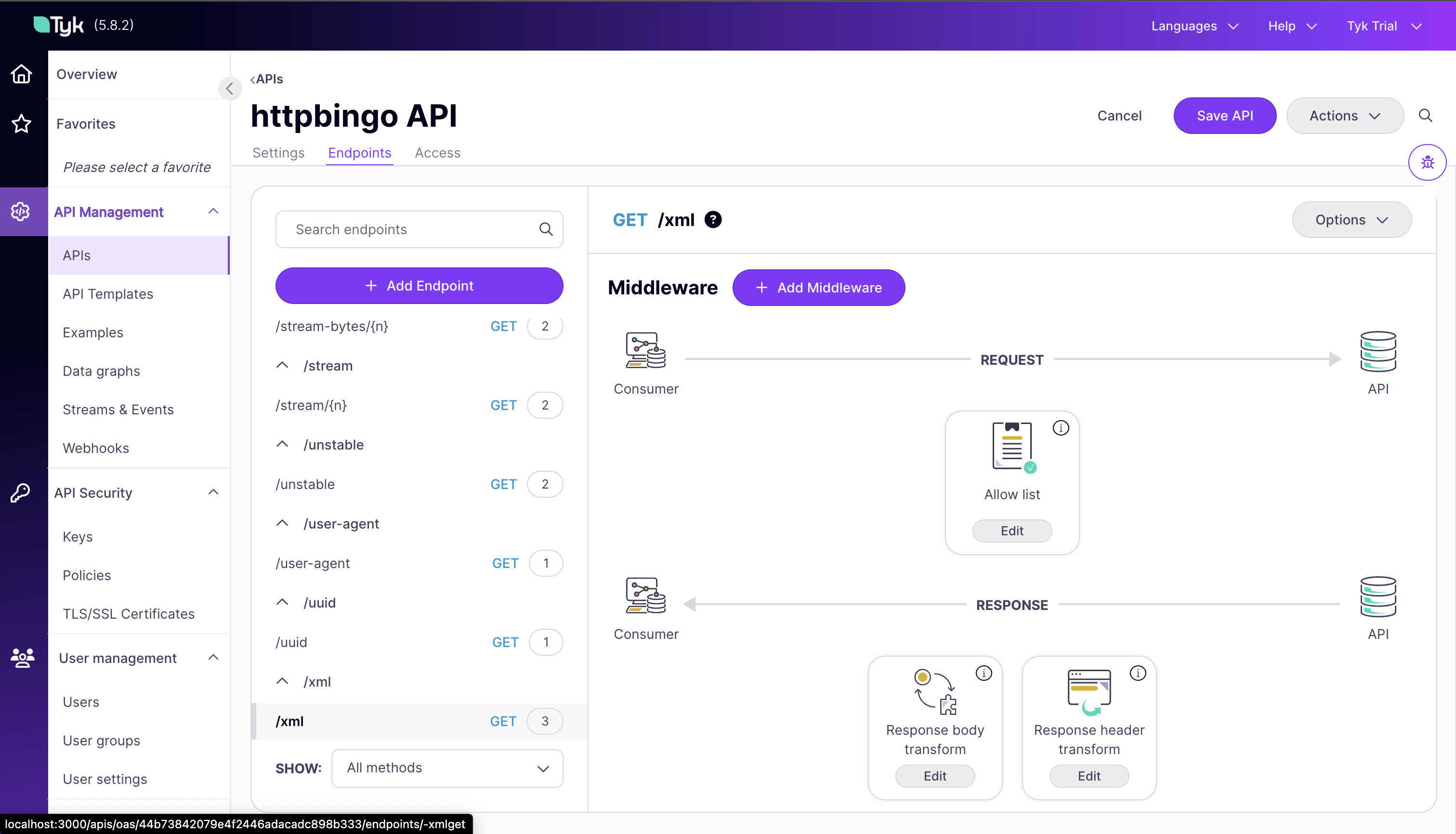
Examine the Transformation Configuration:
- In the Dashboard, go to the “APIs” section
- Click on the httpbingo API
- Navigate to the “Endpoints” tab
- Find the
/xmlpath and click on it - You’ll see the response transformation that converts XML to JSON
Exploring Caching Configurations
Caching improves API performance by storing responses and serving them without hitting your backend services for every request. This reduces latency and backend load. Understanding API Caching: The httpbingo API includes a caching example on the/get endpoint with a 10-second cache lifetime. This means that repeated requests within 10 seconds will receive the same cached response.
Testing Caching Behavior:
-
Make an Initial Request with a Unique Value:
- Using your API key, make a request to the endpoint with a unique Unique-Header:
- You’ll see the Unique-Header value in the response, for example:
- The httpbingo service echoes back the headers it receives, including your unique Unique-Header
- Using your API key, make a request to the endpoint with a unique Unique-Header:
-
Make an Immediate Second Request with a Different Header Value:
- Immediately make another request with a new unique header value:
- Notice that the Unique-Header value in the response is identical to the first request
- This confirms you’re receiving a cached response, not a new one from the backend
- Even though you sent a different header value in your request, you got back the same header value from the first request because the response was cached
- Immediately make another request with a new unique header value:
-
Wait and Test Again:
- Wait 11 seconds (just past the 10-second cache lifetime)
- Make another request with a new unique value
- You should see a different Unique-Header value in the response, matching your new request
- This indicates the cache has expired and you’re getting a fresh response from the backend
Note: You can also check the
X-Tyk-Cached-Responseheader in the response to confirm whether the response was served from cache or not.