

Availability
The integration is available from v2.2.0. In the Community Edition, the Tyk Connections page describes the feature, and the integration API refuses each request with
403.
Overview
The Tyk Dashboard MCP integration connects AI Studio to the MCP proxies that a Tyk Dashboard manages. With the integration, AI Studio does these tasks:- It imports the MCP proxies of the Dashboard. An administrator reviews each one and publishes it in the AI Portal, next to LLMs, tools, and data sources.
- It gives each App that uses an MCP server a Tyk access key. The key gets its access rights and limits from Tyk policies that an administrator selects.
- It creates new MCP proxies on the Dashboard, from the admin UI or from a community submission.
- It records each key, change, and registration in the audit trail.
Connections
A connection is one Tyk Dashboard URL, one Dashboard user access key, and one Organisation. You can add more than one connection. Each imported server, each cached policy, and each issued key belongs to one connection. To manage connections, go to Settings > Tyk Connections. To add one, click Connect Dashboard. You can also add a connection inline in the Import OpenAPI wizard on the Tools page. Refer to Importing Tools from a Tyk Dashboard.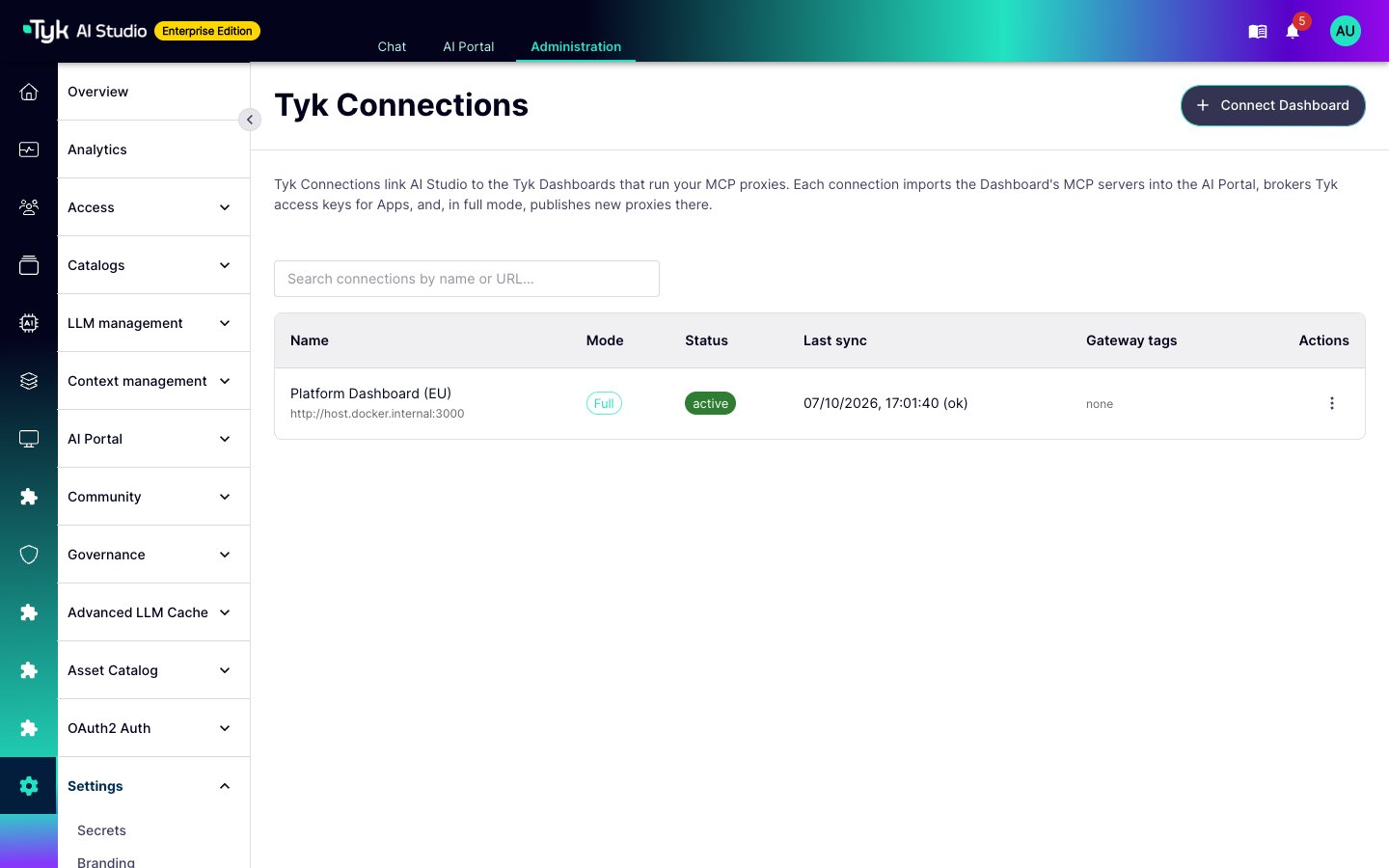
Trust Modes
The permissions of the Dashboard user set the limit of what AI Studio can do. The trust mode of the connection can only make that set smaller:
Use a dedicated Dashboard user for each connection, with only the permissions that the mode needs:
- Catalogue mode: read access to APIs, policies, and MCP proxies.
- Broker mode: also write access to keys.
- Full mode: also write access to APIs, policies, and MCP proxies.
Capabilities
When you activate a connection, and at each sync, AI Studio probes the Dashboard. The probe uses only calls that change nothing. The connection page shows the result for each capability.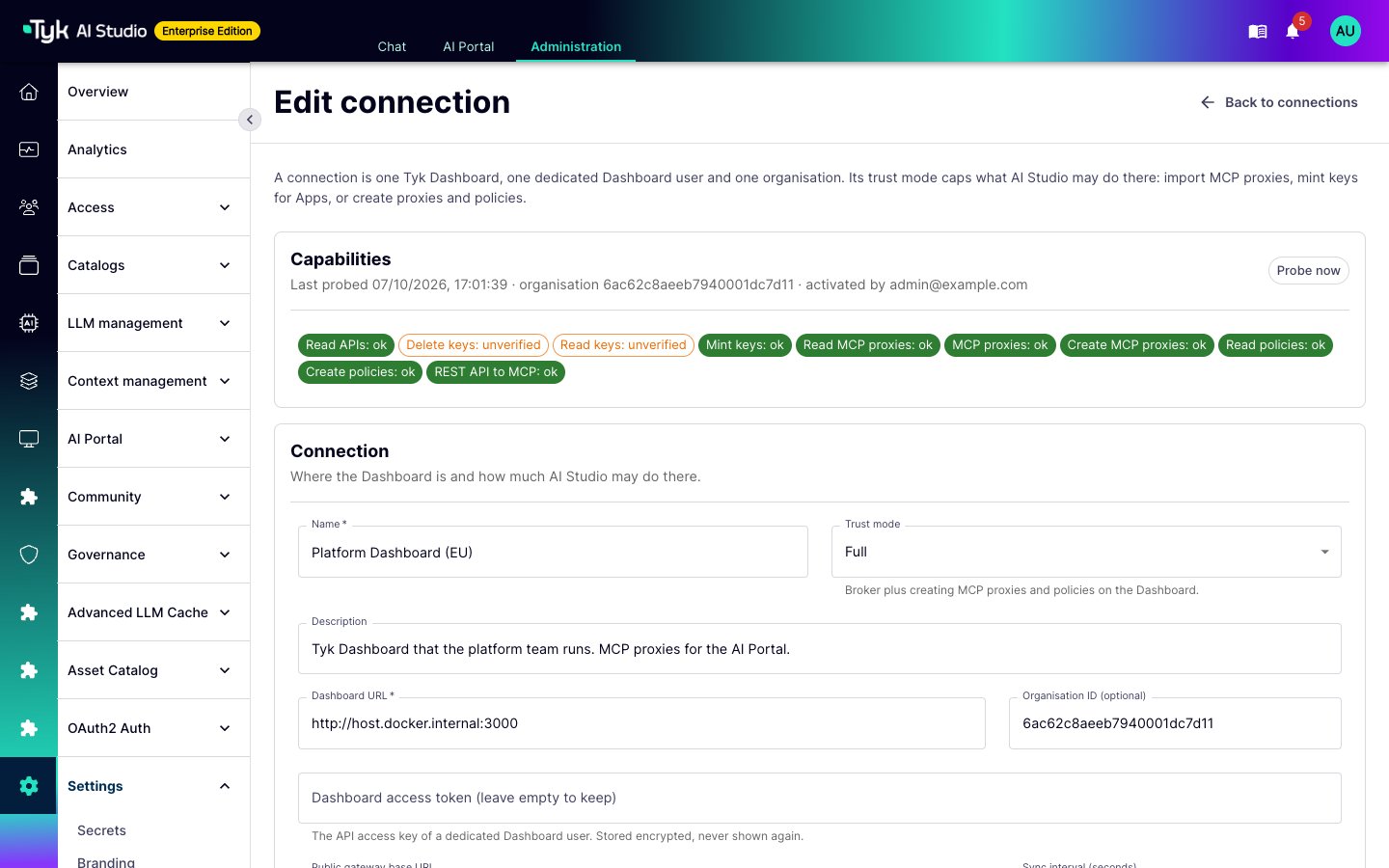
- A read capability shows ok when the Dashboard answers.
- Some write capabilities show unverified until the first real write. For example, the first issued key proves Mint keys.
- If the Dashboard refuses a request with
401or403, AI Studio marks the connection as degraded. It names the failed capability. - The effective mode is the highest mode that the capabilities permit, up to the mode that you selected. If the probe cannot prove a capability, AI Studio uses a lower mode and shows a warning.
execute action on tyk-connections. To require that a different person activates the connection, set TYK_MCP_REQUIRE_DIFFERENT_ACTIVATOR=true.
When AI Studio runs inside a Tyk Dashboard, the Dashboard supplies one connection. This connection shows Managed by host. The Dashboard sets its URL, Organisation, trust mode, gateway URL, and access key. You cannot delete it, but you can change its name, sync interval, and governance settings, and you can disable it.
API Template
A connection can name a Tyk Dashboard API template. AI Studio merges the defaults of the template into each MCP proxy that it creates on that connection. It does this again each time it pushes a definition. Use a template to give each proxy the traffic logs, middleware, and tags that your platform team requires. If AI Studio cannot read the template, the registration fails, and AI Studio does not create the proxy.Segmented Gateways
If your gateways are segmented, a proxy loads only on the gateways that have its tags. A connection can learn the tags from MDCB, or you can enter a list of known tags. When a connection knows at least one tag, the registration wizard and the submission form show a deployment target. You can also set a public gateway URL for each tag, so the AI Portal shows the correct endpoint.Discover and Publish MCP Servers
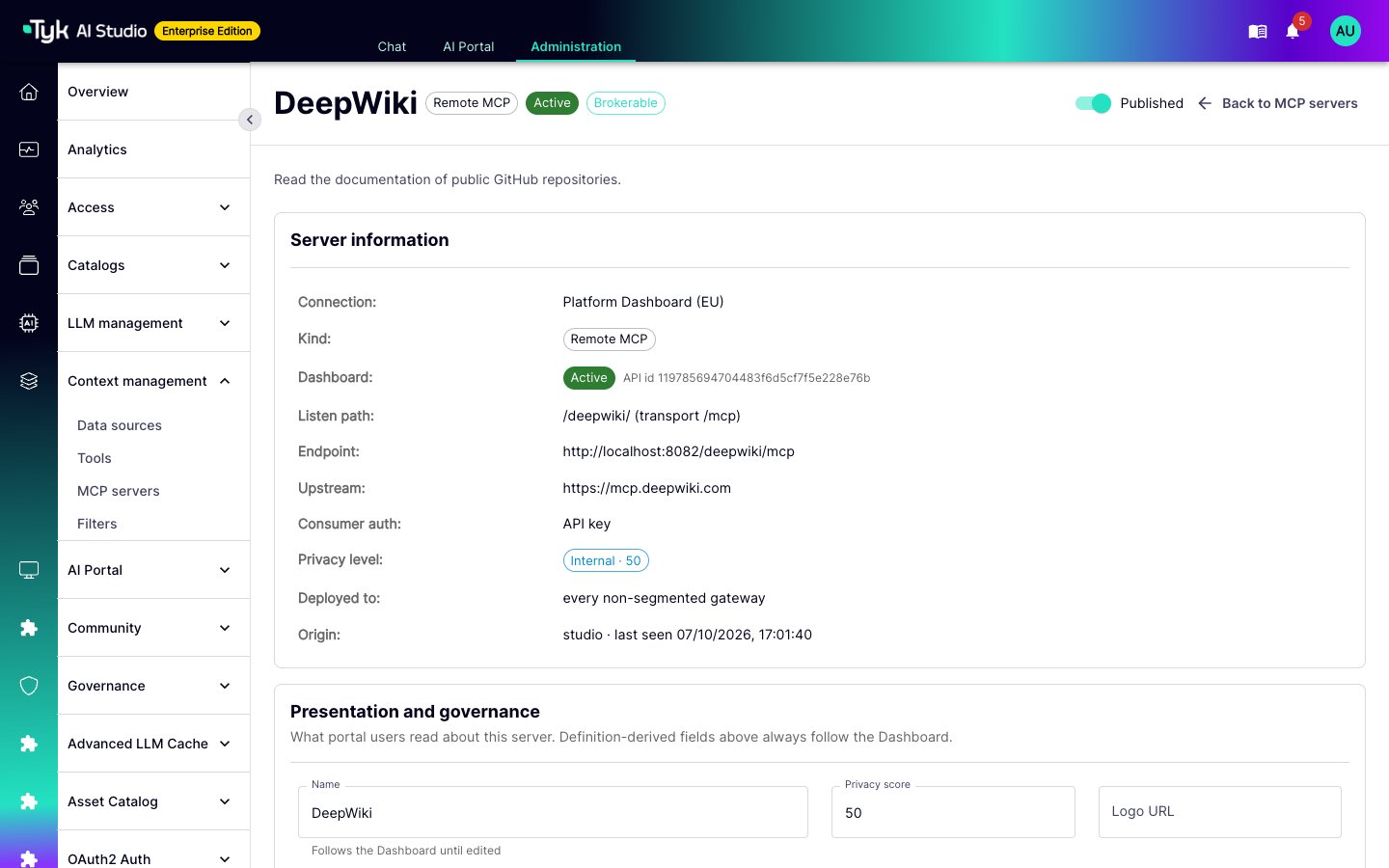
AI Studio syncs each active connection at its sync interval. To sync at once, click Sync now on the MCP servers page. A sync does these steps:- It lists each MCP proxy on the Dashboard and reads its listen path, kind, authentication, tools, and gateway tags.
- It stores the definition. It masks the upstream credentials.
- It updates the cached policies, and it checks the keys that it issued.
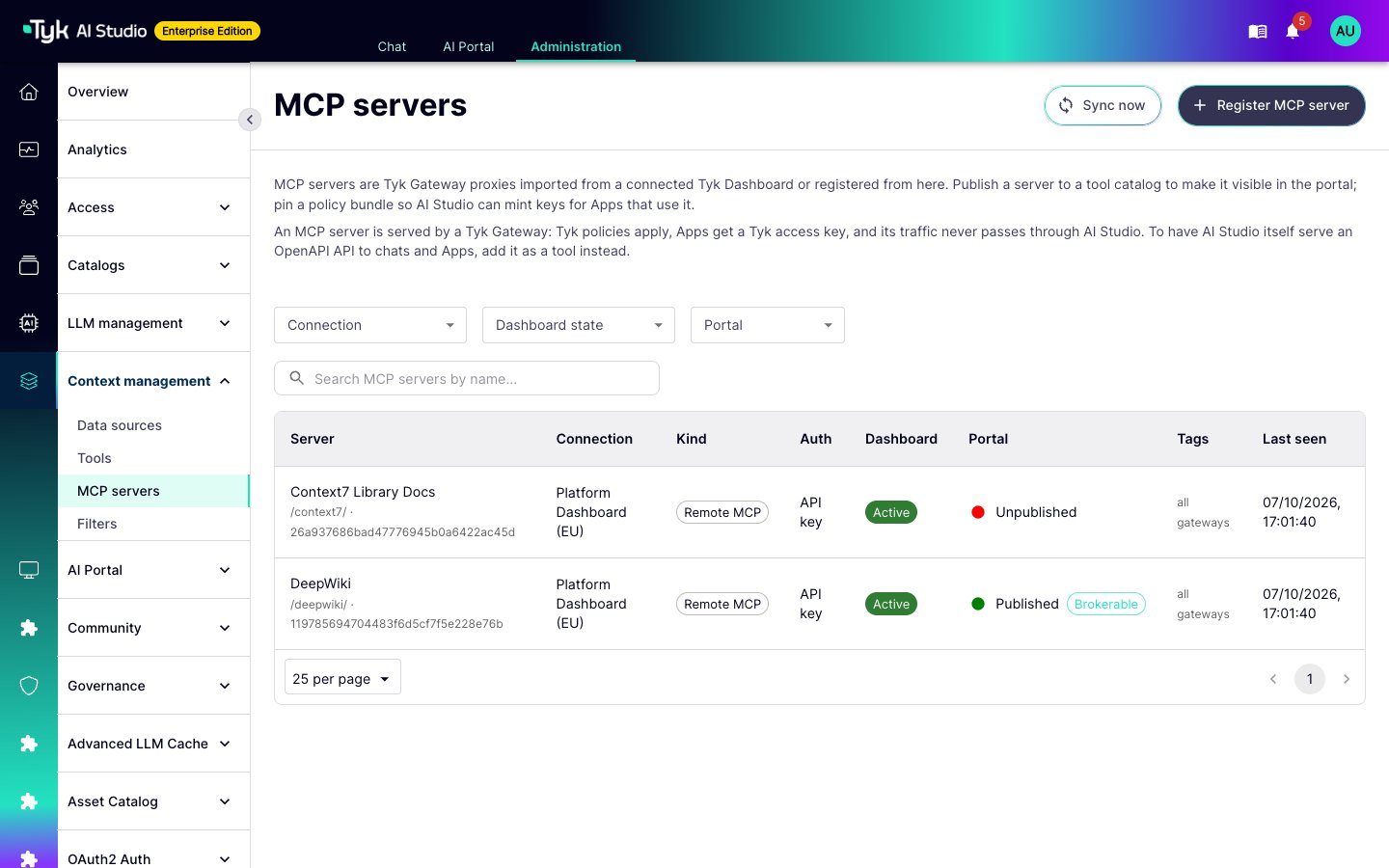
- Set a Privacy score. An imported server has no privacy score until you set one.
- Add the server to the tool catalogs of the Teams that must see it in the AI Portal.
- To let AI Studio issue keys for the server, select a policy bundle. Refer to Policy Bundles.
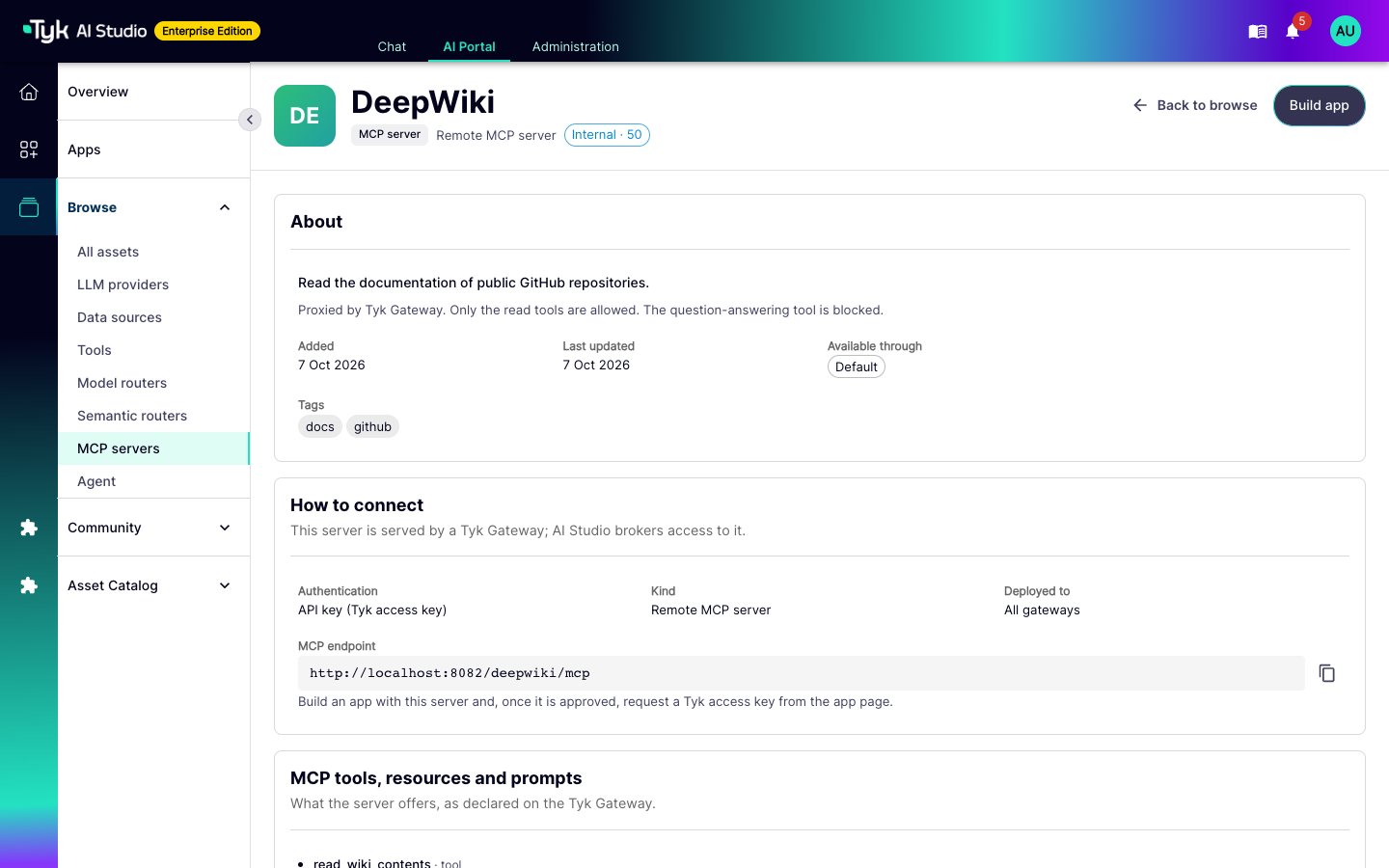
Policy Bundles
A Tyk key does not carry its own access rights. It carries policy IDs, and Tyk Gateway applies those policies to each request. AI Studio does not create a policy for each App. Instead, you select a bundle of policies for each MCP server:- One access policy. Its access rights must include the MCP proxy. It must be unpartitioned, or it must use the ACL partition.
- Zero or more consumption policies. Each one must use the rate limit, quota, or complexity partition, and must not use the ACL partition.
per_api partition. For the partitions, refer to Partitioned Policies. For the MCP access rules in a policy, refer to MCP Gateway Policies.
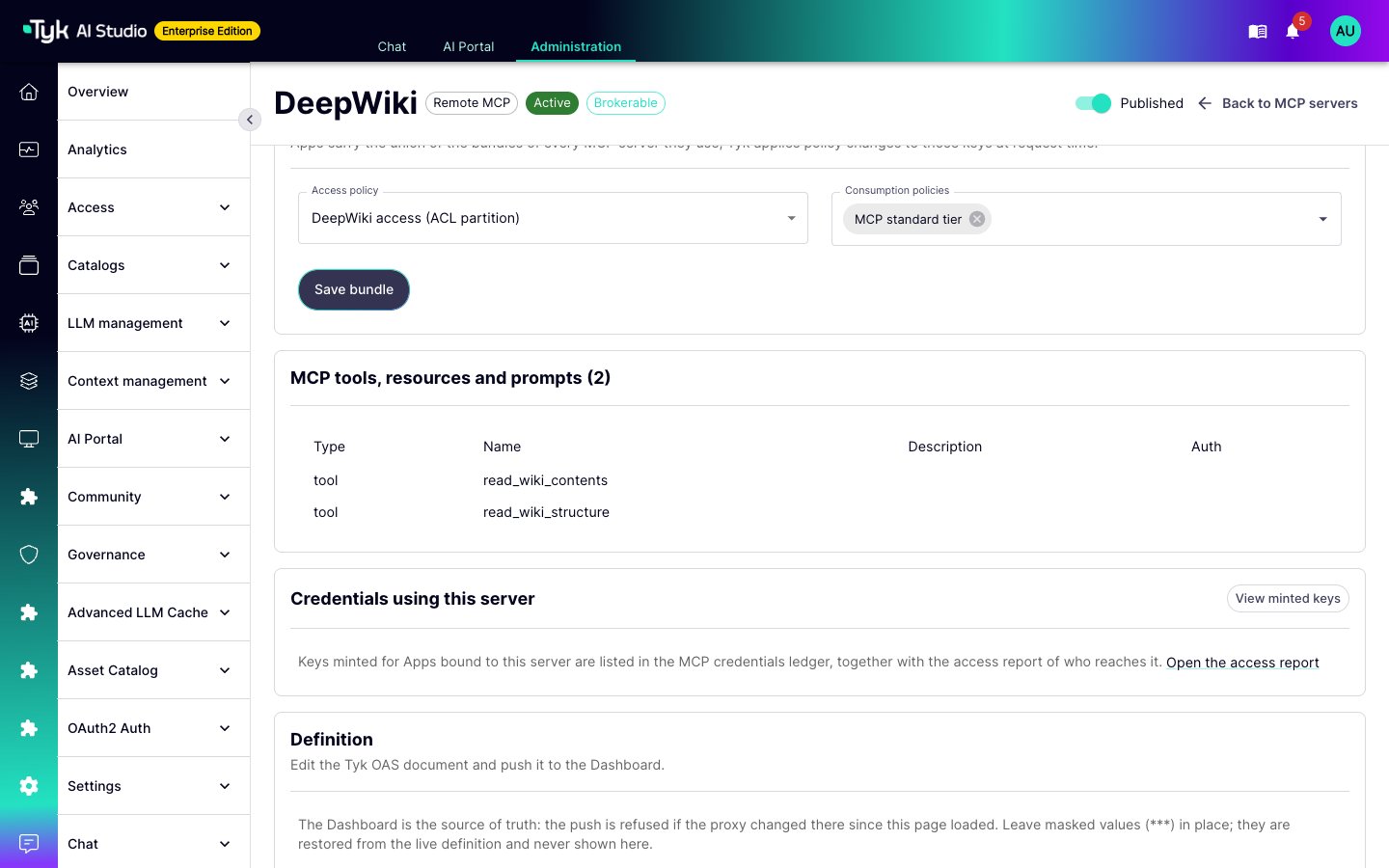
studio-managed, and adds it to the bundle. You can edit these policies from AI Studio. Policies from other sources link to the Dashboard.
When you change a policy on the Dashboard, the change applies to every key that uses it. AI Studio does not need to do anything.
Access Keys for Apps
A user adds MCP servers to an App, in the same way as tools. Only servers with an API key authentication can go into an App. After an administrator approves the App, the App page shows a Connect via MCP section. It has one card for each connection, with the endpoint of each server and the key actions. The section also gives one MCP client configuration for all the MCP servers and tools of the App.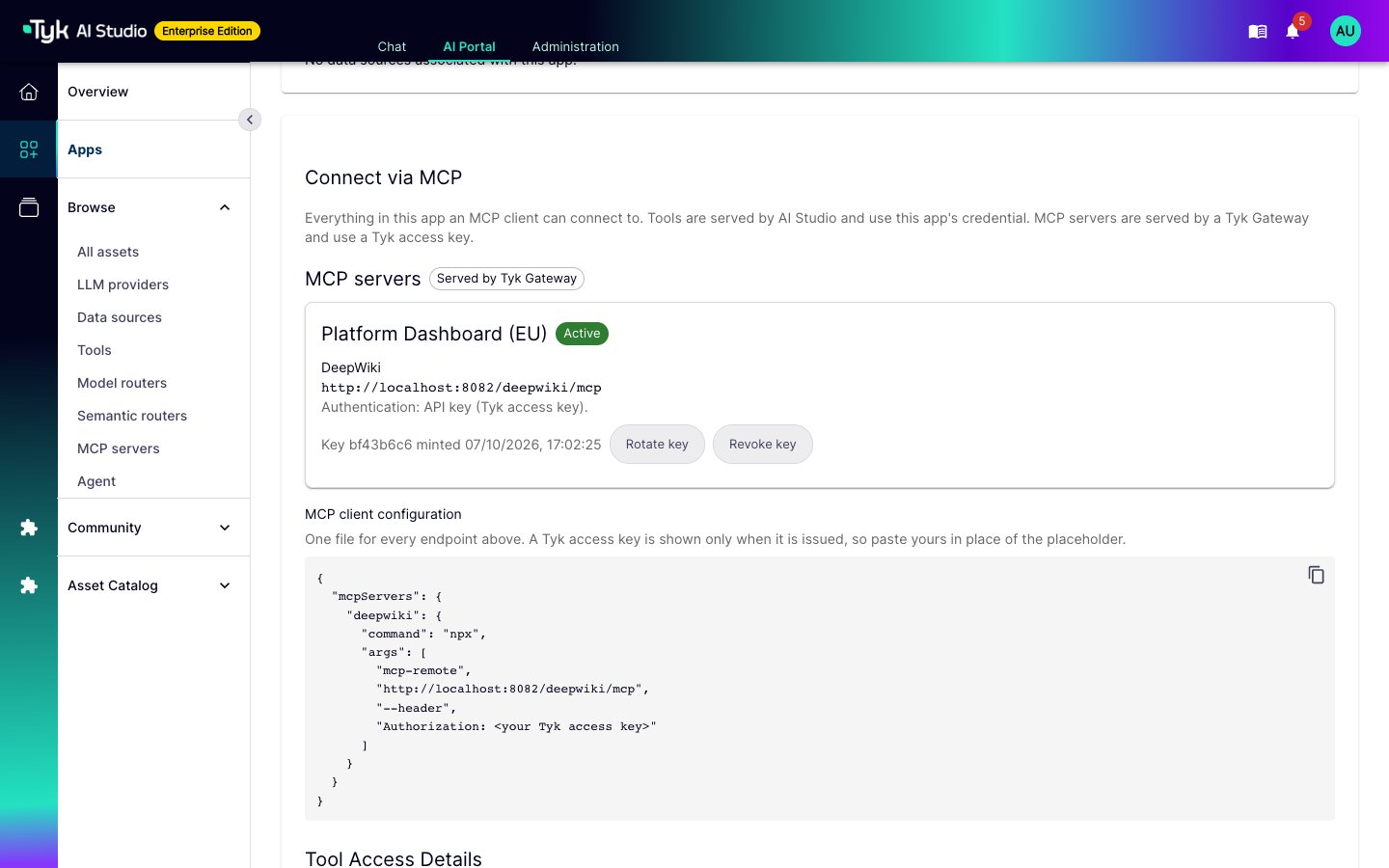
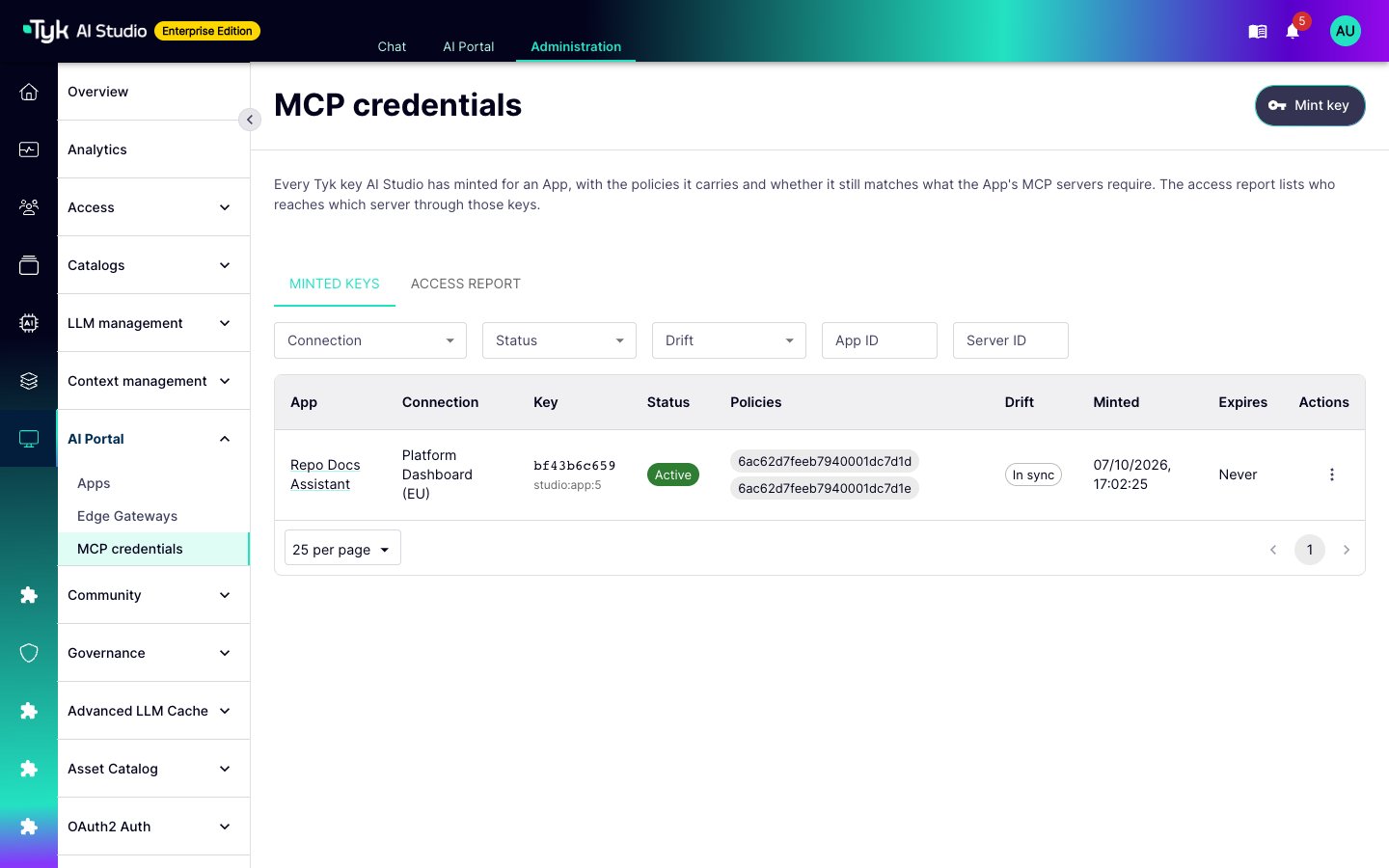
- The App owner requests the key on the App page in the AI Portal.
- An administrator clicks Mint key on the AI Portal > MCP credentials page, for an App.
Policy Changes on Keys
A key must get different policies when a bundle changes, when an App gains or loses a server, or when a policy is deleted. AI Studio checks this at once and at each sync:Servers Without Keys
AI Studio catalogs and publishes servers that use OAuth 2.1, external OAuth, JWT, mTLS, or no authentication. It does not issue keys for them. You cannot add these servers to an App. Their page in the AI Portal tells the user how to connect directly. The access report does not show them.Register an MCP Proxy From AI Studio
On a Full mode connection, you can create a new MCP proxy on the Dashboard. Go to Context management > MCP servers, and click Register MCP server. The wizard has four steps:- Connection and kind: Select the connection and the kind. Remote MCP server proxies an existing MCP endpoint. REST API to MCP makes the operations of a Tyk OAS API into MCP tools. It needs Tyk 5.15 or later.
- Proxy details: Enter the name and the listen path. Then do one of these steps:
- For a remote MCP server, enter the upstream MCP URL, and select which tools the gateway allows. Enter the base URL of the server. The gateway adds
/mcpitself, so AI Studio removes a/mcpsuffix from the URL that you enter. - For REST API to MCP, select the source API and its operations.
- For a remote MCP server, enter the upstream MCP URL, and select which tools the gateway allows. Enter the base URL of the server. The gateway adds
- Access and governance: Select the consumer authentication: API key, OAuth 2.1, or keyless. Then select the deployment target, the privacy score, the tool catalogs, and whether to publish at once.
- Review and create: Examine the definition, the endpoint, and the warnings. Then create the proxy.
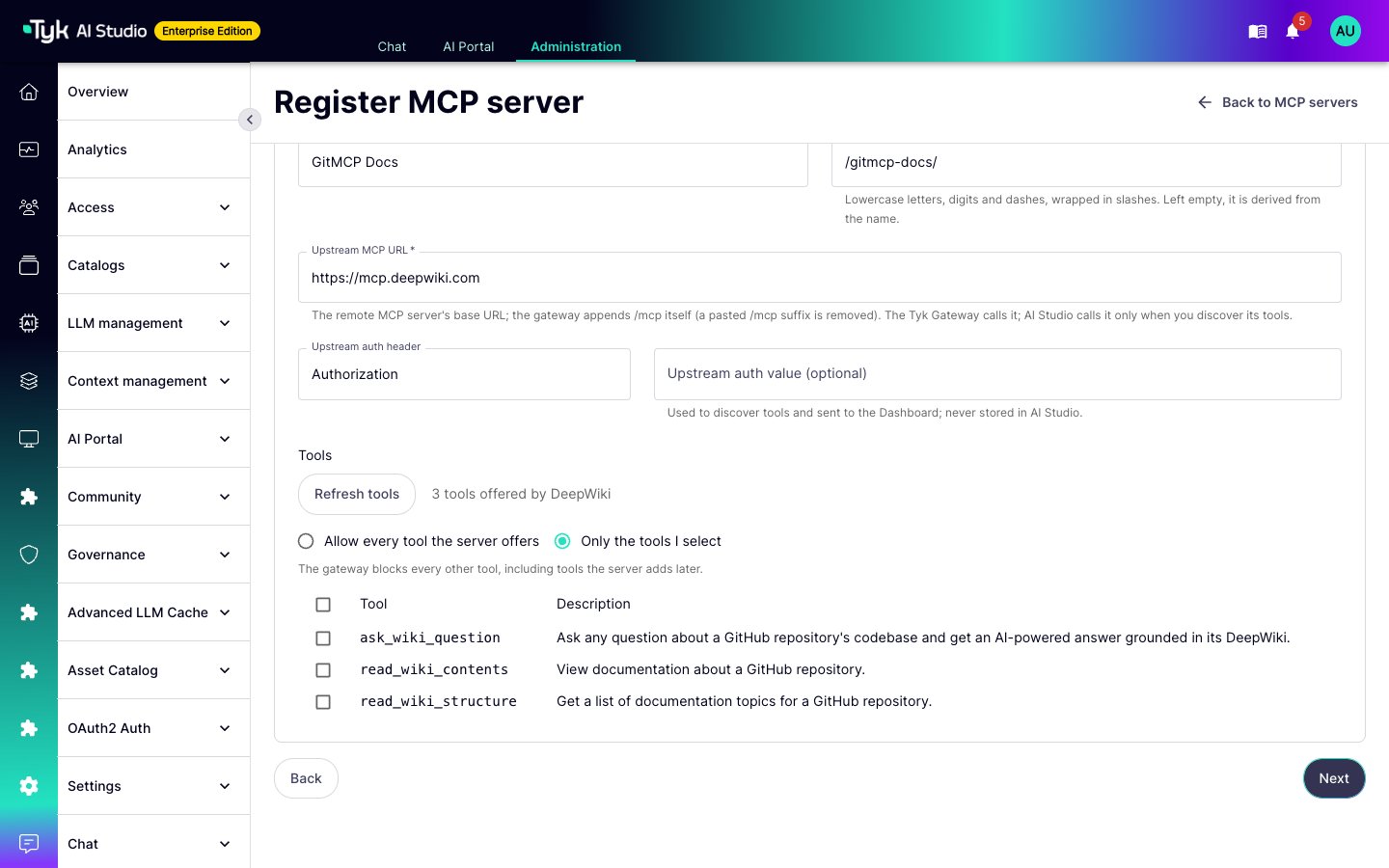
execute action on mcp-servers. The call uses the same host rules as connections, with no exception for internal hosts. To permit an internal upstream host, add it to TYK_MCP_ALLOWED_HOSTS. If AI Studio cannot reach the upstream server, type the tool names. The gateway blocks each tool that you do not select, including tools that the server adds later.
AI Studio sends the upstream credential to the Dashboard and does not store it.
You can edit the definition on the server page and push it to the Dashboard. AI Studio refuses the push if the proxy changed on the Dashboard after you opened the page. Before AI Studio overwrites a proxy that was created on the Dashboard, it asks you to confirm.
When you delete a proxy that AI Studio registered, AI Studio deletes it from the Dashboard. For a proxy created on the Dashboard, you can only unpublish it in AI Studio.
Community Submissions
AI Portal users can submit an MCP server for review, in the same way as a tool or a data source. Refer to Community Submissions. AI Studio encrypts the upstream credential of a submission, and does not show it in responses. What happens when a reviewer approves a submission depends on the connection:- Full mode: AI Studio creates the proxy on the Dashboard. The submitter owns the new server.
- Catalogue or Broker mode, with handoffs accepted: AI Studio records the server as awaiting the platform team, and notifies administrators. The server page gives a handoff package with the definition, the policy shape, and the steps. After the platform team creates the proxy and a sync imports it, click Link on the server page. AI Studio then moves the owner, privacy score, catalogs, and submission to the imported server.
system.mcp_server.registration_handoff event. You can send it to a webhook.
Permissions
Three resources in the permission catalog control the integration:tyk-connectionscontrols the connections. Theexecuteaction activates, disables, probes, and syncs a connection.mcp-serverscontrols the MCP servers. Theexecuteaction registers servers, finds the tools of an upstream server, pushes definitions, links handoffs, and creates policies. Thepublishaction shows a server in the AI Portal.mcp-credentialscontrols the issued keys. Theexecuteaction issues, rotates, suspends, resumes, and revokes keys, and applies pending changes.
Configuration
By default, AI Studio refuses Dashboard and MDCB URLs on internal network addresses. To permit one, select Allow this Dashboard host to be on an internal network address on the connection.
Limitations
- Chats and agents in AI Studio do not use Tyk-managed MCP servers. Only Apps use them.
- Each server has one policy bundle.
- When you rotate a key, the old key stops at once.