

Availability
Roles control what a person can see and do in the admin console and the management API of Tyk AI Studio. With roles, you give each person only the access that they need. For example:
- A platform engineer can manage LLM providers and tools, but cannot change who has access.
- An auditor can read the audit trail, but cannot change anything.
- A reviewer can see only the community submission queue.
Community Edition vs Enterprise Edition
In the Community Edition, a user is an administrator or not. Set the Admin User switch on the user to give full access to the admin console. In the Enterprise Edition, roles give fine-grained access. The Enterprise license must include the roles feature. If it does not, AI Studio uses the Community Edition rule. Roles do not control the AI Portal and the Chat interface. The Show Portal and Show Chat switches on the user control access to them. The Catalogs of the user’s Teams control what the user sees in them.How Roles Work
- A permission has the form
resource:action, for examplellms:writeoraudit:read. - A role is a named set of permissions.
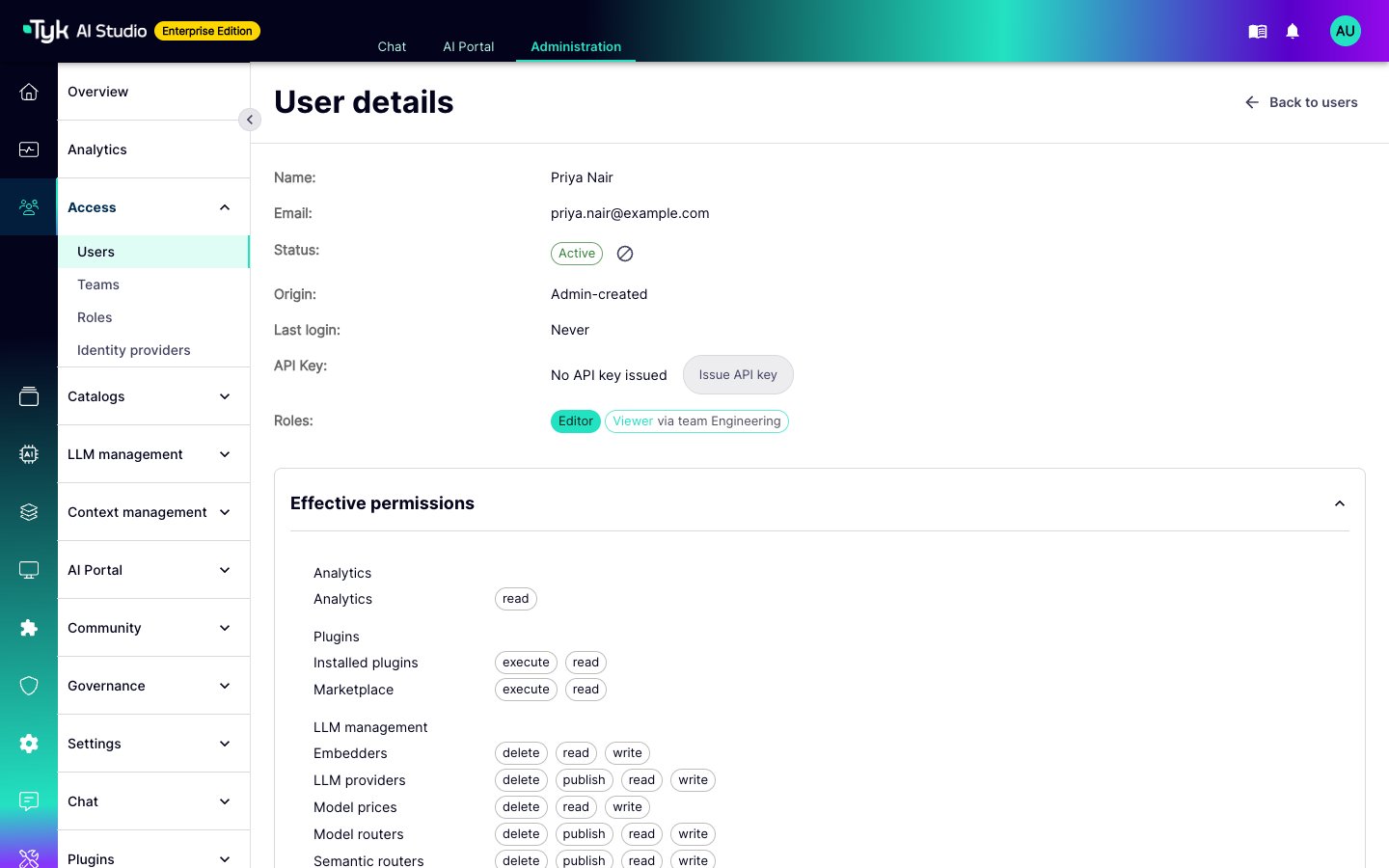
- You assign roles to users and to Teams. A user gets the permissions of their own roles. The user also gets the roles of each Team that they belong to.
- Permissions apply to the admin console navigation, pages, buttons, and every management API call. This includes calls with the API key of a user.
Actions
Each action includes
read. The publish action does not include write. Thus, one role can edit drafts but not release them. Another role can release objects but not edit them. Only resources with an active switch offer publish.
If a user without llms:publish sets an LLM provider active, AI Studio returns 403 with "permission": "llms:publish". The admin console disables the switch for that user.
Built-in Roles
AI Studio has five system roles:
You cannot edit or delete a system role. To change one, clone it and edit the copy. When you clone Owner or Administrator, the copy gets every concrete permission. Only the Owner and Administrator roles have the full-access wildcard (
*). A custom role cannot have it.
AI Studio calculates the permissions of Editor, Viewer, and Auditor from the permission catalog. It does this at each start, and each time a plugin adds or removes permissions. Thus, new resources and plugin resources go into these roles automatically.
Owner Rules
- You can assign the Owner role to users only, not to Teams.
- Only an Owner can assign or remove the Owner role.
- You cannot remove the last Owner. You also cannot delete, disable, or demote the last Owner.
The First User and Upgrades
On a new installation, the first user gets the Administrator role. At the next start of AI Studio, if no Owner exists, AI Studio gives the Owner role to the first administrator. When you upgrade to v2.2.0 or later, AI Studio does these steps one time:- Each existing administrator gets the Administrator role.
- The first user (user ID 1) also gets the Owner role. If no user has the Owner role after this step, the administrator with the lowest user ID becomes an Owner. For example, this occurs when user ID 1 is not an administrator.
- Other users get no role. They keep their AI Portal and Chat access.
sso-profiles permission controls this access. Administrators who did not have the switch now have this access through the Administrator role. AI Studio logs their email addresses at startup. After the upgrade, check which users have the Administrator role. To limit identity provider access, give these users a custom role without sso-profiles.
Permission Reference
Each row is one resource. The table shows the actions that each resource offers.- Sensitive resources hold data such as transcripts, logs, and secrets. You can withhold
readon them separately. - Privileged resources can give access to other people when you change them. The role editor shows a warning for them.
The role editor shows the current catalog, including plugin resources.
Manage Roles
To see roles, you needroles:read. To change roles, you need roles:write.
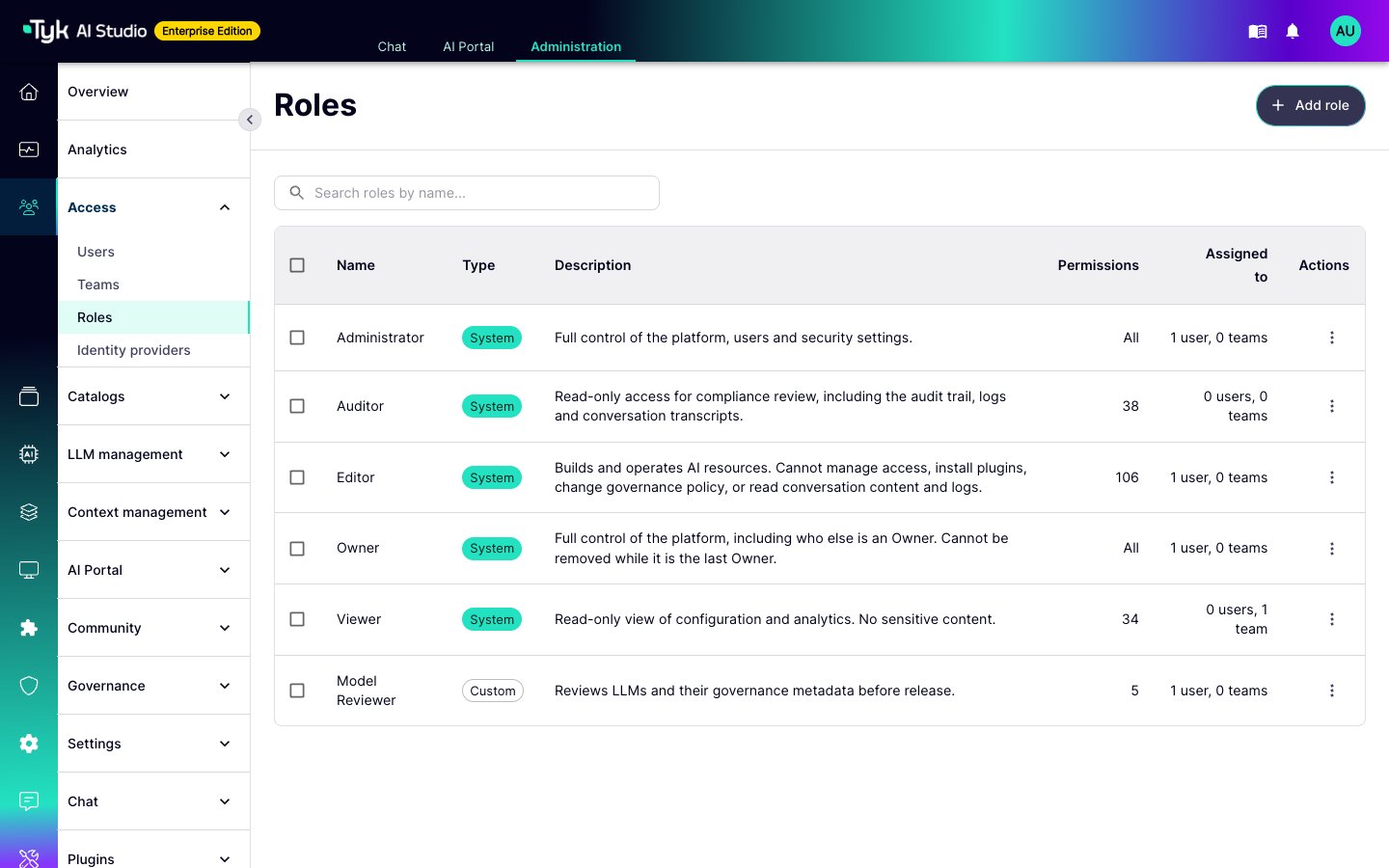
- In the admin console, go to Access > Roles.
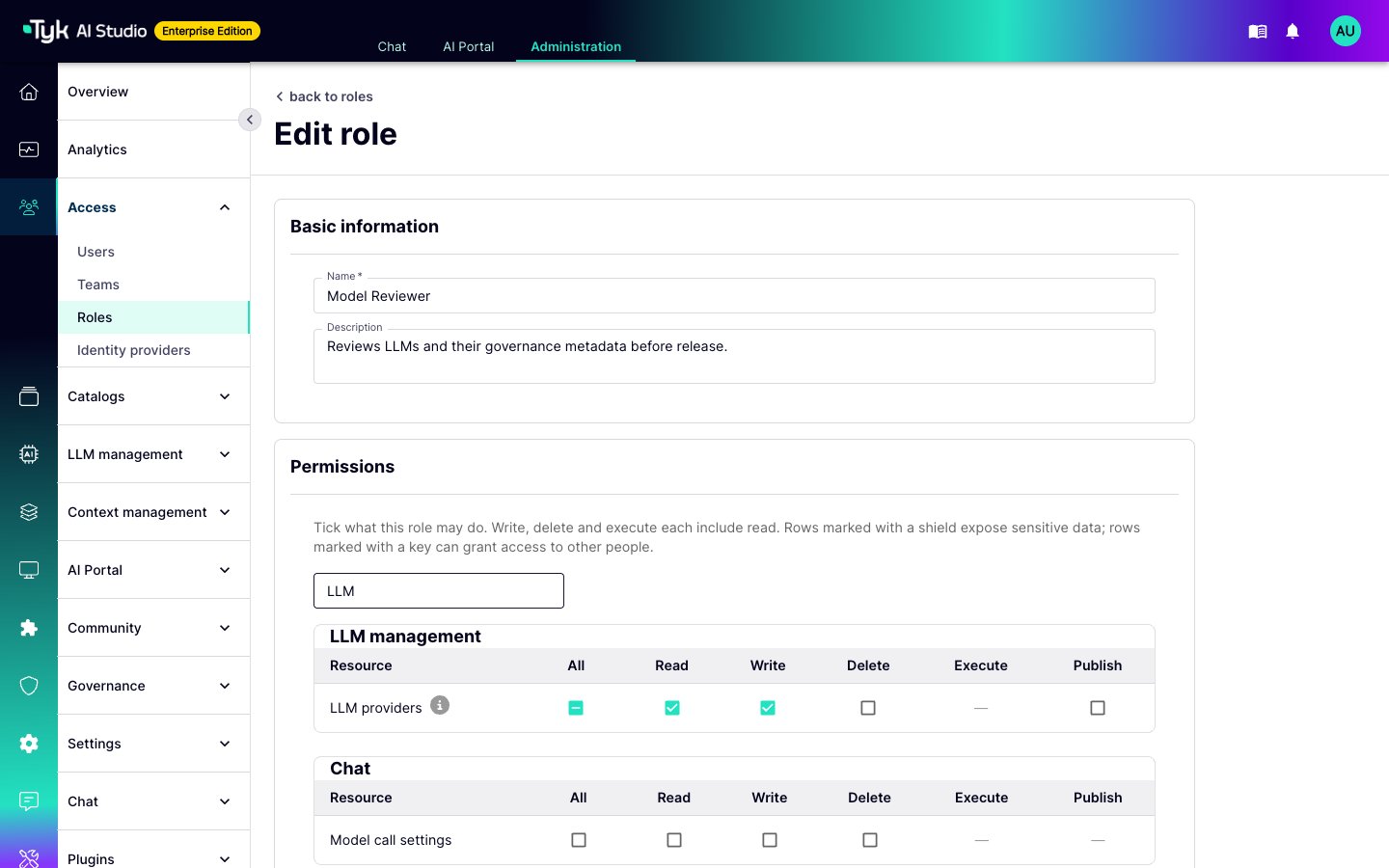
- Click Add role. The permission matrix opens. It has one row for each resource, grouped as in the navigation, and one column for each action.
- Enter a name and a description, and select the permissions. When you select
write,delete, orexecute, the editor also selectsread. - Click Create role.
Assign Roles
- To a user: Edit the user and select roles in the Roles field. These roles belong to the user directly.
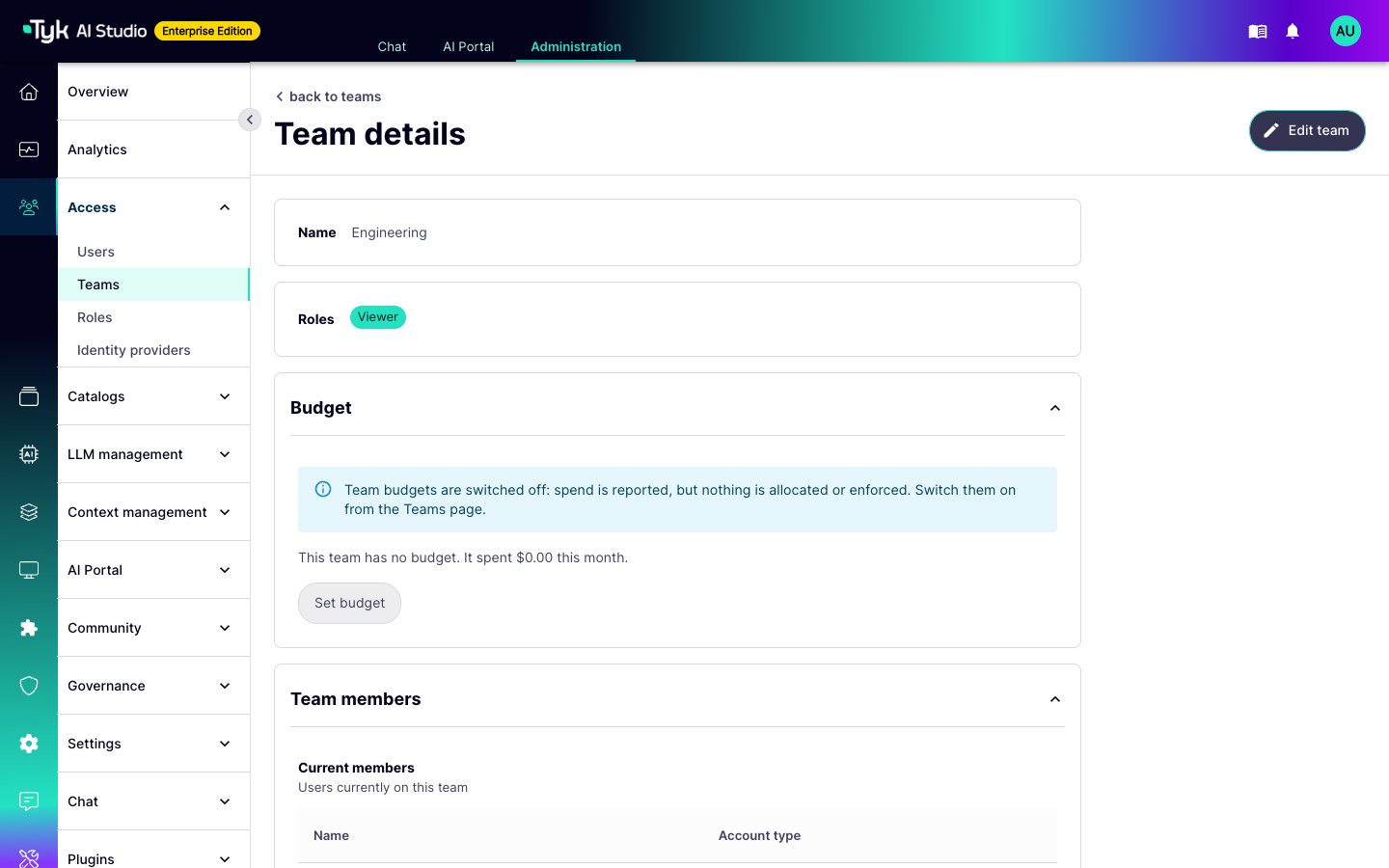
- To a Team: Edit the Team and select roles in the Team roles field. Every member of the Team gets these roles. Refer to Teams.
Plugin Permissions
Plugins can add their own resources to the catalog, under the Plugins group. Each installed plugin with pages or resource types has its own row. The resource key isplugin:<manifest id>. The row has three actions:
readopens the pages of the plugin, calls the RPC methods that the plugin declares as read-only, and shows its configuration.writecalls the other RPC methods of the plugin and edits its configuration.executeis for operations that the plugin declares.
plugins:executegrants every permission that any plugin declares (plugin:...resources), includingwriteanddelete. It does not grantplugins:writeorplugins:delete. A user withplugins:executecan change the configuration, name, and description of an installed plugin. The user cannot install or remove plugins, or change any other plugin field. To give access to one plugin only, select the row of that plugin instead.- When you uninstall a plugin, its permissions stay on the role. The role editor shows them under Not installed. They have no effect until the plugin is installed again.
- An admin page of a plugin needs the
readpermission of that plugin. The plugin manifest can set a different permission inmount_config.required_permission. Refer to Plugin Manifests. - AI Studio sends the permissions of the caller to the plugin, together with the
is_adminflag.
Examples
To make a reviewer enter a value before release, add a governed metadata field that is required to publish. A submitter can save without the field. AI Studio refuses activation until someone fills it in.