

Availability
The OAuth2 Client Credentials plugin is an Enterprise auth plugin for Edge Gateways. It authenticates requests that carry a JWT access token from an external identity provider (IdP), such as Microsoft Entra ID, Okta, or Auth0. It then maps each token to an AI Studio App.
Use it for machine clients, such as background jobs, services, and AI agents. These clients get a short-lived token from your IdP with the OAuth 2.0 client credentials grant. They do not need an App key. You control and revoke their access in the IdP. The App still controls their budget and which LLMs, tools, and data sources they can use.
The plugin can also create an App for a new client automatically, from a template App. You decide if a person must approve each new App.
For users who sign in to AI Studio, use SSO.
This page describes version 1.3.1 of the plugin.
Requirements
- AI Studio Enterprise Edition v2.2.1 or later, with an Enterprise license that includes the OAuth2 client credentials feature.
- At least one Edge Gateway. The plugin authenticates requests on Edge Gateways only. The embedded gateway of AI Studio does not run auth plugins. It accepts App keys and refuses plugin tokens on every endpoint.
- HTTPS access from the Edge Gateways to the JWKS endpoint of each IdP. The Edge Gateways fetch the signing keys themselves.
How It Works
- A client gets an access token from the IdP with the client credentials grant.
- The client sends the token as
Authorization: Bearer <token>to an Edge Gateway endpoint that has the plugin in its authentication plugin list. - The plugin finds the identity provider whose issuer matches the
issclaim of the token. It checks the signature with the keys of the IdP. It also checks the audience, the expiry, and the other required claims. - The plugin reads the tenant ID and the client ID from the token. It then finds the App that is bound to this provider, tenant, and client.
- AI Studio applies the usual checks to that App. The App must be active, it must have access to the endpoint, and it must be within its budget.
401 with the message invalid credential. The caller does not see the reason. The Edge Gateway log shows it. If the App is inactive, the caller gets 403. If the Edge Gateway cannot ask the plugin, for example because the plugin did not load, the caller gets 503. The Edge Gateway never uses App keys in place of a plugin that failed.
Endpoints That the Plugin Protects
From v2.2.1, you can attach auth plugins to these endpoints:- LLMs, in the plugin list of the LLM. The list applies on
/llm/,/ai/, the unified/v1endpoint,/anthropic/, and/router/. - Data sources, tools, Model Routers, Semantic Routers, and custom endpoint plugins, in the Authentication plugins section of their detail page.
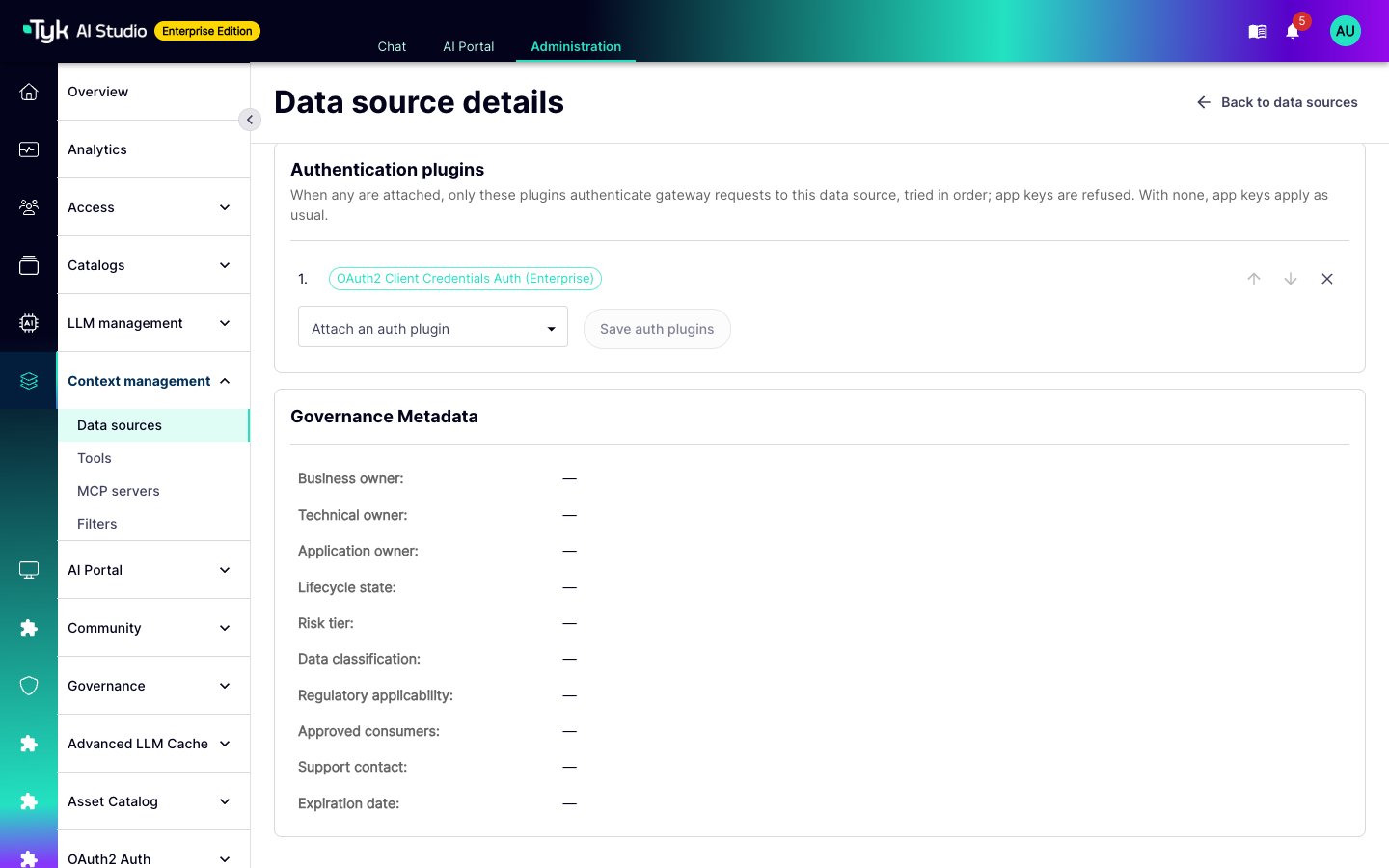
Install the Plugin
- In the admin console, go to Plugins > Marketplace.
- Find OAuth2 Client Credentials Auth (Enterprise) and install it. If the marketplace does not show version 1.3.1, add the plugin with the OCI command
oci://docker.tyk.io/studio-plugins/oauth2-client-credentials:1.3.1. Refer to Deployment Options. - Approve the service scopes that the plugin requests. The plugin reads and updates Apps, stores its binding table, and sends notifications. The approval mode also needs the
apps.lifecycleandnotifications.writescopes. When you upgrade from version 1.2, AI Studio asks you to approve these new scopes. - Make sure that the plugin is active. The admin sidebar then shows an OAuth2 Auth section, with the Identity Providers and App OAuth2 Settings pages.
Add an Identity Provider
- Go to OAuth2 Auth > Identity Providers, and click Add Provider.
- Enter the settings of the provider.
- Optionally, click Test Connection. AI Studio checks the OIDC discovery document and the JWKS endpoint. The Edge Gateways still need their own access to the JWKS endpoint.
- Save the provider.
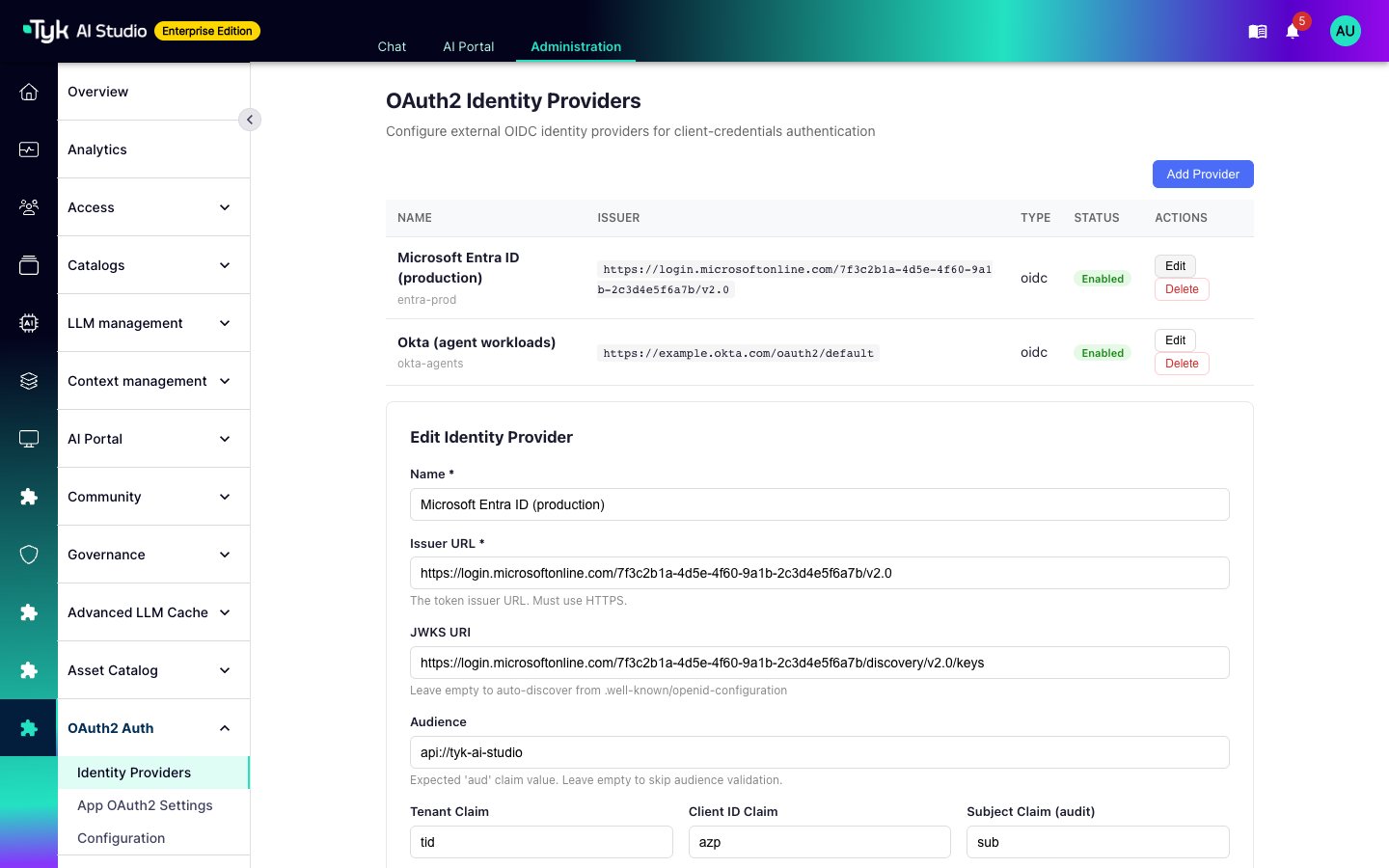
The token must contain the tenant claim and the client claim, or the plugin refuses it. If your IdP does not issue a tenant claim, set Tenant Claim to a claim that is always present, such as
iss. The tenant ID is then the same for all clients of the provider, so the client ID alone identifies a client. To read a nested claim, use a dot, for example tenant.id.
Many providers can use the same issuer. The plugin then tries each of them, and the audience selects the correct one.
A provider that fails validation never authenticates a token. For example, a provider with a plain HTTP issuer. The list shows it as Invalid: not active.
Bind an App to a Client
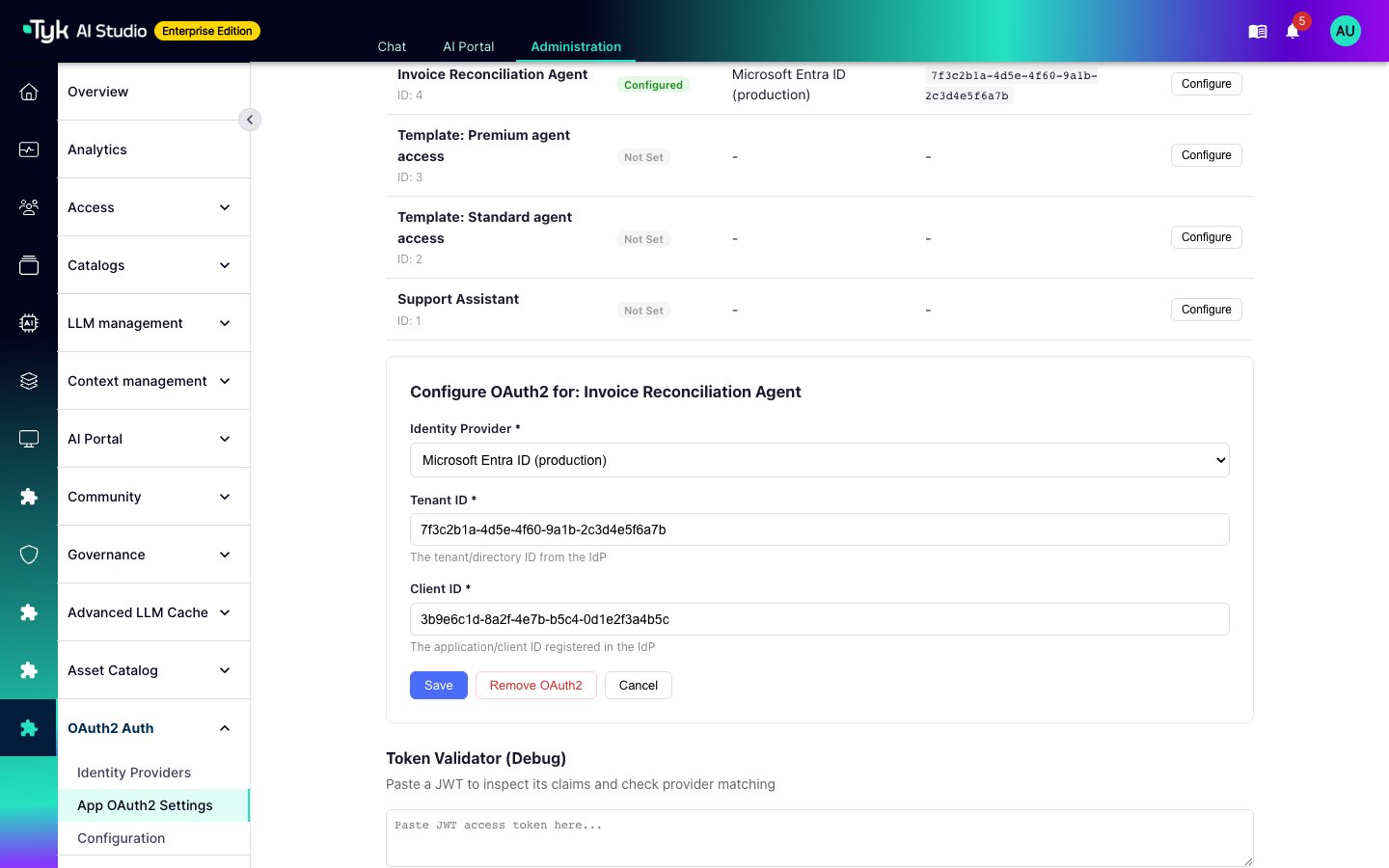
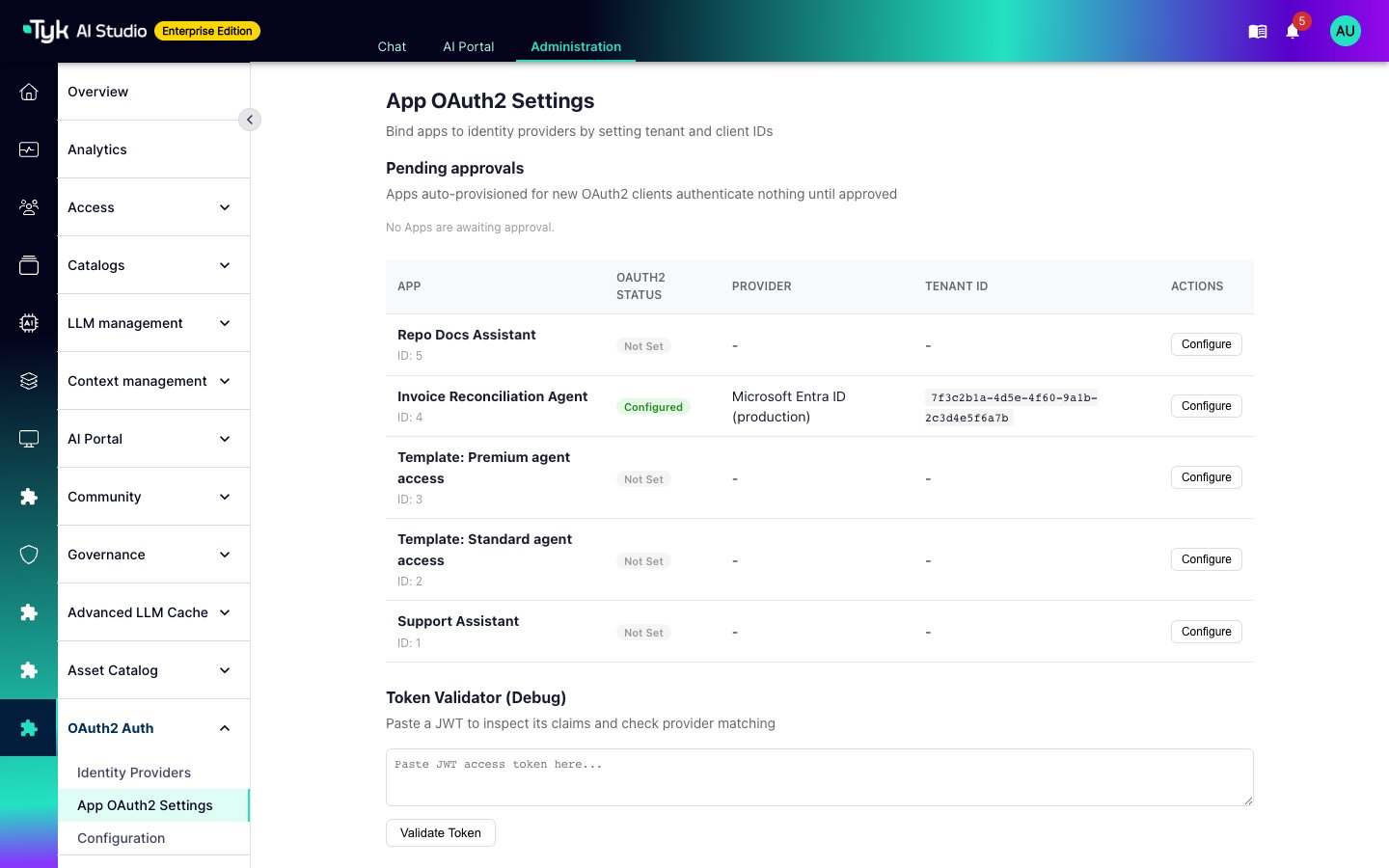
A binding connects one client of one provider to one App. The plugin identifies a client by three values: the provider, the tenant ID, and the client ID.- Go to OAuth2 Auth > App OAuth2 Settings.
- Click Configure next to the App.
- Select the Identity Provider, and enter the Tenant ID and the Client ID from the IdP.
- Click Save.
Bindings on Edge Gateways
AI Studio builds a binding table from the active Apps and sends it to every connected Edge Gateway:- A new binding, an unbinding, or a deactivated App takes effect in about 2 seconds.
- An Edge Gateway that missed a change gets the table again within 60 seconds.
- An Edge Gateway keeps its last table when it restarts, so a revoked client stays revoked.
Create Apps Automatically
With auto-provisioning, the IdP controls which clients get an App. You map IdP permission tags to template Apps one time. When a client with no binding sends a valid token, the plugin reads the permission tags in the token. If a tag matches a mapping, AI Studio creates an App for the client.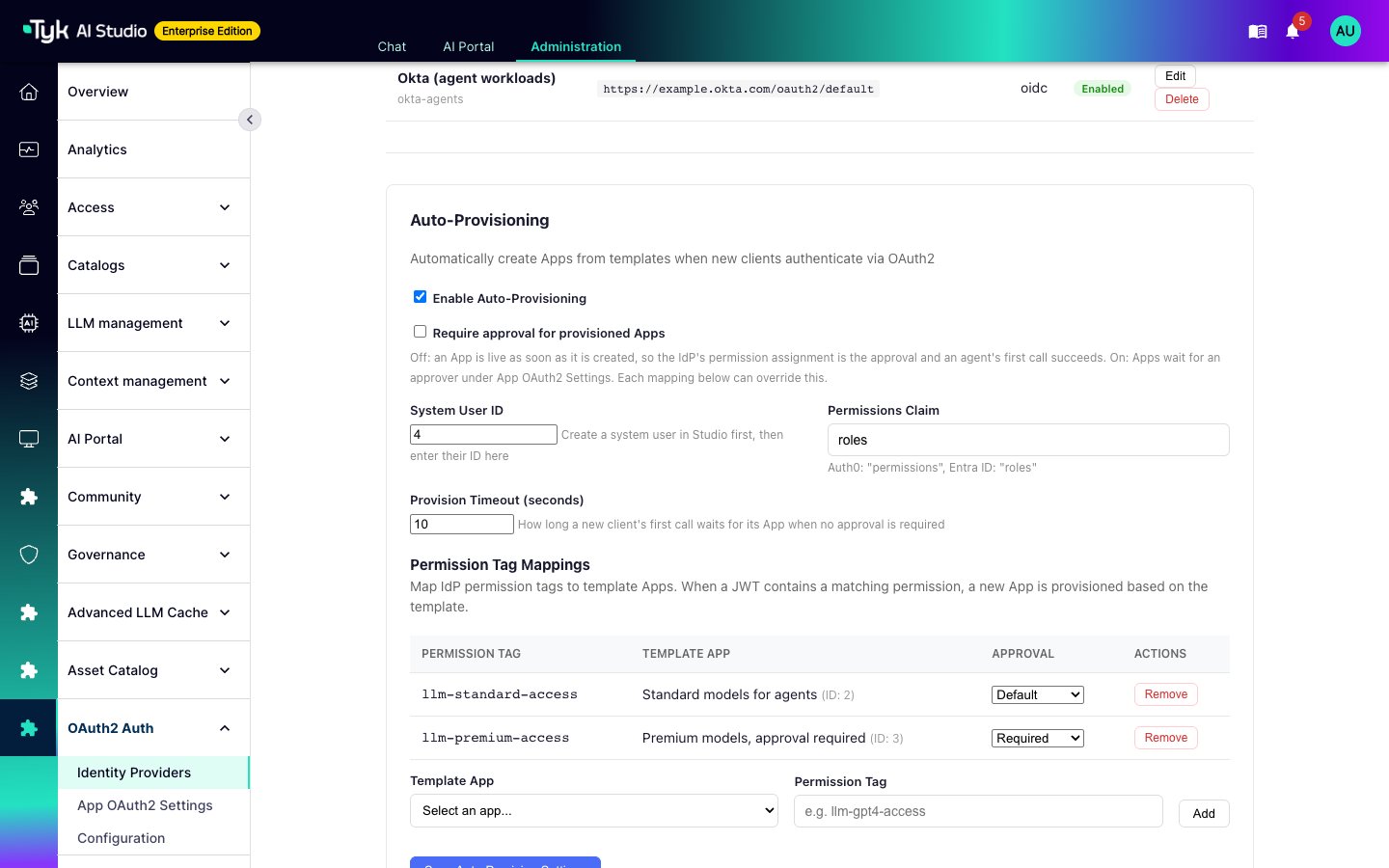
- Create the template Apps. A template App holds the LLMs, tools, data sources, and monthly budget that a new client gets.
- Create a user to own the new Apps, and note the user ID.
- Go to OAuth2 Auth > Identity Providers, and scroll to Auto-Provisioning.
- Select Enable Auto-Provisioning.
- Enter the System User ID and the Permissions Claim. Entra ID puts app roles in
roles. Auth0 usespermissions. - Under Permission Tag Mappings, select a Template App, enter the Permission Tag, and click Add. Add one mapping for each tag.
- Click Save Auto-Provision Settings.
- The LLMs, tools, and data sources of all the templates that the token matches.
- The largest monthly budget of those templates.
- The system user as its owner.
- The name
Auto: <template name> [<start of client ID>].
Approval
You decide if a person must approve each new App:- Approval not required (default): The App is active as soon as AI Studio creates it. The assignment of the permission in the IdP is the approval. The first call of the client waits for the App, up to the Provision Timeout. The default is 10 seconds, and the range is 3 to 30 seconds. AI Studio then serves the call. Make sure that the request timeout of the client is longer than the provision timeout.
- Approval required: AI Studio creates the App inactive and marks it as pending. It notifies administrators one time for each client. The plugin refuses the client with
401until someone approves the App. The Edge Gateway asks AI Studio again for that client at most every 10 minutes.
- Optionally, open the App in Apps and check its owner, grants, and budget.
- Go to OAuth2 Auth > App OAuth2 Settings. The Pending approvals list shows the waiting Apps.
- Click Approve or Reject.
Approval Fails Closed
- AI Studio deactivates a new App before it writes the binding. A pending App is never active. If AI Studio cannot deactivate the App, it deletes the App and refuses the client.
- AI Studio decides on approval from the permissions and templates that created the App. A later token with fewer permissions does not approve the App. This is true when the App holds the grants of a template that requires approval.
- If AI Studio cannot activate an App when you approve it, the App stays in the pending list.
- If you turn off approval later, AI Studio approves a waiting App on the next request of its client. This happens only when no mapping that created the App requires approval. If you removed one of those mappings, the App waits for a person.
Who Made the Call
The plugin sends two values to the Edge Gateway for audit:- For (
on_behalf_of): The value of the subject claim of the provider. By default, this issub. - Agent (
acting_agent): The acting agent. For a delegated token (RFC 8693), this isact.sub. Otherwise it isazp, thenclient_id, then the client ID of the binding.
user_id of the request. Refer to Delegated Identity in Proxy Logs.
Check a Token
To see the claims of a token, go to OAuth2 Auth > App OAuth2 Settings. Paste the token in Token Validator (Debug), and click Validate Token. The result shows the header, the claims, and the providers whose issuer matches. This check only decodes the token. It does not check the signature. Only the Edge Gateway checks the signature.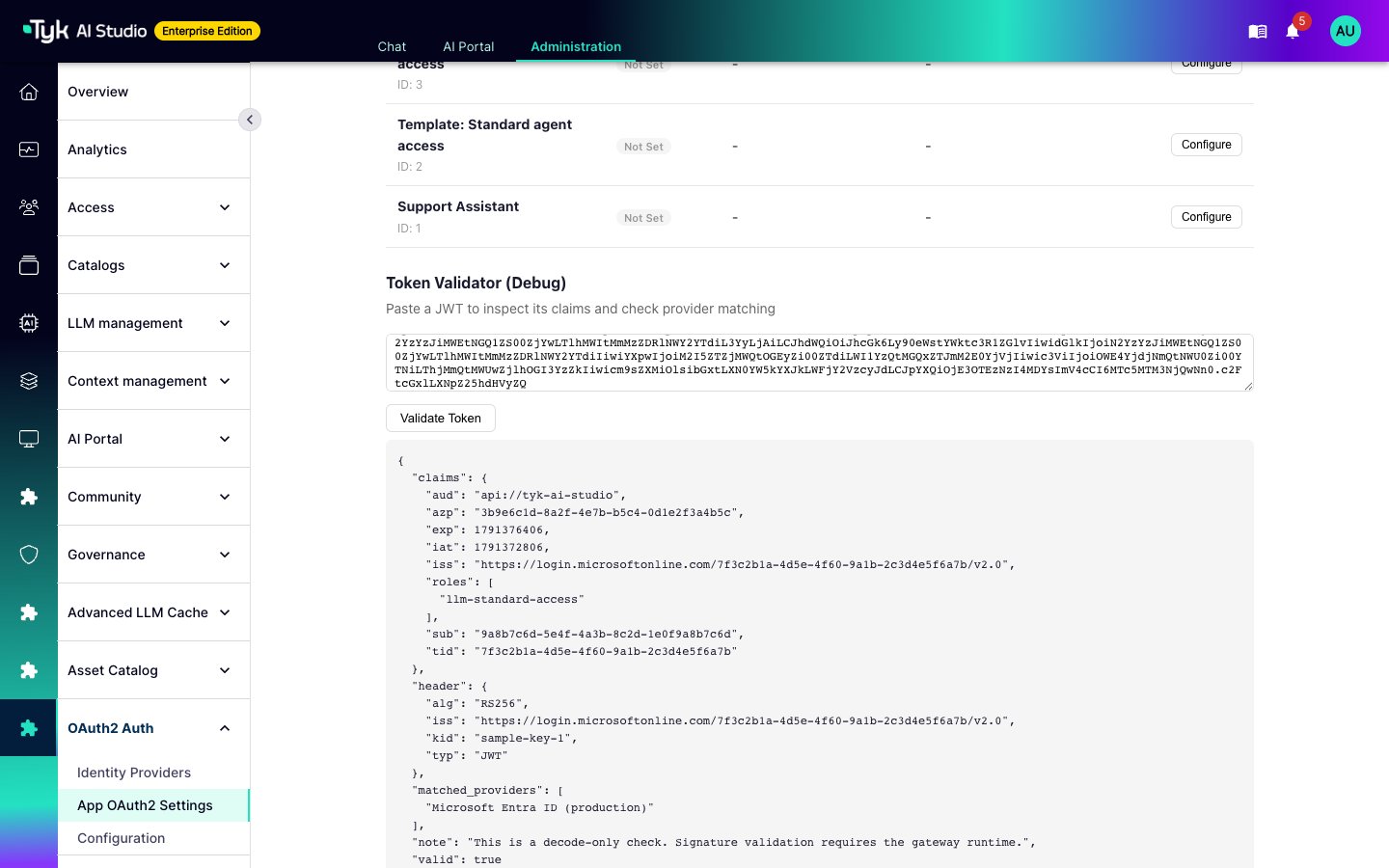
Permissions
The plugin has its own row in the Plugins group of the role editor, with the keyplugin:com.tyk.enterprise.oauth2-client-credentials. Refer to Plugin Permissions.
readopens the OAuth2 Auth pages.- The plugin does not declare read-only methods. For this reason, the pages need
writeto load and save providers, mappings, bindings, and approvals.
write on that endpoint, for example llms or datasources.