Availability
Use cases
- Role-Based Access Control: Group developers into an “Engineering” Team and grant them access to advanced LLM models and coding tools, while grouping support staff into a “Support” Team with access to customer knowledge bases.
- Resource Isolation: Ensure that sensitive data sources (like HR documents) are only accessible to the “HR” Team by linking the specific data Catalog only to that Team.
- Simplified Onboarding: When a new employee joins, simply add them to the relevant Team to automatically grant them access to all the necessary AI tools and models for their department.
Community vs Enterprise Edition
In the Community Edition, the Teams feature is not available for custom configuration. Instead, there is a single, built-in “Default” Team. All users are automatically assigned to this Default Team, and it is permanently linked to the default catalogs. In the Enterprise Edition, you have full access to create, manage, and delete custom Teams, allowing for granular Role-Based Access Control (RBAC) across your organization. Note that even in the Enterprise Edition, the “Default” Team cannot be deleted.What is a Team?
A Team acts as the central access control mechanism in Tyk AI Studio. Instead of assigning permissions to individual Users, administrators assign Catalogs (LLM providers, Data sources, and Tools) to a Team. Users are then added as members of the Team. This architecture simplifies permission management, as a user’s access rights are dynamically inherited from their Team memberships. A user can belong to multiple Teams, and a Team can have multiple Catalogs of different types.Configuration
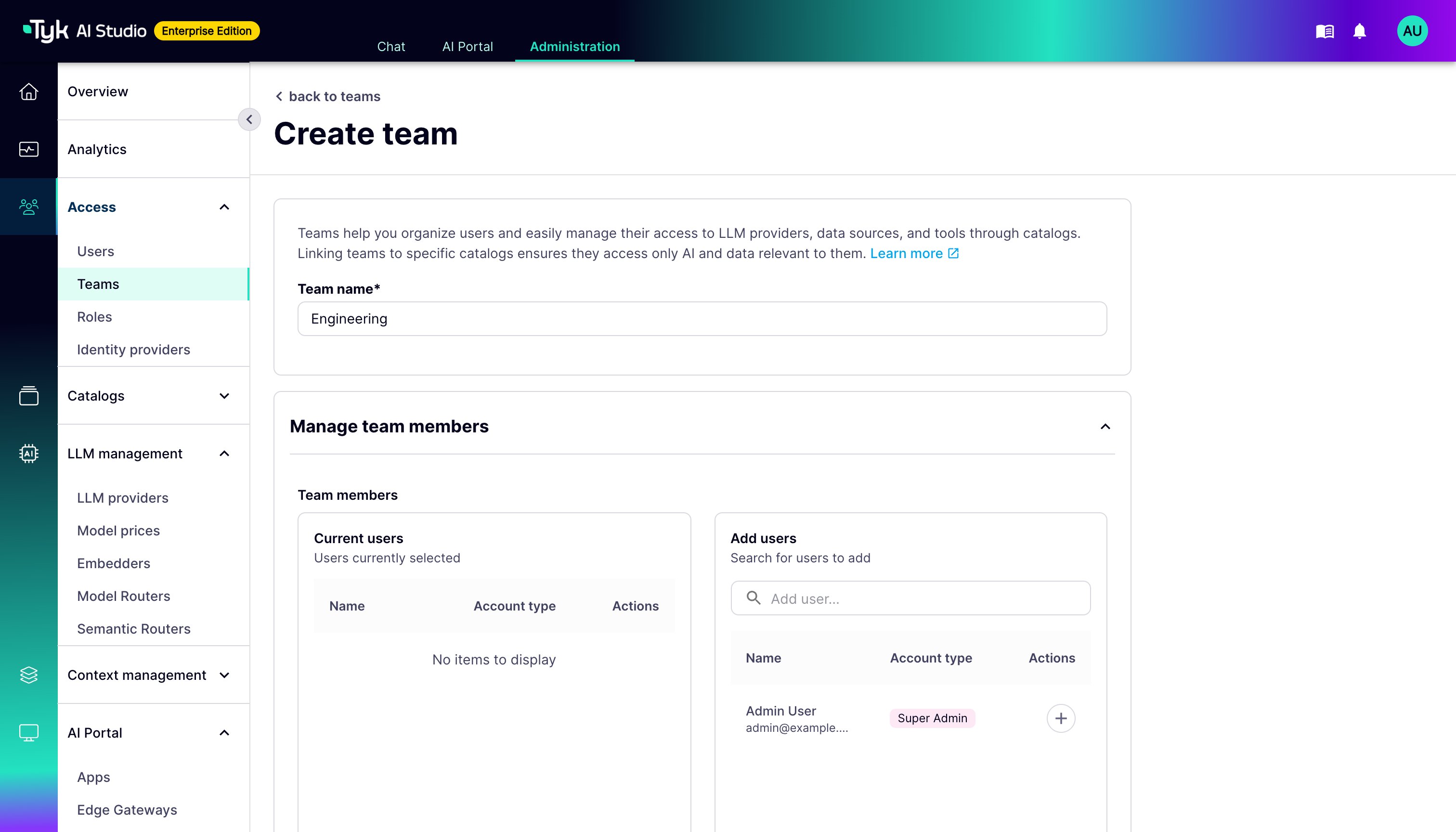
When configuring a Team, the following options are available:- Team Name: A descriptive name for the Team (e.g., “Solutions Architects”, “Marketing”).
- Manage Team Members: An interface to search and add existing users to the Team, or remove current members.
- Roles (Enterprise Edition): The roles that every member of the Team inherits in the admin UI and API. Refer to Roles and Permissions.
- Add Catalogs: Sections to link the Team to specific catalogs:
- LLM providers catalogs: Grants access to specific AI models.
- Data sources catalogs: Grants access to specific datasets or knowledge bases.
- Tools catalogs: Grants access to specific tools (e.g., web search, calculators).
- Team budget (Enterprise Edition, when Team budgets are on): The monthly budget, the budget start date, and the default allocation for each new App. You also select the action at the limit: Alert administrators only or Alert and block the team’s Apps. Refer to Team Budgets.
How to Create a Team
To create a new Team in Tyk AI Studio:- Navigate to Access > Teams in the admin UI sidebar.
- Click on the Create team button.
- Enter a descriptive Team name.
- In the Manage team members section, search for existing Users and add them to the Team.
- (Enterprise Edition) In the Roles section, select the Team roles that the members inherit.
- In the Add catalogs section, select one or more Catalogs for this Team. You can select LLM provider, Data source, and Tool catalogs.
- Click Create team to create the Team and apply the access rules.