

Introduction
Dynamic Client Registration (DCR) is an IETF protocol that automates the registration of OAuth 2.0 clients with an authorization server. The Tyk Developer Portal uses DCR so that when an API Consumer is approved for access to an API Product, they receive OAuth 2.0 credentials automatically. The API Consumer has no direct interaction with the IdP during this process; the Portal handles client registration on their behalf. DCR requires an Identity Provider (IdP) that acts as an OAuth 2.0 authorization server, supports the DCR protocol, and exposes an OIDC well-known configuration endpoint. OpenID Connect (OIDC) is an identity layer built on top of OAuth 2.0 that standardizes the discovery endpoint used by the Portal to locate the IdP’s DCR and token endpoints. This page covers JWT-based flows, where the IdP issues access tokens as JSON Web Tokens (JWTs). When an API Consumer’s access request is approved, the Portal registers a new client with the IdP and writes the resulting IdP configuration into Tyk. At runtime, the API Consumer uses their credentials to obtain a JWT from the IdP, then presents it to Tyk Gateway when calling an API. The Gateway validates the token’s signature using the public keys published by the IdP at its JWKS endpoint, and maps the token’s scopes to Tyk policies to enforce access control.Developer Apps and OAuth Clients
A Developer App in the Portal corresponds 1:1 to an OAuth 2.0 client registered in the IdP. When a DCR access request is approved, the Portal registers an OAuth client in the IdP on the API Consumer’s behalf and stores the resulting credentials against the Developer App. The API Consumer uses these credentials to request access tokens from the IdP. A single Developer App can hold access to multiple API Products and Plans. Each subsequent approval adds the new scopes to the same OAuth client in the IdP rather than creating a new one. The API Consumer’s credentials remain unchanged; their scope set grows.OAuth 2.0 Scopes
OAuth 2.0 scopes are central to how Tyk enforces access control in the DCR flow. Understanding their role makes the configuration steps that follow easier to understand. In Tyk’s DCR flow, scopes serve as the link between the IdP, the API Consumer’s access token, and Tyk’s access control policies. Each API Product and each Plan has a unique scope name assigned to it. That scope name is what gets embedded in the access token by the IdP, and it is what Tyk Gateway uses to look up which policy to apply. Tyk’s scope-to-policy mapping resolves one scope name to exactly one Tyk policy. No two API Products or Plans may share a scope; a duplicate would cause both to resolve to the same policy. Tyk Gateway combines the policies resolved from all scopes present in the token to authorize the request. The full sequence is:- When an access request is approved, the Portal sends the scope names for the approved Product and Plan to the IdP as part of registering the OAuth 2.0 client. The IdP associates those scopes with that client, constraining what it can request.
- When the API Consumer requests an access token, they must explicitly include those scope names. The IdP will only return scopes that are both registered with the client and present in the token request.
- Tyk Gateway reads the scopes in the incoming JWT and maps each one to its corresponding Tyk policy, enforcing the access control and rate limits defined for that Product and Plan.
How Portal Manages Identity Providers
Identity Providers are configured in the Portal under the OAuth 2.0 Providers menu. This is the Portal’s term for an IdP. The two are the same concept: an OAuth 2.0 Provider in the Portal represents an external IdP that the Portal will register DCR clients with. There are two approaches to how the Portal stores IdP configuration in Tyk.
The Identity Provider Registry approach is recommended for all new deployments. It stores IdP configuration centrally in the Tyk Dashboard, decoupled from API definitions, eliminating write conflicts between the Portal and Tyk Dashboard and ensuring that IdP configuration is kept up to date as API Products change and as OAuth 2.0 Providers are created, updated, or deleted. Refer to the Identity Provider Registry page for more detail.
The API definition approach is available for installations running Tyk prior to 5.14.0, or for deployments where the Registry cannot be used. The Portal writes the JWKS URI and scope-to-policy mappings directly into the relevant API definitions when an access request is approved.
Refer to Migrating to the Identity Provider Registry if you have an existing installation using DCR and wish to use the IdP Registry.
Configure Your Identity Provider
Before configuring Tyk Developer Portal, you need to prepare the IdP in two ways: authorize the Portal to register OAuth 2.0 clients on behalf of API Consumers, and define the OAuth 2.0 scopes that will be included in access tokens. These steps are required regardless of which approach you use.Authorize the Portal
Most IdPs use an initial access token to authorize a trusted client to register new OAuth 2.0 clients via the DCR protocol. The Portal presents this token when registering a client for an API Consumer, proving it has permission to do so. Some IdPs use a different authorization mechanism and do not require an initial access token, for example:- Gluu uses a
dynamicRegistrationEnabledflag on each scope instead. - Auth0 uses a separate authorization model and does not issue initial access tokens.
- Descope leaves its registration endpoint unauthenticated and constrains registration through approved scope and redirect URL lists instead.
Define OAuth 2.0 Scopes
Create scopes in the IdP for each API Product and Plan you intend to use with DCR, following the naming and uniqueness requirements in the OAuth 2.0 Scopes section above. Scopes must exist before the Product or Plan is published; see that section for details. The provider-specific tabs below show how to create scopes in each supported IdP.Provider-Specific Instructions
- Keycloak
- Okta
- Auth0
- Curity
- Descope
- Gluu
Follow the Keycloak client registration guide to obtain the initial access token.Create scopes for each API Product and Plan from the Client scopes menu item. Set the scope type to Optional. Default scopes are applied automatically to all clients, but optional scopes can be requested on a case-by-case basis. The Portal requests specific scopes during client registration; using optional scopes ensures those scopes are included only when explicitly requested.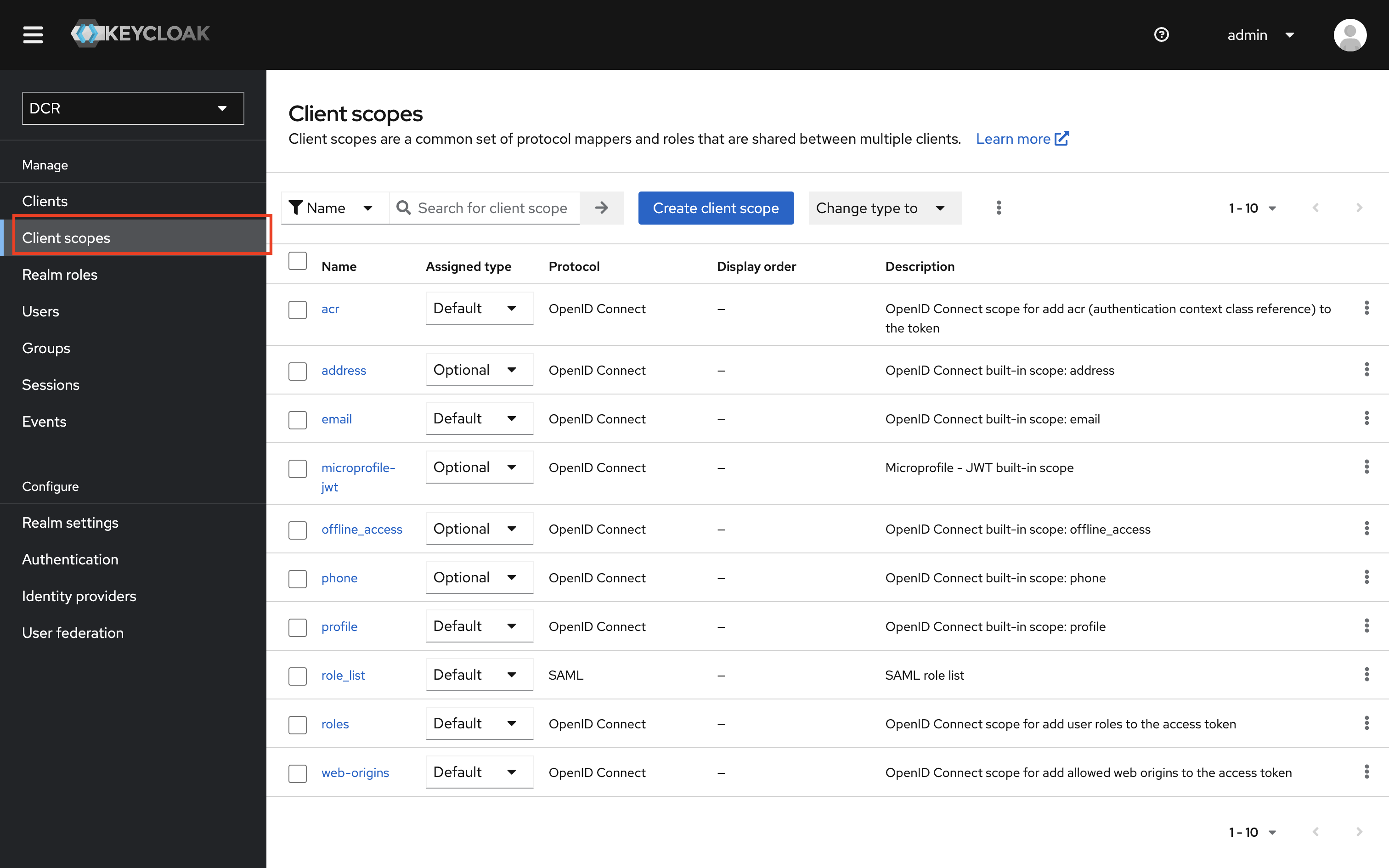
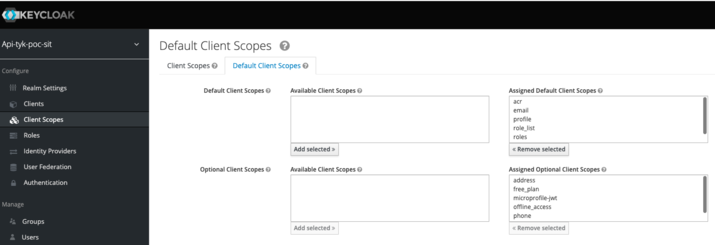
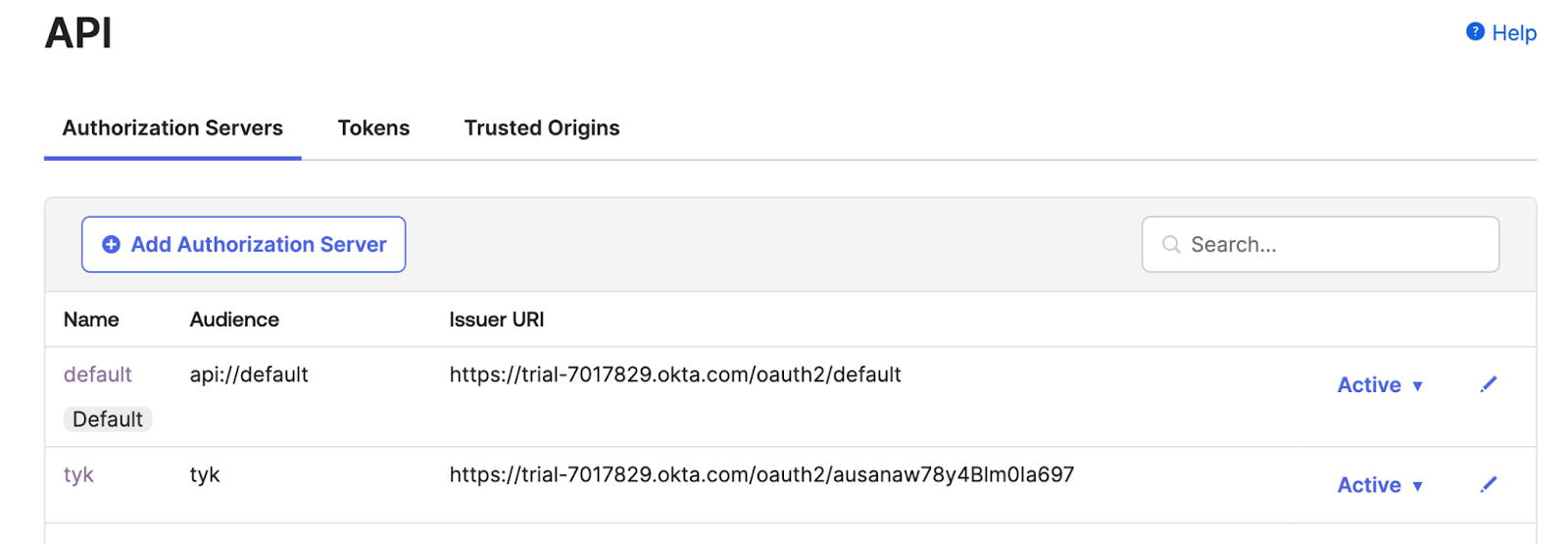
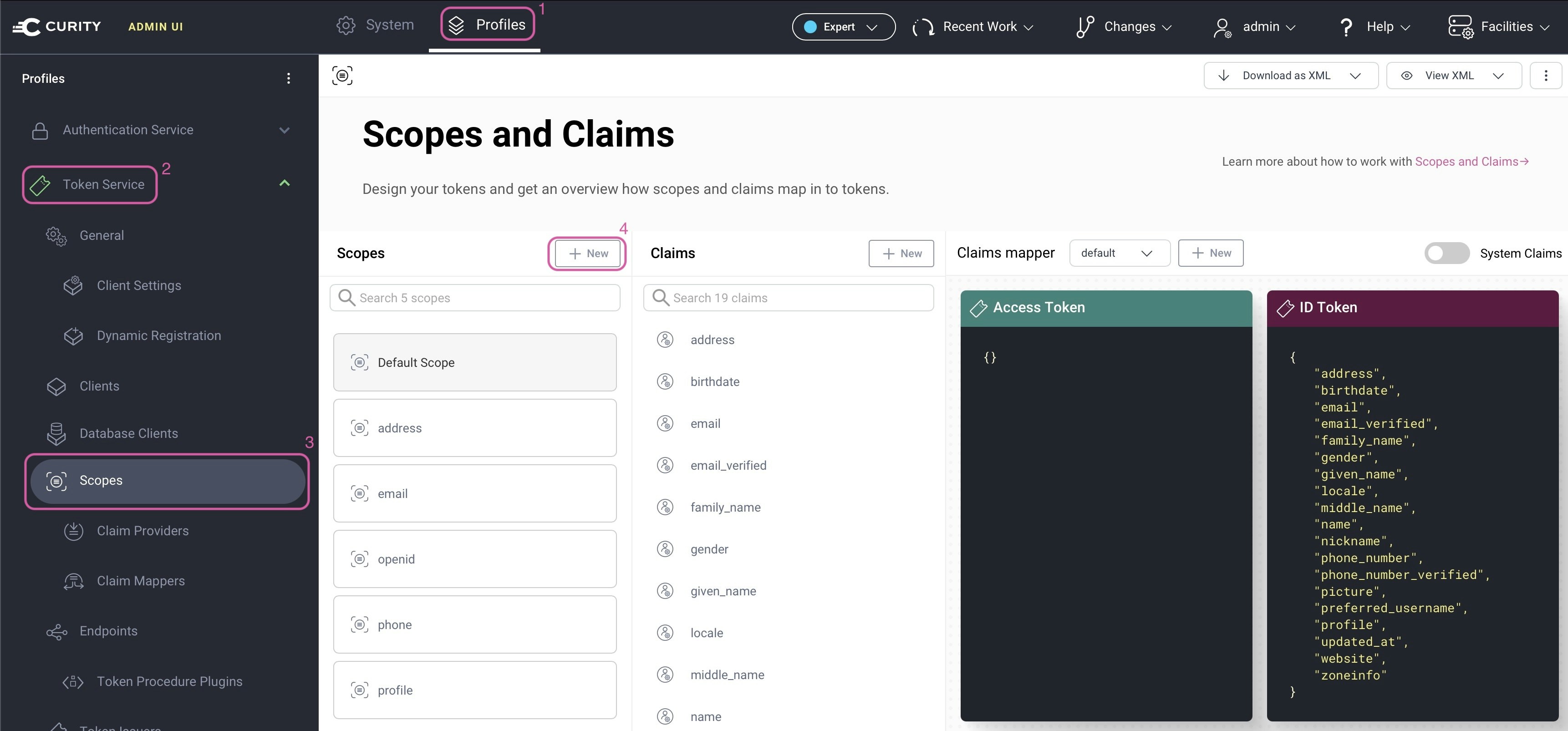
Configure Tyk Developer Portal
Enable the Identity Provider Registry (Recommended)
The Identity Provider Registry is available from Tyk Developer Portal 1.18.0 when using Tyk Dashboard 5.14.0 or later. It must be explicitly enabled in Tyk Developer Portal by settingTYK_PORTAL_ENABLEIDPREGISTRY=true (or EnableIDPRegistry = true in the config file) and restarting the Portal.
Ensure that Tyk Gateway and Tyk Dashboard are running on version 5.14.0 or later before starting Tyk Developer Portal with this flag enabled.
If you are running Tyk Dashboard prior to 5.14.0, skip this step as the IdP Registry is not available.
Configure OAuth 2.0 Providers
In the Admin Portal, navigate to OAuth 2.0 Providers (the Developer Portal’s name for Identity Providers) and create an entry for each IdP you want to use with DCR.Connection Settings
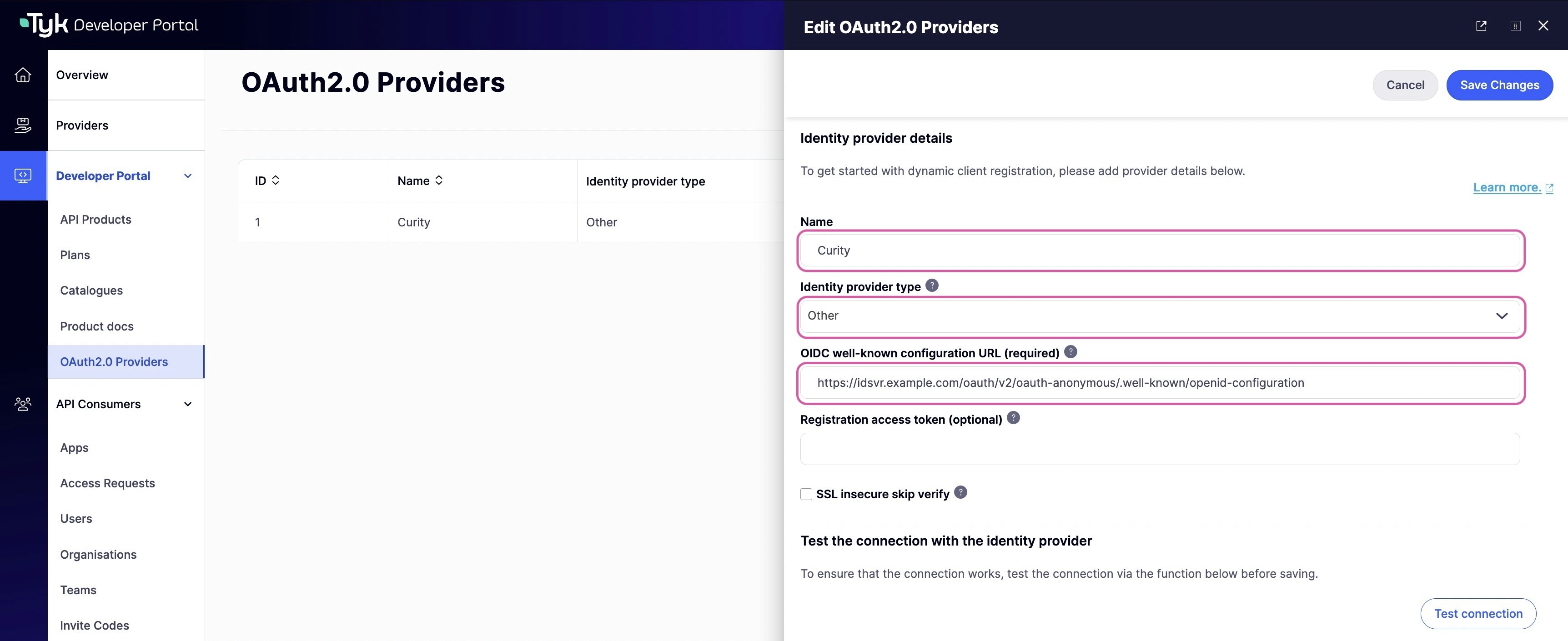
Client Profiles
When the Portal registers an OAuth 2.0 client in the IdP on behalf of an API Consumer, it must specify certain parameters that describe how access tokens will be obtained. These include the OAuth grant type and the authentication method used by the token endpoint. A Client Profile is a named template for these parameters (referred to as a client type in the Portal UI). You can define multiple Client Profiles to support different use cases. For example, you might define one Client Profile using the client credentials grant for server-to-server integrations and another using the authorization code grant for user-facing applications. When requesting access to an API Product in the Portal, API Consumers select from the list of Client Profiles defined for the IdP. The Portal uses that template when registering the OAuth 2.0 client that the IdP will use to issue tokens to that API Consumer. To add a Client Profile, scroll to Client Types and click Add client type.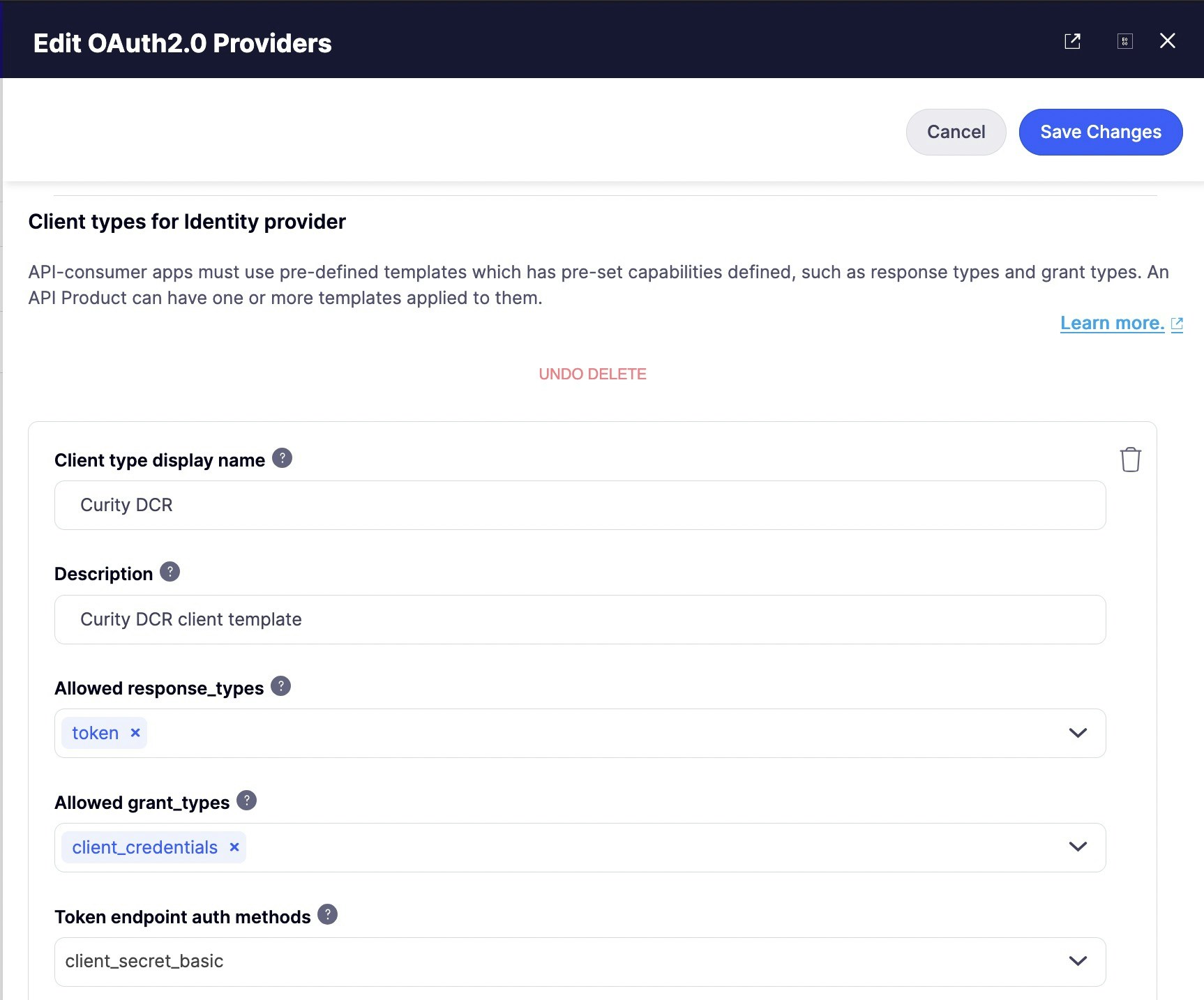
Your IdP may override some of these settings based on its own configuration.
When an OAuth 2.0 Provider is created, updated, or deleted in Portal, the corresponding entry in the Identity Provider Registry is updated immediately on every connected Tyk Dashboard. No approval is required to propagate the change.
API Products and Plans
Each API Product and each Plan used with DCR must have a unique OAuth 2.0 scope assigned, matching a scope you created in the IdP. See the OAuth 2.0 Scopes section for the full requirements. See API Products and API Plans for configuration instructions.When APIs are added to or removed from a DCR-enabled API Product, or when its DCR scopes are changed, the scope-to-policy mappings in the Identity Provider Registry are updated immediately. Existing tokens gain or lose access without requiring a new approval.This applies only when at least one access request for the API Product has already been approved. If no approval has ever been made, the Registry has no entry for that Product yet and there is nothing to update; the first approval will write the full mapping.
End-to-End DCR Flow
This section walks through the complete DCR flow from the perspective of each actor: an API Consumer requesting access, an API Owner approving it, and the API Consumer using their credentials to call an API. It covers what happens at each stage and what to expect as output. Before proceeding, confirm that the following are in place:- At least one OAuth 2.0 Provider is configured in the Portal, with at least one Client Profile defined.
- At least one API in Tyk Dashboard has JWT authentication enabled.
- An API Product includes that API and has DCR enabled, with a scope assigned.
- A Plan has a scope assigned.
- Both scopes exist in the IdP.
Request Access to the API Product
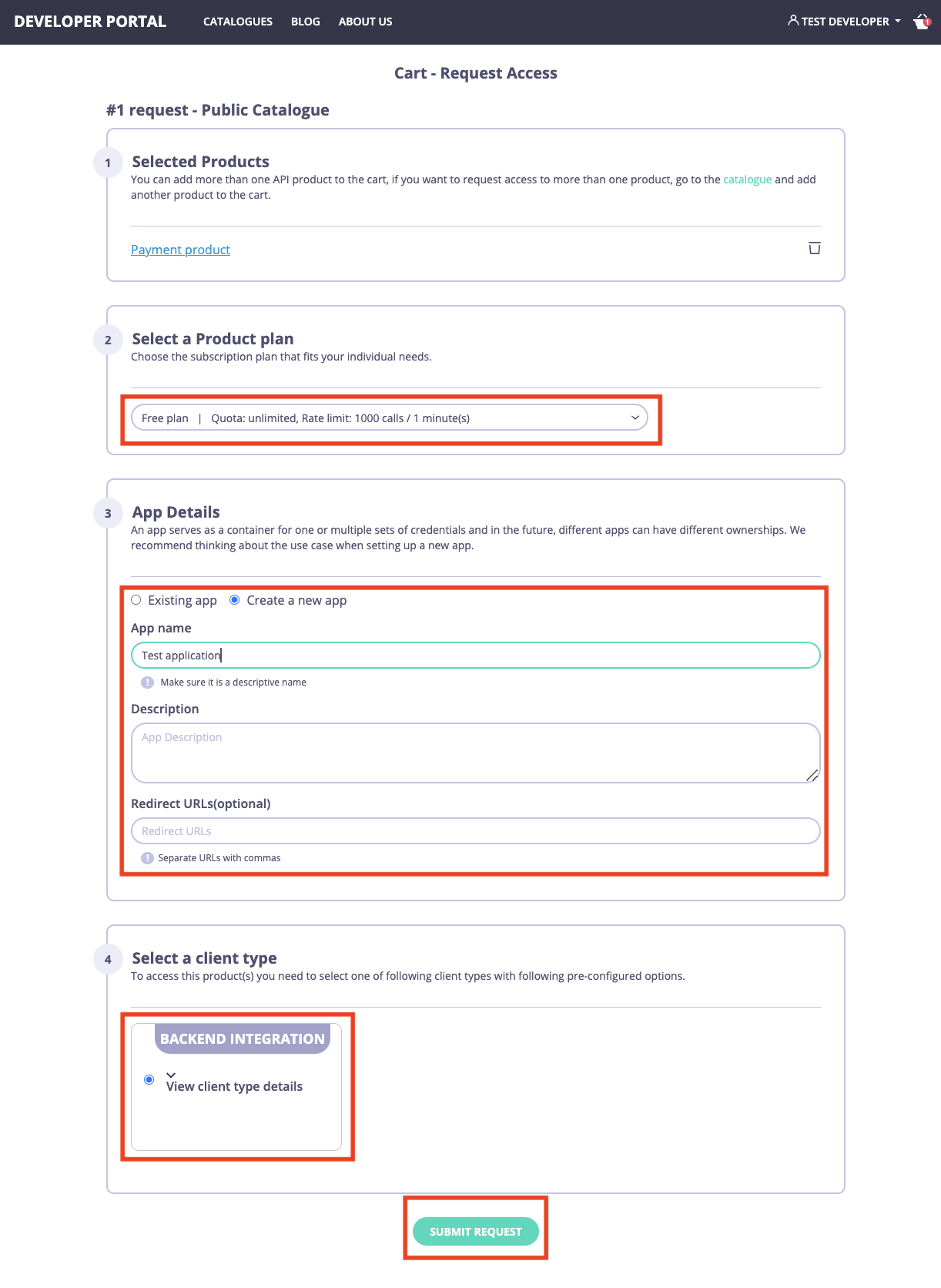
The API Consumer discovers the DCR-enabled API Product in the catalog and submits an access request. As part of checkout, they select how their application will obtain tokens. As an API Consumer, log in and navigate to the catalog page. Select the DCR-enabled API Product, proceed to checkout, and complete the following:- Select a Plan.
- Select an existing Developer App or create a new one.
- Select a Client Profile (client type in the Portal UI).
- If your Client Profile uses the authorization code grant, enter your application’s redirect URI in the Redirect URLs field. This is the URL the IdP will redirect the user to after authentication, carrying the authorization code your application exchanges for a token. Separate multiple URIs with commas.
- Click Submit request.
Approve the Access Request
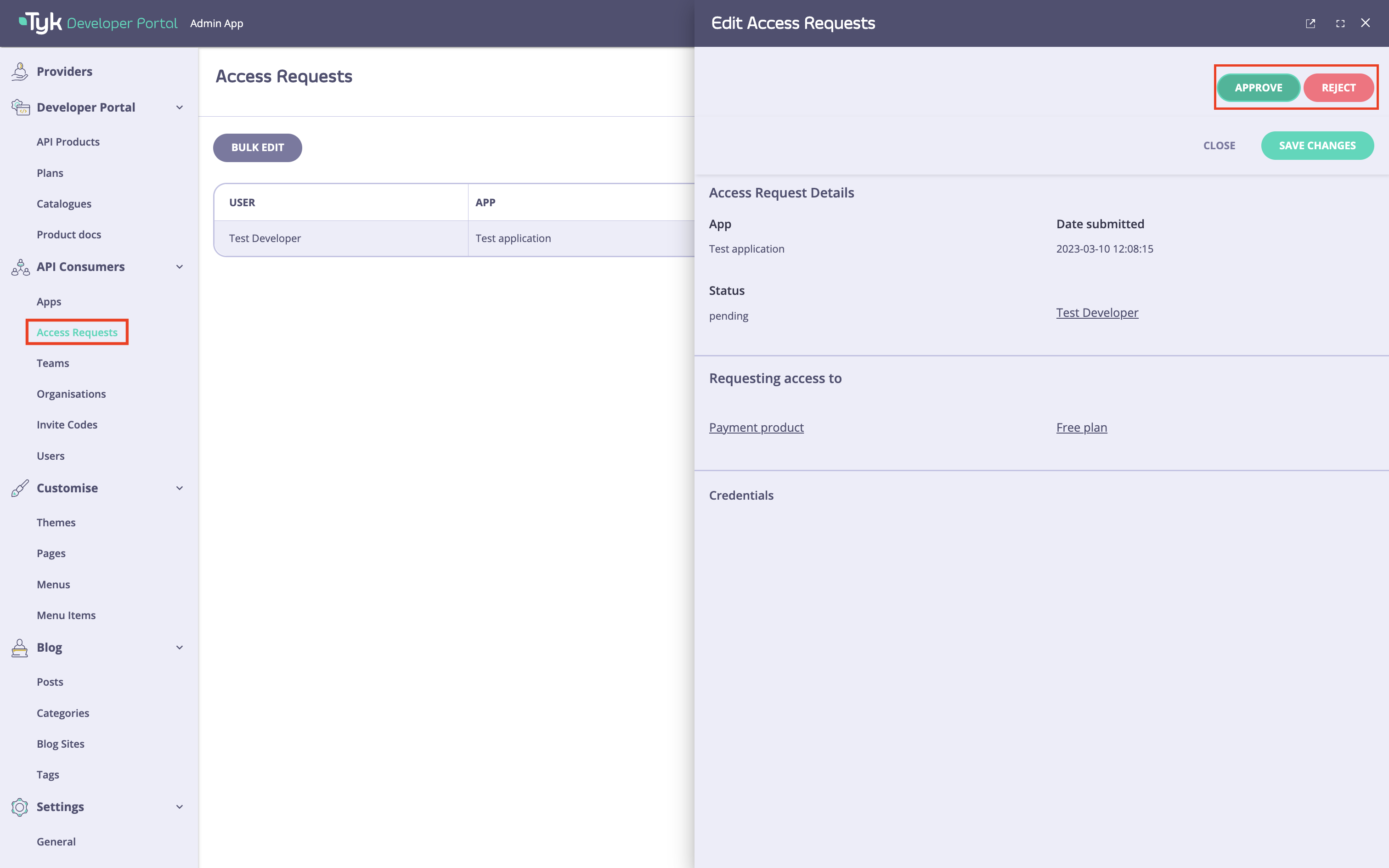
An API Owner reviews and approves the request. The Portal then registers a new OAuth 2.0 client with the IdP on the API Consumer’s behalf, using the selected Client Profile to determine the grant type and token endpoint authentication method. The scopes from the API Product and Plan are associated with that client in the IdP. As part of the same process, the Portal retrieves the JWKS URI from the IdP and writes it, together with the scope-to-policy mappings, into Tyk. WithEnableIDPRegistry = true, these are written to the Identity Provider Registry. Otherwise, they are written into the API definition.
As an API Owner, navigate to Access Requests, select the request, and click Approve.
Obtain an Access Token
Once the request is approved, the API Consumer can retrieve their OAuth 2.0 credentials from My Dashboard. Navigate to the Developer App and copy the client ID and secret.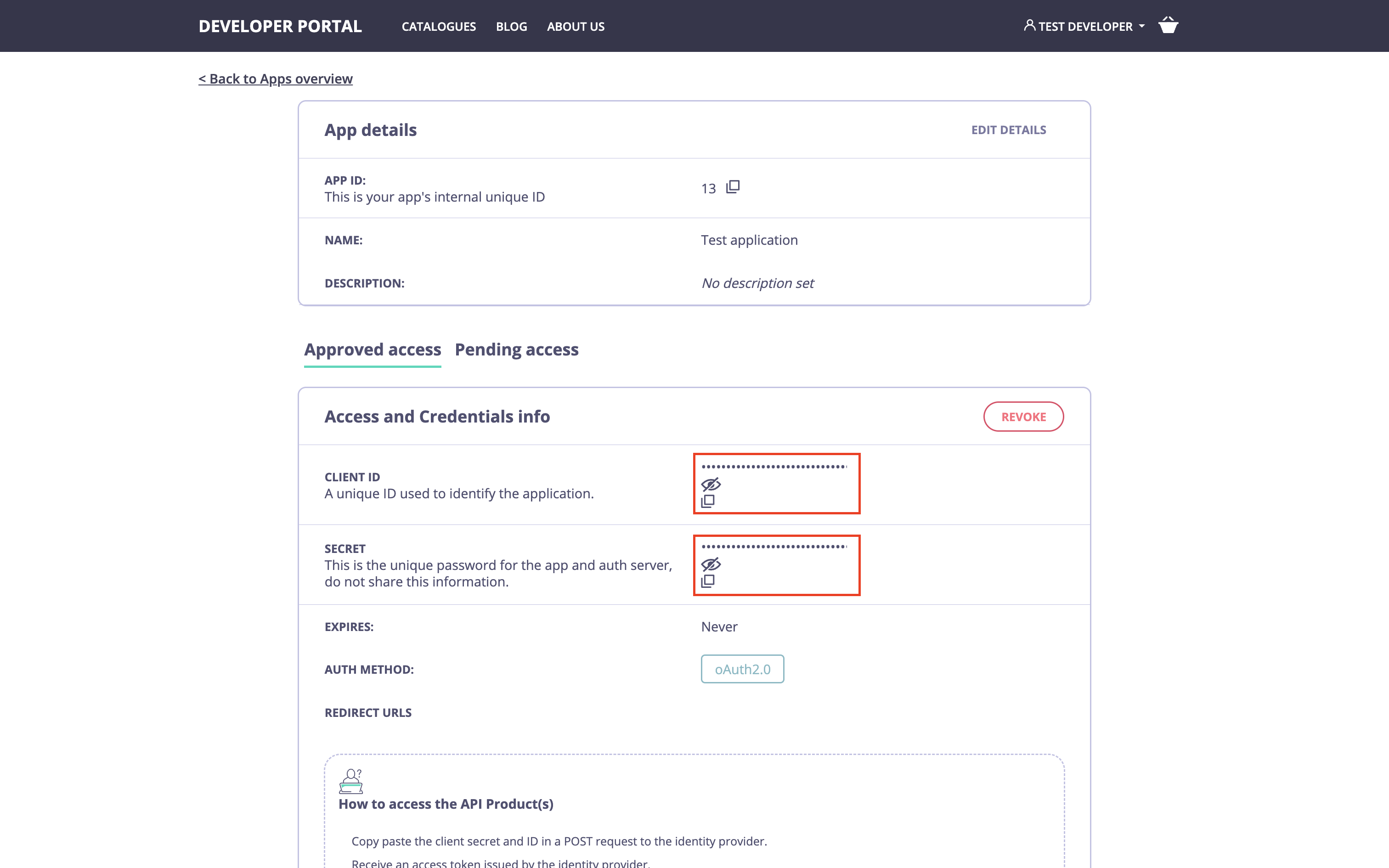
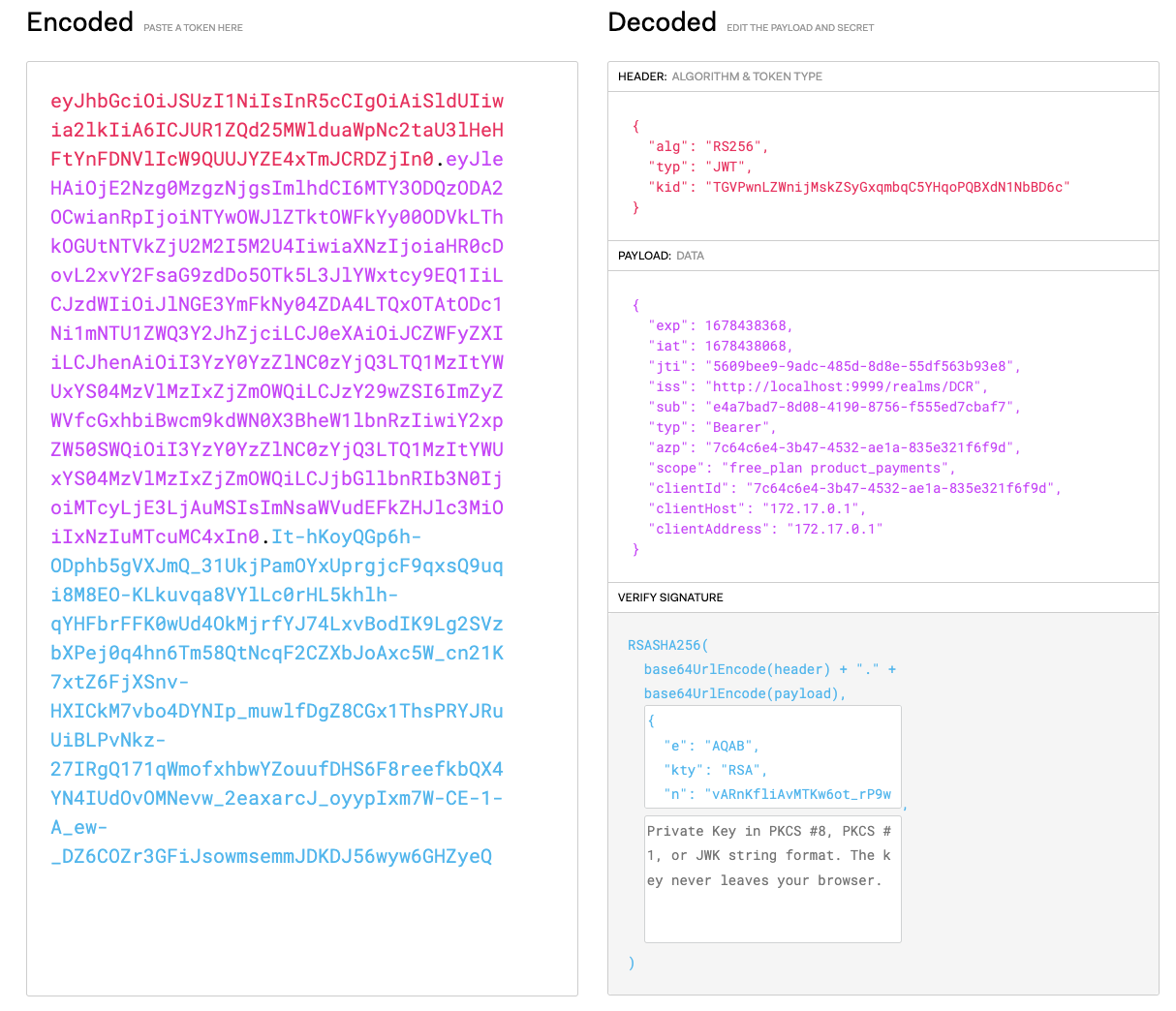
client_credentials grant with the client_secret_basic authentication method, where credentials are passed as a Base64-encoded {client_id}:{client_secret} string in the Authorization header.
Make an API Call
With a valid JWT access token, the API Consumer can call the API. Tyk Gateway validates the token signature and maps the scopes to policies before forwarding the request. Use the access token to call the API:Migrating to the Identity Provider Registry
DCR support in Tyk Developer Portal has evolved across three eras. The table below summarizes each to help you identify your current state before migrating.Legacy Setup (Before Portal 1.13.0)
Before Portal 1.13.0, DCR required fully manual configuration of scope-to-policy mappings in each Tyk Dashboard API definition. The Portal did not write anything into API definitions when an access request was approved. For each JWT-authenticated API, this involved:- Creating Tyk policies for the API Product and Plan
- Creating a No Operation API and policy to satisfy the default policy requirement without granting real access. On Gateway versions prior to 5.11.0, Tyk required a default policy on APIs using scope-to-policy mapping; the No Operation API satisfied this without overriding the Product and Plan policies. From Gateway 5.11.0 onwards this workaround is no longer needed.
- Manually enabling scope-to-policy mapping on each API definition and configuring the JWKS URI, scope-to-policy mappings, and default policy directly
POST /api/clientidps.
API Definition Era (Portal 1.13.0 to 1.17.x)
From Portal 1.13.0, the Portal began managing IdP configuration directly. OAuth 2.0 Providers and Client Profiles are configured in the Portal, and when an access request is approved, the Portal automatically writes the JWKS URI and scope-to-policy mappings into the relevant API definitions. For each JWT-authenticated API, the setup required leaving the Public key and default policy fields blank. The Portal populated these when an access request was approved. On Gateway versions prior to 5.11.0, a No Operation API and policy were also required to satisfy the default policy requirement; from Gateway 5.11.0 this is no longer needed. The limitation of this approach is that API definition configuration takes precedence over any changes made in Tyk Dashboard, and write conflicts can occur if the Portal and Tyk Dashboard both manage the same API definition. Configuration is also not updated automatically when API Products change outside of an approval event. To migrate to the Identity Provider Registry, first upgrade to Portal 1.18.0, then follow the Migration Steps below.Migration Steps
-
Set
TYK_PORTAL_ENABLEIDPREGISTRY=true(orEnableIDPRegistry = truein the config file) and restart the Portal. On startup, the Portal runs a backfill that creates Registry entries in Tyk Dashboard for any existing OAuth 2.0 Providers. Any new, or changes to existing, OAuth 2.0 Providers and API Products will be stored in the Registry going forward. If moving from a legacy version there will be nothing for the backfill to process. -
Audit your API definitions.
Call
GET /api/clientidpsagainst the Tyk Dashboard API to inspect the Registry entries created by the backfill. For each JWT-authenticated API, compare the JWKS URI and scope-to-policy mappings in the API definition against what the Registry now contains. Pay particular attention to any IdP configuration that was added directly in Tyk Dashboard rather than through the Portal. The backfill only covers OAuth 2.0 Providers managed by the Portal; configuration added manually outside the Portal will not appear in the Registry after the backfill. Any such configuration must be added to the Registry manually viaPOST /api/clientidpsbefore proceeding to the next step.There is no Tyk Dashboard UI for the Identity Provider Registry. All inspection and manual management must be done via the Tyk Dashboard API. - Remove IdP configuration from API definitions. Once the Registry is verified as complete and correct, you can remove the JWKS URIs and scope-to-policy mappings from each API definition. The configuration in the API definition takes precedence over the Registry) so if an issuer and scope match is found in the API definition, this will be used rather than the configuration in the Registry.