

Manage Tyk Dashboard Users
Dashboard users have twofold access to the dashboard: they can access both the Dashboard API and the dashboard itself, it is possible to generate users that have read-only access to certain sections of the dashboard and the underlying API. Dashboard users are not the same as developer portal users (a.k.a. developers). The credentials are stored independently and have different mechanics relating to registration, management and access. For example, it is not possible to log into the developer portal using a dashboard account.Using Dashboard UI
To create a dashboard user from the GUI:-
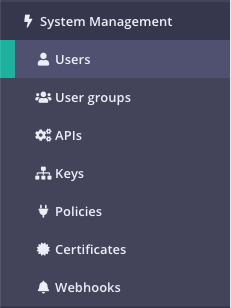
Select “Users” from the “System Management” section
-
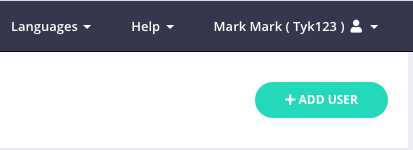
Click “ADD USER”
-
Add the user’s basic details
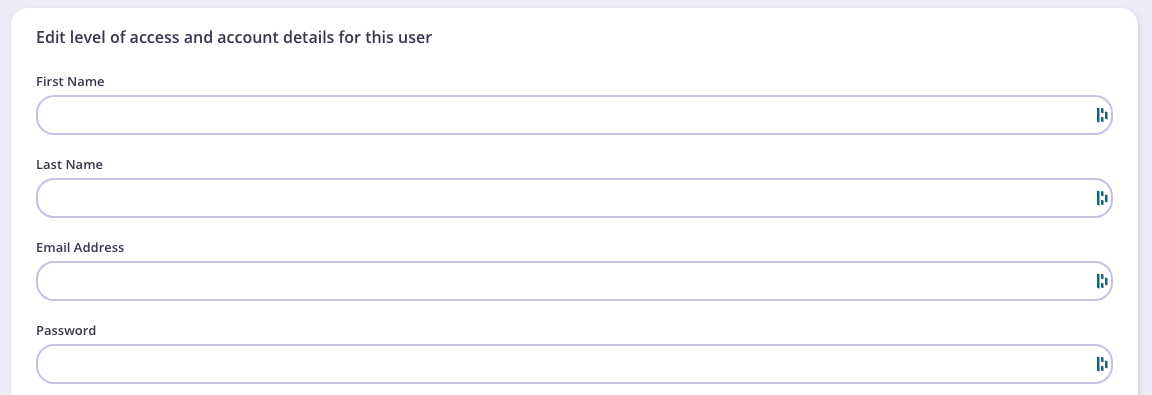
- First Name: The user’s first name.
- Last Name: The user’s last name.
- Email: The email address of the user, this will also be their login username.
- Password: The password to assign to the user, this will automatically be hashed and salted before storing in the database. NOTE you need to inform the user about the password you have created for them.
- Active: Must be true for the user to have access to the dashboard or the dashboard API.
-
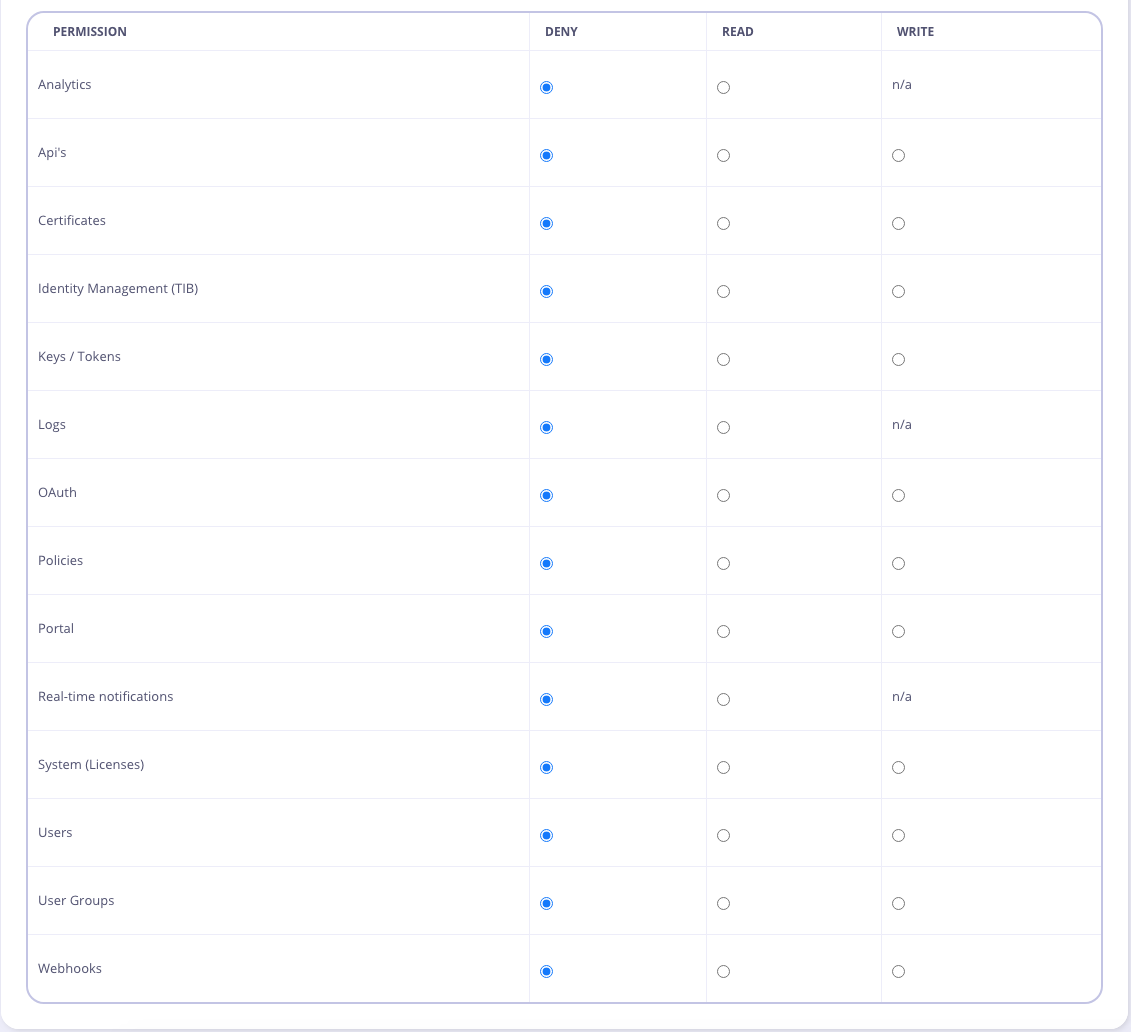
Set the user permissions
-
Click “Save”
Using Dashboard API
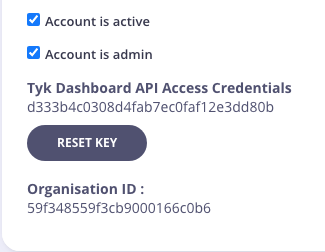
To authenticate requests to the Tyk Dashboard API, you will need to provide an API Key in theAuthorization header.
This is your Tyk Dashboard API Access Credentials, which can be found on the user detail page:
POST /api/users endpoint, for example:
Manage User Passwords
You can change your password in these circumstances:- If you have forgotten your password
- If you wish to change your password
Forgotten Your Password?
If you have forgotten your password, you can request a password reset email from the Dashboard Login screen: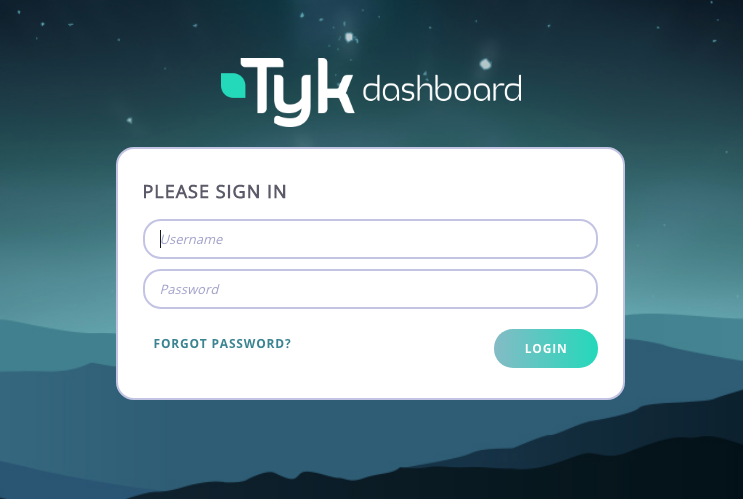
This link will only be valid for 1000 seconds
You will need to configure your outbound email settings to enable this feature.
You will need to configure your outbound email settings to enable this feature.
Change Your Password
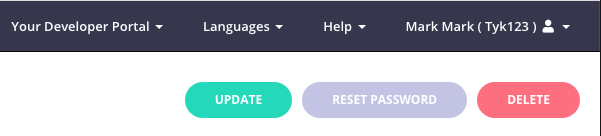
If you wish to change your current password, from the System Management > Users screen, select Edit for your Username.You will not be able to change the password for other Dashboard users.
Search Users
You can search for a user (by email address) by entering the address in the search field. The user list will automatically refresh with that user being displayed.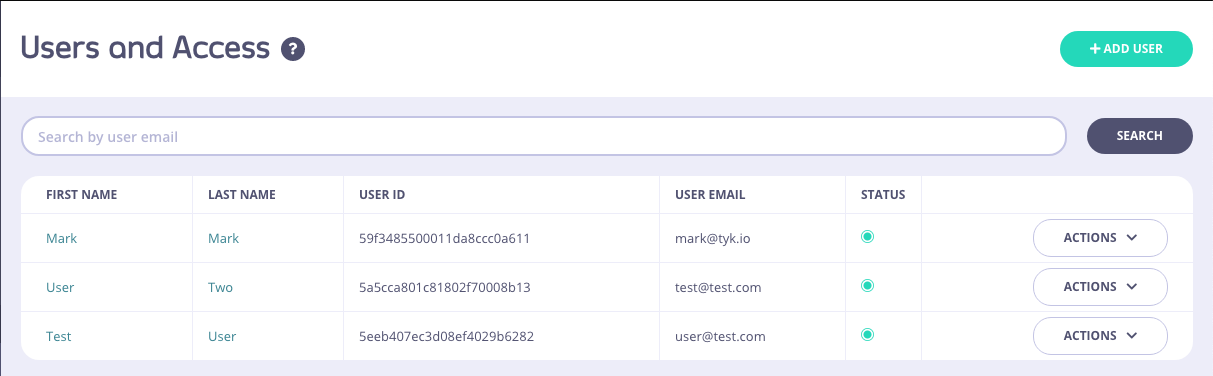
Password Policy
Tyk allows you to control password requirements for Dashboard users, developers (i.e. users registered to the developer portal) and basic auth keys. Please note: This configuration is enforced by the Tyk-Dashboard and as such is not available in the Tyk Open Source Edition. Also, since it requires access to the Tyk Dashboard installation folder, it is currently not available for Tyk Cloud clients. There are other security options available from the Dashboard config file. See the security section for more details. You can find the configuration files in theschemas directory of your Tyk Dashboard installation folder, as follows:
- For Dashboard users you define policy in
schemas/password.json - For developers you define policy in
schemas/developer_password.json - For basic auth keys you define policy in
./schemas/basic_auth.json
minLength- sets minimum password lengthmultiCase- boolean, upper and lower case characters are requiredminNumeric- minimum number of numeric charactersminSpecial- minimum number of special characters, like@,$,%etc.disableSequential- boolean, disable passwords which include at least 3 sequential characters. For example:abc,123,111,xxxetc.
password.json file, with all options turned on: