
Documentation Index

Fetch the complete documentation index at: https://tyk.io/docs/llms.txt

Use this file to discover all available pages before exploring further.

Without instrumentation, MCP traffic is opaque: you know requests are flowing, but not which tools agents are calling, which are slow, or where failures are concentrated. This guide builds a Grafana dashboard for MCP traffic using Tyk Gateway’s OpenTelemetry metrics. By the end, you will have three panels covering request volume by JSON-RPC method, error rate, and top tools by call volume.

Prerequisites

1. Enable OTel metrics on the gateway

Tyk exports metrics via OTLP (not a Prometheus scrape endpoint directly). The recommended setup uses an OpenTelemetry Collector to receive OTLP from Tyk and expose a Prometheus scrape endpoint. Add the following to your tyk.conf:
"opentelemetry": {
  "enabled": true,
  "exporter": "grpc",
  "endpoint": "localhost:4317"
}
Then run an OTel Collector configured to receive OTLP on :4317 and export to Prometheus on :8889. See OpenTelemetry in Tyk for full configuration options.

2. Enable traffic logs on the MCP proxy

Tyk Gateway only records metrics for APIs that have traffic logging enabled. In the Dashboard, open your MCP proxy definition, navigate to Advanced Options, and enable Traffic Logs. Without this, no requests are recorded and all panels will be empty.

3. Configure the MCP metric instruments

The metric instruments are configured in tyk.conf, under opentelemetry.metrics. Add the following to your gateway config:
"opentelemetry": {
  "enabled": true,
  "exporter": "grpc",
  "endpoint": "localhost:4317",
  "metrics": {
    "enabled": true,
    "api_metrics": [
      {
        "name": "tyk.mcp.requests.total",
        "type": "counter",
        "description": "MCP request count by method, tool, API, and session",
        "dimensions": [
          { "source": "metadata", "key": "mcp_method",         "label": "mcp_method",     "default": "" },
          { "source": "metadata", "key": "mcp_primitive_type", "label": "primitive_type", "default": "" },
          { "source": "metadata", "key": "mcp_primitive_name", "label": "tool_name",      "default": "" },
          { "source": "metadata", "key": "mcp_error_code",     "label": "error_code",     "default": "" },
          { "source": "metadata", "key": "api_id",             "label": "api_id" },
          { "source": "session",  "key": "alias",              "label": "session",        "default": "unknown" }
        ]
      },
      {
        "name": "tyk.mcp.upstream.duration",
        "type": "histogram",
        "description": "Upstream MCP server latency per tool and API",
        "histogram_source": "upstream",
        "histogram_buckets": [0.01, 0.05, 0.1, 0.25, 0.5, 1, 2.5, 5, 10],
        "dimensions": [
          { "source": "metadata", "key": "mcp_primitive_name", "label": "tool_name", "default": "" },
          { "source": "metadata", "key": "api_id",             "label": "api_id" }
        ]
      },
      {
        "name": "tyk.mcp.request.duration",
        "type": "histogram",
        "description": "End-to-end MCP request latency per tool and API",
        "histogram_source": "total",
        "histogram_buckets": [0.01, 0.05, 0.1, 0.25, 0.5, 1, 2.5, 5, 10],
        "dimensions": [
          { "source": "metadata", "key": "mcp_primitive_name", "label": "tool_name",  "default": "" },
          { "source": "metadata", "key": "mcp_method",         "label": "mcp_method", "default": "" },
          { "source": "metadata", "key": "api_id",             "label": "api_id" }
        ]
      },
      {
        "name": "tyk.mcp.method.distribution",
        "type": "counter",
        "description": "Distribution of MCP method types for session efficiency analysis",
        "dimensions": [
          { "source": "metadata", "key": "mcp_method", "label": "mcp_method", "default": "" },
          { "source": "metadata", "key": "api_id",     "label": "api_id" }
        ]
      }
    ]
  }
}
Restart the gateway after making this change. See MCP metrics for the full reference on each instrument and additional use cases.
OTel metric names are translated when Prometheus scrapes them: dots become underscores, counter instruments get a _total suffix, and histogram instruments with a seconds unit get a _seconds suffix. So tyk.mcp.requests.total becomes tyk_mcp_requests_total in PromQL, and tyk.mcp.upstream.duration becomes tyk_mcp_upstream_duration_seconds_bucket, tyk_mcp_upstream_duration_seconds_sum, and tyk_mcp_upstream_duration_seconds_count.

Instructions

Step 1: Create the dashboard

  1. In Grafana, go to Connections → Data Sources → Add new data source, select Prometheus, set the URL to your Prometheus server (e.g. http://prometheus:9090), and click Save & test.
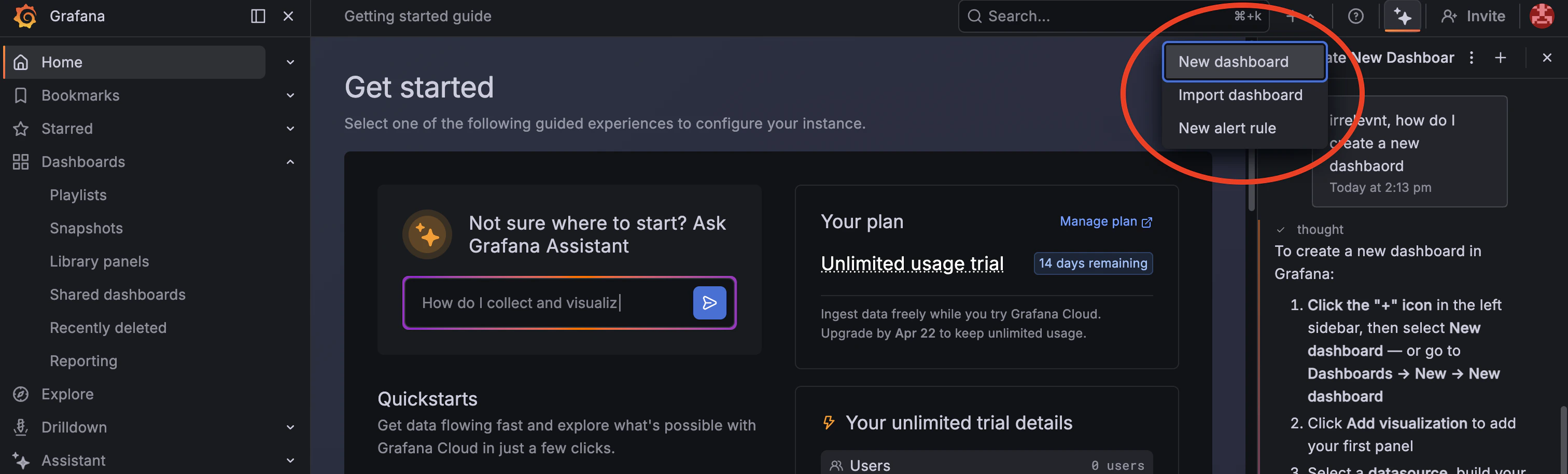
  2. Go to Dashboards → New → New dashboard. Grafana new dashboard
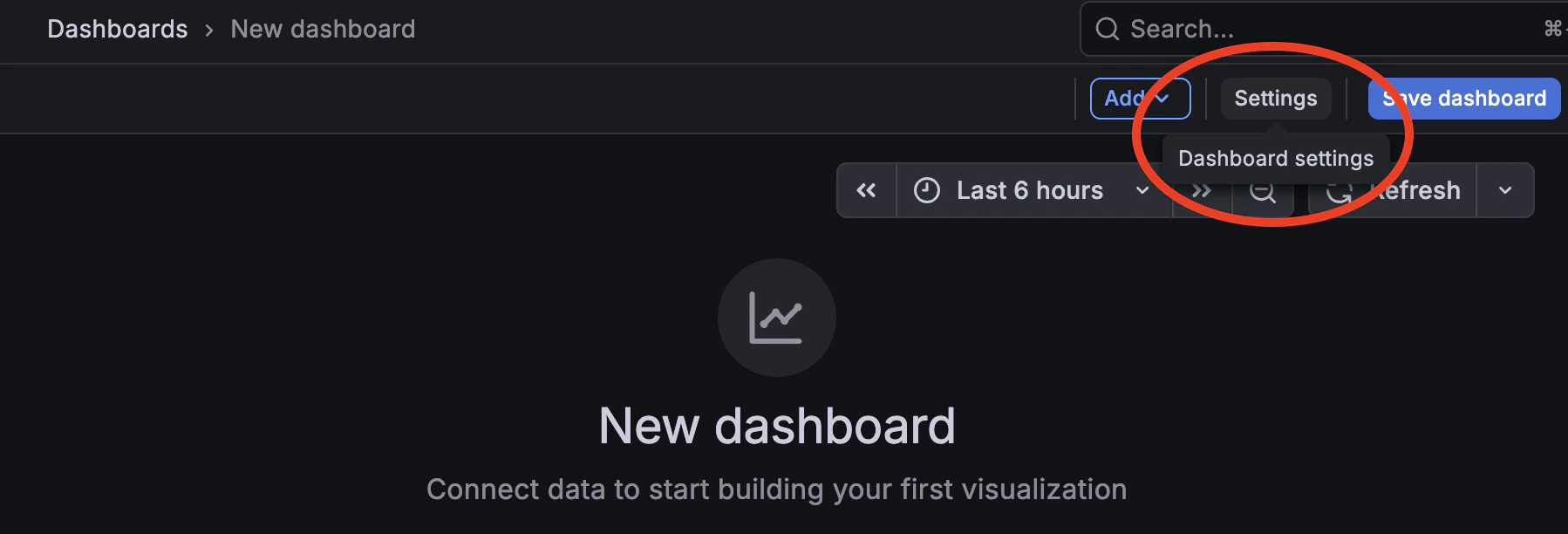
  3. Open Dashboard settings → Variables → Add variable. Grafana dashboard settings
  4. Set the following fields and click Save:
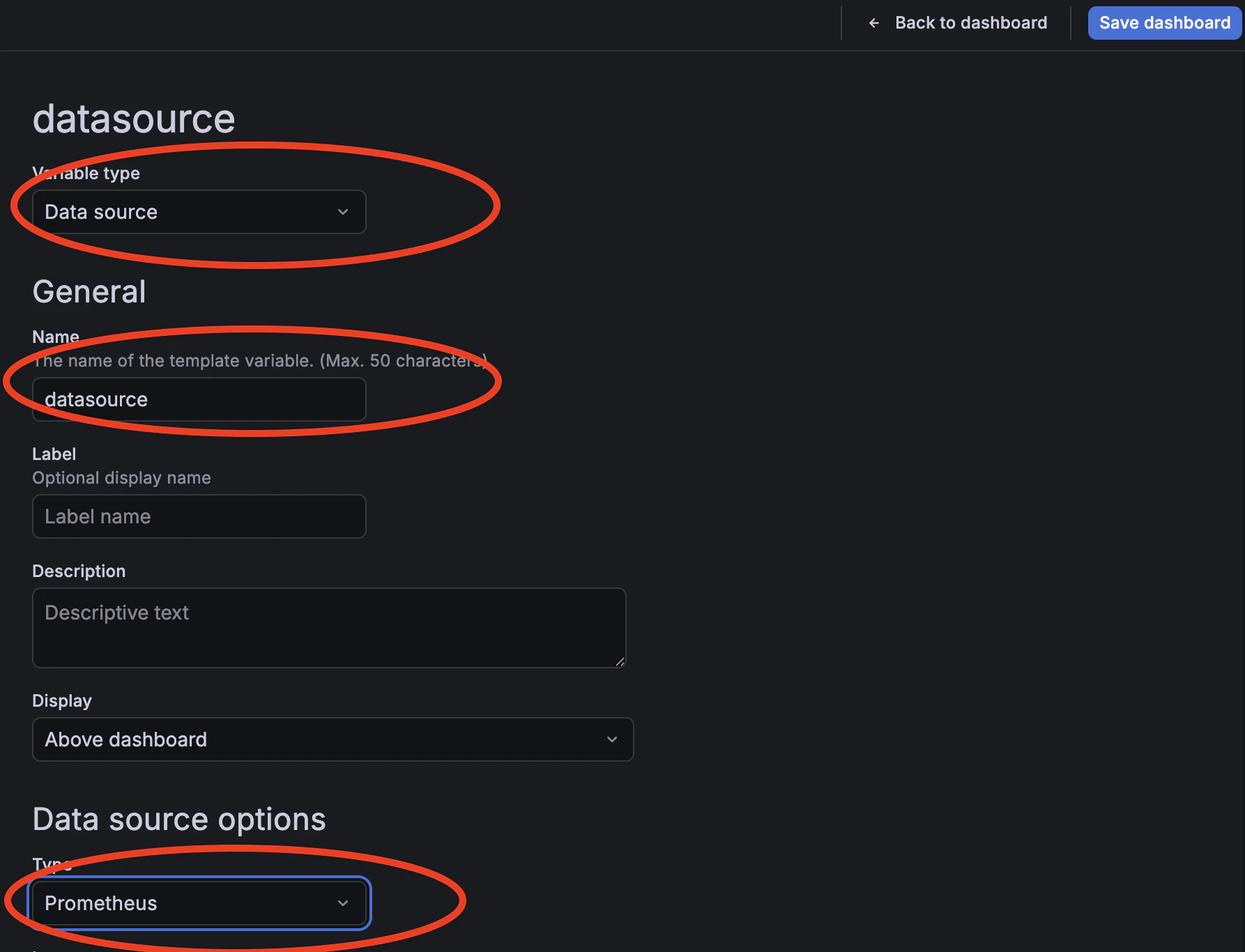
    FieldValue
    Variable typeDatasource
    Namedatasource
    Plugin typePrometheus
    Grafana data source variable

Step 2: Generate traffic

  1. Make a few tool calls through your MCP proxy to populate the metrics. If you need a quick way to generate traffic, use MCP Inspector with the Mock MCP Server; the full setup is covered in How to secure an MCP proxy. Once you have traffic flowing, come back here to build the dashboard.

Step 3: Request rate by method

  1. Click Add → Visualization and select Time series. Set the title to MCP request rate by method.
  2. Set the PromQL query to:
    sum by (mcp_method) (rate(tyk_mcp_requests_total[$__rate_interval]))
    
  3. Set the Legend to {{mcp_method}} and click Apply.
$__rate_interval is a Grafana built-in variable that automatically selects an appropriate rate interval based on the dashboard time range and scrape interval. It produces more accurate rate calculations than a hardcoded interval such as [5m] and is the recommended choice for rate and histogram queries.

Step 4: Error rate

  1. Click Add → Visualization and select Stat. Set the title to MCP error rate.
  2. Set the PromQL query to:
    sum(rate(tyk_mcp_requests_total{error_code!=""}[$__rate_interval]))
    /
    sum(rate(tyk_mcp_requests_total[$__rate_interval]))
    * 100
    
  3. Set the Unit to Percent (0-100).
  4. Configure thresholds and click Apply:
    ValueColor
    0Green
    1Orange
    5Red

Step 5: Top tools by call volume

  1. Click Add → Visualization and select Bar chart. Set the title to Top tools by call volume.
  2. Set the PromQL query to:
    topk(10, sum by (tool_name) (increase(tyk_mcp_requests_total{mcp_method="tools/call"}[$__range])))
    
  3. Set the Legend to {{tool_name}} and click Apply.
If the panel shows tool names but all counts are zero immediately after generating traffic, this is normal. The increase() function requires at least two Prometheus scrapes to return a non-zero result. Wait for the second OTel export cycle (up to two minutes) and refresh the dashboard.
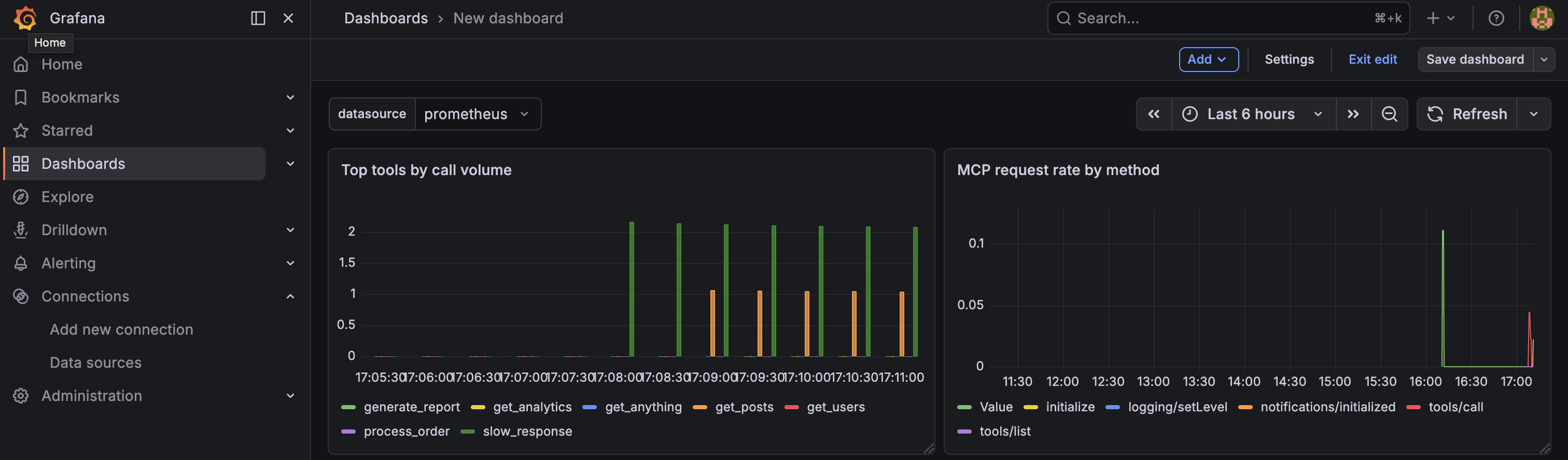
Grafana MCP dashboard

Next steps

The MCP metrics reference covers additional instruments you can add to this dashboard, including P95 upstream latency per tool, end-to-end latency, error classification by code, and per-session usage.