

- Reader: can only call
get_users,get_posts,get_products, andget_analytics - Admin: can call all 15 tools
Two approaches to tool-level access control
Tyk supports two complementary mechanisms for controlling what an AI agent can do on an MCP proxy. Policy-based access control (this guide): Tyk policies define an explicit allowlist of tools a consumer is permitted to invoke, and apply rate limits to each tool. A policy is bound to a key at issuance time and enforced at the gateway, regardless of what the agent’s bearer token claims. This works with any authentication method, requires no changes to your identity provider, and lets the platform team manage access centrally without touching the IdP. Scope-based access control: when you use the oauth2 security scheme, you can declare required scopes on individual tools in the API definition. Tyk validates those scopes against the inbound token’sscope claim at runtime, delegating fine-grained access decisions to your IdP. This approach is well suited to environments where access rules change frequently, or where the IdP is already the source of truth for permissions.
The two mechanisms are complementary and can be combined. Policies control which tools a consumer can reach, and at what rate. Scope check validates what the IdP has actually granted in the token at runtime. Together they give you both platform governance and identity-driven authorization.
This guide covers policy-based access control only.
How it works
Tyk policies control consumer access at two levels relevant to this guide: Primitive access: restricts which specific tools a consumer can invoke. When a key’s policy includes an allowed list for tools, Tyk enforces it on bothtools/call (blocking disallowed tool invocations) and tools/list (filtering the response so the agent only sees tools it can use). The upstream server is never reached for blocked calls.
Proxy access: determines which MCP proxies the key can reach at all.
Both keys in this guide point at the same proxy URL. The difference in behavior comes entirely from the policies applied to each key.
For the complete policy reference, see MCP policies.
Before you begin
- The Mock MCP Server running on
http://localhost:7878. Set up in the quickstart. - An MCP proxy named Mock MCP Server with authentication enabled. See How to secure an MCP proxy.
- Node.js 18 or later (to run MCP Inspector)
- A Dashboard user account with policy management permissions
Instructions
Step 1: Create the Reader policy
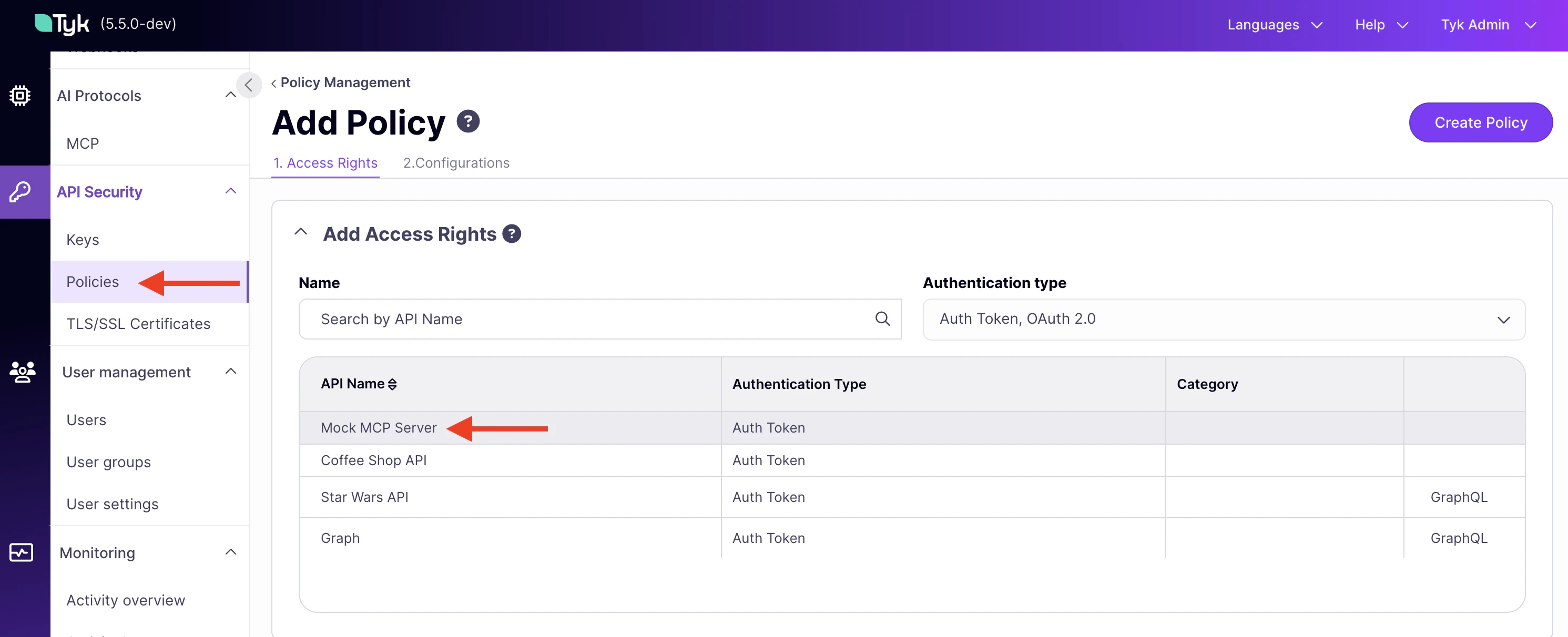
- In the Tyk Dashboard sidebar, click Policies, then click Add Policy.
-
On the Access Rights tab, find Mock MCP Server in the API list and click it to add it.
-
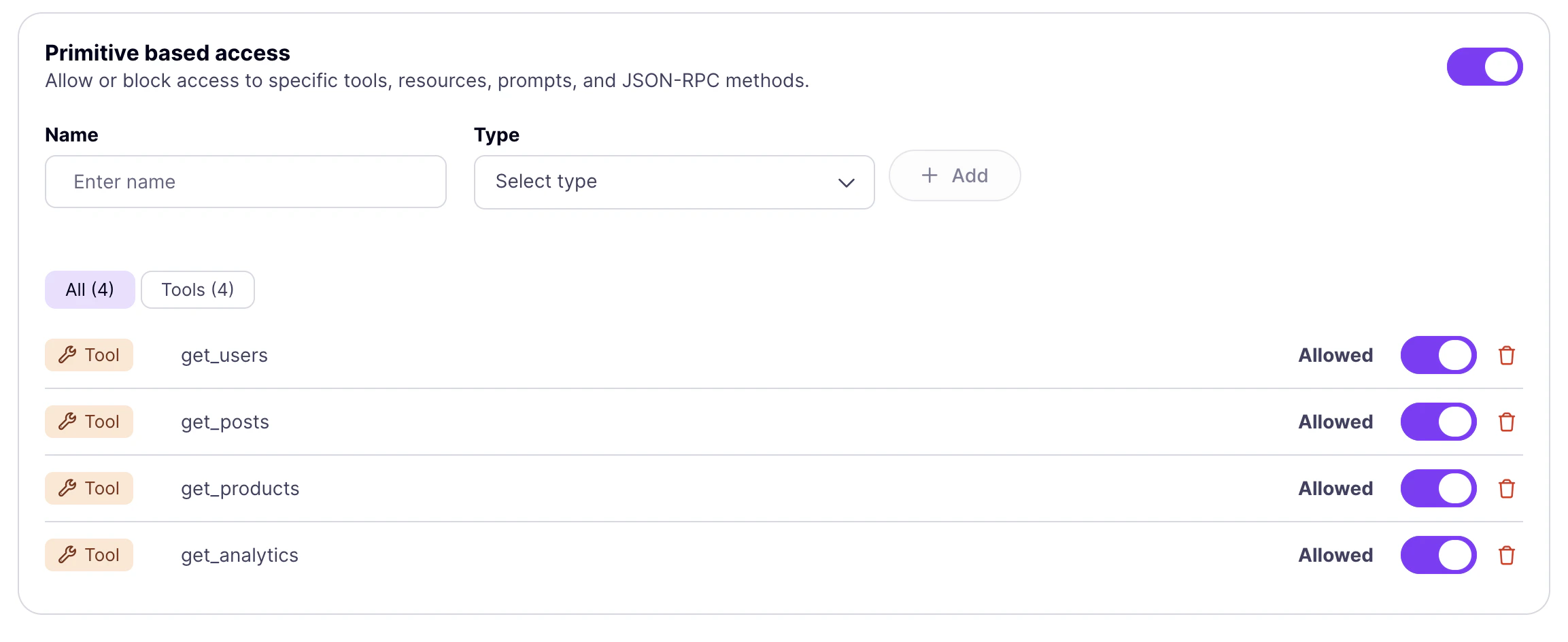
Scroll to Primitive based access within the Mock MCP Server panel and add each permitted tool:
- Click Add, enter
get_users, set Type to Tool, and set the status to Allowed. Click Add. - Repeat for
get_posts,get_products, andget_analytics.
- Click Add, enter
-
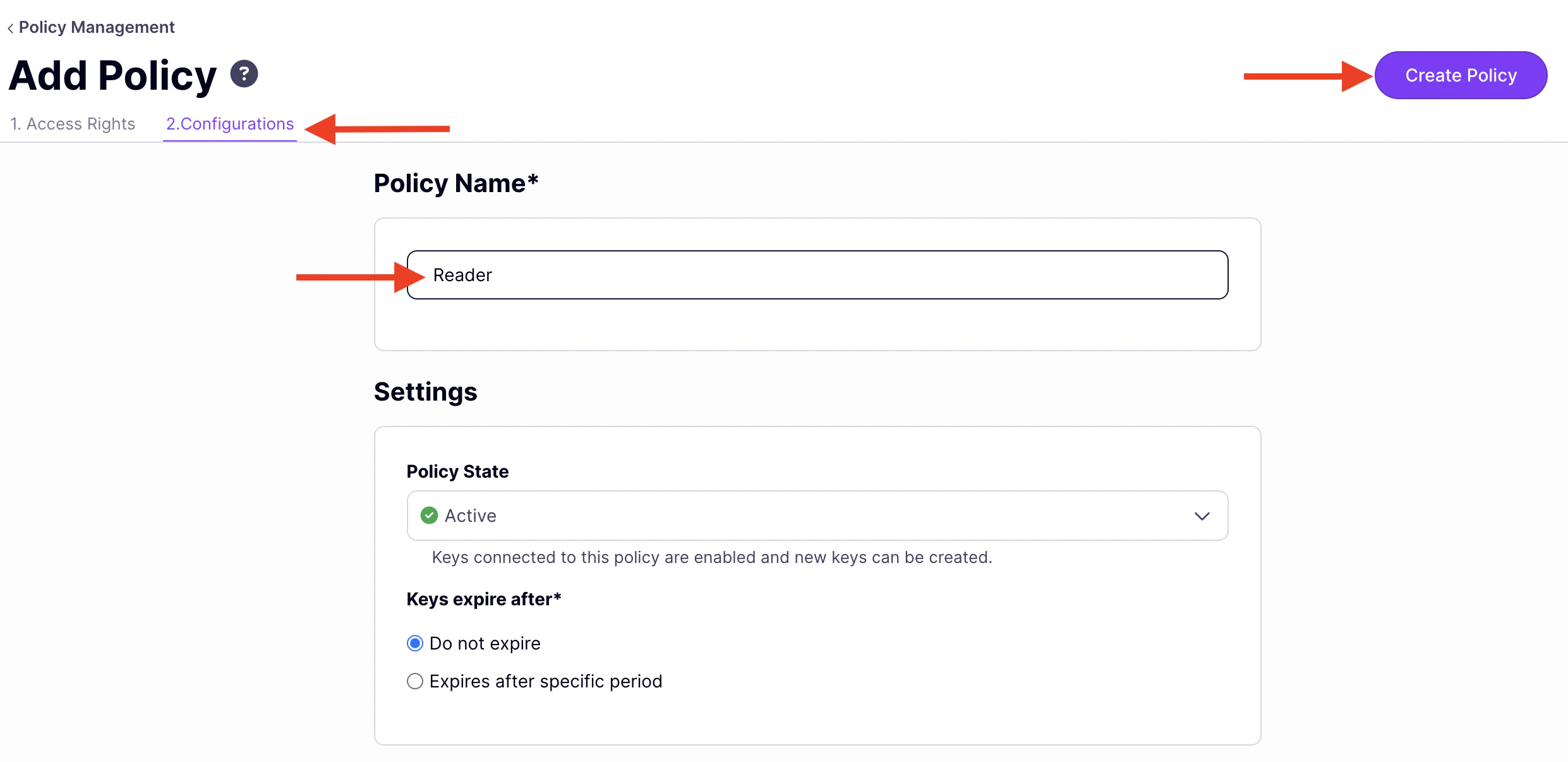
Click the Configurations tab and set:
- Policy Name:
Reader - Policy State: Active
- Policy Name:
-
Click Create Policy.
Step 2: Create the Admin policy
The Admin policy grants unrestricted tool access. Omitting the Primitive based access entries means all tools are accessible.- Click Add Policy.
- On the Access Rights tab, add Mock MCP Server.
-
Click the Configurations tab and set:
- Policy Name:
Admin - Policy State: Active
- Policy Name:
- Click Create Policy.
Step 3: Issue role-specific keys
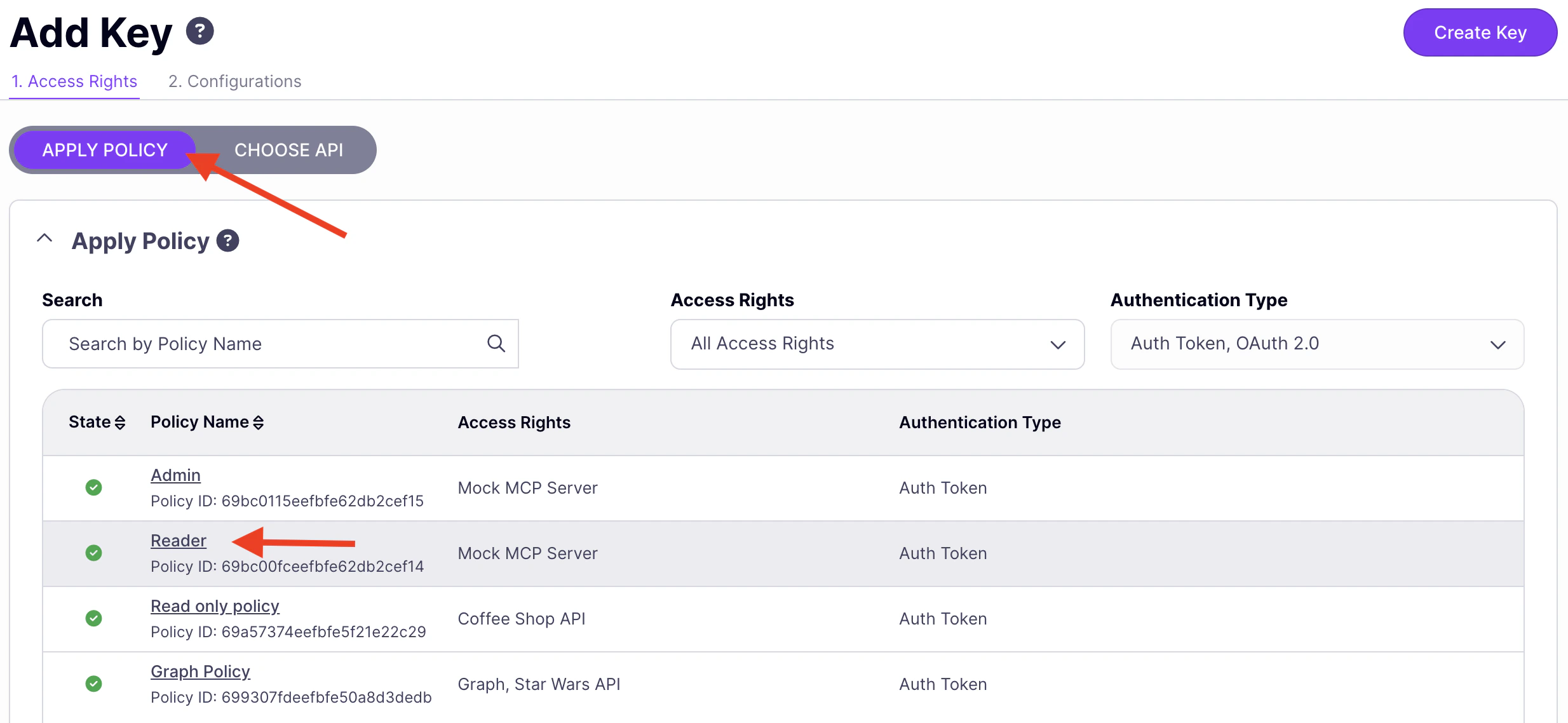
- In the Dashboard sidebar, click Keys, then Add Key.
-
Under Access rights, click Apply Policy and select Reader.
-
Click the Configurations tab and set an Alias such as
reader-agent.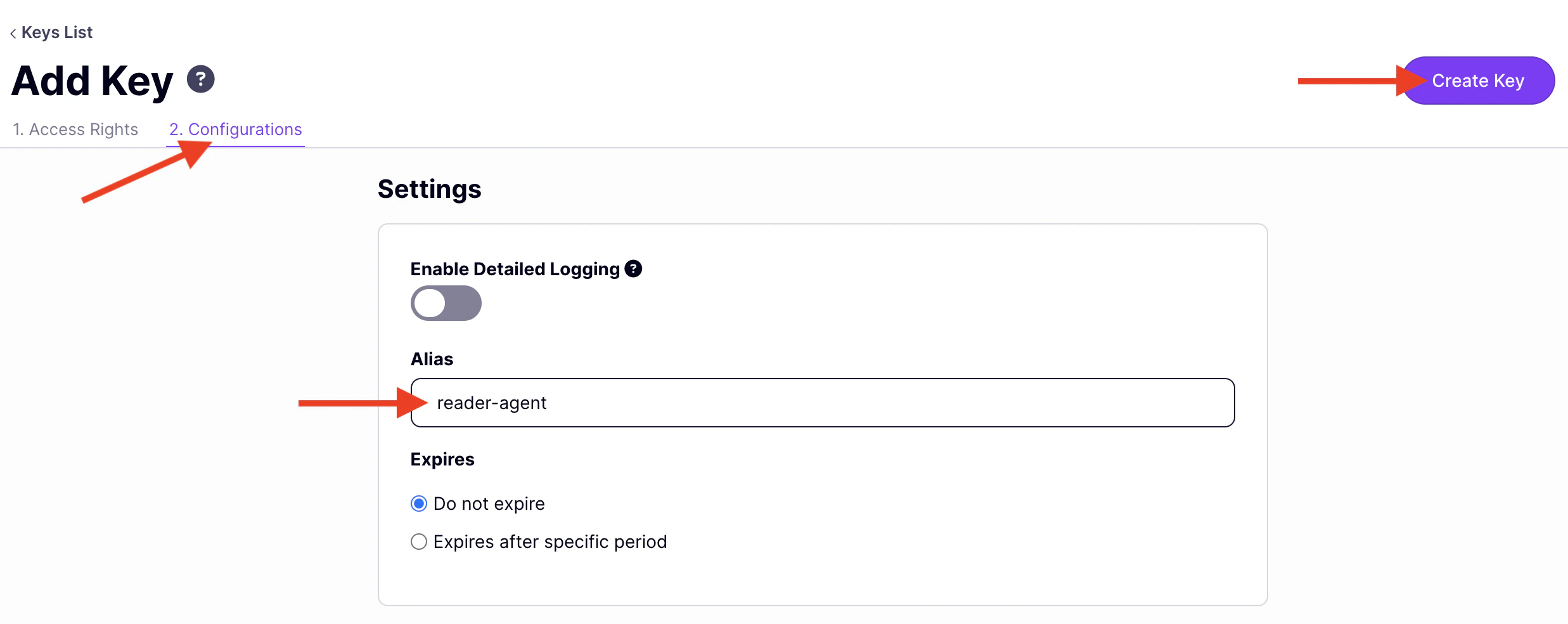
- Click Create Key and copy the key.
-
Repeat steps 1–4 to issue a second key, selecting Admin as the policy and
admin-agentas the alias.
Step 4: Verify in MCP Inspector
-
Start MCP Inspector:
- Open the URL printed in your terminal.
Test the Reader key
-
Set Transport Type to
Streamable HTTP. -
Set URL to your MCP endpoint (find it under MCP Proxy URL in the proxy designer, then append
/mcp). -
Add a header:
Authorization=Bearer {reader-api-key}and click Connect. -
Click the Tools tab. You will see exactly four tools:
get_users,get_posts,get_products, andget_analytics. Tyk has filtered thetools/listresponse based on the Reader policy’s allowed list. -
Select
get_usersand click Run. It succeeds.
Test the Admin key
-
Click Disconnect. Replace the key in the
Authorizationheader with your Admin key and click Connect. - Click the Tools tab. All 15 Mock MCP Server tools appear. The Admin policy applies no tool restrictions.