

Availability
Semantic caching is a feature of the Advanced LLM Cache plugin. It returns a cached LLM response when a new prompt has the same meaning as an earlier prompt. The words do not have to be identical. For example, “How do I reset my password?” can get the cached answer to “how can I reset my password”.
A cache hit does not go to the LLM vendor. This makes the response faster, and it costs no tokens. Semantic caching gives the most hits for repeated questions, such as the questions that a support bot or a documentation assistant gets.
Semantic caching is off by default. This page describes version 1.2.1 of the plugin.
How Semantic Caching Works
The plugin runs in the gateway that serves the LLM request. This is the embedded gateway of AI Studio or an Edge Gateway. For each request to an LLM that has the plugin, the plugin does these steps:- It looks for an exact match first. If the same request is in the cache, the plugin returns the cached response.
- If there is no exact match, the plugin checks if the request can use a semantic match. Refer to Requests That Use Exact Matching Only.
- The plugin sends the last user message to an embedding model. The model returns a vector that represents the meaning of the message.
- The plugin compares the vector with the vectors of cached prompts in the same partition. It uses cosine similarity. Refer to What Must Match.
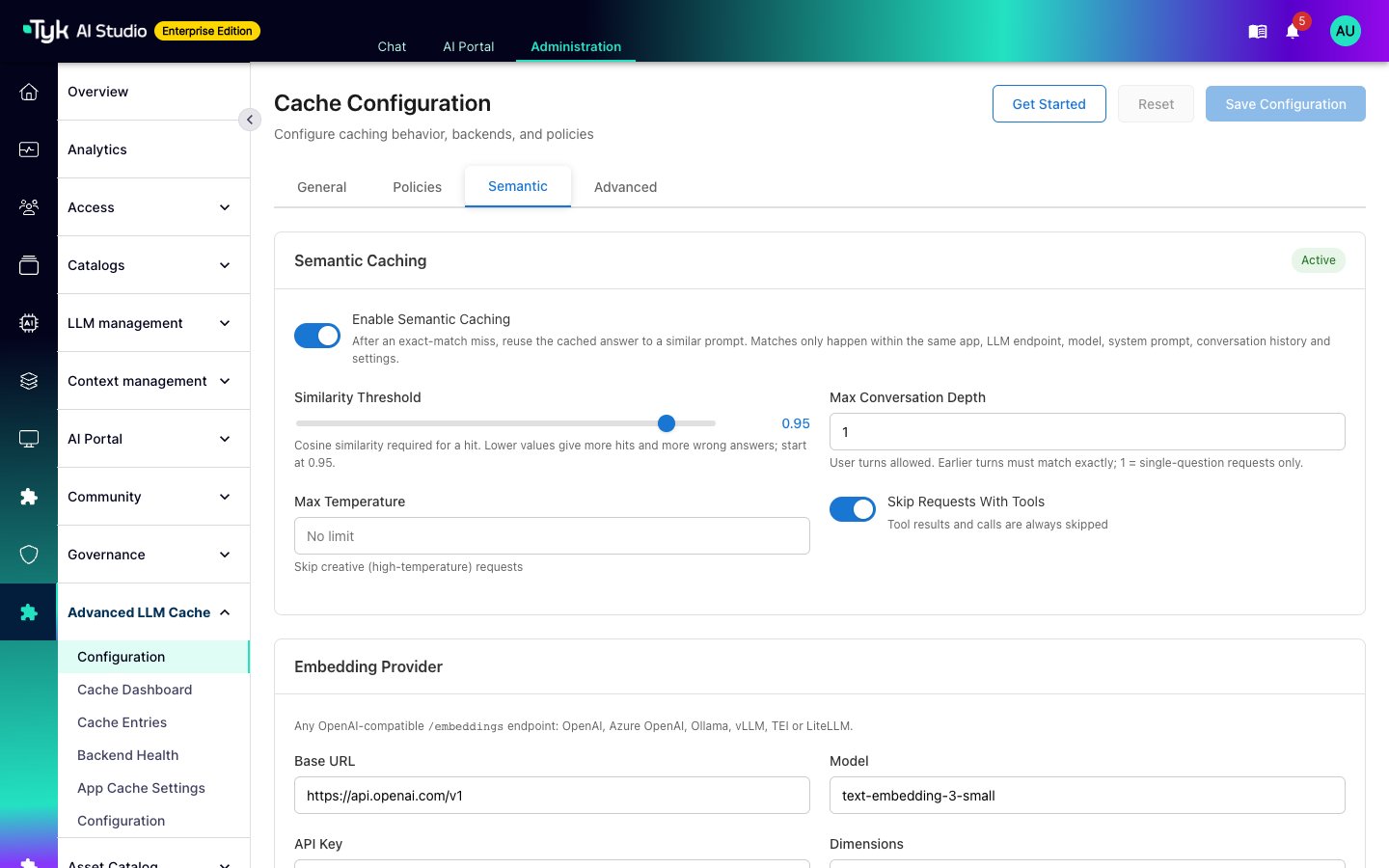
- If the best score is the similarity threshold or more, the plugin returns the cached response of that prompt. The default threshold is 0.95.
- If there is no match, the request goes to the LLM. When the response arrives, the plugin stores it one time, for exact matches and semantic matches. Both use the same time to live (TTL).
What Must Match
A semantic match can only come from the same partition. A request and a cached prompt are in the same partition only when all these items are the same:- The App
- The LLM vendor and the endpoint path
- The model
- The system prompt
- The earlier turns of the conversation
- If the request declares tools or not
- The output settings, such as
response_format,max_tokens,stop,top_p,seed, and the reasoning settings - The temperature, rounded to one decimal place
- The embedding model
Requests That Use Exact Matching Only
The plugin does not try a semantic match for these requests. They still get exact matches.- The request contains tool calls or tool results.
- The request contains images, files, or other content that is not text.
- The conversation has more user turns than Max Conversation Depth. The default is 1, so only single-question requests can get a semantic match.
- The request declares tools, and Skip Requests With Tools is on (the default).
- The temperature is more than Max Temperature, if you set one.
- The last user message is longer than 8,000 characters.
- The last turn is not a user message.
- The App opted out, or the request sent the header
X-Cache: exact-only. Refer to Turn Off Semantic Matching for an App or a Request.
When the Embedding Model Fails
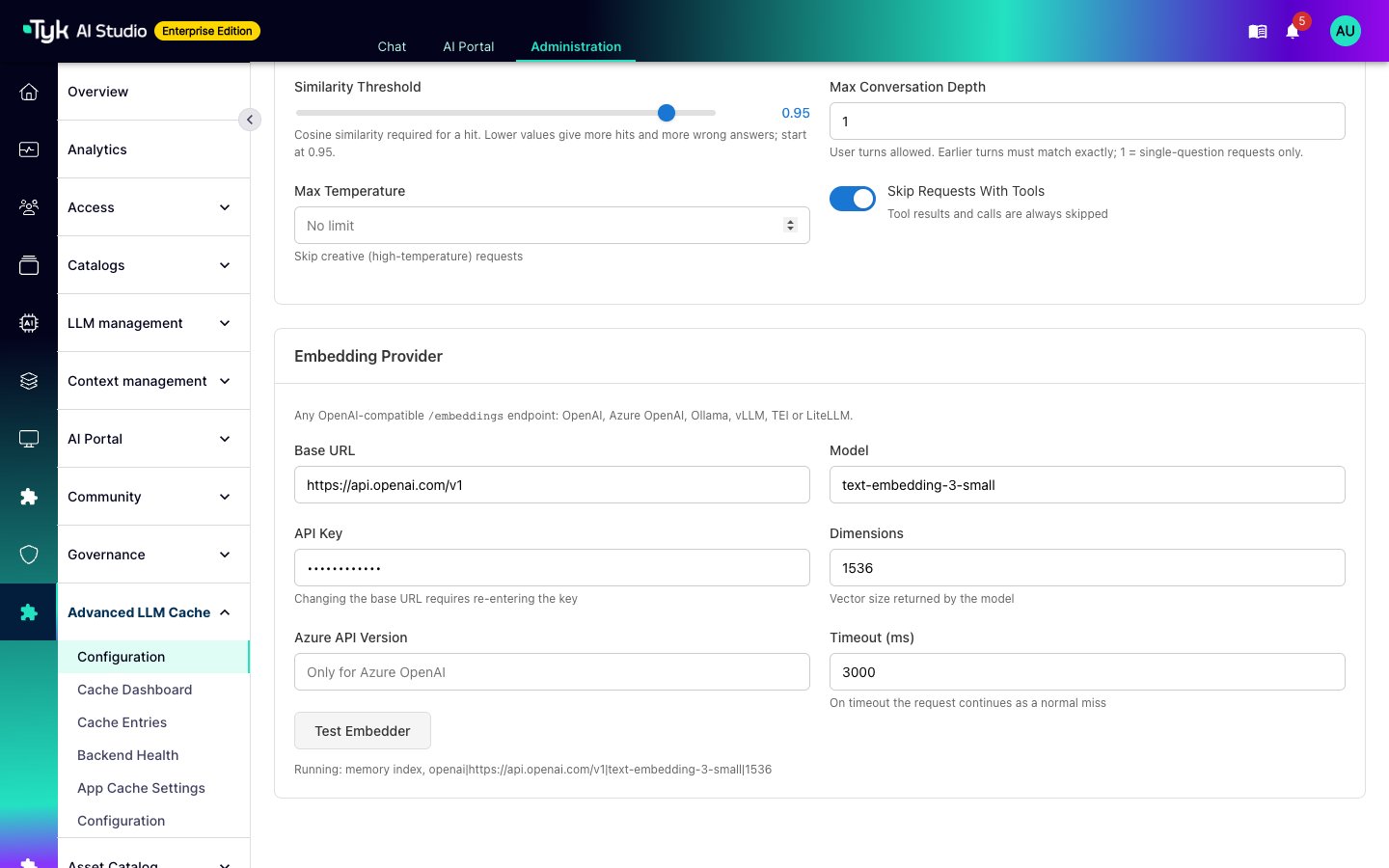
Semantic caching fails open. If the embedding call fails or takes longer than the timeout, the request continues as a normal cache miss. The request still goes to the LLM. The default timeout is 3,000 ms. When you save the semantic settings, or after a configuration push, the plugin opens a connection to the embedding model in the background. This prevents a timeout on the first request. If the embedding of a prompt times out, the plugin embeds the prompt again in the background, with a longer timeout. It then stores the response for semantic matches. The plugin does a maximum of four of these background embeddings at a time.Exact Matching and Semantic Matching
The marketplace has two cache plugins:
The Advanced LLM Cache is based on the community plugin. It adds semantic caching, the Redis backend, failover to stale responses, TTL policies, bypass rules, and audit logging.
Semantic caching needs an Enterprise license with the Advanced LLM Cache feature. Without this license, the plugin uses only its community features: exact matching with the memory backend. The Semantic tab then shows “Semantic caching requires an enterprise license”.
Choose the Traffic for Semantic Caching
An embedding captures the topic of a prompt. It does not capture word order or direction. Two prompts that ask for opposite things can get a higher score than two prompts that mean the same thing. The plugin documentation shows these scores for thenomic-embed-text model:
The unit conversion pair scores higher than the real rewording. No threshold can separate them, so the second prompt gets the answer to the first one.
Use these rules:
- Enable semantic caching for question and answer traffic, such as support and documentation questions.
- Opt out the Apps whose prompts differ by numbers, word order, or negation.
- After you enable it, examine the
X-Cache-Similarityheader and the semantic hits in the audit log. - Each embedding model gives different scores. When you change the model, examine the threshold again.
Set Up Semantic Caching
Install the Plugin
- In the admin console, go to Plugins > Marketplace.
- Find Advanced LLM Cache and install version 1.2.1. You can also add the plugin with the OCI command
oci://docker.tyk.io/studio-plugins/advanced-llm-cache:1.2.1. Refer to Deployment Options. - Approve the service scopes that the plugin requests.
- Make sure that the plugin is active. The admin sidebar then shows an Advanced LLM Cache section.
Attach the Plugin to an LLM
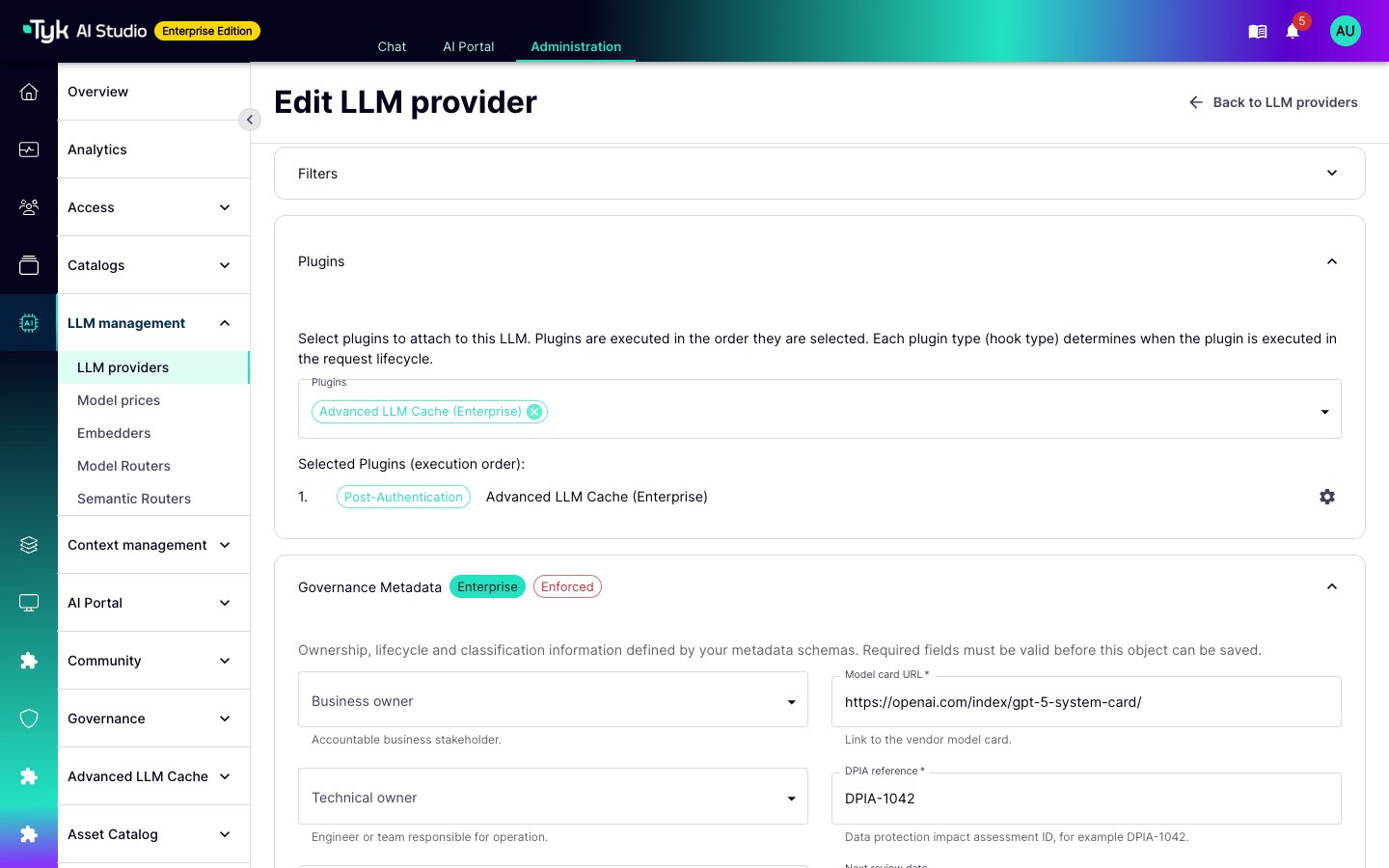
The plugin caches only the LLMs that it is attached to.- Go to LLM management > LLM providers and edit the LLM.
- In the Plugins section, select Advanced LLM Cache (Enterprise).
- Save the LLM.
Enable Semantic Caching
- Go to Advanced LLM Cache > Configuration and select the Semantic tab.
- Turn on Enable Semantic Caching.
- Set the matching rules. Refer to Semantic Settings.
- In the Embedding Provider section, set the embedding model. Then select Test Embedder to make sure that the plugin can get a vector from it.
- Select Save Configuration.
- Push the configuration to your Edge Gateways.
Semantic Settings
Embedding Provider Settings
The plugin uses its own embedding settings. It does not use the Embedders that you define in LLM management. You can use any OpenAI-compatible/embeddings endpoint, for example OpenAI, Azure OpenAI, Ollama, vLLM, TEI, or LiteLLM.
The plugin sends the last user message of each eligible request to this endpoint. Prompts can contain personal or confidential data. Use an embedding provider that is approved for the data in your prompts, or a self-hosted model.
Where the Vectors Are Stored
The plugin stores the vectors with the cache backend that you select in Backend Configuration on the General tab.- Memory: Each gateway keeps its own cache and vector index. The index holds a maximum of 100,000 vectors. When it is full, the plugin removes the oldest vectors first.
- Redis: The gateways share the cache and the vectors. The Redis server must have the query engine: Redis 8 or later, Redis Stack, or a managed Redis with search. The plugin creates one vector index for each embedding model.
Turn Off Semantic Matching for an App or a Request
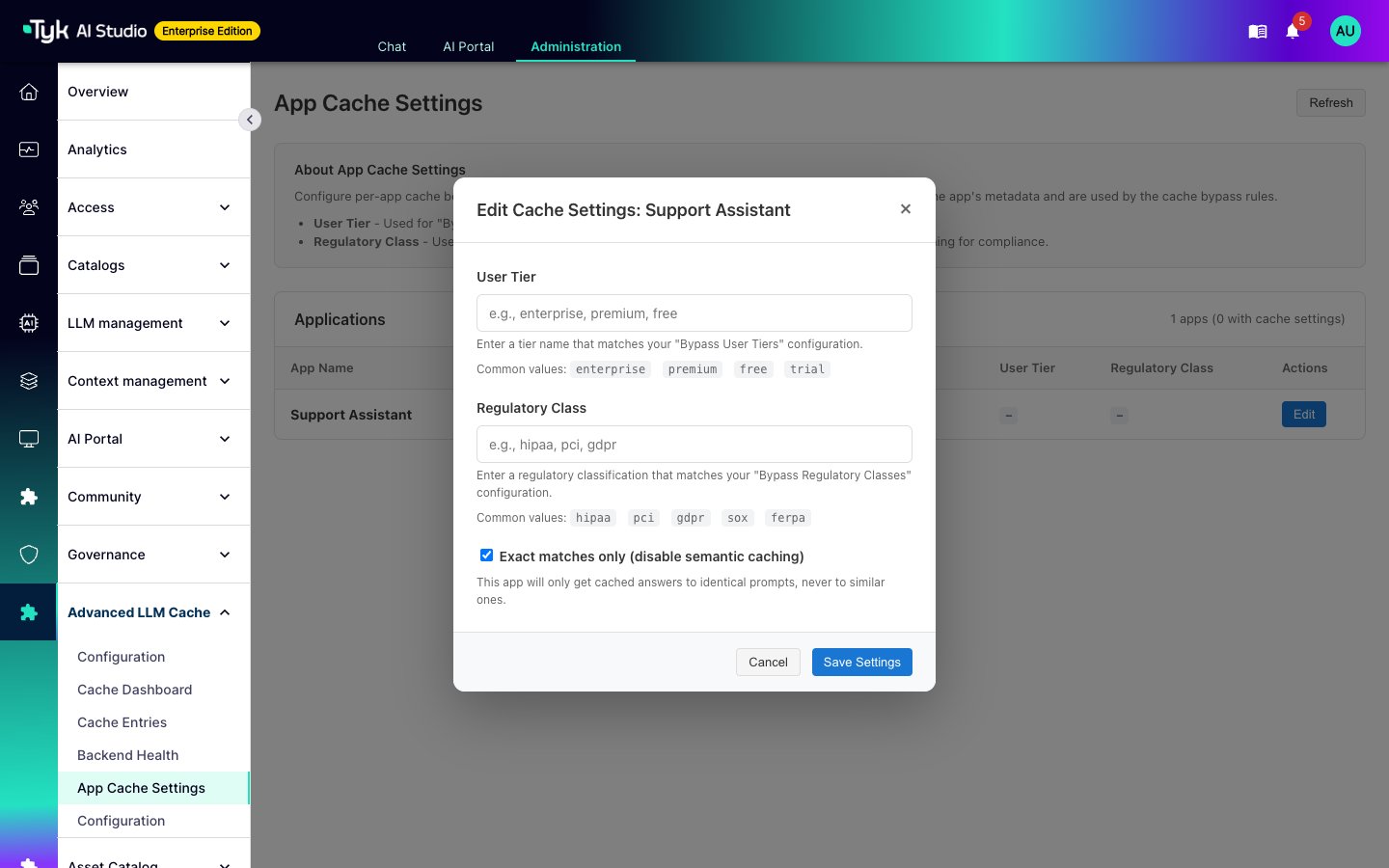
To give an App exact matches only:- Go to Advanced LLM Cache > App Cache Settings.
- Select Edit for the App.
- Select Exact matches only (disable semantic caching), and then select Save Settings.
semantic_cache with the value off.
X-Cache request header:
X-Cache: exact-onlyuses exact matching only.X-Cache: bypassdoes not use the cache for the request, and does not store the response.
Check the Cache Results
The plugin adds these headers to the response:X-Cache-Status:HIT,MISS, orBYPASS.X-Cache-Match:exactorsemantic, on a hit.X-Cache-Similarity: the cosine similarity of a semantic hit, for example0.9712.
/llm/ endpoints, on the OpenAI-compatible /ai/ endpoints, and on the unified /v1 endpoint.
The Cache Dashboard page shows the number of semantic hits and the semantic match rate, with the other cache statistics. When you enable Audit Logging on the Advanced tab, the plugin records each semantic hit with match=semantic and the similarity score. The plugin writes this log to stdout, a file, or syslog. It is not part of the AI Studio audit trail.