

Availability
Prerequisites
- License: Contact our team to obtain a license or get a self-managed trial license by completing the registration on our website.
- Working Tyk Environment: You need access to a running Tyk instance. For quick setup instructions using Docker, please refer to the Tyk Getting Started Guide.
- Admin Access: You need admin permissions to configure audit logging in the Portal.
What We Will Do
In this guide, we will:- Enable audit logs in the Tyk Developer Portal using the file storage option
- Configure the log file path and format
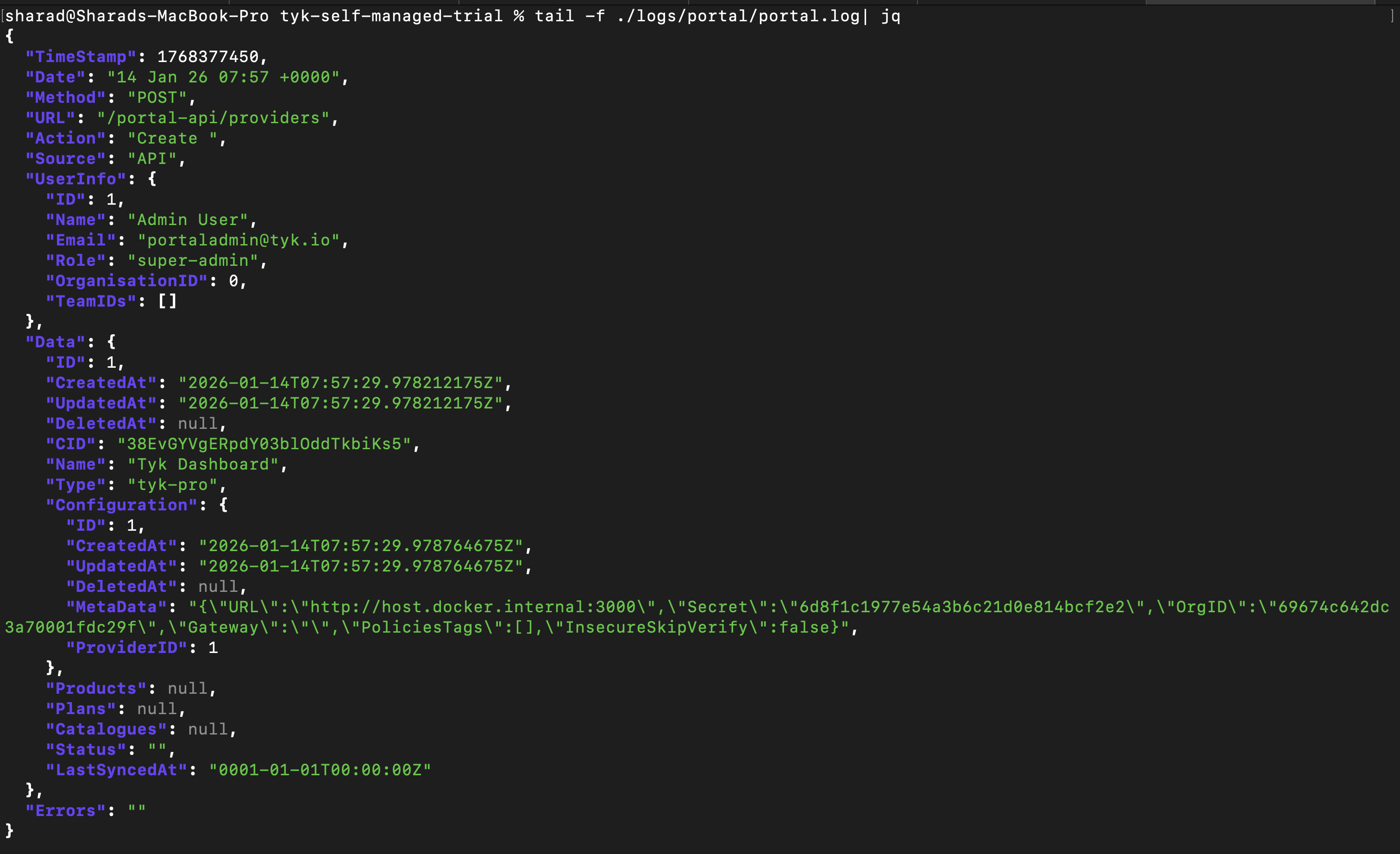
- View the audit logs from the log file
The Developer Portal uses file-based audit logging. Unlike the Tyk Dashboard, the Portal does not currently support database storage for audit logs or viewing them through the Portal UI.
Instructions
1. Configure Audit Logging
To enable audit logging in the Developer Portal, you need to configure the audit log settings.- Environment Variables
- Configuration File
Set the following environment variables:
2. Restart the Developer Portal
After updating the configuration, restart your Developer Portal for the changes to take effect:3. View Audit Logs
Once audit logging is enabled, admin actions are recorded in theportal.log file located in the directory specified by PORTAL_AUDIT_LOG_PATH.
Access the Log File
For Docker Containers
For Kubernetes
Troubleshooting
Permission Denied When Accessing Audit Logs
Permission Denied When Accessing Audit Logs
- Check if audit logging is enabled: Verify
PORTAL_AUDIT_LOG_ENABLEis set totrue - Verify directory exists: Ensure the directory specified in
PORTAL_AUDIT_LOG_PATHexists - Check permissions: Confirm the Portal process has write permissions to the log directory
- Check Portal logs: Review Portal startup logs for any configuration errors