

Before You Start
You need:- Tyk Governance enabled on your organization’s license. It is off by default and is not self-service. See Availability and Licensing.
- Write access on the Rulesets Governance permission group, to create a ruleset. See Roles and Access.
- At least one Tyk OAS API in Tyk Dashboard, tagged with an API Category you can use for this walkthrough.
Instructions
Step 1: Open the Rulesets Section
From the left navigation, expand Governance and click Rulesets. If no rulesets exist yet, the empty state guides you to create your first one.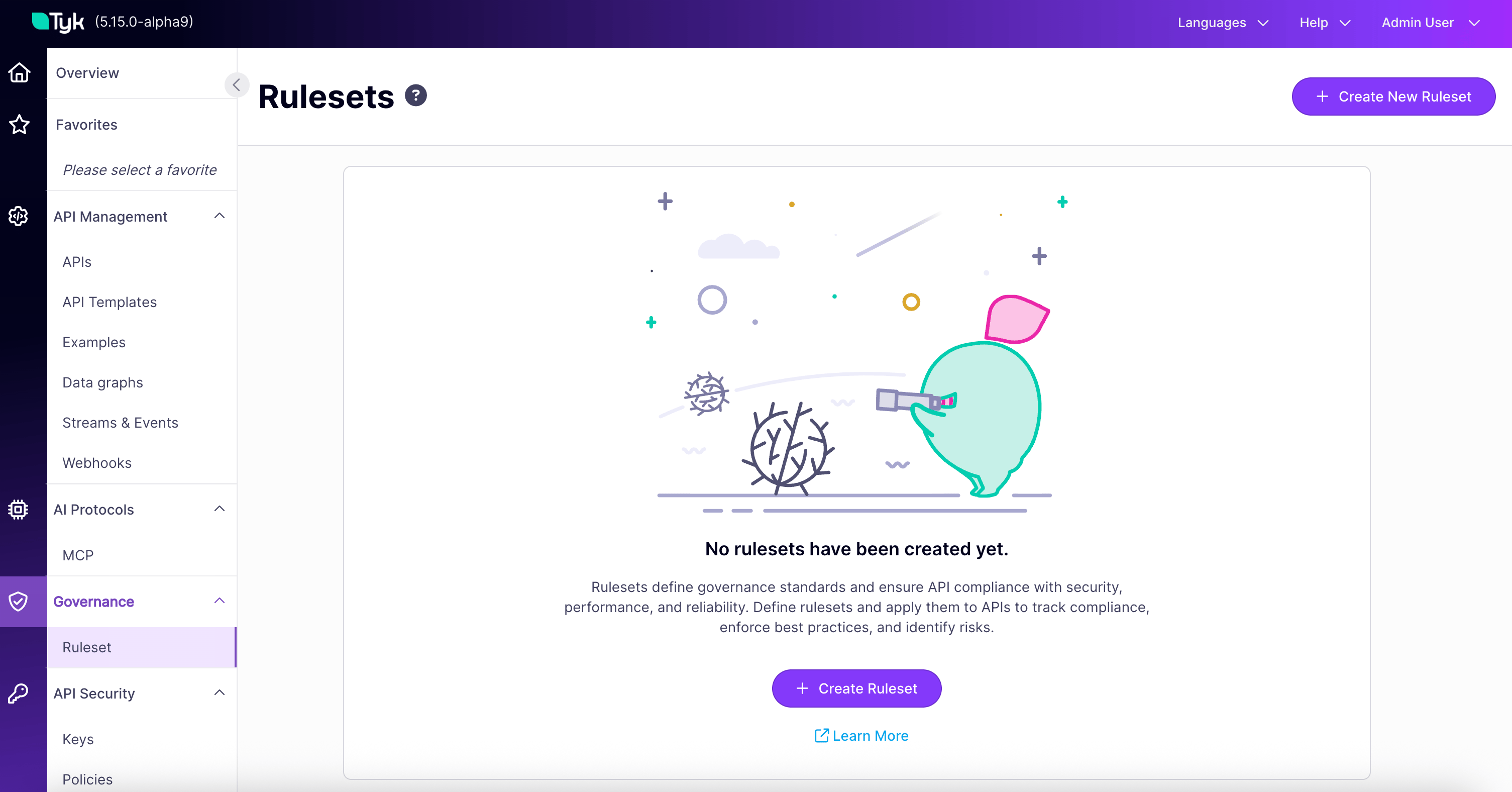
Step 2: Create a New Ruleset
Click + Create new ruleset. The three-step creation wizard opens.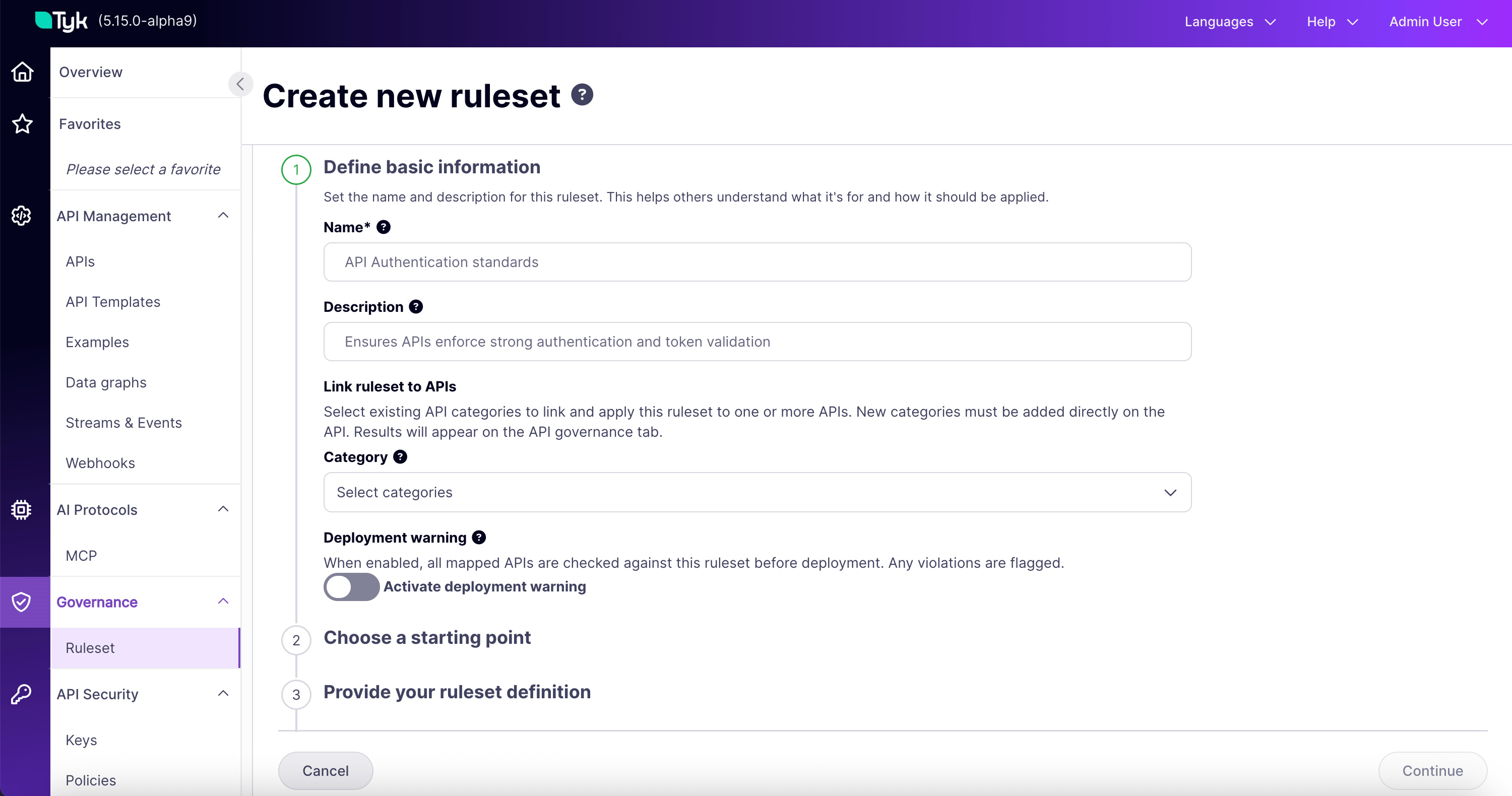
Step 3: Add Basic Information and Scope It
Provide a name and description for your ruleset. Link the ruleset to one or more API Categories so it knows which services to evaluate. Leave the Deployment Warning toggle off for now, which is the default. This category link is how a ruleset finds its services. Any service tagged with a matching category is evaluated against this ruleset automatically. For the full model, see Scoping Rulesets to Services.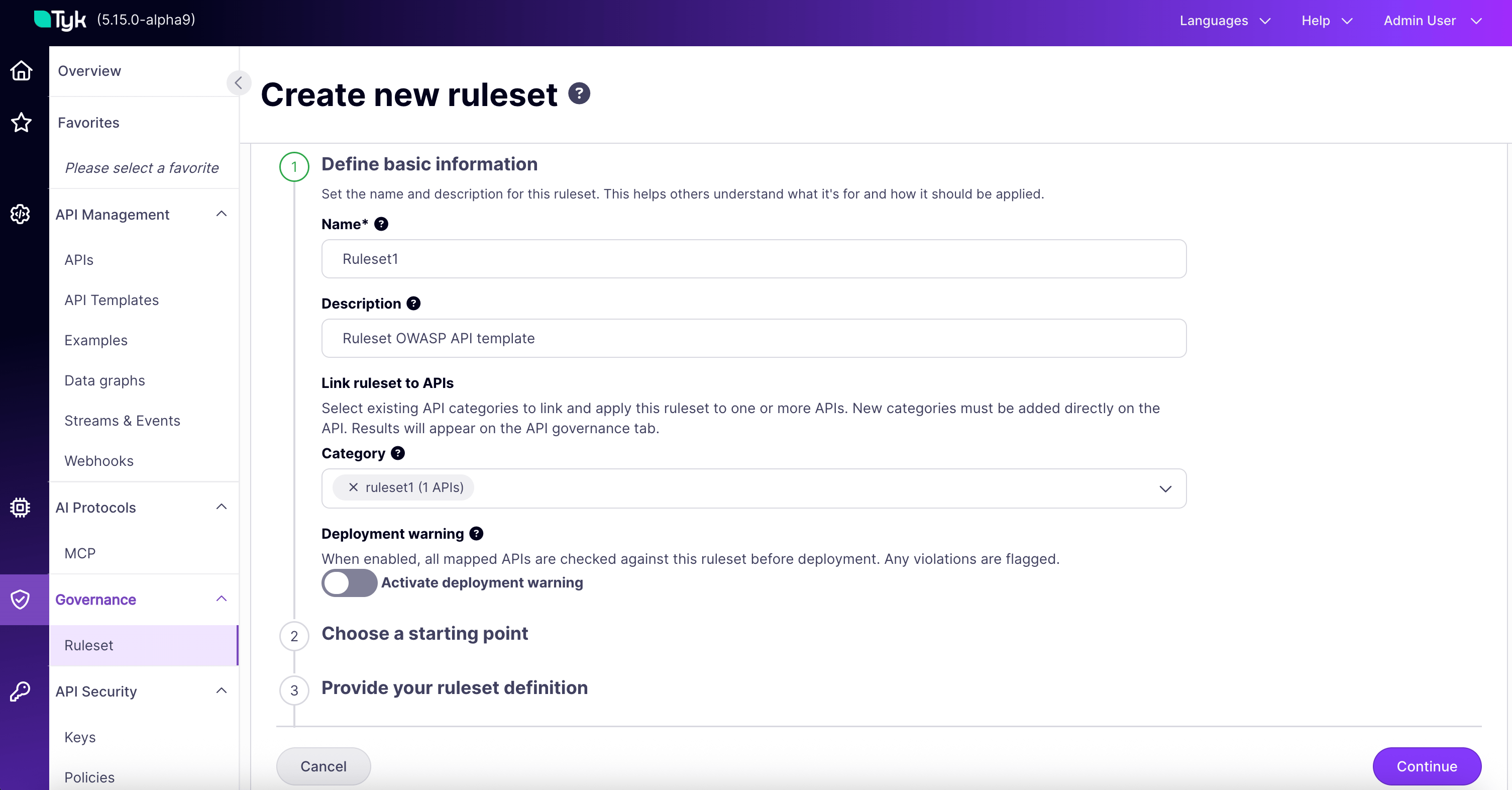
Step 4: Start From a Template
Choose Start from template. This lists the templates available in your environment.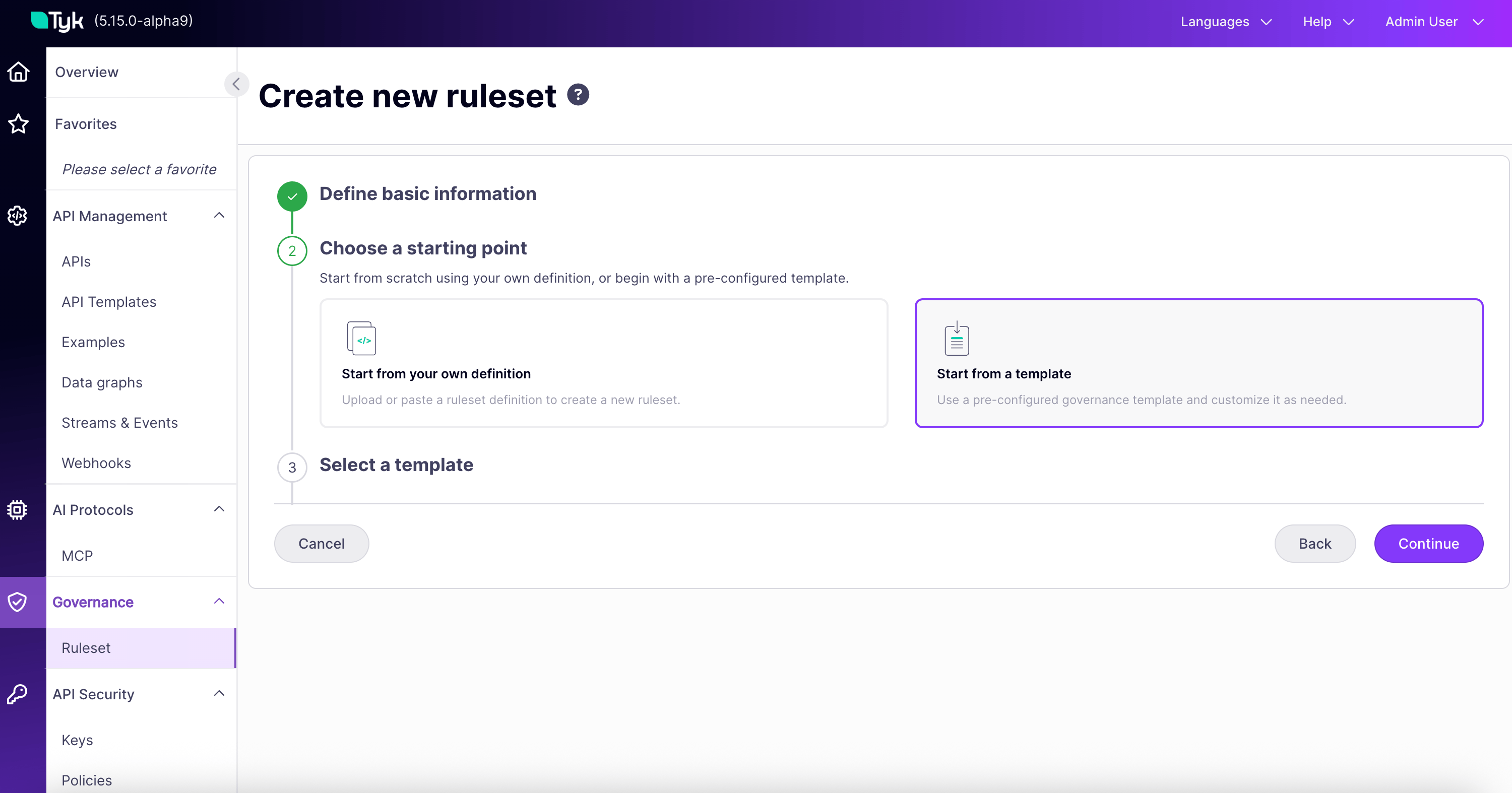
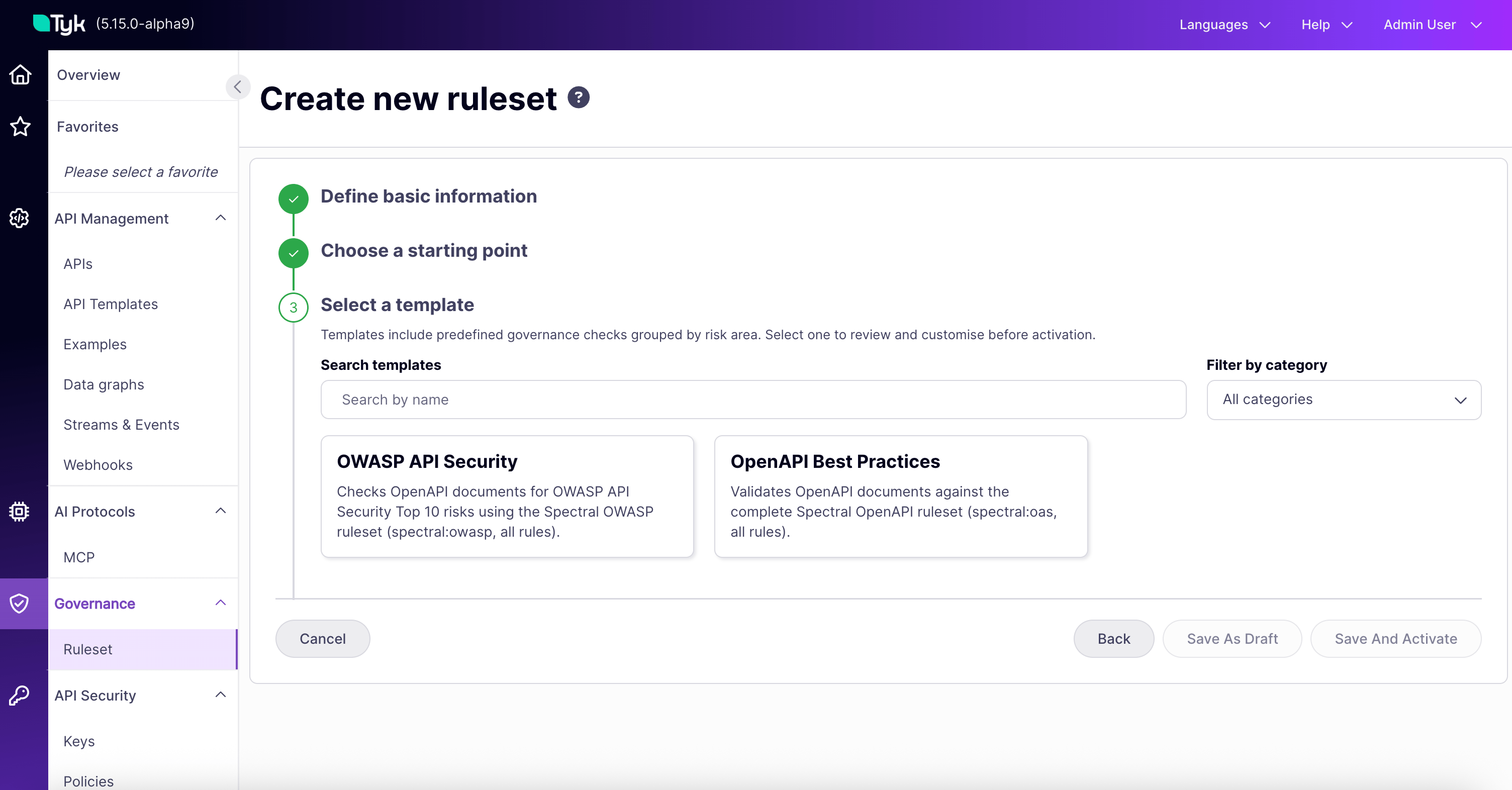
Step 5: Review the Definition and Activate
The selected template’s JSON loads into the editor. You can disable individual rules, adjust severities, or modify rule definitions before continuing.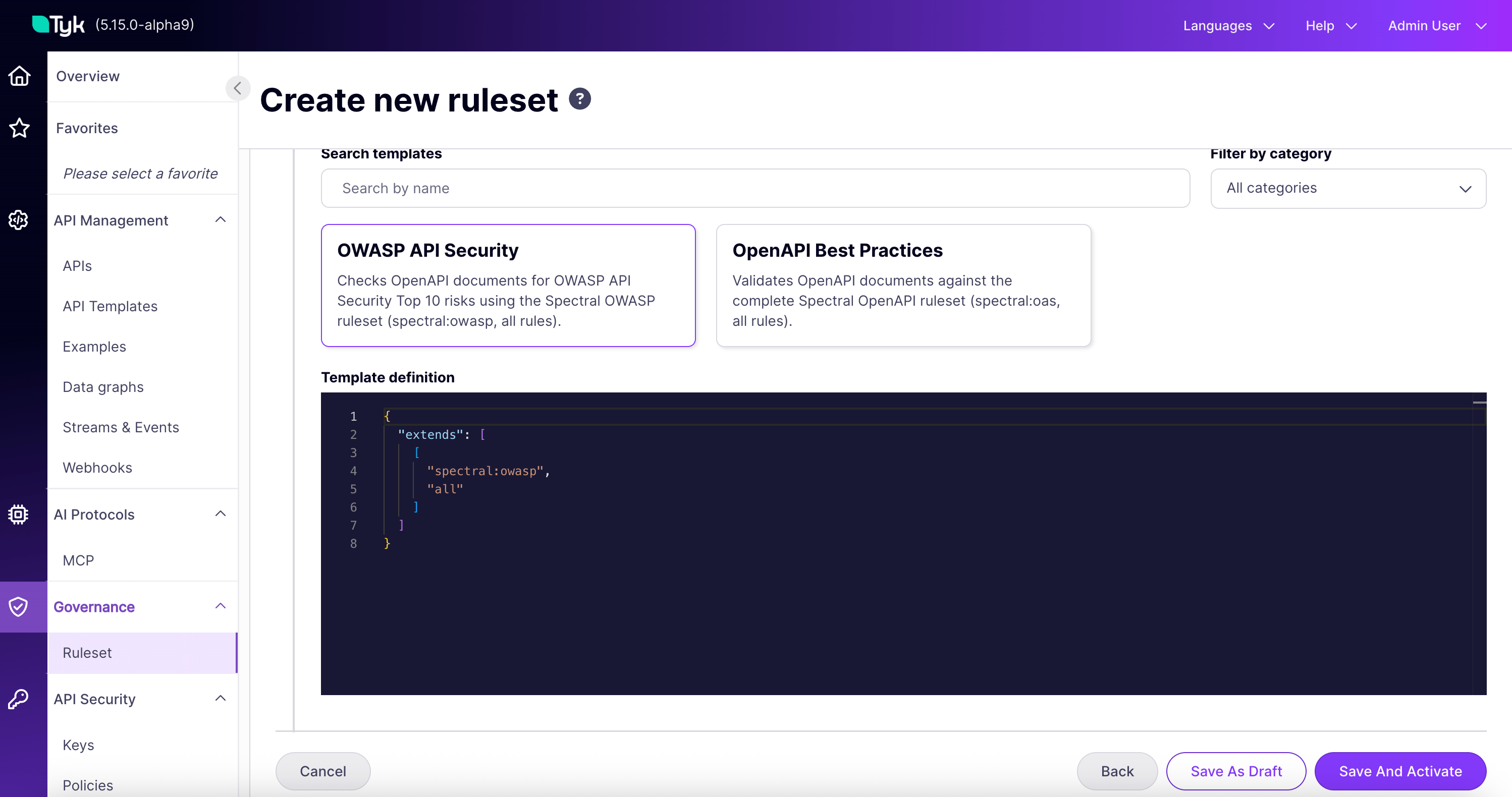
- Save as draft: saves without activating. It does not evaluate any services.
- Save and activate: evaluates every service in the linked categories.
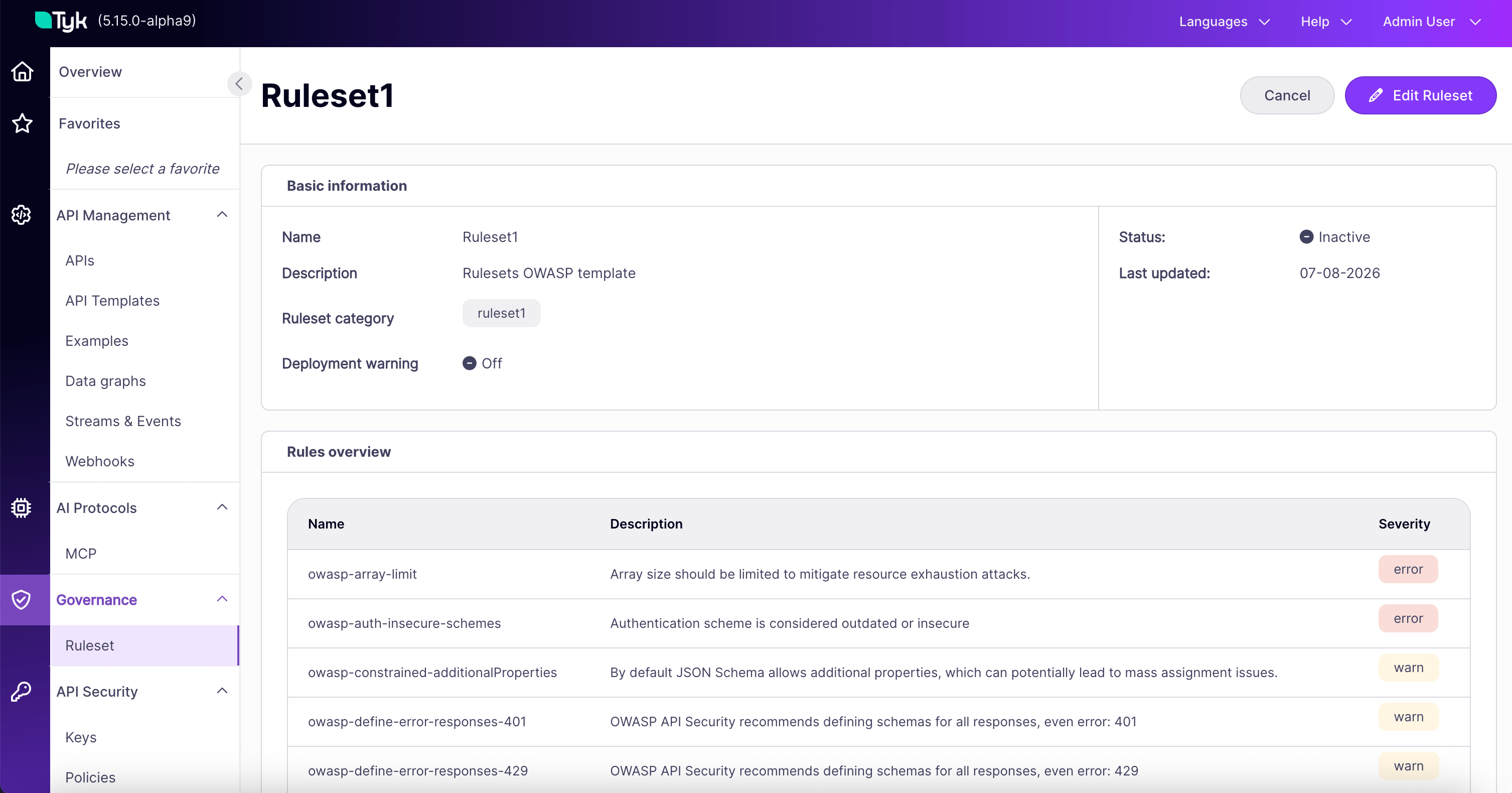
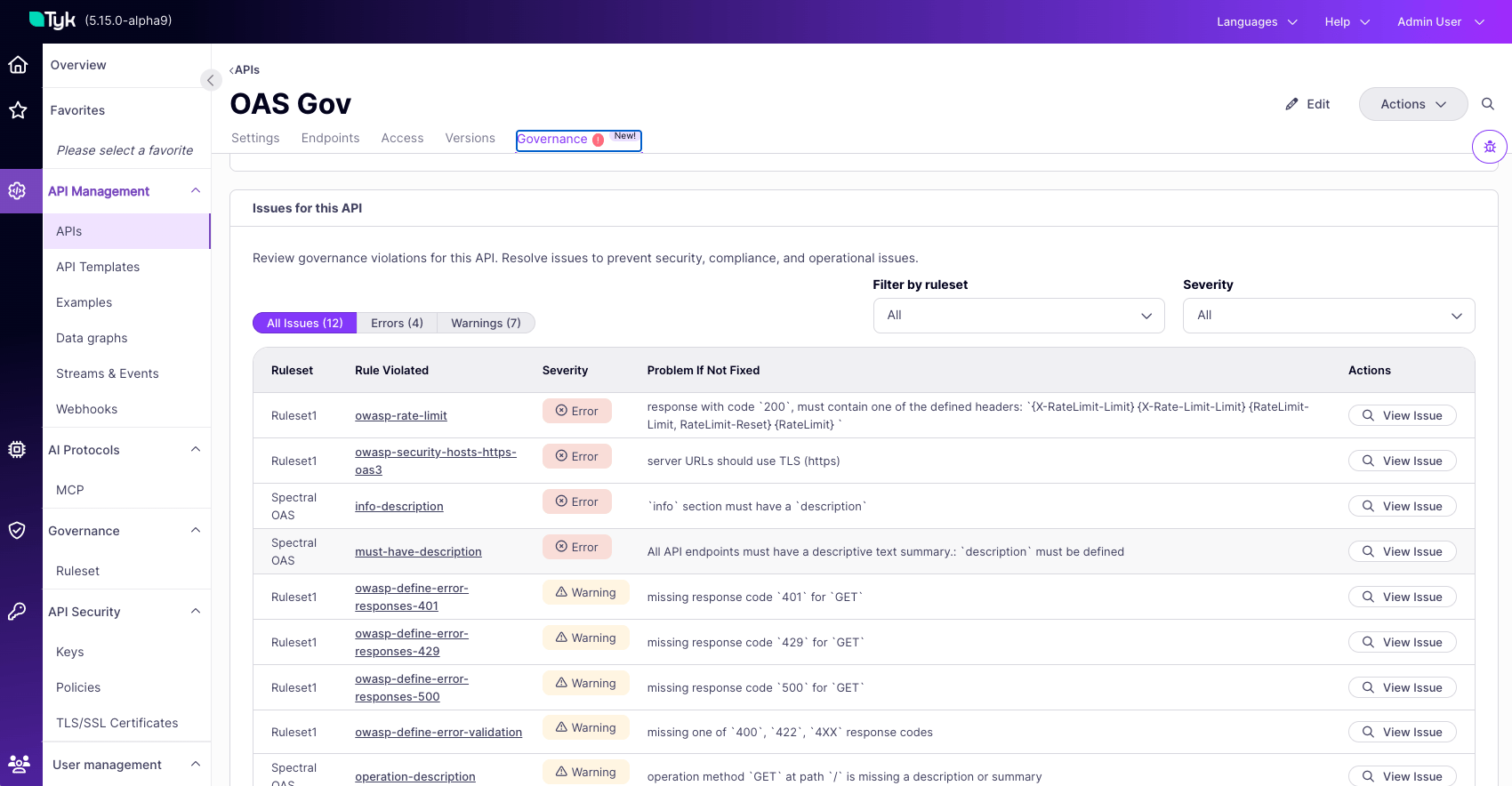
Step 6: Read Your First Compliance Result
Open one of the APIs tagged with the category you linked, then switch to the Governance tab. It is the last tab in the API details page.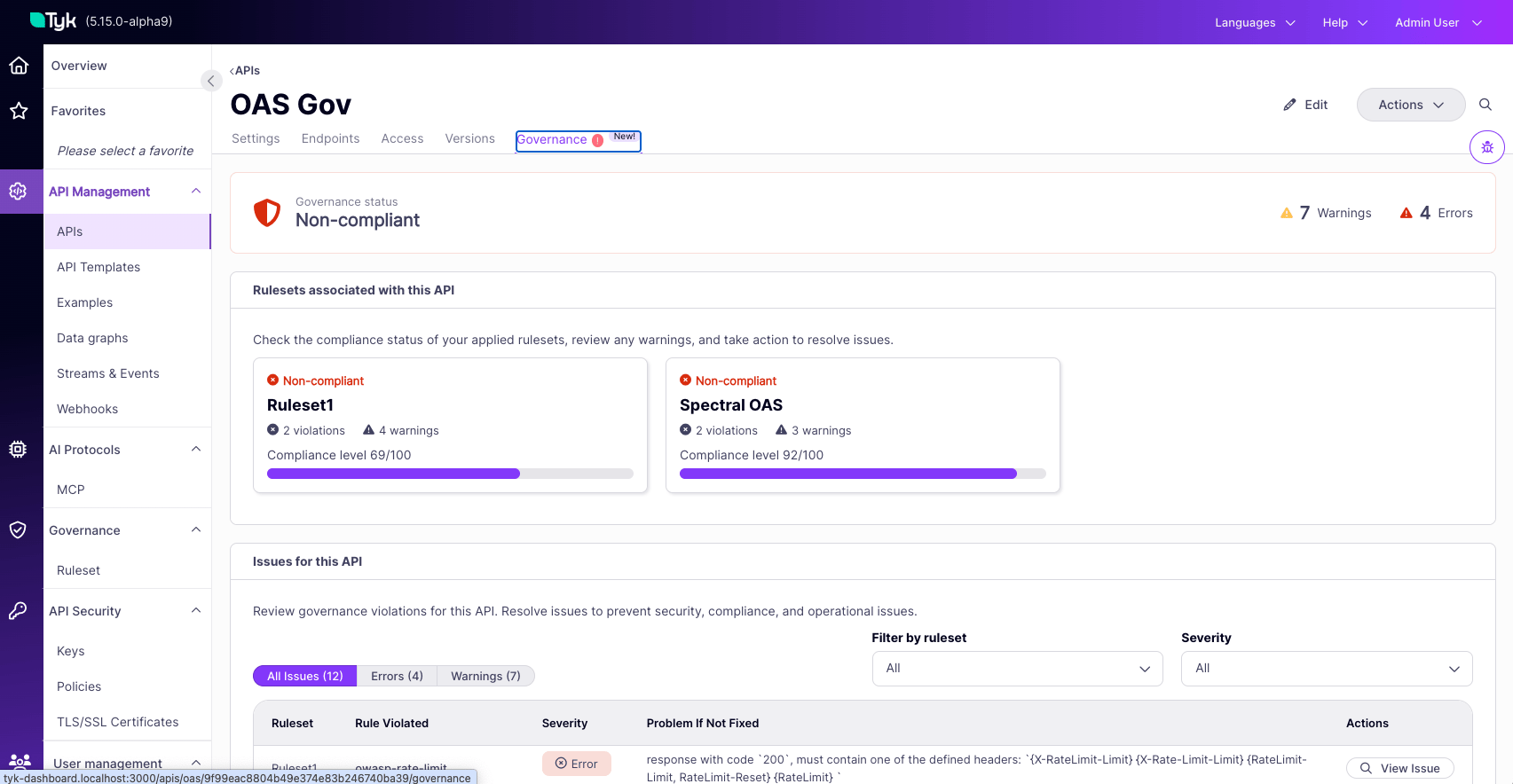
Step 7: Fix One Issue
Click View issue on any row to open the issue details.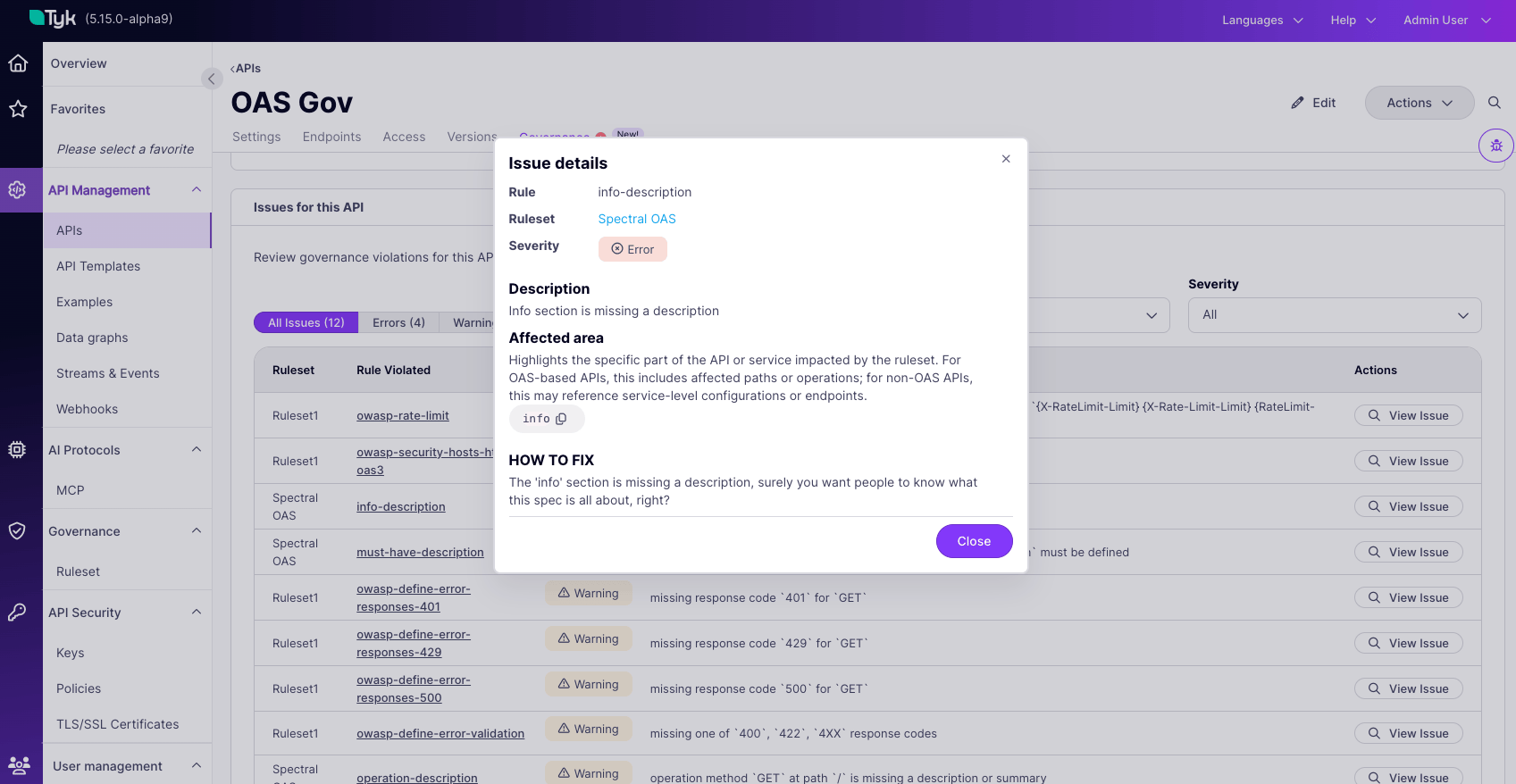
Next Steps
Now that governance is running, follow the track that matches your role: If you define standards (platform teams and governance leaders):- Rulesets: create rulesets from your own definitions, configure existing ones, and test before activating.
- Ruleset Templates: what each shipped template enforces.
- Scoping Rulesets to Services: scoping patterns, and why a service is or is not being evaluated.
- Service Compliance: the full anatomy of the Governance tab and the portfolio view.
- Remediate Issues: prioritize by severity, and handle the Deployment Warning.
- CI/CD Governance Checks: run the same checks on a spec in your pipeline, before it is ever imported.