

Availability
Governed Metadata is available from v2.2.0. In the Community Edition, the metadata pages are not in the admin sidebar.
Overview
Governed Metadata is a set of standard fields that you add to LLMs, tools, and data sources. Administrators decide which fields each object must have. AI Studio checks the values when you save an object. Examples of fields:- Business, technical, and application owners
- Lifecycle state and expiration date
- Risk tier and data classification
- Regulatory applicability and approved consumers
- Support contact
- LLMs
- Tools
- Data sources
- Plugin resource types that opt in. Refer to Plugins.
Vocabularies
A vocabulary is a controlled list of terms. Each term has a value, a label, an optional description, and a Deprecated flag. A field of type vocabulary accepts only the terms of its vocabulary. A deprecated term is still valid, but it causes a warning. To manage vocabularies, go to Governance > Metadata vocabularies. You cannot delete a vocabulary that a schema uses. The API returns409 in this case.
Schemas
A schema is a named set of fields. It applies to one or more object types, or to all object types. To manage schemas, go to Governance > Metadata schemas.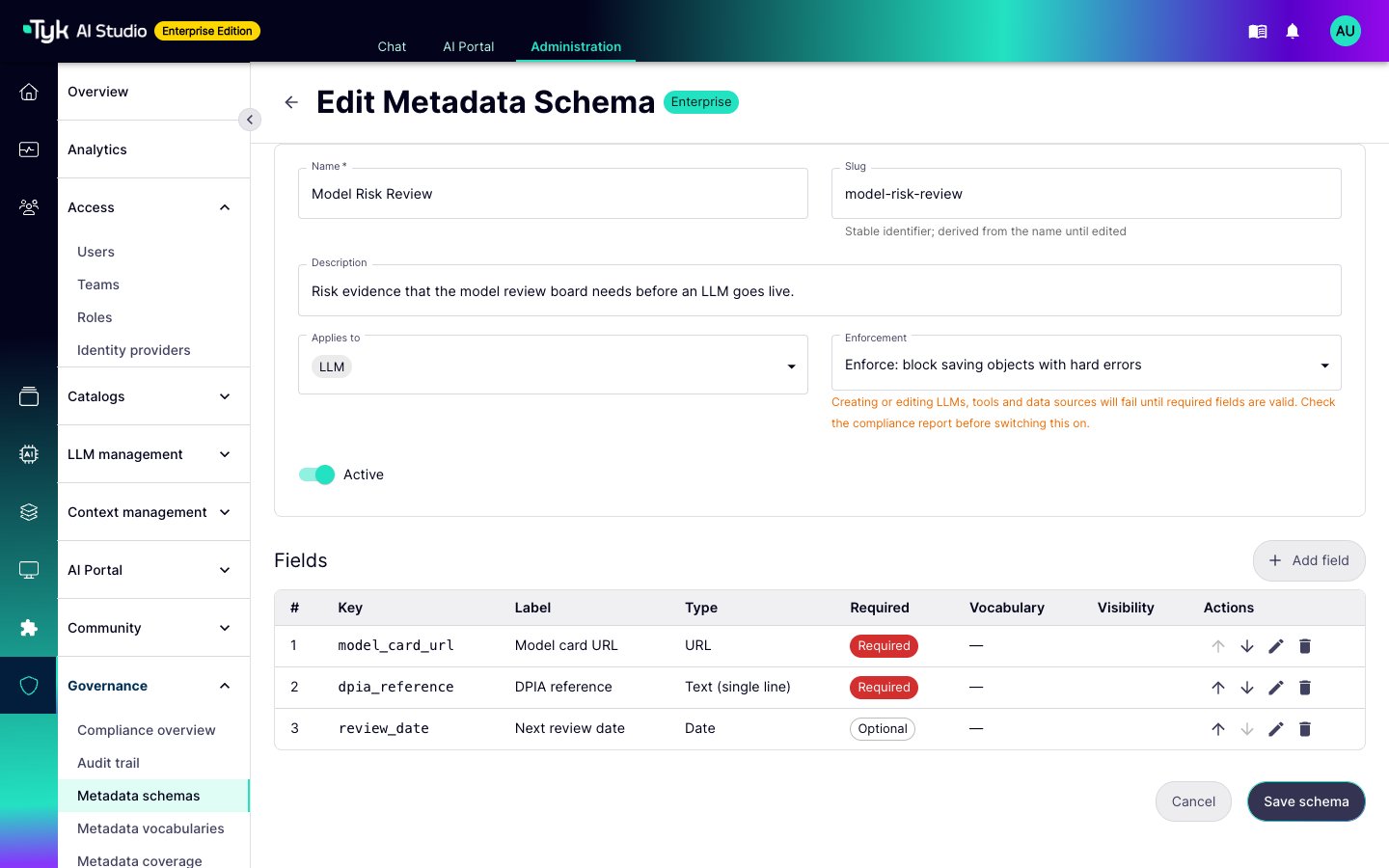
Use Required to publish to separate the person who submits an object from the person who releases it. The submitter saves a draft without the field. The reviewer adds the value when they activate the object.
Enforcement
Each schema has an enforcement level:- Advisory: AI Studio records validation problems on the object and shows them in the compliance report. It does not block a save.
- Enforce: AI Studio checks each create and edit of an LLM, a tool, or a data source. The save fails with
422until all required fields with the severity Error are valid. This applies to the admin console and the admin API.
Start with an advisory schema. Change it to Enforce only after the compliance report shows no problems. If you enforce a schema first, edits to existing objects fail until someone adds the missing values.
The Governance Core Schema
On the first start, the Enterprise Edition creates an advisory schema named Governance Core. It applies to all object types. It has these fields:
AI Studio also creates the four vocabularies that these fields use:
The
regulatory_applicability field uses the regulatory_framework vocabulary. Each other vocabulary field uses the vocabulary with the same name.
You can edit the schema and the vocabularies, or add more schemas.
Enter Metadata on an Object
When a schema applies, the LLM, tool, and data source forms show a Governance Metadata section. AI Studio validates the values while you type. When a save fails, the form marks the fields that are not valid. The detail page of the object shows the stored values and the validation status.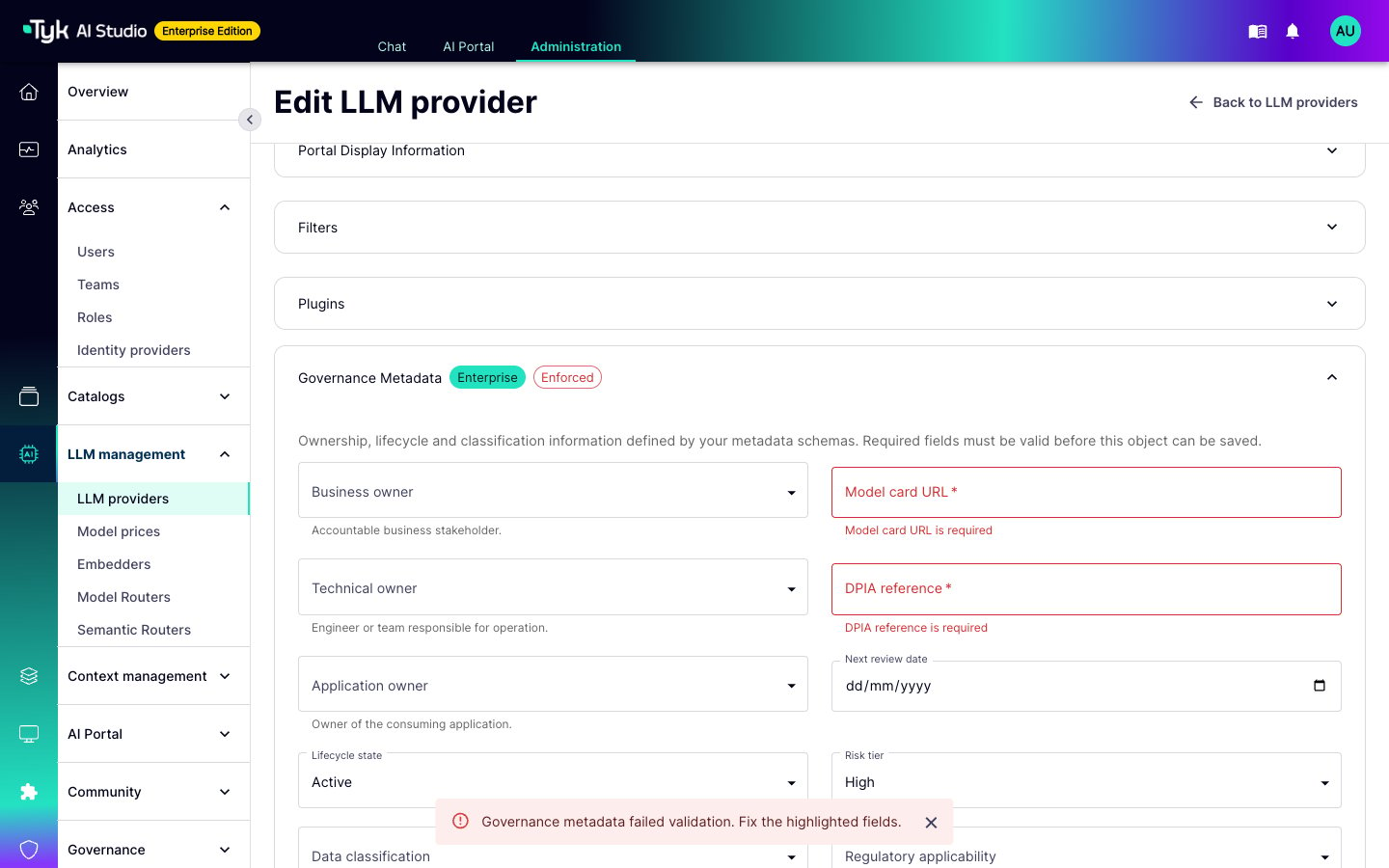
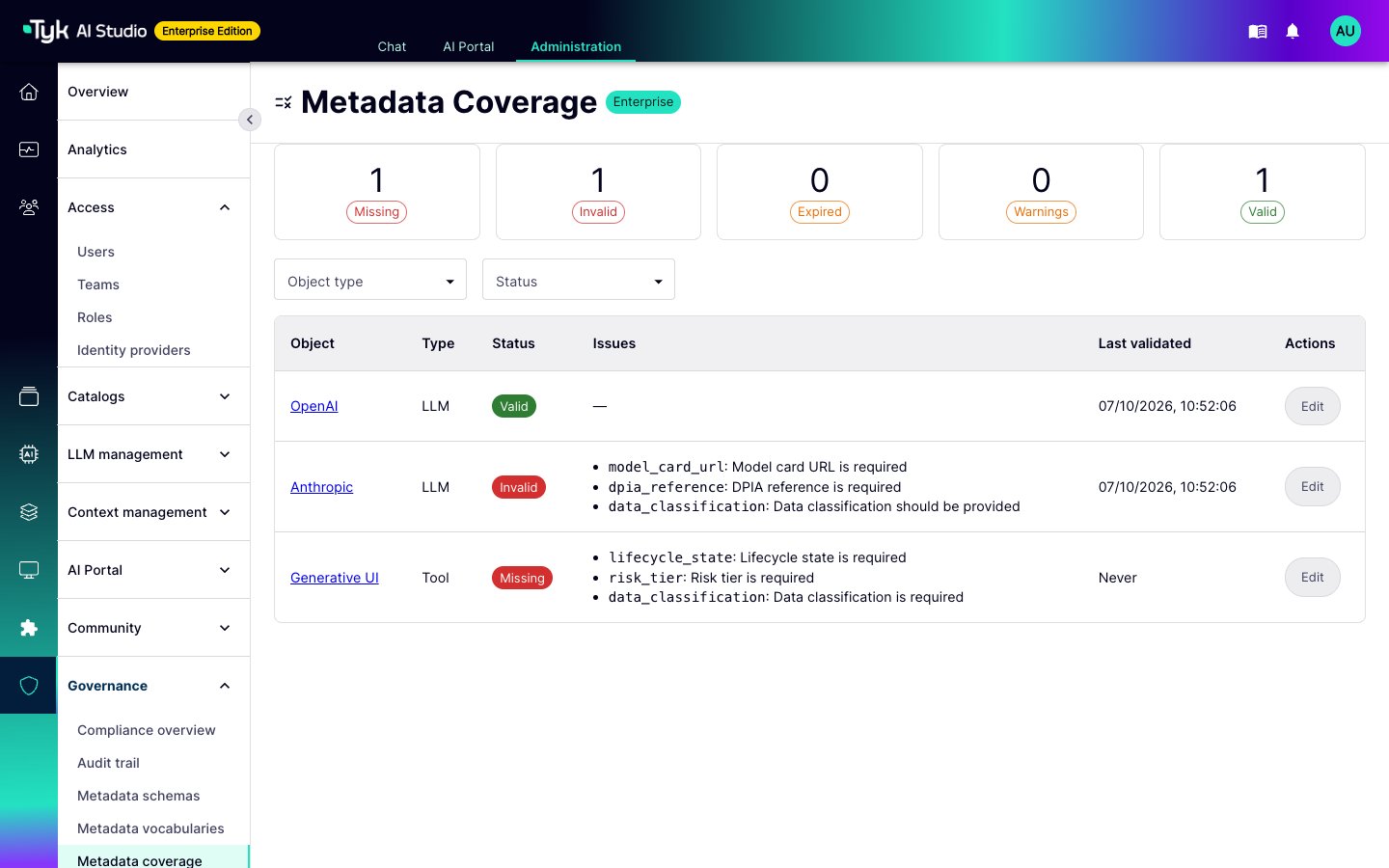
Compliance Report
Go to Governance > Metadata coverage. AI Studio validates each object again against the current schemas. The report puts each object in one of these groups:- Missing
- Invalid
- Expired: a date with Warn when in the past is in the past
- Warnings
- Valid
Where the Values Go
A change to a field with Sent to gateways changes the configuration snapshot. The Edge Gateways in the namespace then show Pending until you push the configuration. A change to any other field does not need a push.
Change History
AI Studio records each change to the metadata of an object, and who made it. A change from a plugin shows asplugin:<id>.
Permissions
Governed Metadata uses themetadata resource of role-based access control:
To read or set the metadata of an object, you need the permission for that object, not for
metadata. For example, a user who can edit LLMs (llms:write) can also set the metadata of an LLM.
The default Editor role does not have metadata:publish.
Plugins
Plugins can use Governed Metadata in these ways:- Read and write metadata with the management service API. Refer to Governed Metadata in the Service API.
- Check or change values before AI Studio saves them with object hooks on the
governed_metadataobject type. Refer to Object Hooks. - Add schemas and vocabularies from the plugin manifest. AI Studio creates them as inactive and advisory. An administrator activates them. Refer to Governed Metadata Contributions.
- Opt a resource type in with
supports_metadata: true. The instances of the type then use the object typeplugin_resource:<plugin_id>:<slug>. A plugin can writeplugin_resource:self:<slug>for its own types. - Show the metadata form in a plugin UI with the
<governed-metadata-fields>and<governed-metadata-badges>web components. Refer to Governed Metadata Web Components. - Read the gateway-visible fields of an LLM in a gateway plugin. Refer to Governed Metadata in the Plugin Context.
SetObjectMetadata on save and refuses the save when the call returns ok=false.