

Availability
Community Submissions let AI Portal users propose their own Data Sources and Tools for admin review. An admin checks each submission, sets its privacy score, and approves it before it becomes a usable resource. Your resource catalog grows. Admin governance stays in place.
Despite the name, this isn’t open to the public. Only users who already have AI Portal access to your organization’s Tyk AI Studio instance can submit.
Why Use Community Submissions
Without a submission workflow, every new data source or tool needs an admin to create it directly. This creates two problems:- Admin bottleneck. Admins must do all the resource onboarding work themselves.
- Shadow AI. Developers share credentials informally instead of waiting for review. This creates ungoverned, duplicate data dependencies.
A plugin can also register a custom resource type that supports community submissions. See Resource Provider Plugins for that variant of the workflow.
Submission Lifecycle
A submission moves through a fixed set of statuses:
A submitter can only edit a submission while it is in Draft or Changes Requested. Once it moves to Pending Review or In Review, only an admin can act on it.
How to Submit a Resource
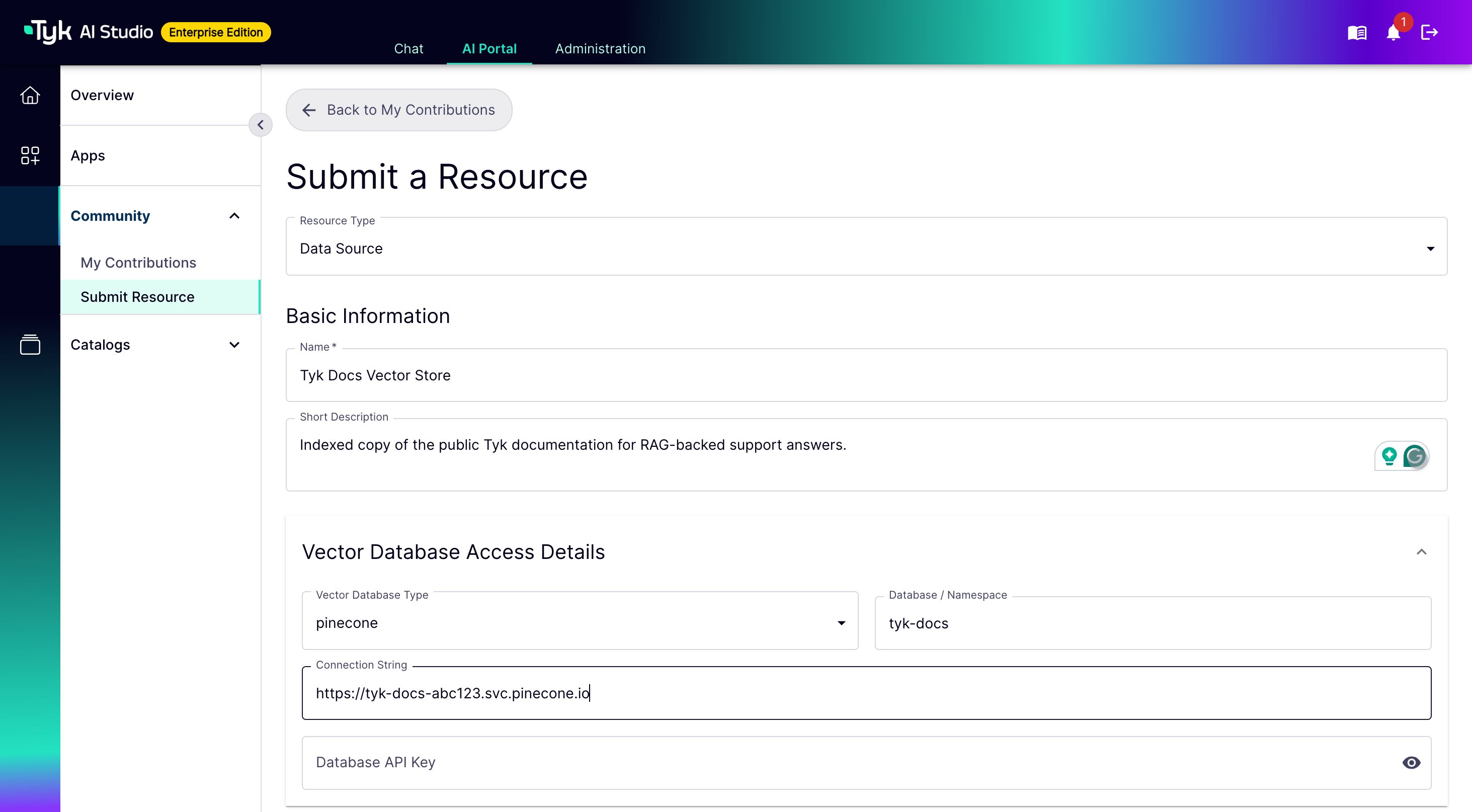
From the AI Portal, a user:- Open My Contributions and start a new submission.
- Choose a resource type: Data Source or Tool (OpenAPI).
- Fill in the resource configuration. For a Tool, paste an OpenAPI spec.
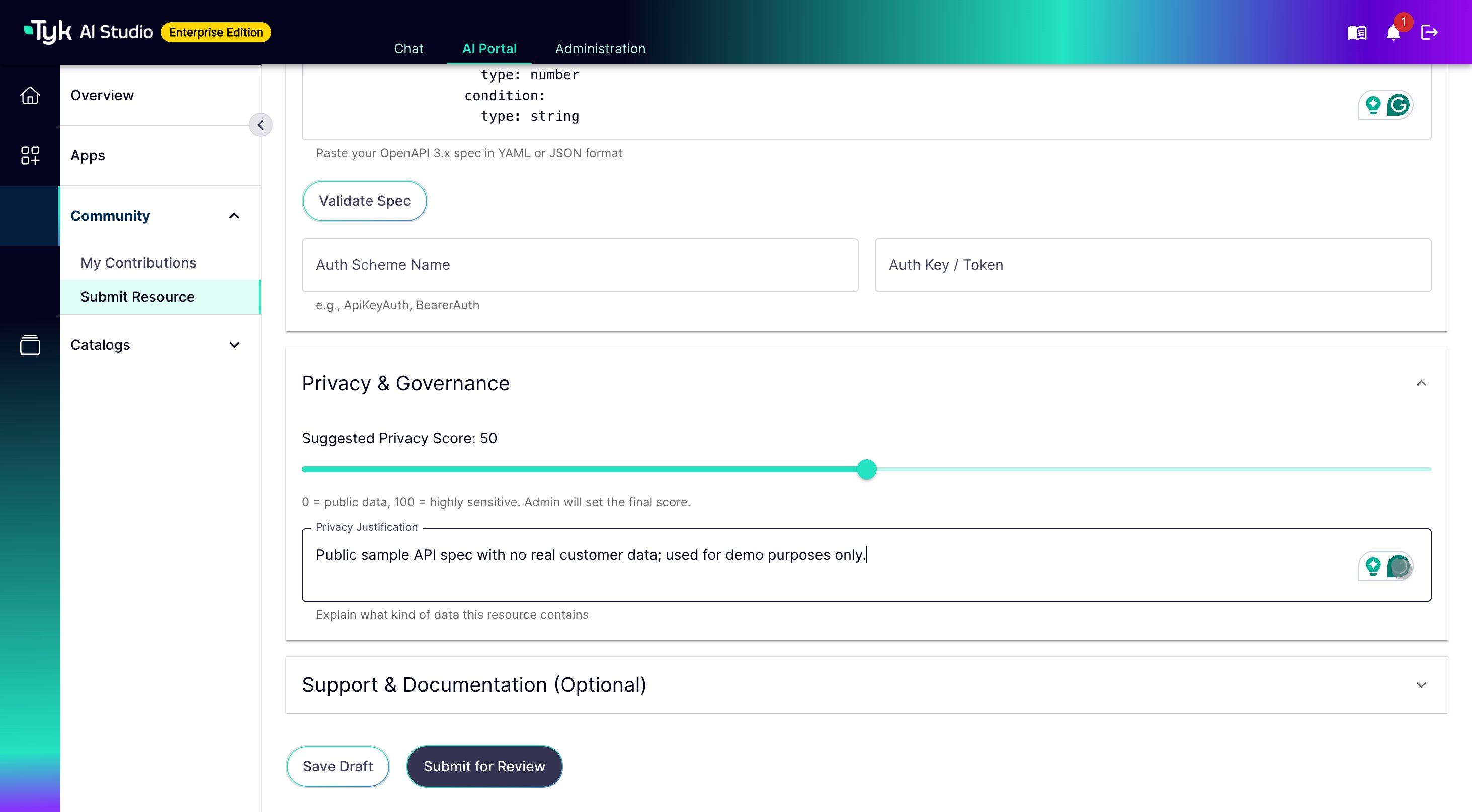
- Set a Suggested Privacy Score (0-100) with a justification. See Privacy Scoring.
- Add support details: primary and secondary contact, an SLA expectation, a documentation URL, and free-text notes.
- Accept any applicable attestations.
- Save the submission as a Draft, or submit it for review.
Updating a Published Resource
The owner of a resource that was originally community-submitted can propose changes to it, instead of an admin editing it directly. This uses the same review pipeline. See Resource Updates and Version Snapshots.The Review Queue
An admin works submissions from the Submissions review queue. Access to the review queue, and to every review action on this page, requires the Admin role. There is no separate reviewer or moderator role. Any user withAdmin can review submissions, and no other role can.
The queue lists every submission with its status, resource type, submitter, and time waiting. An admin can filter by status and resource type.
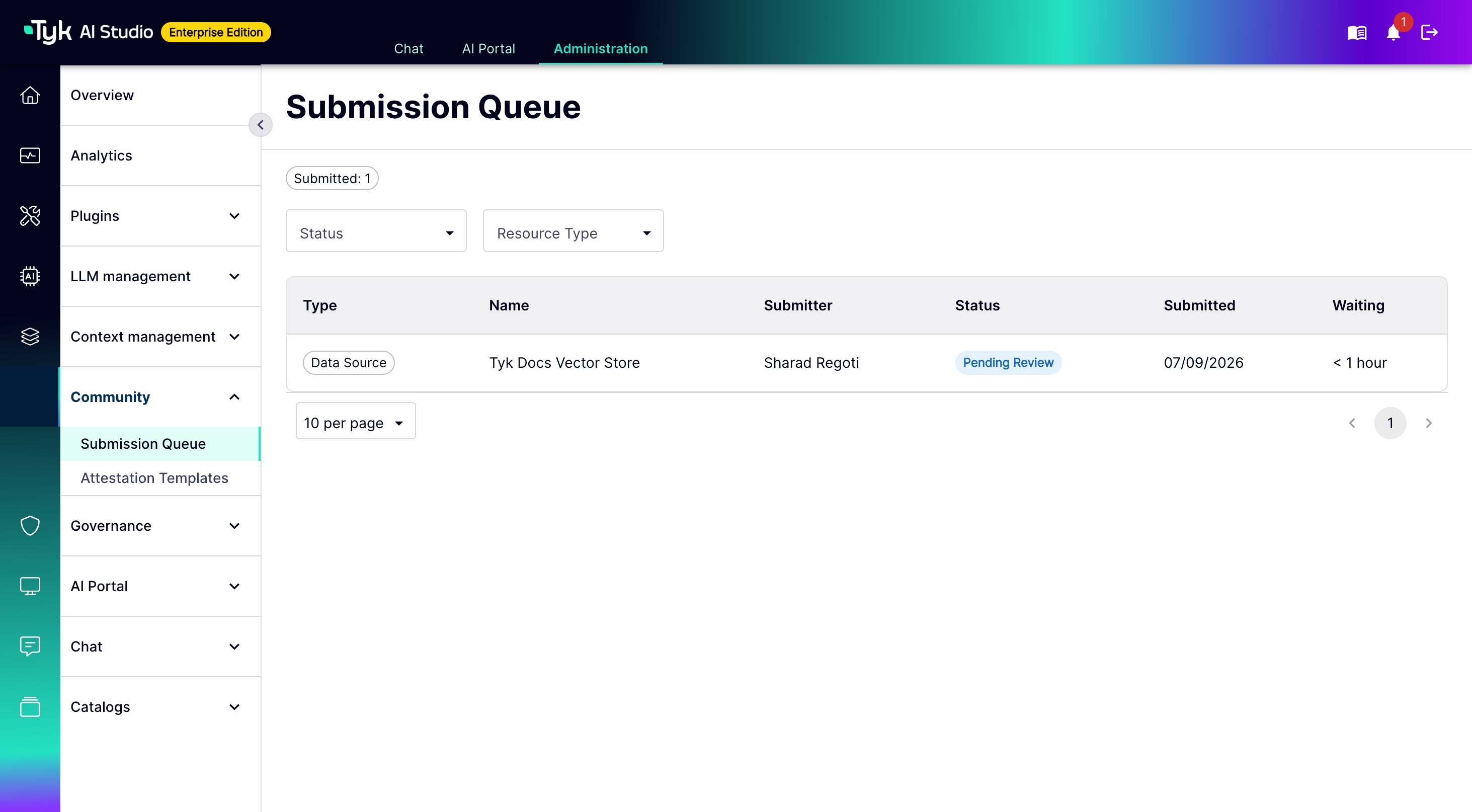
- Opens it and, if it’s still Pending Review, claims it. This moves it to In Review and records the admin as the reviewer.
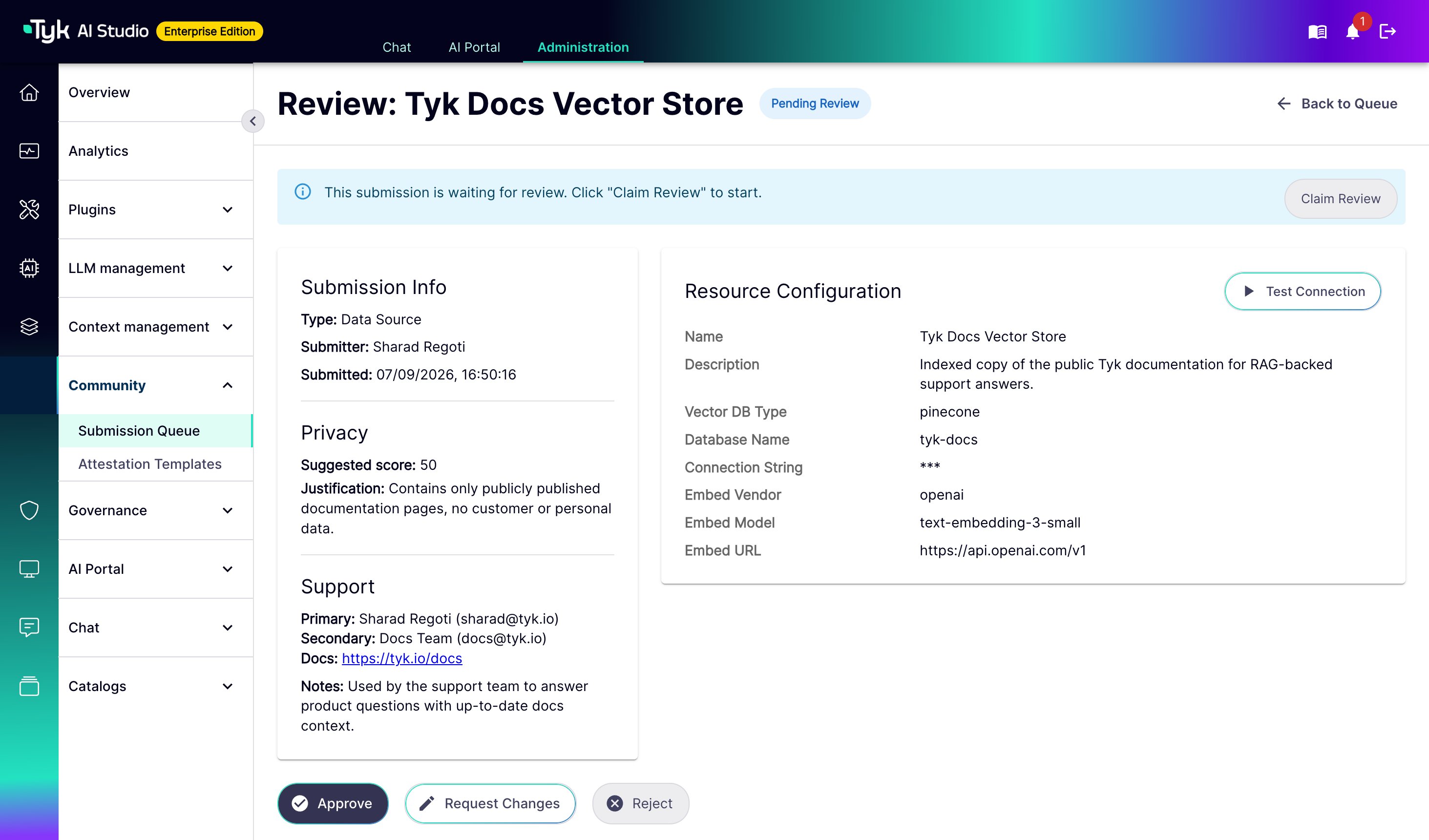
- Reviews the resource configuration, the submitter’s suggested privacy score and justification, and the support and documentation details.
- Optionally tests the submission before deciding:
- For a Tool, this re-runs the OpenAPI spec validation.
- For a Data Source, this tries a real connection to the embedding service with the submitted credentials. It reports whether the connection succeeded.
- Makes a decision:
- Approve: sets a final privacy score and internal review notes. See Privacy Scoring.
- Reject: gives feedback for the submitter and internal review notes. A rejected submission is final. The submitter must start a new submission to try again.
- Request Changes: gives feedback for the submitter and internal review notes. This returns the submission to the submitter for edits.
Attestation Templates
An Attestation Template is an admin-authored statement. A submitter must read and accept it before they can submit a resource for review. An admin manages attestation templates from the Attestation Templates admin page. Each template has: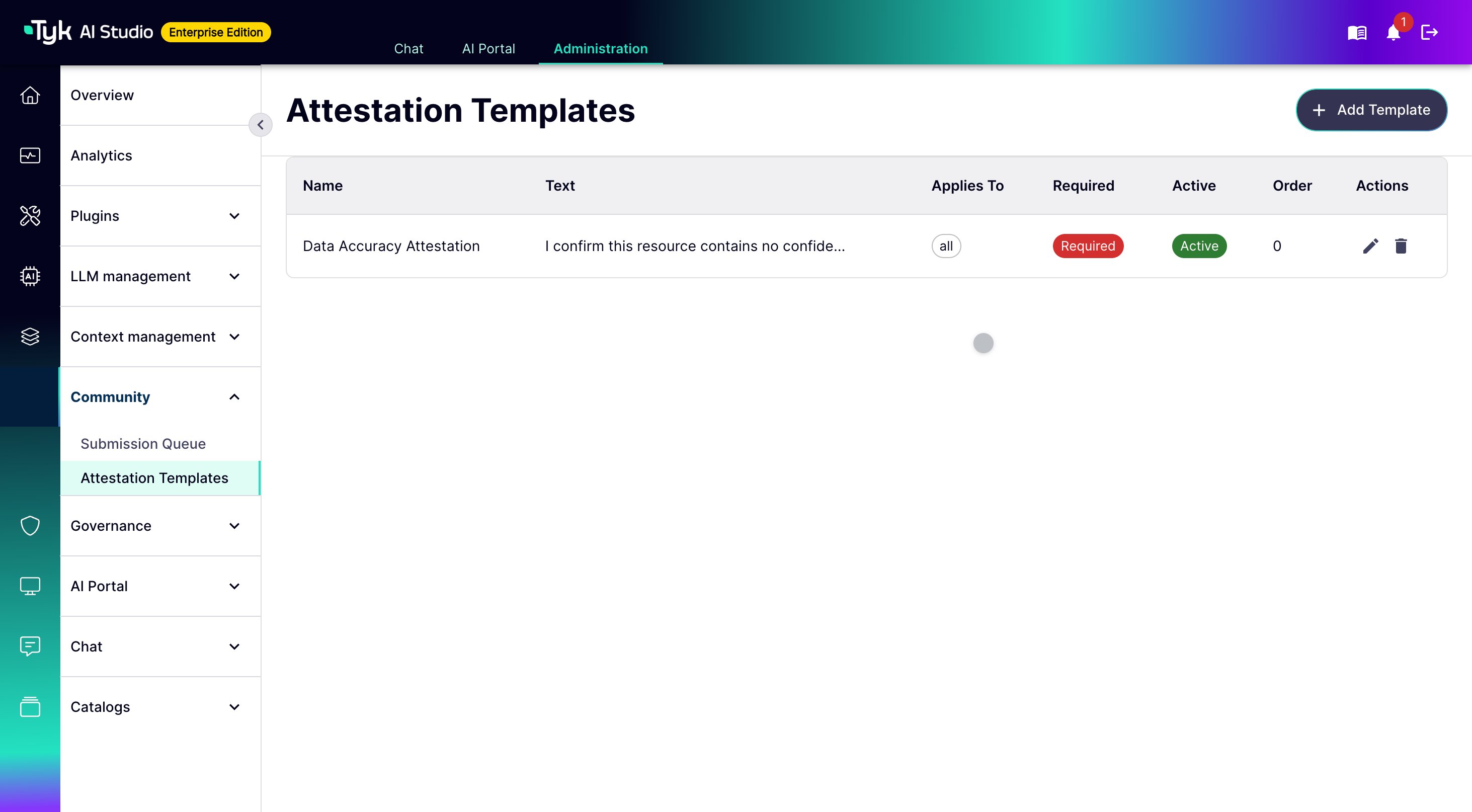
Privacy Scoring
A privacy score is a number from 0 (public) to 100 (highly sensitive). It governs which LLMs a resource can be used with. Tyk AI Studio enforces this rule when a resource is added to an App. A Data Source or Tool’s privacy score can never exceed the privacy score of its paired LLMs. See Privacy Level Validation for details. A community submission carries two privacy scores:- Suggested Privacy Score: the submitter sets this when they fill in the form. They also write a justification describing what kind of data the resource contains. This is a starting point for the admin, not a binding value.
- Final Privacy Score: the admin sets this when they approve the submission. This is the score that actually applies to the resource once created.
Approval and Resource Creation
When an admin approves a submission:- If it’s a new submission, Tyk AI Studio creates the Data Source or Tool from the submission’s payload. It uses the admin’s final privacy score.
- If it’s an update to an existing resource, Tyk AI Studio updates that resource in place. It does not create a new one. See Resource Updates.
“Catalog” has two meanings in AI Studio. In Enterprise Edition, a Catalog is an admin-managed collection of LLMs, Data Sources, or Tools that you assign to Teams. In Community Edition, “catalog” refers to the built-in Default catalog for each resource type, which every user can see. This section is about which of these a newly-approved resource ends up in.
Resource Updates and Version Snapshots
The owner of a published community resource can submit an update to it, instead of an admin editing it directly. An update submission follows the same steps as a new one: draft, submit, review, and approve, reject, or request changes. The difference is that it targets an existing resource instead of creating a new one. When an admin approves an update:- Tyk AI Studio takes a snapshot of the resource’s current state, before it applies the update. It stores this snapshot as a SubmissionVersion.
- The update payload is then applied to the resource in place.
- The version number for that resource increments by one.
SubmissionVersion snapshot records the resource’s field values at that point, who proposed the change, which admin approved it, and any change notes. Credentials are never included in a snapshot. Snapshotting only happens on an approved update or a rollback, not on every edit a submitter makes to a draft.
An admin can see the version history for a resource from its submission record.
Rollback
An admin can restore a resource to any previous version. Rollback:- Applies that version’s stored field values back onto the resource.
- Does not touch credential fields, such as database connection strings and API keys. Snapshots never contain credentials, so a rollback leaves the resource’s current credentials untouched.
- Takes its own “before” snapshot first, so an admin can undo a rollback by rolling forward again.
POST /api/v1/submissions/:id/rollback/:version_id), not from the admin UI.