Availability
Model call settings let you configure how Large Language Models handle prompts. These settings control parameters like response length, temperature (creativity level), and other options that shape the output when a prompt is sent to the LLM.
Use cases
- Chats: These settings control how the LLM responds in conversational interfaces within the Chat feature, allowing administrators to fine-tune the user experience.
- Middleware Function Calls: The settings guide LLM behavior in automated backend processes where the LLM is used for tasks such as data generation or content analysis.
Managed List of Call Settings
A call setting is not a value you type inline for each chat. Each call setting is a saved entry in a managed list. You pick an existing entry when you create a Chat. Tyk AI Studio seeds this list with default entries on first startup. The seeded list covers current models from major vendors, for example OpenAI, Anthropic, Google, and Meta. Seeded model names includegpt-5, claude-opus-4-5-20251101, gemini-2.5-pro, and llama-3.3-70b. This gives you a working set of models to use right away.
AI Studio seeds the list whenever it starts and finds the list empty - on a new installation, or if you delete every entry. Because seeding only happens when the list is empty, it never overwrites settings you have created or modified.
You can edit or delete any seeded entry. You can also add entries for other models. See How to Create LLM Call Settings.
LLM Call Settings Details
The LLM Call Settings section allows administrators to configure default runtime parameters for Large Language Models (LLMs) used in chat interactions and middleware system function calls. These settings provide control over how the LLM processes inputs and generates outputs. It is important to note that these settings are not utilized in the AI Gateway proxy (Tyk Edge Gateway). Applications created in the AI Portal by end users for accessing LLMs provide their own model configurations (like temperature and max tokens) in the API payload when making requests to the AI Gateway. The Call Settings configured by the admin are specifically used for the built-in Chat Interface (accessed via the AI Portal) and for internal middleware system function calls (such as tool calling and RAG).Configuration
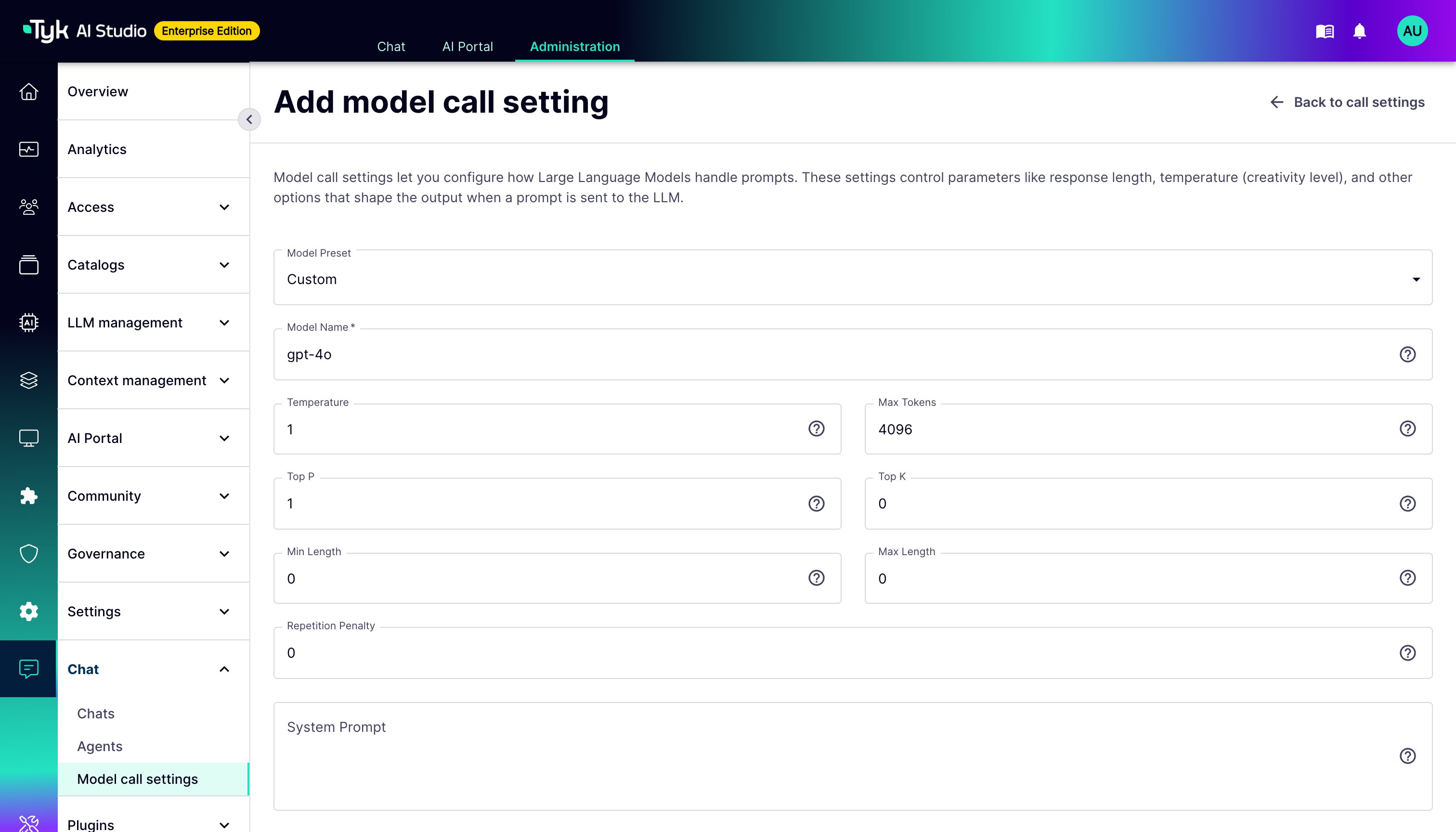
The Edit/Create LLM Call Settings View enables administrators to configure or update call-time options for a specific Large Language Model (LLM). Below is an explanation of each field and its purpose:- Model Name: The name of the language model (e.g.,
gpt-5.2,claude-opus-4-5-20251101). - Temperature: Controls randomness:
0is deterministic,1is very random. Range:0to1. - Max Tokens: The maximum number of tokens to generate in the response. Must be at least
1. - Top P: Controls diversity via nucleus sampling:
0.5means half of all likelihood-weighted options are considered. Range:0to1. - Top K: Controls diversity by limiting to
kmost likely tokens.0means no limit. - Min Length: The minimum number of tokens to generate in the response.
- Max Length: The maximum number of overall tokens.
- Repetition Penalty: Penalizes repetition:
1.0means no penalty,>1.0discourages repetition. Typically between1.0and1.5. - System Prompt: A long-form text prompt that sets the context or behavior for the language model.
How to Create LLM Call Settings
- Navigate to Chat > Model call settings in the admin UI sidebar.
- Click Add call setting.
- Fill in the required fields such as Model Name and configure the desired parameters like Temperature and Max Tokens.
-
Click Add call setting to save the configuration.