Availability
Signature verification and more than one marketplace source are Enterprise Edition features.
Overview
To publish a plugin, you put it where AI Studio can download it, and you tell administrators where it is. Publishing has three parts:- Package: You push the plugin binary to an OCI registry as an OCI artifact.
- Sign: You sign the artifact with cosign. This part is necessary only when the installation verifies signatures.
- List: You add an entry for the version to a marketplace index. This part is optional.
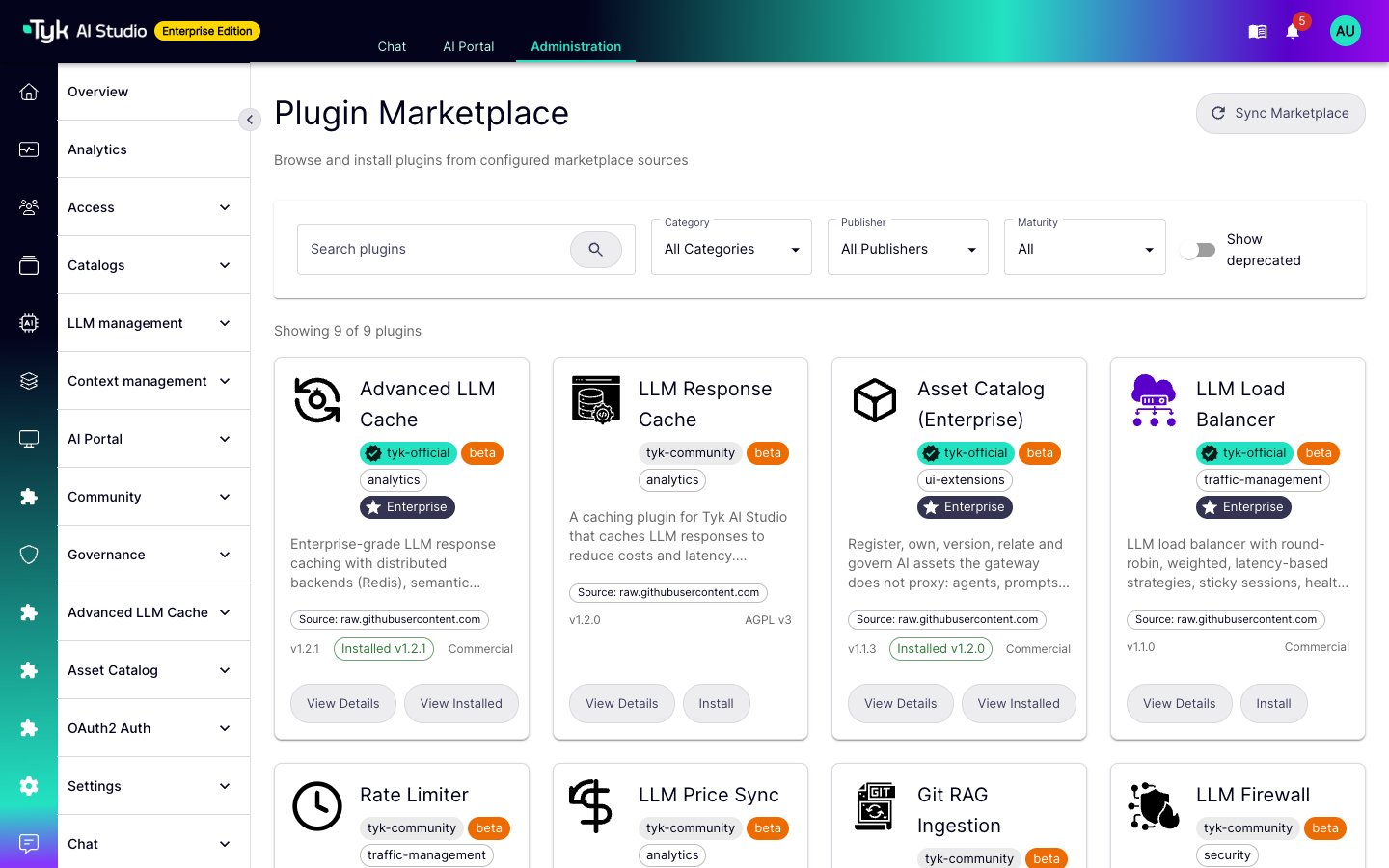
- From the Marketplace page, when the plugin is in a marketplace index that AI Studio syncs.
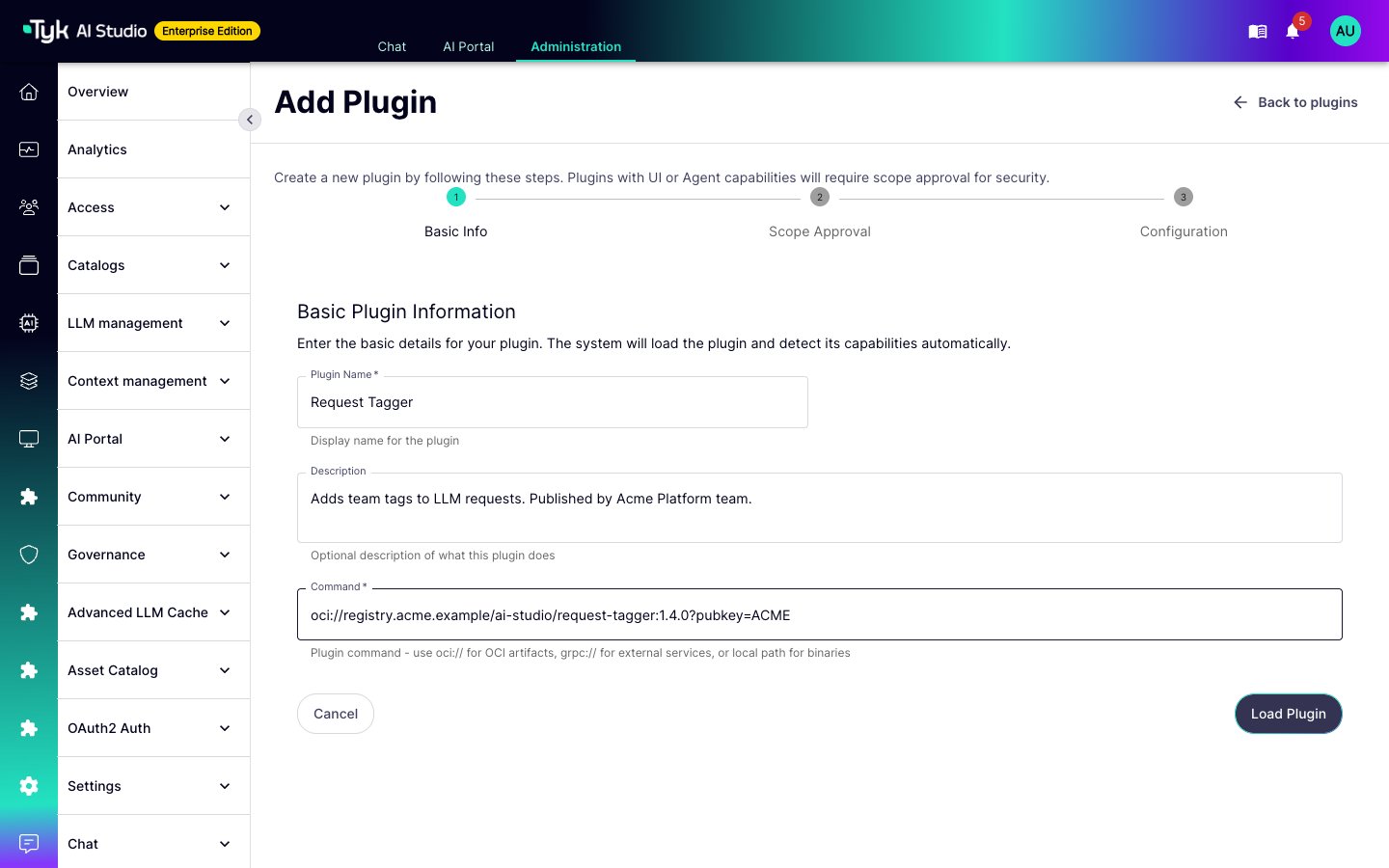
- From the Add Plugin form, with the
oci://reference of the artifact.
Package the Plugin as an OCI Artifact
AI Studio reads the first layer of the artifact as the plugin binary. It does not unpack the layer. For this reason, push the binary itself with ORAS. Do not package it as a Docker image.- If the plugin has a UI, build the UI bundle before you compile the binary.
- Compile a static binary for each platform that runs the plugin. AI Studio and Edge Gateways can run on different platforms.
- Push each binary to its own tag, with the Tyk plugin artifact type.
- Combine the platform tags into a multi-platform index under the version tag.
?arch=<os>/<arch> to the oci:// reference.
Put the version in each platform tag, as in the example. Then an incomplete release cannot make the version tag point to the binary of an earlier version.
The maximum size of a plugin layer is 512 MB by default. Refer to Plugin Size Limit and Registry Authentication.
Sign the Plugin
AI Studio uses cosign to verify plugin signatures. Sign the index by its digest, and then verify the signature:Public Keys
AI Studio and Edge Gateways always have the Tyk plugin signing key. To verify your own plugins, give administrators your public key. They add it as an environment variable on AI Studio and on each Edge Gateway:OCI_PLUGINS_PUBKEY_<NAME>: the PEM content of the key.OCI_PLUGINS_PUBKEY_FILE_<NAME>: the path to the key file.
oci:// reference must include ?pubkey=<NAME>. For example, oci://registry.example.com/ai-studio/request-tagger:1.4.0?pubkey=ACME uses OCI_PLUGINS_PUBKEY_ACME. Without pubkey, AI Studio verifies the plugin only with the Tyk signing key.
List the Plugin in a Marketplace
A marketplace is anindex.yaml file at an HTTP or HTTPS URL. AI Studio downloads the index at each sync and shows its plugins on the Marketplace page.
Serve the index over HTTPS. AI Studio installs the artifact that the index names, so a changed index can make administrators install a different artifact.
The Index File
The index has anapiVersion and a plugins map. Each key is a plugin ID. Its value is a list with one entry for each published version:
apiVersionorpluginsis missing.- A plugin has no versions.
- The
idof an entry is different from its key inplugins. - An entry has no
version,oci_registry, oroci_repository.
Changelogs
The upgrade dialog shows the changelog of the target version. AI Studio readsCHANGELOG.md from the directory of manifest_url. The changelog must be on the same scheme and host as the index. AI Studio shows the first 256 KB.
Add a Marketplace Source
The default marketplace is the Tyk marketplace athttps://raw.githubusercontent.com/TykTechnologies/tyk-ai-studio-plugins-ce/main/index.yaml.
- Community Edition: AI Studio syncs one marketplace. To use a different index, set
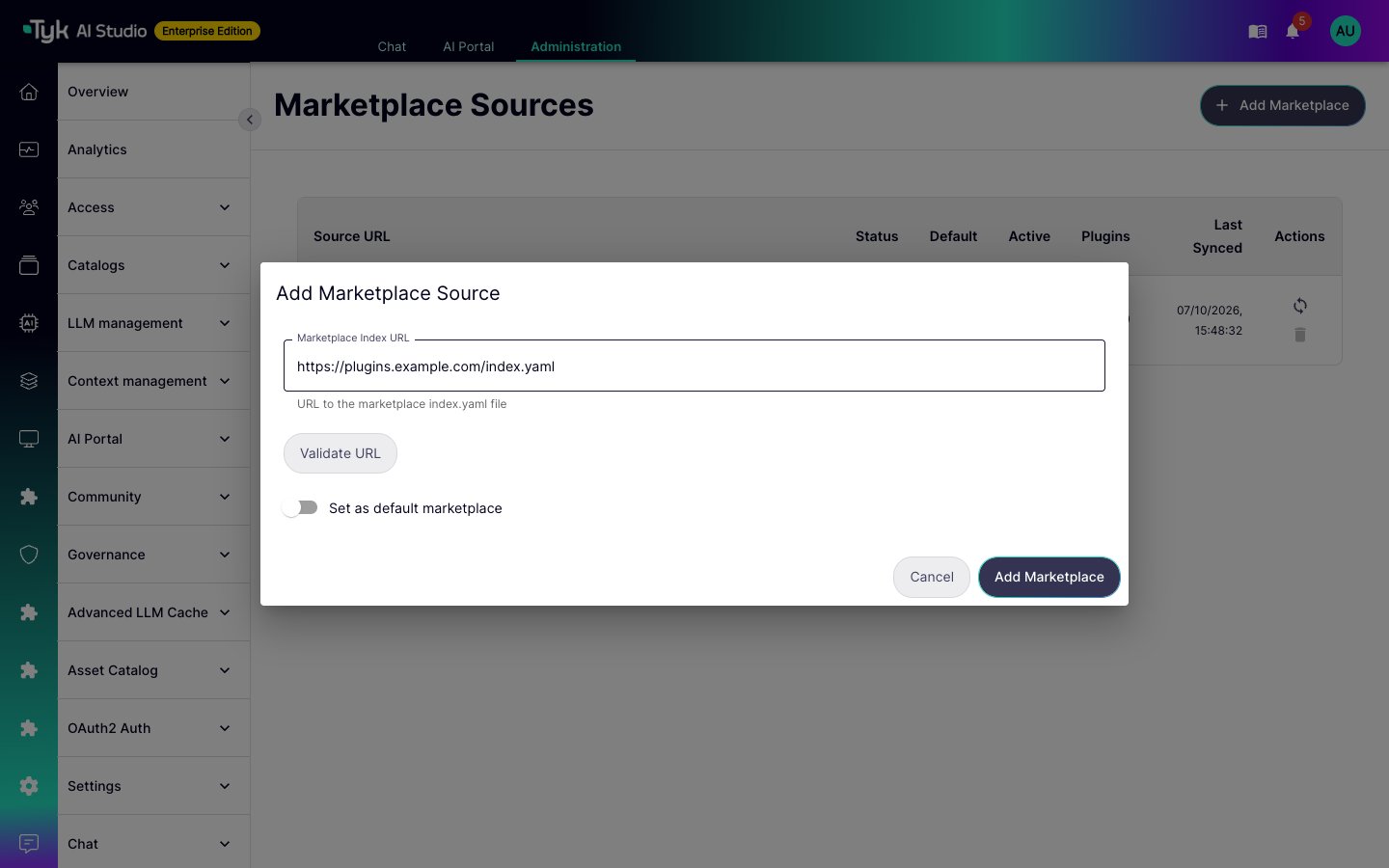
MARKETPLACE_INDEX_URL. - Enterprise Edition: Administrators can add more marketplaces. Go to Plugins > Marketplace Sources and click Add Marketplace. Enter the index URL, and click Validate URL to check that AI Studio can read the index. To make it the default marketplace, turn on Set as default marketplace.
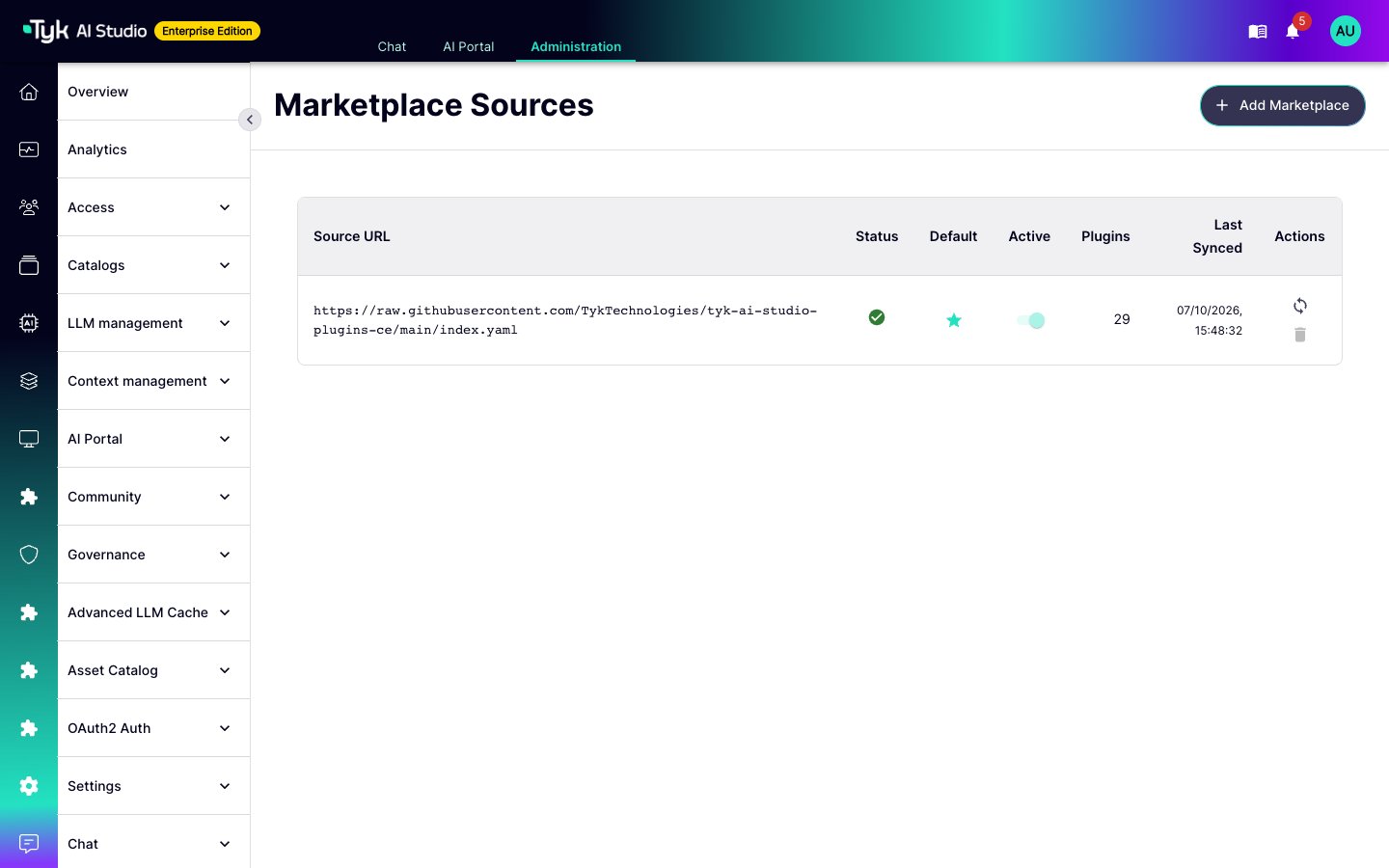
MARKETPLACE_SYNC_INTERVAL, for example 30m. To sync immediately, click Sync Marketplace on the Marketplace page, or the sync icon of a source. A manual sync bypasses HTTP caches.
Release a New Version
- Increase
versionin the plugin manifest. - Push the new binaries, and create the index under a new version tag. Do not push a different binary to a tag that you already published.
- Sign the new index.
- Add an entry for the new version to
index.yaml, and put itsCHANGELOG.mdnext to itsmanifest.yaml. Keep the entries of the earlier versions.
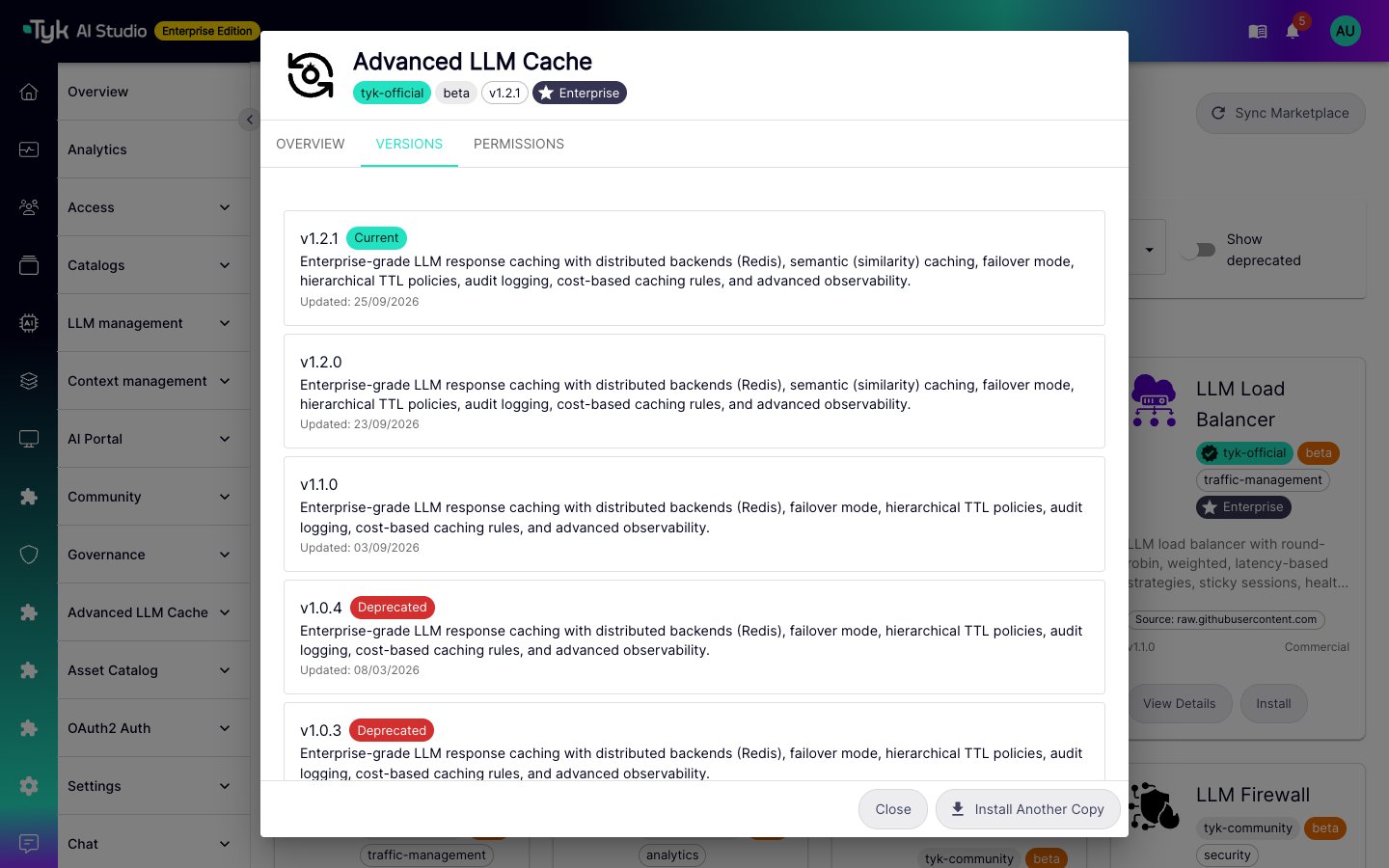
oci:// reference. A version that you remove from the index goes off the Marketplace page at the next sync.
How Installed Plugins Get the Update
AI Studio links an installed plugin to a marketplace entry by its OCI registry and repository. This applies to plugins installed from the Marketplace page and to plugins installed with anoci:// reference to the same repository. AI Studio identifies the installed version from the digest, then from the tag.
When a newer version is available, the Plugins page shows an Update chip. The administrator selects the target version and approves new permissions in the upgrade dialog. The dialog also shows your changelog.
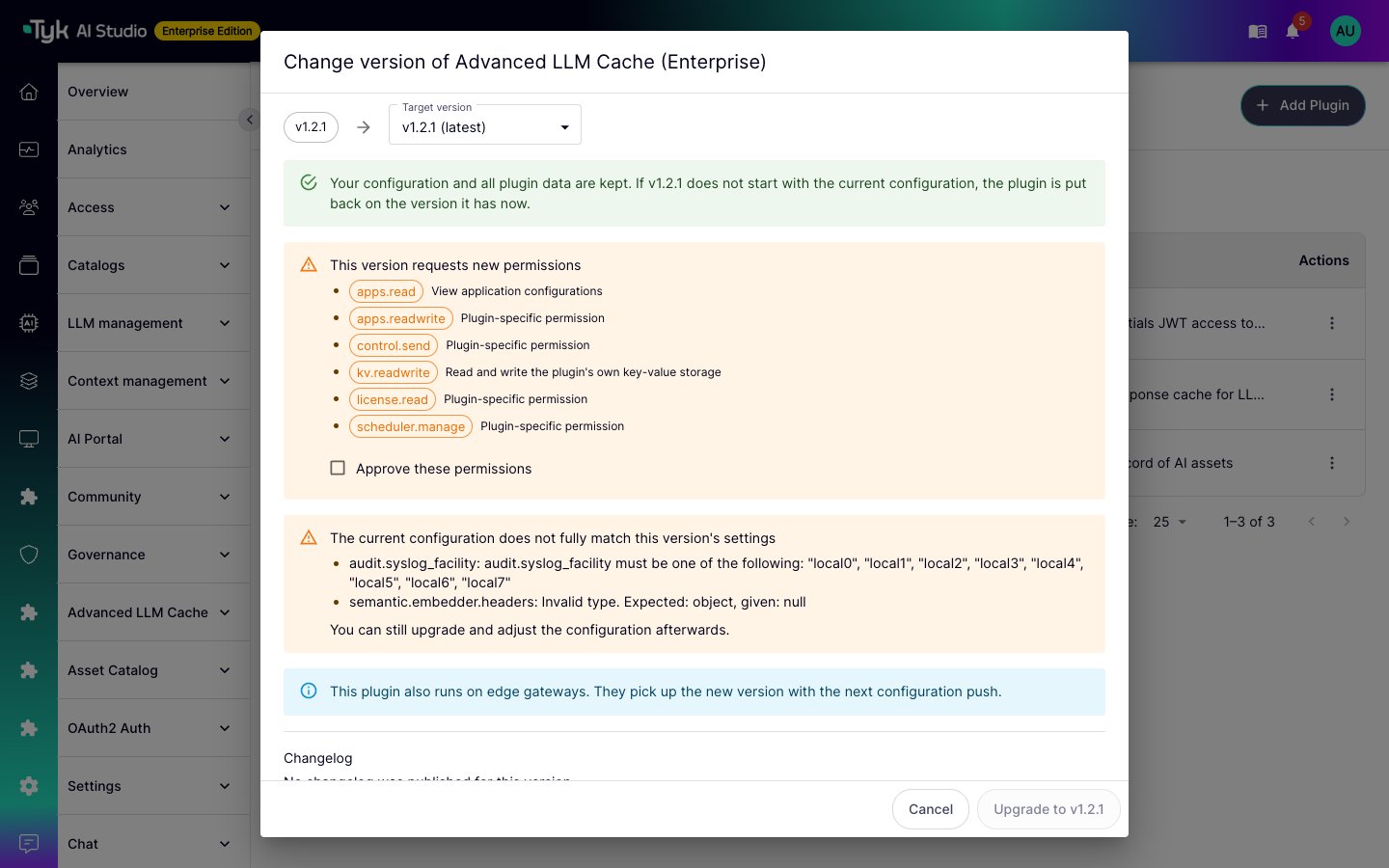
Version Compatibility
Declare the minimum AI Studio version incompat.min_studio_version of the plugin manifest, and copy it to min_studio_version in the index entry. Refer to Minimum Versions.
AI Studio shows the value on the Marketplace page, but it does not block an installation on an older version. The index has no field for min_gateway_version, so administrators see only the AI Studio minimum. State both minimums in your README.
Install Without a Marketplace
Administrators can also install any published artifact from Plugins > Add Plugin. In Command, they enter theoci:// reference, with ?pubkey=<NAME> if verification is on.