> ## Documentation Index
> Fetch the complete documentation index at: https://tyk.io/docs/llms.txt
> Use this file to discover all available pages before exploring further.
# SSO with Descope
> Learn how to configure Single Sign-On (SSO) for Tyk Dashboard or Tyk Developer Portal using Descope via OpenID Connect (OIDC), with worked examples for Dashboard and Portal.
## Introduction
[Descope](https://www.descope.com/) is an OIDC-compatible identity provider. TIB connects to Descope using `SocialProvider` with the `openid-connect` provider type.
Descope acts as an identity provider for external applications through a *Federated Application*. You create an OIDC Federated Application in the Descope Console, then point TIB at your project's discovery URL.
Before configuring your IdP and TIB profile, read [Dashboard SSO](/docs/tyk-identity-broker/dashboard-sso) or [Portal SSO](/docs/tyk-stack/tyk-developer-portal/enterprise-developer-portal/managing-access/enable-sso) to understand the `ActionType`, `ReturnURL`, and `IdentityHandlerConfig` fields required for your use case.
This page covers the Descope-specific configuration only.
## Configure Descope
### Create the Federated Application
Every Descope project includes a default OIDC Federated Application, which you can use with TIB. Creating additional Federated Applications is a Descope Pro tier feature.
1. Log in to the [Descope Console](https://app.descope.com/) and navigate to **Federated Apps**.
2. Click **+ Application**, then select **Generic OIDC Application** from the Federated Apps Library.
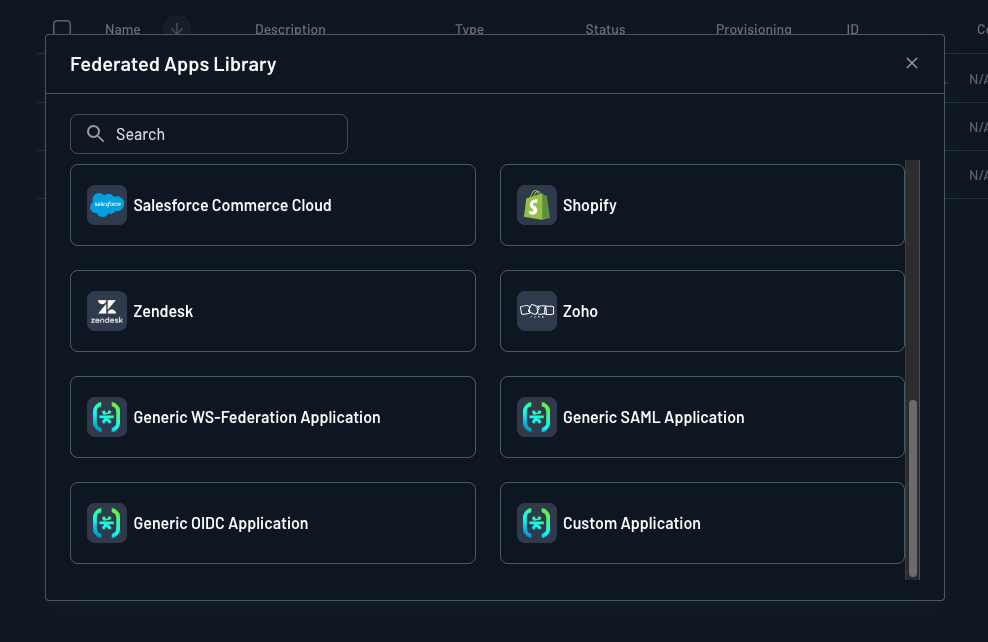 3. Enter an **Application Name**, then click **Create**.
4. From the application's **IdP Configuration** section, copy the **Discovery URL**. This is the value TIB needs.
3. Enter an **Application Name**, then click **Create**.
4. From the application's **IdP Configuration** section, copy the **Discovery URL**. This is the value TIB needs.
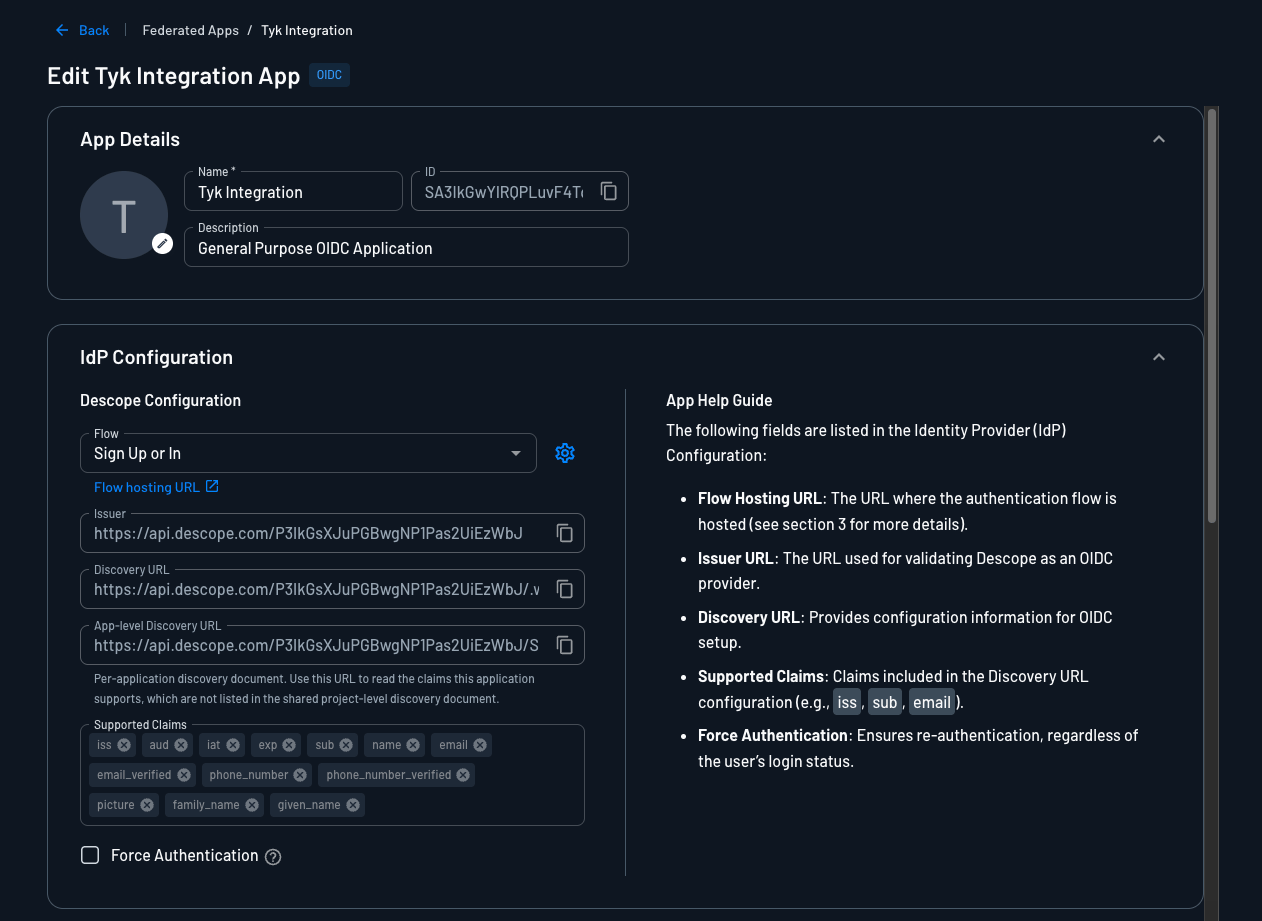 The application settings also show an **App-level Discovery URL**. That document lists the claims specific to this application. Use the project-level **Discovery URL** for TIB. If your project holds more than one Federated Application, use the **App-level Discovery URL** instead.
The **Flow** field controls which Descope authentication [flow](https://docs.descope.com/flows) runs when TIB redirects a user. The default is **Sign Up or In**.
### Get the Client ID
The Client ID is your Descope **Project ID**, found under **Project Settings > General**.
The application settings also show an **App-level Discovery URL**. That document lists the claims specific to this application. Use the project-level **Discovery URL** for TIB. If your project holds more than one Federated Application, use the **App-level Discovery URL** instead.
The **Flow** field controls which Descope authentication [flow](https://docs.descope.com/flows) runs when TIB redirects a user. The default is **Sign Up or In**.
### Get the Client ID
The Client ID is your Descope **Project ID**, found under **Project Settings > General**.
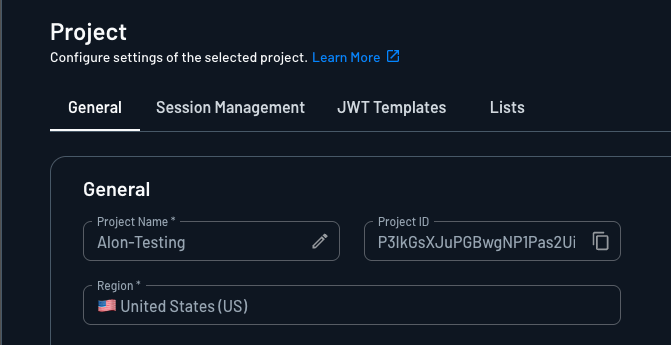 The Client ID is your Project ID, so every OIDC Federated Application in the project shares it. Descope does not issue a Client ID per application.
### Generate the Client Secret
The Client Secret is a Descope **Access Key**.
1. Navigate to **Access Keys** and click **+ Access Key**.
2. Enter a **Name** and select an **Expiration**, then click **Generate Key**.
The Client ID is your Project ID, so every OIDC Federated Application in the project shares it. Descope does not issue a Client ID per application.
### Generate the Client Secret
The Client Secret is a Descope **Access Key**.
1. Navigate to **Access Keys** and click **+ Access Key**.
2. Enter a **Name** and select an **Expiration**, then click **Generate Key**.
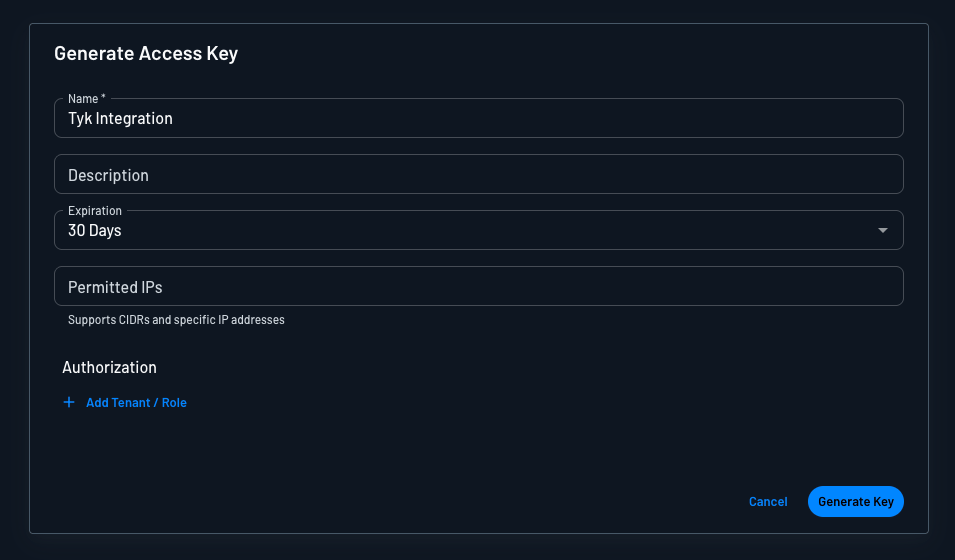 3. Copy the generated key and store it securely before you close the dialog.
Access Keys expire according to the **Expiration** you select. When the key expires, SSO login fails until you generate a replacement and update the TIB profile. Select an expiration that matches your key rotation process, or select **Never** if your security policy permits it.
### Approve the Tyk Domain
TIB receives the response from the IdP at this callback URL:
```
http://{tib-host}/auth/{profile-id}/openid-connect/callback
```
Replace `{tib-host}` with the hostname of your TIB instance and `{profile-id}` with the ID you will assign to the TIB profile.
Unlike most identity providers, Descope does not hold a list of callback URLs on the application. It validates redirect URLs against a project-wide allow list of domains, so you register the domain rather than the full callback URL.
1. Navigate to **Project Settings > General** and find the **Security** section.
2. Add your Tyk host to **Approved Domains**. Enter the domain only, without the protocol, for example `dashboard.example.com`.
3. Copy the generated key and store it securely before you close the dialog.
Access Keys expire according to the **Expiration** you select. When the key expires, SSO login fails until you generate a replacement and update the TIB profile. Select an expiration that matches your key rotation process, or select **Never** if your security policy permits it.
### Approve the Tyk Domain
TIB receives the response from the IdP at this callback URL:
```
http://{tib-host}/auth/{profile-id}/openid-connect/callback
```
Replace `{tib-host}` with the hostname of your TIB instance and `{profile-id}` with the ID you will assign to the TIB profile.
Unlike most identity providers, Descope does not hold a list of callback URLs on the application. It validates redirect URLs against a project-wide allow list of domains, so you register the domain rather than the full callback URL.
1. Navigate to **Project Settings > General** and find the **Security** section.
2. Add your Tyk host to **Approved Domains**. Enter the domain only, without the protocol, for example `dashboard.example.com`.
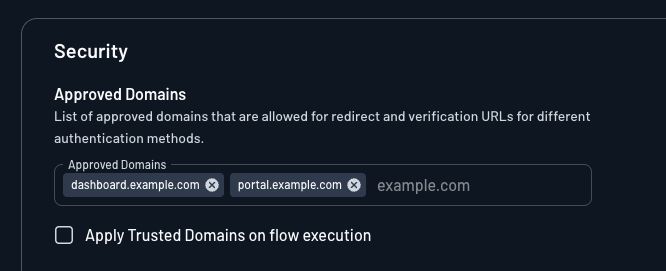 An empty **Approved Domains** list disables redirect validation, which allows an attacker to redirect an authenticated user to a host you do not control. Populate it before you enable SSO.
If you enable **Apply Trusted Domains on flow execution**, Descope stops approving its own hosted domains automatically. Also add the host from your application's **Flow hosting URL**. This defaults to `auth.descope.io`, but on some projects it is your Descope API host or your custom domain.
### Discovery URL
The Descope OIDC discovery URL for your project is:
```
https://api.descope.com/{project-id}/.well-known/openid-configuration
```
Where `{project-id}` is the **Project ID** from **Project Settings > General**.
Descope hosts projects in several regions, and the base URL differs per region. Always take the base URL from the **Discovery URL** field of your application:
| Region | Base URL |
| ------------- | ------------------------------ |
| United States | `https://api.descope.com` |
| Europe | `https://api.euc1.descope.com` |
| Australia | `https://api.aps2.descope.com` |
| Canada | `https://api.cac1.descope.com` |
If your project uses a custom domain, replace the base URL with your custom domain.
## TIB Profile
The Descope-specific configuration goes in the `ProviderConfig` block of the TIB profile. Set `ProviderName` to `SocialProvider` and `Type` to `redirect`.
```json expandable theme={null}
{
"ProviderName": "SocialProvider",
"Type": "redirect",
"ProviderConfig": {
"CallbackBaseURL": "http://{tib-host}",
"FailureRedirect": "http://{failure-redirect-url}",
"UseProviders": [
{
"Name": "openid-connect",
"Key": "{descope-project-id}",
"Secret": "{descope-access-key}",
"Scopes": ["openid", "email", "profile"],
"DiscoverURL": "https://api.descope.com/{descope-project-id}/.well-known/openid-configuration"
}
]
}
}
```
The Descope-specific `ProviderConfig` fields are:
| Field | Description |
| -------------------------- | ---------------------------------------------------------------------------------------------- |
| `CallbackBaseURL` | The base URL of your TIB instance. TIB appends the callback path automatically. |
| `FailureRedirect` | URL to redirect the user to on authentication failure. |
| `UseProviders.Name` | Must be `openid-connect`. This value routes TIB to the OpenID Connect provider implementation. |
| `UseProviders.Key` | The Descope Project ID, which serves as the Client ID. |
| `UseProviders.Secret` | The Descope Access Key, which serves as the Client Secret. |
| `UseProviders.Scopes` | OAuth scopes to request. `openid` and `email` are required. |
| `UseProviders.DiscoverURL` | The Descope OIDC discovery URL for your project. |
### Additional Scopes
Descope returns `sub`, `name`, `email`, `email_verified`, `given_name`, `family_name`, and `picture` for the scopes above. Further scopes are available if you need more than the standard profile claims:
* `phone` adds the user's phone number.
* `descope.claims` adds the user's tenants, roles, and permissions in a `tenants` claim.
* `descope.custom_claims` adds any custom claims you have configured in Descope.
Descope returns the `tenants` claim as an object keyed by tenant ID. Each tenant holds nested `roles` and `permissions` arrays.
TIB reads group membership from a single top-level claim that holds a string, and splits multiple values on `UserGroupSeparator`. The nested `tenants` object does not match that shape. To drive [user group mapping](/docs/tyk-identity-broker/dashboard-sso#idp-permission-claims) from Descope roles, write the roles into a top-level claim as a separated string. Use a Descope [Custom Claims](https://docs.descope.com/flows/actions/custom-claims) flow action or a [JWT Template](https://docs.descope.com/management/token/jwt-templates). Then set `CustomUserGroupField` to that claim name.
Descope signs ID tokens with RS256. Its discovery document advertises no ID token encryption, so the TIB [JSON Web Encryption (JWE)](/docs/api-management/single-sign-on-social-idp#json-web-encryption-jwe) configuration does not apply.
## Worked Examples
These examples use embedded TIB, so the `CallbackBaseURL` is the same as the Dashboard or Portal respectively; TIB handles requests on the same host and port.
In this example, Tyk Dashboard is running at `http://dashboard.example.com` on port `3000`; replace the example values with your own.
**Tyk Dashboard configuration**
```json theme={null}
{
"sso_enable_user_lookup": true,
"sso_permission_defaults": {
"apis": "write",
"keys": "write",
"policies": "write"
},
"sso_default_group_id": "{tyk-user-group-id}"
}
```
With this configuration, registered users (with a Tyk Dashboard user account) get their own permissions; unregistered users fall back to the group specified in `sso_default_group_id`. See [Dashboard SSO](/docs/tyk-identity-broker/dashboard-sso) for full details.
**TIB profile**
The TIB profile is created via the [Tyk Identity Broker API](/docs/tyk-identity-broker/tib-rest-api) or the [Tyk Dashboard UI](/docs/tyk-identity-broker/dashboard-sso#create-a-tib-profile-using-dashboard-ui).
```json expandable theme={null}
{
"ID": "descope-dashboard-oidc",
"Name": "Descope Dashboard SSO",
"OrgID": "{tyk-org-id}",
"ActionType": "GenerateOrLoginUserProfile",
"Type": "redirect",
"ProviderName": "SocialProvider",
"ReturnURL": "http://dashboard.example.com:3000/tap",
"IdentityHandlerConfig": {
"DashboardCredential": "{tib-service-user-api-key}"
},
"ProviderConfig": {
"CallbackBaseURL": "http://dashboard.example.com:3000",
"FailureRedirect": "http://dashboard.example.com:3000/?fail=true",
"UseProviders": [
{
"Name": "openid-connect",
"Key": "{descope-project-id}",
"Secret": "{descope-access-key}",
"Scopes": ["openid", "email", "profile"],
"DiscoverURL": "https://api.descope.com/{descope-project-id}/.well-known/openid-configuration"
}
]
}
}
```
* set `Key` to the Descope **Project ID**
* set `Secret` to the Descope **Access Key**
* set `DashboardCredential` to the [TIB service account's](/docs/tyk-identity-broker/dashboard-sso#tib-service-account) Dashboard credentials
**Descope approved domain**
Ensure `dashboard.example.com` is listed in **Approved Domains** in your Descope project settings. Descope rejects the callback if the domain is absent.
**Login URL**
This URL initiates the SSO login flow:
```
http://dashboard.example.com:3000/auth/descope-dashboard-oidc/openid-connect
```
In production, present this as a "Log in with Descope" button or link on a custom login page, rather than expecting users to navigate to it directly.
See [Dashboard SSO](/docs/tyk-identity-broker/dashboard-sso) for details on session behavior, permissions, and user group mapping.
In this example, Tyk Developer Portal is running at `http://portal.example.com` on port `3001`; replace the example values with your own.
**Tyk Developer Portal configuration**
Enable embedded TIB in the Portal configuration:
```json theme={null}
{
"TIB": {
"Enable": true
}
}
```
**TIB profile**
The TIB profile is created via the Tyk Developer Portal UI under **Settings > SSO Profiles**.
```json expandable theme={null}
{
"ID": "descope-portal-oidc",
"Name": "Descope Portal SSO",
"OrgID": "{tyk-org-id}",
"ActionType": "GenerateOrLoginDeveloperProfile",
"Type": "redirect",
"ProviderName": "SocialProvider",
"ReturnURL": "http://portal.example.com:3001/sso",
"IdentityHandlerConfig": {
"DashboardCredential": "{portal-api-secret}"
},
"ProviderConfig": {
"CallbackBaseURL": "http://portal.example.com:3001",
"FailureRedirect": "http://portal.example.com:3001/?fail=true",
"UseProviders": [
{
"Name": "openid-connect",
"Key": "{descope-project-id}",
"Secret": "{descope-access-key}",
"Scopes": ["openid", "email", "profile"],
"DiscoverURL": "https://api.descope.com/{descope-project-id}/.well-known/openid-configuration"
}
]
}
}
```
* set `ActionType` and `OrgID` based on the audience:
* Admin Portal (API owners): `ActionType: "GenerateOrLoginUserProfile"`, `OrgID: "0"`
* Live Portal (API consumers): `ActionType: "GenerateOrLoginDeveloperProfile"`, `OrgID` is not required
* set `Key` to the Descope **Project ID**
* set `Secret` to the Descope **Access Key**
* set `DashboardCredential` to the [PORTAL\_API\_SECRET](/docs/product-stack/tyk-enterprise-developer-portal/deploy/configuration#portal_api_secret) used to authenticate with the Portal's management API
**Descope approved domain**
Ensure `portal.example.com` is listed in **Approved Domains** in your Descope project settings. Descope rejects the callback if the domain is absent.
**Login URL**
This URL initiates the SSO login flow:
```
http://portal.example.com:3001/auth/descope-portal-oidc/openid-connect
```
In production, present this as a "Log in with Descope" button or link on the Portal login page.
For details on user group mapping and admin vs developer profiles, see [Portal SSO](/docs/tyk-stack/tyk-developer-portal/enterprise-developer-portal/managing-access/enable-sso).
An empty **Approved Domains** list disables redirect validation, which allows an attacker to redirect an authenticated user to a host you do not control. Populate it before you enable SSO.
If you enable **Apply Trusted Domains on flow execution**, Descope stops approving its own hosted domains automatically. Also add the host from your application's **Flow hosting URL**. This defaults to `auth.descope.io`, but on some projects it is your Descope API host or your custom domain.
### Discovery URL
The Descope OIDC discovery URL for your project is:
```
https://api.descope.com/{project-id}/.well-known/openid-configuration
```
Where `{project-id}` is the **Project ID** from **Project Settings > General**.
Descope hosts projects in several regions, and the base URL differs per region. Always take the base URL from the **Discovery URL** field of your application:
| Region | Base URL |
| ------------- | ------------------------------ |
| United States | `https://api.descope.com` |
| Europe | `https://api.euc1.descope.com` |
| Australia | `https://api.aps2.descope.com` |
| Canada | `https://api.cac1.descope.com` |
If your project uses a custom domain, replace the base URL with your custom domain.
## TIB Profile
The Descope-specific configuration goes in the `ProviderConfig` block of the TIB profile. Set `ProviderName` to `SocialProvider` and `Type` to `redirect`.
```json expandable theme={null}
{
"ProviderName": "SocialProvider",
"Type": "redirect",
"ProviderConfig": {
"CallbackBaseURL": "http://{tib-host}",
"FailureRedirect": "http://{failure-redirect-url}",
"UseProviders": [
{
"Name": "openid-connect",
"Key": "{descope-project-id}",
"Secret": "{descope-access-key}",
"Scopes": ["openid", "email", "profile"],
"DiscoverURL": "https://api.descope.com/{descope-project-id}/.well-known/openid-configuration"
}
]
}
}
```
The Descope-specific `ProviderConfig` fields are:
| Field | Description |
| -------------------------- | ---------------------------------------------------------------------------------------------- |
| `CallbackBaseURL` | The base URL of your TIB instance. TIB appends the callback path automatically. |
| `FailureRedirect` | URL to redirect the user to on authentication failure. |
| `UseProviders.Name` | Must be `openid-connect`. This value routes TIB to the OpenID Connect provider implementation. |
| `UseProviders.Key` | The Descope Project ID, which serves as the Client ID. |
| `UseProviders.Secret` | The Descope Access Key, which serves as the Client Secret. |
| `UseProviders.Scopes` | OAuth scopes to request. `openid` and `email` are required. |
| `UseProviders.DiscoverURL` | The Descope OIDC discovery URL for your project. |
### Additional Scopes
Descope returns `sub`, `name`, `email`, `email_verified`, `given_name`, `family_name`, and `picture` for the scopes above. Further scopes are available if you need more than the standard profile claims:
* `phone` adds the user's phone number.
* `descope.claims` adds the user's tenants, roles, and permissions in a `tenants` claim.
* `descope.custom_claims` adds any custom claims you have configured in Descope.
Descope returns the `tenants` claim as an object keyed by tenant ID. Each tenant holds nested `roles` and `permissions` arrays.
TIB reads group membership from a single top-level claim that holds a string, and splits multiple values on `UserGroupSeparator`. The nested `tenants` object does not match that shape. To drive [user group mapping](/docs/tyk-identity-broker/dashboard-sso#idp-permission-claims) from Descope roles, write the roles into a top-level claim as a separated string. Use a Descope [Custom Claims](https://docs.descope.com/flows/actions/custom-claims) flow action or a [JWT Template](https://docs.descope.com/management/token/jwt-templates). Then set `CustomUserGroupField` to that claim name.
Descope signs ID tokens with RS256. Its discovery document advertises no ID token encryption, so the TIB [JSON Web Encryption (JWE)](/docs/api-management/single-sign-on-social-idp#json-web-encryption-jwe) configuration does not apply.
## Worked Examples
These examples use embedded TIB, so the `CallbackBaseURL` is the same as the Dashboard or Portal respectively; TIB handles requests on the same host and port.
In this example, Tyk Dashboard is running at `http://dashboard.example.com` on port `3000`; replace the example values with your own.
**Tyk Dashboard configuration**
```json theme={null}
{
"sso_enable_user_lookup": true,
"sso_permission_defaults": {
"apis": "write",
"keys": "write",
"policies": "write"
},
"sso_default_group_id": "{tyk-user-group-id}"
}
```
With this configuration, registered users (with a Tyk Dashboard user account) get their own permissions; unregistered users fall back to the group specified in `sso_default_group_id`. See [Dashboard SSO](/docs/tyk-identity-broker/dashboard-sso) for full details.
**TIB profile**
The TIB profile is created via the [Tyk Identity Broker API](/docs/tyk-identity-broker/tib-rest-api) or the [Tyk Dashboard UI](/docs/tyk-identity-broker/dashboard-sso#create-a-tib-profile-using-dashboard-ui).
```json expandable theme={null}
{
"ID": "descope-dashboard-oidc",
"Name": "Descope Dashboard SSO",
"OrgID": "{tyk-org-id}",
"ActionType": "GenerateOrLoginUserProfile",
"Type": "redirect",
"ProviderName": "SocialProvider",
"ReturnURL": "http://dashboard.example.com:3000/tap",
"IdentityHandlerConfig": {
"DashboardCredential": "{tib-service-user-api-key}"
},
"ProviderConfig": {
"CallbackBaseURL": "http://dashboard.example.com:3000",
"FailureRedirect": "http://dashboard.example.com:3000/?fail=true",
"UseProviders": [
{
"Name": "openid-connect",
"Key": "{descope-project-id}",
"Secret": "{descope-access-key}",
"Scopes": ["openid", "email", "profile"],
"DiscoverURL": "https://api.descope.com/{descope-project-id}/.well-known/openid-configuration"
}
]
}
}
```
* set `Key` to the Descope **Project ID**
* set `Secret` to the Descope **Access Key**
* set `DashboardCredential` to the [TIB service account's](/docs/tyk-identity-broker/dashboard-sso#tib-service-account) Dashboard credentials
**Descope approved domain**
Ensure `dashboard.example.com` is listed in **Approved Domains** in your Descope project settings. Descope rejects the callback if the domain is absent.
**Login URL**
This URL initiates the SSO login flow:
```
http://dashboard.example.com:3000/auth/descope-dashboard-oidc/openid-connect
```
In production, present this as a "Log in with Descope" button or link on a custom login page, rather than expecting users to navigate to it directly.
See [Dashboard SSO](/docs/tyk-identity-broker/dashboard-sso) for details on session behavior, permissions, and user group mapping.
In this example, Tyk Developer Portal is running at `http://portal.example.com` on port `3001`; replace the example values with your own.
**Tyk Developer Portal configuration**
Enable embedded TIB in the Portal configuration:
```json theme={null}
{
"TIB": {
"Enable": true
}
}
```
**TIB profile**
The TIB profile is created via the Tyk Developer Portal UI under **Settings > SSO Profiles**.
```json expandable theme={null}
{
"ID": "descope-portal-oidc",
"Name": "Descope Portal SSO",
"OrgID": "{tyk-org-id}",
"ActionType": "GenerateOrLoginDeveloperProfile",
"Type": "redirect",
"ProviderName": "SocialProvider",
"ReturnURL": "http://portal.example.com:3001/sso",
"IdentityHandlerConfig": {
"DashboardCredential": "{portal-api-secret}"
},
"ProviderConfig": {
"CallbackBaseURL": "http://portal.example.com:3001",
"FailureRedirect": "http://portal.example.com:3001/?fail=true",
"UseProviders": [
{
"Name": "openid-connect",
"Key": "{descope-project-id}",
"Secret": "{descope-access-key}",
"Scopes": ["openid", "email", "profile"],
"DiscoverURL": "https://api.descope.com/{descope-project-id}/.well-known/openid-configuration"
}
]
}
}
```
* set `ActionType` and `OrgID` based on the audience:
* Admin Portal (API owners): `ActionType: "GenerateOrLoginUserProfile"`, `OrgID: "0"`
* Live Portal (API consumers): `ActionType: "GenerateOrLoginDeveloperProfile"`, `OrgID` is not required
* set `Key` to the Descope **Project ID**
* set `Secret` to the Descope **Access Key**
* set `DashboardCredential` to the [PORTAL\_API\_SECRET](/docs/product-stack/tyk-enterprise-developer-portal/deploy/configuration#portal_api_secret) used to authenticate with the Portal's management API
**Descope approved domain**
Ensure `portal.example.com` is listed in **Approved Domains** in your Descope project settings. Descope rejects the callback if the domain is absent.
**Login URL**
This URL initiates the SSO login flow:
```
http://portal.example.com:3001/auth/descope-portal-oidc/openid-connect
```
In production, present this as a "Log in with Descope" button or link on the Portal login page.
For details on user group mapping and admin vs developer profiles, see [Portal SSO](/docs/tyk-stack/tyk-developer-portal/enterprise-developer-portal/managing-access/enable-sso).