> ## Documentation Index
> Fetch the complete documentation index at: https://tyk.io/docs/llms.txt
> Use this file to discover all available pages before exploring further.
# Remediate Issues
> Read a governance issue, prioritize by severity, handle the Deployment Warning at save time, and verify a fix.
Finding out a service is non-compliant is the easy half. This page covers the other half: reading an issue, deciding what to fix first, getting past the save-time warning, and confirming the fix landed.
To find the issues in the first place, see [Service Compliance](/docs/tyk-governance/service-compliance).
## Reading an Issue
In the Governance tab's issues table, click **View issue** on any row to open the detail panel for that issue.
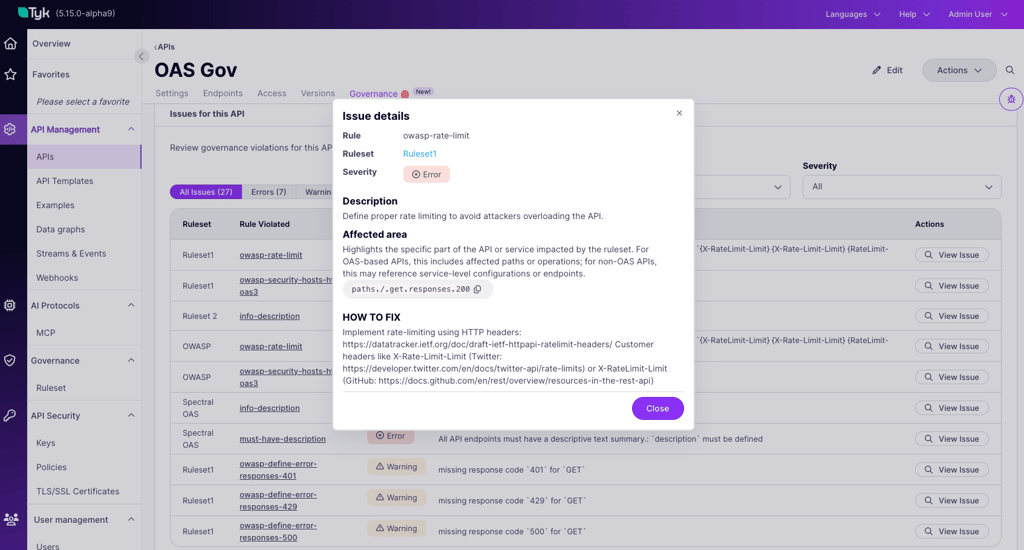 The panel includes:
* **The rule that fired**: its name, severity, and remediation priority.
* **Affected area**: the specific path in the service specification where the rule failed, for example `paths./orders.post.security`.
* **Problem if not fixed**: the risk, in plain language.
* **How to fix**: concrete remediation guidance, authored as part of the rule.
Use the affected-area path to locate the relevant configuration in the API Designer, under Settings, Endpoints, Security, or wherever the path points, and apply the fix described.
## Remediation Guidance
When a rule fails, Tyk Governance surfaces three pieces of information against the affected service:
1. The specific rule that failed, including its name, severity, and the location in the service specification where the failure was detected.
2. A problem description explaining the risk in plain language.
3. "How to fix" guidance, authored as part of the rule itself, providing concrete instructions for resolving the issue.
The quality of the remediation experience depends directly on how the ruleset author configures these fields. A meaningful severity, a clear problem description, and actionable "How to fix" guidance turn a flagged issue into something an API owner can act on immediately.
If guidance on a rule is missing or unclear, that is a ruleset problem rather than a service problem. Raise it with the ruleset's owner, who can edit the `howToFix` text. See [Configure a Ruleset](/docs/tyk-governance/rulesets#raw-definition).
## Prioritizing by Severity
Not every issue needs fixing before you can ship.
* **Error**: fix these. A single Error-severity issue makes the service non-compliant, and these are the only issues that trigger a Deployment Warning.
* **Warn**: advisory. Worth fixing, but they do not affect compliance status and never gate a save.
* **Info**: informational. Address them opportunistically.
A practical order of work: filter the issues table to **Errors** using the severity pills, clear those, then come back to warnings. Where several rulesets evaluate your service, the per-ruleset cards tell you which standard is producing most of the errors, which is usually the fastest thing to fix as a batch.
For the full severity model, see [Severity and Compliance](/docs/tyk-governance/core-concepts#severity-and-compliance).
## The Deployment Warning
Each ruleset carries a per-ruleset Deployment Warning toggle that controls whether non-compliance produces a soft warning at deploy time.
* **Off (default)**: The ruleset evaluates the service and surfaces compliance status in the Governance tab, but no warning appears when you deploy the service to the gateway. The service can be activated normally regardless of compliance.
* **On**: When you deploy a non-compliant service to the gateway, a warning appears before it goes live.
The panel includes:
* **The rule that fired**: its name, severity, and remediation priority.
* **Affected area**: the specific path in the service specification where the rule failed, for example `paths./orders.post.security`.
* **Problem if not fixed**: the risk, in plain language.
* **How to fix**: concrete remediation guidance, authored as part of the rule.
Use the affected-area path to locate the relevant configuration in the API Designer, under Settings, Endpoints, Security, or wherever the path points, and apply the fix described.
## Remediation Guidance
When a rule fails, Tyk Governance surfaces three pieces of information against the affected service:
1. The specific rule that failed, including its name, severity, and the location in the service specification where the failure was detected.
2. A problem description explaining the risk in plain language.
3. "How to fix" guidance, authored as part of the rule itself, providing concrete instructions for resolving the issue.
The quality of the remediation experience depends directly on how the ruleset author configures these fields. A meaningful severity, a clear problem description, and actionable "How to fix" guidance turn a flagged issue into something an API owner can act on immediately.
If guidance on a rule is missing or unclear, that is a ruleset problem rather than a service problem. Raise it with the ruleset's owner, who can edit the `howToFix` text. See [Configure a Ruleset](/docs/tyk-governance/rulesets#raw-definition).
## Prioritizing by Severity
Not every issue needs fixing before you can ship.
* **Error**: fix these. A single Error-severity issue makes the service non-compliant, and these are the only issues that trigger a Deployment Warning.
* **Warn**: advisory. Worth fixing, but they do not affect compliance status and never gate a save.
* **Info**: informational. Address them opportunistically.
A practical order of work: filter the issues table to **Errors** using the severity pills, clear those, then come back to warnings. Where several rulesets evaluate your service, the per-ruleset cards tell you which standard is producing most of the errors, which is usually the fastest thing to fix as a batch.
For the full severity model, see [Severity and Compliance](/docs/tyk-governance/core-concepts#severity-and-compliance).
## The Deployment Warning
Each ruleset carries a per-ruleset Deployment Warning toggle that controls whether non-compliance produces a soft warning at deploy time.
* **Off (default)**: The ruleset evaluates the service and surfaces compliance status in the Governance tab, but no warning appears when you deploy the service to the gateway. The service can be activated normally regardless of compliance.
* **On**: When you deploy a non-compliant service to the gateway, a warning appears before it goes live.
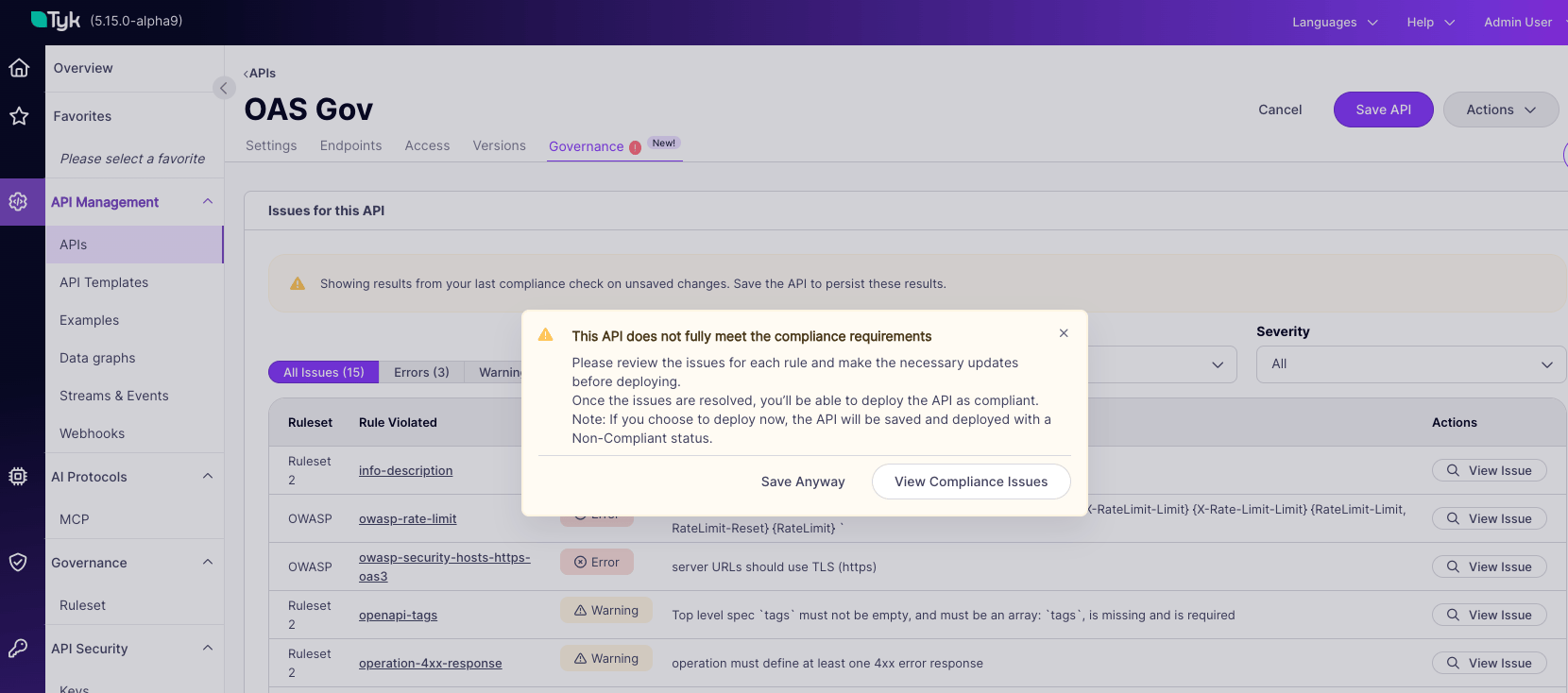 This toggle controls the Tyk Dashboard UI only. On its own it never blocks a save. Whichever way it is set, the API owner can always choose to deploy from Tyk Dashboard. A hard block is possible, but it happens outside Tyk Dashboard, through the Tyk Operator flow, where you have the option to warn or block.
### When the Warning Appears
The flow, when at least one ruleset evaluating the service has the toggle on:
1. The API owner saves a change that would make the service non-compliant, or activates a non-compliant service for the first time.
2. A warning appears stating that this service does not fully meet the compliance requirements.
3. Two options are presented.
This toggle controls the Tyk Dashboard UI only. On its own it never blocks a save. Whichever way it is set, the API owner can always choose to deploy from Tyk Dashboard. A hard block is possible, but it happens outside Tyk Dashboard, through the Tyk Operator flow, where you have the option to warn or block.
### When the Warning Appears
The flow, when at least one ruleset evaluating the service has the toggle on:
1. The API owner saves a change that would make the service non-compliant, or activates a non-compliant service for the first time.
2. A warning appears stating that this service does not fully meet the compliance requirements.
3. Two options are presented.
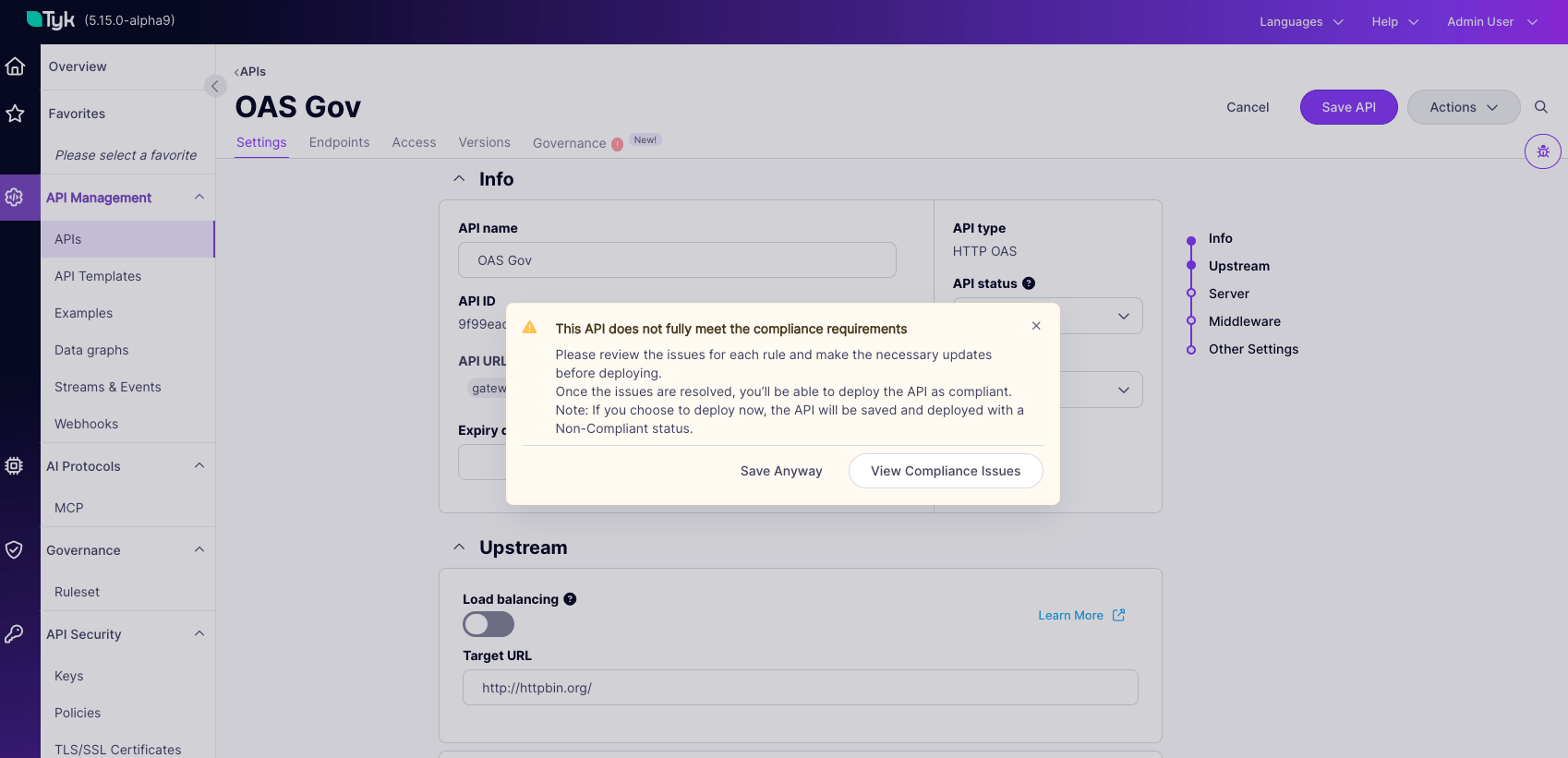 When the Deployment Warning toggle is off on every ruleset evaluating the service, which is the default, no warning appears at save time. Compliance status is still updated and visible in the Governance tab. There is simply no interrupting dialog.
### Save Anyway or View Compliance Issues
| Option | What happens |
| -------------------------- | -------------------------------------------------------------------------------------------------------------------------- |
| **Save Anyway** | The save proceeds and the service is activated as-is, despite the issues. The Governance tab reflects the resulting state. |
| **View compliance issues** | The save is canceled. The service returns to edit mode so you can review and fix the issues before saving again. |
Neither option is a failure state. **Save Anyway** exists because governance in Tyk Dashboard is advisory by design, and shipping a service with known warnings is sometimes the right call. What it does not do is hide the result: the service stays flagged as non-compliant until the issues are resolved.
## Verifying a Fix
After applying a fix, save the service. Saving triggers a re-evaluation if the service is active, and the Governance tab updates with the new status, usually within a second.
To confirm the fix:
1. Re-open the Governance tab and check the status banner's error count has dropped.
2. Filter the issues table to **Errors** and confirm the specific rule no longer appears.
3. If the ruleset that produced the issue had a Deployment Warning, save once more. No dialog means the service is compliant against every gating ruleset.
If the count has not moved, allow for evaluation time on large definitions before assuming the fix failed. See [Evaluation Performance](/docs/tyk-governance/service-compliance#evaluation-performance).
## When a Ruleset Change Breaks You
Your service can become non-compliant without you touching it. This is expected behavior, not a fault.
Re-evaluation runs whenever a linked ruleset changes, not only when you save your API. So a service can flip to non-compliant because:
* A ruleset gained a new rule.
* An existing rule's severity was raised to Error.
* A ruleset was newly linked to one of your service's API Categories.
The Compliance Notification banner on the Tyk Dashboard home page is what surfaces this when you were not watching. See [Compliance Notifications](/docs/tyk-governance/service-compliance#compliance-notifications).
When it happens, the issues table tells you which ruleset produced the new errors, and the ruleset's detail page tells you who to talk to if you think the change was wrong. Compliance can move in either direction for the same reason: a rule relaxed or removed can make your service compliant again with no action from you.
## Worked Examples
**Pre-deployment compliance review.** An API owner is about to activate a new payment API. After setting it to active and clicking save, a warning appears stating the API is not compliant. They switch to the Governance tab: the status banner shows two Error-severity issues, both about missing authentication. They click **View issue** on each, read the "How to fix" guidance, add the missing security configuration in the Settings tab, and save. Evaluation runs, the API is compliant, and it goes live without the warning.
**Reviewing the impact of a tightened ruleset.** A platform engineer promotes a documentation rule from Warn to Error severity. APIs that were compliant yesterday may now be non-compliant. As an API owner you check the API list, filtered by the affected category, or open the Governance tab on your API, and see one new Error-severity issue: a missing operation description on a specific endpoint. You add the description, save, and the API is back in compliance.
**Dry-running an optional ruleset.** A new "Tier 1 hardened security" ruleset has been published but is not linked to your API's category yet, and you want to know what would happen if it were. From the Test ruleset panel you select it and click **Run ruleset**. The results show six issues you would need to address, with none of it affecting your current compliance status.
When the Deployment Warning toggle is off on every ruleset evaluating the service, which is the default, no warning appears at save time. Compliance status is still updated and visible in the Governance tab. There is simply no interrupting dialog.
### Save Anyway or View Compliance Issues
| Option | What happens |
| -------------------------- | -------------------------------------------------------------------------------------------------------------------------- |
| **Save Anyway** | The save proceeds and the service is activated as-is, despite the issues. The Governance tab reflects the resulting state. |
| **View compliance issues** | The save is canceled. The service returns to edit mode so you can review and fix the issues before saving again. |
Neither option is a failure state. **Save Anyway** exists because governance in Tyk Dashboard is advisory by design, and shipping a service with known warnings is sometimes the right call. What it does not do is hide the result: the service stays flagged as non-compliant until the issues are resolved.
## Verifying a Fix
After applying a fix, save the service. Saving triggers a re-evaluation if the service is active, and the Governance tab updates with the new status, usually within a second.
To confirm the fix:
1. Re-open the Governance tab and check the status banner's error count has dropped.
2. Filter the issues table to **Errors** and confirm the specific rule no longer appears.
3. If the ruleset that produced the issue had a Deployment Warning, save once more. No dialog means the service is compliant against every gating ruleset.
If the count has not moved, allow for evaluation time on large definitions before assuming the fix failed. See [Evaluation Performance](/docs/tyk-governance/service-compliance#evaluation-performance).
## When a Ruleset Change Breaks You
Your service can become non-compliant without you touching it. This is expected behavior, not a fault.
Re-evaluation runs whenever a linked ruleset changes, not only when you save your API. So a service can flip to non-compliant because:
* A ruleset gained a new rule.
* An existing rule's severity was raised to Error.
* A ruleset was newly linked to one of your service's API Categories.
The Compliance Notification banner on the Tyk Dashboard home page is what surfaces this when you were not watching. See [Compliance Notifications](/docs/tyk-governance/service-compliance#compliance-notifications).
When it happens, the issues table tells you which ruleset produced the new errors, and the ruleset's detail page tells you who to talk to if you think the change was wrong. Compliance can move in either direction for the same reason: a rule relaxed or removed can make your service compliant again with no action from you.
## Worked Examples
**Pre-deployment compliance review.** An API owner is about to activate a new payment API. After setting it to active and clicking save, a warning appears stating the API is not compliant. They switch to the Governance tab: the status banner shows two Error-severity issues, both about missing authentication. They click **View issue** on each, read the "How to fix" guidance, add the missing security configuration in the Settings tab, and save. Evaluation runs, the API is compliant, and it goes live without the warning.
**Reviewing the impact of a tightened ruleset.** A platform engineer promotes a documentation rule from Warn to Error severity. APIs that were compliant yesterday may now be non-compliant. As an API owner you check the API list, filtered by the affected category, or open the Governance tab on your API, and see one new Error-severity issue: a missing operation description on a specific endpoint. You add the description, save, and the API is back in compliance.
**Dry-running an optional ruleset.** A new "Tier 1 hardened security" ruleset has been published but is not linked to your API's category yet, and you want to know what would happen if it were. From the Test ruleset panel you select it and click **Run ruleset**. The results show six issues you would need to address, with none of it affecting your current compliance status.