> ## Documentation Index
> Fetch the complete documentation index at: https://tyk.io/docs/llms.txt
> Use this file to discover all available pages before exploring further.
# Installation and Setup
> Step-by-step instructions for installing and configuring Tyk Governance, including cloud-hosted options and deploying agents in your environment.
This section moves from concepts to hands-on implementation, providing the practical steps needed to start with Tyk Governance.
## Prerequisites
Before beginning the installation and setup process for Tyk Governance, ensure your environment meets the following requirements:
### License Requirements
* Valid Tyk license with Governance feature enabled
### System Requirements
**For Tyk Governance Hub:**
* No local system requirements as Tyk Governance is fully hosted and managed by Tyk in the cloud
**For Tyk Governance Agent:**
* Minimum 1 CPU core
* 512MB RAM
* 1GB available disk space
* Linux-based operating system (Ubuntu 18.04+, CentOS 7+, or equivalent)
* Docker (if using containerized deployment)
* Kubernetes (optional, for orchestrated deployments)
### Permission Requirements
**For Agent Installation:**
* Read access to your API providers (Tyk, AWS API Gateway, etc.)
* Ability to create and manage containers or services in your environment
* Network configuration permissions to establish outbound connections
* Permission to create and manage secrets for storing API credentials
### Network Requirements
**For Tyk Governance Agent:**
* Inbound access from the Tyk Governance Hub (default 50051 for gRPC)
* Outbound access to your API providers
* Outbound HTTPS (port 443) access to the Tyk Governance Hub
* If API Provider gateways run on different networks, network routes must allow the agent to communicate with those networks
Running on Podman, containerd, or another container runtime? See [Container Runtimes](/deployment-and-operations/container-runtimes).
## System Architecture
Tyk Governance follows a cloud-hosted service model with customer-deployed agents, creating a secure and flexible architecture that respects your network boundaries while providing centralized governance.
### High-Level Architecture
```mermaid theme={null}
flowchart LR
subgraph "Tyk Cloud"
GS["Governance Service"] --- DB[(Database)]
GS --- RE["Rule Engine"]
GS <--> A4["Agent 3"] --- P3["Cloud Control Plane"]
end
subgraph "Customer Environment"
A1["Agent 1"] --- P1["Tyk Dashboard (Self-Managed)"]
A2["Agent 2"] --- P2["AWS API Gateway"]
end
A1 <-->|"TLS + Auth"| GS
A2 <-->|"TLS + Auth"| GS
```
### Deployment Models
#### Tyk Cloud with Automatic Agent
```mermaid theme={null}
flowchart LR
subgraph "Tyk Cloud"
GS["Governance Service"]
CP["Cloud Control Plane"]
AG["Auto-deployed Agent"]
GS --- AG
AG --- CP
end
User["User"] --> GS
```
**When to use this model:**
* You exclusively use Tyk Cloud for API management
* You want the simplest possible setup with minimal configuration
* You don't have any APIs on other platforms that need governance
#### Tyk Cloud with Customer-Deployed Agents
```mermaid theme={null}
flowchart LR
subgraph "Tyk Cloud"
GS["Governance Service"]
end
subgraph "Customer Environment"
A1["Agent"] --- TG["Tyk Dashboard (Self-Managed)"]
A2["Agent"] --- AWS["AWS API Gateway"]
end
A1 <--> GS
A2 <--> GS
User["User"] --> GS
```
**When to use this model:**
* You use self-managed Tyk deployments (not Tyk Cloud)
* You use AWS API Gateway or other supported providers
* You need to govern APIs across providers that aren't in Tyk Cloud
#### Hybrid Deployment
```mermaid theme={null}
flowchart LR
subgraph "Tyk Cloud"
GS["Governance Service"]
CP["Cloud Control Plane"]
AG["Auto-deployed Agent"]
GS --- AG
AG --- CP
end
subgraph "Customer Environment"
A2["Agent"] --- AWS["AWS API Gateway"]
end
A2 <--> GS
User["User"] --> GS
```
**When to use this model:**
* You use a combination of Tyk Cloud and other API platforms
* You have a mix of cloud and on-premises API deployments
* You need comprehensive governance across your entire API ecosystem
## Installation
The installation process for Tyk Governance varies depending on whether you're an existing Tyk Cloud customer and which deployment model you use.
### Requesting Access to Tyk Governance
1. **Contact Tyk for Access**
* Reach out to your Tyk Account Manager or visit [tyk.io/contact-book-a-demo](https://tyk.io/contact-book-a-demo/)
* Specify that you're interested in access to Tyk Governance
* Provide information about your current API management environment
2. **Receive Access Credentials**
* After your request is processed, you'll receive an email with:
* URL to access the Tyk Governance Hub
* Admin credentials for initial login
* Instructions for next steps
3. **Initial Login**
* Navigate to the provided Governance Hub URL
* Enter the admin credentials from the email
* You'll be prompted to change your password on first login
### Enabling Governance Feature for Cloud Control Planes
For existing Tyk Cloud managed control planes, enabling governance is straightforward:
1. **Log in to Tyk Cloud Dashboard**
* Navigate to your Tyk Cloud dashboard
* Ensure you have administrative privileges
2. **Access Control Plane Settings**
* Select the Control Plane you want to enable governance for
* Click on "Edit Details" button
3. **Enable Governance Feature**
* Locate the "Governance Agent" toggle
* Enable the feature
* Save your changes
4. **Verification**
* An agent will be automatically deployed for your Tyk Control Plane
* You can now access the Governance dashboard via "Governance" in the Cloud UI sidebar
### Installing a Local Agent
For environments where you need to install agents manually (non-Tyk platforms or on-premises deployments), follow these steps:
**Prerequisites for Agent Installation:**
* Access to the Governance Hub to generate agent tokens
* Network connectivity between the agent and both the Governance Hub and your API provider
* Docker or Kubernetes for container-based deployment (recommended)
#### Generate Agent Token from Governance Hub UI
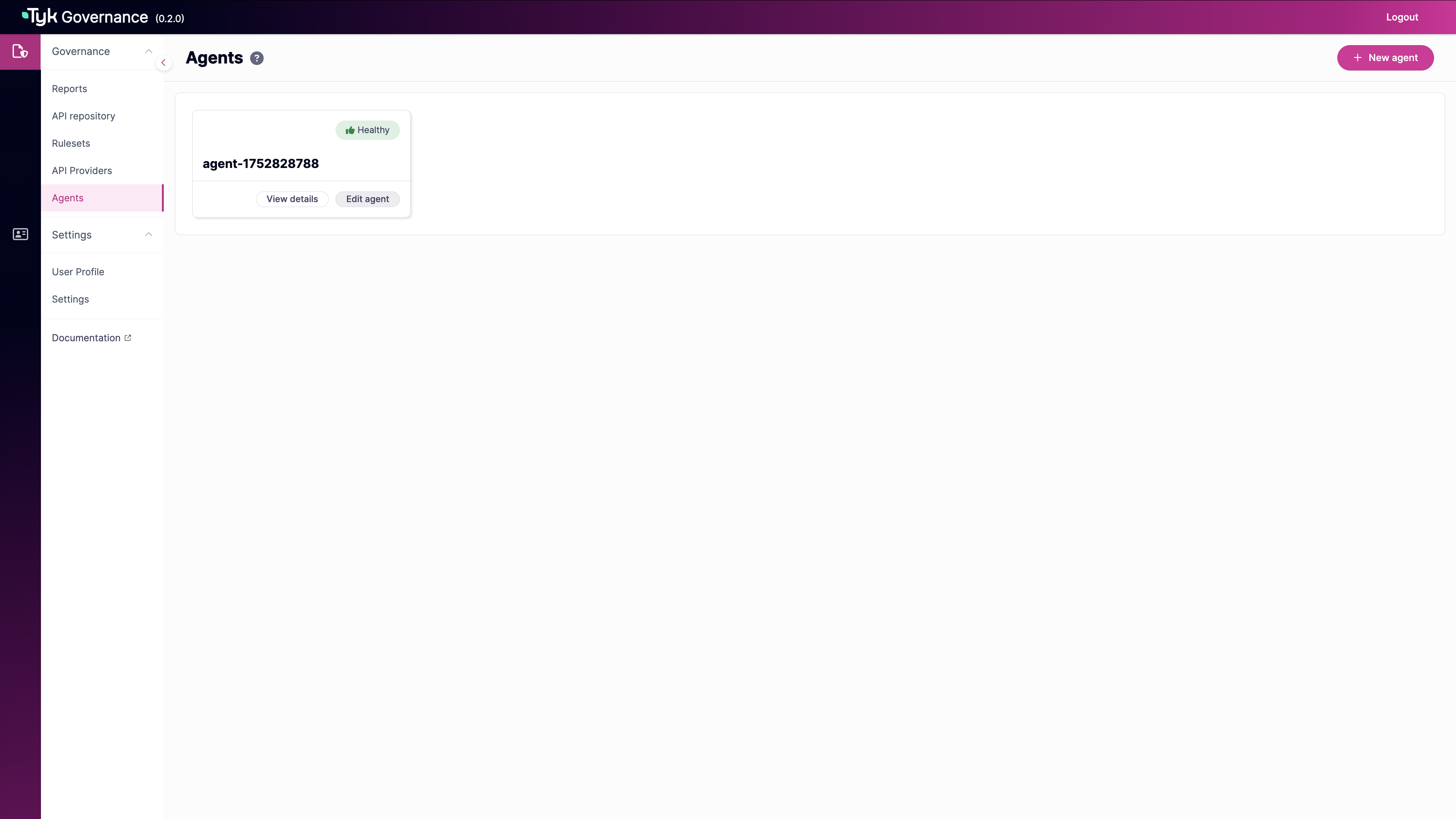
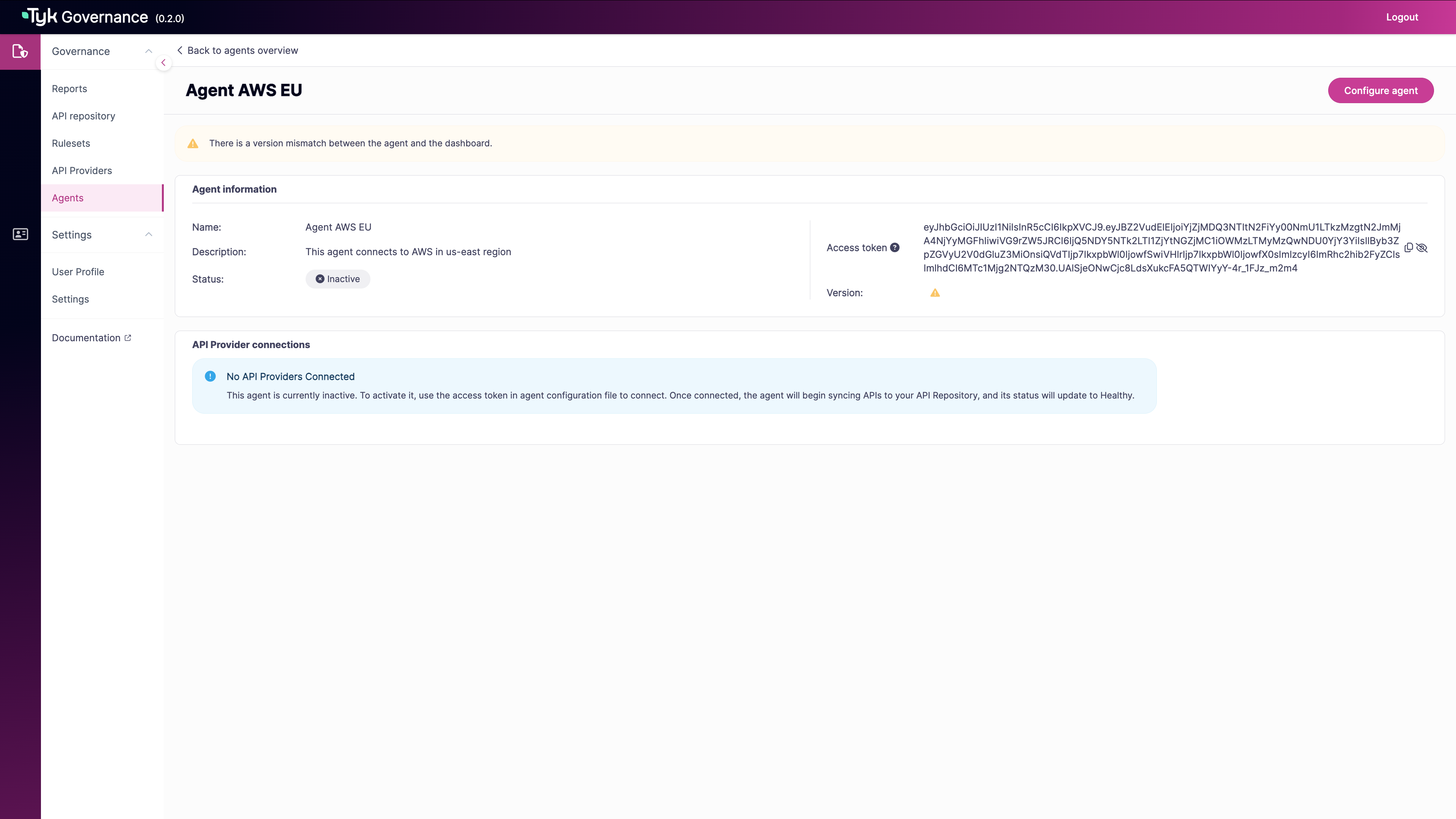
1. From the Agents page, click the **New agent** button in the top-right corner.
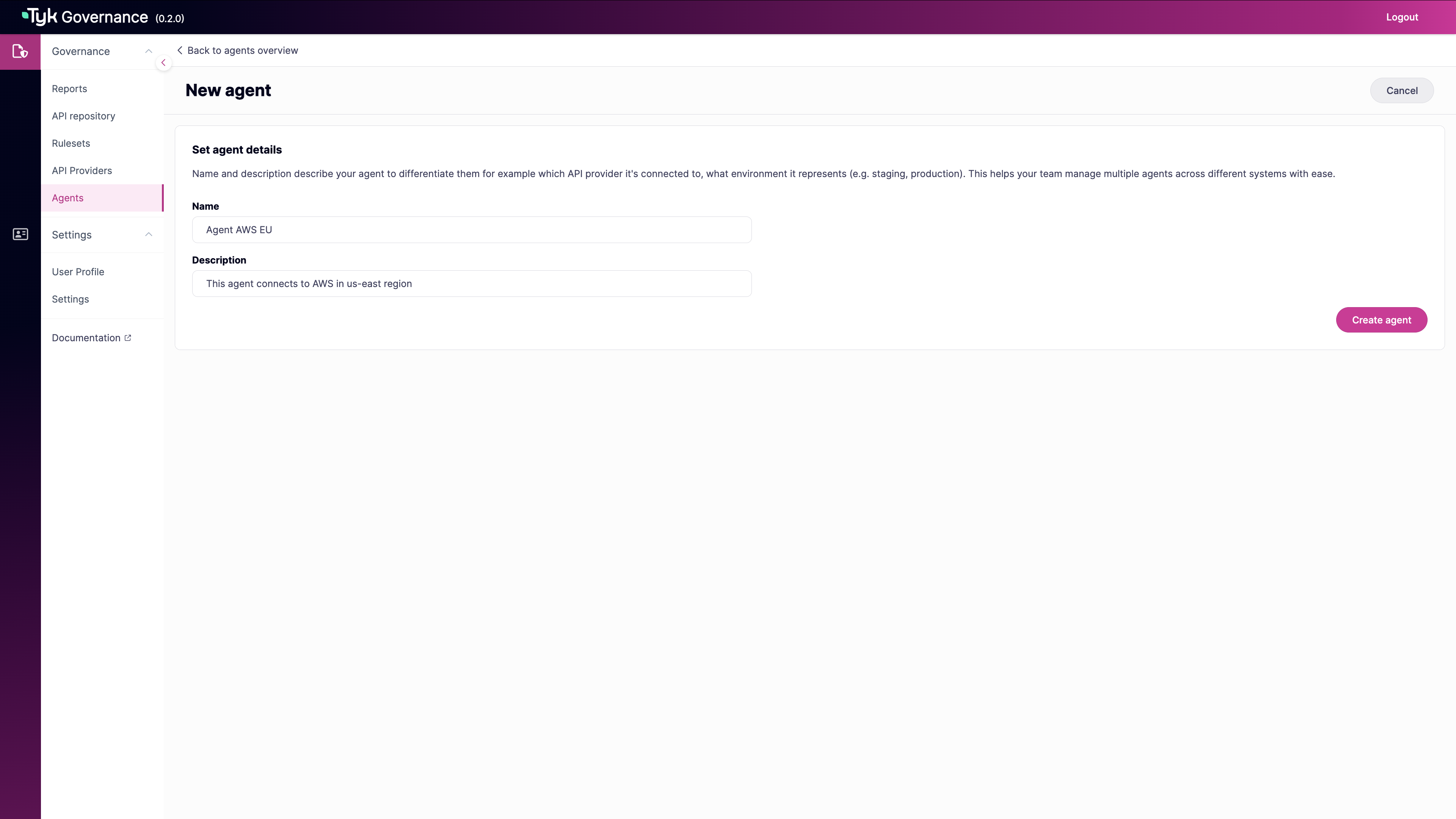
 2. In the New agent form, enter:
* **Name**: A descriptive name for the agent (required)
* **Description**: Details about the agent's purpose or location (required)
Click **Create agent** to save the new agent.
2. In the New agent form, enter:
* **Name**: A descriptive name for the agent (required)
* **Description**: Details about the agent's purpose or location (required)
Click **Create agent** to save the new agent.
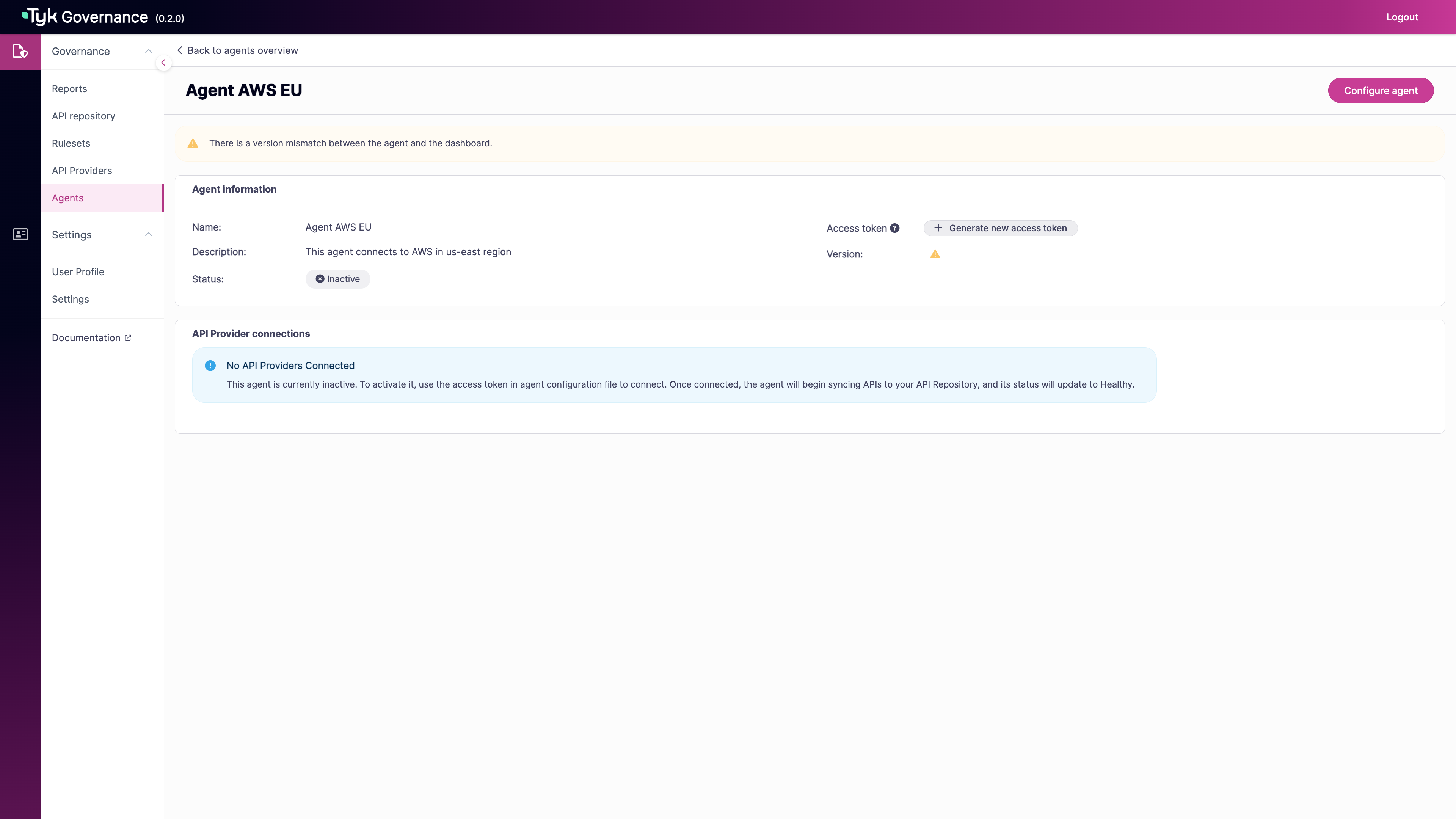
 3. Click "Generate new access token"
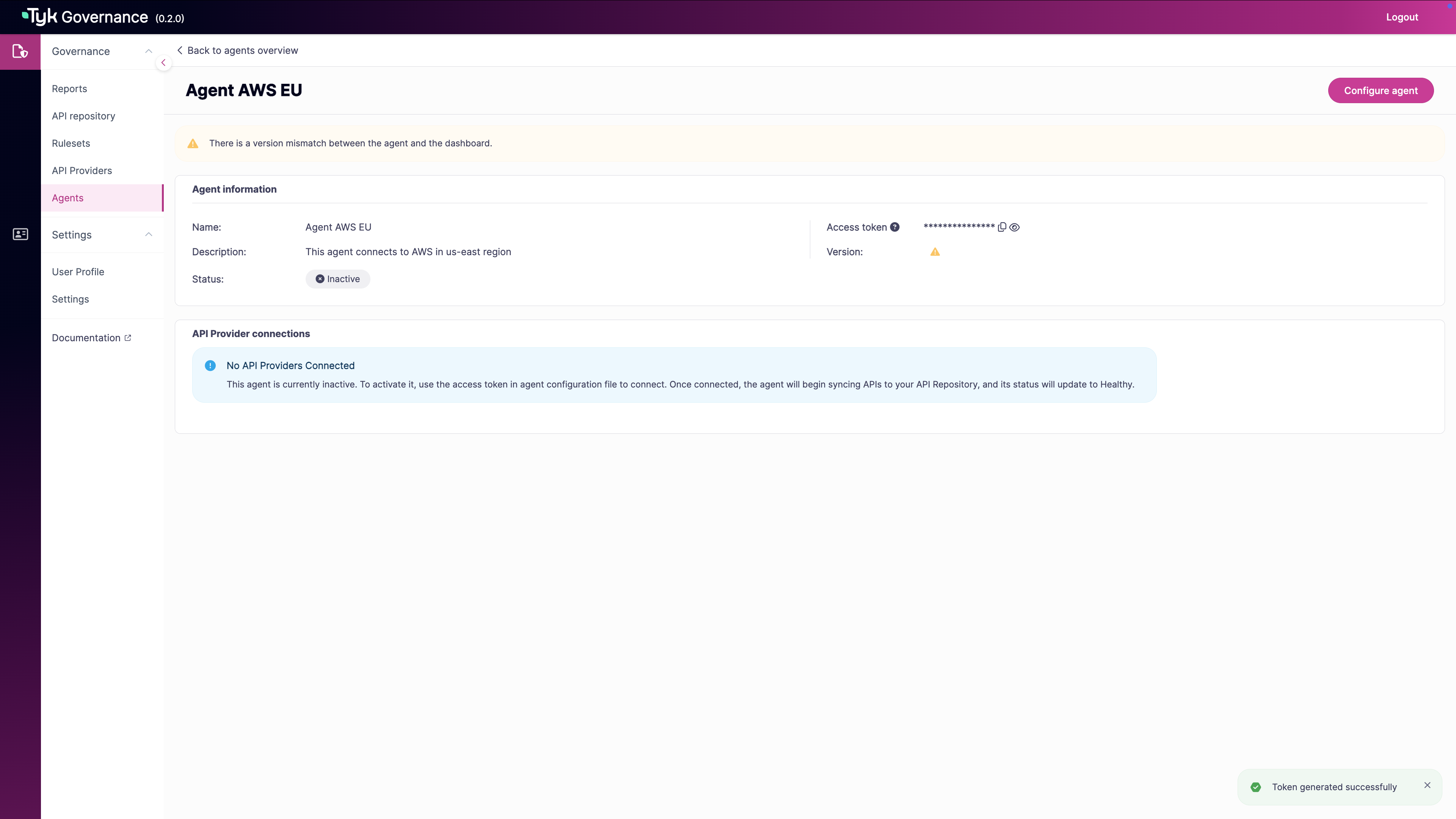
 4. Use the copy icon to copy the token to your clipboard
 #### Generate Agent Token using API
You can also use API to create a token. After receiving your Governance Hub credentials, follow these steps:
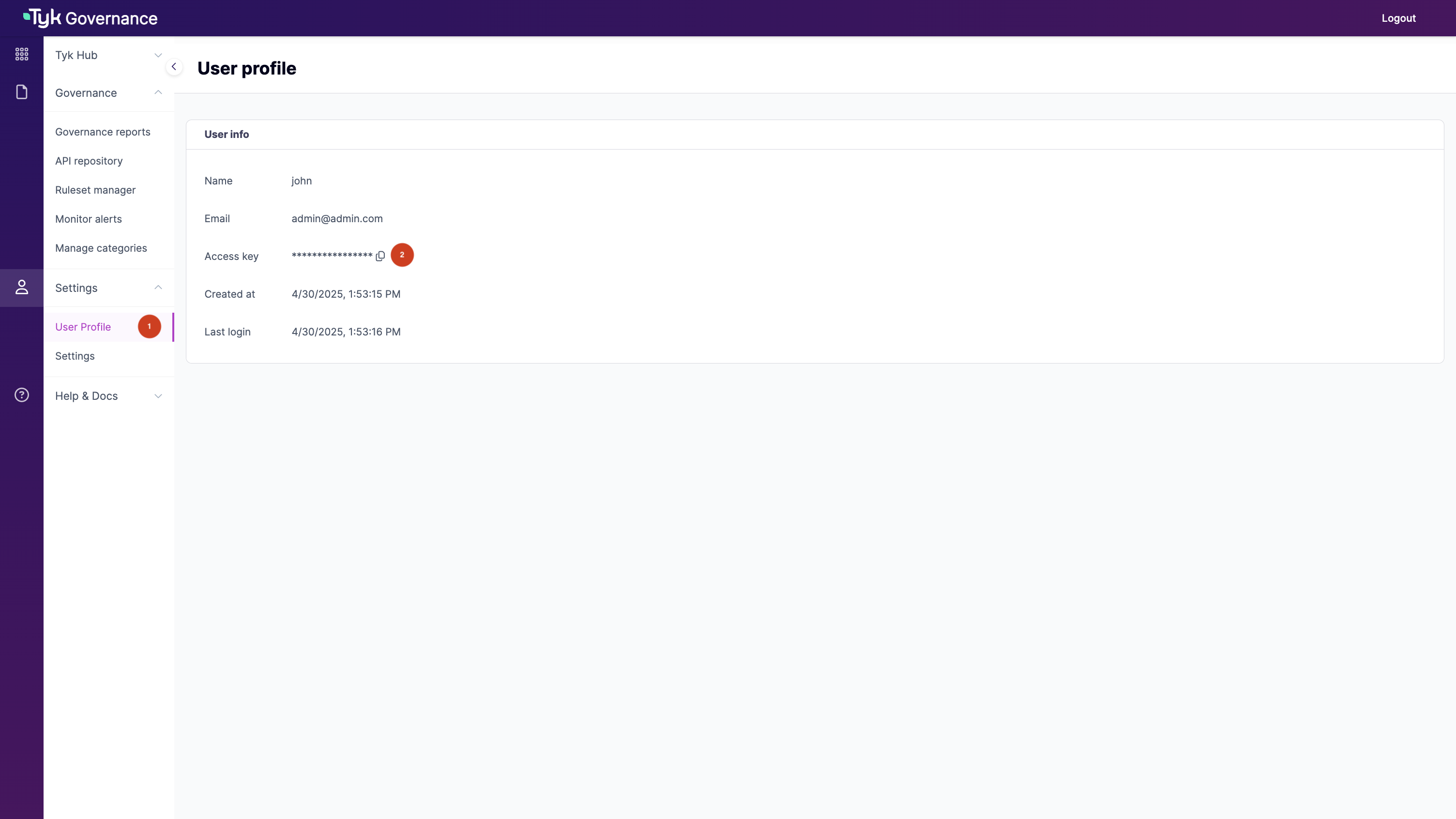
1. **Obtain an API Key**:
* Log in to the Governance Hub using the credentials provided in your welcome email
* Check your Access key under the "Settings > User Profile" section
#### Generate Agent Token using API
You can also use API to create a token. After receiving your Governance Hub credentials, follow these steps:
1. **Obtain an API Key**:
* Log in to the Governance Hub using the credentials provided in your welcome email
* Check your Access key under the "Settings > User Profile" section
 2. **Create an Agent using the API**:
```bash theme={null}
# Replace these values with your actual information
GOVERNANCE_URL="https://your-governance-instance.tyk.io"
API_KEY="your-access-key"
AGENT_NAME="My AWS Agent (US)"
# Create agent first
curl -s -X POST --location "${GOVERNANCE_URL}/api/agents/" \
-H "X-API-Key: ${API_KEY}" \
-H "Content-Type: application/json" \
-d '{
"name": "'"${AGENT_NAME}"'"
}'
```
Example response that shows an agent is created in INACTIVE state:
```json theme={null}
{
"id": "a51d9bd0-bafe-4749-8285-e18641b151f2",
"name": "My AWS agent (US)",
"description": "",
"last_heartbeat": "0001-01-01T00:00:00Z",
"status": "inactive",
"providers": null,
"token": "",
"version": ""
}
```
```bash theme={null}
# Extract agent ID from response
AGENT_ID="a51d9bd0-bafe-4749-8285-e18641b151f2"
```
3. **Generate an Agent Token using the API**:
Now you can generate an access token for the agent.
```bash theme={null}
# API call to create an agent token
curl -X POST "${GOVERNANCE_URL}/api/auth/token/" \
-H "X-API-Key: ${API_KEY}" \
-H "Content-Type: application/json" \
-d '{
"agent_id": "'"${AGENT_ID}"'"
}'
```
Example response:
```json theme={null}
{
"token": "eyJhbGciOiJIUzI1NiIsInR5cCI6IkpXVCJ9...",
}
```
4. **Save the token securely**:
* Copy the `token` value from the response
* Store it securely, as you'll need it for agent configuration
* Note: This token cannot be retrieved later, so make sure to save it
#### Prepare Configuration
Create a configuration file named `agent-config.yaml` with the following structure:
```yaml theme={null}
#==============================================================================
# Tyk Governance Agent Configuration
#==============================================================================
# Your Tyk Governance license key - required for agent authentication
# This is provided by Tyk when you subscribe to the Governance service
licenseKey: "your-tyk-governance-license-key"
# Configuration for connecting to the Tyk Governance dashboard/service
governanceDashboard:
server:
# The gRPC endpoint URL of the Tyk Governance service
# Format: hostname:port (without protocol)
# This is in the format of prefixing "grpc-" to your Governance Hub URL.
url: "grpc-your-governance-instance.tyk.io:443"
auth:
# Authentication token for this agent
# Generated via API call to /auth/token endpoint
# This token identifies and authorizes this specific agent
token: "my-agent-token"
#==============================================================================
# API Provider Configurations
#==============================================================================
# List of API providers this agent will connect to
# Each agent can connect to multiple providers of different types
instances:
#--------------------------------------------------------------------------
# Tyk Provider Configuration
#--------------------------------------------------------------------------
- name: "tyk-provider" # Descriptive name for this provider instance
type: "tyk" # Provider type: must be "tyk" for Tyk Dashboard
config:
# The URL of your Tyk Dashboard
# For Kubernetes deployments, this might be an internal service URL
host: "http://dashboard-svc-tyk-stack-tyk-dashboard.tyk.svc.cluster.local:3000"
# API key with read access to the Tyk Dashboard
# Can be obtained in Tyk Dashboard under "User" > "User Details": "Tyk Dashboard API Access Credentials"
# Requires read permissions for APIs and policies
auth: "your-auth-key"
#--------------------------------------------------------------------------
# AWS API Gateway Provider Configuration
#--------------------------------------------------------------------------
- name: "aws-provider" # Descriptive name for this AWS API Gateway instance
type: "aws" # Provider type: must be "aws" for AWS API Gateway
config:
# AWS IAM credentials with permissions to list and get API Gateway resources
# Recommended: Use an IAM role with minimal required permissions
accessKeyId: "your-aws-access-key-id"
accessKeySecret: "your-aws-access-key-secret"
# AWS region where your API Gateway APIs are deployed
# Example: us-east-1, eu-west-1, ap-southeast-2, etc.
region: "us-east-1"
# Optional: Temporary session token if using temporary credentials
# Required only when using AWS STS temporary credentials
sessionToken: "your-aws-session-token"
#==============================================================================
# Agent Settings
#==============================================================================
# Log level controls verbosity of agent logs
# Options: debug, info, warn, error
# Recommended: info for production, debug for troubleshooting
logLevel: debug
# Health probe configuration for monitoring agent health
# Used by container orchestration systems like Kubernetes
healthProbe:
server:
# Port on which the health probe server will listen
# Ensure this port is not used by other services
port: 5959
```
#### Deploy the Agent
**Docker Deployment:**
```bash theme={null}
# Replace it with your Tyk Governance license key
LICENSE_KEY="tyk-governance-license-key"
# Replace with an available version tag
VERSION="latest"
docker run -d --name tyk-governance-agent \
-v $(pwd)/agent-config.yaml:/app/config.yaml \
-e TYK_AGENT_LICENSEKEY="$LICENSE_KEY" \
tykio/governance-agent:$VERSION
```
**Kubernetes Deployment:**
1. Create a Kubernetes secret for the configuration:
```bash theme={null}
kubectl create secret generic agent-config \
--from-file=config.yaml=./agent-config.yaml \
-n your-namespace
```
2. Apply the following manifest:
```yaml theme={null}
apiVersion: apps/v1
kind: Deployment
metadata:
name: governance-agent
namespace: your-namespace # Replace with your namespace
spec:
replicas: 1
selector:
matchLabels:
app: tyk-governance-agent
template:
metadata:
labels:
app: tyk-governance-agent
spec:
containers:
- name: agent
image: tykio/governance-agent:latest # Replace with an available version tag
env:
- name: TYK_AGENT_LICENSEKEY
value: your-governance-license #Replace with your license key
ports:
- name: health
containerPort: 5959
protocol: TCP
livenessProbe:
httpGet:
path: /health
port: health
readinessProbe:
httpGet:
path: /live
port: health
volumeMounts:
- mountPath: /app/config.yaml
name: agent-config
subPath: config.yaml
volumes:
- name: agent-config
secret:
secretName: agent-config
items:
- key: config.yaml
path: config.yaml
```
Apply with:
```bash theme={null}
kubectl apply -f agent-deployment.yaml
```
#### Verify Agent Connection
1. Check if the agent is running properly:
```bash theme={null}
# For Docker
docker logs tyk-governance-agent
# For Kubernetes
kubectl logs -l app=tyk-governance-agent -n your-namespace
```
2. Look for log messages indicating a successful connection:
```
Starting license validation...
License validated successfully. Valid till: ...
starting agent
agent started successfully
waiting agent to establish health check
starting health probes HTTP server","addr":":5959
authenticated and established health stream
health check established, waiting for sync stream
agent registered successfully and established sync stream with governance dashboard
waiting for sync requests from the dashboard
```
#### Trigger Initial Sync
1. In the Governance Hub, navigate to "API Repository"
2. Click the "ReSync" button to initiate synchronisation
2. **Create an Agent using the API**:
```bash theme={null}
# Replace these values with your actual information
GOVERNANCE_URL="https://your-governance-instance.tyk.io"
API_KEY="your-access-key"
AGENT_NAME="My AWS Agent (US)"
# Create agent first
curl -s -X POST --location "${GOVERNANCE_URL}/api/agents/" \
-H "X-API-Key: ${API_KEY}" \
-H "Content-Type: application/json" \
-d '{
"name": "'"${AGENT_NAME}"'"
}'
```
Example response that shows an agent is created in INACTIVE state:
```json theme={null}
{
"id": "a51d9bd0-bafe-4749-8285-e18641b151f2",
"name": "My AWS agent (US)",
"description": "",
"last_heartbeat": "0001-01-01T00:00:00Z",
"status": "inactive",
"providers": null,
"token": "",
"version": ""
}
```
```bash theme={null}
# Extract agent ID from response
AGENT_ID="a51d9bd0-bafe-4749-8285-e18641b151f2"
```
3. **Generate an Agent Token using the API**:
Now you can generate an access token for the agent.
```bash theme={null}
# API call to create an agent token
curl -X POST "${GOVERNANCE_URL}/api/auth/token/" \
-H "X-API-Key: ${API_KEY}" \
-H "Content-Type: application/json" \
-d '{
"agent_id": "'"${AGENT_ID}"'"
}'
```
Example response:
```json theme={null}
{
"token": "eyJhbGciOiJIUzI1NiIsInR5cCI6IkpXVCJ9...",
}
```
4. **Save the token securely**:
* Copy the `token` value from the response
* Store it securely, as you'll need it for agent configuration
* Note: This token cannot be retrieved later, so make sure to save it
#### Prepare Configuration
Create a configuration file named `agent-config.yaml` with the following structure:
```yaml theme={null}
#==============================================================================
# Tyk Governance Agent Configuration
#==============================================================================
# Your Tyk Governance license key - required for agent authentication
# This is provided by Tyk when you subscribe to the Governance service
licenseKey: "your-tyk-governance-license-key"
# Configuration for connecting to the Tyk Governance dashboard/service
governanceDashboard:
server:
# The gRPC endpoint URL of the Tyk Governance service
# Format: hostname:port (without protocol)
# This is in the format of prefixing "grpc-" to your Governance Hub URL.
url: "grpc-your-governance-instance.tyk.io:443"
auth:
# Authentication token for this agent
# Generated via API call to /auth/token endpoint
# This token identifies and authorizes this specific agent
token: "my-agent-token"
#==============================================================================
# API Provider Configurations
#==============================================================================
# List of API providers this agent will connect to
# Each agent can connect to multiple providers of different types
instances:
#--------------------------------------------------------------------------
# Tyk Provider Configuration
#--------------------------------------------------------------------------
- name: "tyk-provider" # Descriptive name for this provider instance
type: "tyk" # Provider type: must be "tyk" for Tyk Dashboard
config:
# The URL of your Tyk Dashboard
# For Kubernetes deployments, this might be an internal service URL
host: "http://dashboard-svc-tyk-stack-tyk-dashboard.tyk.svc.cluster.local:3000"
# API key with read access to the Tyk Dashboard
# Can be obtained in Tyk Dashboard under "User" > "User Details": "Tyk Dashboard API Access Credentials"
# Requires read permissions for APIs and policies
auth: "your-auth-key"
#--------------------------------------------------------------------------
# AWS API Gateway Provider Configuration
#--------------------------------------------------------------------------
- name: "aws-provider" # Descriptive name for this AWS API Gateway instance
type: "aws" # Provider type: must be "aws" for AWS API Gateway
config:
# AWS IAM credentials with permissions to list and get API Gateway resources
# Recommended: Use an IAM role with minimal required permissions
accessKeyId: "your-aws-access-key-id"
accessKeySecret: "your-aws-access-key-secret"
# AWS region where your API Gateway APIs are deployed
# Example: us-east-1, eu-west-1, ap-southeast-2, etc.
region: "us-east-1"
# Optional: Temporary session token if using temporary credentials
# Required only when using AWS STS temporary credentials
sessionToken: "your-aws-session-token"
#==============================================================================
# Agent Settings
#==============================================================================
# Log level controls verbosity of agent logs
# Options: debug, info, warn, error
# Recommended: info for production, debug for troubleshooting
logLevel: debug
# Health probe configuration for monitoring agent health
# Used by container orchestration systems like Kubernetes
healthProbe:
server:
# Port on which the health probe server will listen
# Ensure this port is not used by other services
port: 5959
```
#### Deploy the Agent
**Docker Deployment:**
```bash theme={null}
# Replace it with your Tyk Governance license key
LICENSE_KEY="tyk-governance-license-key"
# Replace with an available version tag
VERSION="latest"
docker run -d --name tyk-governance-agent \
-v $(pwd)/agent-config.yaml:/app/config.yaml \
-e TYK_AGENT_LICENSEKEY="$LICENSE_KEY" \
tykio/governance-agent:$VERSION
```
**Kubernetes Deployment:**
1. Create a Kubernetes secret for the configuration:
```bash theme={null}
kubectl create secret generic agent-config \
--from-file=config.yaml=./agent-config.yaml \
-n your-namespace
```
2. Apply the following manifest:
```yaml theme={null}
apiVersion: apps/v1
kind: Deployment
metadata:
name: governance-agent
namespace: your-namespace # Replace with your namespace
spec:
replicas: 1
selector:
matchLabels:
app: tyk-governance-agent
template:
metadata:
labels:
app: tyk-governance-agent
spec:
containers:
- name: agent
image: tykio/governance-agent:latest # Replace with an available version tag
env:
- name: TYK_AGENT_LICENSEKEY
value: your-governance-license #Replace with your license key
ports:
- name: health
containerPort: 5959
protocol: TCP
livenessProbe:
httpGet:
path: /health
port: health
readinessProbe:
httpGet:
path: /live
port: health
volumeMounts:
- mountPath: /app/config.yaml
name: agent-config
subPath: config.yaml
volumes:
- name: agent-config
secret:
secretName: agent-config
items:
- key: config.yaml
path: config.yaml
```
Apply with:
```bash theme={null}
kubectl apply -f agent-deployment.yaml
```
#### Verify Agent Connection
1. Check if the agent is running properly:
```bash theme={null}
# For Docker
docker logs tyk-governance-agent
# For Kubernetes
kubectl logs -l app=tyk-governance-agent -n your-namespace
```
2. Look for log messages indicating a successful connection:
```
Starting license validation...
License validated successfully. Valid till: ...
starting agent
agent started successfully
waiting agent to establish health check
starting health probes HTTP server","addr":":5959
authenticated and established health stream
health check established, waiting for sync stream
agent registered successfully and established sync stream with governance dashboard
waiting for sync requests from the dashboard
```
#### Trigger Initial Sync
1. In the Governance Hub, navigate to "API Repository"
2. Click the "ReSync" button to initiate synchronisation
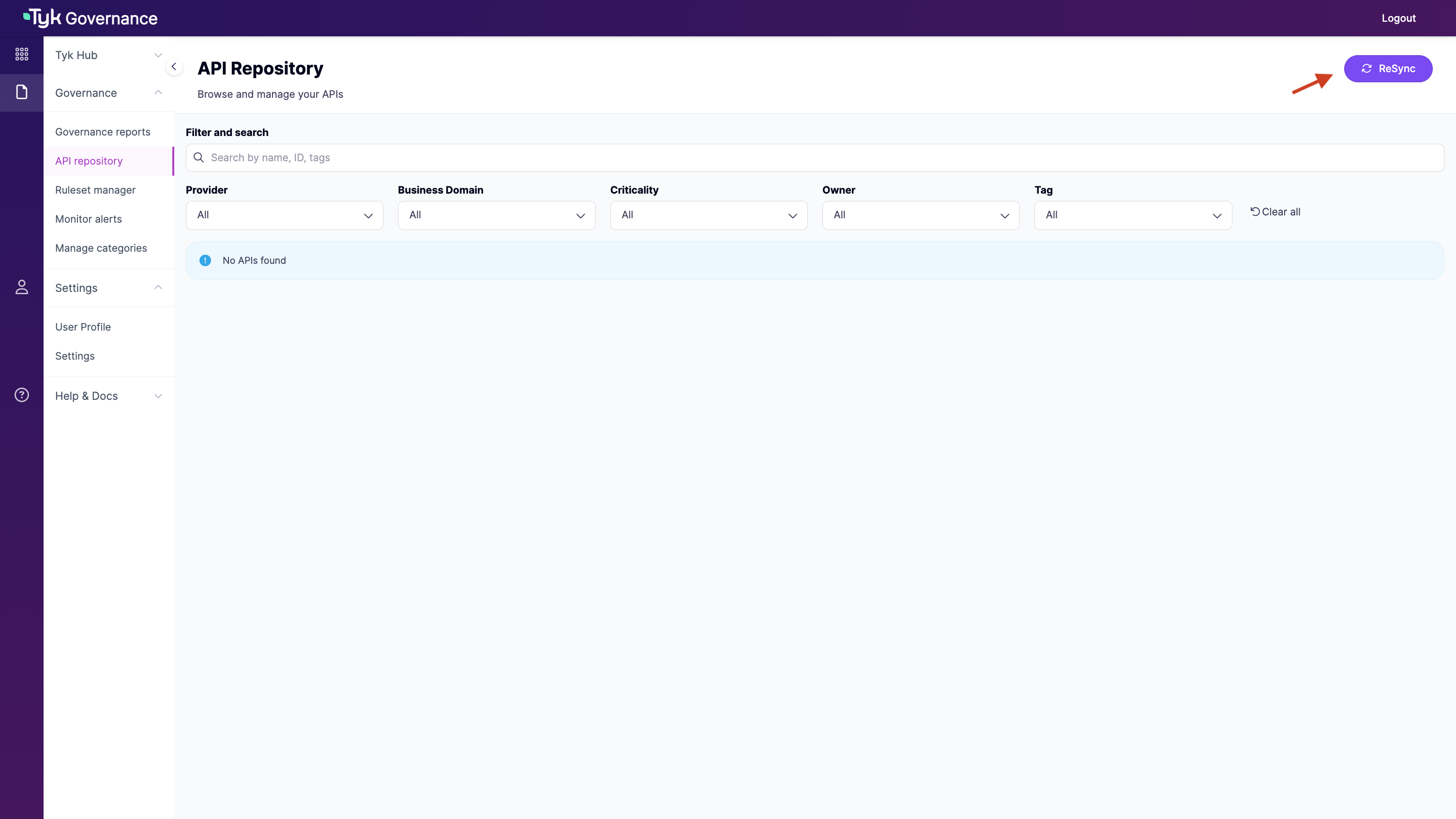 3. Monitor the sync progress in the UI or refresh the page manually.
## Examples
The following examples demonstrate common deployment scenarios and configurations for Tyk Governance.
### Example 1: Tyk Cloud with Automatic Agent
This is the simplest deployment model for existing Tyk Cloud customers.
**Configuration Steps:**
1. Requesting Access to Tyk Governance
2. Enable the Governance feature in Tyk Cloud Control Plane as described in [Enabling Governance Feature for Cloud Control Planes](#enabling-governance-feature-for-cloud-control-planes)
3. Wait for automatic agent deployment
4. Access the Governance Hub from the Cloud UI sidebar
5. Navigate to "API Repository" to view your automatically discovered APIs
6. Trigger "ReSync" to pull updates from the control planes
**Expected Outcome:**
* All APIs from your Tyk Control Plane will be automatically discovered and displayed in the API Repository
### Example 2: Multi-Platform Governance with Custom Agents
This example demonstrates how to set up governance across multiple API providers.
**Configuration Steps:**
1. Requesting Access to Tyk Governance
2. Generate agent tokens for each provider as described in [Installing a Local Agent](#installing-a-local-agent)
3. Create configuration files for each agent
4. Deploy each agent using Docker or Kubernetes as described in [Installing a Local Agent](#installing-a-local-agent)
5. Verify agent connections
6. Access the Governance Hub with the provided URL
7. Navigate to "API Repository" to view your automatically discovered APIs
8. Trigger "ReSync" to pull updates from all agents
**Expected Outcome:**
* APIs from all providers will be discovered and displayed in a unified repository
3. Monitor the sync progress in the UI or refresh the page manually.
## Examples
The following examples demonstrate common deployment scenarios and configurations for Tyk Governance.
### Example 1: Tyk Cloud with Automatic Agent
This is the simplest deployment model for existing Tyk Cloud customers.
**Configuration Steps:**
1. Requesting Access to Tyk Governance
2. Enable the Governance feature in Tyk Cloud Control Plane as described in [Enabling Governance Feature for Cloud Control Planes](#enabling-governance-feature-for-cloud-control-planes)
3. Wait for automatic agent deployment
4. Access the Governance Hub from the Cloud UI sidebar
5. Navigate to "API Repository" to view your automatically discovered APIs
6. Trigger "ReSync" to pull updates from the control planes
**Expected Outcome:**
* All APIs from your Tyk Control Plane will be automatically discovered and displayed in the API Repository
### Example 2: Multi-Platform Governance with Custom Agents
This example demonstrates how to set up governance across multiple API providers.
**Configuration Steps:**
1. Requesting Access to Tyk Governance
2. Generate agent tokens for each provider as described in [Installing a Local Agent](#installing-a-local-agent)
3. Create configuration files for each agent
4. Deploy each agent using Docker or Kubernetes as described in [Installing a Local Agent](#installing-a-local-agent)
5. Verify agent connections
6. Access the Governance Hub with the provided URL
7. Navigate to "API Repository" to view your automatically discovered APIs
8. Trigger "ReSync" to pull updates from all agents
**Expected Outcome:**
* APIs from all providers will be discovered and displayed in a unified repository