> ## Documentation Index
> Fetch the complete documentation index at: https://tyk.io/docs/llms.txt
> Use this file to discover all available pages before exploring further.
# Configure Custom Plugins in Tyk Cloud
> Learn how to set up and manage custom plugins in Tyk Cloud Control Plane deployments.
## Introduction
This section explains that you can use plugins with Tyk Cloud and links to details of Python, JSVM and Golang based plugins.
Tyk Cloud allows you to take advantage of Tyk's plugin architecture that allows you to write powerful middleware. For this version of Tyk Cloud, we support the use of Python, JavaScript Middleware and Golang based plugins.
For more details, see:
* [Python Plugins](/api-management/plugins/rich-plugins#overview)
* [JSVM](/api-management/plugins/javascript#)
* [Golang](/tyk-cloud/using-plugins)
Next you'll set up an Tyk Cloud Control Plane to use a Python Authentication Plugin.
## Setup Control Plane
This page explains how to set up a control plane with plugins to customize it on Tyk Cloud, so that you can ensure your API management solution is as effective as possible.
**What do I need to do to use Plugins?**
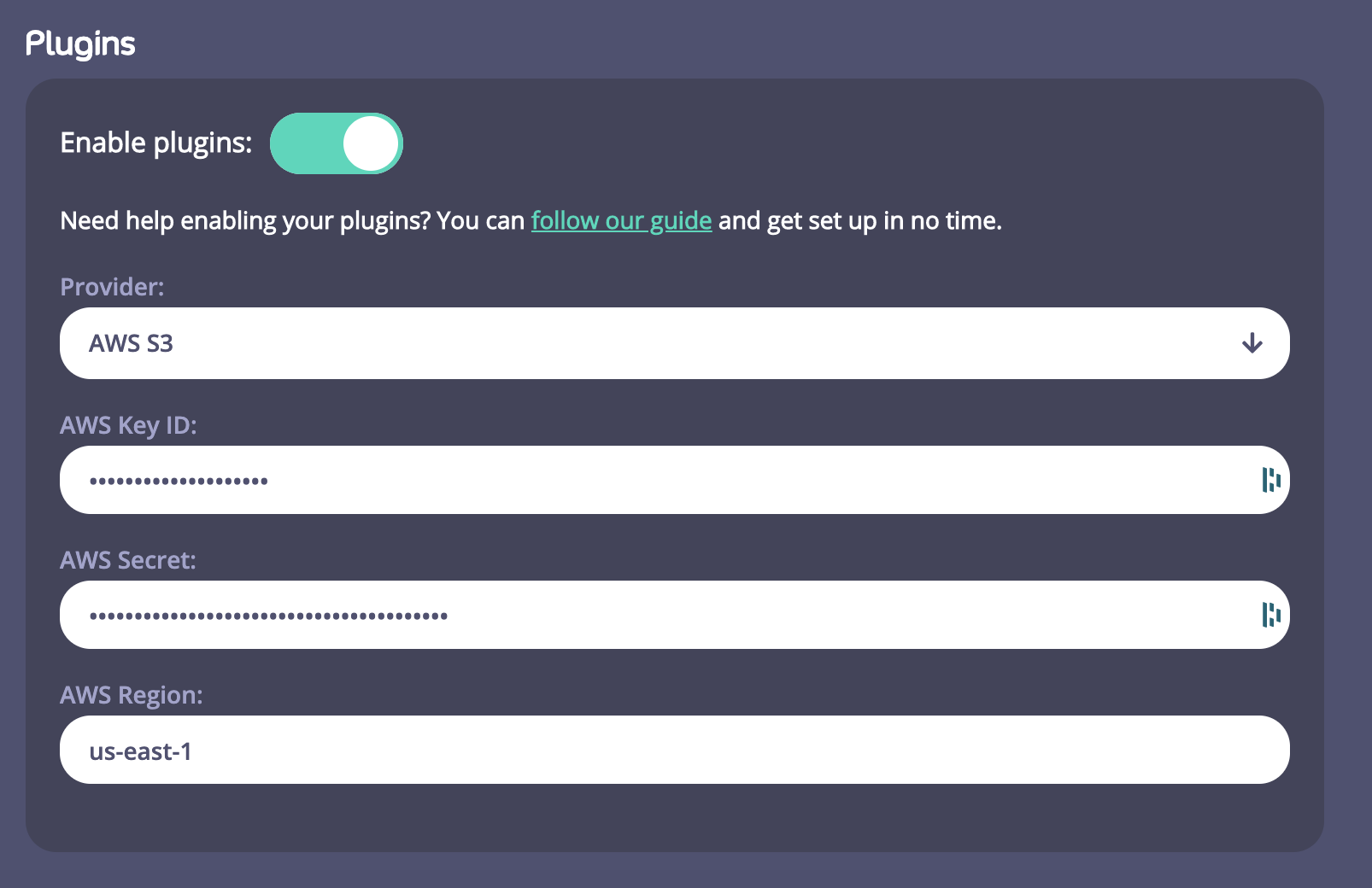 1. You need to enable Plugins on a Control Plane and on a Cloud Data Plane.
2. You need to enter Provider details to enable you to store and access your plugins. For this version of Tyk Cloud, we are supporting Amazon AWS S3. If you haven't got an AWS S3 account, go to [https://aws.amazon.com/s3/](https://aws.amazon.com/s3/) and set one up. You will need the following details to configure SW3 within your Control Plane:
* Your AWS Key ID
* Your AWS Secret
* Your AWS Region
For this release of Tyk Cloud, you need to enter your AWS Region manually. You also need to consider that uploading a custom plugin bundle to Tyk Cloud results in a new bucket being created for each bundle uploaded. It also requires that Tyk Cloud has permissions in the form of an AWS IAM policy to have create rights on AWS.
**AWS IAM Policy**
**What is an IAM Policy?**
* A policy is an entity that, when attached to an identity or resource, defines their permissions. IAM policies define permissions for an action regardless of the method that you use to perform the operation.
* We have included a sample IAM policy that you need to create in AWS to allow the plugin bundle to work. For more information on creating IAM policies, see the [AWS Documentation](https://docs.aws.amazon.com/IAM/latest/UserGuide/access_policies_create-console.html).
We recommend you restrict your IAM user as much as possible before sharing the credentials with any 3rd party, including Tyk Cloud. See [IAM User Permissions](https://docs.aws.amazon.com/IAM/latest/UserGuide/id_users_change-permissions.html) for more details.
```.json theme={null}
{
"Version": "2012-10-17",
"Statement": [
{
"Sid": "VisualEditor0",
"Effect": "Allow",
"Action": [
"s3:CreateBucket",
"s3:ListBucket",
"s3:GetBucketLocation",
"s3:DeleteBucket"
],
"Resource": "arn:aws:s3:::mserv-plugin-*"
},
{
"Effect": "Allow",
"Action": "s3:ListAllMyBuckets",
"Resource": "*"
},
{
"Sid": "VisualEditor1",
"Effect": "Allow",
"Action": [
"s3:PutObject",
"s3:GetObject",
"s3:DeleteObject"
],
"Resource": "arn:aws:s3:::mserv-plugin-*/*"
}
]
}
```
Next you'll [set up the Python authentication code bundle](#create-a-python-code-bundle).
## Uploading your Bundle
This section walks you through uploading your bundle as part of the process of Python custom authentication on Tyk Cloud, so that you can ensure your API management solution is as effective as possible.
**How do I upload my bundle file to my Amazon S3 bucket?**
We are going to use a Tyk CLI tool called **mservctl**. This acts as a file server for our plugins. You use it to push your plugin bundle to your S3 bucket. Your Tyk Cloud Tyk Gateway will use **MServ** to retrieve your bundle, instead of connecting directly into S3.
**Prerequisites**
1. You need to install the mserv binary according to your local environment from the following repo - [https://github.com/TykTechnologies/mserv/releases](https://github.com/TykTechnologies/mserv/releases). Linux and MacOS are supported.
2. From your Control Plane you need the following settings.
1. You need to enable Plugins on a Control Plane and on a Cloud Data Plane.
2. You need to enter Provider details to enable you to store and access your plugins. For this version of Tyk Cloud, we are supporting Amazon AWS S3. If you haven't got an AWS S3 account, go to [https://aws.amazon.com/s3/](https://aws.amazon.com/s3/) and set one up. You will need the following details to configure SW3 within your Control Plane:
* Your AWS Key ID
* Your AWS Secret
* Your AWS Region
For this release of Tyk Cloud, you need to enter your AWS Region manually. You also need to consider that uploading a custom plugin bundle to Tyk Cloud results in a new bucket being created for each bundle uploaded. It also requires that Tyk Cloud has permissions in the form of an AWS IAM policy to have create rights on AWS.
**AWS IAM Policy**
**What is an IAM Policy?**
* A policy is an entity that, when attached to an identity or resource, defines their permissions. IAM policies define permissions for an action regardless of the method that you use to perform the operation.
* We have included a sample IAM policy that you need to create in AWS to allow the plugin bundle to work. For more information on creating IAM policies, see the [AWS Documentation](https://docs.aws.amazon.com/IAM/latest/UserGuide/access_policies_create-console.html).
We recommend you restrict your IAM user as much as possible before sharing the credentials with any 3rd party, including Tyk Cloud. See [IAM User Permissions](https://docs.aws.amazon.com/IAM/latest/UserGuide/id_users_change-permissions.html) for more details.
```.json theme={null}
{
"Version": "2012-10-17",
"Statement": [
{
"Sid": "VisualEditor0",
"Effect": "Allow",
"Action": [
"s3:CreateBucket",
"s3:ListBucket",
"s3:GetBucketLocation",
"s3:DeleteBucket"
],
"Resource": "arn:aws:s3:::mserv-plugin-*"
},
{
"Effect": "Allow",
"Action": "s3:ListAllMyBuckets",
"Resource": "*"
},
{
"Sid": "VisualEditor1",
"Effect": "Allow",
"Action": [
"s3:PutObject",
"s3:GetObject",
"s3:DeleteObject"
],
"Resource": "arn:aws:s3:::mserv-plugin-*/*"
}
]
}
```
Next you'll [set up the Python authentication code bundle](#create-a-python-code-bundle).
## Uploading your Bundle
This section walks you through uploading your bundle as part of the process of Python custom authentication on Tyk Cloud, so that you can ensure your API management solution is as effective as possible.
**How do I upload my bundle file to my Amazon S3 bucket?**
We are going to use a Tyk CLI tool called **mservctl**. This acts as a file server for our plugins. You use it to push your plugin bundle to your S3 bucket. Your Tyk Cloud Tyk Gateway will use **MServ** to retrieve your bundle, instead of connecting directly into S3.
**Prerequisites**
1. You need to install the mserv binary according to your local environment from the following repo - [https://github.com/TykTechnologies/mserv/releases](https://github.com/TykTechnologies/mserv/releases). Linux and MacOS are supported.
2. From your Control Plane you need the following settings.
 * Your Tyk Cloud Control Plane Ingress File Server Endpoint (1)
* Your File Server API Key (2)
**How does mservctl work?**
You create a config file (in YAML) that contains your Control Plane settings that connects to your S3 bucket. You then use a `push` command to upload your `bundle.zip` file to your bucket.
**mservctl settings - Mac**
To run `mservctl` from your local machine, from the binary directory, run:
```.bash theme={null}
./mservctl.macos.amd64
```
**mservctl settings - Linux**
To run `mservctl` from your local machine, from the binary directory, run:
```.bash theme={null}
./mservctl.linux.amd64
```
The help for mservctl will be displayed. We will be using the config file options for this tutorial.
```.bash theme={null}
$ mservctl help
mservctl is a CLI application that enables listing and operating middleware in an Mserv instance.
Use a config file (by default at $HOME/.mservctl.yaml) in order to configure the Mserv to use with the CLI.
Alternatively pass the values with command line arguments, e.g.:
$ mservctl list -e https://remote.mserv:8989
Set TYK_MSERV_LOGLEVEL="debug" environment variable to see raw API requests and responses.
Usage:
mservctl [command]
Available Commands:
delete Deletes a middleware from mserv
fetch Fetches a middleware record from mserv
help Help about any command
list List middleware in mserv
push Pushes a middleware to mserv
Flags:
--config string config file (default is $HOME/.mservctl.yaml)
-e, --endpoint string mserv endpoint
-h, --help help for mservctl
-t, --token string mserv security token
Use "mservctl [command] --help" for more information about a command.
```
You may have to change the CHMOD settings on the binary to make it executable. (`chmod +x `). On MacOS you may also need to change your security settings to allow the binary to run.
**Creating the mserv config file**
1. Create a file (we'll call it `python-demo.mservctl.yaml`)
2. Copy your Control Plane File Server endpoint URL and use it for your `endpoint` flag. Remember to prepend it with `https://`.
3. Copy your File Server API Key and use it for your `token` flag
Your `python-demo.mservctl.yaml` config file should now look like this:
```.yaml theme={null}
endpoint: https://agreeable-native-mgw.usw2.ara-staging.tyk.technology/mserv
token: eyJvcmciOiI1ZWIyOGUwY2M3ZDc4YzAwMDFlZGQ4ZmYiLCJpZCI6ImVmMTZiNGM3Y2QwMDQ3Y2JhMTAxNWIyOTUzZGRkOWRmIiwiaCI6Im11cm11cjEyOCJ9
```
**Uploading To Your S3 Bucket**
1. We are going to use the MacOS binary here, just substitute the binary name for the Linx version if using that OS. Note we have our YAML config file in the same directory as our bundle.zip file. Run the following mserv `push` command:
```.bash theme={null}
./mservctl.macos.amd64 --config ~/my-tyk-plugin/python-demo.mservctl.yaml push ~/my-tyk-plugin/bundle.zip
```
2. You should get confirmation that your middleware has been uploaded to your S3 bucket.
```.bash theme={null}
INFO[0000] Using config file:/Users/marksouthee/my-tyk-plugin/python-demo.mservctl.yaml app=mservctl
Middleware uploaded successfully, ID: 9c9ecec1-8f98-4c3f-88cd-ca3c27599e6b
```
3. You will notice that the middleware uploaded has been given an ID. We are going to use that ID with an API that allows you to specify specific middlware. You can also check the contents of the middleware you have just uploaded using the mservctl `list` command. Run:
```.bash theme={null}
./mservctl.macos.amd64 --config ~/my-tyk-plugin/python-demo.mservctl.yaml list
```
4. You will see the list of middleware you have pushed to your S3 Bucket
```.bash theme={null}
INFO[0000] Using config file:/Users/marksouthee/my-tyk-plugin/python-demo.mservctl.yaml app=mservctl
ID ACTIVE SERVE ONLY LAST UPDATE
9c9ecec1-8f98-4c3f-88cd-ca3c27599e6b true false 2020-05-20T15:06:55.901Z
```
5. If you use the -f flag with the list command, you will see the functions within your middleware listed:
```.bash theme={null}
./mservctl.macos.amd64 --config ~/my-tyk-plugin/python-demo.mservctl.yaml list -f
```
6. As you can see, the 2 middleware hooks specified within your `manifest.json` are returned:
```.bash theme={null}
INFO[0000] Using config file:/Users/marksouthee/my-tyk-plugin/python-demo.mservctl.yaml app=mservctl
ID ACTIVE SERVE ONLY LAST UPDATE FUNCTION TYPE
9c9ecec1-8f98-4c3f-88cd-ca3c27599e6b true false 2020-05-20T15:06:55.901Z
MyPostMiddleware Post
MyAuthMiddleware CustomKeyCheck
```
Next you will [create an API](#test-middleware) from our Control Plane and see our middleware in action.
## Test Middleware
This section explains how to test out your Python custom authentication on Tyk Cloud, to ensure that it’s working properly.
**Testing our middleware with an API**
You now have your middleware uploaded to your S3 bucket. We are now going to create an API from our Control Plane Dashboard and test it via Postman
**Prerequisites**
* A Postman API Client from [https://www.postman.com/product/api-client/](https://www.postman.com/product/api-client/)
* Your mserv middleware ID
* The `auth` value token from your `middleware.py` code
**Create your API**
1. From your Control Plane in Tyk Cloud, click the *Ingress > Dashboard link*
* Your Tyk Cloud Control Plane Ingress File Server Endpoint (1)
* Your File Server API Key (2)
**How does mservctl work?**
You create a config file (in YAML) that contains your Control Plane settings that connects to your S3 bucket. You then use a `push` command to upload your `bundle.zip` file to your bucket.
**mservctl settings - Mac**
To run `mservctl` from your local machine, from the binary directory, run:
```.bash theme={null}
./mservctl.macos.amd64
```
**mservctl settings - Linux**
To run `mservctl` from your local machine, from the binary directory, run:
```.bash theme={null}
./mservctl.linux.amd64
```
The help for mservctl will be displayed. We will be using the config file options for this tutorial.
```.bash theme={null}
$ mservctl help
mservctl is a CLI application that enables listing and operating middleware in an Mserv instance.
Use a config file (by default at $HOME/.mservctl.yaml) in order to configure the Mserv to use with the CLI.
Alternatively pass the values with command line arguments, e.g.:
$ mservctl list -e https://remote.mserv:8989
Set TYK_MSERV_LOGLEVEL="debug" environment variable to see raw API requests and responses.
Usage:
mservctl [command]
Available Commands:
delete Deletes a middleware from mserv
fetch Fetches a middleware record from mserv
help Help about any command
list List middleware in mserv
push Pushes a middleware to mserv
Flags:
--config string config file (default is $HOME/.mservctl.yaml)
-e, --endpoint string mserv endpoint
-h, --help help for mservctl
-t, --token string mserv security token
Use "mservctl [command] --help" for more information about a command.
```
You may have to change the CHMOD settings on the binary to make it executable. (`chmod +x `). On MacOS you may also need to change your security settings to allow the binary to run.
**Creating the mserv config file**
1. Create a file (we'll call it `python-demo.mservctl.yaml`)
2. Copy your Control Plane File Server endpoint URL and use it for your `endpoint` flag. Remember to prepend it with `https://`.
3. Copy your File Server API Key and use it for your `token` flag
Your `python-demo.mservctl.yaml` config file should now look like this:
```.yaml theme={null}
endpoint: https://agreeable-native-mgw.usw2.ara-staging.tyk.technology/mserv
token: eyJvcmciOiI1ZWIyOGUwY2M3ZDc4YzAwMDFlZGQ4ZmYiLCJpZCI6ImVmMTZiNGM3Y2QwMDQ3Y2JhMTAxNWIyOTUzZGRkOWRmIiwiaCI6Im11cm11cjEyOCJ9
```
**Uploading To Your S3 Bucket**
1. We are going to use the MacOS binary here, just substitute the binary name for the Linx version if using that OS. Note we have our YAML config file in the same directory as our bundle.zip file. Run the following mserv `push` command:
```.bash theme={null}
./mservctl.macos.amd64 --config ~/my-tyk-plugin/python-demo.mservctl.yaml push ~/my-tyk-plugin/bundle.zip
```
2. You should get confirmation that your middleware has been uploaded to your S3 bucket.
```.bash theme={null}
INFO[0000] Using config file:/Users/marksouthee/my-tyk-plugin/python-demo.mservctl.yaml app=mservctl
Middleware uploaded successfully, ID: 9c9ecec1-8f98-4c3f-88cd-ca3c27599e6b
```
3. You will notice that the middleware uploaded has been given an ID. We are going to use that ID with an API that allows you to specify specific middlware. You can also check the contents of the middleware you have just uploaded using the mservctl `list` command. Run:
```.bash theme={null}
./mservctl.macos.amd64 --config ~/my-tyk-plugin/python-demo.mservctl.yaml list
```
4. You will see the list of middleware you have pushed to your S3 Bucket
```.bash theme={null}
INFO[0000] Using config file:/Users/marksouthee/my-tyk-plugin/python-demo.mservctl.yaml app=mservctl
ID ACTIVE SERVE ONLY LAST UPDATE
9c9ecec1-8f98-4c3f-88cd-ca3c27599e6b true false 2020-05-20T15:06:55.901Z
```
5. If you use the -f flag with the list command, you will see the functions within your middleware listed:
```.bash theme={null}
./mservctl.macos.amd64 --config ~/my-tyk-plugin/python-demo.mservctl.yaml list -f
```
6. As you can see, the 2 middleware hooks specified within your `manifest.json` are returned:
```.bash theme={null}
INFO[0000] Using config file:/Users/marksouthee/my-tyk-plugin/python-demo.mservctl.yaml app=mservctl
ID ACTIVE SERVE ONLY LAST UPDATE FUNCTION TYPE
9c9ecec1-8f98-4c3f-88cd-ca3c27599e6b true false 2020-05-20T15:06:55.901Z
MyPostMiddleware Post
MyAuthMiddleware CustomKeyCheck
```
Next you will [create an API](#test-middleware) from our Control Plane and see our middleware in action.
## Test Middleware
This section explains how to test out your Python custom authentication on Tyk Cloud, to ensure that it’s working properly.
**Testing our middleware with an API**
You now have your middleware uploaded to your S3 bucket. We are now going to create an API from our Control Plane Dashboard and test it via Postman
**Prerequisites**
* A Postman API Client from [https://www.postman.com/product/api-client/](https://www.postman.com/product/api-client/)
* Your mserv middleware ID
* The `auth` value token from your `middleware.py` code
**Create your API**
1. From your Control Plane in Tyk Cloud, click the *Ingress > Dashboard link*
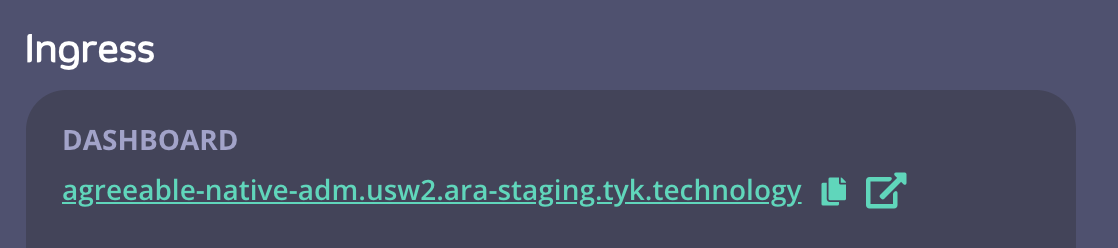 2. From the Dashboard screen, click **APIs** from the System Management menu
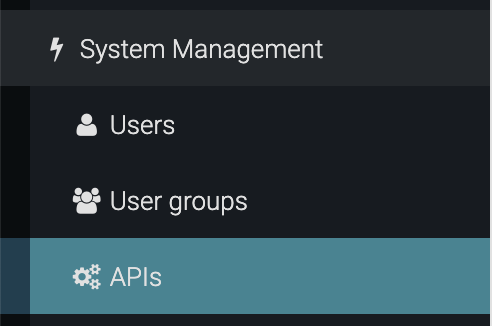 3. Click **Add New API**
4. From the API Designer, enter the following in the **Core Settings** tab:
* From the API Settings section, give your API a name. We'll name this example "test"
* Scroll down to the Authentication section and select **Custom authentication (Python, CoProcess and JSVM plugins)** from the drop-down menu
* Select the **Allow query parameter as well as header** option
5. From the Advanced Settings tab enter the following:
* In the Plugin Options, enter the **Plugin Bundle ID** as returned by mservctl. In our example `9c9ecec1-8f98-4c3f-88cd-ca3c27599e6b`
* To propagate your API to all your Cloud Data Plane Tyk Gateways connected to your Control Plane, you need to add the tag **edge** in the **API Segment Tags section**
6. Click **Save**.
You now have an API called "test" which has as its target the httpbin test site.
**Testing Your API**
You now need to test your API to show how the Python Authorization middleware works. We are going to use the Postman client for our testing.
1. First, a quick test. Copy the URL of your Cloud Data Plane (Note the "edge" tag in the tags column) and paste it in a browser tab. You should get a **404 page not found error**.
2. Then add the "test" endpoint to the URL in your browser tab, so in our example `uptight-paddle-gw.usw2.ara.app/test/`. You should now see a **403 "error: "forbidden"**. This is because your API has Authentication enabled and you haven't provided the credentials yet.
3. Open up your Postman client:
* Paste your Gateway URL with the API appended to the request - (`uptight-paddle-gw.usw2.ara.app/test/`)
* Click **Send**. You'll see the **403 "error: "forbidden response"** again
* In the Headers section in Postman, select **Authorization** from the Key column. Add some random text in the Value field and click **Send**. You should again see the **403 error**.
* Now replace the random text with the `auth` value from your Python code. In our example `47a0c79c427728b3df4af62b9228c8ae` and click **Send** again.
* You should now see the **HTTPB** in test page
3. Click **Add New API**
4. From the API Designer, enter the following in the **Core Settings** tab:
* From the API Settings section, give your API a name. We'll name this example "test"
* Scroll down to the Authentication section and select **Custom authentication (Python, CoProcess and JSVM plugins)** from the drop-down menu
* Select the **Allow query parameter as well as header** option
5. From the Advanced Settings tab enter the following:
* In the Plugin Options, enter the **Plugin Bundle ID** as returned by mservctl. In our example `9c9ecec1-8f98-4c3f-88cd-ca3c27599e6b`
* To propagate your API to all your Cloud Data Plane Tyk Gateways connected to your Control Plane, you need to add the tag **edge** in the **API Segment Tags section**
6. Click **Save**.
You now have an API called "test" which has as its target the httpbin test site.
**Testing Your API**
You now need to test your API to show how the Python Authorization middleware works. We are going to use the Postman client for our testing.
1. First, a quick test. Copy the URL of your Cloud Data Plane (Note the "edge" tag in the tags column) and paste it in a browser tab. You should get a **404 page not found error**.
2. Then add the "test" endpoint to the URL in your browser tab, so in our example `uptight-paddle-gw.usw2.ara.app/test/`. You should now see a **403 "error: "forbidden"**. This is because your API has Authentication enabled and you haven't provided the credentials yet.
3. Open up your Postman client:
* Paste your Gateway URL with the API appended to the request - (`uptight-paddle-gw.usw2.ara.app/test/`)
* Click **Send**. You'll see the **403 "error: "forbidden response"** again
* In the Headers section in Postman, select **Authorization** from the Key column. Add some random text in the Value field and click **Send**. You should again see the **403 error**.
* Now replace the random text with the `auth` value from your Python code. In our example `47a0c79c427728b3df4af62b9228c8ae` and click **Send** again.
* You should now see the **HTTPB** in test page
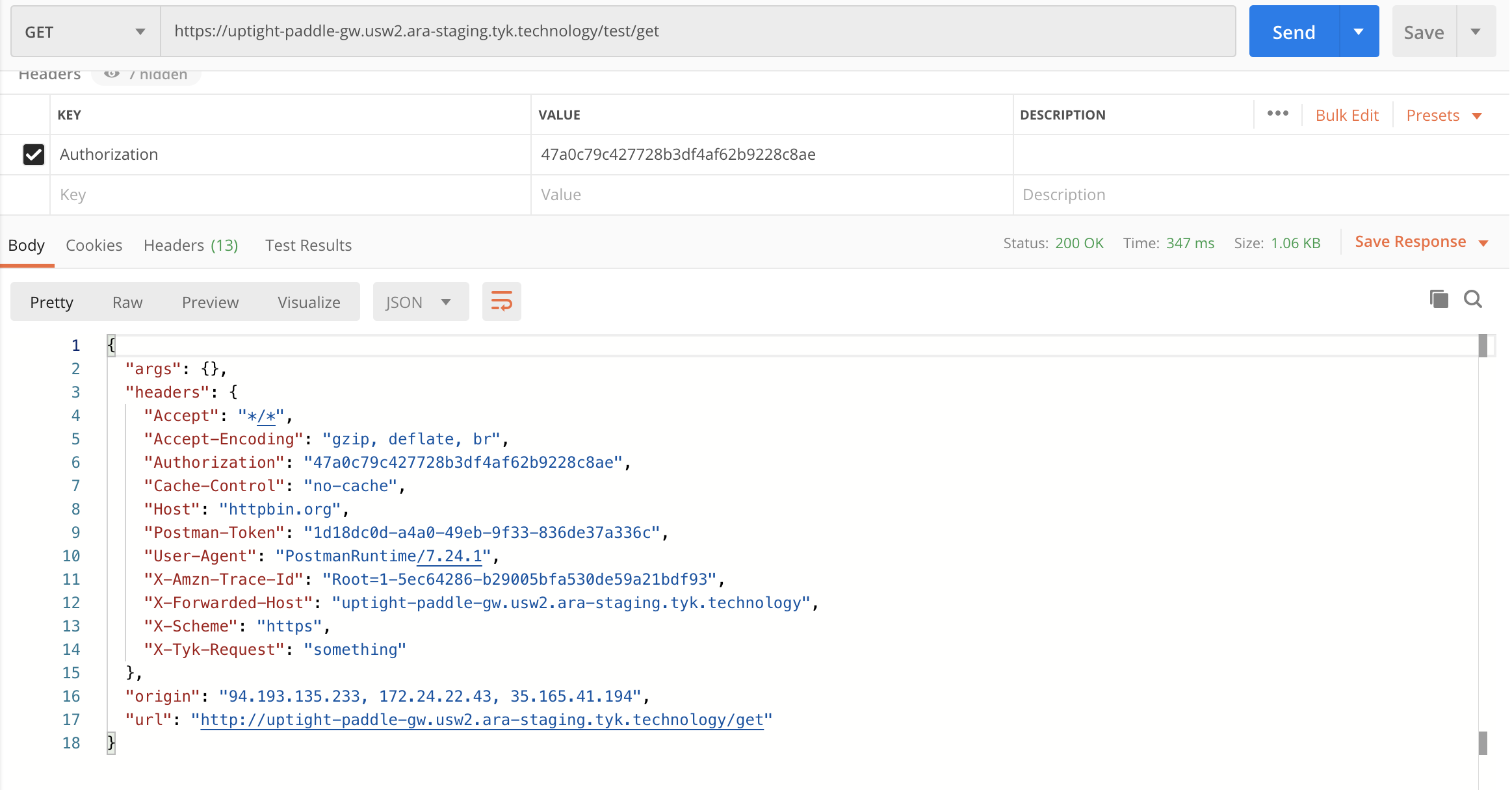
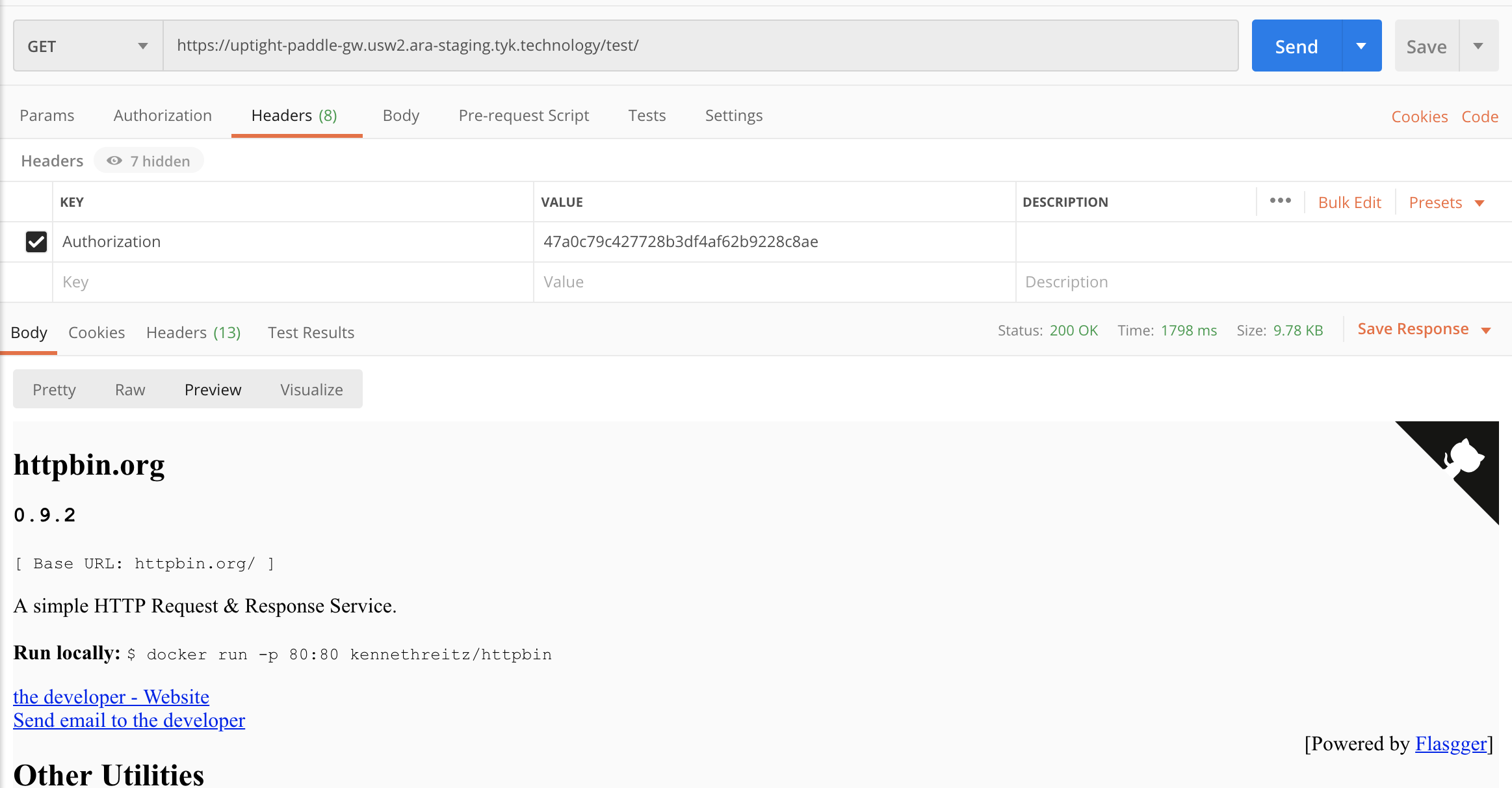 4. As a further test of your plugin, you can add `get` to your API request in Postman. So in our example `uptight-paddle-gw.usw2.ara.app/test/get`. Click **Send**. This will return all the get requests, including headers. You should see the `x-tyk-request: "something"` which is the post middleware hook you set up in the Python code.
 ## Create a Python Code Bundle
This section demonstrates how to create a Python code bundle as part of the custom authentication process for Tyk Cloud, so that you can ensure your API management solution is as effective as possible.
**What do I need to do to create my Plugin?**
* You need to create the Python code bundle on your locally installed Gateway (not an Tyk Cloud Cloud Data Plane stack).
* You will create 2 files, a manifest file (`manifest.json`) and the python file (`middleware.py`)
* You then create a zipped bundle via our Tyk CLI tool that is built in to your local Gateway instance.
**Creating the Plugin bundle**
**Step 1: Create your working directory**
The first step is to create a directory for your plugin bundle files:
```.copyWrapper theme={null}
mkdir ~/my-tyk-plugin
cd ~/my-tyk-plugin
```
**Step 2: Creating the Manifest File**
The manifest file contains information about your plugin file structure and how we expect it to interact with the API that will load it. This file should be named `manifest.json` and needs to have the following contents:
```.json theme={null}
{
"custom_middleware": {
"auth_check": {
"name": "MyAuthMiddleware"
},
"pre": [
{
"name": "MyAuthMiddleware"
}
],
"driver": "python"
},
"file_list": [
"middleware.py"
]
}
```
**File description**
| File | Description |
| :----------------- | :------------------------------------------------------------------------------------------------------------------------------------------------------------------------------------------------------------------------------------------------------------------------ |
| custom\_middleware | contains the middleware settings like the plugin driver you want to use (driver) and the hooks that your plugin will expose. We use the **auth\_check** for this tutorial. For other hooks see [here](/api-management/plugins/rich-plugins#coprocess-dispatcher-hooks). |
| file\_list | contains the list of files to be included in the bundle. The CLI tool expects to find these files in the current working directory. |
| name | references the name of the function that you implement in your plugin code: **MyAuthMiddleware** |
| middleware.py | an additional file that contains the main implementation of our middleware. |
**Step 3: Creating the middleware.py file**
* You import decorators from the Tyk module that gives us the Hook decorator, and we import [Tyk Python API helpers](/api-management/plugins/rich-plugins#tyk-python-api-methods)
* You implement a middleware function and register it as a hook. The input includes the request object, the session object, the API meta data and its specification. The hook checks the authorization header for a specified value. In this tutorial we have called it `Authorization`.
```.python theme={null}
from tyk.decorators import *
from gateway import TykGateway as tyk
@Hook
def MyAuthMiddleware(request, session, metadata, spec):
auth = request.get_header('Authorization')
if not auth:
auth = request.object.params.get('authorization', None)
if auth == '47a0c79c427728b3df4af62b9228c8ae':
session.rate = 1000.0
session.per = 1.0
metadata["token"] = auth
return request, session, metadata
@Hook
def MyPostMiddleware(request, session, spec):
tyk.log("This is my post middleware", "info")
request.object.set_headers["x-tyk-request"] = "something"
return request, session
```
**File description**
| File | Description | |
| :------------------------ | :----------------------------------------------------------------------------- | - |
| `MyAuthMiddleware` @hook | checks for a value. If it is found it is treated as your authentication token. | |
| `MyPostMiddleware` @hook | adds a header to the request. In this tutorial `something` | |
**Step 4: Create the Plugin Bundle**
* You create a bundle to cater for a number of plugins connected to the one API, and using a bundle makes this more manageable.
* To bundle your plugin we run the following command in your working directory where your manifest.json and plugin code is.
```.bash theme={null}
docker run \
--rm \
-v $(pwd):/cloudplugin \
--entrypoint "/bin/sh" -it \
-w "/cloudplugin" \
tykio/tyk-gateway:v3.1.2 \
-c '/opt/tyk-gateway/tyk bundle build -y'
```
* A plugin bundle is a packaged version of the plugin, it may also contain a cryptographic signature of its contents. The -y flag tells the Tyk CLI tool to skip the signing process in order to simplify this tutorial. For more information on the Tyk CLI tool, see [here](/api-management/plugins/overview#how-plugin-bundles-work).
* You should now have a `bundle.zip` file in the plugin working directory.
* Next you will configure [uploading your plugin bundle file](#uploading-your-bundle) to your Amazon S3 bucket.
## Add Custom Authentication
This section introduces the process of configuring a custom authentication plugin, so that you can override the default Tyk authentication mechanism with your own authentication logic.
**What are we going to do?**
We are going to configure an Tyk Cloud Control Plane to use a custom authentication plugin built in Python.
**What do I need to configure the Tyk Cloud Control Plane?**
Here are the requirements:
1. Firstly you will need a local Tyk Gateway installation that allows you to create your Python plugin bundle. We recommend [installing our Self-Managed version on Ubuntu Bionic 18.04](/tyk-self-managed/install/linux#install-tyk-on-debian-or-ubuntu).
2. Ensure you have a currently stable [Python 3.x version](https://www.python.org/downloads/) installed
3. You need install the build tools `apt-get install -y build-essential`
4. Install our required modules:
```{.copyWrapper} theme={null}
apt install python3 python3-dev python3-pip
pip3 install protobuf grpcio
```
## Create a Python Code Bundle
This section demonstrates how to create a Python code bundle as part of the custom authentication process for Tyk Cloud, so that you can ensure your API management solution is as effective as possible.
**What do I need to do to create my Plugin?**
* You need to create the Python code bundle on your locally installed Gateway (not an Tyk Cloud Cloud Data Plane stack).
* You will create 2 files, a manifest file (`manifest.json`) and the python file (`middleware.py`)
* You then create a zipped bundle via our Tyk CLI tool that is built in to your local Gateway instance.
**Creating the Plugin bundle**
**Step 1: Create your working directory**
The first step is to create a directory for your plugin bundle files:
```.copyWrapper theme={null}
mkdir ~/my-tyk-plugin
cd ~/my-tyk-plugin
```
**Step 2: Creating the Manifest File**
The manifest file contains information about your plugin file structure and how we expect it to interact with the API that will load it. This file should be named `manifest.json` and needs to have the following contents:
```.json theme={null}
{
"custom_middleware": {
"auth_check": {
"name": "MyAuthMiddleware"
},
"pre": [
{
"name": "MyAuthMiddleware"
}
],
"driver": "python"
},
"file_list": [
"middleware.py"
]
}
```
**File description**
| File | Description |
| :----------------- | :------------------------------------------------------------------------------------------------------------------------------------------------------------------------------------------------------------------------------------------------------------------------ |
| custom\_middleware | contains the middleware settings like the plugin driver you want to use (driver) and the hooks that your plugin will expose. We use the **auth\_check** for this tutorial. For other hooks see [here](/api-management/plugins/rich-plugins#coprocess-dispatcher-hooks). |
| file\_list | contains the list of files to be included in the bundle. The CLI tool expects to find these files in the current working directory. |
| name | references the name of the function that you implement in your plugin code: **MyAuthMiddleware** |
| middleware.py | an additional file that contains the main implementation of our middleware. |
**Step 3: Creating the middleware.py file**
* You import decorators from the Tyk module that gives us the Hook decorator, and we import [Tyk Python API helpers](/api-management/plugins/rich-plugins#tyk-python-api-methods)
* You implement a middleware function and register it as a hook. The input includes the request object, the session object, the API meta data and its specification. The hook checks the authorization header for a specified value. In this tutorial we have called it `Authorization`.
```.python theme={null}
from tyk.decorators import *
from gateway import TykGateway as tyk
@Hook
def MyAuthMiddleware(request, session, metadata, spec):
auth = request.get_header('Authorization')
if not auth:
auth = request.object.params.get('authorization', None)
if auth == '47a0c79c427728b3df4af62b9228c8ae':
session.rate = 1000.0
session.per = 1.0
metadata["token"] = auth
return request, session, metadata
@Hook
def MyPostMiddleware(request, session, spec):
tyk.log("This is my post middleware", "info")
request.object.set_headers["x-tyk-request"] = "something"
return request, session
```
**File description**
| File | Description | |
| :------------------------ | :----------------------------------------------------------------------------- | - |
| `MyAuthMiddleware` @hook | checks for a value. If it is found it is treated as your authentication token. | |
| `MyPostMiddleware` @hook | adds a header to the request. In this tutorial `something` | |
**Step 4: Create the Plugin Bundle**
* You create a bundle to cater for a number of plugins connected to the one API, and using a bundle makes this more manageable.
* To bundle your plugin we run the following command in your working directory where your manifest.json and plugin code is.
```.bash theme={null}
docker run \
--rm \
-v $(pwd):/cloudplugin \
--entrypoint "/bin/sh" -it \
-w "/cloudplugin" \
tykio/tyk-gateway:v3.1.2 \
-c '/opt/tyk-gateway/tyk bundle build -y'
```
* A plugin bundle is a packaged version of the plugin, it may also contain a cryptographic signature of its contents. The -y flag tells the Tyk CLI tool to skip the signing process in order to simplify this tutorial. For more information on the Tyk CLI tool, see [here](/api-management/plugins/overview#how-plugin-bundles-work).
* You should now have a `bundle.zip` file in the plugin working directory.
* Next you will configure [uploading your plugin bundle file](#uploading-your-bundle) to your Amazon S3 bucket.
## Add Custom Authentication
This section introduces the process of configuring a custom authentication plugin, so that you can override the default Tyk authentication mechanism with your own authentication logic.
**What are we going to do?**
We are going to configure an Tyk Cloud Control Plane to use a custom authentication plugin built in Python.
**What do I need to configure the Tyk Cloud Control Plane?**
Here are the requirements:
1. Firstly you will need a local Tyk Gateway installation that allows you to create your Python plugin bundle. We recommend [installing our Self-Managed version on Ubuntu Bionic 18.04](/tyk-self-managed/install/linux#install-tyk-on-debian-or-ubuntu).
2. Ensure you have a currently stable [Python 3.x version](https://www.python.org/downloads/) installed
3. You need install the build tools `apt-get install -y build-essential`
4. Install our required modules:
```{.copyWrapper} theme={null}
apt install python3 python3-dev python3-pip
pip3 install protobuf grpcio
```