> ## Documentation Index
> Fetch the complete documentation index at: https://tyk.io/docs/llms.txt
> Use this file to discover all available pages before exploring further.
# Customize Themes in Developer Portal
> How to customize themes in developer portal
## What is a Theme?
The Tyk Enterprise Developer Portal uses **themes** for customizing the live portal. We provide an out of the box theme that is using our own branding, it’s called the `default` theme. You are welcome to use it and modify it for your needs, yet if you want to start with a blank page, you can also create a completely new theme.
The following section explains how they are structured and their main concepts. We recommend you to read this if you are creating your own theme, or making extensive changes to the ones we provide.
## File Structure of a Theme
Generally speaking, a theme defines an application’s styling, templates and scripts.
In the Tyk Developer Portal a `themes` folder is located in the root of the application and is the directory where each theme folder must be added. If you navigate to `path /themes/` you’ll see our default theme which has the following structure:
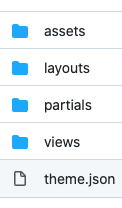 * Manifest file (`theme.json`): It uses JSON syntax to define theme metadata (name, version and author) as well as a list of templates that are part of the theme.
* `assets`: It intended for static assets like CSS, JS or images that are used by the theme. All contents from this directory are mounted under the `/assets` path in the portal HTTP server.
* `layouts`: The layout is the top level view of your theme.
* `views`: The view is rendered as a part of a layout. Each view can be rendered using a different layout.
* `partials`: Partials provide an easier way to handle snippets of code that are reused across different views or layouts, for example if you want to inject a JS snippet that’s used in different places, you could set this code in a partial and include it anywhere by using the appropriate 'Go template directive'. In this way you could improve code readability and organize the theme in the most efficient way.
### Manifest File
This file should sit in the root of a theme and hold the theme configuration. You can define a name and your templates along other options such as the version and the author.
You can find an example of the manifest within the `default` theme that is located in `/themes/default`. The syntax looks as follows:
```json theme={null}
{
"name": "default",
"version": "0.0.1",
"author": "Tyk Technologies Ltd. ",
"templates": [
{
"name": "Content Page",
"template": "page",
"layout": "site_layout"
},
{
"name": "Portal Home",
"template": "portal_home",
"layout": "portal_layout"
},
{
"name": "Home",
"template": "home",
"layout": "portal_layout"
},
{
"name": "Catalogue",
"template": "catalogue",
"layout": "portal_layout"
}
]
}
```
The `templates` field establishes a list of available templates. Every template consists of three fields where `name` is a user-friendly name that will be seen on the Admin app when creating a page. `template` is a reference to the template file itself. `layout` is a reference to the layout that will be used to render the previously set template.
To illustrate the current template hierarchy, this is what a typically rendered page would look like. The `layout` would be the top level template and base structure of the page:
* Manifest file (`theme.json`): It uses JSON syntax to define theme metadata (name, version and author) as well as a list of templates that are part of the theme.
* `assets`: It intended for static assets like CSS, JS or images that are used by the theme. All contents from this directory are mounted under the `/assets` path in the portal HTTP server.
* `layouts`: The layout is the top level view of your theme.
* `views`: The view is rendered as a part of a layout. Each view can be rendered using a different layout.
* `partials`: Partials provide an easier way to handle snippets of code that are reused across different views or layouts, for example if you want to inject a JS snippet that’s used in different places, you could set this code in a partial and include it anywhere by using the appropriate 'Go template directive'. In this way you could improve code readability and organize the theme in the most efficient way.
### Manifest File
This file should sit in the root of a theme and hold the theme configuration. You can define a name and your templates along other options such as the version and the author.
You can find an example of the manifest within the `default` theme that is located in `/themes/default`. The syntax looks as follows:
```json theme={null}
{
"name": "default",
"version": "0.0.1",
"author": "Tyk Technologies Ltd. ",
"templates": [
{
"name": "Content Page",
"template": "page",
"layout": "site_layout"
},
{
"name": "Portal Home",
"template": "portal_home",
"layout": "portal_layout"
},
{
"name": "Home",
"template": "home",
"layout": "portal_layout"
},
{
"name": "Catalogue",
"template": "catalogue",
"layout": "portal_layout"
}
]
}
```
The `templates` field establishes a list of available templates. Every template consists of three fields where `name` is a user-friendly name that will be seen on the Admin app when creating a page. `template` is a reference to the template file itself. `layout` is a reference to the layout that will be used to render the previously set template.
To illustrate the current template hierarchy, this is what a typically rendered page would look like. The `layout` would be the top level template and base structure of the page:
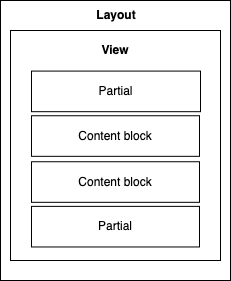 Also note that the Developer Portal will let you use not just multiple `layouts` and `views` but also any combination of them. These combinations are set in your manifest file (`theme.json`).
Regarding `partials`, even though the illustration above shows two partials embedded on the `view` section, `partials` are intended for using in any place. You should be able to embed a `partial` directly into a layout, or even in multiple layouts.
Content blocks are explored more deeply in the next sections. To summarise, its relationship with the above hierarchy is when rendering a particular page, a `layout`, a `view` and potentially a combination of partials get loaded from the theme directory. Content blocks are different because their content gets dynamically populated by database content. These contents are created from the Admin section.
To be Concluded:
* A layout is the wrapper of everything you want to include inside it. So, typically it would consist of tags such as ``, ``, ``, ``, and `<body>`.
* A `template` is what we would inject in a layout and specifically within the `<body>` of a layout.
* A `partial` can be, for example, the navigation menu so that you can inject it in the layout and it will be visible every time this layout is used
### Go Templates
All theme template files use the Go template syntax. You will find every file in the layouts and views. Partials directory uses the `.tmpl` file extension, which is the default Go template extension. Go templates work in a similar way to ERB or EJS templates by letting the user mix HTML code with dynamic values. Sample syntax is as follows:
`{{ render “top_nav” }}`
The code sample above would execute the `render` template helper, which is a common function that’s used to inject code from other `views` into the current one. You may use this to embed content from other parts of the theme, typically `partials` or `views`. In this case, it will insert a `view` or `partial` named `top_nav` to the template where it’s used.
The same delimiters `{{` and `}}` are used for all Go template directives. We’ll explore some of them in the upcoming sections.
See the [Go package template documentation](https://pkg.go.dev/text/template#pkg-overview) for more information.
### Content Blocks
The Developer Portal themes use content blocks to facilitate content management. A content block is defined as a part of a `view` by using a particular template directive in combination with a name or ID to identify the given block. For example, if you check the `home` template in the default theme (`themes/default/views/home.tmpl`), you will find the following code:
```go theme={null}
div class="container">
<div class="row">
<div class="col-sm-6">
<div class="text-container">
<h1>{{.page.Title}}</h1>
<p>{{.blocks.HeaderDescription.Content}}</p>
<a href="{{.blocks.HeaderButtonLink.Content}}" class="btn btn-primary">{{.blocks.HeaderButtonLabel.Content}}</a>
</div>
….
```
There are four code references in the above snippet. In this example we have a header, some text and then a button that act as a link. Let's see what each one is and how it correlates with the UI.
1. `{{ .page.Title }}`. This is the `Title` input in the form UI (Screenshot #1)
2. `{{ .blocks.HeaderDescription.Content }}`. This is the `HeaderDescription` input in the form UI (Screenshot #2)
3. `{{ .blocks.HeaderButtonLink.Content }}`. This is the `HeaderDescription` input in the form UI (Screenshot #3)
4. `{{ .blocks.HeaderButtonLabel.Content }}`. This is the `HeaderButtonLabel` input in the form UI (Screenshot #4)
<img src="https://mintcdn.com/tyk/p6VDuboOnNxaT_QZ/img/dashboard/portal-management/enterprise-portal/go-template-ui.png?fit=max&auto=format&n=p6VDuboOnNxaT_QZ&q=85&s=42050219af45b22f3282b802fd08386e" alt="Go template blocks and portal UI" width="954" height="996" data-path="img/dashboard/portal-management/enterprise-portal/go-template-ui.png" />
This will display in your portal as following:
<img src="https://mintcdn.com/tyk/p6VDuboOnNxaT_QZ/img/dashboard/portal-management/enterprise-portal/example-portal-content-block.png?fit=max&auto=format&n=p6VDuboOnNxaT_QZ&q=85&s=775fc9aea463443388211747466c6a50" alt="Example Portal content block" width="1905" height="423" data-path="img/dashboard/portal-management/enterprise-portal/example-portal-content-block.png" />
In order for a page to render properly the content manager will need to be aware of the content blocks that are required by a particular template.
## Managing Themes
The Tyk Enterprise Developer Portal enables the admin users and developers to manage themes and select which theme is visible in the portal.
To enable this capability, the portal has theme management UI.
### Create a Theme
Follow the example below to create a new theme called "TestTheme" using the default theme as a blueprint:
1. As an admin user, navigate to the Theme management UI and download the default theme. The Tyk Enterprise Developer Portal doesn't allow modifications to the default theme so that you will always have access to the vanilla theme.
<img src="https://mintcdn.com/tyk/RUEpCcfQ3zk4RxhB/img/dashboard/portal-management/enterprise-portal/download-default-theme.png?fit=max&auto=format&n=RUEpCcfQ3zk4RxhB&q=85&s=8bb830c956b893d7bf52f931b43430ef" alt="Download default theme" width="3360" height="1718" data-path="img/dashboard/portal-management/enterprise-portal/download-default-theme.png" />
2. Unzip the theme and rename it by modifying the Manifest file as described above.
<img src="https://mintcdn.com/tyk/B97_xetnHOB2KQMe/img/dashboard/portal-management/enterprise-portal/rename-a-theme.png?fit=max&auto=format&n=B97_xetnHOB2KQMe&q=85&s=c32529fc39addd82d303de158aa7d24c" alt="Rename theme" width="878" height="864" data-path="img/dashboard/portal-management/enterprise-portal/rename-a-theme.png" />
3. You can also modify other assets in the theme as described later in this guide. Once all modifications are done, you need to zip the theme and upload it to the portal.
<img src="https://mintcdn.com/tyk/RUEpCcfQ3zk4RxhB/img/dashboard/portal-management/enterprise-portal/compress-a-theme.png?fit=max&auto=format&n=RUEpCcfQ3zk4RxhB&q=85&s=53c8985ac2e79798b9da2fd343538472" alt="Zip theme" width="1450" height="482" data-path="img/dashboard/portal-management/enterprise-portal/compress-a-theme.png" />
4. To upload the theme as an admin user, navigate to **Themes** and click on the **Add new theme** button. Please note that the size of individual files should not exceed 5 MB and the total size of all files in the theme should not exceed `PORTAL_MAX_UPLOAD_SIZE`. This parameter is [configurable](/product-stack/tyk-enterprise-developer-portal/deploy/configuration#portal_max_upload_size).
<img src="https://mintcdn.com/tyk/wHLHFqRiMZq91WJo/img/dashboard/portal-management/enterprise-portal/add-a-new-theme.png?fit=max&auto=format&n=wHLHFqRiMZq91WJo&q=85&s=2c4330bbafc842c88edeb7dd6d5ff9b4" alt="Add new theme" width="3352" height="1702" data-path="img/dashboard/portal-management/enterprise-portal/add-a-new-theme.png" />
5. Then click on the **Add theme file** button.
<img src="https://mintcdn.com/tyk/wHLHFqRiMZq91WJo/img/dashboard/portal-management/enterprise-portal/add-theme-file.png?fit=max&auto=format&n=wHLHFqRiMZq91WJo&q=85&s=8e1bcef1c1d32cf251e4a1574dfd0f8e" alt="Add theme file" width="3360" height="1710" data-path="img/dashboard/portal-management/enterprise-portal/add-theme-file.png" />
6. Select the archive that you've created earlier and click on the **Save** button.
<img src="https://mintcdn.com/tyk/B97_xetnHOB2KQMe/img/dashboard/portal-management/enterprise-portal/save-new-theme.png?fit=max&auto=format&n=B97_xetnHOB2KQMe&q=85&s=0523ebe099612cb1e1e7b38cad04e1aa" alt="Save new theme" width="3360" height="1720" data-path="img/dashboard/portal-management/enterprise-portal/save-new-theme.png" />
7. Now you should see a success message meaning the theme was successfully created.
<img src="https://mintcdn.com/tyk/p6VDuboOnNxaT_QZ/img/dashboard/portal-management/enterprise-portal/new-theme-is-created.png?fit=max&auto=format&n=p6VDuboOnNxaT_QZ&q=85&s=1858cf50d93f0e552be3e3092f2dea49" alt="Theme is created" width="3356" height="1711" data-path="img/dashboard/portal-management/enterprise-portal/new-theme-is-created.png" />
### Preview a Theme
The Tyk Enterprise Developer Portal enables the admin users to preview the theme before it gets reflected on the public-facing portal. This enables to review the changes that are made to the theme before exposing them to the developer community.
1. To preview a theme as an admin user, navigate to the **Themes** menu. Select a theme, and click on the **Preview** button.
<img src="https://mintcdn.com/tyk/B97_xetnHOB2KQMe/img/dashboard/portal-management/enterprise-portal/preview-theme-button.png?fit=max&auto=format&n=B97_xetnHOB2KQMe&q=85&s=f00ac7a483087137507be2b986736b1d" alt="Preview theme" width="3360" height="1718" data-path="img/dashboard/portal-management/enterprise-portal/preview-theme-button.png" />
2. The previewer will open the selected theme in a new tab. Now you can browse your theme and review the changes. For the demonstration purposes, we've modified the API Catalog page so it displays "Modified catalog" instead of "Product Catalogs".
<img src="https://mintcdn.com/tyk/B97_xetnHOB2KQMe/img/dashboard/portal-management/enterprise-portal/theme-preview.png?fit=max&auto=format&n=B97_xetnHOB2KQMe&q=85&s=08b0240d4e853b5d16d3cf0d485b9cd9" alt="Preview theme" width="3360" height="1708" data-path="img/dashboard/portal-management/enterprise-portal/theme-preview.png" />
3. Once the review is done, you can quit the preview by clicking on the **Quit preview button**.
<img src="https://mintcdn.com/tyk/B97_xetnHOB2KQMe/img/dashboard/portal-management/enterprise-portal/quit-theme-preview.png?fit=max&auto=format&n=B97_xetnHOB2KQMe&q=85&s=66fe2bc4051c3da77aad091942708541" alt="Quite theme preview" width="3360" height="1708" data-path="img/dashboard/portal-management/enterprise-portal/quit-theme-preview.png" />
### Activate a Theme
The Tyk Enterprise Developer Portal enables you to have multiple themes at the same time but only one of them is active.
1. As an admin user, navigate to the **Themes** menu. The current status of each theme is displayed in the **Status** column.
<img src="https://mintcdn.com/tyk/RUEpCcfQ3zk4RxhB/img/dashboard/portal-management/enterprise-portal/default-theme-is-current.png?fit=max&auto=format&n=RUEpCcfQ3zk4RxhB&q=85&s=4d73ca323765ae03a70f8a445a7640cd" alt="Default theme is the current theme" width="3352" height="1716" data-path="img/dashboard/portal-management/enterprise-portal/default-theme-is-current.png" />
2. To activate the new theme, click on the **Activate** button.
<img src="https://mintcdn.com/tyk/wHLHFqRiMZq91WJo/img/dashboard/portal-management/enterprise-portal/activate-a-theme.png?fit=max&auto=format&n=wHLHFqRiMZq91WJo&q=85&s=8cbe9bffff02e9583a842ebf552fc7a2" alt="Activate theme" width="3360" height="1710" data-path="img/dashboard/portal-management/enterprise-portal/activate-a-theme.png" />
3. The selected theme is now active and displayed to all API consumers on the Live portal.
<img src="https://mintcdn.com/tyk/p6VDuboOnNxaT_QZ/img/dashboard/portal-management/enterprise-portal/modified-theme-is-active.png?fit=max&auto=format&n=p6VDuboOnNxaT_QZ&q=85&s=4a0eb6a49e90baf3e2a178648079521f" alt="Modified theme is activated" width="3360" height="1706" data-path="img/dashboard/portal-management/enterprise-portal/modified-theme-is-active.png" />
### Modify an Existing Theme
The Tyk Enterprise Developer Portal enables modification to any existing theme, except the default one.
1. To start modification of any existing theme, navigate to the **Themes** menu and download the theme package.
<img src="https://mintcdn.com/tyk/RUEpCcfQ3zk4RxhB/img/dashboard/portal-management/enterprise-portal/download-a-theme.png?fit=max&auto=format&n=RUEpCcfQ3zk4RxhB&q=85&s=8df7c19165d5f6e7854228ed9455b2e0" alt="Download existing theme" width="3360" height="1714" data-path="img/dashboard/portal-management/enterprise-portal/download-a-theme.png" />
2. Unzip the package, do any required modification and zip it back. You should keep the name of the theme. If you need to change the name of the theme, you will need to create a new theme as described above.
3. As an admin user, navigate to the **Themes** menu and select the modified theme.
<img src="https://mintcdn.com/tyk/B97_xetnHOB2KQMe/img/dashboard/portal-management/enterprise-portal/select-a-modified-theme.png?fit=max&auto=format&n=B97_xetnHOB2KQMe&q=85&s=8fa294bd2d39965e4d0e485298a38c0a" alt="Select modified theme" width="3356" height="1710" data-path="img/dashboard/portal-management/enterprise-portal/select-a-modified-theme.png" />
4. Click on the **Add Theme File** button and select the theme archive.
<img src="https://mintcdn.com/tyk/wHLHFqRiMZq91WJo/img/dashboard/portal-management/enterprise-portal/add-theme-file-to-existing-theme.png?fit=max&auto=format&n=wHLHFqRiMZq91WJo&q=85&s=1b94fb458aef3d74cb6a43517ef9a990" alt="Add theme file" width="3360" height="1712" data-path="img/dashboard/portal-management/enterprise-portal/add-theme-file-to-existing-theme.png" />
5. Click on the **Save changes** button to save changes to the theme.
<img src="https://mintcdn.com/tyk/B97_xetnHOB2KQMe/img/dashboard/portal-management/enterprise-portal/save-changes-to-theme.png?fit=max&auto=format&n=B97_xetnHOB2KQMe&q=85&s=5e6dc9bd02dac3c5d1574e3b13846fb7" alt="Save changes" width="3360" height="1708" data-path="img/dashboard/portal-management/enterprise-portal/save-changes-to-theme.png" />
6. If the theme is the current changes to the Live portal, it will be applied immediately. Otherwise, you can preview and activate the theme as described above.
## Upgrading Themes
The Tyk Enterprise Developer Portal does not automatically update the default theme with each new release of the product, because doing so could result in the loss of customizations made by customers.
Therefore, customers are required to manually upgrade their themes to access the latest updates and fixes. We recommend using GitFlow for the latest theme updates.
Alternatively, you can download the theme package from the **Releases** section of the [portal-default-theme](https://github.com/TykTechnologies/portal-default-theme) repository.
However, we advise against this method, as it requires you to merge your customized theme with the downloaded one, which is much simpler to accomplish via GitFlow.
Follow the guide below to obtain the latest version of the portal theme and merge it with your customized version.
### Merge Latest Changes using Gitflow
The default theme for the Tyk Enterprise Developer Portal is located in the [portal-default-theme](https://github.com/TykTechnologies/portal-default-theme) repository.
The `main` branch contains code corresponding to the latest stable release. If you wish to check out a specific release (e.g., v1.8.3), you can use tags:
```console theme={null}
git checkout tags/1.8.3 -b my-custom-theme branch
```
To organize local development in a way that facilitates seamless theme updates using git merge, follow the steps below:
1. Fork the `portal-default-theme` repo in [github](https://github.com/TykTechnologies/portal-default-theme).
<img src="https://mintcdn.com/tyk/p6VDuboOnNxaT_QZ/img/dashboard/portal-management/enterprise-portal/fork-portal-theme-repo.png?fit=max&auto=format&n=p6VDuboOnNxaT_QZ&q=85&s=3a83316dc25c87ed3fec86dee8a3ab4c" alt="Fork the portal-theme repo" width="1440" height="584" data-path="img/dashboard/portal-management/enterprise-portal/fork-portal-theme-repo.png" />
2. Clone the forked repository:
```console theme={null}
git clone https://github.com/my-github-profile/portal-default-theme && cd ./portal-default-theme
```
3. If you have an existing repository, check if you already have the `portal-default-theme` repo among your remotes before adding it. Execute the following command to check:
```console theme={null}
git remote -v | grep 'TykTechnologies/portal-default-theme'
```
Skip the next step if you see the following:
```console theme={null}
# portal-default-theme https://github.com/TykTechnologies/portal-default-theme (fetch)
# portal-default-theme https://github.com/TykTechnologies/portal-default-theme (push)
```
If the output of the above command is empty, proceed to step 5 to add the `portal-default-theme`.
4. Add the `portal-default-theme` to the remotes by executing the following command:
```console theme={null}
git remote add portal-default-theme https://github.com/TykTechnologies/portal-default-theme
```
5. Create a new local branch that tracks the remote `main` branch. That branch will mirror the latest changes from the `portal-default-theme` main. You will be using it to import the latest changes from the `portal-default-theme` to your custom theme:
```console theme={null}
git fetch portal-default-theme main:portal-default-theme-main
```
If you have an existing local branch that tracks the `main` branch in the `portal-default-theme` repo, you can just pull the latest updates:
```console theme={null}
git checkout portal-default-theme-main
git pull portal-default-theme main
```
6. To start customizing the theme, create a local develop branch from the `portal-default-theme-main`:
```console theme={null}
git checkout portal-default-theme-main
git checkout -b dev-branch
```
7. Once the required customizations are completed, commit the changes to the `dev-branch`.
8. Merge the latest updates from the `portal-default-theme` into the `dev-branch`. Please remember to always pull the latest changes from the `portal-default-theme-main` branch before merging:
* Checkout to the portal-default-theme-main and fetch the latest changes.
```console theme={null}
git checkout portal-default-theme-main
git pull portal-default-theme main
```
* Checkout the dev-branch and merge the changes from the portal-default-theme-main to retrieve the latest changes from the portal-default-theme repo with the customized theme.
```console theme={null}
git checkout dev-branch
git merge portal-default-theme-main
```
Finally, address merge conflicts and commit changes.
<Note>
**You have successfully updated your custom theme**
Now you can repeat the above described process when upgrading the portal version to make sure you have incorporated the latest theme changes to your customized theme.
</Note>
### Upload the Theme to the Portal
Once you have merged your local changes with the latest changes from the `portal-default-theme` repo, you need to create a zip archive with the customized theme and upload it to the portal.
1. Create a zip archive with the customized theme. Make sure you zip the content of the `src` folder and not the folder itself. To create a zip archive with the customized theme execute the following:
* cd to the `src` directory to make sure you:
```console theme={null}
cd ./src
```
* zip the content of the `src` directory:
```console theme={null}
zip -r9 default.zip
```
2. Upload the theme package that is created in the previous step to the portal. You can use the portal's [Admin dashboard](/portal/customization/themes#create-a-theme) or the [admin API](/product-stack/tyk-enterprise-developer-portal/api-documentation/tyk-edp-api) to do it.
3. Finally, you need to [activate](/portal/customization/themes#activate-a-theme) the theme so that it will be applied to the portal.
Also note that the Developer Portal will let you use not just multiple `layouts` and `views` but also any combination of them. These combinations are set in your manifest file (`theme.json`).
Regarding `partials`, even though the illustration above shows two partials embedded on the `view` section, `partials` are intended for using in any place. You should be able to embed a `partial` directly into a layout, or even in multiple layouts.
Content blocks are explored more deeply in the next sections. To summarise, its relationship with the above hierarchy is when rendering a particular page, a `layout`, a `view` and potentially a combination of partials get loaded from the theme directory. Content blocks are different because their content gets dynamically populated by database content. These contents are created from the Admin section.
To be Concluded:
* A layout is the wrapper of everything you want to include inside it. So, typically it would consist of tags such as ``, ``, ``, ``, and `<body>`.
* A `template` is what we would inject in a layout and specifically within the `<body>` of a layout.
* A `partial` can be, for example, the navigation menu so that you can inject it in the layout and it will be visible every time this layout is used
### Go Templates
All theme template files use the Go template syntax. You will find every file in the layouts and views. Partials directory uses the `.tmpl` file extension, which is the default Go template extension. Go templates work in a similar way to ERB or EJS templates by letting the user mix HTML code with dynamic values. Sample syntax is as follows:
`{{ render “top_nav” }}`
The code sample above would execute the `render` template helper, which is a common function that’s used to inject code from other `views` into the current one. You may use this to embed content from other parts of the theme, typically `partials` or `views`. In this case, it will insert a `view` or `partial` named `top_nav` to the template where it’s used.
The same delimiters `{{` and `}}` are used for all Go template directives. We’ll explore some of them in the upcoming sections.
See the [Go package template documentation](https://pkg.go.dev/text/template#pkg-overview) for more information.
### Content Blocks
The Developer Portal themes use content blocks to facilitate content management. A content block is defined as a part of a `view` by using a particular template directive in combination with a name or ID to identify the given block. For example, if you check the `home` template in the default theme (`themes/default/views/home.tmpl`), you will find the following code:
```go theme={null}
div class="container">
<div class="row">
<div class="col-sm-6">
<div class="text-container">
<h1>{{.page.Title}}</h1>
<p>{{.blocks.HeaderDescription.Content}}</p>
<a href="{{.blocks.HeaderButtonLink.Content}}" class="btn btn-primary">{{.blocks.HeaderButtonLabel.Content}}</a>
</div>
….
```
There are four code references in the above snippet. In this example we have a header, some text and then a button that act as a link. Let's see what each one is and how it correlates with the UI.
1. `{{ .page.Title }}`. This is the `Title` input in the form UI (Screenshot #1)
2. `{{ .blocks.HeaderDescription.Content }}`. This is the `HeaderDescription` input in the form UI (Screenshot #2)
3. `{{ .blocks.HeaderButtonLink.Content }}`. This is the `HeaderDescription` input in the form UI (Screenshot #3)
4. `{{ .blocks.HeaderButtonLabel.Content }}`. This is the `HeaderButtonLabel` input in the form UI (Screenshot #4)
<img src="https://mintcdn.com/tyk/p6VDuboOnNxaT_QZ/img/dashboard/portal-management/enterprise-portal/go-template-ui.png?fit=max&auto=format&n=p6VDuboOnNxaT_QZ&q=85&s=42050219af45b22f3282b802fd08386e" alt="Go template blocks and portal UI" width="954" height="996" data-path="img/dashboard/portal-management/enterprise-portal/go-template-ui.png" />
This will display in your portal as following:
<img src="https://mintcdn.com/tyk/p6VDuboOnNxaT_QZ/img/dashboard/portal-management/enterprise-portal/example-portal-content-block.png?fit=max&auto=format&n=p6VDuboOnNxaT_QZ&q=85&s=775fc9aea463443388211747466c6a50" alt="Example Portal content block" width="1905" height="423" data-path="img/dashboard/portal-management/enterprise-portal/example-portal-content-block.png" />
In order for a page to render properly the content manager will need to be aware of the content blocks that are required by a particular template.
## Managing Themes
The Tyk Enterprise Developer Portal enables the admin users and developers to manage themes and select which theme is visible in the portal.
To enable this capability, the portal has theme management UI.
### Create a Theme
Follow the example below to create a new theme called "TestTheme" using the default theme as a blueprint:
1. As an admin user, navigate to the Theme management UI and download the default theme. The Tyk Enterprise Developer Portal doesn't allow modifications to the default theme so that you will always have access to the vanilla theme.
<img src="https://mintcdn.com/tyk/RUEpCcfQ3zk4RxhB/img/dashboard/portal-management/enterprise-portal/download-default-theme.png?fit=max&auto=format&n=RUEpCcfQ3zk4RxhB&q=85&s=8bb830c956b893d7bf52f931b43430ef" alt="Download default theme" width="3360" height="1718" data-path="img/dashboard/portal-management/enterprise-portal/download-default-theme.png" />
2. Unzip the theme and rename it by modifying the Manifest file as described above.
<img src="https://mintcdn.com/tyk/B97_xetnHOB2KQMe/img/dashboard/portal-management/enterprise-portal/rename-a-theme.png?fit=max&auto=format&n=B97_xetnHOB2KQMe&q=85&s=c32529fc39addd82d303de158aa7d24c" alt="Rename theme" width="878" height="864" data-path="img/dashboard/portal-management/enterprise-portal/rename-a-theme.png" />
3. You can also modify other assets in the theme as described later in this guide. Once all modifications are done, you need to zip the theme and upload it to the portal.
<img src="https://mintcdn.com/tyk/RUEpCcfQ3zk4RxhB/img/dashboard/portal-management/enterprise-portal/compress-a-theme.png?fit=max&auto=format&n=RUEpCcfQ3zk4RxhB&q=85&s=53c8985ac2e79798b9da2fd343538472" alt="Zip theme" width="1450" height="482" data-path="img/dashboard/portal-management/enterprise-portal/compress-a-theme.png" />
4. To upload the theme as an admin user, navigate to **Themes** and click on the **Add new theme** button. Please note that the size of individual files should not exceed 5 MB and the total size of all files in the theme should not exceed `PORTAL_MAX_UPLOAD_SIZE`. This parameter is [configurable](/product-stack/tyk-enterprise-developer-portal/deploy/configuration#portal_max_upload_size).
<img src="https://mintcdn.com/tyk/wHLHFqRiMZq91WJo/img/dashboard/portal-management/enterprise-portal/add-a-new-theme.png?fit=max&auto=format&n=wHLHFqRiMZq91WJo&q=85&s=2c4330bbafc842c88edeb7dd6d5ff9b4" alt="Add new theme" width="3352" height="1702" data-path="img/dashboard/portal-management/enterprise-portal/add-a-new-theme.png" />
5. Then click on the **Add theme file** button.
<img src="https://mintcdn.com/tyk/wHLHFqRiMZq91WJo/img/dashboard/portal-management/enterprise-portal/add-theme-file.png?fit=max&auto=format&n=wHLHFqRiMZq91WJo&q=85&s=8e1bcef1c1d32cf251e4a1574dfd0f8e" alt="Add theme file" width="3360" height="1710" data-path="img/dashboard/portal-management/enterprise-portal/add-theme-file.png" />
6. Select the archive that you've created earlier and click on the **Save** button.
<img src="https://mintcdn.com/tyk/B97_xetnHOB2KQMe/img/dashboard/portal-management/enterprise-portal/save-new-theme.png?fit=max&auto=format&n=B97_xetnHOB2KQMe&q=85&s=0523ebe099612cb1e1e7b38cad04e1aa" alt="Save new theme" width="3360" height="1720" data-path="img/dashboard/portal-management/enterprise-portal/save-new-theme.png" />
7. Now you should see a success message meaning the theme was successfully created.
<img src="https://mintcdn.com/tyk/p6VDuboOnNxaT_QZ/img/dashboard/portal-management/enterprise-portal/new-theme-is-created.png?fit=max&auto=format&n=p6VDuboOnNxaT_QZ&q=85&s=1858cf50d93f0e552be3e3092f2dea49" alt="Theme is created" width="3356" height="1711" data-path="img/dashboard/portal-management/enterprise-portal/new-theme-is-created.png" />
### Preview a Theme
The Tyk Enterprise Developer Portal enables the admin users to preview the theme before it gets reflected on the public-facing portal. This enables to review the changes that are made to the theme before exposing them to the developer community.
1. To preview a theme as an admin user, navigate to the **Themes** menu. Select a theme, and click on the **Preview** button.
<img src="https://mintcdn.com/tyk/B97_xetnHOB2KQMe/img/dashboard/portal-management/enterprise-portal/preview-theme-button.png?fit=max&auto=format&n=B97_xetnHOB2KQMe&q=85&s=f00ac7a483087137507be2b986736b1d" alt="Preview theme" width="3360" height="1718" data-path="img/dashboard/portal-management/enterprise-portal/preview-theme-button.png" />
2. The previewer will open the selected theme in a new tab. Now you can browse your theme and review the changes. For the demonstration purposes, we've modified the API Catalog page so it displays "Modified catalog" instead of "Product Catalogs".
<img src="https://mintcdn.com/tyk/B97_xetnHOB2KQMe/img/dashboard/portal-management/enterprise-portal/theme-preview.png?fit=max&auto=format&n=B97_xetnHOB2KQMe&q=85&s=08b0240d4e853b5d16d3cf0d485b9cd9" alt="Preview theme" width="3360" height="1708" data-path="img/dashboard/portal-management/enterprise-portal/theme-preview.png" />
3. Once the review is done, you can quit the preview by clicking on the **Quit preview button**.
<img src="https://mintcdn.com/tyk/B97_xetnHOB2KQMe/img/dashboard/portal-management/enterprise-portal/quit-theme-preview.png?fit=max&auto=format&n=B97_xetnHOB2KQMe&q=85&s=66fe2bc4051c3da77aad091942708541" alt="Quite theme preview" width="3360" height="1708" data-path="img/dashboard/portal-management/enterprise-portal/quit-theme-preview.png" />
### Activate a Theme
The Tyk Enterprise Developer Portal enables you to have multiple themes at the same time but only one of them is active.
1. As an admin user, navigate to the **Themes** menu. The current status of each theme is displayed in the **Status** column.
<img src="https://mintcdn.com/tyk/RUEpCcfQ3zk4RxhB/img/dashboard/portal-management/enterprise-portal/default-theme-is-current.png?fit=max&auto=format&n=RUEpCcfQ3zk4RxhB&q=85&s=4d73ca323765ae03a70f8a445a7640cd" alt="Default theme is the current theme" width="3352" height="1716" data-path="img/dashboard/portal-management/enterprise-portal/default-theme-is-current.png" />
2. To activate the new theme, click on the **Activate** button.
<img src="https://mintcdn.com/tyk/wHLHFqRiMZq91WJo/img/dashboard/portal-management/enterprise-portal/activate-a-theme.png?fit=max&auto=format&n=wHLHFqRiMZq91WJo&q=85&s=8cbe9bffff02e9583a842ebf552fc7a2" alt="Activate theme" width="3360" height="1710" data-path="img/dashboard/portal-management/enterprise-portal/activate-a-theme.png" />
3. The selected theme is now active and displayed to all API consumers on the Live portal.
<img src="https://mintcdn.com/tyk/p6VDuboOnNxaT_QZ/img/dashboard/portal-management/enterprise-portal/modified-theme-is-active.png?fit=max&auto=format&n=p6VDuboOnNxaT_QZ&q=85&s=4a0eb6a49e90baf3e2a178648079521f" alt="Modified theme is activated" width="3360" height="1706" data-path="img/dashboard/portal-management/enterprise-portal/modified-theme-is-active.png" />
### Modify an Existing Theme
The Tyk Enterprise Developer Portal enables modification to any existing theme, except the default one.
1. To start modification of any existing theme, navigate to the **Themes** menu and download the theme package.
<img src="https://mintcdn.com/tyk/RUEpCcfQ3zk4RxhB/img/dashboard/portal-management/enterprise-portal/download-a-theme.png?fit=max&auto=format&n=RUEpCcfQ3zk4RxhB&q=85&s=8df7c19165d5f6e7854228ed9455b2e0" alt="Download existing theme" width="3360" height="1714" data-path="img/dashboard/portal-management/enterprise-portal/download-a-theme.png" />
2. Unzip the package, do any required modification and zip it back. You should keep the name of the theme. If you need to change the name of the theme, you will need to create a new theme as described above.
3. As an admin user, navigate to the **Themes** menu and select the modified theme.
<img src="https://mintcdn.com/tyk/B97_xetnHOB2KQMe/img/dashboard/portal-management/enterprise-portal/select-a-modified-theme.png?fit=max&auto=format&n=B97_xetnHOB2KQMe&q=85&s=8fa294bd2d39965e4d0e485298a38c0a" alt="Select modified theme" width="3356" height="1710" data-path="img/dashboard/portal-management/enterprise-portal/select-a-modified-theme.png" />
4. Click on the **Add Theme File** button and select the theme archive.
<img src="https://mintcdn.com/tyk/wHLHFqRiMZq91WJo/img/dashboard/portal-management/enterprise-portal/add-theme-file-to-existing-theme.png?fit=max&auto=format&n=wHLHFqRiMZq91WJo&q=85&s=1b94fb458aef3d74cb6a43517ef9a990" alt="Add theme file" width="3360" height="1712" data-path="img/dashboard/portal-management/enterprise-portal/add-theme-file-to-existing-theme.png" />
5. Click on the **Save changes** button to save changes to the theme.
<img src="https://mintcdn.com/tyk/B97_xetnHOB2KQMe/img/dashboard/portal-management/enterprise-portal/save-changes-to-theme.png?fit=max&auto=format&n=B97_xetnHOB2KQMe&q=85&s=5e6dc9bd02dac3c5d1574e3b13846fb7" alt="Save changes" width="3360" height="1708" data-path="img/dashboard/portal-management/enterprise-portal/save-changes-to-theme.png" />
6. If the theme is the current changes to the Live portal, it will be applied immediately. Otherwise, you can preview and activate the theme as described above.
## Upgrading Themes
The Tyk Enterprise Developer Portal does not automatically update the default theme with each new release of the product, because doing so could result in the loss of customizations made by customers.
Therefore, customers are required to manually upgrade their themes to access the latest updates and fixes. We recommend using GitFlow for the latest theme updates.
Alternatively, you can download the theme package from the **Releases** section of the [portal-default-theme](https://github.com/TykTechnologies/portal-default-theme) repository.
However, we advise against this method, as it requires you to merge your customized theme with the downloaded one, which is much simpler to accomplish via GitFlow.
Follow the guide below to obtain the latest version of the portal theme and merge it with your customized version.
### Merge Latest Changes using Gitflow
The default theme for the Tyk Enterprise Developer Portal is located in the [portal-default-theme](https://github.com/TykTechnologies/portal-default-theme) repository.
The `main` branch contains code corresponding to the latest stable release. If you wish to check out a specific release (e.g., v1.8.3), you can use tags:
```console theme={null}
git checkout tags/1.8.3 -b my-custom-theme branch
```
To organize local development in a way that facilitates seamless theme updates using git merge, follow the steps below:
1. Fork the `portal-default-theme` repo in [github](https://github.com/TykTechnologies/portal-default-theme).
<img src="https://mintcdn.com/tyk/p6VDuboOnNxaT_QZ/img/dashboard/portal-management/enterprise-portal/fork-portal-theme-repo.png?fit=max&auto=format&n=p6VDuboOnNxaT_QZ&q=85&s=3a83316dc25c87ed3fec86dee8a3ab4c" alt="Fork the portal-theme repo" width="1440" height="584" data-path="img/dashboard/portal-management/enterprise-portal/fork-portal-theme-repo.png" />
2. Clone the forked repository:
```console theme={null}
git clone https://github.com/my-github-profile/portal-default-theme && cd ./portal-default-theme
```
3. If you have an existing repository, check if you already have the `portal-default-theme` repo among your remotes before adding it. Execute the following command to check:
```console theme={null}
git remote -v | grep 'TykTechnologies/portal-default-theme'
```
Skip the next step if you see the following:
```console theme={null}
# portal-default-theme https://github.com/TykTechnologies/portal-default-theme (fetch)
# portal-default-theme https://github.com/TykTechnologies/portal-default-theme (push)
```
If the output of the above command is empty, proceed to step 5 to add the `portal-default-theme`.
4. Add the `portal-default-theme` to the remotes by executing the following command:
```console theme={null}
git remote add portal-default-theme https://github.com/TykTechnologies/portal-default-theme
```
5. Create a new local branch that tracks the remote `main` branch. That branch will mirror the latest changes from the `portal-default-theme` main. You will be using it to import the latest changes from the `portal-default-theme` to your custom theme:
```console theme={null}
git fetch portal-default-theme main:portal-default-theme-main
```
If you have an existing local branch that tracks the `main` branch in the `portal-default-theme` repo, you can just pull the latest updates:
```console theme={null}
git checkout portal-default-theme-main
git pull portal-default-theme main
```
6. To start customizing the theme, create a local develop branch from the `portal-default-theme-main`:
```console theme={null}
git checkout portal-default-theme-main
git checkout -b dev-branch
```
7. Once the required customizations are completed, commit the changes to the `dev-branch`.
8. Merge the latest updates from the `portal-default-theme` into the `dev-branch`. Please remember to always pull the latest changes from the `portal-default-theme-main` branch before merging:
* Checkout to the portal-default-theme-main and fetch the latest changes.
```console theme={null}
git checkout portal-default-theme-main
git pull portal-default-theme main
```
* Checkout the dev-branch and merge the changes from the portal-default-theme-main to retrieve the latest changes from the portal-default-theme repo with the customized theme.
```console theme={null}
git checkout dev-branch
git merge portal-default-theme-main
```
Finally, address merge conflicts and commit changes.
<Note>
**You have successfully updated your custom theme**
Now you can repeat the above described process when upgrading the portal version to make sure you have incorporated the latest theme changes to your customized theme.
</Note>
### Upload the Theme to the Portal
Once you have merged your local changes with the latest changes from the `portal-default-theme` repo, you need to create a zip archive with the customized theme and upload it to the portal.
1. Create a zip archive with the customized theme. Make sure you zip the content of the `src` folder and not the folder itself. To create a zip archive with the customized theme execute the following:
* cd to the `src` directory to make sure you:
```console theme={null}
cd ./src
```
* zip the content of the `src` directory:
```console theme={null}
zip -r9 default.zip
```
2. Upload the theme package that is created in the previous step to the portal. You can use the portal's [Admin dashboard](/portal/customization/themes#create-a-theme) or the [admin API](/product-stack/tyk-enterprise-developer-portal/api-documentation/tyk-edp-api) to do it.
3. Finally, you need to [activate](/portal/customization/themes#activate-a-theme) the theme so that it will be applied to the portal.