> ## Documentation Index
> Fetch the complete documentation index at: https://tyk.io/docs/llms.txt
> Use this file to discover all available pages before exploring further.
# Governance using API Templates
> Learn how to use API templates in Tyk Dashboard to standardize API creation with pre-configured baseline settings
API Templates are an API governance feature provided to streamline the process of creating Tyk OAS APIs. An API template is an asset managed by Tyk Dashboard that is used as the starting point - a blueprint - from which you can create a new Tyk OAS API definition.
The default template is a blank API definition; your custom templates will contain some configuration, for example cache configuration or default endpoints with pre-configured middleware. When you create a new API using a custom template, whether importing an OpenAPI document or building the API from scratch in the Tyk API Designer, those elements of the API configuration included in the template will be pre-configured for you.
API Templates are exclusive to [Tyk OAS APIs](/docs/api-management/gateway-config-introduction#api-definitions) and can be managed via the Tyk Dashboard API or within the Tyk Dashboard UI.
## When to use API templates
### Gateway agnostic API design
When working with OpenAPI described upstream service APIs, your service developers do not need to learn about Tyk. You can create and maintain a suitable suite of templates that contain the Tyk-specific configuration (`x-tyk-api-gateway`) that you require for your externally published API portfolio. Creating an API on Tyk is as simple as importing the OpenAPI document and selecting the correct template. Tyk will combine the OpenAPI description with the template to produce a valid Tyk OAS API.
### Standardizing API configuration
If you have specific requirements for your external facing APIs - for example authentication, caching or even a healthcheck endpoint - you can define the appropriate API templates so that when APIs are created on Tyk these fields are automatically and correctly configured.
## How API templating works
An API template is a blueprint from which you can build new APIs - it is an incomplete JSON representation of a Tyk OAS API definition that you can use as the starting point when creating a new API on Tyk. There is no limit to how much or how little of the API definition is pre-configured in the template (such that when you choose to create a new API without choosing a template, the blank API definition that you start from is itself a template).
Templates are used only during the creation of an API, they cannot be applied later. Before you can use a template as the basis for an API, you must register the template with Tyk Dashboard.
### Structure of an API template
An API template asset has the following structure:
* `id`: a unique string type identifier for the template
* `kind`: the asset type, which is set to `oas-template`
* `name`: human-readable name for the template
* `description`: a short description of the template, that could be used for example to indicate the configuration held within the template
* `data`: a Tyk OAS API definition, the content of which will be used for templating APIs
* `_id`: a unique identifier assigned by Tyk when the template is registered in the Dashboard database
### Creating an API from a template
When you use a template during the [creation](/docs/api-management/gateway-config-managing-oas#creating-an-api) of an API, the fields configured in `data` will be pre-set in your new API. You are able to modify these during and after creation of the template. No link is created between the API and the template, so changes made to the API will not impact the template.
### Merging with an OpenAPI description or Tyk OAS API definition
When you use a template during the creation of an API where you [import](/docs/api-management/gateway-config-managing-oas#importing-an-openapi-description-to-create-an-api) the OpenAPI document or a full Tyk OAS API definition, the template is combined with the imported OAS description. If the `x-tyk-api-gateway` extension exists in the template, it will be applied to the newly created API.
Where there are clashes between configuration in the OpenAPI description and the template:
* for maps, such as `paths` and `components`, new keys will be added alongside any existing ones from the template
* if a key in the OpenAPI description matches one in the template, the OpenAPI description takes precedence
* for array properties, such as `servers` and `tags`, values in the OpenAPI description will replace those in the template
If you're using the API Designer in the Tyk Dashboard UI, then you can find details and examples of how to work with API templates [here](#working-with-api-templates-using-the-template-designer).
If you're using the Tyk Dashboard API, then you can find details and examples of how to work with API templates [here](#working-with-api-templates-using-the-dashboard-api).
## Working with API Templates using the Template Designer
API Templates are an API governance feature provided to streamline the process of creating Tyk OAS APIs. An API template is an asset managed by Tyk Dashboard that is used as the starting point - a blueprint - from which you can create a new Tyk OAS API definition.
The Tyk Dashboard UI provides the following functionality to support working with API templates:
* Creating templates
* [new template](#creating-a-new-api-template)
* [from an existing API](#creating-a-template-from-an-existing-api)
* Using templates
* [when creating an API](#using-a-template-when-creating-a-new-api)
* [when importing an OpenAPI description or API definition](#using-a-template-when-importing-an-openapi-description-or-api-definition)
* [Managing templates](#managing-templates)
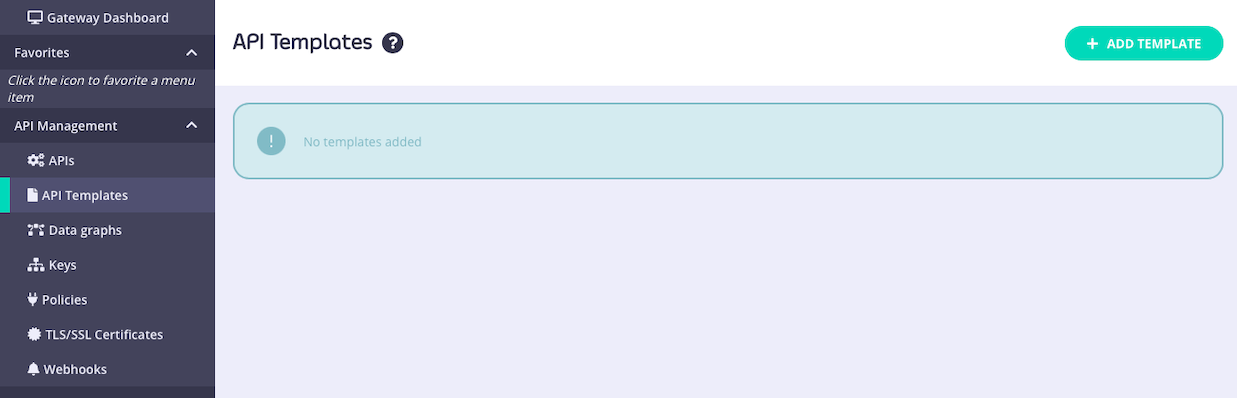
API Templates can be found in the **API Templates** section of the **API Management** menu in the Tyk Dashboard. This screen lists all the templates currently registered with Tyk and displays their names and short descriptions. It also gives access to options to create and manage templates.
 API Templates are exclusive to [Tyk OAS APIs](/docs/api-management/gateway-config-introduction#api-definitions).
### Creating templates
API templates can be created starting from a blank template or from an existing API
#### Creating a new API template
To create a template, simply visit the **API Templates** section of the Tyk Dashboard and select **ADD TEMPLATE**.
This will take you to the **Create API Template** screen, where you can configure all aspects of the template.
The template does not need to be a complete or valid API definition however as a minimum:
* you must give the template a **Name**
* you must give the template a **Description**
In this example, we have configured just the Name, Description, Gateway Status and Access settings:
API Templates are exclusive to [Tyk OAS APIs](/docs/api-management/gateway-config-introduction#api-definitions).
### Creating templates
API templates can be created starting from a blank template or from an existing API
#### Creating a new API template
To create a template, simply visit the **API Templates** section of the Tyk Dashboard and select **ADD TEMPLATE**.
This will take you to the **Create API Template** screen, where you can configure all aspects of the template.
The template does not need to be a complete or valid API definition however as a minimum:
* you must give the template a **Name**
* you must give the template a **Description**
In this example, we have configured just the Name, Description, Gateway Status and Access settings:
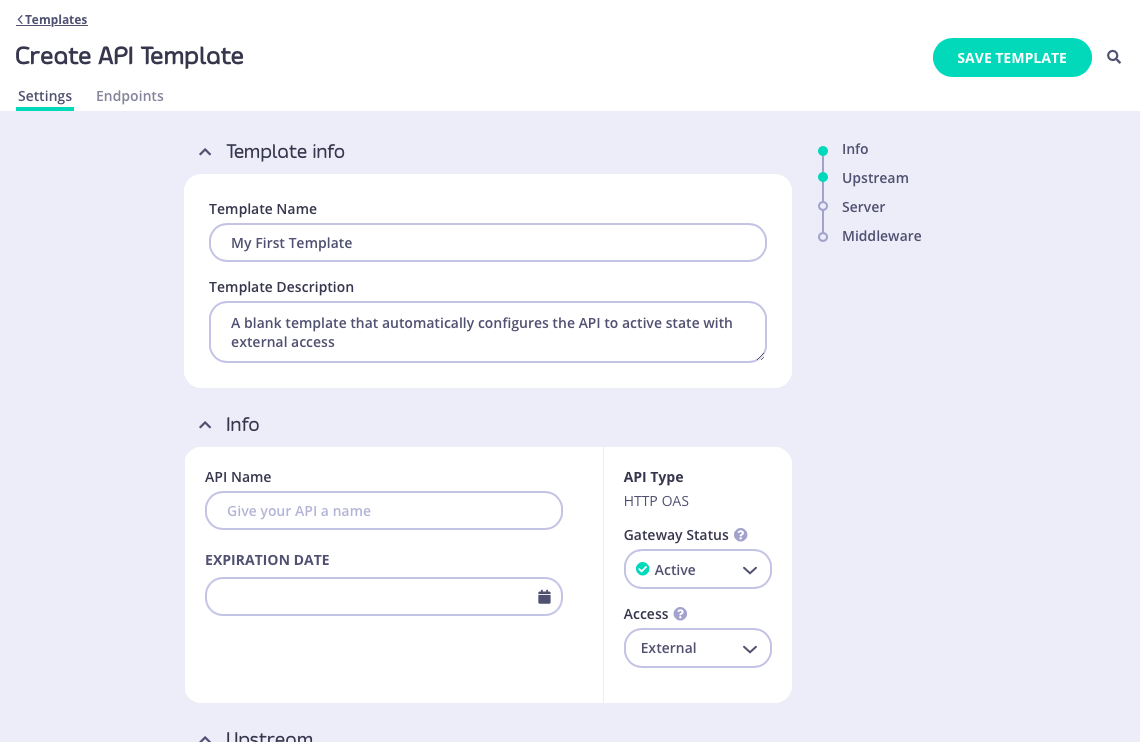 When you have configured all of the API-level and endpoint-level settings you require, select **SAVE TEMPLATE** to create and register the template with Tyk.
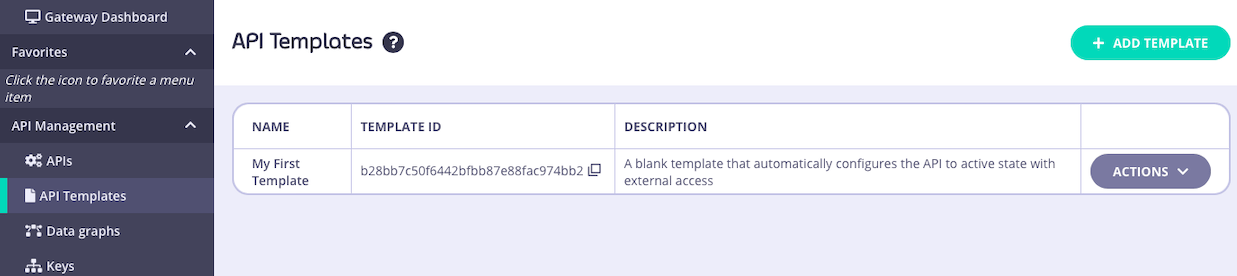
Returning to the **API Template** screen you will see your new template has been added to the list and assigned a unique `id` that can be used to access the template from the [Tyk Dashboard API](#structure-of-an-api-template):
When you have configured all of the API-level and endpoint-level settings you require, select **SAVE TEMPLATE** to create and register the template with Tyk.
Returning to the **API Template** screen you will see your new template has been added to the list and assigned a unique `id` that can be used to access the template from the [Tyk Dashboard API](#structure-of-an-api-template):
 #### Creating a template from an existing API
You can use an existing API deployed on Tyk as the basis for a new API template - this is a great way to build up a portfolio of standardized APIs once you've got your first one correctly configured.
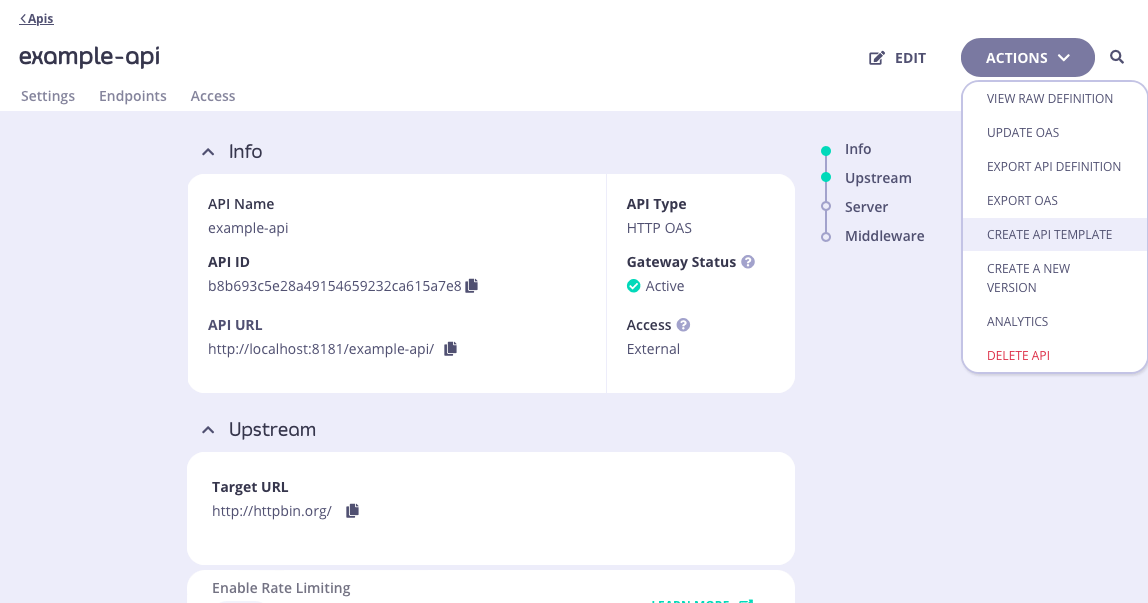
From the **Created APIs** screen within the **APIs** section of the Tyk Dashboard, select the API that you wish to use as your starting point. In the **ACTIONS** drop-down select the **CREATE API TEMPLATE** option.
#### Creating a template from an existing API
You can use an existing API deployed on Tyk as the basis for a new API template - this is a great way to build up a portfolio of standardized APIs once you've got your first one correctly configured.
From the **Created APIs** screen within the **APIs** section of the Tyk Dashboard, select the API that you wish to use as your starting point. In the **ACTIONS** drop-down select the **CREATE API TEMPLATE** option.
 This will take you to the **Create API Template** screen, where you can configure all aspects of the template.
The template does not need to be a complete or valid API definition however as a minimum:
* you must give the template a **Name**
* you must give the template a **Description**
In this example, we have configured the Name and Description. The base API included response header transformation middleware on the `/anything` endpoint and API-level cache configuration, all of which will be configured within the template.
This will take you to the **Create API Template** screen, where you can configure all aspects of the template.
The template does not need to be a complete or valid API definition however as a minimum:
* you must give the template a **Name**
* you must give the template a **Description**
In this example, we have configured the Name and Description. The base API included response header transformation middleware on the `/anything` endpoint and API-level cache configuration, all of which will be configured within the template.
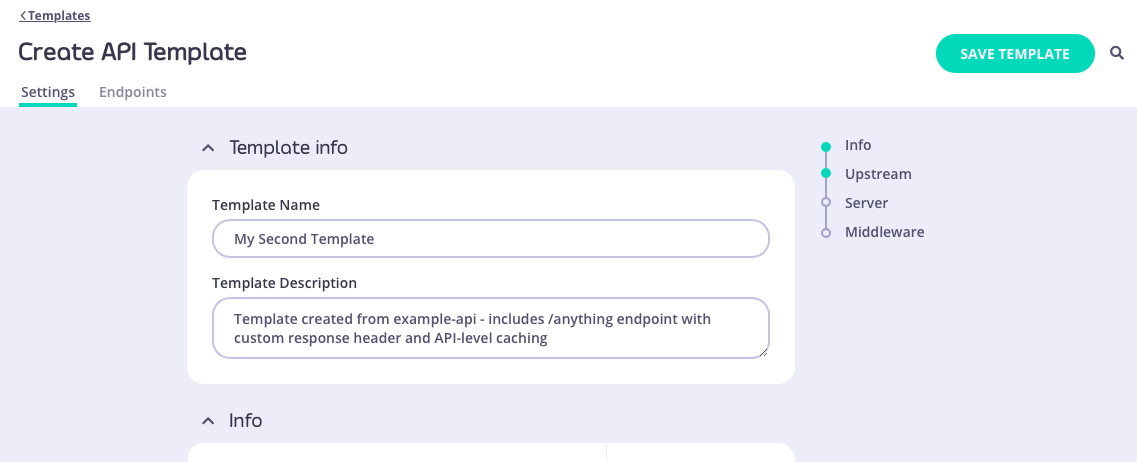
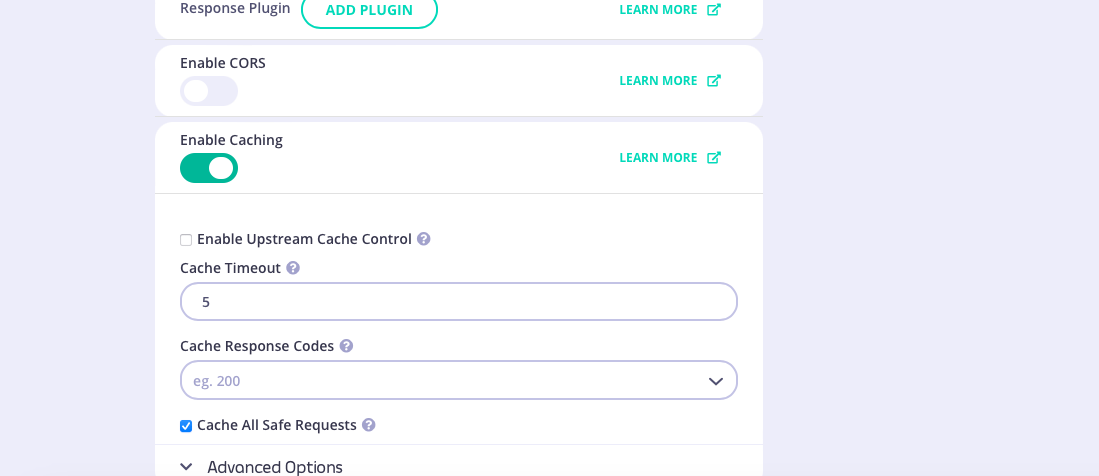
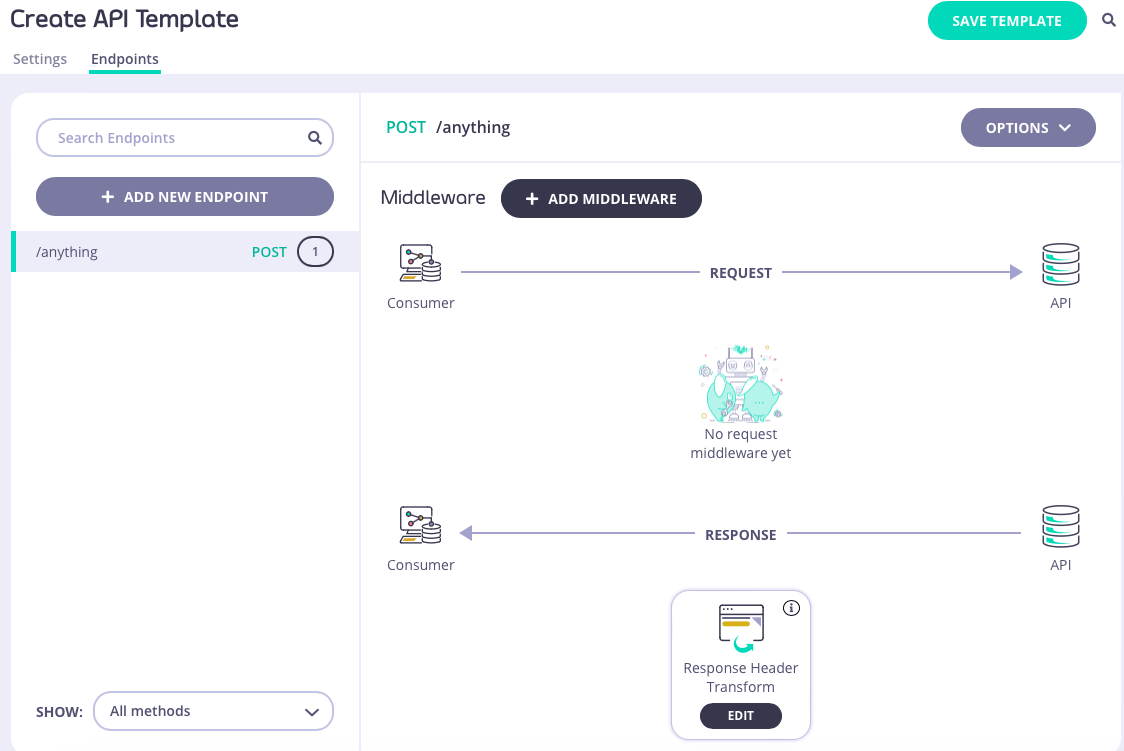 When you have configured all of the API-level and endpoint-level settings you require, select **SAVE TEMPLATE** to create and register the template with Tyk.
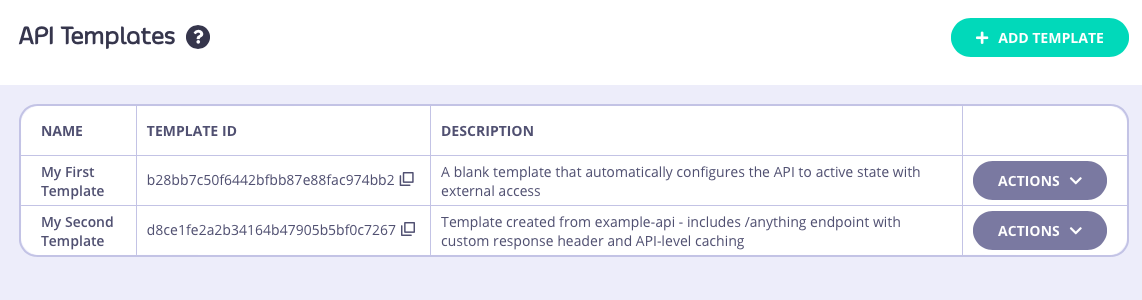
Returning to the **API Template** screen you will see your new template has been added to the list and assigned a unique `id` that can be used to access the template from the [Tyk Dashboard API](#structure-of-an-api-template).
When you have configured all of the API-level and endpoint-level settings you require, select **SAVE TEMPLATE** to create and register the template with Tyk.
Returning to the **API Template** screen you will see your new template has been added to the list and assigned a unique `id` that can be used to access the template from the [Tyk Dashboard API](#structure-of-an-api-template).
 ### Using templates
API templates are used as the starting point during the creation of a new API. They can be applied in all of the methods supported by Tyk for creating new APIs.
#### Using a template when creating a new API
There are two ways to base a new API, created entirely within the Tyk Dashboard's API Designer, on a template that you've created and registered with Tyk.
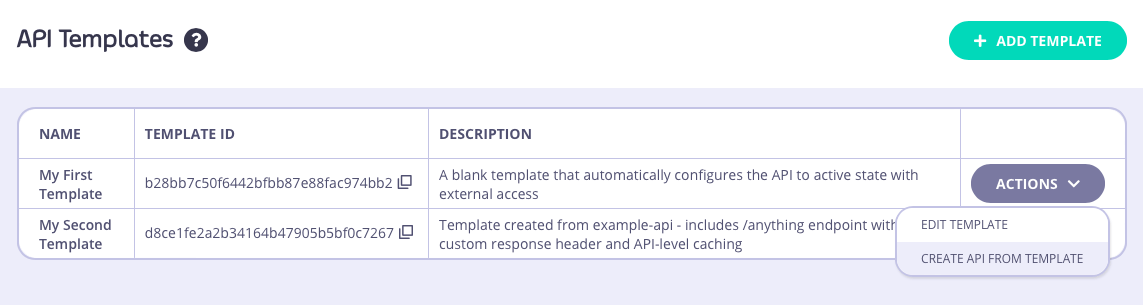
You can go from the **API Template** screen - for the template you want to use, select **CREATE API FROM TEMPLATE** from the **ACTIONS** menu:
### Using templates
API templates are used as the starting point during the creation of a new API. They can be applied in all of the methods supported by Tyk for creating new APIs.
#### Using a template when creating a new API
There are two ways to base a new API, created entirely within the Tyk Dashboard's API Designer, on a template that you've created and registered with Tyk.
You can go from the **API Template** screen - for the template you want to use, select **CREATE API FROM TEMPLATE** from the **ACTIONS** menu:
 Or, from the **Created APIs** screen, select **ADD NEW API** as normal and then select the template you want to use from the **API Template** section:
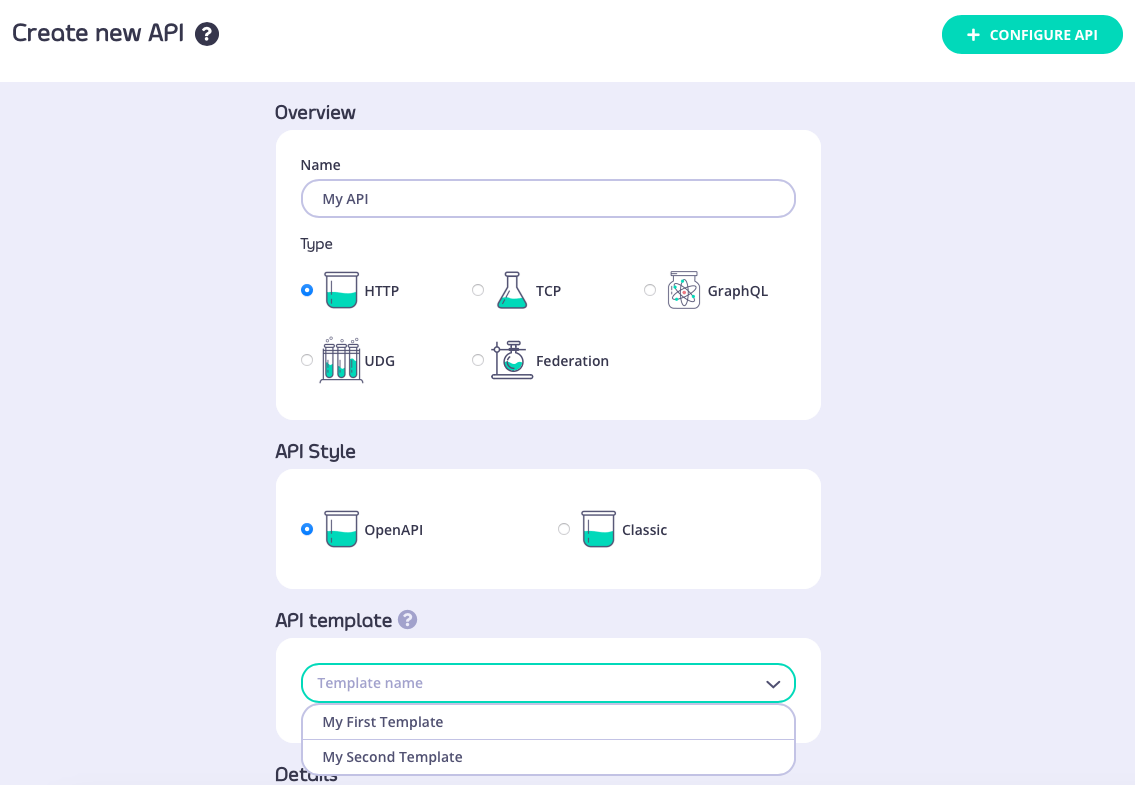 Both of these routes will take you through to the API Designer, where the settings from your API template will be pre-configured.
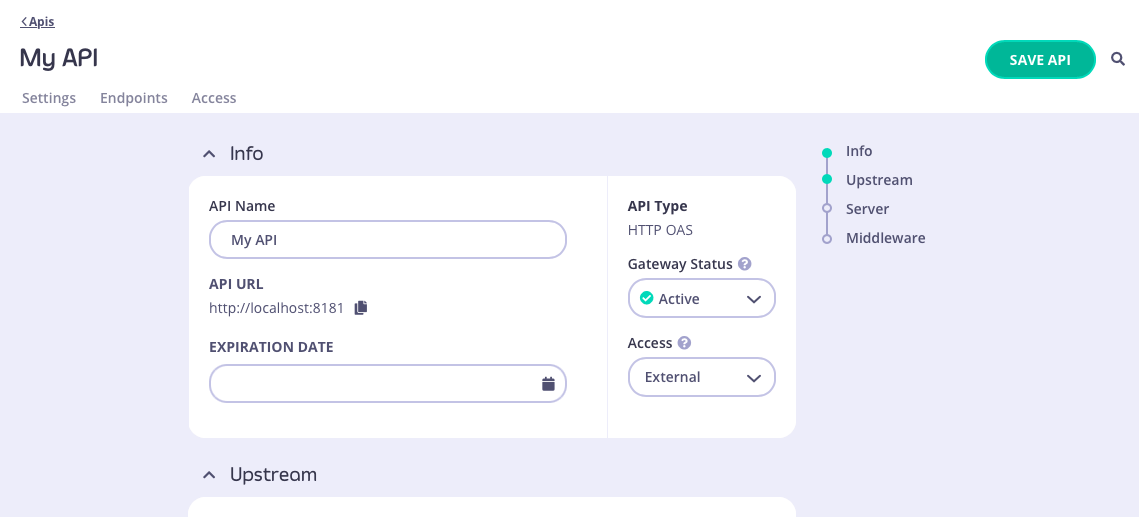
In this example, we applied "My first template" that we created [here](#creating-a-new-api-template). You can see that the Gateway Status and Access fields have been configured:
Both of these routes will take you through to the API Designer, where the settings from your API template will be pre-configured.
In this example, we applied "My first template" that we created [here](#creating-a-new-api-template). You can see that the Gateway Status and Access fields have been configured:
 #### Using a template when importing an OpenAPI description or API definition
From the **Import API** screen, if you select the OpenAPI **type** then you can create an API from an OpenAPI description or Tyk OAS API definition; choose the appropriate method to provide this to the Dashboard:
* paste the JSON into the text editor
* provide a plain text file containing the JSON
* provide a URL to the JSON
#### Using a template when importing an OpenAPI description or API definition
From the **Import API** screen, if you select the OpenAPI **type** then you can create an API from an OpenAPI description or Tyk OAS API definition; choose the appropriate method to provide this to the Dashboard:
* paste the JSON into the text editor
* provide a plain text file containing the JSON
* provide a URL to the JSON
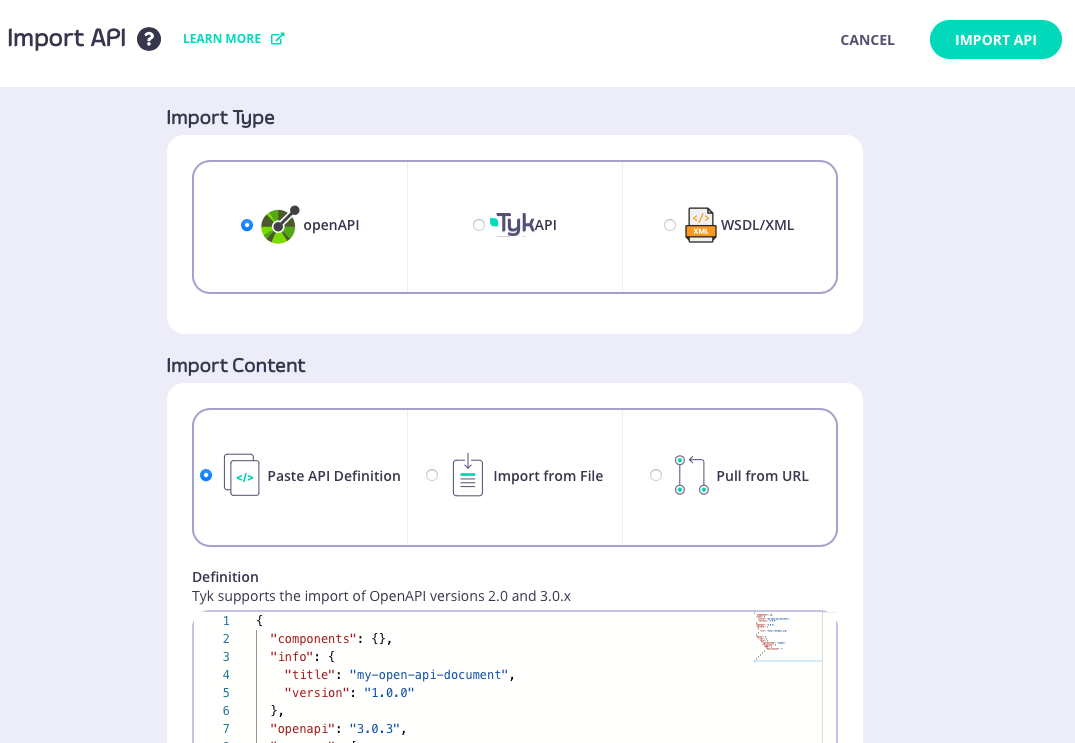 After pasting the JSON or locating the file, you can select the template you want to use from the **API Template** section:
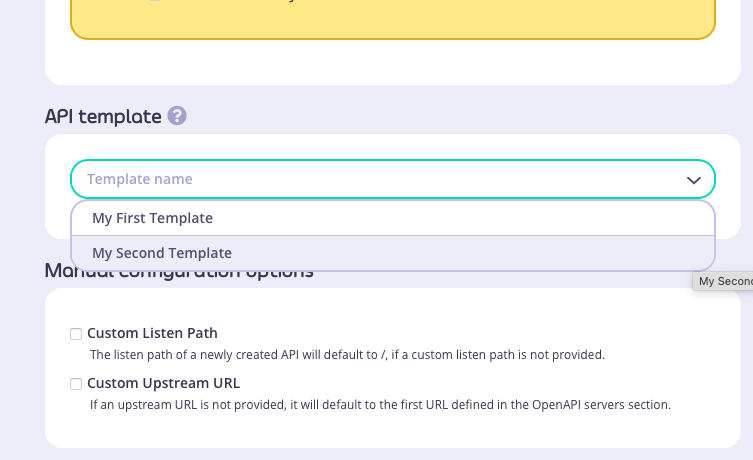 In this example we used this simple OpenAPI description and selected "My second template" that we created [here](#creating-a-template-from-an-existing-api):
```json {linenos=true, linenostart=1} theme={null}
{
"components": {},
"info": {
"title": "my-open-api-document",
"version": "1.0.0"
},
"openapi": "3.0.3",
"servers": [
{
"url": "http://httpbin.org"
}
],
"paths": {
"/xml": {
"get": {
"operationId": "xmlget",
"responses": {
"200": {
"description": ""
}
}
}
}
}
}
```
The API that is created has both `/xml` and `/anything` endpoints defined, with API-level caching configured. You can see the API definition [here](https://gist.github.com/andyo-tyk/5d5cfeda404ce1ba498bbf4b9c105cf0).
### Managing templates
The Dashboard UI allows you to edit and delete templates after they have been created and registered with the Tyk Dashboard
#### Editing a template
You can make changes to a template that has been registered with Tyk from the **API Templates** screen. For the template that you want to modify, simply select **EDIT TEMPLATE** from the **ACTIONS** menu:
In this example we used this simple OpenAPI description and selected "My second template" that we created [here](#creating-a-template-from-an-existing-api):
```json {linenos=true, linenostart=1} theme={null}
{
"components": {},
"info": {
"title": "my-open-api-document",
"version": "1.0.0"
},
"openapi": "3.0.3",
"servers": [
{
"url": "http://httpbin.org"
}
],
"paths": {
"/xml": {
"get": {
"operationId": "xmlget",
"responses": {
"200": {
"description": ""
}
}
}
}
}
}
```
The API that is created has both `/xml` and `/anything` endpoints defined, with API-level caching configured. You can see the API definition [here](https://gist.github.com/andyo-tyk/5d5cfeda404ce1ba498bbf4b9c105cf0).
### Managing templates
The Dashboard UI allows you to edit and delete templates after they have been created and registered with the Tyk Dashboard
#### Editing a template
You can make changes to a template that has been registered with Tyk from the **API Templates** screen. For the template that you want to modify, simply select **EDIT TEMPLATE** from the **ACTIONS** menu:
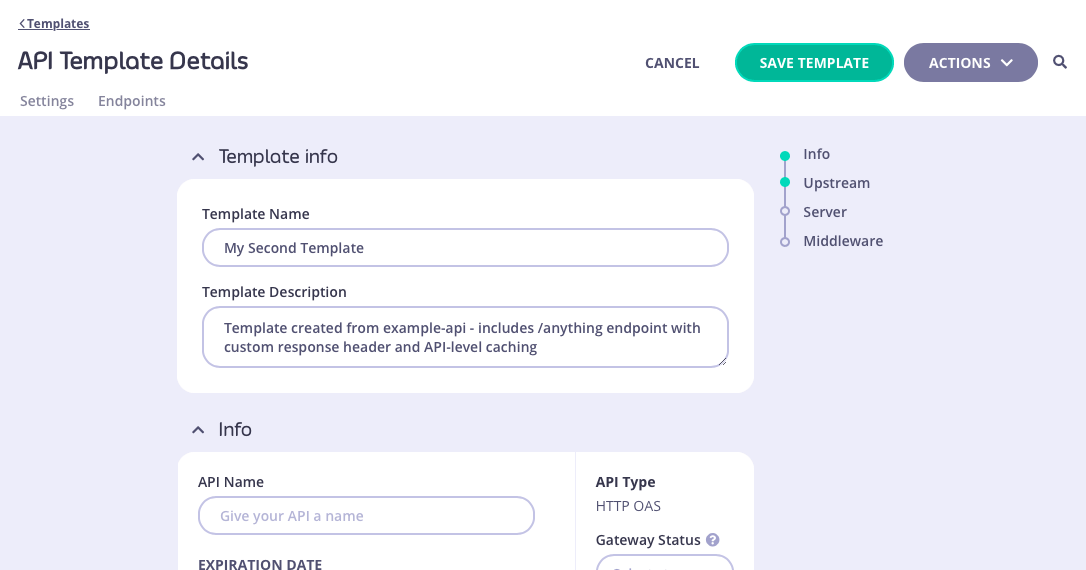
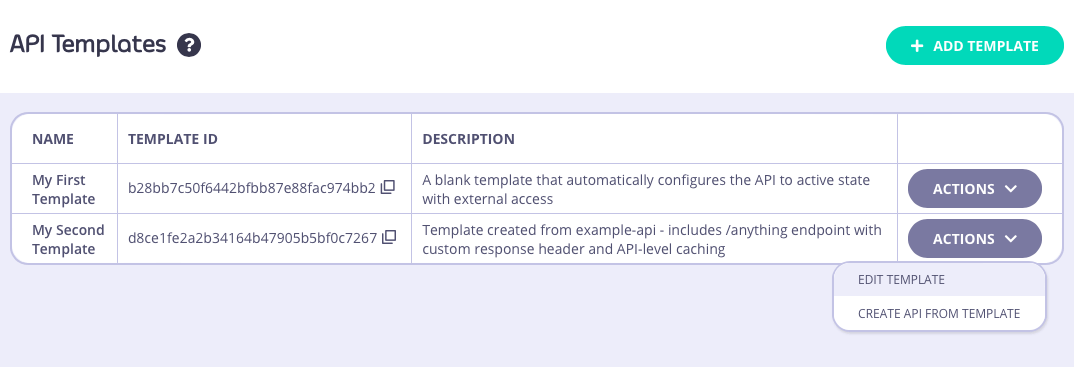 This will take you to the **API Template Details** screen where you can view the current template configuration. If you want to make changes, simply select **EDIT** to make the fields editable:
 Alternatively you can view and modify the raw JSON for the template by selecting **VIEW RAW TEMPLATE** from the **ACTIONS** menu:
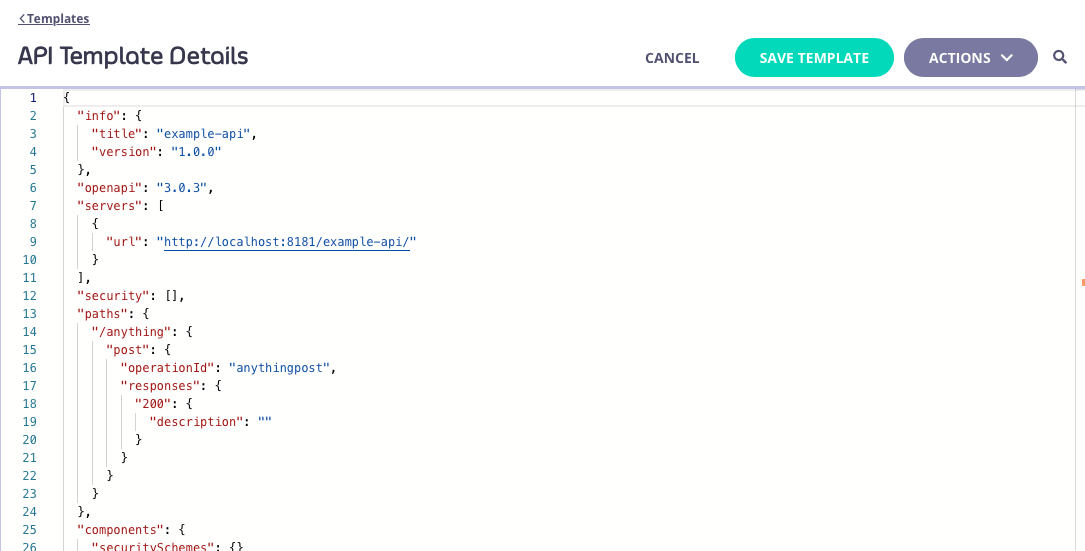 You'll need to select **SAVE TEMPLATE** to apply your changes from either screen.
#### Deleting a template
You can delete a template from your Tyk Dashboard from the **API Template Details** screen. This screen can be accessed by selecting the template from the **API Templates** screen (either by clicking on the template name, or selecting **EDIT TEMPLATE** from the **ACTIONS** menu):
From the **API Template Details** screen you can select **DELETE TEMPLATE** from the **ACTIONS** menu:
You'll need to select **SAVE TEMPLATE** to apply your changes from either screen.
#### Deleting a template
You can delete a template from your Tyk Dashboard from the **API Template Details** screen. This screen can be accessed by selecting the template from the **API Templates** screen (either by clicking on the template name, or selecting **EDIT TEMPLATE** from the **ACTIONS** menu):
From the **API Template Details** screen you can select **DELETE TEMPLATE** from the **ACTIONS** menu:
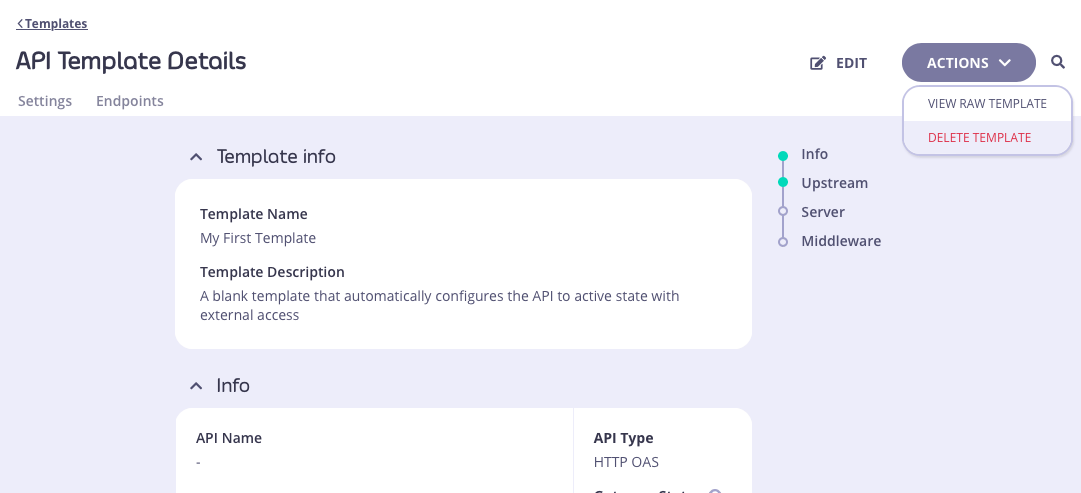 You will be asked to confirm the deletion, because this is irrevocable. Once confirmed, the template will be removed from the database and cannot be recovered.
## Working with API Templates using the Dashboard API
API Templates are an API governance feature provided to streamline the process of creating Tyk OAS APIs. An API template is an asset managed by Tyk Dashboard that is used as the starting point - a blueprint - from which you can create a new Tyk OAS API definition.
The Tyk Dashboard API provides the following functionality to support working with API templates:
* [registering a template with Tyk Dashboard](#registering-a-template-with-tyk-dashboard)
* [applying a template when creating an API from an OpenAPI document](#applying-a-template-when-creating-an-api-from-an-openapi-document)
* [applying a template when creating an API from a Tyk OAS API definition](#applying-a-template-when-creating-an-api-from-a-tyk-oas-api-definition)
API Templates are exclusive to [Tyk OAS APIs](/docs/api-management/gateway-config-introduction#api-definitions).
### Structure of an API template
An API template asset has the following structure:
* `id`: a unique string type identifier for the template
* `kind`: the asset type, which is set to `oas-template`
* `name`: human-readable name for the template
* `description`: a short description of the template, that could be used for example to indicate the configuration held within the template
* `data`: a Tyk OAS API definition, the content of which will be used for templating APIs
* `_id`: a unique identifier assigned by Tyk when the template is registered in the Dashboard database
### Registering a template with Tyk Dashboard
To register an API template with Tyk, you pass the asset in the body of a `POST` request to the dashboard's `/api/assets` endpoint.
For example, if you send this command to the endpoint:
```bash {linenos=true, linenostart=1} theme={null}
curl --location 'http://localhost:3000/api/assets' \
--header 'Content-Type: application/json' \
--header 'Authorization: Bearer d9957aff302b4f5e5596c86a685e63d8' \
--data '{
"kind": "oas-template",
"name": "my-template",
"description": "My first template",
"id": "my-unique-template-id",
"data": {
"info": {
"title": "",
"version": ""
},
"openapi": "3.0.3",
"paths": {
"/anything": {
"post": {
"operationId": "anythingpost",
"responses": {
"200": {
"description": ""
}
}
}
}
},
"x-tyk-api-gateway": {
"middleware": {
"global": {
"cache": {
"enabled": true,
"timeout": 5,
"cacheAllSafeRequests": true
}
},
"operations": {
"anythingpost": {
"requestSizeLimit": {
"enabled": true,
"value": 100
}
}
}
}
}
}
}'
```
Tyk will respond with `HTTP 201 Created` and will provide this payload in response:
```json theme={null}
{
"Status": "success",
"Message": "asset created",
"Meta": "65e8c352cb71918520ff660c",
"ID": "my-unique-template-id"
}
```
Here `Meta` contains the database ID (where the asset has been registered in the persistent storage) and `ID` contains the unique identifier for the template. This unique identifier will be automatically generated by Tyk if none was provided in the `id` of the template asset provided in the `curl` request.
### Applying a template when creating an API from an OpenAPI document
When creating an API on Tyk using an OpenAPI document describing your upstream service, you can use the `/apis/oas/import` endpoint to import the OpenAPI description and apply it to your API.
If you have a template registered with your Dashboard, you can use this as the starting point for your new API. Tyk will combine the OpenAPI document with the template, automating the configuration of any element in the Tyk OAS API definition as defined in your chosen template.
You'll need to identify the template to be used during the import. You can use either its unique `id` or the database ID that was assigned when the template was [registered with Tyk Dashboard](#registering-a-template-with-tyk-dashboard). You provide either the `id` or `_id ` in the `templateID` query parameter in the call to `/oapis/oas/import`.
For example:
```bash {linenos=true, linenostart=1} theme={null}
curl --location 'http://localhost:3000/api/apis/oas/import?templateID=my-unique-template-id' \
--header 'Content-Type: application/json' \
--header 'Authorization: Bearer ' \
--data '{
"components": {},
"info": {
"title": "my-open-api-document",
"version": "1.0.0"
},
"openapi": "3.0.3",
"servers": [
{
"url": "http://httpbin.org"
}
],
"paths": {
"/xml": {
"get": {
"operationId": "xmlget",
"responses": {
"200": {
"description": ""
}
}
}
}
}
}'
```
Tyk will respond with `HTTP 200 OK` and will provide this payload in response:
```json theme={null}
{
"Status": "OK",
"Message": "API created",
"Meta": "65e8c4f4cb71918520ff660d",
"ID": "970560005b564c4755f1db51ca5660e6"
}
```
Here `Meta` contains the database ID (where the API has been registered in the persistent storage) and `ID` contains the unique identifier for the API. This unique identifier will be automatically generated by Tyk as none was provided in the `id` field of the `x-tyk-api-gateway.info` field provided in the `curl` request.
The new Tyk OAS API will have this definition, combining the OpenAPI description provided in the body of the `curl` request with the template with Id `my-unique-template-id`:
```json {linenos=true, linenostart=1} theme={null}
{
"info": {
"title": "my-open-api-document",
"version": "1.0.0"
},
"openapi": "3.0.3",
"servers": [
{
"url": "http://localhost:8181/"
},
{
"url": "http://httpbin.org"
}
],
"security": [],
"paths": {
"/anything": {
"post": {
"operationId": "anythingpost",
"responses": {
"200": {
"description": ""
}
}
}
},
"/xml": {
"get": {
"operationId": "xmlget",
"responses": {
"200": {
"description": ""
}
}
}
}
},
"components": {
"securitySchemes": {}
},
"x-tyk-api-gateway": {
"info": {
"dbId": "65e8c4f4cb71918520ff660d",
"id": "970560005b564c4755f1db51ca5660e6",
"orgId": "65d635966ec69461e0e7ee52",
"name": "my-open-api-document",
"state": {
"active": true,
"internal": false
}
},
"middleware": {
"global": {
"cache": {
"cacheResponseCodes": [],
"cacheByHeaders": [],
"timeout": 5,
"cacheAllSafeRequests": true,
"enabled": true
}
},
"operations": {
"anythingpost": {
"requestSizeLimit": {
"enabled": true,
"value": 100
}
}
}
},
"server": {
"listenPath": {
"strip": true,
"value": "/"
}
},
"upstream": {
"url": "http://httpbin.org"
}
}
}
```
Note that the `GET /xml` endpoint from the OpenAPI description and the `POST /anything` endpoint from the template (complete with `requestSizeLimit` middleware) have both been defined in the API definition. API-level caching has been enabled, as configured in the template. Tyk has included the `server` entry from the OpenAPI description (which points to the upstream server) and added the API URL on Tyk Gateway ([as explained here](/docs/api-management/gateway-config-tyk-oas#modifying-the-openapi-description)).
### Applying a template when creating an API from a Tyk OAS API definition
When creating an API using a complete Tyk OAS API definition (which includes `x-tyk-api-gateway`), you can use the `/apis/oas` endpoint to import the API defintiion.
If you have a template registered with your Dashboard, you can use this as the starting point for your new API. Tyk will combine the API definition with the template, automating the configuration of any element defined in your chosen template.
You'll need to identify the template to be used during the import. You can use either its unique `id` or the database ID that was assigned when the template was [registered with Tyk Dashboard](#registering-a-template-with-tyk-dashboard). You provide either the `id` or `_id` in the `templateID` query parameter in the call to `/apis/oas`.
For example:
```bash {linenos=true, linenostart=1} theme={null}
curl --location 'http://localhost:3000/api/apis/oas?templateID=my-unique-template-id' \
--header 'Content-Type: application/json' \
--header 'Authorization: Bearer ' \
--data '{
"components": {},
"info": {
"title": "example-api",
"version": "1.0.0"
},
"openapi": "3.0.3",
"paths": {
"/json": {
"get": {
"operationId": "jsonget",
"responses": {
"200": {
"description": ""
}
}
}
}
},
"x-tyk-api-gateway": {
"info": {
"name": "example-api",
"state": {
"active": true,
"internal": false
}
},
"upstream": {
"url": "http://httpbin.org/"
},
"server": {
"listenPath": {
"strip": true,
"value": "/example-api/"
}
},
"middleware": {
"operations": {
"jsonget": {
"transformResponseHeaders": {
"enabled": true,
"add": [
{
"name": "X-Foo",
"value": "bar"
}
]
}
}
}
}
}
}'
```
Tyk will respond with `HTTP 200 OK` and will provide this payload in response:
```json theme={null}
{
"Status": "OK",
"Message": "API created",
"Meta": "65e98ca5cb71918520ff6616",
"ID": "b8b693c5e28a49154659232ca615a7e8"
}
```
Here `Meta` contains the database ID (where the API has been registered in the persistent storage) and `ID` contains the unique identifier for the API. This unique identifier will be automatically generated by Tyk as none was provided in the `id` field of the `x-tyk-api-gateway.info` field provided in the `curl` request.
The new Tyk OAS API will have this definition, combining the Tyk OAS API definition provided in the body of the `curl` request with the template with Id `my-unique-template-id`:
```json {linenos=true, linenostart=1} theme={null}
{
"info": {
"title": "example-api",
"version": "1.0.0"
},
"openapi": "3.0.3",
"servers": [
{
"url": "http://localhost:8181/example-api/"
}
],
"security": [],
"paths": {
"/anything": {
"post": {
"operationId": "anythingpost",
"responses": {
"200": {
"description": ""
}
}
}
},
"/json": {
"get": {
"operationId": "jsonget",
"responses": {
"200": {
"description": ""
}
}
}
}
},
"components": {
"securitySchemes": {}
},
"x-tyk-api-gateway": {
"info": {
"dbId": "65e98ca5cb71918520ff6616",
"id": "b8b693c5e28a49154659232ca615a7e8",
"orgId": "65d635966ec69461e0e7ee52",
"name": "example-api",
"state": {
"active": true,
"internal": false
}
},
"middleware": {
"global": {
"cache": {
"cacheResponseCodes": [],
"cacheByHeaders": [],
"timeout": 5,
"cacheAllSafeRequests": true,
"enabled": true
}
},
"operations": {
"anythingpost": {
"requestSizeLimit": {
"enabled": true,
"value": 100
}
},
"jsonget": {
"transformResponseHeaders": {
"enabled": true,
"add": [
{
"name": "X-Foo",
"value": "bar"
}
]
}
}
}
},
"server": {
"listenPath": {
"strip": true,
"value": "/example-api/"
}
},
"upstream": {
"url": "http://httpbin.org/"
}
}
}
```
Note that the `GET /json` endpoint from the OpenAPI description and the `POST /anything` endpoint from the template (complete with `requestSizeLimit` middleware) have both been defined in the API definition. API-level caching has been enabled, as configured in the template.
You will be asked to confirm the deletion, because this is irrevocable. Once confirmed, the template will be removed from the database and cannot be recovered.
## Working with API Templates using the Dashboard API
API Templates are an API governance feature provided to streamline the process of creating Tyk OAS APIs. An API template is an asset managed by Tyk Dashboard that is used as the starting point - a blueprint - from which you can create a new Tyk OAS API definition.
The Tyk Dashboard API provides the following functionality to support working with API templates:
* [registering a template with Tyk Dashboard](#registering-a-template-with-tyk-dashboard)
* [applying a template when creating an API from an OpenAPI document](#applying-a-template-when-creating-an-api-from-an-openapi-document)
* [applying a template when creating an API from a Tyk OAS API definition](#applying-a-template-when-creating-an-api-from-a-tyk-oas-api-definition)
API Templates are exclusive to [Tyk OAS APIs](/docs/api-management/gateway-config-introduction#api-definitions).
### Structure of an API template
An API template asset has the following structure:
* `id`: a unique string type identifier for the template
* `kind`: the asset type, which is set to `oas-template`
* `name`: human-readable name for the template
* `description`: a short description of the template, that could be used for example to indicate the configuration held within the template
* `data`: a Tyk OAS API definition, the content of which will be used for templating APIs
* `_id`: a unique identifier assigned by Tyk when the template is registered in the Dashboard database
### Registering a template with Tyk Dashboard
To register an API template with Tyk, you pass the asset in the body of a `POST` request to the dashboard's `/api/assets` endpoint.
For example, if you send this command to the endpoint:
```bash {linenos=true, linenostart=1} theme={null}
curl --location 'http://localhost:3000/api/assets' \
--header 'Content-Type: application/json' \
--header 'Authorization: Bearer d9957aff302b4f5e5596c86a685e63d8' \
--data '{
"kind": "oas-template",
"name": "my-template",
"description": "My first template",
"id": "my-unique-template-id",
"data": {
"info": {
"title": "",
"version": ""
},
"openapi": "3.0.3",
"paths": {
"/anything": {
"post": {
"operationId": "anythingpost",
"responses": {
"200": {
"description": ""
}
}
}
}
},
"x-tyk-api-gateway": {
"middleware": {
"global": {
"cache": {
"enabled": true,
"timeout": 5,
"cacheAllSafeRequests": true
}
},
"operations": {
"anythingpost": {
"requestSizeLimit": {
"enabled": true,
"value": 100
}
}
}
}
}
}
}'
```
Tyk will respond with `HTTP 201 Created` and will provide this payload in response:
```json theme={null}
{
"Status": "success",
"Message": "asset created",
"Meta": "65e8c352cb71918520ff660c",
"ID": "my-unique-template-id"
}
```
Here `Meta` contains the database ID (where the asset has been registered in the persistent storage) and `ID` contains the unique identifier for the template. This unique identifier will be automatically generated by Tyk if none was provided in the `id` of the template asset provided in the `curl` request.
### Applying a template when creating an API from an OpenAPI document
When creating an API on Tyk using an OpenAPI document describing your upstream service, you can use the `/apis/oas/import` endpoint to import the OpenAPI description and apply it to your API.
If you have a template registered with your Dashboard, you can use this as the starting point for your new API. Tyk will combine the OpenAPI document with the template, automating the configuration of any element in the Tyk OAS API definition as defined in your chosen template.
You'll need to identify the template to be used during the import. You can use either its unique `id` or the database ID that was assigned when the template was [registered with Tyk Dashboard](#registering-a-template-with-tyk-dashboard). You provide either the `id` or `_id ` in the `templateID` query parameter in the call to `/oapis/oas/import`.
For example:
```bash {linenos=true, linenostart=1} theme={null}
curl --location 'http://localhost:3000/api/apis/oas/import?templateID=my-unique-template-id' \
--header 'Content-Type: application/json' \
--header 'Authorization: Bearer ' \
--data '{
"components": {},
"info": {
"title": "my-open-api-document",
"version": "1.0.0"
},
"openapi": "3.0.3",
"servers": [
{
"url": "http://httpbin.org"
}
],
"paths": {
"/xml": {
"get": {
"operationId": "xmlget",
"responses": {
"200": {
"description": ""
}
}
}
}
}
}'
```
Tyk will respond with `HTTP 200 OK` and will provide this payload in response:
```json theme={null}
{
"Status": "OK",
"Message": "API created",
"Meta": "65e8c4f4cb71918520ff660d",
"ID": "970560005b564c4755f1db51ca5660e6"
}
```
Here `Meta` contains the database ID (where the API has been registered in the persistent storage) and `ID` contains the unique identifier for the API. This unique identifier will be automatically generated by Tyk as none was provided in the `id` field of the `x-tyk-api-gateway.info` field provided in the `curl` request.
The new Tyk OAS API will have this definition, combining the OpenAPI description provided in the body of the `curl` request with the template with Id `my-unique-template-id`:
```json {linenos=true, linenostart=1} theme={null}
{
"info": {
"title": "my-open-api-document",
"version": "1.0.0"
},
"openapi": "3.0.3",
"servers": [
{
"url": "http://localhost:8181/"
},
{
"url": "http://httpbin.org"
}
],
"security": [],
"paths": {
"/anything": {
"post": {
"operationId": "anythingpost",
"responses": {
"200": {
"description": ""
}
}
}
},
"/xml": {
"get": {
"operationId": "xmlget",
"responses": {
"200": {
"description": ""
}
}
}
}
},
"components": {
"securitySchemes": {}
},
"x-tyk-api-gateway": {
"info": {
"dbId": "65e8c4f4cb71918520ff660d",
"id": "970560005b564c4755f1db51ca5660e6",
"orgId": "65d635966ec69461e0e7ee52",
"name": "my-open-api-document",
"state": {
"active": true,
"internal": false
}
},
"middleware": {
"global": {
"cache": {
"cacheResponseCodes": [],
"cacheByHeaders": [],
"timeout": 5,
"cacheAllSafeRequests": true,
"enabled": true
}
},
"operations": {
"anythingpost": {
"requestSizeLimit": {
"enabled": true,
"value": 100
}
}
}
},
"server": {
"listenPath": {
"strip": true,
"value": "/"
}
},
"upstream": {
"url": "http://httpbin.org"
}
}
}
```
Note that the `GET /xml` endpoint from the OpenAPI description and the `POST /anything` endpoint from the template (complete with `requestSizeLimit` middleware) have both been defined in the API definition. API-level caching has been enabled, as configured in the template. Tyk has included the `server` entry from the OpenAPI description (which points to the upstream server) and added the API URL on Tyk Gateway ([as explained here](/docs/api-management/gateway-config-tyk-oas#modifying-the-openapi-description)).
### Applying a template when creating an API from a Tyk OAS API definition
When creating an API using a complete Tyk OAS API definition (which includes `x-tyk-api-gateway`), you can use the `/apis/oas` endpoint to import the API defintiion.
If you have a template registered with your Dashboard, you can use this as the starting point for your new API. Tyk will combine the API definition with the template, automating the configuration of any element defined in your chosen template.
You'll need to identify the template to be used during the import. You can use either its unique `id` or the database ID that was assigned when the template was [registered with Tyk Dashboard](#registering-a-template-with-tyk-dashboard). You provide either the `id` or `_id` in the `templateID` query parameter in the call to `/apis/oas`.
For example:
```bash {linenos=true, linenostart=1} theme={null}
curl --location 'http://localhost:3000/api/apis/oas?templateID=my-unique-template-id' \
--header 'Content-Type: application/json' \
--header 'Authorization: Bearer ' \
--data '{
"components": {},
"info": {
"title": "example-api",
"version": "1.0.0"
},
"openapi": "3.0.3",
"paths": {
"/json": {
"get": {
"operationId": "jsonget",
"responses": {
"200": {
"description": ""
}
}
}
}
},
"x-tyk-api-gateway": {
"info": {
"name": "example-api",
"state": {
"active": true,
"internal": false
}
},
"upstream": {
"url": "http://httpbin.org/"
},
"server": {
"listenPath": {
"strip": true,
"value": "/example-api/"
}
},
"middleware": {
"operations": {
"jsonget": {
"transformResponseHeaders": {
"enabled": true,
"add": [
{
"name": "X-Foo",
"value": "bar"
}
]
}
}
}
}
}
}'
```
Tyk will respond with `HTTP 200 OK` and will provide this payload in response:
```json theme={null}
{
"Status": "OK",
"Message": "API created",
"Meta": "65e98ca5cb71918520ff6616",
"ID": "b8b693c5e28a49154659232ca615a7e8"
}
```
Here `Meta` contains the database ID (where the API has been registered in the persistent storage) and `ID` contains the unique identifier for the API. This unique identifier will be automatically generated by Tyk as none was provided in the `id` field of the `x-tyk-api-gateway.info` field provided in the `curl` request.
The new Tyk OAS API will have this definition, combining the Tyk OAS API definition provided in the body of the `curl` request with the template with Id `my-unique-template-id`:
```json {linenos=true, linenostart=1} theme={null}
{
"info": {
"title": "example-api",
"version": "1.0.0"
},
"openapi": "3.0.3",
"servers": [
{
"url": "http://localhost:8181/example-api/"
}
],
"security": [],
"paths": {
"/anything": {
"post": {
"operationId": "anythingpost",
"responses": {
"200": {
"description": ""
}
}
}
},
"/json": {
"get": {
"operationId": "jsonget",
"responses": {
"200": {
"description": ""
}
}
}
}
},
"components": {
"securitySchemes": {}
},
"x-tyk-api-gateway": {
"info": {
"dbId": "65e98ca5cb71918520ff6616",
"id": "b8b693c5e28a49154659232ca615a7e8",
"orgId": "65d635966ec69461e0e7ee52",
"name": "example-api",
"state": {
"active": true,
"internal": false
}
},
"middleware": {
"global": {
"cache": {
"cacheResponseCodes": [],
"cacheByHeaders": [],
"timeout": 5,
"cacheAllSafeRequests": true,
"enabled": true
}
},
"operations": {
"anythingpost": {
"requestSizeLimit": {
"enabled": true,
"value": 100
}
},
"jsonget": {
"transformResponseHeaders": {
"enabled": true,
"add": [
{
"name": "X-Foo",
"value": "bar"
}
]
}
}
}
},
"server": {
"listenPath": {
"strip": true,
"value": "/example-api/"
}
},
"upstream": {
"url": "http://httpbin.org/"
}
}
}
```
Note that the `GET /json` endpoint from the OpenAPI description and the `POST /anything` endpoint from the template (complete with `requestSizeLimit` middleware) have both been defined in the API definition. API-level caching has been enabled, as configured in the template.