> ## Documentation Index
> Fetch the complete documentation index at: https://tyk.io/docs/llms.txt
> Use this file to discover all available pages before exploring further.
# Step by step guide using Curity
**Legacy: Tyk Classic Portal**
You're viewing documentation for the **Tyk Classic Portal**, which is no longer actively maintained.
If you're looking for the latest API documentation for the **new Tyk Developer Portal**, please refer to the
[Postman collection](/nightly/product-stack/tyk-enterprise-developer-portal/api-documentation/tyk-edp-api) or visit the
[Tyk Developer Portal](/nightly/portal/overview/intro) section.
The Classic Portal is in maintenance mode and will be deprecated soon. For questions or support, contact us at
[support@tyk.io]().
This guide describes how to integrate [The Curity Identity Server](https://curity.io/) with the Tyk Developer Portal using [OpenID Connect Dynamic Client Registration protocol](https://tools.ietf.org/html/rfc7591).
Use case outline:
1. A developer registers an account with the Tyk Developer Portal and uses the portal to create a new client.
2. Tyk sends a DCR request to the IDP, in this case The Curity Identity Server. The IDP replies with the Client ID and Secret.
3. Using the provided Client ID and Secret, the developer (or an application) can initiate an Authorization flow to obtain an Access Token from The Curity Identity Server.
4. The developer (or the application) can then use the Access Token when calling an API exposed by Tyk. In the case when a JWT is used to protect the API, Tyk validates the token using the JWKS provided by The Curity Identity Server. The API can also be protected using the [Split Token Approach](https://github.com/sedkis/split-token-tyk).
### Requirements
* An installation of The Curity Identity Server. Follow the [Getting Started Guide](https://curity.io/resources/getting-started/) if an installation is not already available.
* A [Tyk Self-Managed installation](/nightly/tyk-self-managed/install) (Gateway + Dashboard).
### Enable DCR in The Curity Identity Server
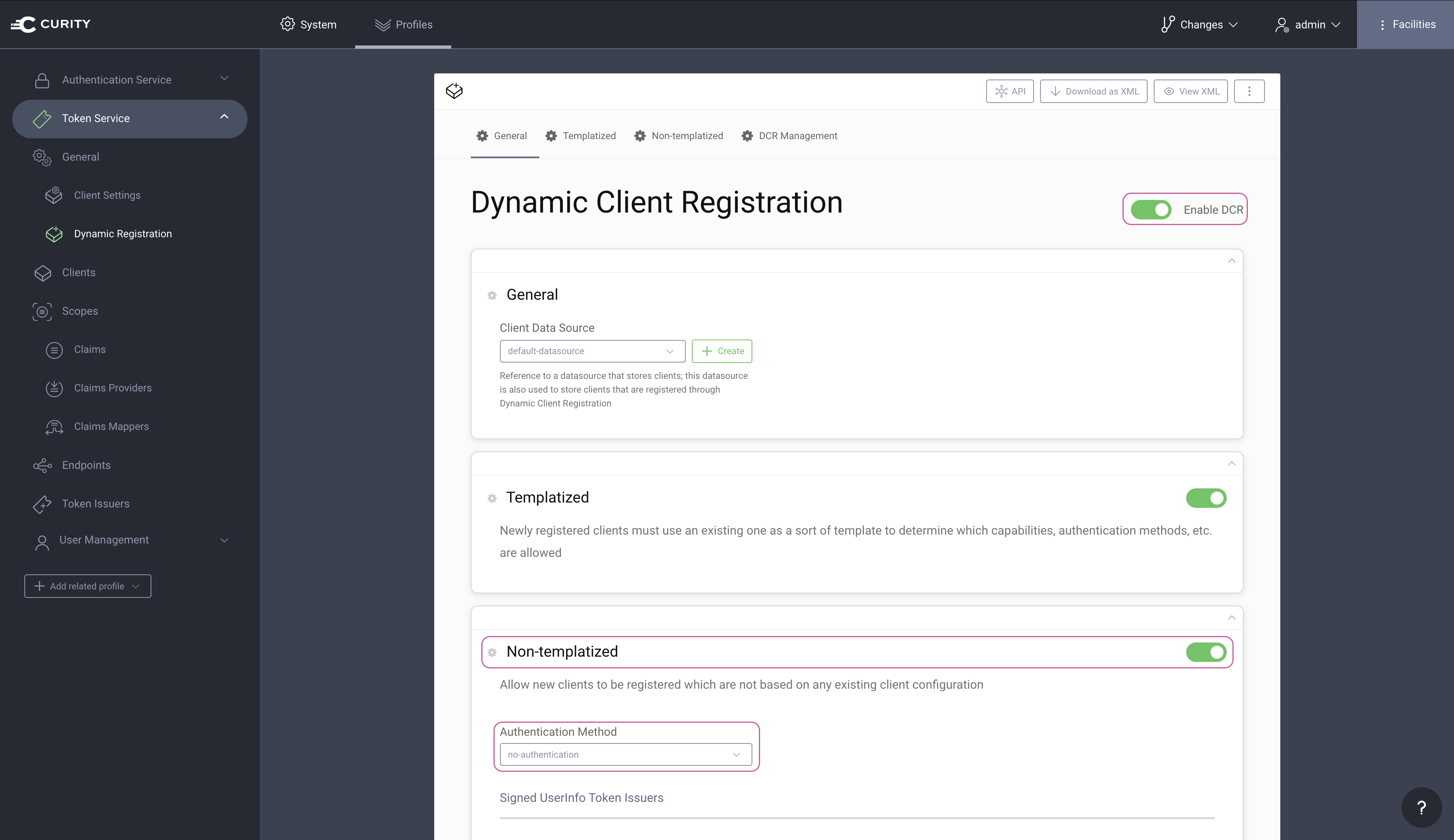
By default, DCR is not enabled in The Curity Identity Server. In the Admin UI, go to **Profiles** → **Token Service** → **General** → **Dynamic Registration**. Set both **Enable DCR** and **Non-templatized** to enabled and set the **Authentication Method** to `no-authentication`.
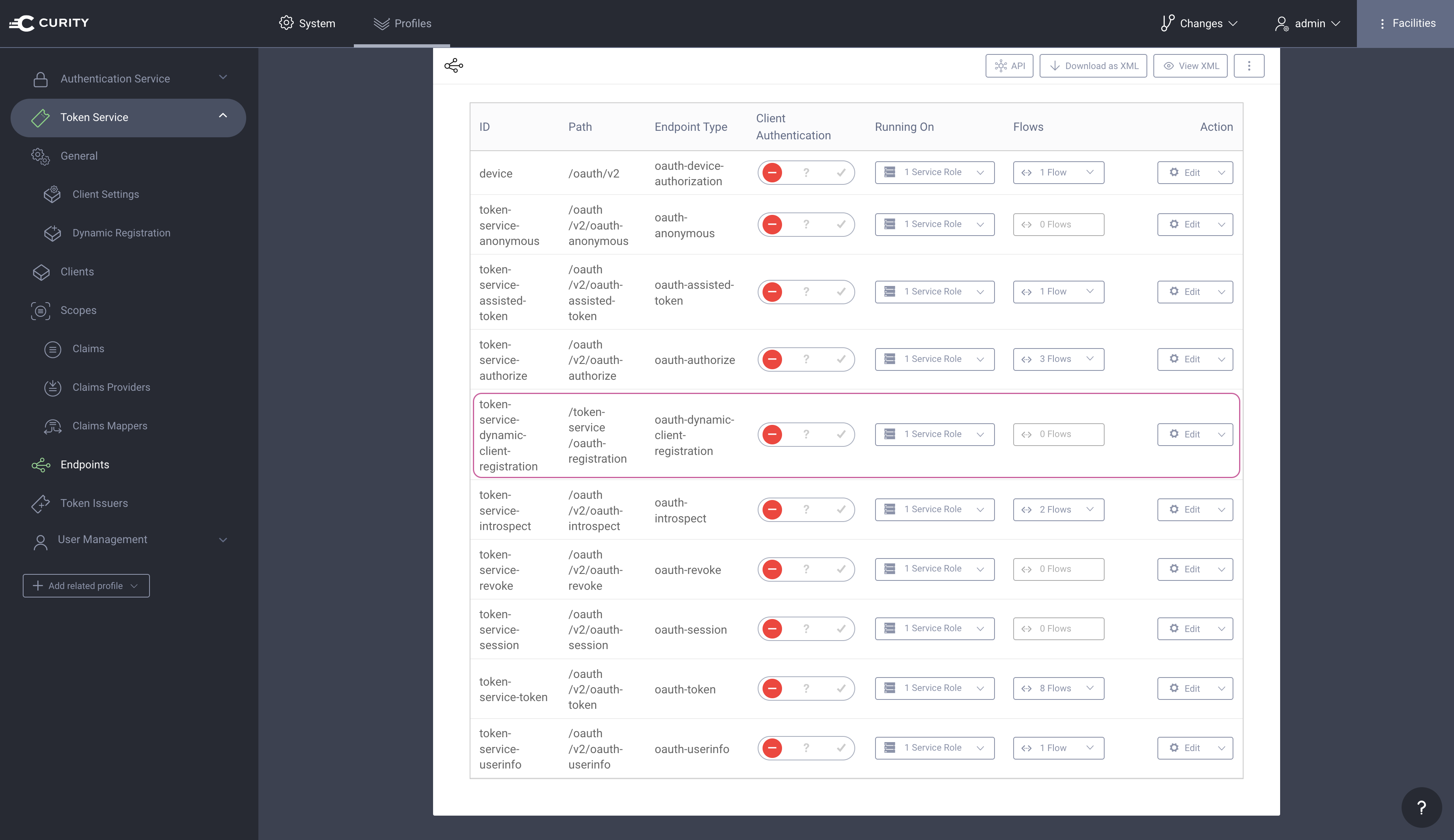
 Navigate to **Profiles** → **Token Service** → **Endpoints** and locate the path of the DCR endpoint. The path is needed later when configuring DCR in Tyk.
 **Commit the changes**
Remember to **Commit** the changes by going to **Changes** → **Commit**.
### Setting up Tyk
First check `tyk_analytics.conf` and make sure that a proper `oauth_redirect_uri_separator` parameter is set. This sets the character that separates multiple redirect uri's to `;`.
```json theme={null}
"oauth_redirect_uri_separator": ";",
```
If a change is needed in `tyk_analytics.conf`, remember to restart the service to apply the change.
#### Create DCR proxy API
The Curity Identity Server requires a token with a `dcr` scope in order to authenticate the DCR endpoint. A workaround is to configure the DCR endpoint to use no-authentication. A proxy API can be configured in such a way that Tyk will proxy the DCR request to the Curity Identity Server and a static token used to authenticate the DCR proxy API.
**Use in secure environments only**
Make sure that the communication between Tyk and the Curity Identity Server is appropriately secured. The DCR endpoint on the Curity Identity Server if set to `no-authentication` should only be accessible by Tyk.
In the Tyk Dashboard, navigate to **System Management** → **APIs**. Create a new API and give it the name, `dcr`. Make sure the **API Listen Path** is set to `/dcr/`.
Set the Target URL to the DCR endpoint of the Curity Identity Server (Ex. [https://idsvr.example.com/token-service/oauth-registration](https://idsvr.example.com/token-service/oauth-registration)).
In the **Authentication** section, set **Authentication Mode** to `Authentication Token`.
#### Create an example API
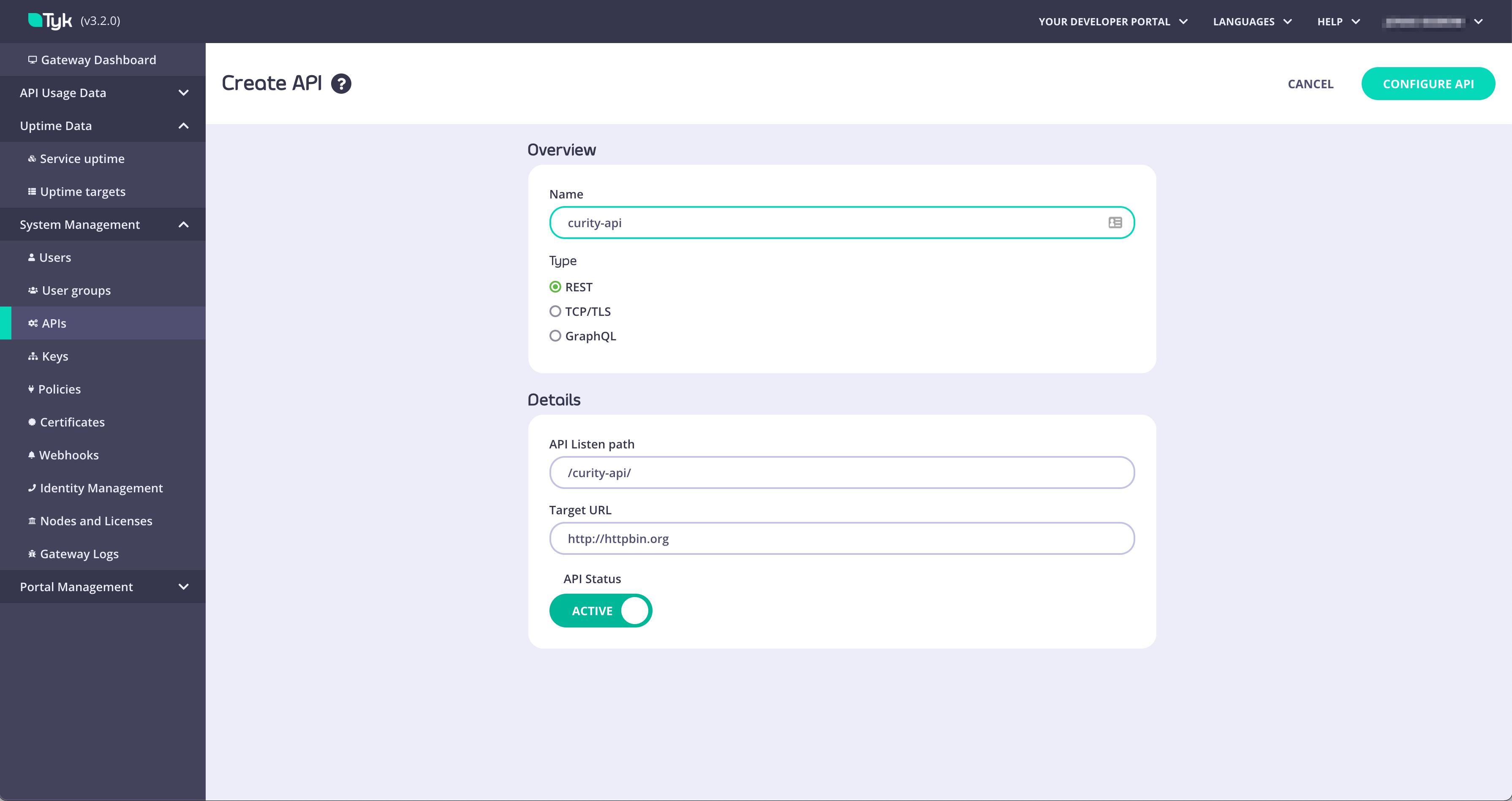
In the Tyk Dashboard, navigate to **System Management** → **APIs**. Create a new API and give it the name, ex. `curity-api`:
**Commit the changes**
Remember to **Commit** the changes by going to **Changes** → **Commit**.
### Setting up Tyk
First check `tyk_analytics.conf` and make sure that a proper `oauth_redirect_uri_separator` parameter is set. This sets the character that separates multiple redirect uri's to `;`.
```json theme={null}
"oauth_redirect_uri_separator": ";",
```
If a change is needed in `tyk_analytics.conf`, remember to restart the service to apply the change.
#### Create DCR proxy API
The Curity Identity Server requires a token with a `dcr` scope in order to authenticate the DCR endpoint. A workaround is to configure the DCR endpoint to use no-authentication. A proxy API can be configured in such a way that Tyk will proxy the DCR request to the Curity Identity Server and a static token used to authenticate the DCR proxy API.
**Use in secure environments only**
Make sure that the communication between Tyk and the Curity Identity Server is appropriately secured. The DCR endpoint on the Curity Identity Server if set to `no-authentication` should only be accessible by Tyk.
In the Tyk Dashboard, navigate to **System Management** → **APIs**. Create a new API and give it the name, `dcr`. Make sure the **API Listen Path** is set to `/dcr/`.
Set the Target URL to the DCR endpoint of the Curity Identity Server (Ex. [https://idsvr.example.com/token-service/oauth-registration](https://idsvr.example.com/token-service/oauth-registration)).
In the **Authentication** section, set **Authentication Mode** to `Authentication Token`.
#### Create an example API
In the Tyk Dashboard, navigate to **System Management** → **APIs**. Create a new API and give it the name, ex. `curity-api`:
 Click **Configure API** and scroll down to the **Authentication** section. Two options to protect an API are outlined below. Choose the options that best fits your needs.
1. **Split Token Approach** - This would be the preferred option and is fully detailed in the [split-token-tyk](https://github.com/sedkis/split-token-tyk) GitHub repository with examples. The basics of this approach is that Tyk proxies the IDP's token endpoint and splits the token to only return the signature of the JWT instead of the complete JWT. The client calling the API will use the signature as an opaque token in the Authorize header. Tyk will then look up the complete JWT using the signature as the key and then add the complete JWT to the Authorization header in the request to the upstream API.
2. **JWT Approach** - This approach means that the IDP issues a JWT to the client (using the dynamically registered client) and the complete JWT is sent in the Authorization header in the API request to Tyk. Although this is absolutely a viable approach there are some potential risks with issuing JWTs to public clients since they could contain Personal Identifiable Information (PII).
The configuration of the Split Token Approach is outlined in the readme in the [GitHub repository](https://github.com/sedkis/split-token-tyk). Make sure to follow the instructions to configure Tyk to handle the Split Token Approach before continuing.
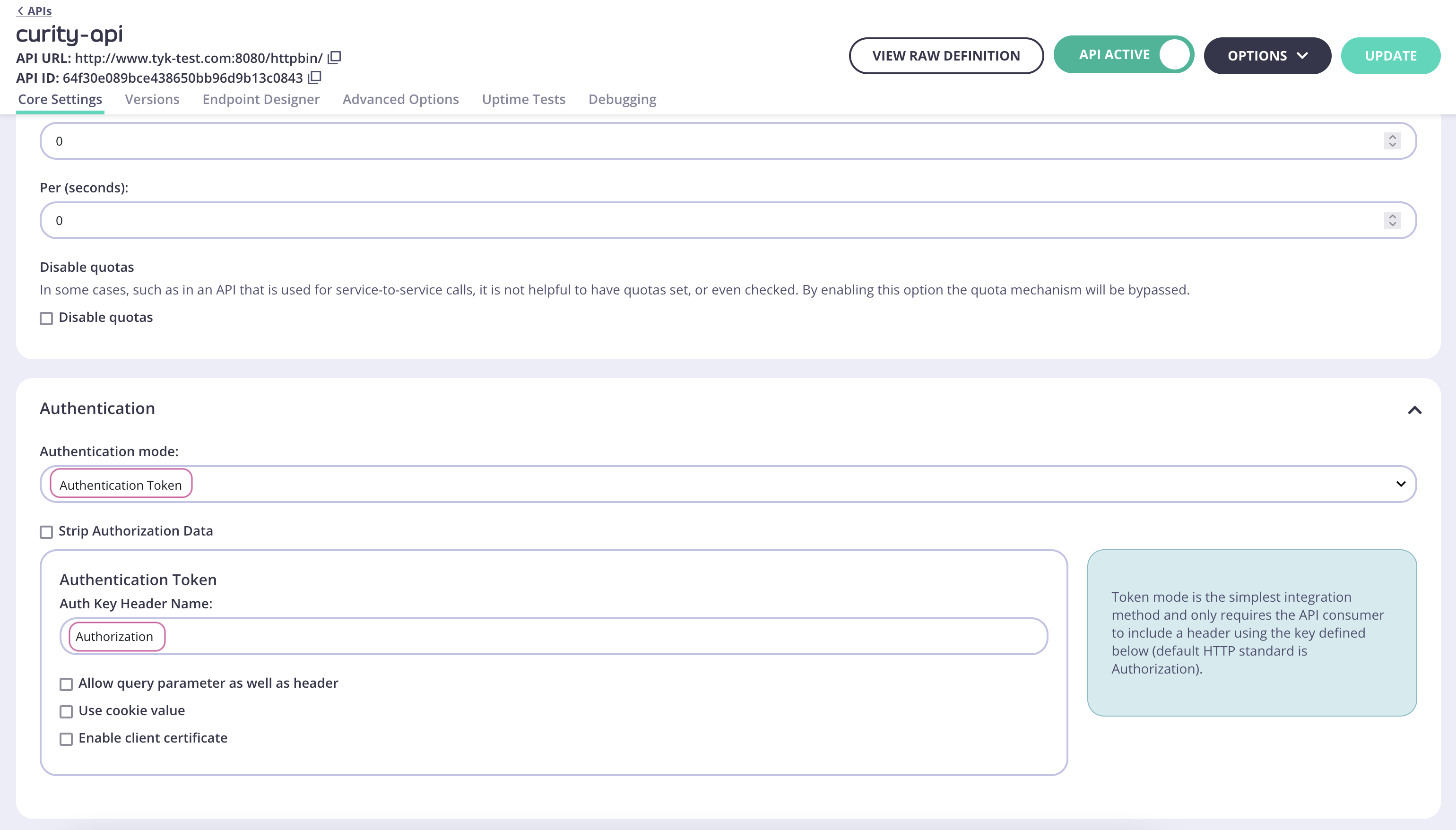
For the Split Token Approach, configure the Authentication as outlined in the below screenshot for an example API.
Click **Configure API** and scroll down to the **Authentication** section. Two options to protect an API are outlined below. Choose the options that best fits your needs.
1. **Split Token Approach** - This would be the preferred option and is fully detailed in the [split-token-tyk](https://github.com/sedkis/split-token-tyk) GitHub repository with examples. The basics of this approach is that Tyk proxies the IDP's token endpoint and splits the token to only return the signature of the JWT instead of the complete JWT. The client calling the API will use the signature as an opaque token in the Authorize header. Tyk will then look up the complete JWT using the signature as the key and then add the complete JWT to the Authorization header in the request to the upstream API.
2. **JWT Approach** - This approach means that the IDP issues a JWT to the client (using the dynamically registered client) and the complete JWT is sent in the Authorization header in the API request to Tyk. Although this is absolutely a viable approach there are some potential risks with issuing JWTs to public clients since they could contain Personal Identifiable Information (PII).
The configuration of the Split Token Approach is outlined in the readme in the [GitHub repository](https://github.com/sedkis/split-token-tyk). Make sure to follow the instructions to configure Tyk to handle the Split Token Approach before continuing.
For the Split Token Approach, configure the Authentication as outlined in the below screenshot for an example API.
 #### Create a facade API
The Tyk Gateway needs to make use of a facade API in order for the API to be published to the Developer Portal when protected with the Split Token Approach.
In the Tyk Dashboard, navigate to **System Management** → **APIs**. Create a new API and give it the name `facade-oauth-registration`.
Set the Target URL to `http://httpbin.org`.
**NOTE**
The `path` and `Target URL` for this API doesn't matter and will never be used.
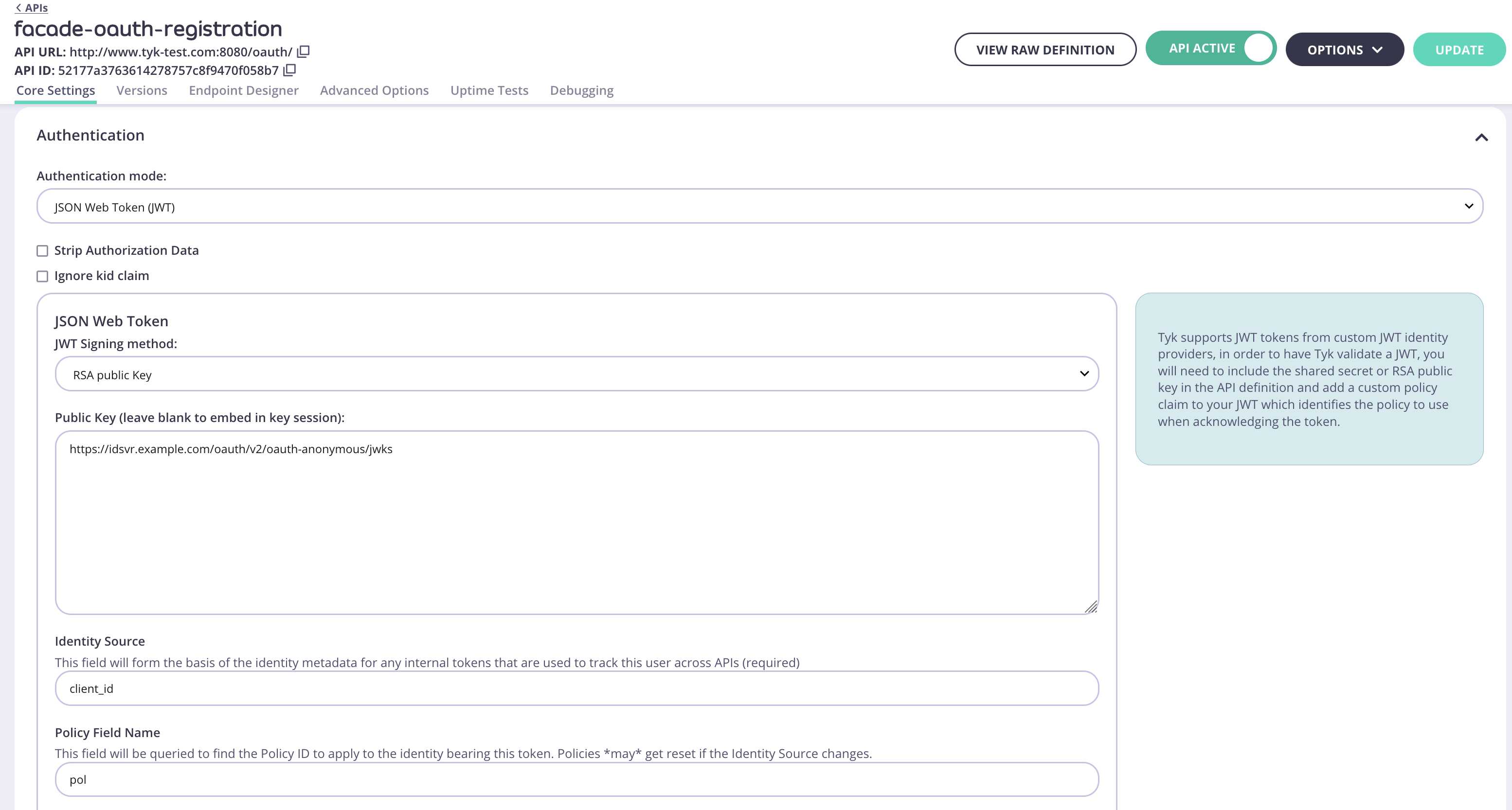
In the **Authentication** section, set **Authentication Mode** to `JSON Web Token (JWT)`.
#### Create a facade API
The Tyk Gateway needs to make use of a facade API in order for the API to be published to the Developer Portal when protected with the Split Token Approach.
In the Tyk Dashboard, navigate to **System Management** → **APIs**. Create a new API and give it the name `facade-oauth-registration`.
Set the Target URL to `http://httpbin.org`.
**NOTE**
The `path` and `Target URL` for this API doesn't matter and will never be used.
In the **Authentication** section, set **Authentication Mode** to `JSON Web Token (JWT)`.
 **Obtaining the JWKS URI**
The JWKS URI can be obtained via the `.well-known/openid-configuration` endpoint as it's a required value. The below cURL command can get the `"jwks_uri"` value directly.
```shell theme={null}
curl -sS https://idsvr.example.com/oauth/v2/oauth-anonymous/.well-known/openid-configuration | grep -o '"jwks_uri":"[^"]*' | cut -d'"' -f4
```
#### Create and assign a policy
The Facade API needs a policy in order to be published to the Developer Portal.
Switch to **System Management** → **Policies**. Click **Add Policy** and select the Facade API created previously (`facade-oauth-registration`) from the list. Then switch to the **Configurations** tab. Name the policy `facade-policy`. Select an expiry and click `Create Policy`.
Navigate back to **System Management** → **APIs**, click `facade-oauth-registration`, scroll down to the **Authentication** section and select the newly created policy in the **Default Policy** setting. Click `Update` to save the changes.
#### Create a Key for the DCR proxy
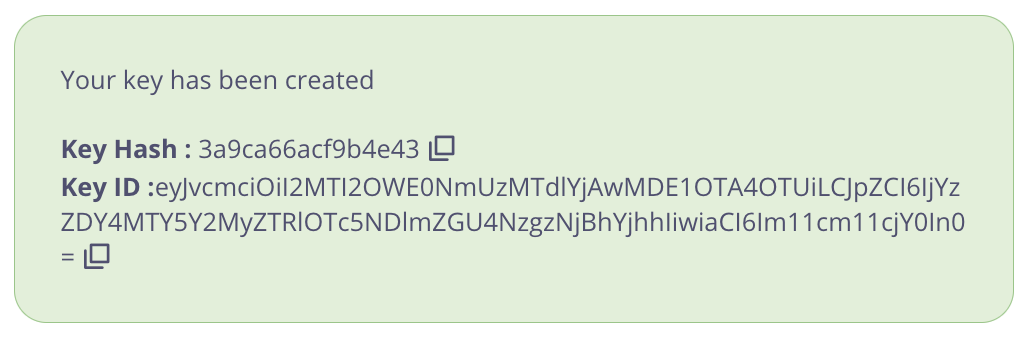
Navigate to **System Management** → **Keys**, click `Add Key`. Switch to the `Choose API` tab. Select the previously created `DCR` API. Under `2. Configurations` give the key an alias and set an expiry. Then click `Create Key`.
**Obtaining the JWKS URI**
The JWKS URI can be obtained via the `.well-known/openid-configuration` endpoint as it's a required value. The below cURL command can get the `"jwks_uri"` value directly.
```shell theme={null}
curl -sS https://idsvr.example.com/oauth/v2/oauth-anonymous/.well-known/openid-configuration | grep -o '"jwks_uri":"[^"]*' | cut -d'"' -f4
```
#### Create and assign a policy
The Facade API needs a policy in order to be published to the Developer Portal.
Switch to **System Management** → **Policies**. Click **Add Policy** and select the Facade API created previously (`facade-oauth-registration`) from the list. Then switch to the **Configurations** tab. Name the policy `facade-policy`. Select an expiry and click `Create Policy`.
Navigate back to **System Management** → **APIs**, click `facade-oauth-registration`, scroll down to the **Authentication** section and select the newly created policy in the **Default Policy** setting. Click `Update` to save the changes.
#### Create a Key for the DCR proxy
Navigate to **System Management** → **Keys**, click `Add Key`. Switch to the `Choose API` tab. Select the previously created `DCR` API. Under `2. Configurations` give the key an alias and set an expiry. Then click `Create Key`.
 **Important**
Take note of the `Key Hash` and `Key ID` as they will be needed later.
#### Publish the API to the Developer Portal
The API and the Facade API are now configured and can used to publish the API to the Tyk Developer Portal. Navigate to **Portal Management** → **Catalog**, then click **Add New API**. Give it a public name, ex. `OAuth Facade API` and select the `facade-policy`.
**Important**
Take note of the `Key Hash` and `Key ID` as they will be needed later.
#### Publish the API to the Developer Portal
The API and the Facade API are now configured and can used to publish the API to the Tyk Developer Portal. Navigate to **Portal Management** → **Catalog**, then click **Add New API**. Give it a public name, ex. `OAuth Facade API` and select the `facade-policy`.
 Navigate to the **Settings** tab and check the box `Override global settings`. Then scroll down to the **Dynamic Client Registration for portal APIs** section and toggle the switch to enable. Configure as pictured below:
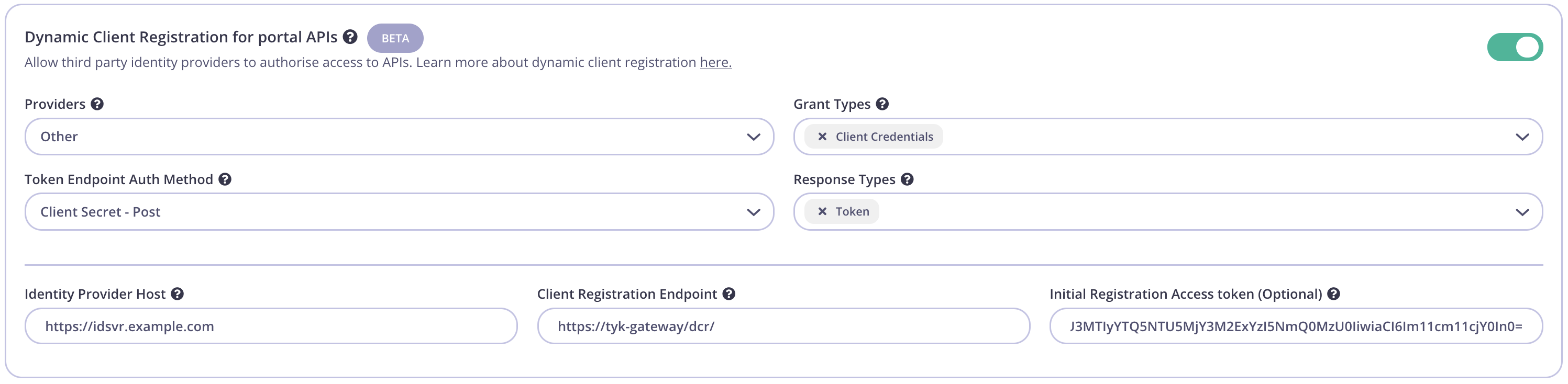 | Config parameter | Description | Value |
| --------------------------------- | ------------------------------------------------------------ | ------------------------------------------------ |
| Providers | The IDP vendor | `Other` |
| Grant Types | What grant types the DCR client will support | `Client Credentials` and/or `Authorization Code` |
| Token Endpoint Auth Method | How the client authenticates against the IDPs token endpoint | `Client Secret - Post` |
| Response Types | OAuth 2.0 response types that will be used by the client. | `Token` and/or `Authorization Code` |
| Identity Provider Host | The Base URL of the IDP | Ex. `https://idsvr.example.com` |
| Client Registration Endpoint | The proxy DCR endpoint created previously | Ex. `https://tyk-gateway/dcr/` |
| Initial Registration Access Token | Token to authenticate the DCR endpoint | Add the DCR `Key ID` created in previous step |
### Testing the flow
Tyk and The Curity Identity Server should now be configured and the flow to register an OAuth client using the Tyk Developer Portal can be tested.
#### Create an OAuth Client
Start by registering a developer by navigating to **Portal Management** → **Developers** and add a developer. Then open the Tyk Developer Portal (ex. `http://:3000/portal`) and open the **OAuth clients** page. Start the wizard by clicking **Create first Oauth Client**.
| Config parameter | Description | Value |
| --------------------------------- | ------------------------------------------------------------ | ------------------------------------------------ |
| Providers | The IDP vendor | `Other` |
| Grant Types | What grant types the DCR client will support | `Client Credentials` and/or `Authorization Code` |
| Token Endpoint Auth Method | How the client authenticates against the IDPs token endpoint | `Client Secret - Post` |
| Response Types | OAuth 2.0 response types that will be used by the client. | `Token` and/or `Authorization Code` |
| Identity Provider Host | The Base URL of the IDP | Ex. `https://idsvr.example.com` |
| Client Registration Endpoint | The proxy DCR endpoint created previously | Ex. `https://tyk-gateway/dcr/` |
| Initial Registration Access Token | Token to authenticate the DCR endpoint | Add the DCR `Key ID` created in previous step |
### Testing the flow
Tyk and The Curity Identity Server should now be configured and the flow to register an OAuth client using the Tyk Developer Portal can be tested.
#### Create an OAuth Client
Start by registering a developer by navigating to **Portal Management** → **Developers** and add a developer. Then open the Tyk Developer Portal (ex. `http://:3000/portal`) and open the **OAuth clients** page. Start the wizard by clicking **Create first Oauth Client**.
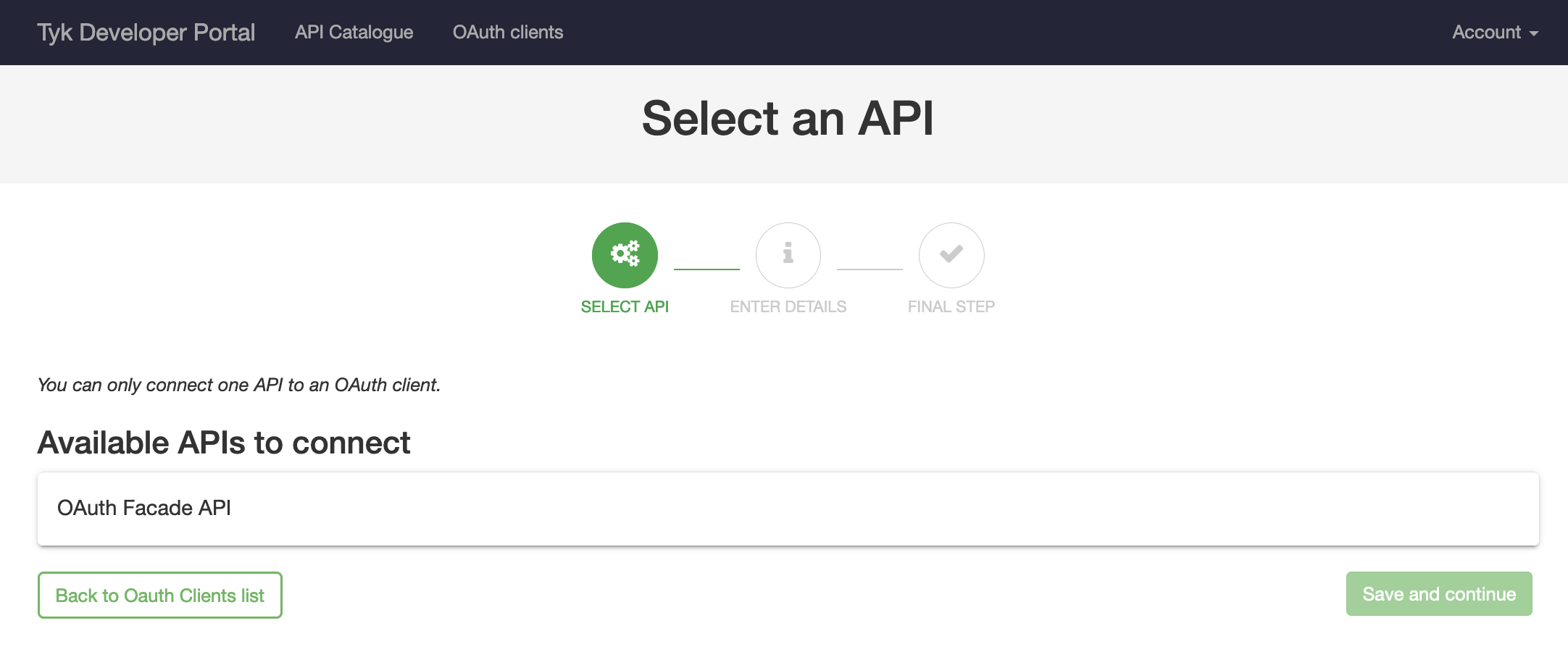 Select the API previously published named **OAuth Facade API** and then click **Save and continue**.
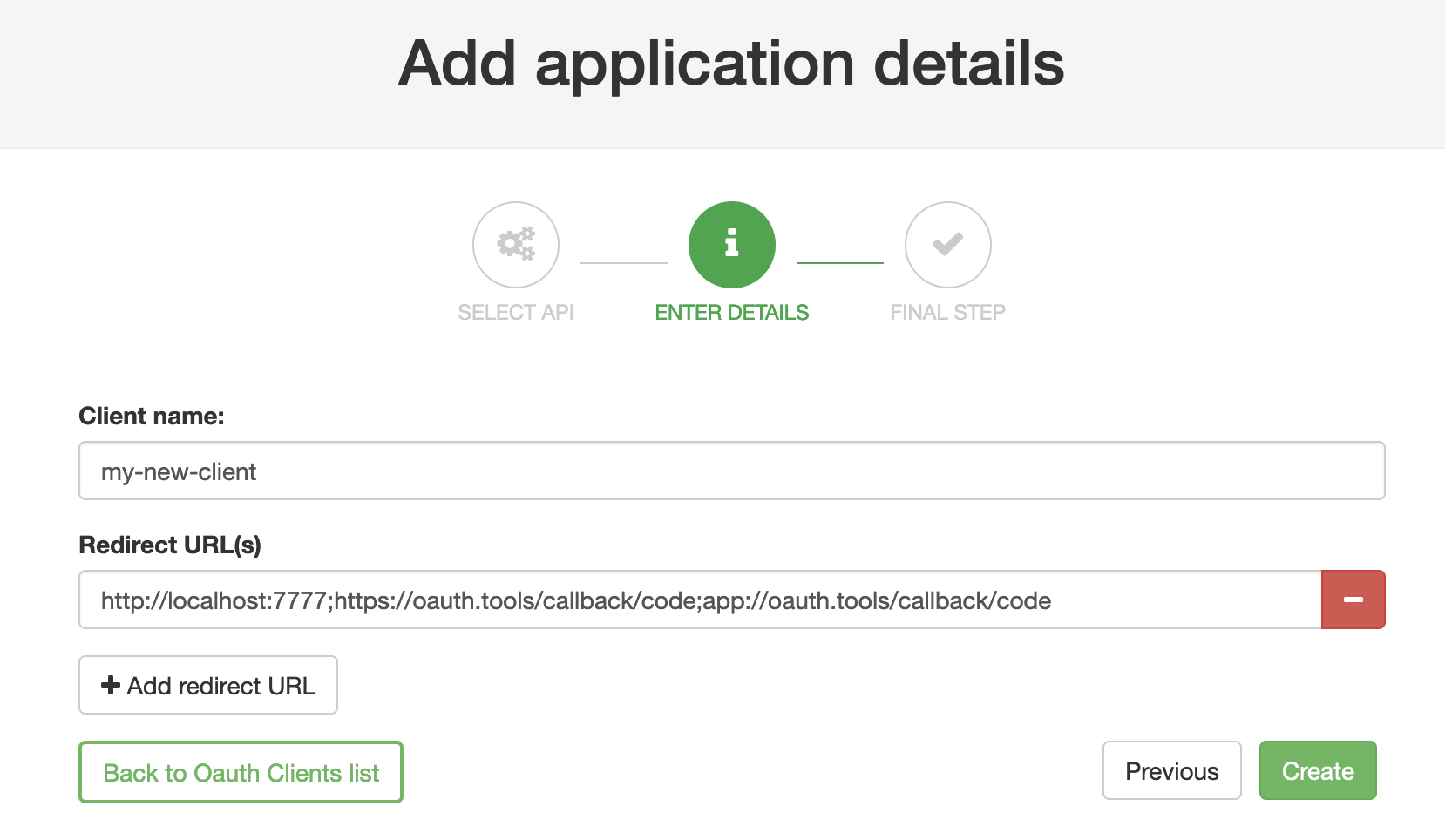
Enter a Client name and add at least one redirect URL(separate with `;`), then click **Create**.
Select the API previously published named **OAuth Facade API** and then click **Save and continue**.
Enter a Client name and add at least one redirect URL(separate with `;`), then click **Create**.
 **OAuth.Tools**
If using [OAuth.tools](https://oauth.tools/) to obtain a token, make sure to add the appropriate redirect URL. Ex:
```
http://localhost:7777;https://oauth.tools/callback/code;app://oauth.tools/callback/code
```
The web-based version of [OAuth.tools](https://oauth.tools/) using the Code Flow would require `https://oauth.tools/callback/code` and the [App version of OAuth.tools](https://developer.curity.io/oauth-tools) requires `app://oauth.tools/callback/code`.
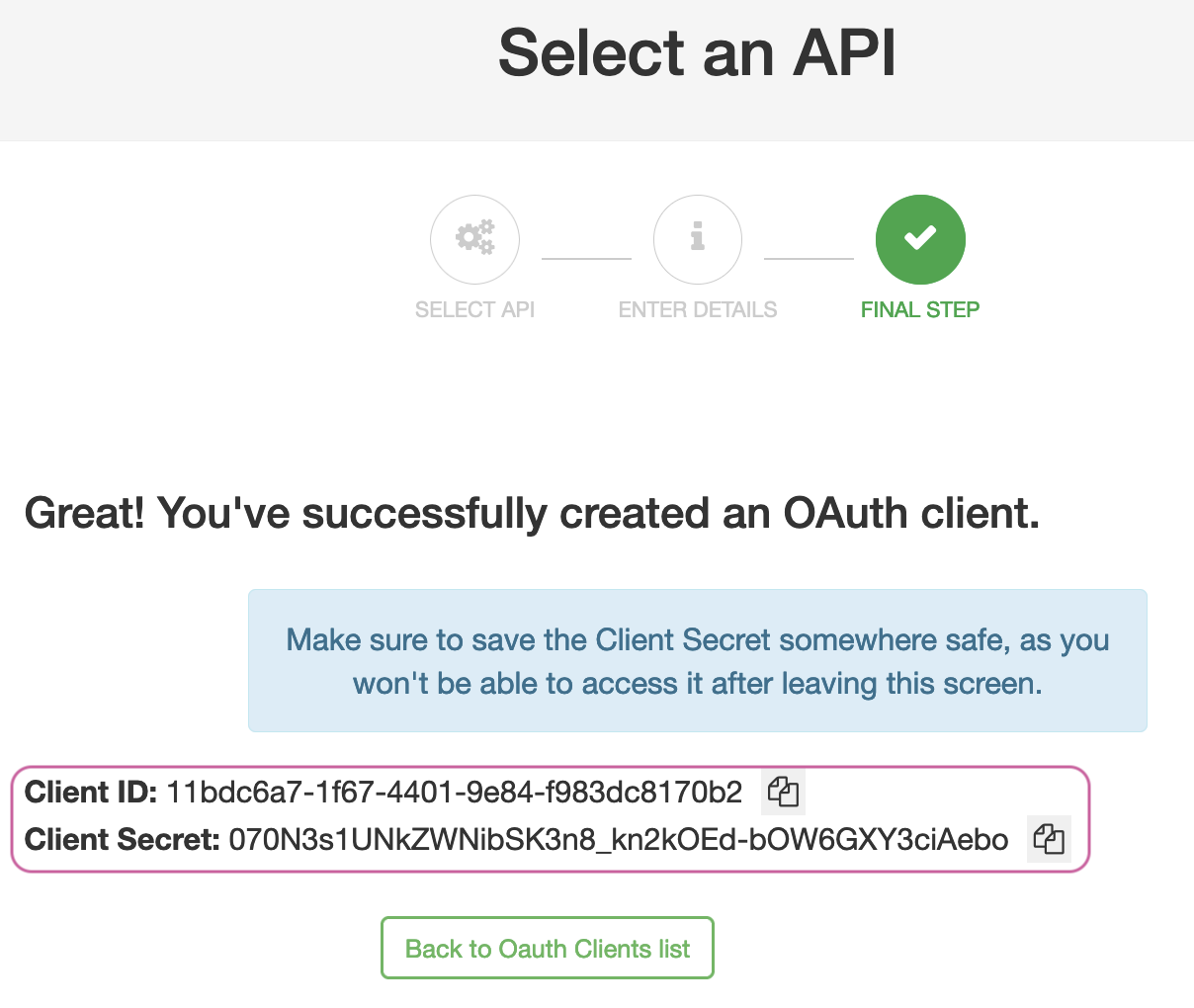
Tyk will make a call to the DCR proxy endpoint that will in turn call The Curity Identity Server and its DCR endpoint to register a dynamic client. The details of the dynamically registered client will be displayed.
**OAuth.Tools**
If using [OAuth.tools](https://oauth.tools/) to obtain a token, make sure to add the appropriate redirect URL. Ex:
```
http://localhost:7777;https://oauth.tools/callback/code;app://oauth.tools/callback/code
```
The web-based version of [OAuth.tools](https://oauth.tools/) using the Code Flow would require `https://oauth.tools/callback/code` and the [App version of OAuth.tools](https://developer.curity.io/oauth-tools) requires `app://oauth.tools/callback/code`.
Tyk will make a call to the DCR proxy endpoint that will in turn call The Curity Identity Server and its DCR endpoint to register a dynamic client. The details of the dynamically registered client will be displayed.
 #### Obtain a token using DCR client
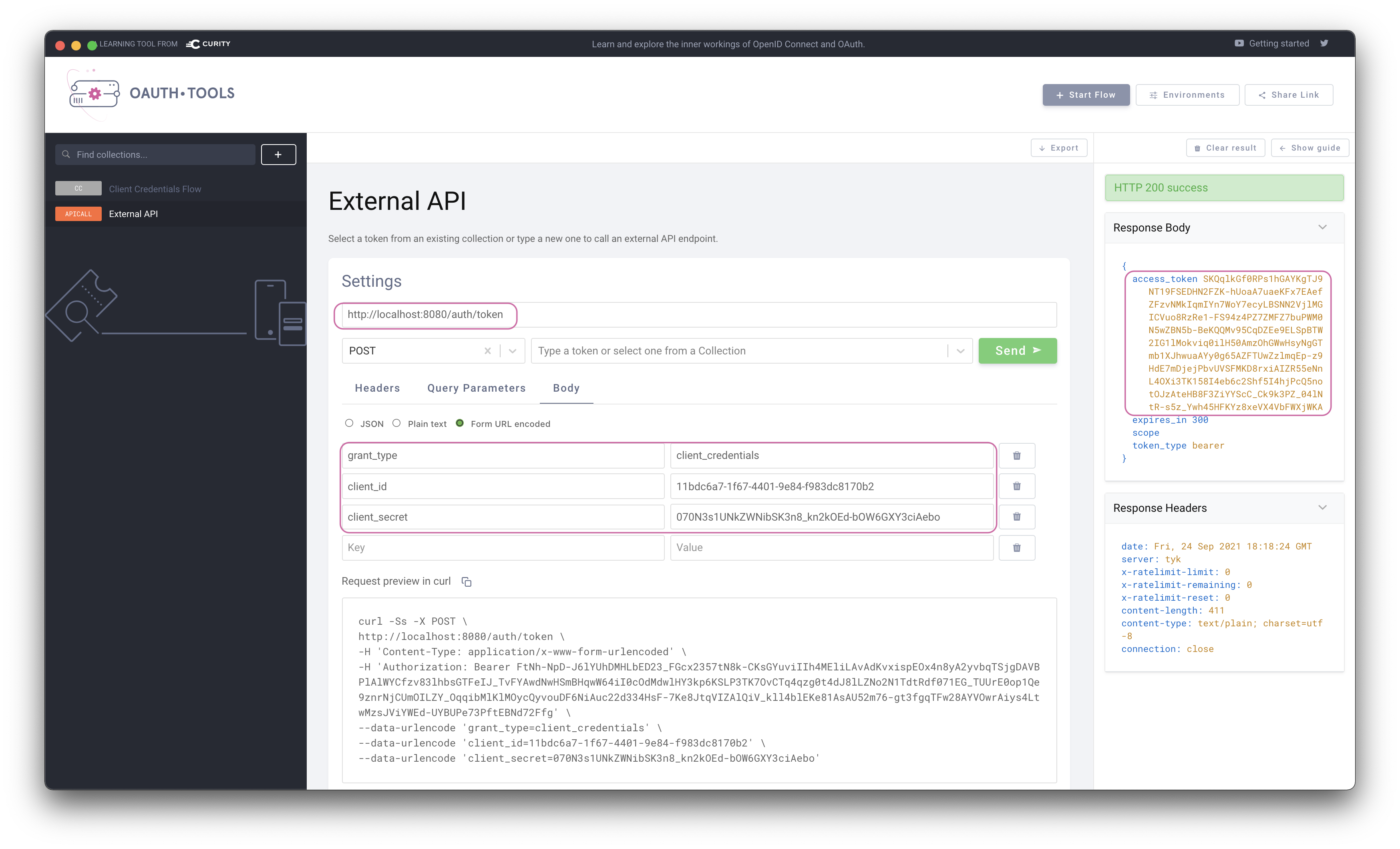
[OAuth.tools](https://oauth.tools/) can be used to obtain an access token from The Curity Identity Server using the DCR information. This call needs to be made to the token endpoint configured on Tyk to handle the [Split Token Approach](https://github.com/sedkis/split-token-tyk).
Start an External API Flow. Copy the **Client ID** and the **Client Secret** to the appropriate fields in [OAuth.tools](https://oauth.tools/). Run the flow to obtain a token.
#### Obtain a token using DCR client
[OAuth.tools](https://oauth.tools/) can be used to obtain an access token from The Curity Identity Server using the DCR information. This call needs to be made to the token endpoint configured on Tyk to handle the [Split Token Approach](https://github.com/sedkis/split-token-tyk).
Start an External API Flow. Copy the **Client ID** and the **Client Secret** to the appropriate fields in [OAuth.tools](https://oauth.tools/). Run the flow to obtain a token.
 **Split Token**
Note that the token returned is the signature of a JWT as this is executing the Split Token Approach.
#### Use token in request to API
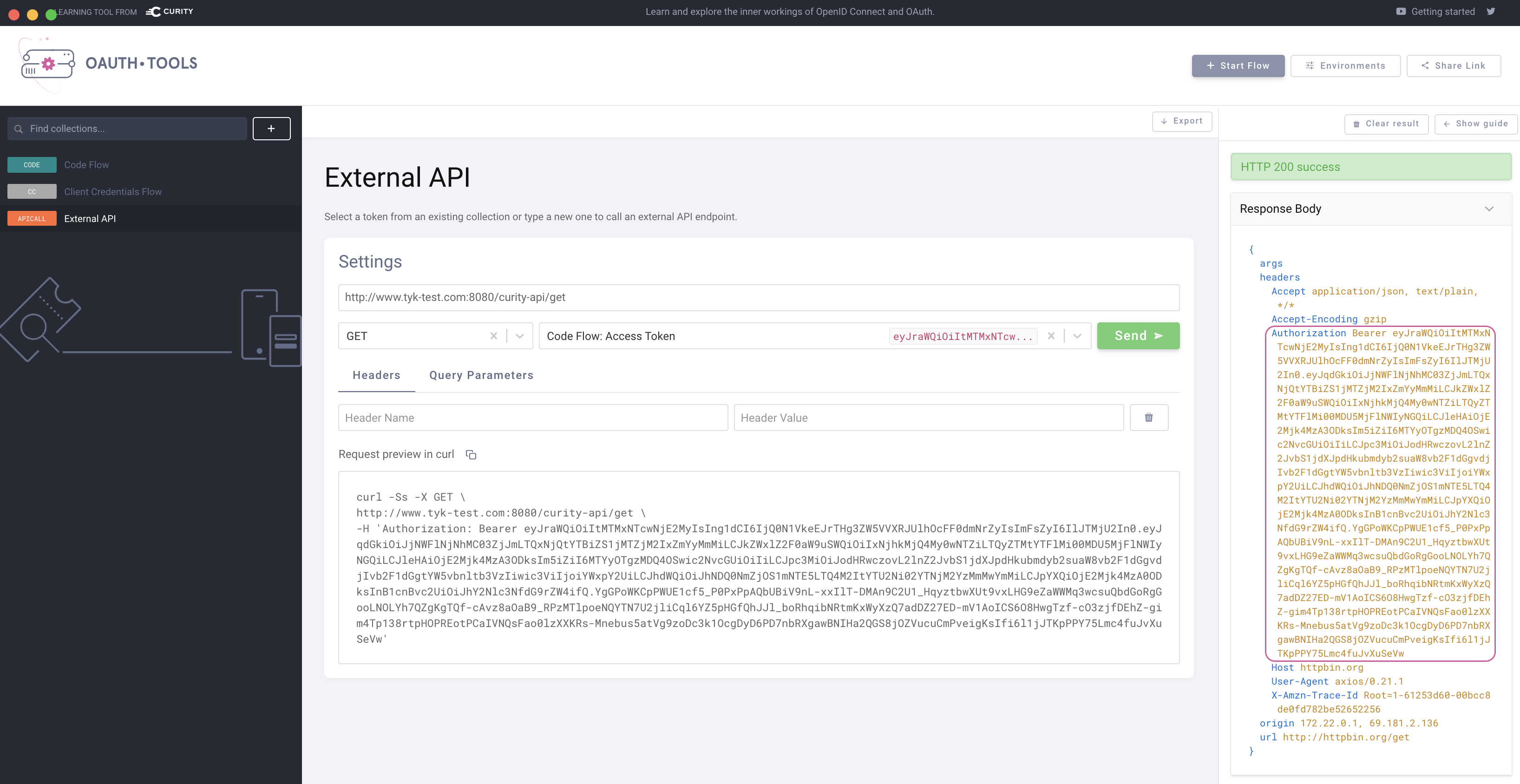
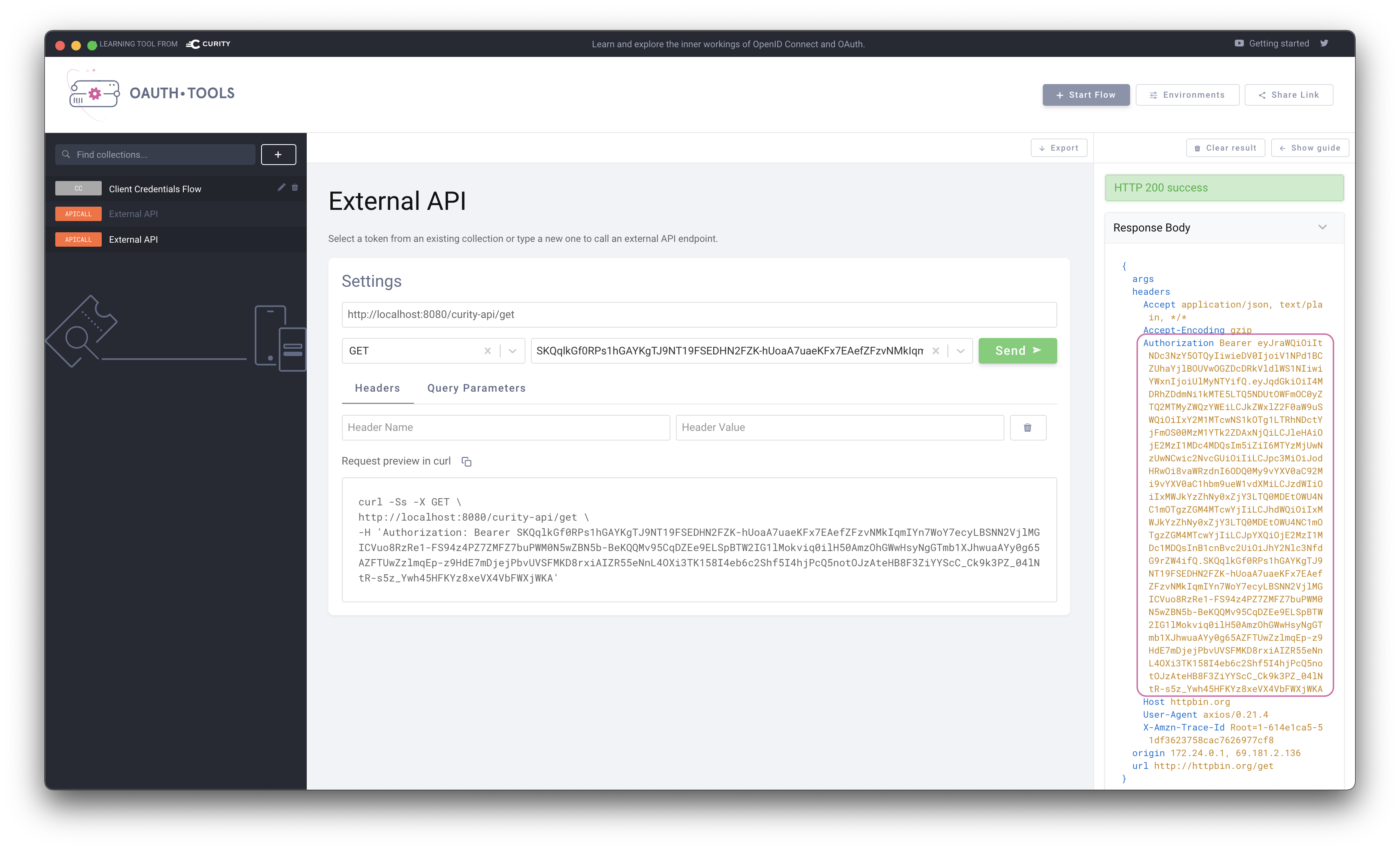
The token can now be used in an **External API** flow in [OAuth.tools](https://oauth.tools/) to call the API that Tyk is proxying. Tyk will use the signature passed in the Authorization header and lookup the complete JWT in its cache. The complete JWT is then added to the upstream Authorization header as shown in the echo response from Httpbin.org in the below example.
**Split Token**
Note that the token returned is the signature of a JWT as this is executing the Split Token Approach.
#### Use token in request to API
The token can now be used in an **External API** flow in [OAuth.tools](https://oauth.tools/) to call the API that Tyk is proxying. Tyk will use the signature passed in the Authorization header and lookup the complete JWT in its cache. The complete JWT is then added to the upstream Authorization header as shown in the echo response from Httpbin.org in the below example.
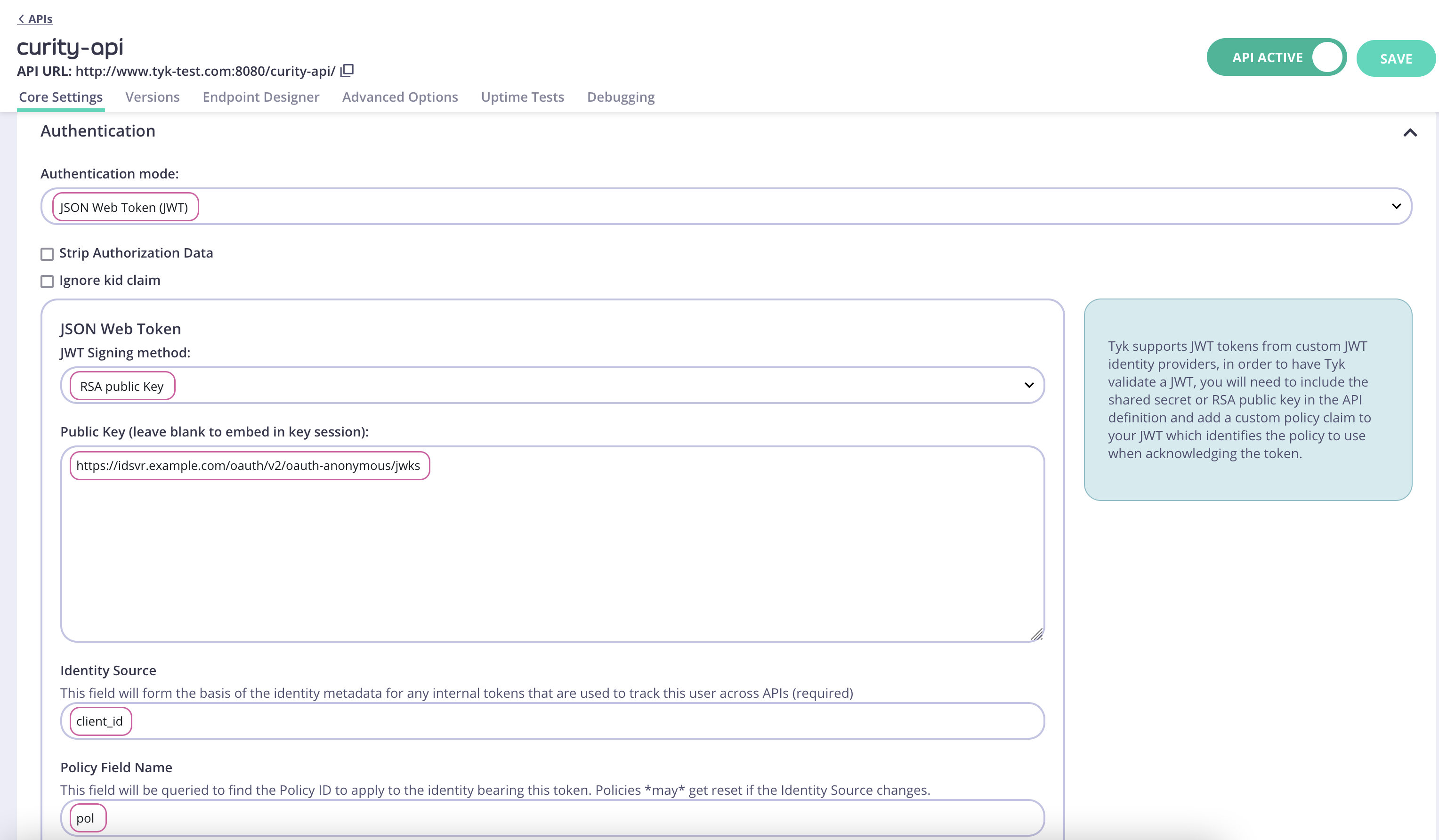
 For the JWT Approach, configure the Authentication as outlined in the below screenshot.
 **Obtaining the JWKS URI**
The JWKS URI can be obtained via the `.well-known/openid-configuration` endpoint as it's a required value. The below cURL command can get the `"jwks_uri"` value directly.
```shell theme={null}
curl -sS https://idsvr.example.com/oauth/v2/oauth-anonymous/.well-known/openid-configuration | grep -o '"jwks_uri":"[^"]*' | cut -d'"' -f4
```
Click **Save** to save the API.
#### Create and assign a policy
Switch to **System Management** → **Policies**. Click **Add Policy** and select the API created previously (`curity-api`) from the list. Then switch to the **Configurations** tab. Name the policy `Curity Policy`. Select an expiry and click `Create Policy`.
Navigate to **System Management** → **APIs**, click `curity-api`, scroll down to the **Authentication** section and select the newly created policy in the **Default Policy** setting.
**Obtaining the JWKS URI**
The JWKS URI can be obtained via the `.well-known/openid-configuration` endpoint as it's a required value. The below cURL command can get the `"jwks_uri"` value directly.
```shell theme={null}
curl -sS https://idsvr.example.com/oauth/v2/oauth-anonymous/.well-known/openid-configuration | grep -o '"jwks_uri":"[^"]*' | cut -d'"' -f4
```
Click **Save** to save the API.
#### Create and assign a policy
Switch to **System Management** → **Policies**. Click **Add Policy** and select the API created previously (`curity-api`) from the list. Then switch to the **Configurations** tab. Name the policy `Curity Policy`. Select an expiry and click `Create Policy`.
Navigate to **System Management** → **APIs**, click `curity-api`, scroll down to the **Authentication** section and select the newly created policy in the **Default Policy** setting.
 #### Create a Key for the DCR proxy
Navigate to **System Management** → **Keys**, click `Add Key`. Switch to the `Choose API` tab. Select the previously created `DCR` API. Under `2. Configurations` give the key an alias and set an expiry. Then click `Create Key`.
#### Create a Key for the DCR proxy
Navigate to **System Management** → **Keys**, click `Add Key`. Switch to the `Choose API` tab. Select the previously created `DCR` API. Under `2. Configurations` give the key an alias and set an expiry. Then click `Create Key`.
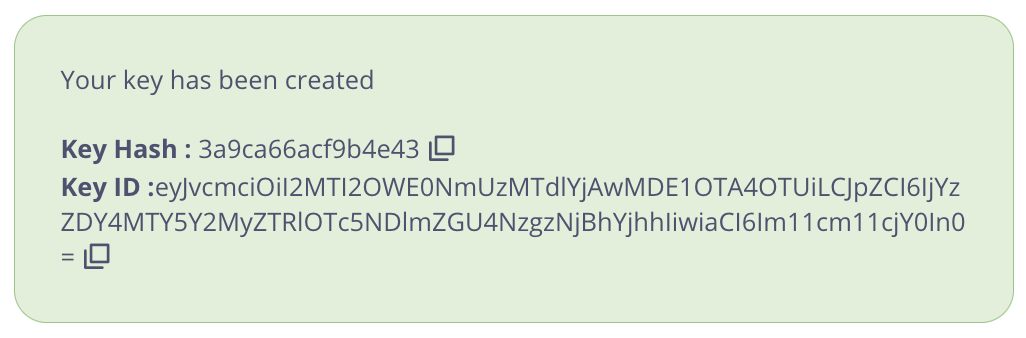 **Important**
Take note of the `Key Hash` and `Key ID` as they will be needed later.
#### Publish the API to the Developer Portal
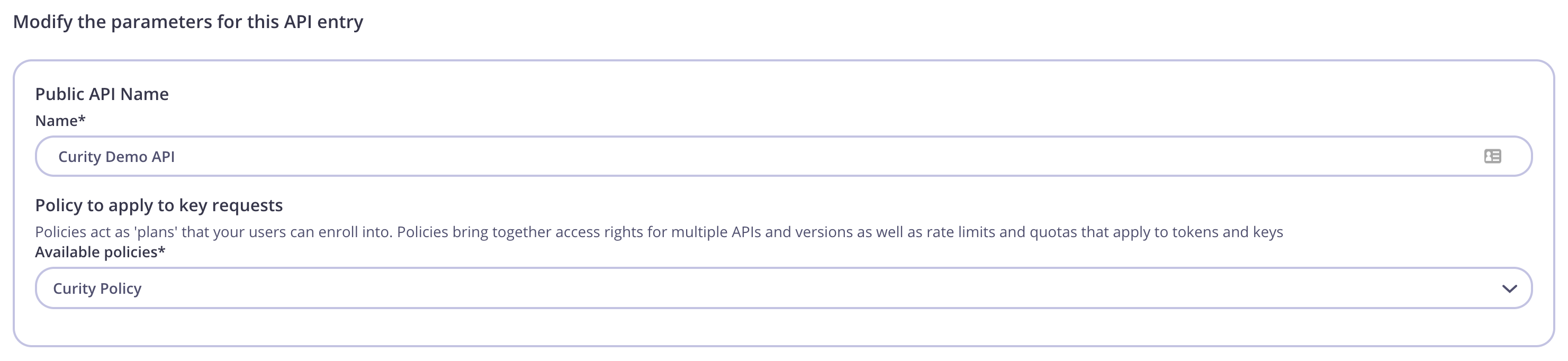
The API is now configured and can be published to the Tyk Developer Portal. Navigate to **Portal Management** → **Catalog**, then click **Add New API**. Give it a public name, ex. `Curity Demo API` and select the `Curity Policy`.
**Important**
Take note of the `Key Hash` and `Key ID` as they will be needed later.
#### Publish the API to the Developer Portal
The API is now configured and can be published to the Tyk Developer Portal. Navigate to **Portal Management** → **Catalog**, then click **Add New API**. Give it a public name, ex. `Curity Demo API` and select the `Curity Policy`.
 Navigate to the **Settings** tab and check the box `Override global settings`. Then scroll down to the **Dynamic Client Registration for portal APIs** section and toggle the switch to enable. Configure as pictured below:
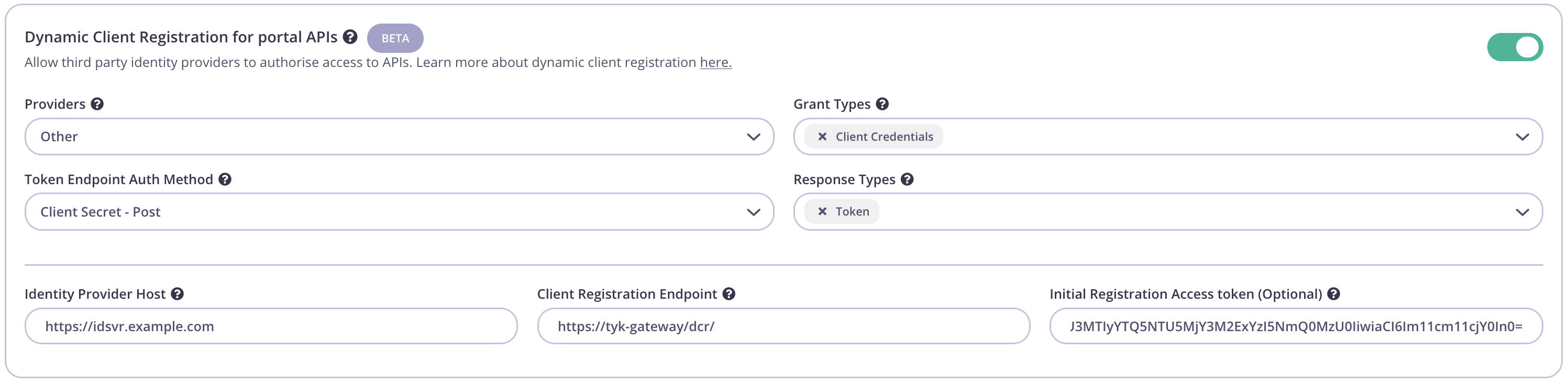 | Config parameter | Description | Value |
| --------------------------------- | ------------------------------------------------------------ | ------------------------------------------------ |
| Providers | The IDP vendor | `Other` |
| Grant Types | What grant types the DCR client will support | `Client Credentials` and/or `Authorization Code` |
| Token Endpoint Auth Method | How the client authenticates against the IDPs token endpoint | `Client Secret - Post` |
| Response Types | OAuth 2.0 response types that will be used by the client. | `Token` and/or `Authorization Code` |
| Identity Provider Host | The Base URL of the IDP | Ex. `https://idsvr.example.com` |
| Client Registration Endpoint | The DCR endpoint created previously | Ex. `https://tyk-gateway/dcr/` |
| Initial Registration Access Token | Token to authenticate the DCR endpoint | Add the key created in previous step |
### Testing the flow
Tyk and The Curity Identity Server should now be configured and the flow to register an OAuth client using the Tyk Developer Portal can be tested.
#### Create an OAuth Client
Start by registering a developer by navigating to **Portal Management** → **Developers** and add a developer. Then open the Tyk Developer Portal (ex. `http://:3000/portal`) and open the **OAuth clients** page. Start the wizard by clicking **Create first Oauth Client**.
| Config parameter | Description | Value |
| --------------------------------- | ------------------------------------------------------------ | ------------------------------------------------ |
| Providers | The IDP vendor | `Other` |
| Grant Types | What grant types the DCR client will support | `Client Credentials` and/or `Authorization Code` |
| Token Endpoint Auth Method | How the client authenticates against the IDPs token endpoint | `Client Secret - Post` |
| Response Types | OAuth 2.0 response types that will be used by the client. | `Token` and/or `Authorization Code` |
| Identity Provider Host | The Base URL of the IDP | Ex. `https://idsvr.example.com` |
| Client Registration Endpoint | The DCR endpoint created previously | Ex. `https://tyk-gateway/dcr/` |
| Initial Registration Access Token | Token to authenticate the DCR endpoint | Add the key created in previous step |
### Testing the flow
Tyk and The Curity Identity Server should now be configured and the flow to register an OAuth client using the Tyk Developer Portal can be tested.
#### Create an OAuth Client
Start by registering a developer by navigating to **Portal Management** → **Developers** and add a developer. Then open the Tyk Developer Portal (ex. `http://:3000/portal`) and open the **OAuth clients** page. Start the wizard by clicking **Create first Oauth Client**.
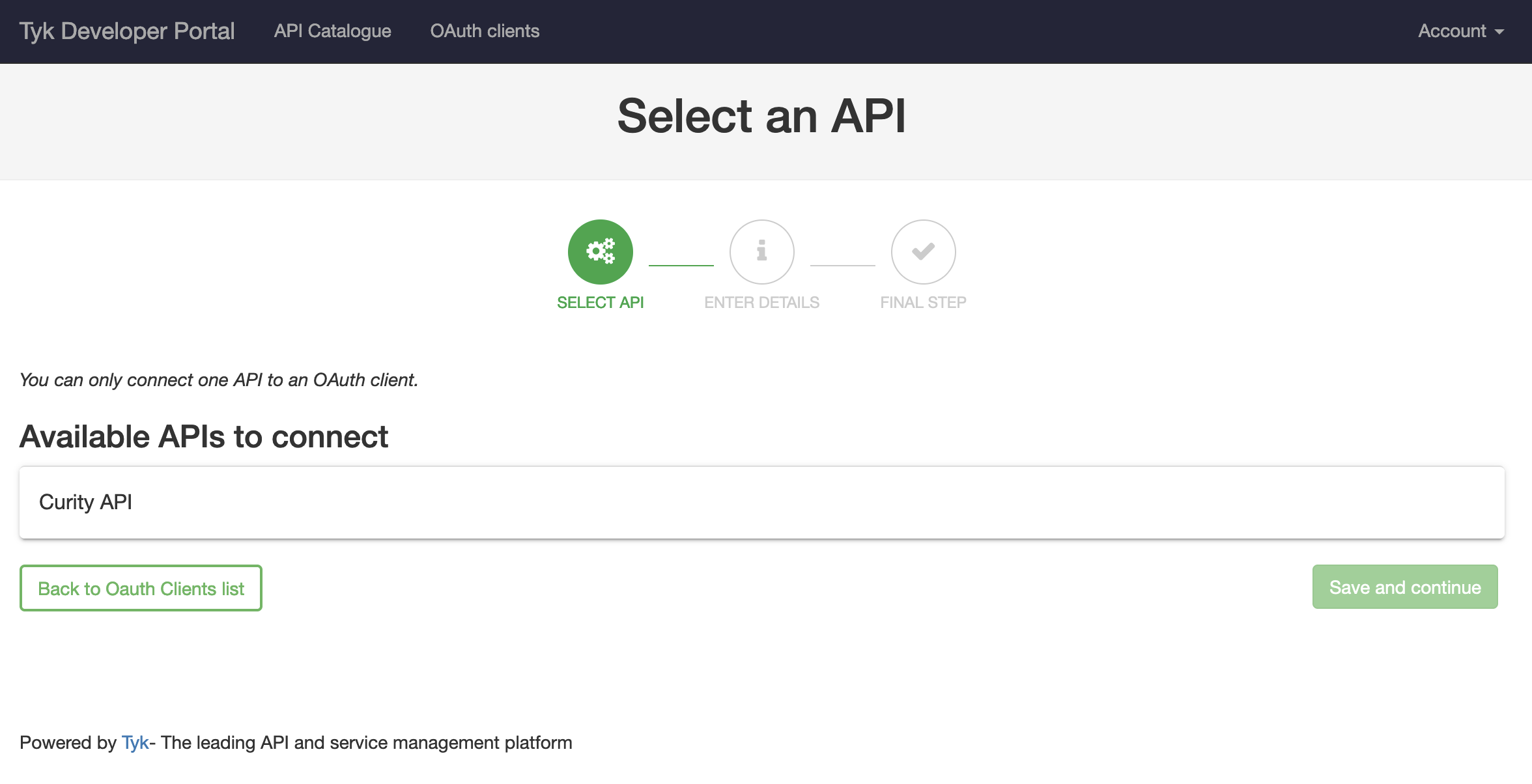 Select the API previously published named **Curity API** and then click **Save and continue**.
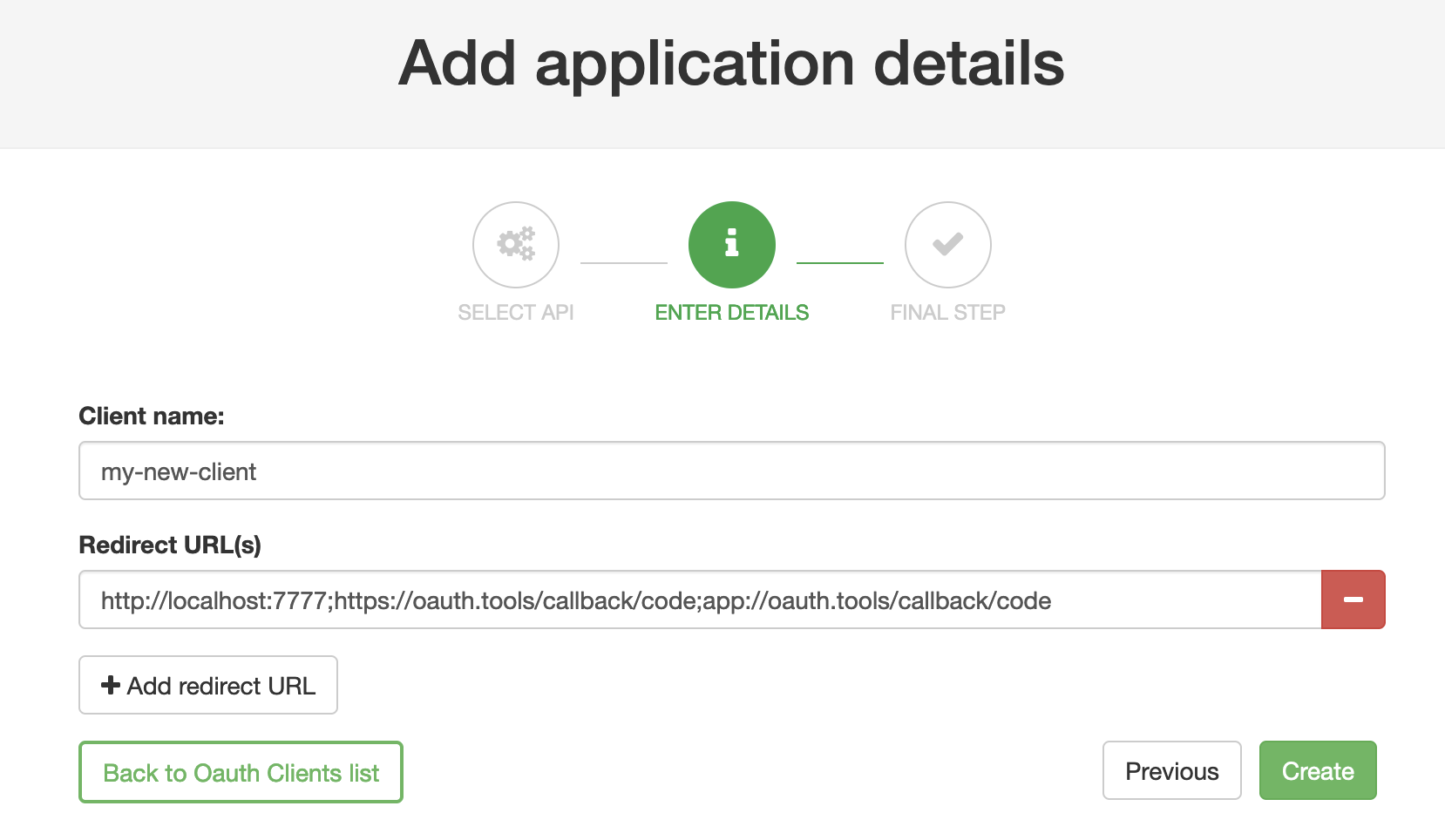
Enter a Client name and add at least one redirect URL, then click **Create**.
Select the API previously published named **Curity API** and then click **Save and continue**.
Enter a Client name and add at least one redirect URL, then click **Create**.
 **OAuth.Tools**
If using [OAuth.tools](https://oauth.tools/) to obtain a token, make sure to add the appropriate redirect URL. Ex:
```
http://localhost:7777;https://oauth.tools/callback/code;app://oauth.tools/callback/code
```
The web-based version of [OAuth.tools](https://oauth.tools/) using the Code Flow would require `https://oauth.tools/callback/code` and the [App version of OAuth.tools](https://developer.curity.io/oauth-tools) requires `app://oauth.tools/callback/code`.
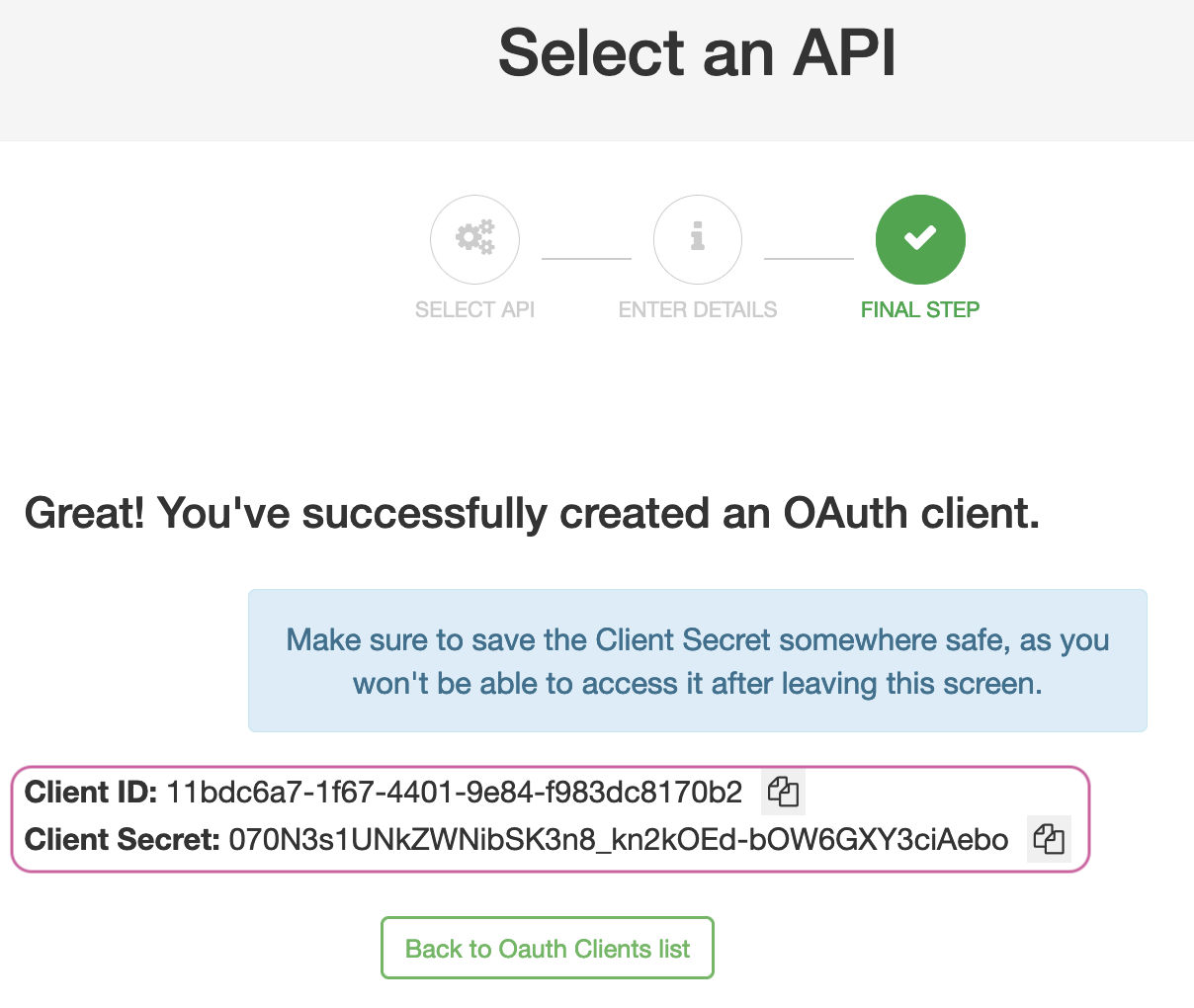
Tyk will make a call to The Curity Identity Server and the DCR endpoint to register a dynamic client. The details of the dynamically registered client will be displayed.
**OAuth.Tools**
If using [OAuth.tools](https://oauth.tools/) to obtain a token, make sure to add the appropriate redirect URL. Ex:
```
http://localhost:7777;https://oauth.tools/callback/code;app://oauth.tools/callback/code
```
The web-based version of [OAuth.tools](https://oauth.tools/) using the Code Flow would require `https://oauth.tools/callback/code` and the [App version of OAuth.tools](https://developer.curity.io/oauth-tools) requires `app://oauth.tools/callback/code`.
Tyk will make a call to The Curity Identity Server and the DCR endpoint to register a dynamic client. The details of the dynamically registered client will be displayed.
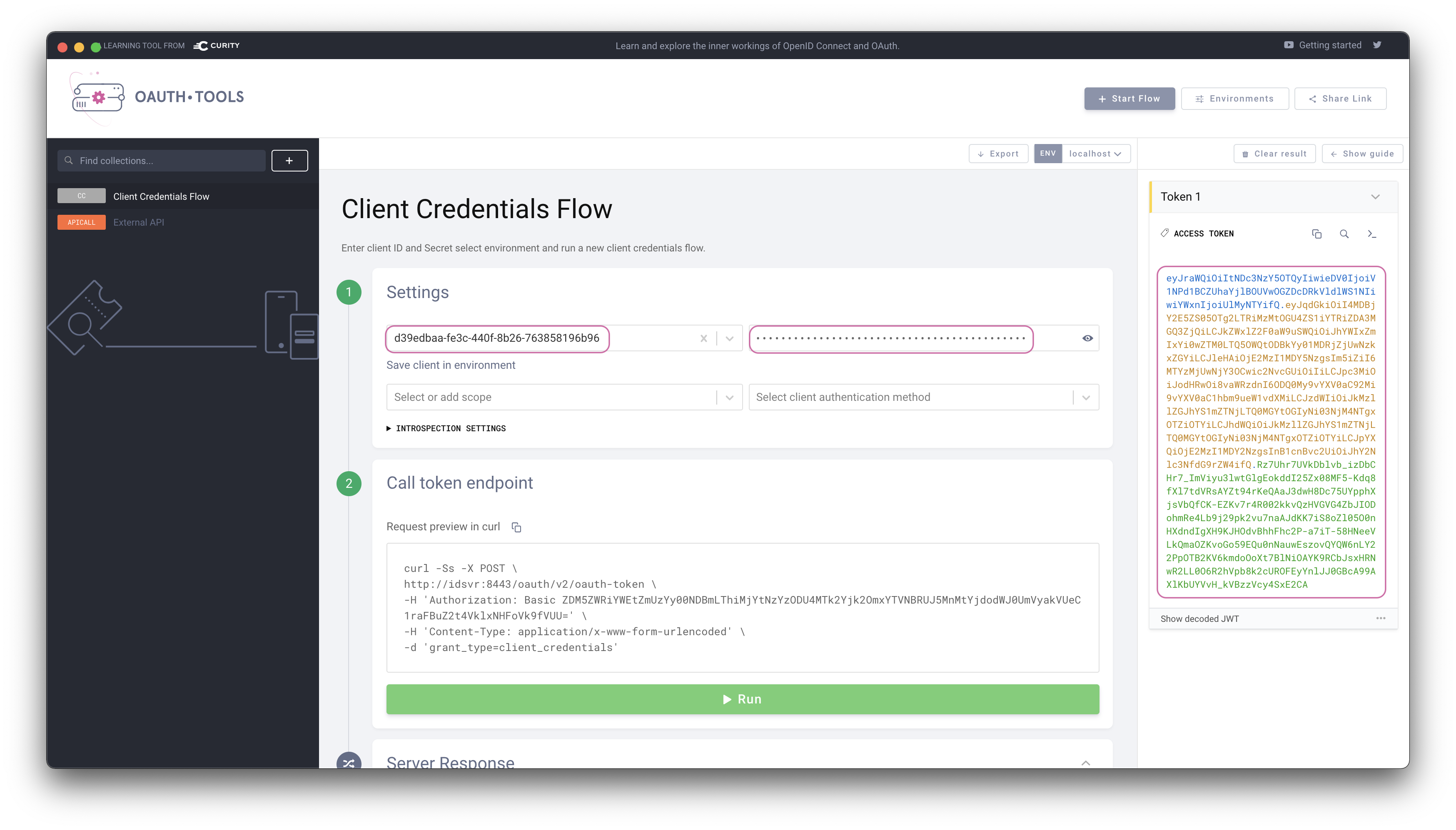
 #### Obtain a token using DCR client
[OAuth.tools](https://oauth.tools/) can be used to obtain an access token from The Curity Identity Server using the DCR information.
Start a Code or Client Credentials Flow. Copy the **Client ID** and the **Client Secret** to the appropriate fields in [OAuth.tools](https://oauth.tools/). Run the flow to obtain a token (JWT).
#### Obtain a token using DCR client
[OAuth.tools](https://oauth.tools/) can be used to obtain an access token from The Curity Identity Server using the DCR information.
Start a Code or Client Credentials Flow. Copy the **Client ID** and the **Client Secret** to the appropriate fields in [OAuth.tools](https://oauth.tools/). Run the flow to obtain a token (JWT).
 #### Use access token in request to API
The token can now be used in an **External API** flow in [OAuth.tools](https://oauth.tools/) to call the API that Tyk is proxying. Tyk will validate the JWT and allow the call to the upstream API (httpbin.org in this example). The response from the API is displayed in the right panel in [OAuth.tools](https://oauth.tools/). Httpbin.org echoes back what it receives in the request from Tyk. Note that the complete JWT is forwarded.
#### Use access token in request to API
The token can now be used in an **External API** flow in [OAuth.tools](https://oauth.tools/) to call the API that Tyk is proxying. Tyk will validate the JWT and allow the call to the upstream API (httpbin.org in this example). The response from the API is displayed in the right panel in [OAuth.tools](https://oauth.tools/). Httpbin.org echoes back what it receives in the request from Tyk. Note that the complete JWT is forwarded.