> ## Documentation Index
> Fetch the complete documentation index at: https://tyk.io/docs/llms.txt
> Use this file to discover all available pages before exploring further.
# Forgotten Password
> How to reset your password when using Tyk Developer Portal
If you've forgotten your password, you can easily reset it through the Developer Portal. This process works for both API Owners and API Consumers.
1. Navigate to the Developer Portal and select the **Login** button.
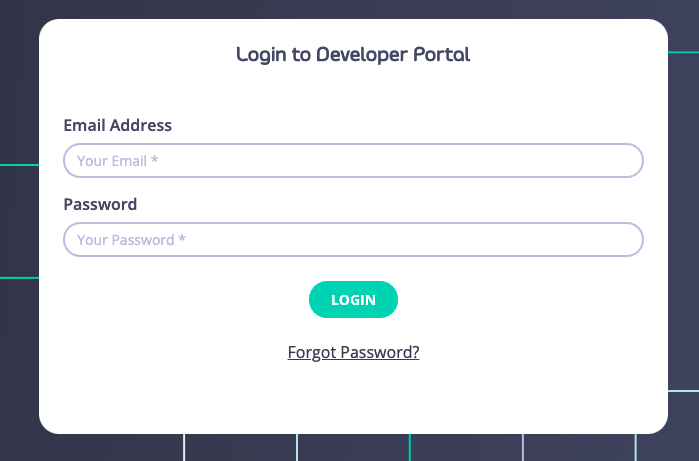 2. On the login screen, select the **Forgot Password?** link located below the login form.
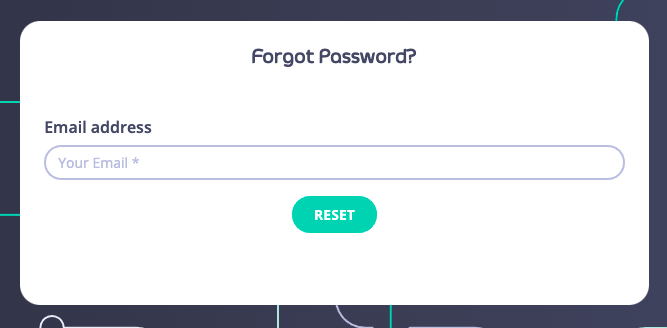 3. Enter the email address associated with your account and select **Reset**.
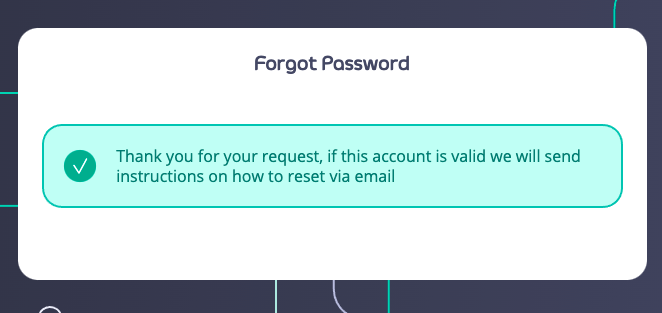 4. Check your email inbox for a message from the Tyk Developer Portal. The email will contain a password reset link in this format: `https:///auth/reset/code?token=`
5. Click the reset link in the email. This will take you to a password reset page in the Developer Portal.
6. Enter your new password in both fields and click **Reset**.
4. Check your email inbox for a message from the Tyk Developer Portal. The email will contain a password reset link in this format: `https:///auth/reset/code?token=`
5. Click the reset link in the email. This will take you to a password reset page in the Developer Portal.
6. Enter your new password in both fields and click **Reset**.
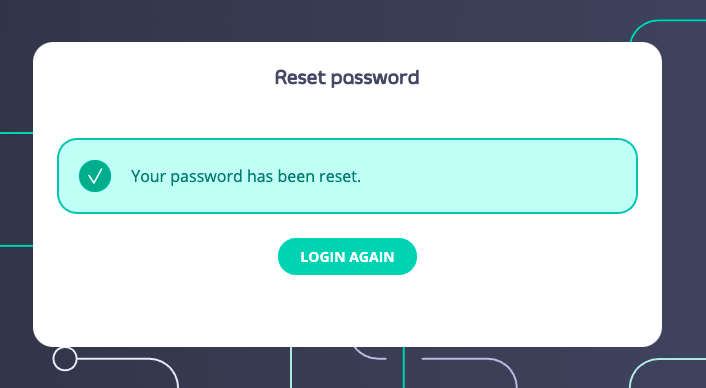
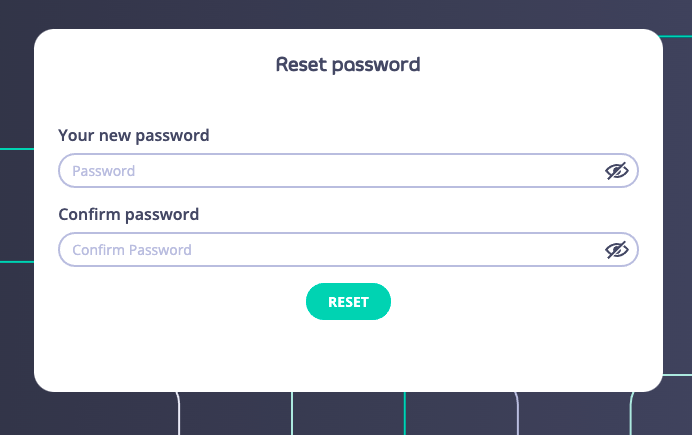 7. After successfully resetting your password, click **Login again** to return to the login screen with your new credentials.
 ## Important Notes
* Password reset links are valid for a limited time only
* If your reset link expires, simply restart the process
* Ensure your new password meets the system's security requirements
* For security reasons, you'll be required to log in immediately after resetting your password
## Important Notes
* Password reset links are valid for a limited time only
* If your reset link expires, simply restart the process
* Ensure your new password meets the system's security requirements
* For security reasons, you'll be required to log in immediately after resetting your password