> ## Documentation Index
> Fetch the complete documentation index at: https://tyk.io/docs/llms.txt
> Use this file to discover all available pages before exploring further.
# Set Up GraphQL Documentation for API Products
> How to add GraphQL SDL documentation and enable the interactive Playground for an API Product in the Tyk Developer Portal.
## Availability
| Component | Version | Editions |
| :--------------- | :------ | :--------- |
| Developer Portal | v1.15.0 | Enterprise |
[GraphQL Server URL auto-population](/nightly/#graphql-server-url-and-baseline-url) and [Universal Data Graph (UDG)](/nightly/#universal-data-graph-apis) support require v1.16.0 or later.
## Overview
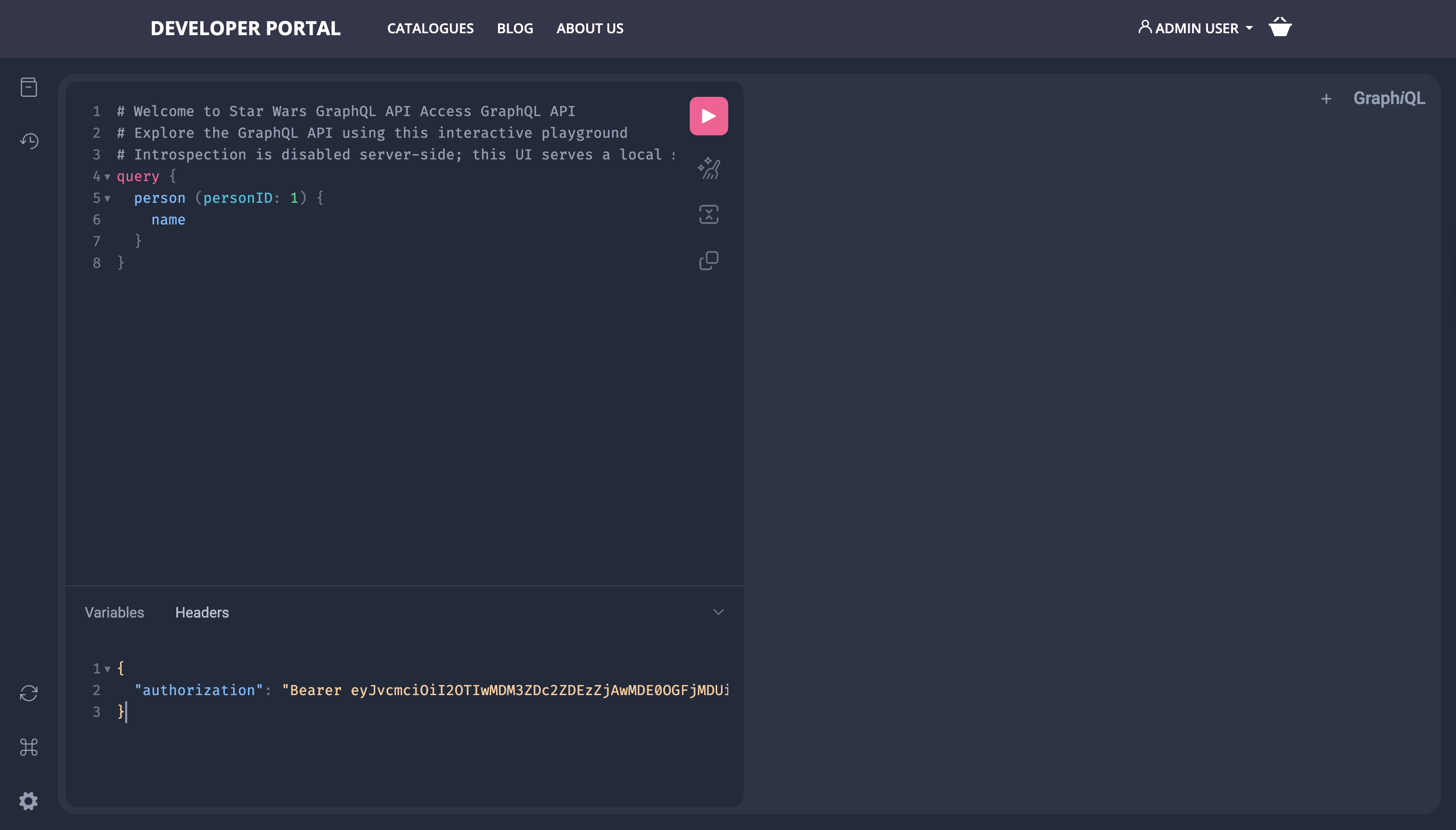
You can add a GraphQL Schema Definition Language (SDL) file to an API Product to enable the interactive GraphQL Playground in the Live Portal. Consumers with approved access can write and execute queries directly from the Portal, with their credentials automatically pre-populated in the Playground headers.
## Prerequisites
* Developer Portal v1.15.0 or later
* A [working Tyk environment](/nightly/getting-started/quick-start) with Tyk Gateway and Tyk Dashboard
* A GraphQL SDL schema file in `.graphql`, `.graphqls`, `.gql`, or `.json` format
## Add GraphQL Documentation to an API Product
1. **Create a test GraphQL API**
If you don't have an existing GraphQL API, use the built-in Star Wars example from the Tyk Dashboard:
* Navigate to **APIs > Add New API**, click **Try example**, select **Star Wars GQL API**, and click **Use Example**
* Copy the **Key ID** from the confirmation pop-up and save it; you will use this as the auth header when testing in the Playground
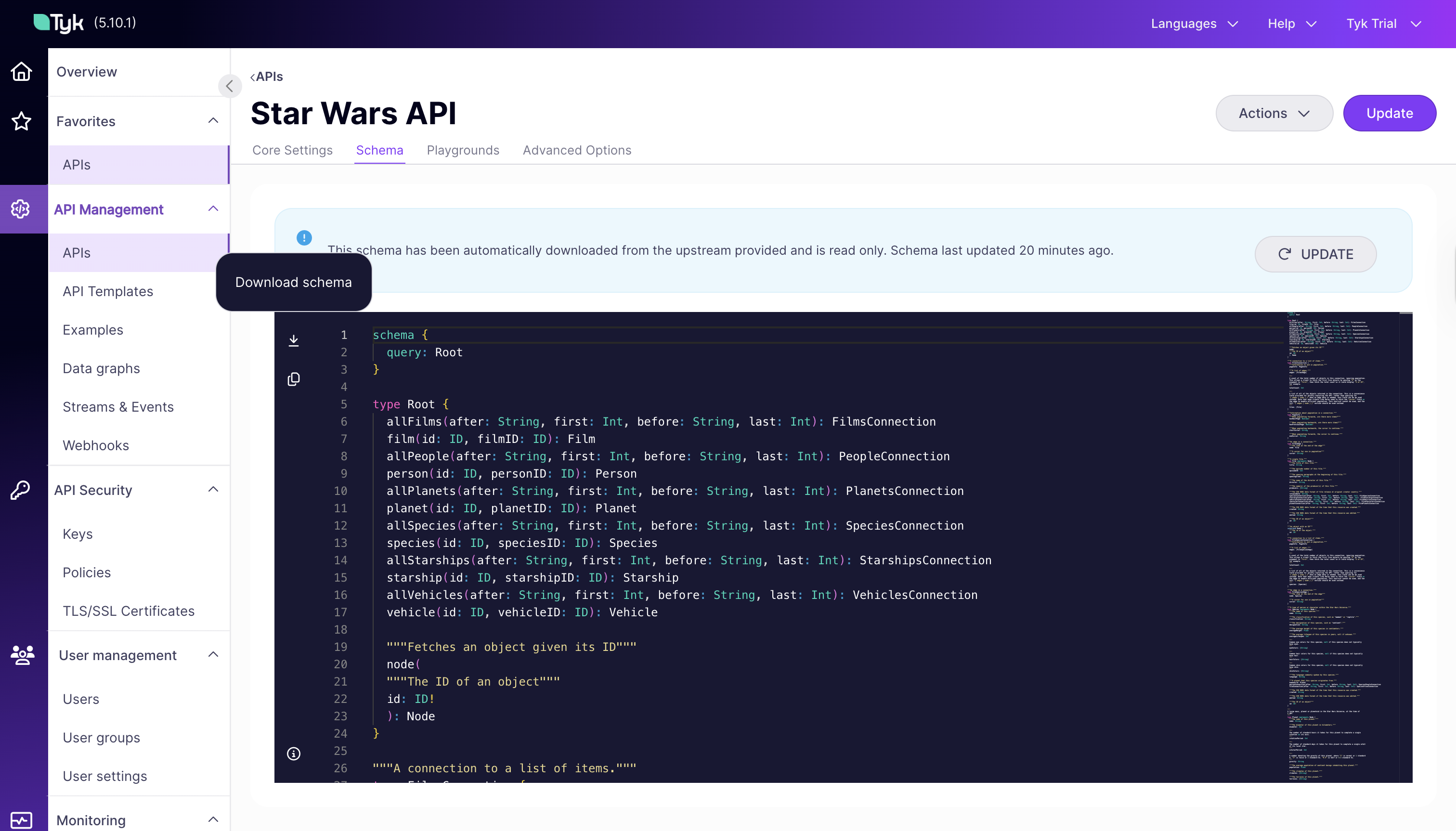
* Go to the **Schema** tab of the newly created API and download the schema file; you will upload this as the SDL file in step 5
 2. Navigate to **Developer Portal > API Products** and [create a new API Product](/nightly/portal/api-products#creating-a-new-api-product).
3. On the **APIs** tab, select your GraphQL API:
* **Choose a Provider**: select the Tyk Dashboard Provider
* **Choose authentication method**: match the authentication configured on your GraphQL API
* **Select APIs**: check your GraphQL API from the list
2. Navigate to **Developer Portal > API Products** and [create a new API Product](/nightly/portal/api-products#creating-a-new-api-product).
3. On the **APIs** tab, select your GraphQL API:
* **Choose a Provider**: select the Tyk Dashboard Provider
* **Choose authentication method**: match the authentication configured on your GraphQL API
* **Select APIs**: check your GraphQL API from the list
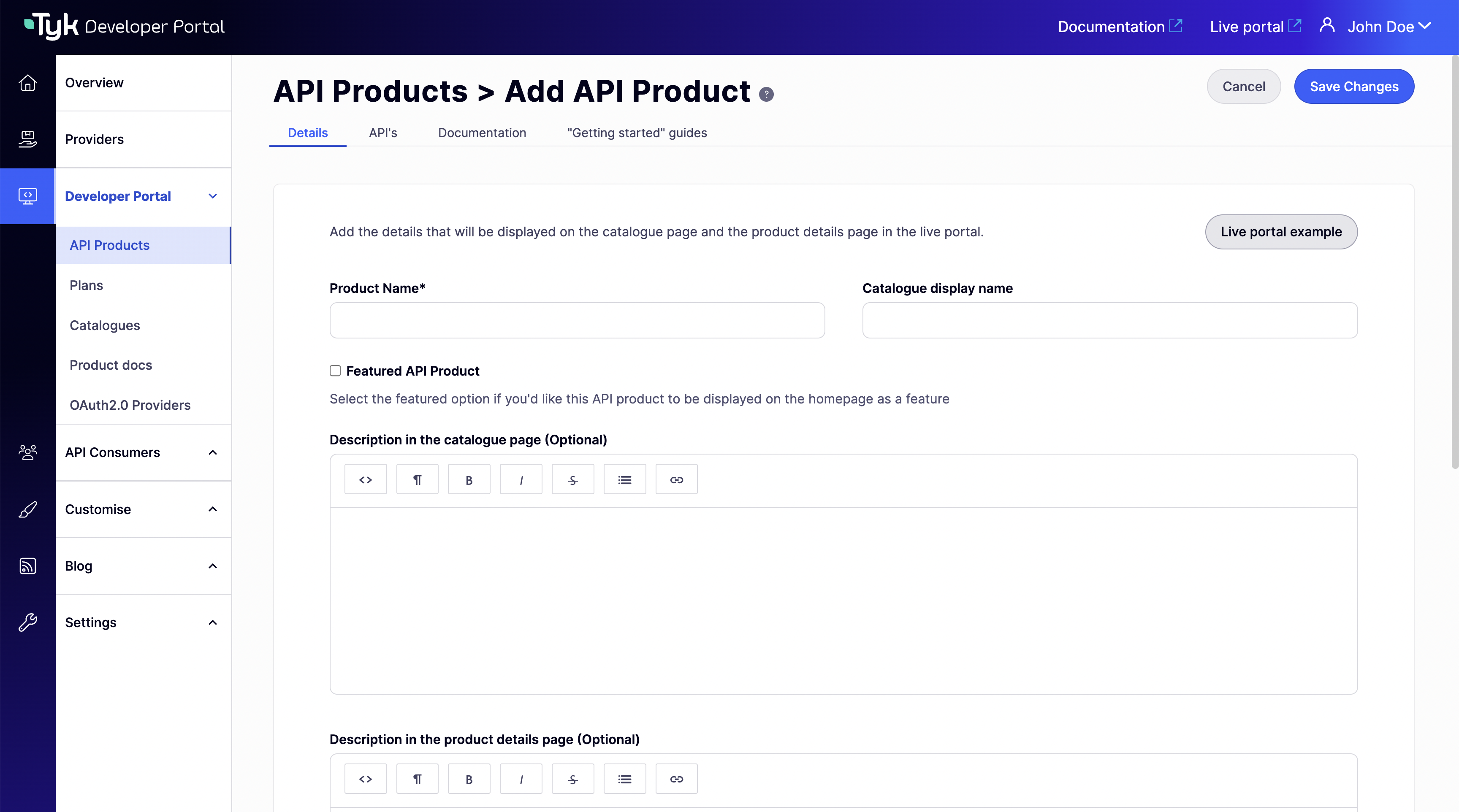 4. Go to the **Documentation** tab and click **Add API specification**.
5. Set the specification type to **GraphQL SDL**, then upload your schema file.
Accepted formats are `.graphql`, `.graphqls`, `.gql`, and `.json`.
4. Go to the **Documentation** tab and click **Add API specification**.
5. Set the specification type to **GraphQL SDL**, then upload your schema file.
Accepted formats are `.graphql`, `.graphqls`, `.gql`, and `.json`.
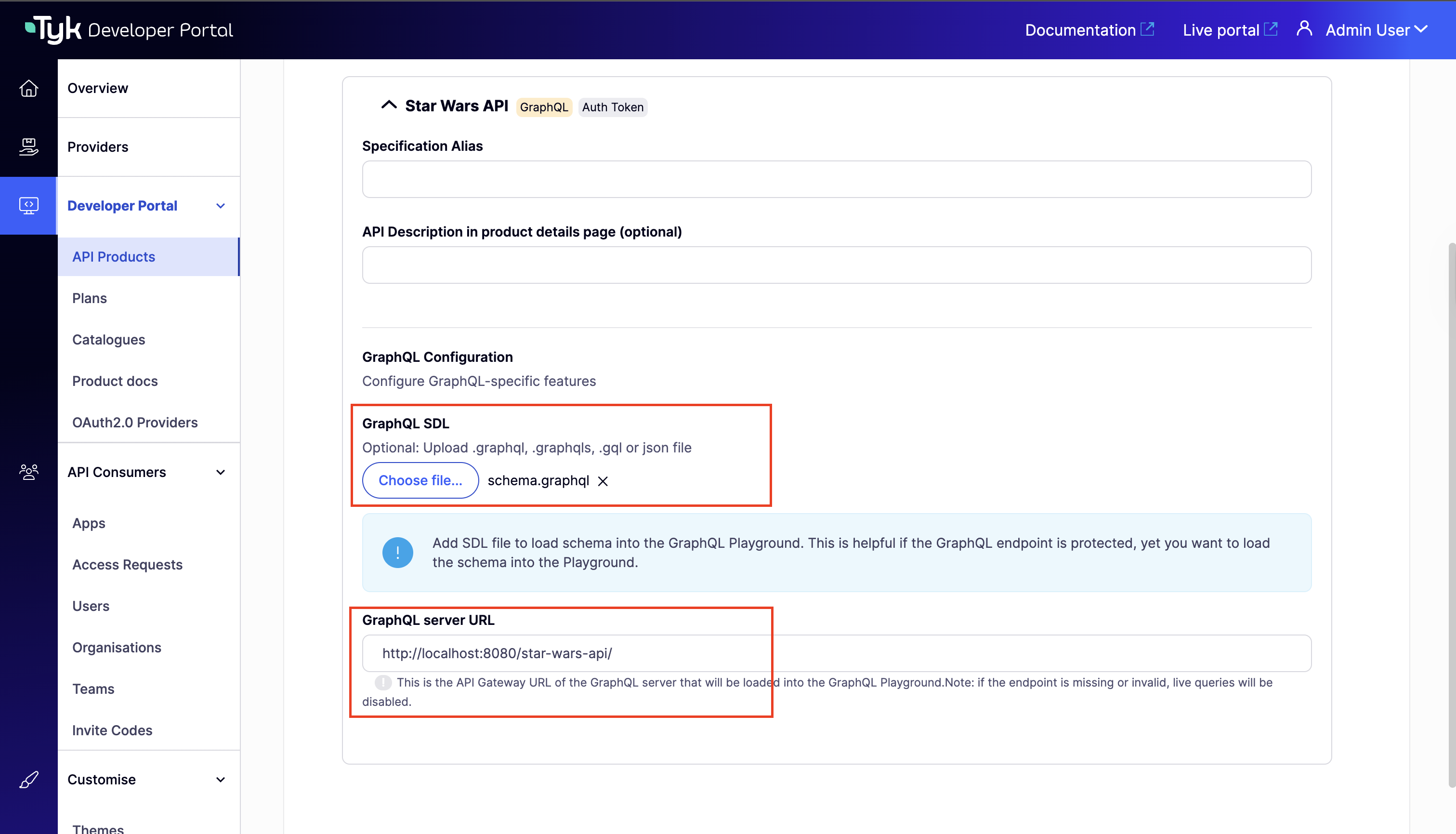 6. Set the **GraphQL Server URL** to the live endpoint of your GraphQL API on the Tyk Gateway (for example, `http://gateway.example.com/my-graphql-api/`). From v1.16.0, this is [auto-populated](/nightly/#graphql-server-url-and-baseline-url) from the Provider's Gateway Base URL and the API's listen path; you can always edit the value manually.
The URL must end with a trailing slash. A missing trailing slash causes a 404 error in the Playground.
7. Click **Save Changes**.
8. Open your **Live Portal**, go to [**Product Catalogues**](/nightly/tyk-stack/tyk-developer-portal/enterprise-developer-portal/managing-access/manage-catalogues), locate the product, and click **Docs**.
6. Set the **GraphQL Server URL** to the live endpoint of your GraphQL API on the Tyk Gateway (for example, `http://gateway.example.com/my-graphql-api/`). From v1.16.0, this is [auto-populated](/nightly/#graphql-server-url-and-baseline-url) from the Provider's Gateway Base URL and the API's listen path; you can always edit the value manually.
The URL must end with a trailing slash. A missing trailing slash causes a 404 error in the Playground.
7. Click **Save Changes**.
8. Open your **Live Portal**, go to [**Product Catalogues**](/nightly/tyk-stack/tyk-developer-portal/enterprise-developer-portal/managing-access/manage-catalogues), locate the product, and click **Docs**.
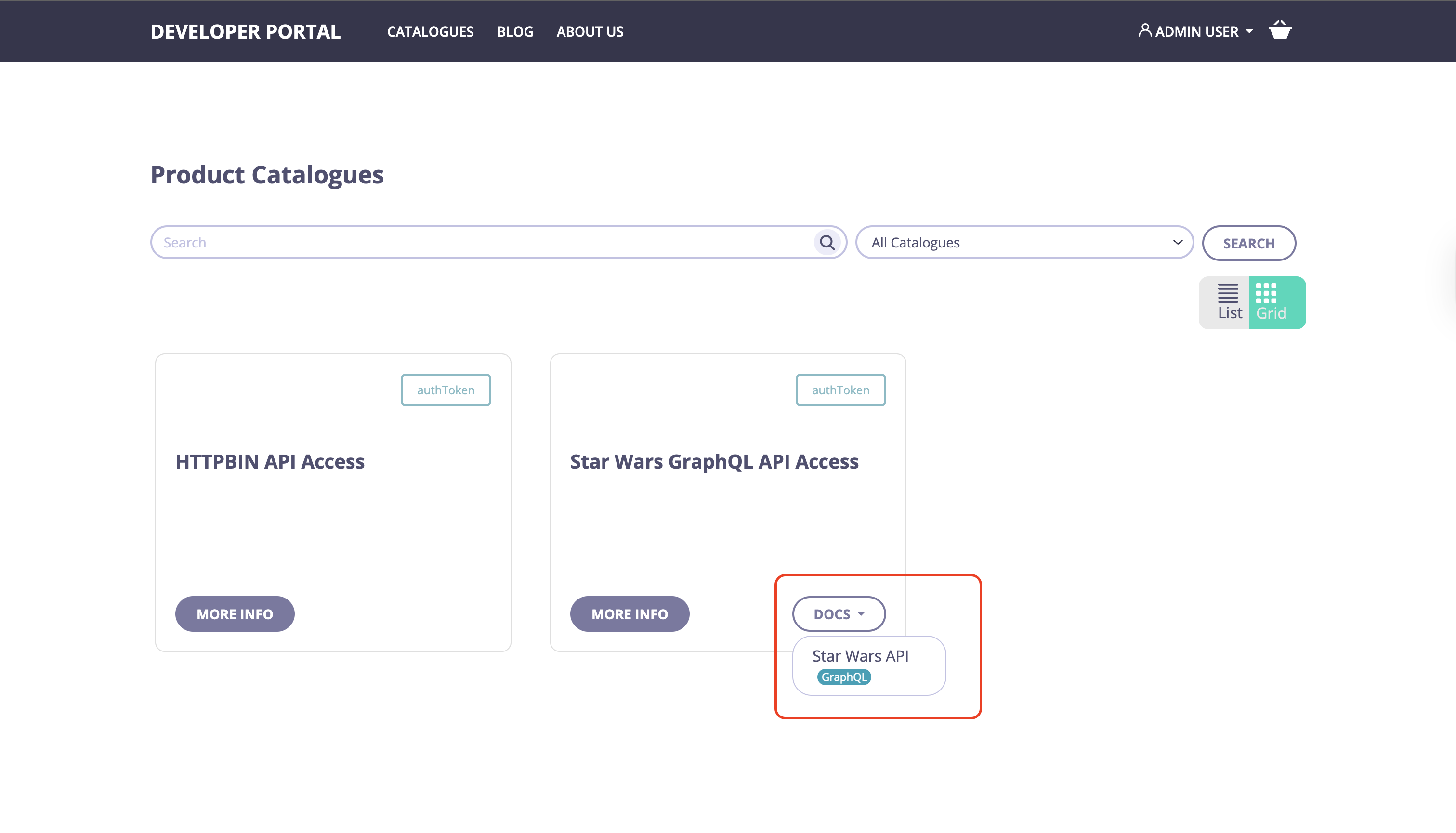 9. You should now see the **GraphQL Playground**, ready for interactive query testing.
To test authenticated APIs, set the required headers in the Playground. The Star Wars GQL API uses [Auth Token](/nightly/api-management/authentication/bearer-token) authentication.
Add the `Authorization` header using the Key ID you saved in step 1:
```json theme={null}
{
"Authorization": "YOUR_KEY_ID"
}
```
The `Bearer ` prefix is optional, Tyk Gateway strips it automatically if present. The exact header name depends on your API's authentication configuration.
9. You should now see the **GraphQL Playground**, ready for interactive query testing.
To test authenticated APIs, set the required headers in the Playground. The Star Wars GQL API uses [Auth Token](/nightly/api-management/authentication/bearer-token) authentication.
Add the `Authorization` header using the Key ID you saved in step 1:
```json theme={null}
{
"Authorization": "YOUR_KEY_ID"
}
```
The `Bearer ` prefix is optional, Tyk Gateway strips it automatically if present. The exact header name depends on your API's authentication configuration.
 ## GraphQL Server URL and Baseline URL
The **GraphQL Server URL** is the endpoint the Playground sends queries to. It must point to your GraphQL API on the Tyk Gateway.
From v1.16.0, the Developer Portal automatically constructs this URL from two values:
```
{Gateway Base URL}/{API listen path}
```
The **Gateway Base URL** is the public-facing base URL of your Tyk Gateway (for example, `https://gateway.example.com`). Set it in **Admin Portal > Providers > \[your provider] > Baseline URL**.
If the Gateway Base URL is not configured, the server URL field displays `<>`. Enter the full URL manually before saving.
## SDL and Introspection Behavior
GraphQL introspection is a built-in feature that allows clients to query an API's schema to discover its available types and operations. The Playground uses introspection to display the schema when no SDL file has been uploaded.
The Playground loads its schema in the following order:
| SDL file status | Playground behavior |
| :------------------------------- | :---------------------------------------------------------------------------------------------------------------------------------------------- |
| SDL file uploaded | Schema is loaded from the uploaded file. Introspection is not needed, so the Playground works even on authenticated or network-restricted APIs. |
| No SDL file | Playground attempts live introspection against the GraphQL Server URL. |
| No SDL file, introspection fails | Playground enters read-only mode with a warning banner. Queries cannot be executed. |
For APIs that require authentication, uploading an SDL file is strongly recommended. Introspection is blocked on protected endpoints, and without an SDL file the Playground will fall back to read-only mode.
## Universal Data Graph APIs
From v1.16.0, [Universal Data Graph (UDG)](/nightly/api-management/data-graph) APIs appear alongside standard GraphQL APIs in the API selection list. Configure the Documentation tab for a UDG API the same way: upload the SDL file and set the GraphQL Server URL.
**Limitation:** REST data sources in a UDG API do not support GraphQL subscriptions. Subscription operations will not be available in the Playground for those data sources.
## Credential Injection in the Playground
When an API Consumer's [Developer App](/nightly/portal/developer-app) has been approved to access a Product, their credentials are automatically pre-populated in the Playground's HTTP headers. No additional configuration is required.
The header format matches the authentication scheme of the APIs in the Product. For example, for an [Auth Token](/nightly/api-management/authentication/bearer-token) API:
```json theme={null}
{
"Authorization": ""
}
```
## Troubleshooting
The Playground cannot locate your GraphQL API endpoint.
Ensure the GraphQL Server URL ends with a trailing slash. For example, use `http://localhost:8080/my-graphql-api/` not `http://localhost:8080/my-graphql-api`.
You can find the correct endpoint URL in the **Core Settings** tab of your GraphQL API in Tyk Dashboard.
This error is caused by CORS (Cross-Origin Resource Sharing) restrictions on the API. The browser blocks requests from the Live Portal origin to the Gateway.
Add the following CORS configuration to your GraphQL API definition, replacing the `allowed_origins` value with the URL of your Live Portal:
```json expandable theme={null}
{
"CORS": {
"enable": true,
"max_age": 24,
"allow_credentials": true,
"exposed_headers": ["*"],
"allowed_headers": ["*"],
"options_passthrough": true,
"debug": false,
"allowed_origins": ["http://:"],
"allowed_methods": []
}
}
```
The Playground enters read-only mode when no SDL file has been uploaded and live introspection of the endpoint fails.
To resolve this, try one of the following:
* Upload a GraphQL SDL file on the **Documentation** tab of the API Product.
* Verify the **GraphQL Server URL** is correct and reachable from the Portal server.
* If the API requires authentication, upload an SDL file; introspection is blocked on authenticated endpoints.
## GraphQL Server URL and Baseline URL
The **GraphQL Server URL** is the endpoint the Playground sends queries to. It must point to your GraphQL API on the Tyk Gateway.
From v1.16.0, the Developer Portal automatically constructs this URL from two values:
```
{Gateway Base URL}/{API listen path}
```
The **Gateway Base URL** is the public-facing base URL of your Tyk Gateway (for example, `https://gateway.example.com`). Set it in **Admin Portal > Providers > \[your provider] > Baseline URL**.
If the Gateway Base URL is not configured, the server URL field displays `<>`. Enter the full URL manually before saving.
## SDL and Introspection Behavior
GraphQL introspection is a built-in feature that allows clients to query an API's schema to discover its available types and operations. The Playground uses introspection to display the schema when no SDL file has been uploaded.
The Playground loads its schema in the following order:
| SDL file status | Playground behavior |
| :------------------------------- | :---------------------------------------------------------------------------------------------------------------------------------------------- |
| SDL file uploaded | Schema is loaded from the uploaded file. Introspection is not needed, so the Playground works even on authenticated or network-restricted APIs. |
| No SDL file | Playground attempts live introspection against the GraphQL Server URL. |
| No SDL file, introspection fails | Playground enters read-only mode with a warning banner. Queries cannot be executed. |
For APIs that require authentication, uploading an SDL file is strongly recommended. Introspection is blocked on protected endpoints, and without an SDL file the Playground will fall back to read-only mode.
## Universal Data Graph APIs
From v1.16.0, [Universal Data Graph (UDG)](/nightly/api-management/data-graph) APIs appear alongside standard GraphQL APIs in the API selection list. Configure the Documentation tab for a UDG API the same way: upload the SDL file and set the GraphQL Server URL.
**Limitation:** REST data sources in a UDG API do not support GraphQL subscriptions. Subscription operations will not be available in the Playground for those data sources.
## Credential Injection in the Playground
When an API Consumer's [Developer App](/nightly/portal/developer-app) has been approved to access a Product, their credentials are automatically pre-populated in the Playground's HTTP headers. No additional configuration is required.
The header format matches the authentication scheme of the APIs in the Product. For example, for an [Auth Token](/nightly/api-management/authentication/bearer-token) API:
```json theme={null}
{
"Authorization": ""
}
```
## Troubleshooting
The Playground cannot locate your GraphQL API endpoint.
Ensure the GraphQL Server URL ends with a trailing slash. For example, use `http://localhost:8080/my-graphql-api/` not `http://localhost:8080/my-graphql-api`.
You can find the correct endpoint URL in the **Core Settings** tab of your GraphQL API in Tyk Dashboard.
This error is caused by CORS (Cross-Origin Resource Sharing) restrictions on the API. The browser blocks requests from the Live Portal origin to the Gateway.
Add the following CORS configuration to your GraphQL API definition, replacing the `allowed_origins` value with the URL of your Live Portal:
```json expandable theme={null}
{
"CORS": {
"enable": true,
"max_age": 24,
"allow_credentials": true,
"exposed_headers": ["*"],
"allowed_headers": ["*"],
"options_passthrough": true,
"debug": false,
"allowed_origins": ["http://:"],
"allowed_methods": []
}
}
```
The Playground enters read-only mode when no SDL file has been uploaded and live introspection of the endpoint fails.
To resolve this, try one of the following:
* Upload a GraphQL SDL file on the **Documentation** tab of the API Product.
* Verify the **GraphQL Server URL** is correct and reachable from the Portal server.
* If the API requires authentication, upload an SDL file; introspection is blocked on authenticated endpoints.