> ## Documentation Index
> Fetch the complete documentation index at: https://tyk.io/docs/llms.txt
> Use this file to discover all available pages before exploring further.
# Create and Secure APIs with Tyk
> Explore API security, monitoring, and traffic transformation using your Tyk Self-Managed trial environment.
**Prerequisite:** Complete the [Getting Started](/nightly/getting-started/quick-start) guide to set up your Tyk Self-Managed environment before continuing.
In this section, we will explore the core API management capabilities of Tyk Self-Managed using the pre-configured APIs.
We will explore how to your secure APIs, manage API traffic, and monitor your API usage. The following sections will guide you through the key features of Tyk API Management platform.
## API Security in Action
API security is an important aspect of API management. Tyk provides [multiple authentication methods](/nightly/api-management/client-authentication#what-does-tyk-support) to secure your APIs and control access. In this section, we'll explore the security features available in your trial environment.
### Exploring Authentication Methods
Tyk supports various authentication methods including [Auth Token](/nightly/api-management/authentication/bearer-token), [JWT](/nightly/basic-config-and-security/security/authentication-authorization/json-web-tokens), [OAuth 2.0](/nightly/api-management/authentication/oauth-2), and [more](/nightly/api-management/client-authentication#what-does-tyk-support). In your trial environment, the httpbingo API is pre-configured with Auth Token authentication.
[Auth Tokens](/nightly/api-management/authentication/bearer-token) are the simplest form of authentication. They're easy to implement and understand, making them perfect for your first exploration of Tyk.
1. **Create an API Key:**
* In the Dashboard, navigate to the "Keys" section in the left menu
* Click the "ADD KEY" button
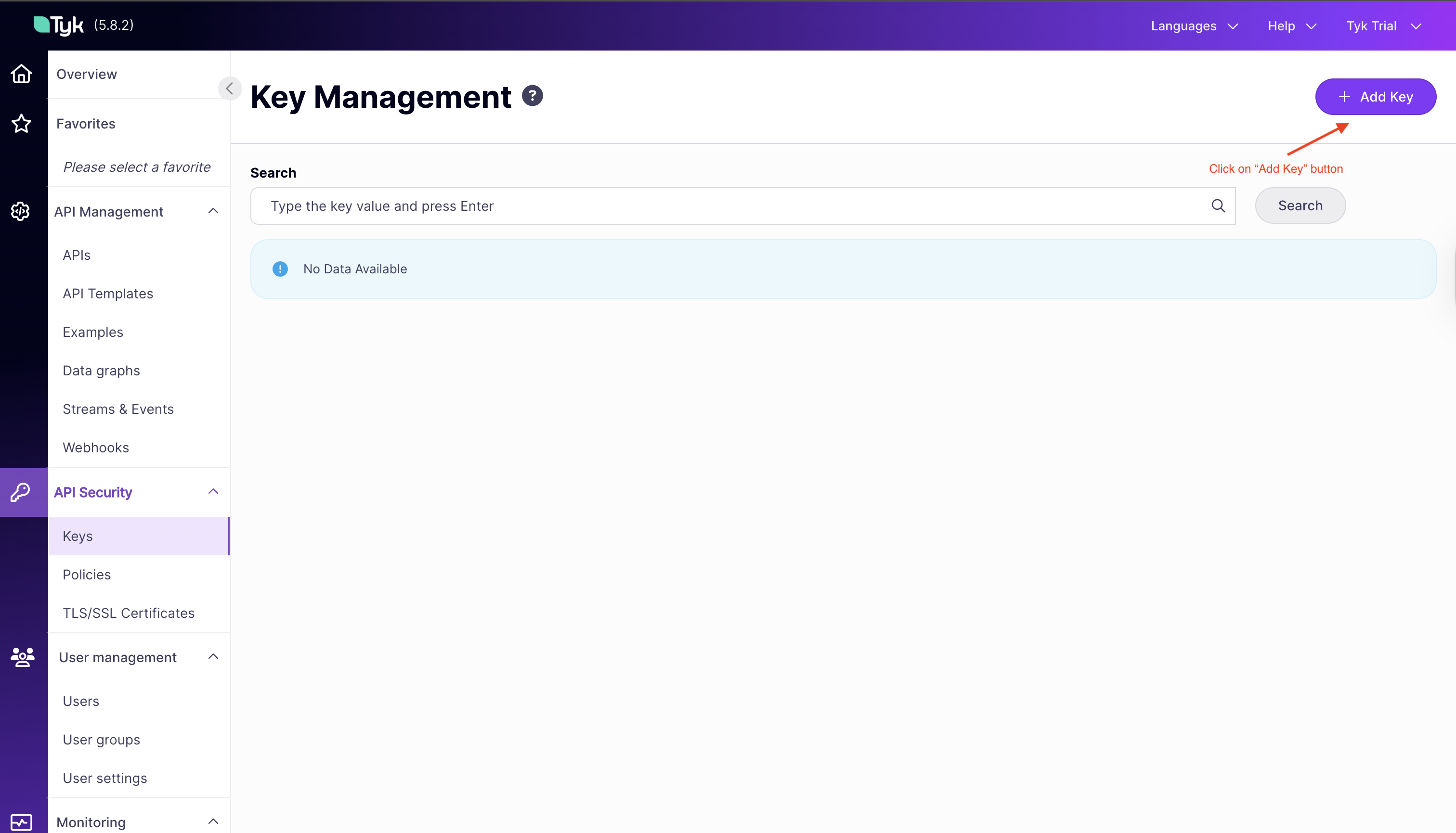 * Under "Access Rights," select the `HTTPBIN API Access` policy
* Now under the "Configuration" tab, add an alias `httpbin`
* Click "Create Key" to generate your API key
* Under "Access Rights," select the `HTTPBIN API Access` policy
* Now under the "Configuration" tab, add an alias `httpbin`
* Click "Create Key" to generate your API key
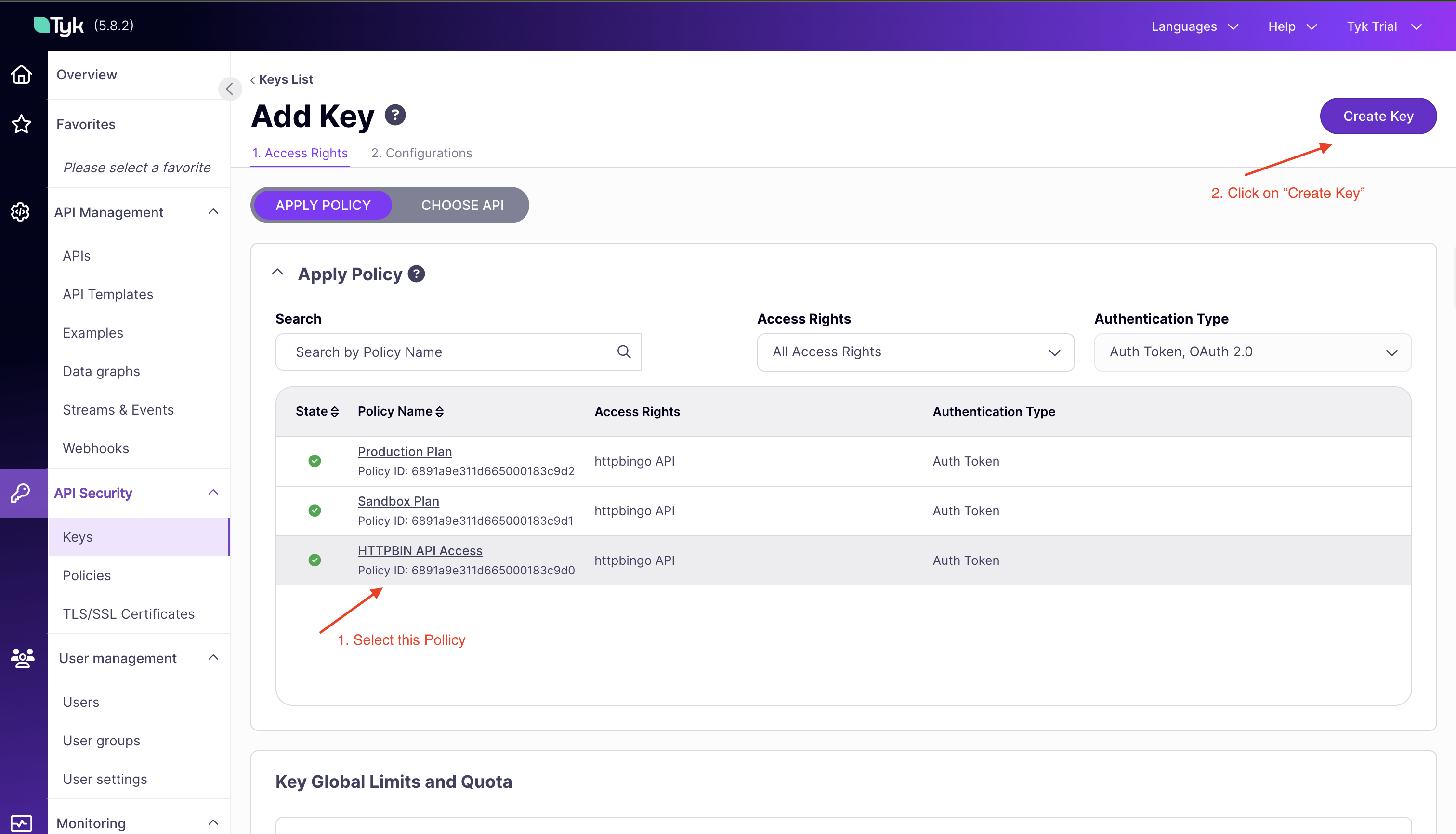 * Copy the displayed API `key ID` for testing
> **Note:** This key will be used in the upcoming sections to authenticate requests to the httpbingo API.
2. **Test API Access with Your Key:**
* Open a terminal or API client like Postman
* Make a request to the API including your key in the Authorization header:
```
curl -H "Authorization: " http://localhost:8080/httpbingo/get
```
* You should receive a successful response with details about your request
```json theme={null}
{
"args": {},
"headers": {
"Accept": [
"*/*"
],
"Accept-Encoding": [
"gzip"
],
"Authorization": [
"eyJvcmciOiI2ODkxYTllMzExZDY2NTAwMDE4M2M5Y2MiLCJpZCI6ImM4MmNiYzRhY2Q4NTQyMGZiZGNiZjViN2U2NjY1MWU3IiwiaCI6Im11cm11cjY0In0="
],
"Host": [
"httpbin:8080"
],
"User-Agent": [
"curl/8.7.1"
],
"X-Forwarded-For": [
"192.168.65.1"
]
},
"method": "GET",
"origin": "192.168.65.1",
"url": "http://httpbin:8080/get"
}
```
3. **Try Without Authentication:**
* Make the same request without the Authorization header:
```
curl -H "Authorization: invalid-key" http://localhost:8080/httpbingo/get
```
* You should receive an error, confirming that authentication is working
```json theme={null}
{
"error": "Access to this API has been disallowed"
}
```
### Rate Limiting and Quota Management
[Rate limiting](/nightly/api-management/rate-limit) is a technique that allows you to control the rate at which clients can consume your APIs and is one of the fundamental aspects of managing traffic to your services. It serves as a safeguard against abuse, overloading, and denial-of-service attacks by limiting the rate at which an API can be accessed.
In this section we will implement and test rate limiting in Tyk.
**Testing Rate Limiting:**
1. **Create an API Key:**
* In the Dashboard, navigate to the "Keys" section in the left menu
* Click the "ADD KEY" button
* Under "Access Rights," select the `HTTPBIN API Access` policy
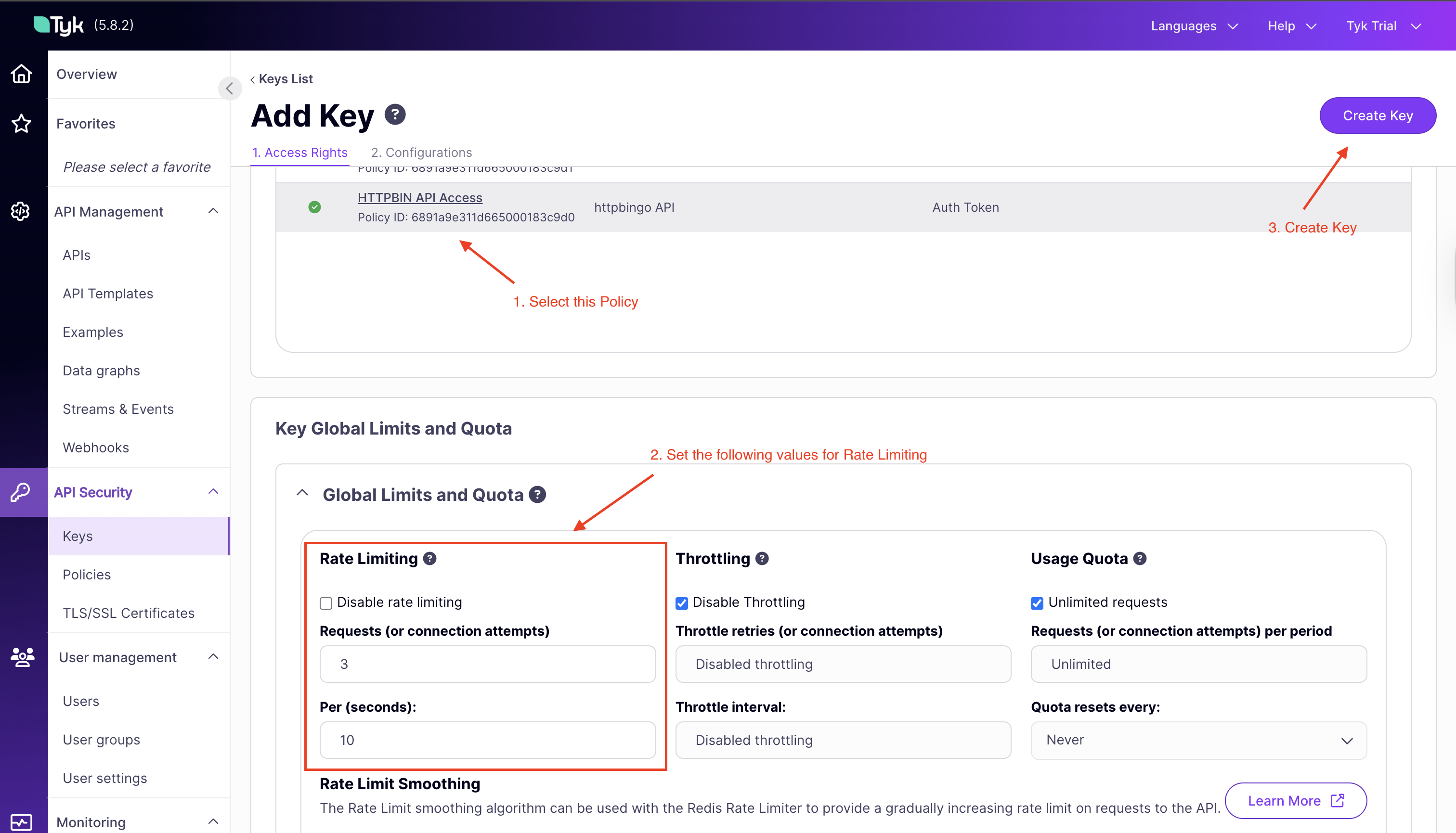
* Under "Key Global Limits and Quota" set the following:
* **Requests**: 3 requests
* **Per (seconds):**: 10 seconds
* Now under the "Configuration" tab, add an alias `httpbin rate limit`
* Click "CREATE" to generate your API key
* Copy the displayed API `key ID` for testing
> **Note:** This key will be used in the upcoming sections to authenticate requests to the httpbingo API.
2. **Test API Access with Your Key:**
* Open a terminal or API client like Postman
* Make a request to the API including your key in the Authorization header:
```
curl -H "Authorization: " http://localhost:8080/httpbingo/get
```
* You should receive a successful response with details about your request
```json theme={null}
{
"args": {},
"headers": {
"Accept": [
"*/*"
],
"Accept-Encoding": [
"gzip"
],
"Authorization": [
"eyJvcmciOiI2ODkxYTllMzExZDY2NTAwMDE4M2M5Y2MiLCJpZCI6ImM4MmNiYzRhY2Q4NTQyMGZiZGNiZjViN2U2NjY1MWU3IiwiaCI6Im11cm11cjY0In0="
],
"Host": [
"httpbin:8080"
],
"User-Agent": [
"curl/8.7.1"
],
"X-Forwarded-For": [
"192.168.65.1"
]
},
"method": "GET",
"origin": "192.168.65.1",
"url": "http://httpbin:8080/get"
}
```
3. **Try Without Authentication:**
* Make the same request without the Authorization header:
```
curl -H "Authorization: invalid-key" http://localhost:8080/httpbingo/get
```
* You should receive an error, confirming that authentication is working
```json theme={null}
{
"error": "Access to this API has been disallowed"
}
```
### Rate Limiting and Quota Management
[Rate limiting](/nightly/api-management/rate-limit) is a technique that allows you to control the rate at which clients can consume your APIs and is one of the fundamental aspects of managing traffic to your services. It serves as a safeguard against abuse, overloading, and denial-of-service attacks by limiting the rate at which an API can be accessed.
In this section we will implement and test rate limiting in Tyk.
**Testing Rate Limiting:**
1. **Create an API Key:**
* In the Dashboard, navigate to the "Keys" section in the left menu
* Click the "ADD KEY" button
* Under "Access Rights," select the `HTTPBIN API Access` policy
* Under "Key Global Limits and Quota" set the following:
* **Requests**: 3 requests
* **Per (seconds):**: 10 seconds
* Now under the "Configuration" tab, add an alias `httpbin rate limit`
* Click "CREATE" to generate your API key
 * Copy the displayed API `key ID` for testing
2. **Observe Rate Limiting in Action:**
* Open a terminal and run multiple requests in quick succession:
```bash theme={null}
for i in {1..5}; do
curl -H "Authorization: " http://localhost:8080/httpbingo/get
echo -e "\n--- Request $i completed ---\n"
done
```
* After the third request within 10 seconds, you should see a rate limit exceeded error
```json theme={null}
{
"error": "Rate Limit Exceeded"
}
```
3. **Compare with a Higher Limit:**
* Now update the `httpbin rate limit` key and set a value of `100` in the "requests" section of rate limiting.
* Run the same test and observe that you can make more requests before hitting limits
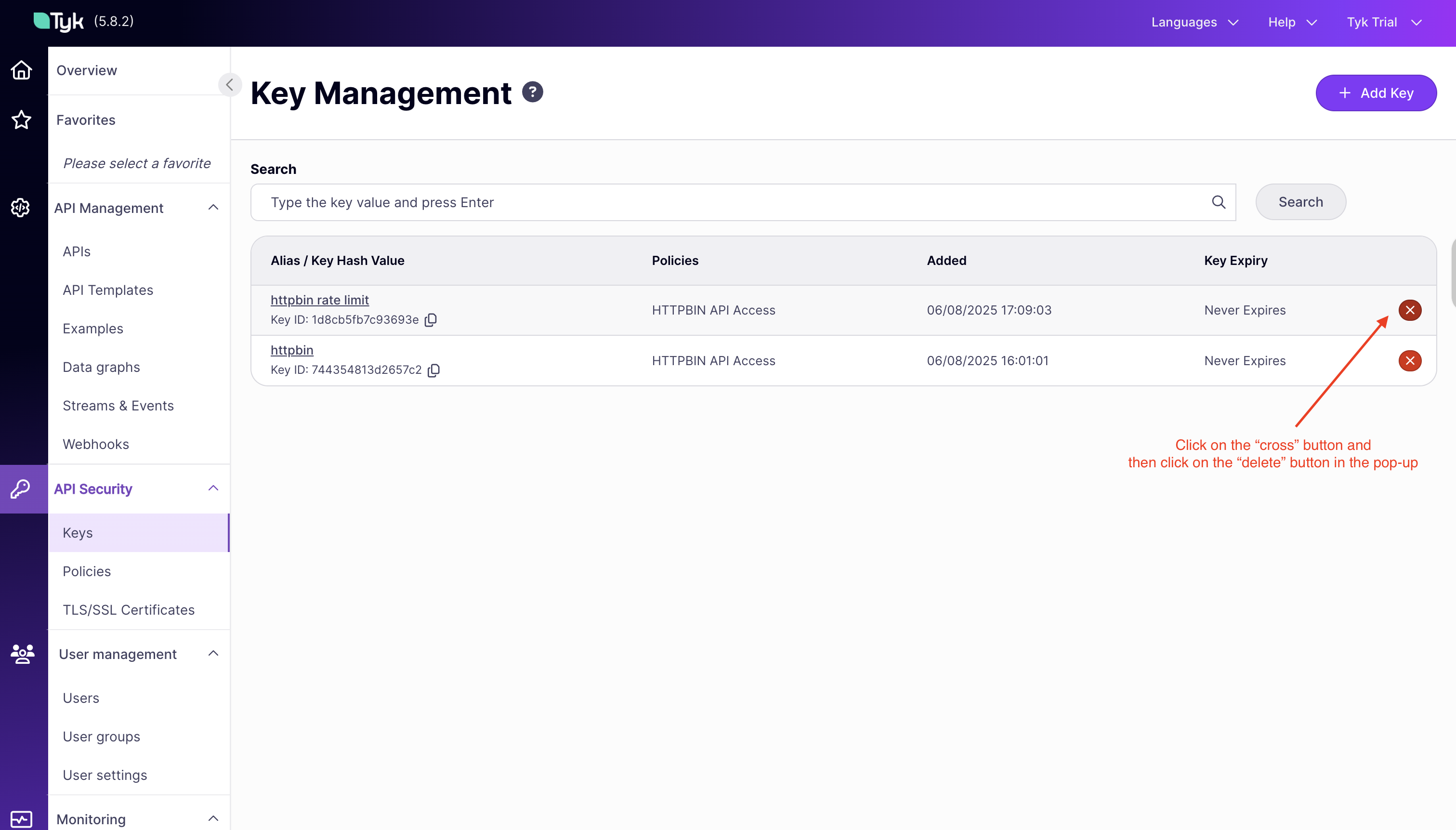
4. **Clean Up**
* After testing, you can delete the `httpbin rate limit` API key from the Dashboard.
* Copy the displayed API `key ID` for testing
2. **Observe Rate Limiting in Action:**
* Open a terminal and run multiple requests in quick succession:
```bash theme={null}
for i in {1..5}; do
curl -H "Authorization: " http://localhost:8080/httpbingo/get
echo -e "\n--- Request $i completed ---\n"
done
```
* After the third request within 10 seconds, you should see a rate limit exceeded error
```json theme={null}
{
"error": "Rate Limit Exceeded"
}
```
3. **Compare with a Higher Limit:**
* Now update the `httpbin rate limit` key and set a value of `100` in the "requests" section of rate limiting.
* Run the same test and observe that you can make more requests before hitting limits
4. **Clean Up**
* After testing, you can delete the `httpbin rate limit` API key from the Dashboard.
 By exploring these security features, you'll gain a solid understanding of how Tyk helps protect your APIs while providing the right level of access to authorized consumers.
## API Monitoring
Understanding how your APIs are performing is important for optimizing performance, planning capacity, and ensuring security. Tyk provides comprehensive monitoring capabilities to give you visibility into your API traffic.
### Generating Test Traffic
To explore Tyk's monitoring capabilities, you'll need to generate some API traffic that simulates real-world usage patterns and populates the monitoring dashboard.
**Creating Test Traffic:**
1. **Using Command Line Tools:**
* You can use simple bash loops to generate multiple requests:
```
for i in {1..20}; do curl -H "Authorization: " http://localhost:8080/httpbingo/get; sleep 0.5; done
```
* This sends 20 requests with a half-second delay between each
2. **Generating Diverse Traffic:**
* Try accessing different endpoints to create a more realistic traffic pattern:
```
curl -H "Authorization: " http://localhost:8080/httpbingo/headers
curl -H "Authorization: " http://localhost:8080/httpbingo/ip
curl -H "Authorization: " http://localhost:8080/httpbingo/user-agent
```
* Include some errors by attempting to exceed rate limits or access without authentication
```bash theme={null}
curl -H "Authorization: invalid-key" http://localhost:8080/httpbingo/headers
```
### Exploring Real-time Analytics
Once you've generated some traffic, you can explore Tyk's analytics capabilities to gain insights into API usage.
**Accessing Monitoring Dashboard:**
1. **View the Main Dashboard:**
* In the Tyk Dashboard, go to the [Activity Overview](http://localhost:3000/activity-overview) section under "Monitoring"
* This provides an overview of API usage, errors, and performance metrics
* The dashboard updates in near real-time as new requests are processed
By exploring these security features, you'll gain a solid understanding of how Tyk helps protect your APIs while providing the right level of access to authorized consumers.
## API Monitoring
Understanding how your APIs are performing is important for optimizing performance, planning capacity, and ensuring security. Tyk provides comprehensive monitoring capabilities to give you visibility into your API traffic.
### Generating Test Traffic
To explore Tyk's monitoring capabilities, you'll need to generate some API traffic that simulates real-world usage patterns and populates the monitoring dashboard.
**Creating Test Traffic:**
1. **Using Command Line Tools:**
* You can use simple bash loops to generate multiple requests:
```
for i in {1..20}; do curl -H "Authorization: " http://localhost:8080/httpbingo/get; sleep 0.5; done
```
* This sends 20 requests with a half-second delay between each
2. **Generating Diverse Traffic:**
* Try accessing different endpoints to create a more realistic traffic pattern:
```
curl -H "Authorization: " http://localhost:8080/httpbingo/headers
curl -H "Authorization: " http://localhost:8080/httpbingo/ip
curl -H "Authorization: " http://localhost:8080/httpbingo/user-agent
```
* Include some errors by attempting to exceed rate limits or access without authentication
```bash theme={null}
curl -H "Authorization: invalid-key" http://localhost:8080/httpbingo/headers
```
### Exploring Real-time Analytics
Once you've generated some traffic, you can explore Tyk's analytics capabilities to gain insights into API usage.
**Accessing Monitoring Dashboard:**
1. **View the Main Dashboard:**
* In the Tyk Dashboard, go to the [Activity Overview](http://localhost:3000/activity-overview) section under "Monitoring"
* This provides an overview of API usage, errors, and performance metrics
* The dashboard updates in near real-time as new requests are processed
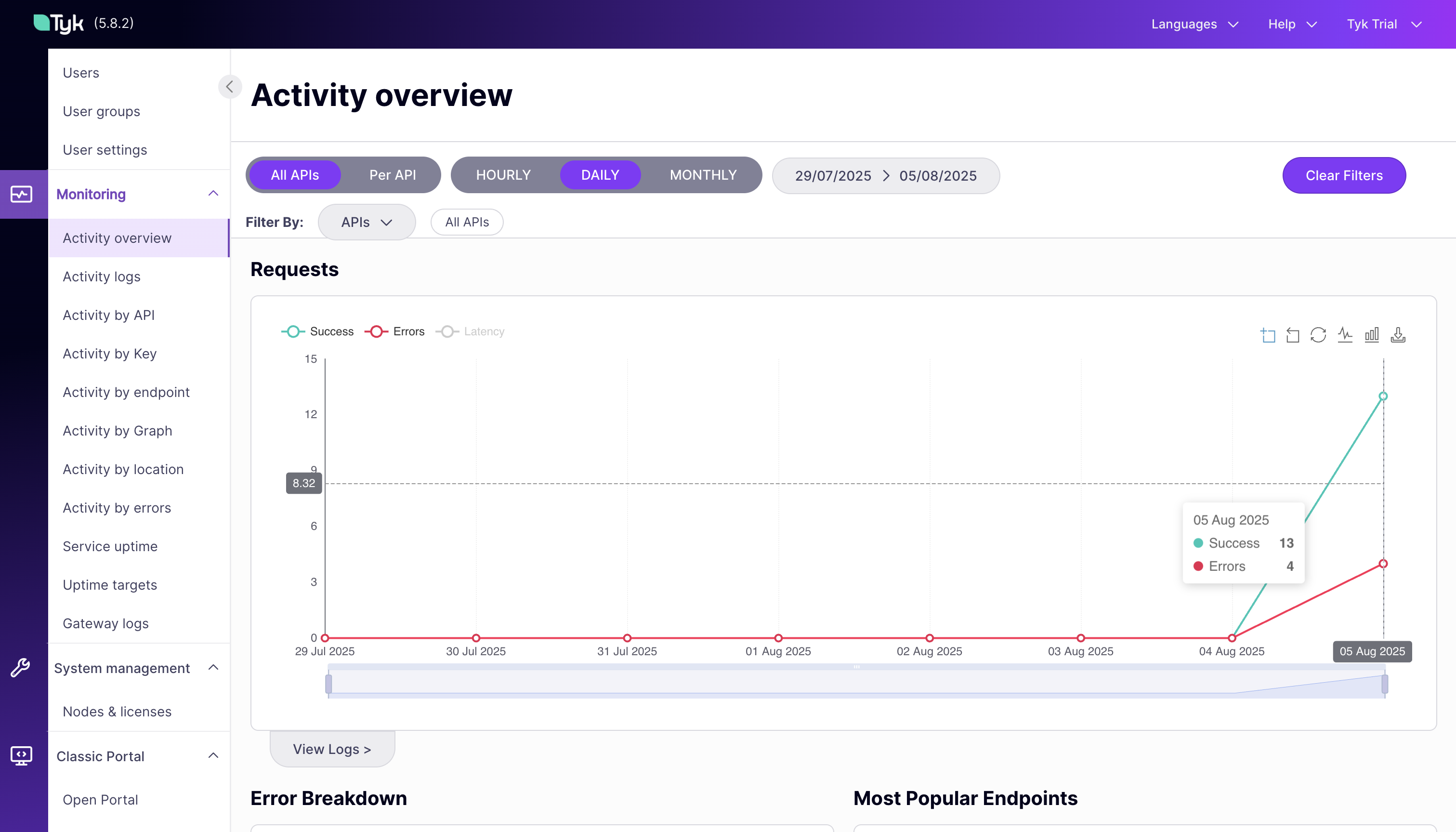 * Explore Key Metrics:
* **Request Volume**: See how many requests are being processed
* **Error Rates**: Monitor authentication failures and other errors
* **Response Times**: Track API performance and identify slow endpoints
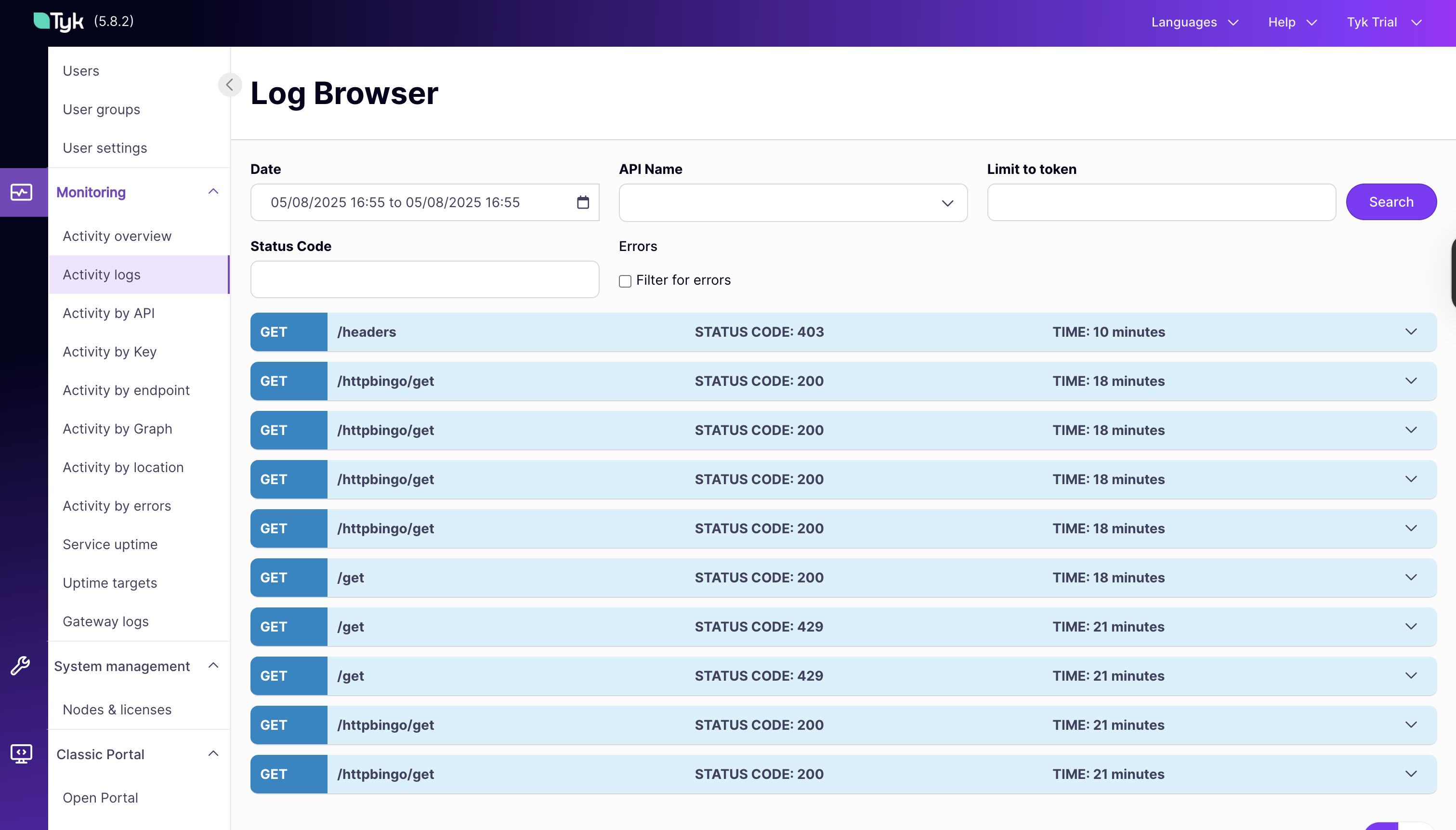
2. **View Detailed Logs:**
* In the [Activity Logs](http://localhost:3000/logs) section, you can view detailed logs of all API requests
* Filter by API, status code, or time range to focus on specific events
* This is useful for troubleshooting and understanding user behavior
* Explore Key Metrics:
* **Request Volume**: See how many requests are being processed
* **Error Rates**: Monitor authentication failures and other errors
* **Response Times**: Track API performance and identify slow endpoints
2. **View Detailed Logs:**
* In the [Activity Logs](http://localhost:3000/logs) section, you can view detailed logs of all API requests
* Filter by API, status code, or time range to focus on specific events
* This is useful for troubleshooting and understanding user behavior
 3. **Multiple Analytics Views:**
Tyk provides multiple views to analyze API traffic:
* **[By API](http://localhost:3000/activity-api)**: See metrics for individual APIs
* **[By Endpoint](http://localhost:3000/endpoint-popularity)**: Analyze performance and usage of specific endpoints
* **[By Key](http://localhost:3000/activity-key)**: Understand how different API keys are being used
* **[By Error](http://localhost:3000/error-listing)**: Identify common errors and their causes
**Using Analytics for Decision Making:**
The monitoring dashboard helps you answer important questions about your APIs:
* Which endpoints are most popular?
* Are there performance bottlenecks?
* Are users experiencing errors?
* How is usage changing over time?
These insights can guide your API development priorities, capacity planning, and troubleshooting efforts.
Tyk's monitoring capabilities provide the visibility you need to manage your APIs effectively, ensuring they meet the needs of your users while maintaining performance and security standards.
## Traffic Control & Transformation
Tyk API [Gateway](/nightly/tyk-oss-gateway) can control and transform incoming API traffic. It provides [various mechanisms](/nightly/api-management/traffic-transformation) to modify requests and responses, control traffic flow, and optimize performance. Let's explore these capabilities in your trial environment.
### Testing Request/Response Transformations
Transformations allow you to modify API requests and responses without changing your backend services. This is useful for adapting legacy APIs, standardizing formats, or enhancing responses.
The httpbingo API in your trial includes a pre-configured transformation on the `/xml` endpoint that converts XML responses to JSON format.
**Testing the XML to JSON Transformation:**
1. **Access the XML Endpoint Directly:**
* Before testing the transformation, you can access the XML endpoint (httpbin) directly to see the raw XML response:
```
curl http://localhost:8081/xml
```
* You should see an XML response from the backend service
2. **Make a Request to the XML Endpoint:**
* Using your API key from the [previous section](/nightly/getting-started/secure-api#exploring-authentication-methods), make a request to the XML endpoint (on the Tyk Gateway):
```
curl -s -H "Authorization: " http://localhost:8080/httpbingo/xml | jq
```
* Notice that even though the backend returns XML, you receive a JSON response
* This transformation happens in the gateway, not in the backend service
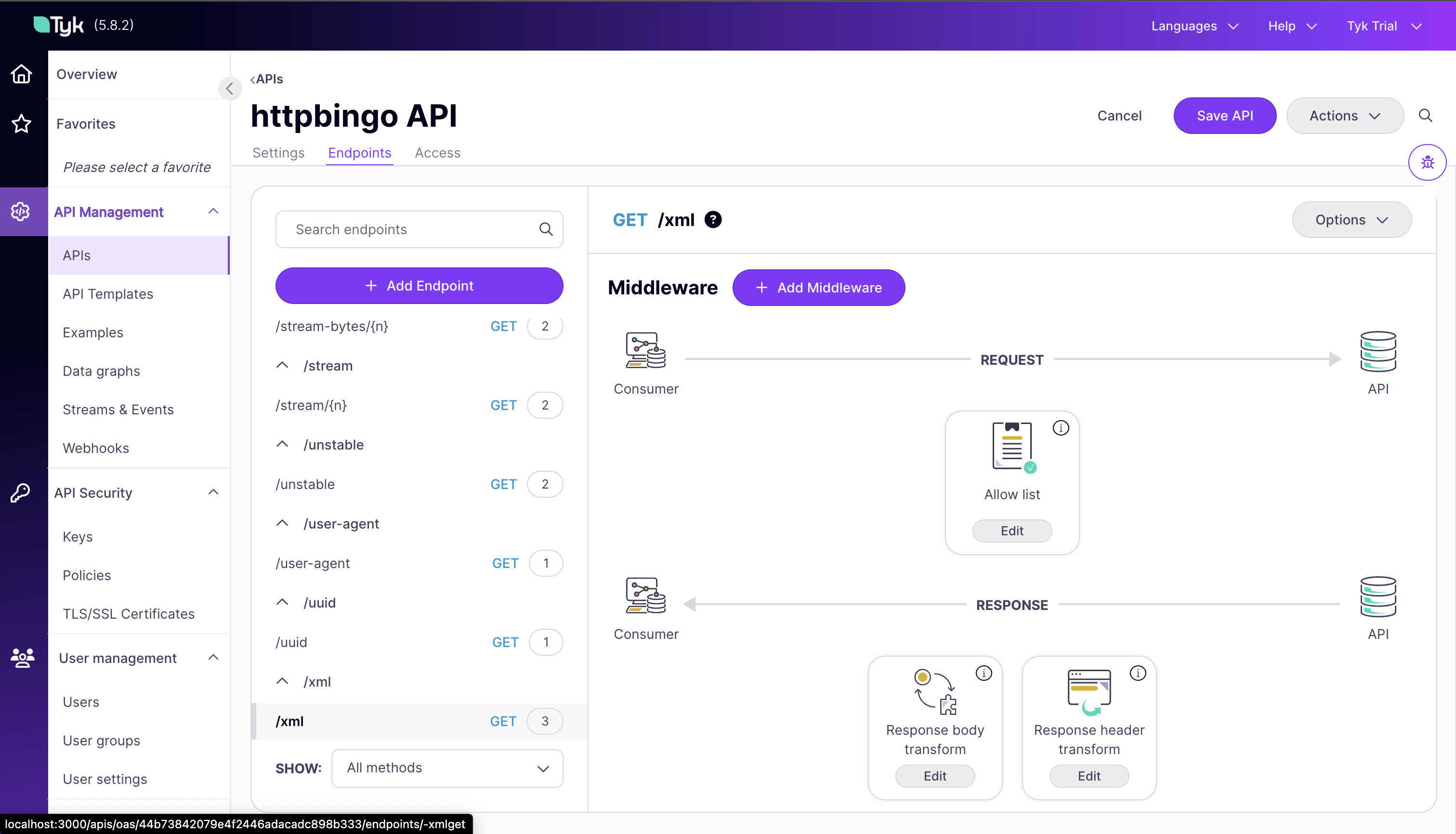
3. **Examine the Transformation Configuration:**
* In the Dashboard, go to the "APIs" section
* Click on the httpbingo API
* Navigate to the "Endpoints" tab
* Find the `/xml` path and click on it
* You'll see the response transformation that converts XML to JSON
3. **Multiple Analytics Views:**
Tyk provides multiple views to analyze API traffic:
* **[By API](http://localhost:3000/activity-api)**: See metrics for individual APIs
* **[By Endpoint](http://localhost:3000/endpoint-popularity)**: Analyze performance and usage of specific endpoints
* **[By Key](http://localhost:3000/activity-key)**: Understand how different API keys are being used
* **[By Error](http://localhost:3000/error-listing)**: Identify common errors and their causes
**Using Analytics for Decision Making:**
The monitoring dashboard helps you answer important questions about your APIs:
* Which endpoints are most popular?
* Are there performance bottlenecks?
* Are users experiencing errors?
* How is usage changing over time?
These insights can guide your API development priorities, capacity planning, and troubleshooting efforts.
Tyk's monitoring capabilities provide the visibility you need to manage your APIs effectively, ensuring they meet the needs of your users while maintaining performance and security standards.
## Traffic Control & Transformation
Tyk API [Gateway](/nightly/tyk-oss-gateway) can control and transform incoming API traffic. It provides [various mechanisms](/nightly/api-management/traffic-transformation) to modify requests and responses, control traffic flow, and optimize performance. Let's explore these capabilities in your trial environment.
### Testing Request/Response Transformations
Transformations allow you to modify API requests and responses without changing your backend services. This is useful for adapting legacy APIs, standardizing formats, or enhancing responses.
The httpbingo API in your trial includes a pre-configured transformation on the `/xml` endpoint that converts XML responses to JSON format.
**Testing the XML to JSON Transformation:**
1. **Access the XML Endpoint Directly:**
* Before testing the transformation, you can access the XML endpoint (httpbin) directly to see the raw XML response:
```
curl http://localhost:8081/xml
```
* You should see an XML response from the backend service
2. **Make a Request to the XML Endpoint:**
* Using your API key from the [previous section](/nightly/getting-started/secure-api#exploring-authentication-methods), make a request to the XML endpoint (on the Tyk Gateway):
```
curl -s -H "Authorization: " http://localhost:8080/httpbingo/xml | jq
```
* Notice that even though the backend returns XML, you receive a JSON response
* This transformation happens in the gateway, not in the backend service
3. **Examine the Transformation Configuration:**
* In the Dashboard, go to the "APIs" section
* Click on the httpbingo API
* Navigate to the "Endpoints" tab
* Find the `/xml` path and click on it
* You'll see the response transformation that converts XML to JSON
 Transformations are a powerful way to adapt APIs to your needs without modifying backend code, making them ideal for modernizing legacy services or standardizing API responses across different systems.
### Exploring Caching Configurations
Caching improves API performance by storing responses and serving them without hitting your backend services for every request. This reduces latency and backend load.
**Understanding API Caching:**
The httpbingo API includes a caching example on the `/get` endpoint with a 10-second cache lifetime. This means that repeated requests within 10 seconds will receive the same cached response.
**Testing Caching Behavior:**
1. **Make an Initial Request with a Unique Value:**
* Using your API key, make a request to the endpoint with a unique Unique-Header:
```
curl -s -H "Authorization: " \
-H "Unique-Header: $(uuidgen)" \
http://localhost:8080/httpbingo/get | jq '.headers["Unique-Header"]'
```
* You'll see the Unique-Header value in the response, for example:
```
[
"62ACF2DD-9116-4B4B-B80E-5F8538C12957"
]
```
* The httpbingo service echoes back the headers it receives, including your unique Unique-Header
2. **Make an Immediate Second Request with a Different Header Value:**
* Immediately make another request with a new unique header value:
```
curl -s -H "Authorization: " \
-H "Unique-Header: $(uuidgen)" \
http://localhost:8080/httpbingo/get | jq '.headers["Unique-Header"]'
```
* Notice that the Unique-Header value in the response is identical to the first request
* This confirms you're receiving a cached response, not a new one from the backend
* Even though you sent a different header value in your request, you got back the same header value from the first request because the response was cached
3. **Wait and Test Again:**
* Wait 11 seconds (just past the 10-second cache lifetime)
* Make another request with a new unique value
```
curl -s -H "Authorization: " \
-H "Unique-Header: $(uuidgen)" \
http://localhost:8080/httpbingo/get | jq '.headers["Unique-Header"]'
```
* You should see a different Unique-Header value in the response, matching your new request
* This indicates the cache has expired and you're getting a fresh response from the backend
> **Note:** You can also check the `X-Tyk-Cached-Response` header in the response to confirm whether the response was served from cache or not.
Caching is particularly valuable for responses that are expensive to generate but don't change frequently. By implementing appropriate caching strategies, you can significantly improve API performance and reduce backend load.
## Next Steps
Now that you have a basic understanding of Tyk Self-Managed and have set up your trial environment, you can explore more advanced features and capabilities.
* [Creating and Managing APIs](/nightly/api-management/gateway-config-managing-oas#creating-an-api),
* [JWT Authentication](/nightly/basic-config-and-security/security/authentication-authorization/json-web-tokens),
* [Publishing APIs to Developer Portal](/nightly/portal/publish-api-catalog),
Transformations are a powerful way to adapt APIs to your needs without modifying backend code, making them ideal for modernizing legacy services or standardizing API responses across different systems.
### Exploring Caching Configurations
Caching improves API performance by storing responses and serving them without hitting your backend services for every request. This reduces latency and backend load.
**Understanding API Caching:**
The httpbingo API includes a caching example on the `/get` endpoint with a 10-second cache lifetime. This means that repeated requests within 10 seconds will receive the same cached response.
**Testing Caching Behavior:**
1. **Make an Initial Request with a Unique Value:**
* Using your API key, make a request to the endpoint with a unique Unique-Header:
```
curl -s -H "Authorization: " \
-H "Unique-Header: $(uuidgen)" \
http://localhost:8080/httpbingo/get | jq '.headers["Unique-Header"]'
```
* You'll see the Unique-Header value in the response, for example:
```
[
"62ACF2DD-9116-4B4B-B80E-5F8538C12957"
]
```
* The httpbingo service echoes back the headers it receives, including your unique Unique-Header
2. **Make an Immediate Second Request with a Different Header Value:**
* Immediately make another request with a new unique header value:
```
curl -s -H "Authorization: " \
-H "Unique-Header: $(uuidgen)" \
http://localhost:8080/httpbingo/get | jq '.headers["Unique-Header"]'
```
* Notice that the Unique-Header value in the response is identical to the first request
* This confirms you're receiving a cached response, not a new one from the backend
* Even though you sent a different header value in your request, you got back the same header value from the first request because the response was cached
3. **Wait and Test Again:**
* Wait 11 seconds (just past the 10-second cache lifetime)
* Make another request with a new unique value
```
curl -s -H "Authorization: " \
-H "Unique-Header: $(uuidgen)" \
http://localhost:8080/httpbingo/get | jq '.headers["Unique-Header"]'
```
* You should see a different Unique-Header value in the response, matching your new request
* This indicates the cache has expired and you're getting a fresh response from the backend
> **Note:** You can also check the `X-Tyk-Cached-Response` header in the response to confirm whether the response was served from cache or not.
Caching is particularly valuable for responses that are expensive to generate but don't change frequently. By implementing appropriate caching strategies, you can significantly improve API performance and reduce backend load.
## Next Steps
Now that you have a basic understanding of Tyk Self-Managed and have set up your trial environment, you can explore more advanced features and capabilities.
* [Creating and Managing APIs](/nightly/api-management/gateway-config-managing-oas#creating-an-api),
* [JWT Authentication](/nightly/basic-config-and-security/security/authentication-authorization/json-web-tokens),
* [Publishing APIs to Developer Portal](/nightly/portal/publish-api-catalog),