> ## Documentation Index
> Fetch the complete documentation index at: https://tyk.io/docs/llms.txt
> Use this file to discover all available pages before exploring further.
# Send Tyk Traces to Datadog
> Step-by-step guide to connect Tyk Gateway distributed traces to Datadog using the OpenTelemetry Collector.
This guide explains how to set up Datadog to ingest OpenTelemetry traces via the OpenTelemetry Collector (OTel Collector) using Docker. It follows the reference documentation from [Datadog](https://docs.datadoghq.com/opentelemetry/otel_collector_datadog_exporter/?tab=onahost).
While this tutorial demonstrates using an OpenTelemetry Collector running in Docker, the core concepts remain consistent regardless of how and where the OpenTelemetry collector is deployed.
## Prerequisites
* [Docker installed on your machine](https://docs.docker.com/get-docker/)
* Tyk Gateway v5.2.0 or higher
* OpenTelemetry Collector Contrib [docker image](https://hub.docker.com/r/otel/opentelemetry-collector-contrib). Make sure to use the Contrib distribution of the OpenTelemetry Collector as it is required for the [Datadog exporter](https://github.com/open-telemetry/opentelemetry-collector-contrib/tree/main/exporter/datadogexporter).
* An [API key from Datadog](https://docs.datadoghq.com/account_management/api-app-keys/#add-an-api-key-or-client-token). For example, `6c35dacbf2e16aa8cda85a58d9015c3c`.
* Your [Datadog site](https://docs.datadoghq.com/getting_started/site/#access-the-datadog-site). Examples are: `datadoghq.com`, `us3.datadoghq.com` and `datadoghq.eu`.
## Instructions
### Step 1. Configure the OpenTelemetry Collector
Create a new YAML configuration file named `otel-collector.yml` with the following content:
```yaml theme={null}
receivers:
otlp:
protocols:
grpc:
endpoint: 0.0.0.0:4317
processors:
batch:
send_batch_max_size: 100
send_batch_size: 10
timeout: 10s
exporters:
datadog:
api:
site: "YOUR-DATADOG-SITE"
key: "YOUR-DATAGOG-API-KEY"
service:
pipelines:
traces:
receivers: [otlp]
processors: [batch]
exporters: [datadog]
```
### Step 2. Configure a test API
If you don't have any APIs configured yet, create a subdirectory called `apps` in the current directory. Create a new file `apidef-hello-world.json` and copy this very simple API definition for testing purposes:
```json theme={null}
{
"name": "Hello-World",
"slug": "hello-world",
"api_id": "Hello-World",
"org_id": "1",
"use_keyless": true,
"detailed_tracing": true,
"version_data": {
"not_versioned": true,
"versions": {
"Default": {
"name": "Default",
"use_extended_paths": true
}
}
},
"proxy": {
"listen_path": "/hello-world/",
"target_url": "http://httpbin.org/",
"strip_listen_path": true
},
"active": true
}
```
### Step 3. Create the Docker-Compose file
Save the following YAML configuration to a file named `docker-compose.yml`.
```yaml theme={null}
version: "2"
services:
# OpenTelemetry Collector Contrib
otel-collector:
image: otel/opentelemetry-collector-contrib:latest
volumes:
- ./otel-collector.yml:/etc/otel-collector.yml
command: ["--config=/etc/otel-collector.yml"]
ports:
- "4317" # OTLP gRPC receiver
networks:
- tyk
# Tyk API Gateway, open-source deployment
tyk:
image: tykio/tyk-gateway:v5.2
ports:
- 8080:8080
environment:
- TYK_GW_OPENTELEMETRY_ENABLED=true
- TYK_GW_OPENTELEMETRY_EXPORTER=grpc
- TYK_GW_OPENTELEMETRY_ENDPOINT=otel-collector:4317
volumes:
- ./apps:/opt/tyk-gateway/apps
depends_on:
- redis
networks:
- tyk
redis:
image: redis:4.0-alpine
ports:
- 6379:6379
command: redis-server --appendonly yes
networks:
- tyk
networks:
tyk:
```
To start the services, go to the directory that contains the docker-compose.yml file and run the following command:
```bash theme={null}
docker-compose up
```
### Step 4. Explore OpenTelemetry traces in Datadog
1. Send a few requests to the API endpoint configured in step 2:
` http://localhost:8080/hello-world/
`
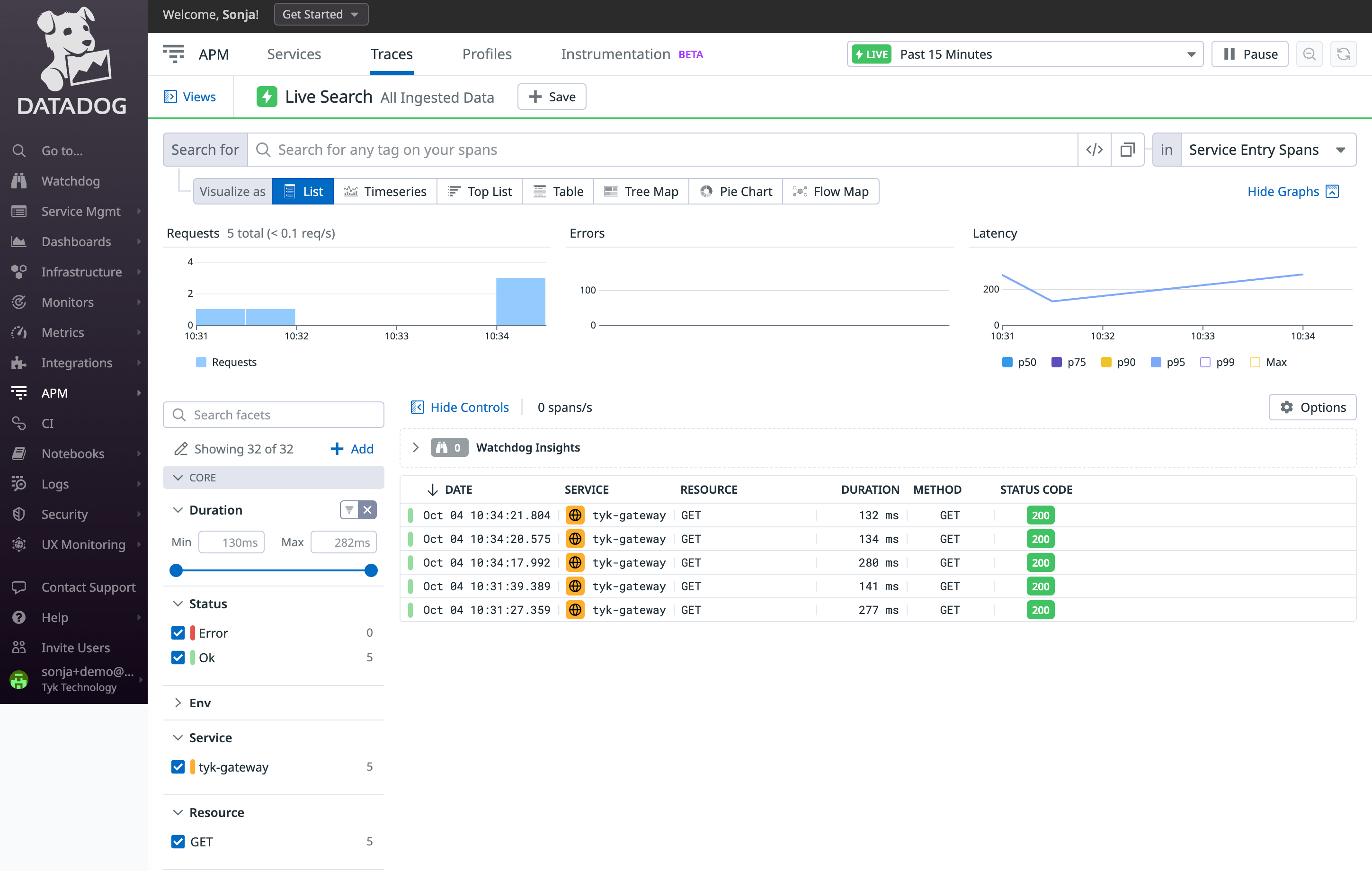
2. Log in to Datadog and navigate to the **APM / Traces** section. Here, you should start observing traces generated by Tyk:
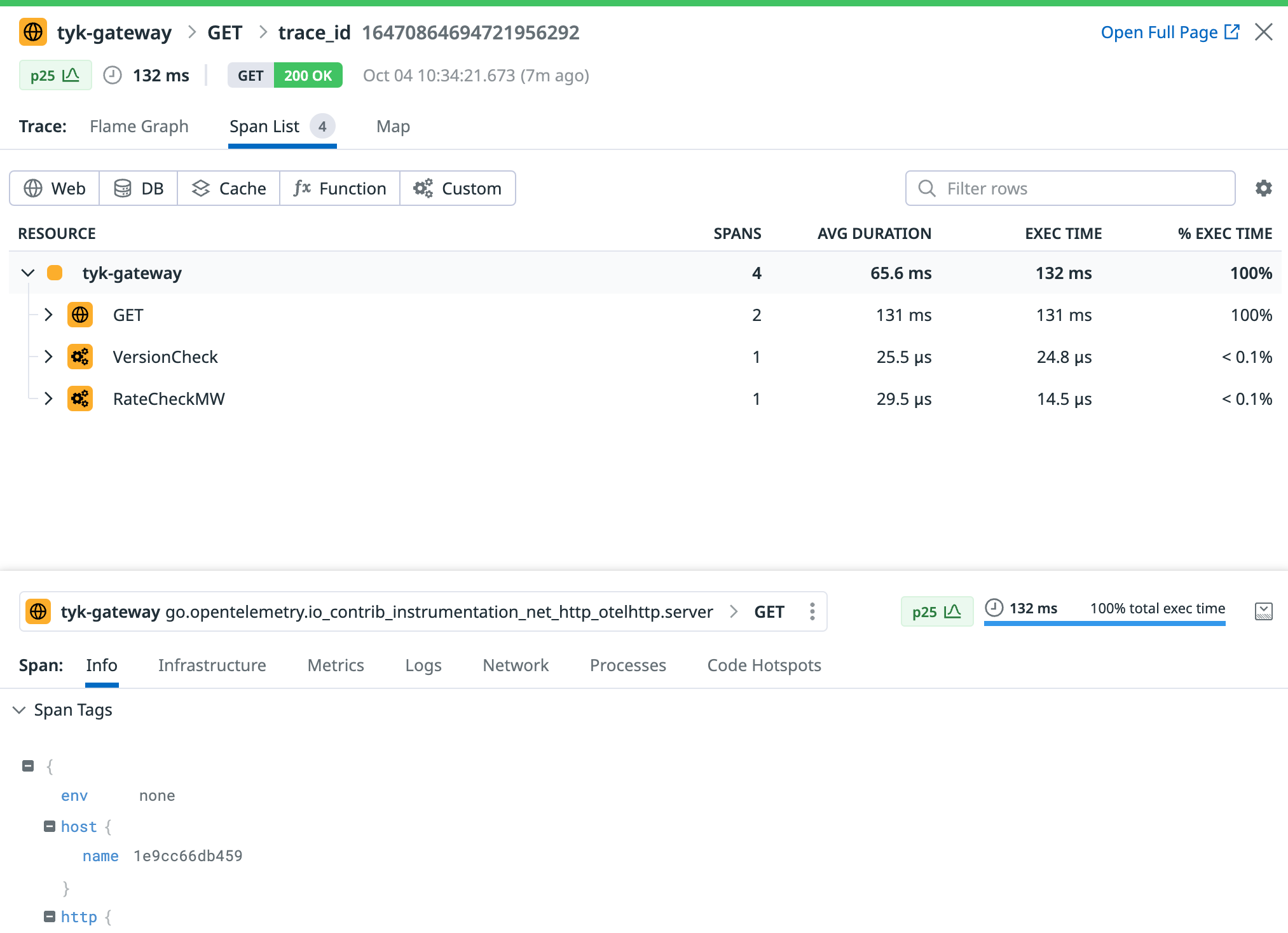
 3. Click on a trace to view all its internal spans:
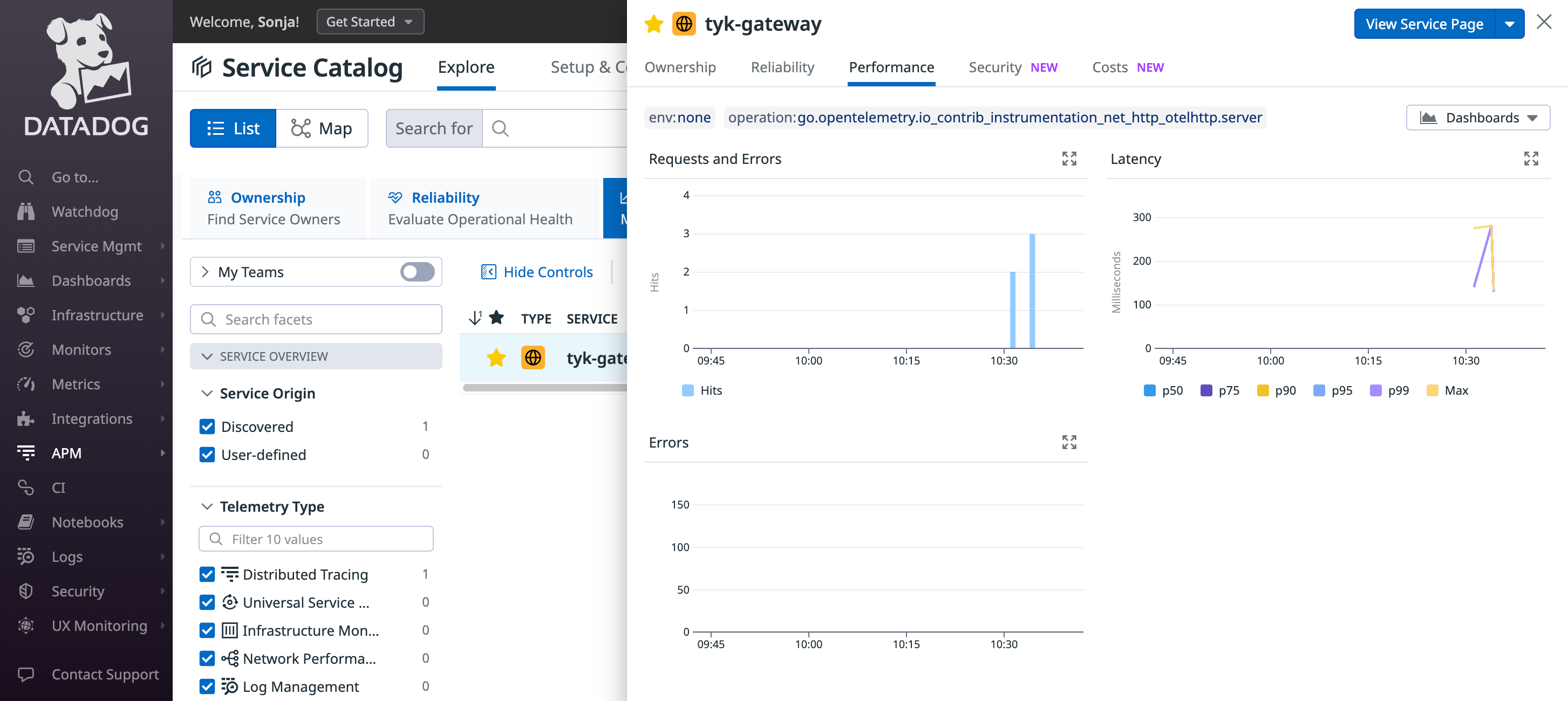
 4. Datadog will generate a service entry to monitor Tyk Gateway and will automatically compute valuable metrics using the ingested traces.4
 ## Troubleshooting
If you do not see any traces from Tyk appearing in Datadog, consider the following steps for resolution:
* Logging: Examine logs from Tyk Gateway and from the OpenTelemetry Collector for any issues or warnings that might provide insights.
* Data Ingestion Delays: Be patient, as there could be some delay in data ingestion. We configured a 10 second timeout in the batch processing of the OpenTelemetry collector in step 1, so give the system time to process the data.
## Troubleshooting
If you do not see any traces from Tyk appearing in Datadog, consider the following steps for resolution:
* Logging: Examine logs from Tyk Gateway and from the OpenTelemetry Collector for any issues or warnings that might provide insights.
* Data Ingestion Delays: Be patient, as there could be some delay in data ingestion. We configured a 10 second timeout in the batch processing of the OpenTelemetry collector in step 1, so give the system time to process the data.