> ## Documentation Index
> Fetch the complete documentation index at: https://tyk.io/docs/llms.txt
> Use this file to discover all available pages before exploring further.
# How to rate limit individual MCP tools per consumer
> Apply per-tool rate limits to an MCP proxy so different consumers have different call budgets on the same tool, without creating separate proxy definitions.
Not all MCP tools cost the same. A tool that runs a complex query costs far more than one returning cached data. When multiple agents share the same proxy, a single blanket rate limit either over-restricts lightweight tools or under-protects expensive ones.
Tyk lets you set rate limits on individual tools, per consumer. Each agent key tracks its own independent counter: one agent exhausting their budget on a tool does not affect another agent's counter for the same tool.
This guide rate limits the `get_analytics` tool on the Mock MCP Server to 3 calls per minute for a specific consumer policy, then uses MCP Inspector to verify the limit is enforced.
***
## Before you begin
* The Mock MCP Server running on `http://localhost:7878`. Set up in the [quickstart](/nightly/ai-management/mcp-gateway/quickstart).
* An MCP proxy named **Mock MCP Server** with authentication enabled. See [How to secure an MCP proxy](/nightly/ai-management/mcp-gateway/how-to-proxy-remote-mcp).
* [Node.js](https://nodejs.org/) 18 or later (to run [MCP Inspector](https://github.com/modelcontextprotocol/inspector))
* A Dashboard user account with policy management permissions
***
## Instructions
### Step 1: Create a policy with a per-tool rate limit
1. In the Tyk Dashboard sidebar, click **Policies**, then click **Add Policy**.
2. On the **Access Rights** tab, find **Mock MCP Server** in the API list and click it to add it.
3. Expand the Mock MCP Server access rights block and scroll to **Set Usage Limits by MCP Primitives/Methods**.
4. Click **Add Rate Limit** and configure the limit:
* Set **Rate** to `3`
* Set **Per** to `60` seconds
* Click **Add**, enter `get_analytics`, and set **Type** to **Tool**
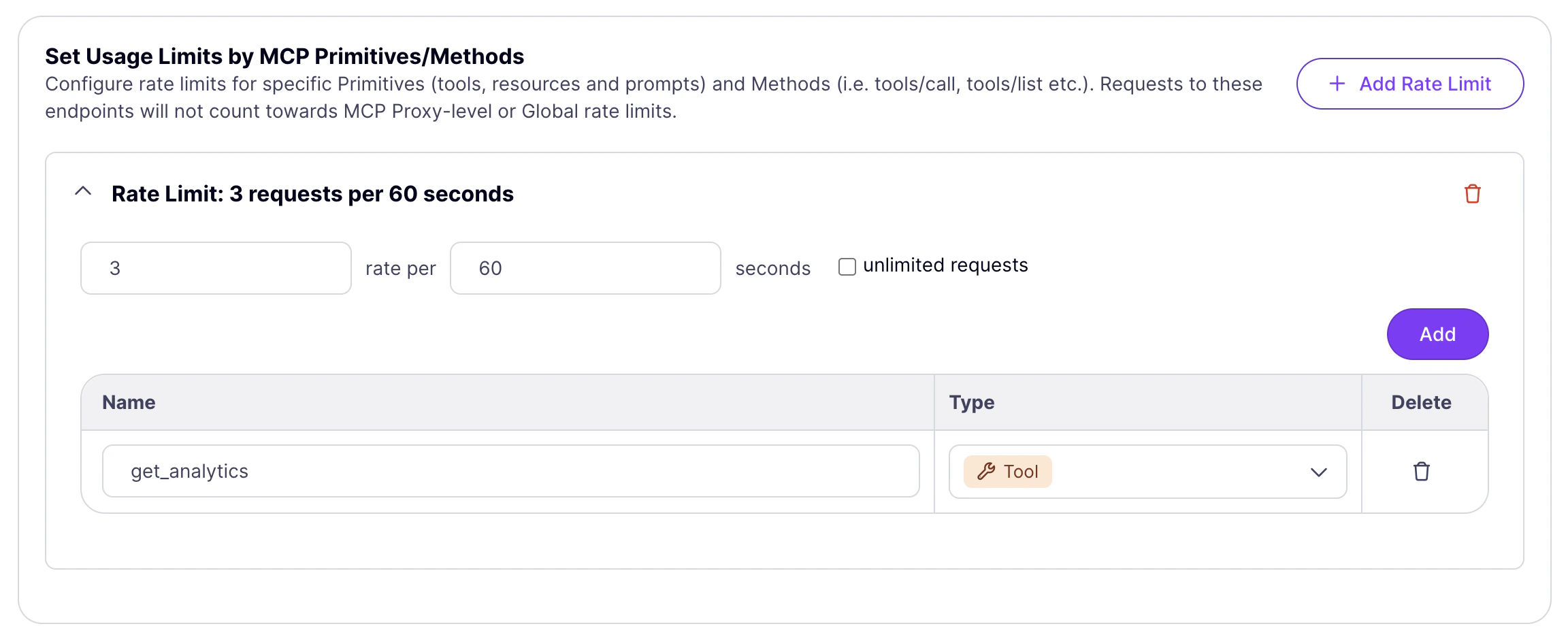 5. Click **Add** to confirm the primitive.
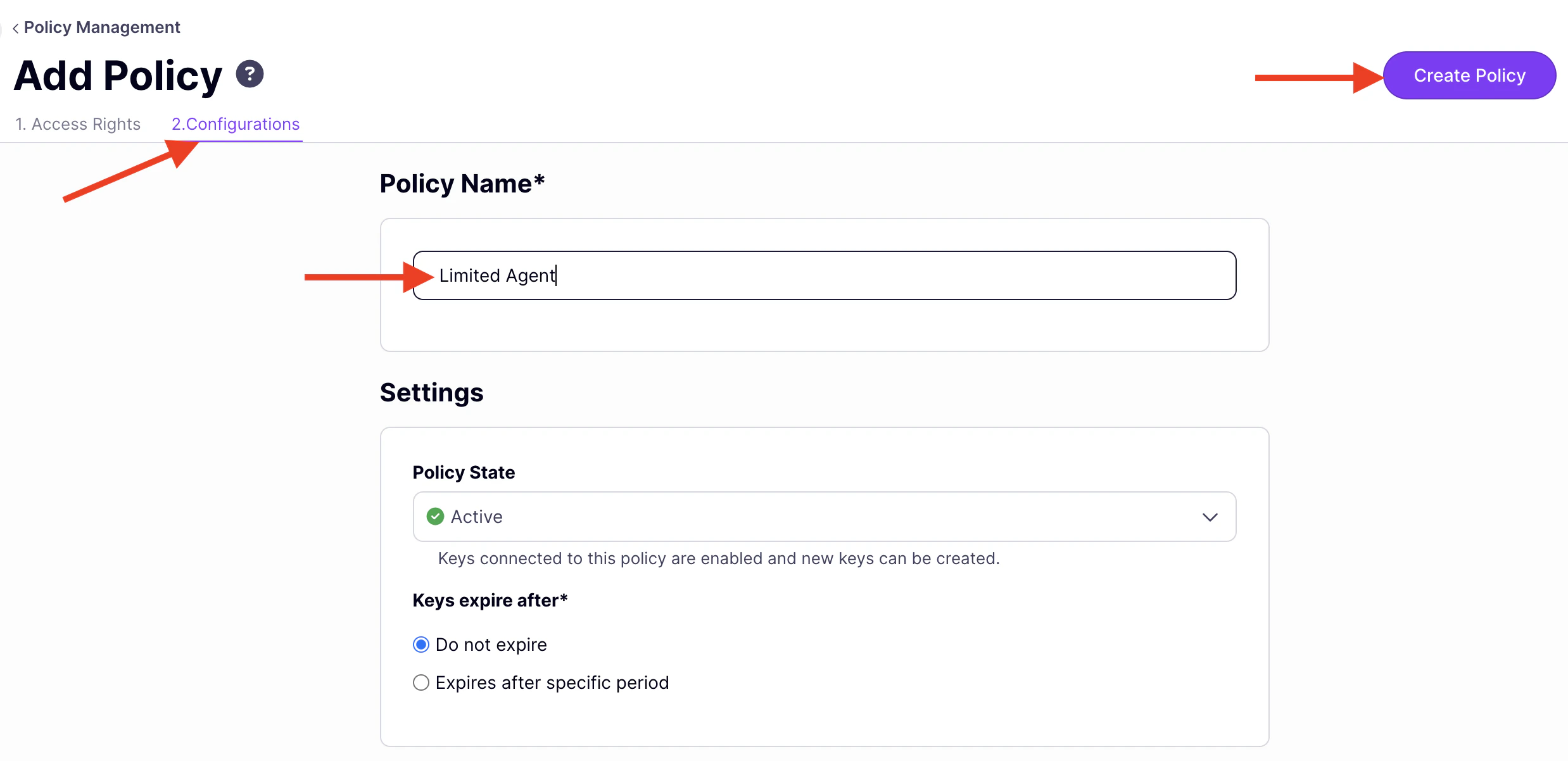
6. Click the **Configurations** tab and set:
* **Policy Name**: `Limited Agent`
* **Policy State**: **Active**
7. Click **Create Policy**.
5. Click **Add** to confirm the primitive.
6. Click the **Configurations** tab and set:
* **Policy Name**: `Limited Agent`
* **Policy State**: **Active**
7. Click **Create Policy**.
 ***
### Step 2: Issue a key
1. In the Dashboard sidebar, click **Keys**, then **Add Key**.
2. Under **Access rights**, click **Apply Policy** and select **Limited Agent**.
3. Click the **Configurations** tab and set an **Alias** such as `limited-agent` to identify this key in analytics.
4. Click **Create Key** and copy the key.
***
### Step 3: Verify with MCP Inspector
1. Start MCP Inspector:
```bash theme={null}
npx @modelcontextprotocol/inspector
```
2. Open the URL printed in your terminal.
3. Set **Transport Type** to `Streamable HTTP`.
4. Set **URL** to your MCP endpoint (find it under **MCP Proxy URL** in the proxy designer, then append `/mcp`).
5. Add a header: `Authorization` = `Bearer {your-api-key}`.
6. Click **Connect**.
7. Click the **Tools** tab and select **get\_analytics**.
8. The tool requires a **metric** parameter. Enter `users` (or any of `posts`, `orders`, `revenue`).
9. Click **Run** three times in quick succession. Each call succeeds. The response panel shows the analytics data from the Mock MCP Server.
10. Click **Run** a fourth time. Tyk has exhausted the 3 calls per minute budget for this consumer and blocks the request. The response panel shows:
**MCP error -32001: Streamable HTTP error: Error POSTing to endpoint:**
```json theme={null}
{
"jsonrpc": "2.0",
"error": {
"code": -32003,
"message": "Rate Limit Exceeded",
"data": {
"http_code": 429
}
},
"id": 7
}
```
11. Click any other tool (`get_users`, `get_posts`, `get_products`) and click **Run**. Those calls succeed normally. Only the `get_analytics` counter is exhausted.
***
## How per-consumer and shared limits compose
The rate limit configured in this guide applies per consumer key: each key on the **Limited Agent** policy has its own independent counter for `get_analytics`. A second key on the same policy has its own separate 3 calls per minute budget.
You can also apply a shared ceiling across all consumers at the API definition level using the **Primitives** tab on the proxy. A shared limit protects the upstream from aggregate overload, regardless of individual consumer budgets. Both limits are enforced simultaneously: whichever is exhausted first blocks the call.
For the full picture of how rate limits compose across the middleware and policy layers, see [MCP proxy policies](/nightly/ai-management/mcp-gateway/policies).
***
### Step 2: Issue a key
1. In the Dashboard sidebar, click **Keys**, then **Add Key**.
2. Under **Access rights**, click **Apply Policy** and select **Limited Agent**.
3. Click the **Configurations** tab and set an **Alias** such as `limited-agent` to identify this key in analytics.
4. Click **Create Key** and copy the key.
***
### Step 3: Verify with MCP Inspector
1. Start MCP Inspector:
```bash theme={null}
npx @modelcontextprotocol/inspector
```
2. Open the URL printed in your terminal.
3. Set **Transport Type** to `Streamable HTTP`.
4. Set **URL** to your MCP endpoint (find it under **MCP Proxy URL** in the proxy designer, then append `/mcp`).
5. Add a header: `Authorization` = `Bearer {your-api-key}`.
6. Click **Connect**.
7. Click the **Tools** tab and select **get\_analytics**.
8. The tool requires a **metric** parameter. Enter `users` (or any of `posts`, `orders`, `revenue`).
9. Click **Run** three times in quick succession. Each call succeeds. The response panel shows the analytics data from the Mock MCP Server.
10. Click **Run** a fourth time. Tyk has exhausted the 3 calls per minute budget for this consumer and blocks the request. The response panel shows:
**MCP error -32001: Streamable HTTP error: Error POSTing to endpoint:**
```json theme={null}
{
"jsonrpc": "2.0",
"error": {
"code": -32003,
"message": "Rate Limit Exceeded",
"data": {
"http_code": 429
}
},
"id": 7
}
```
11. Click any other tool (`get_users`, `get_posts`, `get_products`) and click **Run**. Those calls succeed normally. Only the `get_analytics` counter is exhausted.
***
## How per-consumer and shared limits compose
The rate limit configured in this guide applies per consumer key: each key on the **Limited Agent** policy has its own independent counter for `get_analytics`. A second key on the same policy has its own separate 3 calls per minute budget.
You can also apply a shared ceiling across all consumers at the API definition level using the **Primitives** tab on the proxy. A shared limit protects the upstream from aggregate overload, regardless of individual consumer budgets. Both limits are enforced simultaneously: whichever is exhausted first blocks the call.
For the full picture of how rate limits compose across the middleware and policy layers, see [MCP proxy policies](/nightly/ai-management/mcp-gateway/policies).