> ## Documentation Index
> Fetch the complete documentation index at: https://tyk.io/docs/llms.txt
> Use this file to discover all available pages before exploring further.
# How to implement role-based access control for an MCP proxy
> Use Tyk policies to give different AI agents different tool access on the same MCP proxy, without creating separate proxy definitions.
After [securing your MCP proxy](/nightly/ai-management/mcp-gateway/how-to-proxy-remote-mcp), the next step is controlling what each consumer can do. Role-based access control (RBAC) in Tyk MCP lets you give different agents different views of the same proxy, without creating separate proxy definitions. A policy bound to a key determines which tools that agent can invoke.
This guide creates two roles on the Mock MCP Server:
* **Reader**: can only call `get_users`, `get_posts`, `get_products`, and `get_analytics`
* **Admin**: can call all 15 tools
You'll create a policy for each role, issue role-specific keys, then use [MCP Inspector](https://github.com/modelcontextprotocol/inspector) to verify that each key sees exactly the tools it is permitted to access.
***
## How it works
Tyk policies control consumer access at two levels relevant to this guide:
**Primitive access**: restricts which specific tools a consumer can invoke. When a key's policy includes an allowed list for tools, Tyk enforces it on both `tools/call` (blocking disallowed tool invocations) and `tools/list` (filtering the response so the agent only sees tools it can use). The upstream server is never reached for blocked calls.
**Proxy access**: determines which MCP proxies the key can reach at all.
Both keys in this guide point at the same proxy URL. The difference in behavior comes entirely from the policies applied to each key.
For the complete policy reference, see [MCP policies](/nightly/ai-management/mcp-gateway/policies).
***
## Before you begin
* The Mock MCP Server running on `http://localhost:7878`. Set up in the [quickstart](/nightly/ai-management/mcp-gateway/quickstart).
* An MCP proxy named **Mock MCP Server** with authentication enabled. See [How to secure an MCP proxy](/nightly/ai-management/mcp-gateway/how-to-proxy-remote-mcp).
* [Node.js](https://nodejs.org/) 18 or later (to run [MCP Inspector](https://github.com/modelcontextprotocol/inspector))
* A Dashboard user account with policy management permissions
***
## Instructions
### Step 1: Create the Reader policy
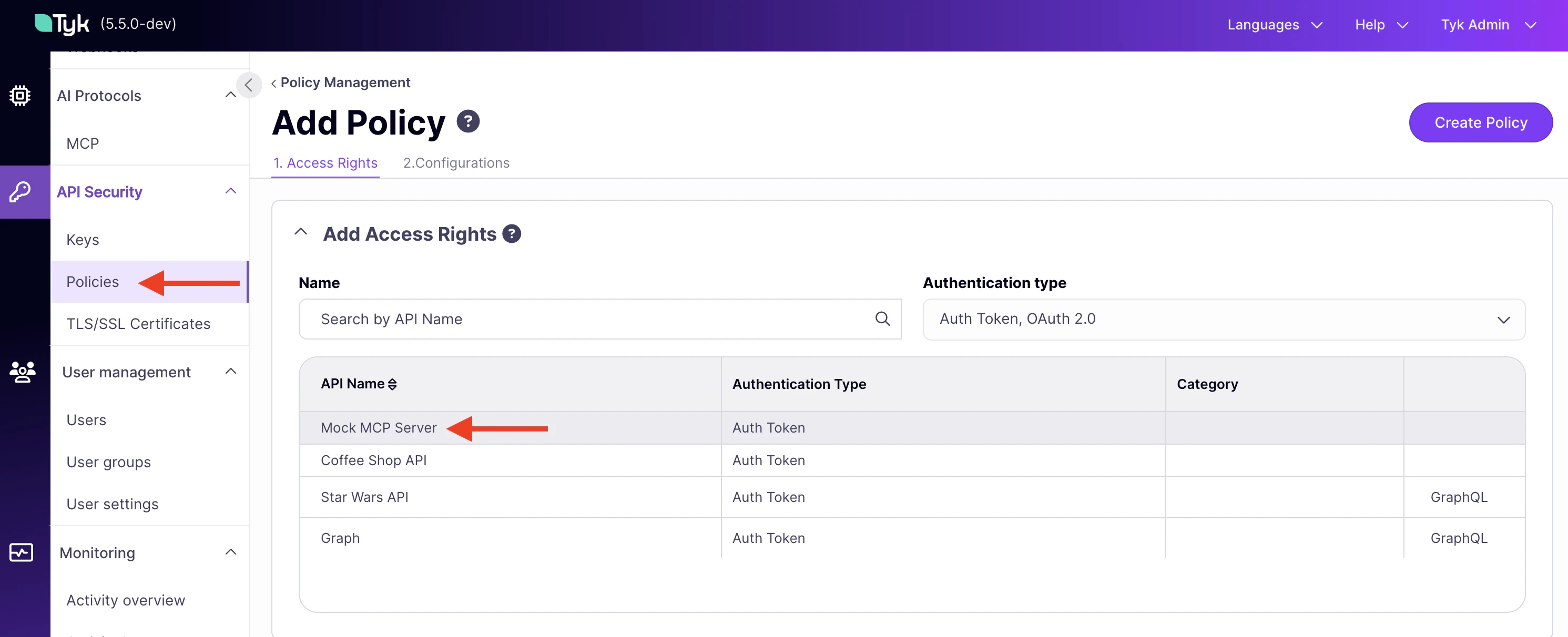
1. In the Tyk Dashboard sidebar, click **Policies**, then click **Add Policy**.
2. On the **Access Rights** tab, find **Mock MCP Server** in the API list and click it to add it.
 3. Scroll to **Primitive based access** within the Mock MCP Server panel and add each permitted tool:
* Click **Add**, enter `get_users`, set **Type** to **Tool**, and set the status to **Allowed**. Click **Add**.
* Repeat for `get_posts`, `get_products`, and `get_analytics`.
3. Scroll to **Primitive based access** within the Mock MCP Server panel and add each permitted tool:
* Click **Add**, enter `get_users`, set **Type** to **Tool**, and set the status to **Allowed**. Click **Add**.
* Repeat for `get_posts`, `get_products`, and `get_analytics`.
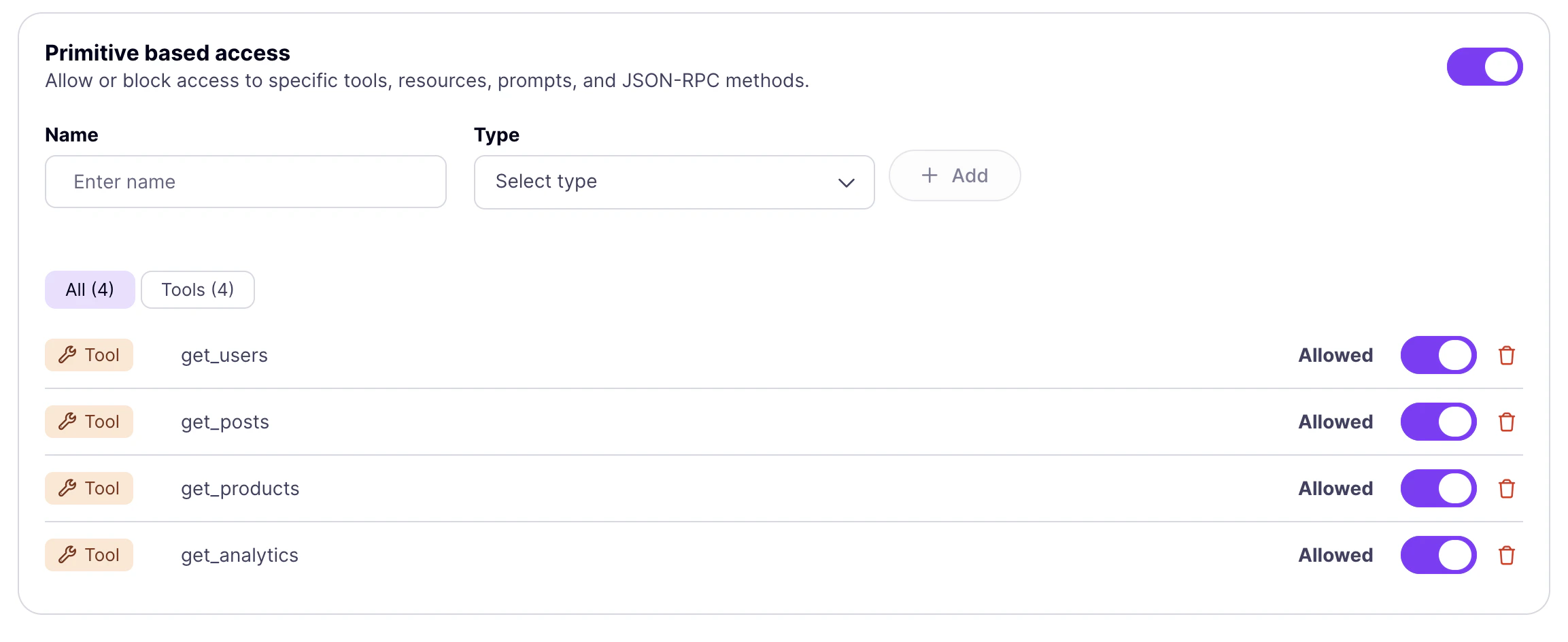 Once you add any tool with **Allowed** status, Tyk treats the list as an explicit allowlist: any tool not in the list is blocked for keys on this policy.
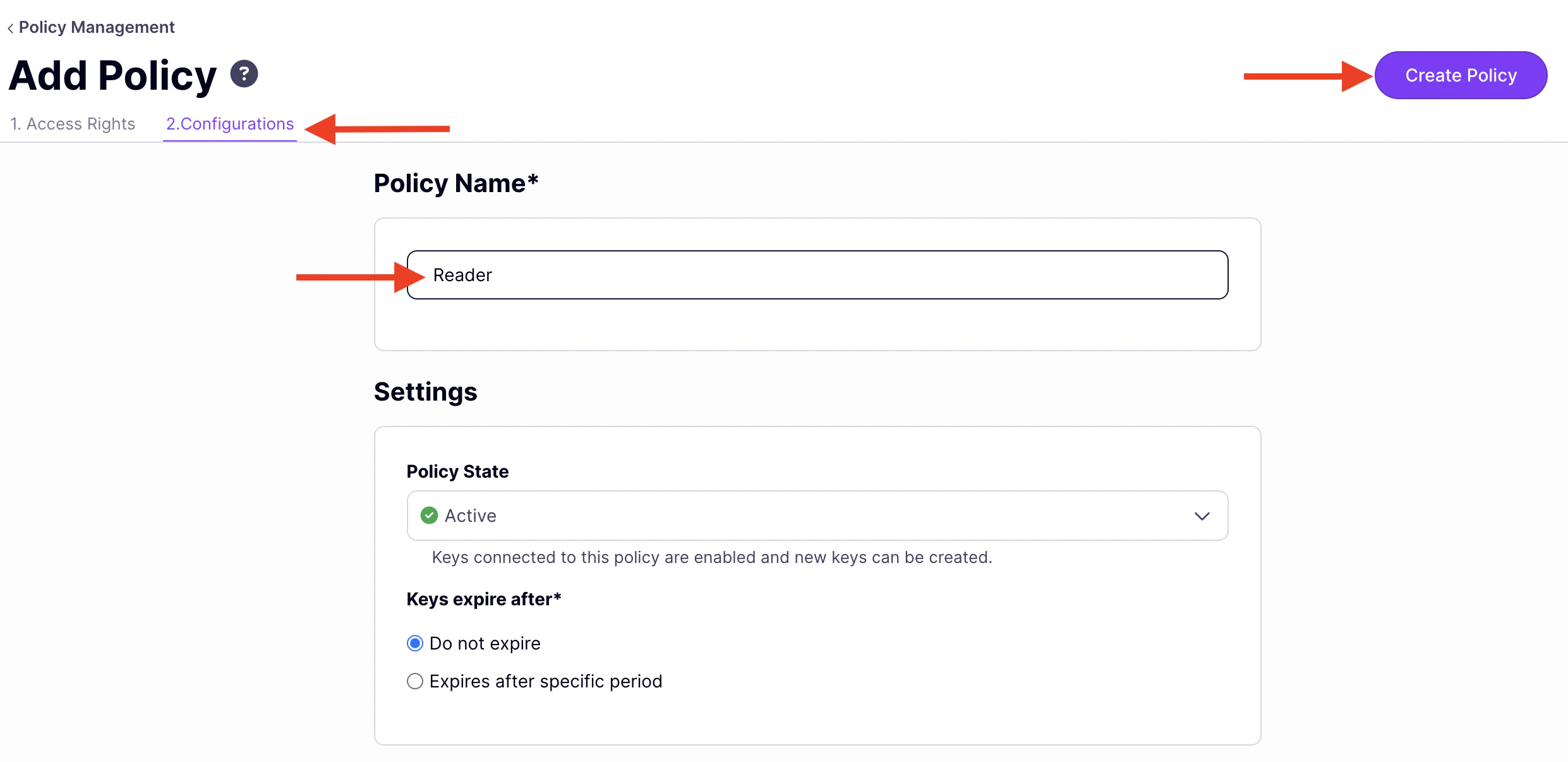
4. Click the **Configurations** tab and set:
* **Policy Name**: `Reader`
* **Policy State**: **Active**
5. Click **Create Policy**.
Once you add any tool with **Allowed** status, Tyk treats the list as an explicit allowlist: any tool not in the list is blocked for keys on this policy.
4. Click the **Configurations** tab and set:
* **Policy Name**: `Reader`
* **Policy State**: **Active**
5. Click **Create Policy**.
 ### Step 2: Create the Admin policy
The Admin policy grants unrestricted tool access. Omitting the **Primitive based access** entries means all tools are accessible.
1. Click **Add Policy**.
2. On the **Access Rights** tab, add **Mock MCP Server**.
3. Click the **Configurations** tab and set:
* **Policy Name**: `Admin`
* **Policy State**: **Active**
4. Click **Create Policy**.
### Step 3: Issue role-specific keys
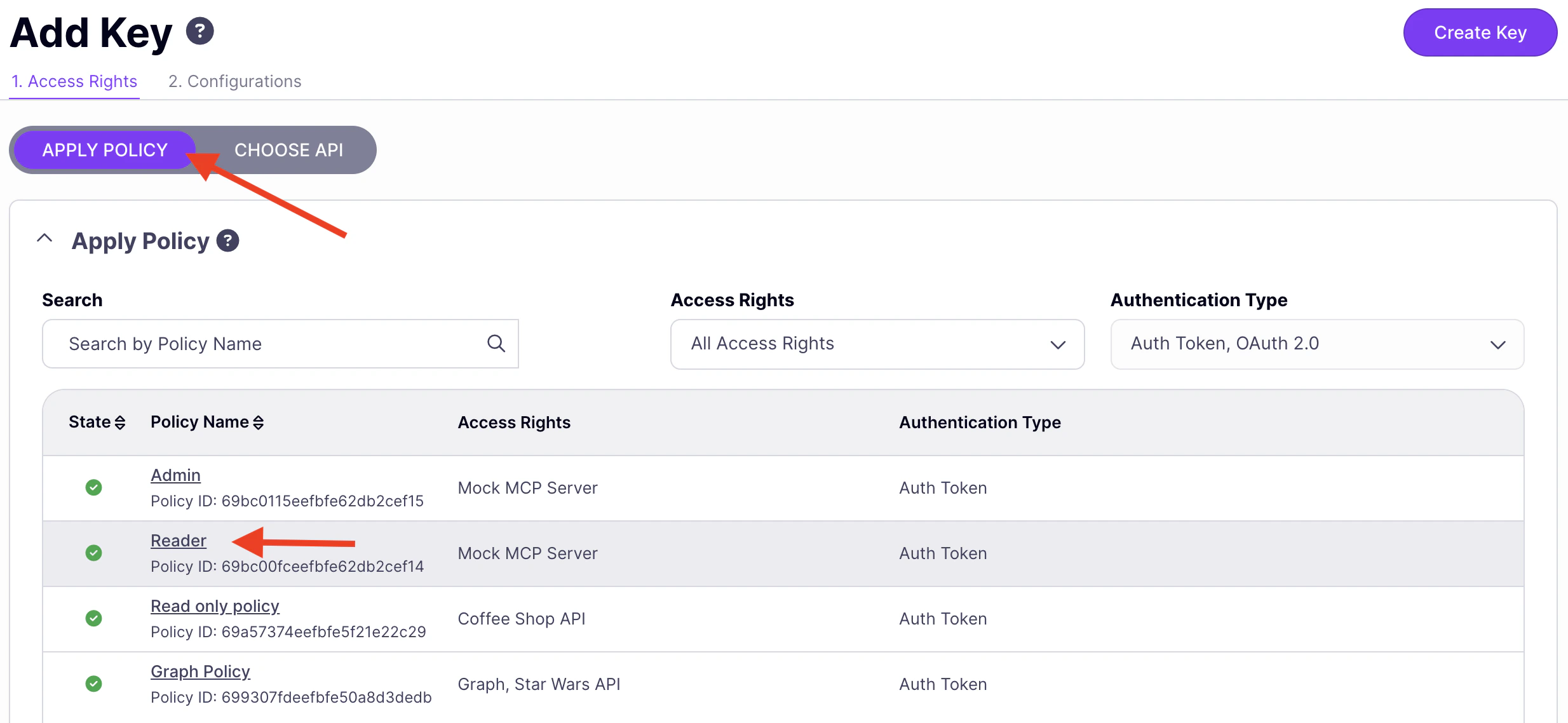
1. In the Dashboard sidebar, click **Keys**, then **Add Key**.
2. Under **Access rights**, click **Apply Policy** and select **Reader**.
### Step 2: Create the Admin policy
The Admin policy grants unrestricted tool access. Omitting the **Primitive based access** entries means all tools are accessible.
1. Click **Add Policy**.
2. On the **Access Rights** tab, add **Mock MCP Server**.
3. Click the **Configurations** tab and set:
* **Policy Name**: `Admin`
* **Policy State**: **Active**
4. Click **Create Policy**.
### Step 3: Issue role-specific keys
1. In the Dashboard sidebar, click **Keys**, then **Add Key**.
2. Under **Access rights**, click **Apply Policy** and select **Reader**.
 3. Click the **Configurations** tab and set an **Alias** such as `reader-agent`.
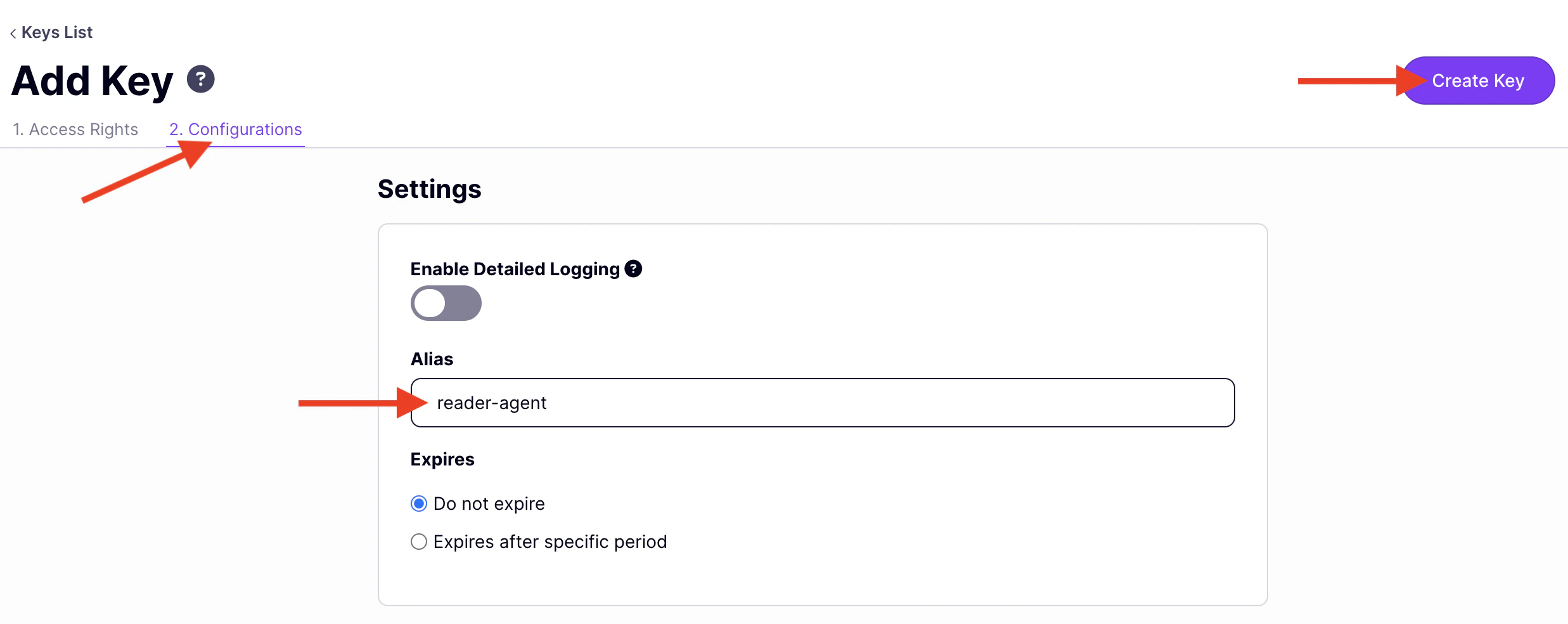 4. Click **Create Key** and copy the key.
5. Repeat steps 1–4 to issue a second key, selecting **Admin** as the policy and `admin-agent` as the alias.
### Step 4: Verify in MCP Inspector
1. Start MCP Inspector:
```bash theme={null}
npx @modelcontextprotocol/inspector
```
2. Open the URL printed in your terminal.
#### Test the Reader key
3. Set **Transport Type** to `Streamable HTTP`.
4. Set **URL** to your MCP endpoint (find it under **MCP Proxy URL** in the proxy designer, then append `/mcp`).
5. Add a header: `Authorization` = `Bearer {reader-api-key}` and click **Connect**.
6. Click the **Tools** tab. You will see exactly four tools: `get_users`, `get_posts`, `get_products`, and `get_analytics`. Tyk has filtered the `tools/list` response based on the Reader policy's allowed list.
7. Select `get_users` and click **Run**. It succeeds.
#### Test the Admin key
8. Click **Disconnect**. Replace the key in the `Authorization` header with your Admin key and click **Connect**.
9. Click the **Tools** tab. All 15 Mock MCP Server tools appear. The Admin policy applies no tool restrictions.
Both keys connect to the same proxy at the same URL. The difference in tool availability is driven entirely by the policy.
4. Click **Create Key** and copy the key.
5. Repeat steps 1–4 to issue a second key, selecting **Admin** as the policy and `admin-agent` as the alias.
### Step 4: Verify in MCP Inspector
1. Start MCP Inspector:
```bash theme={null}
npx @modelcontextprotocol/inspector
```
2. Open the URL printed in your terminal.
#### Test the Reader key
3. Set **Transport Type** to `Streamable HTTP`.
4. Set **URL** to your MCP endpoint (find it under **MCP Proxy URL** in the proxy designer, then append `/mcp`).
5. Add a header: `Authorization` = `Bearer {reader-api-key}` and click **Connect**.
6. Click the **Tools** tab. You will see exactly four tools: `get_users`, `get_posts`, `get_products`, and `get_analytics`. Tyk has filtered the `tools/list` response based on the Reader policy's allowed list.
7. Select `get_users` and click **Run**. It succeeds.
#### Test the Admin key
8. Click **Disconnect**. Replace the key in the `Authorization` header with your Admin key and click **Connect**.
9. Click the **Tools** tab. All 15 Mock MCP Server tools appear. The Admin policy applies no tool restrictions.
Both keys connect to the same proxy at the same URL. The difference in tool availability is driven entirely by the policy.