> ## Documentation Index
> Fetch the complete documentation index at: https://tyk.io/docs/llms.txt
> Use this file to discover all available pages before exploring further.
# How to block an MCP tool for all consumers
> Prevent a specific MCP tool from being called through a proxy, regardless of consumer policy. The blocked tool remains on the upstream server but is never reachable through the gateway.
MCP servers often expose more tools than you want to make available through the gateway. Some tools are administrative, irreversible, or simply not ready for agent access. Rather than deploying a separate server with a reduced tool set, or remembering to exclude the tool from every consumer policy, you can block individual tools at the proxy layer.
A blocked tool is rejected by Tyk before the request reaches the upstream, and filtered out of `tools/list` responses so agents cannot discover it exists. No consumer key or policy can override a definition-level block: if the tool is blocked, it is invisible and uncallable for everyone.
This guide blocks the `delete_user` tool on the Mock MCP Server, then uses MCP Inspector to verify that calling it returns an error while all other tools continue to work.
***
## Before you begin
* The Mock MCP Server running on `http://localhost:7878`. Set up in the [quickstart](/nightly/ai-management/mcp-gateway/quickstart).
* An MCP proxy named **Mock MCP Server** with authentication enabled. See [How to secure an MCP proxy](/nightly/ai-management/mcp-gateway/how-to-proxy-remote-mcp).
* [Node.js](https://nodejs.org/) 18 or later (to run [MCP Inspector](https://github.com/modelcontextprotocol/inspector))
***
## Instructions
### Step 1: Block the tool
1. In the Tyk Dashboard sidebar, click **MCP**. Find **Mock MCP Server** in the list and click **Edit** to open the proxy designer.
2. Click the **Primitives** tab.
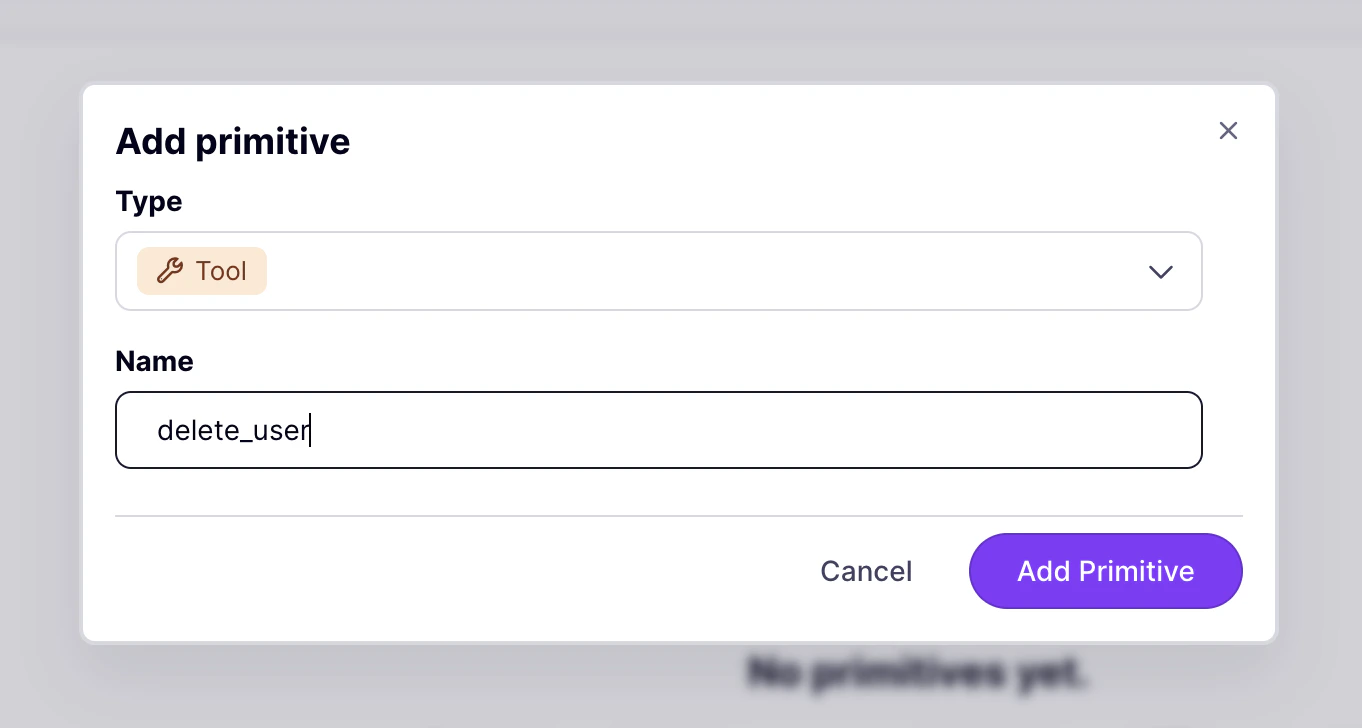
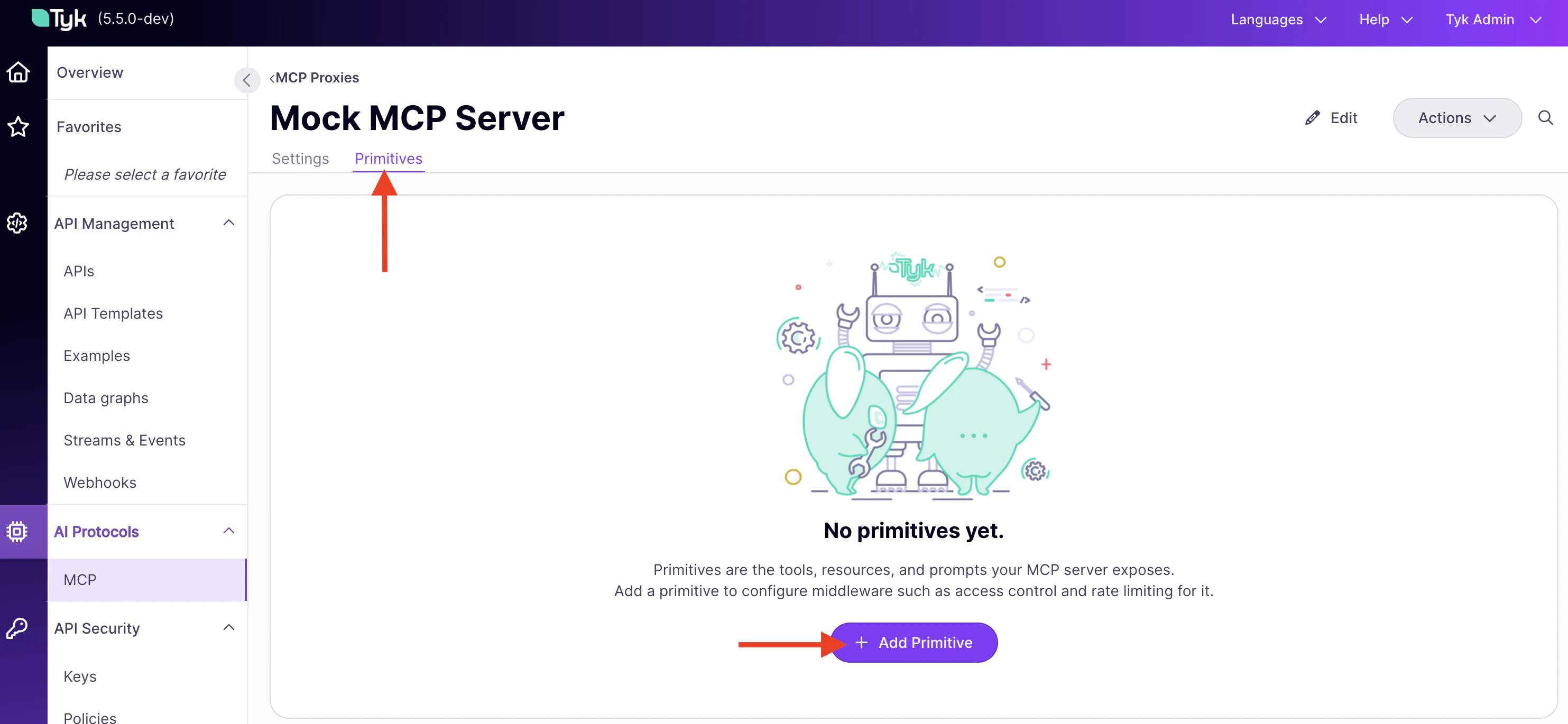 3. Click **Add Primitive**. Set **Type** to **Tool** and enter `delete_user` as the name. Click **Add Primitive**.
 4. Click `delete_user` to open the middleware panel.
5. Click **Add Middleware**.
6. Select **Block List**.
7. Click **Add Middleware**.
4. Click `delete_user` to open the middleware panel.
5. Click **Add Middleware**.
6. Select **Block List**.
7. Click **Add Middleware**.
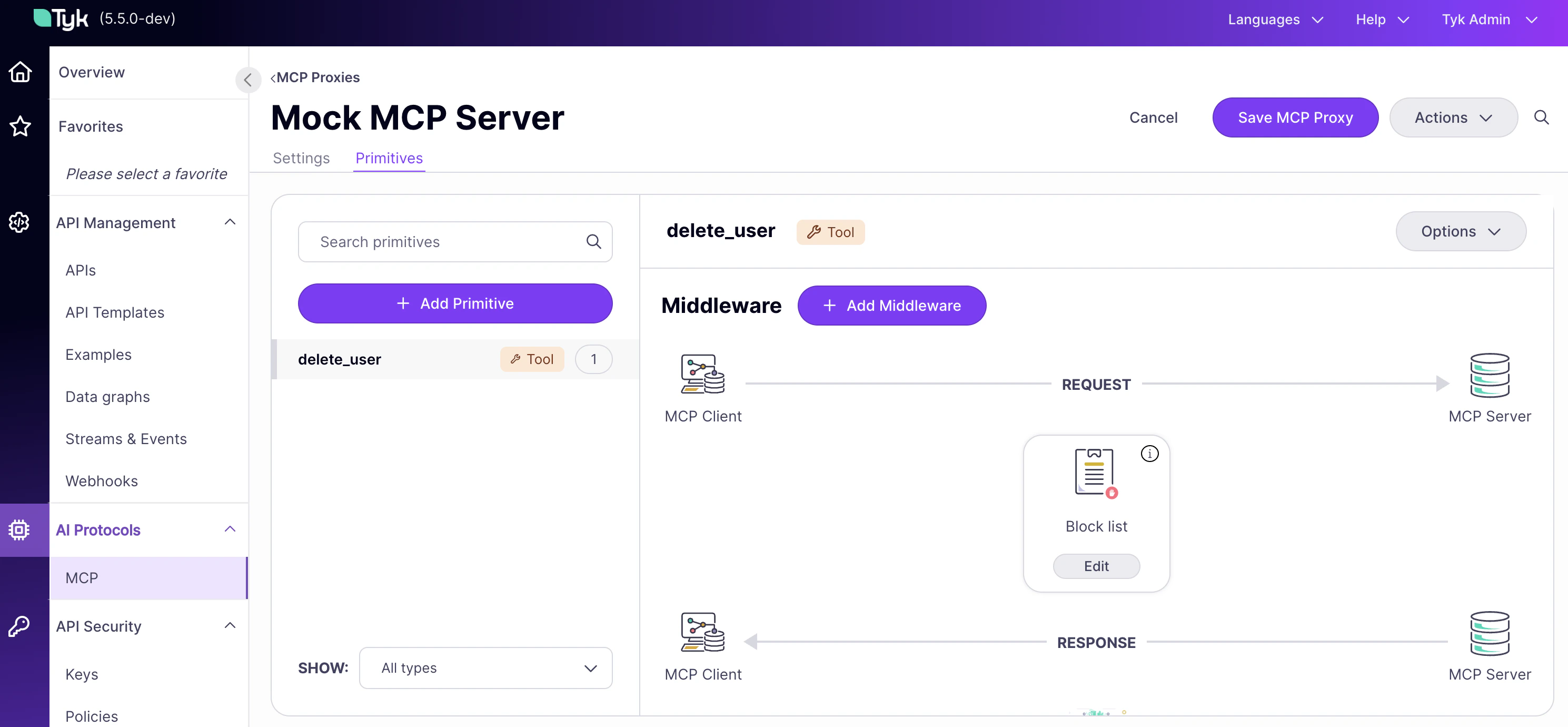 8. Click **Save MCP Proxy**.
***
### Step 2: Verify with MCP Inspector
1. Start MCP Inspector:
```bash theme={null}
npx @modelcontextprotocol/inspector
```
2. Open the URL printed in your terminal.
3. Set **Transport Type** to `Streamable HTTP`.
4. Set **URL** to your MCP endpoint (find it under **MCP Proxy URL** in the proxy designer, then append `/mcp`).
5. Add a header: `Authorization` = `Bearer {your-api-key}`.
6. Click **Connect**.
7. Click the **Tools** tab. Notice that `delete_user` no longer appears in the tool list. Tyk filters blocked tools out of `tools/list` responses, so agents cannot discover them at all.
8. To confirm the block is enforced at the call layer, enter `delete_user` manually in the tool name field, provide any value for **user\_id**, and click **Run**.
Tyk blocks the request before it reaches the upstream. The response panel shows:
```json theme={null}
{
"jsonrpc": "2.0",
"error": {
"code": -32002,
"message": "Requested endpoint is forbidden",
"data": {
"http_code": 403
}
},
"id": 6
}
```
9. Select any other tool (`get_users`, `get_posts`, `get_products`) and click **Run**. Those calls succeed normally. Only `delete_user` is blocked.
***
## Block vs. RBAC: when to use each
Both `block` and RBAC allowlists restrict which tools a consumer can call, but they operate at different layers and serve different purposes.
**Use `block`** when a tool should never be reachable through this proxy, for anyone. The restriction is set in the proxy definition and cannot be overridden by a policy. It is the right choice for tools that are dangerous, irreversible, or not yet ready for agent access: `delete_user`, `drop_table`, `send_email`.
**Use RBAC** when different consumers should have different access to the same set of tools. A read-only agent sees only read tools; an admin agent sees all tools. The restriction is set in a security policy and scoped per consumer. See [How to implement RBAC for an MCP proxy](/nightly/ai-management/mcp-gateway/how-to-mcp-rbac).
The two can be combined: block the tools that no one should ever reach, then use RBAC to scope what each consumer can see within what remains.
8. Click **Save MCP Proxy**.
***
### Step 2: Verify with MCP Inspector
1. Start MCP Inspector:
```bash theme={null}
npx @modelcontextprotocol/inspector
```
2. Open the URL printed in your terminal.
3. Set **Transport Type** to `Streamable HTTP`.
4. Set **URL** to your MCP endpoint (find it under **MCP Proxy URL** in the proxy designer, then append `/mcp`).
5. Add a header: `Authorization` = `Bearer {your-api-key}`.
6. Click **Connect**.
7. Click the **Tools** tab. Notice that `delete_user` no longer appears in the tool list. Tyk filters blocked tools out of `tools/list` responses, so agents cannot discover them at all.
8. To confirm the block is enforced at the call layer, enter `delete_user` manually in the tool name field, provide any value for **user\_id**, and click **Run**.
Tyk blocks the request before it reaches the upstream. The response panel shows:
```json theme={null}
{
"jsonrpc": "2.0",
"error": {
"code": -32002,
"message": "Requested endpoint is forbidden",
"data": {
"http_code": 403
}
},
"id": 6
}
```
9. Select any other tool (`get_users`, `get_posts`, `get_products`) and click **Run**. Those calls succeed normally. Only `delete_user` is blocked.
***
## Block vs. RBAC: when to use each
Both `block` and RBAC allowlists restrict which tools a consumer can call, but they operate at different layers and serve different purposes.
**Use `block`** when a tool should never be reachable through this proxy, for anyone. The restriction is set in the proxy definition and cannot be overridden by a policy. It is the right choice for tools that are dangerous, irreversible, or not yet ready for agent access: `delete_user`, `drop_table`, `send_email`.
**Use RBAC** when different consumers should have different access to the same set of tools. A read-only agent sees only read tools; an admin agent sees all tools. The restriction is set in a security policy and scoped per consumer. See [How to implement RBAC for an MCP proxy](/nightly/ai-management/mcp-gateway/how-to-mcp-rbac).
The two can be combined: block the tools that no one should ever reach, then use RBAC to scope what each consumer can see within what remains.