> ## Documentation Index
> Fetch the complete documentation index at: https://tyk.io/docs/llms.txt
> Use this file to discover all available pages before exploring further.
# GraphQL
> Learn how to configure and manage GraphQL APIs
export const ButtonLeft = ({href, color, content}) => {
const buttonStyle = {
display: 'inline-block',
padding: '5px 16px',
fontSize: '14px',
fontWeight: '500',
textDecoration: 'none',
borderRadius: '25px',
transition: 'all 0.2s ease',
cursor: 'pointer',
border: '1.2px solid black'
};
const colorStyles = {
green: {
backgroundColor: '#20EDBA',
color: 'black'
},
red: {
backgroundColor: '#dc2626',
color: 'white'
},
black: {
backgroundColor: '#1f2937',
color: 'white'
}
};
const hoverStyle = {
transform: 'translateY(-1px)',
boxShadow: '0 4px 8px rgba(0,0,0,0.15)'
};
const finalStyle = {
...buttonStyle,
...colorStyles[color] || colorStyles.black
};
return {
Object.assign(e.target.style, hoverStyle);
}} onMouseLeave={e => {
e.target.style.transform = 'translateY(0)';
e.target.style.boxShadow = 'none';
}}>
{content}
;
};
## Overview
Tyk has **native** GraphQL support, so it doesn’t require any external services or middleware.
It fully complies with the latest GraphQL specifications, as outlined on the [GraphQL Foundation webpage](https://spec.graphql.org/), including:
* **[Queries](https://spec.graphql.org/October2021/#sec-Query)** – Fetching data
* **[Mutations](https://spec.graphql.org/October2021/#sec-Mutations)** – Modifying data
* **[Subscriptions](https://spec.graphql.org/October2021/#sec-Subscription)** – Real-time updates
* **[Schema Types](/api-management/graphql/graphql-schema-types)** - Defining your data structure
### What can you do with GraphQL and Tyk?
You can securely expose existing GraphQL APIs using our [GraphQL core functionality](/api-management/graphql#create-a-graphql-api).
In addition to this, you can also use Tyk's integrated GraphQL engine to build a [Universal Data Graph](/api-management/data-graph#overview). The Universal Data Graph (UDG) lets you expose existing services as one single combined GraphQL API.
See our video on getting started with GraphQL.
### What is GraphQL?
> GraphQL is a query language for APIs and a runtime for fulfilling those queries with your existing data. GraphQL provides a complete and understandable description of the data in your API, gives clients the power to ask for exactly what they need and nothing more, makes it easier to evolve APIs over time, and enables powerful developer tools.
source: [GraphQL Foundation website](https://graphql.org/)
### Why would you want to use GraphQL?
Since this is the documentation section, we won't get into a debate about GraphQL vs REST. The main benefits of using GraphQL are:
* **Reduced network traffic** One of the biggest benefits of GraphQL is that it allows clients to specify exactly what data they need. This means that you can avoid sending unnecessary data over the network, which can help reduce the amount of traffic and improve the performance of your application.
* **Flexibility** GraphQL is very flexible and can be used with many different programming languages and frameworks. It can also be used to retrieve data from multiple sources, such as databases, APIs, and even third-party services.
* **Simplified data fetching** With GraphQL, you can fetch all the data you need with a single request. This is because GraphQL allows you to specify exactly what data you need and how it should be structured, which can simplify the process of fetching data and reduce the amount of code you need to write.
* **Easy maintenance** Because GraphQL allows you to define a schema for your data, it can be easier to maintain and evolve your API over time. This is because changes to the schema can be made without breaking existing clients, as long as the changes are backward compatible.
* **Strong typing** GraphQL has a strong type system that allows you to define the shape of your data and ensure that the data you receive is of the correct type. This can help catch errors early on and make your code more reliable.
* **Better developer experience for certain use cases** Examples of those use cases mostly mentioned by developers are: APIs with multiple consumers that have very different requirements, public APIs with large groups of unknown users (like Shopify of Github), rapidly evolving APIs, backends for mobile applications, aggregating data from multiple microservices and development of data-driven products.
Our team has also published some blog posts that go deeper into GraphQL discussions. You can check some of them here:
* [How Airbnb, Shopify, GitHub and more are winning with GraphQL](https://tyk.io/blog/how-airbnb-shopify-github-and-more-are-winning-with-graphql-and-why-you-may-need-it-too/)
* [Who is Tyk GraphQL functionality for](https://tyk.io/blog/using-tyks-new-graphql-functionality-whos-it-for-and-what-does-it-do/)
* [GraphQL: Performance is no longer a trade-off](https://tyk.io/blog/graphql-performance-is-no-longer-a-trade-off/)
## Create a GraphQL API
GraphQL API can be created in Tyk using:
* Tyk Dashboard UI
* Tyk Dashboard API
* Tyk Gateway API - for OSS users
The process is very similar to [HTTP API creation](/api-management/gateway-config-managing-classic#create-an-api) with a few additional steps to cover GraphQL-specific functionalities.
### Via Tyk Dashboard UI
#### Prerequisites
In order to complete the next steps, you need to have [Tyk Self Managed installed](/tyk-self-managed/install). You can also create a 5-week trial account in Tyk Cloud.
#### Steps for Configuration
1. **Select "APIs" from the "System Management" section**
2. **Click "ADD NEW API"**
3. **Set up the Base Configuration for your API**
* From the **Overview** section, add your **API Name** and your API **Type** (In this case it's GraphQL).
* From the **Details** section, add your **Target URL**. This will set the upstream origin that hosts the service you want to proxy to. As an example, you can use [https://countries.trevorblades.com/](https://countries.trevorblades.com/).
* In case your upstream GQL service is protected, tick the box next to **Upstream Protected** and provide authorization details, so that Tyk can introspect the GraphQL service. You can provide authorization details as a set of headers or a certificate. [Introspection](/api-management/graphql#introspection) of your upstream service is important for Tyk to correctly work with your GraphQL.
* If you would like to persist authorization information for future use you can tick the **Persist headers for future use** box. That way, if the upstream GQL schema changes in the future, you will be able to update it easily in Tyk.
* Click **Configure API** when you have finished
4. **Set up the Authentication for your API**
From the **Authentication** section:
You have the following options:
* **Authentication mode**: This is the security method to use with your API. First, you can set it to `Open(Keyless)`, but that option is not advised for production APIs. See [Client Authentication](/api-management/client-authentication) for more details on securing your API.
* **Strip Authorization Data**: Select this option to strip any authorization data from your API requests.
* **Auth Key Header Name**: The header name that will hold the token on inbound requests. The default for this is `Authorization`.
* **Allow Query Parameter As Well As Header**: Set this option to enable checking the query parameter as well as the header for an auth token. **This is a setting that might be important if your GQL includes subscription operations**.
* **Use Cookie Value**: It is possible to use a cookie value as well as the other two token locations.
* **Enable client certificate**: Select this to use Mutual TLS. See [Mutual TLS](/api-management/implement-tls#secure-hosted-apis-with-mtls) for details on implementing mutual TLS.
5. **Save the API**
Click **SAVE**
Once saved, you will be taken back to the API list, where the new API will be displayed.
To see the URL given to your API, select the API from the list to open it again. The API URL will be displayed at the top of the editor:
Your GQL API is now secured and ready to use.
### Via Tyk Dashboard API
#### Prerequisites
It is possible to create GQL APIs using [Tyk Dashboard APIs](/api-management/dashboard-configuration#manage-apis-api-definition). To make things easier you can use our [Postman collection](https://www.postman.com/tyk-technologies/workspace/tyk-public-workspace/overview).
You will need an API key for your organization and one command to create a GQL API and make it live.
#### Steps for Configuration
1. **Obtain your Tyk Dashboard API Access Credentials key & Dashboard URL**
From the Tyk Dashboard, select "Users" from the "System Management" section.
Click **Edit** for your user, then scroll to the bottom of the page. Your **Tyk Dashboard API Access Credentials** key is the first entry:
Store your Dashboard Key, Dashboard URL & Gateway URL as environment variables so you don't need to keep typing them in:
```bash theme={null}
export DASH_KEY=db8adec7615d40db6419a2e4688678e0
# Locally installed dashboard
export DASH_URL=http://localhost:3000/api
# Tyk's Cloud Dashboard
export DASH_URL=https://admin.cloud.tyk.io/api
# Locally installed gateway
export GATEWAY_URL=http://localhost:8080
# Your Cloud Gateway
export GATEWAY_URL=https://YOUR_SUBDOMAIN.cloud.tyk.io
```
2. **Query the `/api/apis` endpoint to see what APIs are loaded**
```curl theme={null}
curl -H "Authorization: ${DASH_KEY}" ${DASH_URL}/apis
{"apis":[],"pages":1}
```
For a fresh install, you will see that no APIs currently exist.
3. **Create your first GQL API**
This example API definition configures the Tyk Gateway to reverse proxy to the [https://countries.trevorblades.com/](https://countries.trevorblades.com/) public GraphQL service.
To view the raw API definition object, you may visit: [https://bit.ly/3zmviZ3](https://bit.ly/3zmviZ3)
```curl theme={null}
curl -H "Authorization: ${DASH_KEY}" -H "Content-Type: application/json" ${DASH_URL}/apis \
-d "$(wget -qO- https://bit.ly/3zmviZ3)"
{"Status":"OK","Message":"API created","Meta":"64270eccb1821e3a5c203d98"}
```
Take note of the API ID returned in the meta above - you will need it later.
```
export API_ID=64270eccb1821e3a5c203d98
```
4. **Test your new GQL API**
```curl theme={null}
curl --location ${GATEWAY_URL}/trevorblades/
--header 'Content-Type: application/json'
--data '{"query":"query {\n countries {\n name\n capital\n awsRegion\n }\n}","variables":{}}'
```
You just sent a request to the gateway on the listen path `/trevorblades`. Using this path-based-routing, the gateway was able to identify the API the client intended to target.
The gateway stripped the listen path and reverse-proxied the request to [https://countries.trevorblades.com/](https://countries.trevorblades.com/)
5. **Protect your API**
Let's grab the API definition we created before and store the output in a file locally.
```curl theme={null}
curl -s -H "Authorization: ${DASH_KEY}" -H "Content-Type: application/json" ${DASH_URL}/apis/${API_ID} | python -mjson.tool > api.trevorblades.json
```
We can now edit the `api.trevorblades.json` file we just created, and modify a couple of fields to enable authentication.
Change `use_keyless` from `true` to `false`.
Change `auth_configs.authToken.auth_header_name` to `apikey`.
Then send a `PUT` request back to Tyk Dashboard to update its configurations.
```curl theme={null}
curl -H "Authorization: ${DASH_KEY}" -H "Content-Type: application/json" ${DASH_URL}/apis/${API_ID} -X PUT -d "@api.trevorblades.json"
{"Status":"OK","Message":"Api updated","Meta":null}
```
6. **Test protected API**
Send request without any credentials
```curl theme={null}
curl -I ${GATEWAY_URL}/trevorblades/ \
--header 'Content-Type: application/json' \
--data '{"query":"query {\n countries {\n name\n capital\n awsRegion\n }\n}","variables":{}}'
HTTP/1.1 401 Unauthorized
Content-Type: application/json
X-Generator: tyk.io
Date: Wed, 04 Dec 2019 23:35:34 GMT
Content-Length: 46
```
Send a request with incorrect credentials
```curl theme={null}
curl -I ${GATEWAY_URL}/trevorblades/ \
--header 'Content-Type: application/json' \
--data '{"query":"query {\n countries {\n name\n capital\n awsRegion\n }\n}","variables":{}}' \
-H 'apikey: somekey'
HTTP/1.1 403 Forbidden
Content-Type: application/json
X-Generator: tyk.io
Date: Wed, 04 Dec 2019 23:36:16 GMT
Content-Length: 57
```
Congratulations - You have just created your first keyless GQL API, and then protected it using Tyk!
### Via Tyk Gateway API
#### Prerequisites
In order to complete the next steps, you need to have the [Tyk OSS](/tyk-oss-gateway) installed.
#### Creation Methods
With Tyk OSS, it is possible to create GQL APIs using Tyk's Gateway API or to generate a file with the same object and store it in the `/apps` folder of the Tyk Gateway installation folder. This is demonstrated [in the file-based configuration section](/api-management/manage-apis/deploy-apis/deploy-apis-overview#file-based-configuration).
#### Steps for Configuration
A generated API ID will be added to the Tyk API definition if it's not provided while creating a GQL API with Tyk Gateway API.
See our video for adding an API to the Open Source Gateway via the Gateway API and Postman:
You can also use our [Postman collection](https://www.postman.com/tyk-technologies/workspace/tyk-public-workspace/overview) to make things easier.
In order to use the Gateway API you will need an API key for your Gateway and one command to create the API and make it live.
1. **Make sure you know your API secret**
Your Tyk Gateway API secret is stored in your `tyk.conf` file, the property is called `secret`, you will need to use this as a header called `x-tyk-authorization` to make calls to the Gateway API.
2. **Create a GQL API**
To create a GQL API, let's send a definition to the `apis` endpoint, which will return the status and version of your Gateway. Change the `x-tyk-authorization` value and `curl` domain name and port to be the correct values for your environment.
This example API definition configures the Tyk Gateway to reverse proxy to the [https://countries.trevorblades.com/](https://countries.trevorblades.com/) public GraphQL service.
To view the raw API definition object, you may visit: [https://bit.ly/3nt8KDa](https://bit.ly/3nt8KDa)
```curl theme={null}
curl --location --request POST 'http://{your-tyk-host}:{port}/tyk/apis' \
--header 'Content-Type: application/json' \
--header 'Accept: application/json' \
--header 'X-Tyk-Authorization: {your-secret}' \
--data "$(wget -qO- https://bit.ly/3nt8KDa)"
```
If the command succeeds, you will see:
```json theme={null}
{
"key": "trevorblades",
"status": "ok",
"action": "added"
}
```
**What did we just do?**
We just sent an API definition to the Tyk `/apis` endpoint. API definitions are discussed in detail in the API section of this documentation. These objects encapsulate all of the settings for an API within Tyk Gateway.
Notice that when creating a GQL API you need to include your GQL service schema in the API definition. Tyk Gateway doesn't have the capacity to introspect your GQL service on its own.
Including the correct schema allows Tyk Gateway to validate incoming requests against it. More on validation can be found [here](/api-management/graphql#validation)
**Restart or hot reload**
After generating the file, you must either restart the Gateway or initiate a hot reload through an API call to the gateway, as outlined below:
```curl theme={null}
curl -H "x-tyk-authorization: {your-secret}" -s http://{your-tyk-host}:{port}/tyk/reload/group
```
This command will hot-reload your API Gateway(s) and the new GQL API will be loaded, if you take a look at the output of the Gateway (or the logs), you will see that it should have loaded [Trevorblades API](https://countries.trevorblades.com/) on `/trevorblades/`.
Your GraphQL API is now ready to use. We recommend securing any GraphQL API before publishing it.
Check the following docs for more on GraphQL-specific security options:
* [Field based permissions](/api-management/graphql#field-based-permissions)
* [Complexity limiting](/api-management/graphql#complexity-limiting-1)
* [Introspection](/api-management/graphql#introspection)
## GraphQL Proxy Only
### What is GraphQL Proxy Only
GraphQL Proxy Only is a GraphQL API with a single data source and a read-only schema. The schema is automatically loaded from the GraphQL upstream, which must support introspection queries.
Like other APIs, the GraphQL API supports policies, but with more advanced settings.
### Creating a GraphQL API via the Dashboard UI
1. Log in to the Dashboard and go to APIs > Add New API > GraphQL.
2. Choose a name for your API and provide an upstream URL
In case your upstream URL is protected, select **Upstream Protected** and provide authorization details (either Header or Certificate information).
3. In this case, the upstream is protected with Basic Authentication, so we add an Authorization header.
**Persist headers for future use** checkbox is selected. That way, you will not need to provide the auth headers anymore as they will be persisted in the API definition.
4. Once done, click **Configure API**, and the Dashboard API designer will show up.
5. Configure your API and click **save**, Your API will now be saved.
### Managing GQL Schema
There can be a need to update/sync the schema on your GraphQL API, say when the schema on the upstream is updated.
The Dashboard UI can show the last time your API schema was synced with the upstream schema.
If you click the **Get latest version**, the gateway will make an introspection query to your upstream to fetch the schema.
You need to click **Update** on the top right button, to update your API.
If you upstream is protected, you will need to provide an Authorization Header. In the Dashboard go to your API > Advanced Options > Upstream Auth headers
and fill in your credentials
### Policies, Keys, and Developer Portal
#### Field-based permission
You may want to allow different consumers access to your GraphQL API without exposing all data to them. So for example this could be a schema for a GraphQL API:
```graphql theme={null}
type Query {
accounts: [Account!]
}
type Account {
owner: String!
number: ID!
balance: Float!
}
```
and you don't want some associate with a certain key to access the `balance` field on type `Account`, the gateway will respond with:
```json theme={null}
{
"errors": [
{
"message": "field: balance is restricted on type: Account"
}
]
}
```
Check the [Setup field-based permission](/api-management/graphql#setup-field-based-permissions-in-dashboard) section, to learn how to configure them.
#### Complexity Limiting
The complexity of a GraphQL query is about its depth. checkout this query:
```graphql theme={null}
{
continents {
countries {
continent {
countries {
continent {
countries {
name
}
}
}
}
}
}
}
```
The above query has a depth of seven since the nested queries are seven.
Tyk offers a solution to limit the depth of a query.
Check out [this link](/api-management/graphql#query-depth-limit) on how to set query depth.
#### Developer Portal
As of Tyk v3.0.0, you can now publish GraphQL APIs to the Tyk Developer Portal.
[This section](/tyk-developer-portal/tyk-portal-classic/graphql) will show how you can expose a GraphQL API to the developer portal.
## Introspection
### Overview
A GraphQL server can provide information about its schema. This functionality is called **introspection** and is achievable by sending an **introspection query** to the GraphQL server.
If **introspection** is a completely new concept for you, browse through the official [GraphQL Specification](https://spec.graphql.org/October2021/#sec-Introspection) published by the GrapQL Foundation to find out more.
When [creating a GraphQL proxy](/api-management/graphql#create-a-graphql-api) in Tyk Dashboard an introspection query is used to fetch the schema from the GraphQL upstream and display it in the schema tab.
When using a GraphQL proxy the introspection query is always sent to the GraphQL upstream. This means that changes in the Tyk schema won't be reflected in the introspection response. You should keep the schemas synchronised to avoid confusion.
#### Introspection for protected upstreams
When you are creating a GQL API using Tyk Dashboard and your target GQL API is protected, you need to provide authorization details, so that Tyk Gateway can obtain your schema.
In the *Create new API* screen you have to tick the **Upstream Protected** option under your Upstream URL.
* From the **Upstream protected by** section choose the right option for your case: Headers or Certificate.
* Choosing **Headers** will allow you to add multiple key/value pairs in *Introsopection headers* section.
* You can also **Persist headers for future use** by ticking that option. This will save information you provided in case in the future your schema changes and you need to sync it again. To understand better where this information will be saved, go to [GQL Headers](/api-management/graphql#graphql-apis-headers). To read more about schema syncing go [here](/api-management/graphql#syncing-gql-schema).
* Choosing **Certificate** will allow you to provide *Domain* details and either *Select certificate* or *Enter certificate ID*.
#### Turning off introspection
The introspection feature should primarily be used as a discovery and diagnostic tool for development purposes.
Problems with introspection in production:
* It may reveal sensitive information about the GraphQL API and its implementation details.
* An attacker can discover potentially malicious operations.
You should note that if the *Authentication Mode* is *Open(Keyless)*, GraphQL introspection is enabled and it cannot be turned off.
GraphQL introspection is enabled in Tyk by default. You can disable the introspection per key or security policy using:
* Tyk Dashboard
* Tyk Dashboard and Gateway API
First, check the general information on [how to create a security policy with Tyk](/api-management/gateway-config-managing-classic#secure-an-api)
For GraphQL APIs the *API ACCESS* section will show additional, GQL-specific options that can be enabled.
You can diable introspection by changing the switch position.
Because introspection control in Tyk works on Policy and Key level, it means you can control each of your consumer's access to introspection. You can have keys that allow introspection, while also having keys that disallow it.
First, you need to [create an API Key](/api-management/gateway-config-managing-classic#tyk-open-source-2). If you prefer, you can follow [these instructions](/api-management/gateway-config-managing-classic#secure-an-api) to learn how to do this using a [Policy](/api-management/policies).
Once you learn how to utilize the API to create a Policy or a Key, you can use the following snippet in the Policy or directly in the Session:
```bash theme={null}
{
"access_rights": {
"{API-ID}": {
"api_id": "{API-ID}",
"api_name": "{API-NAME}",
"disable_introspection": true,
"allowed_types": [],
"restricted_types": []
}
}
}
```
With this configuration, we set `true` to `disable_introspection` field. When you try to run an introspection query on your API, you will receive an error response *(403 Forbidden)*:
```bash theme={null}
{
"error": "introspection is disabled"
}
```
Introspection also works for the [Universal Data Graph](/api-management/data-graph#overview).
### Introspection Queries
Any GraphQL API can be introspected with the right introspection query. Here's some examples on what introspection queries can look like and what information you can learn about the GraphQL service using them.
#### Introspecting all types
This query will respond with information about all types and queries defined in the schema. Additional information like *name*, *description* and *kind* will also be provided.
```graphql theme={null}
query {
__schema {
types {
name
description
kind
}
queryType {
fields {
name
description
}
}
}
}
```
#### Introspecting single type details
If you want to know more about a certain type in the schema, you can use the following query:
```graphql theme={null}
query {
__type(name: "{type name}") {
...FullType
}
}
fragment FullType on __Type {
kind
name
description
fields(includeDeprecated: true) {
name
description
args {
...InputValue
}
type {
...TypeRef
}
isDeprecated
deprecationReason
}
inputFields {
...InputValue
}
interfaces {
...TypeRef
}
enumValues(includeDeprecated: true) {
name
description
isDeprecated
deprecationReason
}
possibleTypes {
...TypeRef
}
}
fragment InputValue on __InputValue {
name
description
type {
...TypeRef
}
defaultValue
}
fragment TypeRef on __Type {
kind
name
ofType {
kind
name
ofType {
kind
name
ofType {
kind
name
ofType {
kind
name
ofType {
kind
name
ofType {
kind
name
ofType {
kind
name
}
}
}
}
}
}
}
}
```
#### Introspecting types associated with an interface
The query to introspect a single type can be used for any type, but you might prefer a simpler response for types such as `interface`. With this query you can get a list of objects that implements a specific `interface`.
```graphql theme={null}
query {
__type(name: "{interface name}") {
name
kind
description
possibleTypes {
name
kind
description
}
}
}
```
#### Introspecting ENUM values
An `enum` type defines a set of discrete values. With this query you can get a complete list of those values for a chosen `enum`.
```graphql theme={null}
query {
__type(name: "{enum name}") {
name
kind
description
enumValues {
name
description
}
}
}
```
#### Introspecting query definitions
GraphQL requires queries to be defined in a special type `Query` in the schema. You can use the below introspection query to find out more about a query operations of the graph.
```graphql theme={null}
query {
__type(name: "Query") {
...QueryType
}
}
fragment QueryType on __Type {
fields {
name
description
type {
name
kind
}
args {
name
description
type {
name
kind
}
}
}
}
```
You might find GQL APIs where the `Query` type is called `QueryRoot`. In those cases the above introspection query needs to be modified in line 2 to: `__type(name: "QueryRoot")`
#### Introspecting mutation and subscription definitions
You should use the same introsopection query as you would for `Query` type, just change the name argument to `Mutation` or `Subscription`.
#### Full introspection
If you prefer to introspect GraphQL all at once, you can do that by sending this query:
```graphql theme={null}
query IntrospectionQuery {
__schema {
queryType { name }
mutationType { name }
subscriptionType { name }
types {
...FullType
}
directives {
name
description
locations
args {
...InputValue
}
}
}
}
fragment FullType on __Type {
kind
name
description
fields(includeDeprecated: true) {
name
description
args {
...InputValue
}
type {
...TypeRef
}
isDeprecated
deprecationReason
}
inputFields {
...InputValue
}
interfaces {
...TypeRef
}
enumValues(includeDeprecated: true) {
name
description
isDeprecated
deprecationReason
}
possibleTypes {
...TypeRef
}
}
fragment InputValue on __InputValue {
name
description
type { ...TypeRef }
defaultValue
}
fragment TypeRef on __Type {
kind
name
ofType {
kind
name
ofType {
kind
name
ofType {
kind
name
ofType {
kind
name
ofType {
kind
name
ofType {
kind
name
ofType {
kind
name
}
}
}
}
}
}
}
}
```
Tyk also allows you to block introspection queries for security reasons if you wish to do so. More information on how to do that is provided [here](/api-management/graphql#turning-off-introspection).
## Validation
In order to prevent errors happening during request processing or sending invalid queries to the upstream Tyk supports the validation of GraphQL queries and schemas.
### Query Validation
Tyk's native GraphQL engine supports validating GraphQL queries based on the [GraphQL Specification](https://spec.graphql.org/October2021/).
Both the GraphQL engine in front of your existing GraphQL API as well as any Universal Data Graph you build gets protected with a validation middleware.
This means, no invalid request will be forwarded to your upstream.
The Gateway will catch the error and return it to the client.
### Schema Validation
A broken schema can lead to undesired behaviors of the API including queries not being processed by the GraphQL middleware. As the search for the root cause for
such a malfunction can be tedious, Tyk provides schema validation.
Schema validation is only available when using the Dashboard or Dashboard API.
The schema validation will prevent you from saving or updating an API with a broken schema. This includes schemas breaking the following rules:
* No duplicated operation types (Query, Mutation, Subscription)
* No duplicated type names
* No duplicated field names
* No duplicated enum values
* No usage of unknown types
When using the [Dashboard API](/api-management/dashboard-configuration#manage-apis-api-definition) the response for a broken schema will be a *400 Bad Request* with a body containing the validation errors. For example:
```json theme={null}
{
"Status": "Error",
"Message": "Invalid GraphQL schema",
"Meta": null,
"Errors": [
"field 'Query.foo' can only be defined once"
]
}
```
## GraphQL APIs headers
Users can set up two kinds of headers when configuring GraphQL APIs:
* Introspection headers
* Request headers
Both types of headers can be set in the Advanced Options tab in Tyk Dashboard.
### Introspection headers
Tyk Dashboard can introspect any upstream GraphQL API and download a copy of the GQL schema. That schema will be displayed in the Schema tab.
For protected upstreams that require authorization for introspection, Tyk allows you to persist authorization headers within the GraphQL API configuration using **Introspection headers**.
Any header key/value pair defined in **Introspection headers** will only be used while making an introspection call from Tyk Dashboard to the upstream. Those headers will not be used while proxying requests from consumers to the upstream.
**Introspection headers** can also be configured in the raw API definition:
```json theme={null}
...
"graphql": {
"execution_mode": "proxyOnly",
"proxy": {
"auth_headers": {
"admin-auth": "token-value"
}
}
}
```
### Request headers
You can enrich any GraphQL request proxied through Tyk Gateway with additional information in the headers by configuring **Request headers** in the Tyk Dashboard.
**Request headers** values can be defined as context variables. To know how to refer to request context variables check [this page](/api-management/traffic-transformation/request-context-variables).
Any header key/value pair defined in **Request headers** will only be used to inject headers into requests proxied through the Gateway. It will not be used to introspect the upstream schema from Tyk Dashboard.
**Request headers** can also be configured in the raw API definition:
```bash theme={null}
...
"graphql": {
"execution_mode": "proxyOnly",
"proxy": {
"request_headers": {
"context-vars-metadata": "$tyk_context.path",
"static-metadata": "static-value"
}
}
}
```
## Syncing GQL Schema
A GraphQL Proxy API maintains a copy of the upstream GraphQL schema. When the upstream schema changes, these updates need to be reflected in the proxy schema.
To manage this, Tyk Dashboard stores the timestamp of the last schema change each time a GraphQL API is updated. This timestamp helps identify whether the schema is outdated and needs to be synced with the upstream version. You can find this information above the schema editor.
To sync the schema, click the **Resync** button.
Syncing schemas is only available for proxy-only GraphQL APIs and **not** for UDG.
If your upstream is protected then you need to make sure you provide Tyk with the authorization details to execute the introspection query correctly. You can add those detail while [creating GQL API](/api-management/graphql#introspection-for-protected-upstreams) or using [Introspection headers](/api-management/graphql#introspection-headers) later on.
## Persisting GraphQL queries
Tyk Gateway `4.3.0` release includes a way to expose GraphQL queries as REST endpoints. For now, this can only be configured via the raw API definition, Tyk Dashboard support is coming soon.
### How to persist GraphQL query
The ability to expose a GraphQL query as a REST endpoint can be enabled by adding the `persist_graphql` section of the `extended_paths` on an HTTP type in any API version you intend to use to serve as the GraphQL query to REST endpoint proxy.
Here is a sample REST API proxy for the HTTP type API:
```json theme={null}
{
"name": "Persisted Query API",
"api_id": "trevorblades",
"org_id": "default",
"use_keyless": true,
"enable_context_vars": true,
"definition": {
"location": "header",
"key": "x-api-version"
},
"proxy": {
"listen_path": "/trevorblades/",
"target_url": "https://countries.trevorblades.com",
"strip_listen_path": true
}
}
```
The target URL should point to a GraphQL upstream although this is a REST proxy. This is important for the feature to work.
#### Adding versions
On its own, this isn’t particularly remarkable. To enable GraphQL to REST middleware, modify the Default version like so:
```json theme={null}
{
"name": "Persisted Query API",
"definition": {
"location": "header",
"key": "x-api-version"
},
...
"version_data": {
"not_versioned": true,
"default_version": "",
"versions": {
"Default": {
"name": "Default",
"expires": "",
"paths": {
"ignored": [],
"white_list": [],
"black_list": []
},
"use_extended_paths": true,
"global_headers": {},
"global_headers_remove": [],
"global_response_headers": {},
"global_response_headers_remove": [],
"ignore_endpoint_case": false,
"global_size_limit": 0,
"override_target": "",
"extended_paths": {
"persist_graphql": [
{
"method": "GET",
"path": "/getContinentByCode",
"operation": "query ($continentCode: ID!) {\n continent(code: $continentCode) {\n code\n name\n countries {\n name\n }\n }\n}",
"variables": {
"continentCode": "EU"
}
}
]
}
}
}
}
}
```
The vital part of this is the `extended_paths.persist_graphql` field. The `persist_graphql` object consists of three fields:
`method`: The HTTP method used to access that endpoint, in this example, any GET requests to `/getContinentByCode` will be handled by the *persist graphql* middleware
`path`: The path the middleware listens to
`operation`: This is the GraphQL operation (`query` in this case) that is sent to the upstream.
`variables`: A list of variables that should be included in the upstream request.
If you run a request to your proxy, you should get a response similar to this:
```json theme={null}
{
"data": {
"continent": {
"code": "EU",
"name": "Europe",
"countries": [
{
"name": "Andorra"
},
...
]
}
}
}
```
#### Dynamic variables
We have seen support for passing static variable values via the API definition, but there will be cases where we want to extract variables from the request header or URL. More information about available request context variables in Tyk can be found [here](/api-management/traffic-transformation/request-context-variables)
Below is an examples of using an incoming `code` header value as a variable in `persist_graphql` middleware configuration:
```json theme={null}
{
"method": "GET",
"path": "/getCountryByCode",
"operation": "query ($countryCode: ID!) {\n country(code: $countryCode) {\n code\n name\n }\n}",
"variables": {
"countryCode": "$tyk_context.headers_Code"
}
}
```
Making a request to that endpoint and providing header `"code": "UK"`, should result in a response similar to this:
```json theme={null}
{
"data": {
"country": {
"code": "UK",
"name": "United Kingdom"
}
}
}
```
Similarly, you can also pass variables in the request URL. Modify your `persist_graphql` block to this:
```json theme={null}
{
"method": "GET",
"path": "/getCountryByCode/{countryCode}",
"operation": "query ($countryCode: ID!) {\n country(code: $countryCode) {\n code\n name\n }\n}",
"variables": {
"countryCode": "$path.countryCode"
}
}
```
If you now make a request to `/getCountryByCode/NG` you should get a result similar to this:
```json theme={null}
{
"data": {
"country": {
"code": "NG",
"name": "Nigeria"
}
}
}
```
## Complexity Limiting
Depending on the GraphQL schema an operation can cause heavy loads on the upstream by using deeply nested or resource-expensive operations. Tyk offers a solution to this issue by allowing you to control query depth and define its max value in a policy or directly on a key.
### Deeply nested query
Even if you have a simple GraphQL schema, that looks like this:
```graphql theme={null}
type Query {
continents: [Continent!]!
}
type Continent {
name: String!
countries: [Country!]!
}
type Country {
name: String!
continent: Continent!
}
```
There is a potential risk, that a consumer will try to send a deeply nested query, that will put a lot of load on your upstream service. An example of such query could be:
```graphql theme={null}
query {
continents {
countries {
continent {
countries {
continent {
countries {
continent {
countries {
name
}
}
}
}
}
}
}
}
}
```
### Query depth limit
Deeply nested queries can be limited by setting a query depth limitation. The depth of a query is defined by the highest amount of nested selection sets in a query.
Example for a query depth of `2`:
```json theme={null}
{
continents {
name
}
}
```
Example for a query depth of `3`:
```json theme={null}
{
continents {
countries {
name
}
}
}
```
When a GraphQL operation exceeds the query depth limit the consumer will receive an error response (*403 Forbidden*):
```json theme={null}
{
"error": "depth limit exceeded"
}
```
#### Enable depth limits from the Dashboard
Query depth limitation can be applied on three different levels:
* **Key/Policy global limits and quota section. (`Global Limits and Quota`)** The query depth value will be applied on all APIs attached on a Key/Policy.
1. *Optional:* Configure a Policy from **System Management > Policies > Add Policy**.
2. From **System Management > Keys > Add Key** select a policy or configure directly for the key.
3. Select your GraphQL API (marked as *GraphQL*). (if Policy is not applied on Key)
4. Change the value for **Query depth**, from `Global Limits and Quota` by unchecking the *Unlimited query depth* checkmark and insert the maximum allowed query depth.
* **API limits and quota. (`Set per API Limits and Quota`)** This value will overwrite any value registered for query depth limitation on global Key/Policy level, and will be applied on all fields for Query and Mutation types defined within the API schema.
1. *Optional:* Configure a Policy from **System Management > Policies > Add Policy**.
2. From **System Management > Keys > Add Key** select a policy or configure directly for the key.
3. Select your GraphQL API (marked as *GraphQL*). (if Policy is not applied on Key)
4. Enable `Set per API Limits and Quota` section.
5. Change the value for **Query depth**, from API level, by unchecking the *Unlimited query depth* checkmark and insert the maximum allowed query depth
* **API per query depth limit. (`Set per query depth limits`)** By setting a query depth limit value on a specific Query/Mutation type field, will take highest priority and all values set on first 2 steps will be overwritten.
1. *Optional:* Configure a Policy from **System Management > Policies > Add Policy**.
2. From **System Management > Keys > Add Key** select a policy or configure directly for the key.
3. Select your GraphQL API (marked as *GraphQL*). (if Policy is not applied on Key)
4. Enable `Set per query depth limits` section.
5. Add as many queries you want to apply depth limitation on.
#### Enable depth limits using Tyk APIs
You can set the same query depth limits using the Tyk Gateway API (for open-source users) or Tyk Dashboard API. To make it easier we have [Postman collections](https://www.postman.com/tyk-technologies/workspace/tyk-public-workspace/overview) you can use.
**Global query depth limit for Key/Policy**
In the key/policy json you need to make sure this section has your desired `max_query_depth` set:
```yaml theme={null}
{...
"rate": 1000,
"per": 60,
"max_query_depth": 5
...}
```
**Per API depth limits**
In the key/policy json you need to make sure that this section is set correctly:
```yaml theme={null}
{
...
"access_rights_array": [
{
"api_name": "trevorblades",
"api_id": "68496692ef5a4cb35a2eac907ec1c1d5",
"versions": [
"Default"
],
"allowed_urls": [],
"restricted_types": [],
"allowed_types": [],
"disable_introspection": false,
"limit": {
"rate": 1000,
"per": 60,
"throttle_interval": -1,
"throttle_retry_limit": -1,
"max_query_depth": 3,
"quota_max": -1,
"quota_renews": 0,
"quota_remaining": 0,
"quota_renewal_rate": -1,
"set_by_policy": false
},
"field_access_rights": [],
"allowance_scope": ""
}
]
...
}
```
**API per query depth limits**
If you have more than one query in your schema and you want to set different depth limits for each of those, Tyk also allows you to do that. In this case you need to make sure, that `field_access_rights` per API are set correctly:
```yaml theme={null}
{
...
"access_rights_array": [
{
"api_name": "trevorblades",
"api_id": "68496692ef5a4cb35a2eac907ec1c1d5",
"versions": [
"Default"
],
"allowed_urls": [],
"restricted_types": [],
"allowed_types": [],
"disable_introspection": false,
"limit": null,
"field_access_rights": [
{
"type_name": "Query",
"field_name": "continents",
"limits": {
"max_query_depth": 3
}
},
{
"type_name": "Query",
"field_name": "countries",
"limits": {
"max_query_depth": 5
}
}
],
"allowance_scope":""
}
]
...
}
```
Setting the depth limit to `-1` in any of the above examples will allow *Unlimited* query depth for your consumers.
## Field Based Permissions
You may want to allow different consumers access to your GraphQL API without exposing all data to them. So for example this could be a schema for a GraphQL API:
```graphql theme={null}
type Query {
accounts: [Account!]
}
type Account {
owner: String!
number: ID!
balance: Float!
}
```
For one type of consumer, it will be fine to query all data the schema exposes, while for another type of consumer it should not be allowed to retrieve the `balance` for example.
Field access can be restricted by setting up *field based permissions* in a policy or directly on a key.
When a field is restricted and used in a GraphQL operation, the consumer will receive an error response (*400 Bad Request*):
```yaml theme={null}
{
"errors": [
{
"message": "field: balance is restricted on type: Account"
}
]
}
```
### Field based permissions with the list of allowed types
Field access can be restricted by setting up an allowed types list in a policy or directly on a key. If new fields are added to the GraphQL schema, you don't need to update the field-based permissions. This is because the fields that are not in the list of allowed types are automatically access-restricted.
First, you need to learn [how to create a security policy with the API](/api-management/gateway-config-managing-classic#secure-an-api) or [how to create an API Key with the API](/api-management/gateway-config-managing-classic#secure-an-api).
Once you learn how to utilize the API to create a security policy or key, you can use the following snippet:
```yaml theme={null}
{
"access_rights": {
"{API-ID}": {
"api_id": "{API-ID}",
"api_name": "{API-NAME}",
"allowed_types": [
{
"name": "Query",
"fields": ["accounts"]
},
{
"name": "Account",
"fields": ["owner"]
}
]
}
}
}
```
With this configuration, a consumer can only access the field called the `owner`. When any other fields are used in a GraphQL operation, the consumer will receive an error response *(400 Bad Request)*:
```yaml theme={null}
{
"errors": [
{
"message": "field: balance is restricted on type: Account"
}
]
}
```
It's important to note that once you set a list of allowed types, Tyk will use this list to control access rights and disable the list of restricted types. The same behavior will occur if an asterisk operator is used to control access.
### Allow or restrict all fields with the asterisk operator
You can allow or restrict all fields of a type by using an asterisk (\*) operator. Any new fields of that type will be allowed or blocked by default. For example:
```yaml theme={null}
{
"access_rights": {
"{API-ID}": {
"api_id": "{API-ID}",
"api_name": "{API-NAME}",
"allowed_types": [
{
"name": "Query",
"fields": ["*"]
},
{
"name": "Account",
"fields": ["*"]
}
]
}
}
}
```
With this configuration, the consumers are allowed to access all current and future fields of the `Query` and `Account` types. Please note that the asterisk operator does not work recursively. For example, in the example below, the asterisk operator only allows access to fields of the `Query` type. Fields of the `Account` type remain restricted.
```yaml theme={null}
{
"access_rights": {
"{API-ID}": {
"api_id": "{API-ID}",
"api_name": "{API-NAME}",
"allowed_types": [
{
"name": "Query",
"fields": ["*"]
}
]
}
}
}
```
The asterisk operator also works for the list of restricted types:
```yaml theme={null}
{
"access_rights": {
"{API-ID}": {
"api_id": "{API-ID}",
"api_name": "{API-NAME}",
"restricted_types": [
{
"name": "Query",
"fields": ["accounts"]
},
{
"name": "Account",
"fields": ["*"]
}
]
}
}
}
```
The configuration above restricts access to all fields of the `Account` type.
Please note that the list of allowed types overrides the list of restricted types.
### Setup field based permissions in Dashboard
Restricted and allowed types and fields can also be set up via Tyk Dashboard.
1. *Optional:* Configure a Policy from **System Management > Policies > Add Policy**.
2. From **System Management > Keys > Add Key** select a policy or configure directly for the key.
3. Select your GraphQL API (marked as *GraphQL*).
4. Enable either **Block list** or **Allow list**. By default, both are disabled. It's not possible to have both enabled at the same time - enabling one switch automatically disables the other.
#### Block list
By default all *Types* and *Fields* will be unchecked. By checking a *Type* or *Field* you will disallow to use it for any GraphQL operation associated with the key.
For example, the settings illustrated below would block the following:
* `code` and `countries` fields in `Continent` type.
* `latt` and `longt` fields in `Coordinates` type.
#### Allow list
By default all *Types* and *Fields* will be unchecked. By checking a *Type* or *Field* you will allow it to be used for any GraphQL operation associated with the key.
For example, the settings illustrated below would only allow the following:
* `code` field in `Continent` type.
* `code` and `name` fields in `Language` type.
Note that the `Query` type is unchecked, which indicates that all fields in `Query` type are unchecked. Subsequently, you will not be able to run any query.
## GraphQL Federation
### Overview
#### Federation Version Support
Tyk supports Federation v1
#### What is federation?
Ease-of-use is an important factor when adopting GraphQL either as a provider or a consumer. Modern enterprises have dozens of backend services and need a way to provide a unified interface for querying them. Building a single, monolithic GraphQL service is not the best option. It leads to a lot of dependencies, over-complication and is hard to maintain.
To remedy this, Tyk, with release 4.0 offers GraphQL federation that allows you to divide GQL implementation across multiple back-end services, while still exposing them all as a single graph for the consumers.
#### Subgraphs and supergraphs
**Subgraph** is a representation of a back-end service and defines a distinct GraphQL schema. It can be queried directly as a separate service or it can be federated into a larger schema of a supergraph.
**Supergraph** is a composition of several subgraphs that allows the execution of a query across multiple services in the backend.
#### Subgraphs examples
**Users**
```graphql theme={null}
extend type Query {
me: User
}
type User @key(fields: "id") {
id: ID!
username: String!
}
```
**Products**
```graphql theme={null}
extend type Query {
topProducts(first: Int = 5): [Product]
}
extend type Subscription {
updatedPrice: Product!
updateProductPrice(upc: String!): Product!
stock: [Product!]
}
type Product @key(fields: "upc") {
upc: String!
name: String!
price: Int!
inStock: Int!
}
```
**Reviews**
```graphql theme={null}
type Review {
body: String!
author: User! @provides(fields: "username")
product: Product!
}
extend type User @key(fields: "id") {
id: ID! @external
username: String! @external
reviews: [Review]
}
extend type Product @key(fields: "upc") {
upc: String! @external
reviews: [Review]
}
```
#### Subgraph conventions
* A subgraph can reference a type that is defined by a different subgraph. For example, the Review type defined in the last subgraph includes an `author` field with type `User`, which is defined in a different subgraph.
* A subgraph can extend a type defined in another subgraph. For example, the Reviews subgraph extends the Product type by adding a `reviews` field to it.
* A subgraph has to add a `@key` directive to an object’s type definition so that other subgraphs can reference or extend that type. The `@key` directive makes an object type an entity.
#### Supergraph schema
After creating all the above subgraphs in Tyk, they can be federated in your Tyk Gateway into a single supergraph. The schema of that supergraph will look like this:
```graphql theme={null}
type Query {
topProducts(first: Int = 5): [Product]
me: User
}
type Subscription {
updatedPrice: Product!
updateProductPrice(upc: String!): Product!
stock: [Product!]
}
type Review {
body: String!
author: User!
product: Product!
}
type Product {
upc: String!
name: String!
price: Int!
inStock: Int!
reviews: [Review]
}
type User {
id: ID!
username: String!
reviews: [Review]
}
```
#### Creating a subgraph via the Dashboard UI
1. Log in to the Dashboard and go to APIs > Add New API > Federation > Subgraph.
2. Choose a name for the subgraph and provide an upstream URL.
Note
In case your upstream URL is protected, select **Upstream Protected** and provide authorization details (either Header or Certificate information).
3. Go to Configure API and configure your subgraph just as you would any other API in Tyk.
Note
In v4.0, subgraphs will be set to **Internal** by default.
4. Once you have configured all the options, click Save. The subgraph is now visible in the list of APIs.
#### Creating a supergraph via the Dashboard UI
1. Log in to the Dashboard and go to APIs > Add New API > Federation > Supergraph.
2. In the Details section, select all the subgraphs that will be included in your supergraph.
3. Go to Configure API and configure your supergraph just as you would any other API in Tyk.
4. Once you configure all the options, click Save. The supergraph is now available in your list of APIs.
#### Defining Headers
In v4.0 you can define global (Supergraph) headers. Global headers are forwarded to all subgraphs that apply to the specific upstream request.
##### Setting a Global Header
1. After creating your supergraph, open the API in your Dashboard.
2. From the Subgraphs tab, click Global Headers.
3. Enter your header name and value. You can add more headers by clicking Add Headers.
4. Click **Update** to save the header.
5. On the pop-up that is displayed, click Update API.
6. If you want to delete a global header, click the appropriate bin icon for it.
7. You can update your headers by repeating steps 2-5.
### Entities
#### Defining the base entity
* Must be defined with the @key directive.
* The "fields" argument of the @key directive must reference a valid field that can uniquely identify the entity.
* Multiple primary keys are possible.
An example is provided below:
**Subgraph 1 (base entity)**
```graphql theme={null}
type MyEntity @key(fields: "id") @key(fields: "name") {
id: ID!
name: String!
}
```
#### Extending entities
Entities cannot be shared types (be defined in more than one single subgraph; see **Entity stubs** below).
The base entity remains unaware of fields added through extension; only the extension itself is aware of them.
Attempting to extend a non-entity with an extension that includes the @key directive or attempting to extend a base entity with an extension that does not include the @key directive will both result in errors.
The primary key reference should be listed as a field with the @external directive.
Below is an example extension for **MyEntity** (which was defined above in **Subgraph 1**):
**Subgraph 2 (extension):**
```graphql theme={null}
extend type MyEntity @key(fields: "id") {
id: ID! @external
newField: String!
}
```
#### Entity stubs
If one subgraph references a base entity (an entity defined in another subgraph) without adding new fields, that reference must be declared as a stub. In **federation v1**, stubs appear similar to extensions but do not add any new fields.
An entity stub contains the minimal amount of information necessary to identify the entity (referencing exactly one of the primary keys from the base entity regardless of whether there are multiple primary keys on the base entity).
The identifying primary key should feature the @external directive.
For example, a stub of **MyEntity** (which was defined above in **Subgraph 1**):
**Subgraph 3 (stub):**
```graphql theme={null}
extend type MyEntity @key(fields: "id") {
id: ID! @external
}
```
##### What is a shared type?
Types that are identical by name and structure and feature in more than one subgraph are shared types.
##### Can I extend a shared type?
Subgraphs are normalized before federation. This means you can extend a type if the resolution of the extension after normalization is exactly identical to the resolution of the type after normalization in other subgraphs.
Unless the resolution of the extension in a single subgraph is exactly identical to all other subgraphs, extension is not possible.
Here is a valid example where both subgraphs resolve to identical enums after normalization:
**Subgraph 1:**
```graphql theme={null}
enum Example {
A,
B
}
extend enum Example {
C
}
```
**Subgraph 2:**
```graphql theme={null}
enum Example {
A,
B,
C
}
```
Here, the enum named Example in **Subgraph 1** resolves to be identical to the enum named Example in **Subgraph 2**.
However, if we were to include **Subgraph 3**, which does not feature the “C” value, the enum is no longer identical in all 3 subgraphs. Consequently, federation would fail.
**Subgraph 3:**
```graphql theme={null}
enum Example {
A,
B
}
```
### Extension Orphans
#### What is an extension orphan?
An extension orphan is an unresolved extension of a type after federation has completed. This will cause federation to fail and produce an error.
#### How could an extension orphan occur?
You may extend a type within a subgraph where the base type (the original definition of that type) is in another subgraph. This means that it is only after the creation of the supergraph that it can be determined whether the extension was valid. If the extension was invalid or was otherwise unresolved, an “extension orphan” would remain in the supergraph.
For example, the type named Person does not need to be defined in **Subgraph 1**, but it must be defined in exactly one subgraph (see **Shared Types**: extension of shared types is not possible, so extending a type that is defined in multiple subgraphs will produce an error).
**Subgraph 1**
```graphql theme={null}
extend type Person {
name: String!
}
```
If the type named Person were not defined in exactly one subgraph, federation will fail and produce an error.
## GraphQL WebSockets
Tyk supports GraphQL via WebSockets using the protocols *graphql-transport-ws* or *graphql-ws* between client and Tyk Gateway.
Before this feature can be used, WebSockets need to be enabled in the Tyk Gateway configuration. To enable it set [http\_server\_options.enable\_websockets](/tyk-oss-gateway/configuration#http_server_options-enable_websockets) to `true` in your `tyk.conf` file.
You can find the full documentation of the *graphql-transport-ws* protocol itself [here](https://github.com/enisdenjo/graphql-ws/tree/master).
In order to upgrade the HTTP connection for a GraphQL API to WebSockets by using the *graphql-transport-ws* protocol, the request should contain following headers:
```
Connection: Upgrade
Upgrade: websocket
Sec-WebSocket-Key:
Sec-WebSocket-Version: 13
Sec-WebSocket-Protocol: graphql-transport-ws
```
**Messages**
The connection needs to be initialised before sending Queries, Mutations, or Subscriptions via WebSockets:
```
{ "type": "connection_init" }
```
Always send unique IDs for different Queries, Mutations, or Subscriptions.
For Queries and Mutations, the Tyk Gateway will respond with a `complete` message, including the GraphQL response inside the payload.
```json theme={null}
{ "id": "1", "type": "complete" }
```
For Subscriptions, the Tyk Gateway will respond with a stream of `next` messages containing the GraphQL response inside the payload until the data stream ends with a `complete` message. It can happen infinitely if desired.
Be aware of those behaviors:
* If no `connection_init` message is sent after 15 seconds after opening, then the connection will be closed.
* If a duplicated ID is used, the connection will be closed.
* If an invalid message type is sent, the connection will be closed.
**Examples**
**Sending queries**
```
{"id":"1","type":"subscribe","payload":{"query":"{ hello }"}}
```
**Sending mutations**
```
{"id":"2","type":"subscribe","payload":{"query":"mutation SavePing { savePing }"}}
```
**Starting and stopping Subscriptions**
```
{"id":"3","type":"subscribe","payload":{"query":"subscription { countdown(from:10) }" }}
```
```
{"id":"3","type":"complete"}
```
In order to upgrade the HTTP connection for a GraphQL API to WebSockets by using the *graphql-ws* protocol, the request should contain following headers:
```
Connection: Upgrade
Upgrade: websocket
Sec-WebSocket-Key:
Sec-WebSocket-Version: 13
Sec-WebSocket-Protocol: graphql-ws
```
**Messages**
The connection needs to be initialised before sending Queries, Mutations, or Subscriptions via WebSockets:
```
{ "type": "connection_init" }
```
Always send unique IDs for different Queries, Mutations, or Subscriptions.
For Queries and Mutations, the Tyk Gateway will respond with a `complete` message, including the GraphQL response inside the payload.
For Subscriptions, the Tyk Gateway will respond with a stream of `data` messages containing the GraphQL response inside the payload until the data stream ends with a `complete` message. It can happen infinitely if desired.
**Examples**
**Sending queries**
```
{"id":"1","type":"start","payload":{"query":"{ hello }"}}
```
**Sending mutations**
```
{"id":"2","type":"start","payload":{"query":"mutation SavePing { savePing }"}}
```
**Starting and stopping Subscriptions**
```
{"id":"3","type":"start","payload":{"query":"subscription { countdown(from:10) }" }}
```
```
{"id":"3","type":"stop"}
```
### Upstream connections
For setting up upstream connections (between Tyk Gateway and Upstream) please refer to the [GraphQL Subscriptions Key Concept](/api-management/graphql#graphql-subscriptions).
## GraphQL Subscriptions
Tyk **natively** supports also GraphQL subscriptions, so you can expose your full range of GQL operations using Tyk Gateway. Subscriptions support was added in `v4.0.0` in which *graphql-ws* protocol support was introduced.
With the release of Tyk `v4.3.0` the number of supported subscription protocols has been extended.
In Tyk subscriptions are using the [WebSocket transport](https://developer.mozilla.org/en-US/docs/Web/API/WebSockets_API) for connections between the client and Gateway. For connections between Gateway and upstream WebSockets or [SSE](https://developer.mozilla.org/en-US/docs/Web/API/Server-sent_events/Using_server-sent_events) can be used.
### Supported transports and protocols
| Transport | Protocol |
| :--------- | :----------------------------------------------------------------------------------------------------------------------- |
| WebSockets | [graphql-ws](http://github.com/apollographql/subscriptions-transport-ws) (default, no longer maintained) |
| WebSockets | [graphql-transport-ws](http://github.com/enisdenjo/graphql-ws) |
| HTTP | [Server-Sent Events (SSE)](https://developer.mozilla.org/en-US/docs/Web/API/Server-sent_events/Using_server-sent_events) |
#### Setting up subscription types via API definition
Subscription types or subscription transports/protocols are set inside the graphql section of the API definition.
Depending on whether you want to configure GraphQL proxy-only, UDG, or GraphQL Federation there are different places for the configuration option.
The values for subscription types are the same on all API types:
* `graphql-ws`
* `graphql-transport-ws`
* `sse` (Server-Sent Events)
##### HTTP method for Server-Sent Event subscription
When using `subscription_type=sse`, Tyk will use the HTTP `GET` method to subscribe to the upstream service. For some use cases, for example, to support larger subscription payloads or to increase security by keeping the subscription payload out of server logs, the upstream requires HTTP `POST`. In Tyk 5.9.0, we have added `POST` support for SSE with the introduction of the boolean `use_sse_post` option, which is only relevant if `subscription_type=sse`.
```json theme={null}
{
"graphql": {
"proxy": {
"subscription_type": "sse",
"sse_use_post": true
}
}
}
```
If you need to use HTTP `GET` then you can omit `sse_use_post` or set it to `false`.
##### GraphQL Proxy
```
{
...,
"graphql": {
...,
"proxy": {
...,
"subscription_type": "graphql-ws"
}
}
}
```
##### Universal Data Graph
In UDG, the `subscription_type` setting only applies to data sources of kind **GraphQL**. It is not supported for REST kind data sources. REST data sources can only resolve Query and Mutation operations. If your upstream exposes subscriptions via SSE, you must configure it as a GraphQL data source.
```
{
...,
"graphql": {
...,
"engine": {
...,
"data_sources": [
...,
{
"kind": "GraphQL",
...,
"subscription_type": "sse"
}
]
}
}
}
```
**Example: Configuring an SSE subscription with a GraphQL data source in UDG**
The following example shows a complete data source configuration for a GraphQL upstream that uses SSE for subscriptions. The data source is of kind `GraphQL` and the `subscription_type` is set to `sse`:
```json theme={null}
{
"graphql": {
"engine": {
"data_sources": [
{
"kind": "GraphQL",
"name": "my-graphql-sse-upstream",
"internal": false,
"root_fields": [
{
"type": "Subscription",
"fields": ["onMessage"]
}
],
"config": {
"url": "https://my-graphql-upstream.example.com/graphql",
"method": "POST",
"headers": {}
},
"subscription_type": "sse"
}
]
}
}
}
```
In this configuration:
* `kind` must be `"GraphQL"` — SSE subscriptions are not available for REST data sources.
* `root_fields` maps the `Subscription` type and its fields to this data source.
* `subscription_type` is set to `"sse"` to use Server-Sent Events for the upstream connection.
* Use `"graphql-ws"` or `"graphql-transport-ws"` instead of `"sse"` if your upstream uses WebSockets.
##### Federation
```
{
...,
"graphql": {
...,
"supergraph": {
...,
"subgraphs": [
...,
{
...,
"subscription_type": "graphql-transport-ws"
}
]
}
}
}
```
If the upstream subscription GraphQL API is protected please enable the authentication via query params to pass the header through.
There is no need to enable subscriptions separately. They are supported alongside GraphQL as a standard. The only requirement for subscriptions to work is to [enable WebSockets](/api-management/graphql#graphql-websockets) in your Tyk Gateway configuration file.
Here's a general sequence diagram showing how subscriptions in Tyk work exactly:
## GraphQL playground
When you are creating or editing your GraphQL API, any change you make can be tested using Tyk Dashboard built-in GraphiQL Playground.
At the top of the Playground itself, you can switch between Dark and Light theme using the `Set theme` dropdown.
There's also a built in `Explorer` to help with query building and a `Prettify` button that helps to make the typed out operation easier to read.
The GraphiQL try-out playground comes with a series of features by default, which can be very useful while configuring the API:
1. Syntax highlighting.
2. Intelligent type ahead of fields, arguments, types, and more.
3. Real-time error highlighting and reporting for queries and variables.
4. Automatic query and variables completion.
5. Automatically adds required fields to queries.
6. Documentation explorer, search, with markdown support.
7. Query History using local storage
8. Run and inspect query results using any promise that resolves JSON results. 9. HTTPS or WSS not required.
9. Supports full GraphQL Language Specification: Queries, Mutations, Subscriptions, Fragments, Unions, directives, multiple operations per query, etc
### GraphQL Playgrounds in Tyk
Tyk offers you two types of Playgrounds, depending on who should be authorized to use them.
* **Playground** tab in `API Designer`, that's only accessible via Tyk Dashboard and is always enabled. You need to log into the Tyk Dashboard to be able to use it.
* **Public Playground** that you can enable for any GraphQL API and that is accessible for any consumer interacting with your GQL API. This playground will follow all security rules you set for your GQL API - authentication, authorization, etc.
The Public Playground relies on assets in the `playground` folder under [template\_path](/tyk-oss-gateway/configuration#template_path) (default: `/opt/tyk-gateway/templates`).
If you change this path, be sure to copy the `playground` folder to the new location to preserve functionality.
#### Enabling Public GraphQL Playground
To enable a Public GraphQL Playground for one of your GQL APIs follow these few simple steps:
1. Navigate to `Core Settings` tab in `API designer`
2. Change the setting in `Enable API Playground` section.
3. Provide `Playground path`. By default, this path is set to `/playground` but you can change it.
Your `Public Playground` will be available at `http://{API-URL}/playground`.
To enable Public GraphQL Playground using just Tyk API definition, you need to set the following:
```bash theme={null}
...
"graphql": {
"playground": {
"enabled": true,
"path": "/playground"
}
}
...
```
You can choose yourself the `path` name.
Your `Public Playground` will be available at `http://{API-URL}/playground`.
#### Query variables
You can pass query variables in two different ways, both are fully supported in Tyk Dashboard.
##### Using inline arguments in GraphiQL Playground
A query or mutation string in this case, would be written like in the example below and there would be no other requirements for executing an operation like this:
```graphql theme={null}
mutation createUser {
createUser(input: {
username: "test",
email: "test@test.cz",
phone: "479332973",
firstName: "David",
lastName: "Test"
}) {
user {
id
username
email
phone
firstName
lastName
}
}
}
```
##### Using query variables in GraphiQL Playground
For complex sets of variables, you might want to split the above example into two parts: GQL operation and variables.
The operation itself would change to:
```graphql theme={null}
mutation createUser($input: CreateUserInput!) {
createUser(input: $input) {
user {
id
username
email
phone
firstName
lastName
}
}
}
```
The values for variables would need be provided in the `Query variables` section of the Playground like this:
```graphql theme={null}
{
"input": {
"username": "test",
"email": "test@test.cz",
"phone": "479332973",
"firstName": "David",
"lastName": "Test"
}
}
```
#### Headers
Debugging a GraphQL API might require additional headers to be passed to the requests while playing with the GraphiQL interface (i.e. `Authorization` header in case of Authentication Token protection over the API). This can be done using the dedicated headers tab in the Graphiql IDE.
You can also [forward headers](/api-management/graphql#graphql-apis-headers) from your client request to the upstream data sources.
#### Logs
GraphQL request logs described below are **only available in Tyk Dashboard**.
Besides the results displayed in the GraphiQL playground, Tyk also provides you with a full list of logs of the triggered request, which can help a lot when debugging the API functionality.
The Request Logs can be seen under the playground itself. When no logs are present, there will be no option to expand the logs, and the filter buttons (top right) will be disabled:
After creating and sending a query, the logs will automatically expand, and the filter buttons will display the number of logs for its respective level (category).
##### Contents of the logs
There are four levels (categories) of logs: `Info`, `Debug`, `Warning`, and `Error`, and each log belongs to one of these levels.
The first column of the table displays the color-coded `“level”` property of the log. A log should never be absent of a level. The second column displays the log `“msg”` (message) property, if any. The third column displays the `“mw” `(middleware) property, if any.
##### Expansion/collapse of Request Logs
The Request Logs can be expanded or collapsed, using the chevron on the left side to toggle these states.
##### Filter buttons and states
Filter buttons have two states: active and inactive; the default of which is active. A solid background color of the button indicates that a filter is active.
In the below picture, the `info` and `error` filters buttons are both active. If there are no logs for a particular level of log, the button will appear as a gray and disabled, as shown by the `Warning` filter button.
Here's an example where there is at least one log, but all the filter buttons are in the inactive state. If the cursor (not shown) hovers over an inactive filter button, the button background will change to solid, and the tooltip will display `“Show”`.
If all filter buttons are inactive, a message asking whether the user would like to reset all filters will display. Clicking this text will activate all available filters.
## Migrating to 3.2
As of 3.2 GraphQL schema for Tyk API definitions (i.e `api_definition.graphql`) changed significantly, hence GraphQL API definitions created in previous beta versions are not supported via the UI and need to go through a manual migration.
Before you continue, we strongly advise to simply create a new API and avoid migration of the API definition. You'll achieve results faster and can avoid typos and errors that happens with the manual migration.
Old API definitions will continue to work for the Tyk Gateway
### The changes
* To improve performance now a single Data Source can be used to link to multiple fields instead of having an independent data source for every field hence `graphql.type_field_configurations` is now obsolete and new data sources can be defined under `graphql.engine.data_sources` (see example below).
* Data Source kind are `REST` or `GraphQL` regardless of your API being internal or not.
* In case of internal APIs that are accessed via `tyk://`scheme, the `graphql.engine.data_sources[n].internal` property is set to true.
* Each dataSources needs to be defined with a unique name `graphql.engine.data_sources[n].name`.
* Each field connected to the data source is expected to be configured for mapping under `graphql.engine.field_configs` regardless of it requiring mapping or not.
* It is important that all new GraphQL APIs have the version `graphql.version` property set to `2`.
### Examples
#### Old Data Source Config
```json theme={null}
"type_field_configurations": [
{
"type_name": "Query",
"field_name": "pet",
"mapping": {
"disabled": true,
"path": ""
},
"data_source": {
"kind": "HTTPJSONDataSource",
"data_source_config": {
"url": "https://petstore.swagger.io/v2/pet/{{.arguments.id}}",
"method": "GET",
"body": "",
"headers": [],
"default_type_name": "Pet",
"status_code_type_name_mappings": [
{
"status_code": 200,
"type_name": ""
}
]
}
}
},
{
"type_name": "Query",
"field_name": "countries",
"mapping": {
"disabled": false,
"path": "countries"
},
"data_source": {
"kind": "GraphQLDataSource",
"data_source_config": {
"url": "https://countries.trevorblades.com",
"method": "POST"
}
}
},
]
```
#### New Data Source Config
```json theme={null}
"engine": {
"field_configs": [
{
"type_name": "Query",
"field_name": "pet",
"disable_default_mapping": true,
"path": [
""
]
},
{
"type_name": "Query",
"field_name": "countries",
"disable_default_mapping": false,
"path": [
"countries"
]
},
],
"data_sources": [
{
"kind": "REST",
"name": "PetStore Data Source",
"internal": false,
"root_fields": [
{
"type": "Query",
"fields": [
"pet"
]
}
],
"config": {
"url": "https://petstore.swagger.io/v2/pet/{{.arguments.id}}",
"method": "GET",
"body": "",
"headers": {},
}
},
{
"kind": "GraphQL",
"name": "Countries Data Source",
"internal": false,
"root_fields": [
{
"type": "Query",
"fields": [
"countries"
]
}
],
"config": {
"url": "https://countries.trevorblades.com",
"method": "POST",
"body": ""
}
}
]
},
```
#### Example of new graphql definition
```json theme={null}
"graphql" : {
"schema": "type Mutation {\n addPet(name: String, status: String): Pet\n}\n\ntype Pet {\n id: Int\n name: String\n status: String\n}\n\ntype Query {\n default: String\n}\n",
"enabled": true,
"engine": {
"field_configs": [
{
"type_name": "Mutation",
"field_name": "addPet",
"disable_default_mapping": true,
"path": [""]
},
{
"type_name": "Pet",
"field_name": "id",
"disable_default_mapping": true,
"path": [""]
},
{
"type_name": "Query",
"field_name": "default",
"disable_default_mapping": false,
"path": ["default"]
}
],
"data_sources": [
{
"kind": "REST",
"name": "Petstore",
"internal": false,
"root_fields": [
{
"type": "Mutation",
"fields": ["addPet"]
}
],
"config": {
"url": "https://petstore.swagger.io/v2/pet",
"method": "POST",
"body": "{\n \"name\": \"{{ .arguments.name }}\",\n \"status\": \"{{ .arguments.status }}\"\n}",
"headers": {
"qa": "{{ .request.header.qa }}",
"test": "data"
},
}
},
{
"kind": "REST",
"name": "Local Data Source",
"internal": false,
"root_fields": [
{
"type": "Pet",
"fields": ["id"]
}
],
"config": {
"url": "http://localhost:90909/graphql",
"method": "HEAD",
"body": "",
"headers": {},
}
},
{
"kind": "GraphQL",
"name": "asd",
"internal": false,
"root_fields": [
{
"type": "Query",
"fields": ["default"]
}
],
"config": {
"url": "http://localhost:8200/{{.arguments.id}}",
"method": "POST",
}
}
]
},
"execution_mode": "executionEngine",
"version": "2",
"playground": {
"enabled": false,
"path": ""
},
"last_schema_update": "2021-02-16T15:05:27.454+05:30"
}
```
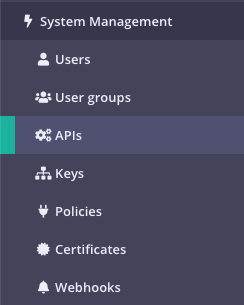 2. **Click "ADD NEW API"**
 3. **Set up the Base Configuration for your API**
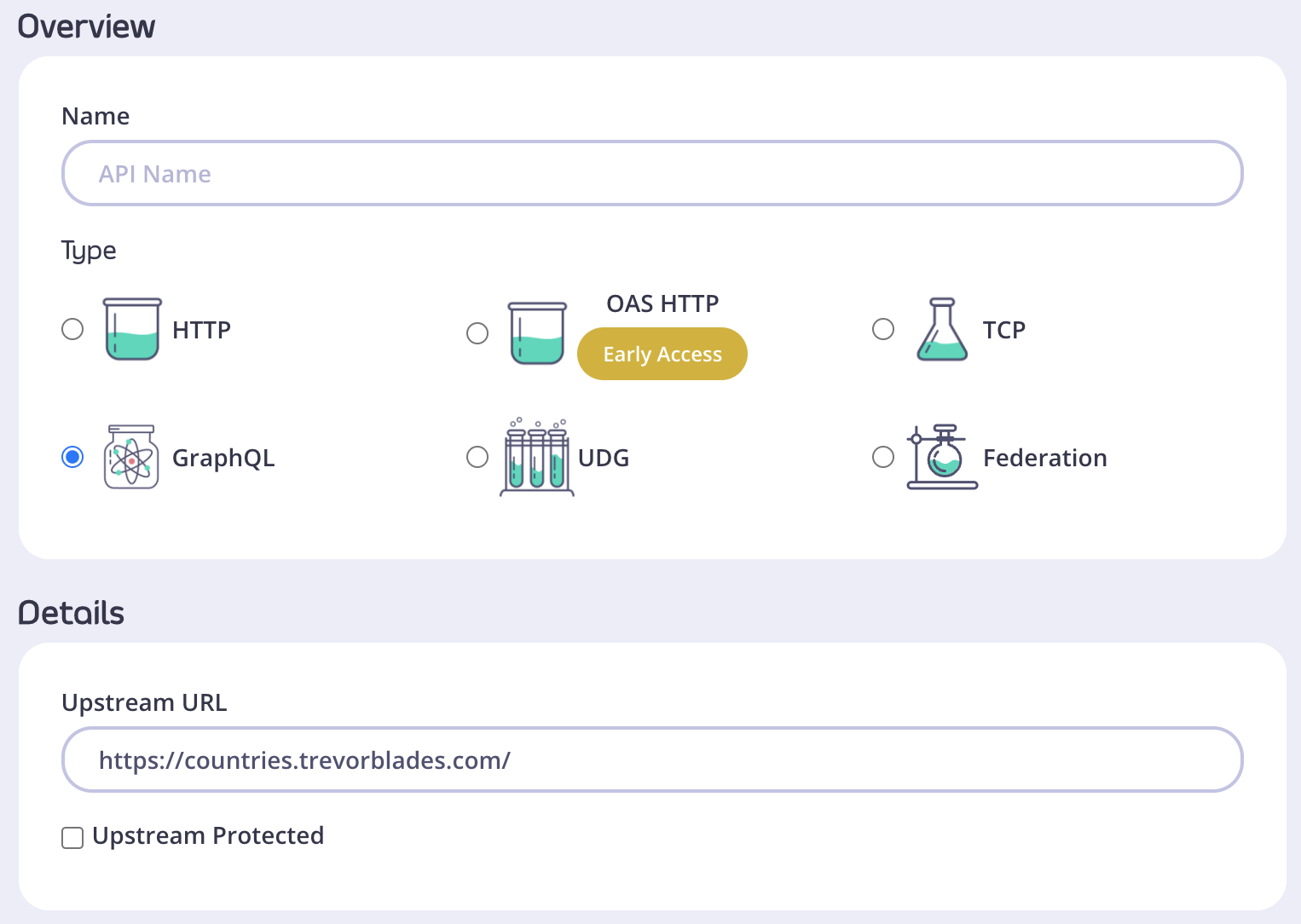 * From the **Overview** section, add your **API Name** and your API **Type** (In this case it's GraphQL).
* From the **Details** section, add your **Target URL**. This will set the upstream origin that hosts the service you want to proxy to. As an example, you can use [https://countries.trevorblades.com/](https://countries.trevorblades.com/).
* In case your upstream GQL service is protected, tick the box next to **Upstream Protected** and provide authorization details, so that Tyk can introspect the GraphQL service. You can provide authorization details as a set of headers or a certificate. [Introspection](/api-management/graphql#introspection) of your upstream service is important for Tyk to correctly work with your GraphQL.
* If you would like to persist authorization information for future use you can tick the **Persist headers for future use** box. That way, if the upstream GQL schema changes in the future, you will be able to update it easily in Tyk.
* Click **Configure API** when you have finished
4. **Set up the Authentication for your API**
From the **Authentication** section:
* From the **Overview** section, add your **API Name** and your API **Type** (In this case it's GraphQL).
* From the **Details** section, add your **Target URL**. This will set the upstream origin that hosts the service you want to proxy to. As an example, you can use [https://countries.trevorblades.com/](https://countries.trevorblades.com/).
* In case your upstream GQL service is protected, tick the box next to **Upstream Protected** and provide authorization details, so that Tyk can introspect the GraphQL service. You can provide authorization details as a set of headers or a certificate. [Introspection](/api-management/graphql#introspection) of your upstream service is important for Tyk to correctly work with your GraphQL.
* If you would like to persist authorization information for future use you can tick the **Persist headers for future use** box. That way, if the upstream GQL schema changes in the future, you will be able to update it easily in Tyk.
* Click **Configure API** when you have finished
4. **Set up the Authentication for your API**
From the **Authentication** section:
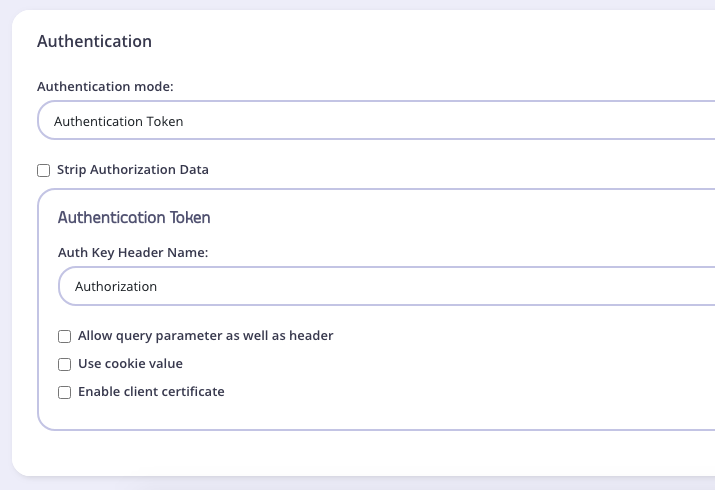 You have the following options:
* **Authentication mode**: This is the security method to use with your API. First, you can set it to `Open(Keyless)`, but that option is not advised for production APIs. See [Client Authentication](/api-management/client-authentication) for more details on securing your API.
* **Strip Authorization Data**: Select this option to strip any authorization data from your API requests.
* **Auth Key Header Name**: The header name that will hold the token on inbound requests. The default for this is `Authorization`.
* **Allow Query Parameter As Well As Header**: Set this option to enable checking the query parameter as well as the header for an auth token. **This is a setting that might be important if your GQL includes subscription operations**.
* **Use Cookie Value**: It is possible to use a cookie value as well as the other two token locations.
* **Enable client certificate**: Select this to use Mutual TLS. See [Mutual TLS](/api-management/implement-tls#secure-hosted-apis-with-mtls) for details on implementing mutual TLS.
5. **Save the API**
Click **SAVE**
You have the following options:
* **Authentication mode**: This is the security method to use with your API. First, you can set it to `Open(Keyless)`, but that option is not advised for production APIs. See [Client Authentication](/api-management/client-authentication) for more details on securing your API.
* **Strip Authorization Data**: Select this option to strip any authorization data from your API requests.
* **Auth Key Header Name**: The header name that will hold the token on inbound requests. The default for this is `Authorization`.
* **Allow Query Parameter As Well As Header**: Set this option to enable checking the query parameter as well as the header for an auth token. **This is a setting that might be important if your GQL includes subscription operations**.
* **Use Cookie Value**: It is possible to use a cookie value as well as the other two token locations.
* **Enable client certificate**: Select this to use Mutual TLS. See [Mutual TLS](/api-management/implement-tls#secure-hosted-apis-with-mtls) for details on implementing mutual TLS.
5. **Save the API**
Click **SAVE**
 Once saved, you will be taken back to the API list, where the new API will be displayed.
To see the URL given to your API, select the API from the list to open it again. The API URL will be displayed at the top of the editor:
Once saved, you will be taken back to the API list, where the new API will be displayed.
To see the URL given to your API, select the API from the list to open it again. The API URL will be displayed at the top of the editor:
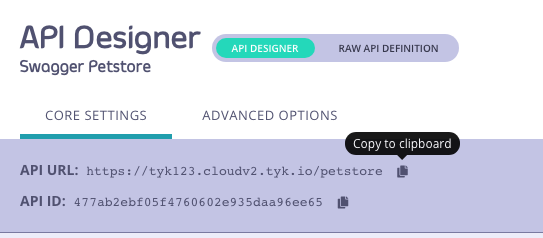 Your GQL API is now secured and ready to use.
### Via Tyk Dashboard API
#### Prerequisites
It is possible to create GQL APIs using [Tyk Dashboard APIs](/api-management/dashboard-configuration#manage-apis-api-definition). To make things easier you can use our [Postman collection](https://www.postman.com/tyk-technologies/workspace/tyk-public-workspace/overview).
You will need an API key for your organization and one command to create a GQL API and make it live.
#### Steps for Configuration
1. **Obtain your Tyk Dashboard API Access Credentials key & Dashboard URL**
From the Tyk Dashboard, select "Users" from the "System Management" section.
Click **Edit** for your user, then scroll to the bottom of the page. Your **Tyk Dashboard API Access Credentials** key is the first entry:
Your GQL API is now secured and ready to use.
### Via Tyk Dashboard API
#### Prerequisites
It is possible to create GQL APIs using [Tyk Dashboard APIs](/api-management/dashboard-configuration#manage-apis-api-definition). To make things easier you can use our [Postman collection](https://www.postman.com/tyk-technologies/workspace/tyk-public-workspace/overview).
You will need an API key for your organization and one command to create a GQL API and make it live.
#### Steps for Configuration
1. **Obtain your Tyk Dashboard API Access Credentials key & Dashboard URL**
From the Tyk Dashboard, select "Users" from the "System Management" section.
Click **Edit** for your user, then scroll to the bottom of the page. Your **Tyk Dashboard API Access Credentials** key is the first entry:
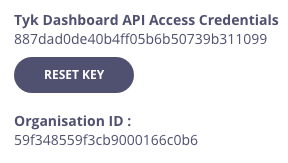 Store your Dashboard Key, Dashboard URL & Gateway URL as environment variables so you don't need to keep typing them in:
```bash theme={null}
export DASH_KEY=db8adec7615d40db6419a2e4688678e0
# Locally installed dashboard
export DASH_URL=http://localhost:3000/api
# Tyk's Cloud Dashboard
export DASH_URL=https://admin.cloud.tyk.io/api
# Locally installed gateway
export GATEWAY_URL=http://localhost:8080
# Your Cloud Gateway
export GATEWAY_URL=https://YOUR_SUBDOMAIN.cloud.tyk.io
```
2. **Query the `/api/apis` endpoint to see what APIs are loaded**
```curl theme={null}
curl -H "Authorization: ${DASH_KEY}" ${DASH_URL}/apis
{"apis":[],"pages":1}
```
For a fresh install, you will see that no APIs currently exist.
3. **Create your first GQL API**
This example API definition configures the Tyk Gateway to reverse proxy to the [https://countries.trevorblades.com/](https://countries.trevorblades.com/) public GraphQL service.
To view the raw API definition object, you may visit: [https://bit.ly/3zmviZ3](https://bit.ly/3zmviZ3)
```curl theme={null}
curl -H "Authorization: ${DASH_KEY}" -H "Content-Type: application/json" ${DASH_URL}/apis \
-d "$(wget -qO- https://bit.ly/3zmviZ3)"
{"Status":"OK","Message":"API created","Meta":"64270eccb1821e3a5c203d98"}
```
Take note of the API ID returned in the meta above - you will need it later.
```
export API_ID=64270eccb1821e3a5c203d98
```
4. **Test your new GQL API**
```curl theme={null}
curl --location ${GATEWAY_URL}/trevorblades/
--header 'Content-Type: application/json'
--data '{"query":"query {\n countries {\n name\n capital\n awsRegion\n }\n}","variables":{}}'
```
You just sent a request to the gateway on the listen path `/trevorblades`. Using this path-based-routing, the gateway was able to identify the API the client intended to target.
The gateway stripped the listen path and reverse-proxied the request to [https://countries.trevorblades.com/](https://countries.trevorblades.com/)
5. **Protect your API**
Let's grab the API definition we created before and store the output in a file locally.
```curl theme={null}
curl -s -H "Authorization: ${DASH_KEY}" -H "Content-Type: application/json" ${DASH_URL}/apis/${API_ID} | python -mjson.tool > api.trevorblades.json
```
We can now edit the `api.trevorblades.json` file we just created, and modify a couple of fields to enable authentication.
Change `use_keyless` from `true` to `false`.
Change `auth_configs.authToken.auth_header_name` to `apikey`.
Then send a `PUT` request back to Tyk Dashboard to update its configurations.
```curl theme={null}
curl -H "Authorization: ${DASH_KEY}" -H "Content-Type: application/json" ${DASH_URL}/apis/${API_ID} -X PUT -d "@api.trevorblades.json"
{"Status":"OK","Message":"Api updated","Meta":null}
```
6. **Test protected API**
Send request without any credentials
```curl theme={null}
curl -I ${GATEWAY_URL}/trevorblades/ \
--header 'Content-Type: application/json' \
--data '{"query":"query {\n countries {\n name\n capital\n awsRegion\n }\n}","variables":{}}'
HTTP/1.1 401 Unauthorized
Content-Type: application/json
X-Generator: tyk.io
Date: Wed, 04 Dec 2019 23:35:34 GMT
Content-Length: 46
```
Send a request with incorrect credentials
```curl theme={null}
curl -I ${GATEWAY_URL}/trevorblades/ \
--header 'Content-Type: application/json' \
--data '{"query":"query {\n countries {\n name\n capital\n awsRegion\n }\n}","variables":{}}' \
-H 'apikey: somekey'
HTTP/1.1 403 Forbidden
Content-Type: application/json
X-Generator: tyk.io
Date: Wed, 04 Dec 2019 23:36:16 GMT
Content-Length: 57
```
Congratulations - You have just created your first keyless GQL API, and then protected it using Tyk!
### Via Tyk Gateway API
#### Prerequisites
In order to complete the next steps, you need to have the [Tyk OSS](/tyk-oss-gateway) installed.
Store your Dashboard Key, Dashboard URL & Gateway URL as environment variables so you don't need to keep typing them in:
```bash theme={null}
export DASH_KEY=db8adec7615d40db6419a2e4688678e0
# Locally installed dashboard
export DASH_URL=http://localhost:3000/api
# Tyk's Cloud Dashboard
export DASH_URL=https://admin.cloud.tyk.io/api
# Locally installed gateway
export GATEWAY_URL=http://localhost:8080
# Your Cloud Gateway
export GATEWAY_URL=https://YOUR_SUBDOMAIN.cloud.tyk.io
```
2. **Query the `/api/apis` endpoint to see what APIs are loaded**
```curl theme={null}
curl -H "Authorization: ${DASH_KEY}" ${DASH_URL}/apis
{"apis":[],"pages":1}
```
For a fresh install, you will see that no APIs currently exist.
3. **Create your first GQL API**
This example API definition configures the Tyk Gateway to reverse proxy to the [https://countries.trevorblades.com/](https://countries.trevorblades.com/) public GraphQL service.
To view the raw API definition object, you may visit: [https://bit.ly/3zmviZ3](https://bit.ly/3zmviZ3)
```curl theme={null}
curl -H "Authorization: ${DASH_KEY}" -H "Content-Type: application/json" ${DASH_URL}/apis \
-d "$(wget -qO- https://bit.ly/3zmviZ3)"
{"Status":"OK","Message":"API created","Meta":"64270eccb1821e3a5c203d98"}
```
Take note of the API ID returned in the meta above - you will need it later.
```
export API_ID=64270eccb1821e3a5c203d98
```
4. **Test your new GQL API**
```curl theme={null}
curl --location ${GATEWAY_URL}/trevorblades/
--header 'Content-Type: application/json'
--data '{"query":"query {\n countries {\n name\n capital\n awsRegion\n }\n}","variables":{}}'
```
You just sent a request to the gateway on the listen path `/trevorblades`. Using this path-based-routing, the gateway was able to identify the API the client intended to target.
The gateway stripped the listen path and reverse-proxied the request to [https://countries.trevorblades.com/](https://countries.trevorblades.com/)
5. **Protect your API**
Let's grab the API definition we created before and store the output in a file locally.
```curl theme={null}
curl -s -H "Authorization: ${DASH_KEY}" -H "Content-Type: application/json" ${DASH_URL}/apis/${API_ID} | python -mjson.tool > api.trevorblades.json
```
We can now edit the `api.trevorblades.json` file we just created, and modify a couple of fields to enable authentication.
Change `use_keyless` from `true` to `false`.
Change `auth_configs.authToken.auth_header_name` to `apikey`.
Then send a `PUT` request back to Tyk Dashboard to update its configurations.
```curl theme={null}
curl -H "Authorization: ${DASH_KEY}" -H "Content-Type: application/json" ${DASH_URL}/apis/${API_ID} -X PUT -d "@api.trevorblades.json"
{"Status":"OK","Message":"Api updated","Meta":null}
```
6. **Test protected API**
Send request without any credentials
```curl theme={null}
curl -I ${GATEWAY_URL}/trevorblades/ \
--header 'Content-Type: application/json' \
--data '{"query":"query {\n countries {\n name\n capital\n awsRegion\n }\n}","variables":{}}'
HTTP/1.1 401 Unauthorized
Content-Type: application/json
X-Generator: tyk.io
Date: Wed, 04 Dec 2019 23:35:34 GMT
Content-Length: 46
```
Send a request with incorrect credentials
```curl theme={null}
curl -I ${GATEWAY_URL}/trevorblades/ \
--header 'Content-Type: application/json' \
--data '{"query":"query {\n countries {\n name\n capital\n awsRegion\n }\n}","variables":{}}' \
-H 'apikey: somekey'
HTTP/1.1 403 Forbidden
Content-Type: application/json
X-Generator: tyk.io
Date: Wed, 04 Dec 2019 23:36:16 GMT
Content-Length: 57
```
Congratulations - You have just created your first keyless GQL API, and then protected it using Tyk!
### Via Tyk Gateway API
#### Prerequisites
In order to complete the next steps, you need to have the [Tyk OSS](/tyk-oss-gateway) installed.
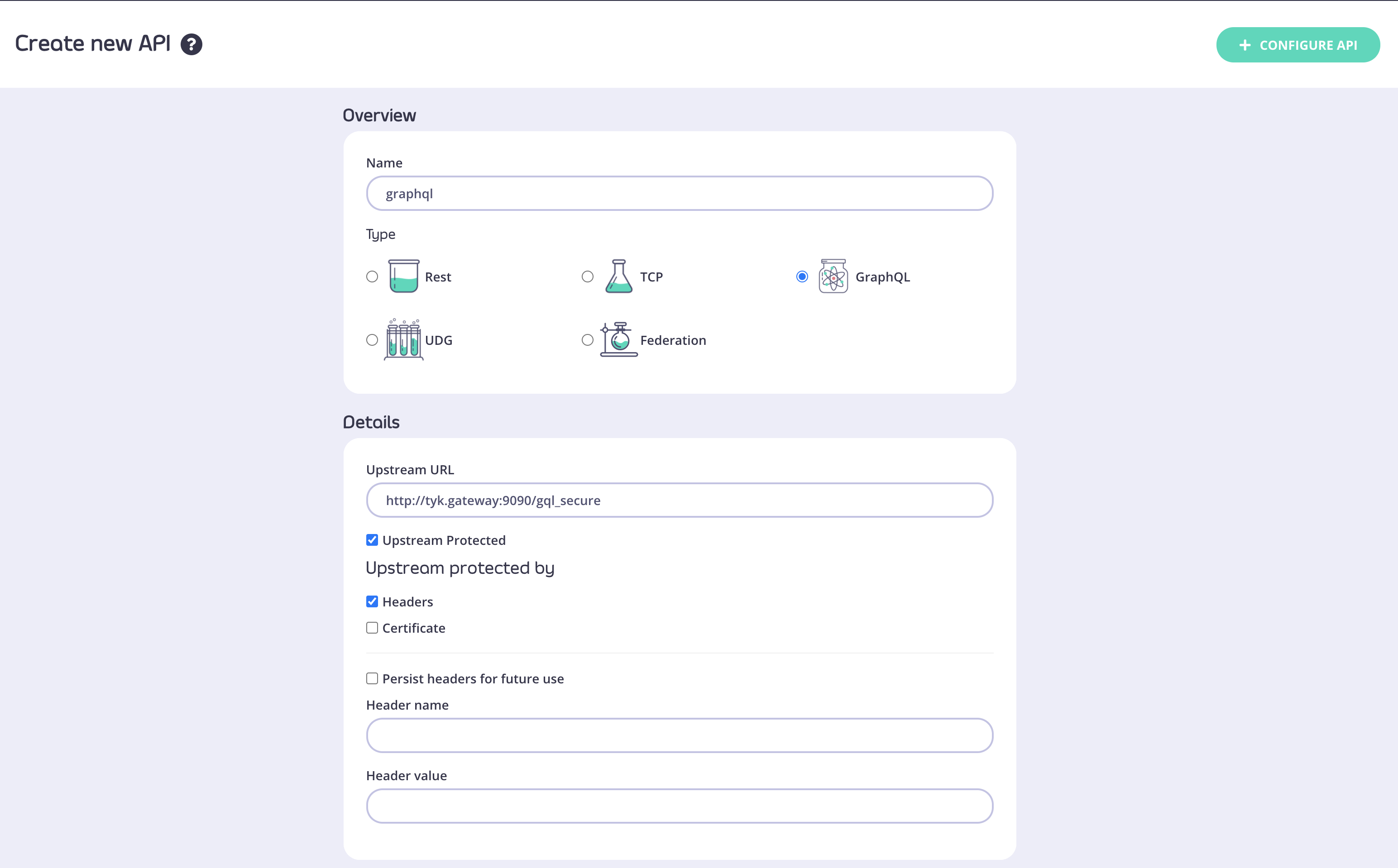 2. Choose a name for your API and provide an upstream URL
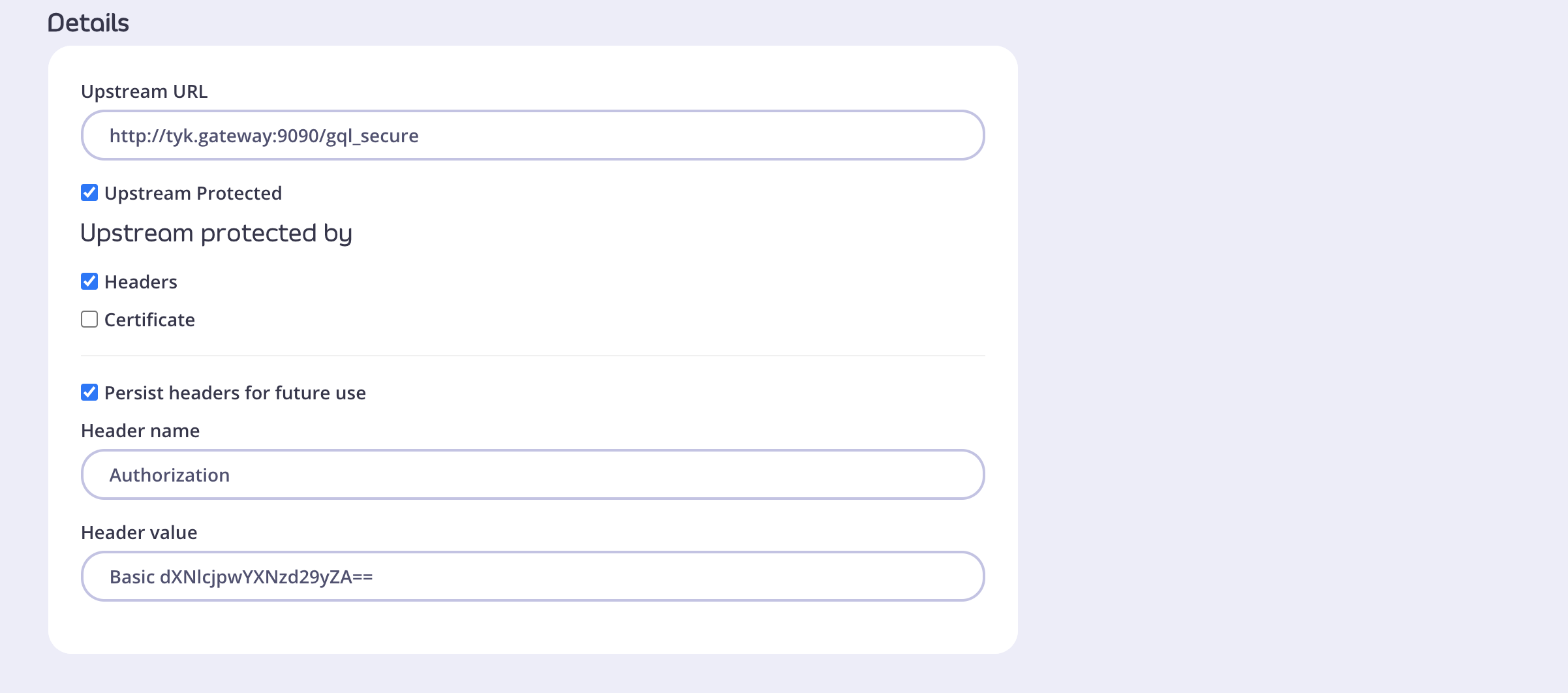 4. Once done, click **Configure API**, and the Dashboard API designer will show up.
5. Configure your API and click **save**, Your API will now be saved.
### Managing GQL Schema
There can be a need to update/sync the schema on your GraphQL API, say when the schema on the upstream is updated.
The Dashboard UI can show the last time your API schema was synced with the upstream schema.
4. Once done, click **Configure API**, and the Dashboard API designer will show up.
5. Configure your API and click **save**, Your API will now be saved.
### Managing GQL Schema
There can be a need to update/sync the schema on your GraphQL API, say when the schema on the upstream is updated.
The Dashboard UI can show the last time your API schema was synced with the upstream schema.
 If you click the **Get latest version**, the gateway will make an introspection query to your upstream to fetch the schema.
You need to click **Update** on the top right button, to update your API.
If you click the **Get latest version**, the gateway will make an introspection query to your upstream to fetch the schema.
You need to click **Update** on the top right button, to update your API.
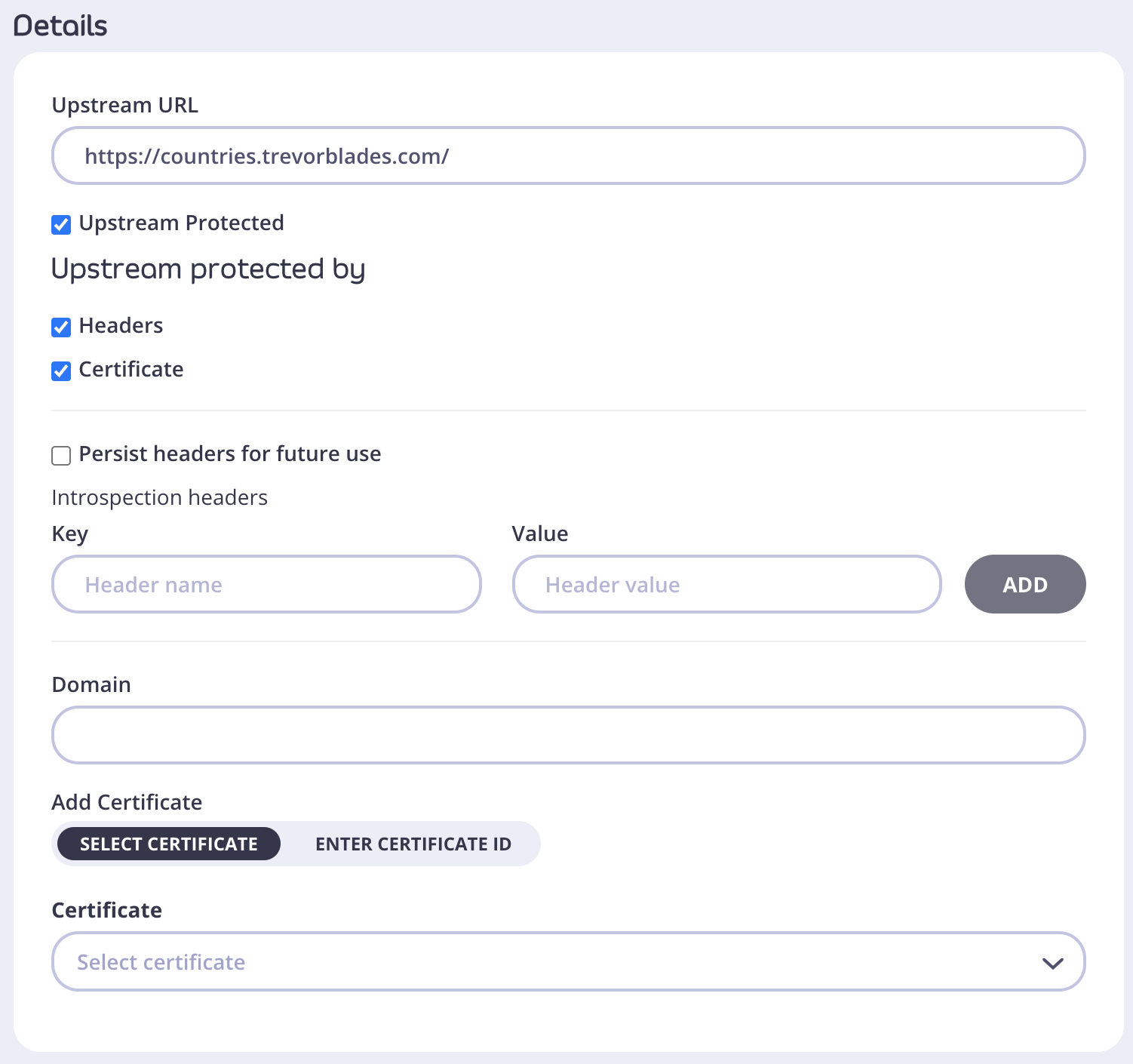 * From the **Upstream protected by** section choose the right option for your case: Headers or Certificate.
* Choosing **Headers** will allow you to add multiple key/value pairs in *Introsopection headers* section.
* You can also **Persist headers for future use** by ticking that option. This will save information you provided in case in the future your schema changes and you need to sync it again. To understand better where this information will be saved, go to [GQL Headers](/api-management/graphql#graphql-apis-headers). To read more about schema syncing go [here](/api-management/graphql#syncing-gql-schema).
* Choosing **Certificate** will allow you to provide *Domain* details and either *Select certificate* or *Enter certificate ID*.
#### Turning off introspection
The introspection feature should primarily be used as a discovery and diagnostic tool for development purposes.
Problems with introspection in production:
* It may reveal sensitive information about the GraphQL API and its implementation details.
* An attacker can discover potentially malicious operations.
You should note that if the *Authentication Mode* is *Open(Keyless)*, GraphQL introspection is enabled and it cannot be turned off.
GraphQL introspection is enabled in Tyk by default. You can disable the introspection per key or security policy using:
* Tyk Dashboard
* Tyk Dashboard and Gateway API
* From the **Upstream protected by** section choose the right option for your case: Headers or Certificate.
* Choosing **Headers** will allow you to add multiple key/value pairs in *Introsopection headers* section.
* You can also **Persist headers for future use** by ticking that option. This will save information you provided in case in the future your schema changes and you need to sync it again. To understand better where this information will be saved, go to [GQL Headers](/api-management/graphql#graphql-apis-headers). To read more about schema syncing go [here](/api-management/graphql#syncing-gql-schema).
* Choosing **Certificate** will allow you to provide *Domain* details and either *Select certificate* or *Enter certificate ID*.
#### Turning off introspection
The introspection feature should primarily be used as a discovery and diagnostic tool for development purposes.
Problems with introspection in production:
* It may reveal sensitive information about the GraphQL API and its implementation details.
* An attacker can discover potentially malicious operations.
You should note that if the *Authentication Mode* is *Open(Keyless)*, GraphQL introspection is enabled and it cannot be turned off.
GraphQL introspection is enabled in Tyk by default. You can disable the introspection per key or security policy using:
* Tyk Dashboard
* Tyk Dashboard and Gateway API
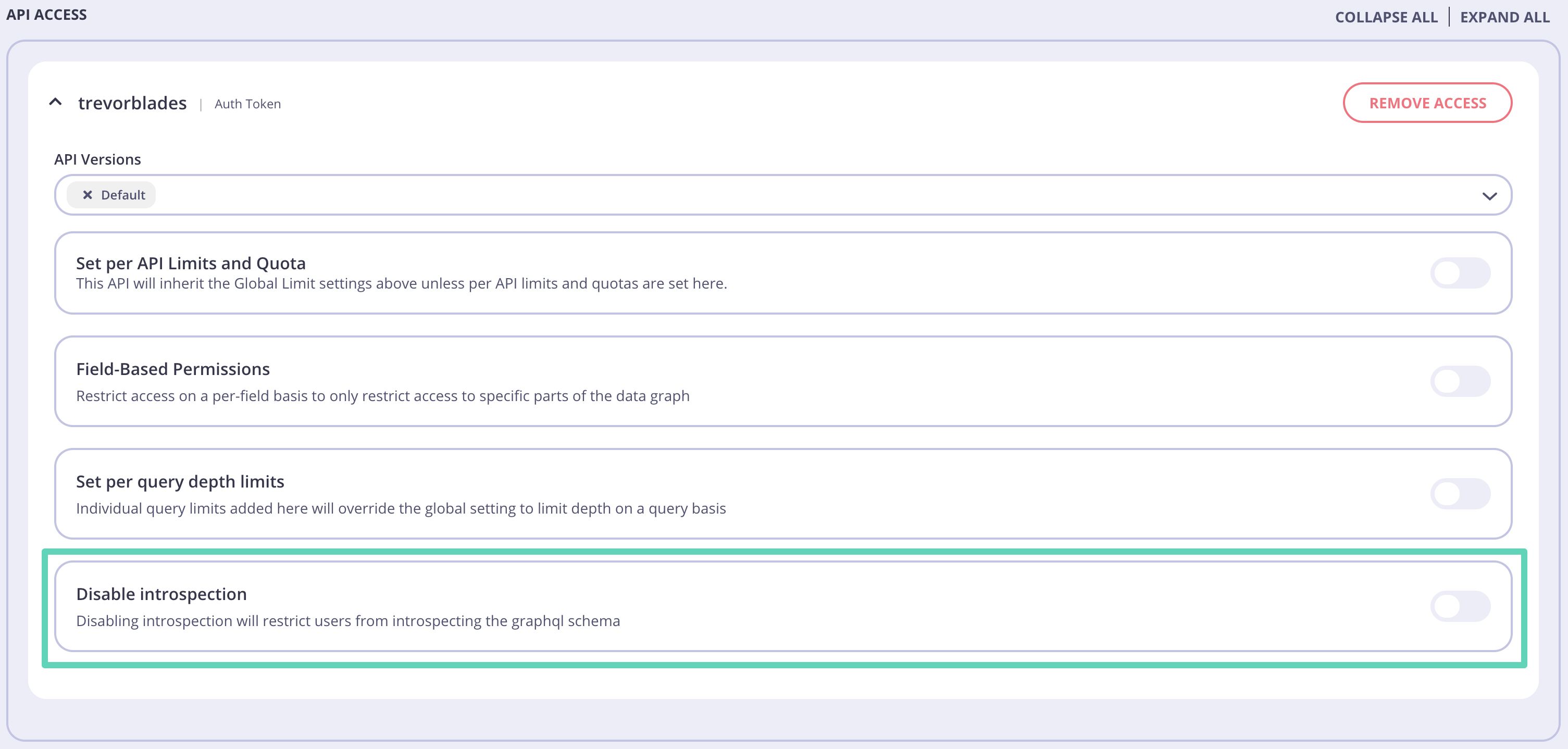 You can diable introspection by changing the switch position.
Because introspection control in Tyk works on Policy and Key level, it means you can control each of your consumer's access to introspection. You can have keys that allow introspection, while also having keys that disallow it.
You can diable introspection by changing the switch position.
Because introspection control in Tyk works on Policy and Key level, it means you can control each of your consumer's access to introspection. You can have keys that allow introspection, while also having keys that disallow it.
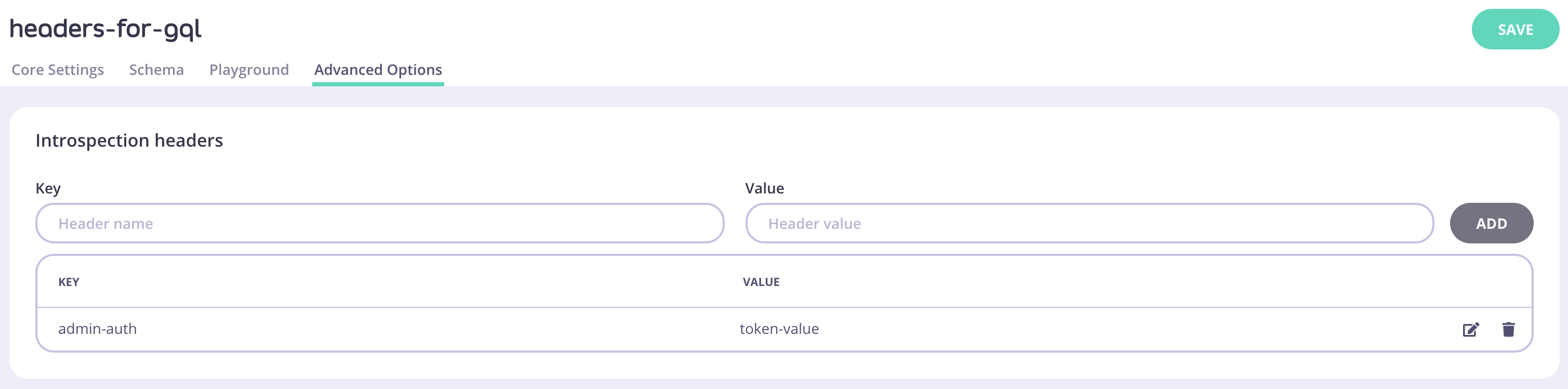 Any header key/value pair defined in **Introspection headers** will only be used while making an introspection call from Tyk Dashboard to the upstream. Those headers will not be used while proxying requests from consumers to the upstream.
**Introspection headers** can also be configured in the raw API definition:
```json theme={null}
...
"graphql": {
"execution_mode": "proxyOnly",
"proxy": {
"auth_headers": {
"admin-auth": "token-value"
}
}
}
```
### Request headers
You can enrich any GraphQL request proxied through Tyk Gateway with additional information in the headers by configuring **Request headers** in the Tyk Dashboard.
Any header key/value pair defined in **Introspection headers** will only be used while making an introspection call from Tyk Dashboard to the upstream. Those headers will not be used while proxying requests from consumers to the upstream.
**Introspection headers** can also be configured in the raw API definition:
```json theme={null}
...
"graphql": {
"execution_mode": "proxyOnly",
"proxy": {
"auth_headers": {
"admin-auth": "token-value"
}
}
}
```
### Request headers
You can enrich any GraphQL request proxied through Tyk Gateway with additional information in the headers by configuring **Request headers** in the Tyk Dashboard.
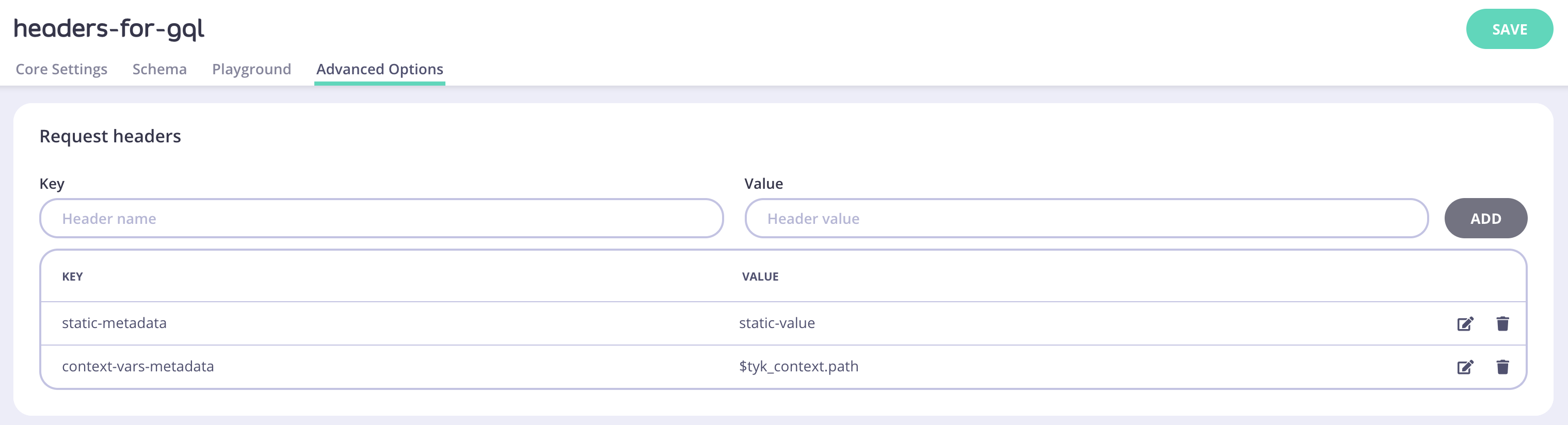 **Request headers** values can be defined as context variables. To know how to refer to request context variables check [this page](/api-management/traffic-transformation/request-context-variables).
Any header key/value pair defined in **Request headers** will only be used to inject headers into requests proxied through the Gateway. It will not be used to introspect the upstream schema from Tyk Dashboard.
**Request headers** can also be configured in the raw API definition:
```bash theme={null}
...
"graphql": {
"execution_mode": "proxyOnly",
"proxy": {
"request_headers": {
"context-vars-metadata": "$tyk_context.path",
"static-metadata": "static-value"
}
}
}
```
## Syncing GQL Schema
A GraphQL Proxy API maintains a copy of the upstream GraphQL schema. When the upstream schema changes, these updates need to be reflected in the proxy schema.
To manage this, Tyk Dashboard stores the timestamp of the last schema change each time a GraphQL API is updated. This timestamp helps identify whether the schema is outdated and needs to be synced with the upstream version. You can find this information above the schema editor.
To sync the schema, click the **Resync** button.
**Request headers** values can be defined as context variables. To know how to refer to request context variables check [this page](/api-management/traffic-transformation/request-context-variables).
Any header key/value pair defined in **Request headers** will only be used to inject headers into requests proxied through the Gateway. It will not be used to introspect the upstream schema from Tyk Dashboard.
**Request headers** can also be configured in the raw API definition:
```bash theme={null}
...
"graphql": {
"execution_mode": "proxyOnly",
"proxy": {
"request_headers": {
"context-vars-metadata": "$tyk_context.path",
"static-metadata": "static-value"
}
}
}
```
## Syncing GQL Schema
A GraphQL Proxy API maintains a copy of the upstream GraphQL schema. When the upstream schema changes, these updates need to be reflected in the proxy schema.
To manage this, Tyk Dashboard stores the timestamp of the last schema change each time a GraphQL API is updated. This timestamp helps identify whether the schema is outdated and needs to be synced with the upstream version. You can find this information above the schema editor.
To sync the schema, click the **Resync** button.
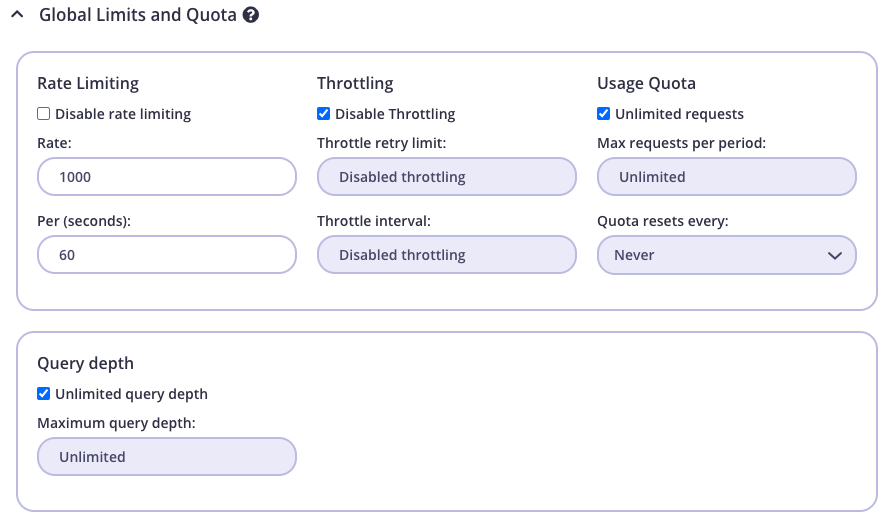 * **API limits and quota. (`Set per API Limits and Quota`)** This value will overwrite any value registered for query depth limitation on global Key/Policy level, and will be applied on all fields for Query and Mutation types defined within the API schema.
1. *Optional:* Configure a Policy from **System Management > Policies > Add Policy**.
2. From **System Management > Keys > Add Key** select a policy or configure directly for the key.
3. Select your GraphQL API (marked as *GraphQL*). (if Policy is not applied on Key)
4. Enable `Set per API Limits and Quota` section.
5. Change the value for **Query depth**, from API level, by unchecking the *Unlimited query depth* checkmark and insert the maximum allowed query depth
* **API limits and quota. (`Set per API Limits and Quota`)** This value will overwrite any value registered for query depth limitation on global Key/Policy level, and will be applied on all fields for Query and Mutation types defined within the API schema.
1. *Optional:* Configure a Policy from **System Management > Policies > Add Policy**.
2. From **System Management > Keys > Add Key** select a policy or configure directly for the key.
3. Select your GraphQL API (marked as *GraphQL*). (if Policy is not applied on Key)
4. Enable `Set per API Limits and Quota` section.
5. Change the value for **Query depth**, from API level, by unchecking the *Unlimited query depth* checkmark and insert the maximum allowed query depth
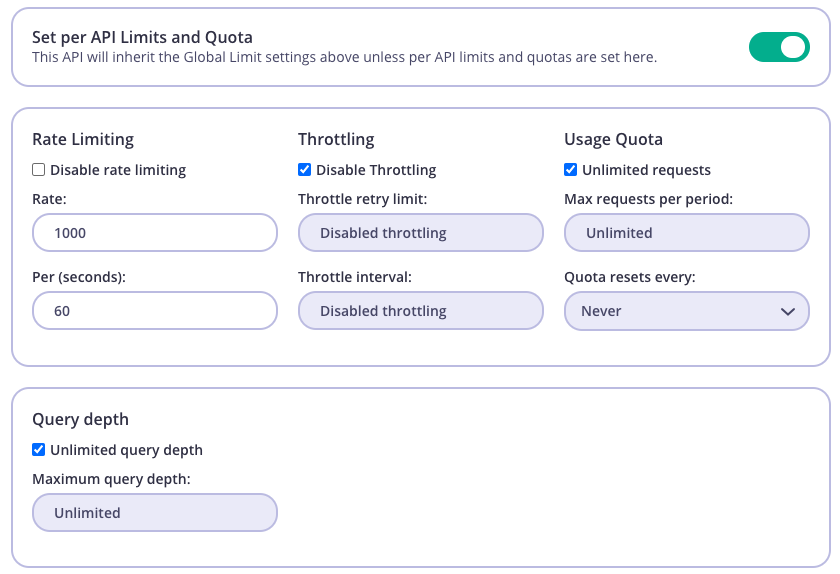 * **API per query depth limit. (`Set per query depth limits`)** By setting a query depth limit value on a specific Query/Mutation type field, will take highest priority and all values set on first 2 steps will be overwritten.
1. *Optional:* Configure a Policy from **System Management > Policies > Add Policy**.
2. From **System Management > Keys > Add Key** select a policy or configure directly for the key.
3. Select your GraphQL API (marked as *GraphQL*). (if Policy is not applied on Key)
4. Enable `Set per query depth limits` section.
5. Add as many queries you want to apply depth limitation on.
* **API per query depth limit. (`Set per query depth limits`)** By setting a query depth limit value on a specific Query/Mutation type field, will take highest priority and all values set on first 2 steps will be overwritten.
1. *Optional:* Configure a Policy from **System Management > Policies > Add Policy**.
2. From **System Management > Keys > Add Key** select a policy or configure directly for the key.
3. Select your GraphQL API (marked as *GraphQL*). (if Policy is not applied on Key)
4. Enable `Set per query depth limits` section.
5. Add as many queries you want to apply depth limitation on.
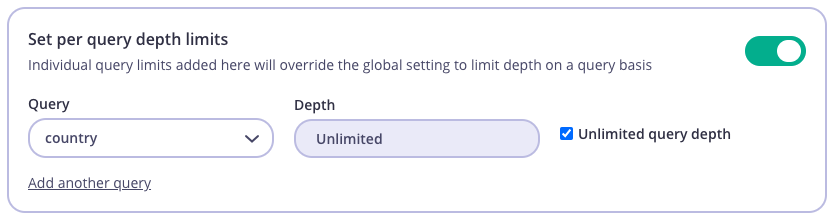 #### Enable depth limits using Tyk APIs
You can set the same query depth limits using the Tyk Gateway API (for open-source users) or Tyk Dashboard API. To make it easier we have [Postman collections](https://www.postman.com/tyk-technologies/workspace/tyk-public-workspace/overview) you can use.
**Global query depth limit for Key/Policy**
In the key/policy json you need to make sure this section has your desired `max_query_depth` set:
```yaml theme={null}
{...
"rate": 1000,
"per": 60,
"max_query_depth": 5
...}
```
**Per API depth limits**
In the key/policy json you need to make sure that this section is set correctly:
```yaml theme={null}
{
...
"access_rights_array": [
{
"api_name": "trevorblades",
"api_id": "68496692ef5a4cb35a2eac907ec1c1d5",
"versions": [
"Default"
],
"allowed_urls": [],
"restricted_types": [],
"allowed_types": [],
"disable_introspection": false,
"limit": {
"rate": 1000,
"per": 60,
"throttle_interval": -1,
"throttle_retry_limit": -1,
"max_query_depth": 3,
"quota_max": -1,
"quota_renews": 0,
"quota_remaining": 0,
"quota_renewal_rate": -1,
"set_by_policy": false
},
"field_access_rights": [],
"allowance_scope": ""
}
]
...
}
```
**API per query depth limits**
If you have more than one query in your schema and you want to set different depth limits for each of those, Tyk also allows you to do that. In this case you need to make sure, that `field_access_rights` per API are set correctly:
```yaml theme={null}
{
...
"access_rights_array": [
{
"api_name": "trevorblades",
"api_id": "68496692ef5a4cb35a2eac907ec1c1d5",
"versions": [
"Default"
],
"allowed_urls": [],
"restricted_types": [],
"allowed_types": [],
"disable_introspection": false,
"limit": null,
"field_access_rights": [
{
"type_name": "Query",
"field_name": "continents",
"limits": {
"max_query_depth": 3
}
},
{
"type_name": "Query",
"field_name": "countries",
"limits": {
"max_query_depth": 5
}
}
],
"allowance_scope":""
}
]
...
}
```
#### Enable depth limits using Tyk APIs
You can set the same query depth limits using the Tyk Gateway API (for open-source users) or Tyk Dashboard API. To make it easier we have [Postman collections](https://www.postman.com/tyk-technologies/workspace/tyk-public-workspace/overview) you can use.
**Global query depth limit for Key/Policy**
In the key/policy json you need to make sure this section has your desired `max_query_depth` set:
```yaml theme={null}
{...
"rate": 1000,
"per": 60,
"max_query_depth": 5
...}
```
**Per API depth limits**
In the key/policy json you need to make sure that this section is set correctly:
```yaml theme={null}
{
...
"access_rights_array": [
{
"api_name": "trevorblades",
"api_id": "68496692ef5a4cb35a2eac907ec1c1d5",
"versions": [
"Default"
],
"allowed_urls": [],
"restricted_types": [],
"allowed_types": [],
"disable_introspection": false,
"limit": {
"rate": 1000,
"per": 60,
"throttle_interval": -1,
"throttle_retry_limit": -1,
"max_query_depth": 3,
"quota_max": -1,
"quota_renews": 0,
"quota_remaining": 0,
"quota_renewal_rate": -1,
"set_by_policy": false
},
"field_access_rights": [],
"allowance_scope": ""
}
]
...
}
```
**API per query depth limits**
If you have more than one query in your schema and you want to set different depth limits for each of those, Tyk also allows you to do that. In this case you need to make sure, that `field_access_rights` per API are set correctly:
```yaml theme={null}
{
...
"access_rights_array": [
{
"api_name": "trevorblades",
"api_id": "68496692ef5a4cb35a2eac907ec1c1d5",
"versions": [
"Default"
],
"allowed_urls": [],
"restricted_types": [],
"allowed_types": [],
"disable_introspection": false,
"limit": null,
"field_access_rights": [
{
"type_name": "Query",
"field_name": "continents",
"limits": {
"max_query_depth": 3
}
},
{
"type_name": "Query",
"field_name": "countries",
"limits": {
"max_query_depth": 5
}
}
],
"allowance_scope":""
}
]
...
}
```
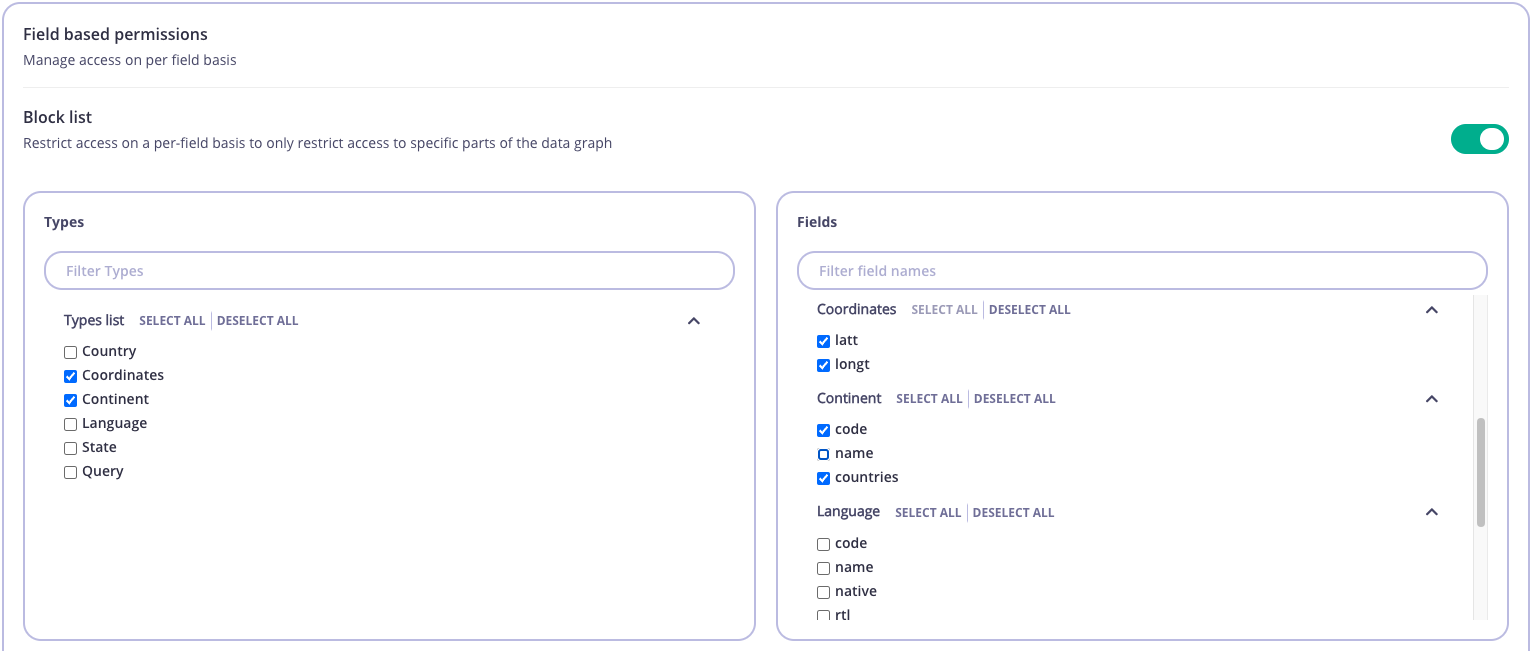 #### Allow list
By default all *Types* and *Fields* will be unchecked. By checking a *Type* or *Field* you will allow it to be used for any GraphQL operation associated with the key.
For example, the settings illustrated below would only allow the following:
* `code` field in `Continent` type.
* `code` and `name` fields in `Language` type.
Note that the `Query` type is unchecked, which indicates that all fields in `Query` type are unchecked. Subsequently, you will not be able to run any query.
#### Allow list
By default all *Types* and *Fields* will be unchecked. By checking a *Type* or *Field* you will allow it to be used for any GraphQL operation associated with the key.
For example, the settings illustrated below would only allow the following:
* `code` field in `Continent` type.
* `code` and `name` fields in `Language` type.
Note that the `Query` type is unchecked, which indicates that all fields in `Query` type are unchecked. Subsequently, you will not be able to run any query.
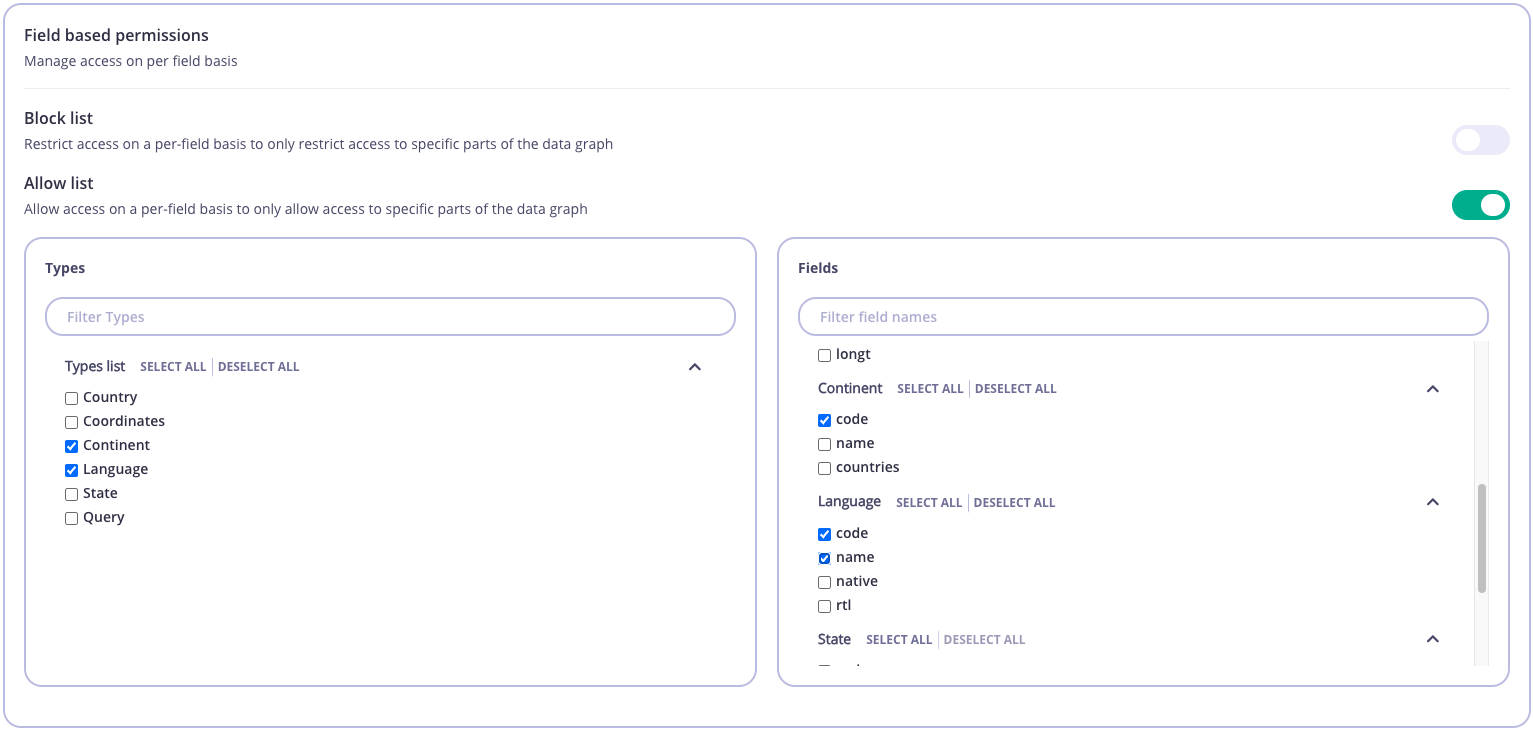 ## GraphQL Federation
### Overview
#### Federation Version Support
Tyk supports Federation v1
#### What is federation?
Ease-of-use is an important factor when adopting GraphQL either as a provider or a consumer. Modern enterprises have dozens of backend services and need a way to provide a unified interface for querying them. Building a single, monolithic GraphQL service is not the best option. It leads to a lot of dependencies, over-complication and is hard to maintain.
To remedy this, Tyk, with release 4.0 offers GraphQL federation that allows you to divide GQL implementation across multiple back-end services, while still exposing them all as a single graph for the consumers.
## GraphQL Federation
### Overview
#### Federation Version Support
Tyk supports Federation v1
#### What is federation?
Ease-of-use is an important factor when adopting GraphQL either as a provider or a consumer. Modern enterprises have dozens of backend services and need a way to provide a unified interface for querying them. Building a single, monolithic GraphQL service is not the best option. It leads to a lot of dependencies, over-complication and is hard to maintain.
To remedy this, Tyk, with release 4.0 offers GraphQL federation that allows you to divide GQL implementation across multiple back-end services, while still exposing them all as a single graph for the consumers.
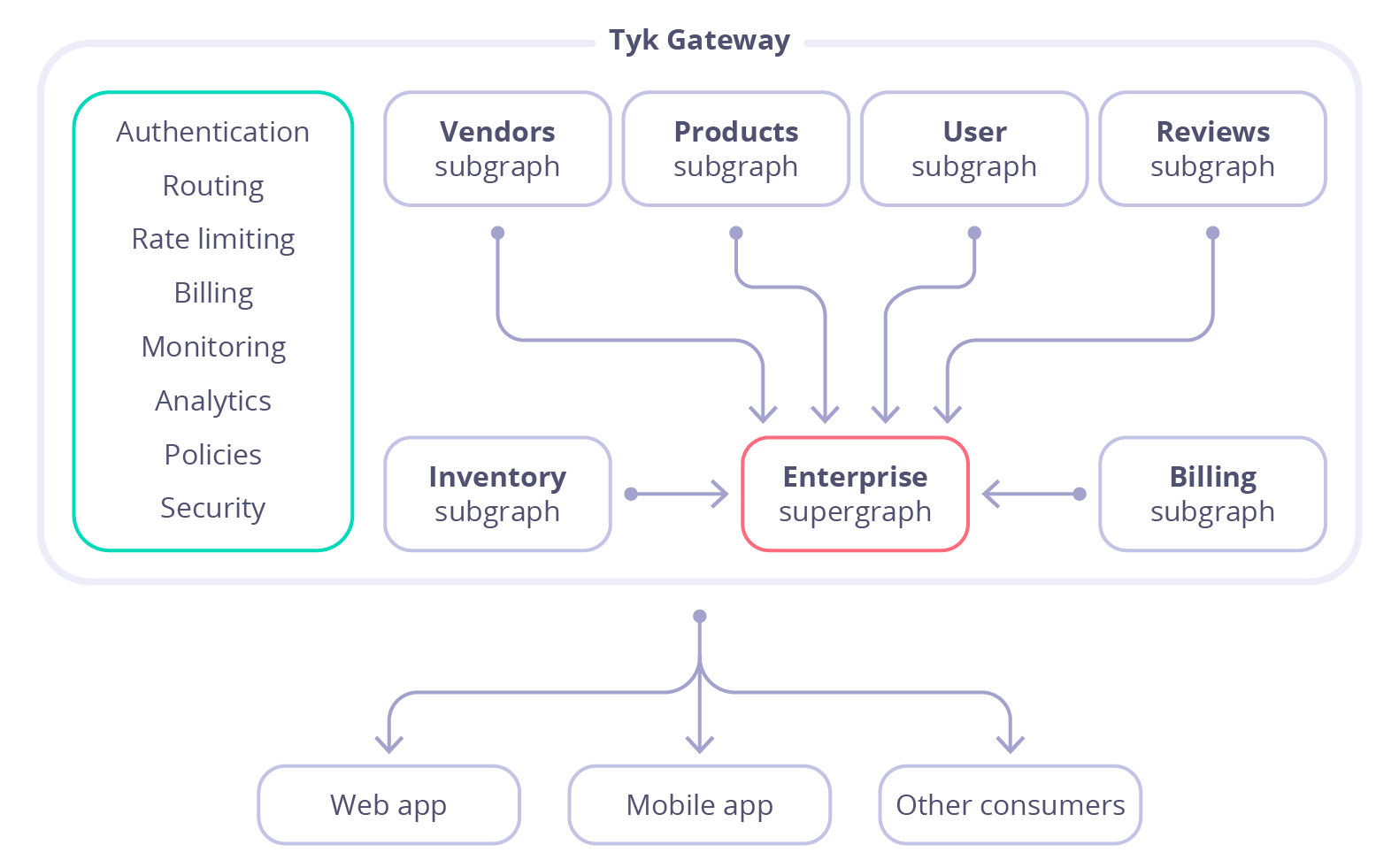 #### Subgraphs and supergraphs
**Subgraph** is a representation of a back-end service and defines a distinct GraphQL schema. It can be queried directly as a separate service or it can be federated into a larger schema of a supergraph.
**Supergraph** is a composition of several subgraphs that allows the execution of a query across multiple services in the backend.
#### Subgraphs examples
**Users**
```graphql theme={null}
extend type Query {
me: User
}
type User @key(fields: "id") {
id: ID!
username: String!
}
```
**Products**
```graphql theme={null}
extend type Query {
topProducts(first: Int = 5): [Product]
}
extend type Subscription {
updatedPrice: Product!
updateProductPrice(upc: String!): Product!
stock: [Product!]
}
type Product @key(fields: "upc") {
upc: String!
name: String!
price: Int!
inStock: Int!
}
```
**Reviews**
```graphql theme={null}
type Review {
body: String!
author: User! @provides(fields: "username")
product: Product!
}
extend type User @key(fields: "id") {
id: ID! @external
username: String! @external
reviews: [Review]
}
extend type Product @key(fields: "upc") {
upc: String! @external
reviews: [Review]
}
```
#### Subgraph conventions
* A subgraph can reference a type that is defined by a different subgraph. For example, the Review type defined in the last subgraph includes an `author` field with type `User`, which is defined in a different subgraph.
* A subgraph can extend a type defined in another subgraph. For example, the Reviews subgraph extends the Product type by adding a `reviews` field to it.
* A subgraph has to add a `@key` directive to an object’s type definition so that other subgraphs can reference or extend that type. The `@key` directive makes an object type an entity.
#### Supergraph schema
After creating all the above subgraphs in Tyk, they can be federated in your Tyk Gateway into a single supergraph. The schema of that supergraph will look like this:
```graphql theme={null}
type Query {
topProducts(first: Int = 5): [Product]
me: User
}
type Subscription {
updatedPrice: Product!
updateProductPrice(upc: String!): Product!
stock: [Product!]
}
type Review {
body: String!
author: User!
product: Product!
}
type Product {
upc: String!
name: String!
price: Int!
inStock: Int!
reviews: [Review]
}
type User {
id: ID!
username: String!
reviews: [Review]
}
```
#### Creating a subgraph via the Dashboard UI
1. Log in to the Dashboard and go to APIs > Add New API > Federation > Subgraph.
#### Subgraphs and supergraphs
**Subgraph** is a representation of a back-end service and defines a distinct GraphQL schema. It can be queried directly as a separate service or it can be federated into a larger schema of a supergraph.
**Supergraph** is a composition of several subgraphs that allows the execution of a query across multiple services in the backend.
#### Subgraphs examples
**Users**
```graphql theme={null}
extend type Query {
me: User
}
type User @key(fields: "id") {
id: ID!
username: String!
}
```
**Products**
```graphql theme={null}
extend type Query {
topProducts(first: Int = 5): [Product]
}
extend type Subscription {
updatedPrice: Product!
updateProductPrice(upc: String!): Product!
stock: [Product!]
}
type Product @key(fields: "upc") {
upc: String!
name: String!
price: Int!
inStock: Int!
}
```
**Reviews**
```graphql theme={null}
type Review {
body: String!
author: User! @provides(fields: "username")
product: Product!
}
extend type User @key(fields: "id") {
id: ID! @external
username: String! @external
reviews: [Review]
}
extend type Product @key(fields: "upc") {
upc: String! @external
reviews: [Review]
}
```
#### Subgraph conventions
* A subgraph can reference a type that is defined by a different subgraph. For example, the Review type defined in the last subgraph includes an `author` field with type `User`, which is defined in a different subgraph.
* A subgraph can extend a type defined in another subgraph. For example, the Reviews subgraph extends the Product type by adding a `reviews` field to it.
* A subgraph has to add a `@key` directive to an object’s type definition so that other subgraphs can reference or extend that type. The `@key` directive makes an object type an entity.
#### Supergraph schema
After creating all the above subgraphs in Tyk, they can be federated in your Tyk Gateway into a single supergraph. The schema of that supergraph will look like this:
```graphql theme={null}
type Query {
topProducts(first: Int = 5): [Product]
me: User
}
type Subscription {
updatedPrice: Product!
updateProductPrice(upc: String!): Product!
stock: [Product!]
}
type Review {
body: String!
author: User!
product: Product!
}
type Product {
upc: String!
name: String!
price: Int!
inStock: Int!
reviews: [Review]
}
type User {
id: ID!
username: String!
reviews: [Review]
}
```
#### Creating a subgraph via the Dashboard UI
1. Log in to the Dashboard and go to APIs > Add New API > Federation > Subgraph.
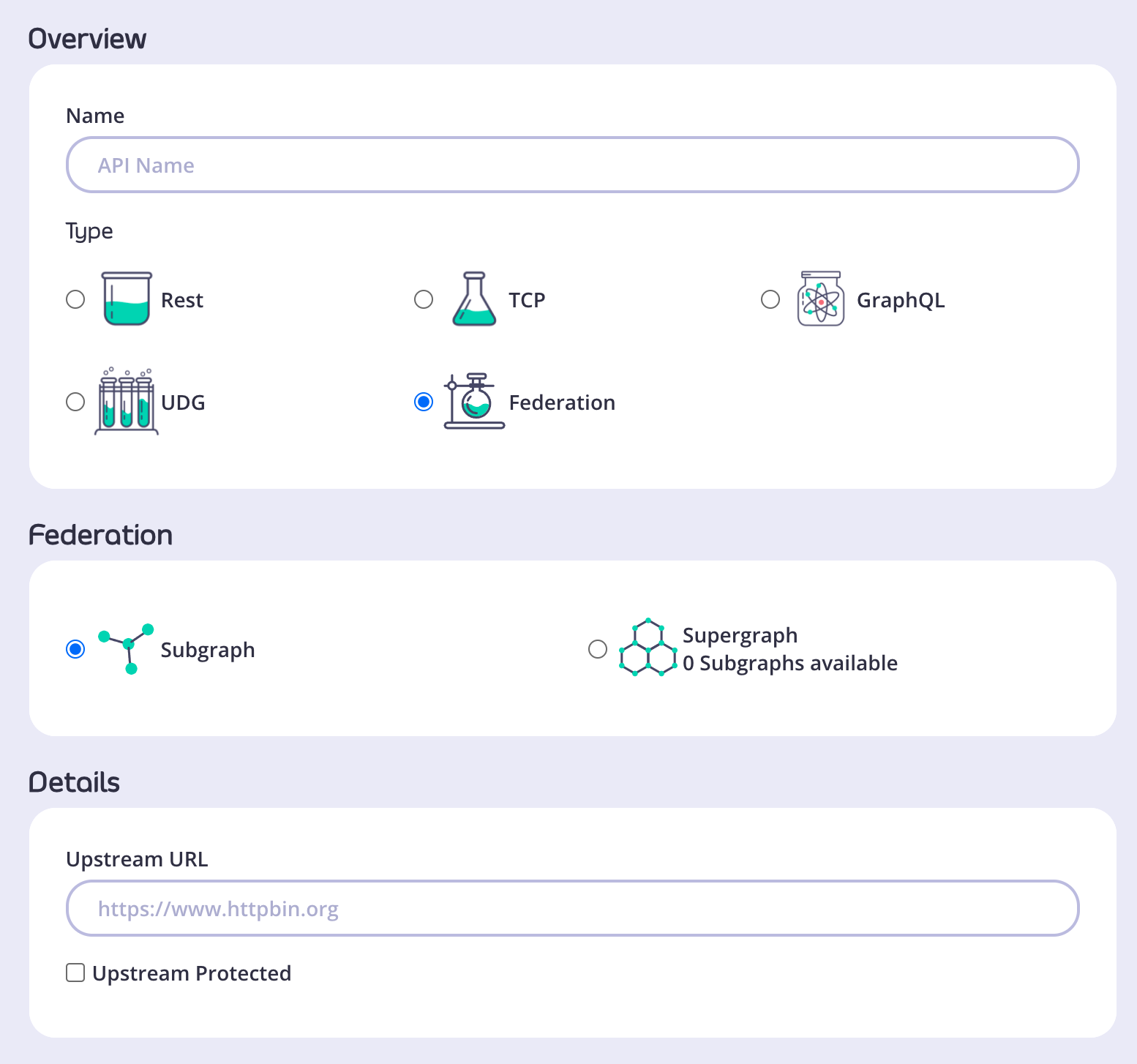 2. Choose a name for the subgraph and provide an upstream URL.
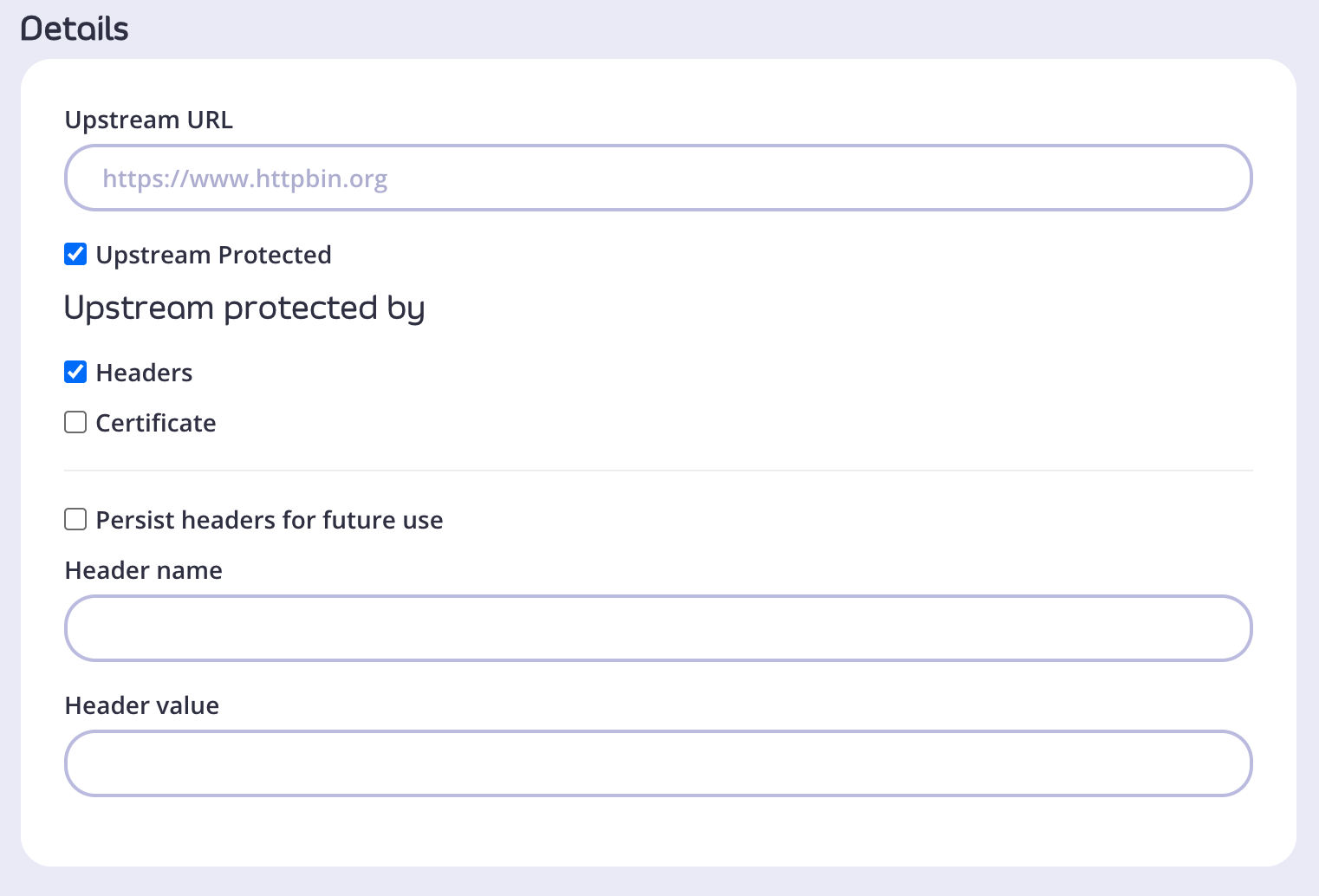 3. Go to Configure API and configure your subgraph just as you would any other API in Tyk.
 #### Creating a supergraph via the Dashboard UI
1. Log in to the Dashboard and go to APIs > Add New API > Federation > Supergraph.
#### Creating a supergraph via the Dashboard UI
1. Log in to the Dashboard and go to APIs > Add New API > Federation > Supergraph.
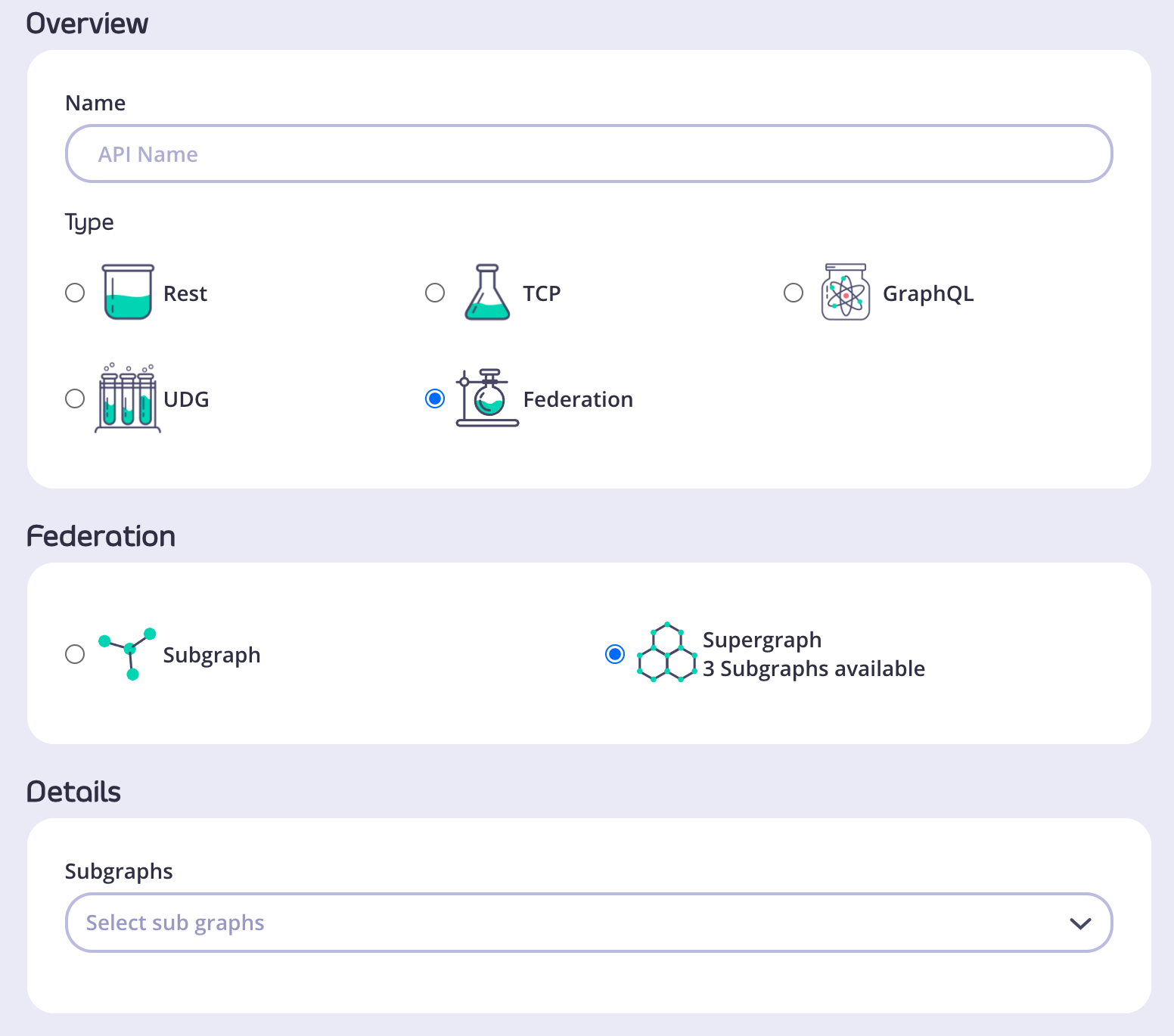 2. In the Details section, select all the subgraphs that will be included in your supergraph.
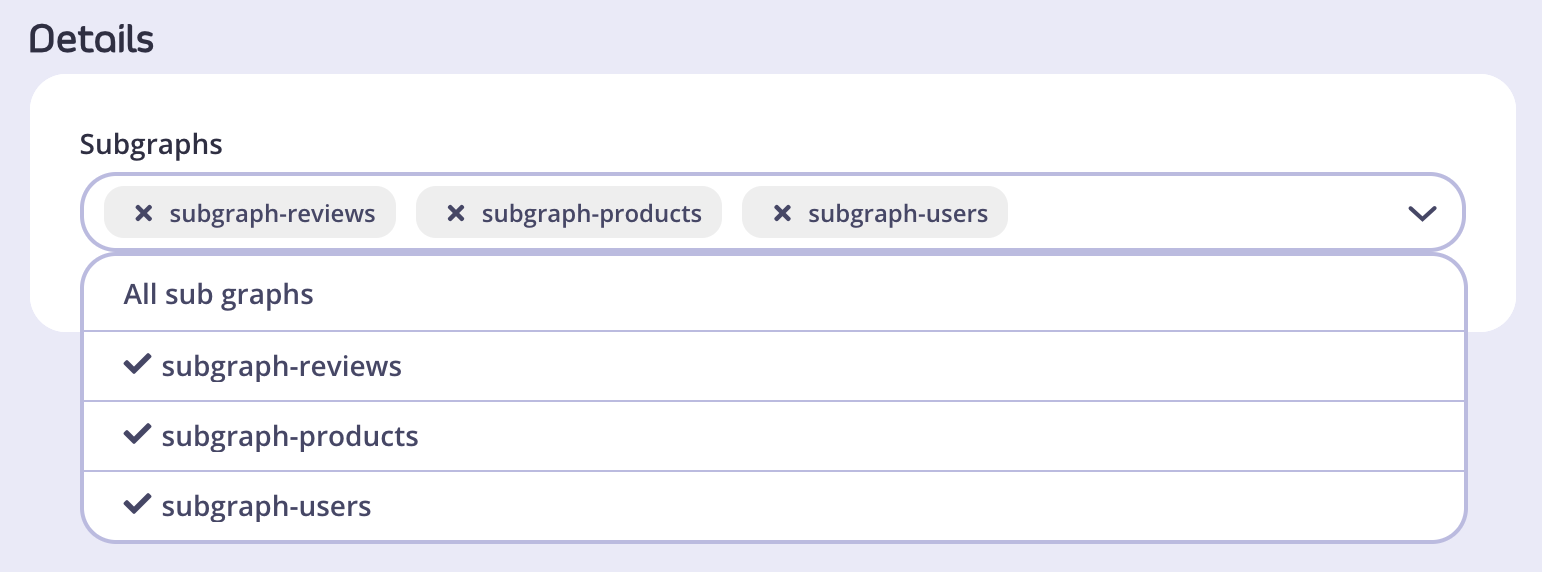 3. Go to Configure API and configure your supergraph just as you would any other API in Tyk.
4. Once you configure all the options, click Save. The supergraph is now available in your list of APIs.
3. Go to Configure API and configure your supergraph just as you would any other API in Tyk.
4. Once you configure all the options, click Save. The supergraph is now available in your list of APIs.
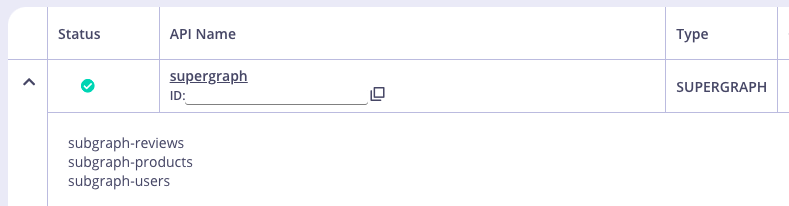 #### Defining Headers
In v4.0 you can define global (Supergraph) headers. Global headers are forwarded to all subgraphs that apply to the specific upstream request.
##### Setting a Global Header
1. After creating your supergraph, open the API in your Dashboard.
2. From the Subgraphs tab, click Global Headers.
#### Defining Headers
In v4.0 you can define global (Supergraph) headers. Global headers are forwarded to all subgraphs that apply to the specific upstream request.
##### Setting a Global Header
1. After creating your supergraph, open the API in your Dashboard.
2. From the Subgraphs tab, click Global Headers.
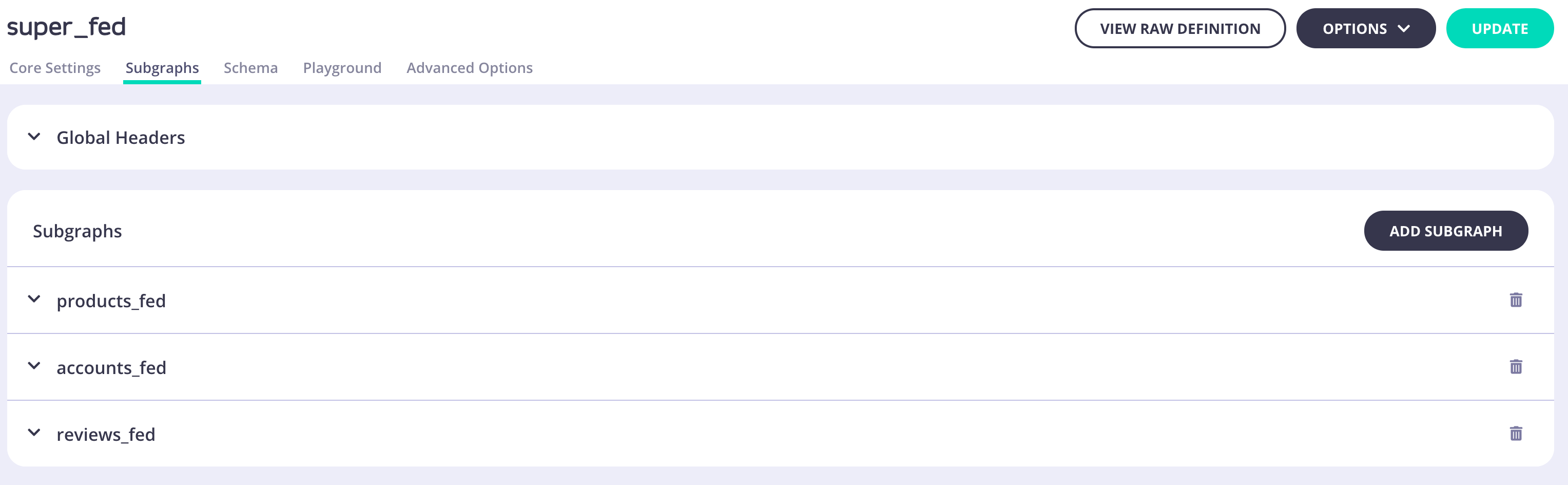 3. Enter your header name and value. You can add more headers by clicking Add Headers.
 4. Click **Update** to save the header.
5. On the pop-up that is displayed, click Update API.
6. If you want to delete a global header, click the appropriate bin icon for it.
7. You can update your headers by repeating steps 2-5.
### Entities
#### Defining the base entity
* Must be defined with the @key directive.
* The "fields" argument of the @key directive must reference a valid field that can uniquely identify the entity.
* Multiple primary keys are possible.
An example is provided below:
**Subgraph 1 (base entity)**
```graphql theme={null}
type MyEntity @key(fields: "id") @key(fields: "name") {
id: ID!
name: String!
}
```
#### Extending entities
Entities cannot be shared types (be defined in more than one single subgraph; see **Entity stubs** below).
The base entity remains unaware of fields added through extension; only the extension itself is aware of them.
Attempting to extend a non-entity with an extension that includes the @key directive or attempting to extend a base entity with an extension that does not include the @key directive will both result in errors.
The primary key reference should be listed as a field with the @external directive.
Below is an example extension for **MyEntity** (which was defined above in **Subgraph 1**):
**Subgraph 2 (extension):**
```graphql theme={null}
extend type MyEntity @key(fields: "id") {
id: ID! @external
newField: String!
}
```
#### Entity stubs
If one subgraph references a base entity (an entity defined in another subgraph) without adding new fields, that reference must be declared as a stub. In **federation v1**, stubs appear similar to extensions but do not add any new fields.
An entity stub contains the minimal amount of information necessary to identify the entity (referencing exactly one of the primary keys from the base entity regardless of whether there are multiple primary keys on the base entity).
The identifying primary key should feature the @external directive.
For example, a stub of **MyEntity** (which was defined above in **Subgraph 1**):
**Subgraph 3 (stub):**
```graphql theme={null}
extend type MyEntity @key(fields: "id") {
id: ID! @external
}
```
##### What is a shared type?
Types that are identical by name and structure and feature in more than one subgraph are shared types.
##### Can I extend a shared type?
Subgraphs are normalized before federation. This means you can extend a type if the resolution of the extension after normalization is exactly identical to the resolution of the type after normalization in other subgraphs.
Unless the resolution of the extension in a single subgraph is exactly identical to all other subgraphs, extension is not possible.
Here is a valid example where both subgraphs resolve to identical enums after normalization:
**Subgraph 1:**
```graphql theme={null}
enum Example {
A,
B
}
extend enum Example {
C
}
```
**Subgraph 2:**
```graphql theme={null}
enum Example {
A,
B,
C
}
```
Here, the enum named Example in **Subgraph 1** resolves to be identical to the enum named Example in **Subgraph 2**.
However, if we were to include **Subgraph 3**, which does not feature the “C” value, the enum is no longer identical in all 3 subgraphs. Consequently, federation would fail.
**Subgraph 3:**
```graphql theme={null}
enum Example {
A,
B
}
```
### Extension Orphans
#### What is an extension orphan?
An extension orphan is an unresolved extension of a type after federation has completed. This will cause federation to fail and produce an error.
#### How could an extension orphan occur?
You may extend a type within a subgraph where the base type (the original definition of that type) is in another subgraph. This means that it is only after the creation of the supergraph that it can be determined whether the extension was valid. If the extension was invalid or was otherwise unresolved, an “extension orphan” would remain in the supergraph.
For example, the type named Person does not need to be defined in **Subgraph 1**, but it must be defined in exactly one subgraph (see **Shared Types**: extension of shared types is not possible, so extending a type that is defined in multiple subgraphs will produce an error).
**Subgraph 1**
```graphql theme={null}
extend type Person {
name: String!
}
```
If the type named Person were not defined in exactly one subgraph, federation will fail and produce an error.
## GraphQL WebSockets
Tyk supports GraphQL via WebSockets using the protocols *graphql-transport-ws* or *graphql-ws* between client and Tyk Gateway.
Before this feature can be used, WebSockets need to be enabled in the Tyk Gateway configuration. To enable it set [http\_server\_options.enable\_websockets](/tyk-oss-gateway/configuration#http_server_options-enable_websockets) to `true` in your `tyk.conf` file.
4. Click **Update** to save the header.
5. On the pop-up that is displayed, click Update API.
6. If you want to delete a global header, click the appropriate bin icon for it.
7. You can update your headers by repeating steps 2-5.
### Entities
#### Defining the base entity
* Must be defined with the @key directive.
* The "fields" argument of the @key directive must reference a valid field that can uniquely identify the entity.
* Multiple primary keys are possible.
An example is provided below:
**Subgraph 1 (base entity)**
```graphql theme={null}
type MyEntity @key(fields: "id") @key(fields: "name") {
id: ID!
name: String!
}
```
#### Extending entities
Entities cannot be shared types (be defined in more than one single subgraph; see **Entity stubs** below).
The base entity remains unaware of fields added through extension; only the extension itself is aware of them.
Attempting to extend a non-entity with an extension that includes the @key directive or attempting to extend a base entity with an extension that does not include the @key directive will both result in errors.
The primary key reference should be listed as a field with the @external directive.
Below is an example extension for **MyEntity** (which was defined above in **Subgraph 1**):
**Subgraph 2 (extension):**
```graphql theme={null}
extend type MyEntity @key(fields: "id") {
id: ID! @external
newField: String!
}
```
#### Entity stubs
If one subgraph references a base entity (an entity defined in another subgraph) without adding new fields, that reference must be declared as a stub. In **federation v1**, stubs appear similar to extensions but do not add any new fields.
An entity stub contains the minimal amount of information necessary to identify the entity (referencing exactly one of the primary keys from the base entity regardless of whether there are multiple primary keys on the base entity).
The identifying primary key should feature the @external directive.
For example, a stub of **MyEntity** (which was defined above in **Subgraph 1**):
**Subgraph 3 (stub):**
```graphql theme={null}
extend type MyEntity @key(fields: "id") {
id: ID! @external
}
```
##### What is a shared type?
Types that are identical by name and structure and feature in more than one subgraph are shared types.
##### Can I extend a shared type?
Subgraphs are normalized before federation. This means you can extend a type if the resolution of the extension after normalization is exactly identical to the resolution of the type after normalization in other subgraphs.
Unless the resolution of the extension in a single subgraph is exactly identical to all other subgraphs, extension is not possible.
Here is a valid example where both subgraphs resolve to identical enums after normalization:
**Subgraph 1:**
```graphql theme={null}
enum Example {
A,
B
}
extend enum Example {
C
}
```
**Subgraph 2:**
```graphql theme={null}
enum Example {
A,
B,
C
}
```
Here, the enum named Example in **Subgraph 1** resolves to be identical to the enum named Example in **Subgraph 2**.
However, if we were to include **Subgraph 3**, which does not feature the “C” value, the enum is no longer identical in all 3 subgraphs. Consequently, federation would fail.
**Subgraph 3:**
```graphql theme={null}
enum Example {
A,
B
}
```
### Extension Orphans
#### What is an extension orphan?
An extension orphan is an unresolved extension of a type after federation has completed. This will cause federation to fail and produce an error.
#### How could an extension orphan occur?
You may extend a type within a subgraph where the base type (the original definition of that type) is in another subgraph. This means that it is only after the creation of the supergraph that it can be determined whether the extension was valid. If the extension was invalid or was otherwise unresolved, an “extension orphan” would remain in the supergraph.
For example, the type named Person does not need to be defined in **Subgraph 1**, but it must be defined in exactly one subgraph (see **Shared Types**: extension of shared types is not possible, so extending a type that is defined in multiple subgraphs will produce an error).
**Subgraph 1**
```graphql theme={null}
extend type Person {
name: String!
}
```
If the type named Person were not defined in exactly one subgraph, federation will fail and produce an error.
## GraphQL WebSockets
Tyk supports GraphQL via WebSockets using the protocols *graphql-transport-ws* or *graphql-ws* between client and Tyk Gateway.
Before this feature can be used, WebSockets need to be enabled in the Tyk Gateway configuration. To enable it set [http\_server\_options.enable\_websockets](/tyk-oss-gateway/configuration#http_server_options-enable_websockets) to `true` in your `tyk.conf` file.
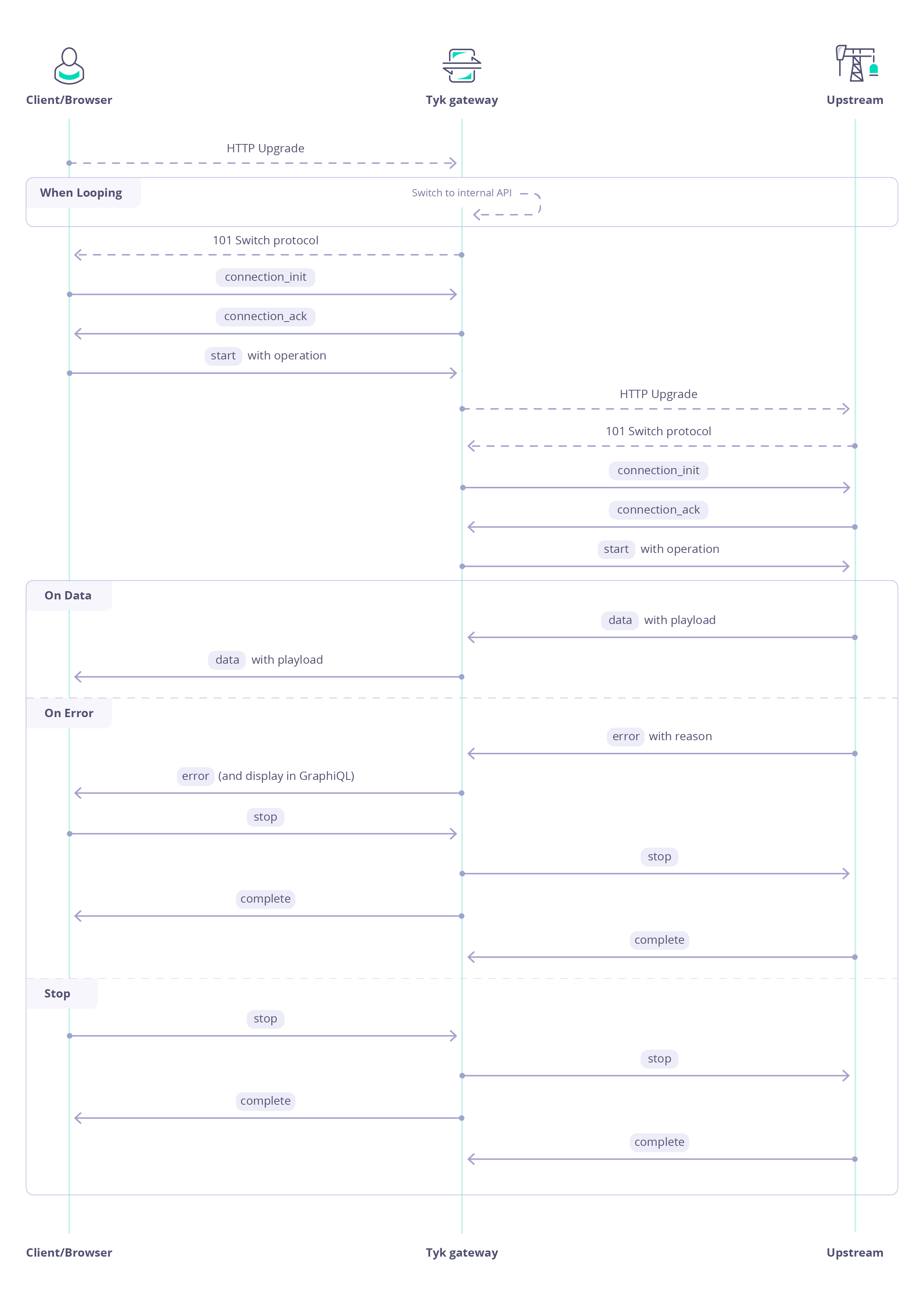 ## GraphQL playground
When you are creating or editing your GraphQL API, any change you make can be tested using Tyk Dashboard built-in GraphiQL Playground.
## GraphQL playground
When you are creating or editing your GraphQL API, any change you make can be tested using Tyk Dashboard built-in GraphiQL Playground.
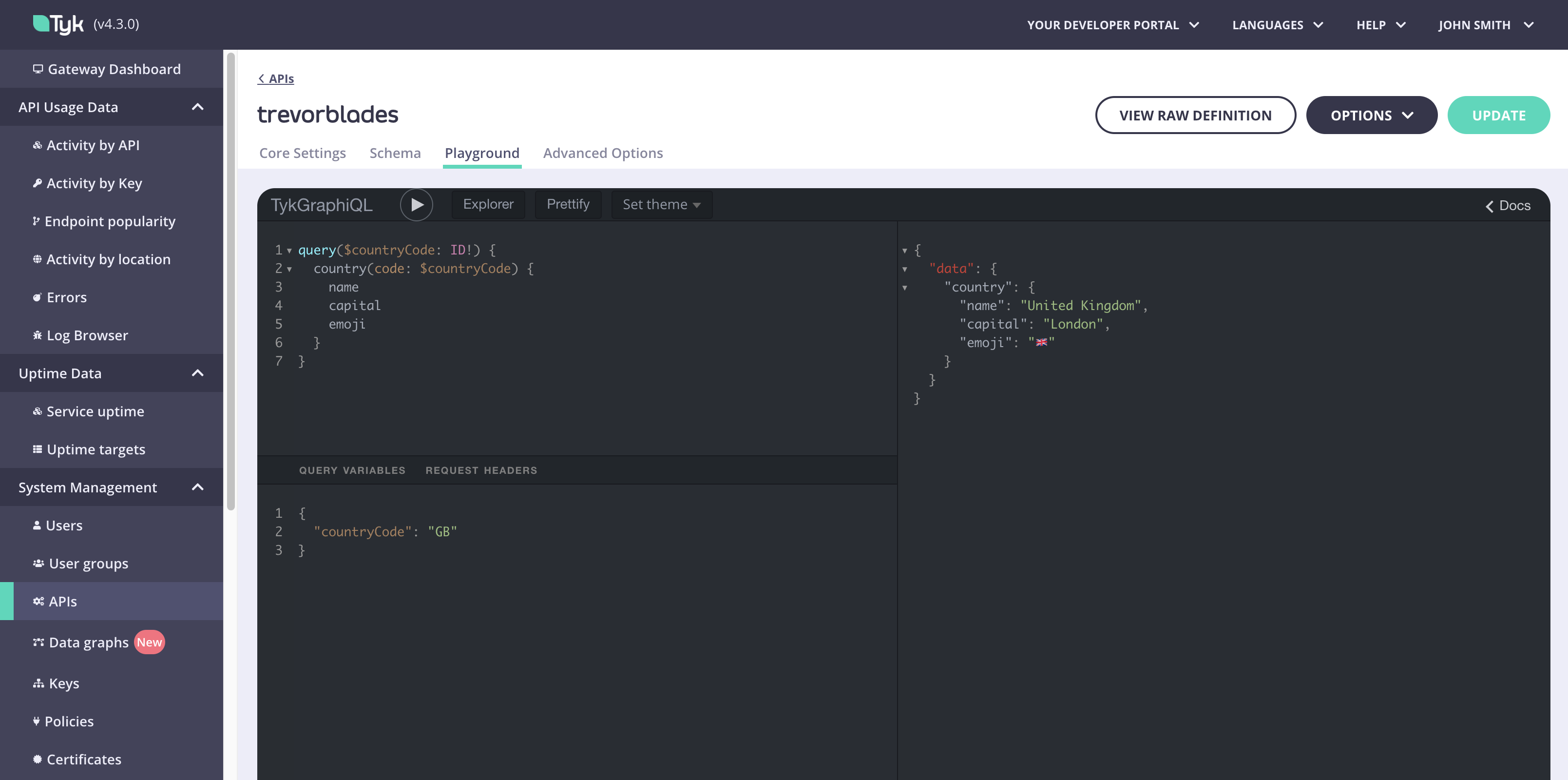 At the top of the Playground itself, you can switch between Dark and Light theme using the `Set theme` dropdown.
There's also a built in `Explorer` to help with query building and a `Prettify` button that helps to make the typed out operation easier to read.
The GraphiQL try-out playground comes with a series of features by default, which can be very useful while configuring the API:
1. Syntax highlighting.
2. Intelligent type ahead of fields, arguments, types, and more.
3. Real-time error highlighting and reporting for queries and variables.
4. Automatic query and variables completion.
5. Automatically adds required fields to queries.
6. Documentation explorer, search, with markdown support.
7. Query History using local storage
8. Run and inspect query results using any promise that resolves JSON results. 9. HTTPS or WSS not required.
9. Supports full GraphQL Language Specification: Queries, Mutations, Subscriptions, Fragments, Unions, directives, multiple operations per query, etc
### GraphQL Playgrounds in Tyk
Tyk offers you two types of Playgrounds, depending on who should be authorized to use them.
* **Playground** tab in `API Designer`, that's only accessible via Tyk Dashboard and is always enabled. You need to log into the Tyk Dashboard to be able to use it.
* **Public Playground** that you can enable for any GraphQL API and that is accessible for any consumer interacting with your GQL API. This playground will follow all security rules you set for your GQL API - authentication, authorization, etc.
At the top of the Playground itself, you can switch between Dark and Light theme using the `Set theme` dropdown.
There's also a built in `Explorer` to help with query building and a `Prettify` button that helps to make the typed out operation easier to read.
The GraphiQL try-out playground comes with a series of features by default, which can be very useful while configuring the API:
1. Syntax highlighting.
2. Intelligent type ahead of fields, arguments, types, and more.
3. Real-time error highlighting and reporting for queries and variables.
4. Automatic query and variables completion.
5. Automatically adds required fields to queries.
6. Documentation explorer, search, with markdown support.
7. Query History using local storage
8. Run and inspect query results using any promise that resolves JSON results. 9. HTTPS or WSS not required.
9. Supports full GraphQL Language Specification: Queries, Mutations, Subscriptions, Fragments, Unions, directives, multiple operations per query, etc
### GraphQL Playgrounds in Tyk
Tyk offers you two types of Playgrounds, depending on who should be authorized to use them.
* **Playground** tab in `API Designer`, that's only accessible via Tyk Dashboard and is always enabled. You need to log into the Tyk Dashboard to be able to use it.
* **Public Playground** that you can enable for any GraphQL API and that is accessible for any consumer interacting with your GQL API. This playground will follow all security rules you set for your GQL API - authentication, authorization, etc.
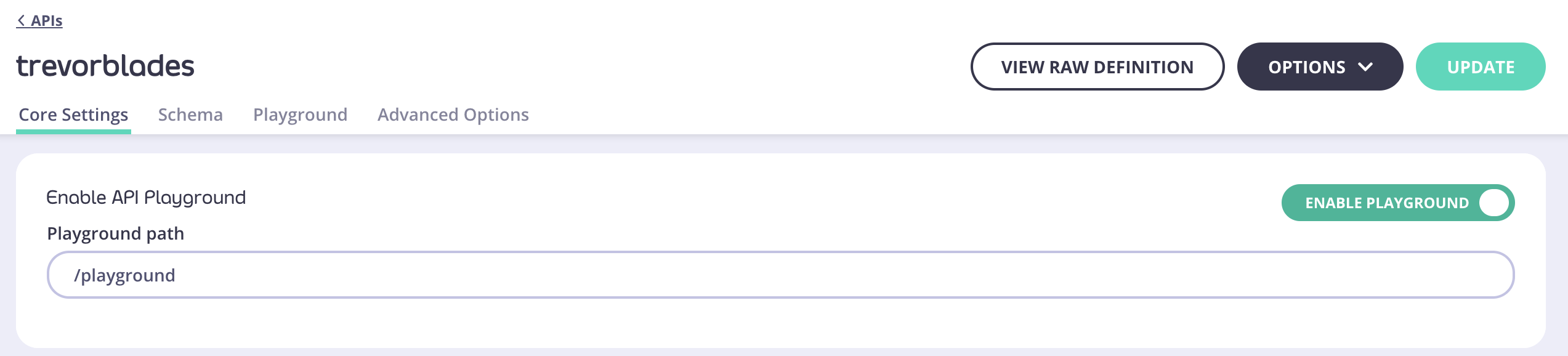 Your `Public Playground` will be available at `http://{API-URL}/playground`.
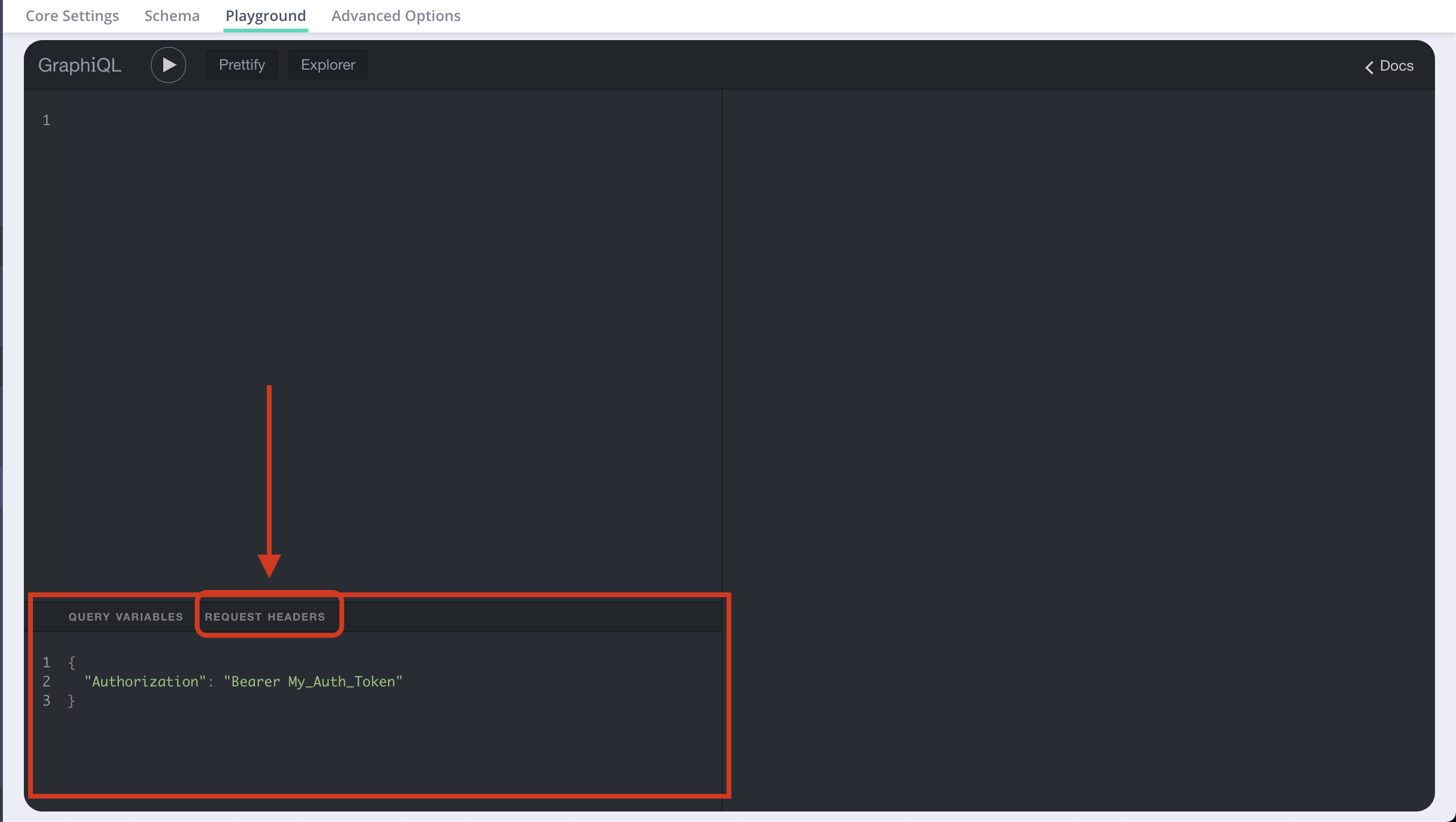 You can also [forward headers](/api-management/graphql#graphql-apis-headers) from your client request to the upstream data sources.
#### Logs
You can also [forward headers](/api-management/graphql#graphql-apis-headers) from your client request to the upstream data sources.
#### Logs
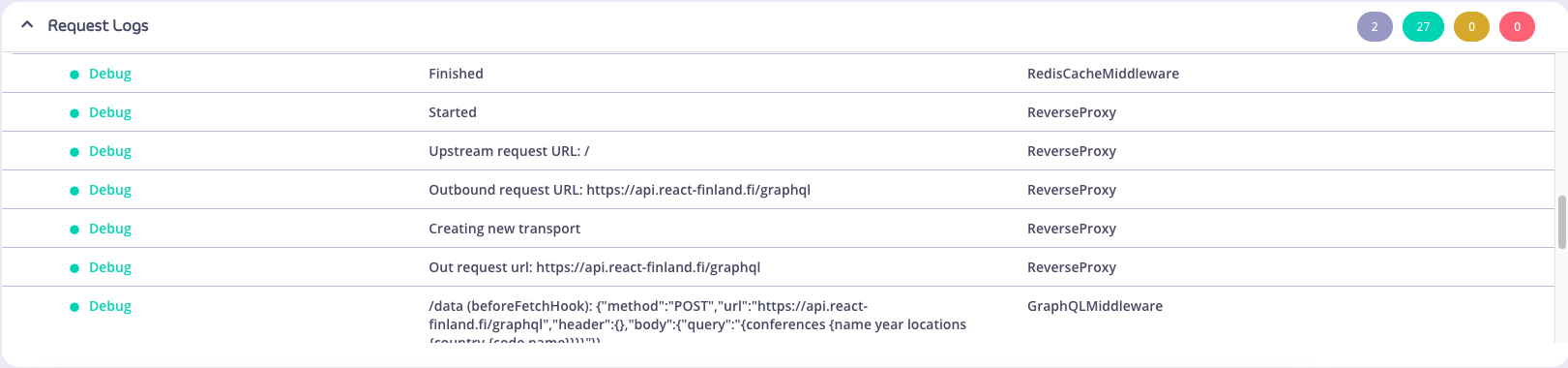 The Request Logs can be seen under the playground itself. When no logs are present, there will be no option to expand the logs, and the filter buttons (top right) will be disabled:
 After creating and sending a query, the logs will automatically expand, and the filter buttons will display the number of logs for its respective level (category).
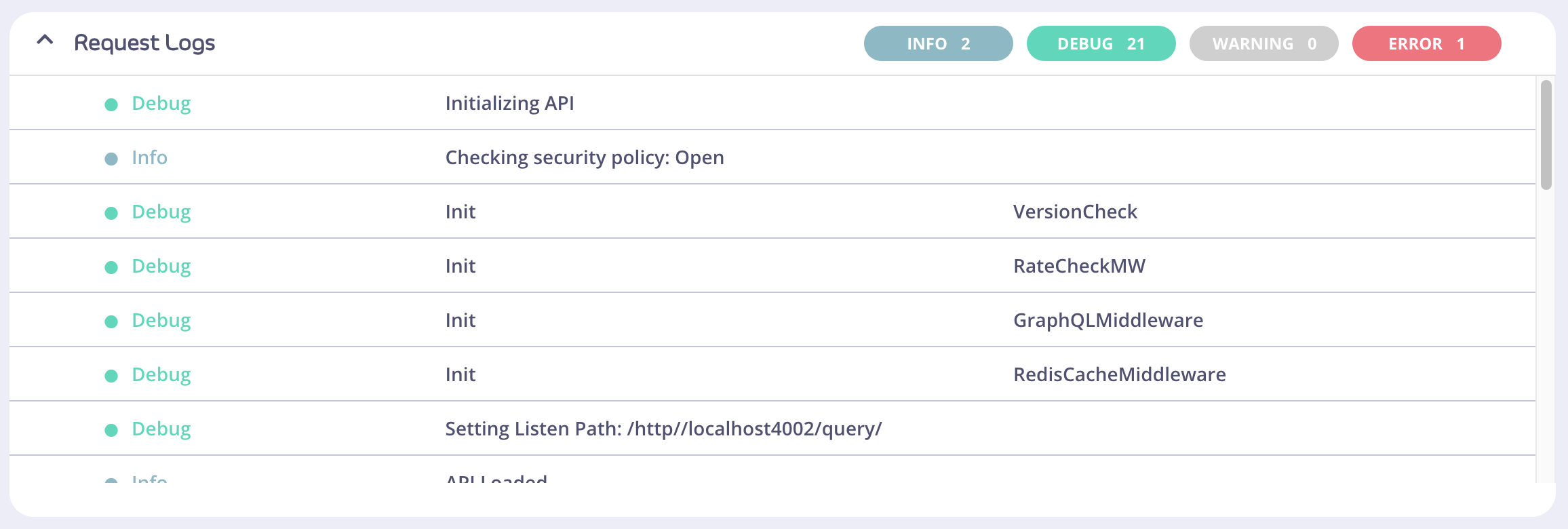 ##### Contents of the logs
There are four levels (categories) of logs: `Info`, `Debug`, `Warning`, and `Error`, and each log belongs to one of these levels.
The first column of the table displays the color-coded `“level”` property of the log. A log should never be absent of a level. The second column displays the log `“msg”` (message) property, if any. The third column displays the `“mw” `(middleware) property, if any.
##### Expansion/collapse of Request Logs
The Request Logs can be expanded or collapsed, using the chevron on the left side to toggle these states.
##### Filter buttons and states
Filter buttons have two states: active and inactive; the default of which is active. A solid background color of the button indicates that a filter is active.
In the below picture, the `info` and `error` filters buttons are both active. If there are no logs for a particular level of log, the button will appear as a gray and disabled, as shown by the `Warning` filter button.
##### Contents of the logs
There are four levels (categories) of logs: `Info`, `Debug`, `Warning`, and `Error`, and each log belongs to one of these levels.
The first column of the table displays the color-coded `“level”` property of the log. A log should never be absent of a level. The second column displays the log `“msg”` (message) property, if any. The third column displays the `“mw” `(middleware) property, if any.
##### Expansion/collapse of Request Logs
The Request Logs can be expanded or collapsed, using the chevron on the left side to toggle these states.
##### Filter buttons and states
Filter buttons have two states: active and inactive; the default of which is active. A solid background color of the button indicates that a filter is active.
In the below picture, the `info` and `error` filters buttons are both active. If there are no logs for a particular level of log, the button will appear as a gray and disabled, as shown by the `Warning` filter button.
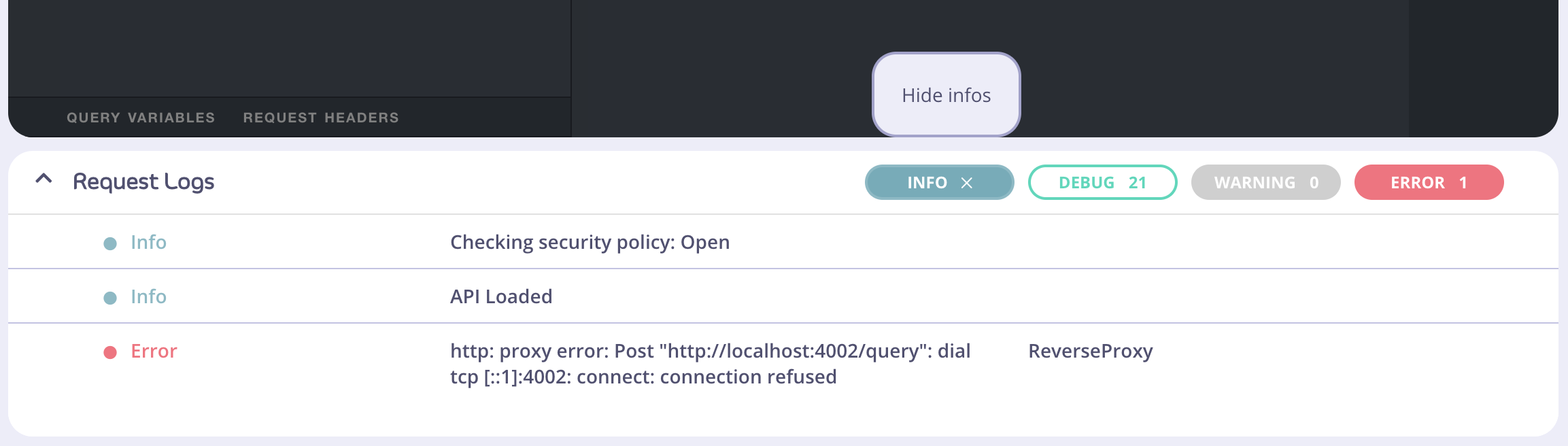 Here's an example where there is at least one log, but all the filter buttons are in the inactive state. If the cursor (not shown) hovers over an inactive filter button, the button background will change to solid, and the tooltip will display `“Show”`.
If all filter buttons are inactive, a message asking whether the user would like to reset all filters will display. Clicking this text will activate all available filters.
Here's an example where there is at least one log, but all the filter buttons are in the inactive state. If the cursor (not shown) hovers over an inactive filter button, the button background will change to solid, and the tooltip will display `“Show”`.
If all filter buttons are inactive, a message asking whether the user would like to reset all filters will display. Clicking this text will activate all available filters.
 ## Migrating to 3.2
As of 3.2 GraphQL schema for Tyk API definitions (i.e `api_definition.graphql`) changed significantly, hence GraphQL API definitions created in previous beta versions are not supported via the UI and need to go through a manual migration.
## Migrating to 3.2
As of 3.2 GraphQL schema for Tyk API definitions (i.e `api_definition.graphql`) changed significantly, hence GraphQL API definitions created in previous beta versions are not supported via the UI and need to go through a manual migration.