> ## Documentation Index
> Fetch the complete documentation index at: https://tyk.io/docs/llms.txt
> Use this file to discover all available pages before exploring further.
# Managing Tyk Classic API Definition
> A guide to managing Tyk Classic API definitions
export const ButtonLeft = ({href, color, content}) => {
const buttonStyle = {
display: 'inline-block',
padding: '5px 16px',
fontSize: '14px',
fontWeight: '500',
textDecoration: 'none',
borderRadius: '25px',
transition: 'all 0.2s ease',
cursor: 'pointer',
border: '1.2px solid black'
};
const colorStyles = {
green: {
backgroundColor: '#20EDBA',
color: 'black'
},
red: {
backgroundColor: '#dc2626',
color: 'white'
},
black: {
backgroundColor: '#1f2937',
color: 'white'
}
};
const hoverStyle = {
transform: 'translateY(-1px)',
boxShadow: '0 4px 8px rgba(0,0,0,0.15)'
};
const finalStyle = {
...buttonStyle,
...colorStyles[color] || colorStyles.black
};
return {
Object.assign(e.target.style, hoverStyle);
}} onMouseLeave={e => {
e.target.style.transform = 'translateY(0)';
e.target.style.boxShadow = 'none';
}}>
{content}
;
};
## Create an API
### What does it mean to create an API in Tyk
You have a running service with an API that you want your users to consume; you want to protect and manage access to that API using Tyk Gateway - how do you do that?
For Tyk Gateway to protect and [reverse proxy](https://en.wikipedia.org/wiki/Reverse_proxy) calls to your upstream service, you need to configure an API on Tyk Gateway. The minimum information that Tyk requires is the **listen path** (which is a path on the Tyk Gateway URL that you want your consumers to call) and your **API URL** (which is the URL of your service to which Tyk should forward requests).
This information and other configuration values are stored in an object called a *Tyk API Definition*. Once you have created your Tyk API Definition and deployed it in the Gateway, Tyk can start serving your consumers, forwarding their requests to your upstream service's API.
To reach a detailed guide to creating Tyk API Definitions, please choose the tab for the product you are using:
### Tyk Cloud
Tyk Cloud is a fully managed service that makes it easy for API teams to create, secure, publish and maintain APIs at any scale, anywhere in the world. Tyk Cloud includes everything you need to manage your global API ecosystem: [Tyk Gateways](/tyk-oss-gateway), [Tyk Dashboard](/api-management/dashboard-configuration), [Tyk Developer Portal](/portal/overview/intro) and [Universal Data Graph](/api-management/data-graph#overview).
To embark on your API journey with Tyk Cloud, we recommend going to our [Quick Start guide](/tyk-cloud#quick-start-tyk-cloud). This guide will walk you through the process of creating your very first API in Tyk Cloud.
For an advanced step by step guide we recommend visiting our [Getting Started guide](/tyk-cloud#comprehensive-tyk-cloud-setup). This will explain advanced configuration steps relating to how to distribute your API across nodes, in addition to adding and testing your API.
### Tyk Self-Managed
**Note: Integration with your OpenAPI documentation**
In Tyk v4.1 we introduced support for APIs defined according to the [OpenAPI Specification v3.0.3](https://spec.openapis.org/oas/v3.0.3) (OAS).\
This introduces a standard way to describe the vendor-agnostic elements of an API (the OpenAPI Definition, stored as an OpenAPI Document); we take this and add Tyk-specific configuration options to create the *Tyk OAS API Definition*. You can import your own OpenAPI document and Tyk will use this to generate the Tyk OAS API Definition.\
For a detailed tutorial on using OAS with Tyk Gateway, check out our guide to [creating a Tyk OAS API Definition](/api-management/gateway-config-managing-oas#creating-an-api).
**Prerequisites**
In order to complete this tutorial, you need to have [Tyk Self Managed installed](/tyk-self-managed/install).
#### Create an API with the Dashboard
We have a video walkthrough for creating an API and testing an endpoint via Postman.
We will use the Tyk Dashboard to create a very simple API that has no special elements set up.
1. **Select "APIs" from the "System Management" section**
2. **Click "ADD NEW API"**
3. **Set up the basic configuration of your API**
* In the **Overview** section, add a **Name** for your API and select the **Type** of API you wish to create. We will use HTTP for this tutorial.
* In the **Details** section, add the **Upstream URL**. This is the Target URL that hosts the service to which you want to proxy incoming requests. You can configure Tyk to perform round-robin load balancing between multiple upstream servers (Target URLs) by selecting **Enable round-robin load balancing**; see [Load Balancing](/planning-for-production/ensure-high-availability/load-balancing) for more details. For this tutorial, we will use a single upstream target: [http://httpbin.org](http://httpbin.org).
* Click **Configure API** when you have finished.
4. **Set up authentication for your API**
Take a look at the **Authentication** section:
You have the following options:
* **Authentication mode**: This is the method that Tyk should use to authenticate requests to call your API. Tyk supports several different authentication modes - see [Client Authentication](/api-management/client-authentication) for more details on securing your API. For this tutorial, you should select `Open (Keyless)`.
* **Strip Authorization Data**: Select this option to ensure that any security (authentication) tokens provided to authorize requests to your API on Tyk are not leaked to the upstream. You can leave this unchecked for this tutorial.
* **Auth Key Header Name**: The header parameter that will hold the authentication token (or key) for requests to this API; the default for this is `Authorization`.
* **Allow query parameter as well as header**: This option allows the authentication token to be set in the query parameter, not just in the Request Header. For this tutorial, leave this unchecked.
* **Use Cookie Value**: Tyk also supports the use of a cookie value as an alternative authentication token location. For this tutorial, leave this unchecked.
* **Enable client certificate**: Tyk supports the use of Mutual TLS to authenticate requests to your API; you would use this checkbox to enable this mode. See [Mutual TLS](/api-management/implement-tls#secure-hosted-apis-with-mtls) for details on implementing this feature. For this tutorial, leave this unchecked.
5. **Save the API**
Click **SAVE**
Once saved, you will be taken back to the API list, where your new API will be displayed.
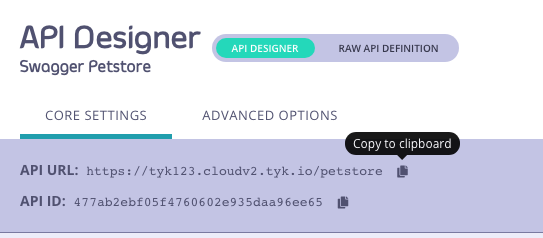
If you select the API from the list to open it again, the API URL will be displayed in the top of the editor. This is the URL that your consumers will need to call to invoke your API.
#### Create an API with the Dashboard API
It is easy to create APIs using Tyk Dashboard's own REST API.\
You will need an API key for your organization (to authenticate with the Dashboard API) and issue a request using these credentials to create your new API and make it live.
1. **Obtain your Tyk Dashboard API access credentials key & Dashboard URL**
* From the Tyk Dashboard, select "Users" in the "System Management" section.
* Click **Edit** for your username, then scroll to the bottom of the page.
* Your personal API key, granting you access to the Dashboard API, is labeled **Tyk Dashboard API Access Credentials** key
* Store your Dashboard Key, Dashboard URL & Gateway URL as environment variables so you don't need to keep typing them in
````bash theme={null}
export DASH_KEY=db8adec7615d40db6419a2e4688678e0
# Locally installed dashboard
export DASH_URL=http://localhost:3000/api
# Locally installed gateway
export GATEWAY_URL=http://localhost:8080
### Step 2: Query the `/api/apis` endpoint to see what APIs are loaded on the Gateway
```curl
curl -H "Authorization: ${DASH_KEY}" ${DASH_URL}/apis
{"apis":[],"pages":1}
````
As you've got a fresh install, you will see that no APIs currently exist
2. **Create your first API**
We've created a simple Tyk Classic API definition that configures the Tyk Gateway to reverse proxy to the [http://httpbin.org](http://httpbin.org)
request/response service. The API definition object is stored here: [https://bit.ly/2PdEHuv](https://bit.ly/2PdEHuv).
To load the API definition to the Gateway via the Dashboard API you issue this command:
```curl theme={null}
curl -H "Authorization: ${DASH_KEY}" -H "Content-Type: application/json" ${DASH_URL}/apis \
-d "$(wget -qO- https://bit.ly/2PdEHuv)"
{"Status":"OK","Message":"API created","Meta":"5de83a40767e0271d024661a"}
```
**Important** Take note of the API ID returned in the `Meta` field - you will need it later as this is the Tyk Gateway's internal identifier for the new API.
```
export API_ID=5de83a40767e0271d024661a
```
3. **Test your new API**
You can now make a call to your new API as follows:
```curl theme={null}
curl ${GATEWAY_URL}/httpbin/get
{
"args": {},
"headers": {
"Accept": "*/*",
"Accept-Encoding": "gzip",
"Host": "httpbin.org",
"User-Agent": "curl/7.54.0"
},
"origin": "127.0.0.1, 188.220.131.154, 127.0.0.1",
"url": "https://httpbin.org/get"
}
```
We sent a request to the gateway on the listen path `/httpbin`. Using this path-based-routing, the gateway was able to identify the API the client intended to target.
The gateway stripped the listen path and reverse proxied the request to [http://httpbin.org/get](http://httpbin.org/get)
4. **Protect your API**
Let's grab the API definition we created before and store the output to a file locally.
```curl theme={null}
curl -s -H "Authorization: ${DASH_KEY}" -H "Content-Type: application/json" ${DASH_URL}/apis/${API_ID} | python -mjson.tool > api.httpbin.json
```
We can now edit the `api.httpbin.json` file we just created, and modify a couple of fields to enable authentication.
Change `use_keyless` from `true` to `false`.
Change `auth_configs.authToken.auth_header_name` to `apikey`.
**Note** Prior to \*\* Tyk v2.9.2\*\* `auth_configs.authToken.auth_header_name` was called `auth.auth_header_name`
Then send a `PUT` request back to Tyk Dashboard to update its configuration.
```curl theme={null}
curl -H "Authorization: ${DASH_KEY}" -H "Content-Type: application/json" ${DASH_URL}/apis/${API_ID} -X PUT -d "@api.httpbin.json"
{"Status":"OK","Message":"Api updated","Meta":null}
```
5. **Test your protected API**
First try sending a request without any credentials, as before:
```curl theme={null}
curl -I ${GATEWAY_URL}/httpbin/get
HTTP/1.1 401 Unauthorized
Content-Type: application/json
X-Generator: tyk.io
Date: Wed, 04 Dec 2019 23:35:34 GMT
Content-Length: 46
```
As you can see, you received an `HTTP 401 Unauthorized` response.
Now send a request with incorrect credentials:
```curl theme={null}
curl -I ${GATEWAY_URL}/httpbin/get -H 'apikey: somejunk'
HTTP/1.1 403 Forbidden
Content-Type: application/json
X-Generator: tyk.io
Date: Wed, 04 Dec 2019 23:36:16 GMT
Content-Length: 57
```
As you can see, you received an `HTTP 403 Forbidden` response.
Try sending another request, this time with a valid API key.
Congratulations - You have just created your first keyless API, then protected it using Tyk!
If the command succeeds, you will see:
```json theme={null}
{
"action": "added",
"key": "xxxxxxxxx",
"status": "ok"
}
```
**What did we just do?**
We just sent an API definition to the Tyk `/apis` endpoint. See [API definition objects](/api-management/gateway-config-tyk-classic) for details of all the available objects. These objects encapsulate all of the settings for an API within Tyk.
Want to learn more from one of our team of engineers?
### Tyk Open Source
**Note: Integration with your OpenAPI documentation**
In Tyk v4.1 we introduced support for APIs defined according to the [OpenAPI Specification v3.0.3](https://spec.openapis.org/oas/v3.0.3) (OAS).\
This introduces a standard way to describe the vendor-agnostic elements of an API (the OpenAPI Definition, stored as an OpenAPI Document); we take this and add Tyk-specific configuration options to create the *Tyk OAS API Definition*. You can import your own OpenAPI document and Tyk will use this to generate the Tyk OAS API Definition.\
For details on using Tyk OAS with Tyk Gateway, check out our guide to [working with Tyk OAS APIs](/api-management/gateway-config-managing-oas).
**Prerequisites**
Before you continue this tutorial, you will need a running [Tyk OSS gateway](/tyk-oss-gateway). Click the button for instructions on how to install Tyk Gateway:
#### Creating an API on Tyk Gateway
There are two ways to configure Tyk Gateway with an API definition:
1. [Create an API with the Tyk Gateway API](#using-tyk-gateway-api) - Tyk Gateway has its own APIs which provides various services including the registering of Tyk API Definitions on the Gateway.
2. [Create an API in File-based Mode](#create-an-api-in-file-based-mode) - alternatively you can create a Tyk API Definition in a file and then load it to the Gateway.
#### Using Tyk Gateway API
Watch our video to learn how to add an API to Tyk's Open Source Gateway using [Postman](https://www.postman.com/downloads/).
In order to use the Gateway API to create a Tyk API Definition you will need the API key for your deployment's Gateway API and then issue just one command to create the API and make it live.
1. **Make sure you know your API secret**
The API key to access your Tyk Gateway API is stored in your `tyk.conf` file; the property is called `secret`. You will need to provide this value in a header called `x-tyk-authorization` when making calls to the Gateway API.
2. **Create an API**
To create the API, let's send a Tyk API definition to the `/apis` endpoint on your Tyk Gateway. Remember to change the `x-tyk-authorization` value (API key) in the header of your API call and set the domain name and port to target your Tyk Gateway in the `curl` command.
```curl theme={null}
curl -v -H "x-tyk-authorization: {your-secret}" \
-s \
-H "Content-Type: application/json" \
-X POST \
-d '{
"name": "Hello-World",
"slug": "hello-world",
"api_id": "Hello-World",
"org_id": "1",
"use_keyless": true,
"auth": {
"auth_header_name": "Authorization"
},
"definition": {
"location": "header",
"key": "x-api-version"
},
"version_data": {
"not_versioned": true,
"versions": {
"Default": {
"name": "Default",
"use_extended_paths": true
}
}
},
"proxy": {
"listen_path": "/hello-world/",
"target_url": "http://httpbin.org",
"strip_listen_path": true
},
"active": true
}' http://{your-tyk-host}:{port}/tyk/apis | python -mjson.tool
```
If the command succeeds, you will see:
```json theme={null}
{
"key": "Hello-World",
"status": "ok",
"action": "added"
}
```
All APIs deployed on Tyk Gateway are given a unique `API ID`; if you don't provide one in the Tyk API Definition when creating the API, then an `API ID` will be generated automatically.
**What did we just do?**
We just registered a new API on your Tyk Gateway by sending a Tyk API definition to your Gateway's `/apis` endpoint.\
Tyk API definitions encapsulate all of the settings for an API within Tyk Gateway and are discussed in detail in the [API section](/api-management/gateway-config-tyk-classic) of this documentation.
**Restart or hot reload**
Once you have created the file, you will need to either restart the Tyk Gateway, or issue a hot reload command, lets do the latter:
```curl theme={null}
curl -H "x-tyk-authorization: {your-secret}" -s http://{your-tyk-host}:{port}/tyk/reload/group | python -mjson.tool
```
This command will hot-reload your API Gateway(s) and the new API will be loaded, if you take a look at the output of the Gateway (or the logs), you will see that it should have loaded Hello-World API on `/hello-world/`.
#### Create an API in File-based Mode
APIs created without API ID in file based mode are invalid.
To create a file-based API definition is very easy.
Create a file called `api1.json` and place it in the `/apps` folder of your Tyk Gateway installation (usually in `/var/tyk-gateway`), then add the following:
```json theme={null}
{
"name": "Test API",
"slug": "test-api",
"api_id": "1",
"org_id": "1",
"auth_configs": {
"authToken": {
"auth_header_name": "Authorization"
}
},
"definition": {
"location": "header",
"key": "x-api-version"
},
"version_data": {
"not_versioned": true,
"versions": {
"Default": {
"name": "Default",
"use_extended_paths": true
}
}
},
"proxy": {
"listen_path": "/test-api/",
"target_url": "http://httpbin.org/",
"strip_listen_path": true
},
"active": true
}
```
**Restart or hot reload**
Once you have created the file, you will need to either restart the Tyk Gateway, or issue a hot reload command, lets do the latter:
```curl theme={null}
curl -H "x-tyk-authorization: {your-secret}" -s https://{your-tyk-host}:{port}/tyk/reload/group | python -mjson.tool
```
This command will hot-reload your API Gateway(s) and the new API will be loaded, if you take a look at the output of the Gateway (or the logs), you will see that it should have loaded Test API on `/test-api/`.
Your API is now ready to use via the Gateway.
## Secure an API
A security policy encapsulates several options that can be applied to a key. It acts as a template that can override individual sections of an API key (or identity) in Tyk.
See [What is a Security Policy?](/api-management/policies) for more details.
### Tyk Cloud
A [Policy](/api-management/policies) encapsulates several options that can be applied to a key. It acts as a template that can override individual sections of an API key (or identity) in Tyk.
#### Create a Policy with the Dashboard
We have a video walkthrough for creating a Policy with the Dashboard.
To create a security policy with the Dashboard, follow these steps:
1. **Select "Policies" from the "System Management" section**
Your current policies will be displayed
2. **Click ADD POLICY**
3. **Select an API to apply the policy Access Rights to**
To select an API, you can either:
* Scroll through your API Name list
* Use the Search field
* You can also Group by Authentication Type to filter your APIs
* You can also Group by Category
All policies require a descriptive name, this helps you to reference it later, and it will appear in drop-down options where you can attach policies to objects such as Keys or OAuth client IDs.
4. **Setting Global Rate Limits and Quota**
These settings will be applied to all APIs that the policy is applied to. You can override these settings by turning **Set per API Rate Limits and Quota** on for the API you selected in Step 3. We will leave these settings at their default for this tutorial.
**Rate Limiting**
A rate limit is enforced on all keys, set the number of requests per second that a user of a key with this policy is allowed to use. See [Rate Limiting](/api-management/rate-limit#rate-limiting-layers) for more details. **Note: The Rate Limit set by a policy will override the limits applied to an individual key.**
**Throttling**
When hitting rate limits, you can set Tyk Gateway to automatically queue and auto-retry client requests. Throttling can be configured at a key or policy level. See [Request Throttling](/api-management/request-throttling) for more details.
**Usage Quotas**
Usage quotas limit the number of total requests a user is allowed to have over a longer period of time. So while a rate limit is a rolling window, a quota is an absolute maximum that a user is allowed to have over a week, a day or a month. See [Request Quotas](/api-management/request-quotas) for more details.
Usage quotas can only be a positive number, or -1 (unlimited). **Note: The Usage Quota set by a policy will override a quota applied to an individual key.**
**Policy Partitioning**
In some cases, the all-or-nothing approach of policies, where all the components of access control, quota and rate limit are set together isn’t ideal, and instead you may wish to have only one or two segments of a token managed at a policy level and other segments in another policy or on the key itself. We call this [Policy Partitioning](/api-management/access-control/policies/applying-policies#partitioned-policies).
###### Path Based Permissions
You can also use a security policy to apply restrictions on a particular path and method. Granular path control allows you to define which methods and paths a key is allowed to access on a per API-version basis. See the [Granular Endpoint Access](/api-management/access-control/sessions-and-keys/access-rights#granular-endpoint-access) documentation for more details
5. **Add Configuration Details**
You use the Configuration section to set the following:
1. Give your policy a name. This is a required setting
2. Set the policy state. You can set your policy to one of the following states:
* Active (the default)
* Draft
* Access Denied
3. Set a time after which any Keys subscribed to your policy expire. Select a value from the drop-down list. This is a required setting. See [Session Lifecycle](/api-management/access-control/sessions-and-keys/session-lifecycle) for more details.
4. Add Tags to your policy. Any tags you add can be used when filtering Analytics Data. Tags are case sensitive.
5. Add Metadata to your policy. Adding metadata such as User IDs can be used by middleware components. See [Session Metadata](/api-management/access-control/sessions-and-keys/understanding-sessions#metadata-and-context) for more details.
6. **Save the policy**
Click **CREATE** . Once the policy is saved, you will be able to use it when creating keys, OAuth clients and custom JWT tokens.
#### Create a security policy with the API
Security Policies can be created with a single call to the API. It is very similar to the token creation process. To generate a simple security policy using the Tyk Dashboard API you can use the following curl command:
```{.copyWrapper} theme={null}
curl -X POST -H "authorization: {API-TOKEN}" \
-s \
-H "Content-Type: application/json" \
-X POST \
-d '{
"access_rights": {
"{API-ID}": {
"allowed_urls": [],
"api_id": "{API-ID}",
"api_name": "{API-NAME}",
"versions": [
"Default"
]
}
},
"active": true,
"name": "POLICY NAME",
"rate": 100,
"per": 1,
"quota_max": 10000,
"quota_renewal_rate": 3600,
"state": "active",
"tags": ["Startup Users"]
}' https://admin.cloud.tyk.io/api/portal/policies | python -mjson.tool
```
You must replace:
* `{API-TOKEN}`: Your API Token for the Dashboard API.
* `{API-ID}`: The API ID you wish this policy to grant access to, there can be more than one of these entries.
* `{API-NAME}`: The name of the API that is being granted access to (this is not required, but helps when debugging or auditing).
* `POLICY NAME`: The name of this security policy.
The important elements:
* `access_rights`: A list of objects representing which APIs that you have configured to grant access to.
* `rate` and `per`: The number of requests to allow per period.
* `quota_max`: The maximum number of allowed requests over a quota period.
* `quota_renewal_rate`: how often the quota resets, in seconds. In this case we have set it to renew every hour.
* `state`: New from **v3.0**, this can be used instead of `active` and `is_inactive`. You can use the following values:
* `active` - all keys connected to the policy are active and new keys can be created
* `draft` - all keys connected to the policy are active but new keys cannot be created
* `deny` - all keys are deactivated and no keys can be created.
Setting a `state` value will automatically override the `active` or `is_inactive` setting.
When you send this request, you should see the following reply with your Policy ID:
```
{
"Message": "577a8589428a6b0001000017",
"Meta": null,
"Status": "OK"
}
```
You can then use this policy ID in the `apply_policy_id` field of an API token. Please see the relevant documentation on session objects for more information about how tokens are attached to policies.
`apply_policy_id` is supported, but has now been deprecated. `apply_policies` is now used to list your policy IDs as an array. This supports the **Multiple Policy** feature introduced in the **v2.4/1.4** release.
For more information on how Policies are constructed and applied to Sessions, please see the [Access Control](/api-management/access-control/overview) section.
### Tyk Self Manged
A [Policy](/api-management/policies) encapsulates several options that can be applied to a key. It acts as a template that can override individual sections of an API key (or identity) in Tyk.
#### Create a Policy with the Dashboard
We have a video walkthrough for creating a Policy with the Dashboard.
To create a security policy with the Dashboard, follow these steps:
1. **Select "Policies" from the "System Management" section**
Your current policies will be displayed
2. **Click ADD POLICY**
3. **Select an API to apply the policy Access Rights to**
To select an API, you can either:
* Scroll through your API Name list
* Use the Search field
* You can also Group by Authentication Type to filter your APIs
* You can also Group by Category
All policies require a descriptive name, this helps you to reference it later, and it will appear in drop-down options where you can attach policies to objects such as Keys or OAuth client IDs.
4. **Setting Global Rate Limits and Quota**
These settings will be applied to all APIs that the policy is applied to. You can override these settings by turning **Set per API Rate Limits and Quota** on for the API you selected in Step 3. We will leave these settings at their default for this tutorial.
**Rate Limiting**
A rate limit is enforced on all keys, set the number of requests per second that a user of a key with this policy is allowed to use. See [Rate Limiting](/api-management/rate-limit#rate-limiting-layers) for more details. **Note: The Rate Limit set by a policy will override the limits applied to an individual key.**
**Throttling**
When hitting rate limits, you can set Tyk Gateway to automatically queue and auto-retry client requests. Throttling can be configured at a key or policy level. See [Request Throttling](/api-management/request-throttling) for more details.
**Usage Quotas**
Usage quotas limit the number of total requests a user is allowed to have over a longer period of time. So while a rate limit is a rolling window, a quota is an absolute maximum that a user is allowed to have over a week, a day or a month. See [Request Quotas](/api-management/request-quotas) for more details.
Usage quotas can only be a positive number, or -1 (unlimited). **Note: The Usage Quota set by a policy will override a quota applied to an individual key.**
**Policy Partitioning**
In some cases, the all-or-nothing approach of policies, where all the components of access control, quota and rate limit are set together isn’t ideal, and instead you may wish to have only one or two segments of a token managed at a policy level and other segments in another policy or on the key itself. We call this [Policy Partitioning](/api-management/access-control/policies/applying-policies#partitioned-policies).
###### Path Based Permissions
You can also use a security policy to apply restrictions on a particular path and method. Granular path control allows you to define which methods and paths a key is allowed to access on a per API-version basis. See the [Granular Endpoint Access](/api-management/access-control/sessions-and-keys/access-rights#granular-endpoint-access) documentation for more details
5. **Add Configuration Details**
You use the Configuration section to set the following:
1. Give your policy a name. This is a required setting
2. Set the policy state. You can set your policy to one of the following states:
* Active (the default)
* Draft
* Access Denied
3. Set a time after which any Keys subscribed to your policy expire. Select a value from the drop-down list. This is a required setting. See [Session Lifecycle](/api-management/access-control/sessions-and-keys/session-lifecycle) for more details.
4. Add Tags to your policy. Any tags you add can be used when filtering Analytics Data. Tags are case sensitive.
5. Add Metadata to your policy. Adding metadata such as User IDs can be used by middleware components. See [Session Metadata](/api-management/access-control/sessions-and-keys/understanding-sessions#metadata-and-context) for more details.
6. **Save the policy**
Click **CREATE** . Once the policy is saved, you will be able to use it when creating keys, OAuth clients and custom JWT tokens.
#### Create a security policy with the API
Security Policies can be created with a single call to the API. It is very similar to the token creation process. To generate a simple security policy using the Tyk Dashboard API you can use the following curl command:
```{.copyWrapper} theme={null}
curl -X POST -H "authorization: {API-TOKEN}" \
-s \
-H "Content-Type: application/json" \
-X POST \
-d '{
"access_rights": {
"{API-ID}": {
"allowed_urls": [],
"api_id": "{API-ID}",
"api_name": "{API-NAME}",
"versions": [
"Default"
]
}
},
"active": true,
"name": "POLICY NAME",
"rate": 100,
"per": 1,
"quota_max": 10000,
"quota_renewal_rate": 3600,
"state": "active",
"tags": ["Startup Users"]
}' https://admin.cloud.tyk.io/api/portal/policies | python -mjson.tool
```
You must replace:
* `{API-TOKEN}`: Your API Token for the Dashboard API.
* `{API-ID}`: The API ID you wish this policy to grant access to, there can be more than one of these entries.
* `{API-NAME}`: The name of the API that is being granted access to (this is not required, but helps when debugging or auditing).
* `POLICY NAME`: The name of this security policy.
The important elements:
* `access_rights`: A list of objects representing which APIs that you have configured to grant access to.
* `rate` and `per`: The number of requests to allow per period.
* `quota_max`: The maximum number of allowed requests over a quota period.
* `quota_renewal_rate`: how often the quota resets, in seconds. In this case we have set it to renew every hour.
* `state`: New from **v3.0**, this can be used instead of `active` and `is_inactive`. You can use the following values:
* `active` - all keys connected to the policy are active and new keys can be created
* `draft` - all keys connected to the policy are active but new keys cannot be created
* `deny` - all keys are deactivated and no keys can be created.
Setting a `state` value will automatically override the `active` or `is_inactive` setting.
When you send this request, you should see the following reply with your Policy ID:
```
{
"Message": "577a8589428a6b0001000017",
"Meta": null,
"Status": "OK"
}
```
You can then use this policy ID in the `apply_policy_id` field of an API token. Please see the relevant documentation on session objects for more information about how tokens are attached to policies.
`apply_policy_id` is supported, but has now been deprecated. `apply_policies` is now used to list your policy IDs as an array. This supports the **Multiple Policy** feature introduced in the **v2.4/1.4** release.
For more information on how Policies are constructed and applied to Sessions, please see the [Access Control](/api-management/access-control/overview) section.
### Tyk Open Source
#### Create a Policy with the Gateway
Adding a policy to the Tyk Gateway is very easy. Polices are loaded into memory on load and so need to be specified in advanced in a file called `policies.json`. To add a policy, simply create or edit the `/policies/policies.json` file and add the policy object to the object array:
```json theme={null}
{
"POLICYID": {
"access_rights": {
"{API-ID}": {
"allowed_urls": [],
"api_id": "{API-ID}",
"api_name": "{API-NAME}",
"versions": [
"Default"
]
}
},
"active": true,
"name": "POLICY NAME",
"rate": 1000,
"per": 1,
"quota_max": 10000,
"quota_renewal_rate": 3600,
"tags": ["Startup Users"]
}
}
```
The above creates a new policy with a policy ID that you can define, with the rate limits, and security profile that grants access to the APIs listed in the `access_rights` section.
* `{API-ID}`: The API ID you wish this policy to grant access to, there can be more than one of these entries.
* `{API-NAME}`: The name of the API that is being granted access to (this is not required, but helps when debugging or auditing).
* `POLICY NAME`: The name of this security policy.
The important elements:
* `access_rights`: A list of objects representing which APIs that you have configured to grant access to.
* `rate` and `per`: The number of requests to allow per period.
* `quota_max`: The maximum number of allowed requests over a quota period.
* `quota_renewal_rate`: how often the quota resets, in seconds. In this case we have set it to renew every hour.
## Access an API
### Tyk Cloud
#### Create an API Key with the Dashboard
The Tyk Dashboard is the simplest way to generate a new Key.
We have a video walkthrough for creating an API Key.
1. **Select "Keys" from the "System Management" section**
2. **Click CREATE**
3. **Add a Policy or API to your Key**
You have the option to add your new key to either an existing Policy or an existing individual API. For this Tutorial we are going to use an API.
**Add an API to your Key**
To select an API, you can either:
* Scroll through your API Name list
* Use the Search field
* You can also Group by Authentication Type to filter your APIs
* You can also Group by Category
You can leave all other options at their default settings.
4. **Add Configuration Details**
You use the Configuration section to set the following:
1. Enable Detailed Logging. This is disabled by default and isn't required for this tutorial
2. Give your Key an Alias. This makes your key easier
3. Set an Expiry time after which the key will expire. Select a value from the drop-down list. This is a required setting. See [Key Expiry](/api-management/access-control/sessions-and-keys/session-lifecycle) for more details.
4. Add Tags to your policy. Any tags you add can be used when filtering Analytics Data. Tags are case sensitive.
5. Add Metadata to your policy. Adding metadata such as User IDs can be used by middleware components. See [Session Metadata](/api-management/access-control/sessions-and-keys/understanding-sessions#metadata-and-context) for more details.
5. **Click CREATE**
A **Key successfully generated** pop-up will be displayed with the key shown. You **must** save this somewhere for future reference as it will not be displayed again. Click **Copy to clipboard** and paste into a text document.
That's it, you've created a key - now you can try and use it.
#### Create an API Key with the API
To create an API key, you will need the API ID that we wish to grant the key access to. Creating the token is then an API call to the endpoint.
You will also need your own API Key, to get these values:
1. Select **Users** from the **System Management** section.
2. In the users list, click **Edit** for your user.
3. The API key is the **Tyk Dashboard API Access Credentials**, copy this somewhere you can reference it.
4. Select **APIs** from the **System Management** section.
5. From the **Actions** menu for your API, select Copy API ID
Once you have these values, you can use them to access the Dashboard API, the below `curl` command will generate a key for one of your APIs:
1. Replace the `authorization` header value with your Tyk Dashboard API Access Credentials
2. Replace the API ID (`ad5004d961a147d4649fd3216694ebe2`) with your API ID
3. It's recommended to validate the JSON using JSON validator to avoid any `malformed input` error
```{.copyWrapper} theme={null}
curl -X POST -H "authorization: 1238b7e0e2ff4c2957321724409ee2eb" \
-s \
-H "Content-Type: application/json" \
-X POST \
-d '{
"allowance": 1000,
"rate": 1000,
"per": 1,
"expires": -1,
"quota_max": -1,
"quota_renews": 1449051461,
"quota_remaining": -1,
"quota_renewal_rate": 60,
"access_rights": {
"ad5004d961a147d4649fd3216694ebe2": {
"api_id": "ad5004d961a147d4649fd3216694ebe2",
"api_name": "test-api",
"versions": ["Default"]
}
},
"meta_data": {}
}' https://admin.cloud.tyk.io/api/keys | python -mjson.tool
```
You will see a 200 response with your new key:
```yaml theme={null}
{
"api_model": {},
"key_id": "59bf9159adbab8abcdefghijac9299a1271641b94fbaf9913e0e048c",
"data": {...}
}
```
The value returned in the `key_id` parameter of the response is the access key you can now use to access the API that was specified in the `access_rights` section of the call.
### Tyk Self Managed
#### Create an API Key with the Dashboard
The Tyk Dashboard is the simplest way to generate a new Key.
We have a video walkthrough for creating an API Key.
1. **Select "Keys" from the "System Management" section**
2. **Click CREATE**
3. **Add a Policy or API to your Key**
You have the option to add your new key to either an existing Policy or an existing individual API. For this Tutorial we are going to use an API.
**Add an API to your Key**
To select an API, you can either:
* Scroll through your API Name list
* Use the Search field
* You can also Group by Authentication Type to filter your APIs
* You can also Group by Category
You can leave all other options at their default settings.
4. **Add Configuration Details**
You use the Configuration section to set the following:
1. Enable Detailed Logging. This is disabled by default and isn't required for this tutorial
2. Give your Key an Alias. This makes your key easier
3. Set an Expiry time after which the key will expire. Select a value from the drop-down list. This is a required setting. See [Key Expiry](/api-management/access-control/sessions-and-keys/session-lifecycle) for more details.
4. Add Tags to your policy. Any tags you add can be used when filtering Analytics Data. Tags are case sensitive.
5. Add Metadata to your policy. Adding metadata such as User IDs can be used by middleware components. See [Session Metadata](/api-management/access-control/sessions-and-keys/understanding-sessions#metadata-and-context) for more details.
5. **Click CREATE**
A **Key successfully generated** pop-up will be displayed with the key shown. You **must** save this somewhere for future reference as it will not be displayed again. Click **Copy to clipboard** and paste into a text document.
That's it, you've created a key - now you can try and use it.
#### Create an API Key with the API
To create an API key, you will need the API ID that we wish to grant the key access to. Creating the token is then an API call to the endpoint.
You will also need your own API Key, to get these values:
1. Select **Users** from the **System Management** section.
2. In the users list, click **Edit** for your user.
3. The API key is the **Tyk Dashboard API Access Credentials**, copy this somewhere you can reference it.
4. Select **APIs** from the **System Management** section.
5. From the **Actions** menu for your API, select Copy API ID
Once you have these values, you can use them to access the Dashboard API, the below `curl` command will generate a key for one of your APIs:
1. Replace the `authorization` header value with your Tyk Dashboard API Access Credentials
2. Replace the API ID (`ad5004d961a147d4649fd3216694ebe2`) with your API ID
3. It's recommended to validate the JSON using JSON validator to avoid any `malformed input` error
```{.copyWrapper} theme={null}
curl -X POST -H "authorization: 1238b7e0e2ff4c2957321724409ee2eb" \
-s \
-H "Content-Type: application/json" \
-X POST \
-d '{
"allowance": 1000,
"rate": 1000,
"per": 1,
"expires": -1,
"quota_max": -1,
"quota_renews": 1449051461,
"quota_remaining": -1,
"quota_renewal_rate": 60,
"access_rights": {
"ad5004d961a147d4649fd3216694ebe2": {
"api_id": "ad5004d961a147d4649fd3216694ebe2",
"api_name": "test-api",
"versions": ["Default"]
}
},
"meta_data": {}
}' https://admin.cloud.tyk.io/api/keys | python -mjson.tool
```
You will see a response with your new key:
```json theme={null}
{
"action": "create",
"key": "c2cb92a78f944e9a46de793fe28e847e",
"status": "ok"
}
```
The value returned in the `key` parameter of the response is the access key you can now use to access the API that was specified in the `access_rights` section of the call.
### Tyk Open Source
To create an API Key, you will need the API ID that we wish to grant the key access to, then creating the key is an API call to the endpoint.
**Prerequisite**
* You will need your API secret, this is the `secret` property of the `tyk.conf` file.
Once you have this value, you can use them to access the Gateway API, the below `curl` command will generate a key for one of your APIs, remember to replace `{API-SECRET}`, `{API-ID}` and `{API-NAME}` with the real values as well as the `curl` domain name and port to be the correct values for your environment.
```curl theme={null}
curl -X POST -H "x-tyk-authorization: {API-SECRET}" \
-s \
-H "Content-Type: application/json" \
-X POST \
-d '{
"allowance": 1000,
"rate": 1000,
"per": 1,
"expires": -1,
"quota_max": -1,
"org_id": "1",
"quota_renews": 1449051461,
"quota_remaining": -1,
"quota_renewal_rate": 60,
"access_rights": {
"{API-ID}": {
"api_id": "{API-ID}",
"api_name": "{API-NAME}",
"versions": ["Default"]
}
},
"meta_data": {}
}' http://localhost:8080/tyk/keys/create | python -mjson.tool
```
The above creates a new key with the rate limits, and security profile that grants access to the APIs listed in the `access_rights` section.
* `{API-ID}`: The API ID you wish this policy to grant access to, there can be more than one of these entries.
* `{API-NAME}`: The name of the API being granted access to (this is not required, but helps when debugging or auditing).
The important elements:
* `access_rights`: A list of objects representing which APIs you have configured to grant access to.
* `rate` and `per`: The number of allowed requests per period.
* `quota_max`: The maximum number of allowed requests over a quota period.
* `quota_renewal_rate`: how often the quota resets, in seconds. In this case, we have set it to renew every hour.
You will see a response with your new key:
```json theme={null}
{
"action": "create",
"key": "c2cb92a78f944e9a46de793fe28e847e",
"status": "ok"
}
```
The value returned in the `key` parameter of the response is the access key you can now use to access the API that was specified in the `access_rights` section of the call.
## Import an API
Tyk supports importing both API Blueprint and Swagger (OpenAPI) JSON definitions from either the Gateway or the Dashboard. Tyk will output the converted file to to `stdout`. Below are the commands you can use to get Tyk to switch to command mode and generate the respective API definitions for both API Blueprint and Swagger files.
### API Blueprint is being deprecated
Our support for API Blueprint is being deprecated. We have been packaging [aglio](https://github.com/danielgtaylor/aglio) in our Docker images for the Dashboard which enables rendering API Blueprint Format in the portal. This module is no longer maintained and is not compatible with newer NodeJS. If you wish to continue using this feature, you can do so by installing the module yourself in your Dockerfile. The imapct of this change is that our Docker images will no longer contain this functionality.
As a work around, you can do the following:
* Create API Blueprint in JSON format using the Apiary [Drafter](https://github.com/apiaryio/drafter) tool
* Convert API Blueprint to OpenAPI (Swagger) using the Apiary [API Elements CLI](https://github.com/apiaryio/api-elements.js/tree/master/packages/cli) tool.
### Using API Blueprint
See [note](#api-blueprint-is-being-deprecated) above regarding deprecation of support for API Blueprint.
Tyk supports an easy way to import Apiary API Blueprints in JSON format using the command line.
Blueprints can be imported and turned into standalone API definitions (for new APIs) and also imported as versions into existing APIs.
It is possible to import APIs and generate mocks or to generate Allow Lists that pass-through to an upstream URL.
All imported Blueprints must be in the JSON representation of Blueprint's markdown documents. This can be created using Apiary's [Snow Crash tool](https://github.com/apiaryio/snowcrash).
Tyk outputs all new API definitions to `stdout`, so redirecting the output to a file is advised in order to generate new definitions to use in a real configuration.
#### Importing a Blueprint as a new API:
Create a new definition from the Blueprint:
```{.copyWrapper} theme={null}
./tyk --import-blueprint=blueprint.json --create-api --org-id= --upstream-target="http://widgets.com/api/"
```
#### Importing a definition as a version in an existing API:
Add a version to a definition:
```{.copyWrapper} theme={null}
./tyk --import-blueprint=blueprint.json --for-api= --as-version="version_number"
```
#### Creating your API versions as a mock
As the API Blueprint definition allows for example responses to be embedded, these examples can be imported as forced replies, in effect mocking out the API. To enable this mode, when generating a new API or importing as a version, simply add the `--as-mock` parameter.
### Using Swagger (OpenAPI)
Tyk supports importing Swagger documents to create API definitions and API versions. Swagger imports do not support mocking though, so sample data and replies will need to be added manually later.
#### Importing a Swagger document as a new API
Create a new definition from Swagger:
```{.copyWrapper} theme={null}
./tyk --import-swagger=petstore.json --create-api --org-id= --upstream-target="http://widgets.com/api/"
```
When creating a new definition from an OAS 3.0 spec, you will have to manually add the listen path after the API is created.
#### Importing a Swagger document as a version into an existing API
Add a version to a definition:
```{.copyWrapper} theme={null}
./tyk --import-swagger=petstore.json --for-api= --as-version="version_number"
```
#### Mocks
Tyk supports API mocking using our versioning `use_extended_paths` setup, adding mocked URL data to one of the three list types (white\_list, black\_list or ignored). In order to handle a mocked path, use an entry that has `action` set to `reply`:
```json theme={null}
"ignored": [
{
"path": "/v1/ignored/with_id/{id}",
"method_actions": {
"GET": {
"action": "reply",
"code": 200,
"data": "Hello World",
"headers": {
"x-tyk-override": "tyk-override"
}
}
}
}
],
```
See [Versioning](/api-management/gateway-config-tyk-classic#tyk-classic-api-versioning) for more details.
### Import APIs via the Dashboard API
### Import API - Swagger
| **Property** | **Description** |
| :----------- | :--------------------- |
| Resource URL | `/api/import/swagger/` |
| Method | POST |
| Type | None |
| Body | None |
| Param | None |
#### Sample Request
```{.json} theme={null}
POST /api/import/swagger/
Host: localhost:3000
authorization:7a7b140f-2480-4d5a-4e78-24049e3ba7f8
{
"swagger": "{swagger data...}",
"insert_into_api": false,
"api_id": "internal API id",
"version_name": "yourversionname",
"upstream_url": "yourupstreamurl"
}
```
Parameters:
* `insert_into_api`: If set to `true` the import will replace an existing API. Setting to `false` will import into a new API.
* `api_id`: The internal MongoDB object id for your API.
* `version_name`: Your versioning convention name for the imported API.
* `upstream_url`: The URL the API is served by.
#### Sample Response
```
{
"Status": "OK",
"Message": "API Imported",
"Meta": "new_api_id"
}
```
### Import API - Blueprint
| **Property** | **Description** |
| :----------- | :----------------------- |
| Resource URL | `/api/import/blueprint/` |
| Method | POST |
| Type | None |
| Body | None |
| Param | None |
#### Sample Request
```{.json} theme={null}
POST /api/import/blueprint/
Host: localhost:3000
authorization:7a7b140f-2480-4d5a-4e78-24049e3ba7f8
{
"blueprint": "{blueprint data...}",
"insert_into_api": false,
"api_id": "internal API id",
"as_mock": false,
"version_name": "yourversionname",
"upstream_url": "yourupstreamurl"
}
```
Parameters:
* `insert_into_api`: If set to `true` the import will replace an existing API. Setting to `false` will import into a new API.
* `api_id`: The internal MongoDB object id for your API.
* `as_mock`: If set to true, enables our mocking support for Blueprint imported API. See **Mocks** above for more details.
* `version_name`: Your versioning convention name for the imported API.
* `upstream_url`: The URL the API is served by.
#### Sample Response
```
{
"Status": "OK",
"Message": "API Imported",
"Meta": "new_api_id"
}
```
### Import APIs via the Dashboard UI
1. **Select "APIs" from the "System Management" section**
2. **Click "IMPORT API"**
Tyk supports the following import options:
1. From an Existing Tyk API definition
2. From a Apiary Blueprint (JSON) file
3. From a Swagger/OpenAPI (JSON only) file
4. From a SOAP WSDL definition file (new from v1.9)
To import a Tyk Definition, just copy and paste the definition into the code editor.
For Apiary Blueprint and Swagger/OpenAPI, the process is the same. For example:
Click the "From Swagger (JSON)" option from the pop-up
For WSDL:
3. **Enter API Information**
You need to enter the following information:
* Your **Upstream Target**
* A **Version Name** (optional)
* An optional **Service Name** and **Port** (WSDL only)
* Copy code into the editor
4. **Click "Generate API"**
Your API will appear in your APIs list. If you select **EDIT** from the **ACTIONS** drop-down list, you can see the endpoints (from the [Endpoint Designer](/api-management/dashboard-configuration#exploring-api-endpoint-designer)) that have been created as part of the import process.
### Creating a new API Version by importing an API Definition using Tyk Dashboard
As well as importing new APIs, with Tyk, you can also use import to create a new version of an existing Tyk Classic API.
1. Open the API Designer page and select Import Version from the **Options** drop-down.
2. Select either OpenAPI (v2.0 or 3.0) or WSDL/XML as your source API
3. You need to add a new **API Version Name**. **Upstream URL** is optional.
4. Click **Import API**.
5. Select the **Versions** tab and your new version will be available.
6. Open the **Endpoint Designer** for your API and select your new version from **Edit Version**.
7. You will see all the endpoints are saved for your new version.
##### Import from an OpenAPI v2.0 Document
1. From the Import API screen, select OpenAPI.
2. Paste your OAS v2.0 compliant definition into the code editor.
3. Note that the Dashboard has detected that an OAS v2.0 definition has been imported and you need to specify an upstream URL field to proceed.
4. Click **Import API**.
Your API will be added to your list of APIs.
 3. **Set up the basic configuration of your API**
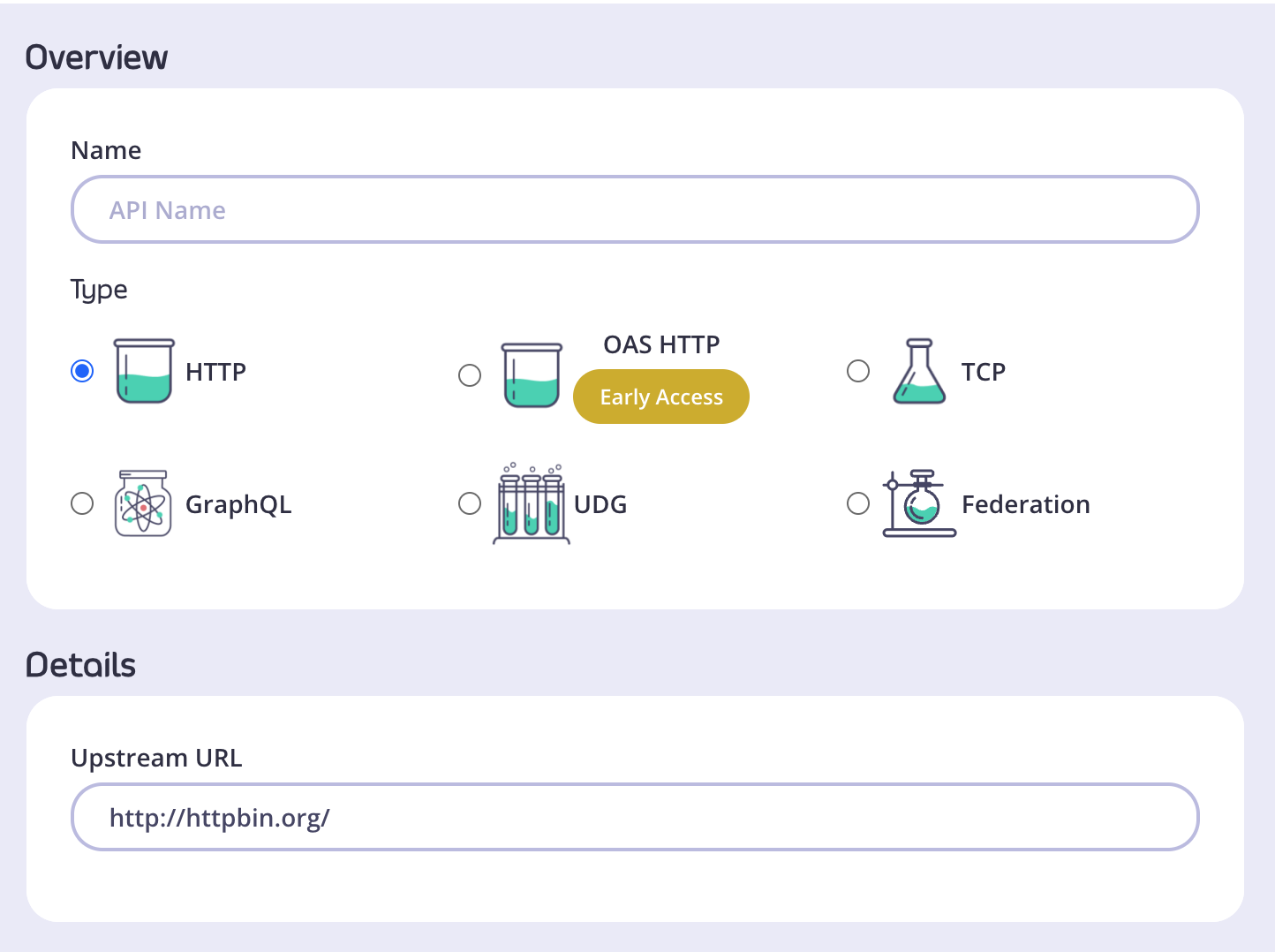 * In the **Overview** section, add a **Name** for your API and select the **Type** of API you wish to create. We will use HTTP for this tutorial.
* In the **Details** section, add the **Upstream URL**. This is the Target URL that hosts the service to which you want to proxy incoming requests. You can configure Tyk to perform round-robin load balancing between multiple upstream servers (Target URLs) by selecting **Enable round-robin load balancing**; see [Load Balancing](/planning-for-production/ensure-high-availability/load-balancing) for more details. For this tutorial, we will use a single upstream target: [http://httpbin.org](http://httpbin.org).
* Click **Configure API** when you have finished.
4. **Set up authentication for your API**
Take a look at the **Authentication** section:
* In the **Overview** section, add a **Name** for your API and select the **Type** of API you wish to create. We will use HTTP for this tutorial.
* In the **Details** section, add the **Upstream URL**. This is the Target URL that hosts the service to which you want to proxy incoming requests. You can configure Tyk to perform round-robin load balancing between multiple upstream servers (Target URLs) by selecting **Enable round-robin load balancing**; see [Load Balancing](/planning-for-production/ensure-high-availability/load-balancing) for more details. For this tutorial, we will use a single upstream target: [http://httpbin.org](http://httpbin.org).
* Click **Configure API** when you have finished.
4. **Set up authentication for your API**
Take a look at the **Authentication** section:
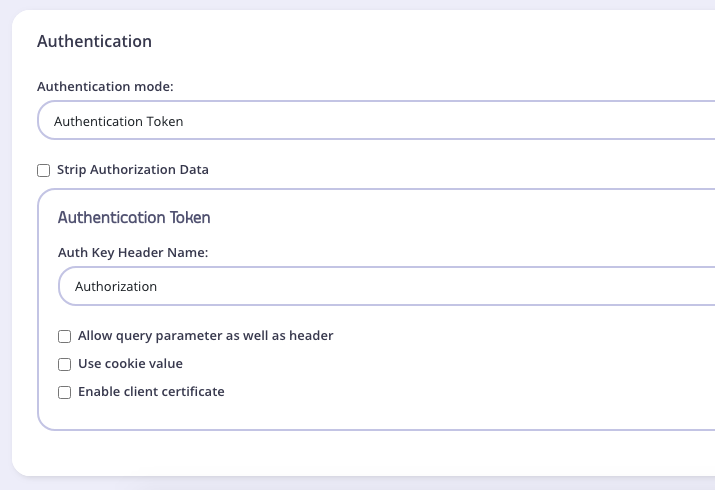 You have the following options:
* **Authentication mode**: This is the method that Tyk should use to authenticate requests to call your API. Tyk supports several different authentication modes - see [Client Authentication](/api-management/client-authentication) for more details on securing your API. For this tutorial, you should select `Open (Keyless)`.
* **Strip Authorization Data**: Select this option to ensure that any security (authentication) tokens provided to authorize requests to your API on Tyk are not leaked to the upstream. You can leave this unchecked for this tutorial.
* **Auth Key Header Name**: The header parameter that will hold the authentication token (or key) for requests to this API; the default for this is `Authorization`.
* **Allow query parameter as well as header**: This option allows the authentication token to be set in the query parameter, not just in the Request Header. For this tutorial, leave this unchecked.
* **Use Cookie Value**: Tyk also supports the use of a cookie value as an alternative authentication token location. For this tutorial, leave this unchecked.
* **Enable client certificate**: Tyk supports the use of Mutual TLS to authenticate requests to your API; you would use this checkbox to enable this mode. See [Mutual TLS](/api-management/implement-tls#secure-hosted-apis-with-mtls) for details on implementing this feature. For this tutorial, leave this unchecked.
5. **Save the API**
Click **SAVE**
You have the following options:
* **Authentication mode**: This is the method that Tyk should use to authenticate requests to call your API. Tyk supports several different authentication modes - see [Client Authentication](/api-management/client-authentication) for more details on securing your API. For this tutorial, you should select `Open (Keyless)`.
* **Strip Authorization Data**: Select this option to ensure that any security (authentication) tokens provided to authorize requests to your API on Tyk are not leaked to the upstream. You can leave this unchecked for this tutorial.
* **Auth Key Header Name**: The header parameter that will hold the authentication token (or key) for requests to this API; the default for this is `Authorization`.
* **Allow query parameter as well as header**: This option allows the authentication token to be set in the query parameter, not just in the Request Header. For this tutorial, leave this unchecked.
* **Use Cookie Value**: Tyk also supports the use of a cookie value as an alternative authentication token location. For this tutorial, leave this unchecked.
* **Enable client certificate**: Tyk supports the use of Mutual TLS to authenticate requests to your API; you would use this checkbox to enable this mode. See [Mutual TLS](/api-management/implement-tls#secure-hosted-apis-with-mtls) for details on implementing this feature. For this tutorial, leave this unchecked.
5. **Save the API**
Click **SAVE**
 Once saved, you will be taken back to the API list, where your new API will be displayed.
If you select the API from the list to open it again, the API URL will be displayed in the top of the editor. This is the URL that your consumers will need to call to invoke your API.
Once saved, you will be taken back to the API list, where your new API will be displayed.
If you select the API from the list to open it again, the API URL will be displayed in the top of the editor. This is the URL that your consumers will need to call to invoke your API.
 #### Create an API with the Dashboard API
It is easy to create APIs using Tyk Dashboard's own REST API.\
You will need an API key for your organization (to authenticate with the Dashboard API) and issue a request using these credentials to create your new API and make it live.
1. **Obtain your Tyk Dashboard API access credentials key & Dashboard URL**
* From the Tyk Dashboard, select "Users" in the "System Management" section.
* Click **Edit** for your username, then scroll to the bottom of the page.
* Your personal API key, granting you access to the Dashboard API, is labeled **Tyk Dashboard API Access Credentials** key
#### Create an API with the Dashboard API
It is easy to create APIs using Tyk Dashboard's own REST API.\
You will need an API key for your organization (to authenticate with the Dashboard API) and issue a request using these credentials to create your new API and make it live.
1. **Obtain your Tyk Dashboard API access credentials key & Dashboard URL**
* From the Tyk Dashboard, select "Users" in the "System Management" section.
* Click **Edit** for your username, then scroll to the bottom of the page.
* Your personal API key, granting you access to the Dashboard API, is labeled **Tyk Dashboard API Access Credentials** key
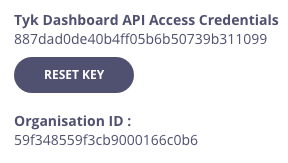 * Store your Dashboard Key, Dashboard URL & Gateway URL as environment variables so you don't need to keep typing them in
````bash theme={null}
export DASH_KEY=db8adec7615d40db6419a2e4688678e0
# Locally installed dashboard
export DASH_URL=http://localhost:3000/api
# Locally installed gateway
export GATEWAY_URL=http://localhost:8080
### Step 2: Query the `/api/apis` endpoint to see what APIs are loaded on the Gateway
```curl
curl -H "Authorization: ${DASH_KEY}" ${DASH_URL}/apis
{"apis":[],"pages":1}
````
As you've got a fresh install, you will see that no APIs currently exist
2. **Create your first API**
We've created a simple Tyk Classic API definition that configures the Tyk Gateway to reverse proxy to the [http://httpbin.org](http://httpbin.org)
request/response service. The API definition object is stored here: [https://bit.ly/2PdEHuv](https://bit.ly/2PdEHuv).
To load the API definition to the Gateway via the Dashboard API you issue this command:
```curl theme={null}
curl -H "Authorization: ${DASH_KEY}" -H "Content-Type: application/json" ${DASH_URL}/apis \
-d "$(wget -qO- https://bit.ly/2PdEHuv)"
{"Status":"OK","Message":"API created","Meta":"5de83a40767e0271d024661a"}
```
**Important** Take note of the API ID returned in the `Meta` field - you will need it later as this is the Tyk Gateway's internal identifier for the new API.
```
export API_ID=5de83a40767e0271d024661a
```
3. **Test your new API**
You can now make a call to your new API as follows:
```curl theme={null}
curl ${GATEWAY_URL}/httpbin/get
{
"args": {},
"headers": {
"Accept": "*/*",
"Accept-Encoding": "gzip",
"Host": "httpbin.org",
"User-Agent": "curl/7.54.0"
},
"origin": "127.0.0.1, 188.220.131.154, 127.0.0.1",
"url": "https://httpbin.org/get"
}
```
We sent a request to the gateway on the listen path `/httpbin`. Using this path-based-routing, the gateway was able to identify the API the client intended to target.
The gateway stripped the listen path and reverse proxied the request to [http://httpbin.org/get](http://httpbin.org/get)
4. **Protect your API**
Let's grab the API definition we created before and store the output to a file locally.
```curl theme={null}
curl -s -H "Authorization: ${DASH_KEY}" -H "Content-Type: application/json" ${DASH_URL}/apis/${API_ID} | python -mjson.tool > api.httpbin.json
```
We can now edit the `api.httpbin.json` file we just created, and modify a couple of fields to enable authentication.
Change `use_keyless` from `true` to `false`.
Change `auth_configs.authToken.auth_header_name` to `apikey`.
**Note** Prior to \*\* Tyk v2.9.2\*\* `auth_configs.authToken.auth_header_name` was called `auth.auth_header_name`
Then send a `PUT` request back to Tyk Dashboard to update its configuration.
```curl theme={null}
curl -H "Authorization: ${DASH_KEY}" -H "Content-Type: application/json" ${DASH_URL}/apis/${API_ID} -X PUT -d "@api.httpbin.json"
{"Status":"OK","Message":"Api updated","Meta":null}
```
5. **Test your protected API**
First try sending a request without any credentials, as before:
```curl theme={null}
curl -I ${GATEWAY_URL}/httpbin/get
HTTP/1.1 401 Unauthorized
Content-Type: application/json
X-Generator: tyk.io
Date: Wed, 04 Dec 2019 23:35:34 GMT
Content-Length: 46
```
As you can see, you received an `HTTP 401 Unauthorized` response.
Now send a request with incorrect credentials:
```curl theme={null}
curl -I ${GATEWAY_URL}/httpbin/get -H 'apikey: somejunk'
HTTP/1.1 403 Forbidden
Content-Type: application/json
X-Generator: tyk.io
Date: Wed, 04 Dec 2019 23:36:16 GMT
Content-Length: 57
```
As you can see, you received an `HTTP 403 Forbidden` response.
Try sending another request, this time with a valid API key.
Congratulations - You have just created your first keyless API, then protected it using Tyk!
If the command succeeds, you will see:
```json theme={null}
{
"action": "added",
"key": "xxxxxxxxx",
"status": "ok"
}
```
**What did we just do?**
We just sent an API definition to the Tyk `/apis` endpoint. See [API definition objects](/api-management/gateway-config-tyk-classic) for details of all the available objects. These objects encapsulate all of the settings for an API within Tyk.
Want to learn more from one of our team of engineers?
* Store your Dashboard Key, Dashboard URL & Gateway URL as environment variables so you don't need to keep typing them in
````bash theme={null}
export DASH_KEY=db8adec7615d40db6419a2e4688678e0
# Locally installed dashboard
export DASH_URL=http://localhost:3000/api
# Locally installed gateway
export GATEWAY_URL=http://localhost:8080
### Step 2: Query the `/api/apis` endpoint to see what APIs are loaded on the Gateway
```curl
curl -H "Authorization: ${DASH_KEY}" ${DASH_URL}/apis
{"apis":[],"pages":1}
````
As you've got a fresh install, you will see that no APIs currently exist
2. **Create your first API**
We've created a simple Tyk Classic API definition that configures the Tyk Gateway to reverse proxy to the [http://httpbin.org](http://httpbin.org)
request/response service. The API definition object is stored here: [https://bit.ly/2PdEHuv](https://bit.ly/2PdEHuv).
To load the API definition to the Gateway via the Dashboard API you issue this command:
```curl theme={null}
curl -H "Authorization: ${DASH_KEY}" -H "Content-Type: application/json" ${DASH_URL}/apis \
-d "$(wget -qO- https://bit.ly/2PdEHuv)"
{"Status":"OK","Message":"API created","Meta":"5de83a40767e0271d024661a"}
```
**Important** Take note of the API ID returned in the `Meta` field - you will need it later as this is the Tyk Gateway's internal identifier for the new API.
```
export API_ID=5de83a40767e0271d024661a
```
3. **Test your new API**
You can now make a call to your new API as follows:
```curl theme={null}
curl ${GATEWAY_URL}/httpbin/get
{
"args": {},
"headers": {
"Accept": "*/*",
"Accept-Encoding": "gzip",
"Host": "httpbin.org",
"User-Agent": "curl/7.54.0"
},
"origin": "127.0.0.1, 188.220.131.154, 127.0.0.1",
"url": "https://httpbin.org/get"
}
```
We sent a request to the gateway on the listen path `/httpbin`. Using this path-based-routing, the gateway was able to identify the API the client intended to target.
The gateway stripped the listen path and reverse proxied the request to [http://httpbin.org/get](http://httpbin.org/get)
4. **Protect your API**
Let's grab the API definition we created before and store the output to a file locally.
```curl theme={null}
curl -s -H "Authorization: ${DASH_KEY}" -H "Content-Type: application/json" ${DASH_URL}/apis/${API_ID} | python -mjson.tool > api.httpbin.json
```
We can now edit the `api.httpbin.json` file we just created, and modify a couple of fields to enable authentication.
Change `use_keyless` from `true` to `false`.
Change `auth_configs.authToken.auth_header_name` to `apikey`.
**Note** Prior to \*\* Tyk v2.9.2\*\* `auth_configs.authToken.auth_header_name` was called `auth.auth_header_name`
Then send a `PUT` request back to Tyk Dashboard to update its configuration.
```curl theme={null}
curl -H "Authorization: ${DASH_KEY}" -H "Content-Type: application/json" ${DASH_URL}/apis/${API_ID} -X PUT -d "@api.httpbin.json"
{"Status":"OK","Message":"Api updated","Meta":null}
```
5. **Test your protected API**
First try sending a request without any credentials, as before:
```curl theme={null}
curl -I ${GATEWAY_URL}/httpbin/get
HTTP/1.1 401 Unauthorized
Content-Type: application/json
X-Generator: tyk.io
Date: Wed, 04 Dec 2019 23:35:34 GMT
Content-Length: 46
```
As you can see, you received an `HTTP 401 Unauthorized` response.
Now send a request with incorrect credentials:
```curl theme={null}
curl -I ${GATEWAY_URL}/httpbin/get -H 'apikey: somejunk'
HTTP/1.1 403 Forbidden
Content-Type: application/json
X-Generator: tyk.io
Date: Wed, 04 Dec 2019 23:36:16 GMT
Content-Length: 57
```
As you can see, you received an `HTTP 403 Forbidden` response.
Try sending another request, this time with a valid API key.
Congratulations - You have just created your first keyless API, then protected it using Tyk!
If the command succeeds, you will see:
```json theme={null}
{
"action": "added",
"key": "xxxxxxxxx",
"status": "ok"
}
```
**What did we just do?**
We just sent an API definition to the Tyk `/apis` endpoint. See [API definition objects](/api-management/gateway-config-tyk-classic) for details of all the available objects. These objects encapsulate all of the settings for an API within Tyk.
Want to learn more from one of our team of engineers?
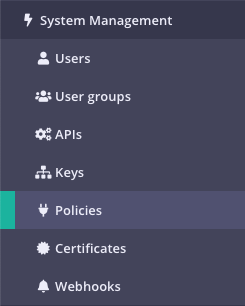 Your current policies will be displayed
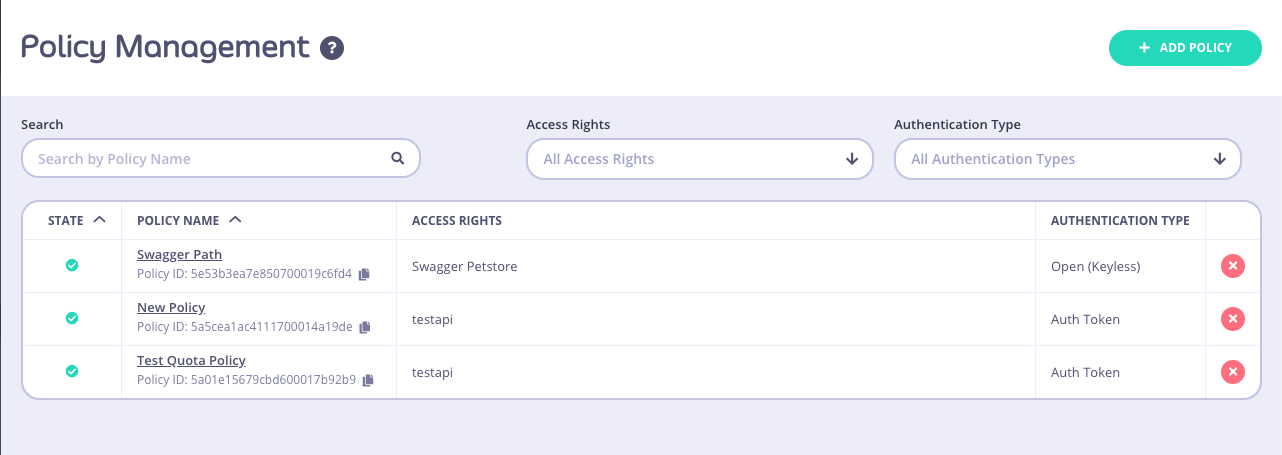 2. **Click ADD POLICY**
 3. **Select an API to apply the policy Access Rights to**
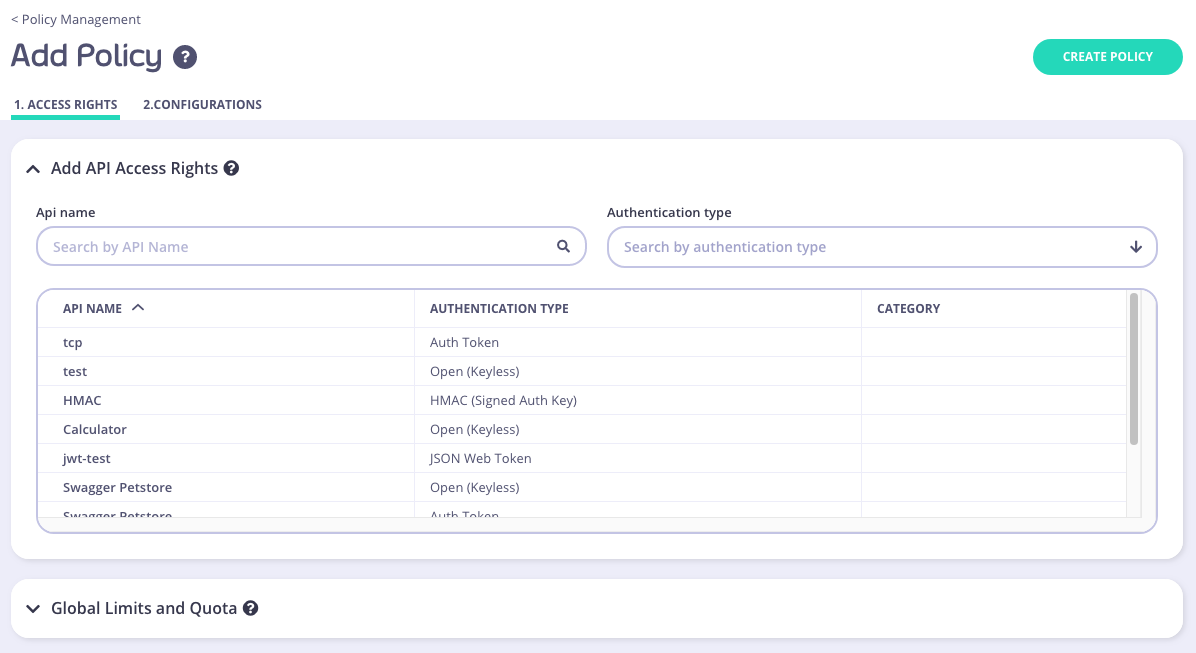 To select an API, you can either:
* Scroll through your API Name list
* Use the Search field
* You can also Group by Authentication Type to filter your APIs
* You can also Group by Category
All policies require a descriptive name, this helps you to reference it later, and it will appear in drop-down options where you can attach policies to objects such as Keys or OAuth client IDs.
4. **Setting Global Rate Limits and Quota**
To select an API, you can either:
* Scroll through your API Name list
* Use the Search field
* You can also Group by Authentication Type to filter your APIs
* You can also Group by Category
All policies require a descriptive name, this helps you to reference it later, and it will appear in drop-down options where you can attach policies to objects such as Keys or OAuth client IDs.
4. **Setting Global Rate Limits and Quota**
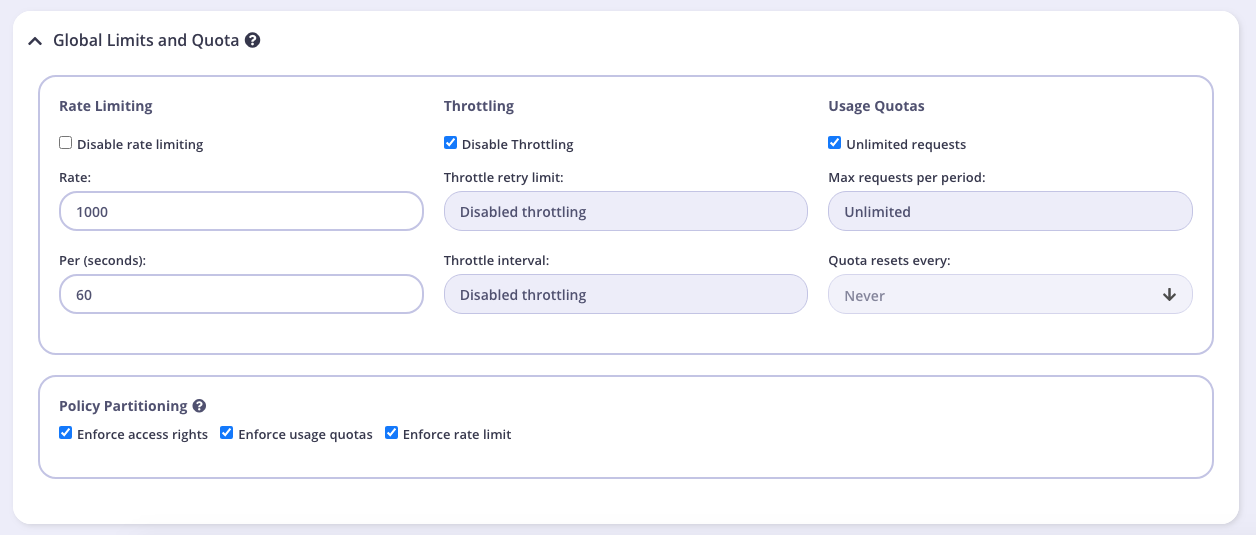 These settings will be applied to all APIs that the policy is applied to. You can override these settings by turning **Set per API Rate Limits and Quota** on for the API you selected in Step 3. We will leave these settings at their default for this tutorial.
**Rate Limiting**
A rate limit is enforced on all keys, set the number of requests per second that a user of a key with this policy is allowed to use. See [Rate Limiting](/api-management/rate-limit#rate-limiting-layers) for more details. **Note: The Rate Limit set by a policy will override the limits applied to an individual key.**
**Throttling**
When hitting rate limits, you can set Tyk Gateway to automatically queue and auto-retry client requests. Throttling can be configured at a key or policy level. See [Request Throttling](/api-management/request-throttling) for more details.
**Usage Quotas**
Usage quotas limit the number of total requests a user is allowed to have over a longer period of time. So while a rate limit is a rolling window, a quota is an absolute maximum that a user is allowed to have over a week, a day or a month. See [Request Quotas](/api-management/request-quotas) for more details.
Usage quotas can only be a positive number, or -1 (unlimited). **Note: The Usage Quota set by a policy will override a quota applied to an individual key.**
**Policy Partitioning**
In some cases, the all-or-nothing approach of policies, where all the components of access control, quota and rate limit are set together isn’t ideal, and instead you may wish to have only one or two segments of a token managed at a policy level and other segments in another policy or on the key itself. We call this [Policy Partitioning](/api-management/access-control/policies/applying-policies#partitioned-policies).
###### Path Based Permissions
You can also use a security policy to apply restrictions on a particular path and method. Granular path control allows you to define which methods and paths a key is allowed to access on a per API-version basis. See the [Granular Endpoint Access](/api-management/access-control/sessions-and-keys/access-rights#granular-endpoint-access) documentation for more details
These settings will be applied to all APIs that the policy is applied to. You can override these settings by turning **Set per API Rate Limits and Quota** on for the API you selected in Step 3. We will leave these settings at their default for this tutorial.
**Rate Limiting**
A rate limit is enforced on all keys, set the number of requests per second that a user of a key with this policy is allowed to use. See [Rate Limiting](/api-management/rate-limit#rate-limiting-layers) for more details. **Note: The Rate Limit set by a policy will override the limits applied to an individual key.**
**Throttling**
When hitting rate limits, you can set Tyk Gateway to automatically queue and auto-retry client requests. Throttling can be configured at a key or policy level. See [Request Throttling](/api-management/request-throttling) for more details.
**Usage Quotas**
Usage quotas limit the number of total requests a user is allowed to have over a longer period of time. So while a rate limit is a rolling window, a quota is an absolute maximum that a user is allowed to have over a week, a day or a month. See [Request Quotas](/api-management/request-quotas) for more details.
Usage quotas can only be a positive number, or -1 (unlimited). **Note: The Usage Quota set by a policy will override a quota applied to an individual key.**
**Policy Partitioning**
In some cases, the all-or-nothing approach of policies, where all the components of access control, quota and rate limit are set together isn’t ideal, and instead you may wish to have only one or two segments of a token managed at a policy level and other segments in another policy or on the key itself. We call this [Policy Partitioning](/api-management/access-control/policies/applying-policies#partitioned-policies).
###### Path Based Permissions
You can also use a security policy to apply restrictions on a particular path and method. Granular path control allows you to define which methods and paths a key is allowed to access on a per API-version basis. See the [Granular Endpoint Access](/api-management/access-control/sessions-and-keys/access-rights#granular-endpoint-access) documentation for more details
 5. **Add Configuration Details**
You use the Configuration section to set the following:
1. Give your policy a name. This is a required setting
2. Set the policy state. You can set your policy to one of the following states:
* Active (the default)
* Draft
* Access Denied
3. Set a time after which any Keys subscribed to your policy expire. Select a value from the drop-down list. This is a required setting. See [Session Lifecycle](/api-management/access-control/sessions-and-keys/session-lifecycle) for more details.
4. Add Tags to your policy. Any tags you add can be used when filtering Analytics Data. Tags are case sensitive.
5. Add Metadata to your policy. Adding metadata such as User IDs can be used by middleware components. See [Session Metadata](/api-management/access-control/sessions-and-keys/understanding-sessions#metadata-and-context) for more details.
6. **Save the policy**
Click **CREATE** . Once the policy is saved, you will be able to use it when creating keys, OAuth clients and custom JWT tokens.
#### Create a security policy with the API
Security Policies can be created with a single call to the API. It is very similar to the token creation process. To generate a simple security policy using the Tyk Dashboard API you can use the following curl command:
```{.copyWrapper} theme={null}
curl -X POST -H "authorization: {API-TOKEN}" \
-s \
-H "Content-Type: application/json" \
-X POST \
-d '{
"access_rights": {
"{API-ID}": {
"allowed_urls": [],
"api_id": "{API-ID}",
"api_name": "{API-NAME}",
"versions": [
"Default"
]
}
},
"active": true,
"name": "POLICY NAME",
"rate": 100,
"per": 1,
"quota_max": 10000,
"quota_renewal_rate": 3600,
"state": "active",
"tags": ["Startup Users"]
}' https://admin.cloud.tyk.io/api/portal/policies | python -mjson.tool
```
You must replace:
* `{API-TOKEN}`: Your API Token for the Dashboard API.
* `{API-ID}`: The API ID you wish this policy to grant access to, there can be more than one of these entries.
* `{API-NAME}`: The name of the API that is being granted access to (this is not required, but helps when debugging or auditing).
* `POLICY NAME`: The name of this security policy.
The important elements:
* `access_rights`: A list of objects representing which APIs that you have configured to grant access to.
* `rate` and `per`: The number of requests to allow per period.
* `quota_max`: The maximum number of allowed requests over a quota period.
* `quota_renewal_rate`: how often the quota resets, in seconds. In this case we have set it to renew every hour.
* `state`: New from **v3.0**, this can be used instead of `active` and `is_inactive`. You can use the following values:
* `active` - all keys connected to the policy are active and new keys can be created
* `draft` - all keys connected to the policy are active but new keys cannot be created
* `deny` - all keys are deactivated and no keys can be created.
5. **Add Configuration Details**
You use the Configuration section to set the following:
1. Give your policy a name. This is a required setting
2. Set the policy state. You can set your policy to one of the following states:
* Active (the default)
* Draft
* Access Denied
3. Set a time after which any Keys subscribed to your policy expire. Select a value from the drop-down list. This is a required setting. See [Session Lifecycle](/api-management/access-control/sessions-and-keys/session-lifecycle) for more details.
4. Add Tags to your policy. Any tags you add can be used when filtering Analytics Data. Tags are case sensitive.
5. Add Metadata to your policy. Adding metadata such as User IDs can be used by middleware components. See [Session Metadata](/api-management/access-control/sessions-and-keys/understanding-sessions#metadata-and-context) for more details.
6. **Save the policy**
Click **CREATE** . Once the policy is saved, you will be able to use it when creating keys, OAuth clients and custom JWT tokens.
#### Create a security policy with the API
Security Policies can be created with a single call to the API. It is very similar to the token creation process. To generate a simple security policy using the Tyk Dashboard API you can use the following curl command:
```{.copyWrapper} theme={null}
curl -X POST -H "authorization: {API-TOKEN}" \
-s \
-H "Content-Type: application/json" \
-X POST \
-d '{
"access_rights": {
"{API-ID}": {
"allowed_urls": [],
"api_id": "{API-ID}",
"api_name": "{API-NAME}",
"versions": [
"Default"
]
}
},
"active": true,
"name": "POLICY NAME",
"rate": 100,
"per": 1,
"quota_max": 10000,
"quota_renewal_rate": 3600,
"state": "active",
"tags": ["Startup Users"]
}' https://admin.cloud.tyk.io/api/portal/policies | python -mjson.tool
```
You must replace:
* `{API-TOKEN}`: Your API Token for the Dashboard API.
* `{API-ID}`: The API ID you wish this policy to grant access to, there can be more than one of these entries.
* `{API-NAME}`: The name of the API that is being granted access to (this is not required, but helps when debugging or auditing).
* `POLICY NAME`: The name of this security policy.
The important elements:
* `access_rights`: A list of objects representing which APIs that you have configured to grant access to.
* `rate` and `per`: The number of requests to allow per period.
* `quota_max`: The maximum number of allowed requests over a quota period.
* `quota_renewal_rate`: how often the quota resets, in seconds. In this case we have set it to renew every hour.
* `state`: New from **v3.0**, this can be used instead of `active` and `is_inactive`. You can use the following values:
* `active` - all keys connected to the policy are active and new keys can be created
* `draft` - all keys connected to the policy are active but new keys cannot be created
* `deny` - all keys are deactivated and no keys can be created.
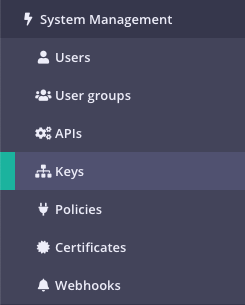 2. **Click CREATE**
 3. **Add a Policy or API to your Key**
You have the option to add your new key to either an existing Policy or an existing individual API. For this Tutorial we are going to use an API.
**Add an API to your Key**
To select an API, you can either:
* Scroll through your API Name list
* Use the Search field
* You can also Group by Authentication Type to filter your APIs
* You can also Group by Category
You can leave all other options at their default settings.
4. **Add Configuration Details**
You use the Configuration section to set the following:
1. Enable Detailed Logging. This is disabled by default and isn't required for this tutorial
2. Give your Key an Alias. This makes your key easier
3. Set an Expiry time after which the key will expire. Select a value from the drop-down list. This is a required setting. See [Key Expiry](/api-management/access-control/sessions-and-keys/session-lifecycle) for more details.
4. Add Tags to your policy. Any tags you add can be used when filtering Analytics Data. Tags are case sensitive.
5. Add Metadata to your policy. Adding metadata such as User IDs can be used by middleware components. See [Session Metadata](/api-management/access-control/sessions-and-keys/understanding-sessions#metadata-and-context) for more details.
5. **Click CREATE**
3. **Add a Policy or API to your Key**
You have the option to add your new key to either an existing Policy or an existing individual API. For this Tutorial we are going to use an API.
**Add an API to your Key**
To select an API, you can either:
* Scroll through your API Name list
* Use the Search field
* You can also Group by Authentication Type to filter your APIs
* You can also Group by Category
You can leave all other options at their default settings.
4. **Add Configuration Details**
You use the Configuration section to set the following:
1. Enable Detailed Logging. This is disabled by default and isn't required for this tutorial
2. Give your Key an Alias. This makes your key easier
3. Set an Expiry time after which the key will expire. Select a value from the drop-down list. This is a required setting. See [Key Expiry](/api-management/access-control/sessions-and-keys/session-lifecycle) for more details.
4. Add Tags to your policy. Any tags you add can be used when filtering Analytics Data. Tags are case sensitive.
5. Add Metadata to your policy. Adding metadata such as User IDs can be used by middleware components. See [Session Metadata](/api-management/access-control/sessions-and-keys/understanding-sessions#metadata-and-context) for more details.
5. **Click CREATE**
 A **Key successfully generated** pop-up will be displayed with the key shown. You **must** save this somewhere for future reference as it will not be displayed again. Click **Copy to clipboard** and paste into a text document.
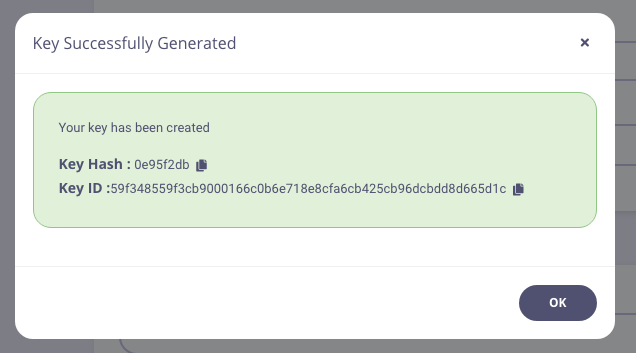 That's it, you've created a key - now you can try and use it.
#### Create an API Key with the API
To create an API key, you will need the API ID that we wish to grant the key access to. Creating the token is then an API call to the endpoint.
You will also need your own API Key, to get these values:
1. Select **Users** from the **System Management** section.
2. In the users list, click **Edit** for your user.
3. The API key is the **Tyk Dashboard API Access Credentials**, copy this somewhere you can reference it.
That's it, you've created a key - now you can try and use it.
#### Create an API Key with the API
To create an API key, you will need the API ID that we wish to grant the key access to. Creating the token is then an API call to the endpoint.
You will also need your own API Key, to get these values:
1. Select **Users** from the **System Management** section.
2. In the users list, click **Edit** for your user.
3. The API key is the **Tyk Dashboard API Access Credentials**, copy this somewhere you can reference it. 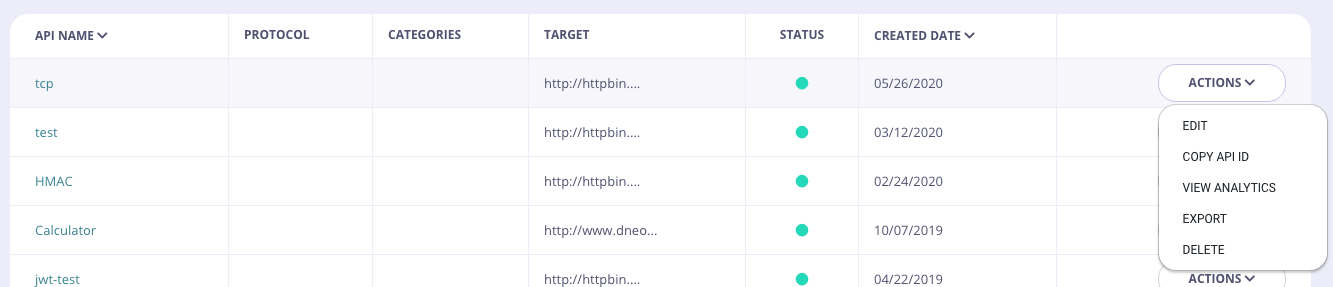 Once you have these values, you can use them to access the Dashboard API, the below `curl` command will generate a key for one of your APIs:
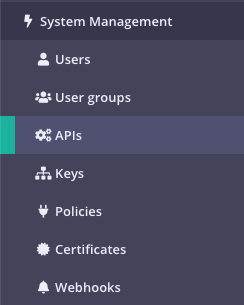 2. **Click "IMPORT API"**
 Tyk supports the following import options:
1. From an Existing Tyk API definition
2. From a Apiary Blueprint (JSON) file
3. From a Swagger/OpenAPI (JSON only) file
4. From a SOAP WSDL definition file (new from v1.9)
To import a Tyk Definition, just copy and paste the definition into the code editor.
For Apiary Blueprint and Swagger/OpenAPI, the process is the same. For example:
Click the "From Swagger (JSON)" option from the pop-up
Tyk supports the following import options:
1. From an Existing Tyk API definition
2. From a Apiary Blueprint (JSON) file
3. From a Swagger/OpenAPI (JSON only) file
4. From a SOAP WSDL definition file (new from v1.9)
To import a Tyk Definition, just copy and paste the definition into the code editor.
For Apiary Blueprint and Swagger/OpenAPI, the process is the same. For example:
Click the "From Swagger (JSON)" option from the pop-up
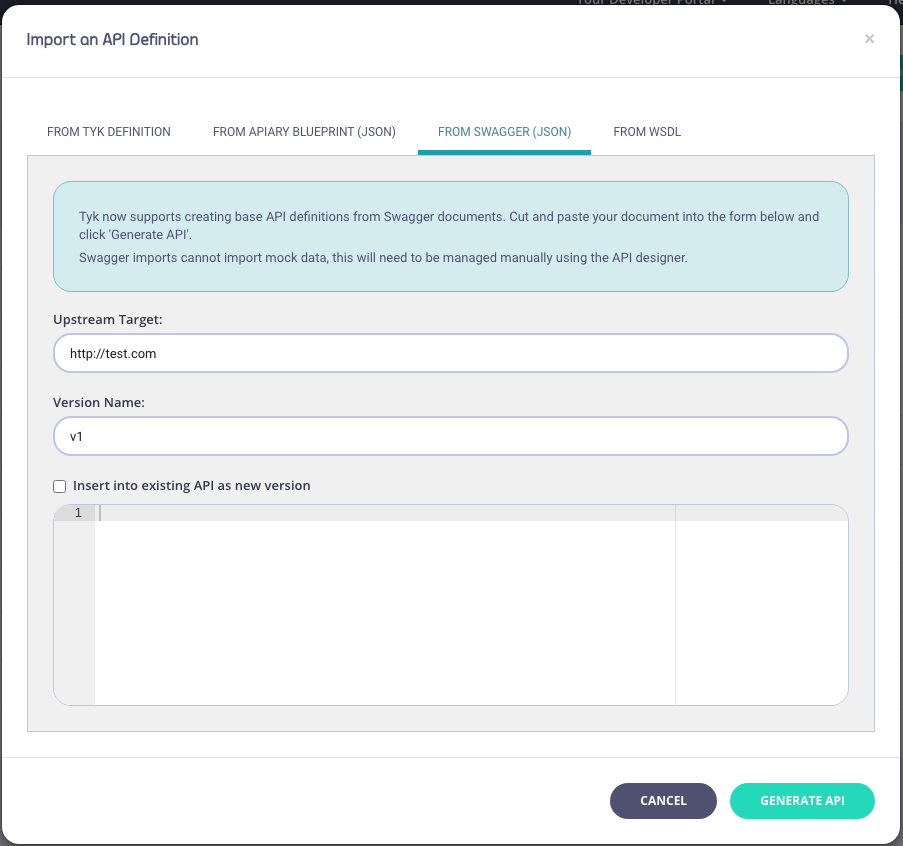 For WSDL:
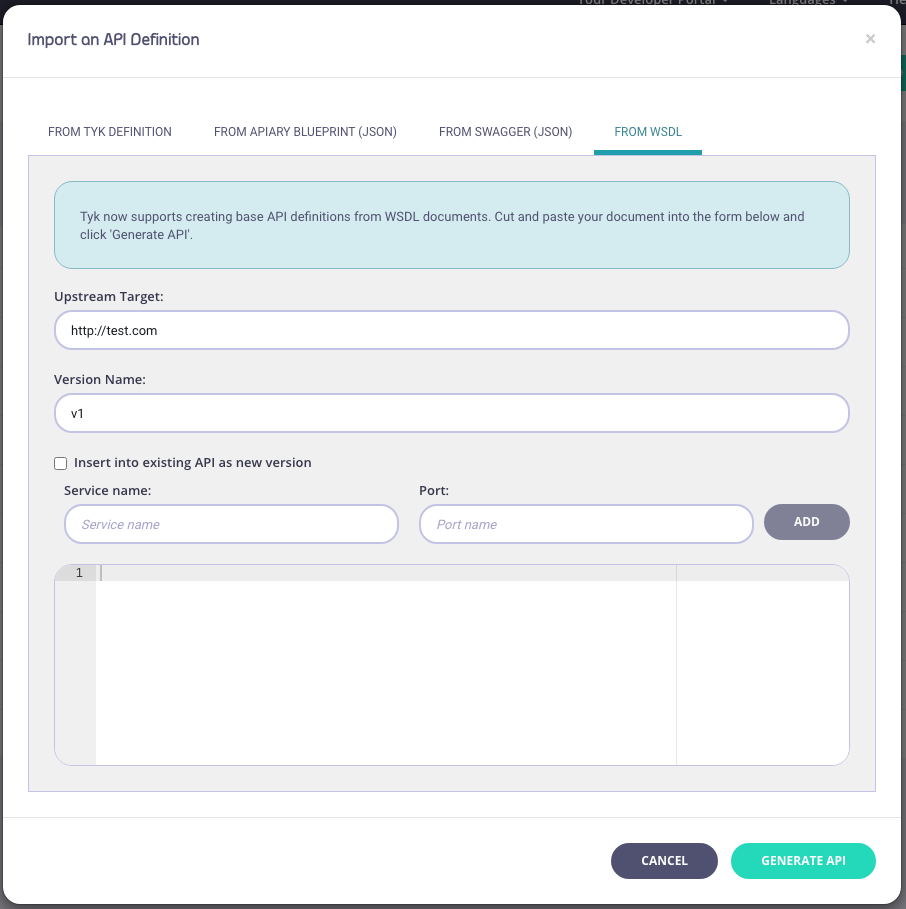 3. **Enter API Information**
You need to enter the following information:
* Your **Upstream Target**
* A **Version Name** (optional)
* An optional **Service Name** and **Port** (WSDL only)
* Copy code into the editor
4. **Click "Generate API"**
Your API will appear in your APIs list. If you select **EDIT** from the **ACTIONS** drop-down list, you can see the endpoints (from the [Endpoint Designer](/api-management/dashboard-configuration#exploring-api-endpoint-designer)) that have been created as part of the import process.
### Creating a new API Version by importing an API Definition using Tyk Dashboard
As well as importing new APIs, with Tyk, you can also use import to create a new version of an existing Tyk Classic API.
1. Open the API Designer page and select Import Version from the **Options** drop-down.
3. **Enter API Information**
You need to enter the following information:
* Your **Upstream Target**
* A **Version Name** (optional)
* An optional **Service Name** and **Port** (WSDL only)
* Copy code into the editor
4. **Click "Generate API"**
Your API will appear in your APIs list. If you select **EDIT** from the **ACTIONS** drop-down list, you can see the endpoints (from the [Endpoint Designer](/api-management/dashboard-configuration#exploring-api-endpoint-designer)) that have been created as part of the import process.
### Creating a new API Version by importing an API Definition using Tyk Dashboard
As well as importing new APIs, with Tyk, you can also use import to create a new version of an existing Tyk Classic API.
1. Open the API Designer page and select Import Version from the **Options** drop-down.
 2. Select either OpenAPI (v2.0 or 3.0) or WSDL/XML as your source API
3. You need to add a new **API Version Name**. **Upstream URL** is optional.
2. Select either OpenAPI (v2.0 or 3.0) or WSDL/XML as your source API
3. You need to add a new **API Version Name**. **Upstream URL** is optional.
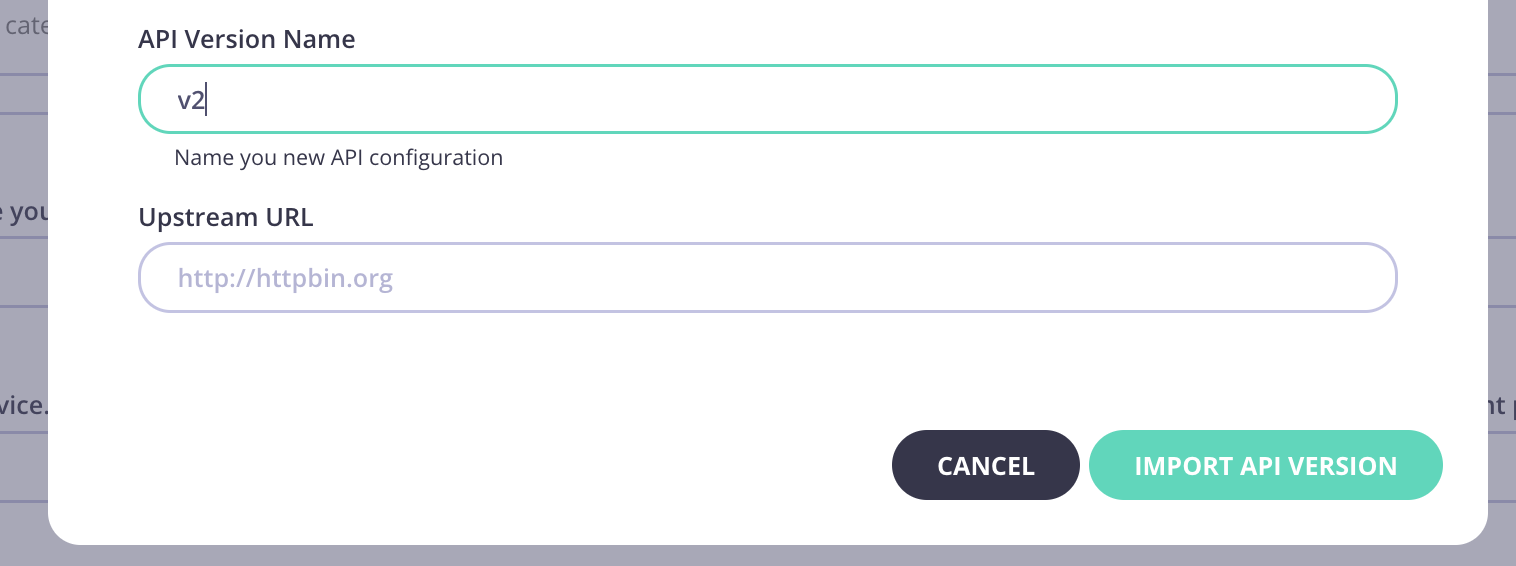 4. Click **Import API**.
 5. Select the **Versions** tab and your new version will be available.
6. Open the **Endpoint Designer** for your API and select your new version from **Edit Version**.
7. You will see all the endpoints are saved for your new version.
5. Select the **Versions** tab and your new version will be available.
6. Open the **Endpoint Designer** for your API and select your new version from **Edit Version**.
7. You will see all the endpoints are saved for your new version.
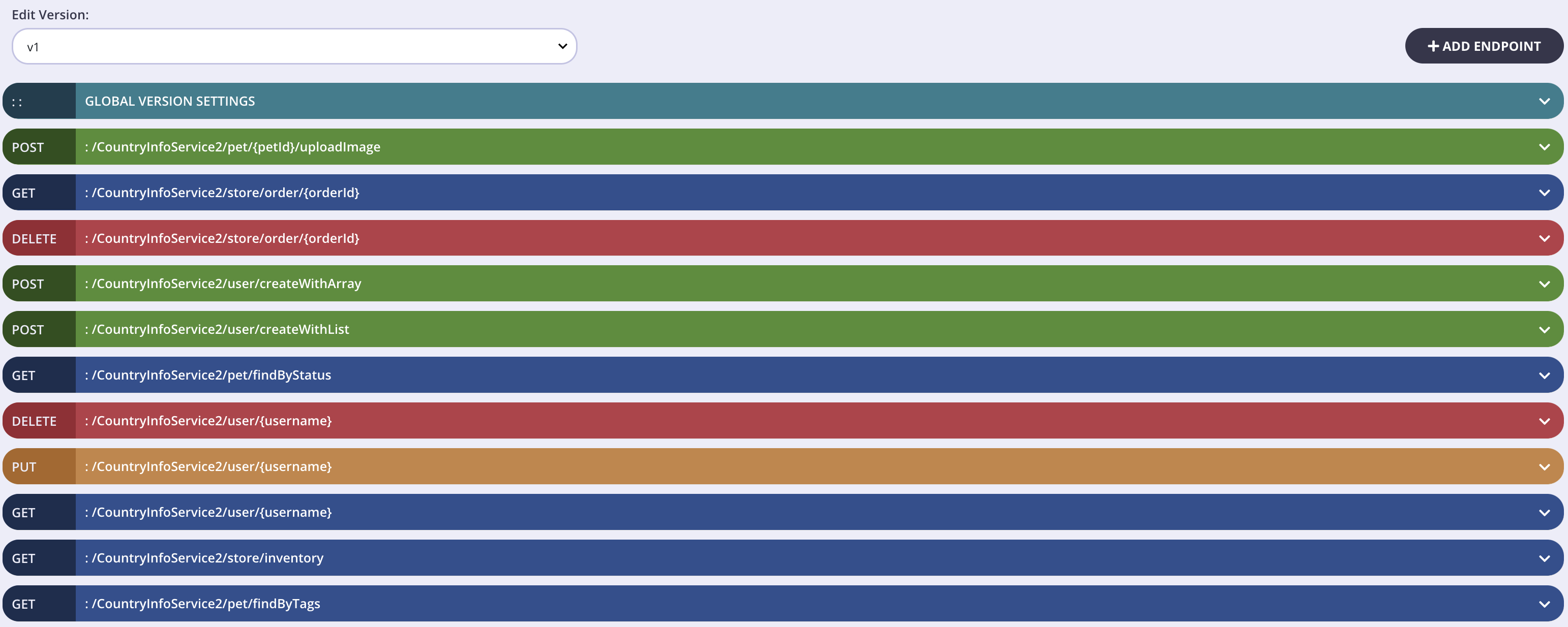 ##### Import from an OpenAPI v2.0 Document
1. From the Import API screen, select OpenAPI.
##### Import from an OpenAPI v2.0 Document
1. From the Import API screen, select OpenAPI.
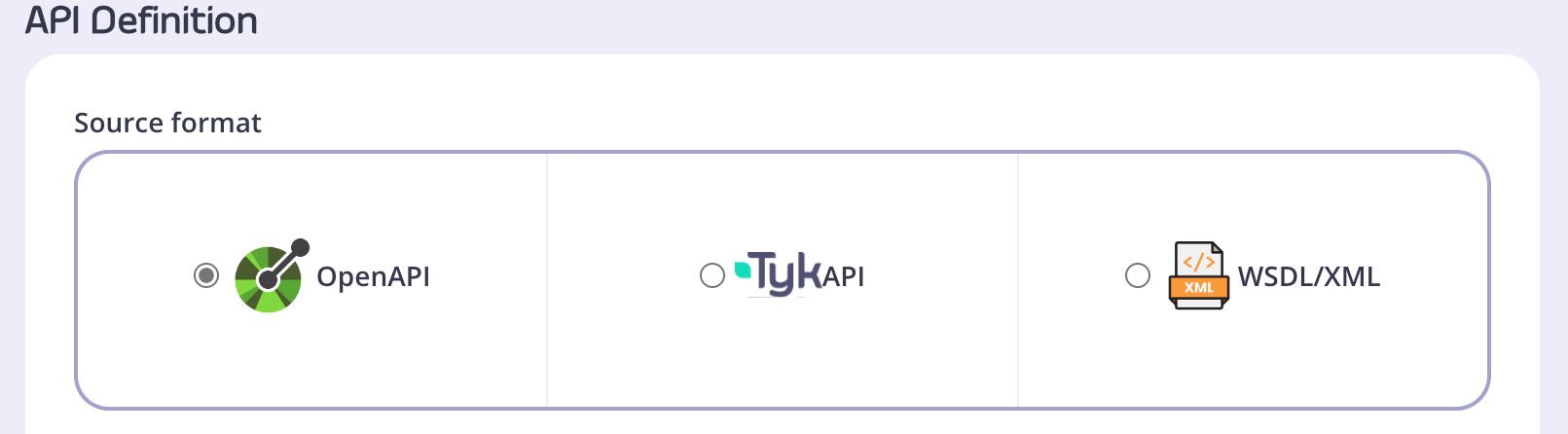 2. Paste your OAS v2.0 compliant definition into the code editor.
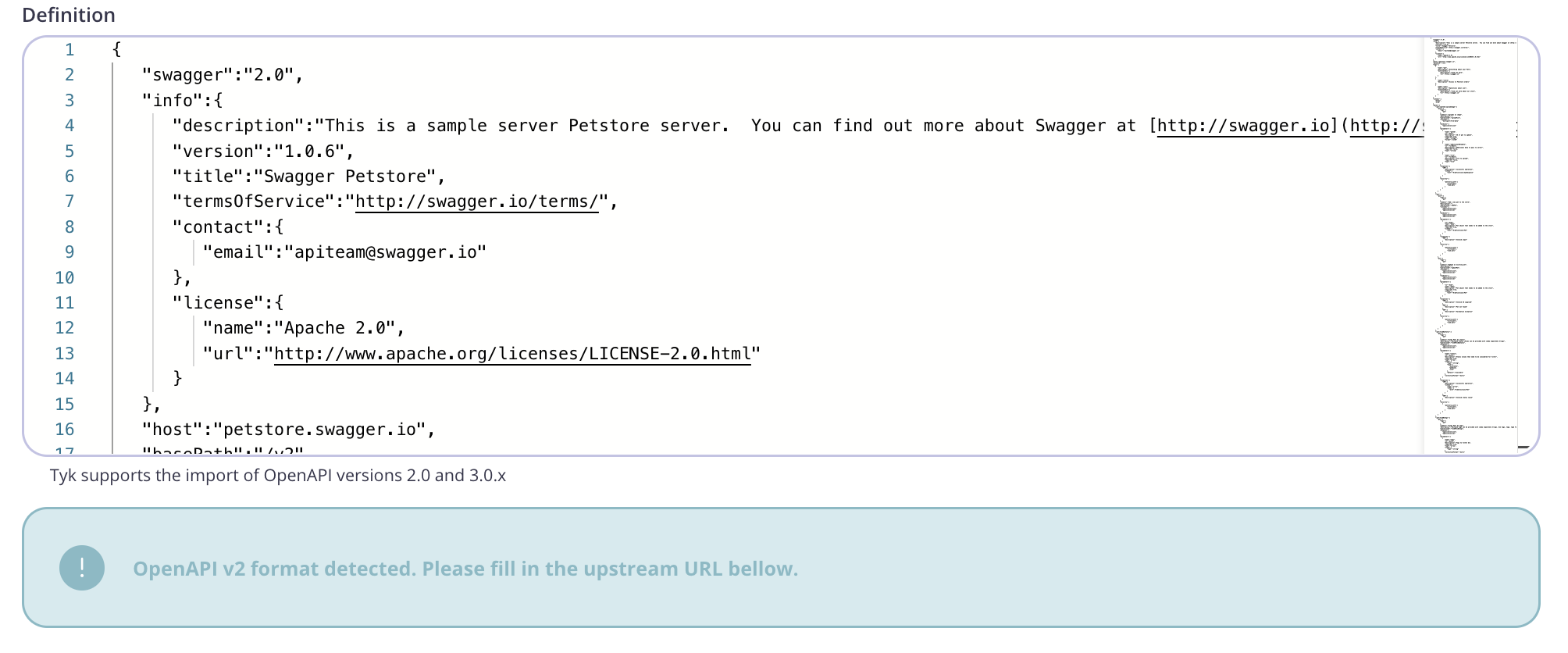 3. Note that the Dashboard has detected that an OAS v2.0 definition has been imported and you need to specify an upstream URL field to proceed.
 4. Click **Import API**.