> ## Documentation Index
> Fetch the complete documentation index at: https://tyk.io/docs/llms.txt
> Use this file to discover all available pages before exploring further.
# Enable and View Audit Logs in Tyk Dashboard
> Learn how to enable audit logging in Tyk Dashboard using database storage and view audit logs through the Dashboard UI.
## Availability
| Component | Version | Edition |
| :------------ | :--------------------------------------------------------------------------------------- | :--------- |
| Tyk Dashboard | Available since [v5.7.0](/developer-support/release-notes/dashboard#5-7-0-release-notes) | Enterprise |
## Prerequisites
1. **Dashboard License**: [Contact our team](https://tyk.io/contact/) to obtain a license or get a self-managed trial license by completing the registration on our [website](https://tyk.io/self-managed-trial/).
2. **Working Tyk Environment**: You need access to a running Tyk instance. For quick setup instructions using Docker, please refer to the [Tyk Getting Started Guide](/getting-started/quick-start).
3. **Admin Access**: You need admin permissions to configure audit logging and access audit log data.
## What We Will Do
In this guide, we will:
1. Enable [audit logs in Tyk Dashboard](/api-management/dashboard-configuration#dashboard-audit-logs) using the [database storage](/api-management/dashboard-configuration#database-storage-support) option
2. View the audit logs through the Dashboard UI
3. Learn how to [access audit logs via the API](/api-management/dashboard-configuration#retrieving-audit-logs-via-api)
This guide is focused on **self-managed / on-premise** installations. For Tyk Cloud deployments, refer to the [Tyk Cloud Audit Logs guide](/api-management/cloud/audit-logs).
## Instructions
### 1. Configure Audit Logging with Database Storage
To enable audit logging with database storage, you need to update your Tyk Dashboard configuration. Database storage is recommended as it enables viewing logs directly in the Dashboard UI.
Add the following `audit` section to your `tyk_analytics.conf` file:
```json theme={null}
{
"audit": {
"enabled": true,
"format": "json",
"store_type": "db",
"detailed_recording": false
}
}
```
Set the following environment variables:
```bash theme={null}
TYK_DB_AUDIT_ENABLED=true
TYK_DB_AUDIT_FORMAT=json
TYK_DB_AUDIT_STORETYPE=db
TYK_DB_AUDIT_DETAILEDRECORDING=false
```
For more information on configuration options and default values, refer to the [Audit Logs Configuration Reference](/tyk-dashboard/configuration#audit).
### 2. Restart Tyk Dashboard
After updating the configuration, restart your Tyk Dashboard service for the changes to take effect:
```bash theme={null}
# For systemd
sudo systemctl restart tyk-dashboard
# For Docker
docker restart tyk-dashboard
# For Kubernetes
kubectl rollout restart deployment tyk-dashboard -n tyk
```
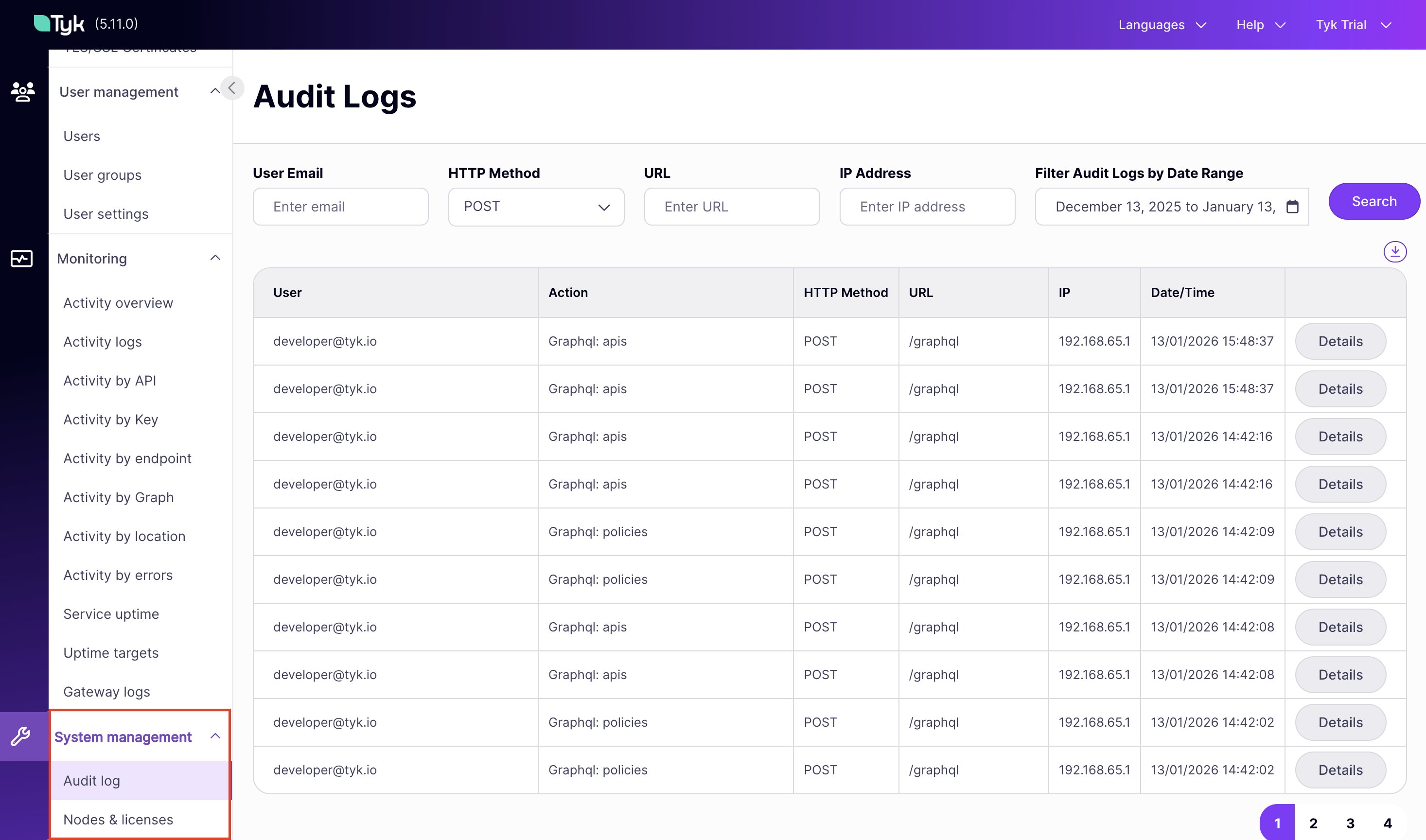
### 3. View Audit Logs in Dashboard UI
Once audit logging is enabled with database storage, you can view logs directly in the Dashboard:
1. Log in to your Tyk Dashboard
2. Interact with the system (e.g., create/update APIs, users, policies) to generate audit log entries
3. Go to **System Management** > **Audit Logs** to see the recorded logs
4. Use the available filters to search and filter logs:
* **Date range**: Filter logs by time period
* **User**: Filter by the user who performed the action
* **IP address**: Filter by the originating IP address
* **HTTP method**: Filter by http method
 ### 5. Access Audit Logs via API
You can also retrieve audit logs programmatically using the Dashboard API:
```bash theme={null}
curl -X GET "https://your-dashboard.com/api/audit-logs" \
-H "Authorization: Bearer YOUR_API_KEY" \
-H "Content-Type: application/json"
```
For more information on the API endpoint, refer to the [Dashboard API Reference](https://tyk.io/docs/api-reference/auditlogs/list-audit-logs).
## Troubleshooting
Users need the appropriate RBAC permissions to view audit logs.
#### Via Dashboard UI
1. Navigate to **Users** in your Tyk Dashboard
2. Select the user you want to grant access
3. In the **Permissions** section, enable **Audit Logs** with `read` access
4. Save the user
#### Via Dashboard API
Include `audit_logs` in the user's permissions object when creating or updating a user:
```json theme={null}
{
"user_permissions": {
"IsAdmin": "false",
"analytics": "read",
"apis": "write",
"audit_logs": "read"
}
}
```
Only `read` access is available for audit logs. Write or delete operations are not permitted to maintain audit integrity.
1. **Verify configuration**: Ensure `audit.enabled` is set to `true` in your configuration
2. **Check storage type**: Confirm `audit.store_type` is set to `db` for UI access
3. **Restart Dashboard**: Configuration changes require a restart to take effect
4. **Check version**: Database storage requires Tyk Dashboard v5.7.0 or later
### 5. Access Audit Logs via API
You can also retrieve audit logs programmatically using the Dashboard API:
```bash theme={null}
curl -X GET "https://your-dashboard.com/api/audit-logs" \
-H "Authorization: Bearer YOUR_API_KEY" \
-H "Content-Type: application/json"
```
For more information on the API endpoint, refer to the [Dashboard API Reference](https://tyk.io/docs/api-reference/auditlogs/list-audit-logs).
## Troubleshooting
Users need the appropriate RBAC permissions to view audit logs.
#### Via Dashboard UI
1. Navigate to **Users** in your Tyk Dashboard
2. Select the user you want to grant access
3. In the **Permissions** section, enable **Audit Logs** with `read` access
4. Save the user
#### Via Dashboard API
Include `audit_logs` in the user's permissions object when creating or updating a user:
```json theme={null}
{
"user_permissions": {
"IsAdmin": "false",
"analytics": "read",
"apis": "write",
"audit_logs": "read"
}
}
```
Only `read` access is available for audit logs. Write or delete operations are not permitted to maintain audit integrity.
1. **Verify configuration**: Ensure `audit.enabled` is set to `true` in your configuration
2. **Check storage type**: Confirm `audit.store_type` is set to `db` for UI access
3. **Restart Dashboard**: Configuration changes require a restart to take effect
4. **Check version**: Database storage requires Tyk Dashboard v5.7.0 or later