> ## Documentation Index
> Fetch the complete documentation index at: https://tyk.io/docs/llms.txt
> Use this file to discover all available pages before exploring further.
# MCP Gateway quickstart
> Create your first MCP proxy in Tyk Dashboard in under five minutes. Connect to the Mock MCP Server and verify your proxy is routing traffic correctly, with no authentication required.
This guide gets you from zero to a working MCP proxy in minutes. An MCP proxy sits between an AI agent and a remote MCP server, routing requests, giving you visibility over every tool call, and letting you apply governance policies without touching the upstream server.
You'll create a proxy to the [Tyk Mock MCP Server](https://github.com/TykTechnologies/tyk-mock-mcp-server), connect to it with [MCP Inspector](https://github.com/modelcontextprotocol/inspector), and verify that tool calls are routing correctly through Tyk.
***
## Before you begin
* A running Tyk Gateway (v5.13 or later) connected to your Tyk Dashboard. See [Self-managed](/getting-started/quick-start)
* A Dashboard user account with MCP write permissions
* Go 1.22 or later, or Docker (to run the Mock MCP Server)
* Node.js 18 or later (to run MCP Inspector). If you don't have it, download it from [nodejs.org](https://nodejs.org/en/download).
***
## Instructions
### Step 1: Start the Mock MCP Server
The Mock MCP Server is the upstream your proxy will route traffic to. It exposes 15 tools across six categories (users, posts, products, analytics, utilities, and streaming) and requires no configuration or credentials.
1. Start the Mock MCP Server using Go or Docker:
```bash theme={null}
git clone https://github.com/TykTechnologies/tyk-mock-mcp-server.git
cd tyk-mock-mcp-server
go build -o tyk-mock-mcp-server .
./tyk-mock-mcp-server
```
```bash theme={null}
docker run -p 7878:7878 ghcr.io/tyktechnologies/tyk-mock-mcp-server:latest
```
2. Confirm the server is running on `http://localhost:7878`. Leave it running.
Your Tyk Gateway must be able to reach `localhost:7878`. If your gateway runs in Docker or on a remote host, replace `localhost` with the appropriate hostname or IP address.
***
### Step 2: Create the MCP proxy
1. In the Tyk Dashboard sidebar, click **MCP**, then click **Add MCP Proxy**.
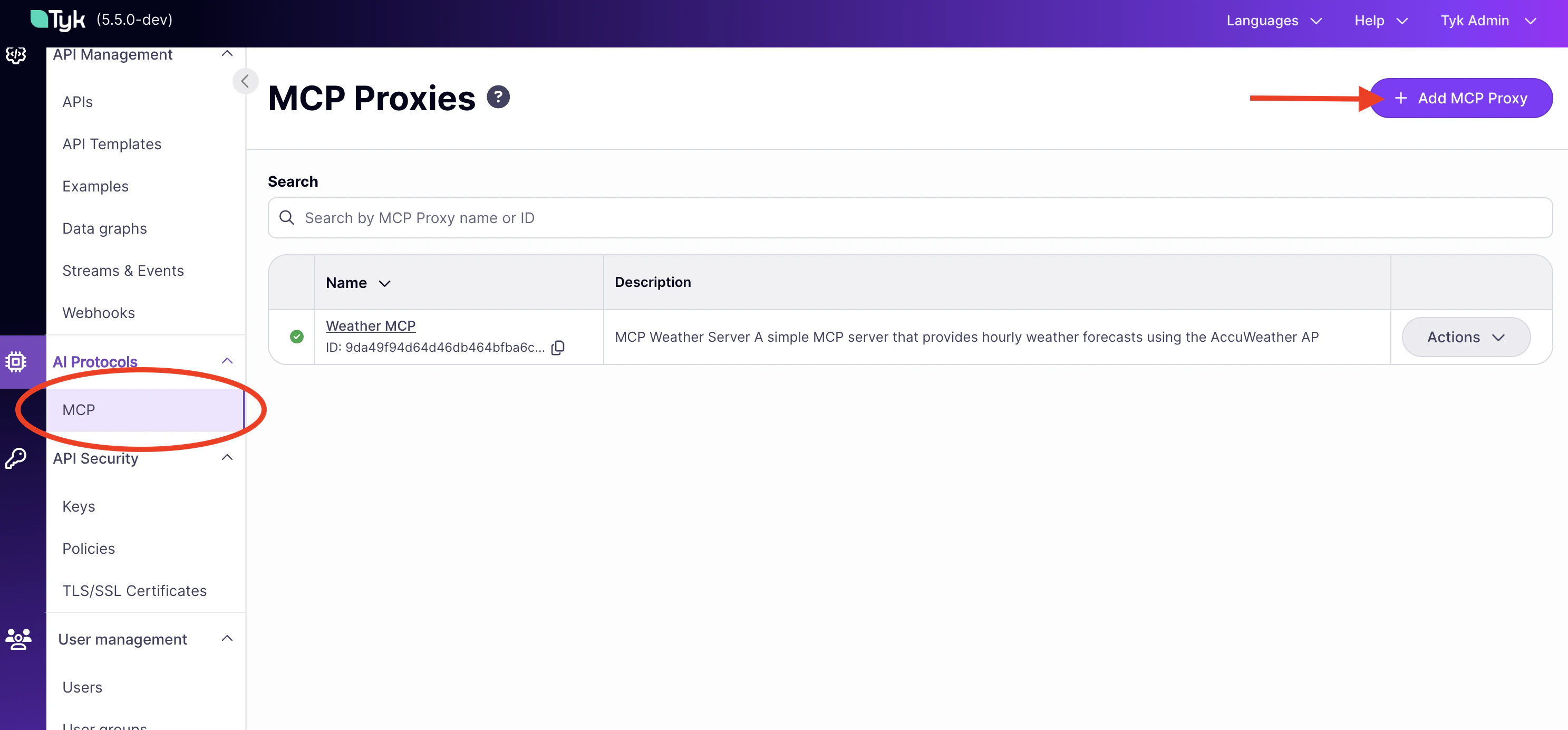 This opens the three-step creation wizard.
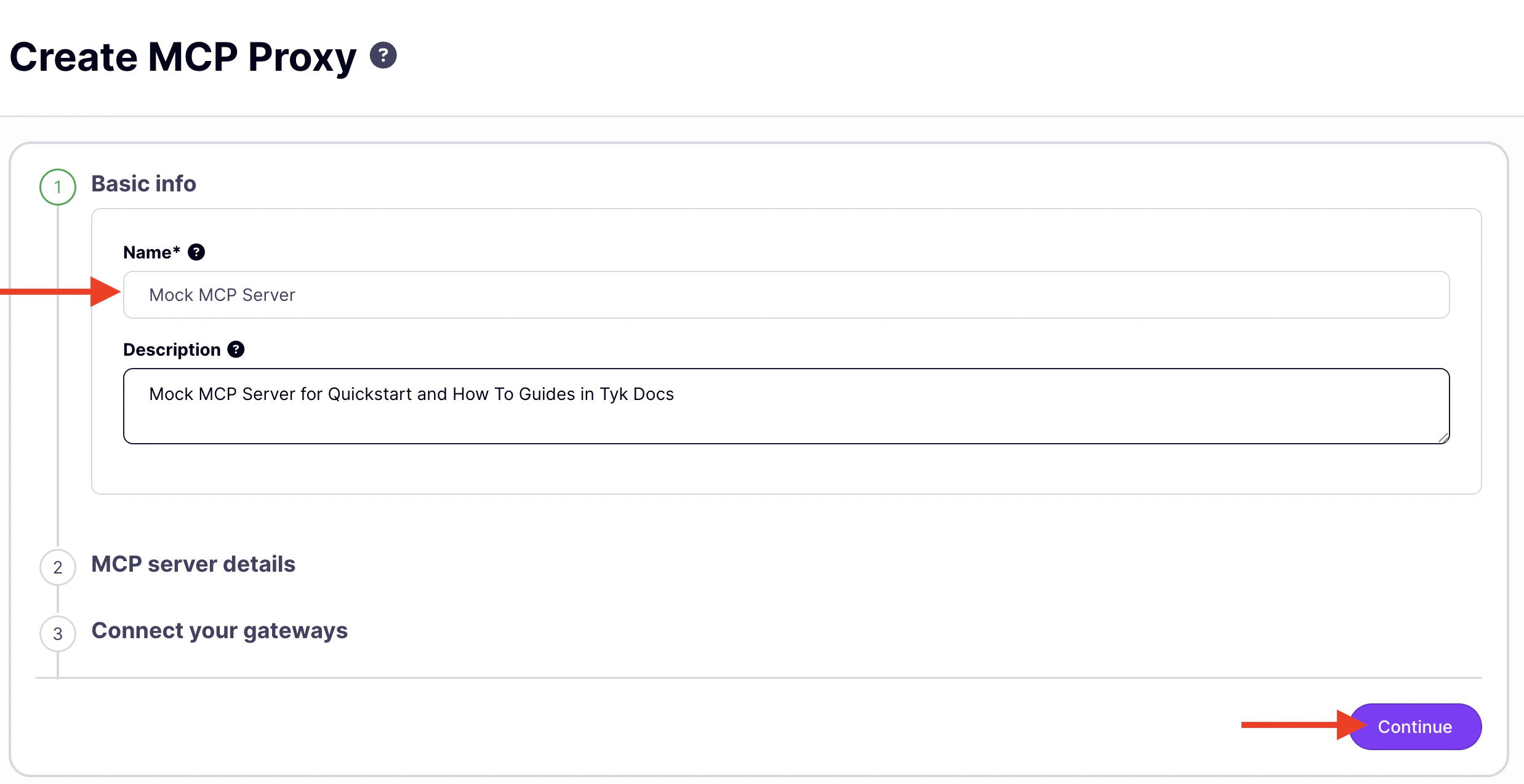
2. **Name your proxy.** Enter `Mock MCP Server`. Tyk derives the listen path from the name automatically. Click **Continue**.
This opens the three-step creation wizard.
2. **Name your proxy.** Enter `Mock MCP Server`. Tyk derives the listen path from the name automatically. Click **Continue**.
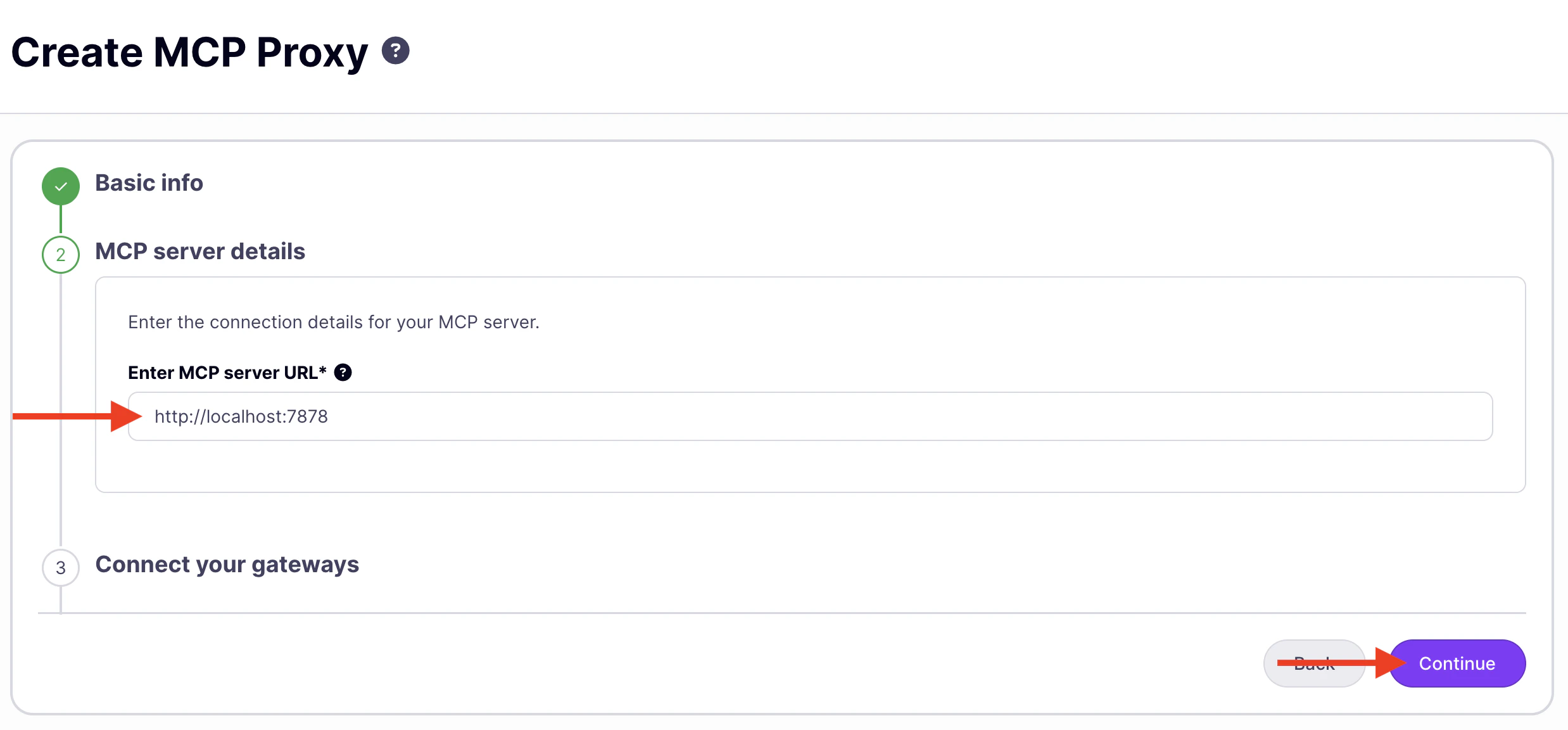
 3. **Set the upstream URL.** Enter `http://localhost:7878/mcp`. Click **Continue**.
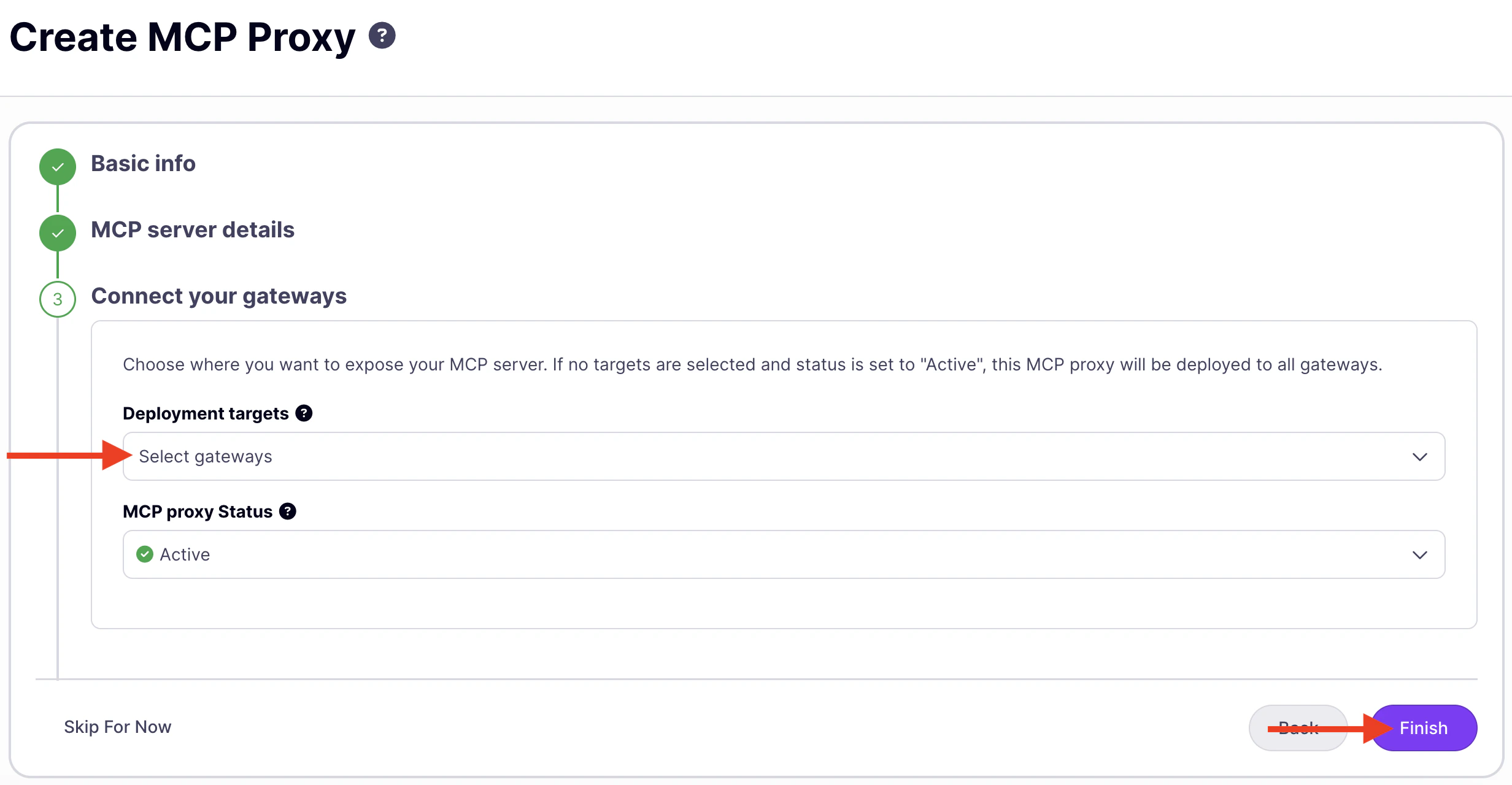
 4. **Connect gateways.** Select your gateway instances, or leave blank to deploy to all gateways. Click **Finish**, then click **Save MCP Proxy**.
 The Dashboard displays "MCP proxy successfully created".
***
### Step 3: Find your MCP endpoint
1. Click **Edit** to open the proxy designer.
2. Find the **MCP Proxy URL** at the top of the page and append `/mcp` to get your MCP endpoint.
The Dashboard displays "MCP proxy successfully created".
***
### Step 3: Find your MCP endpoint
1. Click **Edit** to open the proxy designer.
2. Find the **MCP Proxy URL** at the top of the page and append `/mcp` to get your MCP endpoint.
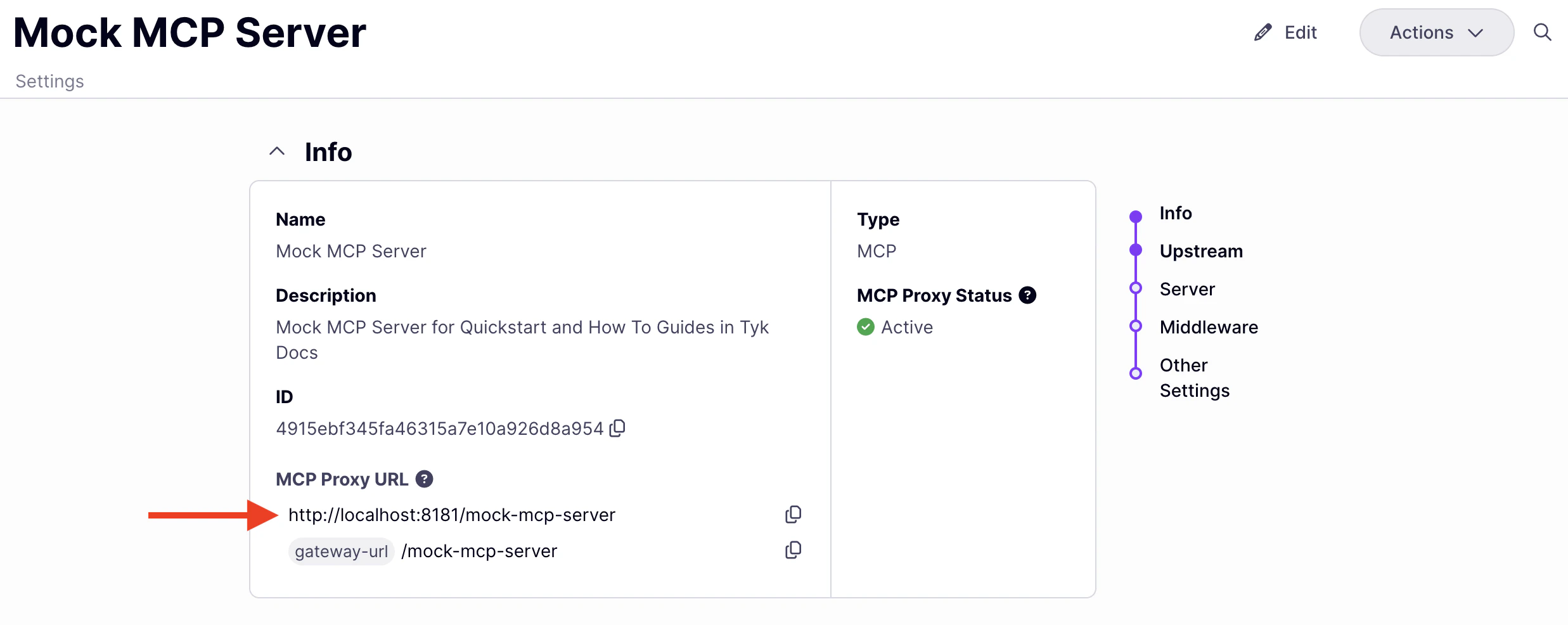 For example, if the Dashboard shows `https://my-gateway.example.com/mock-mcp-server`, your MCP endpoint is:
```
https://my-gateway.example.com/mock-mcp-server/mcp
```
3. Note this URL down; you'll enter it into MCP Inspector in the next step.
***
### Step 4: Connect with MCP Inspector
MCP Inspector is a browser-based tool for testing MCP servers. It handles the session handshake, lists available tools, and lets you call them interactively.
1. Start MCP Inspector:
```bash theme={null}
npx @modelcontextprotocol/inspector
```
MCP Inspector downloads automatically on first run.
2. Open the URL printed in your terminal.
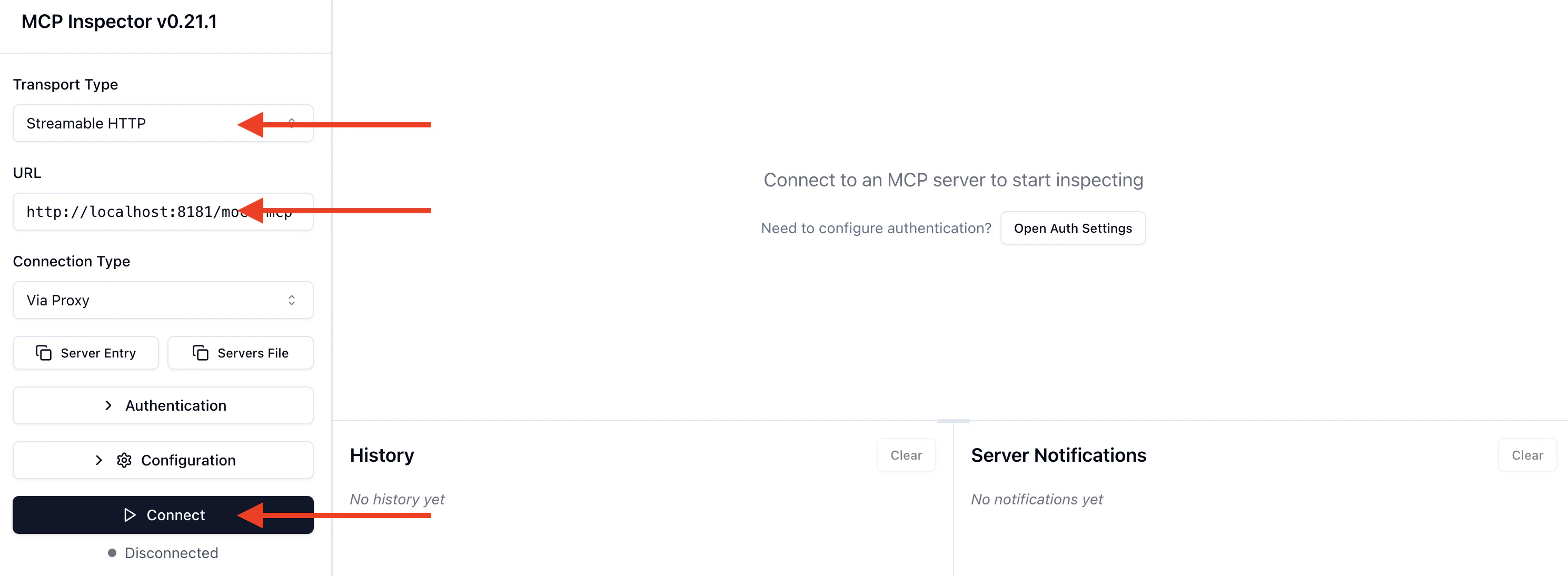
3. Set **Transport Type** to `Streamable HTTP`.
4. Set **URL** to your MCP endpoint from Step 3.
5. Click **Connect**.
For example, if the Dashboard shows `https://my-gateway.example.com/mock-mcp-server`, your MCP endpoint is:
```
https://my-gateway.example.com/mock-mcp-server/mcp
```
3. Note this URL down; you'll enter it into MCP Inspector in the next step.
***
### Step 4: Connect with MCP Inspector
MCP Inspector is a browser-based tool for testing MCP servers. It handles the session handshake, lists available tools, and lets you call them interactively.
1. Start MCP Inspector:
```bash theme={null}
npx @modelcontextprotocol/inspector
```
MCP Inspector downloads automatically on first run.
2. Open the URL printed in your terminal.
3. Set **Transport Type** to `Streamable HTTP`.
4. Set **URL** to your MCP endpoint from Step 3.
5. Click **Connect**.
 ***
### Step 5: Call a tool
1. Click the **Tools** tab. You'll see all 15 Mock MCP Server tools listed: Tyk has proxied the `tools/list` response from the upstream.
2. Select **get\_users** and click **Run**. The Mock MCP Server responds with a sample user list.
The request travelled from MCP Inspector → Tyk Gateway → Mock MCP Server → back through Tyk → MCP Inspector. Your proxy is working.
***
### Step 6: View the call in analytics
1. In the Tyk Dashboard sidebar, go to **Monitoring** → **Activity by MCP**.
2. Check that the `tools/call` request appears under **Primitives Traffic** and **Most Used Primitives**, with `get_users` listed as the invoked tool. The `initialize` handshake from MCP Inspector appears separately with no primitive name, as expected for a session lifecycle call.
Analytics data is written by Tyk Pump asynchronously. Allow a few seconds after making a call before checking the analytics page. If no data appears, verify that analytics recording is enabled and that Tyk Pump is running and connected to your storage backend.
***
## Troubleshooting
**Connection refused in MCP Inspector**: Check that your Tyk Gateway is running and that the MCP endpoint URL is correct. Confirm the Mock MCP Server is running on port `7878`.
**No tools listed**: The proxy connected but the upstream is not reachable. Confirm the Mock MCP Server is running. If your gateway runs in Docker, replace `localhost` in the upstream URL with `host.docker.internal`.
***
## What's next
You have a working MCP proxy routing traffic to the Mock MCP Server. The next step is to secure it, adding authentication so only authorized agents can connect.
**[How to secure an MCP proxy →](/ai-management/mcp-gateway/how-to-proxy-remote-mcp)**
After that, the series continues with:
* **Restrict tool access**: Configure a tool allowlist so agents can only call the tools you have approved. See [Block an MCP Tool](/ai-management/mcp-gateway/how-to-block-tool).
* **Create access tiers**: Use policies to define different levels of access for different agents. See [MCP proxy policies](/ai-management/mcp-gateway/policies).
* **Understand the concepts**: See [MCP Gateway: Core Concepts](/ai-management/mcp-gateway/core-concepts) for the mental model behind sessions, middleware levels, and policies.
***
### Step 5: Call a tool
1. Click the **Tools** tab. You'll see all 15 Mock MCP Server tools listed: Tyk has proxied the `tools/list` response from the upstream.
2. Select **get\_users** and click **Run**. The Mock MCP Server responds with a sample user list.
The request travelled from MCP Inspector → Tyk Gateway → Mock MCP Server → back through Tyk → MCP Inspector. Your proxy is working.
***
### Step 6: View the call in analytics
1. In the Tyk Dashboard sidebar, go to **Monitoring** → **Activity by MCP**.
2. Check that the `tools/call` request appears under **Primitives Traffic** and **Most Used Primitives**, with `get_users` listed as the invoked tool. The `initialize` handshake from MCP Inspector appears separately with no primitive name, as expected for a session lifecycle call.
Analytics data is written by Tyk Pump asynchronously. Allow a few seconds after making a call before checking the analytics page. If no data appears, verify that analytics recording is enabled and that Tyk Pump is running and connected to your storage backend.
***
## Troubleshooting
**Connection refused in MCP Inspector**: Check that your Tyk Gateway is running and that the MCP endpoint URL is correct. Confirm the Mock MCP Server is running on port `7878`.
**No tools listed**: The proxy connected but the upstream is not reachable. Confirm the Mock MCP Server is running. If your gateway runs in Docker, replace `localhost` in the upstream URL with `host.docker.internal`.
***
## What's next
You have a working MCP proxy routing traffic to the Mock MCP Server. The next step is to secure it, adding authentication so only authorized agents can connect.
**[How to secure an MCP proxy →](/ai-management/mcp-gateway/how-to-proxy-remote-mcp)**
After that, the series continues with:
* **Restrict tool access**: Configure a tool allowlist so agents can only call the tools you have approved. See [Block an MCP Tool](/ai-management/mcp-gateway/how-to-block-tool).
* **Create access tiers**: Use policies to define different levels of access for different agents. See [MCP proxy policies](/ai-management/mcp-gateway/policies).
* **Understand the concepts**: See [MCP Gateway: Core Concepts](/ai-management/mcp-gateway/core-concepts) for the mental model behind sessions, middleware levels, and policies.