> ## Documentation Index
> Fetch the complete documentation index at: https://tyk.io/docs/llms.txt
> Use this file to discover all available pages before exploring further.
# Managing MCP proxies using the Dashboard
> How to create, view, edit, and delete MCP proxies using the Tyk Dashboard UI, covering the proxy list, the creation wizard, the Settings and Primitives tabs, proxy-level middleware, per-primitive middleware, the full definition editor, and permissions.
The **MCP** section of the Tyk Dashboard is the central registry of all MCP servers in your organization. Each proxy entry records the upstream server address, the listen path clients use to connect, the tools and resources the server exposes, and the access policies that govern it. Teams have a single authoritative place to see what MCP capabilities are available, onboard new servers, and control who can access them.
The section gives you a searchable catalog of all registered proxies, a guided creation wizard for onboarding new servers, and the MCP Designer with two tabs: **Settings** for proxy-level configuration and middleware, and **Primitives** for managing per-primitive middleware on individual tools, resources, and prompts.
For scripted or automated management, use the Dashboard API or Gateway API. See [MCP API extensions](/ai-management/mcp-gateway/mcp-api-extensions) for the full endpoint reference.
MCP OAS definitions use the Tyk OAS format. They are not available as Tyk Classic API definitions. For the full definition structure, see [MCP OAS definition](/ai-management/mcp-gateway/mcp-proxy-definitions).
***
## Permissions
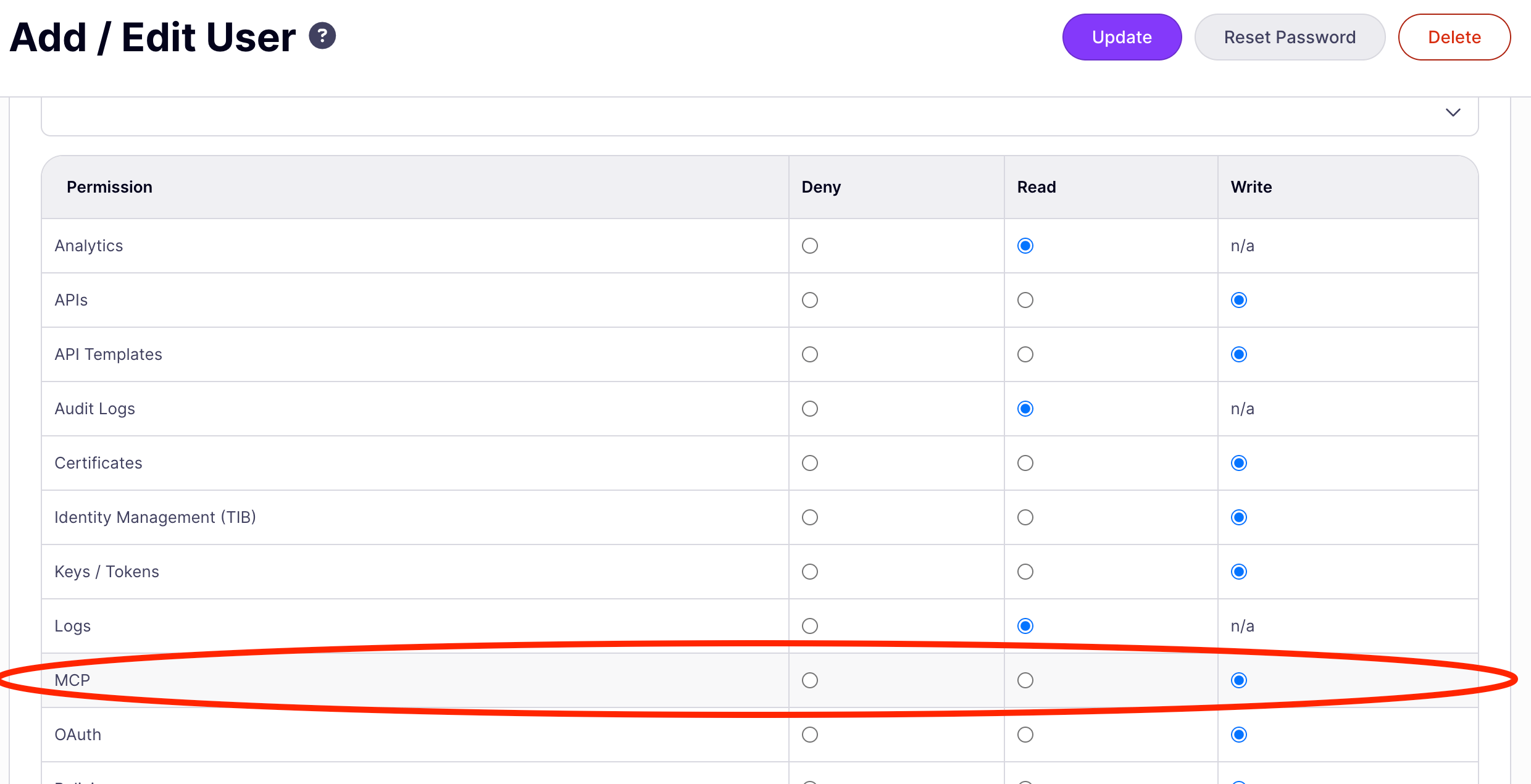
Access to MCP proxy management is controlled by the `mcp` permission on the user's role.
| Permission level | What the user can do |
| ---------------- | --------------------------------------------------------------------------------------------------------- |
| **Write** | Create, view, edit, and delete MCP proxies. Full access to all UI actions. |
| **Read** | View the proxy list and MCP Designer. Access the definition viewer. Cannot create, edit, save, or delete. |
| **Deny** | No access. The **MCP** sidebar item is not visible. |
Permissions are assigned in the Dashboard under **User Management → Users**. For organization-wide access control, configure permissions on user groups rather than individual users.
 ***
## The MCP proxies list
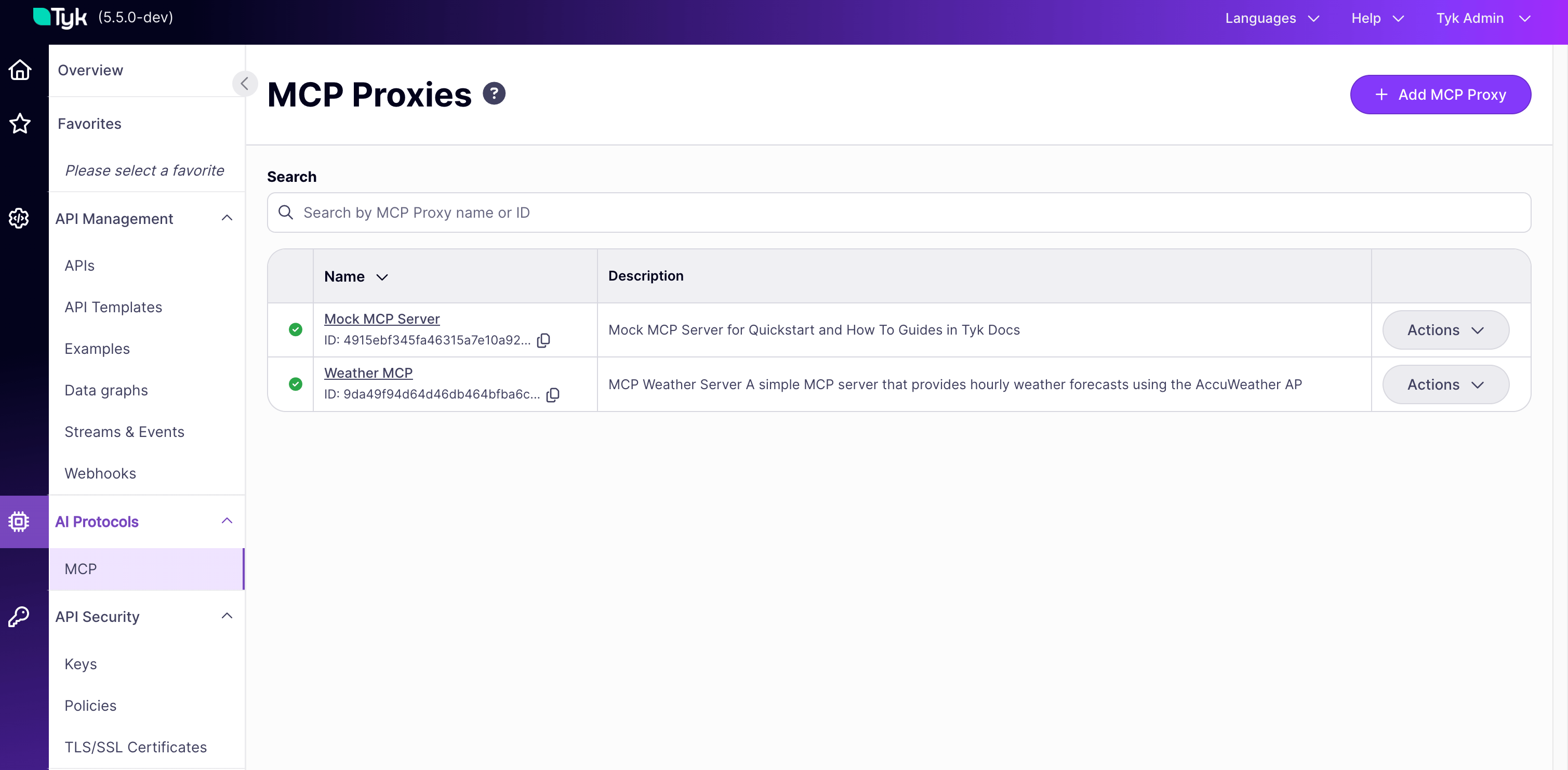
The list page shows every MCP proxy managed by this Dashboard instance. Clicking a row opens the MCP Designer.
The search input at the top filters proxies by name in real time. Clear the input to return to the full list.
The **Add MCP Proxy** button opens the creation wizard.
***
## The MCP proxies list
The list page shows every MCP proxy managed by this Dashboard instance. Clicking a row opens the MCP Designer.
The search input at the top filters proxies by name in real time. Clear the input to return to the full list.
The **Add MCP Proxy** button opens the creation wizard.
 ***
## Create an MCP proxy
The creation wizard collects the minimum information needed to define a working MCP proxy. It has three steps.
### Step 1: Basic information
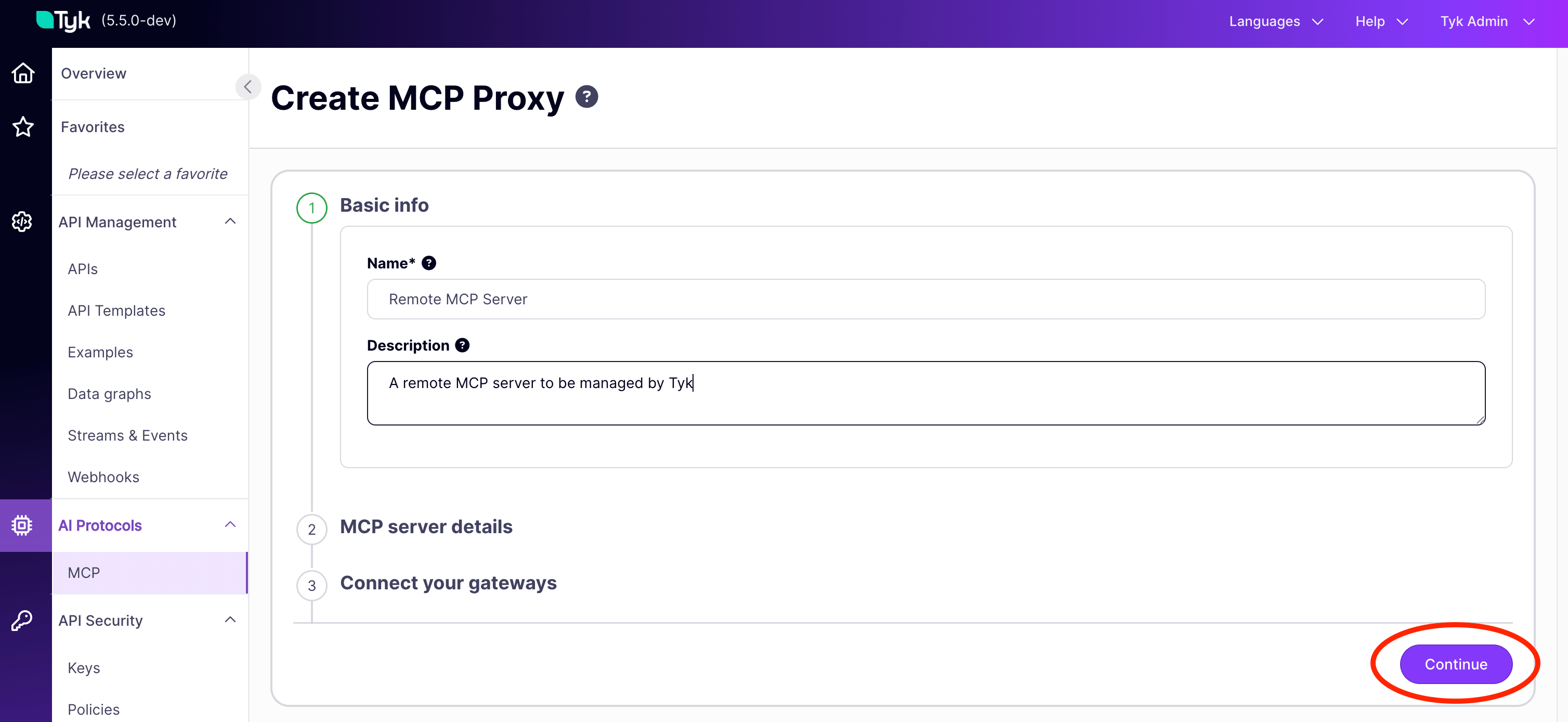
| Field | Required | What it sets |
| --------------- | -------- | ---------------------------------------------------------------------------------------------------------------------------- |
| **Name** | Yes | Display name for the proxy. Also used to identify it in policy and key configuration. Maps to `x-tyk-api-gateway.info.name`. |
| **Description** | No | Free-text description for team reference. Maps to `info.description`. |
The name must be unique across all MCP proxies in this Dashboard instance.
Click **Continue** to proceed.
***
## Create an MCP proxy
The creation wizard collects the minimum information needed to define a working MCP proxy. It has three steps.
### Step 1: Basic information
| Field | Required | What it sets |
| --------------- | -------- | ---------------------------------------------------------------------------------------------------------------------------- |
| **Name** | Yes | Display name for the proxy. Also used to identify it in policy and key configuration. Maps to `x-tyk-api-gateway.info.name`. |
| **Description** | No | Free-text description for team reference. Maps to `info.description`. |
The name must be unique across all MCP proxies in this Dashboard instance.
Click **Continue** to proceed.
 ### Step 2: Register server
| Field | Required | What it sets |
| -------------- | -------- | -------------------------------------------------------------------------------------------------------------------------------- |
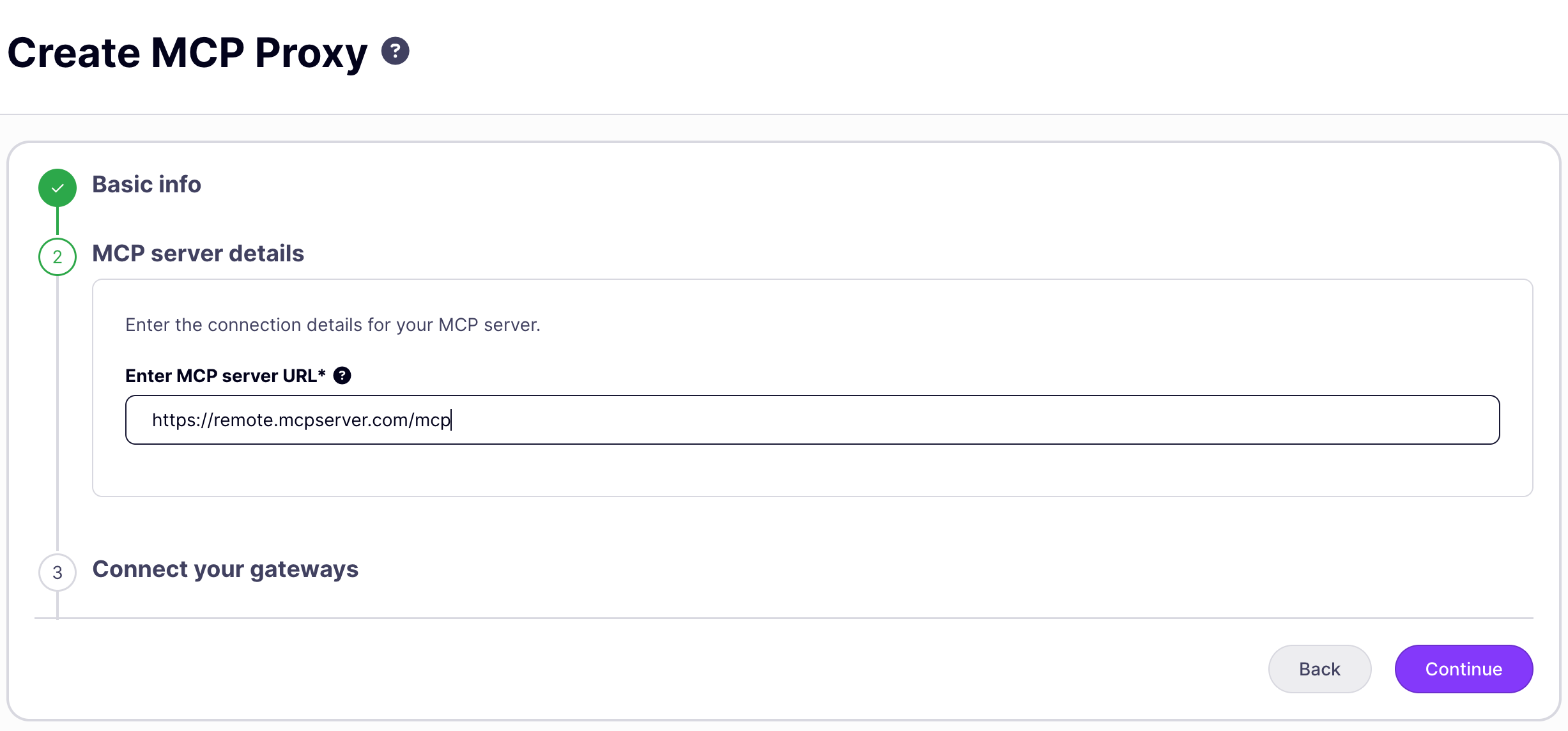
| **Server URL** | Yes | The base URL of the upstream MCP server. Tyk forwards all MCP traffic to this address. Maps to `x-tyk-api-gateway.upstream.url`. |
Enter the full URL of your upstream MCP server, for example `https://weather-mcp.example.com`. This is the server Tyk proxies to, not the URL clients use to connect to Tyk.
Click **Continue** to proceed.
### Step 2: Register server
| Field | Required | What it sets |
| -------------- | -------- | -------------------------------------------------------------------------------------------------------------------------------- |
| **Server URL** | Yes | The base URL of the upstream MCP server. Tyk forwards all MCP traffic to this address. Maps to `x-tyk-api-gateway.upstream.url`. |
Enter the full URL of your upstream MCP server, for example `https://weather-mcp.example.com`. This is the server Tyk proxies to, not the URL clients use to connect to Tyk.
Click **Continue** to proceed.
 ### Step 3: Connect gateways
Select the gateway instances to deploy this proxy to. You can click **Skip for now** to save the proxy without deploying it; it will exist in the Dashboard but will not serve traffic until you return and assign a gateway.
Click **Finish** to save. The Dashboard displays "MCP proxy successfully created" and returns you to the proxy list.
The wizard creates the proxy with bearer token authentication enabled and a listen path derived from the proxy name. For most deployments you'll want to review the full definition to configure authentication details, add per-primitive middleware, or set up PRM for OAuth discovery. See [Editing the full definition](#editing-the-full-definition) below.
***
## The MCP Designer
Clicking a proxy in the list opens the MCP Designer. The MCP Designer has two tabs.
### Step 3: Connect gateways
Select the gateway instances to deploy this proxy to. You can click **Skip for now** to save the proxy without deploying it; it will exist in the Dashboard but will not serve traffic until you return and assign a gateway.
Click **Finish** to save. The Dashboard displays "MCP proxy successfully created" and returns you to the proxy list.
The wizard creates the proxy with bearer token authentication enabled and a listen path derived from the proxy name. For most deployments you'll want to review the full definition to configure authentication details, add per-primitive middleware, or set up PRM for OAuth discovery. See [Editing the full definition](#editing-the-full-definition) below.
***
## The MCP Designer
Clicking a proxy in the list opens the MCP Designer. The MCP Designer has two tabs.
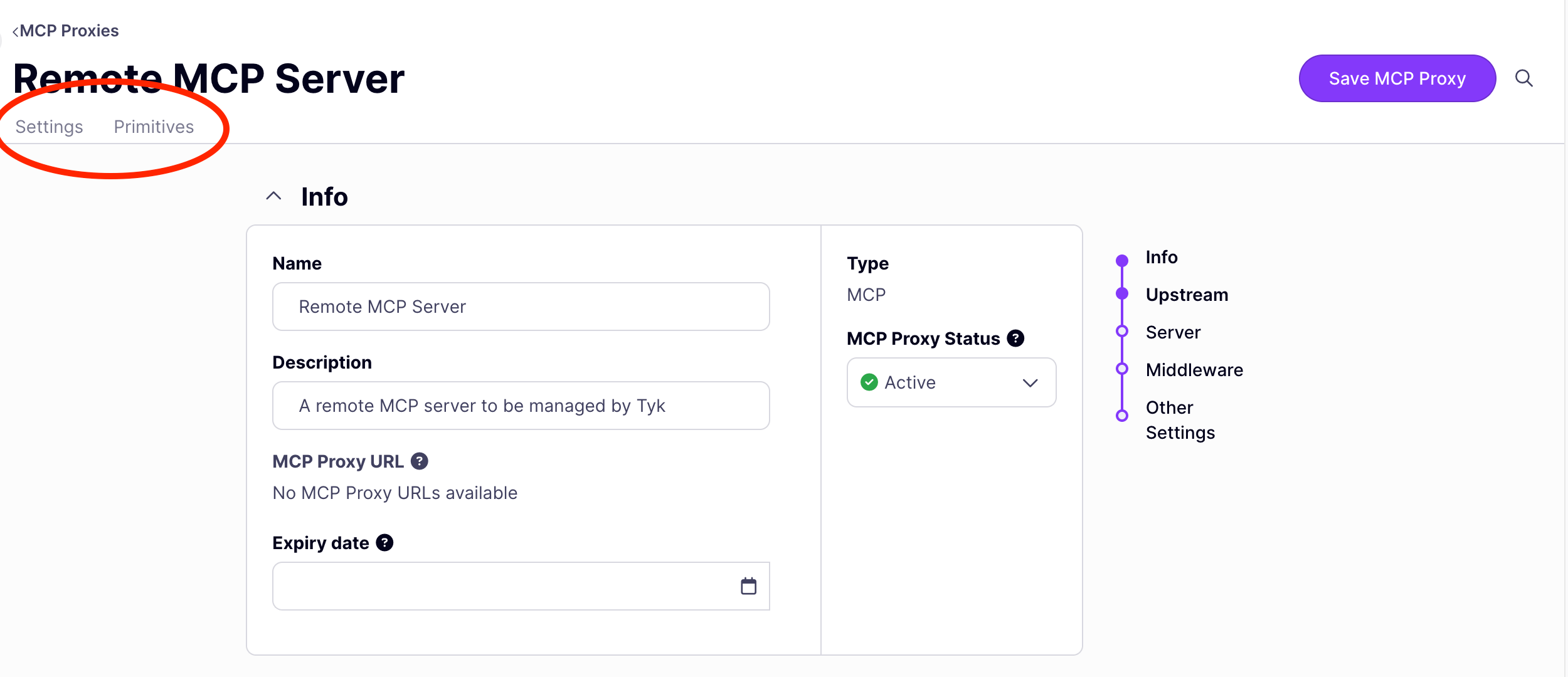 ### Settings tab
The **Settings** tab covers two areas: core proxy configuration and proxy-level middleware.
**Core configuration**: name, upstream server URL, and gateway assignment. To edit these fields, make your changes and click **Save MCP Proxy**. The Dashboard triggers a gateway reload automatically.
**Proxy-level middleware**: middleware that applies to all requests through this proxy, regardless of which primitive is invoked. The following options are available in the Settings tab:
| Middleware | What it does |
| ------------------------------ | ----------------------------------------------------------------------------------------------------------------------- |
| **CORS** | Configures cross-origin resource sharing headers for browser-based MCP clients. |
| **Transform Request Headers** | Adds, removes, or modifies HTTP headers on every request forwarded to the upstream. |
| **Transform Response Headers** | Adds, removes, or modifies HTTP headers on every response returned to clients. |
| **Context Variables** | Enables Tyk context variables (request metadata such as IP, key ID, and path) for use in header transforms and plugins. |
| **Traffic Logs** | Configures how request and response data is captured in analytics. |
| **Plugin Config / Bundle** | Configures custom plugin drivers and bundle sources for gateway-side plugin execution. |
These options map to `x-tyk-api-gateway.middleware.global` in the proxy definition. For full configuration details, see [MCP middleware: proxy level](/ai-management/mcp-gateway/mcp-middleware#dashboard-settings-tab-proxy-level).
### Primitives tab
The **Primitives** tab lists every tool, resource, and prompt you have manually registered for this proxy. Each entry shows the primitive's name, its type (Tool, Resource, or Prompt), and the number of middleware rules applied to it. Use the type filter and search input to narrow the list.
**Adding a primitive**
Click **Add Primitive** to open the add primitive modal. Select the type (Tool, Resource, or Prompt) and enter the primitive name: this must match the name the upstream MCP server uses when advertising that primitive. Names cannot contain whitespace and must be unique within their type.
Adding a primitive creates an entry in `x-tyk-api-gateway.middleware.mcpTools`, `mcpResources`, or `mcpPrompts` (depending on type) in the proxy definition.
**Adding middleware to a primitive**
Click a primitive to open its detail view, then click **Add Middleware**. The following middleware is available for primitives:
| Category | Middleware |
| --------------------- | ----------------------------------------------------------------------- |
| Security & Validation | Allow, Block, Ignore Authentication, Request Size Limit |
| Traffic management | Rate Limit, Circuit Breaker |
| Transformation | Transform Request Headers, Transform Response Headers, Virtual Endpoint |
| Analytics | Track Endpoint, Do Not Track Endpoint |
Each middleware option maps to the corresponding configuration block inside the primitive's entry in the proxy definition. See [MCP middleware](/ai-management/mcp-gateway/mcp-middleware) for what each option does and how it is configured.
***
## Editing the full definition
The Dashboard UI forms cover basic proxy configuration. To access the full range of options (middleware, authentication, PRM, upstream OAuth, and traffic management), edit the proxy's Tyk OAS API definition directly.
Open the editor via **Actions → View MCP Proxy Definition** on the MCP Designer.
### Settings tab
The **Settings** tab covers two areas: core proxy configuration and proxy-level middleware.
**Core configuration**: name, upstream server URL, and gateway assignment. To edit these fields, make your changes and click **Save MCP Proxy**. The Dashboard triggers a gateway reload automatically.
**Proxy-level middleware**: middleware that applies to all requests through this proxy, regardless of which primitive is invoked. The following options are available in the Settings tab:
| Middleware | What it does |
| ------------------------------ | ----------------------------------------------------------------------------------------------------------------------- |
| **CORS** | Configures cross-origin resource sharing headers for browser-based MCP clients. |
| **Transform Request Headers** | Adds, removes, or modifies HTTP headers on every request forwarded to the upstream. |
| **Transform Response Headers** | Adds, removes, or modifies HTTP headers on every response returned to clients. |
| **Context Variables** | Enables Tyk context variables (request metadata such as IP, key ID, and path) for use in header transforms and plugins. |
| **Traffic Logs** | Configures how request and response data is captured in analytics. |
| **Plugin Config / Bundle** | Configures custom plugin drivers and bundle sources for gateway-side plugin execution. |
These options map to `x-tyk-api-gateway.middleware.global` in the proxy definition. For full configuration details, see [MCP middleware: proxy level](/ai-management/mcp-gateway/mcp-middleware#dashboard-settings-tab-proxy-level).
### Primitives tab
The **Primitives** tab lists every tool, resource, and prompt you have manually registered for this proxy. Each entry shows the primitive's name, its type (Tool, Resource, or Prompt), and the number of middleware rules applied to it. Use the type filter and search input to narrow the list.
**Adding a primitive**
Click **Add Primitive** to open the add primitive modal. Select the type (Tool, Resource, or Prompt) and enter the primitive name: this must match the name the upstream MCP server uses when advertising that primitive. Names cannot contain whitespace and must be unique within their type.
Adding a primitive creates an entry in `x-tyk-api-gateway.middleware.mcpTools`, `mcpResources`, or `mcpPrompts` (depending on type) in the proxy definition.
**Adding middleware to a primitive**
Click a primitive to open its detail view, then click **Add Middleware**. The following middleware is available for primitives:
| Category | Middleware |
| --------------------- | ----------------------------------------------------------------------- |
| Security & Validation | Allow, Block, Ignore Authentication, Request Size Limit |
| Traffic management | Rate Limit, Circuit Breaker |
| Transformation | Transform Request Headers, Transform Response Headers, Virtual Endpoint |
| Analytics | Track Endpoint, Do Not Track Endpoint |
Each middleware option maps to the corresponding configuration block inside the primitive's entry in the proxy definition. See [MCP middleware](/ai-management/mcp-gateway/mcp-middleware) for what each option does and how it is configured.
***
## Editing the full definition
The Dashboard UI forms cover basic proxy configuration. To access the full range of options (middleware, authentication, PRM, upstream OAuth, and traffic management), edit the proxy's Tyk OAS API definition directly.
Open the editor via **Actions → View MCP Proxy Definition** on the MCP Designer.
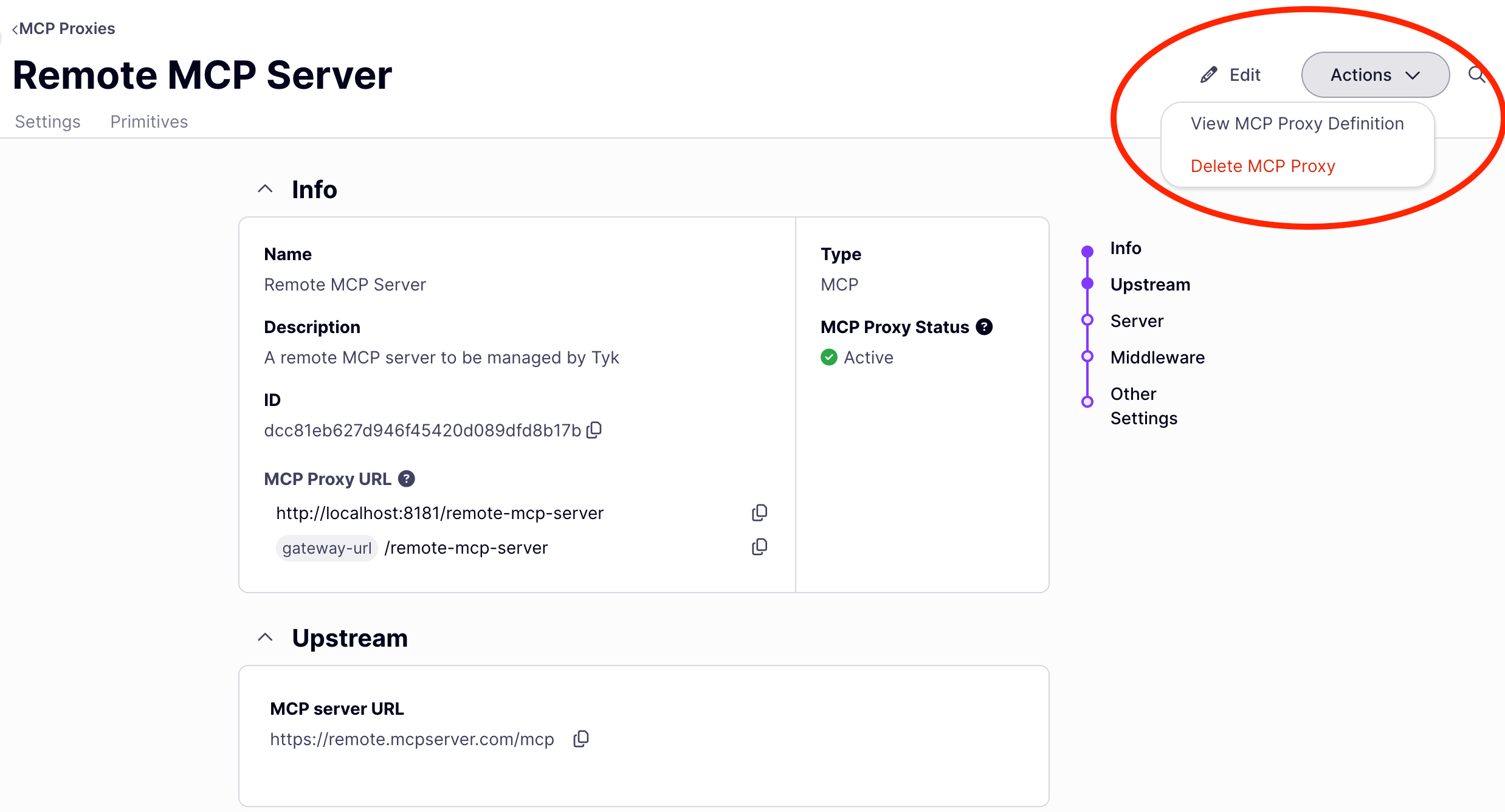 The definition is a Tyk OAS API definition: an OpenAPI 3.0.3 document with an `x-tyk-api-gateway` vendor extension containing all Tyk-specific configuration. The key sections are:
| Section | What it configures |
| ------------------------------------------------------------------- | ----------------------------------------------------------------------------------------------------- |
| `x-tyk-api-gateway.server.authentication` | Authentication method (bearer token, JWT, OAuth, mTLS) and settings. |
| `x-tyk-api-gateway.server.authentication.protectedResourceMetadata` | PRM for OAuth 2.1 discovery: the `/.well-known/oauth-protected-resource` endpoint. |
| `x-tyk-api-gateway.upstream` | Upstream URL, load balancing, upstream authentication, and mTLS. |
| `x-tyk-api-gateway.middleware.mcpTools` | Per-tool middleware: access control, rate limits, timeouts, circuit breakers, request transformation. |
| `x-tyk-api-gateway.middleware.mcpResources` | Per-resource middleware: same options as tools, keyed by resource URI or URI pattern. |
| `x-tyk-api-gateway.middleware.mcpPrompts` | Per-prompt middleware: same options as tools, keyed by prompt name. |
| `x-tyk-api-gateway.middleware.operations` | Method-level middleware applying to all calls of a given JSON-RPC method. |
| `x-tyk-api-gateway.middleware.global` | API-wide middleware applying to all requests. |
After editing, click **Save MCP Proxy** to save and redeploy. Changes are applied to all connected gateways automatically.
### Common edits after initial setup
**Configuring authentication**: The proxy is created with bearer token (`authToken`) authentication enabled. To configure a different method, change the `securitySchemes` entry in `x-tyk-api-gateway.server.authentication`. See [Authentication](/api-management/client-authentication) for all supported methods.
**Enabling PRM for OAuth discovery**: Add a `protectedResourceMetadata` block to `x-tyk-api-gateway.server.authentication`, specifying the resource identifier and at least one authorization server URL. See [MCP Gateway: OAuth 2.1 authentication](/ai-management/mcp-gateway/oauth-2-1).
**Restricting which tools clients can call**: Use the Primitives tab: add the tool as a primitive, then add **Allow** middleware to it. Once any tool in the proxy has an Allow rule, all unlisted tools are blocked. For definition-based configuration, see [MCP middleware: access control](/ai-management/mcp-gateway/mcp-middleware#access-control).
**Applying rate limits to a specific tool**: Use the Primitives tab: open the tool primitive and add **Rate Limit** middleware. For definition-based configuration, see [MCP middleware: traffic management](/ai-management/mcp-gateway/mcp-middleware#traffic-management).
**Configuring upstream OAuth**: Add an `authentication.oauth.clientCredentials` block to `x-tyk-api-gateway.upstream` to have Tyk obtain and forward OAuth tokens to your upstream MCP server. See [MCP Gateway: OAuth 2.1 authentication](/ai-management/mcp-gateway/oauth-2-1#upstream-oauth).
**Adding CORS or global header transforms**: Configure these in the Settings tab under the middleware section. Changes apply to all requests through the proxy.
For a complete explanation of every field in the definition, see [MCP OAS definition](/ai-management/mcp-gateway/mcp-proxy-definitions).
***
## Delete an MCP proxy
1. In the sidebar, click **MCP**.
2. Open the proxy you want to delete.
3. Click **Actions → Delete MCP Proxy** and confirm.
Deletion removes the proxy definition from the Dashboard and undeploys it from all connected gateways. Associated API keys and policies are not removed automatically; remove the access right from any keys scoped to this proxy, or delete those keys separately.
Deleting an MCP proxy also removes it from any versioning hierarchy it belongs to. If the deleted proxy was a versioned child, the version entry is removed from the base proxy's definition.
The definition is a Tyk OAS API definition: an OpenAPI 3.0.3 document with an `x-tyk-api-gateway` vendor extension containing all Tyk-specific configuration. The key sections are:
| Section | What it configures |
| ------------------------------------------------------------------- | ----------------------------------------------------------------------------------------------------- |
| `x-tyk-api-gateway.server.authentication` | Authentication method (bearer token, JWT, OAuth, mTLS) and settings. |
| `x-tyk-api-gateway.server.authentication.protectedResourceMetadata` | PRM for OAuth 2.1 discovery: the `/.well-known/oauth-protected-resource` endpoint. |
| `x-tyk-api-gateway.upstream` | Upstream URL, load balancing, upstream authentication, and mTLS. |
| `x-tyk-api-gateway.middleware.mcpTools` | Per-tool middleware: access control, rate limits, timeouts, circuit breakers, request transformation. |
| `x-tyk-api-gateway.middleware.mcpResources` | Per-resource middleware: same options as tools, keyed by resource URI or URI pattern. |
| `x-tyk-api-gateway.middleware.mcpPrompts` | Per-prompt middleware: same options as tools, keyed by prompt name. |
| `x-tyk-api-gateway.middleware.operations` | Method-level middleware applying to all calls of a given JSON-RPC method. |
| `x-tyk-api-gateway.middleware.global` | API-wide middleware applying to all requests. |
After editing, click **Save MCP Proxy** to save and redeploy. Changes are applied to all connected gateways automatically.
### Common edits after initial setup
**Configuring authentication**: The proxy is created with bearer token (`authToken`) authentication enabled. To configure a different method, change the `securitySchemes` entry in `x-tyk-api-gateway.server.authentication`. See [Authentication](/api-management/client-authentication) for all supported methods.
**Enabling PRM for OAuth discovery**: Add a `protectedResourceMetadata` block to `x-tyk-api-gateway.server.authentication`, specifying the resource identifier and at least one authorization server URL. See [MCP Gateway: OAuth 2.1 authentication](/ai-management/mcp-gateway/oauth-2-1).
**Restricting which tools clients can call**: Use the Primitives tab: add the tool as a primitive, then add **Allow** middleware to it. Once any tool in the proxy has an Allow rule, all unlisted tools are blocked. For definition-based configuration, see [MCP middleware: access control](/ai-management/mcp-gateway/mcp-middleware#access-control).
**Applying rate limits to a specific tool**: Use the Primitives tab: open the tool primitive and add **Rate Limit** middleware. For definition-based configuration, see [MCP middleware: traffic management](/ai-management/mcp-gateway/mcp-middleware#traffic-management).
**Configuring upstream OAuth**: Add an `authentication.oauth.clientCredentials` block to `x-tyk-api-gateway.upstream` to have Tyk obtain and forward OAuth tokens to your upstream MCP server. See [MCP Gateway: OAuth 2.1 authentication](/ai-management/mcp-gateway/oauth-2-1#upstream-oauth).
**Adding CORS or global header transforms**: Configure these in the Settings tab under the middleware section. Changes apply to all requests through the proxy.
For a complete explanation of every field in the definition, see [MCP OAS definition](/ai-management/mcp-gateway/mcp-proxy-definitions).
***
## Delete an MCP proxy
1. In the sidebar, click **MCP**.
2. Open the proxy you want to delete.
3. Click **Actions → Delete MCP Proxy** and confirm.
Deletion removes the proxy definition from the Dashboard and undeploys it from all connected gateways. Associated API keys and policies are not removed automatically; remove the access right from any keys scoped to this proxy, or delete those keys separately.
Deleting an MCP proxy also removes it from any versioning hierarchy it belongs to. If the deleted proxy was a versioned child, the version entry is removed from the base proxy's definition.