> ## Documentation Index
> Fetch the complete documentation index at: https://tyk.io/docs/llms.txt
> Use this file to discover all available pages before exploring further.
# Roles and Permissions in Tyk AI Studio
> Learn how role-based access control (RBAC) works in Tyk AI Studio: permissions, built-in roles, custom roles, and role assignment to users and Teams.
## Availability
| Edition | Deployment Type |
| :- | :- |
| [Enterprise](/docs/ai-management/ai-studio/overview#enterprise-edition) | Self-Managed, Hybrid |
Roles control what a person can see and do in the admin console and the management API of Tyk AI Studio. With roles, you give each person only the access that they need. For example:
* A platform engineer can manage LLM providers and tools, but cannot change who has access.
* An auditor can read the audit trail, but cannot change anything.
* A reviewer can see only the community submission queue.
Roles are available from v2.2.0.
### Community Edition vs Enterprise Edition
In the **Community Edition**, a user is an administrator or not. Set the **Admin User** switch on the user to give full access to the admin console.
In the **Enterprise Edition**, roles give fine-grained access. The Enterprise license must include the roles feature. If it does not, AI Studio uses the Community Edition rule.
Roles do not control the AI Portal and the Chat interface. The **Show Portal** and **Show Chat** switches on the user control access to them. The [Catalogs](/docs/ai-management/ai-studio/catalogs) of the user's [Teams](/docs/ai-management/ai-studio/teams) control what the user sees in them.
## How Roles Work
* A **permission** has the form `resource:action`, for example `llms:write` or `audit:read`.
* A **role** is a named set of permissions.
* You assign roles to **users** and to **Teams**. A user gets the permissions of their own roles. The user also gets the roles of each Team that they belong to.
* Permissions apply to the admin console navigation, pages, buttons, and every management API call. This includes calls with the API key of a user.
When you map identity provider groups to Teams, the IdP also controls the roles of the user. Refer to [Single Sign-On](/docs/ai-management/ai-studio/sso).
### Actions
| Action | Allows |
| :- | :- |
| `read` | List, get, search, and view status and history. Download an existing export. |
| `write` | Create and update, including links to sub-resources, approvals, and rollbacks. |
| `delete` | Remove a resource or a link to a sub-resource. |
| `execute` | Operations such as test, call, reload, sync, and process again. For most resources, `execute` does not change the configuration. `plugins:execute` is an exception. Refer to [Plugin Permissions](#plugin-permissions). |
| `publish` | Make an object live: set an LLM, router, tool, data source, App, or agent active, enable a plugin, or activate a metadata schema. |
Each action includes `read`. The `publish` action does not include `write`. Thus, one role can edit drafts but not release them. Another role can release objects but not edit them. Only resources with an active switch offer `publish`.
If a user without `llms:publish` sets an LLM provider active, AI Studio returns `403` with `"permission": "llms:publish"`. The admin console disables the switch for that user.
## Built-in Roles
AI Studio has five system roles:
| Role | Use It For | Access |
| :- | :- | :- |
| **Owner** | The people who are responsible for the installation | All permissions. Only an Owner can assign or remove the Owner role. |
| **Administrator** | Platform administrators | All permissions. Cannot assign or remove the Owner role. |
| **Editor** | Engineers who build and operate AI resources | All actions on all resources, with these exceptions:
- No access to `roles`, `sso-profiles`, `audit`, `exports`, `proxy-logs`, and `chat-history`.
- Read only on `users`, `groups` (Teams), and `metadata`.
- Read and execute only on `plugins` and `marketplace`. An Editor can call plugins and change the configuration, name, and description of an installed plugin. An Editor cannot install, remove, enable, or disable plugins.
The role includes full access to `credentials`, so an Editor can read secrets. |
| **Viewer** | People who need to look but not change anything | `read` on all resources, except `proxy-logs`, `chat-history`, `exports`, `audit`, `credentials`, and `sso-profiles`. |
| **Auditor** | Compliance and security reviewers | Viewer, plus `read` on `audit`, `proxy-logs`, `chat-history`, and `exports`. No access to `credentials` or `sso-profiles`. |
You cannot edit or delete a system role. To change one, clone it and edit the copy. When you clone Owner or Administrator, the copy gets every concrete permission. Only the Owner and Administrator roles have the full-access wildcard (`*`). A custom role cannot have it.
AI Studio calculates the permissions of Editor, Viewer, and Auditor from the permission catalog. It does this at each start, and each time a plugin adds or removes permissions. Thus, new resources and plugin resources go into these roles automatically.
### Owner Rules
* You can assign the Owner role to users only, not to Teams.
* Only an Owner can assign or remove the Owner role.
* You cannot remove the last Owner. You also cannot delete, disable, or demote the last Owner.
### The First User and Upgrades
On a new installation, the first user gets the Administrator role. At the next start of AI Studio, if no Owner exists, AI Studio gives the Owner role to the first administrator.
When you upgrade to v2.2.0 or later, AI Studio does these steps one time:
* Each existing administrator gets the Administrator role.
* The first user (user ID 1) also gets the Owner role. If no user has the Owner role after this step, the administrator with the lowest user ID becomes an Owner. For example, this occurs when user ID 1 is not an administrator.
* Other users get no role. They keep their AI Portal and Chat access.
Before v2.2.0, the **Enable access to IdP configuration** switch gave access to the identity provider configuration. With roles, AI Studio does not use this switch. The `sso-profiles` permission controls this access. Administrators who did not have the switch now have this access through the Administrator role. AI Studio logs their email addresses at startup. After the upgrade, check which users have the Administrator role. To limit identity provider access, give these users a custom role without `sso-profiles`.
## Permission Reference
Each row is one resource. The table shows the actions that each resource offers.
* **Sensitive** resources hold data such as transcripts, logs, and secrets. You can withhold `read` on them separately.
* **Privileged** resources can give access to other people when you change them. The role editor shows a warning for them.
| Group | Resource | Label | Actions | Notes |
| :- | :- | :- | :- | :- |
| Analytics | `analytics` | Analytics | read | Usage, cost, and token dashboards |
| Analytics | `proxy-logs` | Proxy logs | read | Sensitive. Raw gateway logs, including prompt and completion bodies |
| Plugins | `plugins` | Installed plugins | read, write, delete, execute, publish | Privileged. `publish` enables or disables a plugin. `execute` calls every plugin and can change the configuration of an installed plugin. Refer to [Plugin Permissions](#plugin-permissions). |
| Plugins | `marketplace` | Marketplace | read, write, delete, execute | Marketplace and its sources |
| LLM management | `llms` | LLM providers | read, write, delete, publish | |
| LLM management | `model-prices` | Model prices | read, write, delete | |
| LLM management | `model-routers` | Model routers | read, write, delete, publish | |
| LLM management | `semantic-routers` | Semantic routers | read, write, delete, publish | |
| LLM management | `embedders` | Embedders | read, write, delete | Also needed to create an embedder from a data source or router form |
| Context management | `datasources` | Data sources | read, write, delete, execute, publish | |
| Context management | `tools` | Tools | read, write, delete, execute, publish | |
| Context management | `mcp-servers` | MCP servers | read, write, delete, execute, publish | `execute` registers and pushes definitions to the Tyk Dashboard and creates policies. `publish` shows a server in the AI Portal. |
| Context management | `filters` | Filters | read, write, delete, execute | |
| Context management | `filestores` | File stores | read, write, delete | |
| Context management | `tags` | Tags | read, write, delete | |
| Community | `submissions` | Submission queue | read, write, execute | |
| Community | `attestation-templates` | Attestation templates | read, write, delete | |
| Access | `users` | Users | read, write, delete | Privileged. Includes API keys of users |
| Access | `groups` | Teams | read, write, delete | Privileged. Team roles apply to all members |
| Access | `roles` | Roles | read, write, delete | Privileged |
| Access | `sso-profiles` | Identity providers | read, write, delete | Sensitive and privileged. Includes IdP secrets and group mappings |
| Governance | `audit` | Audit trail | read | Sensitive |
| Governance | `compliance` | Compliance | read | |
| Governance | `metadata` | Metadata schemas | read, write, delete, publish | `publish` activates a schema. The permission of an object controls the metadata on that object. |
| Governance | `exports` | Log exports | read, write | Sensitive. Bulk proxy log exports |
| Governance | `webhooks` | Webhooks | read, write, delete, execute | Sensitive and privileged. `execute` approves, revokes, tests, and replays deliveries. |
| Settings | `tyk-connections` | Tyk connections | read, write, delete, execute | Sensitive and privileged. `execute` activates, disables, probes, and syncs a connection. It also lets a connection use a Dashboard at a private network address. |
| Settings | `secrets` | Secrets | read, write, delete | The API never returns secret values. |
| Settings | `branding` | Branding | read, write | |
| AI Portal | `apps` | Apps | read, write, delete, publish | An inactive App cannot authenticate at the gateway. |
| AI Portal | `credentials` | Credentials | read, write, delete | Sensitive. Reading a credential shows its secret. Grant it only to roles that need it. |
| AI Portal | `mcp-credentials` | MCP credentials | read, write, delete, execute | Sensitive and privileged. `execute` mints, rotates, suspends, and revokes keys. |
| AI Portal | `edges` | Edge gateways | read, write, delete, execute | Edge Gateways, namespaces, and configuration push |
| Chat | `chats` | Chats | read, write, delete | |
| Chat | `agents` | Agents | read, write, delete, execute, publish | |
| Chat | `llm-settings` | Model call settings | read, write, delete | |
| Chat | `chat-history` | Chat history | read, write, delete | Sensitive. Conversation transcripts |
| Catalogs | `catalogues` | LLM catalogues | read, write, delete | |
| Catalogs | `data-catalogues` | Data catalogues | read, write, delete | |
| Catalogs | `tool-catalogues` | Tool catalogues | read, write, delete | |
The role editor shows the current catalog, including plugin resources.
## Manage Roles
To see roles, you need `roles:read`. To change roles, you need `roles:write`.
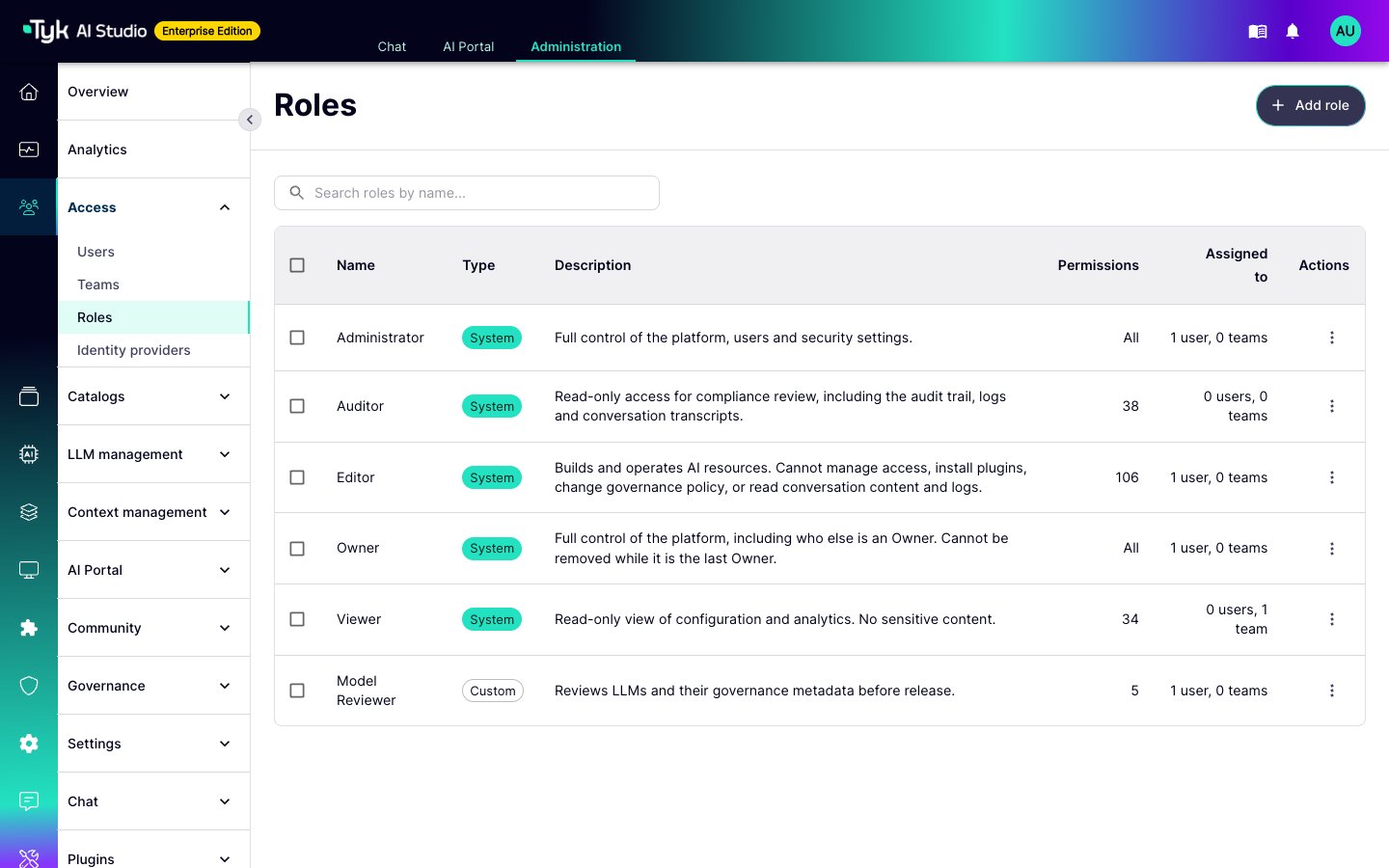 1. In the admin console, go to **Access > Roles**.
2. Click **Add role**. The permission matrix opens. It has one row for each resource, grouped as in the navigation, and one column for each action.
3. Enter a name and a description, and select the permissions. When you select `write`, `delete`, or `execute`, the editor also selects `read`.
4. Click **Create role**.
1. In the admin console, go to **Access > Roles**.
2. Click **Add role**. The permission matrix opens. It has one row for each resource, grouped as in the navigation, and one column for each action.
3. Enter a name and a description, and select the permissions. When you select `write`, `delete`, or `execute`, the editor also selects `read`.
4. Click **Create role**.
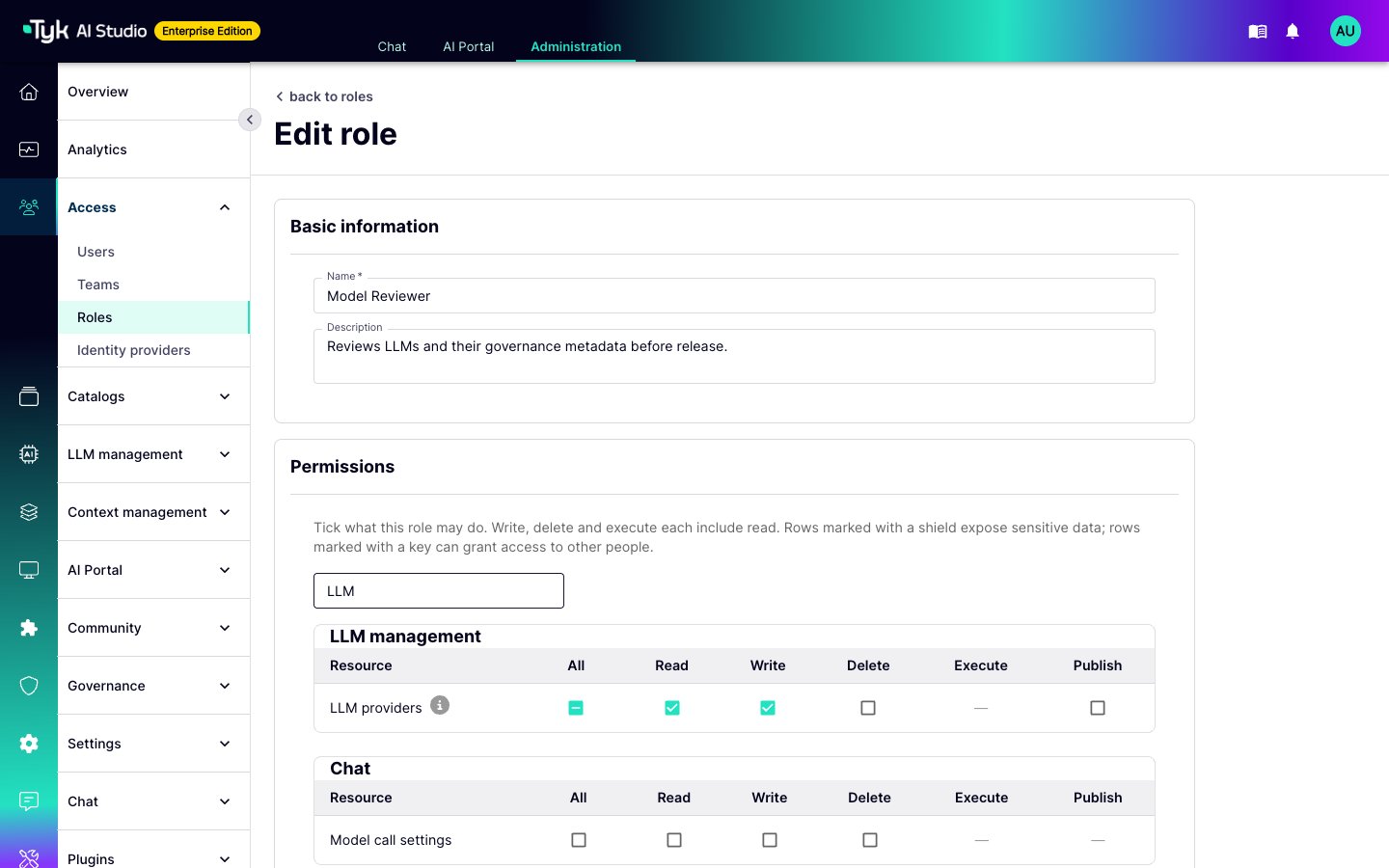 To start from a system role, open the role and click **Clone role**. Then edit the copy.
When you delete a custom role, AI Studio removes it from every user and Team that has it.
### Assign Roles
* **To a user:** Edit the user and select roles in the **Roles** field. These roles belong to the user directly.
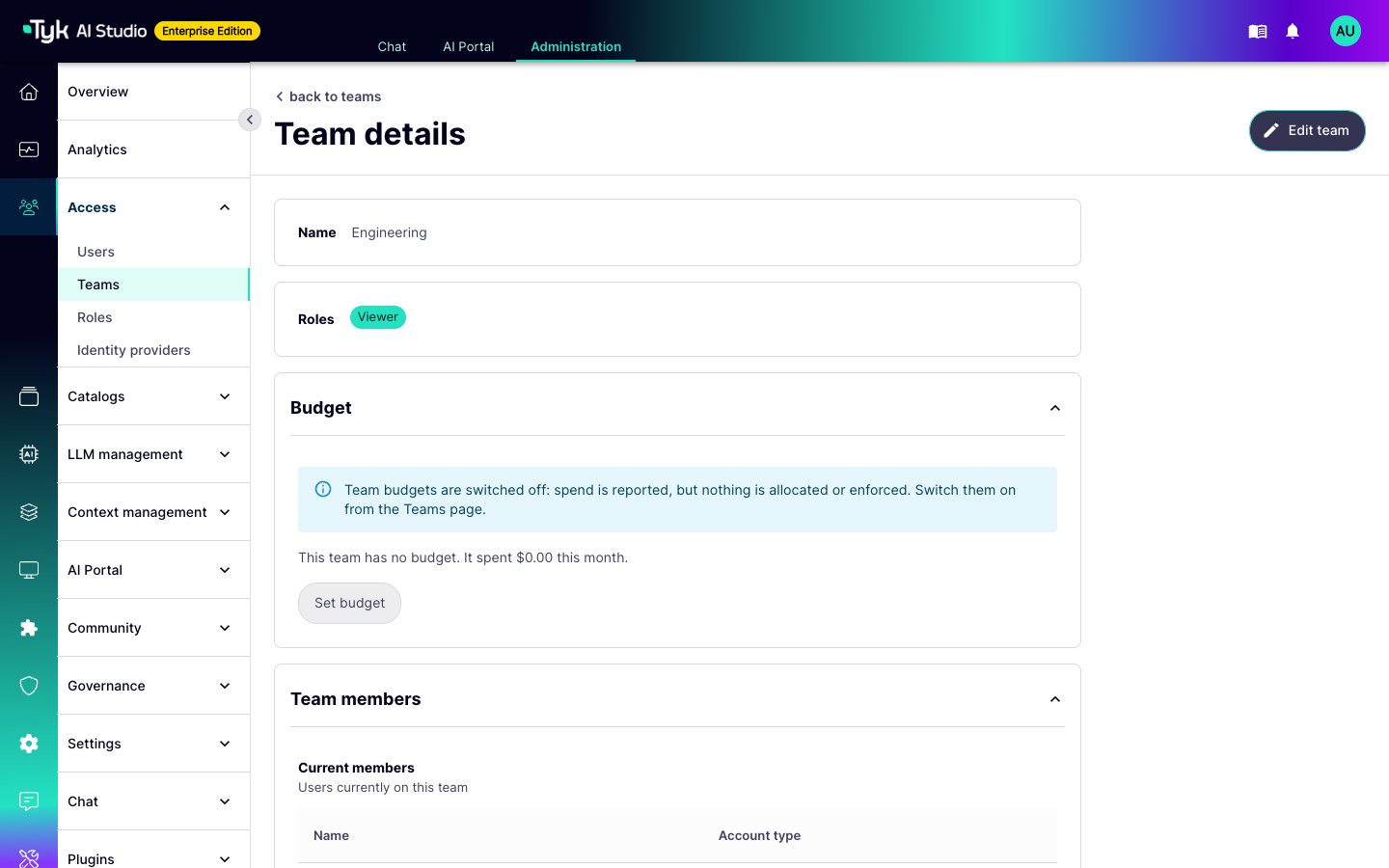
* **To a Team:** Edit the Team and select roles in the **Team roles** field. Every member of the Team gets these roles. Refer to [Teams](/docs/ai-management/ai-studio/teams).
To start from a system role, open the role and click **Clone role**. Then edit the copy.
When you delete a custom role, AI Studio removes it from every user and Team that has it.
### Assign Roles
* **To a user:** Edit the user and select roles in the **Roles** field. These roles belong to the user directly.
* **To a Team:** Edit the Team and select roles in the **Team roles** field. Every member of the Team gets these roles. Refer to [Teams](/docs/ai-management/ai-studio/teams).
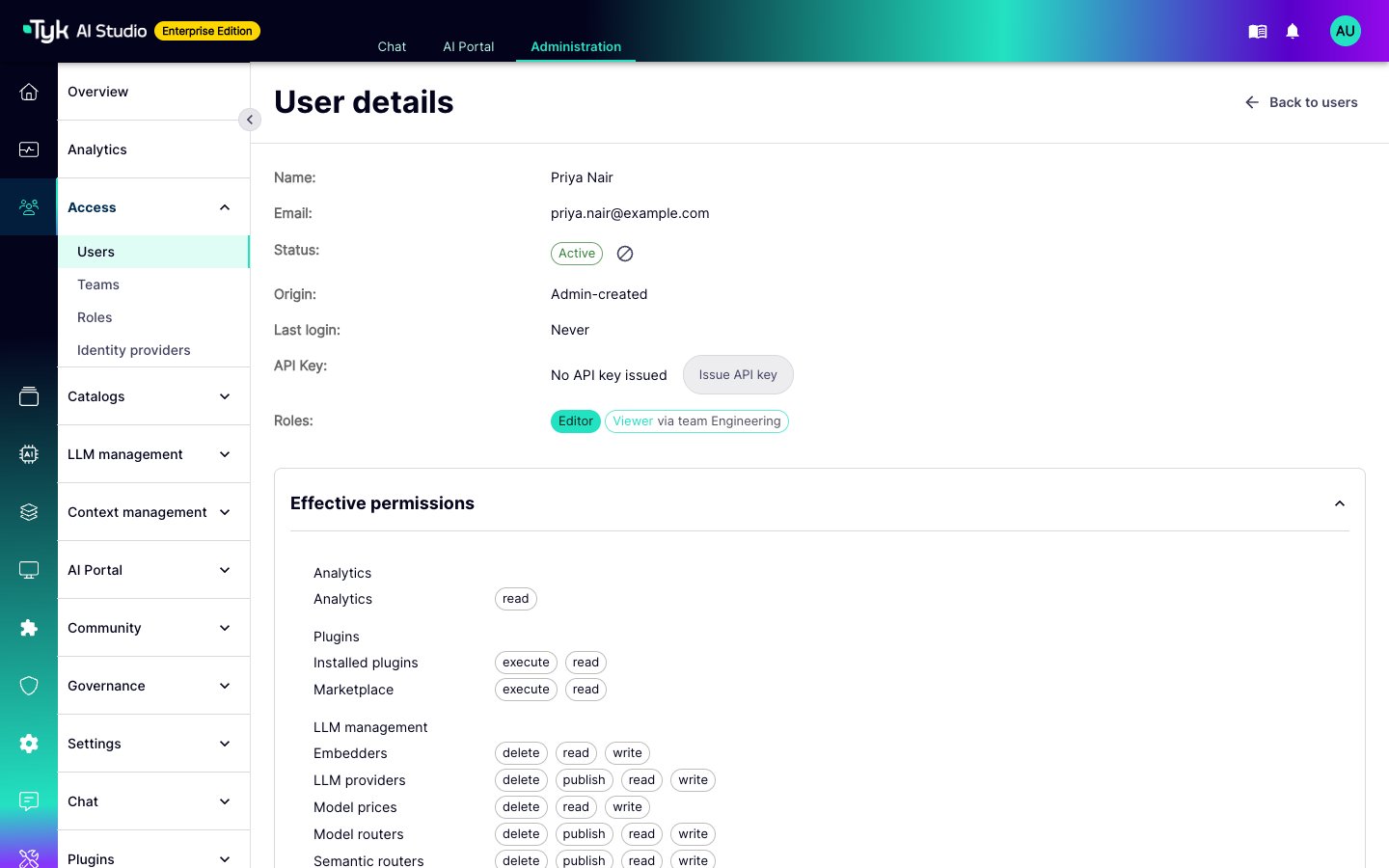
 The detail page of a user shows their roles. The **Effective permissions** section shows the combined permissions from the direct roles and the Team roles.
 ## Plugin Permissions
Plugins can add their own resources to the catalog, under the **Plugins** group. Each installed plugin with pages or resource types has its own row. The resource key is `plugin:`. The row has three actions:
* `read` opens the pages of the plugin, calls the RPC methods that the plugin declares as read-only, and shows its configuration.
* `write` calls the other RPC methods of the plugin and edits its configuration.
* `execute` is for operations that the plugin declares.
A plugin can also declare finer rows below its own row. For example, the Asset Catalog plugin has rows for asset types, assets, and access requests. The plugin documentation tells you which actions each row allows.
* `plugins:execute` grants every permission that any plugin declares (`plugin:...` resources), including `write` and `delete`. It does not grant `plugins:write` or `plugins:delete`. A user with `plugins:execute` can change the configuration, name, and description of an installed plugin. The user cannot install or remove plugins, or change any other plugin field. To give access to one plugin only, select the row of that plugin instead.
* When you uninstall a plugin, its permissions stay on the role. The role editor shows them under **Not installed**. They have no effect until the plugin is installed again.
* An admin page of a plugin needs the `read` permission of that plugin. The plugin manifest can set a different permission in `mount_config.required_permission`. Refer to [Plugin Manifests](/docs/ai-management/ai-studio/plugins/manifests).
* AI Studio sends the permissions of the caller to the plugin, together with the `is_admin` flag.
## Examples
| Role | How to Make It |
| :- | :- |
| Operator that pushes configuration and tests filters and tools, but cannot change them | Clone Viewer. Add `edges:execute`, `filters:execute`, and `tools:execute`. |
| Submission reviewer | Clone Viewer. Add `submissions:write` and `submissions:execute`. |
| LLM submitter | A new role with `llms:read` and `llms:write`. The user can create and edit LLM providers, but cannot set them active. |
| LLM reviewer | Add `llms:publish`. A role with only `llms:publish` can set providers active or inactive, but cannot edit them. |
| LLM cost analyst | A new role with `analytics:read` and `model-prices:read`. |
To make a reviewer enter a value before release, add a governed metadata field that is required to publish. A submitter can save without the field. AI Studio refuses activation until someone fills it in.
## Plugin Permissions
Plugins can add their own resources to the catalog, under the **Plugins** group. Each installed plugin with pages or resource types has its own row. The resource key is `plugin:`. The row has three actions:
* `read` opens the pages of the plugin, calls the RPC methods that the plugin declares as read-only, and shows its configuration.
* `write` calls the other RPC methods of the plugin and edits its configuration.
* `execute` is for operations that the plugin declares.
A plugin can also declare finer rows below its own row. For example, the Asset Catalog plugin has rows for asset types, assets, and access requests. The plugin documentation tells you which actions each row allows.
* `plugins:execute` grants every permission that any plugin declares (`plugin:...` resources), including `write` and `delete`. It does not grant `plugins:write` or `plugins:delete`. A user with `plugins:execute` can change the configuration, name, and description of an installed plugin. The user cannot install or remove plugins, or change any other plugin field. To give access to one plugin only, select the row of that plugin instead.
* When you uninstall a plugin, its permissions stay on the role. The role editor shows them under **Not installed**. They have no effect until the plugin is installed again.
* An admin page of a plugin needs the `read` permission of that plugin. The plugin manifest can set a different permission in `mount_config.required_permission`. Refer to [Plugin Manifests](/docs/ai-management/ai-studio/plugins/manifests).
* AI Studio sends the permissions of the caller to the plugin, together with the `is_admin` flag.
## Examples
| Role | How to Make It |
| :- | :- |
| Operator that pushes configuration and tests filters and tools, but cannot change them | Clone Viewer. Add `edges:execute`, `filters:execute`, and `tools:execute`. |
| Submission reviewer | Clone Viewer. Add `submissions:write` and `submissions:execute`. |
| LLM submitter | A new role with `llms:read` and `llms:write`. The user can create and edit LLM providers, but cannot set them active. |
| LLM reviewer | Add `llms:publish`. A role with only `llms:publish` can set providers active or inactive, but cannot edit them. |
| LLM cost analyst | A new role with `analytics:read` and `model-prices:read`. |
To make a reviewer enter a value before release, add a governed metadata field that is required to publish. A submitter can save without the field. AI Studio refuses activation until someone fills it in.