> ## Documentation Index
> Fetch the complete documentation index at: https://tyk.io/docs/llms.txt
> Use this file to discover all available pages before exploring further.
# Asset Catalog in Tyk AI Studio
> Use the Asset Catalog plugin to record, own, version, and govern AI assets such as agents, prompts, business applications, and integrations in Tyk AI Studio.
## Availability
| Edition | Deployment Type |
| :- | :- |
| [Enterprise](/docs/ai-management/ai-studio/overview#enterprise-edition) | Self-Managed, Hybrid |
The Asset Catalog is an Enterprise plugin that keeps a governance record of the AI assets that your organization builds and uses. AI Studio does not proxy these assets itself. Examples are agents, prompts, business applications, and integrations between two systems.
For each asset, the catalog records:
* Who owns it and who is accountable for it.
* Its versions and the reason for each change.
* Its lifecycle stage, from draft to retired.
* What it depends on: other assets, and the LLMs, tools, data sources, MCP servers, routers, and Apps of AI Studio.
* Its risk tier, calculated from those dependencies.
Assets are internal by default. A publisher can then offer an asset in the [AI Portal](/docs/ai-management/ai-studio/ai-portal), to everyone or to selected [Teams](/docs/ai-management/ai-studio/teams). AI Portal users can request access to the protected fields of an asset.
This page describes version 1.2.0 of the plugin.
## Requirements
* AI Studio Enterprise Edition v2.2.1 or later, with a valid Enterprise license. Without a valid license, the plugin stops at start-up.
* To publish events for other plugins, AI Studio must run with `GATEWAY_MODE=control`. In `standalone` mode, the catalog works, but it does not publish events.
Version 1.2.0 needs AI Studio v2.2.1 for team publication, App components, the audit timeline, and App lifecycle control. AI Studio does not stop you when you install the plugin on an older version. On an older version, these features are not available. Refer to [Known Issues](/docs/ai-management/ai-studio/plugins/overview#known-issues).
## Install the Plugin
1. In the admin console, go to **Plugins > Marketplace**.
2. Find **Asset Catalog (Enterprise)** and install it. If the marketplace does not show version 1.2.0, add the plugin with the OCI command `oci://docker.tyk.io/studio-plugins/asset-catalog:1.2.0`. Refer to [Deployment Options](/docs/ai-management/ai-studio/plugins/overview#deployment-options).
3. Approve the service scopes that the plugin requests. The plugin needs these scopes to read AI Studio objects, register its permissions, and suspend Apps. When you upgrade from 1.1, AI Studio asks you to approve the new scopes.
4. Make sure that the plugin is active. The admin sidebar then shows an **Asset Catalog** section, and the AI Portal shows an **Asset Catalog** section.
If you deactivate and reactivate the plugin, or approve new scopes later, reload the plugin from the **Installed Plugins** page. This registers the asset types and their permissions again.
## Asset Types
An asset type defines a class of assets. It sets the fields of the asset, the protected fields, and the lifecycle rules. To manage types, go to **Asset Catalog > Asset Types**.
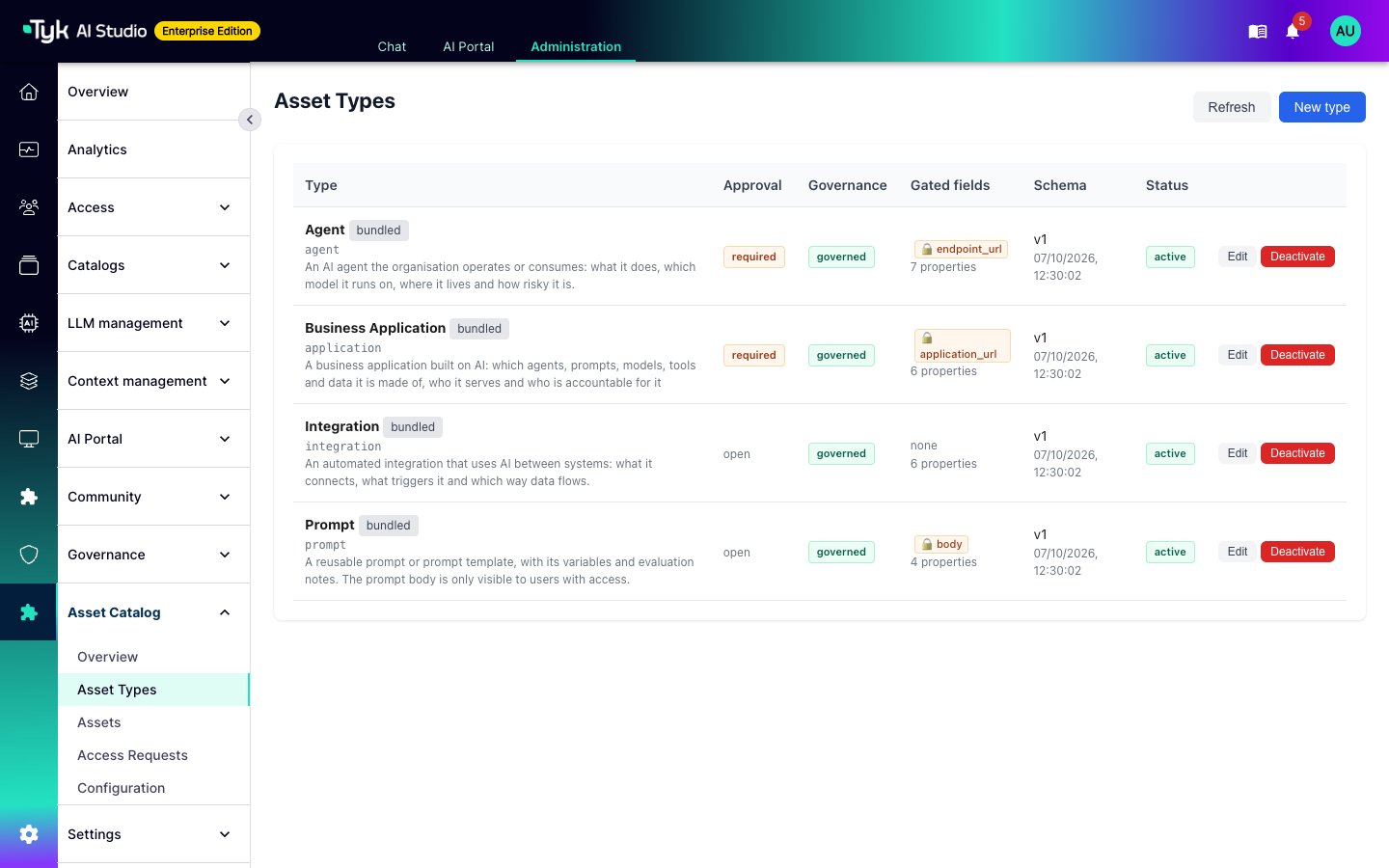 The plugin creates four types when it starts for the first time:
| Type | Use It For | Requires Approval | Gated Field |
| :- | :- | :- | :- |
| **Agent** | An AI agent: its purpose, model, system prompt, tools, owning team, and risk level | Yes | Endpoint URL |
| **Prompt** | A reusable prompt template, with its variables and evaluation notes | No | Prompt body |
| **Business Application** | An application that is built on AI: its business unit, users, decision impact, and support contact | Yes | Application URL |
| **Integration** | An automated flow between two systems: the source, the target, the trigger, and the data flow | No | None |
By default, the plugin also creates two sample assets, **Customer Support Triage Agent** and **Support Tone Prompt**. To stop this, set `seed_examples` to `false`.
### Create a Type
Select **New type** to define your own type, for example a guardrail or a skill. In the type editor, set:
* **Slug**: The identifier of the type. You cannot change it after you create the type.
* **Properties**: The fields of the asset. For each property, set a name, a data type, the allowed values, and the **Required** option. The order of the properties is the order in the forms.
* **Gated**: Select this option on a property to hide its value until the user has access. Use it for endpoints, secrets in prompts, and other sensitive values.
* **Requires approval**: Users must request access to see the gated fields. If you clear this option, everyone who can see the asset sees all its fields.
* **Access request form**: The questions that a user answers when they request access. The default form asks for a justification.
* **Lifecycle policy**: The initial stage, and the stages that only a publisher can move an asset into.
* **Relationship kinds**: The kinds of links that owners can add to assets of this type.
* **Governed**: Assets of this type carry the fields of [Governed Metadata](/docs/ai-management/ai-studio/governed-metadata). This option is on by default.
You can add properties to a type at any time. AI Studio checks existing assets against the new schema at their next edit. To remove a property that existing assets use, select **Force save**.
## Assets
To manage assets, go to **Asset Catalog > Assets**. You can filter the list by type, lifecycle stage, AI Portal state, and tag.
The plugin creates four types when it starts for the first time:
| Type | Use It For | Requires Approval | Gated Field |
| :- | :- | :- | :- |
| **Agent** | An AI agent: its purpose, model, system prompt, tools, owning team, and risk level | Yes | Endpoint URL |
| **Prompt** | A reusable prompt template, with its variables and evaluation notes | No | Prompt body |
| **Business Application** | An application that is built on AI: its business unit, users, decision impact, and support contact | Yes | Application URL |
| **Integration** | An automated flow between two systems: the source, the target, the trigger, and the data flow | No | None |
By default, the plugin also creates two sample assets, **Customer Support Triage Agent** and **Support Tone Prompt**. To stop this, set `seed_examples` to `false`.
### Create a Type
Select **New type** to define your own type, for example a guardrail or a skill. In the type editor, set:
* **Slug**: The identifier of the type. You cannot change it after you create the type.
* **Properties**: The fields of the asset. For each property, set a name, a data type, the allowed values, and the **Required** option. The order of the properties is the order in the forms.
* **Gated**: Select this option on a property to hide its value until the user has access. Use it for endpoints, secrets in prompts, and other sensitive values.
* **Requires approval**: Users must request access to see the gated fields. If you clear this option, everyone who can see the asset sees all its fields.
* **Access request form**: The questions that a user answers when they request access. The default form asks for a justification.
* **Lifecycle policy**: The initial stage, and the stages that only a publisher can move an asset into.
* **Relationship kinds**: The kinds of links that owners can add to assets of this type.
* **Governed**: Assets of this type carry the fields of [Governed Metadata](/docs/ai-management/ai-studio/governed-metadata). This option is on by default.
You can add properties to a type at any time. AI Studio checks existing assets against the new schema at their next edit. To remove a property that existing assets use, select **Force save**.
## Assets
To manage assets, go to **Asset Catalog > Assets**. You can filter the list by type, lifecycle stage, AI Portal state, and tag.
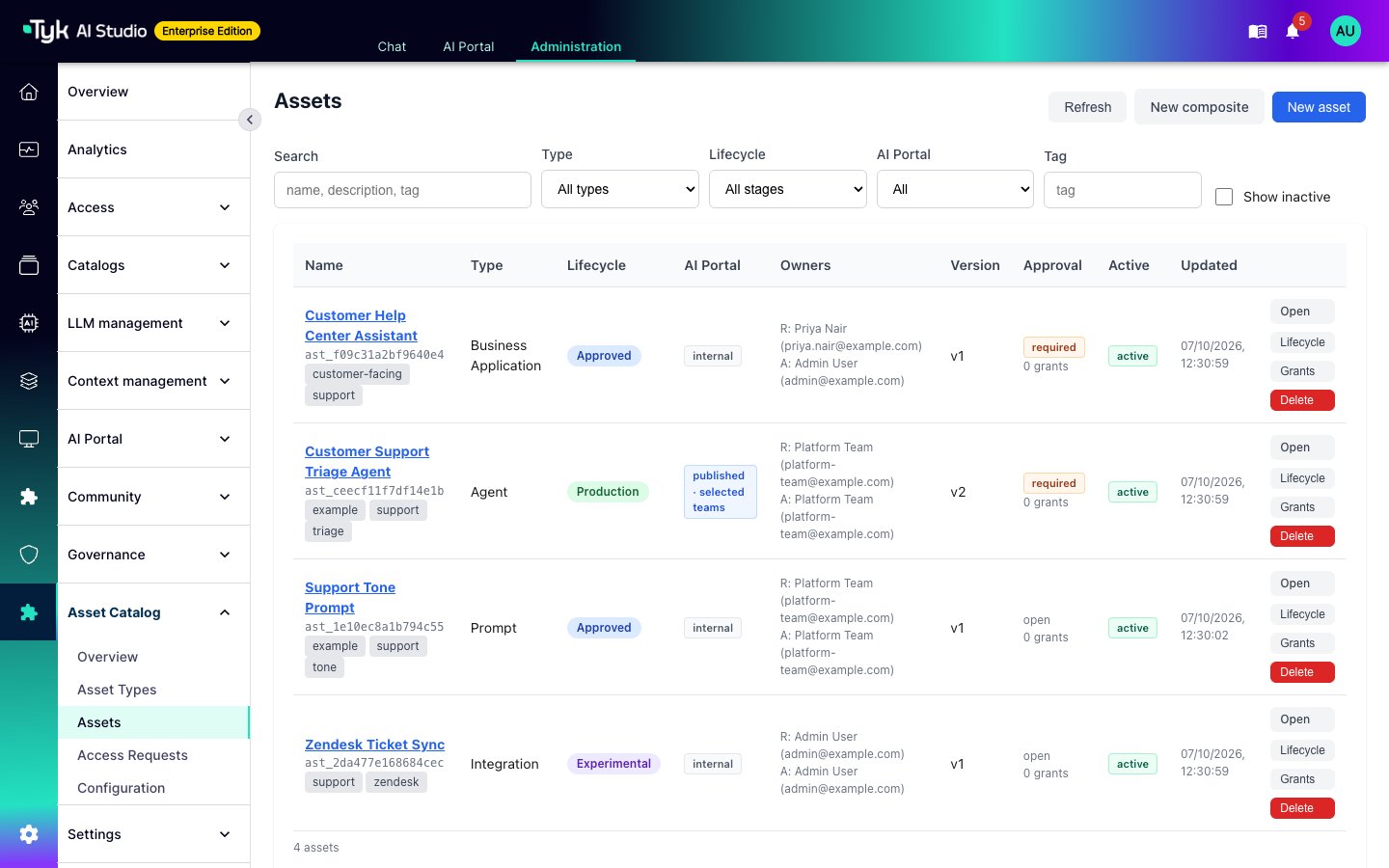 Each asset has:
* **Three owners**: The creator, the **responsible** owner, and the **accountable** owner. The responsible owner maintains the asset. The accountable owner answers for its risk and compliance.
* **Tags**: Free-form labels for search and filters.
* **Metadata**: The fields of its type. AI Studio validates them against the type schema.
* **Versions**: A change to the name, description, metadata, or dependencies creates a new version. These changes need change notes. A change to tags, owners, or the lifecycle stage does not create a version. The activity log records it.
You can restore an earlier version. The catalog does not delete history. It adds a new version with the old content.
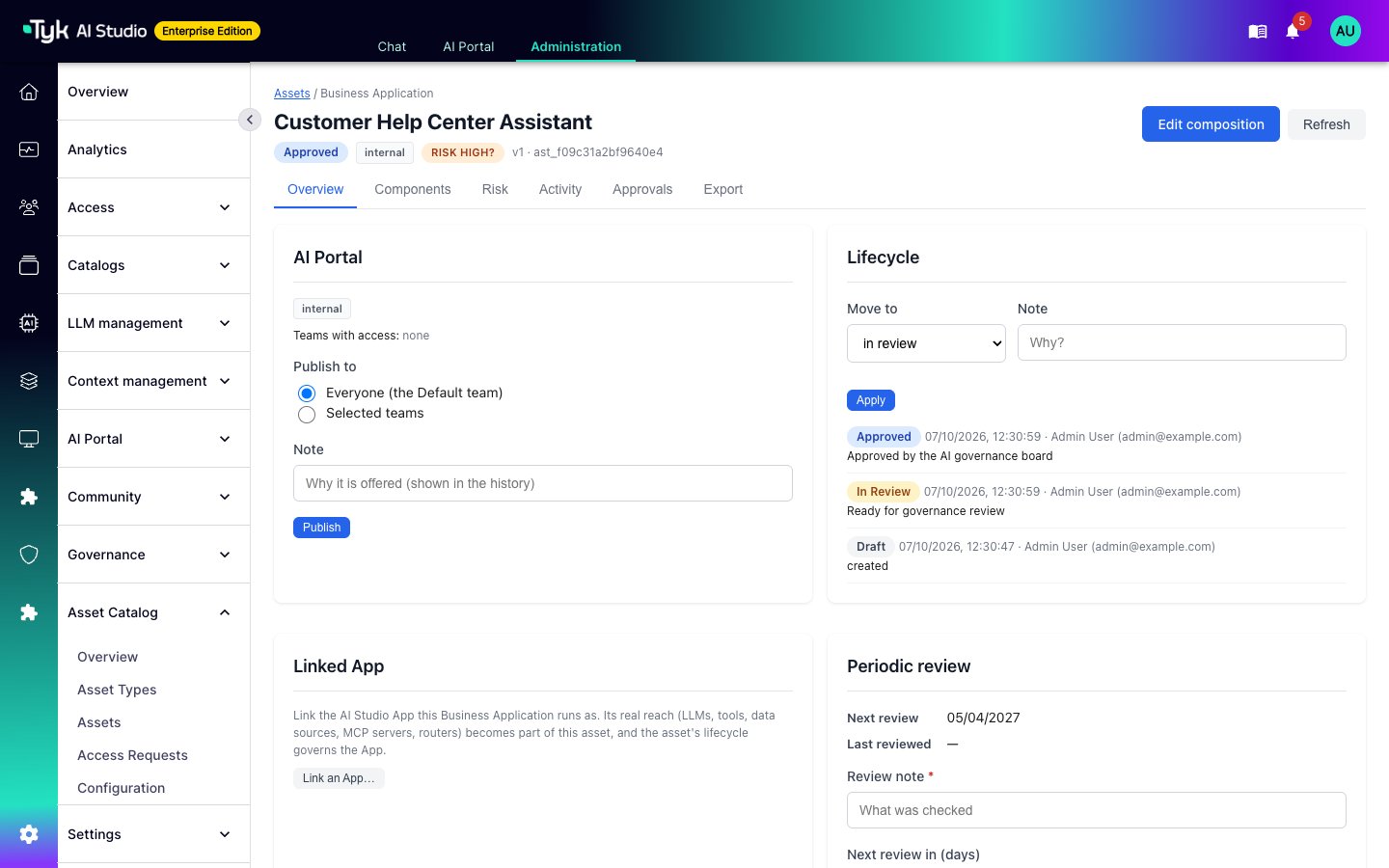
Select an asset to open its workspace. The workspace has these tabs:
| Tab | Shows |
| :- | :- |
| **Overview** | The AI Portal publication, the lifecycle stage, the linked App, and the periodic review |
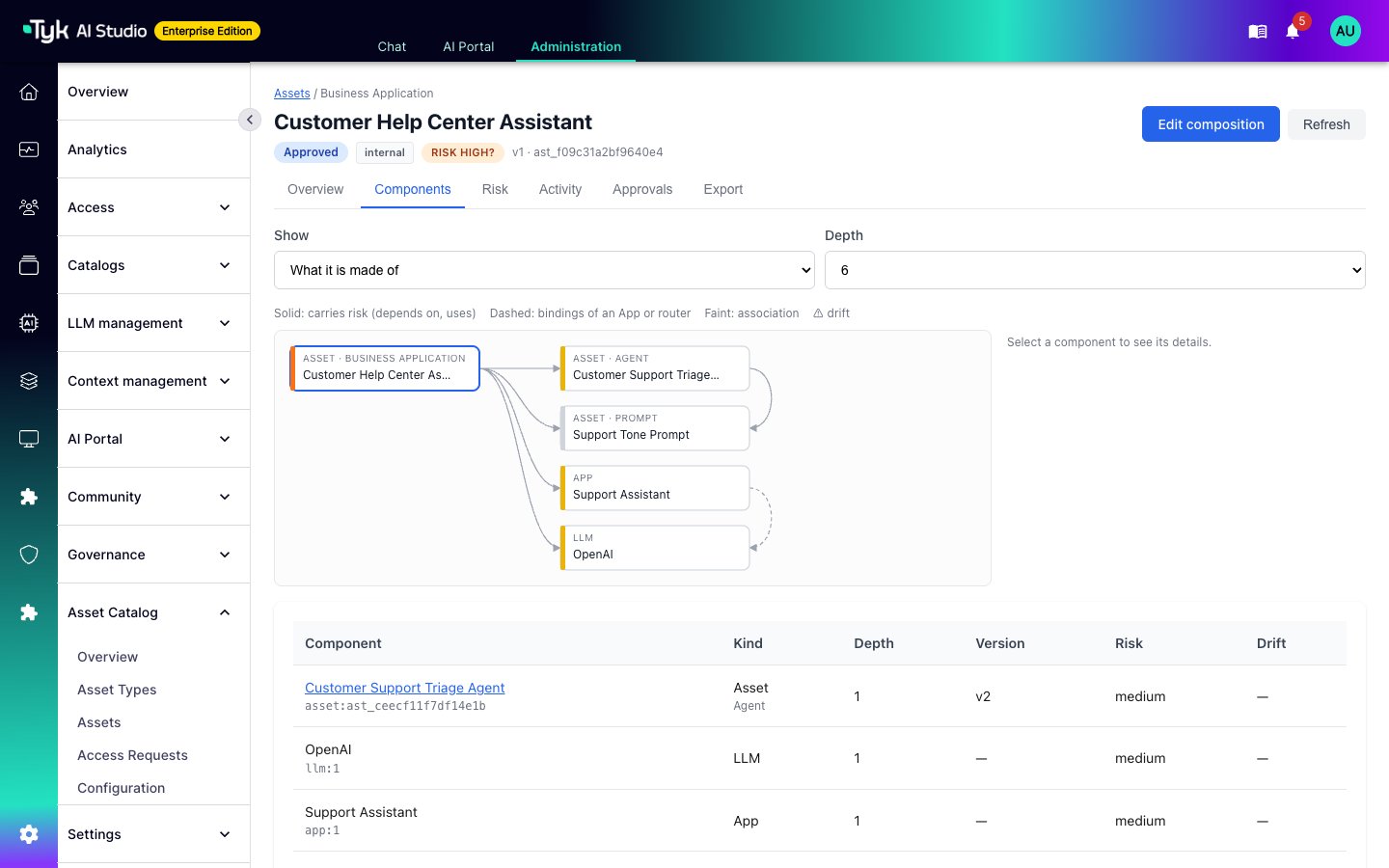
| **Components** | The dependency graph and the drift markers |
| **Risk** | The calculated tier, the accepted tier, and the reason for the tier |
| **Activity** | A timeline of catalog changes, Governed Metadata changes, and the [audit trail](/docs/ai-management/ai-studio/audit-trail) records of each component |
| **Approvals** | The snapshot that the catalog took at each approval, compared with the current state |
| **Export** | A download of the dependency graph |
Each asset has:
* **Three owners**: The creator, the **responsible** owner, and the **accountable** owner. The responsible owner maintains the asset. The accountable owner answers for its risk and compliance.
* **Tags**: Free-form labels for search and filters.
* **Metadata**: The fields of its type. AI Studio validates them against the type schema.
* **Versions**: A change to the name, description, metadata, or dependencies creates a new version. These changes need change notes. A change to tags, owners, or the lifecycle stage does not create a version. The activity log records it.
You can restore an earlier version. The catalog does not delete history. It adds a new version with the old content.
Select an asset to open its workspace. The workspace has these tabs:
| Tab | Shows |
| :- | :- |
| **Overview** | The AI Portal publication, the lifecycle stage, the linked App, and the periodic review |
| **Components** | The dependency graph and the drift markers |
| **Risk** | The calculated tier, the accepted tier, and the reason for the tier |
| **Activity** | A timeline of catalog changes, Governed Metadata changes, and the [audit trail](/docs/ai-management/ai-studio/audit-trail) records of each component |
| **Approvals** | The snapshot that the catalog took at each approval, compared with the current state |
| **Export** | A download of the dependency graph |
 ### Lifecycle Stages
An asset moves through these stages:
| Stage | Meaning |
| :- | :- |
| `draft` | Work in progress. This is the default initial stage. |
| `experimental` | In trial use. |
| `in_review` | Ready for a governance review. |
| `approved` | Approved for use. The catalog takes an approval snapshot. |
| `production` | In production use. |
| `deprecated` | Still visible, but users should move to a replacement. |
| `retired` | Read-only and permanent. The asset leaves the AI Portal and its linked App is deactivated. |
Owners can move their assets between `draft`, `experimental`, and `in_review`. A move into `approved`, `production`, or `deprecated` needs the **publish** permission. You can change these admin-only stages in the lifecycle policy of each type. A move into `retired` always needs the **publish** permission.
When a user without the **publish** permission changes the components of an approved asset, the catalog creates a new version. It moves the asset back to `in_review` and removes it from the AI Portal. This also happens when the bindings of a linked App change.
## Dependencies and Risk
Each asset can link to other assets and to AI Studio objects: LLMs, tools, data sources, MCP servers, model routers, semantic routers, and Apps. The relationship kinds are:
* `depends_on`: The asset needs the target to work. The target adds to the risk of the asset. The catalog does not allow cycles of `depends_on` links.
* `uses`: The asset uses the target. The target adds to the risk of the asset.
* `recommended_with`, `derived_from`, and `supersedes`: These links document the asset. They do not add to the risk.
You can pin a link to a specific version of the target asset. An App or a router expands into the objects that it binds or routes to.
The **Components** tab shows the full graph and a table of the components. Drift markers show a pinned target that has a newer version, a component that is inactive or deleted, and a change since the last approval.
### Lifecycle Stages
An asset moves through these stages:
| Stage | Meaning |
| :- | :- |
| `draft` | Work in progress. This is the default initial stage. |
| `experimental` | In trial use. |
| `in_review` | Ready for a governance review. |
| `approved` | Approved for use. The catalog takes an approval snapshot. |
| `production` | In production use. |
| `deprecated` | Still visible, but users should move to a replacement. |
| `retired` | Read-only and permanent. The asset leaves the AI Portal and its linked App is deactivated. |
Owners can move their assets between `draft`, `experimental`, and `in_review`. A move into `approved`, `production`, or `deprecated` needs the **publish** permission. You can change these admin-only stages in the lifecycle policy of each type. A move into `retired` always needs the **publish** permission.
When a user without the **publish** permission changes the components of an approved asset, the catalog creates a new version. It moves the asset back to `in_review` and removes it from the AI Portal. This also happens when the bindings of a linked App change.
## Dependencies and Risk
Each asset can link to other assets and to AI Studio objects: LLMs, tools, data sources, MCP servers, model routers, semantic routers, and Apps. The relationship kinds are:
* `depends_on`: The asset needs the target to work. The target adds to the risk of the asset. The catalog does not allow cycles of `depends_on` links.
* `uses`: The asset uses the target. The target adds to the risk of the asset.
* `recommended_with`, `derived_from`, and `supersedes`: These links document the asset. They do not add to the risk.
You can pin a link to a specific version of the target asset. An App or a router expands into the objects that it binds or routes to.
The **Components** tab shows the full graph and a table of the components. Drift markers show a pinned target that has a newer version, a component that is inactive or deleted, and a change since the last approval.
 ### Risk Tier
The catalog calculates the risk tier of an asset from its dependencies. It starts with the highest tier of all components that the asset depends on or uses. A component gets its tier from the `risk_tier` field of its Governed Metadata, or from its privacy score.
The risk profile of the asset can add three factors: autonomous operation, irreversible tool actions, and external exposure. The catalog raises the tier one step for each factor.
If a component has no tier, the catalog marks the rating as incomplete. It does not count an unrated component as low risk.
### Risk Tier
The catalog calculates the risk tier of an asset from its dependencies. It starts with the highest tier of all components that the asset depends on or uses. A component gets its tier from the `risk_tier` field of its Governed Metadata, or from its privacy score.
The risk profile of the asset can add three factors: autonomous operation, irreversible tool actions, and external exposure. The catalog raises the tier one step for each factor.
If a component has no tier, the catalog marks the rating as incomplete. It does not count an unrated component as low risk.
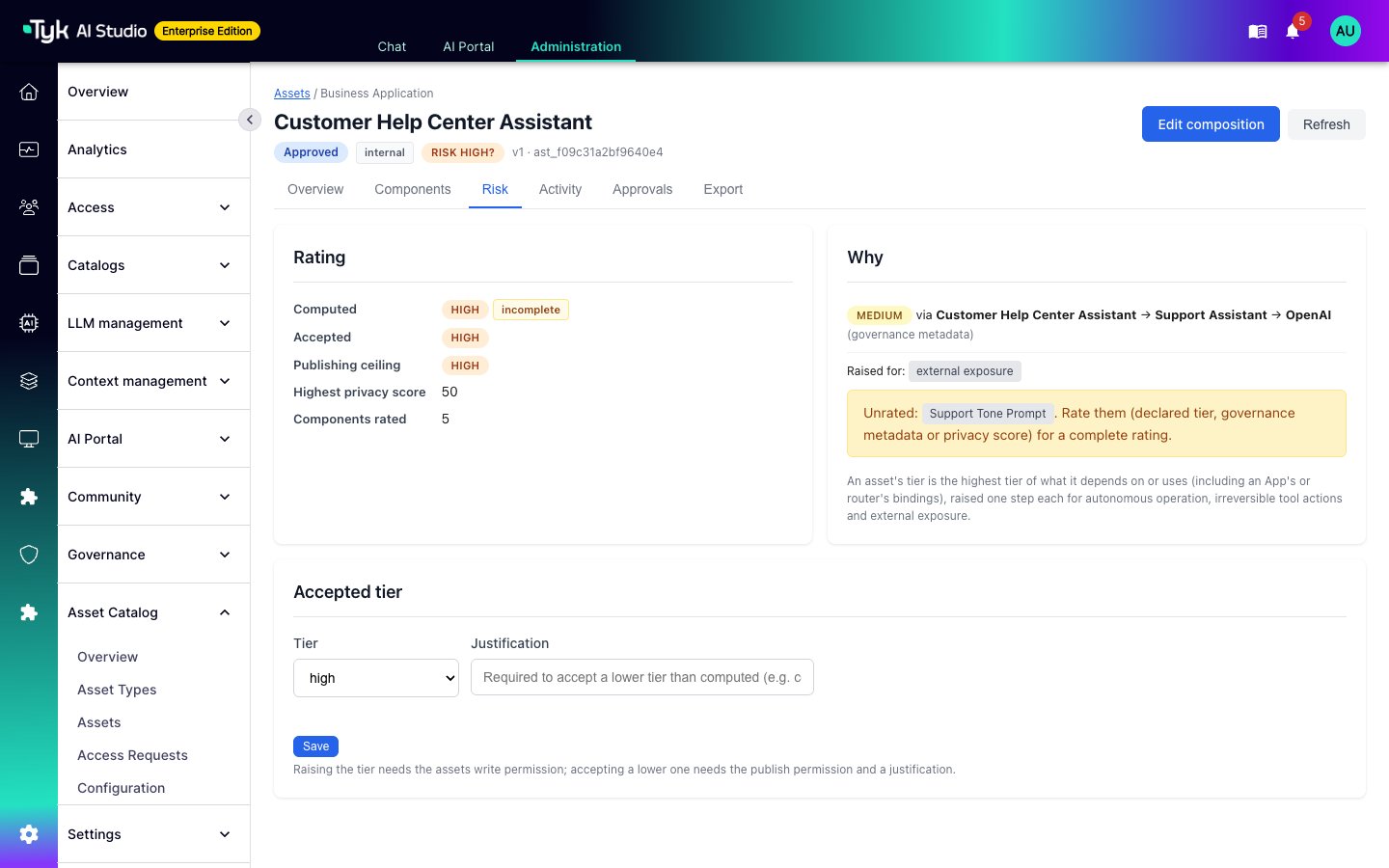 A user with the **write** permission can raise the accepted tier. A publisher can accept a lower tier than the calculated tier, with a justification. The catalog keeps both the calculated tier and the accepted tier.
## Publish to the AI Portal
Assets are internal until a publisher publishes them. On the **Overview** tab, publish an asset to everyone (the Default team) or to selected Teams. AI Studio stores the selected Teams as Team grants, so the [Teams](/docs/ai-management/ai-studio/teams) page shows the same access.
To publish an asset:
* It must be in the `approved` or `production` stage.
* It must have an accountable owner.
* Its accepted risk tier must not be higher than the publishing limit, which is `high` by default. A publisher can publish above the limit with a note.
When an asset leaves the `approved` and `production` stages, the catalog removes it from the AI Portal. A move to `deprecated` is the exception.
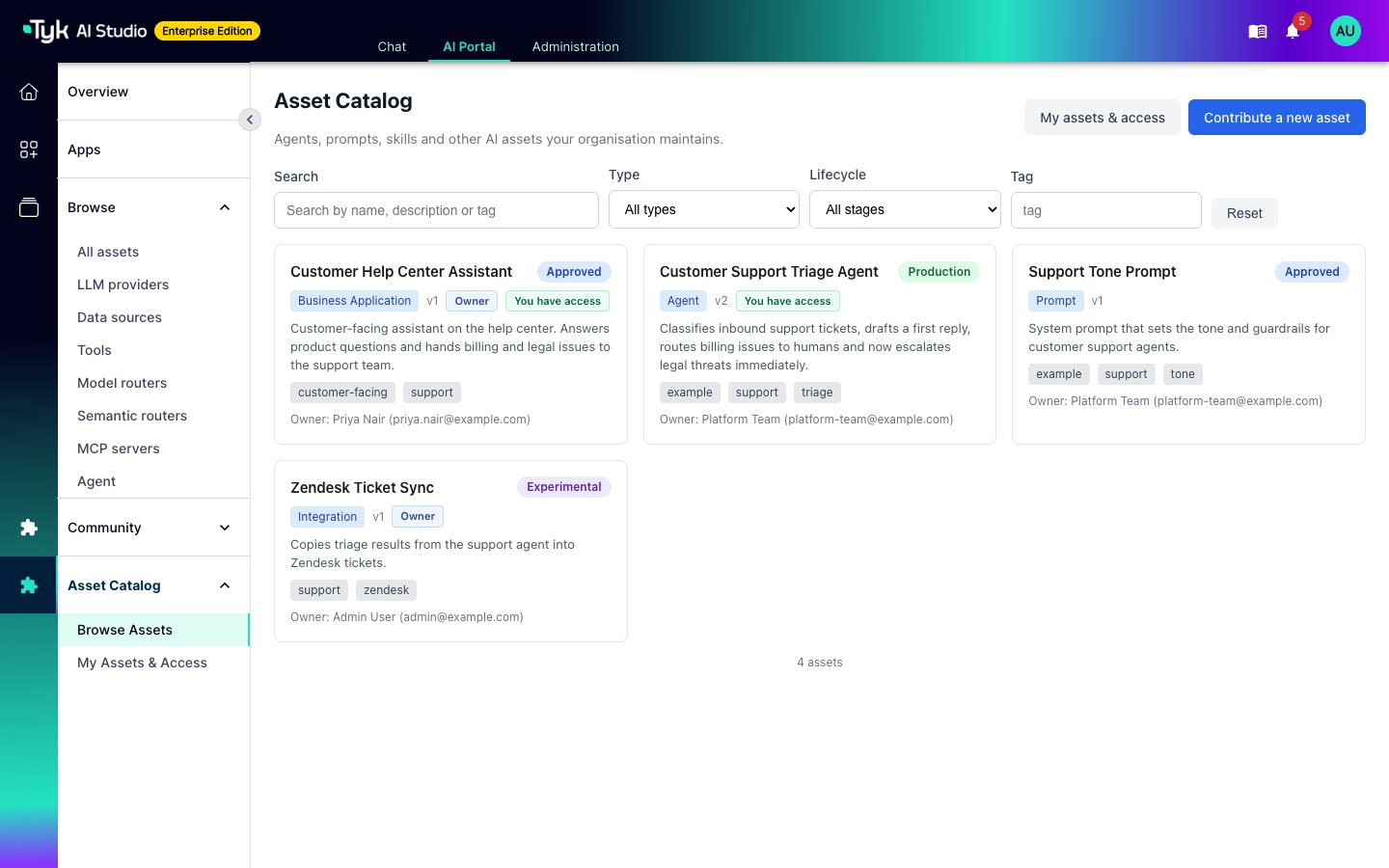
In the AI Portal, users browse assets in **Asset Catalog > Browse Assets**. A user sees an asset when a publisher publishes it to one of their Teams. Owners always see their own assets.
A user with the **write** permission can raise the accepted tier. A publisher can accept a lower tier than the calculated tier, with a justification. The catalog keeps both the calculated tier and the accepted tier.
## Publish to the AI Portal
Assets are internal until a publisher publishes them. On the **Overview** tab, publish an asset to everyone (the Default team) or to selected Teams. AI Studio stores the selected Teams as Team grants, so the [Teams](/docs/ai-management/ai-studio/teams) page shows the same access.
To publish an asset:
* It must be in the `approved` or `production` stage.
* It must have an accountable owner.
* Its accepted risk tier must not be higher than the publishing limit, which is `high` by default. A publisher can publish above the limit with a note.
When an asset leaves the `approved` and `production` stages, the catalog removes it from the AI Portal. A move to `deprecated` is the exception.
In the AI Portal, users browse assets in **Asset Catalog > Browse Assets**. A user sees an asset when a publisher publishes it to one of their Teams. Owners always see their own assets.
 ### Access Requests
When an asset requires approval, the gated fields are hidden from the users who can see the asset. To see them, a user selects **Request access** on the asset and completes the access request form.
The plugin sends a notification to administrators for each new request. A user with the **Access requests: write** permission approves or denies the request on the **Asset Catalog > Access Requests** page. The plugin then sends a notification to the user. An approval creates a grant, and the user sees the gated fields at once. The accountable owner or an asset manager can revoke a grant.
Owners, asset managers, and users with a grant see the gated fields. The catalog never includes gated values in exports or events.
### Contributions from AI Portal Users
AI Portal users can propose new assets. They select **Contribute a new asset** in the AI Portal. The form shows the fields of the type. Administrators review the proposal in the [community submission](/docs/ai-management/ai-studio/community) queue. When they approve it, the catalog creates the asset. The submitter is its owner, the stage is `approved`, and the asset is internal.
AI Portal users can also build a draft from the published assets that they can see, and send it for review.
## Compose an Asset
The composer builds an asset from its components in one editor. It shows the dependency graph and a risk preview while you add components. To open it, select **New composite** on the **Assets** page, or **Edit composition** on an asset.
## Linked Apps and Periodic Review
You can link an Agent or a Business Application to the AI Studio [App](/docs/ai-management/ai-studio/admin-apps) that it runs as. The bindings of the App then become components of the asset. The catalog updates them when the App changes. The asset controls the App:
| Asset Event | Effect on the App |
| :- | :- |
| The asset moves to `deprecated` | AI Studio flags the App. |
| The asset moves to `retired` | AI Studio deactivates the App. |
| The periodic review of the asset lapses | AI Studio suspends the App until someone records a review. |
| The accountable owner is disabled or deleted | AI Studio flags the App as without an owner, until someone takes over the asset. |
The plugin cannot change what an App can access. It cannot change the bindings, credentials, or budgets of the App.
Each approval schedules the next review of the asset. The interval depends on the accepted risk tier. By default, the interval is 90 days for `critical`, 180 days for `high`, and 365 days for the other tiers. The plugin sends a notification to the owners 14 days before the due date. When the due date passes, it also notifies administrators. 14 days after the due date, it suspends the linked App. To record a review, go to the **Overview** tab of the asset.
## Export
On the **Export** tab, download the dependency graph of an asset as CycloneDX 1.6 JSON or as catalog JSON. You can export the current graph or the graph at an approval. The CycloneDX file is an AI bill of materials. It lists LLMs as machine learning models, data sources and prompts as data, and tools and MCP servers as services. The export does not include gated values or secrets.
## Permissions
The plugin adds its own rows to the **Plugins** group of the role editor. Refer to [Plugin Permissions](/docs/ai-management/ai-studio/rbac#plugin-permissions).
| Row | Actions | Allows |
| :- | :- | :- |
| **Asset Catalog** | read, write, execute | `read` opens the pages of the plugin. Every catalog role needs it. `write` makes the user a catalog administrator, with all actions on all types and the plugin configuration. |
| **Asset types** | read, write, delete | `write` creates, edits, deactivates, and reactivates types. |
| **Assets** | read, write, delete, publish | `read` shows all assets, including drafts. `write` creates and edits any asset, and shows its gated fields. `delete` deletes assets. `publish` moves assets into admin-only stages, publishes them, and accepts a lower risk tier. |
| **Assets: \** | read, write, delete, publish | The same actions as **Assets**, for one type only. The plugin adds one row for each active type. |
| **Access requests** | read, write | `read` lists requests. `write` approves, denies, or cancels them. |
A row for one type does not include the base **Asset Catalog** `read` permission. Add it to every role that uses the catalog. Owners keep their rights on their own assets without extra permissions.
## Configuration
To change the plugin settings, go to **Asset Catalog > Configuration**.
| Setting | Default | Description |
| :- | :- | :- |
| `seed_examples` | `true` | Create the two sample assets on the first start. The plugin always creates the four types. |
| `default_requires_approval` | `false` | Approval rule for types that do not set one. |
| `notify_admins` | `true` | Send a notification to administrators for each new access request. If SMTP is set up, AI Studio also sends an email. |
| `event_topic_prefix` | `asset_catalog` | Prefix of the event topics. |
| `risk_model.tier_field` | `risk_tier` | The Governed Metadata field that holds the risk tier of a component. |
| `risk_model.max_publish_tier` | `high` | The highest accepted tier that a publisher can publish without a note. |
| `review_model.intervals` | 90, 180, 365, 365, 365 | Days to the next review, for `critical`, `high`, `medium`, `low`, and unrated assets. |
| `review_model.notice_days` | `14` | Days before the due date to notify owners. |
| `review_model.grace_days` | `14` | Days after the due date before the plugin suspends the linked App. |
| `review_model.disabled` | `false` | Turn off periodic review. |
| `fallback_owner` | None | The user who takes over the assets of an accountable owner who leaves. Without a fallback owner, the plugin only flags the assets. |
## Events
The plugin publishes an event on the internal event bus for each change to an asset, a type, or an access request. The topic has the form `asset_catalog.`, for example `asset_catalog.access_request.created`. Other plugins can subscribe to these events, for example to send a webhook or open a ticket. Refer to [Event Service](/docs/ai-management/ai-studio/plugins/service-api#event-service).
### Access Requests
When an asset requires approval, the gated fields are hidden from the users who can see the asset. To see them, a user selects **Request access** on the asset and completes the access request form.
The plugin sends a notification to administrators for each new request. A user with the **Access requests: write** permission approves or denies the request on the **Asset Catalog > Access Requests** page. The plugin then sends a notification to the user. An approval creates a grant, and the user sees the gated fields at once. The accountable owner or an asset manager can revoke a grant.
Owners, asset managers, and users with a grant see the gated fields. The catalog never includes gated values in exports or events.
### Contributions from AI Portal Users
AI Portal users can propose new assets. They select **Contribute a new asset** in the AI Portal. The form shows the fields of the type. Administrators review the proposal in the [community submission](/docs/ai-management/ai-studio/community) queue. When they approve it, the catalog creates the asset. The submitter is its owner, the stage is `approved`, and the asset is internal.
AI Portal users can also build a draft from the published assets that they can see, and send it for review.
## Compose an Asset
The composer builds an asset from its components in one editor. It shows the dependency graph and a risk preview while you add components. To open it, select **New composite** on the **Assets** page, or **Edit composition** on an asset.
## Linked Apps and Periodic Review
You can link an Agent or a Business Application to the AI Studio [App](/docs/ai-management/ai-studio/admin-apps) that it runs as. The bindings of the App then become components of the asset. The catalog updates them when the App changes. The asset controls the App:
| Asset Event | Effect on the App |
| :- | :- |
| The asset moves to `deprecated` | AI Studio flags the App. |
| The asset moves to `retired` | AI Studio deactivates the App. |
| The periodic review of the asset lapses | AI Studio suspends the App until someone records a review. |
| The accountable owner is disabled or deleted | AI Studio flags the App as without an owner, until someone takes over the asset. |
The plugin cannot change what an App can access. It cannot change the bindings, credentials, or budgets of the App.
Each approval schedules the next review of the asset. The interval depends on the accepted risk tier. By default, the interval is 90 days for `critical`, 180 days for `high`, and 365 days for the other tiers. The plugin sends a notification to the owners 14 days before the due date. When the due date passes, it also notifies administrators. 14 days after the due date, it suspends the linked App. To record a review, go to the **Overview** tab of the asset.
## Export
On the **Export** tab, download the dependency graph of an asset as CycloneDX 1.6 JSON or as catalog JSON. You can export the current graph or the graph at an approval. The CycloneDX file is an AI bill of materials. It lists LLMs as machine learning models, data sources and prompts as data, and tools and MCP servers as services. The export does not include gated values or secrets.
## Permissions
The plugin adds its own rows to the **Plugins** group of the role editor. Refer to [Plugin Permissions](/docs/ai-management/ai-studio/rbac#plugin-permissions).
| Row | Actions | Allows |
| :- | :- | :- |
| **Asset Catalog** | read, write, execute | `read` opens the pages of the plugin. Every catalog role needs it. `write` makes the user a catalog administrator, with all actions on all types and the plugin configuration. |
| **Asset types** | read, write, delete | `write` creates, edits, deactivates, and reactivates types. |
| **Assets** | read, write, delete, publish | `read` shows all assets, including drafts. `write` creates and edits any asset, and shows its gated fields. `delete` deletes assets. `publish` moves assets into admin-only stages, publishes them, and accepts a lower risk tier. |
| **Assets: \** | read, write, delete, publish | The same actions as **Assets**, for one type only. The plugin adds one row for each active type. |
| **Access requests** | read, write | `read` lists requests. `write` approves, denies, or cancels them. |
A row for one type does not include the base **Asset Catalog** `read` permission. Add it to every role that uses the catalog. Owners keep their rights on their own assets without extra permissions.
## Configuration
To change the plugin settings, go to **Asset Catalog > Configuration**.
| Setting | Default | Description |
| :- | :- | :- |
| `seed_examples` | `true` | Create the two sample assets on the first start. The plugin always creates the four types. |
| `default_requires_approval` | `false` | Approval rule for types that do not set one. |
| `notify_admins` | `true` | Send a notification to administrators for each new access request. If SMTP is set up, AI Studio also sends an email. |
| `event_topic_prefix` | `asset_catalog` | Prefix of the event topics. |
| `risk_model.tier_field` | `risk_tier` | The Governed Metadata field that holds the risk tier of a component. |
| `risk_model.max_publish_tier` | `high` | The highest accepted tier that a publisher can publish without a note. |
| `review_model.intervals` | 90, 180, 365, 365, 365 | Days to the next review, for `critical`, `high`, `medium`, `low`, and unrated assets. |
| `review_model.notice_days` | `14` | Days before the due date to notify owners. |
| `review_model.grace_days` | `14` | Days after the due date before the plugin suspends the linked App. |
| `review_model.disabled` | `false` | Turn off periodic review. |
| `fallback_owner` | None | The user who takes over the assets of an accountable owner who leaves. Without a fallback owner, the plugin only flags the assets. |
## Events
The plugin publishes an event on the internal event bus for each change to an asset, a type, or an access request. The topic has the form `asset_catalog.`, for example `asset_catalog.access_request.created`. Other plugins can subscribe to these events, for example to send a webhook or open a ticket. Refer to [Event Service](/docs/ai-management/ai-studio/plugins/service-api#event-service).