> ## Documentation Index
> Fetch the complete documentation index at: https://tyk.io/docs/llms.txt
> Use this file to discover all available pages before exploring further.
# Configure Telemetry in Tyk Cloud
> Learn how to set up and manage telemetry in Tyk Cloud for distributed tracing of your APIs.
## Introduction
Telemetry in Tyk Cloud enables distributed tracing of your APIs, allowing you to track and analyze how requests flow through your system.
This trace data helps you understand request paths, identify bottlenecks, and troubleshoot issues by providing detailed insights into each request's journey through your API infrastructure.
We support distributed tracing for `Cloud Data Plane` deployments. You can enable it while creating or updating after setting up telemetry.
Since this functionality is powered by Tyk Gateway's OpenTelemetry integration, we recommend reviewing our comprehensive [OpenTelemetry documentation](/5.9/api-management/logs-metrics#opentelemetry)
to understand the underlying architecture, best practices for implementation, and how to maximize the value of distributed tracing in your API infrastructure. The documentation provides detailed insights into configuration options, sampling strategies.
## Available Telemetry Providers
Tyk Cloud integrates with these monitoring platforms:
* [Datadog](/5.9/#configure-providers)
* [Dynatrace](/5.9/#configure-providers)
* [New Relic](/5.9/#configure-providers)
* [Elastic](/5.9/#configure-providers)
* [Custom](/5.9/#configure-providers)
Before diving into the configuration details, please note that Telemetry is an add-on feature in Tyk Cloud.
To enable this capability for your account, please contact our [support team](https://support.tyk.io/).
Our team will help you activate this feature and ensure you have access to all the Telemetry options.
## Enabling Telemetry in Tyk Cloud
Configuring telemetry in Tyk cloud is a two step process.
1. Configure a provider/backend at organization level.
2. Enable/Disable telemetry option while creating/updating a `Cloud Data Plane`.
Before diving into the configuration details, please note that Telemetry is an add-on feature in Tyk Cloud.
To enable this capability for your account, please contact our [support team](https://support.tyk.io/).
Our team will help you activate this feature and ensure you have access to all the Telemetry options.
### Steps for Configuring Telemetry Provider in Tyk Cloud
1. **Choosing Your Provider**
In the `Tyk Cloud Console`, select `Telemetry` option. You'll see a grid displaying all supported backends/providers. Click on your preferred backend/provider to begin the configuration process.
Only a single provider/backend can be configured at any given time.
 2. **Configuring Basic Elements**
Every telemetry backend shares these fundamental settings:
1. **Connection Toggle:** This switch activates or deactivates your telemetry export. When enabled, Tyk will start sending monitoring data to your chosen platform.
2. **Sampling Rate:** This setting determines what percentage of your API traffic data gets sent to your monitoring platform. The default is 10%, which means Tyk will send data for one out of every ten API calls.
3. **Configuring Optional Settings**
Beyond the basic settings, you can customize your telemetry with two optional features:
1. **Tags to Add to the Traces :**
Add custom labels to your telemetry data to make it easier to analyze. For example:
```
environment:production
region:europe
team:api-gateway
```
2. **Fields to Filter :**
Specify which data fields should be excluded from your telemetry. This is useful for ensuring sensitive information doesn't get sent to your monitoring platform.
4. **Configuring Provider-Specific Configuration**
Each monitoring platform has its own requirements for connection. Let's explore what you'll need for each:
* **Provider Site:** Enter your Datadog URL (like us5.datadoghq.com). To obtain your URL, refer to the following [docs](https://docs.datadoghq.com/getting_started/site/#access-the-datadog-site).
* **API Key:** Enter your Datadog API key. To obtain your API Key, refer to the following [docs](https://docs.datadoghq.com/account_management/api-app-keys/#add-an-api-key-or-client-token).
Example: A Datadog setup might look like:
```
Provider Site: us5.datadoghq.com
API Key: your-datadog-api-key
```
2. **Configuring Basic Elements**
Every telemetry backend shares these fundamental settings:
1. **Connection Toggle:** This switch activates or deactivates your telemetry export. When enabled, Tyk will start sending monitoring data to your chosen platform.
2. **Sampling Rate:** This setting determines what percentage of your API traffic data gets sent to your monitoring platform. The default is 10%, which means Tyk will send data for one out of every ten API calls.
3. **Configuring Optional Settings**
Beyond the basic settings, you can customize your telemetry with two optional features:
1. **Tags to Add to the Traces :**
Add custom labels to your telemetry data to make it easier to analyze. For example:
```
environment:production
region:europe
team:api-gateway
```
2. **Fields to Filter :**
Specify which data fields should be excluded from your telemetry. This is useful for ensuring sensitive information doesn't get sent to your monitoring platform.
4. **Configuring Provider-Specific Configuration**
Each monitoring platform has its own requirements for connection. Let's explore what you'll need for each:
* **Provider Site:** Enter your Datadog URL (like us5.datadoghq.com). To obtain your URL, refer to the following [docs](https://docs.datadoghq.com/getting_started/site/#access-the-datadog-site).
* **API Key:** Enter your Datadog API key. To obtain your API Key, refer to the following [docs](https://docs.datadoghq.com/account_management/api-app-keys/#add-an-api-key-or-client-token).
Example: A Datadog setup might look like:
```
Provider Site: us5.datadoghq.com
API Key: your-datadog-api-key
```
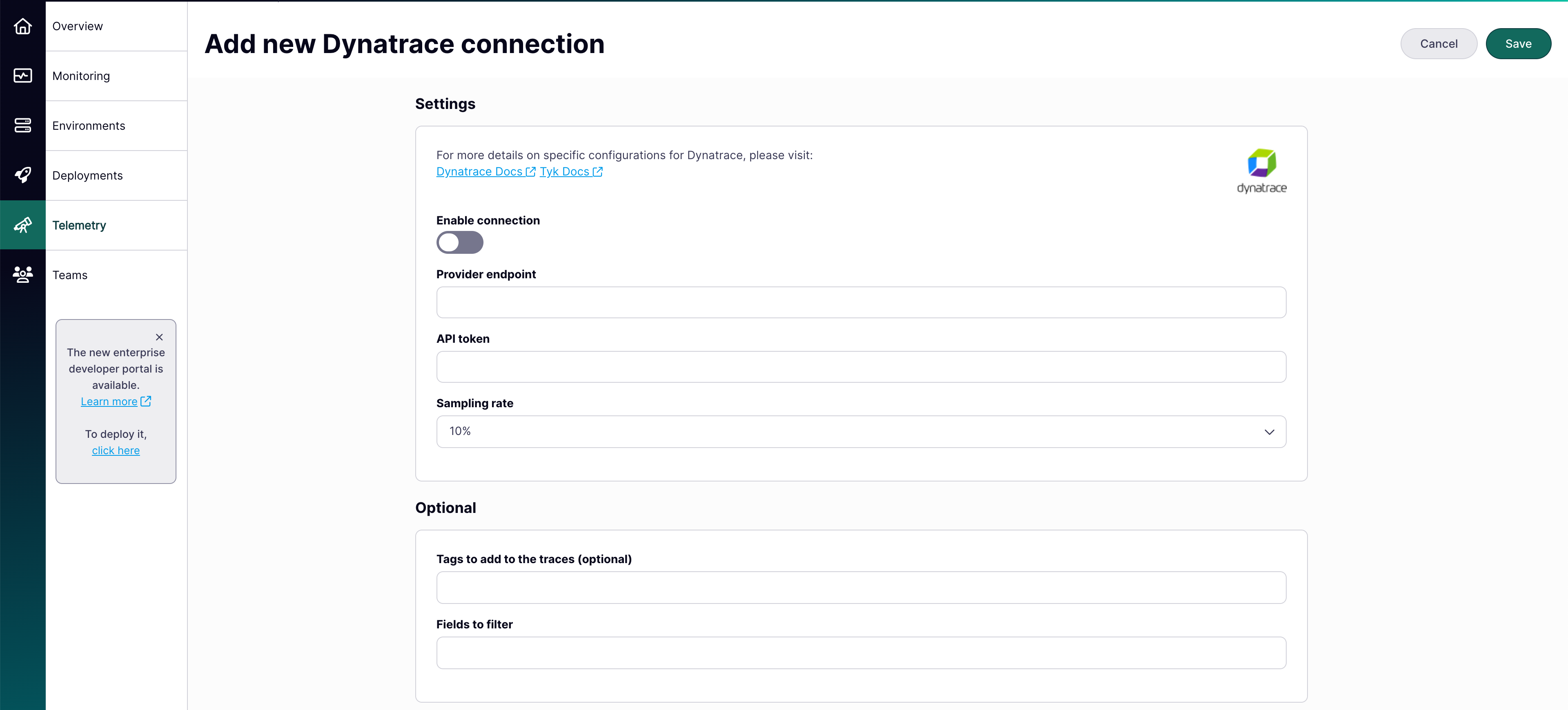
 * **Provider Endpoint:** Enter Your Dynatrace environment URL. To obtain your URL, refer to the following [docs](https://docs.dynatrace.com/docs/discover-dynatrace/get-started/monitoring-environment#environment-id).
* **API Token:** Enter your Dynatrace access token. To obtain your Access Token, refer to the following [docs](https://docs.dynatrace.com/docs/manage/identity-access-management/access-tokens-and-oauth-clients/access-tokens#create-api-token).
Example configuration:
```
Provider Endpoint: https://.live.dynatrace.com/api/v2/otlp
API Token: your-dynatrace-token
```
* **Provider Endpoint:** Enter Your Dynatrace environment URL. To obtain your URL, refer to the following [docs](https://docs.dynatrace.com/docs/discover-dynatrace/get-started/monitoring-environment#environment-id).
* **API Token:** Enter your Dynatrace access token. To obtain your Access Token, refer to the following [docs](https://docs.dynatrace.com/docs/manage/identity-access-management/access-tokens-and-oauth-clients/access-tokens#create-api-token).
Example configuration:
```
Provider Endpoint: https://.live.dynatrace.com/api/v2/otlp
API Token: your-dynatrace-token
```
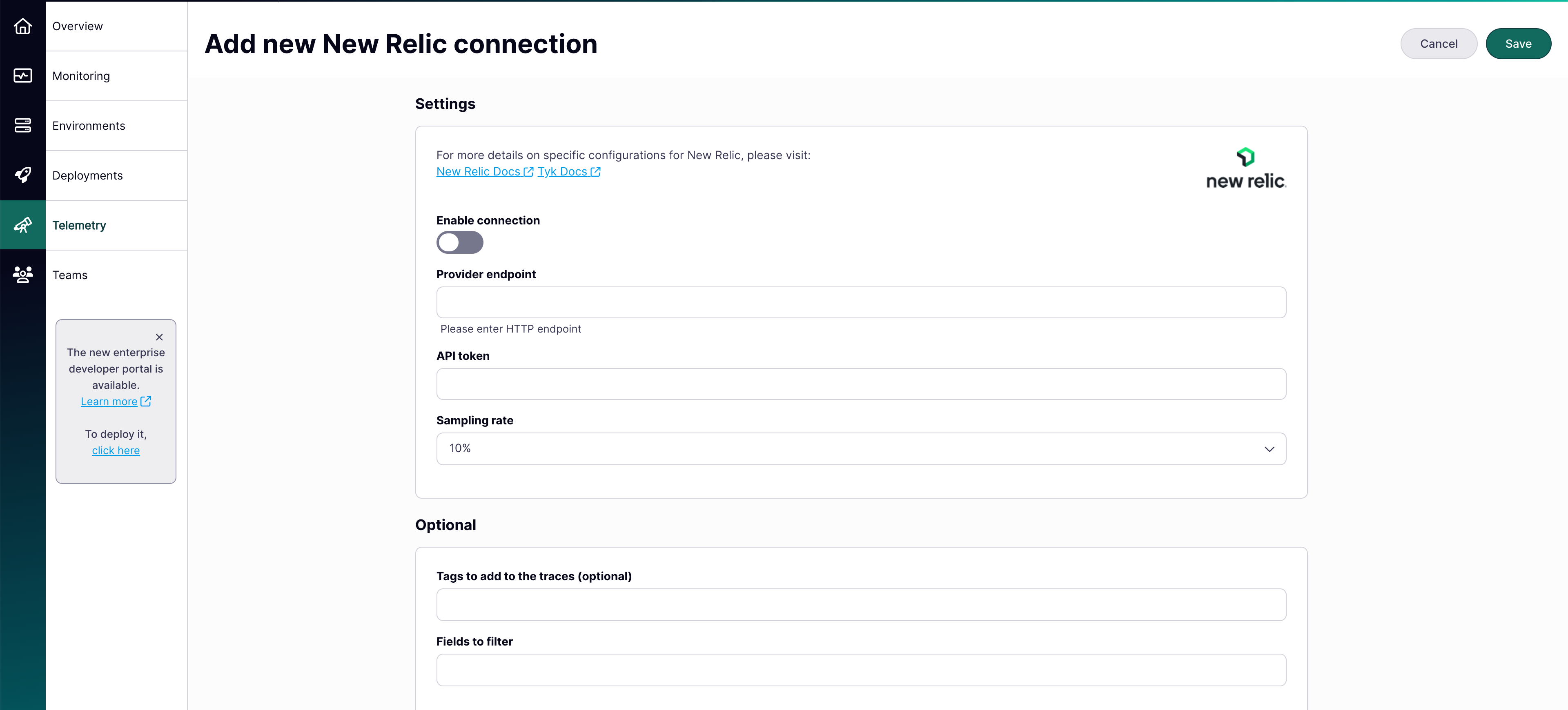
 * **Provider Endpoint:** Your New Relic HTTP endpoint. To obtain your endpoint, refer to the following [docs](https://docs.newrelic.com/docs/opentelemetry/best-practices/opentelemetry-otlp/#configure-endpoint-port-protocol).
* **API Token:** Your New Relic license key. To obtain your license key, refer to the following [docs](https://docs.newrelic.com/docs/apis/intro-apis/new-relic-api-keys/).
Example configuration:
```
Provider Endpoint: https://security-api.newrelic.com/security/v1
API Token: your-newrelic-api-key
```
* **Provider Endpoint:** Your New Relic HTTP endpoint. To obtain your endpoint, refer to the following [docs](https://docs.newrelic.com/docs/opentelemetry/best-practices/opentelemetry-otlp/#configure-endpoint-port-protocol).
* **API Token:** Your New Relic license key. To obtain your license key, refer to the following [docs](https://docs.newrelic.com/docs/apis/intro-apis/new-relic-api-keys/).
Example configuration:
```
Provider Endpoint: https://security-api.newrelic.com/security/v1
API Token: your-newrelic-api-key
```
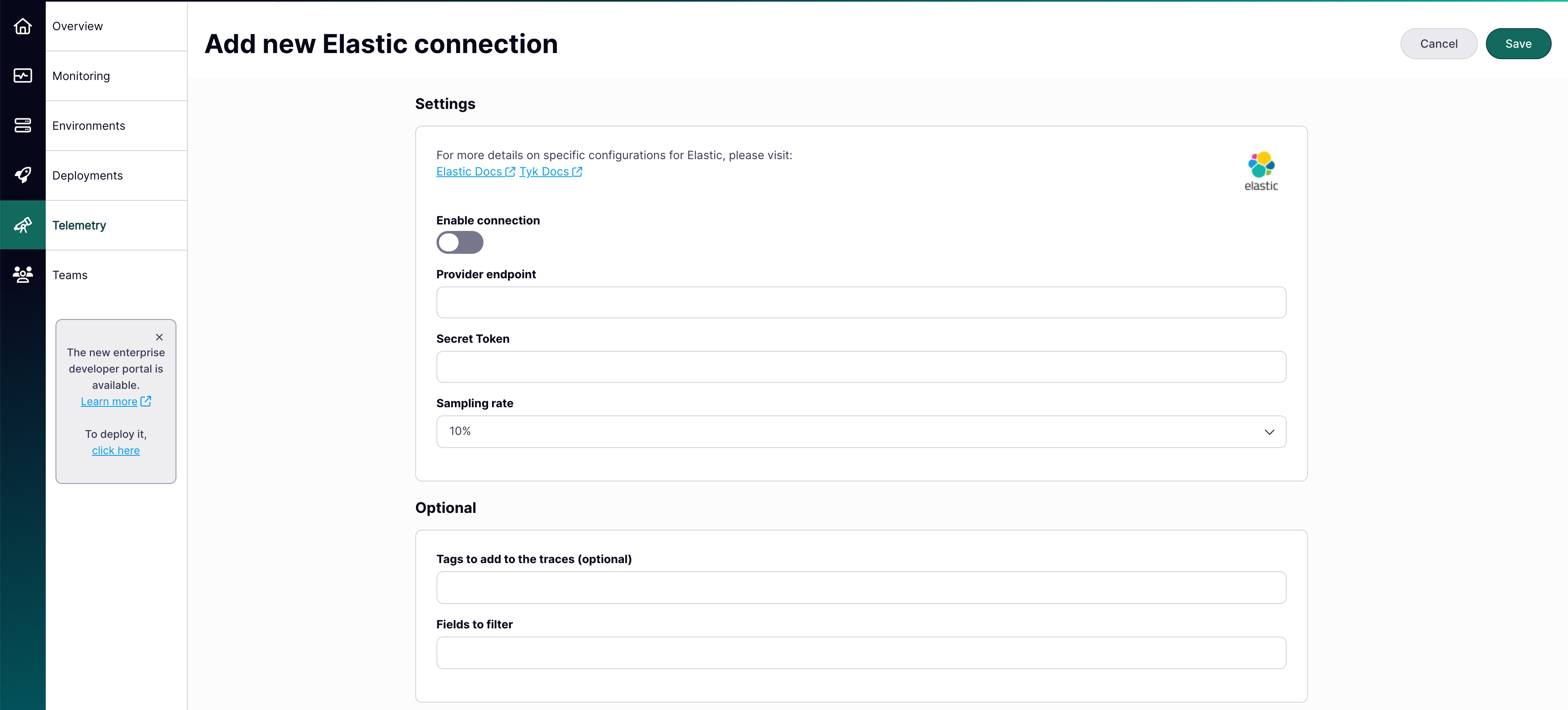
 * **Provider Endpoint:** Your Elastic APM server address.
* **Secret Token:** Your Elastic APM authentication token. To obtain your token, refer to the following [docs](https://www.elastic.co/guide/en/observability/current/apm-secret-token.html#apm-create-secret-token).
Example setup:
```
Provider Endpoint: https://your-elastic-cluster:8200
Secret Token: your-elastic-secret-token
```
* **Provider Endpoint:** Your Elastic APM server address.
* **Secret Token:** Your Elastic APM authentication token. To obtain your token, refer to the following [docs](https://www.elastic.co/guide/en/observability/current/apm-secret-token.html#apm-create-secret-token).
Example setup:
```
Provider Endpoint: https://your-elastic-cluster:8200
Secret Token: your-elastic-secret-token
```
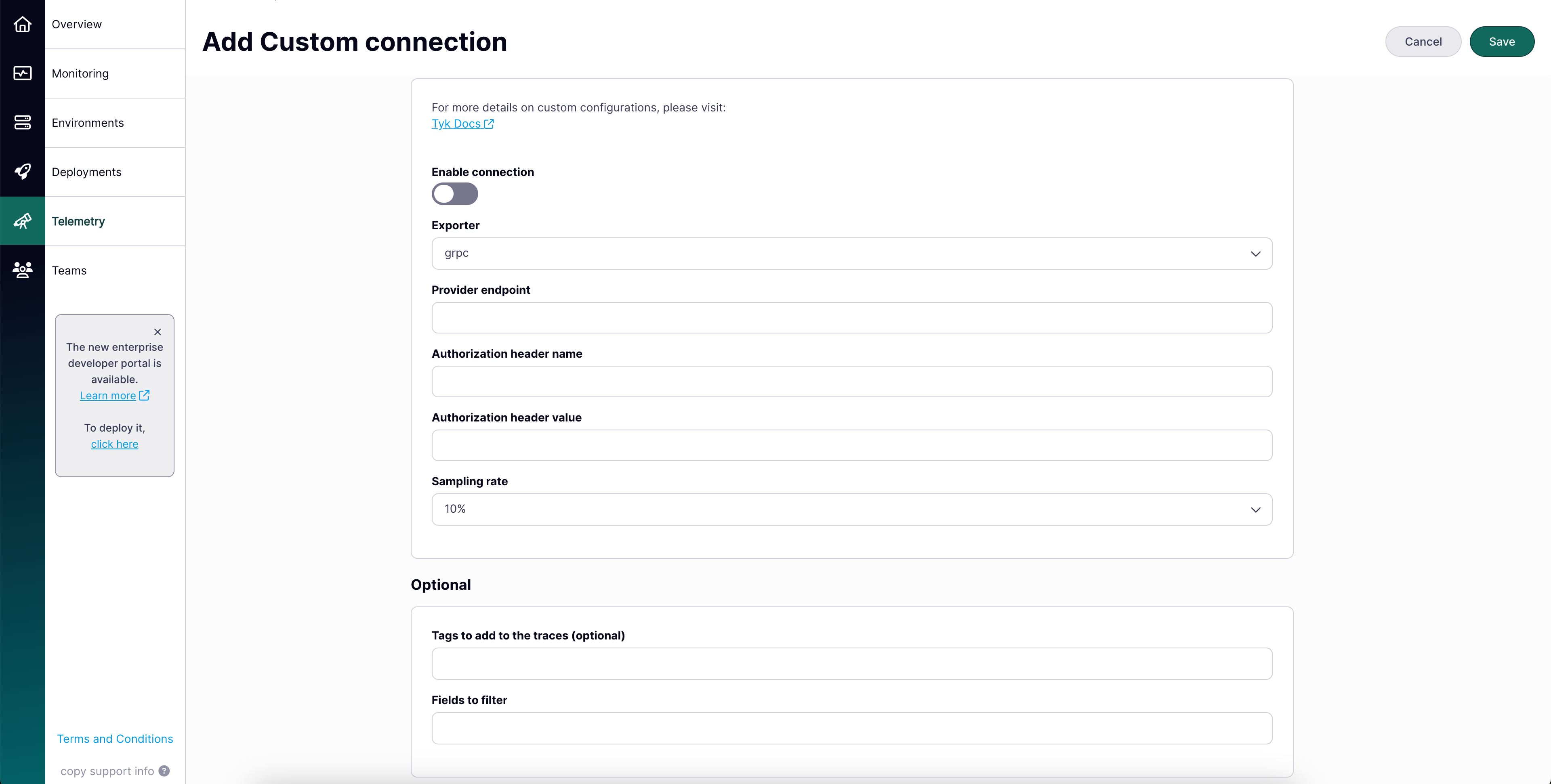
 For when you need to connect to a different monitoring system:
* **Exporter:** Choose gRPC/HTTP
* **Provider Endpoint:** Your monitoring system URL
* **Authorization:** Configure how Tyk should authenticate with your system
Example custom configuration:
```
Exporter: gRPC/HTTP
Provider Endpoint: grpc://your-collector:4317
Authorization Header Name: Authorization
Authorization Header Value: Bearer your-token
```
For when you need to connect to a different monitoring system:
* **Exporter:** Choose gRPC/HTTP
* **Provider Endpoint:** Your monitoring system URL
* **Authorization:** Configure how Tyk should authenticate with your system
Example custom configuration:
```
Exporter: gRPC/HTTP
Provider Endpoint: grpc://your-collector:4317
Authorization Header Name: Authorization
Authorization Header Value: Bearer your-token
```
 ***
## Configure Telemetry Export in Cloud Data Plane Deployments
When creating a new Cloud Data Plane deployment or editing an existing one, you can configure telemetry export settings. These settings are specific to Cloud Data Plane deployments only and allow you to monitor API performance through your chosen telemetry provider.
When you modify any general telemetry settings in Tyk Cloud, these changes don't take immediate effect.
Your Cloud Data Planes need to be redeployed to activate the new telemetry configuration.
***
## Configure Telemetry Export in Cloud Data Plane Deployments
When creating a new Cloud Data Plane deployment or editing an existing one, you can configure telemetry export settings. These settings are specific to Cloud Data Plane deployments only and allow you to monitor API performance through your chosen telemetry provider.
When you modify any general telemetry settings in Tyk Cloud, these changes don't take immediate effect.
Your Cloud Data Planes need to be redeployed to activate the new telemetry configuration.
### Configuration Options
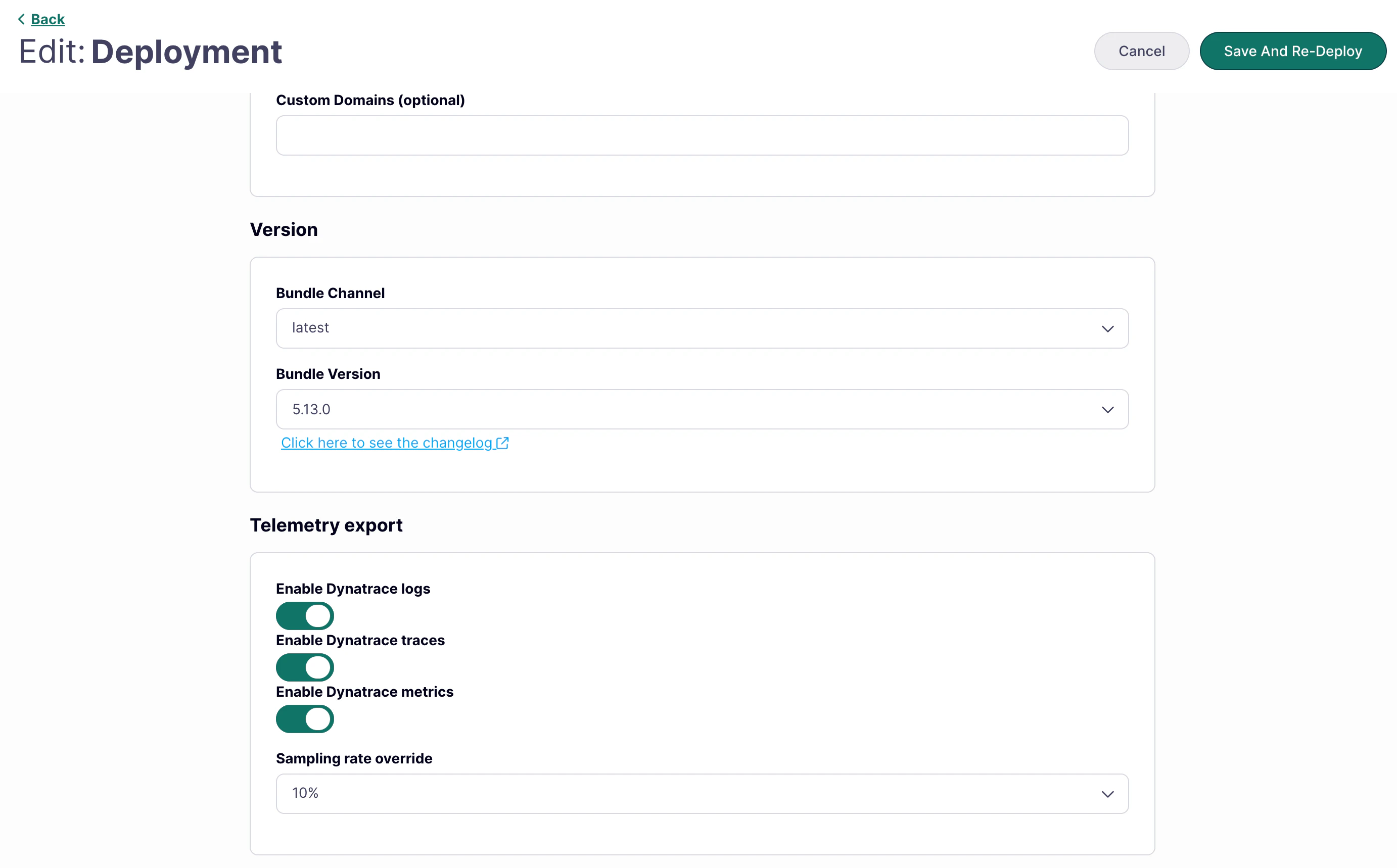 1. **Enable Datadog Connection**
* Toggle switch to enable/disable Datadog monitoring for this specific Cloud Data Plane deployment
2. **Sampling Rate Override**
* Choose what percentage of API traffic to monitor (default: 10%)
The sampling level can be configured at both the organization level (while setting up the provider) and the `Cloud Data Plane`. The configuration at the Cloud Data Plane will override the organization-level settings.
3. **Verifying Cloud Data Plane Configuration**
As shown in the below image, you should observe `Telemetry Export` to be enabled:
1. **Enable Datadog Connection**
* Toggle switch to enable/disable Datadog monitoring for this specific Cloud Data Plane deployment
2. **Sampling Rate Override**
* Choose what percentage of API traffic to monitor (default: 10%)
The sampling level can be configured at both the organization level (while setting up the provider) and the `Cloud Data Plane`. The configuration at the Cloud Data Plane will override the organization-level settings.
3. **Verifying Cloud Data Plane Configuration**
As shown in the below image, you should observe `Telemetry Export` to be enabled:
