> ## Documentation Index
> Fetch the complete documentation index at: https://tyk.io/docs/llms.txt
> Use this file to discover all available pages before exploring further.
# Managing Data Planes in Tyk Cloud
> Learn how to manage Data Planes in Tyk Cloud
## Introduction
Cloud Data Planes do all the heavy lifting of actually managing your requests: traffic proxying, access control, data transformation, logging and more.
## Prerequisites
All [user roles](/5.9/tyk-cloud/teams-users#assign-user-roles) can edit, deploy, undeploy, restart, redeploy all deployments within a team. Only the Organization Admin and the Team Admin can create or delete deployments.
## Adding a new Cloud Data Plane
Watch our video on setting up a Control Plane and a Cloud Data Plane.
The number of Cloud Data Planes you can add is dependent on your [plan](/5.9/tyk-cloud/account-billing#select-a-payment-plan)
1. From the Deployments screen click **Add Deployment**
2. Enter a name for the new Gateway
3. Select Cloud Data Plane from the Type drop-down list
4. Select the Bundle Channel and Version
5. (Optional) Enter a [custom domain](/5.9/tyk-cloud/using-custom-domains) if required
6. (Optional) Enable [plugins](/5.9/tyk-cloud/using-plugins) if required
## Edit Cloud Data Planes
You can edit the following Control Plane settings:
* Change the Gateway name
* Add a [custom domain](/5.9/tyk-cloud/using-custom-domains)
* Change the Bundle Channel and Bundle Version
* Enable [plugins](/5.9/tyk-cloud/using-plugins)
The use of custom domains is dependent on your [plan](/5.9/tyk-cloud/account-billing#select-a-payment-plan)
To edit an existing Cloud Data Plane:
1. On the Deployments screen, expand the Control Plane and click on the Cloud Data Plane to access the Cloud Data Plane overview screen.
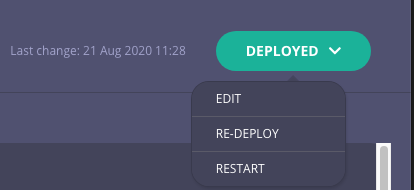
2. Select **Edit** from the Deployed drop-down list
## Upgrade Cloud Data Planes
There are two ways to upgrade a Control Plane.
### Manual Upgrade
To upgrade an existing Cloud Data Plane:
1. Go to the **Cloud Data Plane settings** using the *Edit Cloud Data Planes* instructions and scroll down to the **Version** section.
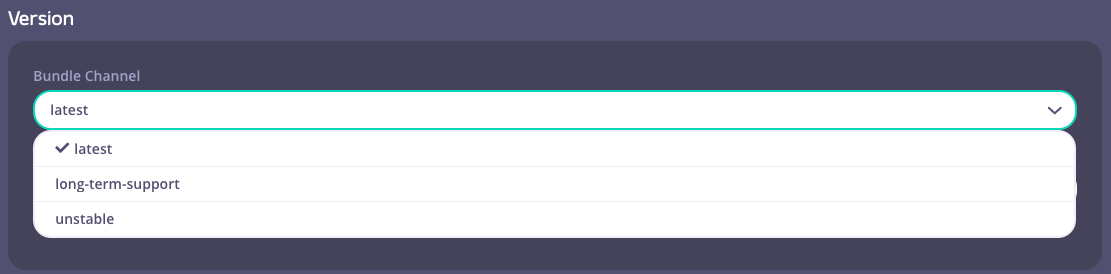
2. Select a **Bundle Channel**.
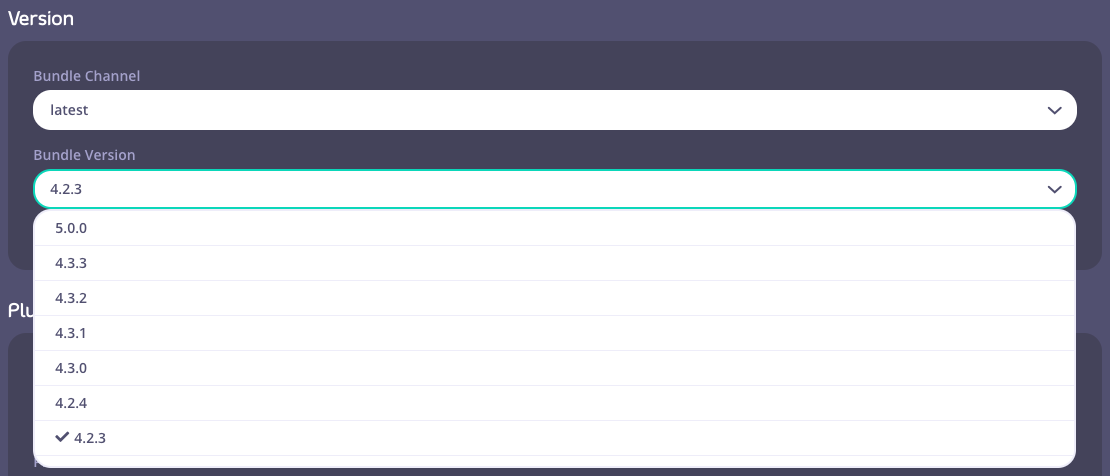
3. Next, select a **Bundle Version**.
4. To apply your changes, click the **"Save and Re-Deploy"** button located at the top right. After a few seconds, you will be redirected to the overview page of the Control Plane and a **"Deploying"** indicator button will appear.
5. A **"Deployed"** button indicates a successful upgrade.
### Auto Upgrade
The Auto Upgrade feature is only available for Control Plane deployments. When enabled on a Control Plane, it will automatically upgrade the corresponding data planes related to this control plane. For more information, see the [Tyk Cloud Control Plane Auto Upgrade Documentation](/5.9/tyk-cloud/environments-deployments/managing-control-planes).
 ## Upgrade Cloud Data Planes
There are two ways to upgrade a Control Plane.
### Manual Upgrade
To upgrade an existing Cloud Data Plane:
1. Go to the **Cloud Data Plane settings** using the *Edit Cloud Data Planes* instructions and scroll down to the **Version** section.
2. Select a **Bundle Channel**.
## Upgrade Cloud Data Planes
There are two ways to upgrade a Control Plane.
### Manual Upgrade
To upgrade an existing Cloud Data Plane:
1. Go to the **Cloud Data Plane settings** using the *Edit Cloud Data Planes* instructions and scroll down to the **Version** section.
2. Select a **Bundle Channel**.
 3. Next, select a **Bundle Version**.
 4. To apply your changes, click the **"Save and Re-Deploy"** button located at the top right. After a few seconds, you will be redirected to the overview page of the Control Plane and a **"Deploying"** indicator button will appear.
 5. A **"Deployed"** button indicates a successful upgrade.
 ### Auto Upgrade
The Auto Upgrade feature is only available for Control Plane deployments. When enabled on a Control Plane, it will automatically upgrade the corresponding data planes related to this control plane. For more information, see the [Tyk Cloud Control Plane Auto Upgrade Documentation](/5.9/tyk-cloud/environments-deployments/managing-control-planes).
### Auto Upgrade
The Auto Upgrade feature is only available for Control Plane deployments. When enabled on a Control Plane, it will automatically upgrade the corresponding data planes related to this control plane. For more information, see the [Tyk Cloud Control Plane Auto Upgrade Documentation](/5.9/tyk-cloud/environments-deployments/managing-control-planes).