> ## Documentation Index
> Fetch the complete documentation index at: https://tyk.io/docs/llms.txt
> Use this file to discover all available pages before exploring further.
# Deploy Hybrid Gateways with Tyk Cloud
> Learn how to deploy and manage hybrid gateways in Tyk Cloud, connecting your self-managed data planes to the Tyk Cloud control plane.
export const ButtonLeft = ({href, color, content}) => {
const buttonStyle = {
display: 'inline-block',
padding: '5px 16px',
fontSize: '14px',
fontWeight: '500',
textDecoration: 'none',
borderRadius: '25px',
transition: 'all 0.2s ease',
cursor: 'pointer',
border: '1.2px solid black'
};
const colorStyles = {
green: {
backgroundColor: '#20EDBA',
color: 'black'
},
red: {
backgroundColor: '#dc2626',
color: 'white'
},
black: {
backgroundColor: '#1f2937',
color: 'white'
}
};
const hoverStyle = {
transform: 'translateY(-1px)',
boxShadow: '0 4px 8px rgba(0,0,0,0.15)'
};
const finalStyle = {
...buttonStyle,
...colorStyles[color] || colorStyles.black
};
return {
Object.assign(e.target.style, hoverStyle);
}} onMouseLeave={e => {
e.target.style.transform = 'translateY(0)';
e.target.style.boxShadow = 'none';
}}>
{content}
;
};
## Introduction
[Tyk Cloud](https://tyk.io/cloud/) hosts and manages the control planes for you. You can deploy the data planes across multiple locations:
* as [Cloud Gateways](/5.9/tyk-cloud/environments-deployments/managing-gateways): Deployed and managed in *Tyk Cloud*, in any of our available regions. These are SaaS gateways, so there are no deployment or operational concerns.
* as Hybrid Gateways: This is a self-managed data plane, deployed in your infrastructure and managed by yourself. Your infrastructure can be a public or private cloud, or even your own data center.
This page describes the deployment of hybrid data planes and how to connect them to Tyk Cloud, in both Kubernetes and Docker environments.
## Prerequisites
* Tyk Cloud Account, register here if you don't have one yet:
* A Redis instance for each data plane, used as ephemeral storage for distributed rate limiting, token storage and analytics. You will find instructions for a simple Redis installation in the steps below.
* No incoming firewall rules are needed, as the connection between Tyk Hybrid Gateways and Tyk Cloud is always initiated from the Gateways, not from Tyk Cloud.
## Tyk Hybrid Gateway configuration
The hybrid gateways in the data plane connect to the control plane in Tyk Cloud using the *Tyk Dashboard* API Access Credentials. Follow the guides below to create the configuration that we will be used in later sections to create a deployment:
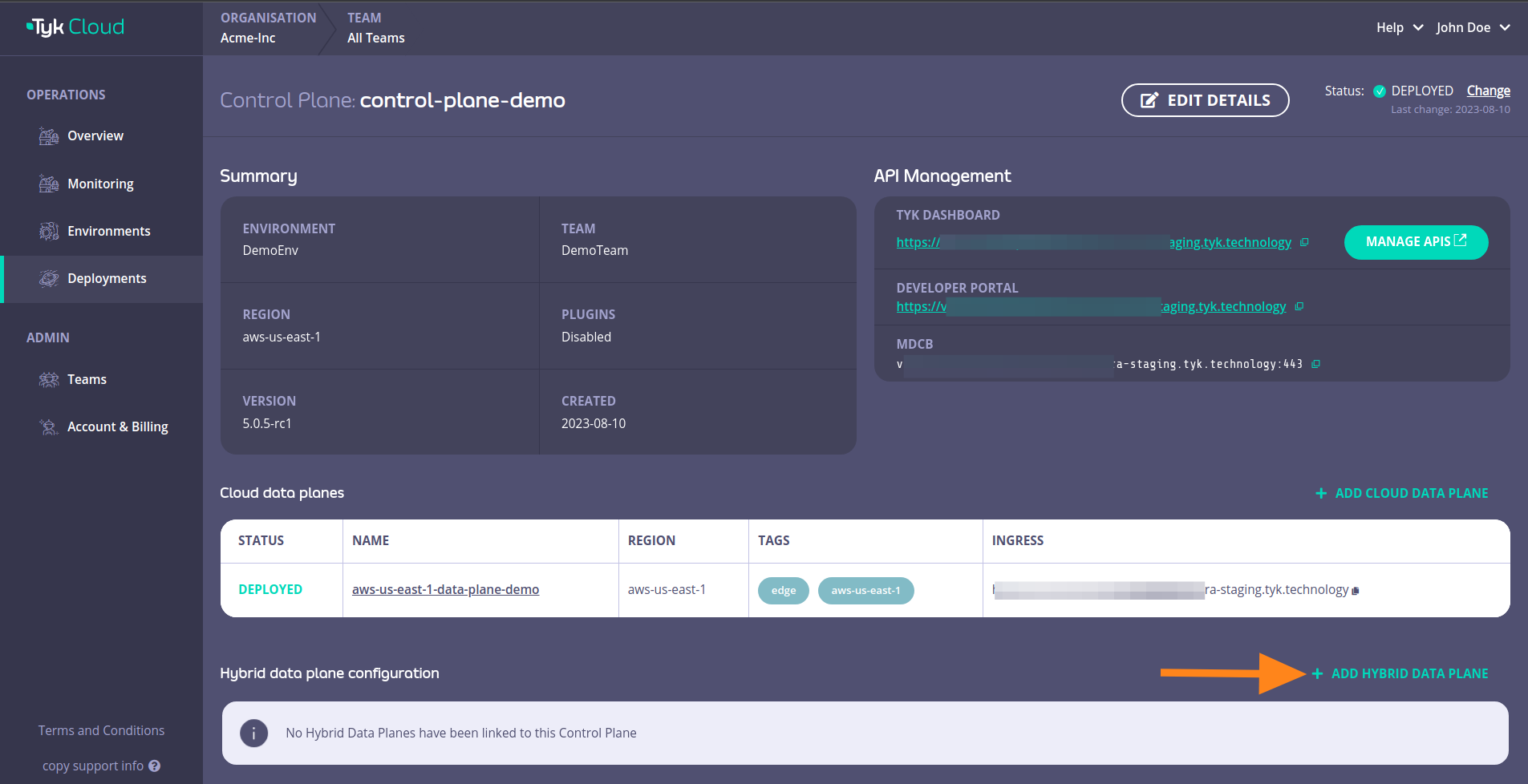
Login to your Tyk Cloud account deployments section and click on `ADD HYBRID DATA PLANE`
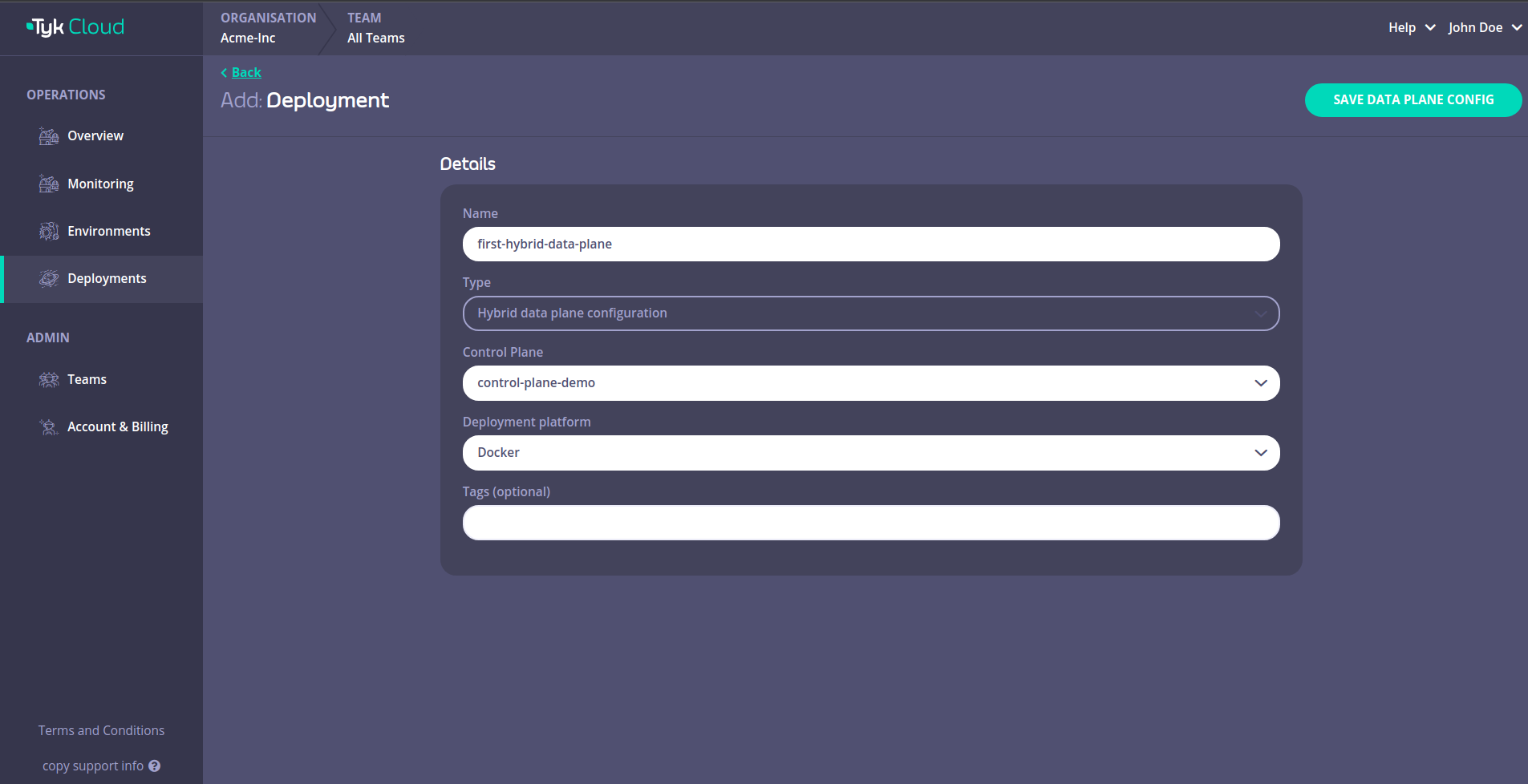
 Fill in the details and then click *SAVE DATA PLANE CONFIG*
 This will open up a page with the data plane configuration details that we need.
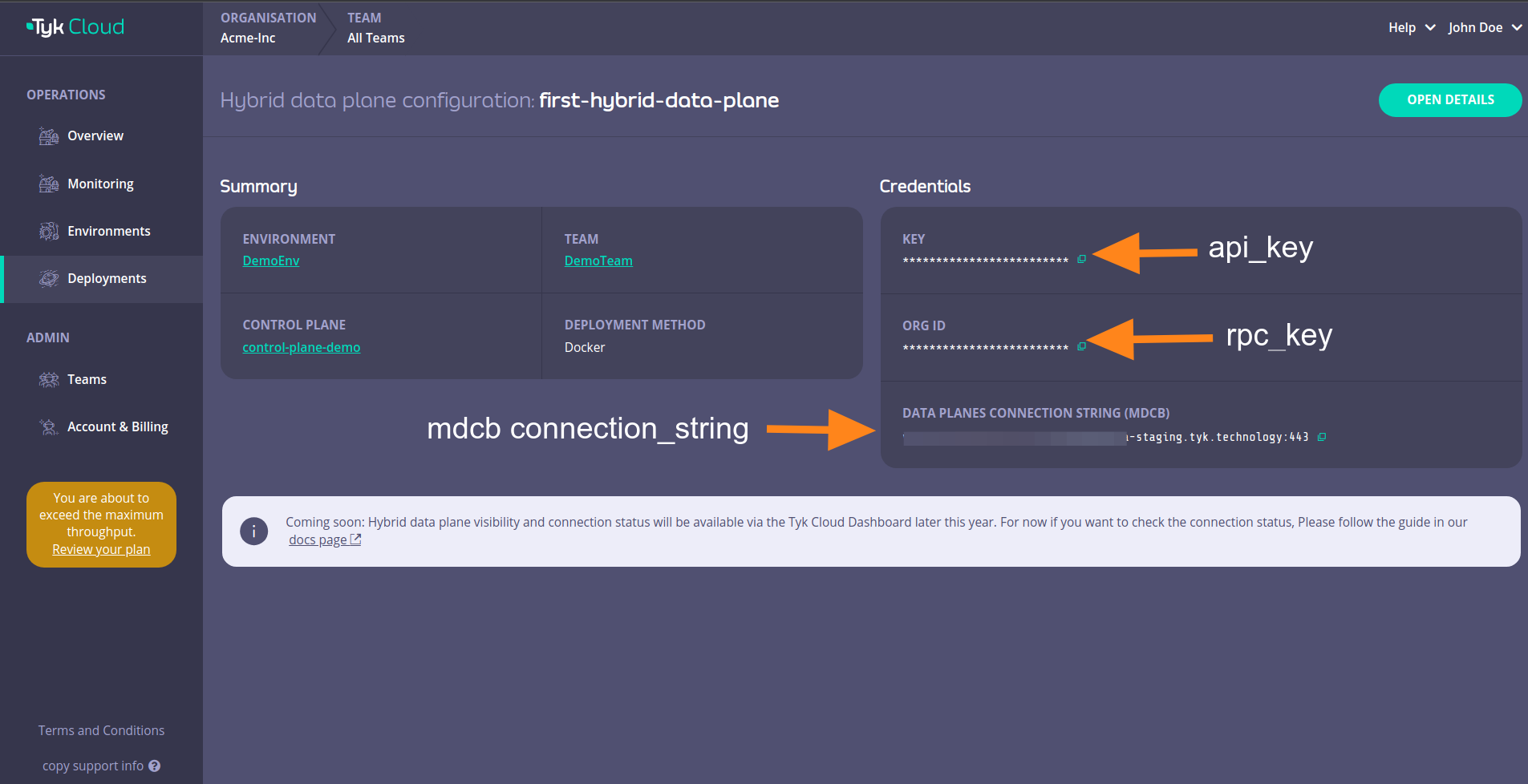 Those details are:
| | Docker | Helm |
| :-------------------------------------- | :----------------- | :--------------------- |
| key | api\_key | gateway.rpc.apiKey |
| org\_id | rpc\_key | gateway.rpc.rpcKey |
| data\_planes\_connection\_string (mdcb) | connection\_string | gateway.rpc.connString |
You can also click on *OPEN DETAILS*
Those details are:
| | Docker | Helm |
| :-------------------------------------- | :----------------- | :--------------------- |
| key | api\_key | gateway.rpc.apiKey |
| org\_id | rpc\_key | gateway.rpc.rpcKey |
| data\_planes\_connection\_string (mdcb) | connection\_string | gateway.rpc.connString |
You can also click on *OPEN DETAILS*
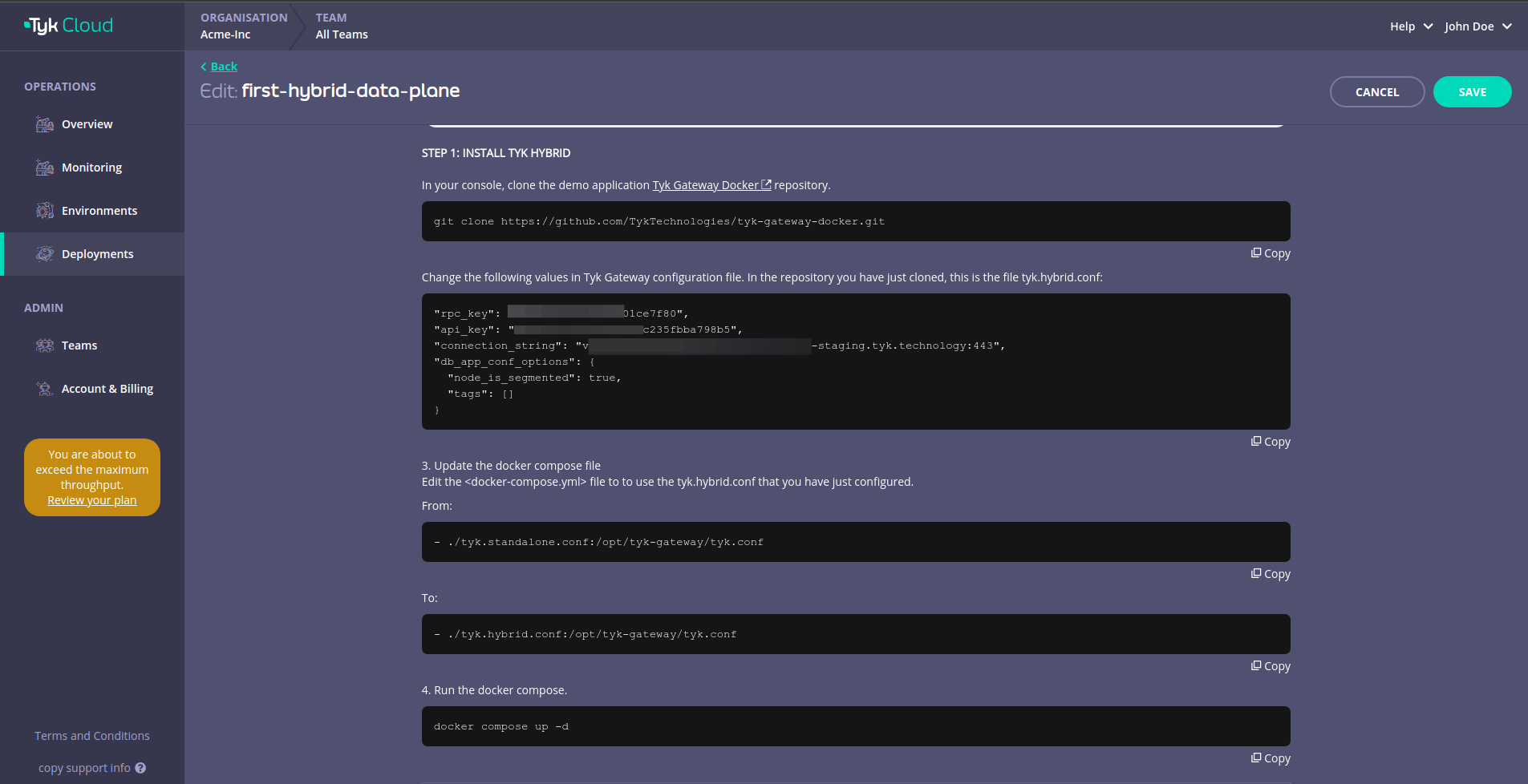
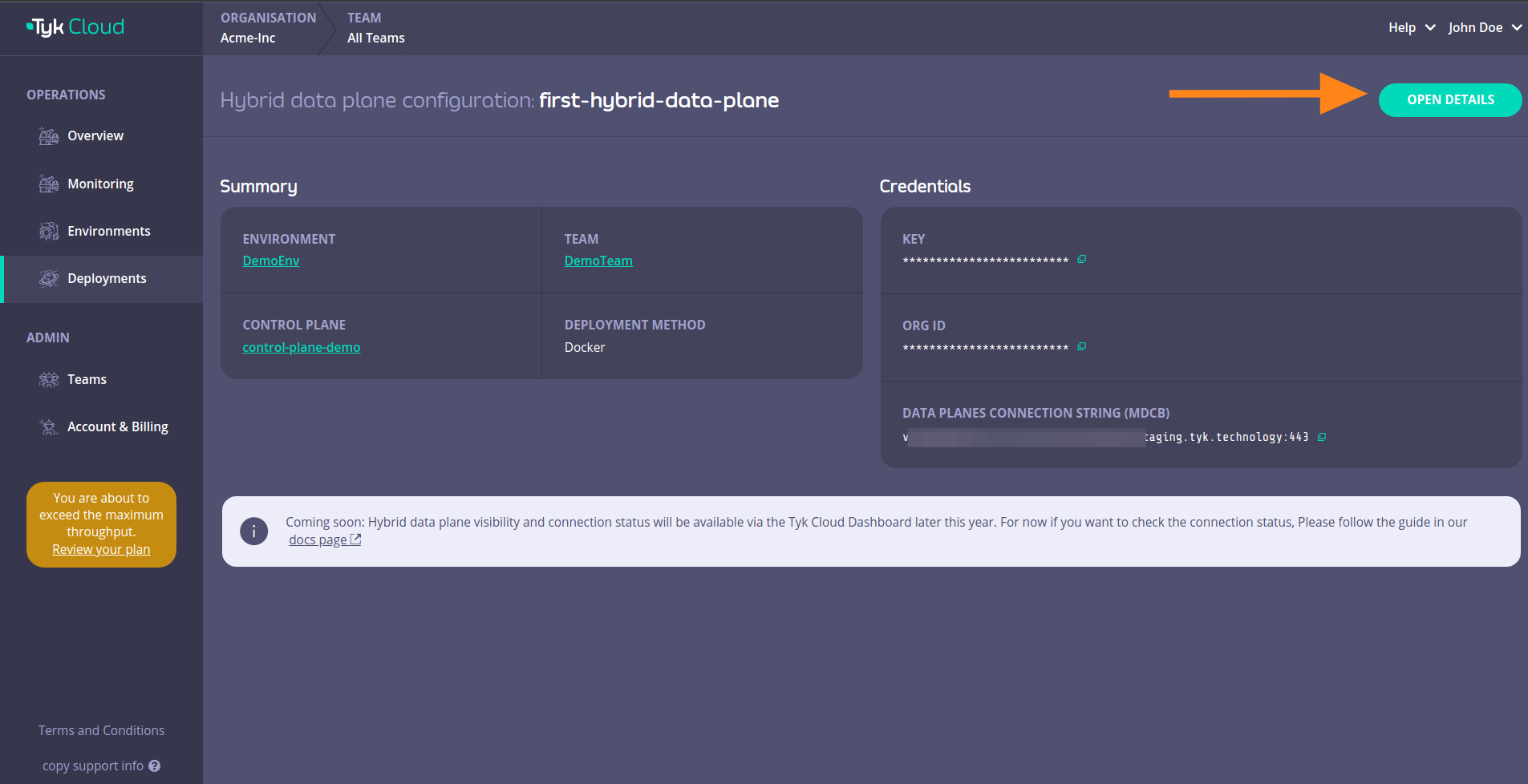 This will reveal instructions that you can use to connect your hybrid data plane to Tyk Cloud.
 ## Deploy with Docker
**1. In your terminal, clone the demo application [Tyk Gateway Docker](https://github.com/TykTechnologies/tyk-gateway-docker) repository**
```bash theme={null}
git clone https://github.com/TykTechnologies/tyk-gateway-docker.git
```
**2. Configure Tyk Gateway and its connection to Tyk Cloud**
You need to modify the following values in [tyk.hybrid.conf](https://github.com/TykTechnologies/tyk-gateway-docker#hybrid) configuration file:
* `rpc_key` - Organization ID
* `api_key` - Tyk Dashboard API Access Credentials of the user created earlier
* `connection_string`: MDCB connection string
* `group_id`*(optional)* - if you have multiple data planes (e.g. in different regions), specify the data plane group (string) to which the gateway you are deploying belongs. The data planes in the same group share one Redis.
```json theme={null}
{
"rpc_key": "",
"api_key": "",
"connection_string": ":443",
"group_id": "dataplane-europe",
}
```
* *(optional)* you can enable sharding to selectively load APIs to specific gateways, using the following:
```json theme={null}
{
"db_app_conf_options": {
"node_is_segmented": true,
"tags": ["qa", "uat"]
}
}
```
**3. Configure the connection to Redis**
This example comes with a Redis instance pre-configured and deployed with Docker compose. If you want to use another Redis instance, make sure to update the `storage` section in [tyk.hybrid.conf](https://github.com/TykTechnologies/tyk-gateway-docker#hybrid):
```json theme={null}
{
"storage": {
"type": "redis",
"host": "tyk-redis",
"port": 6379,
"username": "",
"password": "",
"database": 0,
"optimisation_max_idle": 2000,
"optimisation_max_active": 4000
}
}
```
**4. Update docker compose file**
Edit the `` file to use the [tyk.hybrid.conf](https://github.com/TykTechnologies/tyk-gateway-docker#hybrid) that you have just configured.
From:
```yml theme={null}
- ./tyk.standalone.conf:/opt/tyk-gateway/tyk.conf
```
To:
```yml theme={null}
- ./tyk.hybrid.conf:/opt/tyk-gateway/tyk.conf
```
**5. Run docker compose**
Run the following:
```bash theme={null}
docker compose up -d
```
You should now have two running containers, a Gateway and a Redis.
**6. Check that the gateway is up and running**
Call the /hello endpoint using curl from your terminal (or any other HTTP client):
```bash theme={null}
curl http://localhost:8080/hello -i
```
Expected result:
```http theme={null}
HTTP/1.1 200 OK
Content-Type: application/json
Date: Fri, 17 Mar 2023 12:41:11 GMT
Content-Length: 59
{"status":"pass","version":"4.3.3","description":"Tyk GW"}
```
## Deploy in Kubernetes with Helm Chart
**Prerequisites**
* [Kubernetes 1.19+](https://kubernetes.io/docs/setup/)
* [Helm 3+](https://helm.sh/docs/intro/install/)
* Connection details to remote control plane from the above [section](/5.9/tyk-cloud/environments-deployments/hybrid-gateways).
The following quick start guide explains how to use the [Tyk Data Plane Helm chart](/5.9/product-stack/tyk-charts/tyk-data-plane-chart) to configure Tyk Gateway that includes:
* Redis for key storage
* Tyk Pump to send analytics to Tyk Cloud and Prometheus
At the end of this quickstart Tyk Gateway should be accessible through service `gateway-svc-hybrid-dp-tyk-gateway` at port `8080`. Pump is also configured with Hybrid Pump which sends aggregated analytics to Tyk Cloud, and Prometheus Pump which expose metrics locally at `:9090/metrics`.
**1. Set connection details**
Set the below environment variables and replace values with connection details to your Tyk Cloud remote control plane. See the above [section](/5.9/tyk-cloud/environments-deployments/hybrid-gateways) on how to get the connection details.
```bash theme={null}
MDCB_UserKey=9d20907430e440655f15b851e4112345
MDCB_OrgId=64cadf60173be90001712345
MDCB_ConnString=mere-xxxxxxx-hyb.aws-euw2.cloud-ara.tyk.io:443
MDCB_GroupId=your-group-id
```
**2. Then use Helm to install Redis and Tyk**
```bash theme={null}
NAMESPACE=tyk
APISecret=foo
REDIS_BITNAMI_CHART_VERSION=19.0.2
helm repo add tyk-helm https://helm.tyk.io/public/helm/charts/
helm repo update
helm upgrade tyk-redis oci://registry-1.docker.io/bitnamicharts/redis -n $NAMESPACE --create-namespace --install --version $REDIS_BITNAMI_CHART_VERSION
helm upgrade hybrid-dp tyk-helm/tyk-data-plane -n $NAMESPACE --create-namespace \
--install \
--set global.remoteControlPlane.userApiKey=$MDCB_UserKey \
--set global.remoteControlPlane.orgId=$MDCB_OrgId \
--set global.remoteControlPlane.connectionString=$MDCB_ConnString \
--set global.remoteControlPlane.groupID=$MDCB_GroupId \
--set global.secrets.APISecret="$APISecret" \
--set global.redis.addrs="{tyk-redis-master.$NAMESPACE.svc.cluster.local:6379}" \
--set global.redis.passSecret.name=tyk-redis \
--set global.redis.passSecret.keyName=redis-password
```
**3. Done!**
Now Tyk Gateway should be accessible through service `gateway-svc-hybrid-dp-tyk-gateway` at port `8080`. Pump is also configured with Hybrid Pump which sends aggregated analytics to Tyk Cloud, and Prometheus Pump which expose metrics locally at `:9090/metrics`.
For the complete installation guide and configuration options, please see [Tyk Data Plane Chart](/5.9/product-stack/tyk-charts/tyk-data-plane-chart).
## Remove hybrid data plane configuration
Please note the action of removing a hybrid data plane configuration cannot be undone.
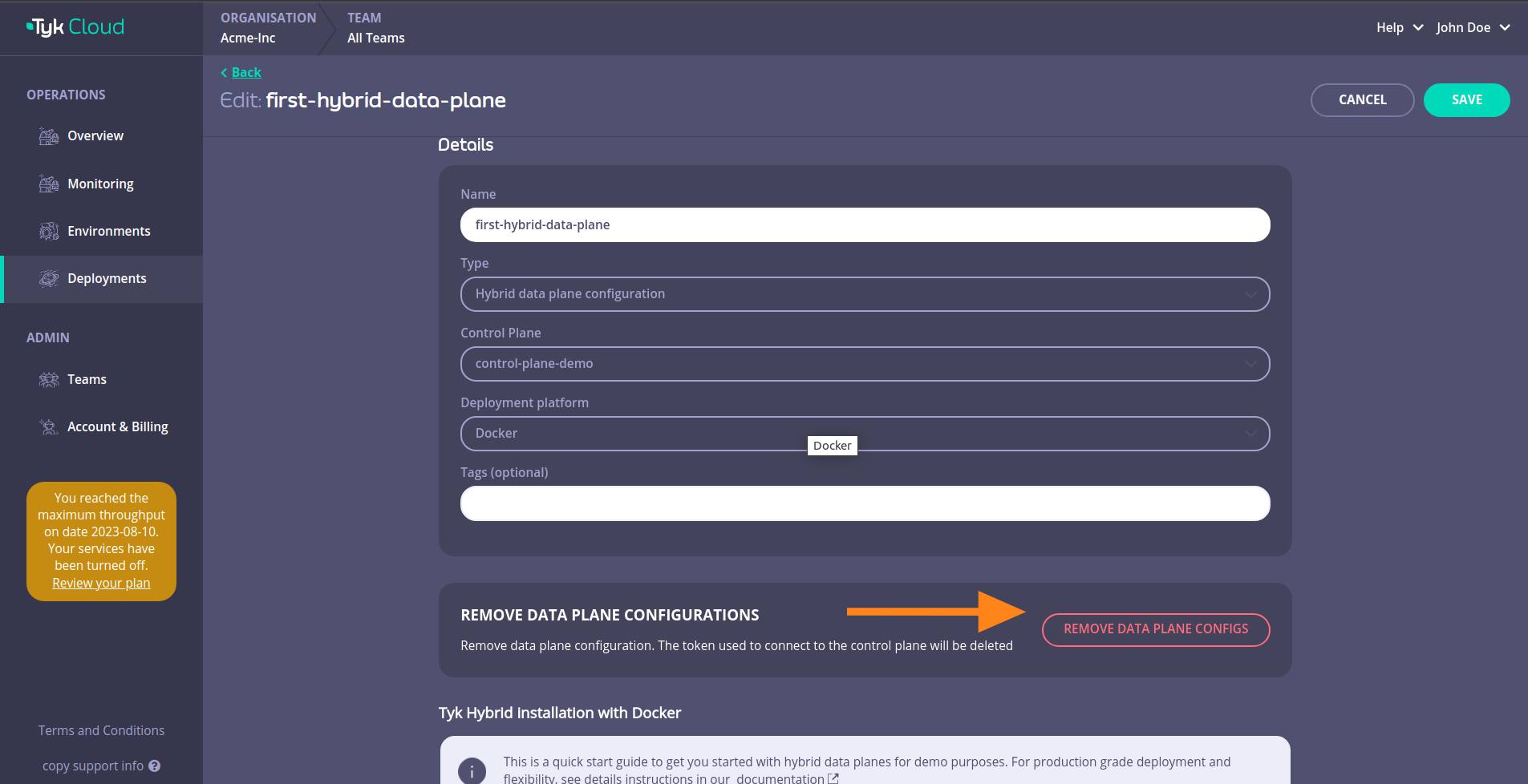
To remove the hybrid data plane configuration, navigate to the page of the hybrid data plane you want to remove and click *OPEN DETAILS*
Then click on *REMOVE DATA PLANE CONFIGS*
## Deploy with Docker
**1. In your terminal, clone the demo application [Tyk Gateway Docker](https://github.com/TykTechnologies/tyk-gateway-docker) repository**
```bash theme={null}
git clone https://github.com/TykTechnologies/tyk-gateway-docker.git
```
**2. Configure Tyk Gateway and its connection to Tyk Cloud**
You need to modify the following values in [tyk.hybrid.conf](https://github.com/TykTechnologies/tyk-gateway-docker#hybrid) configuration file:
* `rpc_key` - Organization ID
* `api_key` - Tyk Dashboard API Access Credentials of the user created earlier
* `connection_string`: MDCB connection string
* `group_id`*(optional)* - if you have multiple data planes (e.g. in different regions), specify the data plane group (string) to which the gateway you are deploying belongs. The data planes in the same group share one Redis.
```json theme={null}
{
"rpc_key": "",
"api_key": "",
"connection_string": ":443",
"group_id": "dataplane-europe",
}
```
* *(optional)* you can enable sharding to selectively load APIs to specific gateways, using the following:
```json theme={null}
{
"db_app_conf_options": {
"node_is_segmented": true,
"tags": ["qa", "uat"]
}
}
```
**3. Configure the connection to Redis**
This example comes with a Redis instance pre-configured and deployed with Docker compose. If you want to use another Redis instance, make sure to update the `storage` section in [tyk.hybrid.conf](https://github.com/TykTechnologies/tyk-gateway-docker#hybrid):
```json theme={null}
{
"storage": {
"type": "redis",
"host": "tyk-redis",
"port": 6379,
"username": "",
"password": "",
"database": 0,
"optimisation_max_idle": 2000,
"optimisation_max_active": 4000
}
}
```
**4. Update docker compose file**
Edit the `` file to use the [tyk.hybrid.conf](https://github.com/TykTechnologies/tyk-gateway-docker#hybrid) that you have just configured.
From:
```yml theme={null}
- ./tyk.standalone.conf:/opt/tyk-gateway/tyk.conf
```
To:
```yml theme={null}
- ./tyk.hybrid.conf:/opt/tyk-gateway/tyk.conf
```
**5. Run docker compose**
Run the following:
```bash theme={null}
docker compose up -d
```
You should now have two running containers, a Gateway and a Redis.
**6. Check that the gateway is up and running**
Call the /hello endpoint using curl from your terminal (or any other HTTP client):
```bash theme={null}
curl http://localhost:8080/hello -i
```
Expected result:
```http theme={null}
HTTP/1.1 200 OK
Content-Type: application/json
Date: Fri, 17 Mar 2023 12:41:11 GMT
Content-Length: 59
{"status":"pass","version":"4.3.3","description":"Tyk GW"}
```
## Deploy in Kubernetes with Helm Chart
**Prerequisites**
* [Kubernetes 1.19+](https://kubernetes.io/docs/setup/)
* [Helm 3+](https://helm.sh/docs/intro/install/)
* Connection details to remote control plane from the above [section](/5.9/tyk-cloud/environments-deployments/hybrid-gateways).
The following quick start guide explains how to use the [Tyk Data Plane Helm chart](/5.9/product-stack/tyk-charts/tyk-data-plane-chart) to configure Tyk Gateway that includes:
* Redis for key storage
* Tyk Pump to send analytics to Tyk Cloud and Prometheus
At the end of this quickstart Tyk Gateway should be accessible through service `gateway-svc-hybrid-dp-tyk-gateway` at port `8080`. Pump is also configured with Hybrid Pump which sends aggregated analytics to Tyk Cloud, and Prometheus Pump which expose metrics locally at `:9090/metrics`.
**1. Set connection details**
Set the below environment variables and replace values with connection details to your Tyk Cloud remote control plane. See the above [section](/5.9/tyk-cloud/environments-deployments/hybrid-gateways) on how to get the connection details.
```bash theme={null}
MDCB_UserKey=9d20907430e440655f15b851e4112345
MDCB_OrgId=64cadf60173be90001712345
MDCB_ConnString=mere-xxxxxxx-hyb.aws-euw2.cloud-ara.tyk.io:443
MDCB_GroupId=your-group-id
```
**2. Then use Helm to install Redis and Tyk**
```bash theme={null}
NAMESPACE=tyk
APISecret=foo
REDIS_BITNAMI_CHART_VERSION=19.0.2
helm repo add tyk-helm https://helm.tyk.io/public/helm/charts/
helm repo update
helm upgrade tyk-redis oci://registry-1.docker.io/bitnamicharts/redis -n $NAMESPACE --create-namespace --install --version $REDIS_BITNAMI_CHART_VERSION
helm upgrade hybrid-dp tyk-helm/tyk-data-plane -n $NAMESPACE --create-namespace \
--install \
--set global.remoteControlPlane.userApiKey=$MDCB_UserKey \
--set global.remoteControlPlane.orgId=$MDCB_OrgId \
--set global.remoteControlPlane.connectionString=$MDCB_ConnString \
--set global.remoteControlPlane.groupID=$MDCB_GroupId \
--set global.secrets.APISecret="$APISecret" \
--set global.redis.addrs="{tyk-redis-master.$NAMESPACE.svc.cluster.local:6379}" \
--set global.redis.passSecret.name=tyk-redis \
--set global.redis.passSecret.keyName=redis-password
```
**3. Done!**
Now Tyk Gateway should be accessible through service `gateway-svc-hybrid-dp-tyk-gateway` at port `8080`. Pump is also configured with Hybrid Pump which sends aggregated analytics to Tyk Cloud, and Prometheus Pump which expose metrics locally at `:9090/metrics`.
For the complete installation guide and configuration options, please see [Tyk Data Plane Chart](/5.9/product-stack/tyk-charts/tyk-data-plane-chart).
## Remove hybrid data plane configuration
Please note the action of removing a hybrid data plane configuration cannot be undone.
To remove the hybrid data plane configuration, navigate to the page of the hybrid data plane you want to remove and click *OPEN DETAILS*
Then click on *REMOVE DATA PLANE CONFIGS*
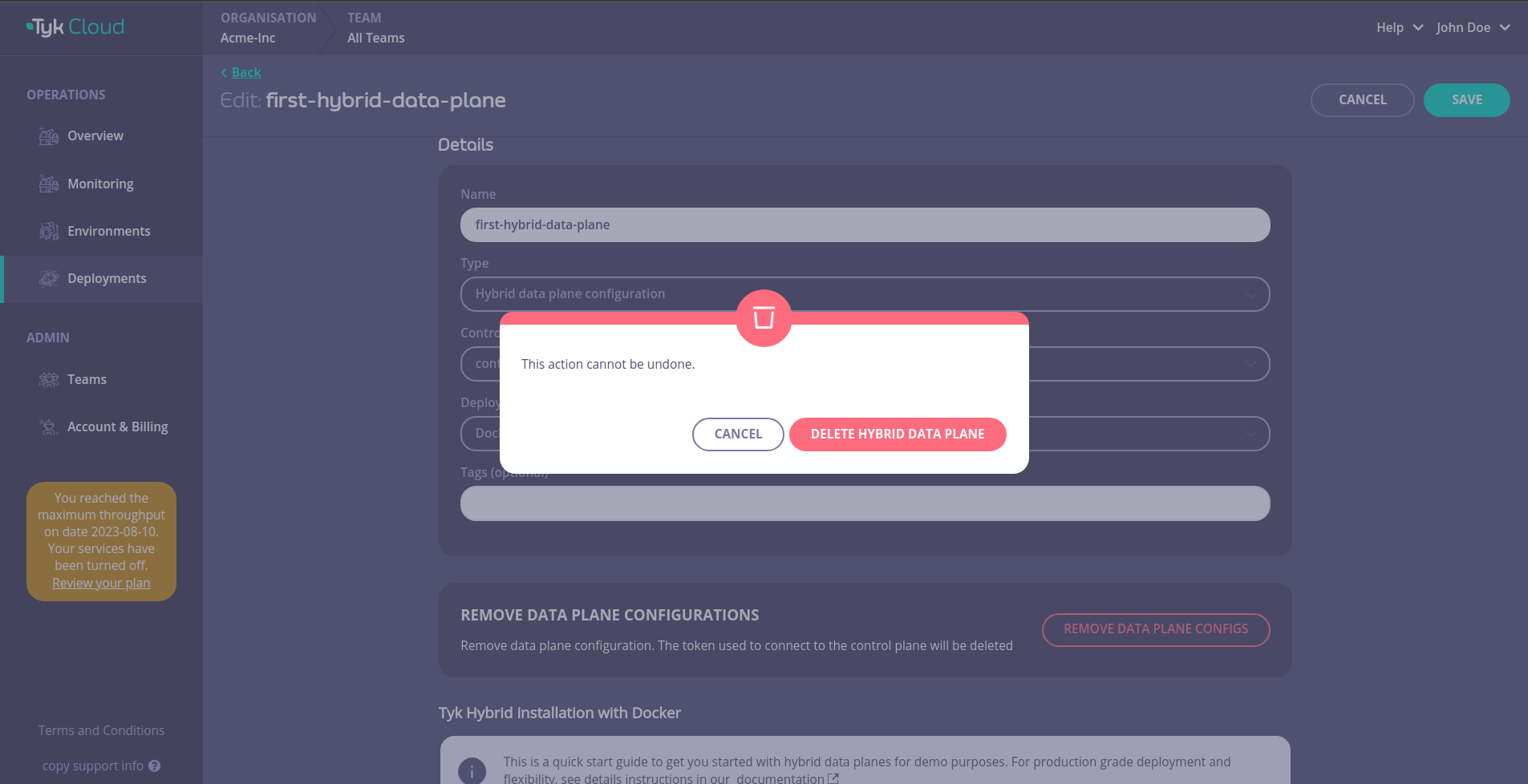
 Confirm the removal by clicking *DELETE HYBRID DATA PLANE*
 ## Tyk Cloud MDCB Supported versions
This section lists the supported MDCB version for hybrid setup
| Dashboard | Gateway | MDCB |
| :-------- | :------ | :------ |
| v5.2.0 | v5.2.0 | v2.4.0 |
| v5.1.2 | v5.1.2 | v2.3.0 |
| v5.1.1 | v5.1.1 | v2.3.0 |
| v5.1.0 | v5.1.0 | v2.3.0 |
| v5.0.5 | v5.0.5 | v2.2.0 |
| v5.0.4 | v5.0.4 | v2.2.0 |
| v5.0.3 | v5.0.3 | v2.2.0 |
| v5.0.2 | v5.0.2 | v2.2.0 |
| v5.0.1 | v5.0.1 | v2.1.1 |
| v5.0.0 | v5.0.0 | v2.1.1 |
| v4.3.3 | v4.3.3 | v2.1.0 |
| v4.3.2 | v4.3.2 | v2.0.4 |
| v4.3.1 | v4.3.1 | v2.0.4 |
| v4.3.0 | v4.3.0 | v2.0.4 |
| v4.2.4 | v4.2.4 | v2.0.3 |
| v4.2.3 | v4.2.3 | v2.0.3 |
| v4.0.10 | v4.0.10 | v2.0.4 |
| v4.0.9 | v4.0.9 | v2.0.3 |
| v4.0.8 | v4.0.8 | v2.0.3 |
| v3.2.3 | v3.2.3 | v1.8.1 |
| v3.0.9 | v3.0.9 | v1.7.11 |
## Deploy Legacy Hybrid Gateways
`tyk-hybrid` chart is deprecated. Please use our [Tyk Data Plane helm chart](/5.9/product-stack/tyk-charts/tyk-data-plane-chart) instead.
We recommend that all users to migrate to the `tyk-data-plane` Chart. Please review the [Configuration](/5.9/product-stack/tyk-charts/tyk-data-plane-chart#configuration) section of the new helm chart and cross-check with your existing configurations while planning for migration.
1. **Add the Tyk official Helm repo `tyk-helm` to your local Helm repository**
```bash theme={null}
helm repo add tyk-helm https://helm.tyk.io/public/helm/charts/
helm repo update
```
The helm charts are also available on [ArtifactHub](https://artifacthub.io/packages/helm/tyk-helm/tyk-hybrid).
2. **Then create a new namespace that will be hosting the Tyk Gateways**
```bash theme={null}
kubectl create namespace tyk
```
3. **Get the default values.yaml for configuration**
Before proceeding with installation of the chart we need to set some custom values. First save the full original values.yaml to a local copy:
```bash theme={null}
helm show values tyk-helm/tyk-hybrid > values.yaml
```
4. **Configure Tyk Gateway and its connection to Tyk Cloud**
You need to modify the following values in your custom `values.yaml` file:
* `gateway.rpc.apiKey` - Tyk Dashboard API Access Credentials of the user created earlier
* `gateway.rpc.rpcKey` - Organization ID
* `gateway.rpc.connString` - MDCB connection string
* `gateway.rpc.group_id`*(optional)* - if you have multiple data plane (e.g. in different regions), specify the data plane group (string) to which the gateway you are deploying belong. The data planes in the same group share one Redis instance.
* `gateway.sharding.enabled` and `gateway.sharding.tags`*(optional)* - you can enable sharding to selectively load APIs to specific gateways, using tags. By default, sharding is disabled and the gateway will load all APIs.
5. **Configure the connection to Redis**
You can connect the gateway to any Redis instance already deployed (as DBaaS or hosted in your private infrastructure).
In case you don't have a Redis instance yet, here's how to deploy Redis in Kubernetes using Bitnami Helm charts.
```bash theme={null}
helm install tyk-redis bitnami/redis -n tyk --version 19.0.2
```
Please make sure you are installing Redis versions that are supported by Tyk. Please refer to Tyk docs to get list of [supported versions](/5.9/tyk-self-managed/install#redis).
Follow the notes from the installation output to get connection details and password.
```bash theme={null}
Redis(TM) can be accessed on the following DNS names from within your cluster:
tyk-redis-master.tyk.svc.cluster.local for read/write operations (port 6379)
tyk-redis-replicas.tyk.svc.cluster.local for read-only operations (port 6379)
export REDIS_PASSWORD=$(kubectl get secret --namespace tyk tyk-redis -o jsonpath="{.data.redis-password}" | base64 --decode)
```
You need to modify the following values in your custom `values.yaml` file:
* `redis.addrs`: the name of the Redis instance including the port as set by Bitnami `tyk-redis-master.tyk.svc.cluster.local:6379`
* `redis.pass`: password set in redis (`$REDIS_PASSWORD`). Alternatively, you can use --set flag to set it during helm installation. For example `--set redis.pass=$REDIS_PASSWORD`.
6. **Install Hybrid data plane**
Install the chart using the configured custom values file:
```bash theme={null}
helm install tyk-hybrid tyk-helm/tyk-hybrid -f values.yaml -n tyk
```
You should see the prompt:
```bash theme={null}
At this point, Tyk Hybrid is fully installed and should be accessible.
```
7. **Check that the installation was successful**
The hybrid data planes are not yet visible in Tyk Cloud (coming soon!). Here is how you can check that the deployment was successful.
Run this command in your terminal to check that all pods in the `tyk` namespace are running:
```bash theme={null}
kubectl get pods -n tyk
```
**Expected result:**
```bash theme={null}
NAME READY STATUS RESTARTS AGE
gateway-tyk-hybrid-54b6c498f6-2xjvx 1/1 Running 0 4m27s
tyk-redis-master-0 1/1 Running 0 47m
tyk-redis-replicas-0 1/1 Running 0 47m
tyk-redis-replicas-1 1/1 Running 0 46m
tyk-redis-replicas-2 1/1 Running 0 46m
```
Note: if you are using a Redis instance hosted somewhere else, then no Redis pods will appear here.
Run this command in your terminal to check that the services were correctly created:
```bash theme={null}
kubectl get service -n tyk
```
**Expected result:**
```bash theme={null}
NAME TYPE CLUSTER-IP EXTERNAL-IP PORT(S) AGE
gateway-svc-tyk-hybrid NodePort 10.96.232.123 443:32668/TCP 44m
tyk-redis-headless ClusterIP None 6379/TCP 47m
tyk-redis-master ClusterIP 10.109.203.244 6379/TCP 47m
tyk-redis-replicas ClusterIP 10.98.206.202 6379/TCP 47m
```
Note: IP adresses might differ on your system.
Finally, from your terminal, send an HTTP call to the /hello endpoint of the gateway `gateway-svc-tyk-hybrid`:
Note: you may need to port forward if you're testing on a local machine, e.g. `kubectl port-forward service/gateway-svc-tyk-hybrid -n tyk 8080:443`
```bash theme={null}
curl http://hostname:8080/hello -i
```
**Expected result:**
```bash theme={null}
HTTP/1.1 200 OK
Content-Type: application/json
Date: Fri, 17 Mar 2023 10:35:35 GMT
Content-Length: 234
{
"status":"pass",
"version":"4.3.3",
"description":"Tyk GW",
"details":{
"redis": {"status":"pass","componentType":"datastore","time":"2023-03-15T11:39:10Z"},
"rpc": {"status":"pass","componentType":"system","time":"2023-03-15T11:39:10Z"}}
}
```
## Tyk Cloud MDCB Supported versions
This section lists the supported MDCB version for hybrid setup
| Dashboard | Gateway | MDCB |
| :-------- | :------ | :------ |
| v5.2.0 | v5.2.0 | v2.4.0 |
| v5.1.2 | v5.1.2 | v2.3.0 |
| v5.1.1 | v5.1.1 | v2.3.0 |
| v5.1.0 | v5.1.0 | v2.3.0 |
| v5.0.5 | v5.0.5 | v2.2.0 |
| v5.0.4 | v5.0.4 | v2.2.0 |
| v5.0.3 | v5.0.3 | v2.2.0 |
| v5.0.2 | v5.0.2 | v2.2.0 |
| v5.0.1 | v5.0.1 | v2.1.1 |
| v5.0.0 | v5.0.0 | v2.1.1 |
| v4.3.3 | v4.3.3 | v2.1.0 |
| v4.3.2 | v4.3.2 | v2.0.4 |
| v4.3.1 | v4.3.1 | v2.0.4 |
| v4.3.0 | v4.3.0 | v2.0.4 |
| v4.2.4 | v4.2.4 | v2.0.3 |
| v4.2.3 | v4.2.3 | v2.0.3 |
| v4.0.10 | v4.0.10 | v2.0.4 |
| v4.0.9 | v4.0.9 | v2.0.3 |
| v4.0.8 | v4.0.8 | v2.0.3 |
| v3.2.3 | v3.2.3 | v1.8.1 |
| v3.0.9 | v3.0.9 | v1.7.11 |
## Deploy Legacy Hybrid Gateways
`tyk-hybrid` chart is deprecated. Please use our [Tyk Data Plane helm chart](/5.9/product-stack/tyk-charts/tyk-data-plane-chart) instead.
We recommend that all users to migrate to the `tyk-data-plane` Chart. Please review the [Configuration](/5.9/product-stack/tyk-charts/tyk-data-plane-chart#configuration) section of the new helm chart and cross-check with your existing configurations while planning for migration.
1. **Add the Tyk official Helm repo `tyk-helm` to your local Helm repository**
```bash theme={null}
helm repo add tyk-helm https://helm.tyk.io/public/helm/charts/
helm repo update
```
The helm charts are also available on [ArtifactHub](https://artifacthub.io/packages/helm/tyk-helm/tyk-hybrid).
2. **Then create a new namespace that will be hosting the Tyk Gateways**
```bash theme={null}
kubectl create namespace tyk
```
3. **Get the default values.yaml for configuration**
Before proceeding with installation of the chart we need to set some custom values. First save the full original values.yaml to a local copy:
```bash theme={null}
helm show values tyk-helm/tyk-hybrid > values.yaml
```
4. **Configure Tyk Gateway and its connection to Tyk Cloud**
You need to modify the following values in your custom `values.yaml` file:
* `gateway.rpc.apiKey` - Tyk Dashboard API Access Credentials of the user created earlier
* `gateway.rpc.rpcKey` - Organization ID
* `gateway.rpc.connString` - MDCB connection string
* `gateway.rpc.group_id`*(optional)* - if you have multiple data plane (e.g. in different regions), specify the data plane group (string) to which the gateway you are deploying belong. The data planes in the same group share one Redis instance.
* `gateway.sharding.enabled` and `gateway.sharding.tags`*(optional)* - you can enable sharding to selectively load APIs to specific gateways, using tags. By default, sharding is disabled and the gateway will load all APIs.
5. **Configure the connection to Redis**
You can connect the gateway to any Redis instance already deployed (as DBaaS or hosted in your private infrastructure).
In case you don't have a Redis instance yet, here's how to deploy Redis in Kubernetes using Bitnami Helm charts.
```bash theme={null}
helm install tyk-redis bitnami/redis -n tyk --version 19.0.2
```
Please make sure you are installing Redis versions that are supported by Tyk. Please refer to Tyk docs to get list of [supported versions](/5.9/tyk-self-managed/install#redis).
Follow the notes from the installation output to get connection details and password.
```bash theme={null}
Redis(TM) can be accessed on the following DNS names from within your cluster:
tyk-redis-master.tyk.svc.cluster.local for read/write operations (port 6379)
tyk-redis-replicas.tyk.svc.cluster.local for read-only operations (port 6379)
export REDIS_PASSWORD=$(kubectl get secret --namespace tyk tyk-redis -o jsonpath="{.data.redis-password}" | base64 --decode)
```
You need to modify the following values in your custom `values.yaml` file:
* `redis.addrs`: the name of the Redis instance including the port as set by Bitnami `tyk-redis-master.tyk.svc.cluster.local:6379`
* `redis.pass`: password set in redis (`$REDIS_PASSWORD`). Alternatively, you can use --set flag to set it during helm installation. For example `--set redis.pass=$REDIS_PASSWORD`.
6. **Install Hybrid data plane**
Install the chart using the configured custom values file:
```bash theme={null}
helm install tyk-hybrid tyk-helm/tyk-hybrid -f values.yaml -n tyk
```
You should see the prompt:
```bash theme={null}
At this point, Tyk Hybrid is fully installed and should be accessible.
```
7. **Check that the installation was successful**
The hybrid data planes are not yet visible in Tyk Cloud (coming soon!). Here is how you can check that the deployment was successful.
Run this command in your terminal to check that all pods in the `tyk` namespace are running:
```bash theme={null}
kubectl get pods -n tyk
```
**Expected result:**
```bash theme={null}
NAME READY STATUS RESTARTS AGE
gateway-tyk-hybrid-54b6c498f6-2xjvx 1/1 Running 0 4m27s
tyk-redis-master-0 1/1 Running 0 47m
tyk-redis-replicas-0 1/1 Running 0 47m
tyk-redis-replicas-1 1/1 Running 0 46m
tyk-redis-replicas-2 1/1 Running 0 46m
```
Note: if you are using a Redis instance hosted somewhere else, then no Redis pods will appear here.
Run this command in your terminal to check that the services were correctly created:
```bash theme={null}
kubectl get service -n tyk
```
**Expected result:**
```bash theme={null}
NAME TYPE CLUSTER-IP EXTERNAL-IP PORT(S) AGE
gateway-svc-tyk-hybrid NodePort 10.96.232.123 443:32668/TCP 44m
tyk-redis-headless ClusterIP None 6379/TCP 47m
tyk-redis-master ClusterIP 10.109.203.244 6379/TCP 47m
tyk-redis-replicas ClusterIP 10.98.206.202 6379/TCP 47m
```
Note: IP adresses might differ on your system.
Finally, from your terminal, send an HTTP call to the /hello endpoint of the gateway `gateway-svc-tyk-hybrid`:
Note: you may need to port forward if you're testing on a local machine, e.g. `kubectl port-forward service/gateway-svc-tyk-hybrid -n tyk 8080:443`
```bash theme={null}
curl http://hostname:8080/hello -i
```
**Expected result:**
```bash theme={null}
HTTP/1.1 200 OK
Content-Type: application/json
Date: Fri, 17 Mar 2023 10:35:35 GMT
Content-Length: 234
{
"status":"pass",
"version":"4.3.3",
"description":"Tyk GW",
"details":{
"redis": {"status":"pass","componentType":"datastore","time":"2023-03-15T11:39:10Z"},
"rpc": {"status":"pass","componentType":"system","time":"2023-03-15T11:39:10Z"}}
}
```