> ## Documentation Index
> Fetch the complete documentation index at: https://tyk.io/docs/llms.txt
> Use this file to discover all available pages before exploring further.
# Migrating from Tyk Classic APIs
> API Migration: Converting Tyk Classic APIs to Tyk OAS Format
## Overview
From Tyk 5.8.0, you can convert your existing [Tyk Classic APIs](/5.9/api-management/gateway-config-tyk-classic) to the recommended [Tyk OAS API](/5.9/api-management/gateway-config-tyk-oas) format.
The API Migration feature provides a powerful way to convert your existing Tyk Classic API definitions to the newer Tyk OAS format with various options to ensure a smooth transition. We've built support into the Tyk Dashboard's [API Designer](/5.9/api-management/migrate-from-tyk-classic#using-the-api-designer) to convert individual Tyk Classic APIs one by one. The Tyk Dashboard API [migrate endpoint](/5.9/api-management/migrate-from-tyk-classic#using-the-migration-api) allows you to migrate individual APIs or perform bulk migrations.
### Features of Tyk Dashboard's Migration Feature
* **Flexibility**: Migrate APIs using the API Designer or using the Tyk Dashboard API
* **Bulk Migration**: Convert multiple APIs in a single operation via the Dashboard API
* **Risk Mitigation**: Test migrations before applying changes
* **Phased Implementation**: Stage and test migrations before final deployment
* **Detailed Reporting**: Get comprehensive success, failure, and skip information
## Migration Modes
Tyk Dashboard supports four different migration modes to suit your needs:
1. **Dry Run Mode**: Simulates the conversion process without making changes. This mode returns the converted API definitions in Tyk OAS format for your review, allowing you to verify the conversion before committing to it.
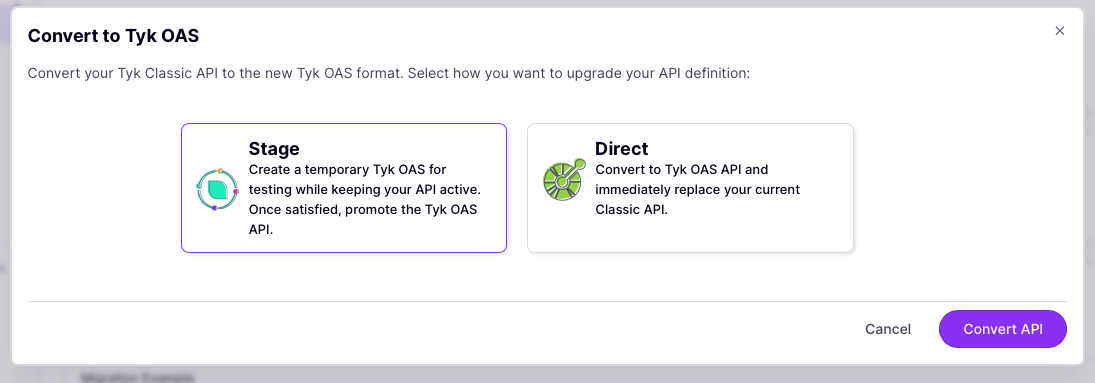
2. **Stage Mode**: Perform a phased conversion by creating staged copies of your APIs in Tyk OAS format alongside the existing Tyk Classic APIs. You can then thoroughly test that the migrated APIs will behave as expected without affecting production traffic. When you are happy, you can **promote** the staged APIs.
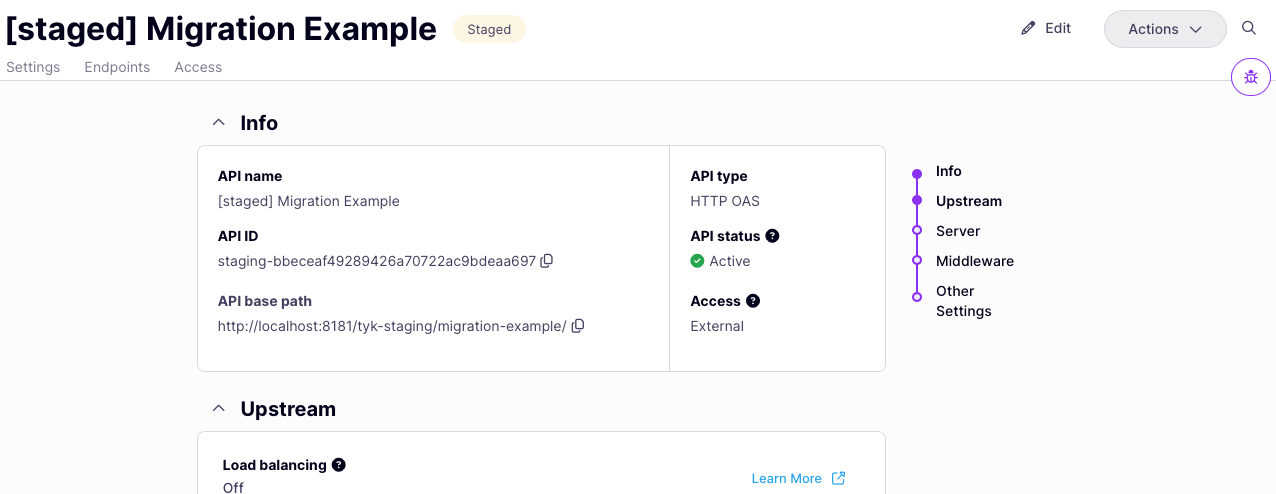
The **staged** API will be the same as the original Tyk Classic, with the following modifications to allow it to coexist:
* The API ID will have the `staging-` prefix added
* `[staged] ` prefix will be added to the API name
* The listen path will be modified by the addition of the `/tyk-staging` prefix
* A reference will be added to link the staged API to the original Tyk Classic API's ID
3. **Promote Mode**: Promote previously staged APIs, replacing their Tyk Classic counterparts. This process removes the staging prefixes from ID, name, and listen path. It then replaces the original Tyk Classic API with the Tyk OAS version - the Tyk OAS API will inherit both the API ID and database ID of the original API.
4. **Direct Mode**: Directly migrates APIs from Tyk Classic to Tyk OAS format without staging; typically this will be used if testing was performed on a **dry run** copy of the original. This mode will also replace the original Tyk Classic API with the Tyk OAS version - the Tyk OAS API will inherit both the API ID and database ID of the original API.
Note that both Promote and Direct operations are destructive. The converted API will replace the original in the API database, inheriting both API Id and database ID.
## Using the API Designer
The API Designer provides a simple interface for migrating your Tyk Classic APIs to Tyk OAS, offering both **staged** and **direct** conversions.
1. **Back Up Your APIs:**
First ensure that you have taken a backup of your API, in case of accidental deletion - the direct and promote operations are destructive and will permanently delete the original Tyk Classic API definition from your database. You can export the API definition using the **Actions** menu or, if you want to backup all APIs you can do so via the Tyk Dashboard API by following [these instructions](/5.9/developer-support/upgrading#backup-apis-and-policies).
2. **Start API Migration:**
Find the API that you want to convert in the list of **Created APIs**. You can use the **Select API type** filter to show just Tyk Classic APIs.
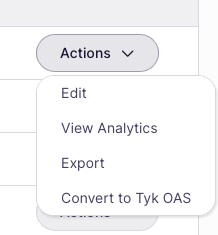
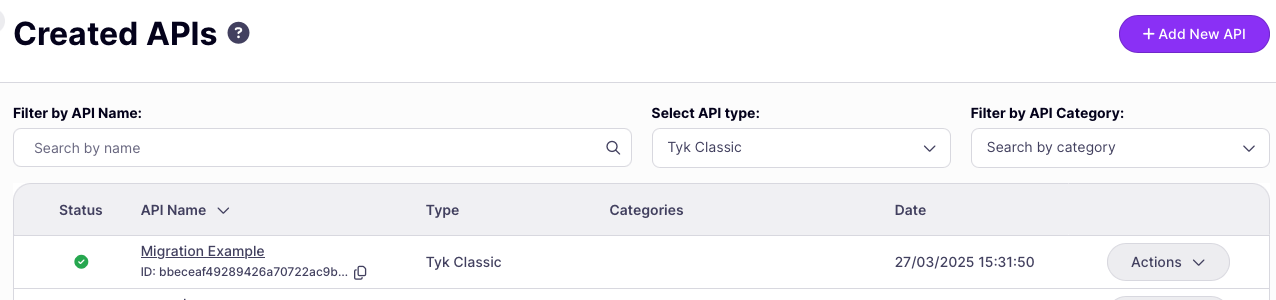 From the **Actions** menu select **Convert to Tyk OAS**. You can also find this option in the **Actions** menu within the Tyk Classic API Designer.
 This will open the **Convert to Tyk OAS** mode selector. Choose whether to **stage** the conversion or perform a **direct** migration, then select **Convert API**.
 3. **Staging the API:**
If you selected **stage** you'll be taken to the API Designer for the newly created staged Tyk OAS API. Note the prefixes that have been applied to the API name, API ID and API base path.
3. **Staging the API:**
If you selected **stage** you'll be taken to the API Designer for the newly created staged Tyk OAS API. Note the prefixes that have been applied to the API name, API ID and API base path.
 For the staged API, you can now validate the configuration, make any required modifications and test that behavior is as expected.
4. **Promote the Stage API:**
When you are ready, you can promote the staged API to complete migration by selecting **Promote staged API** from the API Designer's **Actions** menu. Note that the **promote** option is not available from the API list, only within the API Designer for the specific API. This is to protect against accidentally promoting the wrong API.
For the staged API, you can now validate the configuration, make any required modifications and test that behavior is as expected.
4. **Promote the Stage API:**
When you are ready, you can promote the staged API to complete migration by selecting **Promote staged API** from the API Designer's **Actions** menu. Note that the **promote** option is not available from the API list, only within the API Designer for the specific API. This is to protect against accidentally promoting the wrong API.
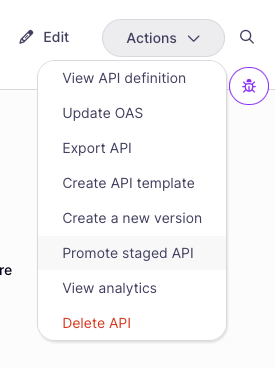
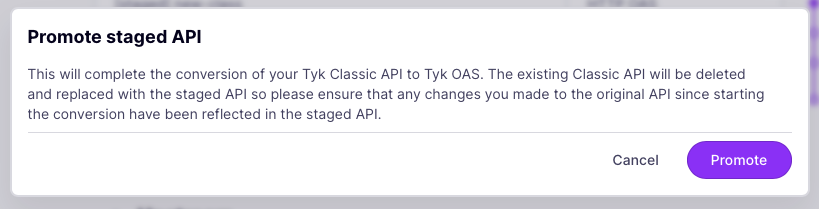
There is a known issue in Tyk 5.8.0 that the cancel button does not work in the promotion confirmation window, so once you have selected Promote staged API you will have to hit back in your browser if you do not want to complete the migration. This will be addressed in the next patch.
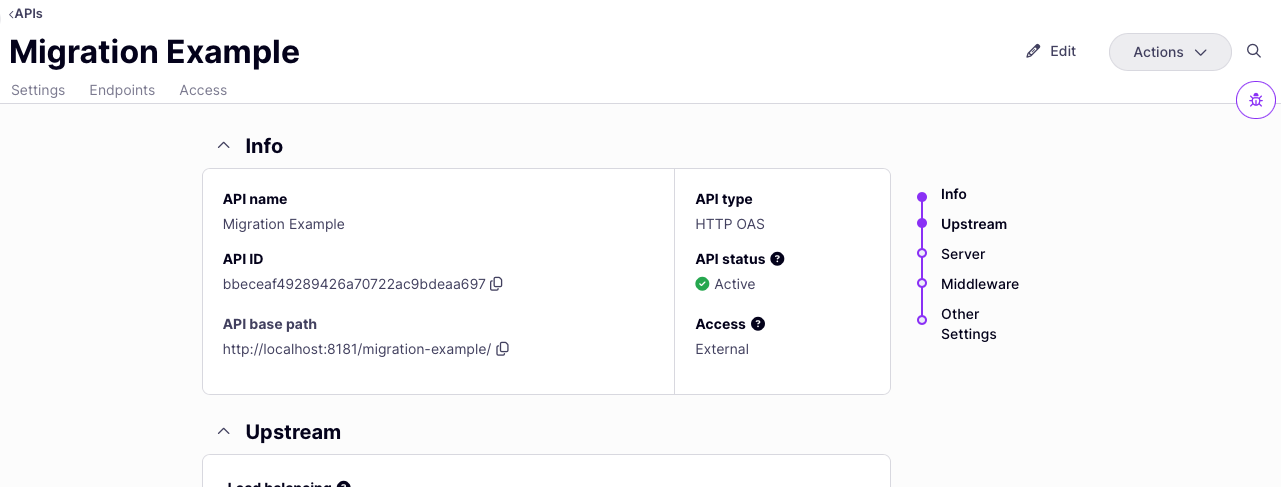
7. **Final Stage:**
Following promotion, or if you selected **direct** conversion, you'll be taken to the API Designer for the newly created Tyk OAS API. Note that this has inherited the API ID from your Tyk Classic API and has replaced the Tyk Classic in your API database.
 ## Using the Migration API
You can use the Tyk Dashboard API to convert individual APIs, multiple API, or all APIs stored in your API storage database via the dedicated [/migrate](/5.9/api-management/migrate-from-tyk-classic#tyk-dashboard-api-migrate-endpoint) endpoint.
### Tyk Dashboard API Migrate Endpoint
`POST /api/apis/migrate`
The payload for this request is:
```json theme={null}
{
"mode": "dryRun", // Required: Migration mode (dryRun, stage, promote, direct)
"apiIDs": ["api123", "api456"], // List of API IDs to migrate (cannot be used with 'all')
"all": false, // Migrate all APIs (cannot be used with 'apiIDs')
"abortOnFailure": false, // Stop migration process on first failure
"overrideStaged": false // When mode is 'stage', overwrite existing staged APIs
}
```
* Indicate the migration \[mode] using the following options:
* `dryRun`
* `stage`
* `promote`
* `direct`
* You can convert specific APIs by providing their API IDs in the `apiIDs` array or convert all your Tyk Classic APIs in one go using the `all` option.
* Set `abortOnFailure` to `true` if you want Tyk to stop processing if it encounters a failure while operating on a batch of APIs.
* You can only have one **staged** version of a Tyk Classic API, so if you have already started the migration of an API and try again - for example after making changes to the original Tyk Classic API, the operation will fail. Use **overrideStaged** to delete the existing staged API and create a new one.
#### Example: Dry Run Migration
```
curl -X POST \
https://your-tyk-dashboard/api/apis/migrate \
-H "Authorization: your-dashboard-api-key" \
-H "Content-Type: application/json" \
-d '{
"mode": "dryRun",
"apiIDs": ["api123", "api456"],
"abortOnFailure": false
}'
```
#### Example: Migrate All APIs
```
curl -X POST \
https://your-tyk-dashboard/api/apis/migrate \
-H "Authorization: your-dashboard-api-key" \
-H "Content-Type: application/json" \
-d '{
"mode": "direct",
"all": true,
"abortOnFailure": false
}'
```
## Known Limitations of Migration
There are some differences between the way Tyk Gateway works with Tyk Classic and Tyk OAS APIs, so you are advised to take the following into account and, if your API uses any of these features, to stage (or dry run) your migrations and ensure you perform appropriate testing on the interim versions.
1. **Handling of Regular Expression Path Parameters**
When migrating APIs with regex-based path parameters, be aware that:
* In Tyk Classic, the Gateway only routes requests matching the regex pattern
* In Tyk OAS, the Gateway routes all requests matching the pattern structure by default
Recommended action: Enable the [Validate Request](/5.9/api-management/traffic-transformation/request-validation#request-validation-using-tyk-oas) middleware in your migrated Tyk OAS API to maintain the same behavior.
2. **Location of Mock Response Middleware**
The position of mock response middleware in the request processing chain [differs between Tyk Classic and Tyk OAS](/5.9/api-management/traffic-transformation/mock-response#middleware-execution-order-during-request-processing):
* In Tyk Classic, it appears at the start of the request processing chain (before authentication)
* In Tyk OAS, it appears at the end of the request processing chain
During migration, the system automatically adds the [ignore authentication](/5.9/api-management/traffic-transformation/ignore-authentication#ignore-authentication-overview) middleware to endpoints with mock responses to maintain similar behavior. Note, however, that any other middleware configured for that endpoint or at the API level will be applied for the Tyk OAS API (which was not the case for the Tyk Classic API).
3. **Enhanced Request Validation**
Tyk OAS uses the more advanced [Validate Request](/5.9/api-management/traffic-transformation/request-validation#request-validation-using-tyk-oas) middleware, whereas Tyk Classic is limited to the [Validate JSON](/5.9/api-management/traffic-transformation/request-validation#request-validation-using-classic) middleware. The migration will configure Validate Request to check the request body (as performed by Validate JSON).
## Recommended Migration Strategy
For a safe migration approach, we recommend following these steps:
1. **Back Up Your APIs**: Perform a full [back-up](/5.9/developer-support/upgrading#backup-apis-and-policies) of your API Definitions - remember that the final migration is destructive, as the Tyk OAS APIs will inherit the database and API IDs of the originals
2. **Start with Dry Run**: Use the `dryRun` mode to validate the migration before making changes
3. **Stage Critical APIs**: For important APIs, use the `stage` mode to create test versions
4. **Test Thoroughly**: Verify all functionality in the staged APIs
5. **Promote Gradually**: Once testing is complete, use the `promote` mode to complete the migration of original APIs in batches
6. **Monitor Performance**: After migration, closely monitor the performance of migrated APIs
## Using the Migration API
You can use the Tyk Dashboard API to convert individual APIs, multiple API, or all APIs stored in your API storage database via the dedicated [/migrate](/5.9/api-management/migrate-from-tyk-classic#tyk-dashboard-api-migrate-endpoint) endpoint.
### Tyk Dashboard API Migrate Endpoint
`POST /api/apis/migrate`
The payload for this request is:
```json theme={null}
{
"mode": "dryRun", // Required: Migration mode (dryRun, stage, promote, direct)
"apiIDs": ["api123", "api456"], // List of API IDs to migrate (cannot be used with 'all')
"all": false, // Migrate all APIs (cannot be used with 'apiIDs')
"abortOnFailure": false, // Stop migration process on first failure
"overrideStaged": false // When mode is 'stage', overwrite existing staged APIs
}
```
* Indicate the migration \[mode] using the following options:
* `dryRun`
* `stage`
* `promote`
* `direct`
* You can convert specific APIs by providing their API IDs in the `apiIDs` array or convert all your Tyk Classic APIs in one go using the `all` option.
* Set `abortOnFailure` to `true` if you want Tyk to stop processing if it encounters a failure while operating on a batch of APIs.
* You can only have one **staged** version of a Tyk Classic API, so if you have already started the migration of an API and try again - for example after making changes to the original Tyk Classic API, the operation will fail. Use **overrideStaged** to delete the existing staged API and create a new one.
#### Example: Dry Run Migration
```
curl -X POST \
https://your-tyk-dashboard/api/apis/migrate \
-H "Authorization: your-dashboard-api-key" \
-H "Content-Type: application/json" \
-d '{
"mode": "dryRun",
"apiIDs": ["api123", "api456"],
"abortOnFailure": false
}'
```
#### Example: Migrate All APIs
```
curl -X POST \
https://your-tyk-dashboard/api/apis/migrate \
-H "Authorization: your-dashboard-api-key" \
-H "Content-Type: application/json" \
-d '{
"mode": "direct",
"all": true,
"abortOnFailure": false
}'
```
## Known Limitations of Migration
There are some differences between the way Tyk Gateway works with Tyk Classic and Tyk OAS APIs, so you are advised to take the following into account and, if your API uses any of these features, to stage (or dry run) your migrations and ensure you perform appropriate testing on the interim versions.
1. **Handling of Regular Expression Path Parameters**
When migrating APIs with regex-based path parameters, be aware that:
* In Tyk Classic, the Gateway only routes requests matching the regex pattern
* In Tyk OAS, the Gateway routes all requests matching the pattern structure by default
Recommended action: Enable the [Validate Request](/5.9/api-management/traffic-transformation/request-validation#request-validation-using-tyk-oas) middleware in your migrated Tyk OAS API to maintain the same behavior.
2. **Location of Mock Response Middleware**
The position of mock response middleware in the request processing chain [differs between Tyk Classic and Tyk OAS](/5.9/api-management/traffic-transformation/mock-response#middleware-execution-order-during-request-processing):
* In Tyk Classic, it appears at the start of the request processing chain (before authentication)
* In Tyk OAS, it appears at the end of the request processing chain
During migration, the system automatically adds the [ignore authentication](/5.9/api-management/traffic-transformation/ignore-authentication#ignore-authentication-overview) middleware to endpoints with mock responses to maintain similar behavior. Note, however, that any other middleware configured for that endpoint or at the API level will be applied for the Tyk OAS API (which was not the case for the Tyk Classic API).
3. **Enhanced Request Validation**
Tyk OAS uses the more advanced [Validate Request](/5.9/api-management/traffic-transformation/request-validation#request-validation-using-tyk-oas) middleware, whereas Tyk Classic is limited to the [Validate JSON](/5.9/api-management/traffic-transformation/request-validation#request-validation-using-classic) middleware. The migration will configure Validate Request to check the request body (as performed by Validate JSON).
## Recommended Migration Strategy
For a safe migration approach, we recommend following these steps:
1. **Back Up Your APIs**: Perform a full [back-up](/5.9/developer-support/upgrading#backup-apis-and-policies) of your API Definitions - remember that the final migration is destructive, as the Tyk OAS APIs will inherit the database and API IDs of the originals
2. **Start with Dry Run**: Use the `dryRun` mode to validate the migration before making changes
3. **Stage Critical APIs**: For important APIs, use the `stage` mode to create test versions
4. **Test Thoroughly**: Verify all functionality in the staged APIs
5. **Promote Gradually**: Once testing is complete, use the `promote` mode to complete the migration of original APIs in batches
6. **Monitor Performance**: After migration, closely monitor the performance of migrated APIs