> ## Documentation Index
> Fetch the complete documentation index at: https://tyk.io/docs/llms.txt
> Use this file to discover all available pages before exploring further.
# API Observability - Configuring Logs and Metrics
## Introduction
API observability is the process of monitoring and analyzing APIs to gain insights into developer and end-user experience and to ensure the reliability of your system.
You can achieve API observability by using a combination of telemetry signals such as traces, metrics, and logs. Each of these signals serves a specific purpose in monitoring and troubleshooting API issues:
### Logs
Logs provide detailed records of events and activities within the API processing and associated services. Logs are invaluable for debugging issues and understanding what happened at a specific point in time. Here's how you can use logs for API observability:
* **Error Identification:** Use logs to identify errors, exceptions, and warning messages that indicate issues with the API's behavior.
* **Debugging:** Logs help developers troubleshoot and debug issues by providing detailed information about the sequence of events leading up to a problem.
* **Security Monitoring:** Monitor logs for security-related events, such as authentication failures, access control violations and suspicious activities.
* **Audit Trail:** Maintain an audit trail of important actions and changes to the API, including configuration changes, access control changes and data updates.
Tyk allows you to capture and analyze logs related to API requests and responses in the [Log Browser](/5.9/api-management/dashboard-configuration#activity-logs) . You can optionally enable detailed recording for the requests per API level or per Key level to store inbound request and outbound response data. You can [enable debug modes](/5.9/api-management/troubleshooting-debugging#capturing-detailed-logs) for selected APIs and send the detail logs to one or more Pump backend instances.
To achieve comprehensive API observability, it is essential to integrate traces, metrics and logs into the observability tools that the team in charge of the APIs are already using. Those tools should allow users to query and visualize data, set up alerts and provide an intuitive interface for monitoring and troubleshooting API issues effectively. See also our 7 observability anti-pattern to avoid when working with APIs: [Bad API observability](https://tyk.io/blog/bad-api-observability/).
### Metrics
Metrics provide aggregated, quantitative data about the performance and behavior of an API over time. They offer insights into the overall health of the system. Here's how you can leverage metrics for API observability:
* **Key Performance Indicators (KPIs):** Define and track essential metrics such as request rate, response time, error rate and resource utilization to monitor the overall health and performance of the API.
* **Custom Metrics:** Create custom metrics that are specific to your API's functionality or business objectives. For example, track the number of successful payments processed or the number of users signed up.
* **Threshold Alerts:** Set up alerts based on predefined thresholds for metrics to receive notifications when API performance deviates from the expected norm.
* **Trend Analysis:** Analyze metric trends over time to identify long-term performance patterns, plan for scaling and detect anomalies.
Tyk Dashboard offers a [traffic analytics](/5.9/api-management/dashboard-configuration#traffic-analytics) function that provides insights into API usage, traffic patterns and response times. The built-in metrics allow you to track overall API traffic, detailed API analytics including: request count, response time distribution and error rates. API usage can be tracked on a per-client (per-key) basis.
This analysis uses the [traffic logs](/5.9/api-management/logs-metrics#api-traffic-logs) generated by Tyk Gateway from API requests and responses. Tyk Pump is used to aggregate and transfer the logs to Tyk Dashboard's [aggregate analytics storage](/5.9/api-management/dashboard-configuration#data-storage-solutions).
You can also use Tyk Pump to export those metrics to [different back-ends](/5.9/api-management/tyk-pump#external-data-stores). Here is an example of using Tyk Pump to send [API analytics metrics to Prometheus and Grafana](https://tyk.io/blog/service-level-objectives-for-your-apis-with-tyk-prometheus-and-grafana/).
You can also leverage the OpenTelemetry spans exported from Tyk Gateway to calculate and export [span metrics](https://github.com/open-telemetry/opentelemetry-collector-contrib/blob/main/connector/spanmetricsconnector/README.md) from the OpenTelemetry collector.
### Distributed Tracing
Distributed traces provide a detailed, end-to-end view of a single API request or transaction as it traverses through various services and components. Traces are crucial for understanding the flow of requests and identifying bottlenecks or latency issues. Here's how you can make use of traces for API observability:
* **End-to-end request tracing:** Implement distributed tracing across your microservices architecture to track requests across different services and gather data about each service's contribution to the overall request latency.
* **Transaction Flow:** Visualize the transaction flow by connecting traces to show how requests move through different services, including entry points (e.g., API gateway), middleware and backend services.
* **Latency Analysis:** Analyze trace data to pinpoint which service or component is causing latency issues, allowing for quick identification and remediation of performance bottlenecks.
* **Error Correlation:** Use traces to correlate errors across different services to understand the root cause of issues and track how errors propagate through the system.
Since v5.2, Tyk Gateway has supported the [OpenTelemetry](/5.9/api-management/logs-metrics#opentelemetry) standard for distributed tracing. You can configure Tyk to work with an [OpenTelemetry collector](https://opentelemetry.io/docs/collector/) or integrate it with any [observability vendor supporting OpenTelemetry](https://opentelemetry.io/ecosystem/vendors/) to capture traces of API requests as they flow through Tyk Gateway and any upstream services.
Explore our guides for [Datadog](/5.9/api-management/logs-metrics#datadog), [Dynatrace](/5.9/api-management/logs-metrics#dynatrace), [Jaeger](/5.9/api-management/logs-metrics#using-docker) and [New Relic](/5.9/api-management/logs-metrics#new-relic) for further info on how to integrate with 3rd party observability vendors.
Tyk also supports the legacy [OpenTracing](/5.9/api-management/logs-metrics#opentracing-deprecated) approach (now deprecated), but we recommend users to adopt OpenTelemetry for a comprehensive, vendor-neutral technology with wide industry support.
## Logging
Tyk Gateway generates two different types of logs for various operational aspects:
* **System logs** capture internal gateway events, typically used for monitoring and debugging.
* **API traffic logs**, also known as transaction logs, record details of every request and response handled by the gateway and are stored in Redis. They are typically processed by Tyk Pump to create aggregated data that are then transferred to persistent storage. Tyk Pump can also be used to transfer the raw logs to 3rd Party analysis tools.
While system logs focus on the gateway's internal operations and errors, API traffic logs provide insights into API usage, security events, and performance trends. Logging verbosity and format can be customized to suit different operational needs.
### System Logs
Tyk will log **system events** to `stderr` and `stdout`.
In a typical installation, these will be handled or redirected by the service manager running the process, and depending on the Linux distribution, will either be output to `/var/log/` or `/var/log/upstart`.
Tyk will try to output structured logs, and so will include context data around request errors where possible.
[Custom logging event handlers](/5.9/api-management/gateway-events#logging-api-events-1) can be registered against **Gateway events** to customise the logs that are generated for those events.
When contacting support, you may be asked to change the logging level as part of the support handling process. See [Support Information](/5.9/api-management/troubleshooting-debugging#support-information) for more details.
#### Log verbosity
Tyk can generate system logs at four levels of verbosity:
* `error` is the most minimal level of logging, reporting only errors
* `warn` will log warnings and errors
* `info` logs errors, warnings and some additional information and is the default logging level
* `debug` generates a high volume of logs for maximum visibility of what Tyk is doing when you need to debug an issue
Debug log level generates a significant volume of data and is not recommended except when debugging. You can enable Debug mode reporting by adding the `--debug` flag to the process run command.
You can set the logging verbosity for each Tyk Component using the appropriate `log_level` setting in its configuration file (or the equivalent environment variable). Note that there is no independent log level setting for Tyk Dashboard.
| Tyk component | Config option | Environment variable | Default value if unset |
| :-------------------------------------------------------------------------------------------------------------------------- | :------------ | :------------------- | :--------------------- |
| All components (except EDP) | | `TYK_LOGLEVEL` | `info` |
| [Tyk Gateway](/5.9/tyk-oss-gateway/configuration#log_level) | `log_level` | `TYK_GW_LOGLEVEL` | `info` |
| [Tyk Pump](/5.9/tyk-pump/tyk-pump-configuration/tyk-pump-environment-variables#log_level) | `log_level` | `TYK_PMP_LOGLEVEL` | `info` |
| [Tyk MDCB](/5.9/tyk-multi-data-centre/mdcb-configuration-options#log_level) | `log_level` | `TYK_MDCB_LOGLEVEL` | `info` |
| [Tyk Enterprise Developer Portal](/5.9/product-stack/tyk-enterprise-developer-portal/deploy/configuration#portal_log_level) | `logLevel` | `PORTAL_LOG_LEVEL` | `info` |
For example, setting [TYK\_GW\_LOGLEVEL](/5.9/tyk-oss-gateway/configuration#log_level) environment variable to `debug` will enable verbose debug for the Gateway.
Tyk support can advise you which level of verbosity to use for your deployment.
#### Log format (only available for the Gateway)
As of Tyk Gateway `v5.6.0`, you can control the format in which logs will be generated - either `default` or `json` - using the `TYK_LOGFORMAT` environment variable. As a general performance tip, the `json` output format incurs less memory allocation overhead than the `default` format. For optimal performance, it's recommended to configure logging in the JSON format.
This is an example of the `default` logging format:
```
time="Sep 05 09:04:12" level=info msg="Tyk API Gateway v5.6.0" prefix=main
```
And an example of `json` logging format:
```json theme={null}
{"level":"info","msg":"Tyk API Gateway v5.6.0","prefix":"main","time":"2024-09-05T09:01:23-04:00"}
```
#### Exporting Logs to Third-Party Tools
Tyk can be configured to send log data to a range of 3rd party tools for aggregation and analysis.
The following targets are supported:
* [Sentry](/5.9/#sentry)
* [Logstash](/5.9/#logstash)
* [Graylog](/5.9/#graylog)
* [Syslog](/5.9/#syslog)
##### Sentry
To enable Sentry as a log aggregator, update these settings in both your `tyk.conf` and your `tyk_analytics.conf`:
* `use_sentry`: Set this to `true` to enable the Sentry logger, you must specify a Sentry DSN under `sentry_code`.
* `sentry_code`: The Sentry-assigned DSN (a kind of URL endpoint) that Tyk can send log data to.
##### Logstash
To enable Logstash as a log aggregator, update these settings in your `tyk.conf`:
* `use_logstash`: Set this to `true` to enable the Logstash logger.
* `logstash_transport`: The Logstash transport to use, should be `"tcp"`.
* `logstash_network_addr`: Set to the Logstash client network address, should be in the form of `hostname:port`.
##### Graylog
To enable Graylog as a log aggregator, update these settings in your `tyk.conf`:
* `use_graylog`: Set this to `true` to enable the Graylog logger.
* `graylog_network_addr`: The Graylog client address in the form of `:`.
##### Syslog
To enable Syslog as a log aggregator, update these settings in your `tyk.conf`:
* `use_syslog`: Set this to `true` to enable the Syslog logger.
* `syslog_transport`: The Syslog transport to use, should be `"udp"` or empty.
* `syslog_network_addr`: Set to the Syslog client network address, should be in the form of `hostname:port`
### API Traffic Logs
When a client makes a request to the Tyk Gateway, the details of the request and response are captured and stored in a temporary Redis list. In Tyk these transaction logs are also referred to as traffic analytics or simply analytics. This list is read (and then flushed) every 10 seconds by the [Tyk Pump](/5.9/api-management/tyk-pump).
The Pump processes the records that it has read from Redis and forwards them to the required data sinks (e.g. databases or other tools) using the pumps configured in your system. You can set up multiple pumps and configure them to send different data to different sinks. The Mongo Aggregate and SQL Aggregate pumps perform aggregation of the raw analytics records before storing the aggregated statistics in the MongoDB or SQL database respectively.
#### When to use API Traffic Logging
1. **API usage trends**
Monitoring the usage of your APIs is a key functionality provided by any API Management product. Traffic analytics give you visibility of specific and aggregated accesses to your services which you can monitor trends over time. You can identify popular and underused services which can assist with, for example, determining the demand profile for your services and thus appropriate sizing of the upstream capacity.
2. **Security monitoring**
Tracking requests made to security-critical endpoints, like those used for authentication or authorization, can help in identifying and mitigating potential security threats. Monitoring these endpoints for unusual activity patterns is a proactive security measure.
3. **Development and testing**
Enabling tracking during the development and testing phases can provide detailed insights into the API's behavior, facilitating bug identification and performance optimization. Adjustments to tracking settings can be made as the API transitions to production based on operational requirements.
#### How API Traffic Logging Works
API traffic logging must be enabled at the Gateway level in the startup configuration using the [enable\_analytics](/5.9/tyk-oss-gateway/configuration#enable_analytics) field (or by setting the equivalent environment variable `TYK_GW_ENABLEANALYTICS`).
The transaction records generated by the Gateway are stored in Redis, from which Tyk Pump can be configured to transfer them to the desired persistent storage. When using Tyk Dashboard, the [Aggregate Pump](/5.9/api-management/tyk-pump#tyk-dashboard) can be used to collate aggregated data that is presented in the [analytics](/5.9/api-management/dashboard-configuration#traffic-analytics) screens of the Tyk Dashboard.
The Gateway will not, by default, include the request and response payloads in the transaction records. This minimizes the size of the records and also avoids logging any sensitive content. The [detailed recording](/5.9/api-management/logs-metrics#capturing-detailed-logs) option is provided if you need to capture the payloads in the records.
You can suppress the generation of transaction records for any endpoint by enabling the [do-not-track middleware](/5.9/api-management/traffic-transformation/do-not-track) for that endpoint. This provides granular control over request tracking.
You can find details of all the options available to you when configuring analytics in the Gateway in the [reference documentation](/5.9/tyk-oss-gateway/configuration#analytics_config).
For the Tyk Dashboard's analytics functionality to work, you must configure both per-request and aggregated pumps for the database platform that you are using. For more details see the [Setup Dashboard Analytics](/5.9/api-management/tyk-pump#setup-dashboard-analytics) section.
#### Capturing Detailed Logs
The Gateway will not, by default, include the request and response payloads in traffic logs. This minimizes the size of the records and also minimises the risk of logging sensitive content.
You can, however, configure Tyk to capture the payloads in the transaction records if required. This can be particularly useful during development and testing phases or when debugging an issue with an API.
This is referred to as detailed recording and can be enabled at different levels of granularity. The order of precedence is:
1. [API level](/5.9/api-management/logs-metrics#configure-at-api-level)
2. [Key level](/5.9/api-management/logs-metrics#configure-at-key-level)
3. [Gateway level](/5.9/api-management/logs-metrics#configure-at-gateway-level)
Consequently, Tyk will first check whether the API definition has detailed recording enabled to determine whether to log the request and response bodies. If it does not, then it will check the key being used in the request and finally it will check the Gateway configuration.
Be aware that enabling detailed recording greatly increases the size of the records and will require significantly more storage space as Tyk will store the entire request and response in wire format.
Tyk Cloud users can enable detailed recording per-API following the instructions on this page or, if required at the Gateway level, via a support request. The traffic logs are subject to the subscription's storage quota and so we recommend that detailed logging only be enabled if absolutely necessary to avoid unnecessary costs.
##### Configure at API level
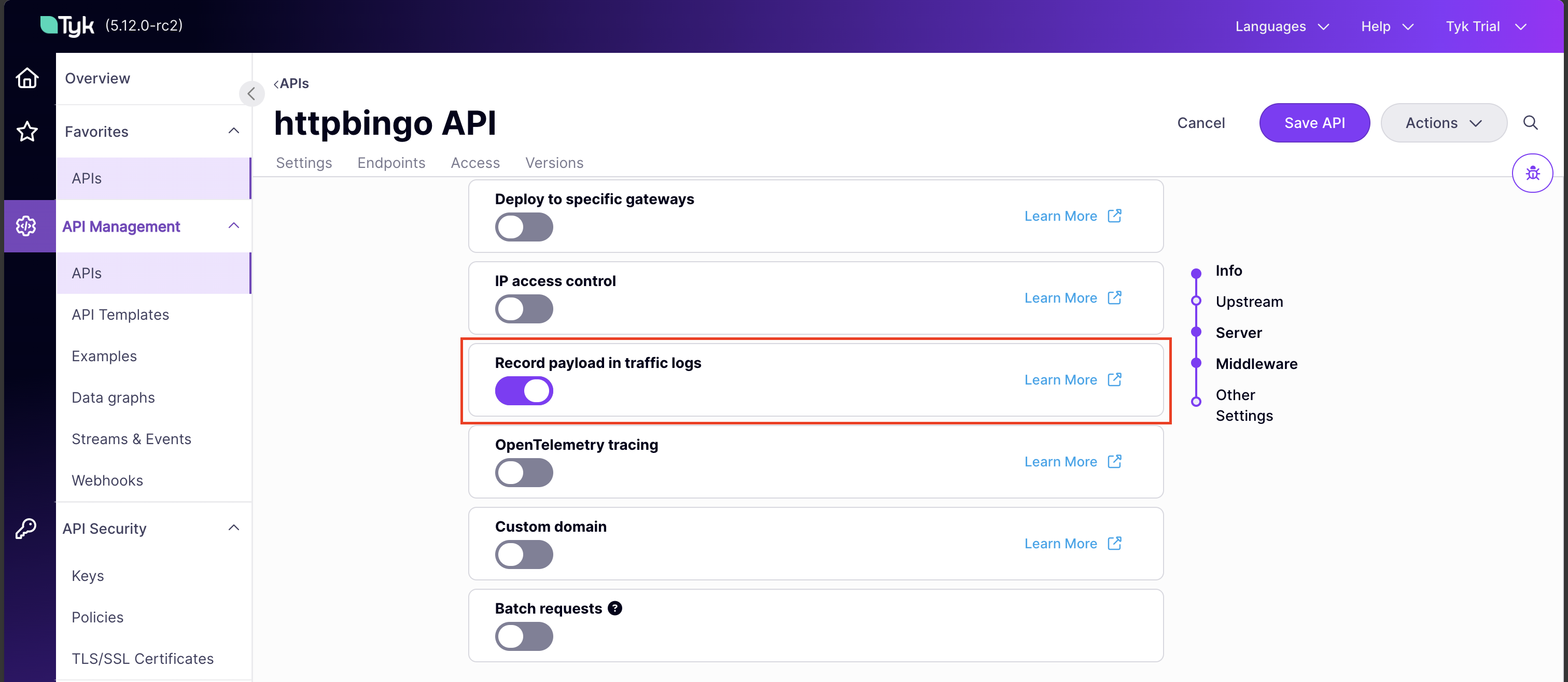
You can enable detailed recording for an individual API by setting the [server.detailedActivityLogs.enabled](/5.9/api-management/gateway-config-tyk-oas#detailedactivitylogs) flag within the Tyk Vendor Extension.
In the Dashboard UI, you can configure detailed recording using the **Enable Detailed Activity Logs** option in the API Designer.
 **Tyk Classic APIs**
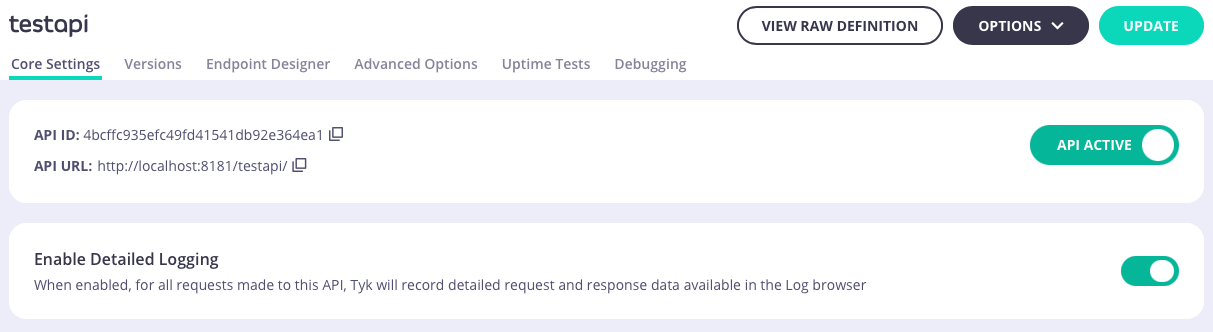
When working with Tyk Classic APIs, you should configure the equivalent `enable_detailed_recording` flag in the root of the API definition.
In the Tyk Classic API Designer, the **Enable Detailed Logging** option can be found in **Core Settings**.
**Tyk Classic APIs**
When working with Tyk Classic APIs, you should configure the equivalent `enable_detailed_recording` flag in the root of the API definition.
In the Tyk Classic API Designer, the **Enable Detailed Logging** option can be found in **Core Settings**.
 When using Tyk Operator with Tyk Classic APIs, you can enable detailed recording by setting `spec.enable_detailed_recording` to `true`, as in this example:
```yaml {linenos=true, linenostart=1, hl_lines=["10-10"]} theme={null}
apiVersion: tyk.tyk.io/v1alpha1
kind: ApiDefinition
metadata:
name: httpbin
spec:
name: httpbin
use_keyless: true
protocol: http
active: true
enable_detailed_recording: true
proxy:
target_url: http://httpbin.org
listen_path: /httpbin
strip_listen_path: true
```
##### Configure at Key Level
An alternative approach to controlling detailed recording is to enable it only for specific [access keys](/5.9/api-management/policies#what-is-a-session-object). This is particularly useful for debugging purposes where you can configure detailed recording only for the key(s) that are reporting issues.
You can enable detailed recording for a key simply by adding the following to the root of the key's JSON file:
```
"enable_detailed_recording": true
```
This will enable detailed recording only for API transactions where this key is used in the request.
##### Configure at Gateway Level
Detailed recording can be configured at the Gateway level, affecting all APIs deployed on the Gateway, by enabling the [detailed recording](/5.9/tyk-oss-gateway/configuration#analytics_configenable_detailed_recording) option in `tyk.conf`.
```.json theme={null}
{
"enable_analytics" : true,
"analytics_config": {
"enable_detailed_recording": true
}
}
```
#### Enabling API Request Access Logs in Tyk Gateway
As of Tyk Gateway `v5.8.0`, you can configure the Gateway to log individual API request transactions. To enable this feature, set the `TYK_GW_ACCESSLOGS_ENABLED` environment variable to `true`.
##### Configuring output fields
You can specify which fields are logged by configuring the `TYK_GW_ACCESSLOGS_TEMPLATE` environment variable. Below are the available values you can include:
* `api_key`: Obfuscated or hashed API key used in the request.
* `client_ip`: IP address of the client making the request.
* `host`: Hostname of the request.
* `method`: HTTP method used in the request (e.g., GET, POST).
* `path`: URL path of the request.
* `protocol`: Protocol used in the request (e.g., HTTP/1.1).
* `remote_addr`: Remote address of the client.
* `upstream_addr`: Full upstream address including scheme, host, and path.
* `upstream_latency`: Roundtrip duration between the gateway sending the request to the upstream server and it receiving a response.
* `latency_total`: Total time taken for the request, including upstream latency and additional processing by the gateway.
* `user_agent`: User agent string from the client.
* `status`: HTTP response status code.
To configure, set `TYK_GW_ACCESSLOGS_TEMPLATE` environment variable with the desired values in the format: `["value1", "value2", ...]`.
##### Default log example
Configuration using `tyk.conf`
```json theme={null}
{
"access_logs": {
"enabled": true
}
}
```
Configuration using environment variables:
```
TYK_GW_ACCESSLOGS_ENABLED=true
```
Output:
```
time="Jan 29 08:27:09" level=info api_id=b1a41c9a89984ffd7bb7d4e3c6844ded api_key=00000000 api_name=httpbin client_ip="::1" host="localhost:8080" latency_total=62 method=GET org_id=678e6771247d80fd2c435bf3 path=/get prefix=access-log protocol=HTTP/1.1 remote_addr="[::1]:63251" status=200 upstream_addr="http://httpbin.org/get" upstream_latency=61 user_agent=PostmanRuntime/7.43.0
```
##### Custom template log example
Configuration using `tyk.conf`
```json theme={null}
{
"access_logs": {
"enabled": true,
"template": [
"api_key",
"remote_addr",
"upstream_addr"
]
}
}
```
Configuration using environment variables:
```
TYK_GW_ACCESSLOGS_ENABLED=true
TYK_GW_ACCESSLOGS_TEMPLATE="api_key,remote_addr,upstream_addr"
```
Output:
```
time="Jan 29 08:27:48" level=info api_id=b1a41c9a89984ffd7bb7d4e3c6844ded api_key=00000000 api_name=httpbin org_id=678e6771247d80fd2c435bf3 prefix=access-log remote_addr="[::1]:63270" upstream_addr="http://httpbin.org/get"
```
##### Performance Considerations
Enabling access logs introduces some performance overhead:
* **Latency:** Increases consistently by approximately 4%–13%, depending on CPU allocation and configuration.
* **Memory Usage:** Memory consumption increases by approximately 6%–7%.
* **Allocations:** The number of memory allocations increases by approximately 5%–6%.
While the overhead of enabling access logs is noticeable, the impact is relatively modest. These findings suggest the performance trade-off may be acceptable depending on the criticality of logging to your application.
#### Aggregated analytics
The traffic logs that Tyk Gateway generates are stored in the local [Redis](/5.9/api-management/logs-metrics#how-api-traffic-logging-works) temporal storage. They must be transferred to a persistent data store (such as MongoDB or PostgreSQL) for use by analytics tools, typically using Tyk Pump. Tyk Pump can also generate aggregated statistics from these data using the dedicated [Mongo Aggregate](/5.9/api-management/tyk-pump#mongodb) and [SQL Aggregate](/5.9/api-management/tyk-pump#sql) pumps. These offload processing from Tyk Dashboard and reduce storage requirements compared with storing all of the raw logs.
The aggregate pumps calculate statistics from the analytics records, aggregated by hour, for the following keys in the traffic logs:
| Key | Analytics aggregated by | Dashboard screen |
| :------------- | :------------------------------- | :----------------------------------------------------------------------------------------------- |
| `APIID` | API proxy | [Activity by API](/5.9/api-management/dashboard-configuration#activity-by-api) |
| `TrackPath` | API endpoint | [Activity by endpoint](/5.9/api-management/dashboard-configuration#activity-by-endpoint) |
| `ResponseCode` | HTTP status code (success/error) | [Activity by errors](/5.9/api-management/dashboard-configuration#activity-by-error) |
| `APIVersion` | API version | n/a |
| `APIKey` | Client access key/token | [Activity by Key](/5.9/api-management/dashboard-configuration#activity-by-key) |
| `OauthID` | OAuth client (if OAuth used) | [Traffic per OAuth Client](/5.9/api-management/dashboard-configuration#activity-by-oauth-client) |
| `Geo` | Geographic location of client | [Activity by location](/5.9/api-management/dashboard-configuration#activity-by-location) |
##### Custom aggregation keys
Whereas Tyk Pump will automatically produce aggregated statistics for the keys in the previous section, you can also define custom aggregation keys using Tyk's custom analytics tag feature which identifies specific HTTP request headers to be used as aggregation keys. This has various uses, for example"
* You need to record additional information from the request into the analytics but want to avoid [detailed logging](/5.9/api-management/logs-metrics#capturing-detailed-logs) due to the volume of traffic logs.
* You wish to track a group of API requests, for example:
* Show me all API requests where `tenant-id=123`
* Show me all API requests where `user-group=abc`
The Traffic Log middleware is applied to all endpoints in the API and so configuration is found in the `middleware.global` section of the Tyk Vendor Extension, within the `trafficLogs` section. Custom aggregation tags are specified as a list of HTTP headers in [middleware.global.trafficLogs.tagHeaders](/5.9/api-management/gateway-config-tyk-oas#trafficlogs) that Tyk should use for generation of custom aggregation tags for the API.
For example if we include the header name `x-user-id` in the list of headers, then Tyk will create an aggregation key for each different value observed in that header. These aggregation keys will be given the name `-`, for example `x-user-id-1234` if the request contains the HTTP header `"x-user-id":1234`.
**Tyk Classic APIs**
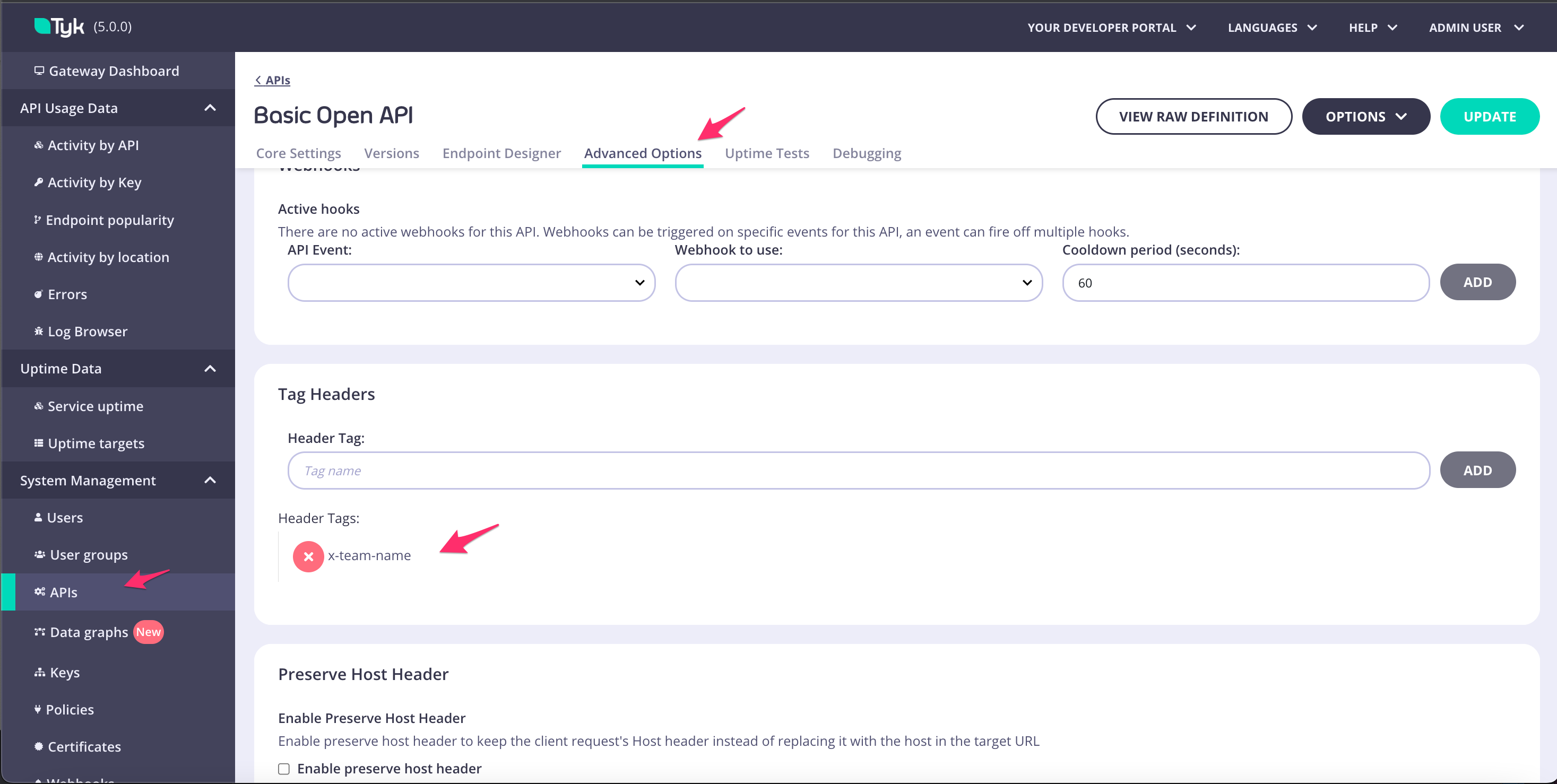
If you are using Tyk Classic APIs, then the equivalent field in the API definition is [tag\_headers](/5.9/api-management/gateway-config-tyk-classic#traffic-logs).
In the Tyk Classic API Designer, the **Tag Headers** option can be found in **Advanced Options**.
When using Tyk Operator with Tyk Classic APIs, you can enable detailed recording by setting `spec.enable_detailed_recording` to `true`, as in this example:
```yaml {linenos=true, linenostart=1, hl_lines=["10-10"]} theme={null}
apiVersion: tyk.tyk.io/v1alpha1
kind: ApiDefinition
metadata:
name: httpbin
spec:
name: httpbin
use_keyless: true
protocol: http
active: true
enable_detailed_recording: true
proxy:
target_url: http://httpbin.org
listen_path: /httpbin
strip_listen_path: true
```
##### Configure at Key Level
An alternative approach to controlling detailed recording is to enable it only for specific [access keys](/5.9/api-management/policies#what-is-a-session-object). This is particularly useful for debugging purposes where you can configure detailed recording only for the key(s) that are reporting issues.
You can enable detailed recording for a key simply by adding the following to the root of the key's JSON file:
```
"enable_detailed_recording": true
```
This will enable detailed recording only for API transactions where this key is used in the request.
##### Configure at Gateway Level
Detailed recording can be configured at the Gateway level, affecting all APIs deployed on the Gateway, by enabling the [detailed recording](/5.9/tyk-oss-gateway/configuration#analytics_configenable_detailed_recording) option in `tyk.conf`.
```.json theme={null}
{
"enable_analytics" : true,
"analytics_config": {
"enable_detailed_recording": true
}
}
```
#### Enabling API Request Access Logs in Tyk Gateway
As of Tyk Gateway `v5.8.0`, you can configure the Gateway to log individual API request transactions. To enable this feature, set the `TYK_GW_ACCESSLOGS_ENABLED` environment variable to `true`.
##### Configuring output fields
You can specify which fields are logged by configuring the `TYK_GW_ACCESSLOGS_TEMPLATE` environment variable. Below are the available values you can include:
* `api_key`: Obfuscated or hashed API key used in the request.
* `client_ip`: IP address of the client making the request.
* `host`: Hostname of the request.
* `method`: HTTP method used in the request (e.g., GET, POST).
* `path`: URL path of the request.
* `protocol`: Protocol used in the request (e.g., HTTP/1.1).
* `remote_addr`: Remote address of the client.
* `upstream_addr`: Full upstream address including scheme, host, and path.
* `upstream_latency`: Roundtrip duration between the gateway sending the request to the upstream server and it receiving a response.
* `latency_total`: Total time taken for the request, including upstream latency and additional processing by the gateway.
* `user_agent`: User agent string from the client.
* `status`: HTTP response status code.
To configure, set `TYK_GW_ACCESSLOGS_TEMPLATE` environment variable with the desired values in the format: `["value1", "value2", ...]`.
##### Default log example
Configuration using `tyk.conf`
```json theme={null}
{
"access_logs": {
"enabled": true
}
}
```
Configuration using environment variables:
```
TYK_GW_ACCESSLOGS_ENABLED=true
```
Output:
```
time="Jan 29 08:27:09" level=info api_id=b1a41c9a89984ffd7bb7d4e3c6844ded api_key=00000000 api_name=httpbin client_ip="::1" host="localhost:8080" latency_total=62 method=GET org_id=678e6771247d80fd2c435bf3 path=/get prefix=access-log protocol=HTTP/1.1 remote_addr="[::1]:63251" status=200 upstream_addr="http://httpbin.org/get" upstream_latency=61 user_agent=PostmanRuntime/7.43.0
```
##### Custom template log example
Configuration using `tyk.conf`
```json theme={null}
{
"access_logs": {
"enabled": true,
"template": [
"api_key",
"remote_addr",
"upstream_addr"
]
}
}
```
Configuration using environment variables:
```
TYK_GW_ACCESSLOGS_ENABLED=true
TYK_GW_ACCESSLOGS_TEMPLATE="api_key,remote_addr,upstream_addr"
```
Output:
```
time="Jan 29 08:27:48" level=info api_id=b1a41c9a89984ffd7bb7d4e3c6844ded api_key=00000000 api_name=httpbin org_id=678e6771247d80fd2c435bf3 prefix=access-log remote_addr="[::1]:63270" upstream_addr="http://httpbin.org/get"
```
##### Performance Considerations
Enabling access logs introduces some performance overhead:
* **Latency:** Increases consistently by approximately 4%–13%, depending on CPU allocation and configuration.
* **Memory Usage:** Memory consumption increases by approximately 6%–7%.
* **Allocations:** The number of memory allocations increases by approximately 5%–6%.
While the overhead of enabling access logs is noticeable, the impact is relatively modest. These findings suggest the performance trade-off may be acceptable depending on the criticality of logging to your application.
#### Aggregated analytics
The traffic logs that Tyk Gateway generates are stored in the local [Redis](/5.9/api-management/logs-metrics#how-api-traffic-logging-works) temporal storage. They must be transferred to a persistent data store (such as MongoDB or PostgreSQL) for use by analytics tools, typically using Tyk Pump. Tyk Pump can also generate aggregated statistics from these data using the dedicated [Mongo Aggregate](/5.9/api-management/tyk-pump#mongodb) and [SQL Aggregate](/5.9/api-management/tyk-pump#sql) pumps. These offload processing from Tyk Dashboard and reduce storage requirements compared with storing all of the raw logs.
The aggregate pumps calculate statistics from the analytics records, aggregated by hour, for the following keys in the traffic logs:
| Key | Analytics aggregated by | Dashboard screen |
| :------------- | :------------------------------- | :----------------------------------------------------------------------------------------------- |
| `APIID` | API proxy | [Activity by API](/5.9/api-management/dashboard-configuration#activity-by-api) |
| `TrackPath` | API endpoint | [Activity by endpoint](/5.9/api-management/dashboard-configuration#activity-by-endpoint) |
| `ResponseCode` | HTTP status code (success/error) | [Activity by errors](/5.9/api-management/dashboard-configuration#activity-by-error) |
| `APIVersion` | API version | n/a |
| `APIKey` | Client access key/token | [Activity by Key](/5.9/api-management/dashboard-configuration#activity-by-key) |
| `OauthID` | OAuth client (if OAuth used) | [Traffic per OAuth Client](/5.9/api-management/dashboard-configuration#activity-by-oauth-client) |
| `Geo` | Geographic location of client | [Activity by location](/5.9/api-management/dashboard-configuration#activity-by-location) |
##### Custom aggregation keys
Whereas Tyk Pump will automatically produce aggregated statistics for the keys in the previous section, you can also define custom aggregation keys using Tyk's custom analytics tag feature which identifies specific HTTP request headers to be used as aggregation keys. This has various uses, for example"
* You need to record additional information from the request into the analytics but want to avoid [detailed logging](/5.9/api-management/logs-metrics#capturing-detailed-logs) due to the volume of traffic logs.
* You wish to track a group of API requests, for example:
* Show me all API requests where `tenant-id=123`
* Show me all API requests where `user-group=abc`
The Traffic Log middleware is applied to all endpoints in the API and so configuration is found in the `middleware.global` section of the Tyk Vendor Extension, within the `trafficLogs` section. Custom aggregation tags are specified as a list of HTTP headers in [middleware.global.trafficLogs.tagHeaders](/5.9/api-management/gateway-config-tyk-oas#trafficlogs) that Tyk should use for generation of custom aggregation tags for the API.
For example if we include the header name `x-user-id` in the list of headers, then Tyk will create an aggregation key for each different value observed in that header. These aggregation keys will be given the name `-`, for example `x-user-id-1234` if the request contains the HTTP header `"x-user-id":1234`.
**Tyk Classic APIs**
If you are using Tyk Classic APIs, then the equivalent field in the API definition is [tag\_headers](/5.9/api-management/gateway-config-tyk-classic#traffic-logs).
In the Tyk Classic API Designer, the **Tag Headers** option can be found in **Advanced Options**.
 When using Tyk Operator with Tyk Classic APIs, you can configure custom analytics tags by setting `spec.tag_headers` to `true`, as in this example:
```yaml {linenos=true, linenostart=1, hl_lines=["10-12"]} theme={null}
apiVersion: tyk.tyk.io/v1alpha1
kind: ApiDefinition
metadata:
name: httpbin-tag-headers
spec:
name: httpbin-tag-headers
use_keyless: true
protocol: http
active: true
tag_headers:
- Host
- User-Agent
proxy:
target_url: http://httpbin.org
listen_path: /httpbin-tag-headers
strip_listen_path: true
```
In this example we can see that the `Host` and `User-Agent` headers exist within the `tag_headers` array. For each incoming request Tyk will add `host-` and `user-agent-` tags to the list of tags in the traffic log.
###### Suppressing generation of aggregates for custom keys
If you don't want or need aggregated analytics for the headers you record with `tagHeaders`, you can configure Tyk Pump (or Tyk MDCB if it is performing the pump functionality) to discard those statistics when writing to the persistent analytics store.
For both cases, you simply add the tags you want to ignore, or their prefixes, to the `ignore_tag_prefix_list` field in the appropriate configuration file or environment variable:
* [Hybrid Pump config](/5.9/tyk-pump/tyk-pump-configuration/tyk-pump-environment-variables#pumpshybridmetaignore_tag_prefix_list)
* [Mongo Pump config](/5.9/tyk-pump/tyk-pump-configuration/tyk-pump-environment-variables#pumpsmongoaggregatemetaignore_tag_prefix_list)
* [Splunk Pump config](/5.9/tyk-pump/tyk-pump-configuration/tyk-pump-environment-variables#pumpssplunkmetaignore_tag_prefix_list)
* [SQL Pump config](/5.9/tyk-pump/tyk-pump-configuration/tyk-pump-environment-variables#pumpssqlaggregatemetaignore_tag_prefix_list)
* [MDCB config](/5.9/tyk-multi-data-centre/mdcb-configuration-options#ignore_tag_prefix_list)
If you add headers to the tags list that are unique to each request, such as a timestamp or unique request Id, then Tyk Gateway will essentially create an aggregation point *per request* and the number of these tags in an hour will be equal to the number of requests. Since there's no real value in aggregating something that has a total of one, we recommend that you add such headers to the ignore list.
## Metric Collection
Metrics collection and analysis are key components of an Observability strategy, providing real-time insight into system behaviour and performance.
Tyk Gateway, Pump and Dashboard have been instrumented for [StatsD](https://github.com/etsy/statsd) monitoring.
Additionally, Tyk Gateway has also been instrumented for [New Relic](https://newrelic.com) metrics.
### StatsD Instrumentation
StatsD is a network daemon that listens for statistics, like counters and timers, sent over UDP or TCP and sends aggregates to one or more pluggable backend services. It's a simple yet powerful tool for collecting and aggregating application metrics.
#### Configuring StatsD instrumentation
To enable instrumentation for StatsD, you must set the environment variable: `TYK_INSTRUMENTATION=1` and then configure the `statsd_connection_string` field for each component.
`statsd_connection_string` is a formatted string that specifies how to connect to the StatsD server. It typically includes information such as the host address, port number, and sometimes additional configuration options.
Optionally you can set `statsd_prefix` to a custom prefix value that will be applied to each metric generated by Tyk. For example, you can configure separate prefixes for your production and staging environments to make it easier to differentiate between the metrics in your analysis tool.
#### StatsD Keys
There are plenty of keys (metrics) available when you enable the StatsD instrumentation, but these are the basics:
* API traffic handled by Gateway: `gauges..Load.rps` (requests per second)
* Tyk Gateway API: `counters..SystemAPICall.called.count` (calls count) and `timers..SystemAPICall.success` (response time)
* Tyk Dashboard API: `counters..SystemAPICall.SystemCallComplete.count` (requests count), `counters..DashSystemAPIError.*` (API error reporting)
* Tyk Pump records: `counters..record.count` (number of records processed by pump)
### New Relic Instrumentation
Tyk Gateway has been instrumented for New Relic metrics since v2.5. Simply add the following config section to `tyk.conf` to enable the instrumentation and generation of data:
```json theme={null}
{
"newrelic": {
"app_name": "",
"license_key": ""
}
}
```
## OpenTelemetry
Starting from Tyk Gateway version 5.2, you can leverage the power of [OpenTelemetry](https://opentelemetry.io/docs/what-is-opentelemetry/), an open-source observability framework designed for cloud-native software. This enhances your API monitoring with end-to-end distributed tracing. At this time, Tyk does not support OpenTelemetry metrics or logging, but we have these on our roadmap for future enhancement of the product.
This documentation will guide you through the process of enabling and configuring OpenTelemetry in Tyk Gateway. You'll also learn how to customize trace detail levels to meet your monitoring requirements.
For further guidance on configuring your observability back-end, explore our guides for [Datadog](/5.9/api-management/logs-metrics#datadog), [Dynatrace](/5.9/api-management/logs-metrics#dynatrace), [Jaeger](/5.9/api-management/logs-metrics#jaeger) and [New Relic](/5.9/api-management/logs-metrics#new-relic).
All the configuration options available when using Tyk's OpenTelemetry capability are documented in the [Tyk Gateway configuration guide](/5.9/tyk-oss-gateway/configuration#opentelemetry).
### Using OpenTelemetry with Tyk
OpenTelemetry support must be enabled at the Gateway level by adding the following to the Tyk Gateway configuration file (typically `tyk.conf`):
```json theme={null}
{
"opentelemetry": {
"enabled": true
}
}
```
Alternatively you can set the corresponding environment variable `TYK_GW_OPENTELEMETRY_ENABLED` to `true`.
By default, OpenTelemetry spans are exported to the collector using the `gRPC` protocol to `localhost:4317`. You can choose between HTTP and gRPC protocols by configuring the [opentelemetry.exporter](/5.9/tyk-oss-gateway/configuration#opentelemetryexporter) field to `http` or `grpc`. You can specify an alternative target using the [opentelemetry.endpoint](/5.9/tyk-oss-gateway/configuration#opentelemetryendpoint) control.
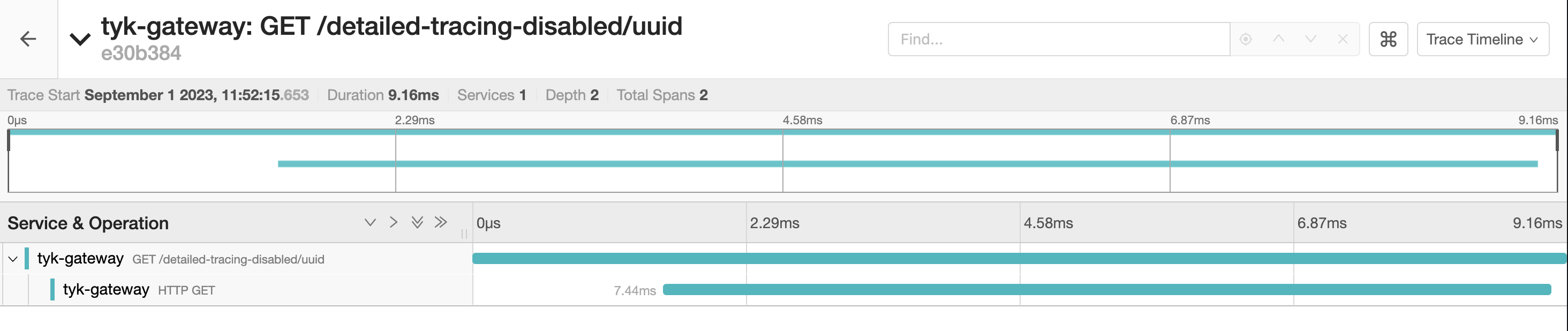
Tyk Gateway will now generate two spans for each request made to your APIs, encapsulating the entire request lifecycle. These spans include attributes and tags but lack fine-grained details. The parent span represents the total time from request reception to response and the child span represent the time spent in the upstream service.
When using Tyk Operator with Tyk Classic APIs, you can configure custom analytics tags by setting `spec.tag_headers` to `true`, as in this example:
```yaml {linenos=true, linenostart=1, hl_lines=["10-12"]} theme={null}
apiVersion: tyk.tyk.io/v1alpha1
kind: ApiDefinition
metadata:
name: httpbin-tag-headers
spec:
name: httpbin-tag-headers
use_keyless: true
protocol: http
active: true
tag_headers:
- Host
- User-Agent
proxy:
target_url: http://httpbin.org
listen_path: /httpbin-tag-headers
strip_listen_path: true
```
In this example we can see that the `Host` and `User-Agent` headers exist within the `tag_headers` array. For each incoming request Tyk will add `host-` and `user-agent-` tags to the list of tags in the traffic log.
###### Suppressing generation of aggregates for custom keys
If you don't want or need aggregated analytics for the headers you record with `tagHeaders`, you can configure Tyk Pump (or Tyk MDCB if it is performing the pump functionality) to discard those statistics when writing to the persistent analytics store.
For both cases, you simply add the tags you want to ignore, or their prefixes, to the `ignore_tag_prefix_list` field in the appropriate configuration file or environment variable:
* [Hybrid Pump config](/5.9/tyk-pump/tyk-pump-configuration/tyk-pump-environment-variables#pumpshybridmetaignore_tag_prefix_list)
* [Mongo Pump config](/5.9/tyk-pump/tyk-pump-configuration/tyk-pump-environment-variables#pumpsmongoaggregatemetaignore_tag_prefix_list)
* [Splunk Pump config](/5.9/tyk-pump/tyk-pump-configuration/tyk-pump-environment-variables#pumpssplunkmetaignore_tag_prefix_list)
* [SQL Pump config](/5.9/tyk-pump/tyk-pump-configuration/tyk-pump-environment-variables#pumpssqlaggregatemetaignore_tag_prefix_list)
* [MDCB config](/5.9/tyk-multi-data-centre/mdcb-configuration-options#ignore_tag_prefix_list)
If you add headers to the tags list that are unique to each request, such as a timestamp or unique request Id, then Tyk Gateway will essentially create an aggregation point *per request* and the number of these tags in an hour will be equal to the number of requests. Since there's no real value in aggregating something that has a total of one, we recommend that you add such headers to the ignore list.
## Metric Collection
Metrics collection and analysis are key components of an Observability strategy, providing real-time insight into system behaviour and performance.
Tyk Gateway, Pump and Dashboard have been instrumented for [StatsD](https://github.com/etsy/statsd) monitoring.
Additionally, Tyk Gateway has also been instrumented for [New Relic](https://newrelic.com) metrics.
### StatsD Instrumentation
StatsD is a network daemon that listens for statistics, like counters and timers, sent over UDP or TCP and sends aggregates to one or more pluggable backend services. It's a simple yet powerful tool for collecting and aggregating application metrics.
#### Configuring StatsD instrumentation
To enable instrumentation for StatsD, you must set the environment variable: `TYK_INSTRUMENTATION=1` and then configure the `statsd_connection_string` field for each component.
`statsd_connection_string` is a formatted string that specifies how to connect to the StatsD server. It typically includes information such as the host address, port number, and sometimes additional configuration options.
Optionally you can set `statsd_prefix` to a custom prefix value that will be applied to each metric generated by Tyk. For example, you can configure separate prefixes for your production and staging environments to make it easier to differentiate between the metrics in your analysis tool.
#### StatsD Keys
There are plenty of keys (metrics) available when you enable the StatsD instrumentation, but these are the basics:
* API traffic handled by Gateway: `gauges..Load.rps` (requests per second)
* Tyk Gateway API: `counters..SystemAPICall.called.count` (calls count) and `timers..SystemAPICall.success` (response time)
* Tyk Dashboard API: `counters..SystemAPICall.SystemCallComplete.count` (requests count), `counters..DashSystemAPIError.*` (API error reporting)
* Tyk Pump records: `counters..record.count` (number of records processed by pump)
### New Relic Instrumentation
Tyk Gateway has been instrumented for New Relic metrics since v2.5. Simply add the following config section to `tyk.conf` to enable the instrumentation and generation of data:
```json theme={null}
{
"newrelic": {
"app_name": "",
"license_key": ""
}
}
```
## OpenTelemetry
Starting from Tyk Gateway version 5.2, you can leverage the power of [OpenTelemetry](https://opentelemetry.io/docs/what-is-opentelemetry/), an open-source observability framework designed for cloud-native software. This enhances your API monitoring with end-to-end distributed tracing. At this time, Tyk does not support OpenTelemetry metrics or logging, but we have these on our roadmap for future enhancement of the product.
This documentation will guide you through the process of enabling and configuring OpenTelemetry in Tyk Gateway. You'll also learn how to customize trace detail levels to meet your monitoring requirements.
For further guidance on configuring your observability back-end, explore our guides for [Datadog](/5.9/api-management/logs-metrics#datadog), [Dynatrace](/5.9/api-management/logs-metrics#dynatrace), [Jaeger](/5.9/api-management/logs-metrics#jaeger) and [New Relic](/5.9/api-management/logs-metrics#new-relic).
All the configuration options available when using Tyk's OpenTelemetry capability are documented in the [Tyk Gateway configuration guide](/5.9/tyk-oss-gateway/configuration#opentelemetry).
### Using OpenTelemetry with Tyk
OpenTelemetry support must be enabled at the Gateway level by adding the following to the Tyk Gateway configuration file (typically `tyk.conf`):
```json theme={null}
{
"opentelemetry": {
"enabled": true
}
}
```
Alternatively you can set the corresponding environment variable `TYK_GW_OPENTELEMETRY_ENABLED` to `true`.
By default, OpenTelemetry spans are exported to the collector using the `gRPC` protocol to `localhost:4317`. You can choose between HTTP and gRPC protocols by configuring the [opentelemetry.exporter](/5.9/tyk-oss-gateway/configuration#opentelemetryexporter) field to `http` or `grpc`. You can specify an alternative target using the [opentelemetry.endpoint](/5.9/tyk-oss-gateway/configuration#opentelemetryendpoint) control.
Tyk Gateway will now generate two spans for each request made to your APIs, encapsulating the entire request lifecycle. These spans include attributes and tags but lack fine-grained details. The parent span represents the total time from request reception to response and the child span represent the time spent in the upstream service.
 #### Detailed Tracing
You can generate more detailed traces for requests to an API by setting the [server.detailedTracing](/5.9/api-management/gateway-config-tyk-oas#detailedtracing) flag in the Tyk Vendor Extension of the API definition.
For users of the Tyk Dashboard UI, the **OpenTelemetry Tracing** option in the Tyk OAS API Designer allows you to set and unset this option for the API.
#### Detailed Tracing
You can generate more detailed traces for requests to an API by setting the [server.detailedTracing](/5.9/api-management/gateway-config-tyk-oas#detailedtracing) flag in the Tyk Vendor Extension of the API definition.
For users of the Tyk Dashboard UI, the **OpenTelemetry Tracing** option in the Tyk OAS API Designer allows you to set and unset this option for the API.
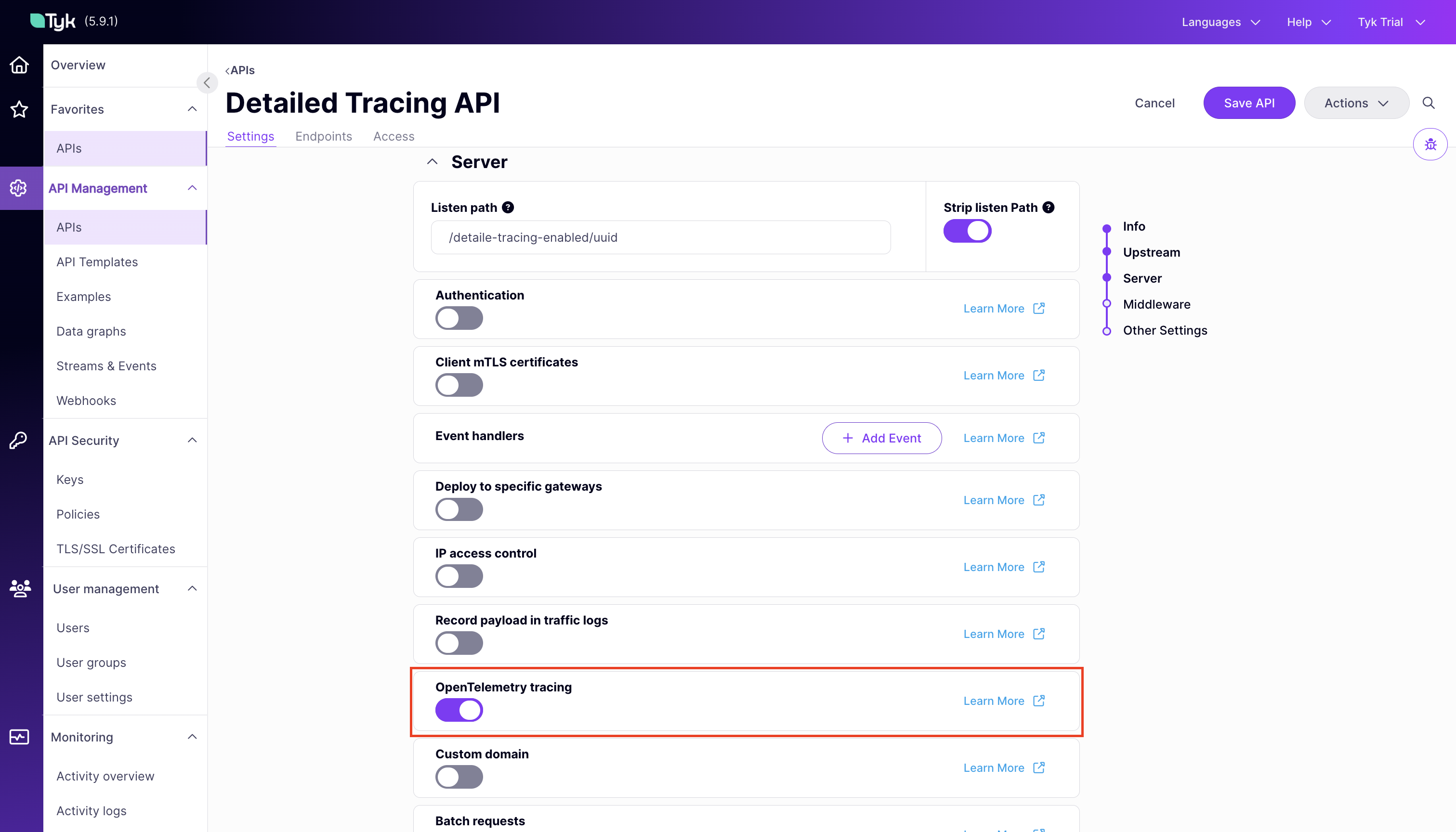 When detailed tracing is enabled for an API, Tyk creates a span for each middleware involved in request processing. These spans offer detailed insights, including the time taken for each middleware execution and the sequence of invocations.
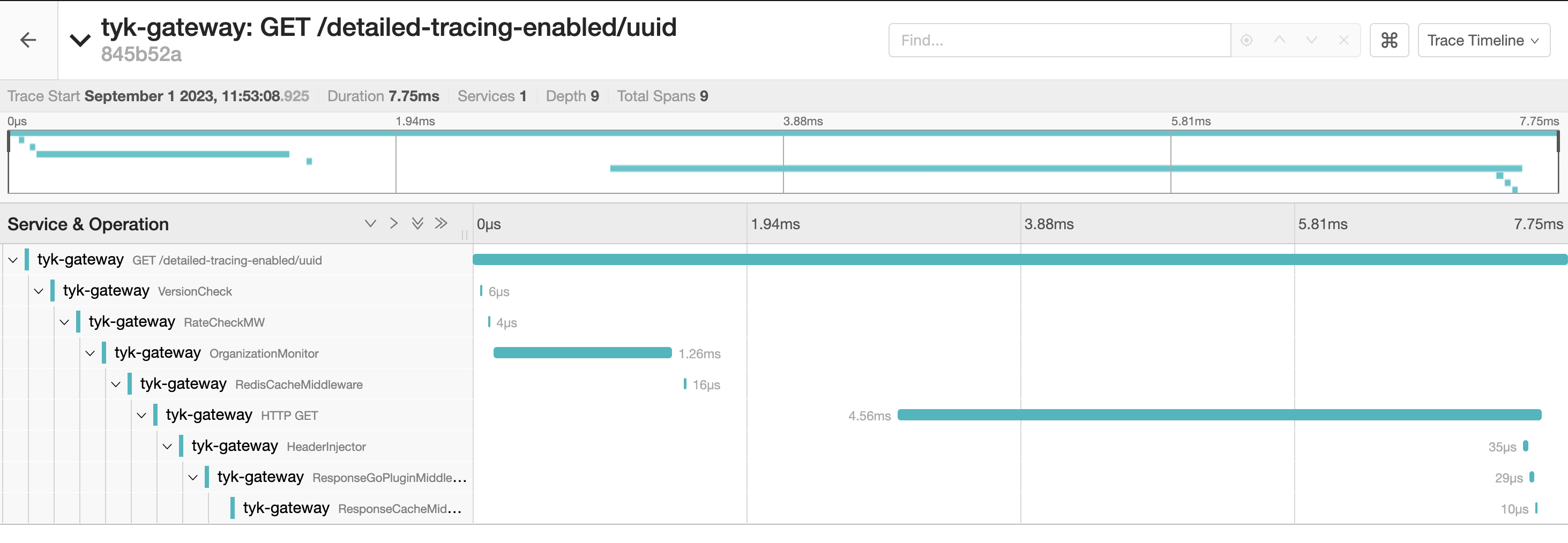 By choosing the appropriate setting, you can customize the level of tracing detail to suit your monitoring needs.
**Tyk Classic APIs**
If you are using Tyk Classic APIs, then the equivalent field in the API definition is [detailed\_tracing](/5.9/api-management/gateway-config-tyk-classic#opentelemetry).
### Understanding The Traces
Tyk Gateway exposes a helpful set of *span attributes* and *resource attributes* with the generated spans. These attributes provide useful insights for analyzing your API requests. A clear analysis can be obtained by observing the specific actions and associated context within each request/response. This is where span and resource attributes play a significant role.
#### Span Attributes
A span is a named, timed operation that represents an operation. Multiple spans represent different parts of the workflow and are pieced together to create a trace. While each span includes a duration indicating how long the operation took, the span attributes provide additional contextual metadata.
Span attributes are key-value pairs that provide contextual metadata for individual spans. Tyk automatically sets the following span attributes:
* `tyk.api.name`: API name.
* `tyk.api.orgid`: Organization ID.
* `tyk.api.id`: API ID.
* `tyk.api.path`: API listen path.
* `tyk.api.tags`: If tagging is enabled in the API definition, the tags are added here.
#### Resource Attributes
Resource attributes provide contextual information about the entity that produced the telemetry data. Tyk exposes following resource attributes:
#### Service Attributes
The service attributes supported by Tyk are:
| Attribute | Type | Description |
| :------------------------------------ | :-------- | :----------------------------------------------------------------------------------------------- |
| `service.name` | String | Service name for Tyk API Gateway: `tyk-gateway` |
| `service.instance.id` and `tyk.gw.id` | String | The Node ID assigned to the gateway. Example `solo-6b71c2de-5a3c-4ad3-4b54-d34d78c1f7a3` |
| `service.version` | String | Represents the service version. Example `v5.2.0` |
| `tyk.gw.dataplane` | Bool | Whether the Tyk Gateway is hybrid (`slave_options.use_rpc=true`) |
| `tyk.gw.group.id` | String | Represents the `slave_options.group_id` of the gateway. Populated only if the gateway is hybrid. |
| `tyk.gw.tags` | \[]String | Represents the gateway `segment_tags`. Populated only if the gateway is segmented. |
By understanding and using these resource attributes, you can gain better insights into the performance of your API Gateways.
#### Common HTTP Span Attributes
Tyk follows the OpenTelemetry semantic conventions for HTTP spans. You can find detailed information on common attributes [here](https://github.com/open-telemetry/semantic-conventions/blob/main/docs/http/http-spans.md#common-attributes).
Some of these common attributes include:
* `http.method`: HTTP request method.
* `http.scheme`: URL scheme.
* `http.status_code`: HTTP response status code.
* `http.url`: Full HTTP request URL.
For the full list and details, refer to the official [OpenTelemetry Semantic Conventions](https://github.com/open-telemetry/semantic-conventions/blob/main/docs/http/http-spans.md#common-attributes).
### Advanced OpenTelemetry Capabilities
#### Context Propagation
This setting allows you to specify the type of context propagator to use for trace data. It's essential for ensuring compatibility and data integrity between different services in your architecture. The available options are:
* **tracecontext**: This option supports the [W3C Trace Context](https://www.w3.org/TR/trace-context/) format.
* **b3**: This option serializes `SpanContext` to/from the B3 multi Headers format. [Here](https://github.com/openzipkin/b3-propagation) you can find more information of this propagator.
The default setting is `tracecontext`. To configure this setting, you have two options:
* **Environment Variable**: Use `TYK_GW_OPENTELEMETRY_CONTEXTPROPAGATION` to specify the context propagator type.
* **Configuration File**: Navigate to the `opentelemetry.context_propagation` field in your configuration file to set your preferred option.
#### Sampling Strategies
Tyk supports configuring the following sampling strategies via the Sampling configuration structure:
##### Sampling Type
This setting dictates the sampling policy that OpenTelemetry uses to decide if a trace should be sampled for analysis. The decision is made at the start of a trace and applies throughout its lifetime. By default, the setting is `AlwaysOn`.
To customize, you can either set the `TYK_GW_OPENTELEMETRY_SAMPLING_TYPE` environment variable or modify the `opentelemetry.sampling.type` field in the Tyk Gateway configuration file. Valid values for this setting are:
* **AlwaysOn**: All traces are sampled.
* **AlwaysOff**: No traces are sampled.
* **TraceIDRatioBased**: Samples traces based on a specified ratio.
##### Sampling Rate
This field is crucial when the `Type` is configured to `TraceIDRatioBased`. It defines the fraction of traces that OpenTelemetry will aim to sample, and accepts a value between 0.0 and 1.0. For example, a `Rate` set to 0.5 implies that approximately 50% of the traces will be sampled. The default value is 0.5. To configure this setting, you have the following options:
* **Environment Variable**: Use `TYK_GW_OPENTELEMETRY_SAMPLING_RATE`.
* **Configuration File**: Update the `opentelemetry.sampling.rate` field in the configuration file.
##### ParentBased Sampling
This option is useful for ensuring the sampling consistency between parent and child spans. Specifically, if a parent span is sampled, all it's child spans will be sampled as well. This setting is particularly effective when used with `TraceIDRatioBased`, as it helps to keep the entire transaction story together. Using `ParentBased` with `AlwaysOn` or `AlwaysOff` may not be as useful, since in these cases, either all or no spans are sampled. The default value is `false`. Configuration options include:
* **Environment Variable**: Use `TYK_GW_OPENTELEMETRY_SAMPLING_PARENTBASED`.
* **Configuration File**: Update the `opentelemetry.sampling.parent_based` field in the configuration file.
### OpenTelemetry Backends for Tracing
#### Datadog
This guide explains how to configure Tyk API Gateway and the OpenTelemetry Collector to collect distributed traces in Datadog. It follows the reference documentation from [Datadog](https://docs.datadoghq.com/opentelemetry/otel_collector_datadog_exporter/?tab=onahost).
While this tutorial demonstrates using an OpenTelemetry Collector running in Docker, the core concepts remain consistent regardless of how and where the OpenTelemetry collector is deployed.
Whether you're using Tyk API Gateway in an open-source (OSS) or commercial deployment, the configuration options remain identical.
##### Prerequisites
* [Docker installed on your machine](https://docs.docker.com/get-docker/)
* Tyk Gateway v5.2.0 or higher
* OpenTelemetry Collector Contrib [docker image](https://hub.docker.com/r/otel/opentelemetry-collector-contrib). Make sure to use the Contrib distribution of the OpenTelemetry Collector as it is required for the [Datadog exporter](https://github.com/open-telemetry/opentelemetry-collector-contrib/tree/main/exporter/datadogexporter).
##### Steps for Configuration
1. **Configure the OpenTelemetry Collector**
You will need:
* An [API key from Datadog](https://docs.datadoghq.com/account_management/api-app-keys/#add-an-api-key-or-client-token). For example, `6c35dacbf2e16aa8cda85a58d9015c3c`.
* Your [Datadog site](https://docs.datadoghq.com/getting_started/site/#access-the-datadog-site). Examples are: `datadoghq.com`, `us3.datadoghq.com` and `datadoghq.eu`.
Create a new YAML configuration file named `otel-collector.yml` with the following content:
```yaml theme={null}
receivers:
otlp:
protocols:
grpc:
endpoint: 0.0.0.0:4317
processors:
batch:
send_batch_max_size: 100
send_batch_size: 10
timeout: 10s
exporters:
datadog:
api:
site: "YOUR-DATADOG-SITE"
key: "YOUR-DATAGOG-API-KEY"
service:
pipelines:
traces:
receivers: [otlp]
processors: [batch]
exporters: [datadog]
```
2. **Configure a test API**
If you don't have any APIs configured yet, create a subdirectory called `apps` in the current directory. Create a new file `apidef-hello-world.json` and copy this very simple API definition for testing purposes:
```json theme={null}
{
"name": "Hello-World",
"slug": "hello-world",
"api_id": "Hello-World",
"org_id": "1",
"use_keyless": true,
"detailed_tracing": true,
"version_data": {
"not_versioned": true,
"versions": {
"Default": {
"name": "Default",
"use_extended_paths": true
}
}
},
"proxy": {
"listen_path": "/hello-world/",
"target_url": "http://httpbin.org/",
"strip_listen_path": true
},
"active": true
}
```
3. **Create the Docker-Compose file**
Save the following YAML configuration to a file named `docker-compose.yml`.
```yaml theme={null}
version: "2"
services:
# OpenTelemetry Collector Contrib
otel-collector:
image: otel/opentelemetry-collector-contrib:latest
volumes:
- ./otel-collector.yml:/etc/otel-collector.yml
command: ["--config=/etc/otel-collector.yml"]
ports:
- "4317" # OTLP gRPC receiver
networks:
- tyk
# Tyk API Gateway, open-source deployment
tyk:
image: tykio/tyk-gateway:v5.2
ports:
- 8080:8080
environment:
- TYK_GW_OPENTELEMETRY_ENABLED=true
- TYK_GW_OPENTELEMETRY_EXPORTER=grpc
- TYK_GW_OPENTELEMETRY_ENDPOINT=otel-collector:4317
volumes:
- ./apps:/opt/tyk-gateway/apps
depends_on:
- redis
networks:
- tyk
redis:
image: redis:4.0-alpine
ports:
- 6379:6379
command: redis-server --appendonly yes
networks:
- tyk
networks:
tyk:
```
To start the services, go to the directory that contains the docker-compose.yml file and run the following command:
```bash theme={null}
docker-compose up
```
4. **Explore OpenTelemetry traces in Datadog**
Begin by sending a few requests to the API endpoint configured in step 2:
` http://localhost:8080/hello-world/
`
Next, log in to Datadog and navigate to the 'APM' / 'Traces' section. Here, you should start observing traces generated by Tyk:
By choosing the appropriate setting, you can customize the level of tracing detail to suit your monitoring needs.
**Tyk Classic APIs**
If you are using Tyk Classic APIs, then the equivalent field in the API definition is [detailed\_tracing](/5.9/api-management/gateway-config-tyk-classic#opentelemetry).
### Understanding The Traces
Tyk Gateway exposes a helpful set of *span attributes* and *resource attributes* with the generated spans. These attributes provide useful insights for analyzing your API requests. A clear analysis can be obtained by observing the specific actions and associated context within each request/response. This is where span and resource attributes play a significant role.
#### Span Attributes
A span is a named, timed operation that represents an operation. Multiple spans represent different parts of the workflow and are pieced together to create a trace. While each span includes a duration indicating how long the operation took, the span attributes provide additional contextual metadata.
Span attributes are key-value pairs that provide contextual metadata for individual spans. Tyk automatically sets the following span attributes:
* `tyk.api.name`: API name.
* `tyk.api.orgid`: Organization ID.
* `tyk.api.id`: API ID.
* `tyk.api.path`: API listen path.
* `tyk.api.tags`: If tagging is enabled in the API definition, the tags are added here.
#### Resource Attributes
Resource attributes provide contextual information about the entity that produced the telemetry data. Tyk exposes following resource attributes:
#### Service Attributes
The service attributes supported by Tyk are:
| Attribute | Type | Description |
| :------------------------------------ | :-------- | :----------------------------------------------------------------------------------------------- |
| `service.name` | String | Service name for Tyk API Gateway: `tyk-gateway` |
| `service.instance.id` and `tyk.gw.id` | String | The Node ID assigned to the gateway. Example `solo-6b71c2de-5a3c-4ad3-4b54-d34d78c1f7a3` |
| `service.version` | String | Represents the service version. Example `v5.2.0` |
| `tyk.gw.dataplane` | Bool | Whether the Tyk Gateway is hybrid (`slave_options.use_rpc=true`) |
| `tyk.gw.group.id` | String | Represents the `slave_options.group_id` of the gateway. Populated only if the gateway is hybrid. |
| `tyk.gw.tags` | \[]String | Represents the gateway `segment_tags`. Populated only if the gateway is segmented. |
By understanding and using these resource attributes, you can gain better insights into the performance of your API Gateways.
#### Common HTTP Span Attributes
Tyk follows the OpenTelemetry semantic conventions for HTTP spans. You can find detailed information on common attributes [here](https://github.com/open-telemetry/semantic-conventions/blob/main/docs/http/http-spans.md#common-attributes).
Some of these common attributes include:
* `http.method`: HTTP request method.
* `http.scheme`: URL scheme.
* `http.status_code`: HTTP response status code.
* `http.url`: Full HTTP request URL.
For the full list and details, refer to the official [OpenTelemetry Semantic Conventions](https://github.com/open-telemetry/semantic-conventions/blob/main/docs/http/http-spans.md#common-attributes).
### Advanced OpenTelemetry Capabilities
#### Context Propagation
This setting allows you to specify the type of context propagator to use for trace data. It's essential for ensuring compatibility and data integrity between different services in your architecture. The available options are:
* **tracecontext**: This option supports the [W3C Trace Context](https://www.w3.org/TR/trace-context/) format.
* **b3**: This option serializes `SpanContext` to/from the B3 multi Headers format. [Here](https://github.com/openzipkin/b3-propagation) you can find more information of this propagator.
The default setting is `tracecontext`. To configure this setting, you have two options:
* **Environment Variable**: Use `TYK_GW_OPENTELEMETRY_CONTEXTPROPAGATION` to specify the context propagator type.
* **Configuration File**: Navigate to the `opentelemetry.context_propagation` field in your configuration file to set your preferred option.
#### Sampling Strategies
Tyk supports configuring the following sampling strategies via the Sampling configuration structure:
##### Sampling Type
This setting dictates the sampling policy that OpenTelemetry uses to decide if a trace should be sampled for analysis. The decision is made at the start of a trace and applies throughout its lifetime. By default, the setting is `AlwaysOn`.
To customize, you can either set the `TYK_GW_OPENTELEMETRY_SAMPLING_TYPE` environment variable or modify the `opentelemetry.sampling.type` field in the Tyk Gateway configuration file. Valid values for this setting are:
* **AlwaysOn**: All traces are sampled.
* **AlwaysOff**: No traces are sampled.
* **TraceIDRatioBased**: Samples traces based on a specified ratio.
##### Sampling Rate
This field is crucial when the `Type` is configured to `TraceIDRatioBased`. It defines the fraction of traces that OpenTelemetry will aim to sample, and accepts a value between 0.0 and 1.0. For example, a `Rate` set to 0.5 implies that approximately 50% of the traces will be sampled. The default value is 0.5. To configure this setting, you have the following options:
* **Environment Variable**: Use `TYK_GW_OPENTELEMETRY_SAMPLING_RATE`.
* **Configuration File**: Update the `opentelemetry.sampling.rate` field in the configuration file.
##### ParentBased Sampling
This option is useful for ensuring the sampling consistency between parent and child spans. Specifically, if a parent span is sampled, all it's child spans will be sampled as well. This setting is particularly effective when used with `TraceIDRatioBased`, as it helps to keep the entire transaction story together. Using `ParentBased` with `AlwaysOn` or `AlwaysOff` may not be as useful, since in these cases, either all or no spans are sampled. The default value is `false`. Configuration options include:
* **Environment Variable**: Use `TYK_GW_OPENTELEMETRY_SAMPLING_PARENTBASED`.
* **Configuration File**: Update the `opentelemetry.sampling.parent_based` field in the configuration file.
### OpenTelemetry Backends for Tracing
#### Datadog
This guide explains how to configure Tyk API Gateway and the OpenTelemetry Collector to collect distributed traces in Datadog. It follows the reference documentation from [Datadog](https://docs.datadoghq.com/opentelemetry/otel_collector_datadog_exporter/?tab=onahost).
While this tutorial demonstrates using an OpenTelemetry Collector running in Docker, the core concepts remain consistent regardless of how and where the OpenTelemetry collector is deployed.
Whether you're using Tyk API Gateway in an open-source (OSS) or commercial deployment, the configuration options remain identical.
##### Prerequisites
* [Docker installed on your machine](https://docs.docker.com/get-docker/)
* Tyk Gateway v5.2.0 or higher
* OpenTelemetry Collector Contrib [docker image](https://hub.docker.com/r/otel/opentelemetry-collector-contrib). Make sure to use the Contrib distribution of the OpenTelemetry Collector as it is required for the [Datadog exporter](https://github.com/open-telemetry/opentelemetry-collector-contrib/tree/main/exporter/datadogexporter).
##### Steps for Configuration
1. **Configure the OpenTelemetry Collector**
You will need:
* An [API key from Datadog](https://docs.datadoghq.com/account_management/api-app-keys/#add-an-api-key-or-client-token). For example, `6c35dacbf2e16aa8cda85a58d9015c3c`.
* Your [Datadog site](https://docs.datadoghq.com/getting_started/site/#access-the-datadog-site). Examples are: `datadoghq.com`, `us3.datadoghq.com` and `datadoghq.eu`.
Create a new YAML configuration file named `otel-collector.yml` with the following content:
```yaml theme={null}
receivers:
otlp:
protocols:
grpc:
endpoint: 0.0.0.0:4317
processors:
batch:
send_batch_max_size: 100
send_batch_size: 10
timeout: 10s
exporters:
datadog:
api:
site: "YOUR-DATADOG-SITE"
key: "YOUR-DATAGOG-API-KEY"
service:
pipelines:
traces:
receivers: [otlp]
processors: [batch]
exporters: [datadog]
```
2. **Configure a test API**
If you don't have any APIs configured yet, create a subdirectory called `apps` in the current directory. Create a new file `apidef-hello-world.json` and copy this very simple API definition for testing purposes:
```json theme={null}
{
"name": "Hello-World",
"slug": "hello-world",
"api_id": "Hello-World",
"org_id": "1",
"use_keyless": true,
"detailed_tracing": true,
"version_data": {
"not_versioned": true,
"versions": {
"Default": {
"name": "Default",
"use_extended_paths": true
}
}
},
"proxy": {
"listen_path": "/hello-world/",
"target_url": "http://httpbin.org/",
"strip_listen_path": true
},
"active": true
}
```
3. **Create the Docker-Compose file**
Save the following YAML configuration to a file named `docker-compose.yml`.
```yaml theme={null}
version: "2"
services:
# OpenTelemetry Collector Contrib
otel-collector:
image: otel/opentelemetry-collector-contrib:latest
volumes:
- ./otel-collector.yml:/etc/otel-collector.yml
command: ["--config=/etc/otel-collector.yml"]
ports:
- "4317" # OTLP gRPC receiver
networks:
- tyk
# Tyk API Gateway, open-source deployment
tyk:
image: tykio/tyk-gateway:v5.2
ports:
- 8080:8080
environment:
- TYK_GW_OPENTELEMETRY_ENABLED=true
- TYK_GW_OPENTELEMETRY_EXPORTER=grpc
- TYK_GW_OPENTELEMETRY_ENDPOINT=otel-collector:4317
volumes:
- ./apps:/opt/tyk-gateway/apps
depends_on:
- redis
networks:
- tyk
redis:
image: redis:4.0-alpine
ports:
- 6379:6379
command: redis-server --appendonly yes
networks:
- tyk
networks:
tyk:
```
To start the services, go to the directory that contains the docker-compose.yml file and run the following command:
```bash theme={null}
docker-compose up
```
4. **Explore OpenTelemetry traces in Datadog**
Begin by sending a few requests to the API endpoint configured in step 2:
` http://localhost:8080/hello-world/
`
Next, log in to Datadog and navigate to the 'APM' / 'Traces' section. Here, you should start observing traces generated by Tyk:
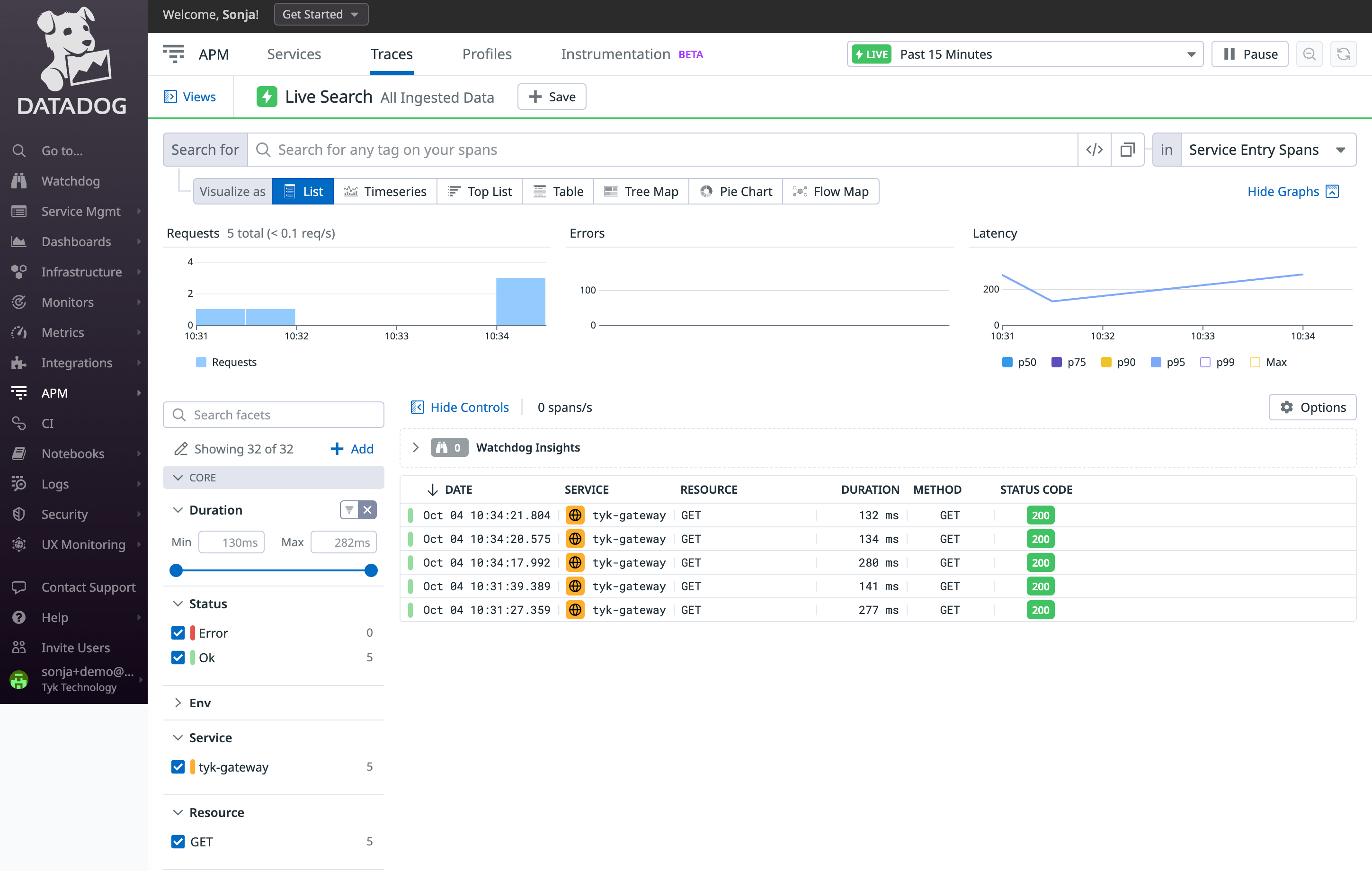 Click on a trace to view all its internal spans:
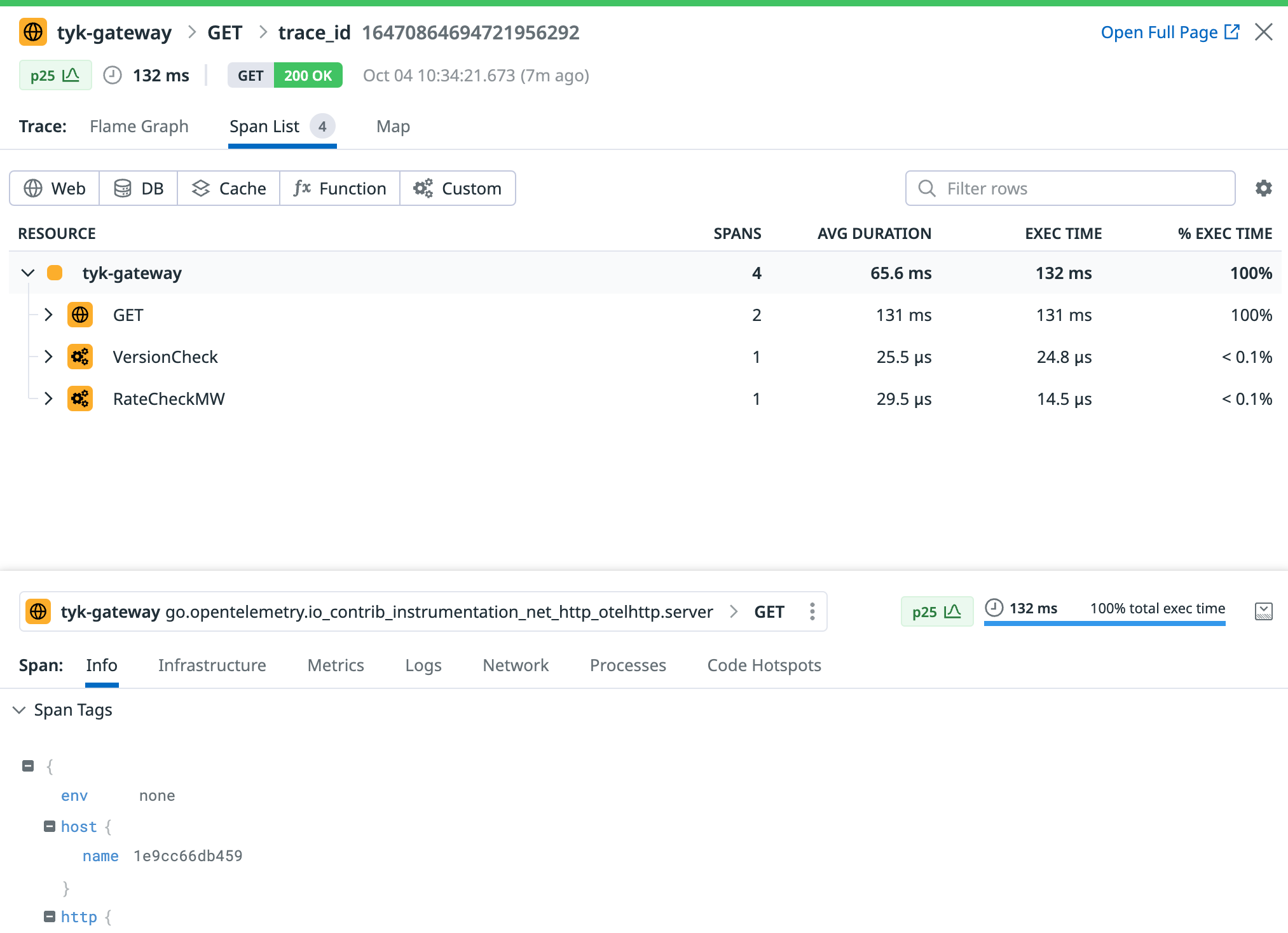 Datadog will generate a service entry to monitor Tyk API Gateway and will automatically compute valuable metrics using the ingested traces.
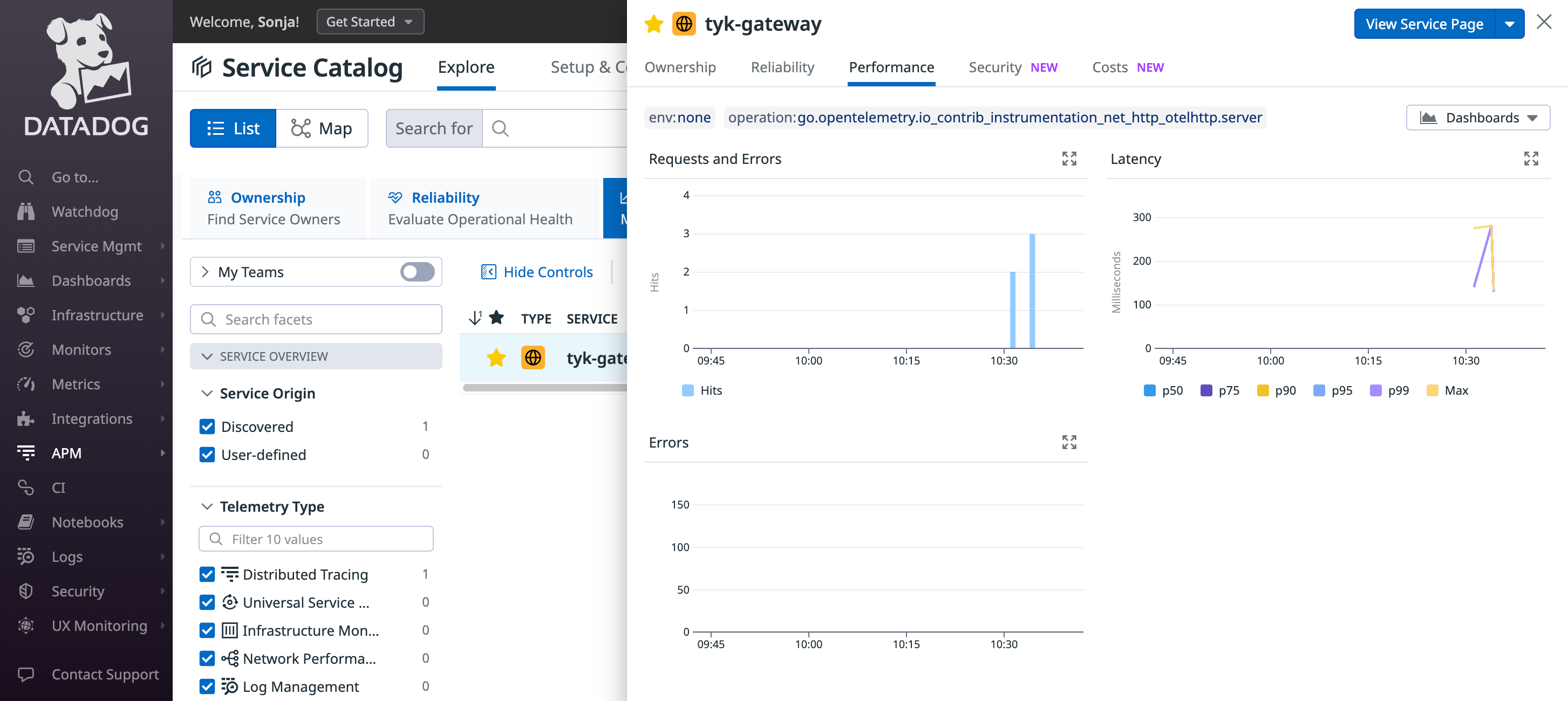 ##### Troubleshooting
If you do not observe any traces appearing in Datadog, consider the following steps for resolution:
* Logging: Examine logs from Tyk API Gateway and from the OpenTelemetry Collector for any issues or warnings that might provide insights.
* Data Ingestion Delays: Be patient, as there could be some delay in data ingestion. Wait for 10 seconds to see if traces eventually appear, as this is the timeout we have configured in the batch processing of the OpenTelemetry collector within step 1.
#### Dynatrace
This documentation covers how to set up Dynatrace to ingest OpenTelemetry traces via the OpenTelemetry Collector (OTel Collector) using Docker.
##### Prerequisites
* [Docker installed on your machine](https://docs.docker.com/get-docker/)
* [Dynatrace account](https://www.dynatrace.com/)
* Dynatrace Token
* Gateway v5.2.0 or higher
* OTel Collector [docker image](https://hub.docker.com/r/otel/opentelemetry-collector)
##### Steps for Configuration
1. **Generate Dynatrace Token**
1. In the Dynatrace console, navigate to access keys.
2. Click on *Create a new key*
3. You will be prompted to select a scope. Choose *Ingest OpenTelemetry* traces.
4. Save the generated token securely; it cannot be retrieved once lost.
Example of a generated token ([taken from Dynatrace website](https://www.dynatrace.com/support/help/dynatrace-api/basics/dynatrace-api-authentication#token-format-example)):
```bash theme={null}
dt0s01.ST2EY72KQINMH574WMNVI7YN.G3DFPBEJYMODIDAEX454M7YWBUVEFOWKPRVMWFASS64NFH52PX6BNDVFFM572RZM
```
2. **Configuration Files**
1. **OTel Collector Configuration File**
Create a YAML file named `otel-collector-config.yml`. In this file replace `` with the string from the address bar when you log into Dynatrace. Replace `` with the token you generated earlier.
Here's a sample configuration file:
```yaml theme={null}
receivers:
otlp:
protocols:
http:
endpoint: 0.0.0.0:4318
grpc:
endpoint: 0.0.0.0:4317
processors:
batch:
exporters:
otlphttp:
endpoint: "https://.live.dynatrace.com/api/v2/otlp"
headers:
Authorization: "Api-Token " # You must keep 'Api-Token', just modify
extensions:
health_check:
pprof:
endpoint: :1888
zpages:
endpoint: :55679
service:
extensions: [pprof, zpages, health_check]
pipelines:
traces:
receivers: [otlp]
processors: [batch]
exporters: [otlphttp]
```
2. **Docker Compose File**
Create a file named docker-compose.yml.
Here is the sample Docker Compose file:
```yaml theme={null}
version: "3.9"
services:
otel-collector:
image: otel/opentelemetry-collector:latest
volumes:
- ./configs/otel-collector-config.yml:/etc/otel-collector.yml
command: ["--config=/etc/otel-collector.yml"]
networks:
- tyk
ports:
- "1888:1888" # pprof extension
- "13133:13133" # health_check extension
- "4317:4317" # OTLP gRPC receiver
- "4318:4318" # OTLP http receiver
- "55670:55679" # zpages extension
networks:
tyk:
```
3. **Testing and Viewing Traces**
**1.** Launch the Docker containers: docker-compose up -d
**2.** Initialize your Tyk environment.
**3.** Configure a basic HTTP API on the Tyk Gateway or Dashboard.
**4.** Use cURL or Postman to send requests to the API gateway.
**5.** Navigate to Dynatrace -> Services -> Tyk-Gateway.
##### Troubleshooting
If you do not observe any traces appearing in Datadog, consider the following steps for resolution:
* Logging: Examine logs from Tyk API Gateway and from the OpenTelemetry Collector for any issues or warnings that might provide insights.
* Data Ingestion Delays: Be patient, as there could be some delay in data ingestion. Wait for 10 seconds to see if traces eventually appear, as this is the timeout we have configured in the batch processing of the OpenTelemetry collector within step 1.
#### Dynatrace
This documentation covers how to set up Dynatrace to ingest OpenTelemetry traces via the OpenTelemetry Collector (OTel Collector) using Docker.
##### Prerequisites
* [Docker installed on your machine](https://docs.docker.com/get-docker/)
* [Dynatrace account](https://www.dynatrace.com/)
* Dynatrace Token
* Gateway v5.2.0 or higher
* OTel Collector [docker image](https://hub.docker.com/r/otel/opentelemetry-collector)
##### Steps for Configuration
1. **Generate Dynatrace Token**
1. In the Dynatrace console, navigate to access keys.
2. Click on *Create a new key*
3. You will be prompted to select a scope. Choose *Ingest OpenTelemetry* traces.
4. Save the generated token securely; it cannot be retrieved once lost.
Example of a generated token ([taken from Dynatrace website](https://www.dynatrace.com/support/help/dynatrace-api/basics/dynatrace-api-authentication#token-format-example)):
```bash theme={null}
dt0s01.ST2EY72KQINMH574WMNVI7YN.G3DFPBEJYMODIDAEX454M7YWBUVEFOWKPRVMWFASS64NFH52PX6BNDVFFM572RZM
```
2. **Configuration Files**
1. **OTel Collector Configuration File**
Create a YAML file named `otel-collector-config.yml`. In this file replace `` with the string from the address bar when you log into Dynatrace. Replace `` with the token you generated earlier.
Here's a sample configuration file:
```yaml theme={null}
receivers:
otlp:
protocols:
http:
endpoint: 0.0.0.0:4318
grpc:
endpoint: 0.0.0.0:4317
processors:
batch:
exporters:
otlphttp:
endpoint: "https://.live.dynatrace.com/api/v2/otlp"
headers:
Authorization: "Api-Token " # You must keep 'Api-Token', just modify
extensions:
health_check:
pprof:
endpoint: :1888
zpages:
endpoint: :55679
service:
extensions: [pprof, zpages, health_check]
pipelines:
traces:
receivers: [otlp]
processors: [batch]
exporters: [otlphttp]
```
2. **Docker Compose File**
Create a file named docker-compose.yml.
Here is the sample Docker Compose file:
```yaml theme={null}
version: "3.9"
services:
otel-collector:
image: otel/opentelemetry-collector:latest
volumes:
- ./configs/otel-collector-config.yml:/etc/otel-collector.yml
command: ["--config=/etc/otel-collector.yml"]
networks:
- tyk
ports:
- "1888:1888" # pprof extension
- "13133:13133" # health_check extension
- "4317:4317" # OTLP gRPC receiver
- "4318:4318" # OTLP http receiver
- "55670:55679" # zpages extension
networks:
tyk:
```
3. **Testing and Viewing Traces**
**1.** Launch the Docker containers: docker-compose up -d
**2.** Initialize your Tyk environment.
**3.** Configure a basic HTTP API on the Tyk Gateway or Dashboard.
**4.** Use cURL or Postman to send requests to the API gateway.
**5.** Navigate to Dynatrace -> Services -> Tyk-Gateway.
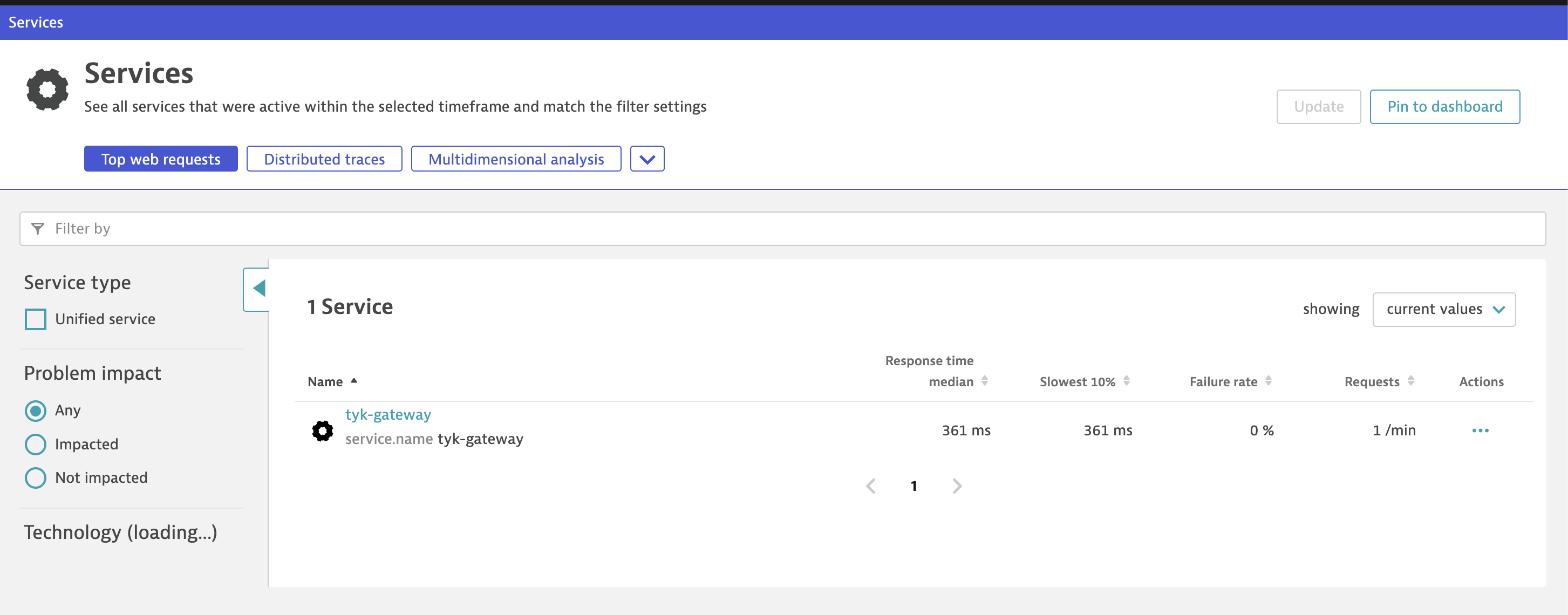 **6.** Wait for 5 minutes and refresh.
**7.** Traces, along with graphs, should appear. If they don't, click on the "Full Search" button.
**6.** Wait for 5 minutes and refresh.
**7.** Traces, along with graphs, should appear. If they don't, click on the "Full Search" button.
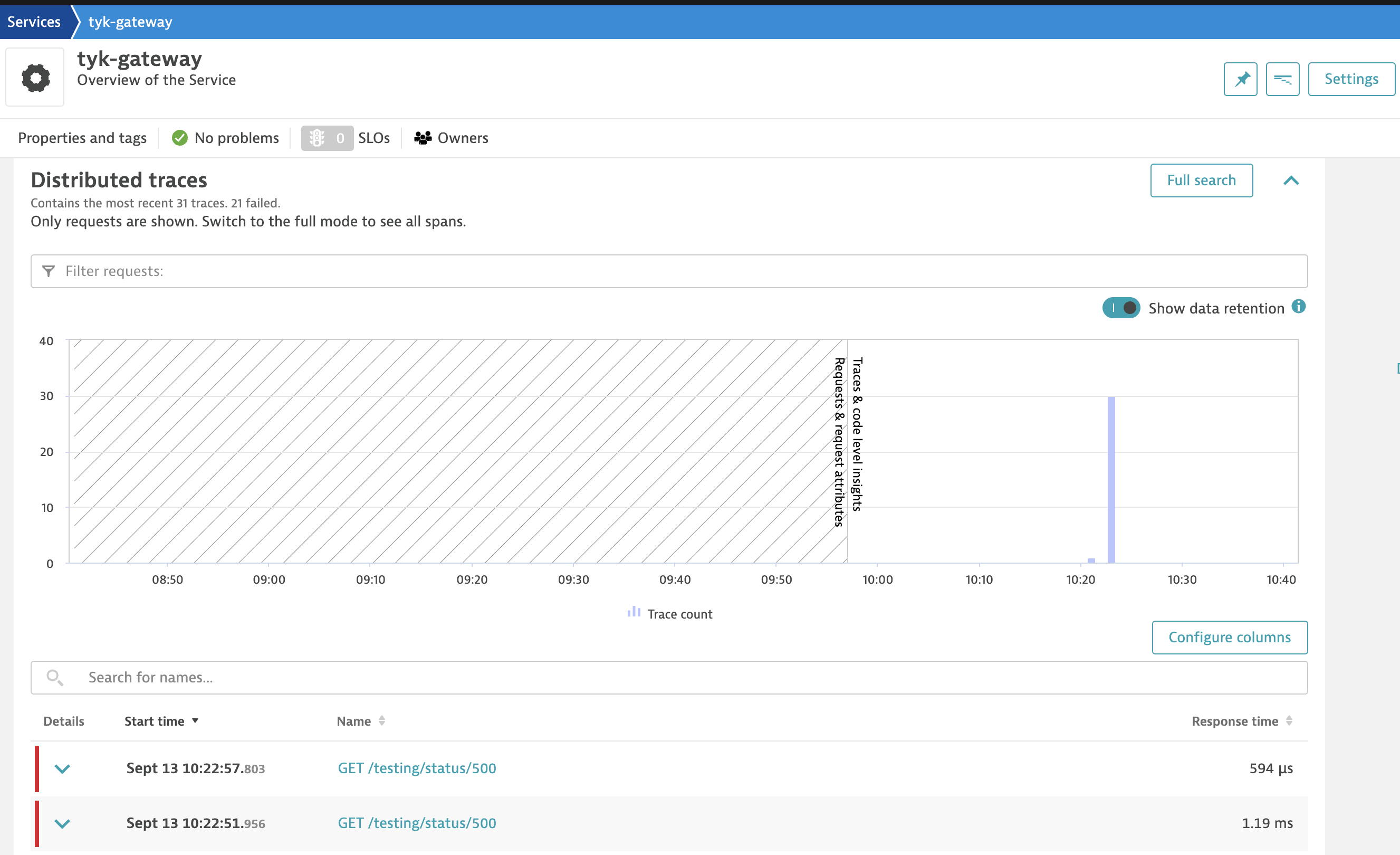 4. **Troubleshooting**
* If traces are not appearing, try clicking on the "Full Search" button after waiting for 5 minutes.
Make sure your Dynatrace token is correct in the configuration files.
* Validate the Docker Compose setup by checking the logs for any errors: `docker-compose logs`
And there you have it! You've successfully integrated Dynatrace with the OpenTelemetry Collector using Docker.
#### Elasticsearch
This quick start explains how to configure Tyk API Gateway (OSS, self-managed or hybrid gateway connected to Tyk Cloud) with the OpenTelemetry Collector to export distributed traces to [Elasticsearch](https://www.elastic.co/observability).
##### Prerequisites
Ensure the following prerequisites are met before proceeding:
* Tyk Gateway v5.2 or higher
* OpenTelemetry Collector deployed locally
* Elasticsearch deployed locally or an account on Elastic Cloud with Elastic APM
Elastic Observability natively supports OpenTelemetry and its OpenTelemetry protocol (OTLP) to ingest traces, metrics, and logs.
4. **Troubleshooting**
* If traces are not appearing, try clicking on the "Full Search" button after waiting for 5 minutes.
Make sure your Dynatrace token is correct in the configuration files.
* Validate the Docker Compose setup by checking the logs for any errors: `docker-compose logs`
And there you have it! You've successfully integrated Dynatrace with the OpenTelemetry Collector using Docker.
#### Elasticsearch
This quick start explains how to configure Tyk API Gateway (OSS, self-managed or hybrid gateway connected to Tyk Cloud) with the OpenTelemetry Collector to export distributed traces to [Elasticsearch](https://www.elastic.co/observability).
##### Prerequisites
Ensure the following prerequisites are met before proceeding:
* Tyk Gateway v5.2 or higher
* OpenTelemetry Collector deployed locally
* Elasticsearch deployed locally or an account on Elastic Cloud with Elastic APM
Elastic Observability natively supports OpenTelemetry and its OpenTelemetry protocol (OTLP) to ingest traces, metrics, and logs.
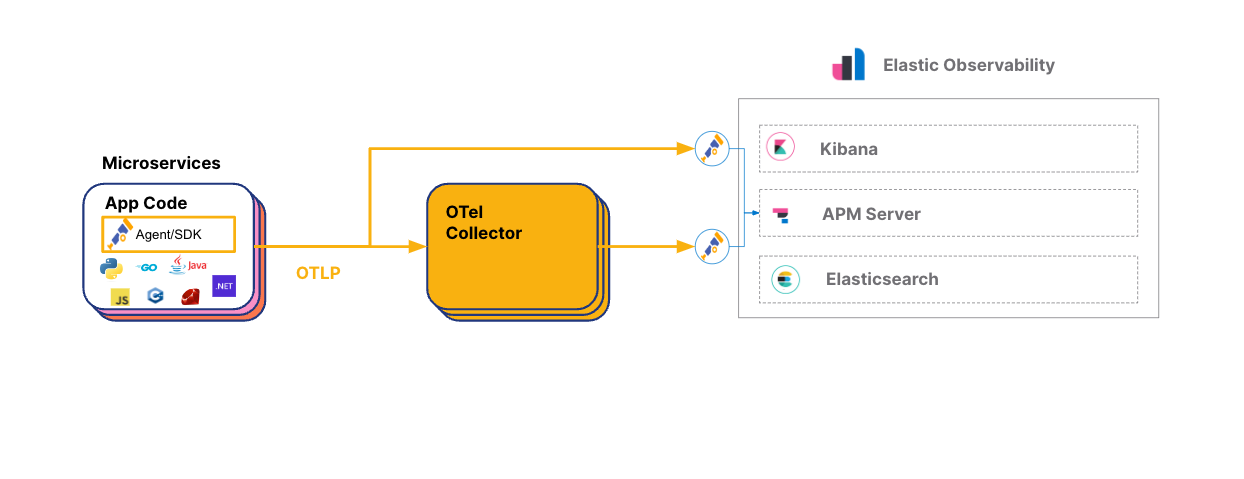 Credit: Elasticsearch, [OpenTelemetry on Elastic](https://www.elastic.co/blog/opentelemetry-observability)
##### Steps for Configuration
1. **Configure Tyk API Gateway**
To enable OpenTelemetry in Tyk API Gateway, follow these steps:
For Tyk Helm Charts:
* Add the following configuration to the Tyk Gateway section:
```yaml theme={null}
tyk-gateway:
gateway:
opentelemetry:
enabled: true
endpoint: {{Add your endpoint here}}
exporter: grpc
```
For Docker Compose:
* In your docker-compose.yml file for Tyk Gateway, add the following environment variables:
```yaml theme={null}
environment:
- TYK_GW_OPENTELEMETRY_ENABLED=true
- TYK_GW_OPENTELEMETRY_EXPORTER=grpc
- TYK_GW_OPENTELEMETRY_ENDPOINT={{Add your endpoint here}}
```
Make sure to replace `` with the appropriate endpoint from your OpenTelemetry collector.
After enabling OpenTelemetry at the Gateway level, you can activate [detailed tracing](/5.9/api-management/logs-metrics#opentelemetry) for specific APIs by editing their respective API definitions. Set the `detailed_tracing` option to either true or false. By default, this setting is false.
2. **Configure the OpenTelemetry Collector to Export to Elasticsearch**
To configure the OTel Collector with Elasticsearch Cloud, follow these steps:
* Sign up for an [Elastic account](https://www.elastic.co/) if you haven't already
* Once logged in to your Elastic account, select "Observability" and click on the option "Monitor my application performance"
Credit: Elasticsearch, [OpenTelemetry on Elastic](https://www.elastic.co/blog/opentelemetry-observability)
##### Steps for Configuration
1. **Configure Tyk API Gateway**
To enable OpenTelemetry in Tyk API Gateway, follow these steps:
For Tyk Helm Charts:
* Add the following configuration to the Tyk Gateway section:
```yaml theme={null}
tyk-gateway:
gateway:
opentelemetry:
enabled: true
endpoint: {{Add your endpoint here}}
exporter: grpc
```
For Docker Compose:
* In your docker-compose.yml file for Tyk Gateway, add the following environment variables:
```yaml theme={null}
environment:
- TYK_GW_OPENTELEMETRY_ENABLED=true
- TYK_GW_OPENTELEMETRY_EXPORTER=grpc
- TYK_GW_OPENTELEMETRY_ENDPOINT={{Add your endpoint here}}
```
Make sure to replace `` with the appropriate endpoint from your OpenTelemetry collector.
After enabling OpenTelemetry at the Gateway level, you can activate [detailed tracing](/5.9/api-management/logs-metrics#opentelemetry) for specific APIs by editing their respective API definitions. Set the `detailed_tracing` option to either true or false. By default, this setting is false.
2. **Configure the OpenTelemetry Collector to Export to Elasticsearch**
To configure the OTel Collector with Elasticsearch Cloud, follow these steps:
* Sign up for an [Elastic account](https://www.elastic.co/) if you haven't already
* Once logged in to your Elastic account, select "Observability" and click on the option "Monitor my application performance"
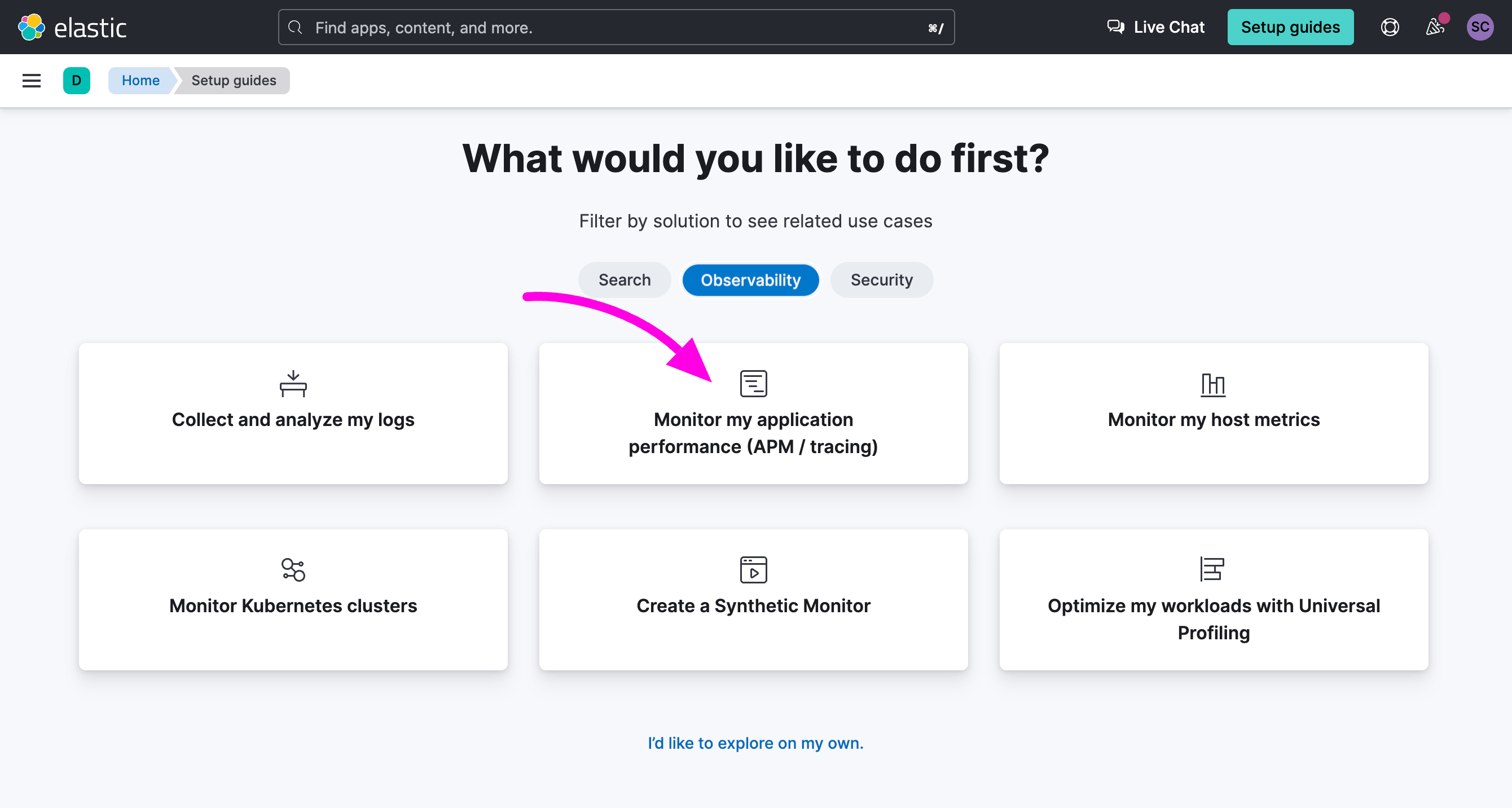 * Scroll down to the APM Agents section and click on the OpenTelemetry tab
 * Search for the section "Configure OpenTelemetry in your application". You will need to copy the value of "OTEL\_EXPORTER\_OTLP\_ENDPOINT" and "OTEL\_EXPORTER\_OTLP\_HEADERS" in your OpenTelemetry Collector configuration file.
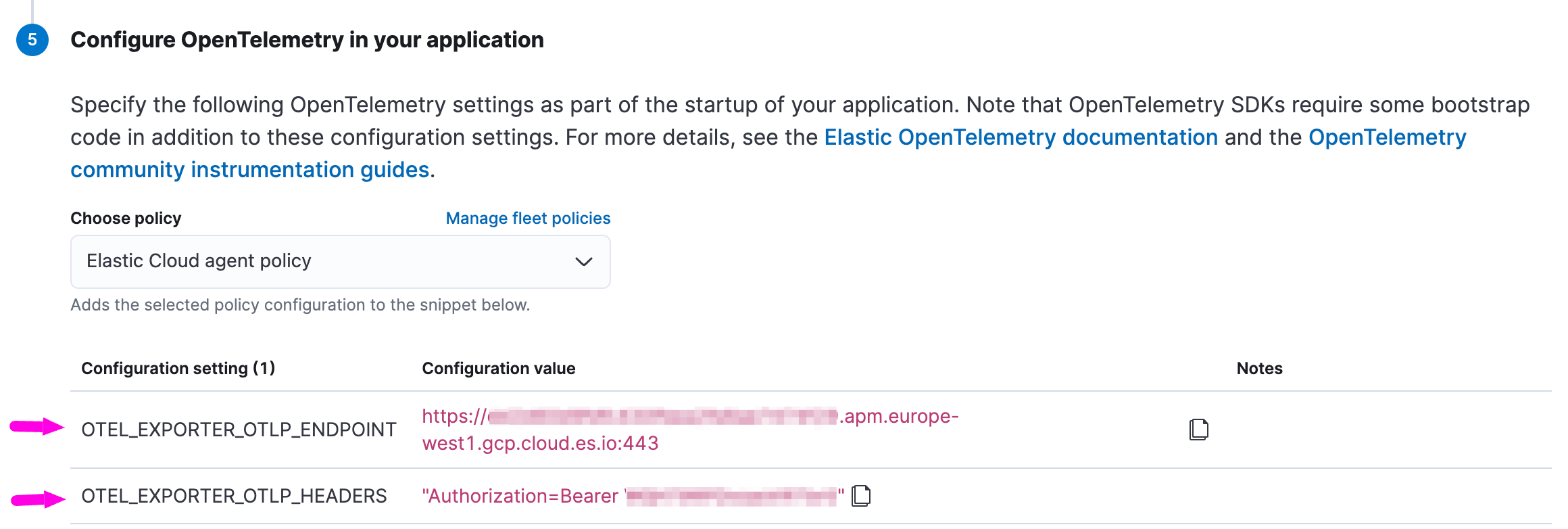 * Update your OpenTelemetry Collector configuration, here's a simple example:
```yaml theme={null}
receivers:
otlp:
protocols:
grpc:
endpoint: 0.0.0.0:4317 # OpenTelemetry receiver endpoint
processors:
batch:
exporters:
otlp/elastic:
endpoint: "ELASTIC_APM_SERVER_ENDPOINT_GOES_HERE" #exclude scheme, e.g. HTTPS:// or HTTP://
headers:
# Elastic APM Server secret token
Authorization: "Bearer ELASTIC_APM_SECRET_TOKEN_GOES_HERE"
service:
pipelines:
traces:
receivers: [otlp]
exporters: [otlp/elastic]
```
If are running Elasticsearch locally, you will need to use your APM Server endpoint (elastic-apm-server:8200) and set-up [a secret token authorization in ElasticSearch](https://www.elastic.co/guide/en/observability/current/secret-token.html).
You can refer to the [example configuration provided by Elastic](https://www.elastic.co/guide/en/observability/current/open-telemetry-direct.html#connect-open-telemetry-collector) for more guidance on the OpenTelemetry Collector configuration.
3. **Explore OpenTelemetry Traces in Elasticsearch**
* In Elasticsearch Cloud:
* Go to "Home" and select "Observability."
* Update your OpenTelemetry Collector configuration, here's a simple example:
```yaml theme={null}
receivers:
otlp:
protocols:
grpc:
endpoint: 0.0.0.0:4317 # OpenTelemetry receiver endpoint
processors:
batch:
exporters:
otlp/elastic:
endpoint: "ELASTIC_APM_SERVER_ENDPOINT_GOES_HERE" #exclude scheme, e.g. HTTPS:// or HTTP://
headers:
# Elastic APM Server secret token
Authorization: "Bearer ELASTIC_APM_SECRET_TOKEN_GOES_HERE"
service:
pipelines:
traces:
receivers: [otlp]
exporters: [otlp/elastic]
```
If are running Elasticsearch locally, you will need to use your APM Server endpoint (elastic-apm-server:8200) and set-up [a secret token authorization in ElasticSearch](https://www.elastic.co/guide/en/observability/current/secret-token.html).
You can refer to the [example configuration provided by Elastic](https://www.elastic.co/guide/en/observability/current/open-telemetry-direct.html#connect-open-telemetry-collector) for more guidance on the OpenTelemetry Collector configuration.
3. **Explore OpenTelemetry Traces in Elasticsearch**
* In Elasticsearch Cloud:
* Go to "Home" and select "Observability."
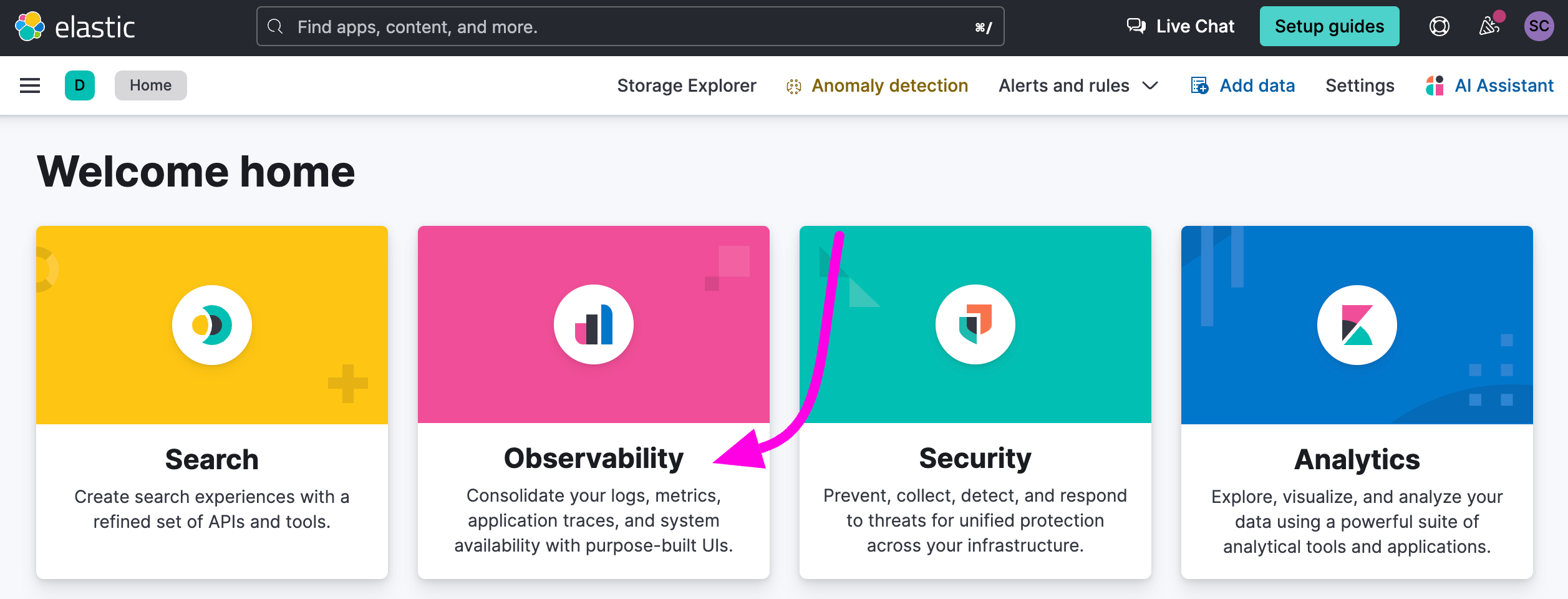 * On the right menu, click on "APM / Services."
* Click on "tyk-gateway."
You will see a dashboard automatically generated based on the distributed traces sent by Tyk API Gateway to Elasticsearch.
* On the right menu, click on "APM / Services."
* Click on "tyk-gateway."
You will see a dashboard automatically generated based on the distributed traces sent by Tyk API Gateway to Elasticsearch.
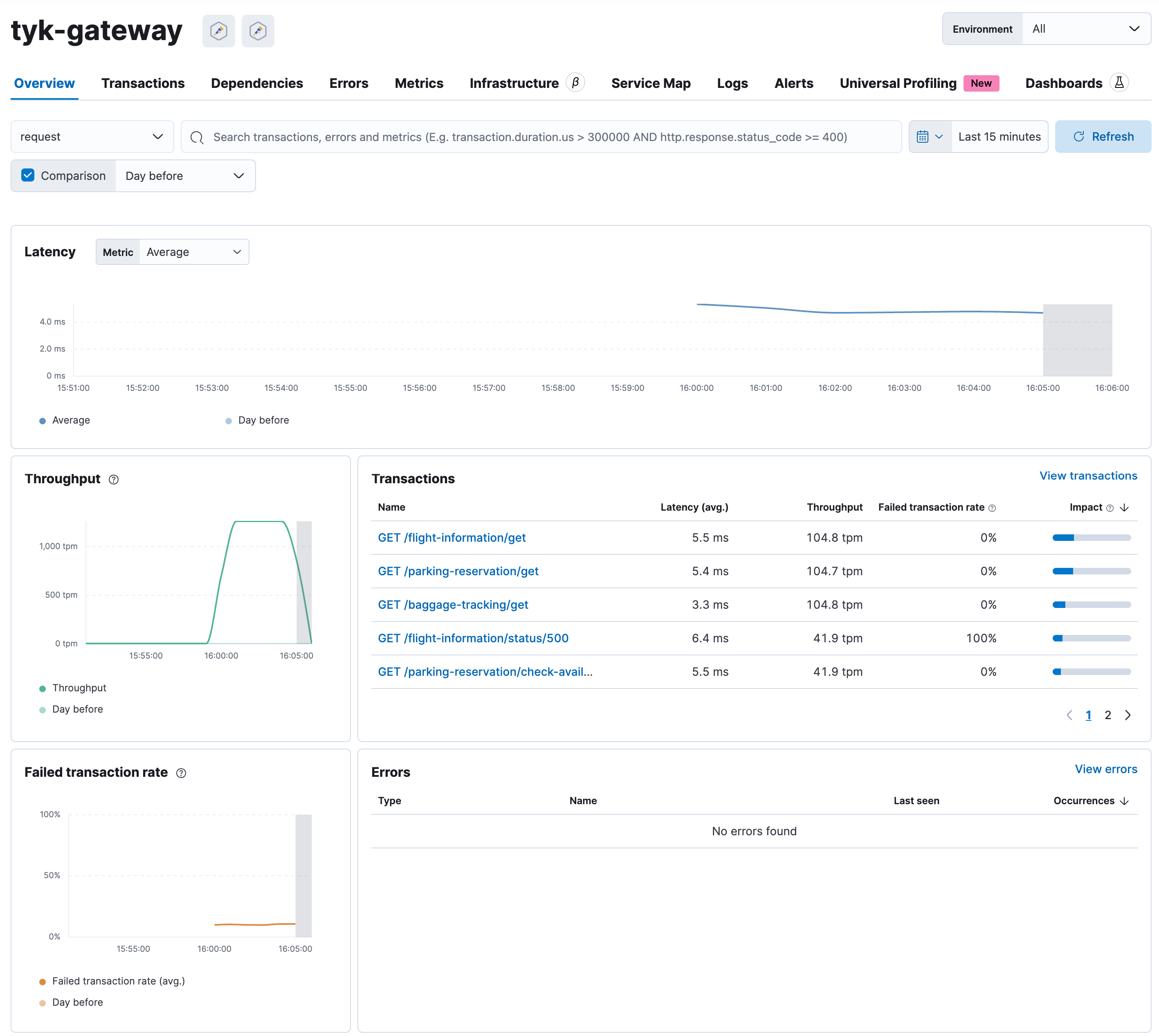 Select a transaction to view more details, including the distributed traces:
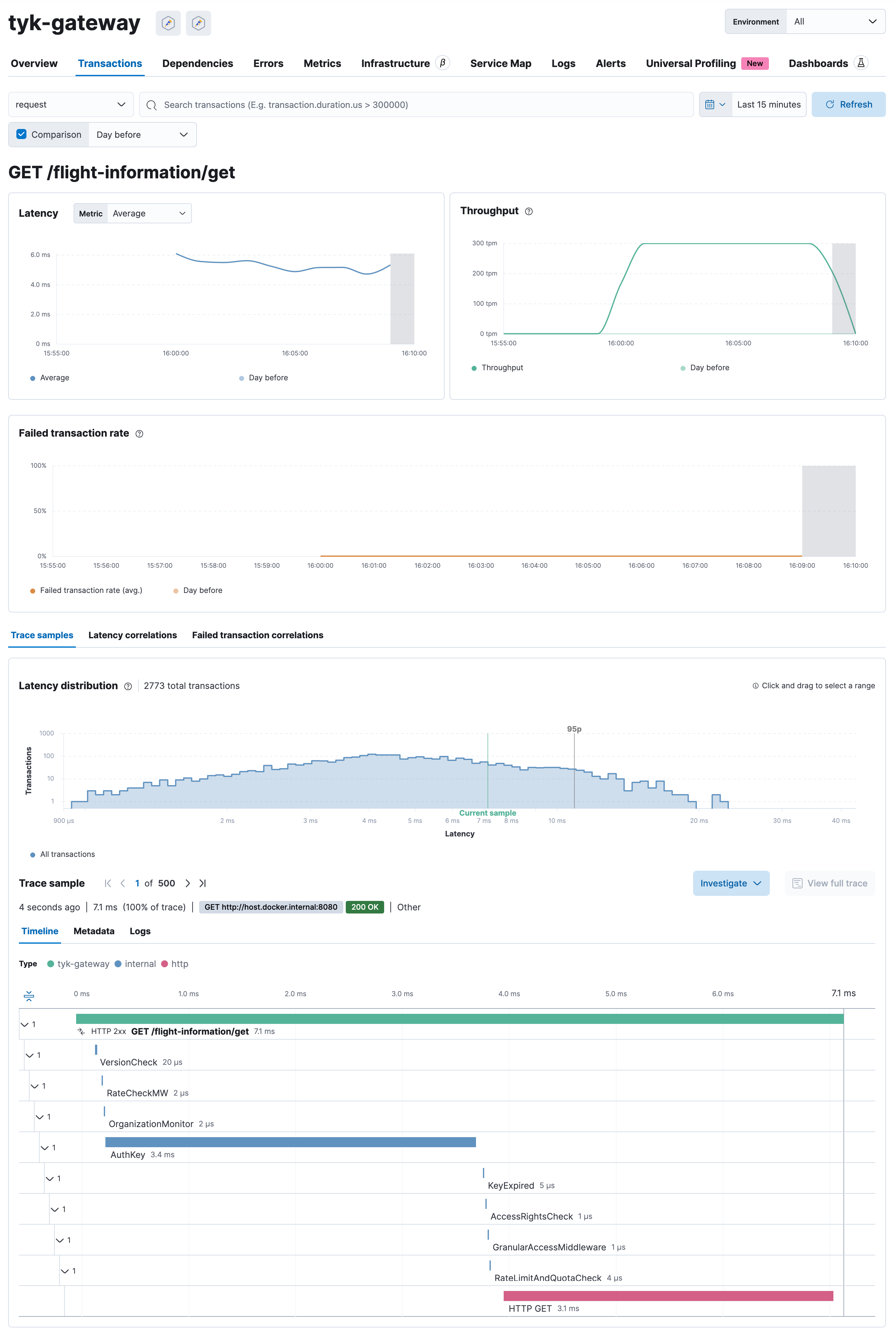 #### New Relic
This guide provides a step-by-step procedure to integrate New Relic with Tyk Gateway via the OpenTelemetry Collector. At the end of this guide, you will be able to visualize traces and metrics from your Tyk Gateway on the New Relic console.
##### Prerequisites
* [Docker installed on your machine](https://docs.docker.com/get-docker/)
* [New Relic Account](https://newrelic.com/)
* New Relic API Key
* Gateway v5.2.0 or higher
* OTel Collector [docker image](https://hub.docker.com/r/otel/opentelemetry-collector)
##### Steps for Configuration
1. **Obtain New Relic API Key**
1. Navigate to your New Relic Console.
2. Go to `Profile → API keys`.
3. Copy the key labeled as `INGEST-LICENSE`.
#### New Relic
This guide provides a step-by-step procedure to integrate New Relic with Tyk Gateway via the OpenTelemetry Collector. At the end of this guide, you will be able to visualize traces and metrics from your Tyk Gateway on the New Relic console.
##### Prerequisites
* [Docker installed on your machine](https://docs.docker.com/get-docker/)
* [New Relic Account](https://newrelic.com/)
* New Relic API Key
* Gateway v5.2.0 or higher
* OTel Collector [docker image](https://hub.docker.com/r/otel/opentelemetry-collector)
##### Steps for Configuration
1. **Obtain New Relic API Key**
1. Navigate to your New Relic Console.
2. Go to `Profile → API keys`.
3. Copy the key labeled as `INGEST-LICENSE`.
You can follow the [official New Relic documentation](https://docs.newrelic.com/docs/apis/intro-apis/new-relic-api-keys/) for more information.
**Example token:**
```bash theme={null}
93qwr27e49e168d3844c5h3d1e878a463f24NZJL
```
2. **Configuration Files**
**OTel Collector Configuration YAML**
1. Create a file named `otel-collector-config.yml` under the configs directory.
2. Copy the following template into that file:
```yaml theme={null}
receivers:
otlp:
protocols:
http:
endpoint: 0.0.0.0:4318
grpc:
endpoint: 0.0.0.0:4317
processors:
batch:
exporters:
otlphttp:
endpoint: ""
headers:
api-Key: ""
extensions:
health_check:
pprof:
endpoint: :1888
zpages:
endpoint: :55679
service:
extensions: [pprof, zpages, health_check]
pipelines:
traces:
receivers: [otlp]
processors: [batch]
exporters: [otlphttp]
```
* Replace `` with your specific New Relic endpoint (`https://otlp.nr-data.net` for US or `https://otlp.eu01.nr-data.net` for EU).
* Replace `` with the API key obtained in Step 1.
**Docker Compose configuration**
1. Create a file named docker-compose.yml at the root level of your project directory.
2. Paste the following code into that file:
```yaml theme={null}
version: "3.9"
services:
otel-collector:
image: otel/opentelemetry-collector:latest
volumes:
- ./otel-collector-config.yml:/etc/otel-collector.yml
command: ["--config=/etc/otel-collector.yml"]
networks:
- tyk
ports:
- "1888:1888" # pprof extension
- "13133:13133" # health_check extension
- "4317:4317" # OTLP gRPC receiver
- "4318:4318" # OTLP http receiver
- "55670:55679" # zpages extension
networks:
tyk:
```
Replace the variable fields with the relevant data.
3. **Testing and Verifying Traces**
1. Run `docker-compose up -d` to start all services.
2. Initialize your Tyk environment.
3. Create a simple `httpbin` API using Tyk Dashboard. You can follow the [Tyk Dashboard documentation](/5.9/api-management/gateway-config-managing-classic#create-an-api) for more information.
4. Send requests to the API using cURL or Postman.
5. Open New Relic Console.
6. Navigate to `APM & Services → Services - OpenTelemetry → tyk-gateway`.
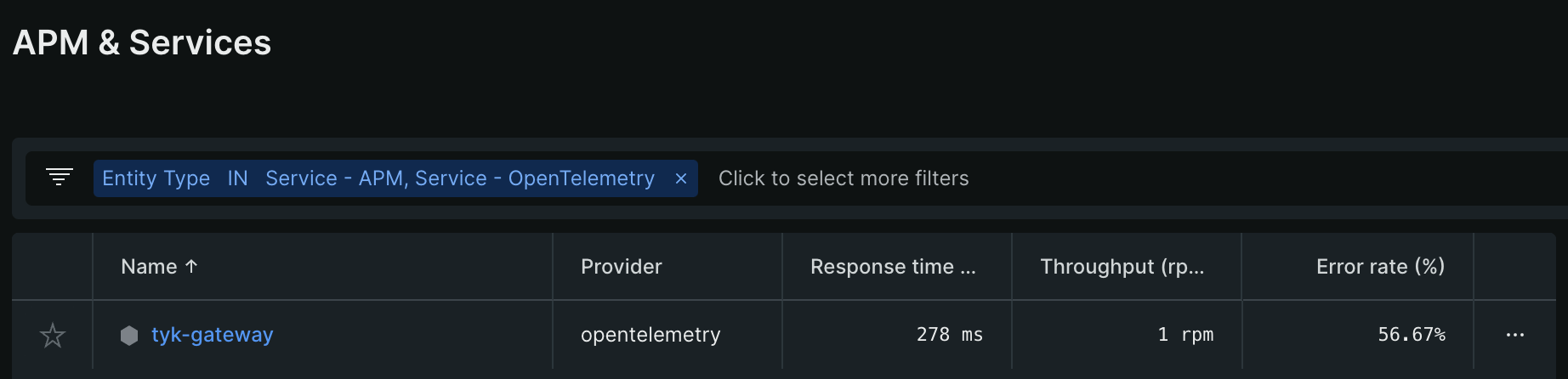 7. Wait for about 5 minutes for the data to populate.
Traces and graphs should now be visible on your New Relic console.
7. Wait for about 5 minutes for the data to populate.
Traces and graphs should now be visible on your New Relic console.
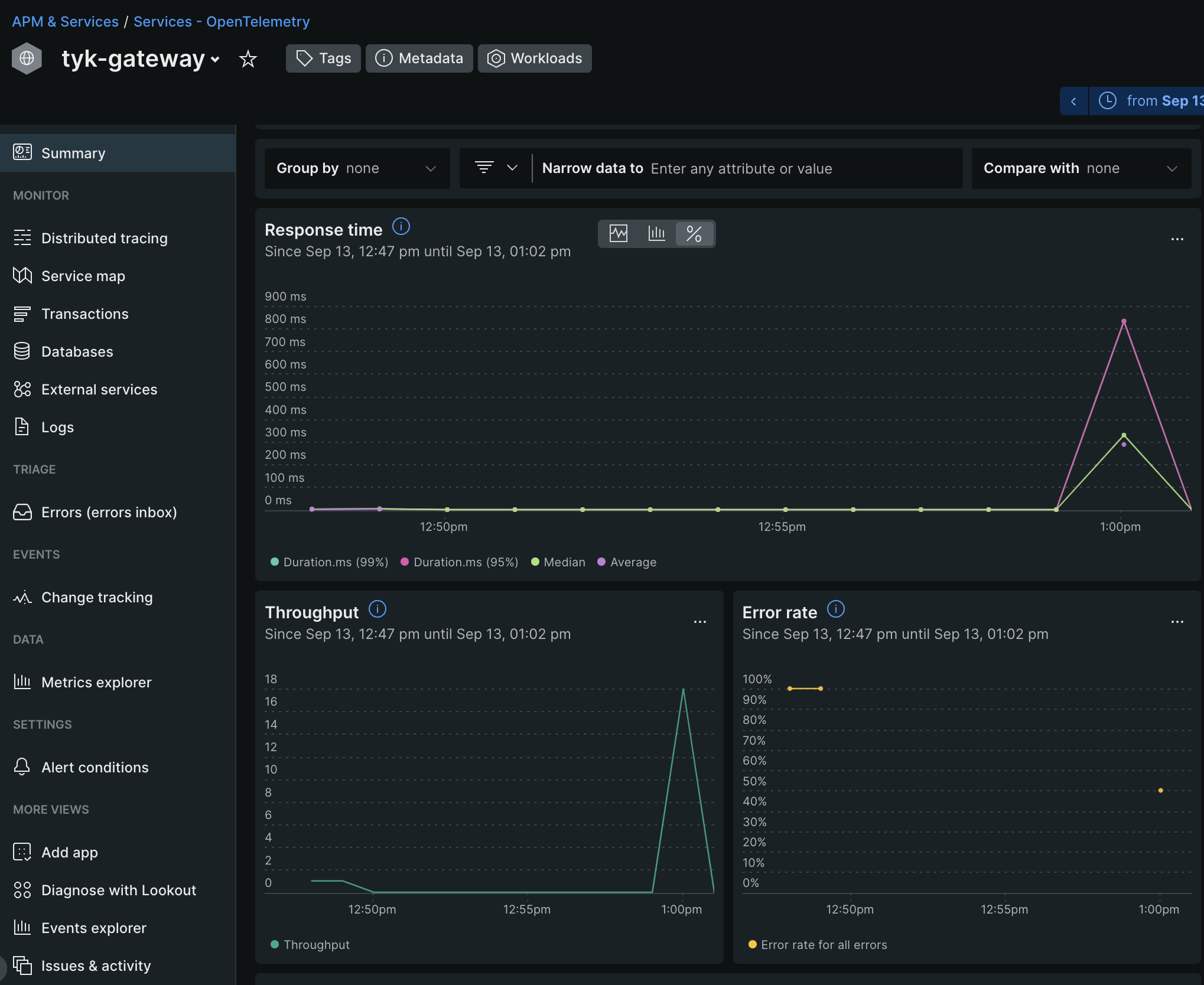
If traces are not showing, try refreshing the New Relic dashboard.
##### Troubleshooting
* If the traces aren't appearing, double-check your API key and endpoints.
* Ensure that your Tyk Gateway and New Relic are both running and connected.
##### Conclusion
You have successfully integrated New Relic with Tyk Gateway via the OpenTelemetry Collector. You can now monitor and trace your APIs directly from the New Relic console.
#### Jaeger
##### Using Docker
This quick start guide offers a detailed, step-by-step walkthrough for configuring Tyk API Gateway (OSS, self-managed or hybrid gateway connected to Tyk Cloud) with OpenTelemetry and [Jaeger](https://www.jaegertracing.io/) to significantly improve API observability. We will cover the installation of essential components, their configuration, and the process of ensuring seamless integration.
For Kubernetes instructions, please refer to [How to integrate with Jaeger on Kubernetes](/5.9/#using-kubernetes).
###### Prerequisites
Ensure the following prerequisites are met before proceeding:
* [Docker installed on your machine](https://docs.docker.com/get-docker/)
* Gateway v5.2.0 or higher
###### Steps for Configuration
1. **Create the Docker-Compose File for Jaeger**
Save the following YAML configuration in a file named docker-compose.yml:
```yaml theme={null}
version: "2"
services:
# Jaeger: Distributed Tracing System
jaeger-all-in-one:
image: jaegertracing/all-in-one:latest
ports:
- "16686:16686" # Jaeger UI
- "4317:4317" # OTLP receiver
```
This configuration sets up Jaeger's all-in-one instance with ports exposed for Jaeger UI and the OTLP receiver.
2. **Deploy a Test API Definition**
If you haven't configured any APIs yet, follow these steps:
* Create a subdirectory named apps in the current directory.
* Create a new file named `apidef-hello-world.json`.
* Copy the provided simple API definition below into the `apidef-hello-world.json` file:
```json theme={null}
{
"name": "Hello-World",
"slug": "hello-world",
"api_id": "Hello-World",
"org_id": "1",
"use_keyless": true,
"detailed_tracing": true,
"version_data": {
"not_versioned": true,
"versions": {
"Default": {
"name": "Default",
"use_extended_paths": true
}
}
},
"proxy": {
"listen_path": "/hello-world/",
"target_url": "http://httpbin.org/",
"strip_listen_path": true
},
"active": true
}
```
This API definition sets up a basic API named Hello-World for testing purposes, configured to proxy requests to `http://httpbin.org/`.
3. **Run Tyk Gateway OSS with OpenTelemetry Enabled**
To run Tyk Gateway with OpenTelemetry integration, extend the previous Docker Compose file to include Tyk Gateway and Redis services. Follow these steps:
* Add the following configuration to your existing docker-compose.yml file:
```yaml theme={null}
# ... Existing docker-compose.yml content for jaeger
tyk:
image: tykio/tyk-gateway:v5.2.0
ports:
- 8080:8080
environment:
- TYK_GW_OPENTELEMETRY_ENABLED=true
- TYK_GW_OPENTELEMETRY_EXPORTER=grpc
- TYK_GW_OPENTELEMETRY_ENDPOINT=jaeger-all-in-one:4317
volumes:
- ${TYK_APPS:-./apps}:/opt/tyk-gateway/apps
depends_on:
- redis
redis:
image: redis:4.0-alpine
ports:
- 6379:6379
command: redis-server --appendonly yes
```
* Navigate to the directory containing the docker-compose.yml file in your terminal.
* Execute the following command to start the services:
```bash theme={null}
docker compose up
```
4. **Explore OpenTelemetry Traces in Jaeger**
* Start by sending a few requests to the API endpoint configured in Step 2:
```bash theme={null}
curl http://localhost:8080/hello-world/ -i
```
* Access Jaeger at [http://localhost:16686](http://localhost:16686).
* In Jaeger's interface:
* Select the service named tyk-gateway.
* Click the *Find Traces* button.
You should observe traces generated by Tyk Gateway, showcasing the distributed tracing information.
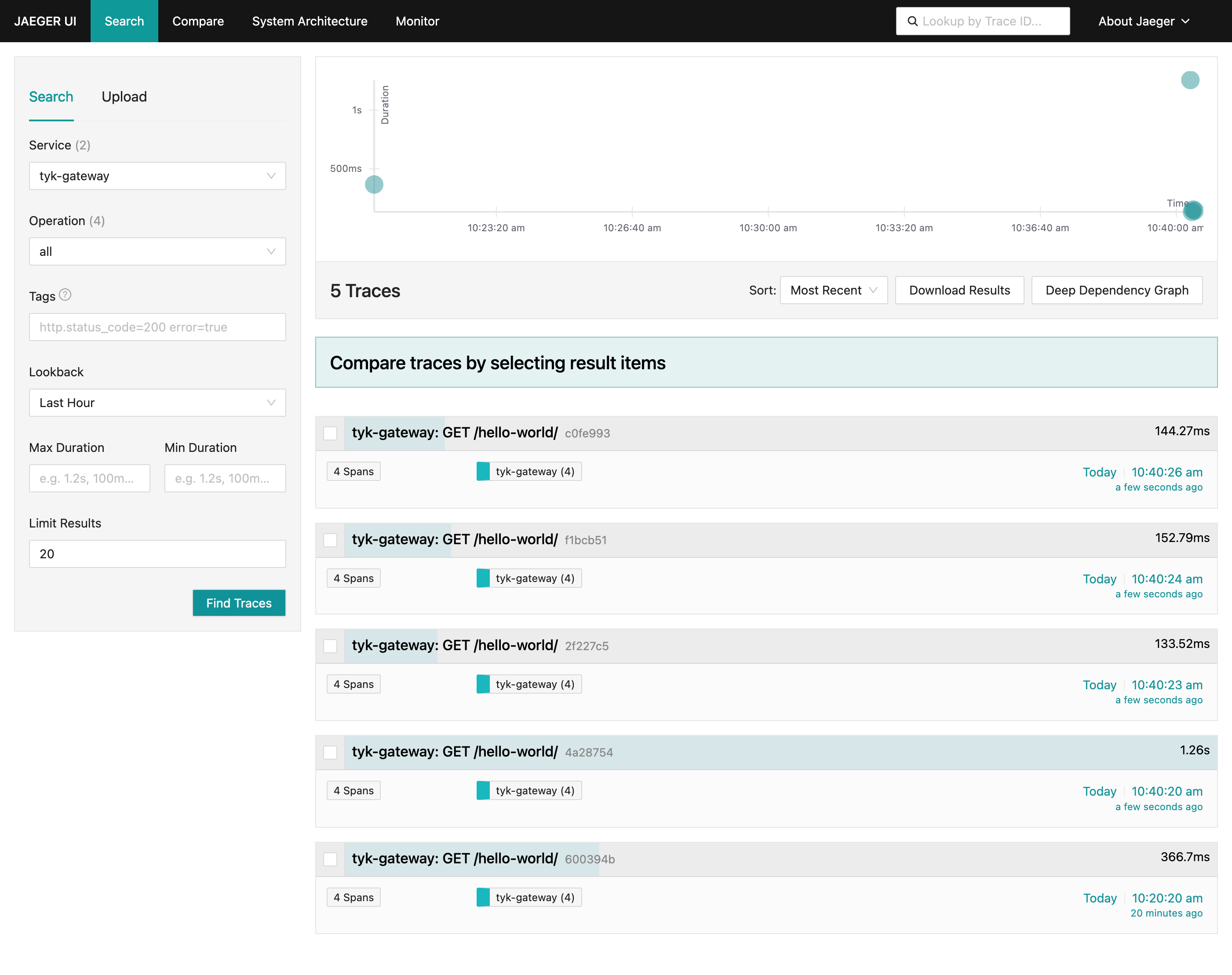 Select a trace to visualize its corresponding internal spans:
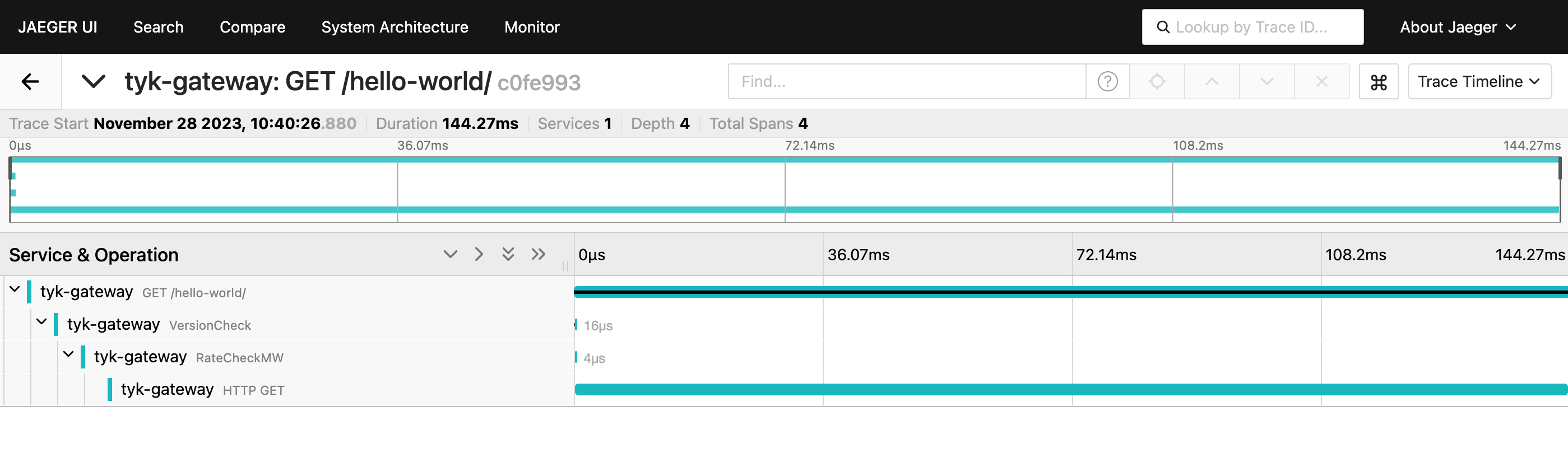 ##### Using Kubernetes
This quick start guide offers a detailed, step-by-step walkthrough for configuring Tyk Gateway OSS with OpenTelemetry and [Jaeger](https://www.jaegertracing.io/) on Kubernetes to significantly improve API observability. We will cover the installation of essential components, their configuration, and the process of ensuring seamless integration.
For Docker instructions, please refer to [How to integrate with Jaeger on Docker](/5.9/#using-docker).
###### Prerequisites
Ensure the following prerequisites are in place before proceeding:
* A functional Kubernetes cluster
* [kubectl](https://kubernetes.io/docs/tasks/tools/#kubectl) and [helm](https://helm.sh/docs/intro/install/) CLI tools installed
###### Steps for Configuration
1. **Install Jaeger Operator**
For the purpose of this tutorial, we will use jaeger-all-in-one, which includes the Jaeger agent, collector, query, and UI in a single pod with in-memory storage. This deployment is intended for development, testing, and demo purposes. Other deployment patterns can be found in the [Jaeger Operator documentation](https://www.jaegertracing.io/docs/1.51/operator/#deployment-strategies).
1. Install the cert-manager release manifest (required by Jaeger)
```bash theme={null}
kubectl apply -f https://github.com/cert-manager/cert-manager/releases/download/v1.13.2/cert-manager.yaml
```
2. Install [Jaeger Operator](https://www.jaegertracing.io/docs/1.51/operator/).
```bash theme={null}
kubectl create namespace observability
kubectl create -f https://github.com/jaegertracing/jaeger-operator/releases/download/v1.51.0/jaeger-operator.yaml -n observability
```
3. After the Jaeger Operator is deployed to the `observability` namespace, create a Jaeger instance:
```bash theme={null}
kubectl apply -n observability -f - <
Please make sure you are installing Redis versions that are supported by Tyk. Please refer to Tyk docs to get list of [supported versions](/5.9/tyk-self-managed/install#redis).
Tyk Gateway is now accessible through service gateway-svc-tyk-oss-tyk-gateway at port 8080 and exports the OpenTelemetry traces to the `jaeger-all-in-one-collector` service.
3. **Deploy Tyk Operator**
Deploy Tyk Operator to manage APIs in your cluster:
```bash theme={null}
kubectl create namespace tyk-operator-system
kubectl create secret -n tyk-operator-system generic tyk-operator-conf \
--from-literal "TYK_AUTH=$APISecret" \
--from-literal "TYK_ORG=org" \
--from-literal "TYK_MODE=ce" \
--from-literal "TYK_URL=http://gateway-svc-tyk-otel-tyk-gateway.tyk.svc:8080" \
--from-literal "TYK_TLS_INSECURE_SKIP_VERIFY=true"
helm install tyk-operator tyk-helm/tyk-operator -n tyk-operator-system
```
4. **Deploy a Test API Definition**
Save the following API definition as `apidef-hello-world.yaml`:
```yaml theme={null}
apiVersion: tyk.tyk.io/v1alpha1
kind: ApiDefinition
metadata:
name: hello-world
spec:
name: hello-world
use_keyless: true
protocol: http
active: true
proxy:
target_url: http://httpbin.org/
listen_path: /hello-world
strip_listen_path: true
```
To apply this API definition, run the following command:
```bash theme={null}
kubectl apply -f apidef-hello-world.yaml
```
This step deploys an API definition named hello-world using the provided configuration. It enables a keyless HTTP API proxying requests to [http://httpbin.org/](http://httpbin.org/) and accessible via the path /hello-world.
5. **Explore OpenTelemetry traces in Jaeger**
You can use the kubectl `port-forward command` to access Tyk and Jaeger services running in the cluster from your local machine's localhost:
For Tyk API Gateway:
```bash theme={null}
kubectl port-forward service/gateway-svc-tyk-otel-tyk-gateway 8080:8080 -n tyk
```
For Jaeger:
```bash theme={null}
kubectl port-forward service/jaeger-all-in-one-query 16686 -n observability
```
Begin by sending a few requests to the API endpoint configured in step 2:
```bash theme={null}
curl http://localhost:8080/hello-world/ -i
```
Next, navigate to Jaeger on `http://localhost:16686`, select the ´service´ called ´tyk-gateway´ and click on the button ´Find traces´. You should see traces generated by Tyk:
Click on a trace to view all its internal spans:
## OpenTracing (deprecated)
**Deprecation**
The CNCF (Cloud Native Foundation) has archived the OpenTracing project. This means that no new pull requests or feature requests are accepted into OpenTracing repositories.
We introduced support for [OpenTelemetry](/5.9/api-management/logs-metrics#opentelemetry) in Tyk v5.2. We recommend that users migrate to OpenTelemetry for better support of your tracing needs.
OpenTracing is now deprecated in Tyk products.
### OpenTracing tools with legacy Tyk integration
* [Jaeger](/5.9/api-management/logs-metrics#jaeger-1)
* [Zipkin](/5.9/api-management/logs-metrics#zipkin)
* [New Relic](/5.9/api-management/logs-metrics#new-relic-1)
### Enabling OpenTracing
OpenTracing can be configured at the Gateway level by adding the following configuration to your Gateway configuration (typically via the `tyk.conf` file or equivalent [environment variables](/5.9/tyk-oss-gateway/configuration).
```.json theme={null}
{
"tracing": {
"enabled": true,
"name": "${tracer_name}",
"options": {}
}
}
```
Where:
* `name` is the name of the supported tracer
* `enabled`: set this to true to enable tracing
* `options`: key/value pairs for configuring the enabled tracer. See the
supported tracer documentation for more details.
Tyk will automatically propagate tracing headers to APIs when tracing is enabled.
### Jaeger
Tyk's OpenTelemetry Tracing works with Jaeger and we recommend following our guide to [use OpenTelemetry with Jaeger](/5.9/api-management/logs-metrics#jaeger) rather than the following deprecated Open Tracing method.
Prior to Tyk 5.2, you cannot use OpenTelemetry and so must use [OpenTracing](https://opentracing.io/) with the [Jaeger client libraries](https://www.jaegertracing.io/docs/1.11/client-libraries/) to send Tyk Gateway traces to Jaeger.
**Configuring Jaeger**
In `tyk.conf` on `tracing` setting
```{.json} theme={null}
{
"tracing": {
"enabled": true,
"name": "jaeger",
"options": {}
}
}
```
`options` are settings that are used to initialise the Jaeger client. For more details about the options [see client libraries](https://www.jaegertracing.io/docs/1.11/client-libraries/)
**Sample configuration**
```{.json} theme={null}
{
"tracing": {
"enabled": true,
"name": "jaeger",
"options": {
"baggage_restrictions": null,
"disabled": false,
"headers": null,
"reporter": {
"BufferFlushInterval": "0s",
"collectorEndpoint": "",
"localAgentHostPort": "jaeger:6831",
"logSpans": true,
"password": "",
"queueSize": 0,
"user": ""
},
"rpc_metrics": false,
"sampler": {
"maxOperations": 0,
"param": 1,
"samplingRefreshInterval": "0s",
"samplingServerURL": "",
"type": "const"
},
"serviceName": "tyk-gateway",
"tags": null,
"throttler": null
}
}
}
```
### New Relic
Tyk's OpenTelemetry Tracing works with New Relic and we recommend following our guide to [use OpenTelemetry with New Relic](/5.9/api-management/logs-metrics#new-relic) rather than the following deprecated Open Tracing method.
Prior to Tyk 5.2, you cannot use OpenTelemetry and so must use [OpenTracing](https://opentracing.io/) to send Tyk Gateway traces to [*New Relic*](https://newrelic.com/) using the *Zipkin* format.
##### Using Kubernetes
This quick start guide offers a detailed, step-by-step walkthrough for configuring Tyk Gateway OSS with OpenTelemetry and [Jaeger](https://www.jaegertracing.io/) on Kubernetes to significantly improve API observability. We will cover the installation of essential components, their configuration, and the process of ensuring seamless integration.
For Docker instructions, please refer to [How to integrate with Jaeger on Docker](/5.9/#using-docker).
###### Prerequisites
Ensure the following prerequisites are in place before proceeding:
* A functional Kubernetes cluster
* [kubectl](https://kubernetes.io/docs/tasks/tools/#kubectl) and [helm](https://helm.sh/docs/intro/install/) CLI tools installed
###### Steps for Configuration
1. **Install Jaeger Operator**
For the purpose of this tutorial, we will use jaeger-all-in-one, which includes the Jaeger agent, collector, query, and UI in a single pod with in-memory storage. This deployment is intended for development, testing, and demo purposes. Other deployment patterns can be found in the [Jaeger Operator documentation](https://www.jaegertracing.io/docs/1.51/operator/#deployment-strategies).
1. Install the cert-manager release manifest (required by Jaeger)
```bash theme={null}
kubectl apply -f https://github.com/cert-manager/cert-manager/releases/download/v1.13.2/cert-manager.yaml
```
2. Install [Jaeger Operator](https://www.jaegertracing.io/docs/1.51/operator/).
```bash theme={null}
kubectl create namespace observability
kubectl create -f https://github.com/jaegertracing/jaeger-operator/releases/download/v1.51.0/jaeger-operator.yaml -n observability
```
3. After the Jaeger Operator is deployed to the `observability` namespace, create a Jaeger instance:
```bash theme={null}
kubectl apply -n observability -f - <
Please make sure you are installing Redis versions that are supported by Tyk. Please refer to Tyk docs to get list of [supported versions](/5.9/tyk-self-managed/install#redis).
Tyk Gateway is now accessible through service gateway-svc-tyk-oss-tyk-gateway at port 8080 and exports the OpenTelemetry traces to the `jaeger-all-in-one-collector` service.
3. **Deploy Tyk Operator**
Deploy Tyk Operator to manage APIs in your cluster:
```bash theme={null}
kubectl create namespace tyk-operator-system
kubectl create secret -n tyk-operator-system generic tyk-operator-conf \
--from-literal "TYK_AUTH=$APISecret" \
--from-literal "TYK_ORG=org" \
--from-literal "TYK_MODE=ce" \
--from-literal "TYK_URL=http://gateway-svc-tyk-otel-tyk-gateway.tyk.svc:8080" \
--from-literal "TYK_TLS_INSECURE_SKIP_VERIFY=true"
helm install tyk-operator tyk-helm/tyk-operator -n tyk-operator-system
```
4. **Deploy a Test API Definition**
Save the following API definition as `apidef-hello-world.yaml`:
```yaml theme={null}
apiVersion: tyk.tyk.io/v1alpha1
kind: ApiDefinition
metadata:
name: hello-world
spec:
name: hello-world
use_keyless: true
protocol: http
active: true
proxy:
target_url: http://httpbin.org/
listen_path: /hello-world
strip_listen_path: true
```
To apply this API definition, run the following command:
```bash theme={null}
kubectl apply -f apidef-hello-world.yaml
```
This step deploys an API definition named hello-world using the provided configuration. It enables a keyless HTTP API proxying requests to [http://httpbin.org/](http://httpbin.org/) and accessible via the path /hello-world.
5. **Explore OpenTelemetry traces in Jaeger**
You can use the kubectl `port-forward command` to access Tyk and Jaeger services running in the cluster from your local machine's localhost:
For Tyk API Gateway:
```bash theme={null}
kubectl port-forward service/gateway-svc-tyk-otel-tyk-gateway 8080:8080 -n tyk
```
For Jaeger:
```bash theme={null}
kubectl port-forward service/jaeger-all-in-one-query 16686 -n observability
```
Begin by sending a few requests to the API endpoint configured in step 2:
```bash theme={null}
curl http://localhost:8080/hello-world/ -i
```
Next, navigate to Jaeger on `http://localhost:16686`, select the ´service´ called ´tyk-gateway´ and click on the button ´Find traces´. You should see traces generated by Tyk:
Click on a trace to view all its internal spans:
## OpenTracing (deprecated)
**Deprecation**
The CNCF (Cloud Native Foundation) has archived the OpenTracing project. This means that no new pull requests or feature requests are accepted into OpenTracing repositories.
We introduced support for [OpenTelemetry](/5.9/api-management/logs-metrics#opentelemetry) in Tyk v5.2. We recommend that users migrate to OpenTelemetry for better support of your tracing needs.
OpenTracing is now deprecated in Tyk products.
### OpenTracing tools with legacy Tyk integration
* [Jaeger](/5.9/api-management/logs-metrics#jaeger-1)
* [Zipkin](/5.9/api-management/logs-metrics#zipkin)
* [New Relic](/5.9/api-management/logs-metrics#new-relic-1)
### Enabling OpenTracing
OpenTracing can be configured at the Gateway level by adding the following configuration to your Gateway configuration (typically via the `tyk.conf` file or equivalent [environment variables](/5.9/tyk-oss-gateway/configuration).
```.json theme={null}
{
"tracing": {
"enabled": true,
"name": "${tracer_name}",
"options": {}
}
}
```
Where:
* `name` is the name of the supported tracer
* `enabled`: set this to true to enable tracing
* `options`: key/value pairs for configuring the enabled tracer. See the
supported tracer documentation for more details.
Tyk will automatically propagate tracing headers to APIs when tracing is enabled.
### Jaeger
Tyk's OpenTelemetry Tracing works with Jaeger and we recommend following our guide to [use OpenTelemetry with Jaeger](/5.9/api-management/logs-metrics#jaeger) rather than the following deprecated Open Tracing method.
Prior to Tyk 5.2, you cannot use OpenTelemetry and so must use [OpenTracing](https://opentracing.io/) with the [Jaeger client libraries](https://www.jaegertracing.io/docs/1.11/client-libraries/) to send Tyk Gateway traces to Jaeger.
**Configuring Jaeger**
In `tyk.conf` on `tracing` setting
```{.json} theme={null}
{
"tracing": {
"enabled": true,
"name": "jaeger",
"options": {}
}
}
```
`options` are settings that are used to initialise the Jaeger client. For more details about the options [see client libraries](https://www.jaegertracing.io/docs/1.11/client-libraries/)
**Sample configuration**
```{.json} theme={null}
{
"tracing": {
"enabled": true,
"name": "jaeger",
"options": {
"baggage_restrictions": null,
"disabled": false,
"headers": null,
"reporter": {
"BufferFlushInterval": "0s",
"collectorEndpoint": "",
"localAgentHostPort": "jaeger:6831",
"logSpans": true,
"password": "",
"queueSize": 0,
"user": ""
},
"rpc_metrics": false,
"sampler": {
"maxOperations": 0,
"param": 1,
"samplingRefreshInterval": "0s",
"samplingServerURL": "",
"type": "const"
},
"serviceName": "tyk-gateway",
"tags": null,
"throttler": null
}
}
}
```
### New Relic
Tyk's OpenTelemetry Tracing works with New Relic and we recommend following our guide to [use OpenTelemetry with New Relic](/5.9/api-management/logs-metrics#new-relic) rather than the following deprecated Open Tracing method.
Prior to Tyk 5.2, you cannot use OpenTelemetry and so must use [OpenTracing](https://opentracing.io/) to send Tyk Gateway traces to [*New Relic*](https://newrelic.com/) using the *Zipkin* format.
**Configuring New Relic**
In `tyk.conf` under the `tracing` section
```.json theme={null}
{
"tracing": {
"enabled": true,
"name": "zipkin",
"options": {}
}
}
```
In the `options` setting you can set the initialisation of the *Zipkin* client.
**Sample configuration**
```.json theme={null}
{
"tracing": {
"enabled": true,
"name": "zipkin",
"options": {
"reporter": {
"url": "https://trace-api.newrelic.com/trace/v1?Api-Key=NEW_RELIC_LICENSE_KEY&Data-Format=zipkin&Data-Format-Version=2"
}
}
}
}
```
`reporter.url` is the URL to the *New Relic* server, where trace data will be sent to.
### Zipkin
Prior to Tyk 5.2, you cannot use OpenTelemetry and so must use [OpenTracing](https://opentracing.io/) with the [Zipkin Go tracer](https://zipkin.io/pages/tracers_instrumentation) to send Tyk Gateway traces to Zipkin.
**Configuring Zipkin**
In `tyk.conf` on `tracing` setting
```{.json} theme={null}
{
"tracing": {
"enabled": true,
"name": "zipkin",
"options": {}
}
}
```
`options` are settings that are used to initialise the Zipkin client.
**Sample configuration**
```{.json} theme={null}
{
"tracing": {
"enabled": true,
"name": "zipkin",
"options": {
"reporter": {
"url": "http:localhost:9411/api/v2/spans"
}
}
}
}
```
`reporter.url` is the URL to the Zipkin server, where trace data will be sent.