> ## Documentation Index
> Fetch the complete documentation index at: https://tyk.io/docs/llms.txt
> Use this file to discover all available pages before exploring further.
# Manage Catalogs
> How to configure Catalogs in Tyk developer portal
## Introduction
Catalogs are a way for you to tailor the audience for API products and Plans. You can, for example create a Partner Catalog, with a specific API product tailored to them and a preferential plan not available in your public portal.
In this section, you will learn about how catalogs work and how to create a new catalog to expose your API products and plans.
**Prerequisites**
* Connect to a provider [Tyk Self-Managed](/5.8/portal/overview/getting-started#connect-to-a-provider)
* Create [policies with enforced access rights](/5.8/portal/overview/getting-started#create-api-products-and-plans) (API Product in the Portal)
* Create one or more [policies with enforced rate limit and quotas](/5.8/portal/overview/getting-started#create-api-products-and-plans) (Plan in the Portal)
## Create a New Catalog
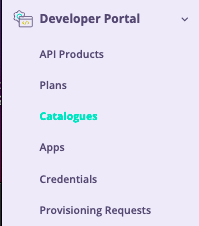
1. Navigate to the **Catalog section** section
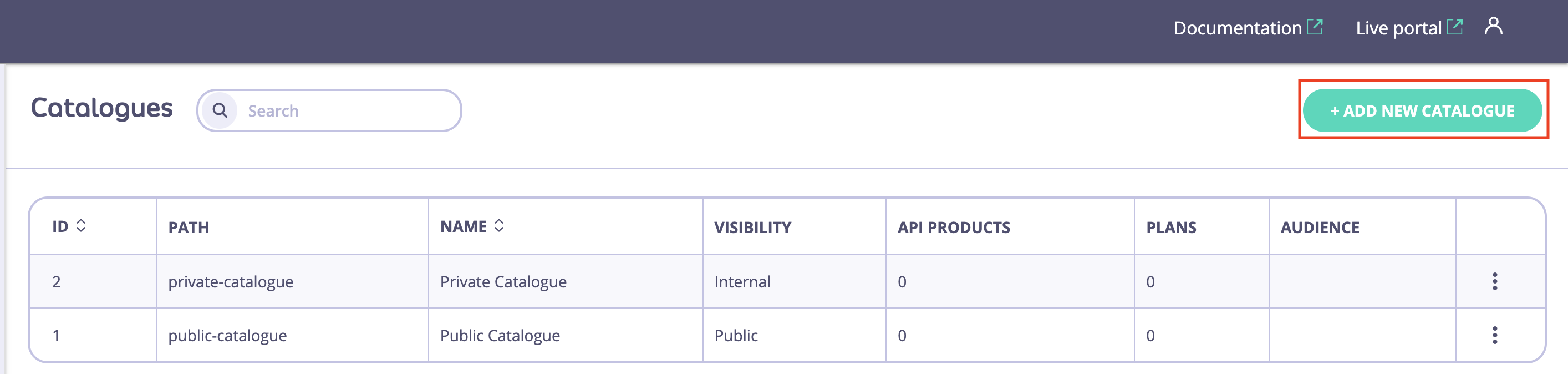
 2. Click Create a new catalog
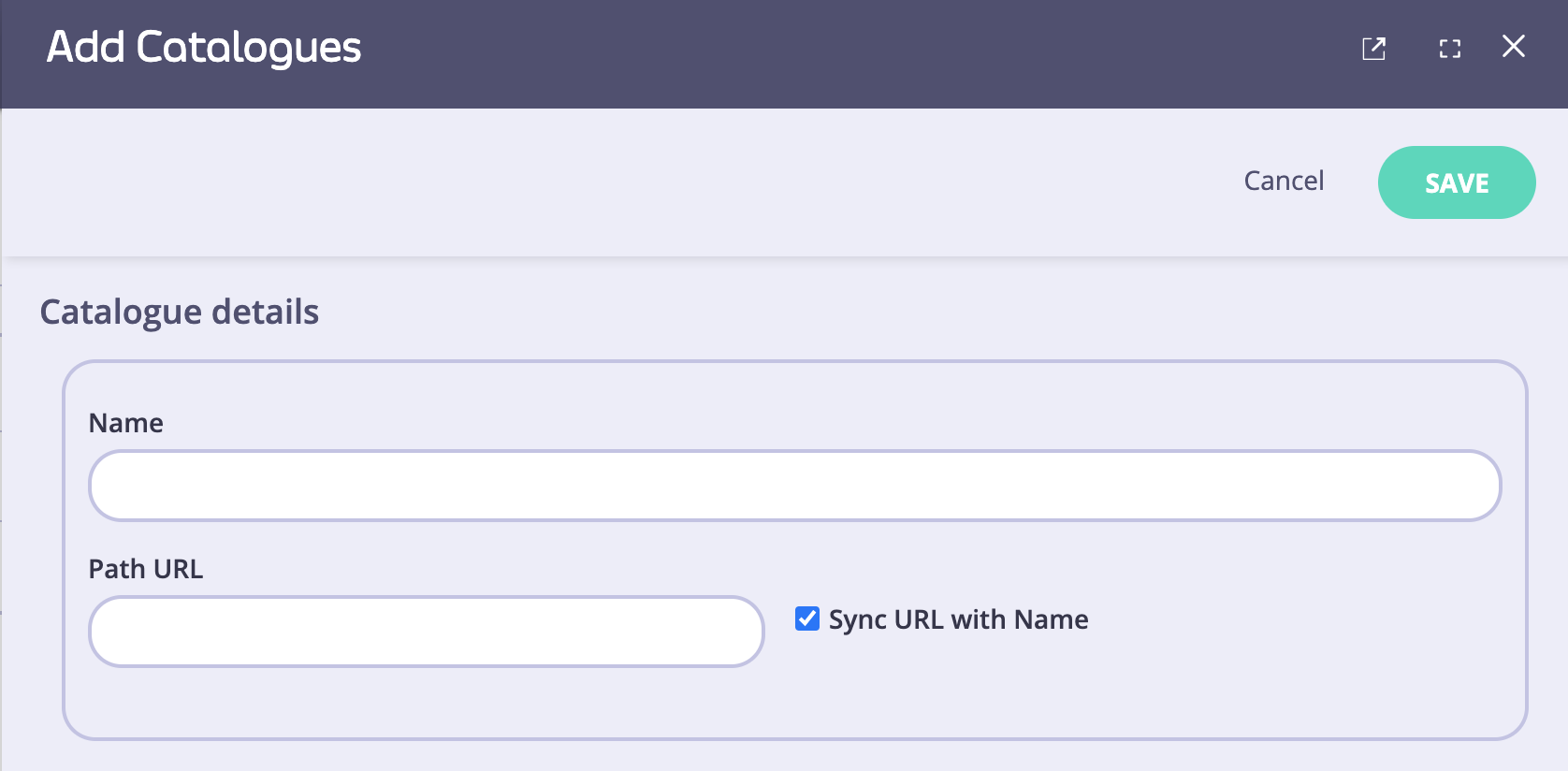
 3. Enter Name and Path URL
 4. Set the access required for the catalog e.g. Public, Private or Custom
* Public: External developers can access the catalog
* Private: The catalog is only visible to developers that are logged in
* Custom: Only selected teams can access this catalog
5. \[If creating a custom catalog] Under Audience, select one or multiple teams that you want to have access to this catalog.
For this audience to apply, the visibility needs to be set to custom.
6. Select the catalog content in terms of which API Products and plans this catalog should contain.
4. Set the access required for the catalog e.g. Public, Private or Custom
* Public: External developers can access the catalog
* Private: The catalog is only visible to developers that are logged in
* Custom: Only selected teams can access this catalog
5. \[If creating a custom catalog] Under Audience, select one or multiple teams that you want to have access to this catalog.
For this audience to apply, the visibility needs to be set to custom.
6. Select the catalog content in terms of which API Products and plans this catalog should contain.