> ## Documentation Index
> Fetch the complete documentation index at: https://tyk.io/docs/llms.txt
> Use this file to discover all available pages before exploring further.
# Manage Users
> How to manage users in Tyk developer portal
## Register a New API User
Developers need to register with the portal to access API Products and manage their applications. This section outlines how developers can register with the portal, access API Products, and reset their passwords if needed.
There are two ways for registering a new account
1. Self signup via the form.
2. Receive an invitation from the portal admin.
Here you’ll learn about how to add and invite a new external user to the developer portal.
**Prerequisites**
* A Tyk portal installation
* Log in to the portal admin app
## Self Registration/Signup
To use the self sign up flow, you’ll need to:
1. Access the Portal and click **REGISTER**.
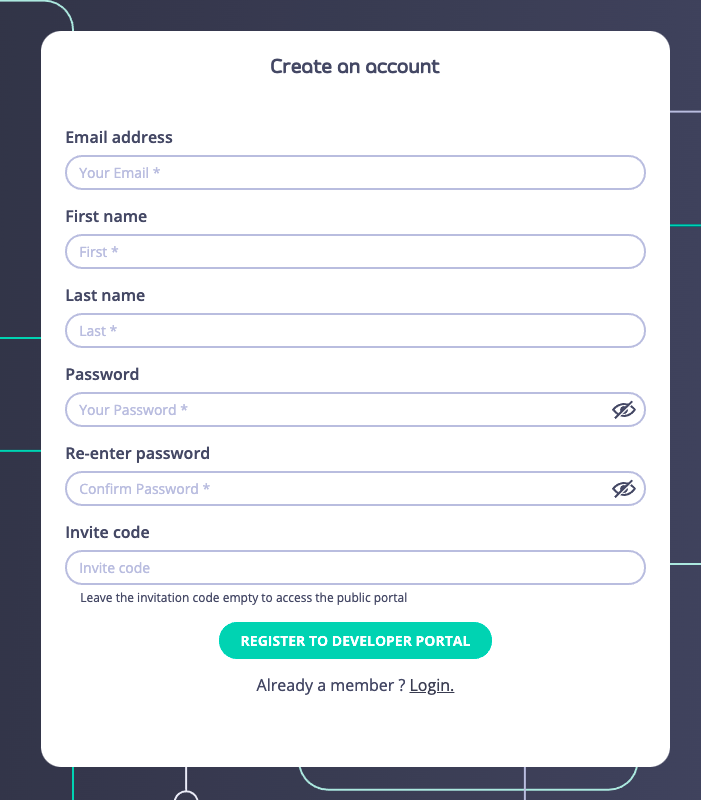
 2. Complete the **Create an Account** form.
 3. Click **Register to developer portal**.
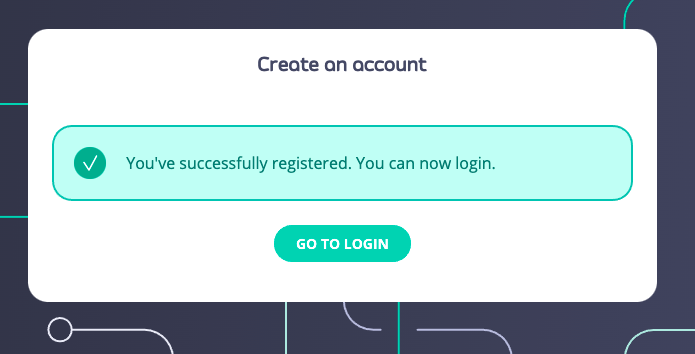
4. If the portal allows signup without approval, you'll get a message that allows you to log in straight away.
3. Click **Register to developer portal**.
4. If the portal allows signup without approval, you'll get a message that allows you to log in straight away.
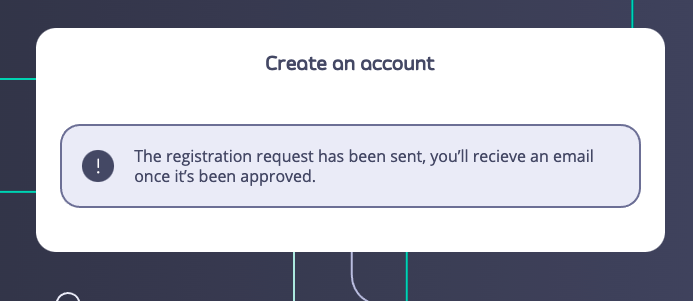
 5. If the portal requires an admin to approve a registration request, after submitting the **Create an Account** form, you will get the following message.
 ## Invite a New User
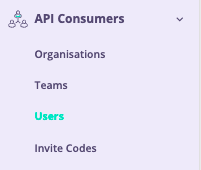
1. From the **API Consumers > Users** menu Click **Add new user**.
## Invite a New User
1. From the **API Consumers > Users** menu Click **Add new user**.
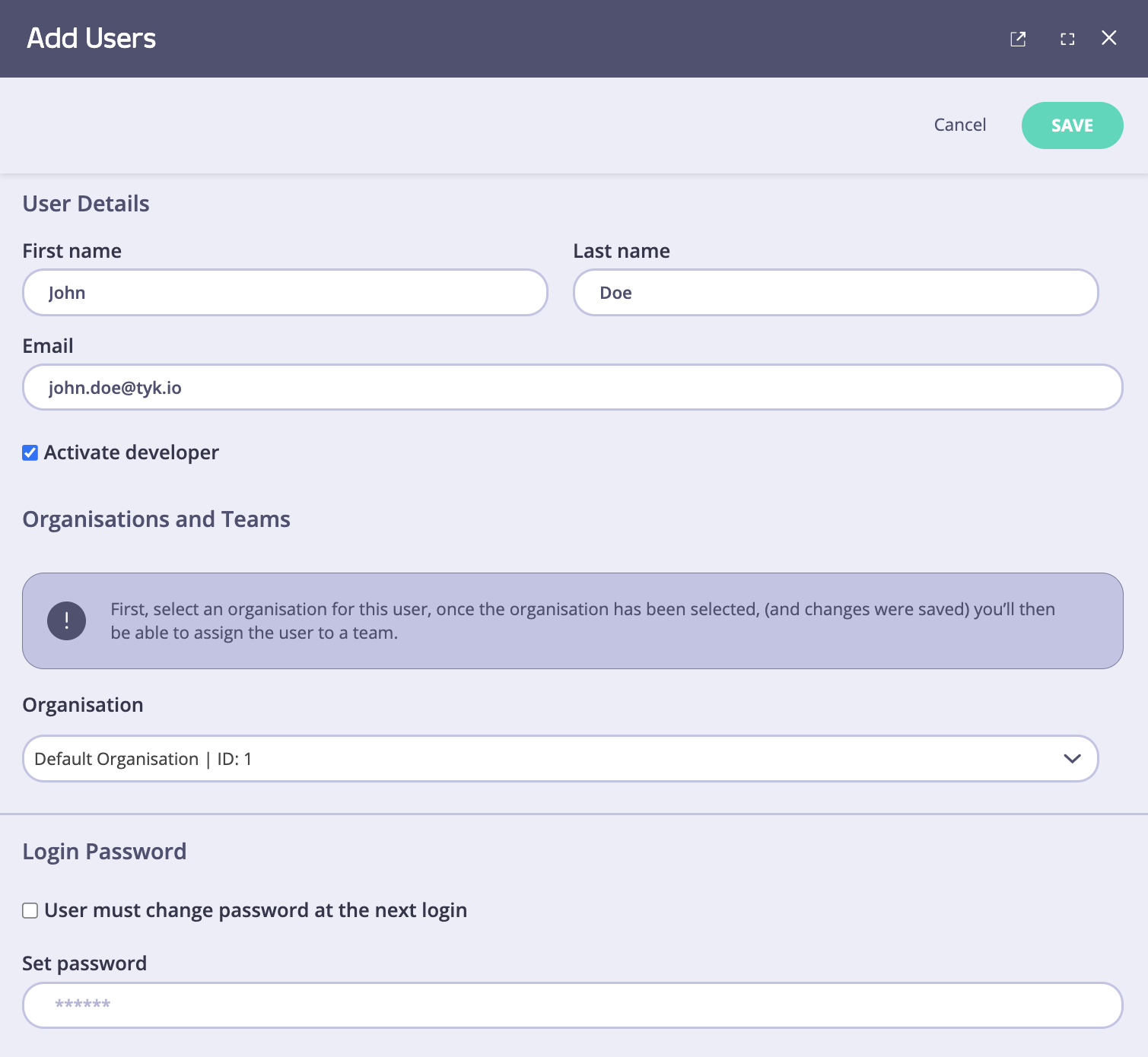
 2. In the **Add user** dialog, enter **First** and **Last** names, and **Email**.
3. Select an organization to which to register your user.
4. You can also set a password for a user by typing it in the **Set password** field. Check the **User must change password at the next login** if you wish your developer to change their password at next login.
Please note, that you can either send the invite email or set the password yourself, but you cannot use both methods.
2. In the **Add user** dialog, enter **First** and **Last** names, and **Email**.
3. Select an organization to which to register your user.
4. You can also set a password for a user by typing it in the **Set password** field. Check the **User must change password at the next login** if you wish your developer to change their password at next login.
Please note, that you can either send the invite email or set the password yourself, but you cannot use both methods.
 5. Click **Save** to add your user.
6. To generate the invite email, click **More Options** in the Overview section and then **Send invite**.
The user will receive an email with a link to the registration form. This option is only available if you didn't set the password before.
To customize the invite email, please refer to the [Email customization section](/5.8/portal/customization/email-notifications) for guidance.
5. Click **Save** to add your user.
6. To generate the invite email, click **More Options** in the Overview section and then **Send invite**.
The user will receive an email with a link to the registration form. This option is only available if you didn't set the password before.
To customize the invite email, please refer to the [Email customization section](/5.8/portal/customization/email-notifications) for guidance.
 ## Approve Self Registering Requests
## Manual Approval
This section explains how to approve/reject external users self-registering requests to the developer portal. Follow the step-by-step guide.
**Prerequisites**
A Tyk Enterprise portal installation
**Step by step instructions**
1. Click *Users* from the **API Consumers** menu
2. When a new user has self-registered to access the developer portal, their user profile will be added to the overview in the **Users** section.
## Approve Self Registering Requests
## Manual Approval
This section explains how to approve/reject external users self-registering requests to the developer portal. Follow the step-by-step guide.
**Prerequisites**
A Tyk Enterprise portal installation
**Step by step instructions**
1. Click *Users* from the **API Consumers** menu
2. When a new user has self-registered to access the developer portal, their user profile will be added to the overview in the **Users** section.
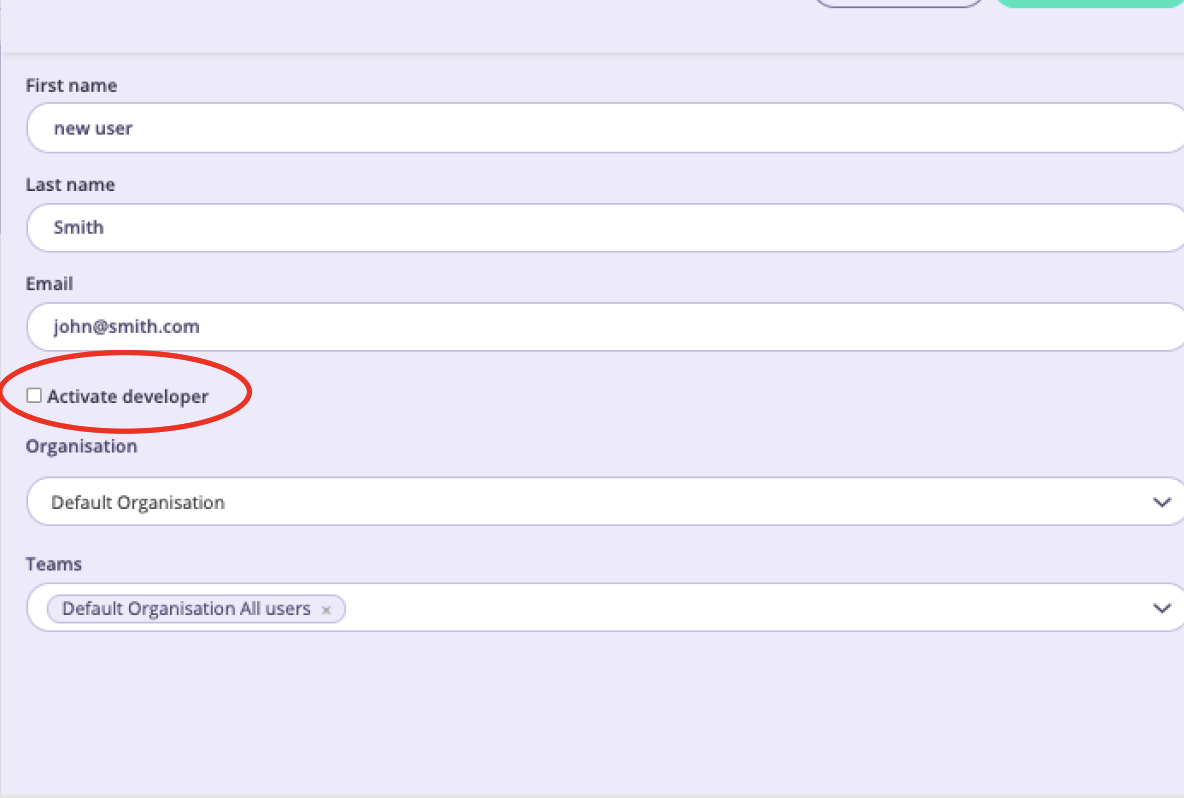
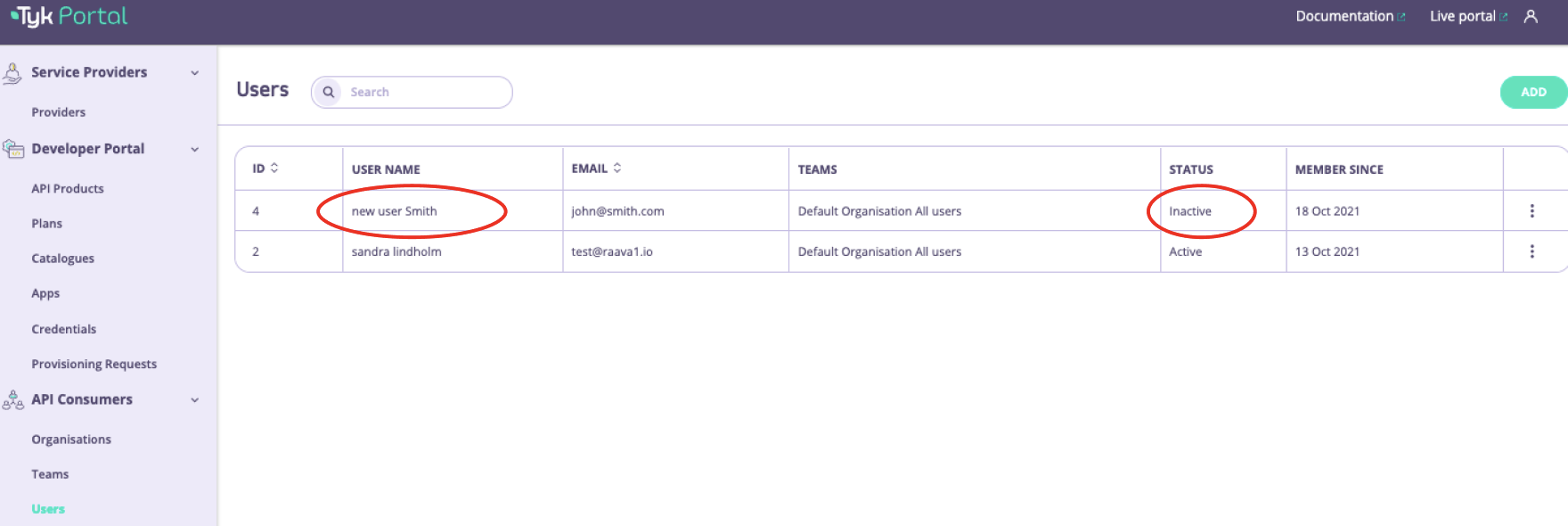 3. To approve a user, click on an **inactive** user. Select **Activate developer** from the dialog.
 ## Automatically Approve User Registrations
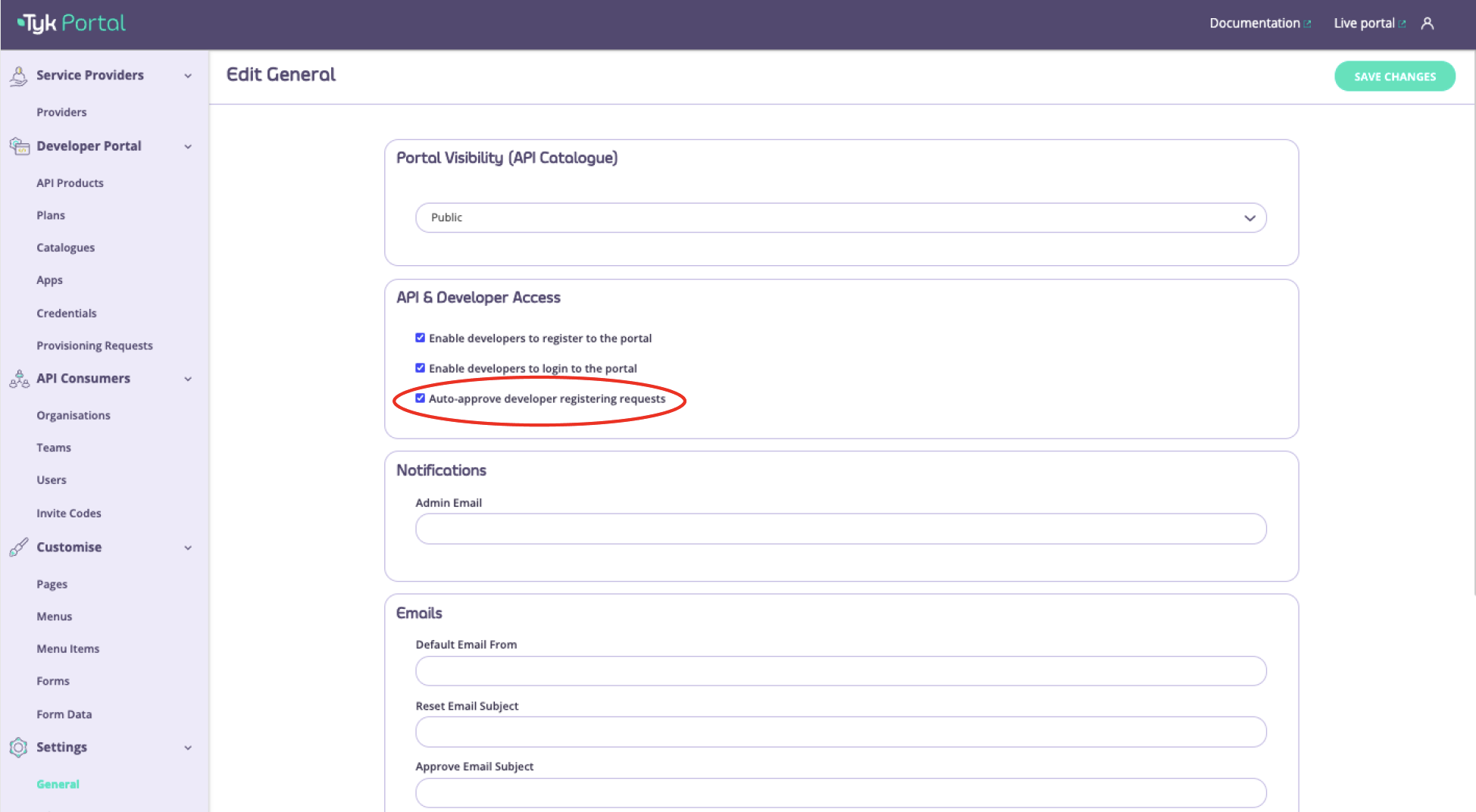
If you want all Users to be automatically approved this setting can be changed under **Settings > General**. Select **Auto approve developer regestering requests**.
## Automatically Approve User Registrations
If you want all Users to be automatically approved this setting can be changed under **Settings > General**. Select **Auto approve developer regestering requests**.